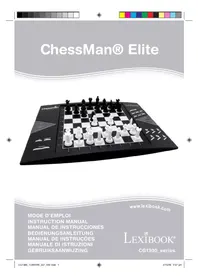
USER MANUAL CG1330 LEXIBOOK
| A1 | B1 | C1 | D1 | E1 | F1 | G1 | H1 |
| 300 sec. | 200 sec. | 120 sec. | 60 sec. | 40 sec. | 20 sec. | 10 sec. | 5 sec. |
Step 1 - Insert 3 AA batteries (not included) at the back of the unit observing the polarities. Follow the instructions given in the user guide in the power source section of your user guide.
Step 2 - Remove the chess pieces from their storage compartments (one for each player or colour). Place all the pieces into their starting positions (white pieces on rows 1&2 Blue pieces rows 7 & 8) and press the on switch to power on the unit. Press N E W GAME to start playing.
Step 3 - To make a move, pick up the chosen piece and using its edge lightly press down on the centre of the square to confirm the chosen piece. Then place it on the desired square lightly pressing on the centre.
Step 4 - If an illegal move is made the question mark (?) sign is displayed and another move has to be made.
Step 5 - The game is finished when check mate is reached indicated by the lighted "check mate" LED.
For more details on the use of this game, play chess and chess tips, read the complete user guide below. Have fun!
INTRODUCTION
Congratulations for this purchase of the Chessman® FX Elite. The features of this electronic interactive chessboard will amaze you:
Sound effects to give feedback and bring the game alive.
- LED animation to enhance the chess experience.
- 64 different levels of difficulty and 4 different playing styles (normal, aggressive, defensive, and random).
- Sensory playing board and LED's -- registers moves automatically when the pieces are pressed down on the FROM and TO squares.
- Learning feature -- gives positive feedback by telling you whenever you make a good move.
- Hint feature -- the computer gives advice on what to do.
- Speed Chess brings a new twist to the classic game.
- Take back feature -- it is possible to undo mistakes and take back the last two moves.
- Move feature -- learn by watching the computer play against itself.
- Set Up feature to program moves for solving problem.
- Detects mates, stalemates, draw by 50-move rule and draw by repetition.
- Knows how to mate with king and queen against king, king and rook against king, and king and two bishops against king.
- Thinks in the opponent's time on the normal playing levels.
- Mate problem level -- solves mate problems up to mate in 5 moves.
I. POWER SUPPLY
This chess computer requires 3 × 1.5V AA batteries or a 9V 300mA games adapter with a positive centre - . Only use batteries or adapter of the same or equivalent types as recommended.
Battery installation
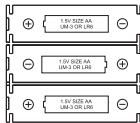
- Open the battery compartment by using screwdriver.
- Insert 3 × AA batteries according to the polarity indicated in the bottom of the compartment.
- Close the battery compartment. You will then hear a start up tune. If this does not happen, open the compartment again and check that the batteries are fitted correctly.
Important Precautions:
Replace batteries as per the instructions above; failure to do so may lead to the loss of information stored in the unit's memory. Non-rechargeable batteries should not be recharged. Do not use rechargeable batteries. Batteries should be inserted with the correct polarity. Exhausted batteries should be removed from the unit. The supply terminals should not be short-circuited. Do not mix old and new batteries. Do not mix alkaline,standard (carbon-zinc) or rechargeable (nickel-cadmium) batteries. Do not bury or burn used batteries. Use alkaline batteries for best performance and longer life. Only use batteries of the same or equivalent types as recommended.
WARNING: If the unit malfunctions or receives an electrostatic shock, switch the unit off and on again using the ON/OFF button. If this proves to be ineffective, remove the batteries and/or perform the Reset procedure.
Adapter
This game also works with a 9 V 300 mA game adapter , with positive centre + - - To connect to the mains, follow these instructions:
- Check the equipment is switched off.
- Connect the adaptor's plug into the socket located at the back of the game, on right of the battery compartment.
- Plug the other end of the adaptor in at the mains.
- Switch the game on.

A power adaptor is not a game. Switch off the power adaptor if you are not going to use the game for a long period of time, this will avoid overheating. While the game is powered by a power adaptor, do not play with it outdoors. Check regularly the condition of the power adaptor and its leads. If the latter becomes deteriorated, do not use them until they are fully repaired. This game is not suitable for children under 3 years old. The game should only be used with the recommended power adaptor.
II. SWITCHING ON
Press the ON button. A start up melody will play together with an LED animation. You can interrupt the melody and animation by pressing a button.
If you switch the game on for the first time or after reset, the unit will show a product demonstration to showcase its features. Press NAW to start playing.
The next time you switch on, the game will go back to where you left it when you switched off. If you want to restart the product demonstration, press and hold (SETUP) while you switch on.
III. STARTING A NEW GAME
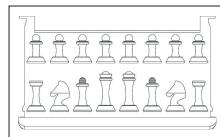
You can start a new game at any time. Remove the chess pieces from their storage compartments. Set up the pieces on the chessboard in their starting position and press OK GAME . You will see Y and N flashing on the board.
If you want keep your current game, press any field on the N side. You can continue your current game.
If you are sure that you want to start a new game press any field on the Y side or · WD · L · W again. You will hear the characteristic
New Game melody and corresponding animation. Then the LEDs on the first row are flashing indicating that it is white to move.
Confirming a new game will reset everything in the computer except the sound and light settings, level and playing style.
Note: The computer retains the current position plus the level and playing style in memory even when it is turned off. If you want to start a new game, you must always press the N-KEY GAME key after turning the computer ON.
IV. ENTERING MOVES
To enter a move:
- Press down gently on the centre of the square occupied by the piece you want to move. The most convenient way to do this is to tilt the piece slightly and press down very lightly with the edge of the piece on the centre of the square. You can also take up the piece and press on the square with your finger instead. The computer gives a sound specific to the piece and the LED of the square will light.
- Place the piece on the square you want to move to, and press down gently on the centre of that square. The computer gives a sound again. The path followed by the piece on the chessboard lights up. The computer has now registered your move and starts computing its reply.
Caution: Only a very light pressure is necessary, provided that you press exactly at the centre of the squares. Pressing down very hard on the squares will in the long run damage the sensory playing board.
V.COMPUTER MOVES
In the beginning of the game the computer will normally be able to move immediately using its opening library of 20 different chess openings. Later in the game the computer will light on the 8th row indicating that it is black to move and that the computer is thinking. When the computer has chosen a move, it gives a characteristic tune:
- The FROM square lights up. Press down gently on the square and pick up the piece. You will hear the sound according to the piece.
- The LEDs will then successively light up to show the path the piece is following to get to the TO square. Place the piece on this square, pressing it gently to register the move. The LEDs of the first row light up again, indicating that it is now your turn to move.
VI. SPECIAL MOVES
CAPTURING AN OPPONENT'S PIECE
Capturing a piece works in the same way as any other move.
- Press the square of the piece you want to move and pick up the piece.
- Press the square you want to move to and place your piece on it
- You can hear the pieces battling and the dying sound of the captured piece and together with LED animations. Remove the captured piece from the board without pressing any squares.
CAPTURING PIECES EN PASSANT
The instructions above also apply to taking pieces en passant, except that the computer will tell you to remove the captured pawn.
- Press the square you want to move from and pick up the pawn.
- Press the square you are moving to and put the pawn on it.
- The computer will tell you to remove the captured pawn by illuminating the lights corresponding to the pawn captured en passant. Press this square and remove the pawn from the chessboard.
CASTLING
In order to castle you need first of all to move the King as usual. Once you have pressed the squares you want to move the King from and to, the computer will remind you to move the Castle.
To castle short (castling with the King's Castle) on the white side:
1. Press square E1 and pick up the King.
2. Place the King on G1 and press the square.
3. The computer will remind you to move the Castle by illuminating the lights corresponding to H1. Press the H1 Square and pick up the Castle.
4. The computer will illuminate the coordinates of F1. Place the Castle on F1 and press this square.
To castle long (castling with the Queen's Castle) on the white side:
- Press square E1 and pick up the King.
- Place the King on C1 and press the square.
- The computer will remind you to move the Castle by illuminating the corresponding square. Press A1 and pick up the Castle.
- The computer will illuminate the coordinates of D1. Place the Castle on D1 and press the square.
The computer automatically promotes pawns.
- Press the square of the pawn you want to promote and pick up the piece.
- Look for a Queen of the right colour among the captured chessmen (if there is no Queen of
the right colour available, you can use a Castle and place it on the board upside down). Press the square you want the Queen on and place the piece on this square.
The computer assumes that you will always choose a Queen when you promote your pawns. If you want to promote your pawn to a Castle, a Bishop or a Knight, you can do so by changing their positions (see paragraph XXI). The computer itself will always promote its pawn to a Queen.
VII.ILLEGAL MOVES
If you try to make an illegal or impossible move, you will hear the error signal and see a question mark displayed on the board. The computer will not take your move into account.
If you try to make an illegal move or to play with your opponent pieces, you will hear the error signal. You can then play a different move. If the error signal is heard and a square lights up, just press this square before making another move.
VIII. CHECK, MATE AND DRAW ANNUNCEMENTS
When the computer gives check, a special sound is heard and the CHECK light turns on. All squares between the threatening piece and the king successively light up.
If the computer checkmates you, or you checkmate the computer, it plays a loser or winner melody together with an animation, and the CHECK and DRAW/MATE lights turn on.
If you stalemate the computer a special sound and animation is played and the DRAW / MATER light turns on as well as all LEDs around the king.
If the same position occurs 3 times in a row or if neither player moves a pawn or captures a piece for 50 moves, the DRAW/ MATE light turns on also, but you can still continue playing if you want to.
IX. OFF/SAVE MODE
When a game is over, you can press New and start a new game, or turn the computer OFF by pressing the save key. A closing melody is played and an animation is shown.
The computer is not turned completely off, but instead retains the current chess position and the current level and playing style in its memory while using a minimum of power. This means that you can stop in the middle of a game and then switch the computer ON again later on to continue the same game. This also means that you must always press the N NEW GAME key after turning the computer ON, if you want to start a new game. If it is your turn and you don't make any move or input the computer will auto power off after approximately 2 hours to save batteries.
X. SOUNDS AND LIGHT EFFECTS
By pressing sound you can adjust the sound and light effects. Press the according square on the board to adjust the setting.
Volume
A3: Full volume
A2: Low volume
A1: Volume off
Sound effects
B2: Sound effects on. Full set of sound effects is used.
B1: Sound effects off: Only simple beep sounds are used the give the necessary feedback.
LED animation
C2: LED animations on. Full set of LED animations is shown.
C1: LED animations off. Only the LED necessary to play will light up.
When you are finished press sound again to return to the game.
XI.LEVELS
The computer has 64 different levels, which are organised in the following way:
| LEVEL NUMBER | APPROX. TIME PER MOVE | NORMAL STYLE | AGGRESSIVE STYLE | DEFENSIVE STYLE | RANDOM STYLE |
| 1 | BEGINNER 1 | A1 | C1 | E1 | G1 |
| 2 | BEGINNER 2 | A2 | C2 | E2 | G2 |
| 3 | BEGINNER 3 | A3 | C3 | E3 | G3 |
| 4 | BEGINNER 4 | A4 | C4 | E4 | G4 |
| 5 | BEGINNER 5 | A5 | C5 | E5 | G5 |
| 6 | 5 seconds | A6 | C6 | E6 | G6 |
| 7 | 10 seconds | A7 | C7 | E7 | G7 |
| 8 | 30 seconds | A8 | C8 | E8 | G8 |
| 9 | 1 minute | B1 | D1 | F1 | H1 |
| 10 | 3 minutes | B2 | D2 | F2 | H2 |
| 11 | 10 minutes | B3 | D3 | F3 | H3 |
| 12 | 30 minutes | B4 | D4 | F4 | H4 |
| 13 | 2 hours | B5 | D5 | F5 | H5 |
| 14 | 24 hours | B6 | D6 | F6 | H6 |
| 15 | CHECKMATE | B7 | D7 | F7 | H7 |
| 0 | MULTI MOVE | B8 | D8 | F8 | H8 |
The computer has 13 different levels of difficulty plus 3 special levels:
- Level 1 to 5 are beginner levels; the computer will make mistakes to let the player take some pieces.
On level 1 the computer will make lots of mistakes, and even sometimes place a piece on a square where it can be immediately captured by a pawn. Playing on this level is a good way to learn how the pieces move. You can also switch to level 1 if you are losing a game and want the computer to make a few mistakes.
On level 2 the computer will also make lots of mistakes, but it will never place a piece on a square where it can be immediately captured by a pawn.
On level 3 the computer will make a couple of mistakes per game.
On level 4 the computer will on average make only one mistake per game, and it will place the queen on a square where it can be immediately captured.
On level 5 the computer will overlook certain forks and mate threats, but it will never place pieces on squares where they can be immediately captured.
The computer moves almost instantly on all these levels.
- Level 6 up to 13 give a range of time settings from 5 seconds to 2 hours per move. The playing strength on these levels ranges from beginner to expert. Level 6 is for blitz chess (5 seconds per move), level 8 is for fast chess (30 seconds per move), and level 10 is for tournament chess (3 minutes per move). The times are approximate average response times. The computer will spend more time in complicated positions and less time in simple positions and in the endgame. The computer thinks in your time too, so sometimes it will be able to move instantly, because you made the move it had anticipated! The program also moves instantly when it plays a move from the opening library.
- Level 14 is a special analysis level that will analyse the position for around 24 hours or until you terminate the search by pressing the MOVE key (see TERMINATING SEARCH later).
-
Level 15 is a special CHECKMATE level for solving mate problems (see MATE PROBLEMS later).
-
Level 0 is a special MULTI MOVE mode that allows two persons to play against each other, while the computer checks that the moves are legal (see MULTI MOVE later).
The computer also has 4 different playing styles:
- In NORMAL mode the computer will equally on attack and defend.
- In AGGRESSIVE mode the computer plays the game on the offensive and avoids surrendering pieces as much as possible.
- In DEFENSIVE mode the computer's priority is to construct a solid defence. It moves its pawns a lot and will exchange pieces as often as possible.
- In RANDOM mode the computer moves its pawns a lot and sometimes prefers to make an unexpected move rather than always to make the best move.
When you switch the computer on for the first time, the game will automatically start on level 6 and in NORMAL mode. After that, it saves the level and game mode when you switch it off and when you press GAME
To change the level or the playing style:
- Press the LEVEL key to enter the level setting mode. The computer lights up the key corresponding to the current level and playing style (for example, key A6: A for NORMAL, 6 for level 6).
- Check in the table above to find the square corresponding to the level and playing style you want to select. Press that square on the board.
- Press the LEVEL key again to return to the game.
To check the level number or playing style WITHOUT changing the level:
- Press the LEVEL key to enter the level setting mode. The computer will show the current level by lighting up the square (A6 for level 6 and NORMAL playing style).
- Press the LEVEL key again to exit from the level setting mode.
You can change or check the level and playing style at any time during the game, when it is your turn to move.
XII. RESOLVING CHECKMATE PROBLEMS
Level 15 is a special CHECKMATE level for solving checkmate problems in up to 5 moves. To solve a mate problem:
- Set up the position on the board (see SET-UP POSITION later).
- Select level 15 by pressing LEVEL then the squares B7, D7, F7 or H7 and then LEVEL again.
- Press MOVE . The computer will then begin its analysis.
The computer will think until it finds a way to achieve checkmate, then it will make the first move towards the checkmate. You can then act as opponent and the computer will find the next move towards checkmate. If checkmate is not possible, the computer will analyse indefinitely. The approximate delays for resolving a checkmate problem are as follows:
| Checkmate in 1 move | 1 second |
| Checkmate in 2 moves | 1 minute |
| Checkmate in 3 moves | 1 hour |
| Checkmate in 4 moves | 1 day |
| Checkmate in 5 moves | 1 month |
XIII. MULTI MOVE
Level 0 is a special MULTI MOVE mode. In this mode the computer does not play, so you may enter the moves for both players. You can use this feature to enter a particular opening, or to
replay a game to a certain position. You can also use the computer as a normal chessboard, playing against another person while the computer checks that all the moves are legal.
To enter the MULTI MOVE mode:
- Select level 0 by pressing LEVEL and B8, D8, F8 or H8 and then LEVEL again.
- Play as many moves as you want.
- When you are done, exit the MULTI MOVE mode again by pressing LEVEL and selecting another level.
XIV. CHANGING COLOUR
If you press MOVE, the computer will make a move. Thus if you want to change sides with the computer, just press MOVE while it is your turn. The computer will make a move, and expect you to move for the other side.
If you press MOVE again, the computer will move again, and in this way you can even let the computer play the whole game by itself!
If you want to play the whole game with the black pieces:
- Press NEW GANE and put all white pieces on the top of the board and black pieces on the bottom. Remember that the white Queen is on a white square and the black Queen on the black square.
- Press MOVE at the beginning of the game. The computer will make a move for white from the top of the board, and expect you to play the black pieces from the bottom of the board.
If you press down on one of your pieces, but then decide not to move it after all, just press down on the square once again. The computer will no longer light up the square of the piece, and you can make a different move.
If you have already completed a move, and the computer is thinking about its reply, or has already computed its reply and lighted up the FROM square of the reply, then do the following:
- Press TAKE BACK
- The computer stops thinking and instead lights up the TO square of your last move and then the path to the FROM square of your last move. Press down on the square and pick up the piece.
- The computer will then show the FROM square. Press on this square and put the piece back.
- If the move was a capture or an en passant capture, the computer will remind you to replace the captured piece by showing the square the captured piece was on. Press down on the square and replace the piece on the board.
- If you take back a castling, you must first take back the king move and then the rook move, pressing the squares for both the king and the rook.
- If you take back a pawn promotion, you must remember to change the queen back to a pawn.
If you want to take back your move after you have already made the computer's move on the board, you must first press TAKE BACK and take back the computer's move in the same way as described above, and then press TAKE BACK once more, and take back your own move. If you have already pressed the FROM square of the computer's reply and the computer is showing the TO square, you must first carry out the computer's move in the normal manner, then press TAKE BACK key and take back the computer's move, and finally press TAKE BACK again and take back your own move.
If you want to take back more than one move, press BACK once more, and take back the computer's second last move. Then key again BACK, and take back your own second last move.
If you try to take back more moves, the computer will give an error signal. You must instead take back the moves by changing the position (see SET-UP position later).
XVI. HINT
To get advice on which piece to move:
- Press HINT

will light up the FROM square and the squares of the move it suggests
3. You can now make the suggested move by pressing the FROM and TO squares again, or you can make a different move instead.
The move shown is the move the computer expects you to make. When it is your turn to move and you are considering your move, the computer is also thinking about its reply! If you actually make the move the computer expects, it will often be able to respond immediately.
To see which move the computer is currently analysing:
- Press HINT while the computer is thinking.
- The computer will show the FROM square and its move.
- The hint is now complete, and the computer continues analysing.
You now know the move the computer is probably going to make which allows you to consider your response already.
XVII. LEARNING
This computer offers a learning mode that helps you to improve your game showing you when you make a good move. According to the computer, a good move improves your position or is the best move you can do if it is impossible improve your position.
To enter the LEARNING mode, press LEARNING once. The GOOD MOVE light turns on to indicate LEARNING mode is on.
To exit the LEARNING mode, press LEARNING again. The LEARNING mode turns off when you press N E W GAME , so don't forget to press LEARNING if you want your moves to be evaluated during your new game.
When the learning feature is turned on, and you make a move that the computer considers a good move; the computer will indicate it with a sound, an animation and by turning on the GOOD MOVE light before it makes its move. If you think you made a good move, but the GOOD MOVE light does not come on, it means that the computer thinks there was at least one move, which was even better than the one you made. If you want to know what it was, you can press TAKE BACK to take back your move, and then press HINT. Then you can decide for yourself whether you want to make the move that the computer suggests, or make your original move again, or do something completely different. But you have to press TAKE BACK while the computer is showing the FROM square of its reply and before you press any other keys or squares, otherwise the HINT feature will not work after you take back your move.
LEARNING mode used in conjunction with the HINT function allows you to improve your game: LEARNING mode tells you if your move is not very good, and the HINT function offers you a better solution. But don't forget: you should always try and find the best move possible!
XVIII. TERMINATING SEARCH
If you press MOVE while the computer is thinking, it will immediately interrupt its analysis and make the move it considers to be best at this stage of its thinking (in other words, the move that would be indicated were you would press HINT
XIX. SPEED CHESS
In Speed Chess you have only a limited amount of time to finish your move.
To select Speed Chess press SPEED once. The Speed Chess LED will light up. The Speed Chess level is indicated by a flashing LED A1-H1 accordingly. Press the according square to select the time you will be allowed for each move.
| A1 | B1 | C1 | D1 | E1 | F1 | G1 | H1 |
| 300 sec. | 200 sec. | 120 sec. | 60 sec. | 40 sec. | 20 sec. | 10 sec. | 5 sec. |
Press SPEED again to start or continue playing. The timing function will be activated after your first move. The computer is not restricted by the timer function and will analyse in its normal time.
When Speed Chess is selected you will hear a specific sound 3 seconds before your time is up to remind you to finish your move. If you cannot press the TO square right in time you loose the match. However, if you wish you can continue playing the current game.
Speed Chess can be switched off by pressing once again. The Speed Chess LED will switch off. Speed Chess can be switched on or off and the time can be changed at anytime during game while it is your turn to move.
XX.VERIFY POSITION
In case of doubt, if, for example, you have accidentally knocked the chessboard, you can ask the computer to tell you the position of each piece.
- Press the key corresponding to the piece you are looking for. The computer indicates all squares occupied by that kind of piece. A flashing light indicates a black piece, a steady light a white piece. The first pressure is for showing the White piece positions.
- Press a second time to get the Black piece position.
- Press a third time to leave the VERIFY mode.
XXI. SET-UP POSITION
To change the position on the board, or to enter a completely new position:
- Press SETUP to enter set-up position mode. The SET-UP LED will light up.
- If you want to set up a new position, press TAKES TO clear the board. The computer will play the NEW GAME melody.
- Press one of the 6 piece type keys. The according sound will be played. If there are one or several pieces of that kind on the board, the computer shows them as in the VERIFY mode.
- To remove a piece of that type from the board, press the square of the piece. The light of this square will go off.
- To move a piece of that type from one square to another, first remove the piece from the FROM square by pressing the square. Then, press on the empty TO square where you want the piece to go. The corresponding light comes on.
- To add a piece of that type to the board, simply press down on an empty square, and the corresponding light comes on. If you want to add more pieces of the same type and colour, simply press on the other empty squares, one by one.
- A steady light indicates a white piece. To move or add a black piece press the according piece type key again. You can also press to toggle between white and black pieces.
-
When you are finished changing or entering the position, check that both sides have one king, and that the player to move cannot capture the opponent's king.
-
The colour of the last piece removed, moved or added determines which side is next to move in the position.
- Finally exit the set-up position mode by pressing SET_UP again. The SET-UP light goes off. You can now either enter a move by pressing the square, or let the computer move by pressing the MOVE key.
- If you made a mistake during SET-UP (for example you set up two kings for one colour) the question mark will light up when you exit the SET-UP mode. Check the position of all your pieces and correct the mistake. Then press SET-UP again to return to the game.
XXII. MAINTENANCE
Your chess computer needs very little maintenance. These instructions will help you keep it in good condition for many years:
Use new batteries. To not leave old or used up batteries in the chessboard. Take out the batteries if you do not plan to use the computer for several days. If the computer crashed, reset the unit by inserting the tip of a pencil in the reset hole. Keep away from damp. If the computer gets wet, wipe dry immediately. Do not leave in direct sunlight, do not expose to heat. Handle with care. Do not drop. Do not try to dismantle. To clean, unplug the adapter, use a damp cloth. Do not use detergent. In case of malfunction, first replace the batteries. If the problem persists, re-read instructions carefully to ensure you have not overlooked anything.
XXIII. GUARANTEE
NOTE: Please keep this instruction manual, it contains important information.
This product is covered by our two-year warranty.
To make use of the warranty or the after-sales service, please contact your retailer and supply proof of purchase. Our warranty covers material or installation-related defects attributable to the manufacturer, with the exception of wear caused by failure to respect the instructions for use or any unauthorized work on the equipment (such as dismantling, exposure to heat or damp, etc.).
It is recommended that all packaging is kept for future reference. In a bid to keep improving our services, we could implement modification on the colours and the details of the product shown on the packaging. Not suitable for children under 36 months old, as it contains small detachable elements which could be swallowed.
Reference: CG1330
© 2005 LEXIBOOK®
Espanol
INDICE
GUIA RAPIDA DE INSTALLACION 25
INTRODUCCION 26
I.ALIMENTACION 26
Instalacion de la pila 26
Adaptador 26
II.ENCENDERELJUEGO 27
III. COMENZAR UN NUEVO JUEGO 27
IV. MOVIENDO LAS PIEZAS 27
O computations also include the following:
XVIII. TERMINAR A BUSCA
| A1 | B1 | C1 | D1 | E1 | F1 | G1 | H1 |
| 300 sec. | 200 sec. | 120 sec. | 60 sec. | 40 sec. | 20 sec. | 10 sec. | 5 sec. |
IX. UIT/BEWAAR MODUS (off/save)
| A1 | B1 | C1 | D1 | E1 | F1 | G1 | H1 |
| 300 sec. | 200 sec. | 120 sec. | 60 sec. | 40 sec. | 20 sec. | 10 sec. | 5 sec. |
Designed in Europe - Made in China