
WIRELESS TOUCHPAD - Computer peripherals LOGITECH - Free user manual and instructions
Find the device manual for free WIRELESS TOUCHPAD LOGITECH in PDF.




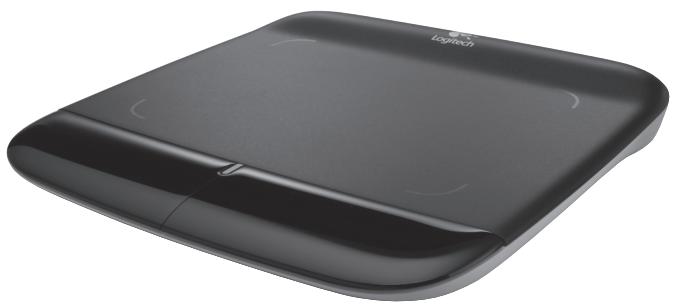
| Product Type | Wireless Touchpad |
| Brand | Logitech |
| Model | Wireless Touchpad |
| Dimensions (approx.) | 13.5 x 8 x 1 cm |
| Weight (approx.) | 100 g |
| Power Source | 2 AA alkaline batteries |
| Battery Life | Several months depending on use |
| Connectivity | Wireless via Unifying receiver (2.4 GHz) |
| Wireless Range | Up to 10 meters |
| Main Functions | 1, 2, 3, and 4 finger gestures: click, double click, drag and drop, vertical/horizontal scrolling, page navigation, application switching, minimize/restore windows, snap under Windows 7 |
| Physical Buttons | Left click and right click |
| Indicator Light | Battery level indicator (green: OK, red: replace batteries) |
| Configuration Software | Logitech SetPoint (free download) |
| Compatibility | Windows 7, Windows 8, Windows 10 |
| Device Management | Compatible with Unifying receiver (up to 6 devices) |
| Maintenance and Cleaning | Clean with a soft, dry cloth. Do not use abrasive products. |
| Safety | Remove metal objects between the touchpad and receiver to avoid interference. |
| Spare Parts and Repairability | Replaceable batteries, replaceable Unifying receiver. No user-serviceable parts. |
| General Information | Logitech wireless touchpad with Unifying receiver. Designed to replace the mouse. |
Frequently Asked Questions - WIRELESS TOUCHPAD LOGITECH
User questions about WIRELESS TOUCHPAD LOGITECH
0 question about this device. Answer the ones you know or ask your own.
Ask a new question about this device
Download the instructions for your Computer peripherals in PDF format for free! Find your manual WIRELESS TOUCHPAD - LOGITECH and take your electronic device back in hand. On this page are published all the documents necessary for the use of your device. WIRELESS TOUCHPAD by LOGITECH.
USER MANUAL WIRELESS TOUCHPAD LOGITECH
Getting started with Logitech® Wireless Touchpad




unifying
Contents
English
Setup. 4 Features, troubleshooting 6
Deutsch
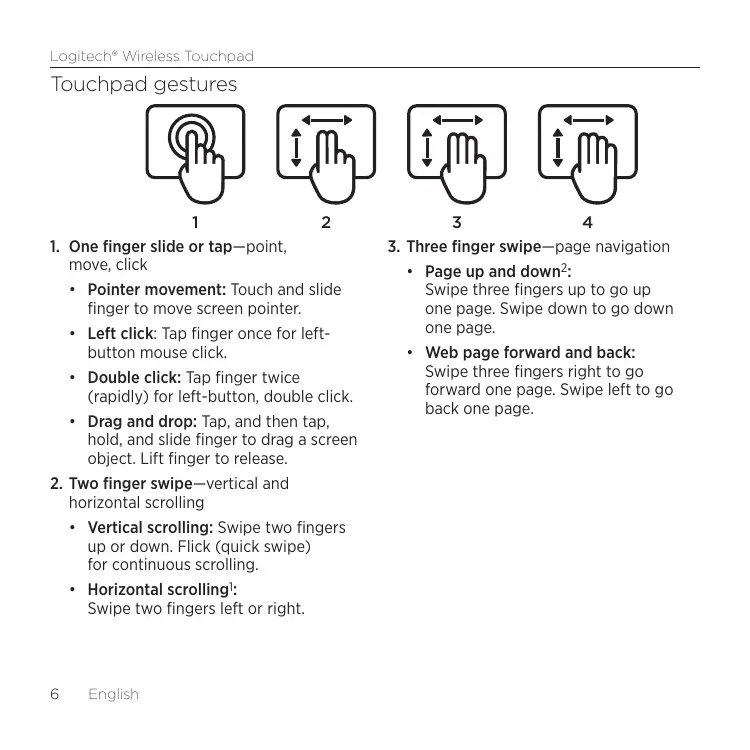
- One finger slide or tap—point, move, click
- Pointer movement: Touch and slide finger to move screen pointer.
- Left click: Tap finger once for left-button mouse click.
- Double click: Tap finger twice (rapidly) for left-button, double click.
- Drag and drop: Tap, and then tap, hold, and slide finger to drag a screen object. Lift finger to release.
- Two finger swipe-vertical and horizontal scrolling
Vertical scrolling: Swipe two fingers up or down. Flick (quick swipe) for continuous scrolling. Horizontal scrolling: Swipe two fingers left or right.
- Three finger swipe - page navigation
Page up and down2:
Swipe three fingers up to go up one page. Swipe down to go down one page.
Web page forward and back:
Swipe three fingers right to go forward one page. Swipe left to go back one page.
- Four finger swipe - switch, minimize/restore, and snap
- Application switch: Swipe four fingers up to display window of open applications (similar to Alt-Tab).
- Minimize/restore windows:
- Swipe four fingers down to minimize all open windows and to display the desktop. Swipe down again to restore all windows
- Windows* 7 Snap: Swipe four fingers left to move and snap a window to the left screen edge. Swipe right to move and snap a window to the right screen edge.
1 Horizontal scrolling is widely supported, but if it doesn't work in your application, download the free Logitech SetPoint® Software at www.logitech.com/downloads, and try again. 2 Three finger swipe (page up and down) functions like the Page up and Page down keys on a keyboard. In some applications, these keys don't always display the next page up or down when pressed.
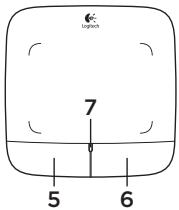
Touchpad features
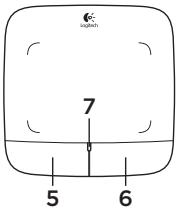
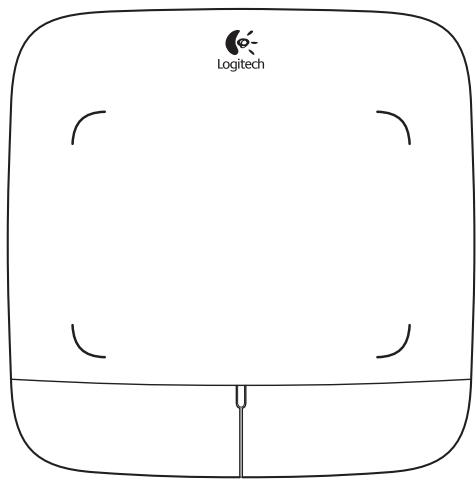
5. Left button click
Press the left button for left-button mouse click.
- Right button click
Press the right button for right-button mouse click.
- Battery LED
When the battery LED is green, the touchpad is on. When the LED turns red, replace the batteries.
To change button assignments, download the free Logitech SetPoint® Software at www.logitech.com/downloads. This software also allows you to disable/enable touchpad gestures.
The Logitech® Unifying receiver
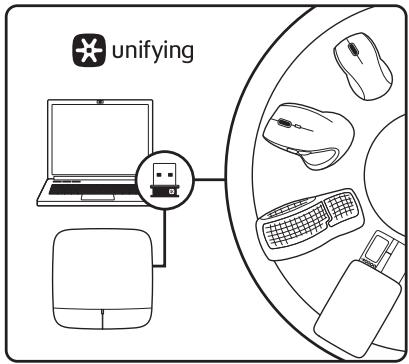
Plug it. Forget it. Add to it.
Your new Logitech product ships with a Logitech® Unifying receiver. Did you know you can add a compatible Logitech wireless device that uses the same receiver as your current Logitech Unifying product?
Are you Unifying-ready?
If you have a Logitech wireless device that's Unifying-ready, you can pair it with additional Unifying devices. Just look for the orange Unifying logo on the new device or its packaging. Build your ideal combo. Add something. Replace something. It's easy, and you'll use only one USB port for up to six devices.
Getting started is easy
If you're ready to pair your device(s) via Unifying, here's what you need to do:
- Make sure your Unifying receiver is plugged in.
- If you haven't already, download the Logitech® Unifying software from www.logitech.com/unifying.
- Start the Unifying software* and follow the onscreen instructions to pair the new wireless device with your existing Unifying receiver.
*Go to Start / All Programs / Logitech / Unifying / Logitech Unifying Software
Help with setup
- Is the touchpad powered on? If not, move the On/Off slider to the On position.
- Is the Unifying receiver securely plugged into a computer USB port? Try changing USB ports.
- If the Unifying receiver is plugged into a USB hub, try plugging it directly into a USB port on your computer.
- Did you pull the battery tab? Check the orientation of the batteries inside the touchpad, or replace the batteries. The touchpad uses two AA alkaline batteries.
- Remove metallic objects between the touchpad and the Unifying receiver. Try moving the Unifying receiver to a USB port closer to the touchpad. Try reconnecting the touchpad and Unifying receiver using the Logitech Unifying software. (Refer to the Unifying section in this guide. The Unifying software is not required for touchpad gestures.)
What do you think?
Please take a minute to tell us. Thank you for purchasing our product.
www.logitech.com/ithink
Touchpad gestures
1
2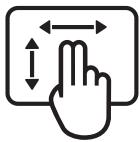
3
4
www.logitech.com/ithink
www.logitech.com/ithink
www.logitech.com/ithink
Touchpad gestures
1
2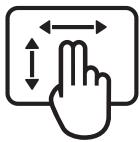
3
4
www.logitech.com/ithink
Touchpad gestures
1
2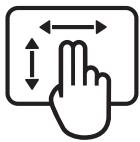
3
4
www.logitech.com/ithink
Touchpad movements
1
2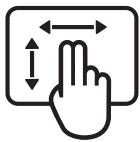
3
4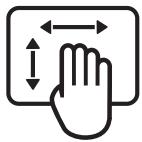
www.logitech.com/ithink
www.logitech.com/ithink
Hand gestures on the touchpad
1
2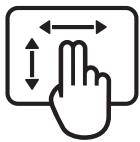
3
4
www.logitech.com/ithink
www.logitech.com/ithink
Touchpad gestures
1
2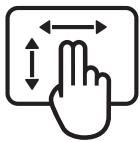
3
4
www.logitech.com/ithink
Kivnoic touchpad
1
2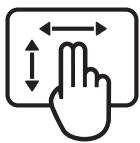
3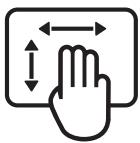
4
1. Move the mouse—click, move, and click.
Move the mouse and click to move the pointer on the screen. - Left click: Press once with your finger to left-click. Double-click: Press twice with your finger (quickly) for a left double-click. Drag and drop: Press and hold, keep pressing, and move your finger to move an object on the screen. Release your finger to drop it.
2. Two-finger movement—scroll and click
www.logitech.com/ithink
www.logitech.com/ithink
.Unifying
j USB Unifying
.
Unifying
. Logitech Unifying
Unifying
Unifying
ON 1
Unifying
USB
Unifying
USB
.
AA
J L
www.logitech.com/ithink
Unifying
Logitech Unifying
www.logitech.com/unifying
Unifying
All Programs / (1) Start
Logitech/Unifying/Logitech/(g)
Unifying Unifying Software
Logitech
Logitech Unifying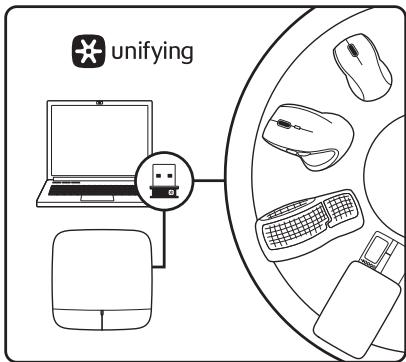
Logitech Unifying
(LED)
SetPoint 3
45 46
Complies with IDA Standards DB101104


LISTED
I.T.E ACCESSORY 8K89

EN 60950-1

M/N:C-U0007
Rating: 5V = 100mA
FCC ID: JNZCU0007
IC:4418A-CU0007
CNC:C-8941
CFT: RCPLOCU10-1356
Approval No.: ETA-418/2010/WRLO
CMIT ID: 2010DJ0355
14418/POSTEL/2010 2100
CCAJ10LP0020T1

R 201WW
10215003

DZL-C-U0007

ANATEL
MADE IN CHINA
M/N: C-U0008
Rating: 5V = 100 mA
FCC ID: JNZCU0008
IC: 4418A-CU0008
CNC: C-9341
CFT: RCPLOCU11-0321
SUBTEL: 2217
Approval No.: ETA-1115/2011/WRLO
CMIIT ID:2011DJ1853
19088/SDPPI/2011 2100
CCAJ11LP0640T0

R 201WW
11215091
KCC-CRM-DZL-C-U0008

ANATEL
MODELO CHU008
0899-11-3229

[01]7898940473489
MADE IN CHINA
www.logitech.com/support

Belgium/Belgique Dutch: +32-(0)2 200 64 44; French: +32-(0)2 200 64 40
Czech Republic +420 239 000 335
Europe, English: +41-(0)22 761 40 25
Middle East, & Fax: +41-(0)21 863 54 02
African Hq.
Morges,
Switzerland
Eastern Europe English: 41-(0)22 761 40 25
United States +1646-454-3200
Argentina +0800 555 3284
Brazil +0800 891 4173
Canada +1-866-934-5644
Chile +1230 020 5484
Latin America +1800-578-9619
Mexico +001 800 578 9619
www.logitech.com

- GETTING STARTED WITH LOGITECH® WIRELESS TOUCHPAD
- CONTENTS
- ENGLISH
- DEUTSCH
- THE LOGITECH® UNIFYING RECEIVER
- PLUG IT. FORGET IT. ADD TO IT
- ARE YOU UNIFYING-READY
- GETTING STARTED IS EASY
- HELP WITH SETUP
- WHAT DO YOU THINK
- TOUCHPAD GESTURES
- WWW.LOGITECH.COM/ITHINK
- TOUCHPAD MOVEMENTS
- KIVNOIC TOUCHPAD
- MOVE THE MOUSE—CLICK, MOVE, AND CLICK
- TWO-FINGER MOVEMENT—SCROLL AND CLICK
- M/N:C-U
- M/N: C-U
- WWW.LOGITECH.COM/SUPPORT
Brand : LOGITECH
Model : WIRELESS TOUCHPAD
Category : Computer peripherals