
WIRELESS ILLUMINATED KEYBOARD K800 - Gaming Keyboard LOGITECH - Free user manual and instructions
Find the device manual for free WIRELESS ILLUMINATED KEYBOARD K800 LOGITECH in PDF.
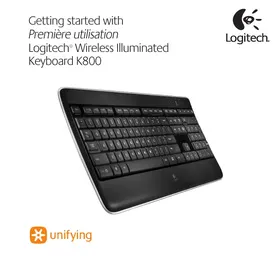


| Product Type | Wireless Backlit Keyboard |
| Brand | Logitech |
| Model | Wireless Illuminated Keyboard K800 |
| Category | Gaming Keyboard |
| Connection Technology | Wireless via Unifying receiver (USB) |
| Power | Integrated rechargeable battery, 5V, 100mA via USB cable |
| Battery Life | Up to 10 days (normal use) or 15 hours with backlight at 100% |
| Charging Time | Approximately 5 hours (3 hours if keyboard is off) |
| Backlight | Automatic via ambient light sensor, 5 adjustable levels (0%, 25%, 50%, 75%, 100%) |
| Advanced Function Keys | 12 FN keys with yellow icons: application launch, media control, volume, calculator |
| Compatible Software | Logitech SetPoint and Logitech Unifying (downloadable at logitech.com) |
| Approximate Dimensions | 45 x 20 x 3 cm |
| Approximate Weight | 1 kg |
| Package Contents | Keyboard, Unifying receiver, USB cable, quick start guide |
| Care and Cleaning | Clean with a soft, slightly damp cloth; do not use solvents |
| Safety | Use only a compliant power source (5V, 100mA); do not expose to moisture |
| Spare Parts and Repairability | No user-serviceable parts; contact Logitech support for any issues |
| General Information | Compliant with FCC, IC and other standards; made in China |
Frequently Asked Questions - WIRELESS ILLUMINATED KEYBOARD K800 LOGITECH
User questions about WIRELESS ILLUMINATED KEYBOARD K800 LOGITECH
0 question about this device. Answer the ones you know or ask your own.
Ask a new question about this device
Download the instructions for your Gaming Keyboard in PDF format for free! Find your manual WIRELESS ILLUMINATED KEYBOARD K800 - LOGITECH and take your electronic device back in hand. On this page are published all the documents necessary for the use of your device. WIRELESS ILLUMINATED KEYBOARD K800 by LOGITECH.
USER MANUAL WIRELESS ILLUMINATED KEYBOARD K800 LOGITECH
Getting started with
Logitech® Wireless Illuminated
Keyboard K800

Logitech.
Contents
English Setup, 3 Features and troubleshooting, 7
Your Keyboard is now ready for use.
Optional: For the option of reprogramming your keyboard's enhanced F-key functions, download the free Logitech® SetPoint™ Software at www.logitech.com/downloads.
Espanol
Keyboard features: F-key usage

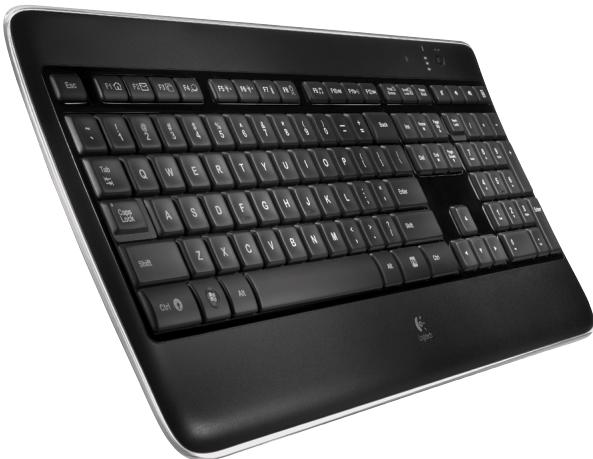
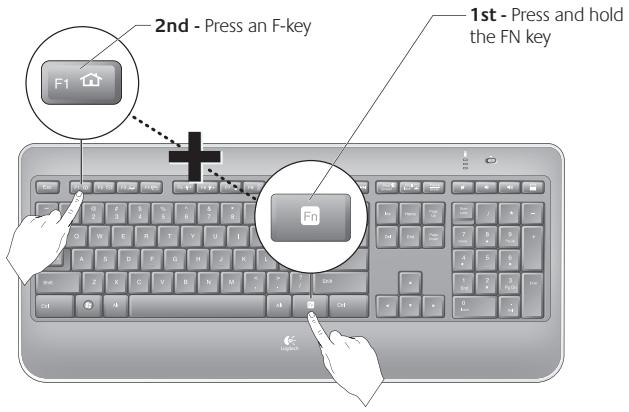
User-friendly enhanced F-keys let you launch applications easily. To use the enhanced functions (yellow icons), first press and hold the FN key; second, press the F-key you want to use.
Tip In the software settings, you can invert the FN mode if you prefer to access directly the enhanced functions without having to press the FN key.
- Requires SetPoint™ Software (available for download at www.logitech.com/downloads).
Keyboard features
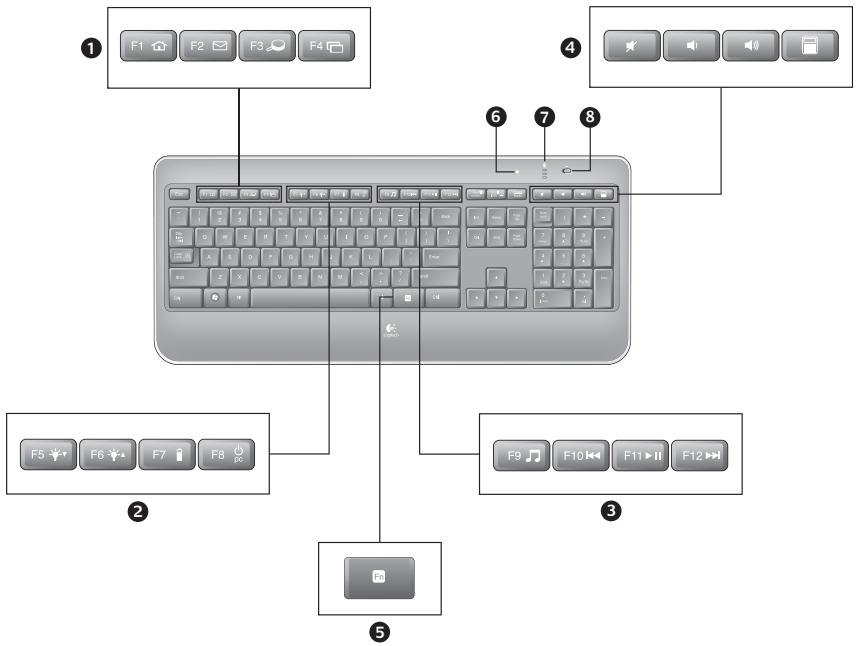
1. Application zone
FN + F1 Launch Internet browser FN + F2 Launch e-mail application FN + F3 Launch Windows Search* FN + F4 Flip
2. Convenience zone
FN + F5 Backlight down by 25% FN + F6 Backlight up by 25% FN + F7 Battery check FN + F8 Sleep mode
3. Multimedia navigation zone
FN + F9 Launch media FN + F10 Previous track FN + F11 Play/Pause FN + F12 Next track
4. Multimedia volume zone




5. FN key
- Automatic light sensor (ALS)
- Battery status indicator
- Keyboard power switch
Keyboard backlighting
When you switch on the keyboard, all keys are backlit at full intensity for five seconds. The backlighting adjusts itself automatically based upon the ambient light in your room.

To activate backlighting, move your hand over the keyboard, or press a key. There is a proximity sensor in the keyboard that detects motion and switches on backlighting.
Backlighting remains on while you charge the keyboard. When keyboard battery power is very low, the lower battery LED blinks red and backlighting is switched off to conserve battery life.
Press FN + F5 to decrease backlighting and FN + F6 to increase it. There are five levels of illumination: 0%, 25%, 50%, 75%, and 100%. More battery power is used as the level of illumination is increased. After three hours of inactivity or if the keyboard is restarted, the backlighting level returns to automatic adjustment.
Recharging the keyboard
Typically, you can expect about 10 days of battery life before you will need to recharge the keyboard battery.* If the backlighting level is set to 100%, you have about 15 hours of battery life.
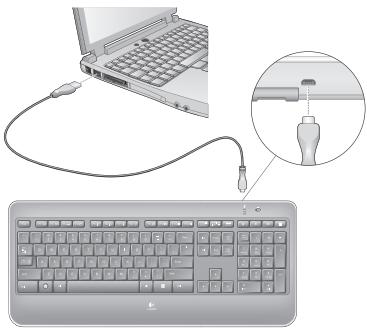
To recharge the keyboard, connect it to your computer using the USB recharging cable. A full battery recharge takes about 5 hours and only 3 hours if the keyboard has been switched off.
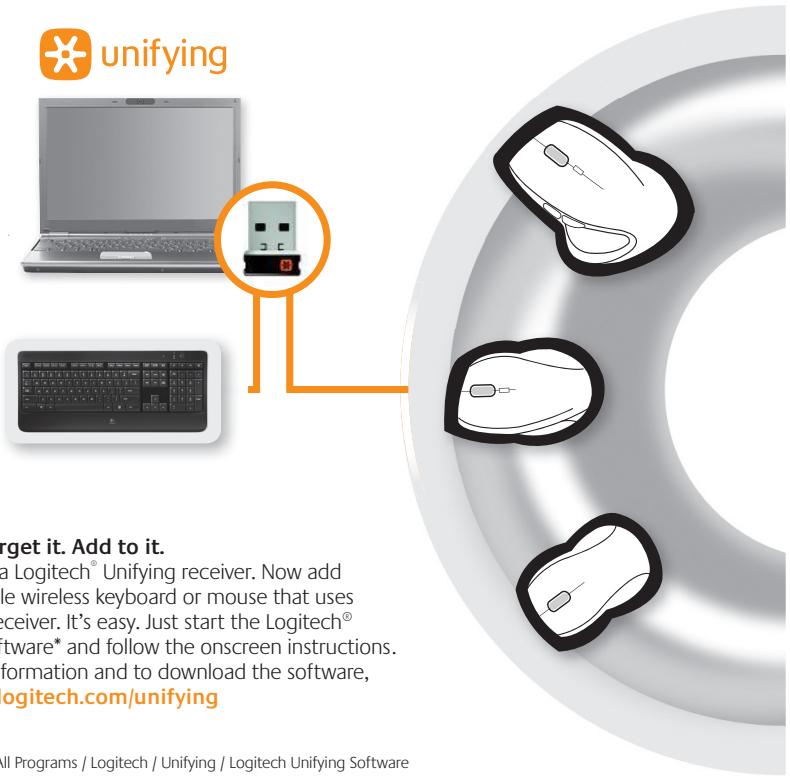
Plug it. Forget it. Add to it.
You've got a Logitech Unifying receiver. Now add a compatible wireless keyboard or mouse that uses the same receiver. It's easy. Just start the Logitech Unifying software* and follow the onscreen instructions. For more information and to download the software, visit www.logitech.com/unifying
*Go to Start / All Programs / Logitech / Unifying / Logitech Unifying Software
Help with setup
Keyboard is not working
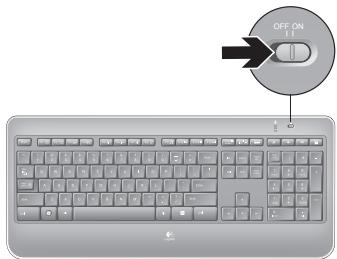
Check the Unifying receiver. Also, try changing USB ports. Move closer? Try moving the keyboard closer to the Unifying receiver, or plug the Unifying receiver into the receiver extender cable to bring it closer to the keyboard. Check battery level. Is the keyboard turned on? Slide the keyboard Off/On switch to the On position. The keyboard Status LEDs should light up.
Re-establish the connection. Use the Unifying software to reset the connection between the keyboard/mouse and Unifying receiver. Refer to the Unifying section in this guide for more information (p. 13). Restart the computer.
www.logitech.com/support
| United States | +1 646-454-3200 |
| Argentina | +00800-555-3284 |
| Brasil | +0 800-891-4173 |
| Canada | +1 866-934-5644 |
| Chile | 1230 020 5484 |
| Latin America | +1 800-578-9619 |
| Mexico | 001 800 578 9619 |
www.logitech.com
© 2010 Logitech. All rights reserved. Logitech, the Logitech logo, and other Logitech marks are owned by Logitech and may be registered. All other trademarks are the property of their respective owners. Logitech assumes no responsibility for any errors that may appear in this manual. Information contained herein is subject to change without notice.
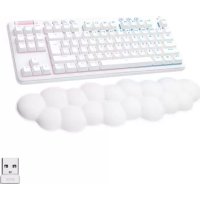
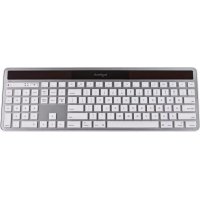
Brand : LOGITECH
Model : WIRELESS ILLUMINATED KEYBOARD K800
Category : Gaming Keyboard