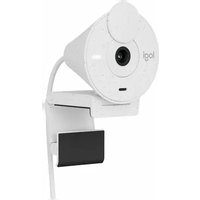
S 5500 - Webcam LOGITECH - Free user manual and instructions
Find the device manual for free S 5500 LOGITECH in PDF.



| Product Type | Webcam |
| Brand | Logitech |
| Model | S 5500 (QuickCam Communicate MP) |
| Video Resolution | 640 x 480 pixels (VGA) |
| Connection | USB 2.0 |
| Power | USB port (bus-powered) |
| Built-in Microphone | Yes, with Logitech RightSound technology for noise reduction |
| Main Features | Video calls, photo and video capture, Logitech video effects, YouTube recording |
| Embedded Technologies | RightLight (automatic brightness optimization), RightSound (noise reduction) |
| Software included | QuickCam (Installation CD) |
| Compatibility | Windows (XP, Vista, 7) |
| Mounting | Clip for monitor or flat surface |
| Warranty | 2 years (limited) |
| Maintenance and Cleaning | Clean the lens with a soft, dry cloth. Do not use abrasive products. |
| Safety | Follow the instructions in the manual. Use only with UL-certified devices. |
| Spare parts and repairability | Not applicable (sealed product). In case of failure, contact Logitech support. |
| Country of manufacture | China (likely) |
| Approximate dimensions | 10 x 5 x 5 cm |
| Approximate weight | 150 g |
| Package contents | Webcam, software CD, user guide |
Frequently Asked Questions - S 5500 LOGITECH
User questions about S 5500 LOGITECH
0 question about this device. Answer the ones you know or ask your own.
Ask a new question about this device
Download the instructions for your Webcam in PDF format for free! Find your manual S 5500 - LOGITECH and take your electronic device back in hand. On this page are published all the documents necessary for the use of your device. S 5500 by LOGITECH.
USER MANUAL S 5500 LOGITECH
Thank you for purchasing a Logitech® webcam. This guide helps you install and get the best performance from your new webcam.
Package contents
- Logitech® QuickCam® Communicate MP™ (S 5500)
- QuickCam® software
- User's guide
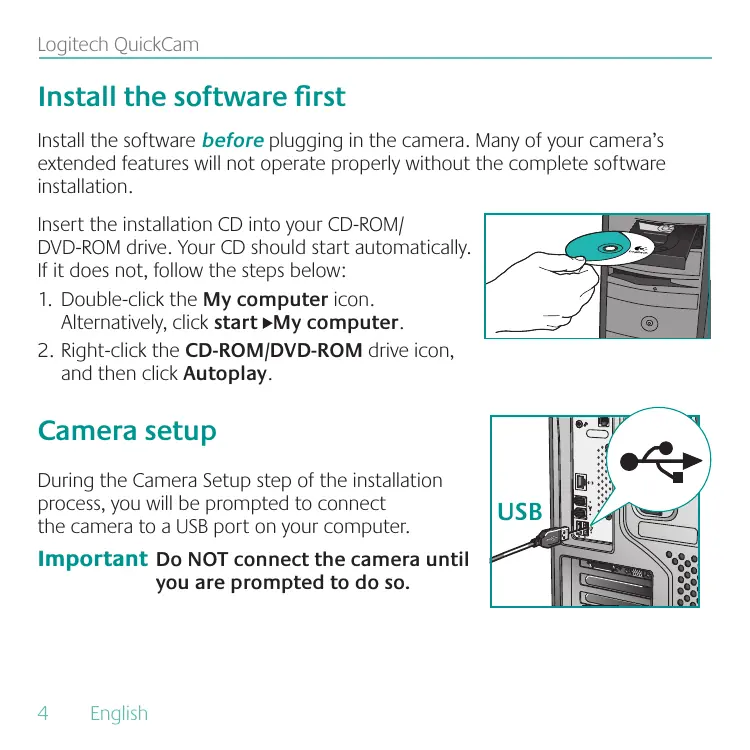
Camera features
Install the software first
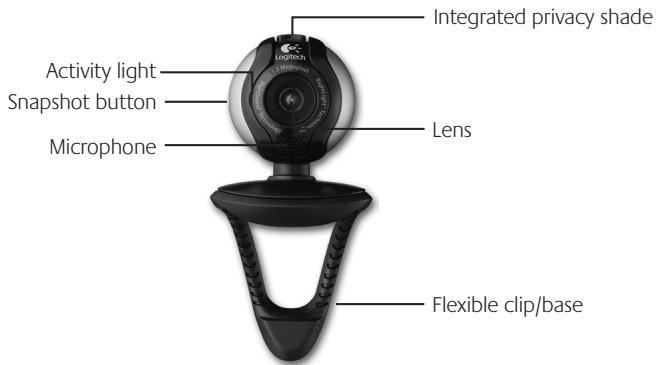
Install the software before plugging in the camera. Many of your camera's extended features will not operate properly without the complete software installation.
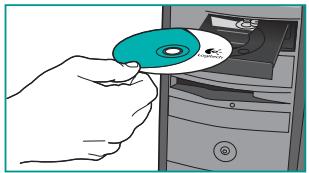
Insert the installation CD into your CD-ROM/ DVD-ROM drive. Your CD should start automatically. If it does not, follow the steps below:
- Double-click the My computer icon. Alternatively, click start My computer.
- Right-click the CD-ROM/DVD-ROM drive icon, and then click Autoplay.
Camera setup
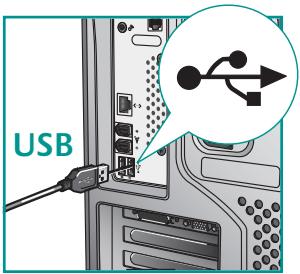
During the Camera Setup step of the installation process, you will be prompted to connect the camera to a USB port on your computer.
Important Do NOT connect the camera until you are prompted to do so.
Position camera, microphone, and speakers
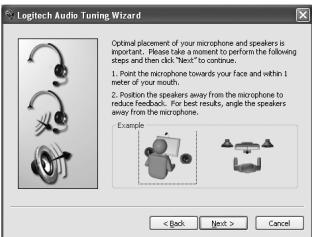
Your camera comes with Logitech® RightSound™ Technology, which significantly reduces background noise. The following steps will ensure the best possible audio performance:
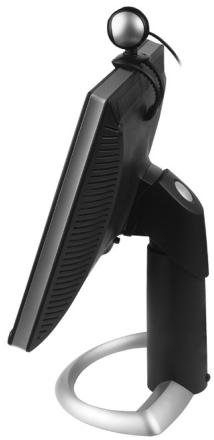
- Position your camera in the middle of your monitor for optimal eye contact.
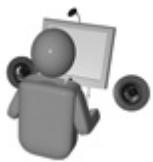
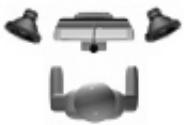
- Position your camera's microphone no more than 3 feet (915mm) away from you, and point it toward you.
- Position your speakers (if used) at least 2 inches (305mm) away from your microphone to reduce feedback, and then angle your speakers away from your microphone.
Tip Do not place objects between you and the microphone.
The audio tuning wizard
The first time that you start QuickCam, you are guided through the Microphone/Speaker Setup Utility and Audio Tuning Wizard that lets you do the following:
- Select the audio input device (microphone) and audio output device (speakers).
- Enable background suppression—recommended.
- Specify microphone input volume and speaker output volume.
Test audio settings.
In situations with loud and irregular background noise, your voice can become distorted when using noise suppression. If this occurs, disable noise suppression in the QuickCam software.
Tip To change these settings later, in the QuickCam software, click the Settings button, and then click the Audio tab.
Congratulations
Your camera is now set up and ready to go!
There are many ways to enjoy using your new webcam, including
- Making free video calls to friends and family. (Installation and use of an instant messaging application is required. Click in the QuickCam software to learn more.)
- Taking still photos or recording videos to share or e-mail.
- Adding videos to your E-bay auctions (see www.logitech.com/videosnap).
- Broadcasting your videos to YouTube™ with a few “clicks.”
Using the QuickCam software
To start the Logitech® QuickCam® program, do either of the following:
- On your desktop, double-click the QuickCam® icon.
-or-
- In the lower-right corner of your desktop in the taskbar, click the QuickCam icon.
QuickCam software features

Record videos or capture images.
Enable Logitech Video Effects.
Enable Audio & Video Mute (when on a video call).
Specify camera settings.
Install and use video programs and services.
Link to online resource guide.
Tip To personalize your video calls with customized video effects, click the Video Effects button.
Ensure quality images
Logitech RightLight™ ensures that you automatically get the best image quality in low light conditions. To change these settings manually, click the Settings button.
For more information
Audio Information. Go to http://www.logitech.com/rightsound.
Software Updates. Go to http://www.logitech.com/support.
Additional Help. Launch the software and click the Help button.
To learn more about Logitech® products, go to http://www.logitech.com.
UL Testing. Your product is UL tested and should only be used with other UL listed devices.
FCC Compliance. This digital device complies with the limits set for a Class B digital device, pursuant to Part 15 of the FCC Rules, and it also complies with Class B limits as specified in standards ICES-003. For compliance information, go to http://www.logitech.com/compliance.
Logitech Hardware Product Limited Warranty
Logitech warrants that your Logitech hardware product shall be free from defects in material and workmanship for two (2) years, beginning from the date of purchase. Except where prohibited by applicable law, this warranty is nontransferable and is limited to the original purchaser. This warranty gives you specific legal rights, and you may also have other rights that vary under local laws.
Remedies
Logitech's entire liability and your exclusive remedy for any breach of warranty shall be, at Logitech's option, (1) to repair or replace the hardware, or (2) to refund the price paid, provided that the hardware is returned to the point of purchase or such other place as Logitech may direct with a copy of the sales receipt or dated itemized receipt. Shipping and handling charges may apply except where prohibited by applicable law. Logitech may, at its option, use new or refurbished or used parts in good working condition to repair or replace any hardware product. Any replacement hardware product will be warranted for the remainder of the original warranty period or thirty (30) days, whichever is longer or for any additional period of time that may be applicable in your jurisdiction.
This warranty does not cover problems or damage resulting from (1) accident, abuse, misapplication, or any unauthorized repair, modification or disassembly; (2) improper operation or maintenance, usage not in accordance with product instructions or connection to improper voltage supply, or (3) use of consumables, such as replacement batteries, not supplied by Logitech except where such restriction is prohibited by applicable law.
How to Obtain Warranty Support
Before submitting a warranty claim, we recommend you visit the support section at www.logitech.com for technical assistance. Valid warranty claims are generally processed through the point of purchase during the first thirty (30) days after purchase; however, this period of time may vary depending on where you purchased your product - please check with Logitech or the retailer where you purchased your product for details. Warranty claims that cannot be processed through the point of purchase and any other product related questions should be addressed directly to Logitech. The addresses and customer service contact information for Logitech can be found in the documentation accompanying your product and on the web at www.logitech.com/contactus.
Limitation of Liability
LOGITECH SHALL NOT BE LIABLE FOR ANY SPECIAL, INDIRECT, INCIDENTAL OR CONSEQUENTIAL DAMAGES WHATSOVER, INCLUDING BUT NOT LIMITED TO LOSS OF PROFITS, REVENUE OR DATA (WHETHER DIRECT OR INDIRECT) OR COMMERCIAL LOSS FOR BREACH OF ANY EXPRESS OR IMPLIED WARRANTY ON YOUR PRODUCT EVEN IF LOGITECH HAS BEEN ADVISED OF THE POSSIBILITY OF SUCH DAMAGES. Some jurisdictions do not allow the exclusion or limitation of special, indirect, incidental or consequential damages, so the above limitation or exclusion may not apply to you.
Duration of Implied Warranties
EXCEPT TO THE EXTENT PROHIBITED BY APPLICABLE LAW, ANY IMPLIED WARRANTY OR CONDITION OF MERCHANTABILITY OR FITNESS FOR A PARTICULAR PURPOSE ON THIS HARDWARE PRODUCT IS LIMITED IN DURATION TO THE DURATION OF THE APPLICABLE LIMITED WARRANTY PERIOD FOR YOUR PRODUCT. Some jurisdictions do not allow limitations on how long an implied warranty lasts, so the above limitation may not apply to you.
National Statutory Rights
Consumers have legal rights under applicable national legislation governing the sale of consumer goods. Such rights are not affected by the warranties in this Limited Warranty.
No Other Warranties
No Logitech dealer, agent, or employee is authorized to make any modification, extension, or addition to this warranty.
Logitech Address
Logitech, Inc., 6505 Kaiser Drive, Fremont, California 94555
iGracias!
Visite o endereço http://www.logitech.com/rightsound.
Actualizacoes de software.
Visite o endereço http://www.logitech.com/support.
www.logitech.com/support

United States +1 646-454-3200
Argentina +00800 555 3284
Brasil +0800 891 4173
Canada +1 416 207 2782
Chile 12300205484
Latin America +55 11 3444 6761
Mexico 0018005789619
www.logitech.com
© 2008 Logitech. All rights reserved. Logitech, the Logitech logo, and other Logitech marks are owned by Logitech and may be registered. All other trademarks are the property of their respective owners. Logitech assumes no responsibility for any errors that may appear in this manual. Information contained herein is subject to change without notice.