
DINOVO KEYBOARD - Gaming Keyboard LOGITECH - Free user manual and instructions
Find the device manual for free DINOVO KEYBOARD LOGITECH in PDF.



| Product type | Wireless keyboard |
| Brand | Logitech |
| Model | DiNovo Keyboard |
| Category | Gaming keyboard |
| Connectivity | Wireless via USB mini-receiver |
| Power supply | 4 alkaline AAA batteries |
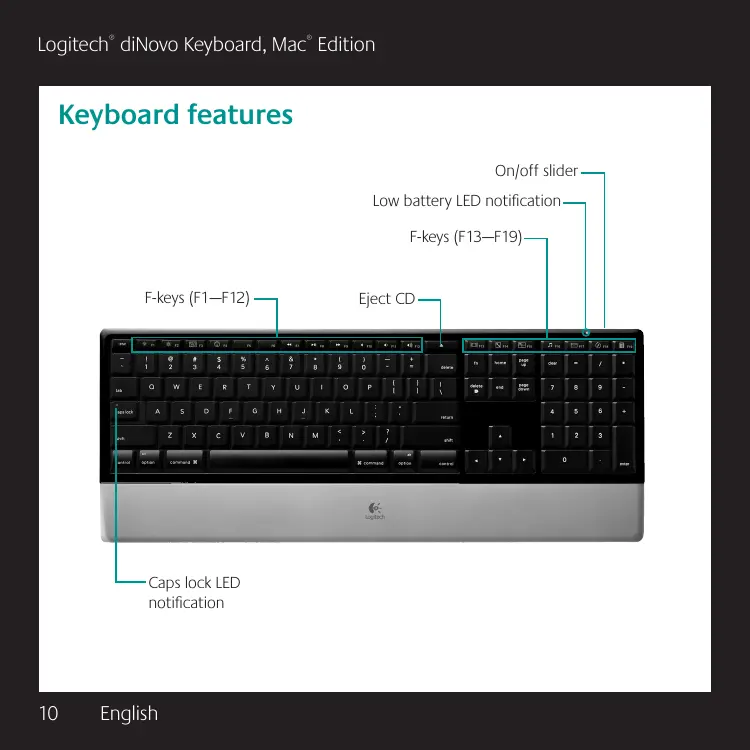
| Function keys | F1 to F19 with special functions (Exposé, Dashboard, multimedia, volume, etc.) |
| Key reassignment | Yes, via Logitech Control Center software |
| Compatibility | Mac OS X |
| Warranty | 5-year limited |
| Care and cleaning | Clean with a soft, dry cloth |
| Safety | Do not expose to moisture, do not disassemble |
Frequently Asked Questions - DINOVO KEYBOARD LOGITECH
User questions about DINOVO KEYBOARD LOGITECH
0 question about this device. Answer the ones you know or ask your own.
Ask a new question about this device
Download the instructions for your Gaming Keyboard in PDF format for free! Find your manual DINOVO KEYBOARD - LOGITECH and take your electronic device back in hand. On this page are published all the documents necessary for the use of your device. DINOVO KEYBOARD by LOGITECH.
USER MANUAL DINOVO KEYBOARD LOGITECH
diNovo Keyboard, Mac® Edition

Contents
English
Setup, 6
Features and troubleshooting, 10
Espanol
Configuración, 6
Caracteristicayresolución deproblemas,18
François
Installation, 6
By default, each F-key performs the special feature printed on the key (e.g., volume control). To use an F-key as a standard function key, press the FN key and the F-Key you want to use simultaneously.
Tip In the software settings, you can invert the FN mode if you prefer to access directly the standard functions without having to press the FN key.

Keyboard features
F-keys
User-friendly enhanced F-keys let you easily launch applications or control your music. To use the enhanced functions (white icons), press the F-Key you want to use.
Desktop management zone

F1 Reduces screen brightness
F2 Increases up screen brightness
F3 Launches Exposé: Quickly displays a small version of each open window, lets you choose any window displayed, resizes the selected window to its last size setting, and makes it the active window.
F4 Launches Dashboard: shows screen widgets (e.g., calculator, weather, calendar, time, etc.)
Keyboard features
Media zone

F7 Previous track
F8 Play/Pause
F9 Next track
Volume control zone

F10 Mute
F11 Volume down
F12 Volume up
Keyboard features
Enhanced display zone

F13 Launch Cover Flow to display album art or previews of document and image files
F14 Launch Quick Look to view a file without opening it
F15 Launch Spaces to organize windows into groups to reduce clutter
Application zone

F16 Launch iTunes™
F17 Launch Mail
F18 Launch SafariTM
F19 Launch Calculator
Reassigning the F-keys
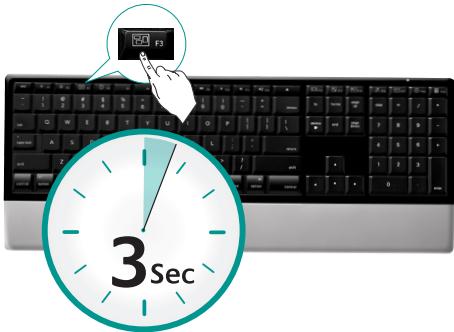
In software settings, you can easily reassign an enhanced F-key (F1 to F19, except F7 to F12) to another function:
- Hold down (3 seconds) the F-key you want to reassign to launch software settings.
- Use the provided buttons and pull-down menus to change the action associated with the F-key you have selected for reassignment.
To enjoy all the features of your keyboard or to customize it to suit your needs, please install the Logitech Control Center™ software that comes with your product.
Troubleshooting Keyboard is not working
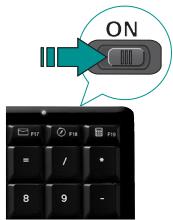
- Is the Power on? The power switch for the keyboard must be in the ON position. Battery LED should light green.
- Check the USB mini-receiver. Plug the USB mini-receiver into a different USB port. Remove any metal object between the USB mini-receiver and the keyboard that may interfere with reception.
- Move closer? Try moving the keyboard closer to the USB mini-receiver.
- How are the batteries? Check the keyboard battery installation or replace the batteries. The keyboard uses four AAA alkaline batteries.
- Re-establish the connection. Launch the Connect Utility (requires software installation). Go to Finder/Go Menu/Utilities, double-click LCC Connection Utility, and then follow the on-screen instructions.
- Install software. Make sure to install the software to enjoy all the enhanced functions.
- Restart your computer.
Visit www.logitech.com/comfort for more information about using your product, and for ergonomics.
Logitech Hardware Product Limited Warranty
Logitech warrants that your Logitech hardware product shall be free from defects in material and workmanship for five (5) years, beginning from the date of purchase. Except where prohibited by applicable law, this warranty is nontransferable and is limited to the original purchaser. This warranty gives you specific legal rights, and you may also have other rights that vary under local laws.
Remedies
Logitech's entire liability and your exclusive remedy for any breach of warranty shall be, at Logitech's option, (1) to repair or replace the hardware, or (2) to refund the price paid, provided that the hardware is returned to the point of purchase or such other place as Logitech may direct with a copy of the sales receipt or dated itemized receipt. Shipping and handling charges may apply except where prohibited by applicable law. Logitech may, at its option, use new or refurbished or used parts in good working condition to repair or replace any hardware product. Any replacement hardware product will be warranted for the remainder of the original warranty period or thirty (30) days, whichever is longer or for any additional period of time that may be applicable in your jurisdiction.
This warranty does not cover problems or damage resulting from (1) accident, abuse, misapplication, or any unauthorized repair, modification or disassembly; (2) improper operation or maintenance, usage not in accordance with product instructions or connection to improper voltage supply; or (3) use of consumables, such as replacement batteries, not supplied by Logitech except where such restriction is prohibited by applicable law.
How to Obtain Warranty Support
Before submitting a warranty claim, we recommend you visit the support section at www.logitech.com for technical assistance. Valid warranty claims are generally processed through the point of purchase during the first thirty (30) days after purchase; however, this period of time may vary depending on where you purchased your product - please check with Logitech or the retailer where you purchased your product for details. Warranty claims that cannot be processed through the point of purchase and any other product related questions should be addressed directly to Logitech. The addresses and customer service contact information for Logitech can be found in the documentation accompanying your product and on the web at www.logitech.com/support.
Limitation of Liability
LOGITECH SHALL NOT BE LIABLE FOR ANY SPECIAL, INDIRECT, INCIDENTAL OR CONSEQUENTIAL DAMAGES WHATsoever, INCLUDING BUT NOT LIMITED TO LOSS OF PROFITS, REVENUE OR DATA (WHETHER DIRECT OR INDIRECT) OR COMMERCIAL LOSS FOR BREACH OF ANY EXPRESS OR IMPLIED WARRANTY ON YOUR PRODUCT EVEN IF LOGITECH HAS BEEN ADVISED OF THE POSSIBILITY OF SUCH DAMAGES. Some jurisdictions do not allow the exclusion or limitation of special, indirect, incidental or consequential damages, so the above limitation or exclusion may not apply to you.
Duration of Implied Warranties
EXCEPT TO THE EXTENT PROHIBITED BY APPLICABLE LAW, ANY IMPLIED WARRANTY OR CONDITION OF MERCHANTABILITY OR FITNESS FOR A PARTICULAR PURPOSE ON THIS HARDWARE PRODUCT IS LIMITED IN DURATION TO THE DURATION OF THE APPLICABLE LIMITED WARRANTY PERIOD FOR YOUR PRODUCT. Some jurisdictions do not allow limitations on how long an implied warranty lasts, so the above limitation may not apply to you.
National Statutory Rights
Consumers have legal rights under applicable national legislation governing the sale of consumer goods. Such rights are not affected by the warranties in this Limited Warranty.
No Other Warranties
No Logitech dealer, agent, or employee is authorized to make any modification, extension, or addition to this warranty.
Logitech Address
Logitech, Inc., 6505 Kaiser Drive, Fremont, California 94555, U.S.A.
© 2008 Logitech, All rights reserved. Logitech, the Logitech logo, and other Logitech marks are owned by Logitech and may be registered. All other trademarks are the property of their respective owners. Logitech assumes no responsibility for any errors that may appear in any manual or on this website. Information contained herein is subject to change without notice.
www.logitech.com/support

United States +1 646-454-3200
Argentina +00800 555 3284
Brasil +0800 891 4173
Canada +1 416 207 2782
Chile 12300205484
Latin America +55 11 3444 6761
Mexico 0018005789619
www.logitech.com
© 2008 Logitech. All rights reserved. Logitech, the Logitech logo, and other Logitech marks are owned by Logitech and may be registered. All other trademarks are the property of their respective owners. Logitech assumes no responsibility for any errors that may appear in this manual. Information contained herein is subject to change without notice.
Apple, Mac, and Macintosh are trademarks of Apple Inc., registered in the U.S. and other countries.
- diNovo Keyboard, Mac® Edition
- Contents
- Keyboard features
- F-keys
- Desktop management zone
- Media zone
- Volume control zone
- Enhanced display zone
- Application zone
- Reassigning the F-keys
- Troubleshooting Keyboard is not working
- Logitech Hardware Product Limited Warranty
- Remedies
- How to Obtain Warranty Support
- Limitation of Liability
- Duration of Implied Warranties
- National Statutory Rights
- No Other Warranties
- Logitech Address
- www.logitech.com/support
Brand : LOGITECH
Model : DINOVO KEYBOARD
Category : Gaming Keyboard