
VE-20 - Vocal Effects ROLAND - Free user manual and instructions
Find the device manual for free VE-20 ROLAND in PDF.


User questions about VE-20 ROLAND
0 question about this device. Answer the ones you know or ask your own.
Ask a new question about this device
Download the instructions for your Vocal Effects in PDF format for free! Find your manual VE-20 - ROLAND and take your electronic device back in hand. On this page are published all the documents necessary for the use of your device. VE-20 by ROLAND.
USER MANUAL VE-20 ROLAND
Before using this unit, carefully read the sections entitled: "USING THE UNIT SAFELY" and "IMPORTANT NOTES" (supplied on a separate sheet).
These sections provide important information concerning the proper operation of the unit.
Additionally, in order to feel assured that you have gained a good understanding of every feature provided by your new unit, this manual should be read in its entirety. The manual should be saved and kept on hand as a convenient reference.
Main Features
A versatile array of vocal effects, controlled by a single knob
- Thirty different sounds are ready for immediate use
- Just turn the knob to select an effect, and you'll hear it immediately
Numerous high-quality effects
- "Reverb" and "Delay" add spaciousness and depth to your voice
- Two-part "Double/Harmony" adds beautiful resonance and warmth to your voice
- "Dynamics" makes the volume consistent, and "Pitch Correct" ensures accurate pitch
- Use unique effects like "Distortion" or "Radio" to create distinctive performances
Pedal functions for live performance
- Phrase Loop lets you repeatedly overdub your voice to create a vocal ensemble in real time as you perform
- You can use the HARMONY pedal to turn the Harmony effect on/off in realtime
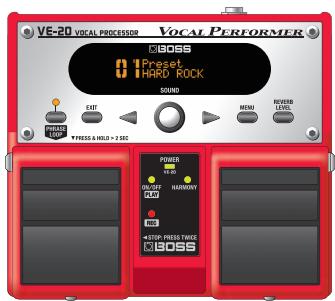
Main Features 1
Installing Batteries 3
Quick Start 4
- Getting ready 4
- Sing 5
- Switching sounds 5
- Using the HARMONY pedal 6
- Turning the power off.. 6
Making the Connections. 7
Using the VE-20 live 7
Panel Descriptions 8
Front panel. 8
Rear panel. 9
Sounds and Effects 10
What is a "sound"? 10
What is an "effect"? 10
Adjusting the level of the Reverb effect.... 11
Adjusting the level of the Delay effect....11
Adjusting the Harmony effect. 11
Editing the effects. 12
Naming your sound 12
Using Phrase Loop to Layer Your Voice. 13
Convenient Functions 14
Using the HARMONY pedal to turn effects other than Harmony on/off 14
Using the pedals to switch sounds. 14
Using your recorded voice to make adjustments (Sound Check). 15
Saving a sound as a different User Sound... 15
Exchanging sounds 15
Specifying the type of output (Stereo or Mono/Dry) 16
Using a condenser mic (Phantom Power) 16
Cutting unwanted low frequencies 16
Adjusting the screen's legibility (Contrast) 16
Appendix 17
Restoring the factory settings (Factory Reset) 17
Sound List. 17
Parameter guide. 18
Troubleshooting. 19
Main Specifications 20
Printing Conventions and icons in this manual
| NOTE | Explains something that you should pay particular attention to. |
| MEMO | Explains something that supplements the main text. |
| TIP | Explains something that's useful to know. |
| cf., (p.**.) | Indicates a reference page. |
- The explanations in this manual include illustrations that depict what should typically be shown by the display. Note, however, that your unit may incorporate a newer, enhanced version of the system (e.g., includes newer sounds), so what you actually see in the display may not always match what appears in the manual.
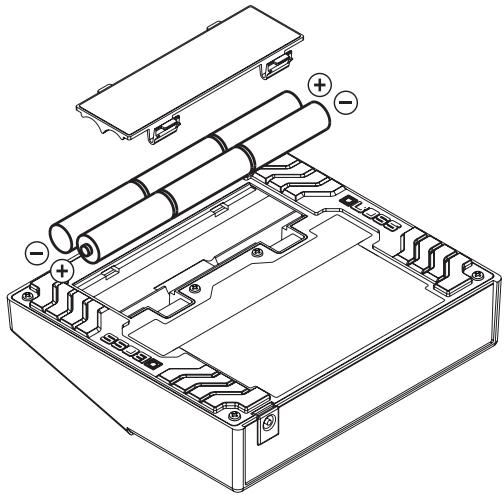
Insert the batteries as shown below, being careful to orient the batteries correctly.
NOTE
- When turning the unit upside-down, get a bunch of newspapers or magazines, and place them under the four corners or at both ends to prevent damage to the buttons and knobs. Also, you should try to orient the unit so that no buttons or knobs get damaged.
- When turning the unit upside-down, handle it with care to avoid dropping it, or allowing it to fall or tip over.
-
If used improperly, batteries may explode or leak and cause damage or injury. In the interest of safety, please read and observe the following precautions.
-
Carefully follow the installation instructions for batteries, and make sure you observe the correct polarity.
- Avoid using new batteries together with used ones. In addition, avoid mixing different types of batteries.
- Remove the batteries whenever the unit is to remain unused for an extended period of time.
- If a battery has leaked, use a soft piece of cloth or paper towel to wipe all remnants of the discharge from the battery compartment. Then install new batteries. To avoid inflammation of the skin, make sure that none of the battery discharge gets onto your hands or skin. Exercise the utmost caution so that none of the discharge gets near your eyes. Immediately rinse the affected area with running water if any of the discharge has entered the eyes.
-
Never keep batteries together with metallic objects such as ballpoint pens, necklaces, hairpins, etc.
-
When installing or replacing batteries, always turn off the power on this unit and disconnect any other devices you may have connected. This way, you can prevent malfunction and/or damage to speakers or other devices.
- Batteries are supplied with the unit. The life of these batteries may be limited, however, since their primary purpose is to enable testing.
- If you're using the VE-20 only on batteries, the POWER indicator will become dim as the batteries run down, and will then go out. Replace the batteries as soon as possible. You'll need six AA batteries.
- If you'll be using the VE-20 for an extended time, we recommend that you use an AC adaptor. If you prefer to use a battery, we recommend an alkaline battery.
MEMO
Continuous usage time under battery power is about 8 hours with alkaline batteries and about 2 hours with carbon batteries. (This may vary according to usage conditions.)
1. Getting ready
1
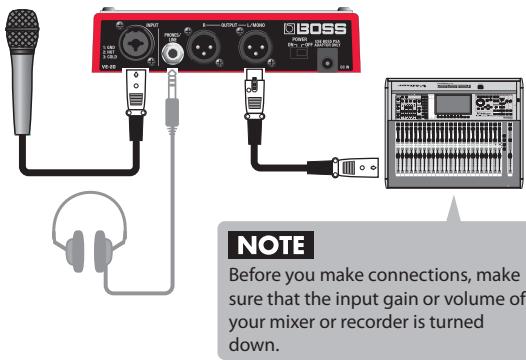
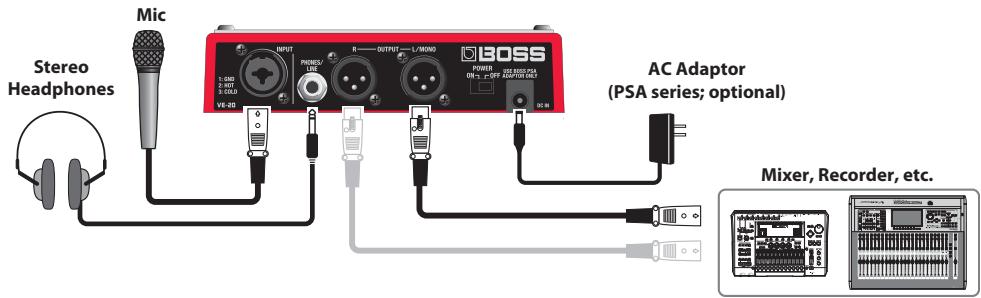
Connect your mic to the INPUT jack, and connect the OUTPUT jacks to your mixer or recorder.
2
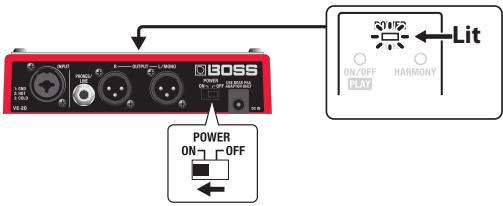
Move the rear-panel POWER switch to the ON position. (The power will turn on.)
3
Adjust the input sensitivity.
In order to use the VE-20 optimally, you'll need to adjust the input sensitivity.
- Press the MENU button.
- Press the cursor button (▶) to select MicSens.
- Turn the SOUND knob to adjust MicSens.
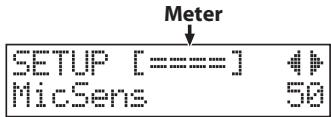
At the ideal setting, the meter will occasionally reach the far right (as shown below) when you sing loudly. If your voice sounds distorted, lower the MicSens setting.
NOTE
- If you're using batteries, insert them before you continue.
"Installing Batteries" (p. 3)
- If you're using an AC adaptor (BOSS PSA-series; optional), connect it to the DC IN jack.
MEMO
- If you use a condenser mic that requires phantom power, set the Phantom Power parameter to the On.
Using a condenser mic (Phantom Power)(p.16) - If you're using headphones, connect them to the PHONES/LINE jack.
MEMO
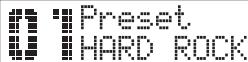
When you turn on the power, a screen like the following will appear. This is called the "Play screen."
MEMO
The MicSens setting is stored in memory even after the power is turned off, so you won't need to adjust it again unless you want to use a different mic or a different vocalist.
| 4 Press the EXIT button to return to the Play screen. | |
| 5 Gradually raise the input gain or volume of your mixer or recorder. | |
| 2. Sing | |
| 1 Go ahead and sing. Use the ON/OFF pedal to switch the effect on/off, and hear the difference it makes. The ON/OFF indicator lights when the VE-20's effect is on. Power GEAR HARMONY LIT WEIGHT PLA RICE | |
| 3. Switching sounds | |
| 1 Turn the central SOUND knob to switch between different sounds. Each sound has a name that is descriptive of its character. You can also refer to the "Sound List" (p. 17) when selecting a sound. SOUND | MEMO For details on the sounds, refer to “What is a “sound”?” (p. 10). |
4. Using the HARMONY pedal
1
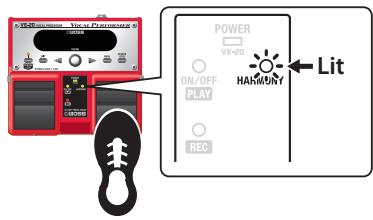
Press the HARMONY pedal; the Harmony effect will be applied.
The HARMONY indicator will light.
MEMO
- For details on adjusting the harmony effect, refer to "Adjusting the Harmony effect" (p. 11).
- You can use the HARMONY pedal to apply effects other than Harmony. "Using the HARMONY pedal to turn effects other than Harmony on/off" (p. 14)
5. Turning the power off
Lower the volume of your mixer or recorder.
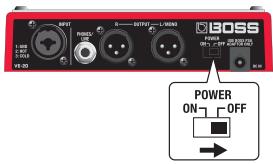
2 Move the rear-panel POWER switch to the OFF position. (The power will turn off.)
NOTE
- When using an AC adaptor, be sure to use only the specified type (PSA series; optional). Using an adaptor other than the specified type may cause the unit to malfunction, or cause damage to the unit.
- To prevent malfunction and/or damage to speakers or other devices, always turn down the volume and turn off the power to all devices before making any connections.
- Some connection cables contain resistors. When connection cables with resistors are used, the sound level may be extremely low, or impossible to hear. For information on cable specifications, contact the manufacturer of the cable.
- Before you make connections, make sure that the input gain or volume of your mixer or recorder is turned down. By turning on devices in the wrong order, you risk causing malfunction and/or damage to speakers and other devices.
- This unit is equipped with a protection circuit. A brief interval (a few seconds) after power-up is required before the unit will operate normally.
MEMO
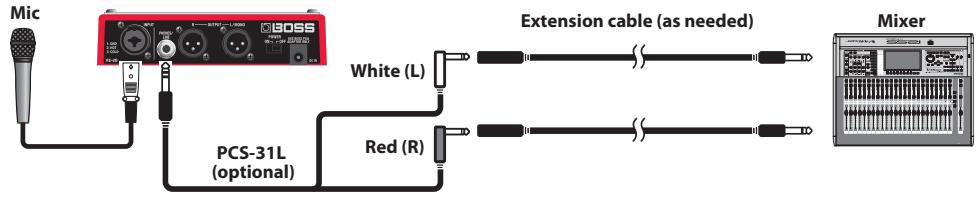
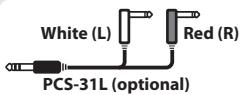
If you want to use a cable with a 1/4 inch phone plug to connect the VE-20 to your mixer or audio system, use the PHONES/ LINE jack. Use a Y-cable (such as the Roland PCS-31L, optional) to make connections.
Using the VE-20 live
Points to check beforehand
If you're performing at a live event where someone other than yourself is responsible for running the sound system, it's a good idea to inform them that you intend to use an in-line effects processor (the VE-20) on your mic. This will allow them to make sure that necessary equipment such as connection cables are available, and will help the rehearsal and the actual performance go smoothly.
Caution when making connections
Numerous types of PA equipment are used in a live event. Unexpectedly breaking a connection can produce high-volume noise, and may even damage equipment. Before you turn the VE-20's power on/off, or connect or disconnect the cables, be sure to check with a staff member and obtain their permission.
Front panel
Rear panel
INPUTJack
Connect your mic directly to this jack. The INPUT jack accepts either an XLR plug or a phone plug; you can use either type as appropriate for your situation. The jack accepts both balanced and unbalanced connections. The XLR type jack can provide 48 V phantom power, allowing you to connect a phantom-powered condenser microphone.
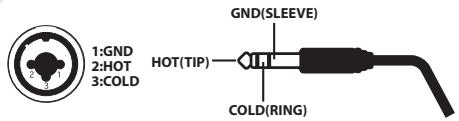
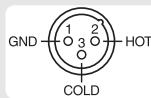
- This instrument is equipped with balanced (XLR/TRS) type Jacks. Wiring diagrams for these jacks are shown below. Make connections after first checking the wiring diagrams of other equipment you intend to connect.
-
Howling could be produced depending on the location of microphones relative to speakers. This can be remedied by:
-
Changing the orientation of the microphone(s).
- Relocating microphone(s) at a greater distance from speakers.
- Lowering volume levels.
NOTE
- Do not connect the output of an effects processor or similar device to this input jack. The sound may be distorted, and you may not obtain the desired effect.
- If you connect a mic that requires a phantom power supply, turn on the Phantom Power parameter.

"Using a condenser mic (Phantom Power)" (p. 16)
DC IN Jack
This jack is for connecting an AC adaptor (BOSS PSA series; optional).
Using an AC adaptor allows for long performances without worrying about the batteries going dead.
NOTE
When you are using an AC adaptor, be sure to use only the specified type (PSA series; optional). Using an adaptor other than the specified type may cause the unit to malfunction, or cause damage to the unit.
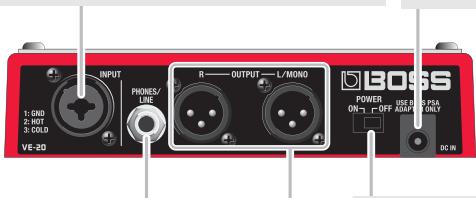
PHONES/LINE Jack
Connect stereo headphones here. Alternately, you can use this jack as an unbalanced stereo line output by connecting a Y-cable (such as the Roland PCS-31L; optional).
POWER Switch
This turns the power on/off.
OUTPUT L MONO/R Connectors
This outputs the sound of the VE-20 as a balanced signal.
- This instrument is equipped with balanced (XLR) type jacks. Wiring diagrams for these jacks are shown below. Make connections after first checking the wiring diagrams of other equipment you intend to connect.
- The OUTPUT connector outputs the signal at mic level.

To adjust the way the VE-20's sound is output, see "Specifying the type of output (Stereo or Mono/Dry)" (p. 16), "Output" (p. 19)
What is a "sound"?
On the VE-20, a "sound" is a combination of effects that determine the overall tonal character of a vocal that is processed with the unit. Each effect in a sound modifies a specific vocal characteristic, such as volume, tone, pitch, or ambience. A vocalist can instantly change their entire tonal character by selecting one of the 30 different sounds in the VE-20.
| Sound number | Sound type | Explanation |
| 01–30 | Preset sounds | These are read-only. MEMO If you've modified the settings of a preset Sound and want to preserve the result, you can save it as a user Sound (p. 15). |
| 31–80 | User sounds | These settings can be edited and saved. |
What is an "effect"?
An "effect" modifies a specific component of a sound: volume, tone, pitch, or ambience. The VE-20 contains six different effects. Each can be switched on/off independently and various parameters can be adjusted. For details on how to edit an effect, refer to "Editing the effects" (p. 12). For details about each effect, refer to "Parameter guide" (p. 18).
| Effects | Explanation |
| DYNAMICS | Makes the volume more consistent. |
| PITCH CORRECT | Corrects inaccuracies in the pitch. With certain settings, Pitch Correct can make the pitch change in a coarse "stair-step" fashion to produce a mechanical vocal tone. |
| TONE/SFX | Adjusts the tonal character or applies special effects. |
| DOUBLE/HARMONY | Produces a double-tracked effect or harmony effect. You can layer up to two parts (Part 1 and Part 2). What is double-tracking? This is a popular recording studio technique in which a vocalist records a melody, then over-dubs a second performance of the same melody along with the first recording. When the two performances are played back together, it gives the effect of a thick and rich single voice. |
| DELAY | Produces an echo-like effect. |
| REVERB | Produces the spacious reverberation that is typical of a performance in a room or hall. |
NOTE
- Please be aware that all data contained in the unit's memory may be lost when the unit is sent for repairs. Important data should always be written down on paper (when possible). During repairs, due care is taken to avoid the loss of data. However, in certain cases (such as when circuitry related to memory itself is out of order), we regret that it may not be possible to restore the data, and BOSS/Roland assumes no liability concerning such loss of data.
- Please be aware that the contents of memory can be irretrievably lost as a result of a malfunction, or the improper operation of the unit. To protect yourself against the risk of loosing important data, we recommend that you periodically written down an important data onto paper.
Unfortunately, it may be impossible to restore the contents of data that was stored in the unit's memory once it has been lost. BOSS/Roland Corporation assumes no liability concerning such loss of data.
Adjusting the level of the Reverb effect
- Press the REVERB LEVEL button.
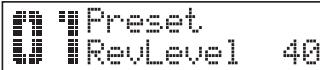
- Turn the SOUND knob to adjust the amount of reverb as desired.
-
Press the EXIT button to return to the Play screen.
-
If you want to turn off the reverb effect, set RevLevel to 0.

Additional reverb parameters can also be adjusted. See "Editing the effects" (p. 12)
Adjusting the level of the Delay effect
- Use the cursor buttons to select DlyLevel.
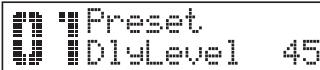
- Turn the SOUND knob to adjust the delay level as desired.
-
Press the EXIT button to return to the Play screen.
-
If you want to turn off the delay effect, set DlyLevel to 0.

Additional delay parameters can also be adjusted. See "Editing the effects" (p. 12)
Adjusting the Harmony effect
Matching the harmony to the key of your song
- Use the cursor buttons to select the Key .
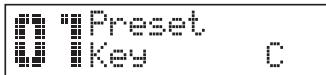
- Turn the SOUND knob to set the Key to match the key of your song.
The key setting corresponds to the key of the song (#, b) as follows.
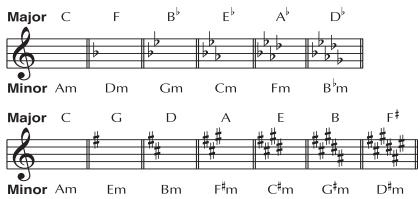
- Press the EXIT button to return to the Play screen.
Adjusting the volume of the harmony
The VE-20 lets you layer two parts of harmony (Part 1 and Part 2) onto your own voice.
- Use the cursor buttons to select Part1Lev.
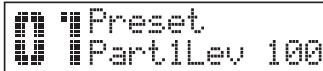
- Turn the SOUND knob to adjust the volume as desired.
- Adjust the Part2Lev in the same way.
-
Press the EXIT button to return to the Play screen.
-
If you want to add only one harmony part, set the unneeded part's level to 0.

Additional harmony parameters can also be adjusted. See "Editing the effects" (p. 12)
Editing the effects
- Press the MENU button.
- Turn the SOUND knob to select the effect that you want to edit.
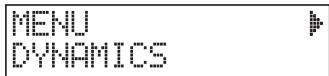
- Press cursor button (▶) to select the parameter that you want to edit.
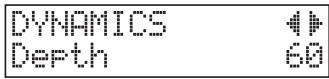

For details on the parameters, refer to "Parameter guide" (p. 18).
- Turn the SOUND knob to edit the parameter.
- If you want to edit other parameters, repeat Steps 3-4.

If you want to restore an edited setting to its original state, hold down the EXIT button and press cursor button (▲).
- Press the EXIT button to return to the Play screen.
Naming your sound
To help you remember the tonality that a sound produces, you can assign a descriptive name of up to 12 characters to a sound.
- Press the MENU button.
- Turn the SOUND knob to select NAME.
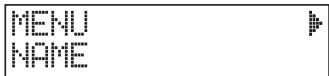
- Press cursor button (▶).
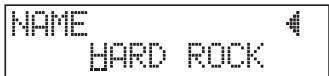
- Use the cursor buttons to select the character that you want to change, and turn the SOUND knob to choose the desired character.
- Press the EXIT button to return to the Play screen.
Using Phrase Loop to Layer Your Voice
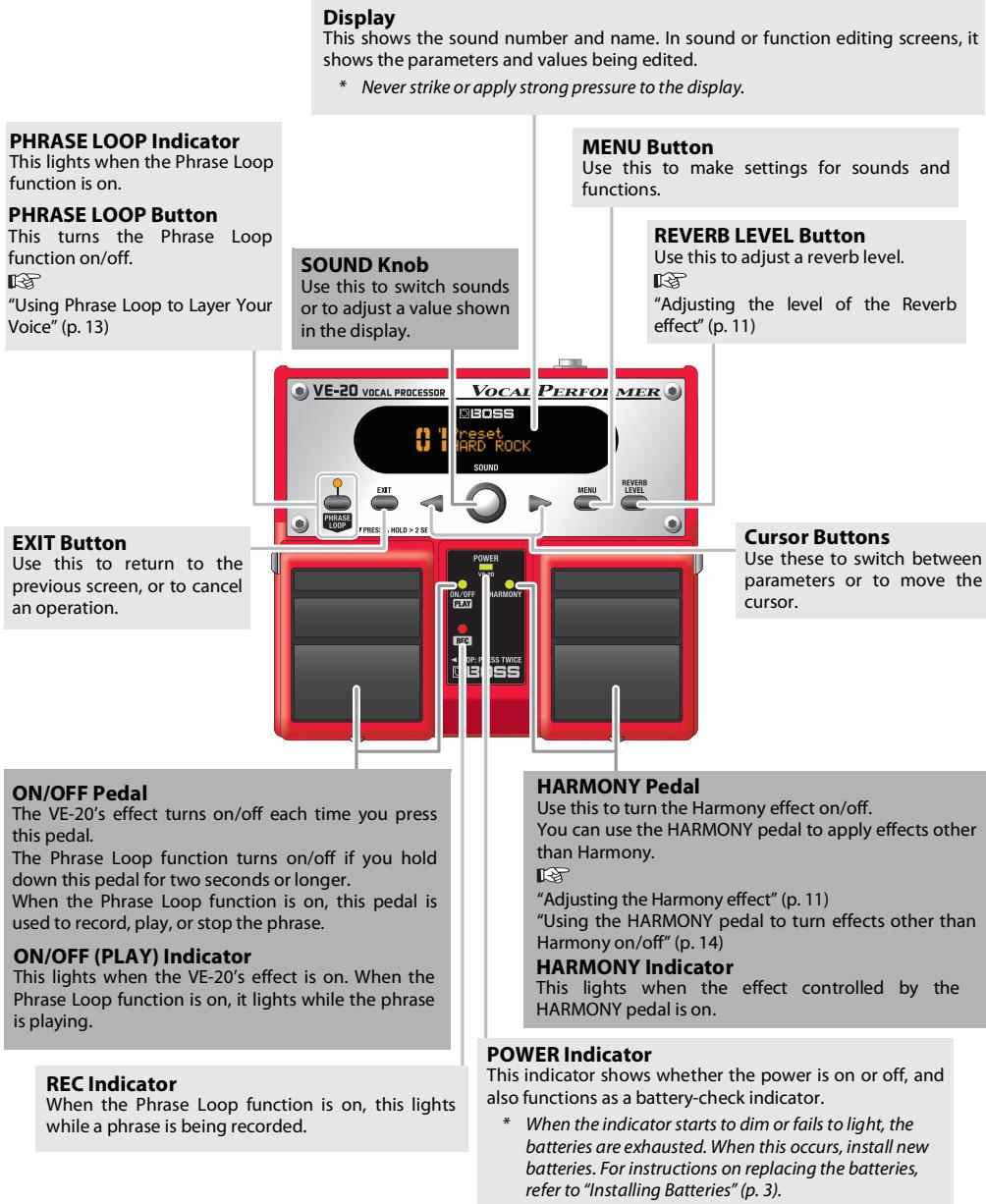
You can use the ON/OFF pedal to control the Phrase Loop function.
What is the Phrase Loop function?
This function lets you record a monaural phrase of up to 38 seconds and play it repeatedly (i.e., play it as a loop). You can also layer—or "overdub"—additional phrases with the first phrase. By layering different melody lines you can simulate an a cappella chorus by yourself, or use voice percussion to add rhythm phrases to your performance.
MEMO
In order to overdub using the Phrase Loop function, you'll need to set the LoopType parameter to Perform (p. 15).
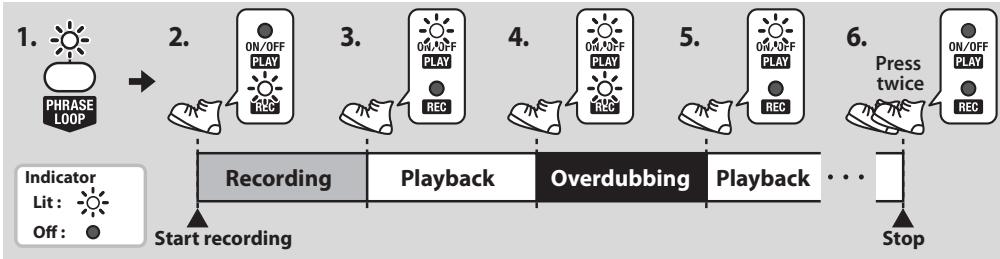
- Press the PHRASE LOOP button to turn the Phrase Loop function on (the PHRASE LOOP indicator will light).
MEMO Using the ON/OFF pedal to turn the Phrase Loop function on/off
Hold down the ON/OFF pedal for two seconds or longer; the Phrase Loop function will turn on (the PHRASE LOOP indicator will light). When you once again hold down the ON/OFF pedal for two seconds or longer, the Phrase Loop function will turn off (the PHRASE LOOP indicator will go out).
- Press the ON/OFF pedal to start recording.
The REC indicator (red) lights. Now, sing the phrase that you want to record first.
- Press the ON/OFF pedal to stop recording.
The PLAY indicator (green) lights, and the recorded phrase starts playing as a loop.
- Press the ON/OFF pedal to start overdubbing.
The REC indicator (red) lights. Now, sing the phrase that you want to overdub.
- Press the ON/OFF pedal to stop overdubbing.
The PLAY indicator (green) lights, and the recorded phrase plays as a loop.
If you want to add additional overdubs, repeat Steps 4-5. During overdubbing, you can switch sounds as desired.
- To stop phrase playback, press the ON/OFF pedal twice in rapid succession.
The PLAY indicator and REC indicator will both go out, and phrase loop playback and recording will stop.
- Press the ON/OFF pedal twice within one second.
- The recorded phrase is erased when you stop loop playback or turn off the Phrase Loop function.
Using the HARMONY pedal to turn effects other than Harmony on/off
You can use the HARMONY pedal to apply effects other than Harmony.
Example 1) Turning DELAY on/off
- Press the MENU button.
- Turn the SOUND knob to select CONTROL PEDAL.
- Press cursor button (▶).
- Turn the SOUND knob to select DELAY.
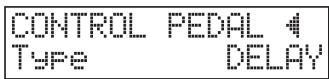
- Press the EXIT button to return to the Play screen.
Now, DELAY will toggle on/off each time you press the HARMONY pedal.
Example 2) Turning multiple effects on/off simultaneously
- Press the MENU button.
- Turn the SOUND knob to select CONTROL PEDAL.
- Press cursor button (▶).
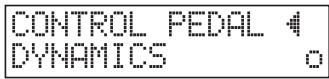
- Turn the SOUND knob to select CUSTOM.
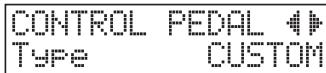
- Press cursor button () to select the effect that you want to turn on/off.
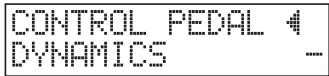
- Turn the SOUND knob to choose the "o" setting.
-
Repeat steps 5-6 for each effect that you want to turn on/off.
-
Press the EXIT button to return to the Play screen.
The specified effects will switch on/off together each time you press the HARMONY pedal.
Using the pedals to switch sounds
In addition to using the SOUND knob to switch between sounds, you can also use the VE-20's pedals to switch sounds.
- Hold down the HARMONY pedal for two seconds or longer.
The sound number will blink.

- Press the ON/OFF pedal or the HARMONY pedal to switch sounds.
Each pedal performs the following function.
| Pedal | Function |
| ON/OFF pedal | Switches to the preceding sound number. |
| HARMONY pedal | Switches to the next sound number. |
- Hold down the HARMONY pedal for two seconds or longer.
The sound number changes back to steadily lit, and the pedals return to their usual function.
Using your recorded voice to make adjustments (Sound Check)
You can use the Phrase Loop function to record your voice unprocessed by any effects, and then play back your recorded voice while you audition sounds or make adjustments.
- Press the MENU button.
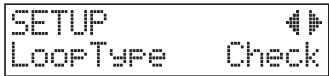
- Press the cursor button (▶) to select the LoopType.
- Turn the SOUND knob to select Check.
- Press the EXIT button to return to the Play screen.
With the above setting, you can use the Phrase Loop function as a "sound check" function.

For details on the Phrase Loop function, refer to "Using Phrase Loop to Layer Your Voice"(p. 13).
- When Phrase Loop is in sound check mode, you can't layer overdubbed phrases. If you press the ON/OFF pedal while a recorded phrase is playing, the phrase is erased and a new recording begins.
Saving a sound as a different User Sound
Here's how to save the sound as a different User sound.
This is convenient when you want to save a preset sound that you've edited, or when you want to create a new sound that's based on an existing sound.
-
Once you carry out this procedure, you'll lose any previous sound settings contained in the storage destination.
-
Press the MENU button.
- Turn the SOUND knob to select WRITE.
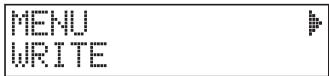
- Press cursor button (▶).
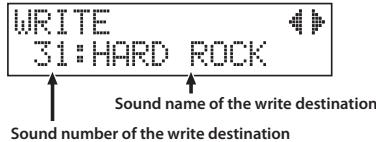
The REC indicator blinks, and the Write screen appears.
- Turn the SOUND knob to select the write-destination sound.
MEMO
If you decide not to execute the Write operation, press the EXIT button to return to the previous screen.
- Press the ON/OFF pedal.
The sound is saved.
- Never turn off the power before the display indicates "COMPLETED!".
Exchanging sounds
You can change the order of the user sounds by exchanging them.
- Turn the SOUND knob to select one of the sounds that you want to exchange.
- Press the MENU button.
- Turn the SOUND knob to select WRITE.
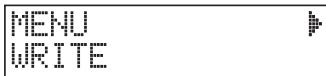
- Press the cursor button (▶) to select EXCHANGE.
The REC indicator blinks, and the Exchange screen appears.
- Turn the SOUND knob to select the other sound with which you want to exchange the currently selected sound.
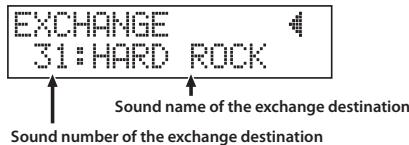
MEMO
If you decide not to execute the Exchange operation, press the EXIT button to return to the previous screen.
- Press the ON/OFF pedal.
The sounds are exchanged.
- Never turn off the power before the display indicates "COMPLETED!".
Specifying the type of output (Stereo or Mono/Dry)
If you want the VE-20's sound to be output in stereo or as mono/dry signals, make the following setting.
- Press the MENU button.
- Press cursor button (▶) to select the Output.
- Turn the SOUND knob to select Stereo or Mono/Dry.
Here, Stereo is selected.
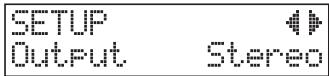
cf.
To learn more about the parameters, refer to "Output"(p. 19).
- Press the EXIT button to return to the Play screen.
Using a condenser mic (Phantom Power)
If you're using a condenser mic that requires phantom power, turn phantom power on as described below.
- Press the MENU button.
- Press cursor button (▶) to select the Phantom Power.
- Turn the SOUND knob to select On.
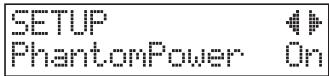
- Press the EXIT button to return to the Play screen.
CAUTION
Always turn the phantom power off when connecting any device other than condenser microphones that require phantom power. You risk causing damage if you mistakenly supply phantom power to dynamic microphones, audio playback devices, or other devices that don't require such power. Be sure to check the specifications of any microphone you intend to use by referring to the manual that came with it. (This instrument's phantom power: 48 V DC, 10 mA Max)
Cutting unwanted low frequencies
If you want to cut unwanted low-frequency content, turn on the LowCut parameter.
- Press the MENU button.
- Press cursor button (▶) to select the Low Cut.
- Turn the SOUND knob to select On.
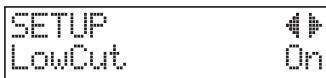
- Press the EXIT button to return to the Play screen.
Adjusting the screen's legibility (Contrast)
- Press the MENU button.
- Press cursor button (▶) to select the Contrast.
- Turn the SOUND knob to adjust the Contrast.
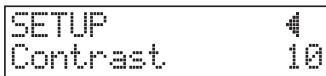
- Press the EXIT button to return to the Play screen.
Restoring the factory settings (Factory Reset)
Here's how to restore the VE-20's settings to their factory-set condition.
- Press the MENU button.
- Turn the SOUND knob to select FACTORY RESET.
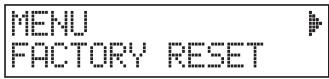
- Press cursor button (▶).
The REC indicator will blink, and the Factory reset screen appears.
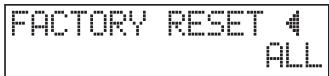
- Turn the SOUND knob to specify the extent of the factory reset.
| Value | Data to be initialized |
| ALL | All settings |
| SOUND | Settings for all user sounds |
| SETUP | Setup parameters |
MEMO
If you decide not to execute the Factory Reset, press the EXIT button to return to the previous screen.
- Press the ON/OFF pedal.
The settings you specified will return to their factory-set state.
- Never turn off the power before the display indicates "COMPLETED!".
Sound List
| No. | Category | Sound Name |
| 01 | STANDARD | HARD ROCK |
| 02 | POP | |
| 03 | BALLAD | |
| 04 | OLDIES | |
| 05 | ROCK | |
| 06 | JAZZ | |
| 07 | ECHO | |
| 08 | ARENA | |
| 09 | CATHEDLAR | |
| 10 | HIP HOP | |
| 11 | VOICE PERC | |
| 12 | HARMONICA | |
| 13 | DOUBLE | DOUBLE VOICE |
| 14 | TRIPLE VOICE | |
| 15 | 6 VOICE | |
| 16 | HARMONY | 5th HARMONY |
| 17 | 3rd HARMONY | |
| 18 | 5th + DOUBLE | |
| 19 | 3rd + DOUBLE | |
| 20 | 3rd + 5th LOW | |
| 21 | 3rd + 5th | |
| 22 | 3rd + 5th HIGH | |
| 23 | SFX | DISTORTION |
| 24 | RADIO | |
| 25 | STROBE | |
| 26 | CHORUS | |
| 27 | FLANGER | |
| 28 | PitchCorrect | |
| 29 | CHROMATIC | |
| 30 | ROBOT |
Parameter guide
Sound parameters
These are the effects parameters than you can edit within each sound.
DYNAMICS
| Parameter | Explanation |
| On, Off | Switches DYNAMICS on/off. |
| Depth | Adjusts the depth of DYNAMICS. |
| Enhance | Adjusts the depth of the Enhance effect. Higher settings will give the sound sharper definition. |
PITCH CORRECT
| Parameter | Explanation | |
| On, Off | Switches PITCH CORRECT on/off. | |
| Type | Soft | The pitch will be corrected smoothly. |
| Hard | The pitch will be corrected quickly. | |
| Electric | Corrects pitch variation to a stair-step change. | |
| Robot | Corrects the pitch to the specified note. | |
| Scale *1 | Chromatic | The pitch is corrected to the nearest chromatic semitone. |
| Maj (Min) | The pitch is corrected according to the Key setting. | |
| Gender | Changes your voice to a masculine or feminine character. | |
| Octave *1 | Specifies the amount by which the pitch will change. | |
| Key *2 | Specifies the key of the song you're singing (p. 11). | |
| Note *3 | Fixes the pitch. | |
1 Available if Type is set to Soft, Hard, or Electric.
2 Available if Scale is set to Maj(Min).
*3 Available if Type is set to Robot.
TONE/SFX
| Parameter | Explanation | |
| On, Off | Switches TONE/SFX on/off. | |
| Type | PREAMP | Adjusts the tonal character. |
| DISTOR-TION | Produces a distorted voice. | |
| RADIO | Produces a radio voice. | |
| STROBE | Finely slices the voice. | |
| CHORUS | Adds richness to the voice. | |
| FLANGER | Adds a “swooshing” modulation. | |
| Gain *1 | Adjusts the level. | |
| Bass *1 | Adjusts the tone quality of the low-frequency range. | |
| Middle *1 | Adjusts the tone quality of the mid-frequency range. | |
| Middle f *1 | Adjusts the frequency affected by the Middle pa-rameter. | |
| Treble *1 | Adjusts the tone quality of the high-frequency range. | |
| Parameter | Explanation |
| Drive *2 | Adjusts the degree of distortion. |
| Tone *2 | Adjusts the tonal character. |
| Speed *3 | Specifies the speed. |
| Depth *4 | Adjusts the depth of CHORUS. |
1 Available if Type is set to PREAMP.
2 Available if Type is set to DISTORTION.
3 Available if Type is set to STROBE or FLANGER.
4 Available if Type is set to CHORUS.
DOUBLE/HARMONY
| Parameter | Explanation | |
| On, Off | Switches DOUBLE/HARMONY on/off. | |
| Part1 (2) Type | Off | Turns the part off. |
| Double | Produces a double-tracking effect. | |
| -1--+1 oct | If you've specified the key of your song (p. 11), harmony that is suitable for that key will be added at the inter-val you specify here. | |
| Unison | By changing the vocal character, this produces the impression that another person is singing the same melody along with you. | |
| Part1 (2) Dbl *1 | Adjusts the intensity of the Double effect in three levels (Light / Normal / Deep). | |
| Part1 (2) Lev *2 | Adjusts the volume of the part. | |
| Part1 (2) Gender *2 | Transforms the voice by giving it a masculine or feminine character. | |
| Part1 (2) Pan | L50-Center-R50 | Specifies the panning (stereo position) of the sound. |
| Key *2 | Specifies the key of the song you're singing (p. 11). | |
1 Available if Type is set to Double.
2 Available if Type is set to -1 to +1 oct or Unison.
DELAY
| Parameter | Explanation |
| On, Off | Switches DELAY on/off. |
| Time | Adjusts the delay time (1–4000 ms). |
| Feedback | Adjusts the amount of delayed sound that is re- peated. |
| DelayLevel | Adjusts the volume of the delayed sound. |
REVERB
| Parameter | Explanation | |
| On, Off | Switches REVERB on/off. | |
| Type | Ambience | Produces a sense of spatial depth. |
| Room | Produces warm reverberation. | |
| Hall 1 | Produces clear and spacious reverberation. | |
| Hall 2 | Produces mild and understated reverberation. | |
| Plate | Produces metallic-sounding reverberation with an extended high range. | |
| Size | Adjusts the size of the room (space) to vary the re-verb time. | |
| RevLevel | Adjusts the volume of the reverberation. | |
CONTROL PEDAL
| Parameter | Explanation | |
| Type | DBL/HRM | Switches each effect on/off (p. 14). |
| DELAY | ||
| PITCH | ||
| TONE/SFX | ||
| REVERB | ||
| DYNAMICS | ||
| CUSTOM | Turns the specified effect on/off (p. 14). | |
MASTER
| Parameter | Explanation |
| Level | Specifies the volume of the sound. |
| NoiseThres | Adjust this according to the noise level. Set this to a larger value if the noise level is high, or to a lower value if the noise level is low. |
| Key | Specifies the key of the song you're singing (p. 11). |
System parameters
These parameters are applied to the entire VE-20.
SETUP
| Parameter | Explanation | |
| MicSens | Adjusts the input sensitivity. | |
| PhantomPower | On, Off | Turns on/off the supply of phantom power to the INPUT jack. |
| Output | Mono | Mono output from OUTPUT connectors L (MONO) and R. |
| Stereo | Stereo output from the OUTPUT connectors. | |
| Mono/Dry | Mono output from OUTPUT connectors L (MONO) and Dry sound from connector R. * This setting also applies to the Land R signals of the PHONES/LINE jack. | |
| LowCut | On, Off | Cuts unwanted low-frequency content. |
| LoopType | Perform | Select this if you want to use the Phrase Loop function to overdub (p. 13). |
| Check | Select this if you want to perform a sound check (p. 15). | |
| Contrast | Adjusts the display contrast (legibility). | |
FACTORY RESET
| Parameter | Explanation |
| ALL | All settings will be initialized. |
| SOUND | All user sound settings will be initialized. |
| SETUP | Setup parameter settings will be initialized. |
Troubleshooting
Power doesn't come on
Have the batteries run down?
Replace them with new batteries (p. 3).
* The batteries included with the VE-20 are meant only to confirm that the unit is functional at the factory.
Is the specified AC adaptor (PSA series; optional) connected correctly?
Check the connections again (p. 7).
Never use any AC adaptor other than the adaptor specified.
Could the POWER switch be OFF?
Turn the POWER switch ON (p.4).
No sound/volume is low
Is the other equipment connected correctly?
Check the connections again (p. 7).
Could the volume or input gain of the connected mixer or recorder be lowered?
Check the settings of the connected device.
Could the Phantom Power parameter be set to Off?
If you're using a condenser mic that requires phantom power, set the Phantom Power parameter to the On (p. 16).
Could the MicSens or Volume settings be too low?
Adjust these to appropriate values (p. 4).
Have the batteries run down?
Replace them with new batteries (p. 3).
* The batteries included with the VE-20 are meant only to confirm that the unit is functional at the factory.
The POWER indicator has gone dim
Is the specified adaptor (PSA series; optional) properly connected?
Check the connection once more (p. 7).
Never use any AC adaptor other than one specified for use with the VE-20.
Have the batteries run down?
Replace them with new batteries (p. 3).
When the indicator goes dim or no longer lights while the effect is on, it means that the batteries must be replaced.
* The batteries included with the VE-20 are meant only to confirm that the unit is functional at the factory.
Sound is distorted
Is the MicSens setting appropriate?
Adjust the setting appropriately (p. 4).
Is the output from another effects processor connected to the INPUT jack?
Connect your mic directly to the INPUT jack.
Can't store the recorded phrase
It is not possible to store a recorded phrase in the VE-20.
Can't overdub using Phrase Loop
Could the Phrase Loop parameter be set to Check?
Overdubbing is not possible if this is set to Check. If you want to overdub, set the Phrase Loop parameter to Perform (p. 15).
Main Specifications
VE-20: Vocal Processor
| Nominal Input Level | INPUT: -40 dBu (MicSens=40) |
| Input Impedance | INPUT: 4 k ohms |
| Nominal Output Level | OUTPUT: -40 dBu PHONES/LINE: -25 dBu |
| Output Impedance | OUTPUT: 600 ohms PHONES/LINE: 66 ohms |
| Sound | 30 (Preset) + 50 (User) |
| Maximum Recording Time (Monaural only) | 38 seconds |
| Display | 16 characters, 2 lines (backlit LCD) |
| Connectors | INPUT jack (XLR type (balanced, phantom power +48 V), 1/4 inch TRS phone type (balanced)) OUTPUT jacks (XLR type) PHONES/LINE jack (Stereo 1/4 inch phone type) DC IN jack (DC 9 V) |
| Power Supply | DC 9 V: Dry battery LR6/R6 (AA) type x 6, AC Adaptor (PSA series) * Duration of continuous use with battery operation: Carbon:2 hours, Alkaline:8 hours These figures will vary depending on the actual conditions of use. |
| Current Draw | 190 mA (9 V max.) |
| Dimensions | 173 (W) x 158 (D) x 57 (H) mm 6-13/16 (W) x 6-1/4 (D) x 2-1/4 (H) inches |
| Weight | 1.1 kg / 2 lbs 7 oz (including batteries) |
| Accessories | Owner's Manual Leaflet ("USING THE UNIT SAFELY," "IMPORTANT NOTES," and "Information") Dry battery LR6 (AA) type (Alkaline) x 6 |
| Option | AC Adaptor: PSA series |
- 0dBu = 0.775Vrms
- In the interest of product improvement, the specifications and/or appearance of this unit are subject to change without prior notice.
Bedienungsanleitung
| SETUP | # |
| Output | Stereo |
siehe
| SETUP | # |
| PhantomPower | On |
VE-20: Vocal Processor
| N. | Categoria | Nome del suono |
| 01 | STANDARD | HARD ROCK |
| 02 | POP | |
| 03 | BALLAD | |
| 04 | OLDIES | |
| 05 | ROCK | |
| 06 | JAZZ | |
| 07 | ECHO | |
| 08 | ARENA | |
| 09 | CATHEDLAR | |
| 10 | HIP HOP | |
| 11 | VOICE PERC | |
| 12 | HARMONICA | |
| 13 | DOUBLE | DOUBLE VOICE |
| 14 | TRIPLE VOICE | |
| 15 | 6 VOICE | |
| 16 | HARMONY | 5th HARMONY |
| 17 | 3rd HARMONY | |
| 18 | 5th + DOUBLE | |
| 19 | 3rd + DOUBLE | |
| 20 | 3rd + 5th LOW | |
| 21 | 3rd + 5th | |
| 22 | 3rd + 5th HIGH | |
| 23 | SFX | DISTORTION |
| 24 | RADIO | |
| 25 | STROBE | |
| 26 | CHORUS | |
| 27 | FLANGER | |
| 28 | PitchCorrect | |
| 29 | CHROMATIC | |
| 30 | ROBOT |
Guida ai parametri
Parametri dei suoni
Copyright © 2009 BOSS CORPORATION
Estabelecendo as conexões......7
| No | Categoria | Nome do som |
| 01 | STANDARD | HARD ROCK |
| 02 | POP | |
| 03 | BALLAD | |
| 04 | OLDIES | |
| 05 | ROCK | |
| 06 | JAZZ | |
| 07 | ECHO | |
| 08 | ARENA | |
| 09 | CATHEDLAR | |
| 10 | HIP HOP | |
| 11 | VOICE PERC | |
| 12 | HARMONICA | |
| 13 | DOUBLE | DOUBLE VOICE |
| 14 | TRIPLE VOICE | |
| 15 | 6 VOICE | |
| 16 | HARMONY | 5th HARMONY |
| 17 | 3rd HARMONY | |
| 18 | 5th + DOUBLE | |
| 19 | 3rd + DOUBLE | |
| 20 | 3rd + 5th LOW | |
| 21 | 3rd + 5th | |
| 22 | 3rd + 5th HIGH | |
| 23 | SFX | DISTORTION |
| 24 | RADIO | |
| 25 | STROBE | |
| 26 | CHORUS | |
| 27 | FLANGER | |
| 28 | PitchCorrect | |
| 29 | CHROMATIC | |
| 30 | ROBOT |
Guia de parâmetros
Parâmetros de som
VE-20: Processor vocal
CONTROL PEDAL DYNAMICS 0
VE-20: Vocal Processor