
UM-1SX - MIDI Controller ROLAND - Free user manual and instructions
Find the device manual for free UM-1SX ROLAND in PDF.


| Product type | USB MIDI Interface |
| Brand | Roland |
| Model | UM-1SX |
| Connectivity | USB 1.1/2.0 Full Speed, MIDI IN/OUT (DIN 5-pin) |
| Power supply | USB bus power (150 mA) |
| USB cable length | 600 mm (built-in) |
| Mode switch | ADVANCED DRIVER (ON/OFF) – enables FPT technology |
| Compatible operating systems | Windows XP/2000/Me/98, Mac OS X/9/8 |
| Weight | Approx. 100 g |
| Dimensions | Approx. 80 x 30 x 20 mm |
| Main features | High-speed MIDI transmission via FPT, compatible with OMS/FreeMIDI |
| Care and cleaning | Clean with a dry, soft cloth. Avoid moisture and solvents. |
| Safety | Do not expose to water or excessive humidity. Use a powered USB hub if necessary. |
| Spare parts and repairability | Not user-serviceable. Contact Roland customer support. |
| General information | Compact USB MIDI interface for computer. Comes with driver CD-ROM and user manual. |
Frequently Asked Questions - UM-1SX ROLAND
User questions about UM-1SX ROLAND
0 question about this device. Answer the ones you know or ask your own.
Ask a new question about this device
Download the instructions for your MIDI Controller in PDF format for free! Find your manual UM-1SX - ROLAND and take your electronic device back in hand. On this page are published all the documents necessary for the use of your device. UM-1SX by ROLAND.
USER MANUAL UM-1SX ROLAND
Before using this unit, carefully read the sections entitled: "USING THE UNIT SAFELY" (p. 2–3) and "IMPORTANT NOTES" (p. 4).
These sections provide important information concerning the proper operation of the unit. Additionally, in order to feel assured that you have gained a good grasp of every feature provided by your new unit, Getting Started should be read in its entirety. The manual should be saved and kept on hand as a convenient reference.
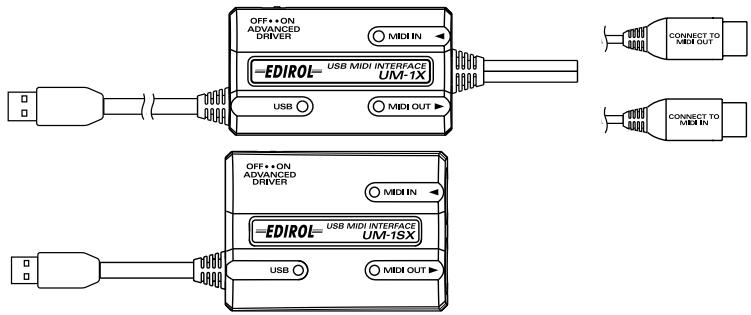
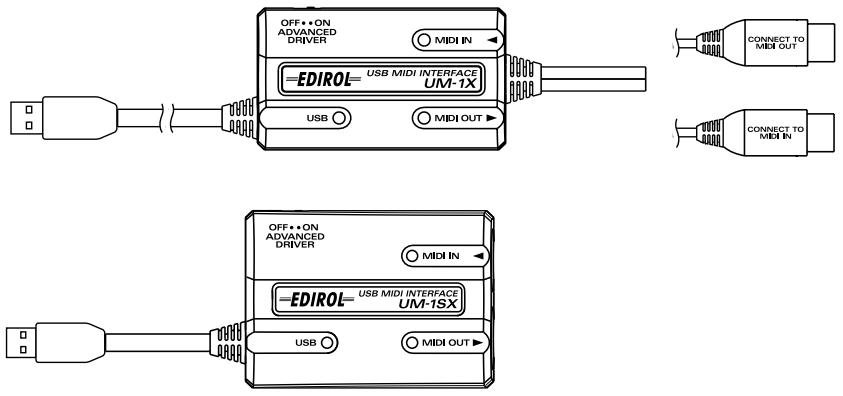
This Owner's Manual applies to both the UM-1X and the UM-1SX. The manual uses the term "UM-1X" to indicate both models. If you have the UM-1SX, please read "UM-1X" as "UM-1SX."
USING THE UNIT SAFELY
INSTRUCTIONS FOR THE PREVENTION OF FIRE, ELECTRIC SHOCK, OR INJURY TO PERSONS
About ⚠️ WARNING and ⚠️ CAUTION Notices
| WARNING | Used for instructions intended to alert the user to the risk of death or severe injury should the unit be used improperly. |
| CAUTION | Used for instructions intended to alert the user to the risk of injury or material damage should the unit be used improperly.* Material damage refers to damage or other adverse effects caused with respect to the home and all its furnishings, as well to domestic animals or pets. |
About the Symbols
| The △ symbol alerts the user to important instructions or warnings. The specific meaning of the symbol is determined by the design contained within the triangle. In the case of the symbol at left, it is used for general cautions, warnings, or alerts to danger. | |
| The ⊙ symbol alerts the user to items that must never be carried out (are forbidden). The specific thing that must not be done is indicated by the design contained within the circle. In the case of the symbol at left, it means that the unit must never be disassembled. | |
| The ● symbol alerts the user to things that must be carried out. The specific thing that must be done is indicated by the design contained within the circle. In the case of the symbol at left, it means that the power-cord plug must be unplugged from the outlet. |
ALWAYS OBSERVE THE FOLLOWING
WARNING
- Before using this unit, make sure to read the instructions below, and the Owner's Manual.
- Do not open or perform any internal modifications on the unit.
-
Never use or store the unit in places that are:
-
Subject to temperature extremes (e.g., direct sunlight in an enclosed vehicle, near a heating duct, on top of heat-generating equipment); or are
- Damp (e.g., baths, washrooms, on wet floors); or are
- Humid; or are
- Exposed to rain; or are
- Dusty; or are
- Subject to high levels of vibration.
- Make sure you always have the unit placed so it is level and sure to remain stable. Never place it on stands that could wobble, or on inclined surfaces.


! WARNING
- Do not attempt to repair the unit, or replace parts within it (except when this manual provides specific instructions directing you to do so). Refer all servicing to your retailer, the nearest EDIROL/ROLAND Service Center, or an authorized Roland distributor, as listed on the “Information” page.

- Do not allow any objects (e.g., flammable material, coins, pins); or liquids of any kind (water, soft drinks, etc.) to penetrate the unit.

- Immediately turn the power off, and request servicing by your retailer, the nearest Roland Service Center, or an authorized EDIROL/ROLAND distributor, as listed on the "Information" page when:

- If smoke or unusual odor occurs
- Objects have fallen into, or liquid has been spilled onto the unit; or
- The unit has been exposed to rain (or otherwise has become wet); or
- The unit does not appear to operate normally or exhibits a marked change in performance.


WARNING
- In households with small children, an adult should provide supervision until the child is capable of following all the rules essential for the safe operation of the unit.

- Protect the unit from strong impact. (Do not drop it!)

- DO NOT play a CD-ROM disc on a conventional audio CD player. The resulting sound may be of a level that could cause permanent hearing loss. Damage to speakers or other system components may result.


CAUTION
- Try to prevent cords and cables from becoming entangled. Also, all cords and cables should be placed so they are out of the reach of children.

- Never climb on top of, nor place heavy objects on the unit.

- Disconnect all cords coming from external devices before moving the unit.

* Microsoft and Windows are registered trademarks of Microsoft Corporation.
* Screen shots in this documents are reprinted with permission from Microsoft Corporation.
* Windows® is known officially as: "Microsoft® Windows® operating system."
* Apple and Macintosh are registered trademark of Apple Computer, Inc.
* MacOS is a trademark of Apple Computer, Inc.
* All product names mentioned in this document are trademarks or registered trademarks of their respective owners.
* OMS is a registered trademark of Opcode Systems, Inc.
* FreeMIDI is a trademark of Mark of the Unicorn, Inc.
IMPORTANT NOTES
In addition to the items listed under “USING THE UNIT SAFELY” on page 2–3, please read and observe the following:
Power Supply
- Before connecting this unit to other devices, turn off the power to all units. This will help prevent malfunctions and/or damage to speakers or other devices.
Placement
- This device may interfere with radio and television reception. Do not use this device in the vicinity of such receivers.
- Noise may be produced if wireless communications devices, such as cell phones, are operated in the vicinity of this unit. Such noise could occur when receiving or initiating a call, or while conversing. Should you experience such problems, you should relocate such wireless devices so they are at a greater distance from this unit, or switch them off.
- Do not expose the unit to direct sunlight, place it near devices that radiate heat, leave it inside an enclosed vehicle, or otherwise subject it to temperature extremes. Excessive heat can deform or discolor the unit.
- When moved from one location to another where the temperature and/or humidity is very different, water droplets (condensation) may form inside the unit. Damage or malfunction may result if you attempt to use the unit in this condition. Therefore, before using the unit, you must allow it to stand for several hours, until the condensation has completely evaporated.
Maintenance
- For everyday cleaning wipe the unit with a soft, dry cloth or one that has been slightly dampened with water. To remove stubborn dirt, use a cloth impregnated with a mild, non-abrasive detergent. Afterwards, be sure to wipe the unit thoroughly with a soft, dry cloth.
- Never use benzine, thinners, alcohol or solvents of any kind, to avoid the possibility of discoloration and/or deformation.
Handling CD-ROMs
- Avoid touching or scratching the shiny underside (encoded surface) of the disc. Damaged or dirty CD-ROM discs may not be read properly. Keep your discs clean using a commercially available CD cleaner.
Additional Precautions
- Unfortunately, it may be impossible to restore the contents of data that was stored hard disk once it has been lost. Roland Corporation assumes no liability concerning such loss of data.
- Use a reasonable amount of care when using the unit's buttons, sliders, or other controls; and when using its jacks and connectors. Rough handling can lead to malfunctions.
- When connecting / disconnecting all cables, grasp the connector itself—never pull on the cable. This way you will avoid causing shorts, or damage to the cable's internal elements.
- To avoid disturbing your neighbors, try to keep the unit's volume at reasonable levels (especially when it is late at night).
- When you need to transport the unit, package it in the box (including padding) that it came in, if possible. Otherwise, you will need to use equivalent packaging materials.
- Unauthorized duplication, reproduction, hiring, and lending prohibited.
- Roland has tested the UM-1X/UM-1SX with typical computers that meet the system requirements, but cannot guarantee that a given computer can be used satisfactorily with the UM-1X/UM-1SX based solely on the fact that it meets the requirements. This is because there are too many other variables that may influence the processing environment, including differences in motherboard design and the particular combination of other devices involved.
Contents
English
Check the Contents of the Package 6
Front and Rear Panel 7
Getting Connected and Installing Drivers (Windows)...... 8
Getting Connected and Installing Drivers (Macintosh)...... 22
Troubleshooting 32
Deutsch
Check the Contents of the Package
The UM-1X includes the following items. When you open the package, first make sure that all items are included. If any are missing, contact the dealer where you purchased the UM-1X.
- USB MIDI Interface UM-1X/UM-1SX
● UM-1X/UM-1SX CD-ROM (one disk)
Be sure to read the README_E.TXT file that is found in the UM-1X Driver CD-ROM.
* Do not touch the silver recording surface of the disc, or scratch it. Doing so may make it impossible for data to be read correctly. If the disc becomes soiled, use a commercially available CD cleaner to clean it.
* Do not play back the CD-ROM on a conventional audio CD player. Doing so will produce a high volume that may damage your ears or speakers.
- Owner’s Manual (this document)
This is the document you are reading. Keep it at hand for reference when needed.
Front and Rear Panel
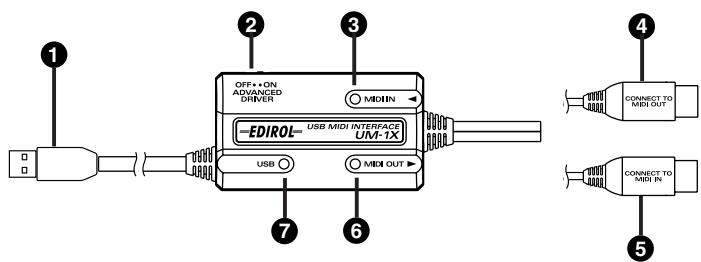
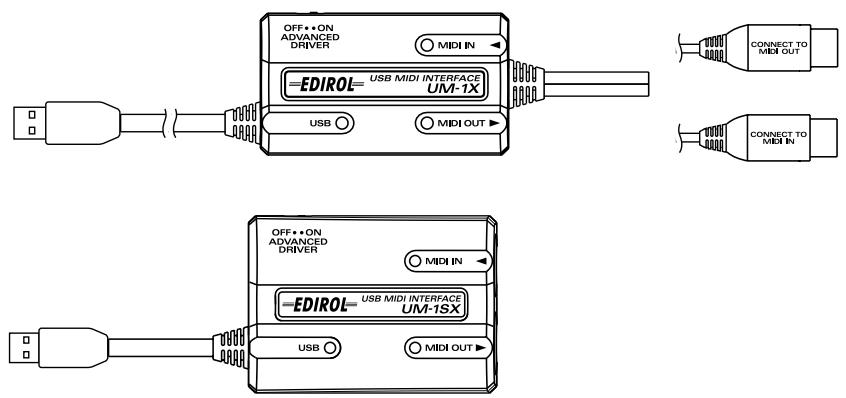
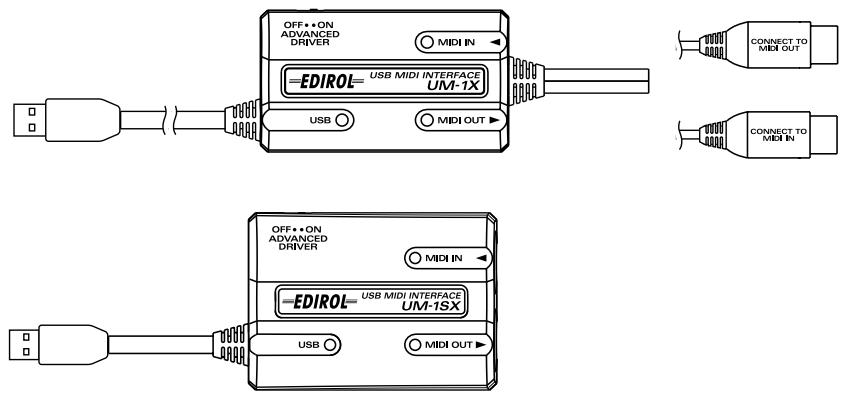
■ UM-1X
■ UM-1SX
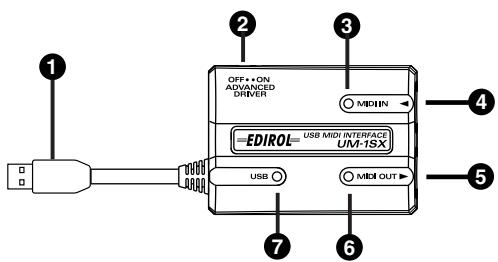
1 USB Cable
Connect this cable to the USB connector of your computer.
2 ADVANCED DRIVER (mode select) switch
This switches the operating mode.
ON (Advanced mode):
FPT technology is used to allow high-speed MIDI transfer.
Normally, you should use this mode.
* FPT → Fast Processing Technology of MIDI Transmission
OFF (Standard Driver mode):
Use this if you are using the default MIDI driver provided by your operating system.
3 MIDI IN Indicator
This will light when a MIDI message is received.
4 MIDI IN Connector (CONNECT TO MIDI OUT Connector)
Connect this to the MIDI OUT connector of the keyboard or other devices that will transmit MIDI messages to your computer.
5 MIDI OUT Connector (CONNECT TO MIDI IN Connector)
Connect this to the MIDI IN connector of the sound modules or other devices that you wish to play from your computer.
6 MIDI OUT Indicator
This will light when a MIDI message is transmitted.
7 USB Indicator
This indicator will light when the unit is connected to your computer and is ready to operate.
Getting Connected and Installing Drivers (Windows)
What is a driver?
A “driver” is software that transfers data between the UM-1X and application software running on your computer, when your computer and the UM-1X are connected by a USB cable. The driver sends data from your application to the UM-1X, and from the UM-1X to your application.
Installing the Driver
The installation procedure will differ depending on your system.
Please proceed to one of the following sections, depending on the system you use.
- Windows XP users......(p. 8)
- Windows 2000 users....(p. 13)
- Windows Me/98 users......(p. 17)
■ Windows XP Users
1
With the UM-1X disconnected, start up Windows.
Disconnect all USB cables except for a USB keyboard and USB mouse (if used).
If you are using a virus checker or similar software, be sure to exit as well.
2
Open the System Properties dialog box.
- Click the Windows start menu, and from the menu, select Control Panel.
- In "Pick a category", click "Performance and Maintenance."
- In "or pick a Control Panel icon", click the System icon.

If you are using Windows XP Professional, you must log on using a user name with an administrative account type (e.g., Administrator). For details on user accounts, please consult the system administrator of your computer.

Depending on how your system is set up, the System icon may be displayed directly in the Control Panel (the Classic view). In this case, double-click the System icon.
3
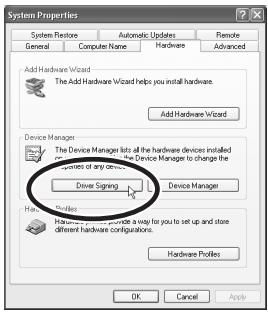
Click the Hardware tab, and then click [Driver Signing].
Open the Driver Signing Options dialog box.
4
Make sure that “What action do you want Windows to take?” is set to “Ignore.”
If it is set to “Ignore”, simply click [OK].
If it is not set to “Ignore”, make a note of the current setting (“Warn” or “Block”). Then change the setting to “Ignore” and click [OK].
5
Click [OK] to close the System Properties dialog box.
6
Exit all currently running software (applications).
Also close any open windows. If you are using virus checking or similar software, be sure to exit it as well.
7
Prepare the CD-ROM.
Insert the CD-ROM into the CD-ROM drive of your computer.
8
Click the Windows start button. From the menu that appears, select "Run..."
Open the "Run..." dialog box.

If you changed “What action do you want Windows to take?” in step 4, you must restore the previous setting after you have installed the driver. (→ If you changed “What action do you want Windows to take?” (p. 12))
9
In the dialog box that appears, input the following into the “Open” field, and click [OK].
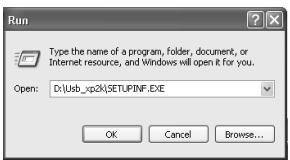
D:\Usb\_xp2k\SETUPINF.EXE
* The drive name “D:” may be different for your system. Specify the drive name of your CD-ROM drive.
10
The SetupInf dialog box will appear.
You are now ready to install the driver.
11
Set the UM-1X's ADVANCED DRIVER switch to the ON position.
* Installation cannot proceed as described below if the switch is turned OFF.
12
Connect the USB cable of the UM-1X to your computer.
Near the task bar, your computer will indicate “Found New Hardware.” Please wait.
13
The Found New Hardware Wizard will appear.
Make sure that the screen indicates “EDIROL UM-1 USB Driver”, select “Install from a list or specific location (Advanced)”, and click [Next].
14
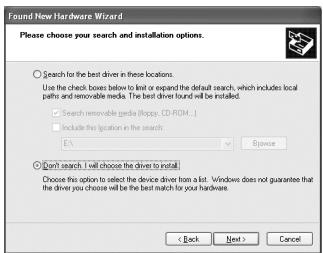
The screen will indicate “Please choose your search and installation options.”
Select “Don’t search. I will choose the driver to install”, and click [Next].

Checking the drive name Click the Start button, and from the menu that appears, choose My Computer. In the window that appears, note the drive name of the CD-ROM drive in which you inserted the CD-ROM in step 7. The (D:) or (E:) displayed by the CD-ROM drive is the drive name.
MEMO
If a dialog box other than "Ready to install the driver" appears, follow the instructions shown in the dialog box.
MEMO
To prevent malfunction and/or damage to speakers or other devices, always turn down the volume, and turn off the power on all devices before making any connections.
15
Make sure that the “Model” field indicates “EDIROL UM-1 USB Driver”, and click [Next]. Driver installation will begin.
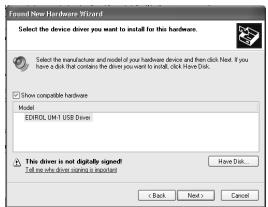
If the “What action do you want Windows to take?” setting was not set to “Ignore”, a “Hardware Installation” dialog box will appear.
If "What action do you want Windows to take?" is set to "Warn,"
- Click [Continue Anyway].
- Continue the installation.
If "What action do you want Windows to take?" is set to "Block"
- Click [OK].
- When the “Found New Hardware Wizard” appears, click [Finish].
- Restart Windows, and then install the driver once again from step 1 (p. 8).
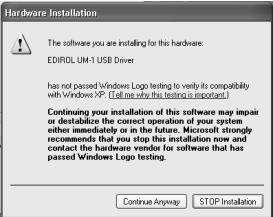
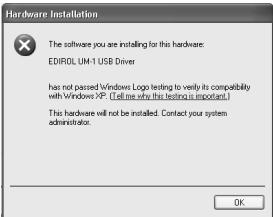
16
The Insert Disk dialog box will appear. Click [OK].
17
The Files Needed dialog box will appear. Input the following into the “Copy files from” field, and click [OK].
D:\Usb_xp2k
* The drive name “D:” may be different for your system. Specify the drive name of your CD-ROM drive.
MEMO
The Insert Disk dialog may not appear. In that case, proceed to step 17.
18
The Found New Hardware Wizard will appear.
Verify that “EDIROL UM-1 USB Driver” is displayed, and click [Finish].
Wait until “Found New Hardware” appears near the taskbar.
19
When driver installation has been completed, the System Settings Change dialog box will appear.
Click [Yes]. Windows will restart automatically.
If you changed "What action do you want Windows to take?"
If you changed the What action do you want Windows to take? setting, restore the original setting after Windows restarts.
- If you are using Windows XP Professional, log on to Windows using the user name of an administrative account (e.g., Administrator).
- Click the Windows start menu, and from the menu, select Control Panel.
- In "Pick a category", click "Performance and Maintenance."
* Depending on how your system is set up, the System icon may be displayed directly in the Control Panel (classic view). In this case, double-click the System icon. - In "or pick a Control Panel icon", click the System icon. The System Properties dialog box will appear.
- Click the Hardware tab, and then click [Driver Signing]. The Driver Signing Options dialog box will appear.
- Return the What action do you want Windows to take? setting to the original setting (either "Warn" or "Block"), and click [OK].
- Click [OK]. The System properties dialog box will close.
Next, you need to make the driver settings.
(→ Settings and Checking (p. 19))
■ Windows 2000 Users
1
With the UM-1X disconnected, start up Windows.
Disconnect all USB cables except for a USB keyboard and USB mouse (if used).
If you are using a virus checker or similar software, be sure to exit as well.
2
Log on to Windows as a user with administrative privileges (such as Administrator).
3
Open the System Properties dialog box.
Click the Windows Start button, and from the menu that appears, select Settings | Control Panel. In Control Panel, double-click the System icon.
4
Click the Hardware tab, and then click [Driver Singing].
Open the Driver Singing Options dialog box.
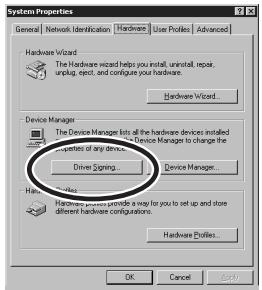
5
Make sure that “File signature verification” is set to “Ignore.”
If it is set to "Ignore", simply click [OK].
If it is not set to “Ignore”, make a note of the current setting (“Warn” or “Block”). Then change the setting to “Ignore” and click [OK].
6
Click [OK] to close the System Properties dialog box.
MEMO
If you changed “File signature verification”, you must restore the previous setting after you have installed the driver. ( If you changed “File signature verification” (p. 16))
7
Exit all currently running software (applications).
Also close any open windows. If you are using virus checking or similar software, be sure to exit it as well.
8
Insert the CD-ROM.
Insert the CD-ROM into the CD-ROM drive of your computer.
9
Click the Windows Start button. From the menu that appears, select "Run..."
Open the "Run..." dialog box.
10
In the dialog box that appears, input the following into the "Open" field, and click [OK].
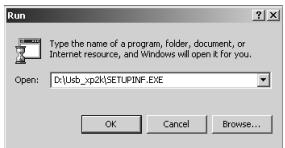
D:\Usb\_xp2k\SETUPINF.EXE
* The drive name “D:” may be different for your system. Specify the drive name of your CD-ROM drive.
11
The SetupInf dialog box will appear.
You are now ready to install the driver.
12
Set the UM-1X's ADVANCED DRIVER switch to the ON position.
13
Use the USB cable to connect the UM-1X to your computer.
MEMO
Checking the drive name
Click the Start button, and from the menu that appears, choose My Computer. In the window that appears, note the drive name of the CD-ROM drive in which you inserted the CD-ROM in step 8.
The (D:) or (E:) displayed by the CD-ROM drive is the drive name.
MEMO
If a dialog box other than
"Ready to install the driver"
appears, follow the instructions shown in the dialog box.
NOTE
Installation will not occur correctly if the switch is turned OFF.
MEMO
To prevent malfunction and/or damage to speakers or other devices, always turn down the volume, and turn off the power on all devices before making any connections.
If the “File signature verification” setting was not set to “Ignore”, a “Digital Signature Not Found” dialog box will appear.
If “File signature verification” is set to “Warn,”
- Click [Yes].
- Continue the installation.
If “File signature verification” is set to “Block”
- Click [OK].
- When the “Found New Hardware Wizard” appears, click [Finish].
- Restart Windows, and then install the driver once again from step 1 (p. 13).
14
The Insert Disk dialog box will appear.
Click [OK].
15
The Files Needed dialog box will appear.
In the Copy files from field, type the folder name that is shown in the dialog box, and click [OK].
D:\Usb_xp2k\
* The drive name “D:” may be different for your system. Specify the drive name of your CD-ROM drive.
16
The “Find New Hardware Wizard” may be displayed.
Verify that “EDIROL UM-1 USB Driver” is displayed, and click [Finish].
17
The System Settings Change dialog box may appear.
Click [Yes]. Windows will restart automatically. If the System Settings Change dialog box does not appear, restart Windows from the Start menu.
MEMO
The Insert Disk dialog may not appear. In that case, proceed to step 15.
If you changed "File signature verification"
If you changed the “File signature verification” setting in step 5, restore the original setting after Windows restarts.
- After Windows restarts, log in to Windows as a user with administrative privileges, (such as Administrator).
- In the Windows desktop, right-click the My Computer icon, and from the menu that appears, select Properties. The System Properties dialog box will appear.
- Click the Hardware tab, and then click [Driver signature]. The Driver Signing Options dialog box will appear.
- Return the "File signature verification" setting to the original setting (either "Warn" or "Block"), and click [OK].
- Click [OK]. The System Properties dialog box will close.
Next, you need to make the driver settings.
(→ Settings and Checking (p. 19))
■ Windows Me/98 Users
1
With the UM-1X disconnected, start up Windows.
Disconnect all USB cables other than those for a USB keyboard or USB mouse.
2
Exit all currently running software (applications).
Also, close any open windows. If you are using a virus checker or similar software, be sure to exit this as well.
3
Prepare the CD-ROM.
Insert the CD-ROM into the CD-ROM drive of your computer.
4
Click the Windows Start button. From the menu that appears, select Run...
Open the Run... dialog box.
5
In the dialog box that appears, input the following into the "Open" field, and click [OK].
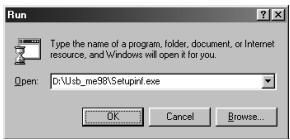
D:\Usb\_me98\SETUPINF.EXE
* The drive name “D:” may be different depending on your system. Type the name of your CD-ROM drive.
6
Open the SetupInf dialog box.
You are now ready to install the driver.

If the UM-1X is already connected to your computer and a message of “Add New Hardware Wizard” is displayed, go to the CD-ROM folder named USB_me98, open the file README_E.HTM, and read the “Troubleshooting” section entitled “You attempted to install using the above procedure, but were not able to.”

Checking the drive name Click the Start button, and from the menu that appears, choose My Computer. In the window that appears, note the drive name of the CD-ROM drive in which you inserted the CD-ROM in step 3.
The (D:) or (E:) displayed by the CD-ROM drive is the drive name.

If a dialog box other than "Ready to install the driver" appears, follow the instructions shown in the dialog box.
7
Set the UM-1X's ADVANCED DRIVER switch to the ON position.
8
Connect the USB cable of the UM-1X to your computer.
9
The driver will be installed automatically.
10
In the SetupInf dialog box, click [OK]. The SetupInf dialog box will close.
* If a message recommends that you restart Windows, restart Windows as directed.
Next, you need to make the driver settings. (→ Settings and Checking (p. 19))

Installation will not occur correctly if the switch is turned OFF.

To prevent malfunction and/or damage to speakers or other devices, always turn down the volume, and turn off the power on all devices before making any connections.
Settings and Checking
■ Specifying the MIDI Input/Output Destination
Windows XP/2000/Me Users
1
Open Control Panel.
Click the Windows Start button, and from the menu that appears, select Settings | Control Panel.
Windows XP
Click the Windows start button, and from the menu that appears, select Control Panel.
2
Open the Sounds and Audio Devices Properties dialog box (or in Windows 2000/Me, Sounds and Multimedia Properties).
Windows XP
In “Pick a category” click “Sound, Speech, and Audio Devices.” Next, in “or pick a Control Panel icon”, click the Sounds and Audio Devices icon.
Windows 2000/Me
In Control Panel, double-click the Sounds and Multimedia icon to open the “Sounds and Multimedia Properties” dialog box.
3
Click the Audio tab.
MEMO
Depending on how your system is set up, the Sounds and Audio Devices icon may be displayed directly in the Control Panel (the Classic view). In this case, double-click the Sounds and Audio Devices icon.
MEMO
If the Sound and Multimedia icon is not displayed, click "Show all control panel options" in the frame at the left.
4
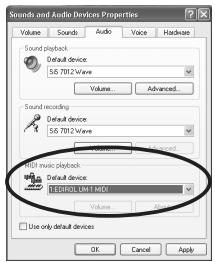
For MIDI music playback, click the ▼ located at the right of [Default device] (or in Windows 2000/Me, [Preferred device]), and select the following from the list that appears.
If you want to use Media Player to play a sound module connected to the UM-1X's MIDI OUT connector, select EDIROL UM-1 MIDI.
5
Close the Sounds and Audio Devices Properties dialog box. Click OK.
6
Make MIDI device settings on your sequencer software.
This completes MIDI Input/Output destination settings.
MEMO
For details on MIDI device settings, refer to the owner's manual for the software you are using.
Windows 98 Users
1
Open Control Panel.
Click the Windows Start button, and from the menu that appears, select Settings | Control Panel.
2
Open the Multimedia Properties dialog box.
In Control Panel, double-click the Multimedia icon to open the “Multimedia Properties” dialog box.
3
Click the MIDI tab.
4
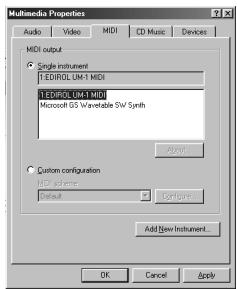
Set "MIDI output."
Select [Single instrument], and select the MIDI device from the list that appears.
If you want to use Media Player to play a sound module connected to the UM-1X's MIDI
OUT connector, select EDIROL UM-1 MIDI.
5
Close the Multimedia Properties dialog box.
Click [OK] to complete the settings.
6
Make MIDI device settings on your sequencer software.
This completes MIDI Input/Output destination settings.
MEMO
For details on MIDI device settings, refer to the owner's manual for the software you are using.
Getting Connected and Installing Drivers (Macintosh)
What is a driver?
A “driver” is software that transfers data between the UM-1X and application software running on your computer, when your computer and the UM-1X are connected by a USB cable. The driver sends data from your application to the UM-1X, and from the UM-1X to your application.
The installation procedure will differ depending on your system.
Please proceed to one of the following sections, depending on the system you use.
• Mac OS X Users....(p. 22)
• Mac OS 9/8 Users....(p. 25)
Mac OS X Users
■ Installing the Driver
1
Disconnect all USB cables other than those for your keyboard and mouse, and restart your Macintosh.
2
Prepare the CD-ROM.
Insert the CD-ROM into the CD-ROM drive of your computer.
3
In the Driver (Mac OS X) folder of the CD-ROM, double-click UM-1USBDriver.pkg.
In Mac OS X v10.1.5, click the lock symbol for authentication.
4
In the authentication dialog box, input the password and click [OK].
5
The display will indicate “Welcome to the EDIROL UM-1 USB Driver Installer.”
Click [Continue].
MEMO
The UM-1X will not work in the Classic environment of Mac OS X. Use the UM-1X when the Classic environment is not running.
6
The display will indicate “Important Information.”
Read the contents and click [Continue].
7
The display will indicate “Select a Destination.”
Click the drive in which the operating system is installed to select it, and then click [Continue].
8
The display will indicate “Easy Install.”
Click Install or Upgrade.
9
The display will indicate “Installing this software requires you to restart your computer when the installation is done. Are you sure you want to install the software now?”
Click [Continue Installation].
10
The display will indicate “The software was successfully installed.”
Click [Restart] to restart your computer.
This completes installation of the UM-1X driver.

Select the Startup Disk as the drive.
Cautions when using the UM-1X
Before you use your sequencer software, please note the following points.
* Connect the UM-1X to your computer via a USB cable before you start up your sequencer or other software.
* Do not disconnect the UM-1X's USB cable while your sequencer or other software is running.
* Exit your sequencer software before you unplug the UM-1X's USB cable.
* Leave the Sleep function of your Macintosh turned off.
* The UM-1X will not work in the Classic environment of Mac OS X. Use the UM-1X when the Classic environment is not running.
■ Setting the Driver
1
Set the UM-1X's ADVANCED DRIVER switch to the ON position.
* Installation cannot proceed as described below if the switch is turned OFF.
2
Connect the USB cable of the UM-1X to your computer.
3
Make MIDI device settings on your sequencer software.
This completes installation of the driver.
MEMO
To prevent malfunction and/or damage to speakers or other devices, always turn down the volume, and turn off the power on all devices before making any connections.
MEMO
For details on MIDI device settings, refer to the owner's manual for the software you are using.
MEMO
For information on the MIDI equipment you connect to the UM-1X, please contact the manufacturer of your MIDI equipment.
■ Installing the Driver
Use either OMS or FreeMIDI as the MIDI driver.
The included EDIROL UM-1 driver is an add-on module for using the UM-1X with OMS and FreeMIDI.
* Either OMS or FreeMIDI must be installed in your Macintosh, as appropriate for the sequencer software you are using.
* Disconnect the UM-1X from the Macintosh before you perform the installation.
* If you have the latest version of OMS or FreeMIDI, please use the latest version.
MEMO
OMS can be found in the OMS (Mac OS 9, 8) folder within the OMS 2.3.8E folder of the CD-ROM.
If you would like to learn more about OMS, refer to
OMS_2.0_Mac.pdf in the OMS (Mac OS 9.8) folder within the OMS 2.3.3E folder of the CD-ROM.
MEMO
You cannot use the UM-1X in the Mac OS X Classic environment.
Start up Mac OS 9/8 before you install the driver.
Before installing the driver, a message like the following will appear when the Macintosh is started up. Perform the steps described below as appropriate for the message that is displayed.
If the screen indicates:
"Driver required for USB device ‘unknown device’ is not available. Search for driver on the Internet?"
→ click [Cancel].
If the screen indicates:
“Software required for using device ‘unknown device’ cannot be found. Please refer to the manual included with the device, and install the necessary software.”
→ click [OK].
Use the following procedure to install the UM-1X driver.
1
Exit all currently running software (applications).
If you are using a virus checker or similar software, be sure to exit this as well.
2
Prepare the CD-ROM.
Insert the CD-ROM into the CD-ROM drive.
3
Double-click the UM-1 Driver-E Installer icon (found in the Driver E (Mac OS 9, 8) folder of the CD-ROM) to start up the installer.
4
Verify the Install Location, and click [Install].
5
If a message like the following is displayed, click [Continue].

This installation requires your computer to restart after installing this software. Click Continue to automatically quit all other running applications. Click Cancel to leave your disks untouched.
Cancel
Continue
The other currently running applications will exit, and installation will continue.
6
A dialog box will indicate Installation completed.
Click [Restart] to restart your Macintosh.

The indication for the installation location will differ depending on your system. Make sure that the startup disk for the system you are using is selected.
■ Setting the Driver
If you are using FreeMIDI, proceed to FreeMIDI Settings (p. 30).
OMS Settings
1
Set the UM-1X's ADVANCED DRIVER switch to the ON position.
2
Connect the USB cable of the UM-1X to your computer.
3
From the CD-ROM, drag the Driver E (Mac OS 9, 8) – OMS Setting folder into the Opcode-OMS Applications folder on the hard disk of your Macintosh to copy it there.

OMS Setting
4
In the Opcode-OMS Applications folder where you installed OMS, double-click OMS Setup to start it up.

OMS Setup
5
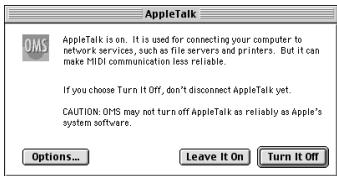
If a dialog box like the one shown here appears, click [Turn It Off].
A confirmation dialog box will then appear, so click [OK].

Installation will not occur correctly if the switch is turned OFF.

To prevent malfunction and/or damage to speakers or other devices, always turn down the volume, and turn off the power on all devices before making any connections.
6
The Create a New Studio Setup dialog box will appear.
Click [Cancel]. If you accidentally clicked OK, click [Cancel] in the next screen.
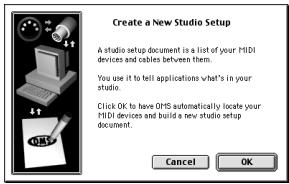
MEMO
We recommend that you turn off AppleTalk, by selecting
Chooser from the Apple menu.
7
Choose "Open" from the File menu.
From the OMS Setting folder that you copied in step 3, select the UM-1 file, and click [Open].
A screen like the one shown here will appear.
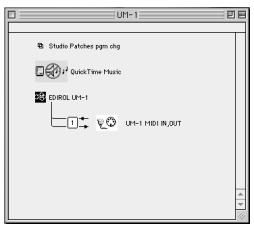
flowchart
graph TD
    A["Studio Patches pgm drag"] --> B["QuickTime Music"]
    B --> C["EDROL UI-1"]
    C --> D["U4-1 H01 IN/OUT"]
8
From the Edit menu, select OMS MIDI Setup.
In the OMS MIDI Setup dialog box that appears, check Run MIDI in background, and click [OK].
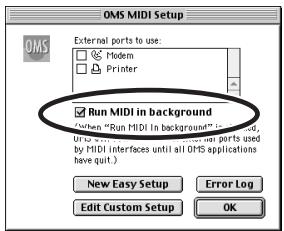
9
From the File menu, choose Make Current.
If you are unable to select Make Current, it has already been applied, and you may continue to the next step.
A diamond mark (◇) indicated the settings are enabled.
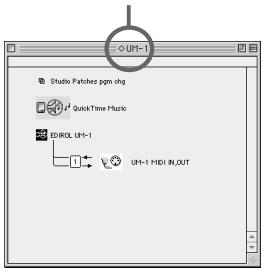
flowchart
graph TD
    A["Shuttle Patches pgm clog"] --> B["QuickTime Music"]
    B --> C["UH-1 UH-1"]
    C --> D["UH-1 HHD IN_OUT"]
10
Verify that MIDI
transmission and reception can be performed correctly.
From the Studio menu, choose Test Studio.
11
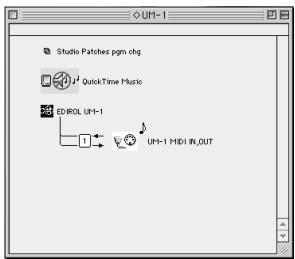
If you have connected a MIDI sound module to the UM-1X's MIDI OUT connector, click the MIDI connector icon shown in the diagram at right. If sound is heard from the sound module, the settings are correct.
When you move the mouse
cursor near the sound generator icon, the cursor will change to a ♪ shape.
flowchart
graph TD
    A["Studio Patches pgm chg"] --> B["QuickTime Music"]
    B --> C["EDROL UI-1"]
    C --> D["1"]
    D --> E["UI-1 MIDI IN_OUT"]
12
Exit OMS Setup.
From the File menu, choose [Quit]. If the AppleTalk confirmation dialog box appears, click [OK] to close the dialog box.
13
Make MIDI device settings on your sequencer software.
In the MIDI input/output settings of your sequencer software, select the UM-1X's Port 1.
This completes connections for the UM-1X and Macintosh, and installation of the MIDI driver.
MEMO
There will be no sound if you have not connected a MIDI sound module to the UM-1X.
MEMO
For details on connecting your MIDI sound module, refer to the owner's manual of your MIDI sound module.
MEMO
For details on MIDI device settings, refer to the owner's manual of your software.
MEMO
For information on the MIDI equipment you connect to the UM-1X, please contact the manufacturer of your MIDI equipment.
FreeMIDI Settings
1
Set the UM-1X's ADVANCED DRIVER switch to the ON position.
2
Connect the USB cable of the UM-1X to your computer.
3
From the CD-ROM, drag the Driver E (Mac OS 9, 8) – FreeMIDI Setting folder into the FreeMIDI Applications folder on the hard disk of your Macintosh to copy it there.
4
Open the FreeMIDI Applications folder from the location into which you installed FreeMIDI, and double-click the FreeMIDI Setup icon to start it up.
5
The first time you start up, use the following procedure.
- A dialog box saying "Welcome to FreeMIDI!" will appear. Click [Continue].
- When the FreeMIDI Preferences dialog box appears, click [Cancel].
- When the About Quick Setup dialog box appears, click [Cancel].
6
From the File menu, choose Open.
7
Select UM-1X USB from the Settings folder you copied in step 3, and click [Open].

Installation will not occur correctly if the switch is turned OFF.

To prevent malfunction and/or damage to speakers or other devices, always turn down the volume, and turn off the power on all devices before making any connections.

When “OMS is installed on this computer...” appears, click [FreeMIDI].

If you are unable to select Open, make settings as follows.
- From the File menu, choose FreeMIDI Preferences.
- Uncheck "Use OMS when available."
- Exit FreeMIDI.
- Return to step 4 and continue the procedure.
8
Verify that MIDI transmission and reception occur correctly.
From the MIDI menu, choose Check Connections.
9
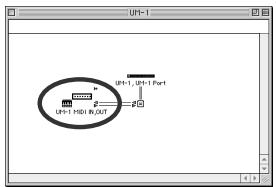
If you have connected a MIDI sound module to the UM-1X's MIDI OUT connector, click the MIDI connector icon shown in the diagram at right. If you hear sound from your sound module, the settings
10
Once again choose the MIDI menu command Check Connections to end the test.
11
From the File menu, choose Quit to exit FreeMIDI Setup.
12
Make MIDI device settings on your sequencer software.
In the MIDI input/output settings of your sequencer software, select the UM-1X's Port 1.
This completes connections for the UM-1X and Macintosh, and installation of the MIDI driver.
MEMO
There will be no sound if you have not connected a MIDI sound module to the UM-1X.
MEMO
For details on connecting your MIDI sound module, refer to the owner's manual of your MIDI sound module.
MEMO
For details on MIDI device settings, refer to the owner's manual for the software you are using.
MEMO
For information on the MIDI equipment you connect to the UM-1X, please contact the manufacturer of your MIDI equipment.
Troubleshooting
* Please read the "README_E.TXT" file in the UM-1X Driver CD-ROM. You can get any additional information not written in the owner's manual from the "README_E.TXT" file.
Windows users → P.32
Macintosh users → P.35
Windows Users
Case 1: USB connections cannot be made correctly
◆ Has the UM-1X been recognized?
Disconnect the USB cables, and then re-connect them. It is possible that the computer has failed to recognize or initialize the UM-1X. Either disconnect and then reconnect the USB cable, or restart Windows with the UM-1X left connected. If connection still does not occur, exit Windows, and turn off the power of your computer. Then turn on the power of your computer and start Windows.
◆ Are your computer or USB hub (\*) supplying sufficient current?
If insufficient current is being supplied to the UM-1X, connection is not possible.
- Use a USB hub which contains its own power supply.
- The power conservation mode settings of your computer may be limiting the current supplied to the USB, so check these settings.
What is USB hub?
A “USB hub” is a device that expands the number of USB connectors. Broadly speaking, there are two types of USB hubs.
Self-powered hubs (USB hubs containing a power supply): The USB hub itself has an AC adapter, which supplies power (normally 500 mA) to the added USB connectors.
Bus-powered hubs (USB hubs not containing a power supply): The hub does not contain a power supply. The power supply of the connected computer is re-distributed to the added USB connectors.

For details on the electrical current that can be supplied by your computer or USB hub refer to the owner's manual for your equipment. If you have questions, please contact the manufacturer or dealer for your computer or USB hub.

The UM-1X cannot be used with a hub that contains no power supply.
Case 2: Cannot install the UM-1X driver
◆ Could the UM-1X's ADVANCED DRIVER switch be OFF? Turn the UM-1X's ADVANCED DRIVER switch ON, restart Windows, and reinstall the driver.
Case 3: Cannot shift to Standby (Suspend)
◆ Is an application which uses the UM-1X running?
Exit the application which is using the UM-1X. The computer cannot shift to Standby (Suspend) mode if an application such as a sequencer is using the UM-1X.
What is Standby (Suspend)?
This is a function which minimizes power consumption by shutting down the internal circuitry of the computer and the peripheral devices while the power remains supplied to the computer.
Case 4: The UM-1X does not resume correctly from standby (suspend) state
◆ Could the UM-1X have remained connected via USB while the computer was in standby (suspend) state?
Disconnect the USB cable, and then re-connect it. On some computers when Windows resumes from the suspended state, the UM-1X may fail to resume. In this case, disconnect the USB cable that connects the UM-1X to the computer, then reconnect it.
Case 5: When resuming from standby (suspend) state, Windows hangs up (freezes)
Disconnect the USB cable that connects the UM-1X to the computer before you put your computer in standby (suspend) mode.
On some computers when Windows resumes from the suspended state, it may hang up (freeze). In this case, disconnect the UM-1X's USB cable before you put your computer in standby mode.
When you want to use the UM-1X again, verify that your computer has recovered successfully from standby (suspend) mode, and then connect the UM-1X's USB cable.
MEMO
When a USB device is connected to a computer, the USB device tells the computer how much electrical current it uses. If this value exceeds the current that the computer is able to provide (maximum 500 mA), the device cannot be connected. The UM-1X will request 70 mA of current when it is connected to a computer. Most computers or self-powered USB hubs will have no problem with this current capacity. If you are using a dual-mode USB hub (self-powered / bus-powered), be sure to connect its power supply (AC adapter etc.) and use it as a self-powered USB hub.

If your computer has a switch that puts it into standby (suspend) mode, disconnect the UM-1X's USB cable from the computer before you press that switch.

If you are using a notebook computer, it may, depending on its settings, go into standby (suspend) mode when you close the lid (the LCD screen), so disconnect the UM-1X's USB cable from the computer before you close the lid.
Case 6: No sound
◆ Are the USB cable, MIDI cables and audio cables connected correctly?
Connect the cables correctly.
◆ Are the volume controls of your sound module, audio system, and application raised?
Check each of the volume controls.
◆ Are the sound module settings correct?
Set the Computer switch of your sound module to the "MIDI" position.
Case 7: Does not work with Windows 95.
It will not operate on Windows 95.
Case 8: My computer hangs up when I open a MIDI file.
This problem can occur if the USB waveform of your computer does not sufficiently meet the standards. In this case, the problem may be solved if you connect the UM-1X via a USB hub (USB hub containing a power supply).

Before changing the setting of the computer switch of your MIDI sound module, be sure to turn off the power.
Windows XP / 2000 users
The latest information is provided in the “Troubleshooting” section of the file README_E.HTM, located in the Usb_xp2k folder of the UM-1X Driver CD-ROM.
Please refer to the appropriate section.
- Cannot install/uninstall/use the driver
- Cannot select the UM-1 device
- Cannot playback/record
- Part of the playback is wrong: e.g., notes are broken off prematurely, or some notes are lost
- The “Digital Signature Not Found” or “Hardware Installation” dialog box appears
- You are asked for the driver file even thought it has already been installed
- Other
Windows 98 / Me users
The latest information is provided in the “Troubleshooting” section of the file README_E.HTM, located in the Usb_me98 folder of the UM-1X Driver CD-ROM. Please refer to the appropriate section.
- Cannot install/uninstall/use the driver
- Cannot select the UM-1 device
- Cannot playback/record
- Part of the playback is wrong: e.g., notes are broken off prematurely, or some notes are lost
Case 1: An error dialog box is displayed
◆ Is the UM-1X driver installed?
An error dialog box will be displayed if the UM-1X is connected to your computer before the UM-1X driver is installed. If the display indicates “The software needed to use the USB device “Unknown Device” cannot be found. Please refer to the device documentation to install the necessary software,” click “OK.”
If the display indicates “Software needed for the USB device “Unnamed Device” is not available. Would you like to look for the software on the Internet?,” click “Cancel.”
After closing the dialog box, follow the procedure for “OMS Settings (p. 27)” or “FreeMIDI Settings (p. 30)” to install the UM-1 driver.
Case 2: Cannot install the UM-1X driver
◆ Could the UM-1X's ADVANCED DRIVER switch be OFF?
Disconnect the USB cable that connects the UM-1X to the computer. Turn the UM-1X's ADVANCED DRIVER switch ON, restart your Macintosh, and reinstall the driver.
Case 3: Cannot make USB connections correctly
◆ Was the UM-1X recognized?
- Disconnect the USB cable, and then re-connect it.
- If another USB device is connected, try connecting only the UM-1X.
- It is possible that the computer did not correctly recognize or initialize the UM-1X. Leave the UM-1X connected and restart your Macintosh. If the connection is still not achieved, exit your Macintosh and turn off the power of the computer. Then turn on the power of the computer once again, and start up your Macintosh.
- The computer cannot recognize the UM-1X when the USB connector of Macintosh's keyboard is used. Re-connect the USB cable to the USB connector of the main body.
◆ Are your computer or USB hub (\*) supplying sufficient current?
If insufficient current is being supplied to the UM-1X, connection is not possible.
- Use a USB hub which contains its own power supply.
- The power conservation mode settings of your computer may be limiting the current supplied to the USB, so check these settings.

For details on the electrical current that can be supplied by your computer or USB hub refer to the owner's manual for your equipment. If you have questions, please contact the manufacturer or dealer for your computer or USB hub.

When a USB device is connected to a computer, the USB device tells the computer how much electrical current it uses. If this value exceeds the current that the computer is able to provide (maximum 500 mA), the device cannot be connected. The UM-1X will request 70 mA of current when it is connected to a computer. Most computers or self-powered USB hubs will have no problem with this current capacity. If you are using a dual-mode USB hub (self-powered / bus-powered), be sure to connect its power supply (AC adapter etc.) and use it as a self-powered USB hub.
What is USB hub?
A “USB hub” is a device that expands the number of USB connectors. Broadly speaking, there are two types of USB hubs.
Self-powered hubs (USB hubs containing a power supply): The USB hub itself has an AC adapter, which supplies power (normally 500 mA) to the added USB connectors.
Bus-powered hubs (USB hubs not containing a power supply): The hub does not contain a power supply. The power supply of the connected computer is re-distributed to the added USB connectors.
Case 4: No sound
◆ Are the USB cable, MIDI cables and audio cables connected correctly?
Connect the cables correctly.
◆ Are the volume controls of your sound module, audio system, and application raised?
Check each of the volume controls.
◆ Are the sound module settings correct?
Set the Computer switch of your sound module to the "MIDI" position.
If you are using OMS, is “Run MIDI in background” checked? (p. 28)
Case 5: Notes are sounded twice (Notes are recorded double)
Refer to the owner's manual for the sequencer program that you are using. If the “EDIROL UM-1 Driver” is selected in the MIDI input port setting, cancel this selection (un-check it), and select (check) only the port (UM-1 Port 1–2) to which the MIDI device you wish to record is connected.
* When you select “EDIROL UM-1 Driver,” both of the items “UM-1 Port1, 2” will be selected. However if “EDIROL UM-1 Driver” and “UM-1 Port 1–2” are selected, the selected port will be sounded in duplicate.
Case 6: The UM-1X does not recover correctly from sleep mode.
After your Macintosh has been in sleep mode, exit the software and re-start it.
* We recommend that you make Energy saving settings in the Control panel so that your computer does not enter sleep mode.

The UM-1X cannot be used with a hub that contains no power supply.

Before changing the setting of the computer switch of your MIDI sound module, be sure to turn off the power.
● UM-1X/UM-1SX USB MIDI Interface
“Software required for using device ‘unknown device’ cannot be found. Please refer to the manual included with the device, and install the necessary software” → klicken Sie auf [OK].
● Interface MIDI USB UM-1X/UM-1SX
"Driver required for USB device ‘unknown device’ is not available. Search for driver on the Internet?" → Cliquez sur [Cancel].
“Software required for using device ‘unknown device’ cannot be found. Please refer to the manual included with the device, and install the necessary software” → Cliquez sur [OK].
“Driver required for USB device ‘unknown device’ is not available. Search for driver on the Internet?” → fare clic su [Cancel].
“Software required for using device ‘unknown device’ cannot be found. Please refer to the manual included with the device, and install the necessary software” → fare clic su [OK].
Se appare il messaggio "Software needed for the USB device 'Unnamed Device' is not available. Would you like to look for these drivers over the Internet?", fare clic su "Cancel."
"Driver required for USB device ‘unknown device’ is not available. Search for driver on the Internet?" → Haga clic en [Cancel].
Si la pantalla indica:
“Software required for using device ‘unknown device’ cannot be found. Please refer to the manual included with the device, and install the necessary software” → Haga clic en [OK].
Supplied from the computer
●Current Draw
70 mA
●Dimensions
UM-1X: 70 (W) x 40 (D) x 19 (H) mm 2-13/16 (W) x 1-5/8 (D) x 3/4 (H) inches
UM-1SX: 70 (W) x 50 (D) x 29.8 (H) mm 2-13/16 (W) x 2 (D) x 1-3/16 (H) inches
●Weight
UM-1X: 130 g/5 oz
UM-1SX: 110 g/4 oz
●Accessories
Owner's Manual CD-ROM
* In the interest of product improvement, the specifications, contents and/or appearance of this unit are subject to change without prior notice.
MEMO
For the USA
FEDERAL COMMUNICATIONS COMMISSION RADIO FREQUENCY INTERFERENCE STATEMENT
This equipment has been tested and found to comply with the limits for a Class B digital device, pursuant to Part 15 of the FCC Rules. These limits are designed to provide reasonable protection against harmful interference in a residential installation. This equipment generates, uses, and can radiate radio frequency energy and, if not installed and used in accordance with the instructions, may cause harmful interference to radio communications. However, there is no guarantee that interference will not occur in a particular installation. If this equipment does cause harmful interference to radio or television reception, which can be determined by turning the equipment off and on, the user is encouraged to try to correct the interference by one or more of the following measures:
– Reorient or relocate the receiving antenna.
– Increase the separation between the equipment and receiver.
- Connect the equipment into an outlet on a circuit different from that to which the receiver is connected.
- Consult the dealer or an experienced radio/TV technician for help.
This device complies with Part 15 of the FCC Rules. Operation is subject to the following two conditions:
(1) This device may not cause harmful interference, and
(2) This device must accept any interference received, including interference that may cause undesired operation.
Tested To Comply With FCC Standards
FOR HOME OR OFFICE USE
Unauthorized changes or modification to this system can void the users authority to operate this equipment. This equipment requires shielded interface cables in order to meet FCC class B Limit.
For Canada
NOTICE
This Class B digital apparatus meets all requirements of the Canadian Interference-Causing Equipment Regulations.
AVIS
DECLARATION OF CONFORMITY Compliance Information Statement
Model Name : UM-1X/UM-1SX
Type of Equipment : USB MIDI Interface
Responsible Party : Edirol Corporation North America
Address : 425 Sequoia Drive, Suite 114, Bellingham, WA 98226
Telephone : (360) 594-4276
Information
When you need repair service, call your nearest EDIROL/Roland Service Center or authorized EDIROL/Roland distributor in your country as shown below.
=EDIROL=
EUROPE
EDIROL (Europe) Ltd.
Studio 3.4 114 Power Road
London W4 5PY
U. K.
TEL: +44 (0)20 8747 5949
FAX:+44 (0)20 8747 5948
http://www.edirol.com/europe
Deutschland
TEL: 0700 33 47 65 20
France
TEL: 0810 000 371
Italia
TEL: 02 93778329
U. S. A. / CANADA
EDIROL Corporation North
America
425 Sequoia Drive, Suite 114
Bellingham, WA 98226
U.S.A.
TEL: (360) 594-4276
FAX: (360) 594-4271
http://www.edirol.com/
Roland
AFRICA
EGYPT
Al Fanny Trading Office
9, EBN Hagar A1 Askalany Street,
ARD E1 Golf, Heliopolis,
Cairo 11341, EGYPT
TEL: 20-2-417-1828
REUNION
That Other Music Shop
(PTY) Ltd.
11 Melle St., Braamfontein,
Johannesbourg, SOUTH AFRICA
P.O.Box 32918, Braamfontein 2017
Johannesbourg, SOUTH AFRICA
TEL: (011) 403 4105
Paul Bothner (PTY) Ltd.
17 Werdemuller Centre,
Main Road, Claremont 7708
SOUTH AFRICA
P.O.BOX 23032, Claremont 7735,
SOUTH AFRICA
TEL: (021) 674 4030
ASIA
CHINA
Roland Shanghai Electronics
Co., Ltd.
5F. No.1500 Pingliang Road
Shanghai 200090, CHINA
TEL: (021) 5580-0800
Roland Shanghai Electronics
Co., Ltd.
(BEIJING OFFICE)
10F. No.18 Anhuaxil
Chaoyang District, Beijing 100011
CHINA
TEL: (010) 6426-5050
Roland Shanghai Electronics
Co., Ltd.
(GUANGZHOU OFFICE)
2/F., No.30 Si You Nan Er Jie Yi
Xiang, Wu Yang Xin Cheng,
Guangzhou 510600, CHINA
Tel: (020) 8736-0428
HONG KONG
Parsons Music Ltd.
8th Floor, Railway Plaza, 39
Chatham Road South, T.S.T,
Kowloon, HONG KONG
TEL: 2333 1863
INDIA
Rivera Digitec (India) Pvt. Ltd.
409, Nirman Kendra Mahalaxmi
Flats Compound Off. Dr. Edwin
Moses Road, Mumbai-400011,
INDIA
TEL: (022) 2493 9051
INDONESIA
PT Citra IntiRama
J1. Cideng Timur No. 15J-150
Jakarta Pusat
INDONESIA
TEL: (021) 6324170
KOREA
Cosmos Corporation
1461-9, Seocho-Dong,
Seocho Ku, Seoul, KOREA
TEL: (02) 3486-8855
MALAYSIA
G.A. Yupangco & Co. Inc.
339 Gil J. Puyat Avenue
Makati, Metro Manila 1200,
PHILIPPINES
TEL: (02) 899 9801
SINGAPORE
CRISTOFORI MUSIC PTE
LTD
Blk 3014, Bedok Industrial Park E,
02-2148, SINGAPORE 489980
TEL: 6243-9555
TAIWAN
ROLAND TAIWAN
ENTERPRISE CO., LTD.
Room 5, 9fl. No. 112 Chung Shan
N.Road Sec.2, Taipei, TAIWAN,
R.O.C.
TEL: (02) 2561 3339
THAILAND
Theera Music Co., Ltd.
330 Verng NakornKasem, Soi 2,
Bangkok 10100, THAILAND
TEL: (02) 2248821
VIETNAM
Saigon Music
Suite DP-8
40 Ba Huyen Thanh Quan Street
Hochiminh City, VIETNAM
Tel: (08) 930-1969
AUSTRALIA/ NEW ZEALAND
AUSTRALIA
Roland Corporation
Australia Pty., Ltd.
38 Campbell Avenue
Dee Why West, NSW 2099
AUSTRALIA
TEL: (02) 9982 8266
NEW ZEALAND
Roland Corporation Ltd.
32 Shaddock Street, Mount Eden,
Auckland, NEW ZEALAND
TEL: (09) 3098 715
CENTRAL/LATIN AMERICA
ARGENTINA
Instrumentos Musicales S.A.
Av.Santa Fe 2055
(1123) Buenos Aires
ARGENTINA
TEL: (011) 4508-2700
BRAZIL
Roland Brasil Ltda
Rua San Jose, 780 Sala B
Parque Industrial San Jose
Cotia - Sao Paulo - SP, BRAZIL
TEL: (011) 4615 5666
CHILE
Comercial Fancy II S.A.
Rut.: 96.919.420-1
Nataniel Cox #739, 4th Floor
Santiago - Centro, CHILE
TEL: (02) 688-9540
MEXICO
Casa Veerkamp, s.a. de c.v.
Av. Toluca No. 323, Col. Olivar
155, New National Road
Patras 26442, GREECE
TEL: 2610 435400
HUNGARY
Roland East Europe Ltd.
Warehouse Area 'DEPO' Pf.83
H-2046 Torokbalint, HUNGARY
TEL: (23) 511011
IRELAND
Roland Ireland
G2 Calmount Park, Calmount
Avenue, Dublin 12
Republic of IRELAND
TEL: (01) 4294444
ITALY
Roland Italy S. p. A.
Danvik Center 28, 2 tr
S-131 30 Nacka SWEDEN
TEL: (0)8 702 00 20
SWITZERLAND
Roland (Switzerland) AG
Atlantic Close, Swansea
Enterprise Park, SWANSEA
SA7 9FJ,
UNITED KINGDOM
TEL: (01792) 702701
MIDDLE EAST
BAHRAIN
Moon Stores
No.16, Bab Al Bahrain Avenue,