
KR103 - Digital piano ROLAND - Free user manual and instructions
Find the device manual for free KR103 ROLAND in PDF.



| Product Type | Digital Piano |
| Brand | Roland |
| Model | KR103 |
| Keyboard | 88 touch-sensitive keys |
| Polyphony | 64 voices |
| Sounds | 400 internal sounds + 542 XG + 256 GM2, 10 drum kits |
| Music Styles | 170 styles |
| Effects | Reverb (8 types), Chorus (8 types), Multi-FX (47 types) |
| Recorder | 16 tracks |
| Floppy Disk Drive | 3.5 inch 2HD/2DD |
| Connectivity | USB MIDI, MIDI IN/OUT, audio outputs L/Mono and R, audio inputs L/Mono and R, 2 headphone jacks, expression pedal jack |
| Pedals | Damper, Sostenuto, Soft |
| Output Power | 25 W + 25 W |
| Speakers | 2 x 20 cm |
| Power Supply | AC 117 V, 230 V or 240 V |
| Dimensions (piano only) | 1402 x 531 x 245.5 mm |
| Dimensions (with stand) | 1402 x 531 x 888.5 mm |
| Weight | 60.5 kg |
| Included Accessories | Owner's manual, CD-ROM |
| Care and Cleaning | Use a dry, soft cloth. Do not use alcohol, thinner, or benzine. |
| Safety | Do not open the device. Unplug during storms. Avoid moisture. |
| Repairability | Entrust all repairs to a Roland authorized technician. |
| Main Functions | Intelligent Arranger, Music Assistant, Piano mode, multitrack recording, educational functions, V-LINK |
Frequently Asked Questions - KR103 ROLAND
User questions about KR103 ROLAND
0 question about this device. Answer the ones you know or ask your own.
Ask a new question about this device
Download the instructions for your Digital piano in PDF format for free! Find your manual KR103 - ROLAND and take your electronic device back in hand. On this page are published all the documents necessary for the use of your device. KR103 by ROLAND.
USER MANUAL KR103 ROLAND
Owner's Manual (p. 1)
NO USER-SERVICEABLE PARTS INSIDE.
REFER SERVICING TO QUALIFIED SERVICE PERSONNEL.

The lightning flash with arrowhead symbol, within an equilateral triangle, is intended to alert the user to the presence of uninsulated "dangerous voltage" within the product's enclosure that may be of sufficient magnitude to constitute a risk of electric shock to persons.

The exclamation point within an equilateral triangle is intended to alert the user to the presence of important operating and maintenance (servicing) instructions in the literature accompanying the product.
INSTRUCTIONS PERTAINING TO A RISK OF FIRE, ELECTRIC SHOCK, OR INJURY TO PERSONS.
IMPORTANT SAFETY INSTRUCTIONS SAVE THESE INSTRUCTIONS
WARNING - When using electric products, basic precautions should always be followed, including the following:
- Read these instructions.
- Keep these instructions.
- Heed all warnings.
- Follow all instructions.
- Do not use this apparatus near water.
- Clean only with a dry cloth.
- Do not block any of the ventilation openings. Install in accordance with the manufacturers instructions.
- Do not install near any heat sources such as radiators, heat registers, stoves, or other apparatus (including amplifiers) that produce heat.
-
Do not defeat the safety purpose of the polarized or grounding-type plug. A polarized plug has two blades with one wider than the other. A grounding type plug has two blades and a third grounding prong. The wide blade or the third prong are provided for your safety. If the provided plug does not fit into your outlet, consult an electrician for replacement of the obsolete outlet.
-
Protect the power cord from being walked on or pinched particularly at plugs, convenience receptacles, and the point where they exit from the apparatus.
- Only use attachments/accessories specified by the manufacturer.
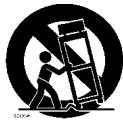
- Use only with the cart, stand, tripod, bracket, or table specified by the manufacturer, or sold with the apparatus. When a cart is used, use caution when moving the cart/apparatus combination to avoid injury from tip-over.
- Unplug this apparatus during lightning storms or when unused for long periods of time.
- Refer all servicing to qualified service personnel. Servicing is required when the apparatus has been damaged in any way, such as power-supply cord or plug is damaged, liquid has been spilled or objects have fallen into the apparatus, the apparatus has been exposed to rain or moisture, does not operate normally, or has been dropped.
For the U.K.
IMPORTANT: THE WIRES IN THIS MAINS LEAD ARE COLOURED IN ACCORDANCE WITH THE FOLLOWING CODE.
BLUE: NEUTRAL
BROWN: LIVE
As the colours of the wires in the mains lead of this apparatus may not correspond with the coloured markings identifying the terminals in your plug, proceed as follows:
The wire which is coloured BLUE must be connected to the terminal which is marked with the letter N or coloured BLACK. The wire which is coloured BROWN must be connected to the terminal which is marked with the letter L or coloured RED.
Under no circumstances must either of the above wires be connected to the earth terminal of a three pin plug.
KR103
DIGITAL INTELLIGENT PIANO
Owner's Manual
Thank you for purchasing the Roland KR103 Digital Intelligent Piano. As its name suggests, the KR103 is both a digital piano and what we have come to call an "intelligent arranger" instrument with over 160 accompaniments called "Styles" that provide several variations for different song parts. The "Style Orchestrator" allows you to quickly change the arrangement of the selected Music Style, while you can also load new Styles from disk.
Apart from that, the KR103 features 400 different sounds (including Drum Sets), a Music Assistant that helps you prepare the instrument for the songs you want to play, User Programs where you can save your own registrations, a USB port for MIDI communication with your computer, and a host of other great functions.
To get the most out of the KR103 and to ensure many years of trouble-free service, we urge you to read through this Owner's Manual thoroughly. To avoid confusion, let's agree to use the word "button" for all keys on the front panel, and use "key" only when referring to the KR103's keyboard.
To save space (and time), let us agree to use the word "song" when referring to Standard MIDI Files.
Before using this instrument, carefully read the "Important notes" on p. 6. They provide information concerning the proper operation of the KR103. Be sure to keep this manual in a safe place for future reference.
Main features
Superior sound source
The KR103's sounds are based on full-length (uncompressed) waveforms. This produces vibrant, realistic sounds. The KR103's tone generator is 64-voice polyphonic. Many sounds have been processed and edited to provide an even more authentic response.
Combined with the new amplification system, the KR103 sounds truly amazing, with a clear high end and a powerful low range.
Two instruments in one
The KR103 can be used as piano, arranger keyboard (i.e. a synthesizer with automatic accompaniment) or a combination of both - all at the touch of a button.
Piano Tones that rely on stereo sampling
The Roland technology used ensures that your KR103 offers some of the finest concert grand piano sounds ever created.
New concept
The KR103 is 19-part multitimbral, with 3 parts that can be played via the keyboard (Upper, Layer and Lower). The Upper part can be used to play piano parts, melodies, or for drumming, while the Lower and Layer parts allow you to quickly add a second sound to your solo playing.
Furthermore, the KR103 provides a new selection routine for Music Styles, Tones, songs, and User Programs. The KR103 also sports a Piano Arranger function that allows you to play chords anywhere on the keyboard.
Excellent Arranger
The KR103 comes loaded with more than 160 all-new Music Styles prepared by Roland's legendary Style foundry. As usual, several patterns are available (INTRO, ORIGINAL, VARIATION, FILL-IN and ENDING), with additional options via the STYLE ORCHESTRATOR buttons.
And much, much more...
A metronome and several educational functions are provided, while three digital effects processors (Reverb, Chorus and MFX) can be used to further enhance the already amazing sound quality.
The KR103 can play back GM, GM2, GS and XG song data, so that you can virtually use any Standard MIDI File available at your Roland dealer or on the Internet.
The KR103 is also equipped with a floppy disk drive (2DD/2HD) for data management and importing Music Styles prepared for older Roland arranger instruments.
Note: The KR103 supports XG Light and therefore only provides the basic set of compatible functions.
Have fun!
Microsoft and Windows are registered trademarks of Microsoft Corporation USA in the United States and other countries.
Apple and Macintosh are registered trademarks of Apple Computer Corporation USA in the United states and other countries.
Mac OS is a registered trademark of Apple Computer Corporation.
Other names of companies, products, or standards are the trademarks or registered trademarks of their respective owners.
USING THE UNIT SAFELY
INSTRUCTIONS FOR THE PREVENTION OF FIRE, ELECTRIC SHOCK, OR INJURY TO PERSONS
About WARNING and CAUTION Notices
| ▲WARNING | Used for instructions intended to alert the user to the risk of death or severe injury should the unit be used improperly. |
| ▲CAUTION | Used for instructions intended to alert the user to the risk of injury or material damage should the unit be used improperly. * Material damage refers to damage or other adverse effects caused with respect to the home and all its furnishings, as well to domestic animals or pets. |
About the Symbols
| ▲ | The △ symbol alerts the user to important instructions or warnings. The specific meaning of the symbol is determined by the design contained within the triangle. In the case of the symbol at left, it is used for general cautions, warnings, or alerts to danger. |
| ◎ | The ⊙ symbol alerts the user to items that must never be carried out (are forbidden). The specific thing that must not be done is indicated by the design contained within the circle. In the case of the symbol at left, it means that the unit must never be disassembled. |
| ◆ | The ● symbol alerts the user to things that must be carried out. The specific thing that must be done is indicated by the design contained within the circle. In the case of the symbol at left, it means that the power-cord plug must be unplugged from the outlet. |
ALWAYS OBSERVE THE FOLLOWING
WARNING
- Before using this instrument, be sure to read the instructions below, and the Owner's Manual.

- Do not open or perform any internal modifications on the unit.

- Do not attempt to repair the KR103, or replace parts within it (except when this manual provides specific instructions directing you to do so). Refer all servicing to your retailer, the nearest Roland Service Center, or an authorized Roland distributor, as listed on the "Information" page.

-
Never use or store the KR103 in places that are:
-
Subject to temperature extremes (e.g., direct sunlight in an enclosed vehicle, near a heating duct, on top of heat-generating equipment); or are
- Damp (e.g., baths, washrooms, on wet floors); or are
- Humid; or are
- Exposed to rain; or are
- Dusty; or are
- Subject to high levels of vibration.

- This unit should be used only with a rack or stand that is recommended by Roland.

- Make sure you always have the unit placed in such a way that it is level and sure to remain stable. Never place it on stands that could wobble, or on inclined surfaces.

- The instrument should only be connected to a power supply of the type described in the operating instructions, or as marked on the KR103.


WARNING
- Do not excessively twist or bend the power cord, nor place heavy objects on it. Doing so can damage the cord, producing severed elements and short circuits. Damaged cords are fire and shock hazards!

- This instrument, either alone or in combination with an amplifier and headphones or speakers, may be capable of producing sound levels that could cause permanent hearing loss. Do not operate for a long period of time at a high volume level, or at a level that is uncomfortable. If you experience any hearing loss or ringing in the ears, you should immediately stop using the unit, and consult an audiologist.

- Do not allow any objects (e.g., flammable material, coins, pins); or liquids of any kind (water, soft drinks, etc.) to penetrate the unit.

- In households with small children, an adult should provide supervision until the child is capable of following all rules essential for the safe operation of the KR103.

- Protect the unit from strong impact. (Do not drop it!)

- Do not force the KR103's power cord to share an outlet with an unreasonable number of other devices. Be especially careful when using extension cords—the total power used by all devices you have connected to the extension cord's outlet must never exceed the power rating (watts/amperes) for the extension cord. Excessive loads can cause the insulation on the cord to heat up and eventually melt through.


WARNING
- Before using the KR103 in a foreign country, consult with your retailer, the nearest Roland Service Center, or an authorized Roland distributor, as listed on the "Information" page.

- Do not put anything that contains water (e.g., flower vases) on this unit. Also, avoid the use of insecticides, perfumes, alcohol, nail polish, spray cans, etc., near the unit. Swiftly wipe away any liquid that spills on the unit using a dry, soft cloth.

CAUTION
- The KR103 should be located so that its location or position does not interfere with its proper ventilation.

- Always grasp only the plug on the power-supply cord when plugging into, or unplugging from, an outlet or this unit.

- Try to prevent cords and cables from becoming entangled. Also, all cords and cables should be placed out of the reach of children.

- At regular intervals, you should unplug the power plug and clean it by using a dry cloth to wipe all dust and other accumulations away from its prongs. Also, disconnect the power plug from the power outlet whenever the unit is to remain unused for an extended period of time. Any accumulation of dust between the power plug and the power outlet can result in poor insulation and lead to fire.

- Never climb on top of, nor place heavy objects on the unit.

- Never handle the power cord or its plugs with wet hands when plugging into, or unplugging from, an outlet or this unit.

- If you need to move the instrument, take note of the precautions listed below. At least two persons are required to safely lift and move the unit. It should be handled carefully, all the while keeping it level. Make sure to have a firm grip, to protect yourself from injury and the instrument from damage.

- Check to make sure the screws securing the unit to the stand have not become loose. Fasten them again securely whenever you notice any loosening.
- Disconnect the power cord.
- Disconnect all cords coming from external devices.
- Raise the adjusters on the stand (p. 12).
- Close the lid.
-
Fold down the music rest.
-
Before cleaning the unit, turn off the power and unplug the power cord from the outlet.

- Whenever you suspect the possibility of lightning in your area, disconnect the power cord from the outlet.

- Should you remove screws, make sure to put them in a safe place out of children's reach, so there is no chance of them being swallowed accidentally.

Contents
Main features. 2
- Important notes.. 6 Before using floppy disks 6
- Panel descriptions 8
Front panel 8
Rear panel 10 - Before using the KR103 11 Connections 11 Connecting the pedal cable 11 Connecting the power cord 11 Setting up the music stand 11 Opening/closing the lid 11 Connecting headphones 11 Turning the power on/off 12 About the pedals 12
- First steps 13
Adjusting the sound's volume and brilliance 13
Listening to the demo songs 13
Connecting external amplifiers and other devices 14
Automatic registration: Music Assistant 15
Playing piano music 15 - Playing with accompaniment (Arranger) 16
Starting/using the Arranger 16
Changing the tempo 17
Automatic playback start (Sync Start) 17
Stopping Arranger playback 17
Using different Music Style patterns 17
Selecting Music Styles 18
Using the Style Orchestrator function 19
Balance 20 - Playing without accompaniment 21
Using the metronome 22 - Playing back songs 23
Basic song playback 23
Additional playback functions 24
Fast Forward, Rewind, and Reset 24
Repeat function 24
Switching off certain song parts (part 1) 25
Switching off certain song parts (part 2) 26
Changing the volume of certain tracks 26 - Recording your music 28
Recording with Arranger backing 28
Recording without accompaniment 29
Other recording functions 30
About the recording modes 30
More about "New Song" mode 30
Solo recording mode 30
Punch I/O 31 -
Additional Music Style functions. 33
Using the Arranger without a split (Piano Arranger mode). 33
One Touch. 33
Melody Intelligence. 34
Bass Inversion (BassInv). 34
More Music Style functions. 34 -
Keyboard part functions 35
Selecting sounds for the Upper, Lower and Layer parts .35
Drum sounds and sound effects ("SFX") .35
Transpose .36
Other Keyboard part functions .36 - Performance functions and effects 37
Keyboard Touch (velocity sensitivity) 37
Using the pedals as switches 37
Using effects 39
Reverb 39
Using the multi-effects processor (MFX) 39
Chorus 41
Setting the volume of individual parts or sections 42
V-LINK function 42 - Function menu 44
Editing parameters (general procedure) 44
Available parameters. 44 - Working with User Programs 47
Writing your settings to a User Program 47
Selecting a User Program 48
Selecting User Programs by foot 48
Managing your User Programs 49 - MIDI functions 51
Editing MIDI parameters. 51 - Disk functions 53
Saving a song to disk 53
Deleting song files on disk 54
Formatting floppy disks 54 - Using the outputs and an optional expression pedal...55
- Functions for educational purposes 56
- Specifications 57
Reference 175
Tone list 175
Chord Intelligence ("Md1" setting) 179
MIDI Implementation Chart. 181
1. Important notes
In addition to the items listed under "IMPORTANT SAFETY INSTRUCTIONS" and "Using the unit safely" on p. 3, please read and observe the following:
Power Supply
- Do not use this unit on the same power circuit with any device that will generate line noise (such as an electric motor or variable lighting system).
- Before connecting the KR103 to other devices, turn off the power to all units. This will help prevent malfunctions and/or damage to speakers or other devices.
- Although the LCD and LEDs are switched off when the POWER switch is switched off, this does not mean that the unit has been completely disconnected from the source of power. If you need to turn off the power completely, first turn off the POWER switch, then unplug the power cord from the power outlet. For this reason, the outlet into which you choose to connect the power cord's plug should be one that is within easy reach and readily accessible.
Placement
- Using the unit near power amplifiers (or other equipment containing large power transformers) may induce hum. To alleviate the problem, change the orientation of this unit; or move it farther away from the source of interference.
- This device may interfere with radio and television reception. Do not use this device in the vicinity of such receivers.
- Noise may be produced if wireless communications devices, such as cell phones, are operated in the vicinity of this unit. Such noise could occur when receiving or initiating a call, or while conversing. Should you experience such problems, you should relocate such wireless devices so they are at a greater distance from this unit, or switch them off.
- Do not expose the unit to direct sunlight, place it near devices that radiate heat, leave it inside an enclosed vehicle, or otherwise subject it to temperature extremes. Also, do not allow lighting devices that normally are used while their light source is very close to the unit (such as a piano light), or powerful spotlights to shine upon the same area of the unit for extended periods of time. Excessive heat can deform or discolor the unit.
- To avoid possible breakdown, do not use the KR103 in a wet area, such as an area exposed to rain or other moisture.
- Do not allow rubber, vinyl, or similar materials to remain on the KR103 for long periods of time. Such objects can discolor or otherwise harmfully affect the finish.
- Do not put anything that contains water (e.g., flower vases) on the piano. Also, avoid the use of insecticides, perfumes, alcohol, nail polish, spray cans, etc., near the unit. Swiftly wipe away any liquid that spills on the unit using a dry, soft cloth.
- Do not allow objects to remain on the keyboard. This can be the cause of malfunction, such as keys ceasing to produce sound.
- Do not paste stickers, decals, or the like to this instrument. Peeling such matter off the instrument may damage the exterior finish.
Maintenance
- To clean the unit, use a dry, soft cloth; or one that is slightly dampened. Try to wipe the entire surface using an equal amount of strength, moving the cloth along with the grain of the wood. Rubbing too hard in the same area can damage the finish.
- Never use benzine, thinners, alcohol or solvents of any kind, to avoid the possibility of discoloration and/or deformation.
- Brass eventually darkens as the result of the natural oxidation process. If the brass becomes tarnished, polish it using commercially available metal polishing.
Additional precautions
- Use a reasonable amount of care when using the KR103's buttons, sliders, or other controls; and when using its jacks and connectors. Rough handling can lead to malfunctions.
- When connecting/disconnecting cables, grasp the connector itself—never pull on the cable. This way you will avoid causing shorts, or damage to the cable's internal elements.
- A small amount of heat will radiate from the unit during normal operation.
- To avoid disturbing your neighbors, try to keep the unit's volume at reasonable levels. You may prefer to use headphones.
- When you need to transport the unit, pack it in shock-absorbent material. Transporting the unit without doing so can cause it to become scratched or damaged, and could lead to malfunction.
-
Use a cable from Roland to make the connection. If using some other make of connection cable, please note the following precautions.
-
Some connection cables contain resistors. Do not use cables that incorporate resistors for connecting to this unit. The use of such cables can cause the sound level to be extremely low, or impossible to hear. For information on cable specifications, contact the manufacturer of the cable.
Before using floppy disks
- Avoid using the KR103 immediately after it has been moved to a location with a significantly higher or lower level of humidity. Rapid changes in the environment can cause condensation to form inside the drive, which will adversely affect the operation of the drive and/or damage floppy disks. When the instrument has been moved, switch it on and wait at least one hour before using the disk drive.
- To insert a disk, push it gently but firmly into the drive—it will click into place. To remove a disk, press the EJECT button.
- Never attempt to remove a floppy disk from the drive while the drive is operating (the indicator is brightly lit); damage could result to both the disk and the drive.
- Remove any disk from the drive before powering up or down.
- To prevent damage to the disk drive's heads, always try to hold the floppy disk in a level position (not tilted in any direction) while inserting it into the drive.
- Floppy disks contain a plastic disk with a thin magnetic coating. Microscopic precision is required to enable storage of large amounts of data on such a small surface area. To preserve their integrity, please observe the following when handling floppy disks:
- Never touch the magnetic medium inside the disk.
- Do not use or store floppy disks in dirty or dusty areas.
- Do not subject floppy disks to temperature extremes (e.g., direct sunlight in an enclosed vehicle). Recommended temperature range: 10 to 50^ (50 to 122^ ).
-
Do not expose floppy disks to strong magnetic fields, such as those generated by loudspeakers.
-
Floppy disks have a "WRITE PROTECT" tab which can protect the disk from accidental erasure. It is recommended that the tab be kept in the PROTECT position, and moved to the WRITE position only when you wish to write new data onto the disk.
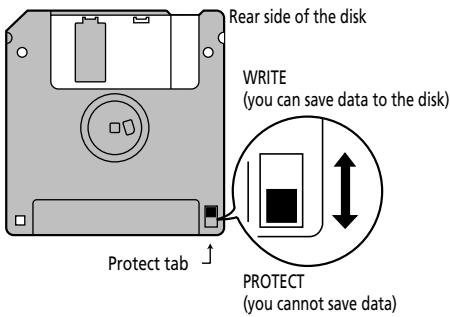
- Disks containing important performance data for this unit should always be locked (have their write protect tab slid to the "Protect" position) before you insert them into the drive of another instrument (except the PR-300, or a product of the HP-G, MT, KR, or Atelier families), or into a computer's drive. Otherwise, when performing any disk operations (such as checking the contents of the disk, or loading data), you risk rendering the disk unreadable by the KR103's disk drive.
- The identification label should be firmly affixed to the disk. If the label comes loose while the disk is in the drive, it may be difficult to remove the disk.
- Put the disk back into its case for storage.
2. Panel descriptions
Front panel
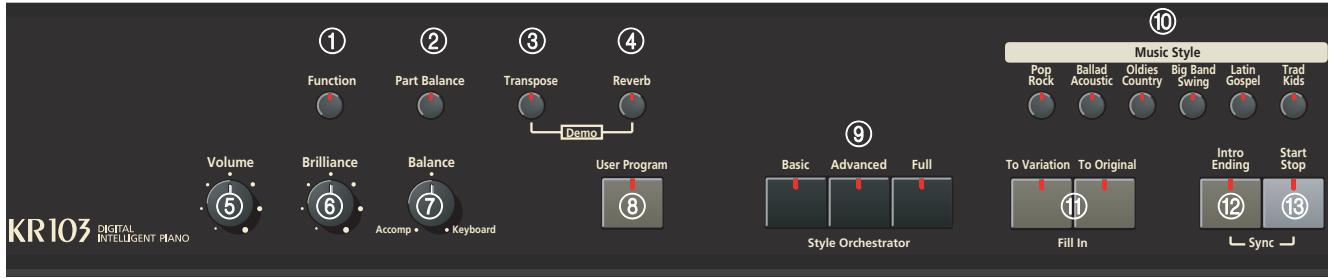
[Power On] switch (not pictured)
This switch is located to the left of the KR103's control panel. It allows you to switch the KR103 on and off.
① [Function] button
This button provides access to the FUNCTION menu. You can use the l buttons to select the desired function.
② [Part Balance] button
Press this button to select the part whose level you want to change with respect to that of the other parts. The parts available here are: Upper, Layer, Split, ADrums, ABass, and Accomp (this is a group of 6 parts).
Note: There is also a knob that allows you to set the volume balance of entire sections. See page 20.
③ [Transpose] button
Press this button to select the display function that allows you to set a transposition interval. You can also specify which sections should be transposed (page 20).
Press it together with the Reverb button to select the KR103's demo mode (page 13).
(4) [Reverb] button
Press this button whenever you want to change the settings of the digital reverb effect (page 39). Press it together with the Transpose button to select the KR103's demo mode (page 13).
⑤ [Volume] knob
Use this knob to set the global volume of your KR103.
⑥ [Brilliance] knob
Use this knob to change the brightness of the sounds played by the KR103.
⑦ [Balance] knob
This knob allows you to set the balance between the Arranger or song parts ("Accomp") and the solo sounds ("Keyboard").
[User Program] button
Press this button whenever you want to select a User Program (a set of registrations) or to save the current panel and parameter settings to a User Program. There are 34 User Program memories. See page 47.
[Style Orchestrator] buttons
Press one of these buttons to choose the desired orchestration for the selected Music Style. See page 19.
[Music Style] buttons
These buttons allow you to select Music Style families. When you press a button, the first Style of the selected family is immediately recalled. The button of the selected family lights. Note that the KR103 memorizes your selection within each family, and immediately recalls the last Style you used within that family.
The last button (User) provides access to the Music Style in the KR103's temporary area or Styles on an inserted floppy disk.
(1) [Fill In] buttons
These buttons have two functions: you can use them to select the desired accompaniment pattern for a Music Style (while the Arranger is stopped), or to switch from the accompaniment pattern to a Fill-In during a performance (page 17).
[Intro/Ending] button
Press this button when you want to start a Style performance with an introduction, or to stop Music Style playback with a musical ending. When you press the Arranger button, the Intro pattern is automatically selected.
If you press it during Style playback, this button selects the Ending pattern.
[Start/Stop] button
Press this button to start or stop Style playback. Press it together with the Intro/Ending button to switch the Sync Start function on or off.
![ROLAND KR103 - [Start/Stop] button - 1](/content/2020/04/130958/images/75482b2b46a37d384f33f169b4e642305c4159e093aa1901ae87e6e1decd7f5c.jpg)
![ROLAND KR103 - [Start/Stop] button - 2](/content/2020/04/130958/images/b4a745bfbdfb89fbb746780f649bb2c3690dfa922ccf5b93838d6f07a32b88ef.jpg)
![ROLAND KR103 - [Start/Stop] button - 3](/content/2020/04/130958/images/92de264a0b943d81da976331b46e735772bbbecd0e6e2dd67f784b12903da8af.jpg)
![ROLAND KR103 - [Start/Stop] button - 4](/content/2020/04/130958/images/9cb6abd692a7e30b85855805f8a879055b1748ea4f2b5736a84f8ba64251aaa4.jpg)
⑭ Tempo indicators
These indicators flash to indicate the current Music Style or song tempo.
15 [Count/Mark] button
Press this button to select the count-in function, after which the KR103 counts down one measure before starting Music Style or song playback.
This button also allows you to set and use the KR103's REPEAT function.
[Metronome] button
This button allows you switch the metronome on and off, and to change the metronome volume. The tempo can be set with the Tempo +- buttons.
⑰ Tempo buttons
Use these buttons to decrease (^- - ) or increase (^+^) the tempo of the Music Style or song you are playing back. Note that each Style and song has a preset tempo. Press Tempo +- together to recall the Style's or song's default tempo.
[Song] button
This button allows you to select the KR103's Song mode where you can select Standard MIDI Files and start/control playback of the selected song using the buttons in the "Record/Playback" section. The KR103 is supplied with several internal songs.
[Music Assistant] button
This button allows you to work with pre-programmed registrations (additional User Programs). See page 15.
[+][-], [<][>] buttons
The l buttons allow you to select a group or parameter. You can press them, hold them, or press one while holding the other to change the scrolling speed. (Music Style groups can also be selected via the dedicated "Music Style" buttons to the left of the display.)
The +- buttons allow you to set the value of the selected parameter, and to select Tones, Styles, Music Assistant memories, Songs, and Function parameters.
② [Exit] and [Enter] buttons
The Exit button takes you back to a higher level (when selecting User Programs or editing Function parameters, for example) or to the KR103's main page.
Enter allows you to confirm the selection of a function. In certain cases, pressing it takes you to a lower parameter level.
![ROLAND KR103 - [Start/Stop] button - 5](/content/2020/04/130958/images/b55bf26c91e000152c11018d298af6edd4f3f3e9c2ef1725db47202740e69ccc.jpg)
② [Tone] buttons
Press one of these buttons and use +1 or 4 to assign a sound ("Tone") or Drum Set to the Upper, Layer or Lower part. See page 35.
[Disk] button
Press this button to access the Disk functions. They are used for saving data to disk, and managing floppy disks. See p. 53.
② Record/Playback section
The buttons in this section allow you to control song recording and playback as well as to select the tracks you want to hear or record. See page 23 and 28.
② Disk drive
Used for playing back material recorded on floppy disks, or saving and loading songs or settings to/from disk.
One Touch Program [Piano]/[Arranger] buttons
These buttons allow you to instantly recall the appropriate settings for the music you want to play.
[Split] and [Layer] buttons
These buttons have several functions:
By pressing Split, you assign the Upper part to the right half of the keyboard, and the KR103's Arranger to the left. By pressing it together with the Layer button, you switch on a second part (called "Lower") that can be played via the left half. See page 21.
[Melody Intelligence] button
This button allows you to switch the Melody Intelligence function on/off. Melody Intelligence is a function that adds a harmony part to your melody playing. See p. 34.
![ROLAND KR103 - [Start/Stop] button - 6](/content/2020/04/130958/images/951865fe994ed94fd2975671ede37f99fc14e7220cf7884310dd63b1890c1e47.jpg)
Rear panel
① USB port
Use a USB cable to connect this port to your computer. This allows you to send and receive MIDI data to/from your computer. While a cable is connected to this port, the MIDI In and Out sockets cannot be used.
② Expression socket
This is where you can connect an optional EV-5 or EV-7 expression pedal that can be used as a volume pedal.
③ Pedal socket
This is where you can connect the pedal cable of the supplied stand (KRS103). The stand comes with three pedals.
④ MIDI sockets (Out, In)
Use these connectors to exchange MIDI data with external MIDI devices. Note that these sockets are not available while a cable is connected to the USB socket.
⑤ INPUT R/L (MONO) sockets
This is where you can connect the audio outputs of another MIDI instrument, a CD or cassette player, etc. The signals of that audio source will be amplified and mixed with the KR103's own audio signals.
⑥ OUTPUT R/L (MONO) sockets
These sockets allow you to connect the KR103 to your HiFi amplifier, a mixer, a cassette deck, a keyboard amplifier, etc. If the external amplifier is mono, be sure to connect it to the OUTPUT L/MONO socket.
3. Before using the KR103
Connections
Connecting the pedal cable Insert the pedal cable into the [Pedal] connector on the rear panel of the KR103.
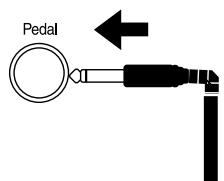
Connecting the power cord
Insert the included power cable into the AC inlet on the KR103, and then plug it into an electrical outlet. Be sure to use the supplied power cord.
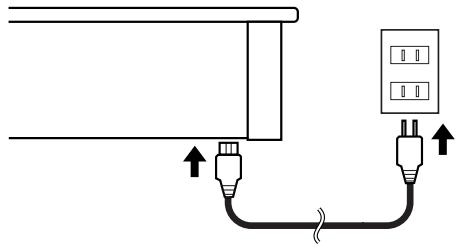
Setting up the music stand
Set up the music stand as shown in the figure below.
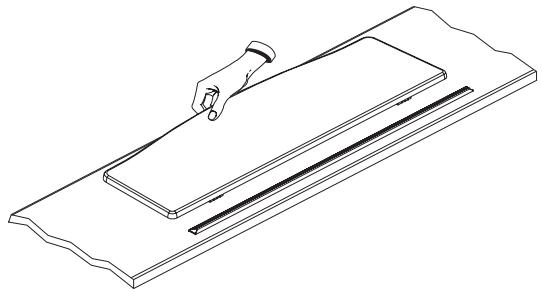
Fold the three supporting feet at the back of the stand and check whether the stand is held in place.
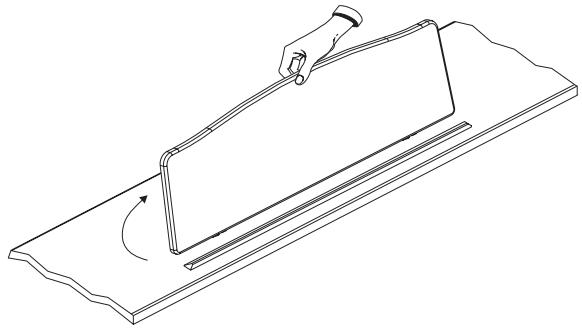
Before moving the KR103, be sure to lower the music stand as a safety precaution.
Opening/closing the lid
(1) To open the lid, use both hands to lift it lightly, and slide it away from yourself.
(2) To close the lid, pull it gently toward yourself, and lower it softly after it has been fully extended.
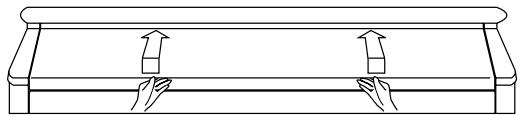
- When opening and closing the lid, be careful not to let your fingers get caught. If small children will be using the KR103, adult supervision should be provided.
- If you need to move the instrument, make sure the lid is closed first to prevent accidents.
Connecting headphones
The KR103 has two jacks for plugging in headphones. This allows two people to listen through headphones simultaneously, making it very useful for lessons and when performing piano pieces for four hands. Additionally, this allows you to play without having to worry about bothering others around you, even at night.
Plug the headphones into the phones jack located at the bottom left of the piano.
Connecting headphones will automatically mute the sound from the internal speakers.
The headache volume is adjusted by the Volume knob of the KR103.
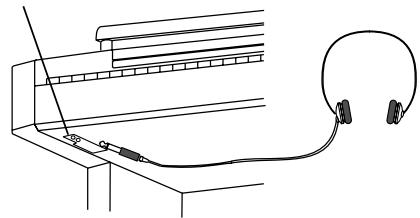
Phones socket x2
Be sure to use stereo headphones (such as the Roland RH-25, RH-50 or RH-200).
Notes on using headphones
- To prevent damage to the cord, handle the headphones only by the headset or the plug.
- Connecting the headphones when the volume of connected equipment is turned up may result in damage to the headphones. Lower the volume on the KR103 before plugging in the headphones.
- Listening at excessively high volume levels will not only damage the headphones, but may also cause hearing loss. Use the headphones at a moderate volume level.
Turning the power on/off
Turn on power to your various devices in the order specified. By turning on devices in the wrong order, you risk causing malfunction and/or damage to speakers and other devices.
(1) To turn the power on, turn the Volume knob all the way down, and then press the Power On button.
The power will turn on, and the power indicator at the left front of the KR103 will light.
After a few seconds, you will be able to play the keyboard to produce sound.
Use the Volume knob to adjust the volume.
The KR103 is equipped with a protection circuit. A brief interval (a few seconds) after power up is required before the unit will operate normally.
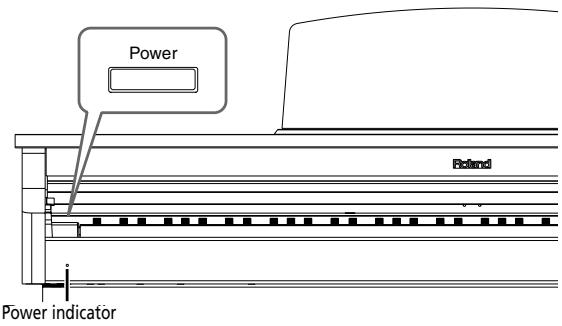
(2) To turn the power off, first turn the Volume knob all the way to the left, and then press the Power On button.
The power indicator will go dark, and the power is turned off.
About the pedals
The KR103 comes with three pedals that are built into the supplied stand:
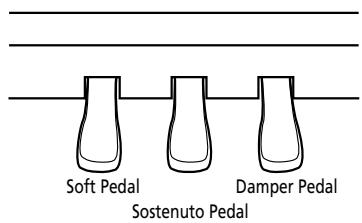
The pedals have the following functions, and are used mainly for piano performance.
Damper pedal (right pedal)
While this pedal is pressed, notes will be sustained even after you take your fingers off the keys. On an acoustic piano, holding down the damper pedal will allow the remaining strings to resonate in sympathy with the sounds that you played from the keyboard, adding a rich resonance.
The KR103 simulates this damper resonance.
Sostenuto pedal (central pedal)
This pedal sustains only the sounds of the keys that were already played when you pressed the pedal.
Soft pedal (left pedal)
When you hold down this pedal and play the keyboard, the sound will have a softer tone.
About the adjuster
When you move the KR103 or if you feel that the pedals are unstable, adjust the screw located below the pedals as follows.
Rotate the adjuster to lower it so that it is in firm contact with the floor. If there is a gap between the pedals and the floor, the pedals may be damaged. In particular when placing the instrument on carpet, adjust this so that the pedals firmly contact the floor.
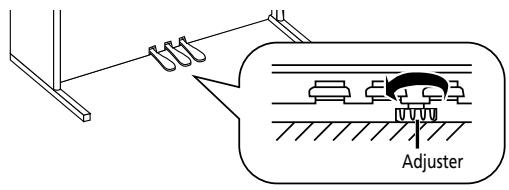
If the adjuster is difficult to turn, have one person lift either the left or right side of the stand to make it easier for another person to turn the adjuster and make the adjustment.
Note: After adjusting the screw, press the pedals. If the stand's front board moves, turn the adjuster further so that it makes firm contact with the floor.
Note: Always readjust the adjuster after moving the instrument.
4. First steps
Adjusting the sound's volume and brilliance
(1) Turn the Volume knob to adjust the overall volume.
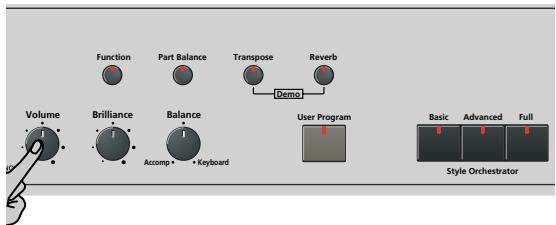
(2) Turn the Brilliance knob to adjust the brightness of the sound.
(3) Use the Balance knob to set the balance between the accompaniment and your live playing.
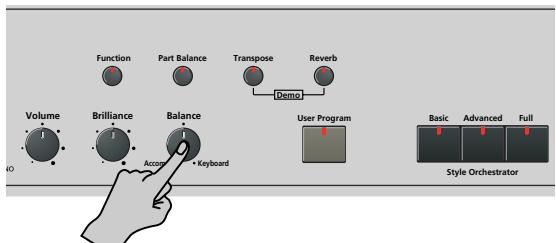
Turn it towards "Keyboard" if the notes you play yourself are too soft. Turn it towards "Accomp" if your playing is too loud with respect to the Arranger (or song).
Note: See page 42 for how to set the balance between the Keyboard parts.
Listening to the demo songs
Your KR103 comes with song demos, Tone demos, and Style demos.
- The song demo illustrates the possibilities of the KR103 as a whole.
- Tone demos show off the KR103's amazing sound quality.
- Style demos give you an idea of the quality of the on-board Music Styles.
(1) Press the Transpose and Reverb buttons simultaneously to activate demo mode.
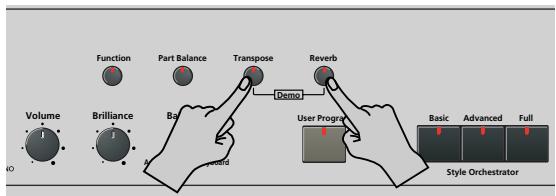
The display's message line now looks as follows:

The KR103 starts playing back all demos one after the other.
(2) If necessary, press the Start/Stop button to stop playback.
(3) Press the Transpose and Reverb buttons again simultaneously to leave demo mode. You can also listen to specific sound ("Tone") or Style demos:
Playing back a Tone demo song
(1) Press the Transpose and Reverb buttons simultaneously to activate demo mode.
(2) Press a Tone button to select the demo song of the corresponding family:
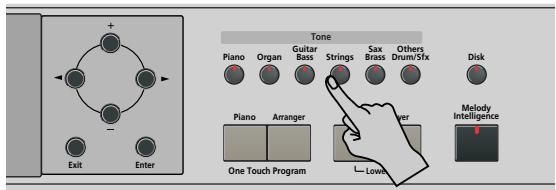
Playback of the Tone demo song starts automatically. The display's message line now looks as follows:
TEMPO
MEASURE

0C
You can now press Start/Stop to stop playback of the currently selected Tone song. If you press this button again, the next Tone demo song will be played back.
(3) If necessary, press another Tone button to select another song.
If you like, you can press [Song] to launch playback of the general demo song (see above).
(4) Press Start/Stop to stop Tone demo song playback.
Playing back a Style demo song
(1) Select demo mode (see step (1) above).
(2) Press a Style button to select the demo song of the corresponding family.
Playback of the Style demo song starts automatically. The display's message line now looks as follows:

You can now press Start/Stop to stop playback of the currently selected Style demo song. If you press this button again, the next Style demo song will be played back.
(3) If necessary, press another Style button to select another song.
If you like, you can press [Song] to launch playback of the general demo song (see above).
(4) Press Start/Stop to stop Style demo song playback.
Leaving demo mode
Press the Transpose and Reverb buttons simultaneously to leave demo mode.
Connecting external amplifiers and other devices
If the KR103's amplification system doesn't deliver enough power for your application, you can take advantage of its Output jacks.
Sending audio to external equipment
Before connecting the KR103 to another device, turn off the power to both devices.
If you wish to amplify the KR103 through an external system, or record your music using a tape recorder, connect the KR103's Output jacks to the AUX IN, LINE IN or CH IN jacks of the external (keyboard) amplifier, mixer or tape deck.
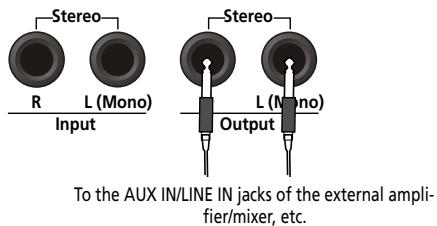
Note: If you are connecting the KR103 to a device with a monaural input, use the L/Mono jack.
Note: For cassette decks or HiFi amplifiers, you need audio leads with mono jacks at one end and (usually) RCA/cinch jacks at the other.
After connecting the KR103 to the amplifier, etc., be sure to switch on the KR103 and the external device(s) in the following order:
- First turn on the power to the KR103.
- Then turn on the power to the mixing console, amp, etc. (in that order).
Receiving audio signals from external sources
You can connect the audio outputs of an external MIDI instrument, CD or cassette player, etc., to the INPUT jacks. That has the advantage that such signals can be amplified by the KR103 and are therefore also present in the headphones (if connected).
To connect an external signal source, follow the instructions above but be sure to connect the LINE OUT, etc., jacks of the external source to the KR103's Input jacks.
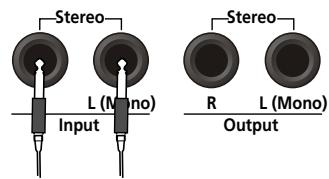
From the LINE OUT, etc., jacks of the external instrument, CD player, etc.
Automatic registration: Music Assistant
The KR103 has a practical function that allows you to quickly make all required settings for the music you want to play: the MUSIC ASSISTANT function. It prepares everything you need for working with the automatic accompaniment function (Style, Tones, effects, etc.). It is not available for song playback.
The following parameters are set automatically when you select a Music Assistant memory:
Music Style
- Tempo
- Sounds for the Upper, Layer and Lower parts
Effect settings
Style Orchestrator
- [Arranger] and [Split] are switched on
Keyboard Touch - The Sync Start function is switched on
(1) Press the Music Assistant button.
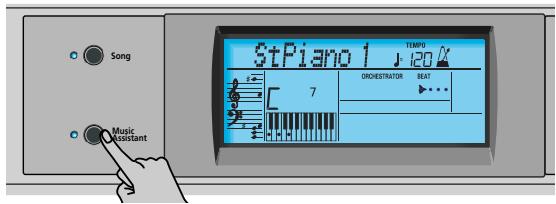
Its indicator lights and the display shows the first 8 characters of the name of the last Music Assistant setting you selected.
007Imagine 1402
After a few seconds, the full name scrolls through the display.
(2) Use +- to specify the desired Music Assistant memory.
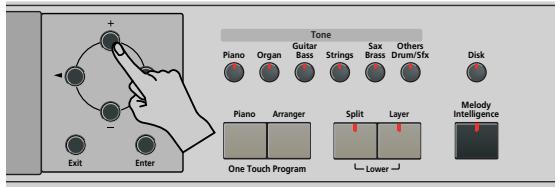
The Music Assistant memories are selected in alphabetic order.
(3) Use & to jump to the previous or next "letter" (e.g. from the "B" to the "A" or "C" group).
Note: If necessary, you can now change the settings you do not like (e.g. select another sound for the Upper part, etc.) and then save your new version to a User Program (see p. 47).
(4) Press the Start/Stop button to start Arranger playback.
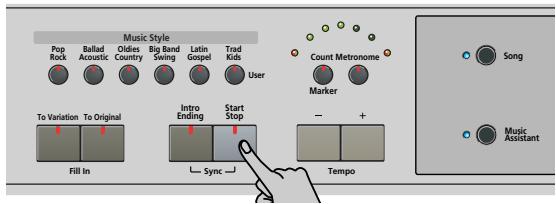
The KR103 starts playing an accompaniment that matches the genre you selected.
If the accompaniment is too fast (or too slow), here is how to change the Music Style tempo:
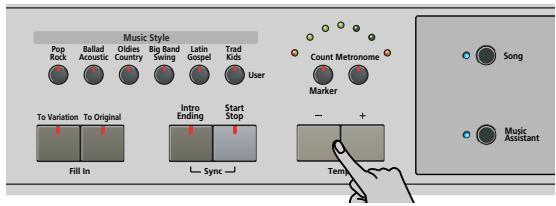
- Press to decrease the tempo in steps of one unit.
- Press + to increase the tempo in steps of one unit.
(5) Use your right hand to play a melody to the accompaniment.
See page 16 for details about the various Arranger functions.
(6) Press Start/Stop again to stop Music Style playback.
Playing piano music
To play piano music without accompaniment, proceed as follows:
(1) Press the Piano button.
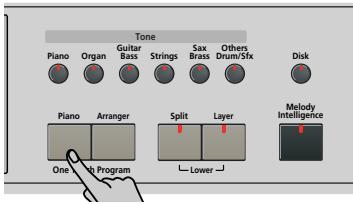
This assigns a fabulous grand piano sound to the entire keyboard (switching off the Split button if it was on).
Note: In this mode, the left and center pedal always have their "normal" piano functions (i.e. "Soft" for the left pedal, and "Sostenuto" for the center pedal), no matter what functions you assigned them (see p. 44).
(2) Start playing.
See page 21 for additional functions you can use alongside the piano sound.
5. Playing with accompaniment (Arranger)
Let us begin with the automatic accompaniment function, which is called "Arranger" and often referred to as "Style" or "Music Style" in the display and on the front panel.
Starting/using the Arranger
(1) Press the Arranger button.
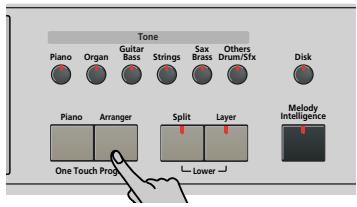
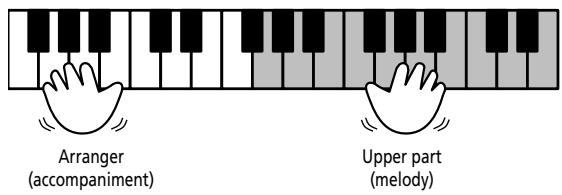
The ARRANGER icon appears in the display and the keyboard is split into two halves. The keys you press in the left half are used to specify the key of the accompaniment. The right half of the keyboard allows you to play a tune to the accompaniment.
(2) Press the Start/Stop button to start Arranger playback.
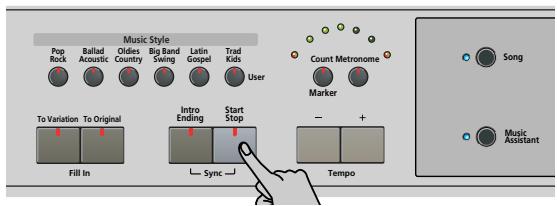
The metronome indicators flash to indicate the tempo and beats according to the following system:
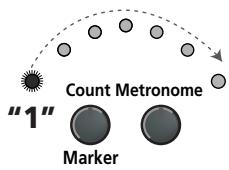
The slightly bigger indicators at either end of the arc indicate the beats. The remaining indicators are only used to simulate the movement of a mechanic metronome.
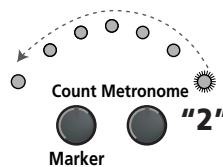
The "big" indicators light red to indicate the downbeat (see "1"), and green on the remaining beats of a bar (see "2"). Consequently, the third beat of this example is indicated by the left indicator that then lights in green.
Note: The lighting pattern of the beat indicators can be switched off. See "Beat Ind" on p. 46.
There is also a BEAT indication in the display that tells you where you are.
If the Arranger indicator lights, you will hear a stereo string sound and a monophonic bass sound while the Arranger is stopped. The string and bass sounds are muted as soon as you start Arranger playback (or switch on the SYNC START function). If you want to double Arranger playback with a sound assigned to the left half of the keyboard, switch on the Lower part (see p. 21).
(3) Play a chord (or just one note) with your left hand. The same pattern is now played in that key. You don't even have to play full chords:
- For major chords, playing just the root note is enough (e.g. "C" for C major, "A" for A major, etc.)
- For minor chords, playing the root note and the third key to its right will do.
- For seventh chords, playing the root and the second key to its left is enough.

C major
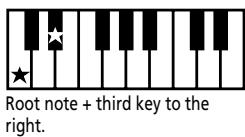
C minor
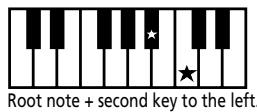
C7
(4) Play another chord (or note) to change the Arranger's key.
Using the count-in function
The KR103 provides a count-in function you may want to use for practising new songs. This function counts down one measure when you press the Start/Stop button, after which Arranger playback starts.
(1) Press the Count/Marker button.

VALUE OFFF
Count-In
The following message appears in the display:
(2) Use the +- buttons to select "On" (count-in active, the button's indicator lights) or "Off" (no count-in, the button's indicator goes dark).
(3) Repeat steps (1) and (2) to switch the Count-In function back off (or on) again.
Changing the tempo
Use the Tempo +0 buttons to decrease (□) or increase (□) the tempo (if necessary).
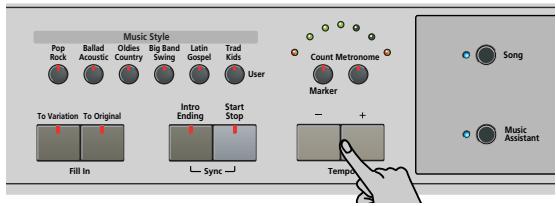
To return to the Music Style's default tempo, simultaneously press and + .
Note: The tempo can also be set with the left or central pedal if you assign it the "Tap Tempo" function (see p. 38).
Automatic playback start (Sync Start)
"Sync Start" means that the Arranger starts playing back the selected Music Style as you play a note or a chord with your left hand (to the left of the split point). In PIANO mode, Arranger playback will start when you press any note.
(1) Stop Music Style playback.
(2) Simultaneously press the [Intro/Ending] and [Start/Stop] buttons (the [Start/Stop] and [Intro/Ending] indicators flash).
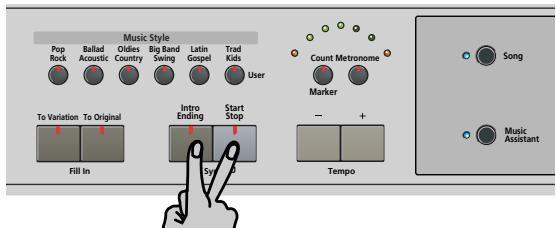
The SYNC START icon appears in the display.
(3) Play a note or chord in the chord recognition area of the keyboard.
If the Split indicator lights, you need to play something in the left half of the keyboard to start the Arranger.
Stopping Arranger playback
Press Start/Stop again to stop playback.
You can also press [Intro/Ending] during Arranger playback. In that case, you first hear an ending phrase. When it is finished, the Arranger stops automatically.
Using different Music Style patterns
Each Music Style comprises several patterns, so that you can vary the accompaniment by starting with an introduction, using a simple accompaniment for the verses, a more elaborate one for the choruses and by ending your songs with an "Ending" pattern.
There are several buttons that allow you to select other accompaniment patterns of the Music Style you are using:
| Pattern | Function |
| INTRO | Starts playback of an introduction. (The Intro pattern is automatically selected whenever you press the Arranger button.) |
| Intro/Ending | |
| ORIGINAL | Simple accompaniment version. (Press To Original before starting Style playback.) |
| FILL | Transition ("Fill In") to VARIATION or ORIGINAL. See below for details. |
| VARIATION | Slightly more complex accompaniment version. (Press To Variation before starting Style playback.) |
| ENDING | Phrase that announces the end of the song. Use this button instead of Start/Stop to stop playback. |
The available buttons select Music Style "patterns". The icon corresponding to the button you press appears in the display (and the indicator of the button you press lights): INTRO ORIGINAL FILL VARIATION ENDING
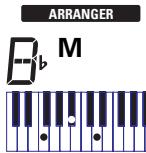
Furthermore, the chord field in the display indicates the name of the chord you played last. This chord is used by the accompaniment:
While the VARIATION and ORIGINAL patterns (as well as their Style Orches-
trator versions) keep repeating the same accompani- ment until you select another one, or until you stop Arranger playback, Fill-Ins (see above), Intros, and Endings are played only once.
ORIGINAL and VARIATION patterns
The ORIGINAL and VARIATION patterns can be selected in two different ways.
- Stop Style playback, then press [To Original] or [To Variation].
→The selected accompaniment version begins as soon as you press the Start/Stop button.
- Press [To Original] or [To Variation] during Style playback.
→The KR103 first plays a transition ("fill-in") and then selects the pattern whose name appears behind the "To" mention.
In other words: if the KR103 is currently playing back the ORIGINAL pattern, pressing [To Original] triggers a fill-in, at the end of which the Arranger returns to the ORIGINAL pattern.
If you press [To Variation], however, while the ORIGI-NAL pattern is being played, the Arranger first plays a (different) fill-in, and then switches to the VARI-A-TION pattern.
■INTRO and ENDING
While the ORIGINAL and VARIATION patterns keep repeating the same accompaniment until you select another one or until you stop Arranger playback, FillIns (see above), Intros and Endings are played only once.
INTRO patterns are introductions, i.e. short phrases that set the tone for the piece you are about to play.
(1) Stop the Arranger and press the [Intro/Ending] button (its indicator flashes).
You will now hear the introduction of the selected Music Style. Once the INTRO pattern is finished, the Arranger automatically proceeds with the ORIGINAL or VARIATION pattern (depending on which of these two indicators flashes).
Note: If the SYNC START function is on, pressing Intro/Ending only selects the INTRO pattern. Style playback needs to be started by playing a chord in the left half of the keyboard. If the SYNC START function is off, however, playback is started as soon as you press the Intro/Ending button.
Here is how to add a musical closing section to your performance:
(2) Press the [Intro/Ending] button (its indicator lights). The KR103 now plays an ENDING phrase. At the end of the ENDING pattern, the Arranger stops.
As soon as you feel comfortable with the Arranger, you should try to play a melody with your right hand while using your left for specifying Arranger chords.
Selecting Music Styles
The KR103 provides three memory areas for Music Styles:
- POP/ROCK, BALLAD/ACOUSTIC, OLDIES/COUNTRY,BIG BAND/SWING, LATIN/GOSPEL, TRAD/KIDS. These are the Style families in the KR103's internal ROM memory. These Styles cannot be erased (but you can modify them in realtime using the Style Orchestrator functions, see 19).
- USR: This is where a Music Style loaded from a floppy disk (MSA, MSD and MSE series, optional) is temporarily stored. The data in this RAM memory are erased when you switch off the KR103.
- DISK: (D01~...) This area refers to a floppy disk you inserted into the KR103's drive. The number of available Styles depends on the floppy disk, of course. The Style you select is transferred to the KR103's USR memory (see above), which is why it takes a little longer before you can use it.
Selecting an internal Style
(1) Press the Arranger button.
The SYNC START icon appears in the display.
(2) If you want to use a style on floppy disk, insert the disk into the drive.
(3) Press one of the "Music Style" buttons.
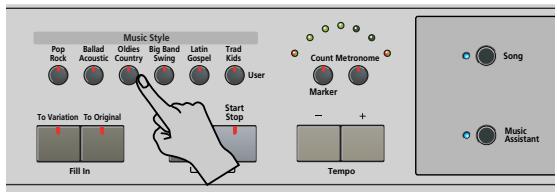
Note: The family names do not appear in the display, so be sure to check which Music Style indicator lights.
(4) Use +- to specify the desired Style within the selected family.
The first Music Style within the selected group is selected automatically. So if you need the first Style, there is no need to press + . You must use + or - , however, to select another Style within the same group.
However, the KR103 memorizes your selection within each family and returns to the last-selected Style whenever you press a Music Style button.
Note: The +- buttons do not allow you to go from one family to the previous or next.
Working with the +0 buttons
You can press + or - either repeatedly (brief presses) to go back or advance in single units, or hold down + (or - ) to quickly select a memory. The fastest way to scroll through the available memories is by holding down - while pressing + (go backwards), or by holding down + while pressing - (advance).
Selecting a Style on floppy disk
Here is how to select a Style on the floppy disk in the KR103's drive:
(1) Insert the floppy disk with the desired Style into the KR103's drive.
(2) Press the Music Style Trad/Kids button.
(3) Press the button until the display shows the name of the first Style on the inserted floppy disk:
101 POP 1 JEnt
The name is preceded by a "D" and a number.
Note: If you forgot to insert a floppy disk into the drive, the display shows "No Disk" when you attempt to select the "disk family" and keeps using the previously selected Style.
(4) Use the +0 buttons to select the Style you want to load.
(5) Confirm your selection by pressing the Enter button.
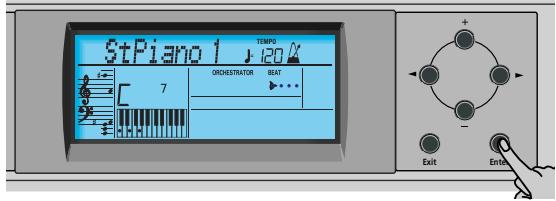
The display briefly shows "Loading" and the disk icon flashes. The selected Style is copied to the USR memory and that memory is selected.
(6) Press the Start/Stop button to start Arranger playback (if it is not running yet).
Note: To return to the last Style you loaded from floppy disk, there is no need to load it again. Just press the button until the name of that Style appears in the display.
Note: The USR memory is erased when you switch off the KR103.
Using the Style Orchestrator function
The Style Orchestrator function allows you to vary the accompaniment patterns played by the Arranger. You can leave out parts, thin out the drum part, etc. - in real-time (i.e. while you are playing).
(1) Press the Arranger button to select the Arranger mode.
(2) Select the Music Style you wish to use for playing (or use the one that is currently selected). See page 18.
(3) Press one of the following buttons to select the desired level of musical "complexity" (the corresponding icon is displayed):
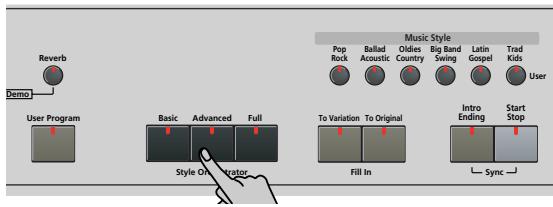
Obviously, these buttons should be used during Arranger playback to further refine the automatic accompaniment.
| Basic DRUM &BASS | The simplest accompaniment that only contains the drum and bass lines. |
| Advanced COMBO | Accompaniment pattern with only a few instruments (i.e. a band). |
| Full FULL BAND | Accompaniment pattern with a lush arrangement (several melodic instrument lines). |
The assigned icon appears in the display (only one of them can be displayed at any one time).
Note: The effect of these three levels also depends on whether the [To Variation] or [To Original] button was pressed. In effect, the combination of the [To Original]/[To Variation] and [Basic]/[Advanced]/[Full] buttons provides 6 accompaniment patterns per Music Style (3 x 2).
Note: Immediately after switching on the KR103, the Arranger selects the "Full" level.
Note: The last selection you make can be saved to a User Program. See p. 47.
Balance
The Balance knob allows you to change the volume balance between the Arranger (or song) parts and the Keyboard parts (the parts you can play yourself).
(1) Turn the Balance knob towards "Accomp" if the Arranger (or song parts) are too soft.
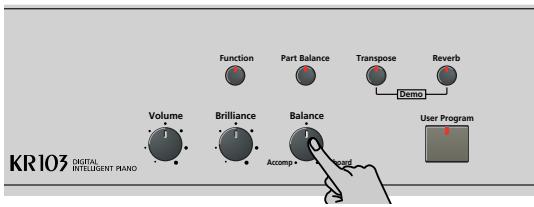
(2) Turn the Balance knob towards "Keyboard" if you think your solo playing should be louder.
Note: There are also more refined balance settings. See page 42.
6. Playing without accompaniment
When you switch on the KR103, it selects the "Piano" mode. This means that you can use the KR103 like a digital piano, or a synthesizer.
The melodic accompaniment and One Touch function are not available in "Piano" mode (the Arranger can, however, play back the rhythm part of the Style you select).
The KR103 provides three parts for your live playing (and many more for Arranger backing and song playback):
| Upper | This is the most important part. As long as the Lower part is off, the Upper part is assigned to the entire keyboard. |
| Lower | When you switch on this part, it is assigned to the left half of the keyboard, while the Upper part can be played with your right hand. The Split button flashes to signal that the Lower part is assigned to the left half of the keyboard (and that the melodic Arranger parts are not available). |
| Layer | This part can be added to the Upper part and is also assigned to the entire keyboard (unless you activate the Lower part as well). This allows you to play two sounds simultaneously. |
Using the Upper part
(1) To activate the Upper part and assign it to the entire keyboard, press the Piano button (the ARRANGER icon disappears).
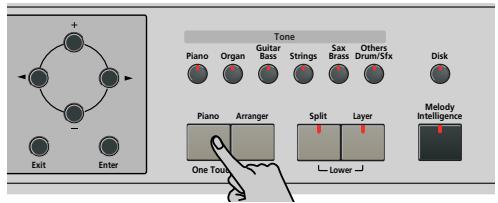
The Split indicator goes dark, the Arranger stops (if it was playing), and the KR103 automatically selects a piano sound for you.
(2) Play a few notes on the keyboard.
(3) If necessary, select another sound by pressing one of the 6 Tone buttons. See p. 35 for details. Note: You can also assign Drum Sets to the Upper part. Note: You can press the Start/Stop button to add a rhythm accompaniment to your playing. This is based on the currently selected Music Style. See p. 18 for how to select a different one.
Using the Upper and Lower parts
(1) To play different sounds with your left and right hands, simultaneously press the and buttons.
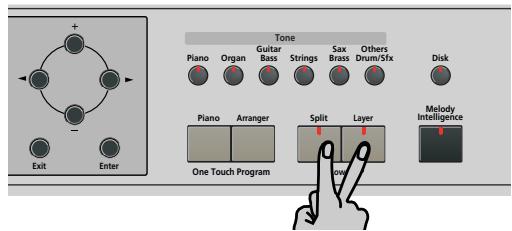
The Split indicator flashes and the SPLIT icon appears in the display.
(2) Play a few notes on the keyboard. At first, the keyboard is split at the G3 (note number "55"). If necessary, you can select a different split point. See "SplitPnt* (Split point)" on p. 44. See page 42 for how to set the volume of the Upper and Lower sounds.
(3) To assign another sound to the Lower part, press the Split and Layer buttons (to switch on the Lower part) and proceed in the same way as for the Upper part (page 35). Note: You cannot assign Drum Sets to the Lower part.
Using the Upper and Layer parts
(1) To play two sounds simultaneously, press the Layer button (its indicator lights).

(2) Play a few notes on the keyboard. See page 42 for how to set the volume of the Upper and Layer sounds.
(3) To assign another sound to the Layer part, activate it and proceed in the same way as for the Upper part (page 35).
Note: You cannot assign Drum Sets to the Layer part.
Using the metronome
You can switch on the metronome when practising a new song.
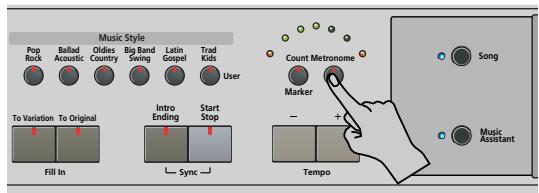
(1) Press the Metronome button (its indicator lights). The icon appears in the display and you hear the metronome sound.
VALUE 4/4 Metro TS
(2) Use the +- buttons to set another time signature. The possibilities are: 1 / 4, 2 / 4, 3 / 4, 4 / 4, 5 / 4, 6 / 4, 6 / 8, 9 / 8 .
(3) Press the button to select the following parameter:
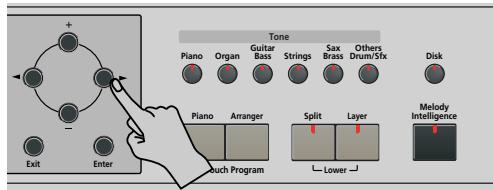
VOLUME MetroVol
(4) Use the +- buttons to set the desired metronome volume (0~127). Note: If you select "0", the metronome is no longer audible. That value is therefore not a good choice.
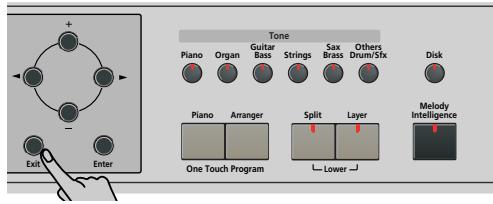
(5) Press the button to leave this function.
(6) If necessary, use the Tempo +0 buttons to change the tempo.
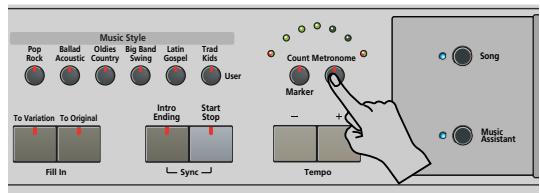
(7) Press the Metronome button twice to switch the metronome off.
7. | Playing back songs
The KR103 allows you to play back commercially available music data files (called Standard MIDI Files) or your own songs you saved to disk. Your own songs are saved as Standard MIDI Format 0 files and can also be played back using any other SMF compatible sequencer (or software).
Basic song playback
The KR103 comes with more than 50 internal songs, you can listen to right away.
(1) Press the button (its indicator lights) to switch to Song mode.
The display now shows the name of the first song in the KR103's internal memory.
- If you want to play back a song from floppy disk, insert the disk into the drive (front right).
(2) Use to select the memory area that contains the song you wish to play back.
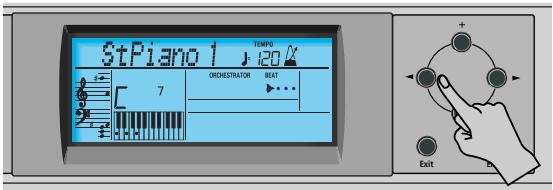
The KR103 provides three memory areas for songs:
- USR: This where the song data you record, or the data of the last disk song you loaded are temporarily stored. The data in this RAM memory are erased when you switch off the KR103.
- Internal memories: This is the memory area inside the KR103 that contains more than 50 songs when the KR103 is shipped.
TEMPO MEASURE 1 LiebestrJEnt
After a while, the entire song name starts scrolling through the display.
Note: If the selected song does not contain an "internal song name", the display shows the file name (which is usually shorter).
- Songs on floppy disk (D01~...): This area refers to a floppy disk you insert into the KR103's drive. The number of available songs depends on the floppy disk, of course.
JAMMIN9 Ent
Note: The KR103 can also read Roland "i" format files.
(3) Use +- to select a desired song within the selected group.
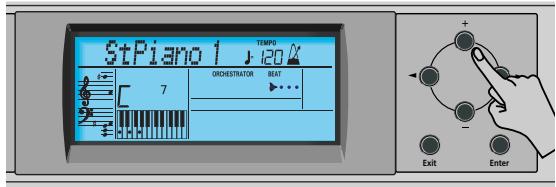
This is only necessary for the internal songs (numbers 1 ) or a floppy disk (songs D01~...). There is only one USR memory.
After selecting memory 1 (internal area) or D01 (first disk memory), the display shows a flashing Ent message. You can ignore this if you like, and proceed with the next step (or you can press Enter to load the song into the USR area).
Note: If you forgot to insert a floppy disk into the drive, the display shows "No Disk" when you attempt to select a file on disk.
(4) After making sure that the correct song has been selected, you can press Play/Stop to load it and immediately start playback.
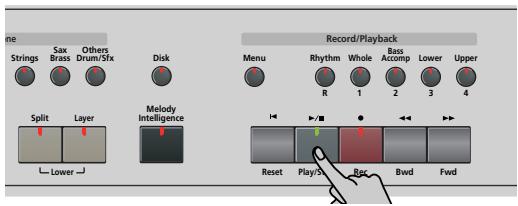
The / Stop indicator lights and the Count/ Metronome indicators flash to indicate the tempo and beats.
You can already select a new song while the current one is still playing. If you want to listen to it before the current song is finished, stop playback by pressing Play/Stop , then press that button again. Otherwise, wait until the current song is finished, then press the Play/Stop button to start playback of the new song.
Note: Please bear in mind that starting playback of the selected song on disk will erase the song in the USR memory. Be sure to save it to disk before proceeding (see p. 53).
(5) If necessary, change the song tempo with the Tempo +□ buttons.
Doing so, however, means that the tempo still changes if the song you are playing back contains tempo change messages.
Note: In Song mode, the KR103 automatically selects the Piano mode. If you like, you can play along with the song (and even use the Layer or Lower part).
Note: In certain cases, the display may show the message XG Light or GM2 rather than a Tone name. Such a message means that the KR103 is using a Tone that cannot be selected via the front panel. Such "hidden" Tones ensure XG/GM2 playback compatibility.
Additional playback functions
Fast Forward, Rewind, and Reset
- To fast forward (jump to a measure later in the song), press Fwd.
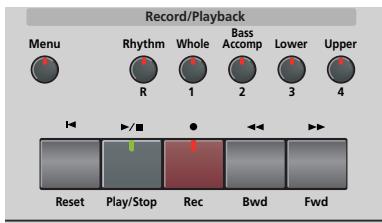
- To rewind (return to a measure that lies before the current position), press Bwd.
The measure indication in the upper right corner of the display helps you locate the measure you need. - Press to jump back to the first measure of the song.
Note: In certain cases, Fwd and Bwd may not be available. This is only the case for very large songs, however.
Repeat function
Another clever feature of the KR103's Recorder is that you can program playback loops. You can do so during playback or while the Recorder is stopped.
(1) Press the Count/Marker button.
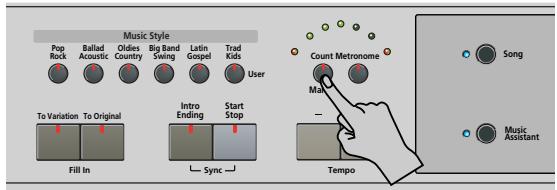
The following message appears in the display:
VALUE
C
ourt-In
(2) Press to select the following parameter:
中
MARKER
A=12
(3) Do one of the following:
- Start song playback by pressing the Play/Stop button. -or-
- Stop song playback and use Bwd or Fwd to select the measure where you wish to insert the "A" marker.
(4) Press the Enter button (the H A icon appears in the bottom right corner of the display).
The number of the selected measure appears to the left of "MARKER".

(5) If necessary, use +- to change the measure number (to correct an erroneous selection).
(6) Press l to select the following parameter:

(7) Do one of the following:
- Wait until the Recorder reaches the measure where you want to insert the end marker... -or-
- Use Bwd or Fwd to select the measure where you wish to insert the "B" marker... ...and...
(8) Press the Enter button (the BB icon appears).

(9) If necessary, use +- to change the measure number (to correct an erroneous selection).
If you program loops on the fly, i.e. during playback, the Recorder always memorizes the beginning (downbeat) of the next measure.
Now we need to tell the KR103 that it is to repeat the passage between the "A" and "B" measures:
(10) Press l to select the following parameter:
OFF
REPEAT
TEMPO 120
(11) Press + to set this parameter to "On".
The loop you have just programmed is played back and the REPEAT icon appears in the display. (Press to switch the REPEAT function off again.)
(If playback is still running, pressing Play/Stop stops it. In that case, you need to press that button again.)
The Recorder jumps to measure "A" and starts playing. At the end of measure "B", the Recorder immediately jumps back to the beginning of measure "A" and continues playing back the passage.
If you chose the wrong measures, press to return to the "MARKER A" or "MARKER B" parameter and correct your setting(s).
(12) Press the Play/Stop button to stop playback.
Note: The playback tempo is reset every time the Recorder reaches the "A" measure.
Note: In certain cases, the Repeat function may not be available. This only happens with very large songs, however.
Switching off certain song parts (part 1)
You can use the buttons discussed below to switch off parts of a pre-recorded song you want to play yourself (usually the melody, or the left/right hand of piano pieces). Playing to a Standard MIDI File or Recorder song backing is called "Minus-One Play."
(1) Select the song you want to play along to (see "Basic song playback" on page 23).
Note: Buttons whose indicator does not light at this stage refer to tracks that contain no data. Such tracks can therefore neither be muted, nor switched on.
(2) Press the button of the track you wish to mute (its indicator goes dark).
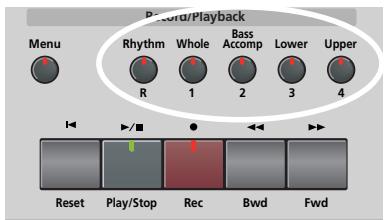
The track in question is no longer played back. You can mute several tracks, if you like. When an indicator lights, the corresponding track(s) is/are audible (i.e. not muted).
Note: The Upper part does not automatically adopt the Tone and related settings of the melody part.
What are tracks?
The term "track" is used only for your convenience. We borrowed it from tape recorders that allow you to record several musical parts one by one.
In the case of the KR103, the term is only used to indicate that we are dealing with separate musical parts. Here indeed (like with computer-based sequencers) what really counts are the MIDI channels.
Songs you record with the KR103, and the Standard MIDI Files you play back can consist of up to 16 tracks (i.e. MIDI channels).
The track buttons allow you to mute the following tracks:
Upper Refers to track "4" of the selected Standard MIDI File (or the melody you play while recording with the Arranger button on). Music data for educational purposes (especially piano music) use this track for the right-hand part. Mute this track to play the right hand yourself while listening to the left-hand part of the Standard MIDI File. The KR103 contains an excellent stereo piano Tone you could use.
Lower Refers to track "3" of the selected Standard MIDI File. Music data for educational purposes (especially piano music) use this track for the left-hand part. See also above.
Bass/ Mutes all tracks that cannot be muted with the
Accomp remaining track buttons, more specifically: 2, 5~9, 11~16.
This button is therefore assigned to several tracks.
Whole Refers to the track that contains the part you recorded in Piano (page 15) or Piano Arranger mode (see p. 33). It is assigned to MIDI channel 1.
Rhythm Mutes track "10", which is assigned to the drum part of a Standard MIDI File.
Note: You can also switch off several buttons simultaneously.
(3) Press Reset and Play/Stop to start playback.
(4) Press Play/Stop again to stop playback.
(5) Press the track buttons once more to switch the track(s) on again.
Switching off certain song parts (part 2)
Proceed as follows to select the tracks one by one and change their status. This approach allows you to mute just one track ("Mute"). You may remember that the Bass/Accomp button is assigned to several tracks.
The following also allows you to mute all tracks except the one you select ("Solo").
(1) Select the song you want to play along to (see "Basic song playback" on page 23).
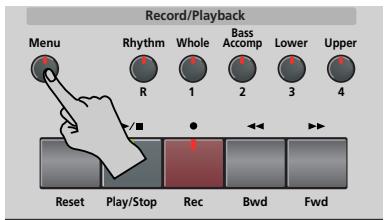
(2) Press the Menu button.
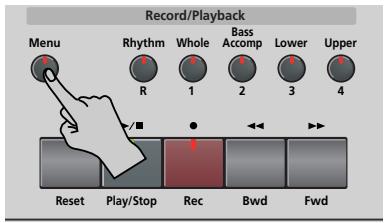
The display now looks as follows:
ON Sn9Trk 1J120
(3) Use the l buttons to select the track whose status you want to change.
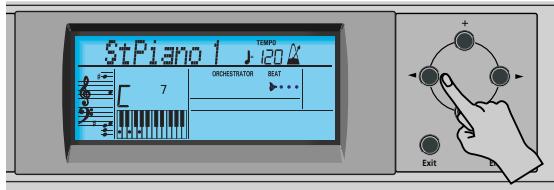
Though the MIDI standard supports 16 tracks (for as many MIDI channels), not all tracks are used all the time. Finding the track you need may therefore require some trial and error.
The following are almost certainly present in every Standard MIDI File:
Track 2: bass
Track 4: melody
Track 10: drums
You may want to use the Repeat function (page 24) and start song playback to locate the desired track more quickly.
(4) Press /+ to select one of the following parameters:
Mut Switches off the track.
Sol Switches off all other tracks. Select this setting if you want to listen to a track in isolation (to find out which notes it plays).
On Switches the selected track (or all other tracks) back on.
Note: Only one track can be soloed at any one time. Selecting "Sol" for another track while the first is still in solo mode mutes the first track you soloed.
(5) Press the Exit button to leave this function.
The status of the various tracks is preserved until you change it again, select another song or switch off the KR103.
Changing the volume of certain tracks
Here is how to change the volume of song tracks if you they are too loud or too soft. The setting range is -64 63.
These volume parameters apply to the respective tracks of the song you are currently playing back. In most cases, you may want to change the volume of track 4 (melody), 2 (bass) or 10 (drums). Finding another track (1,5 9,11 16) that's too loud or too soft may take some time, because their usage is more or less free. Be aware, however, that not all Standard MIDI Files use all 16 tracks that are available (so that changing the volume of track 16 may produce no audible change at all, for example).
These are relative parameters: the value you set here is subtracted from (negative values) or added to (positive values) the song parts' volume. Note that the upper limit (defined by the MIDI standard) is "127". It may thus be impossible to increase the volume of a track even by selecting "63" (because the track already uses "127"). Select "0" if you like a track's volume the way it is.
Be aware that the changes you make here are not saved to a User Program.
(1) Select the song that contains the tracks whose volume you wish to change (see "Basic song playback" on page 23).
(2) Press the Menu button.
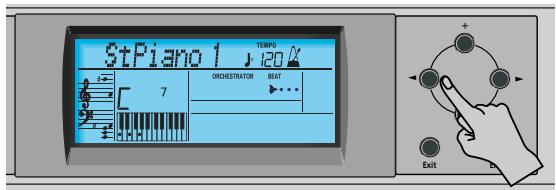
The display now looks as follows:
ON Sn9Trk 1j-120
(3) Use the l buttons to select the track whose volume ("VolTrk") you want to change.
VALUE
- volTrk
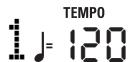
(4) Use +- to set the volume of the selected track. You can press + or - either repeatedly (brief presses) to change the volume step by step, or hold down + (or - ) to quickly select a significantly higher or lower value. The fastest way to scroll through the available settings is by holding down - while pressing + (lower the volume), or by holding down + while pressing - (raise the volume).
(5) Press the Exit button to leave this function. The volume settings of the various tracks are preserved until you change them again, select another song or switch off the KR103. You can, however, save the song so as to preserve the volume settings (page 53).
8. Recording your music
Your KR103's 16-track Recorder also allows you to record your own music or versions of existing songs.
Recording with Arranger backing
Let us first look at the most straight-forward way of recording your renditions with Arranger backing.
(1) Press the Arranger button.
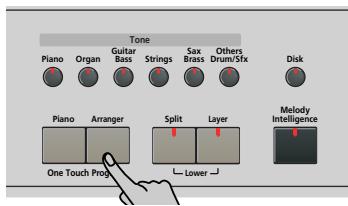
The ARRANGER icon appears. You can now use your left hand for transposing the Arranger's key in real-time.
Note: It is also possible to record in Piano mode while using the Arranger. To do so, switch off the Split button. See page 33 for details about this mode.
(2) Press a Music Style button to select a Music Style (or select a Music Assistant memory).
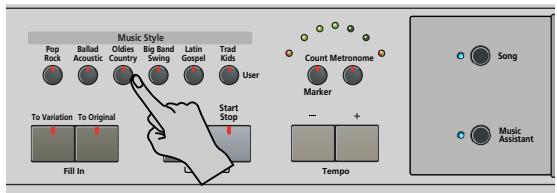
See page 18 or 15.
- If you don't want to start with the Intro pattern, that is selected when you press the Arranger button, press intro/Ending now.
- Press To Original or To Variation to select the accompaniment level.
- If you don't want recording to start as soon as you play a note or chord in the left half of the keyboard, switch off the Sync Start function: Simultaneously press the [Intro/Ending] and [Start/Stop] buttons (the [Start/Stop] indicator stops flashing).
(3) Press the Style Orchestrator button (Basic, Advanced or Full) of the orchestration level you want to use.
(4) Use the Tempo +- buttons to set the desired tempo.
(5) Assign the desired Tone to the right half of the keyboard.
Press a Tone button and use the +- and +- buttons to select a family and a sound within that family. See also page 35.
(6) Press the REC button (its indicator flashes).
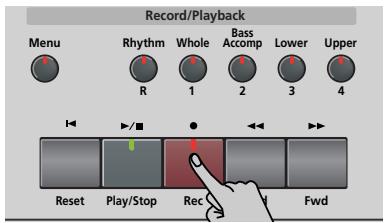
The display should look as follows:
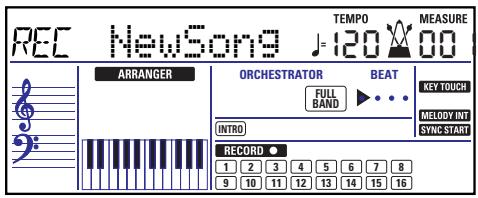
(The RECORD and 1~16 icons flash. The indicator of the REC button also flashes.) You are now in "New Song" mode, which means that everything you and the KR103's Arranger play will be recorded.
Note: When you select "New Song", the song in the KR103's USR memory is erased. You may want to save the current song first (see p. 53).
(7) Start recording in one of the following ways (the REC button will light steadily):
- Press the Start/Stop button to start Arranger playback with the selected pattern.
If you start recording without the Arranger and want to bring it in at a later stage, it would be a good idea to switch on the metronome by pressing the Metronome button. - If you did not switch off the Sync Start function, press one or several keys to the left of the Split point (or anywhere on the keyboard, if the button is off).
(8) Stop recording in one of the following ways: - Press Start/Stop.
- Press the [Intro/Ending] button to start the Ending phrase. As soon as it ends, Arranger playback and song recording stop.
- Press Play/Stop
Listening to your song
(1) Press the Reset button to return to the beginning of the song.
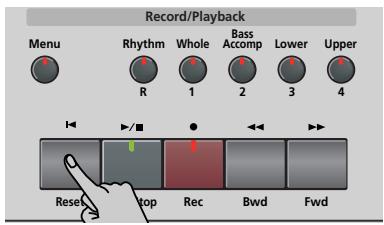
(2) Press Play/Stop to start playback.
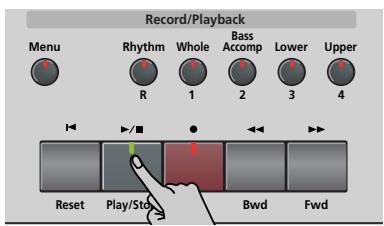
(3) Press Play/Stop once again to stop playback.
(4) Press Reset to return to the beginning of the song.
Note: Do not forget to save your song to disk (see p. 53).
Recording without accompaniment
You can also record your piano (or any other) performance without Arranger backing. Here's how to:
(1) Press the Piano button.
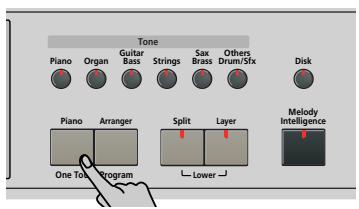
The ARRANGER icon disappears.
(2) If you want to use the metronome, switch on the Metronome button.
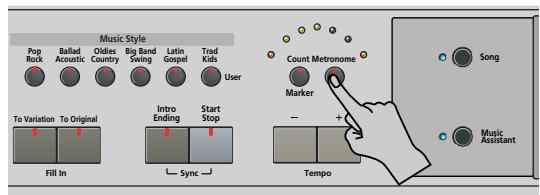
The icon appears in the display and you hear the metronome sound.
(3) Use the Tempo +□ buttons to set the desired tempo.
(4) Assign the desired Tone to the keyboard. Press a Tone button and use the l and +- buttons to select a family and a sound within that family. See also page 35.
(5) Press the REC button (its indicator flashes).
The display should look as follows:
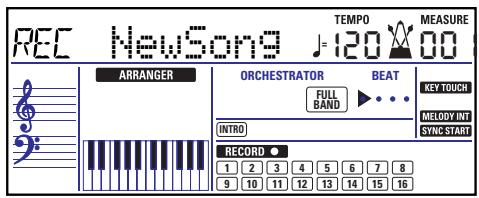
(The RECORD and 1~16 icons as well as the indicators of the Record/Playback buttons flash.)
Note: When you select "New Song", the song in the KR103's USR memory is erased. You may want to save the current song first (see p. 53).
(6) Press Play/Stop to start recording (the REC button lights steadily).
Your solo playing is recorded to track 1, which is assigned to the Whole button. This is also the case if you record with Arranger backing while the Split indicator is off.
(7) Press Play/Stop to stop recording.
Listening to your song
(1) Press the Reset button to return to the beginning of the song.
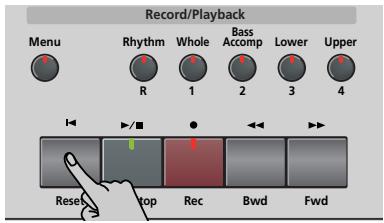
(2) Press Play/Stop to start playback.
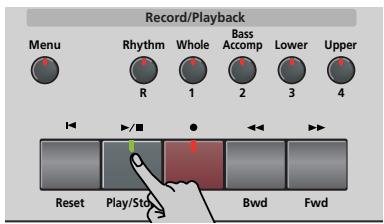
(3) Press Play/Stop once again to stop playback.
(4) Press Reset to return to the beginning of the song.
Note: Do not forget to save your song to disk (see p. 53).
Other recording functions
The KR103's 16-track Recorder can be used in several ways. Let us therefore have a look at the other recording modes.
About the recording modes
■ Modes
The KR103 provides one mode for recording new music, and two for adding parts or correcting passages of existing music:
Recording a new song:
| New Song | In this mode, you can record everything you and the KR103 can play simultaneously: · Arranger (accompaniment). · Keyboard parts (Upper and Layer or Lower). · Your performance in Piano mode. |
Adding parts to an existing song
| Solo | In this mode, you can record onto one track at a time. The track can be freely selected. |
| Punch I/O | This mode allows you to re-record a short section of an otherwise perfect part. |
Note: Each time you select "New Song" mode, the data in the USR memory are erased. Also note that "New Song" mode is selected whenever you press the REC button. Don't forget to select another mode before you start recording if the previously recorded parts must not be erased.
■ Recorder memory
The KR103 provides one "live" song memory, which can contain one song at a time. After completing a song, you should save it (see p. 53).
Playing back a Standard MIDI File erases the song in the KR103's LSR memory. You could take advantage of this system to "load" a previously recorded song and to replace one of its parts with your own rendition, or to add new parts.
More about "New Song" mode
In addition to what you learned on p. 28, here are a few considerations:
After pressing the REC button, the 16 track and RECORD icons start flashing to signal that all 16 tracks are available for recording.
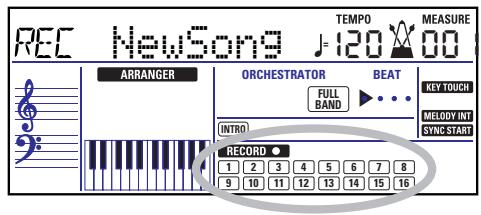
Here is what the tracks correspond to (after recording a song with Arranger backing):
Whole
2 Arranger bass
3Accomp2
4 Upper
5Accomp3
6 Layer
7Accomp4
Accomp 5
9Accomp6
10 Arranger drums
Lower
12
Accomp 1
14
15 Melody Intell. (see p. 34)
16 ( Upper*
(*) If you assign a Drum Set to the Upper part. In that case, track 4 is not used.
For your convenience, the Keyboard parts are flagged with a "→" symbol in the above graphic.
Parts you do not hear during recording are not recorded. The track icons 1 16 thus do not show you what will be recorded, but rather what can be recorded.
Note: If you assign a Drum Set to the Upper part, your drum performance is recorded onto track 16.
Solo recording mode
This mode can be used to add new parts to an already existing song (which you need to play back at least once in order to load its data into the USR memory). This approach furthermore allows you to replace an existing part (the bass line, for example) with your own version.
(1) Press the REC button (its indicator flashes).
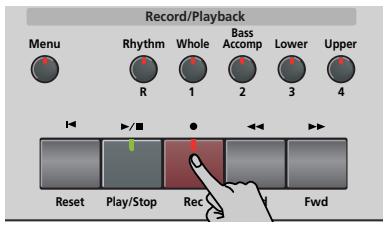
(2) Press to make the display look as follows.

TEMPO
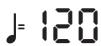
The RECORD icon and the icon of the first empty track flash. The indicator of the Recording/Playback button that corresponds to the first empty track also flashes. You could therefore record a new part straight away. (If all tracks already contain data, track 1 is selected.)
(3) Use the +- buttons to select the track you wish to record to.
You can only select one track at a time (hence the name "Solo"). If you select a track that already contains data, your new version will overwrite the existing one.
(4) If necessary, assign the desired Tone to the part you are about to record (see p. 35).
If you select track 10, you can select Drum Sets rather than Tones. Track 10 is reserved for drum parts.
Note: If you use the "Solo" recording mode for adding parts to a Standard MIDI File recorded with another instrument or sequencer, track 16 (or any other track defined as "second drum track") may also use a Drum Set that can be changed.
(5) Press Play/Stop to start recording.
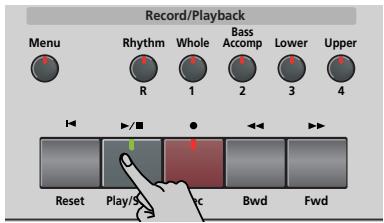
After the count-in, you will hear all parts that have already been recorded. Start playing (and recording) your new part.
Note: In "Solo" mode, the entire track you record is replaced by your new material. (If you don't play anything during recording, the entire track will be empty afterwards.)
(6) Press Play/Stop to stop recording.
(7) Return to step (3) to record additional parts.
Note: Do not forget to save your song to disk (see p. 53).
Punch I/O
In this mode, you can re-record part of the selected track (the second chorus, for example). The important aspect of this mode is that newly recorded material does not erase the material before or after the passage you redo. By contrast, in "Solo" mode, the entire track you record is replaced by your new material. (If you don't play anything during recording, the entire track will be empty afterwards.)
"Punch I/O" can only be selected if the KR103's memory already contains song data.
(1) Press the REC button (its indicator flashes).
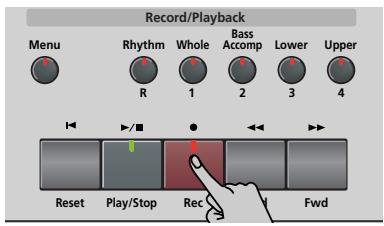
(2) Press l to make the display look as follows:
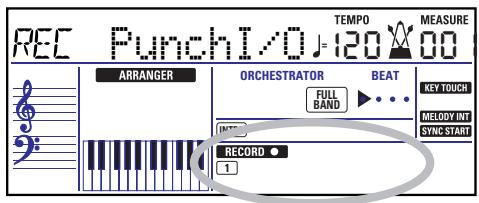
The flashing track icon (only one) depends on the first track that already contains data. In the above example, track 1 contains data, which is why its icon flashes. The indicator of the Recording/Playback button that corresponds to the selected track also flashes.
(3) Use the +- buttons to select the track you wish to record to.
You can only select one track at a time.
(4) Press Play/Stop to start playback of the (old) song data.
The RECORD icon, the REC button, and the icon of the selected track flash.
(5) When the Recorder reaches the measure where you wish to start recording, press REC again.
The RECORD icon and the REC button now light steadily.
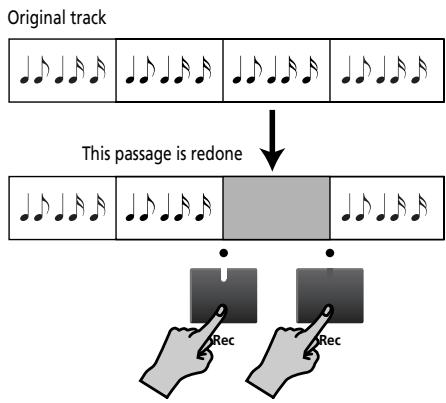
(6) Play the passage you want to redo.
You could select another sound while recording. Be aware, however, that the selected track does not change back to the previous sound when you stop recording.
(7) Press REC again to deactivate recording.
Song playback still continues, so...
(8) Press Play/Stop to stop playback.
(9) Press Reset to return to the beginning of the song, then Play/Stop to listen to the new version.
If you are not satisfied, return to step (4) above.
Return to step (3) to correct another track.
Note: Do not forget to save your song to disk (see p. 53).
Using a pedal for punching in/out
You can also use one of the KR103's pedals for starting and stopping recording. Doing so has the advantage that you can use both hands for playing.
- Press the Function button (its indicator must light).
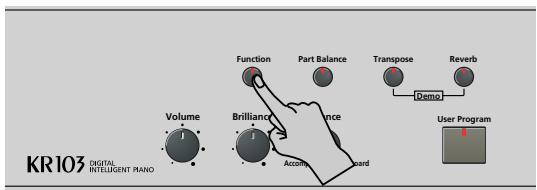
- Use the l buttons to select "Left" (left pedal) or "Center" (central pedal).
Your choice should be based on which pedal you want to use for activating and switching off recording. (Only one of them needs to be assigned.)
- Use the +- buttons to select "Punch I/O".
- Press Exit to leave the KR103's Function mode.
- Continue with step (1) under "Punch I/O" on p. 31. In steps (5) and (7), press the pedal (rather than the REC button).
Note: Do not forget to save your song to disk (see p. 53).
9. Additional Music Style functions
Apart from the basic Music Style functions covered on page 16 and following, your KR103 also provides the following
functions. Most of them are only available while the ARRANGER icon displayed.
Using the Arranger without a split (Piano Arranger mode)
It is also possible to use the melodic Arranger parts while assigning one sound to the entire keyboard.
There is no split for chord recognition here (you may remember that the KR103's keyboard is split when you switch on the Arranger button): the Arranger decodes every chord you play – no matter where you play it.
Causing the Arranger to play another chord requires that you play at least a triad (i.e. the three notes that make up a chord). Feel free to play more than three chord notes but remember that two notes won't cause the Arranger to play another chord.
When you hold down the damper (right) pedal, all notes you play are recognized as one chord.
(1) Press the Arranger button.
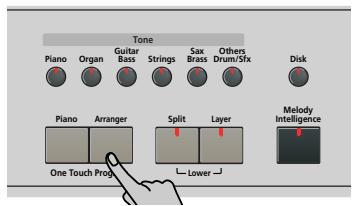
The ARRANGER icon appears in the display and the keyboard is split into two halves. That is not what we need here.
(2) Press the Split button to switch off its indicator.
(3) Press one of the "Music Style" buttons.
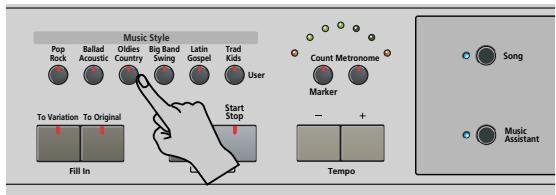
(4) Use +- to specify the desired Style within the selected group.
(5) If necessary, press a Tone button and use +- to assign a different sound to the Upper part.
Though the KR103 initially assigns a piano sound to the Upper part, you can select any other sound and save your setting to a User Program.
You can also add the Layer part (page 21). Even the Lower part could be used, but chord recognition remains active for the entire keyboard.
(6) Press the Start/Stop button to start Arranger playback.
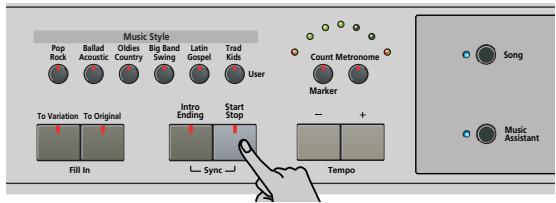
You can also press one or several keys (because the Sync Start function is on). If you prefer not to use the Sync Start function, simultaneously press the [Intro/Ending] and [Start/Stop] buttons (the [Start/Stop] indicator stops flashing).
Note: The Bases Inv parameter is automatically switched on.
(7) Use the Arranger in the same way as in "normal" Arranger mode.
See page 17 and following.
One Touch
The KR103's One Touch function automates several tasks that you therefore don't have to perform yourself. This function is automatically selected when you press Arranger.
If you think the KR103 sets more than you actually want, you can change the behavior of the One Touch function:
(1) Press the Arranger button.
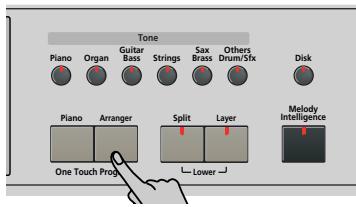
(2) Press Function and use the button to select the following parameter:

(3) Use the +0 buttons to select the desired option:
-
AUT—Each time you select another Music Style (or press [Arranger]), the KR103 loads its preprogrammed tempo and a suitable sound for the Upper part (i.e. a sound that matches the mood of the selected Style).
-
TONE—Each time you select another Music Style (or press Arranger), the KR103 loads a suitable sound for the Upper part (i.e. a sound that matches the mood of the selected Style).
- TEM—Each time you select another Music Style (or press Arranger), the KR103 loads its preprogrammed tempo. The sound assigned to the Upper part does not change.
- OFF-The One Touch Program function is off. Selecting another Music Style (or press [Arranger]) therefore neither updates the tempo, nor assigns another sound to the Upper part.
(4) Press the button to leave the KR103's Function mode.
Melody Intelligence
The Melody Intelligence function adds a second voice (harmony notes) to the melodies you play with the Upper part. In fact, the Melody Intelligence function uses both halves of the keyboard to determine which notes to play:
- It looks at the melody notes in the right half; and...
- It analyzes the chords you play in the left half to see which notes it must add to your melody.
(1) Press the Arranger button if its indicator does not light.
(2) Press the Melody Intelligence button.
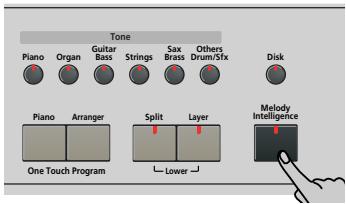
Its indicator lights and the MELOODY INT icon is displayed.
(3) Start playing with your left and right hands.
You will notice that the melody notes you play with your right hand are complemented by a second voice (or even full-blown harmonies).
Changing the Melody Intelligence harmony type
The KR103 contains 18 different voicings (harmony types) for the MEODY INTELLIGENCE function. These voicings specify the number of harmony notes and the way in which they are added to your melody.
To select a different harmony type, proceed as follows:
(4) Press the Melody Intelligence button.
The "I I" message appears in the upper left corner of the display.
VALUE MI
Traditrlj 120
(5) Use the / + buttons to select the desired voicing:
1 Duet
7 BigBand
13 Latin
2 Organ
8 Country
14 CntrGuit
3 Combo
9 Traditnl
15 CntrBald
4 Strings
10 Broadway
16 WltzOrg
5 Choir
11 Gospel
17 OctvTpe1
6 Block
12 Romance
18 OctvTpe2
Note: The Melody Intelligence setting can be saved to a User Program memory.
(6) Press the button to leave the KR103's Function mode.
Bass Inversion (BassInv)
Use this function to change the way in which the Arranger reads the chords you play.
When this function is off (default), the accompaniment bass part plays the root of the chords that feed the Arranger. If you play a "C" (or C chord), the bass sounds a "C"; if you play an A minor chord (or if you press "A" and the "C" to its right), the bass sounds an A, etc.
By activating Bass Inversion, you can specify the note played by the "ABass" part (the lowest note of your chords). Switch on Bass Inversion for songs that rely on bass rather than on chord patterns (for example C – C/B – C/Bb, etc.).
(1) Press the Function button (its indicator must light).
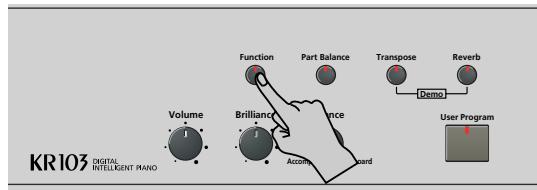
(2) Use the l buttons to select "Bass Inv".
VALUE OF F
BassInv
TEMPO
120
(3) Press the + button to select "ON" for "VALUE".
(4) Press the Exit button to leave this function.
Note: This function is automatically activated when you select the Piano Arranger mode (page 33).
Note: This setting can be saved to a User Program (see p. 47).
More Music Style functions
There are yet other functions related to Music Styles. They can be set via the FUNCTION menu, or are covered elsewhere:
- Balance between the Keyboard parts and the Music Style parts (see p. 20)
Volume of certain Music Style parts (see p. 42) - Arranger split point (see p. 44)
10. Keyboard part functions
Selecting sounds for the Upper, Lower and Layer parts
The KR103 contains 400 sounds you can use for playing melodies (some are more like sound effects).
Those sounds need to be assigned to a Keyboard part, of which there are three: Upper, Lower and Layer (see also p. 21).
All of the KR103's sounds (and Drum Sets) can be selected via the same streamlined procedure.
(1) Select the part you wish to assign another sound to:
Upper: Proceed to the next step.
Lower: Press the Layer and Split buttons while performing the next steps.
Layer: Press the Layer button while performing the next steps.
After selecting one of the above entries, you can press Enter to select the various parts (Upper Layer Lower).
(2) Press a Tone button to select the desired Tone family.
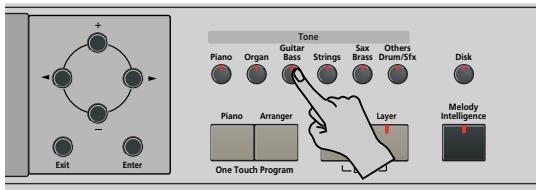
After pressing a Tone button, you can switch to any other family using the ▶ buttons (Guitar Bass, Sax Brass and Others Drums/Sfx are assigned to two families).
By selecting another family, you immediately jump to the first sound of that group - or to the last sound you selected within that family.
Note: See the end of tis manual for a list of the available sounds.
(3) Use +- to specify a sound within the selected family.
The first press of + (or - ) shows the name of the first Tone within the selected group. It is already selected, so if you need the first sound, there is no need to press + . You must use + or - , however, to select another Tone within the same group.
Note: This setting can be saved to a User Program (see p. 47).
Drum sounds and sound effects ("SFX")
Drum Sets
The last sounds are so-called "Drum Sets". When you select such a set, every key is assigned to a different sound. With the second C key from the left, you can play a bass drum sound (also called "kick"). The white key next to it triggers a snare drum sound, etc. Try it out by pressing several keys, either in succession or simultaneously.
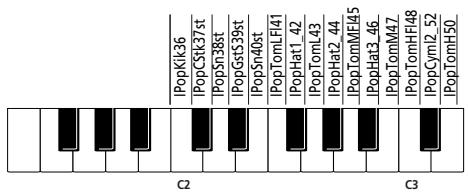
(The unspecified keys in the above illustration also trigger drum and percussion sounds.) Drum Sets are collections of over 90 sounds, each assigned to a different key.
Note: Drum Sets can only be assigned to the Upper part (so neither to the Layer, nor the Lower part).
Note: This setting can be saved to a User Program (see p. 47).
Sound effects ("SFX")
The KR103 also contains individual sound effects (like "Train, "Kitty", "HrseGIIp", etc.) and individual drum and percussion sounds that are assigned to the entire range of the part you select them for (Upper, Lower or Layer).
Transpose
The Transpose function changes the pitch of the notes and chords you play. Instead of figuring out what other keys you need to press to accommodate the singer or an instrumentalist, you can set the required Transpose value and go on playing the song the way you practised it, while sounding in a different key. See the example below.
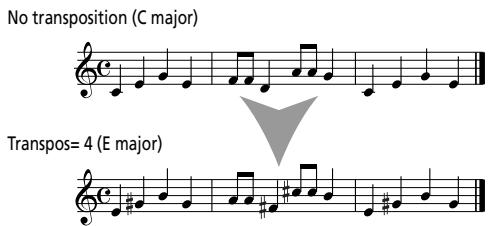
(1) Press the Transpose button.
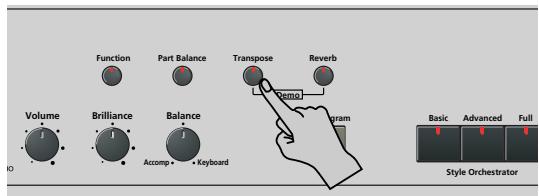
The display now looks as follows.

(2) Use the +0 buttons to set the desired transposition interval.
The setting range is -6 6 semitones. A "semitone" is one step between a white and a black key (or two adjacent white keys, i.e. between "E"/"F" and "B"/"C"). Press + or - repeatedly to transpose the keyboard up or down.
Here's an example: if you want to hear an "E" every time you play a "C", select "4". All other notes will be shifted by the same amount, so that you end up sounding in E major when you actually play in C major, etc.
The corresponding value and the TRANSPOSE icon appear in the display.
You can also specify which section(s) the Transpose function should apply to:
(3) Press to select one of the following options:
TransKey The Keyboard and Arranger parts will be transposed. Notes received via MIDI, however, will be played without change.
TransDat Only the song parts will be transposed. This is only meaningful when you play back a Standard MIDI File or one of your own songs with the KR103's Recorder.
TransAll All parts are transposed.
(4) To switch the Transpose function back off, repeat steps (1) and (2), this time entering the value "0" (no transposition).
(5) Press the Exit button to leave this function. Note: This setting can be saved to a User Program (see p. 47).
Other Keyboard part functions
Here are yet other functions related to the Keyboard parts. These can be set via the FUNCTION menu, or are covered elsewhere:
- Keyboard velocity (see p. 37)
- Master Tune (see p. 44)
Volume of the Keyboard parts (see p. 42) - Octave transposition of the Keyboard parts (see p. 44)
11. Performance functions and effects
Keyboard Touch (velocity sensitivity)
The KR103 is velocity sensitive, which means that the volume and brightness of the Upper, Lower and Layer notes depend on the force/speed with which you strike the keys.
All acoustic instruments (piano, violin, flute, drums, etc.) are velocity sensitive. The harder you play, the louder and brighter the resulting notes will be, which creates a perfectly natural effect. If necessary, you can select another velocity curve to achieve the desired response.
(1) Press the Function button (its indicator must light).
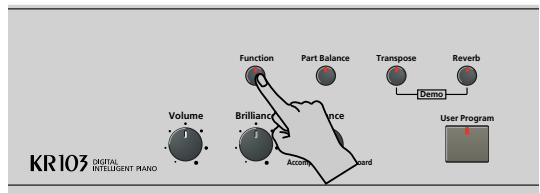
(2) Use the l buttons to select the following parameter:

(3) Use +- to set the desired curve:
LOW (light) This imparts a lighter feel to the keyboard. Because stronger notes can be produced with less effort, this setting is ideal for children or inexperienced musicians.
MED (medium) This setting represents a normal velocity sensitivity.
HIG (high) This imparts a heavier feel to the keyboard. Because stronger notes can only be produced when played with greater than standard force, this setting provides a wider dynamic range. (This is the default setting.)
(4) Press the Exit button to leave this function.
Note: Some sounds use "velocity switching". This means that by hitting the keys harder and softer, you alternate between two sounds.
Note: This setting can be saved to a User Program (see p. 47).
Note: Keyboard Touch applies to all parts you can play yourself (the "Keyboard parts"): Upper, Lower, and Layer.
Using the pedals as switches
The KR103's left and center pedals can be used to control other functions than "Soft" (left pedal) and "Sostenut" (central pedal). These default functions are only available for acoustic piano sounds anyway, so that assigning the pedals different functions seems a very good idea.
Note: Whenever you switch on the Piano button, the left and central pedals temporarily return to their "official piano functions".
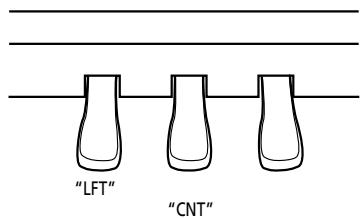
(1) Press the Function button (its indicator must light).
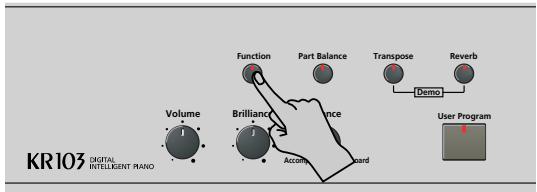
(2) Use the l buttons to select one of the following parameters (depending on which pedal you wish to assign a different function to):
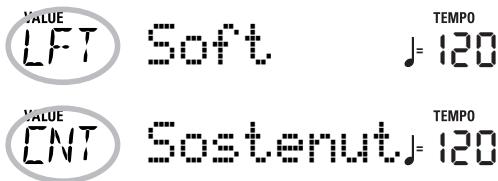
(3) Use +- to select the desired function:
No Chord
When you press the assigned pedal while the Arranger is playing, the melodic accompaniment is switched off, so that you only hear the rhythm part of the selected Style. To activate the melodic accompaniment again, play a chord (or note) in the chord recognition area (left half if the Split indicator lights, anywhere if the Split button is off).
BreakMute
This is a great function for Rock'n'Roll songs and ballads. Use it to halt the arrangement either for the remainder of the current bar or for an entire bar (when pressed on the last beat of a bar). This feature allows you to achieve the breaks in "Great Balls Of Fire", for example.
FilToVar The pedal has the same function as the [To Variation] button.
FiToVOr The pedal has the same function as the [To Original] button.
Fill This inserts a Fill-in, but the accompani- ment pattern afterward does not change.
Orig-Var This changes to Original or Variation without inserting a Fill-in.
Intro/End If the Arranger is not running, pressing the assigned pedal prepares the Intro pattern of the selected Style, which will be played back as soon as you press the Start/Stop button.
If the Arranger is running while you press the assigned pedal, the KR103 switches to the Ending pattern on the next downbeat and stops as soon as it is finished.
Start/Stop The pedal has the same function as the Start/Stop button.
OrchestrUp The pedal allows you to select the next Style Orchestrator level (i.e. "Advanced" if "Basic" is currently selected). After selecting "Full", however, you will not return to "Basic" when you press the pedal again.
OrcheDown The pedal allows you to select the preceding Style Orchestrator level (i.e. "Basic" if "Advanced" is currently selected). After selecting "Basic", however, you will not return to "Full" when you press the pedal again.
Mellnt On/Off The pedal has the same function as the Melody Intelligence button.
Fade This function allows you to fade in (the volume gradually increases) when the Arranger is started, or to fade out (whereby the volume gradually decreases) if the Arranger is running while you press the pedal.
RotSlow/Fast Allows you to select the slow or fast speed of the Rotary effect. This only works, if the "Rotary" type is assigned to the MFX (see p. 39).
Play/Stop The pedal has the same function as the Play/Stop button.
PunchI/O The pedal can be used to activate and switch off punch in/out recording (see p. 32).
TapTempo The pedal allows you to specify the desired Style or song tempo simply by pressing it several times at the corresponding speed.
Soft In this case, the pedal functions as soft pedal (a pedal found on grand and digi- tal pianos that reduces the volume). Note: This function only applies to the Keyboard parts.
Sostenut In this case, the pedal functions as Sostenuto pedal (another pedal found on grand and digital pianos that allows you to sustain only those notes you played at the time you pressed the pedal). Note: This function only applies to the Keyboard parts.
Lwr Damper The assigned pedal acts as damper pedal for the Lower part.
Glide When the pedal assigned to this function is pressed, the pitch drops momentarily, then gradually rises to its original level. This is effective when used to play an instrument like the Hawaiian guitar.
Note: The left or central pedal only uses the assigned function if you do not press the Piano button afterwards, and if the PDLSHIFT parameter page 48 is set to "Off".
(4) Press the Exit button to leave this function.
Note: This setting can be saved to a User Program (see p. 47).
Using effects
The KR103 contains digital Reverb and Chorus effects processors, plus one MFX (multi-effects) processor. You can switch them on/off and select other types. You can also set the Send level (the amount of Reverb or Chorus) to be applied to the various Keyboard parts. Please bear in mind that the Chorus effect cannot be combined with the MFX (so you need to choose between Chorus or MFX).
Reverb
Reverb is an effect that gives you the impression of playing in a concert hall, a room or another acoustic environment that reflects the sounds that are being produced.
When you switch on the KR103, all three Keyboard parts (Upper, Layer, Lower) as well as the Arranger and song parts are processed by the internal reverb effect. If you don't need that, you can either switch off the Reverb processor (in which case none of the KR103's parts are processed) or prevent just one Keyboard part from being processed. You cannot change the amount of Reverb that is added to the Arranger or pre-recorded song parts.
Switching the Reverb on/off
Use the following procedure if you want no reverb at all (for none of the KR103's parts).
(1) Press the Reverb button.
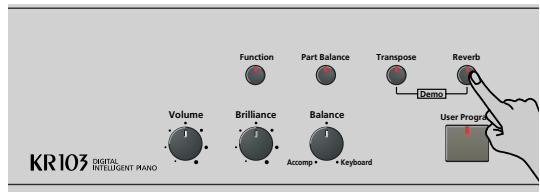
The display now looks more or less as follows.

(2) Use the l buttons to select "If" if you don't need the Reverb processor. Otherwise, select one of the eight available types:
Room 1~3 These types simulate the reverb characteristics of a room. The higher the number (1, 2, or 3), the "bigger" the room becomes.
Hall 1, 2 These types simulate the reverb of a small (1) or large (2) concert hall and thus sound far "bigger" than the Room types above.
Plate Digital simulation of a metal plate that is sometimes used for creating reverb effects. Works well for percussive sounds.
Delay A delay effect (no reverb). Works a lot like an echo effect and thus repeats the sounds.
Pan Delay This is a stereo version of the preceding delay effect. It creates repetitions that alternate between the left and right channels.
(3) Play a few notes on the keyboard to audition the effect.
Note: This setting can be saved to a User Program (see p. 47).
- Changing the Reverb processor's output level If you want to use the reverb effect but feel that it is too loud (or too soft) for the Keyboard parts, you can change its output level:
(4) Use +- to set the desired value (0~127).
"127" refers to the highest reverb level, while "0" means that you won't hear the effect.
(5) Press the Exit button to leave this function.
Note: This setting can be saved to a User Program (see p. 47).
Using the multi-effects processor (MFX)
The multi-effects (MFX) processor can be used for processing the Upper, Layer, or Lower part. It can generate various (47) effects, some of which are combinations of two effects, while the Reverb and Chorus processors only generate effects that are somehow related to ambiance or modulation (CHR). Note that there is only one MFX processor and that it can only process one Keyboard part at any one time.
(1) Press the Function button (its indicator must light).
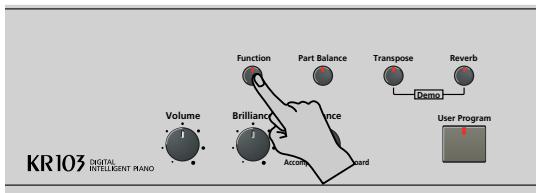
(2) Use the l buttons to select the following parameter:

(3) Use the +- buttons to select the Keyboard part that should be processed by the MFX:
UPP The Upper part.
LAY The Layer part.
LOE The Lower part.
There is only one MFX, and only one Keyboard part can be processed at any one time. You can, however, specify which effect type the MFX should use for each Keyboard part (i.e. even prepare the selection of the MFX type for Keyboard parts that are currently not processed by the MFX):
(4) Use the l buttons to select one of the following parameters (depending on the Keyboard part you wish to prepare a different MFX type for):
| VALUE MFX | Off | TEMP0 J=120 UPP |
| VALUE MFX | Off | TEMP0 J=120 LAY |
| VALUE MFX | Off | TEMP0 J=120 LoE |
(5) Use the +- buttons to select the desired MFX type for the Upper (UPP), Layer (LAY) and/or Lower (LOE) part.
Remember that the choice of a different MFX type is only audible for the Keyboard part that is currently assigned to the MFX (see above). Furthermore, the part in question (if it is Lower or Layer) must be switched on.
Also, please note that the MFX type of the Upper part changes when you assign a different sound to that part (so that a guitar sound uses a distortion effect, an organ sound the rotary effect, etc.).
Off: The MFX is off.
Enhancer: An Enhancer controls the overtone structure of the high frequencies, adding sparkle and tightness to the sound.
Overdrive1~4: Overdrive creates a soft distortion similar to that produced by tube amplifiers. Several types of overdrive are available: (1) Small combo amp, (2) Combo amp, (3) Large double-stack amp (2 cabinets), (4) Large double-stack amp (3 cabinets).
Distort1~4: This effect produces a more intense distortion than Overdrive. The numbers refer to different kinds of distortion.
Phaser: Adds a phase-shifted sound to the original sound, producing a twisting modulation that creates spaciousness and depth.
AutoWah: The Auto Wah cyclically controls a filter to create cyclic change in timbre.
Rotary: Simulates the sound of a classic rotary speaker. This effect is most suitable for electric organ. By assigning the "RotSlow/Fast" parameter to a pedal, you can use that pedal to alternate between slow and fast undulations.
StFlangr: This is a stereo Flanger. It produces a metallic resonance that rises and falls like a jet airplane taking off or landing.
SpFlangr: A Step Flanger is a Flanger effect with clearly noticeable steps rather than continuous pitch changes.
Compress: A compressor reduces signal peaks and boosts low levels, smoothing out unevenness in volume.
Limiter: A limiter prevents the volume from exceeding a certain level without boosting low levels.
HexaCho: Hexa Chorus uses six layers of chorused sound to give richness and spatial spread to the sound.
Trem Cho: Tremolo Chorus is a chorus effect with added Tremolo (cyclic modulation of the volume).
StChorus: This is a stereo chorus.
Space-D: A multiple chorus that gives no impression of modulation, but produces a transparent chorus effect (the perfect "stereo maker").
StDelay: Delay is an effect that allows you repeat the input signal, thus creating echoes (repetition).
Mod Dly: This effect adds modulation to the delayed sound, producing an effect similar to a flanger.
3Tap Dly: The Triple Tap Delay produces three delay sounds; center, left and right.
4Tap Dly: Delay with four repetition lines.
TmCtrDly: This effect controls the delay time in real-time.
Reverb: A nice Reverb effect.
GteRevNr: Gate Reverb is a special type of reverb in which the reverberant sound is suddenly cut off (and does not gradually decrease).
GteRevRv: A gated Reverb effect that sounds "backwards".
GteRevS1: The reverberant sound moves from right to left.
GteRevS2: The reverberant sound moves from left to right.
2PitchShf: A Pitch Shifter changes the pitch of the original sound. This 2-voice effect has two pitch shifters, and adds two transposed copies to the original sound.
FbPtchShf: Pitch Shifter with several echoes.
OD Chors: This effect connects an overdrive and a chorus in series. ("Series" means that the first effect is also processed by the second.)
OD Flger: Connects an overdrive and a flanger in series.
OD▶Delay: Connects an overdrive and a delay in series.
DSChors: Connects distortion and a chorus in series.
DSFlger: Connects distortion and a flanger in series.
DS▶Delay: Connects distortion and a delay in series.
EHChors: Connects an enhancer and a chorus in series.
EH Flger: Connects an enhancer and a flanger in series.
EH▶Delay: Connects an enhancer and a delay in series.
Cho Dly: Connects a chorus and a delay in series.
FL▶Delay: Connects a flanger and a delay in series.
Cho Flgr: Connects a chorus and a flanger in series.
Cho/Dly: Connects a chorus and a delay in parallel. ("Parallel" means that the input signal is processed by two effects that do not interact.)
FL/Delay: Connects a flanger and a delay in parallel.
Cho/Flgr: Connects a chorus and a flanger in parallel.
Note: This setting can be saved to a User Program (see p. 47).
Note: MFX type selection is linked to sound selection for the Upper part. That explains why the type you assign to the Upper part (UPP) may change automatically. Note that this does not apply to all sounds.
(6) While selecting an MFX type, play a few notes on the keyboard to audition the effect.
(7) Press the Exit button to leave this function.
Note: If the MFX is on, the assigned Keyboard part is no longer processed by the chorus effect. But the MFX also contains chorus algorithms (either in isolation or in combination with other effects).
Chorus
Chorus broadens the spatial image of the sound and creates a stereo impression. You can choose from 8 types.
When you switch on the KR103, none of the Keyboard parts (Upper, Layer, Lower) are processed by the internal Chorus effect. Note also that the Chorus effect doesn't affect the Keyboard part that is assigned to the MFX if the MFX is set to anything but "Off".
Changing the amount of chorus processing for the Keyboard parts
(1) Press the Function button (its indicator must light).
(2) Use the l buttons to select one of the following parameters.
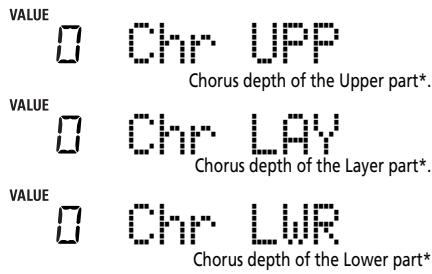
(*) Though this parameter is displayed even when MFX is set to something else than "Off", the Keyboard part that is assigned to the MFX is not processed by the chorus effect.
(3) Use +- to select "0" if you don't want the selected Keyboard part to be processed by the Chorus effect. Otherwise, set the desired value. If you selected an MFX type (see p. 40), the Chr-UPP, Chr-LAY or Chr-LUR parameter has no effect (even though it is displayed).
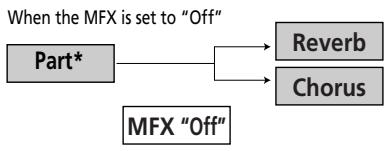
When the MFX is set to any other type
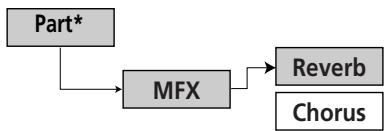
(*) This can be UPP (Upper), LAY (Layer) or LOE (Lower), depending on the setting you choose for "MFX Part".
(4) Play a few notes on the keyboard to audition the effect.
Don't forget to activate the Lower or Layer part if you wish to audition its chorus depth.
Note: This setting can be saved to a User Program (see p. 47).
(5) Press the [Exit] button to leave this function.
Switching the chorus effect on/off
Use the following procedure if you want no chorus at all (for none of the KR103's parts), or to select another chorus type.
(1) Press the Function button (its indicator must light).
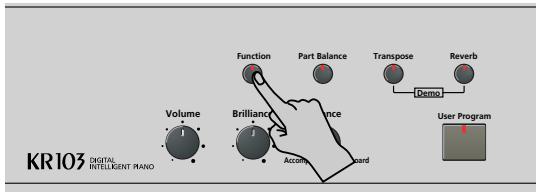
(2) Use the l buttons to select the following parameter:

(3) Use the +- buttons to select "Off" if you don't need the Chorus processor. Otherwise, select one of the 7 available types:
Chorus 1~3 These are conventional chorus effects that add spaciousness and depth to the sound.
FBChrs This is a chorus with a flanger-like effect and a soft sound.
Flanger This is an effect that sounds somewhat like a jet airplane taking off or landing.
S-Delay This is a delay with a short delay time.
SdelayFb This is a short delay with many repetitions.
(4) Play a few notes on the keyboard to audition the effect.
(5) Press the Exit button to leave this function.
Setting the volume of individual parts or sections
The KR103 provides a number of functions that allow you to set the level of several parts individually so as to obtain an even more satisfactory balance.
Use these functions if you feel that one part is too prominent (or too soft) with respect to the remaining parts.
(1) Press the Part Balance button.
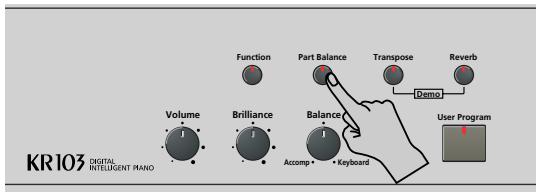
The display now looks more or less as follows.

(2) Use the l buttons to select the part (or section) whose volume you want to change:
UpperVol Upper part.
LayerVol Layer part.
LowerVol Lower part.
ADrumVol Drum accompaniment of the selected Music Style.
AbassVol Bass line of the selected Music Style.
Accomp Melodic accompaniment parts of the selected Music Style. Though there are six such parts, not all of them are used all the time.
(3) Use +- to set the desired volume (0~127). Remember that you can hold down + or - (and even + while pressing - , and vice versa) to change the volume more quickly.
(4) Press the Exit button to leave this function. Note: This setting can be saved to a User Program (see p. 47).
V-LINK function
V-LINK ( V-LINK) is a function that provides for the integration of music and visual material. By using V-LINK-compatible video devices (i.e. an Edirol DV-7PR), visual effects can be easily linked to and made part of the expressive elements of a performance.
By using the KR103 with an Edirol DV-7PR, you can use the KR103's keyboard (highest octave) to switch images (clips). Press and hold a key for longer transition ("fade"). Briefly press a key for fast transitions.
The V-Link signals are transmitted via MIDI OUT.
(1) Connect the KR103's MIDI OUT socket to the MIDI IN socket of the external video processor (or to a UM-1 interface).
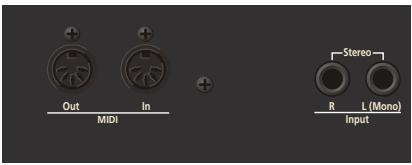

(2) Press the Function button (its indicator must light).
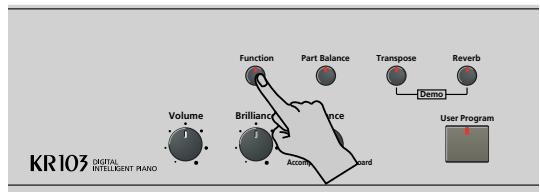
(3) Use the l buttons to select the following parameter:

(4) Use +- to select "On" to switch on V-LINK control. (The keys in the highest octave now act as controllers and no longer play notes.)
- Keyboard: Clip 1 8 Program Change: 00H~08H Press the keys in the highest octave to switch clips.
- Keyboard velocity: Dissolve Time CC23 The velocity of the keys in the highest octave controls the speed of transition between images. Note: All V-LINK messages are transmitted on the MIDI channel you assign to "TX Chnl" on p. 51.
(5) Press the Exit button to leave this function. If necessary, repeat steps (2)~(5) and select "Off" to switch the V-LINK function off when you're done.
12. Function menu
The KR103's Function mode contains more advanced settings you may not need every day. They allow you to fine-tune your instrument's response. It would therefore be a good idea to familiarize yourself with these parameters. Most settings (^**) can be written to a User Program (see p. 47).
Editing parameters (general procedure)
You can edit the KR103's FUNCTION parameters via the display. Here is a general outline of the procedure for all parameters discussed below:
(1) Press the Function button (its indicator must light).
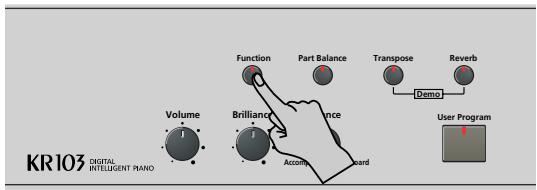
(2) Use to select the parameter you wish to edit (see below).
The "VALUE" message and a setting appear to signal that you can change ("edit") the selected parameter.

(3) Use the +0 buttons to modify the setting of the selected parameter.
Note: See also "Working with the [+][-] buttons" on p. 18.
Note: To return to the default value of the currently selected parameter, press + and - simultaneously.
(4) Use to select another Function parameter.
(5) Press the Exit button to leave this function.
Available parameters
- KbdTouch*—(LOW, MEd, HIG, Default setting: MEd) Use this parameter to fine-tune the KR103's response to your playing dynamics. See p. 37.
- MstrTune° (Master Tune)—(427.4~452.6, Default setting: 440.0) This parameter allows you to change the KR103's overall tuning, which may be necessary when you accompany a singer, an acoustic instrument, or when you play to a recording on CD or cassette.
-
SplitPnt* (Split point)-(36~96, Default setting: 55) Use this parameter to set the split point for the Arranger mode and the Lower part. The note you set here is the lowest note you can play with the Upper part. The number refers to a note. "55" corresponds to the note "G3".
-
LFT & CNT* (functions of the left and central pedal)—(Default setting: "Soft" for LFT/"Sostenut" for CNT) Use these parameters to assign the desired functions to the pedals. See "Using the pedals as switches" on p. 37 for details.
Note: The left or central pedal only uses the assigned function if you do not press the Piano button afterwards, and if the PDLSHIFT parameter (see p. 48) is set to "Off". - UpperOct, LayerOct, LowerOct* (octave transposition) -4 0 4 , Default setting: 0) These three parameters allow you to shift the octave of the part in question (Upper, Layer or Lower) up or down by up to four octaves. This can be useful for Techno/Dance songs where you need a piano sound that plays in two different octaves.
To achieve this, assign two different (or the same) piano sound to the Upper and Layer parts, activate the Layer button, and set LayerOct to -1 (or "1").
Note: When a Drum Set is assigned to the Upper part, the pitch of the drum/percussion sounds is not transposed. Instead, the keys are assigned to other drum/percussion sounds ("shifted"). Example: after setting "UpperOct" to "-1", the bass drum can be played with the C3 key (rather than the C2), while other sounds are available to the left of the C3.
- ChordInt (Arranger Chord intelligence)-(Md1, Md2, Off, Default setting: Md1) This parameter allows you to select the chord intelligence system to be used by the KR103: the Roland system ("Md1", which makes more sense from an educational point of view, see also page 179), or the "Md2" system, which can be used in the following way:
| Major chords | Press the key that corresponds to the chord's fundamental. |
| Minor chords | Fundamental + any black key to the left of the fundamental. |
| Seventh chords | Fundamental + any white key to the right of the fundamental. |
| Minor seventh chords | Fundamental + any black key to the left + any white key to the right. |
In either case, pressing just a few keys is therefore enough to obtain full chords. If you are used to playing full chords, you can switch this function off, however ("Off").
- Bass Inv*-(On/Off) Use this parameter to change the way in which the Arranger reads the chords you play. See p. 34.
-
Chr^* (Chorus Type)-(Default setting: Chorus 3) This parameter allows you to specify the type of chorus effect, or to switch off the chorus processor. See p. 41.
-
MFX UPP, MFX LAY, MFX LOE* (MFX type)-(Default setting: Off) These parameters allow you to select the desired MFX type and to switch the MFX processor off. The setting you make here is a preselection that is only used if you assign the Keyboard part in question (UPP= Upper, LAY= Layer, LOE= Lower) to the MFX using the parameter below. Only one Keyboard part can be processed by the MFX at any one time. See p. 39 for details about the MFX. Selecting "Off" means that the MFX is off.
Note: MFX type selection is linked to sound selection for the Upper part.
- MFX Part*—(UPP, LAY, LOE, Default setting: UPP) This parameter allows you to select the Keyboard part that should be processed by the MFX.
- Chr UPP*-(0~127, Default setting: 0) This parameter allows you to set the Chorus Send Level for the Upper part (i.e. how much chorus should be added to the Upper notes). If you want this part to be processed by the Chorus effect, you need to select a value different from "0". This parameter is only used when the UPP MFX parameter is set to "Off" or as long as the Upper part is not assigned to the MFX.
- Chr LAY*—(0~127, Default setting: 0) This parameter allows you to set the Chorus Send Level for the Layer part (i.e. how much chorus should be added to the Layer notes). If you want this part to be processed by the Chorus effect, you need to select a value different from "0". This parameter is only used when the LAY MFX parameter is set to "Off" or as long as the Layer part is not assigned to the MFX.
- Chr LWR*-(0~127, Default setting: 0) This parameter allows you to set the Chorus Send Level for the Lower part (i.e. how much chorus should be added to the Lower notes). If you want this part to be processed by the Chorus effect, you need to select a value different from "0". This parameter is only used when the LWR MFX parameter is set to "Off" or as long as the Lower part is not assigned to the MFX.
- Sci Mode*—(UP, ALL, Default setting: UPP) This parameter allows you to specify which parts the Scale settings (see below) should apply to: only the Upper part ("UP") or all parts ("ALL"). In some cases, choosing "ALL" may produce a more satisfactory result.
- Scale C^ Scale B^ (Scale Tune) -64 63 , Default setting: 0 for all notes) These parameters allow you to stray away from the usual semitone-interval scale (used in western music) by changing the pitch of the notes so as to accommodate other musical cultures or tuning methods (oriental, baroque music, etc.).
As you will notice, you can change the pitch of every note of one octave (C, C#, D, Eb, E...). The settings you make here apply to all notes of the same name (i.e. to every "C", every "C", etc.). Most of the time, you will probably select the value "50" or "-50" as they correspond exactly to half a semitone up or down (quarter tone). Other settings may also be interesting, though. - TPR (Temperament)-(User, Equal, Werkmeist, Kirnberg, Meantone, Pythagor, Just Maj, Just Min, Arabic, Default setting: Equal) You can play classical styles such as Baroque using historic temperaments (tuning methods). Most modern songs are composed for and played in
equal temperament, the most common tuning in use today. But at one time, there were a wide variety of other tuning systems in existence. By playing in the temperament that was in use when a composition was created, you can experience the sonorities of chords originally intended for that song.
You can choose from among the eight tunings described below.
User This is the setting you programmed with the "Scale C"~"Scale B" parameters.
Equal This temperament divides the octave into 12 equal parts. All intervals will be slightly out of tune by the same amount. This setting is in effect when you turn on the power.
Werkmeister This temperament is a combination of meantone and Pythagorean tempera- ments. It allows you to play in all keys. (First method, number three.)
Kirnberger This temperament is a modification of meantone temperament and just intonation, allowing more freedom of modulation. Performances are possible in all keys (III).
Mean Tone This temperament is a partial compromise of just intonation in order to allow modulation.
Pythagor This temperament is based on the theories of the Greek philosopher Pythagoras, and has pure fourths and fifths. Chords containing a third will sound impure, but melodies will sound good.
Just (Maj) This temperament makes the 5th and 3rd intervals pure. It is unsuited to playing melodies and cannot be transposed, but is capable of beautiful sonorities.
Just (min) Just intonation differs between major and minor keys. The same results as major can be obtained in a minor key.
Arabic This tuning is suitable for the music of Arabia.
- Key-(C~B) When playing in a temperament other than equal temperament, you must specify the tonic (the note corresponding to C for a major key, or to A for a minor key) of the key in which you will play. If you have selected equal temperament, there is no need to select the tonic.
- MIDI parameters (Local, Tx Chnl, Send PC, Send LSB, Send MSB)-See page 51.
- FctryReset—After working extensively with your KR103, you may want to recall the original factory settings. Note that the Recorder memory will be empty and that the User Programs contain factory settings after initializing your KR103.
Press Enter in response to the flashing YES message. After showing the "Complete" message, the KR103 leaves this function.
Note: There is no "Sure?" question that gives you time to think. Only press Enter if you are certain you want to recall ALL factory settings. Otherwise, press Exit.
V-LINK-(On/Off, Default setting: Off) This parameter allows you to switch the KR103's V-LINK functionality on and off. See page 42 for details.
- OneTouch-(AUT, TON, TMP, OFF, Default setting: AUT) This parameter allows you to specify how the KR103's One Touch functionality should work. One Touch is only used when you switch on the Arranger button or whenever you select another Style - provided you don't select "OFF" here.
The default setting ("AUT") means that One Touch performs all of the following.
"TON" means that the One Touch function selects a suitable sound for the Upper part, i.e. a sound that matches the atmosphere of the Style you are using.
"TMP", finally, means that the One Touch function uses the Style's preset tempo if you select a different Style.
- Arr Conf-(ACC, C+B, Default setting: ACC) This parameter allows you to specify whether or not you want to use the melodic accompaniment and bass lines of the selected Style. You may remember that the KR103 activates a stereo string sound and monophonic bass
whenever (a) the ARRANGER icon is displayed and (b) the Arranger is stopped. This allows you to play chords (and a bass line) with your left hand in Arranger mode - without using the KR103's accompaniment function. Select "ACC" if the KR103 should switch to Arranger control as soon as you activate the [Start/Stop] button. This means that the chords you play are "translated" into melodic parts and a matching bass line.
If you select "C+B" (chord and bass), however, the chords you play are sounded by the stereo string sound and monophonic bass, so that only the rhythm part of the selected Style is used.
- Beat Ind-(On/Off, Default setting: On) This parameter allows you to switch the dynamic beat indication of the current tempo (the "pendulum simulation") on or off. If you feel distracted by the flashing pattern, select "Off".
(6) Press the button to leave this function.
13. Working with User Programs
The KR103 is equipped with 34 User Program memories (1~34) that allow you to store almost all settings (or registrations) you make on the front panel and via the Function menu (see p. 44).
Writing your settings to a User Program
It is a good idea to write your settings frequently, even if you still need to do some editing afterwards. Those intermediary saves allow you to return to the previous stage whenever you do not like your last modifications.
(1) Press the User Program button.
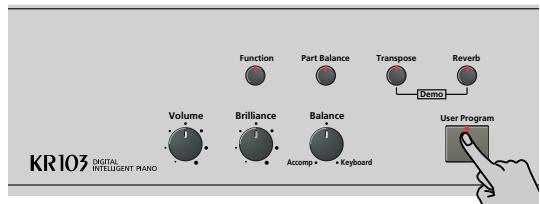
(2) Use the l buttons to select the following parameter:
WRITE
TEM
Ent
(3) Press the Enter button.
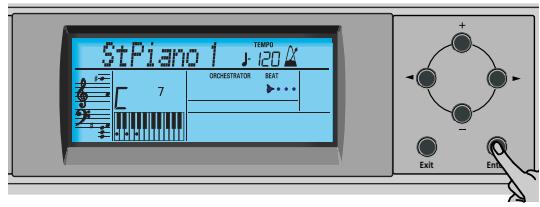
The display now looks as follows.
Beautif1j 120 Ent
(4) Use the +0 buttons to select the memory (1~34) where you want to save your registration.
For safety reasons, the KR103 now displays the name of the settings the selected memory contains. Here is an example:
sBala
TEM
Ent
(5) Press the Enter button to confirm your selection (or use + to select a different memory, and then press Enter).
You can now enter a name for your settings:
(6) Use the + and l buttons to name your User Program.
l allow you to move the cursor to the character position you want to change. +· allow you to select a character for the position indicated by the cursor. The available characters are:
$$ \begin{array}{l} - # \ \text {A B C D E F G H I J K L M} \ \text {N O P Q R S T U U W X Y Z} \ 0 1 2 3 4 5 6 7 8 9 \end{array} $$
(7) Press the Enter button to save your settings to the selected memory. (Press Exit if you don't want to save them after all.)
The display now responds with the "Complete" message.
Note that User Programs you write can also refer to a Music Style on floppy disk. If you choose to work with a Style on floppy disk, you need to insert the floppy disk into the drive before recalling a User Program that refers to it. If you forget to do that, the error message "No Disk" appears. If you did insert a floppy disk, but if that floppy disk does not contain the Style the User Program needs, the error message "Not Found" appears. In either case, insert the (correct) floppy and recall the User Program again.
Notes about writing User Programs
Leaving the User Program environment
Press the Exit button to leave the User Program environment.
Meaning of the asterisk
水 USERPROG
At some stage, you may come across an asterisk next to the User Program number.
It means that the last User Program you selected is still in effect but that the current settings no longer correspond to the ones in that memory. Such changes may include the status of the Reverb or Chorus effect, a changed volume value, etc.
Before selecting another User Program or switching off the KR103, you should therefore write these settings to the same (or a different) User Program if you want to keep them. Otherwise, you lose these changes.
Mode selection
The mode (Arranger, p. 16, Piano Solo, p. 21, Piano Mode, p. 33) is also memorized when you write a User Program.
■User Programs and the USR memory
The last Music Style you selected before writing a User Program is also memorized. This even applies to the USR memory that may contain a Style loaded from floppy disk.
The 34 User Programs can be saved to floppy disk as a set (see p. 53).
Selecting a User Program
Though the User Program memory you specified above is already selected, there will be times when you need to select another memory. In that case, here is what you need to do:
(1) Press the User Program button.
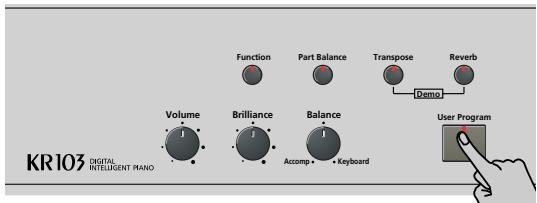
(2) Use the l buttons to select the following parameter:
(3) Press the Enter button.
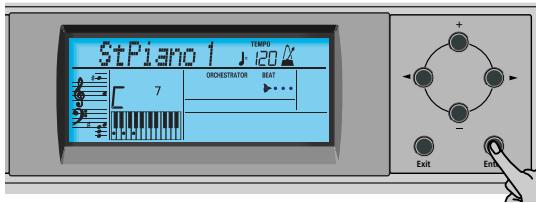
The display now looks more or less as follows. This depends on the last User Program you selected.

In some cases, the display may contain an asterisk ("*"). It indicates that the KR103 is still using the last manual changes you may have made before selecting the User Program function.
(4) Use the +0 buttons to select the memory (1~34) whose settings you want to load.
(5) Press the Enter button to confirm your selection and load the settings.
When the KR103 is shipped, User Program "1" contains settings labeled "Twin Piano". By selecting that memory, you activate the KR103's Twin Piano mode. The left pedal then acts as damper for the left half, while the right pedal functions as damper pedal for the right half.
Note: As soon as you modify any setting (on the front panel or in the Function menu), the asterisk appears next to the User Program number.
Selecting User Programs by foot
The KR103 provides a function that allows you to select User Programs with the left or central pedal.
This may come in handy if you programmed several registrations for a song (one for the verse, one for the chorus, one for the solo, etc.) and need to recall them quickly while playing.
This function only works as expected if the various registrations reside in consecutive memories.
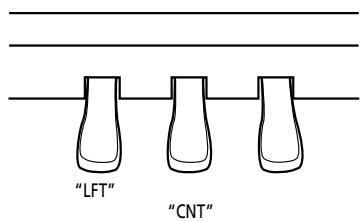
(1) Press the User Program button.
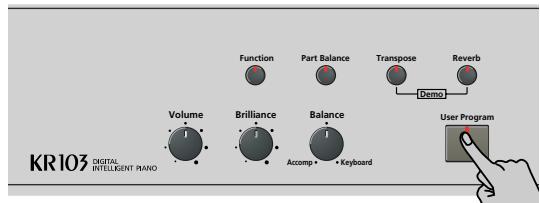
(2) Use the l buttons to select the following parameter:

(3) Press the Enter button.
(4) Use the +- buttons to select "Left" (use the left pedal for User Program selection), "Center" (use the central pedal), or "OFF" (no User Program selection).
Note: If you select "Left" or "Center", the assignment you selected in Function mode (see "Using the pedals as switches" on page 37) is ignored.
(5) Press the Exit button to leave this function.
Managing your User Programs
Your KR103 provides two functions that allow you to make a backup copy of your User Programs on floppy disk and to load such a User Program set.
Save Set
Use this function to save the contents of the internal User Program memories (all 34 of them) to a floppy disk. This allows you to make a backup copy of your User Programs.
(1) Insert a disk into the drive.
Every floppy contains a square tab that allows you to "close" a little window. With the tab in that position, you can save data to the disk. Do not forget to write-enable the disk by closing this little window prior to inserting the floppy disk.
(2) Press the User Program button.
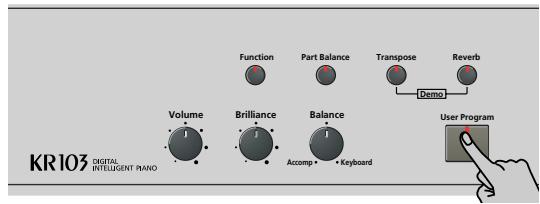
(3) Use the l buttons to select the following parameter:

(4) Press the Enter button.
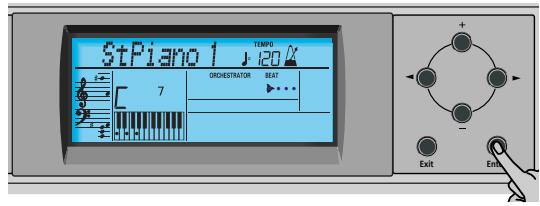
The display now shows the number and name of the first User Program set on floppy disk (if available).

If you want to update an existing User Program set, select it using the +- buttons. In that case, there is no need to change its name (see step (6) below).
(5) Press the Enter button.
(6) Now use the + and l buttons to name your User Program set.
Skip this step if you want to update an existing set. Be sure to enter an original name if you do not want to overwrite an existing User Program set. After all, each User Program set contains 34 registrations you may still need.
l allow you to move the cursor to the character position you want to change. +· allow you to select a character for the position indicated by the cursor. The available characters are:
$$ \begin{array}{l} - # \ \text {A B C D E F G H I J K L M} \ \text {N O P Q R S T U U W X Y Z} \ 0 1 2 3 4 5 6 7 8 9 \end{array} $$
(7) Press the Enter button to save your User Program set. (Press Exit if you don't want to save it after all.)
Possible error messages
| OverWrt? | The name you assigned to the data already exists on the floppy disk you inserted. If you press Enter to continue, the file on disk will be overwritten (and the corresponding data will be erased). Either insert another floppy disk, or press Exit and enter another name for the data you want to save. |
| No Disk | You forgot to insert a floppy disk into the drive. |
| Disk Full | The remaining disk capacity does not allow to save your data to this disk. |
| Protect | You forgot to switch off the disk's Write protection. Press the EJECT button of the disk drive, remove the floppy and close the tab, insert the disk again and press Enter. |
| NoFormat | The floppy disk is either not formatted or uses a format the KR103 doesn't recognize. Press Enter to format it now (careful: this will erase all data on disk). |
| Disk Err | The disk is probably damaged and cannot be used. |
| No Files | The disk contains no files of the selected type. Insert another disk. |
Load Set
This function allows you to transfer a set of 34 User Programs (i.e. for all memories) to the KR103's internal memory. This will overwrite the User Programs that currently reside in the internal memories. If you wish to use the User Programs in the internal memory at a later stage, first save them to disk before proceeding. See "Save Set".
(1) Insert a disk into the drive.
(2) Press the User Program button.
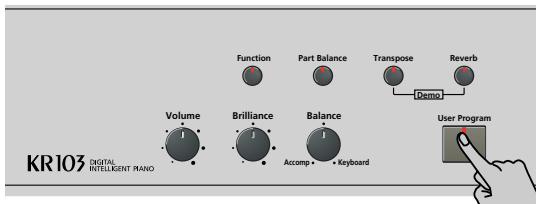
(3) Use the l buttons to select the following parameter:
LOAD SETj=120 Ent
(4) Press the Enter button.
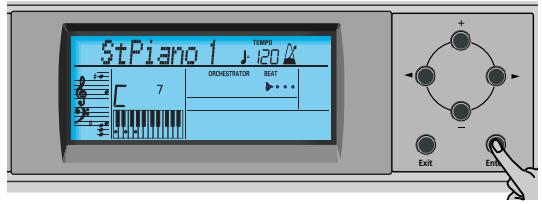
The display now shows the number and name of the first User Program set on floppy disk (if available).
1 My Set. 120 Ent
(5) Use +- to select the User Program set you wish to load. The Ent message next to it starts flashing.
(6) Press the Enter button to load the selected file. Note: Press Exit if you do not want to load the selected file after all. If you pressed Enter, the display now shows the "Loading" message. When the data have been loaded, the "Complete" message briefly appears
(7) Press the Exit button to leave this function.
14. MIDI functions
MIDI is short for "Musical Instrument Digital Interface". The word refers to many things, the most obvious being a connector type that is used by musical instruments and other devices to exchange messages relating to the act of making music.
MIDI messages are transmitted and received using three connectors and special MIDI cables:
- MIDI IN: This connector receives messages from other MIDI devices.
- MIDI OUT: This connector transmits MIDI messages generated on your KR103.
- MIDI THRU: This connector "echoes back" all MIDI messages received via MIDI IN. The KR103 does not provide a MIDI THRU connector.
Here is how to connect the KR103 to an external sound module, sequencer, etc. When working with an external sequencer, be sure to establish both connections and to set Local (page 51) to "Off".
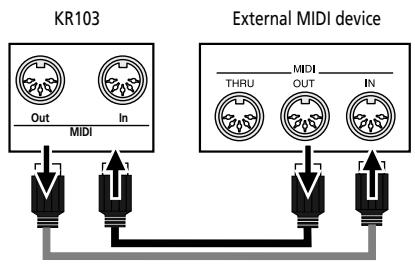
Note: You don't always need two MIDI cables. Just look at the arrows in the above illustration for deciding which ports you need to connect the cable to.
You can also connect the KR103's USB port to a USB port of your computer, in which case the MIDI IN and OUT connectors are bypassed. If you choose to work with the USB port, you may have to install the appropriate drivers on your computer. See the "Readme" files on the enclosed CD-ROM for details.
Caution
The KR103 only transmits "realtime" MIDI data. Thus, only the notes you play on the keyboard as well as the pedal data are transmitted (but not the Arranger or Recorder data).
Note: The KR103 does not receive SysEx messages when the Recorder is being used.
Each time you play on the KR103's keyboard, your Digital Intelligent Piano transmits MIDI data to its MIDI OUT socket (or USB port). If you connect the MIDI OUT socket to the MIDI IN socket of another instrument, that instrument may play the same notes as one of the KR103's parts, select sounds, etc.
Note: The KR103 receives on all MIDI channels assigned to the various parts.
The KR103 contains the following MIDI parameters, which are part of the Function group. Here is how to select them and what they mean:
Editing MIDI parameters
You can edit the KR103's Function parameters via the display. Here is a general outline of the procedure for all parameters discussed below:
(1) Press the Function button (its indicator must light).

(2) Use to select the parameter you wish to edit (see below).
MIDI parameters
- Local-(On/Off, Default setting: On) The Local parameter allows you to establish or remove the connection between the KR103's keyboard and the internal tone generator.
When set to "ON" (default), playing on the KR103's keyboard will cause the corresponding notes to sound. If you select "OFF", the corresponding MIDI messages are no longer sent to the internal tone generator - but they are still transmitted to the MIDI OUT port and hence to external MIDI instruments.
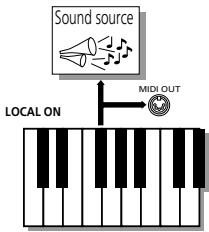
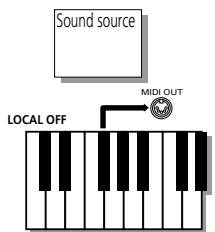
Note: The setting of this parameter is not memorized when you switch the KR103 off.
- TX ChnI-(1~16, Default setting: 1) This parameter refers to the MIDI channel used for transmitting messages from the KR103 to external instruments ("TX" is short for "transmit"). If the external instrument is set to receive on (RX) MIDI channel 3, select "3" here. Otherwise, the external instrument will neither play nor select sounds, etc.
Note: MIDI messages sent from the external MIDI instrument to the KR103 are received on all channels. However, all keyboard information (of the Upper, Layer, Lower, chord, and bass sound) will be transmitted on one channel.
For the following, always set the numbers in the same order as they appear in the display: start with "Send MSB" (CC00), then set "Send LSB" (CC32), and finally set a "Send PC" value.
"MSB" and "LSB" are so-called "Bank Select" messages. "Bank Select" messages are control change messages, which were added when it became clear that the number of sounds that can be selected using program change messages (128) was no longer sufficient to access all sounds of a given instrument.
- Send MSB-(0~127, Default setting: 0) Use this parameter to specify the bank that contains the sound you want to select. Instruments with more than 128 sounds (like the KR103) use several banks.
- Send LSB-(0~127, Default setting: 0) Use this parameter to specify the group that contains the sound you want to select. Instruments of other manufacturers may also use this message (CC32) to specify the sound bank (the KR103 only uses the value "2").
- Send PC-(1~128, Default setting: 1) "Send PC" are MIDI messages that tell the receiving instrument to select another sound (or Tone). There may be situations where you would like to double the Upper part melody with a sound of an external instrument that is not automatically selected. Be sure to first set the "Set MSB" and "Set LSB" parameters before choosing a value for "Send PC". Otherwise, you may be unable to pinpoint the sound the external instrument should use.
Note: The three "Send" values are only transmitted to an external MIDI instrument (or a sequencer). They have no effect on the KR103 itself.
(3) Press the Exit button to leave this function.
15. Disk functions
The KR103's Disk functions allow you to save the Recorder song in the USR memory to disk, to delete song files on a floppy disk, and to format disks. Though you can use 2DD or 2HD floppies, 2HD disks have twice the capacity of 2DD disks, so use 2HDs whenever you can.
Whenever the disk drive writes data to or reads data from disk, the disk icon (DISK) flashes in the display.
Do not remove the floppy disk while this icon is displayed as that may damage both the disk drive and the disk (so that it becomes unreadable).
Saving a song to disk
This function allows you to save the song in the USR memory to a floppy disk. A song saved to disk becomes a Standard MIDI File that can be played back using any SMF-compatible sequencer or workstation.
(1) Insert a disk into the drive.
Every floppy contains a square tab that allows you to "close" a little window. With the tab in that position, you can save data to the disk. Do not forget to write-enable the disk by closing this little window prior to inserting the floppy disk.
(2) Press the Disk button.
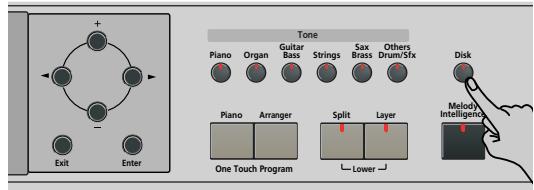
(3) Use the l buttons to select the following parameter:

(4) Press the Enter button.
The display now shows the number and name of the first song on floppy disk (if available).

(5) Use the +0 buttons to select the number that should contain your new song.
Be careful not to select a number that contains a song you want to keep.
(6) Press the Enter button.
(7) Now use the +0 and +0 buttons to name your song file.
Skip this step if you want to update an existing song. Be sure to enter an original name if you do not want to overwrite an existing SMF.
l allow you to move the cursor to the character position you want to change. + - allow you to select a character for the position indicated by the cursor. The available characters are:
$$ - 1 # \text {车} ^ {\prime} \& ^ {\prime \prime} - a ^ {\prime \prime} $$
$$ A B C D E F G H I J K L M $$
$$ \texttt {N O P Q R S T U V W X Y Z} $$
(8) Press the Enter button to save your song. (Press Exit if you don't want to save it after all.)
Note: The file name of the song you are saving will be "KR103_01.MID" (or any other number up to "99"). The name you entered above is the internal name - not the file name.
(9) Press the Exit button to leave this function.
Possible error messages
OverWrt? The name you assigned to the data already exists on the floppy disk you inserted. If you press Enter to continue, the file on disk will be overwritten (and the corresponding data will be erased). Either insert another floppy disk, or press Exit and enter another name for the data you want to save.
No Disk You forgot to insert a floppy disk into the drive.
Impssble The remaining disk capacity does not allow to save your data to this disk.
Protect You forgot to switch off the disk's Write protection. Press the EJECT button of the disk drive, remove the floppy and close the tab, insert the disk again and press Enter.
NoFormat The floppy disk is either not formatted or uses a format the KR103 doesn't recognize. Press Enter to format it now (careful: this will erase all data on disk).
Disk Err The disk is probably damaged and cannot be used.
No Data The USR area contains no song data, which is why the Save command is not available.
Deleting song files on disk
The following function allows you to erase song files from the inserted floppy disk. This may be necessary to make room for new files (e.g. when the "Impssble" message appears). Be careful, though, to only delete files you are absolutely (positively) sure you will never need again. Once a file has been deleted, it is gone forever.
Note: As a rule, you should first make a backup copy of your disk on your computer. After all, files usually only become indispensable once they are no longer available...
(1) Insert the disk with the file you want to delete into the drive.
(2) Press the Disk button.
(3) Use the l buttons to select the following parameter:
DEL SONGj=120 Ent
(4) Press the Enter button.
The display now shows the number and name of the first song on floppy disk (if available).
(5) Press +- to select the song file (SMF) you want to delete.
(6) Press the Enter button.
To be on the safe side, the KR103 now asks you whether you really want to delete the file ("Sure?"). The YES message starts flashing.
Sure?
TEMP0 120 485
(7) Press Enter to delete the file, or Exit to abort the operation.
If you pressed Enter, the display now shows the message "Deleting". Once the data have been deleted, the "Complete" message briefly appears. Be aware that song files you did not save with the KR103 have no fixed position. Deleting a file may therefore cause certain files (i.e. Standard MIDI Files you copied to the floppy disk using your computer) to jump to different locations – and therefore to change numbers.
(8) Press the Exit button to leave this function.
Possible error messages
| No Disk | You forgot to insert a floppy disk into the drive. |
| No Files | The disk contains no files that can be erased. |
| NoFormat | The floppy disk is either not formatted or uses a format the KR103 doesn't recognize. Press Enter to format it now (careful: this will erase all data on disk). |
| Protect | You forgot to switch off the disk's Write protection. Press the EJECT button of the disk drive, remove the floppy and close the tab, insert the disk again and press Enter. |
| Disk Err | The disk is probably damaged and cannot be used. |
Formatting floppy disks
Before being able to save files, you need to prepare a floppy disk. This is called "formatting". If the floppy you are about to use is IBM PC formatted, there is no need to format it, though disk access is faster with disks formatted on the KR103. Otherwise proceed as follows:
(1) Insert a disk into the drive.
Every floppy contains a square tab that allows you to "close" a little window. With the tab in that position, you can format the disk. Do not forget to write-enable the disk by closing this little window prior to inserting the floppy disk.
(2) Press the Disk button.
(3) Use the l buttons to select the following parameter:
TEMPORI FORMAT 120 Ent
(4) Press DISK to select the Disk mode.
(5) Press the Enter button.
The "Sur" message appears and the YES message starts flashing.
(6) Press Enter to format the disk.
Note: If you do not want to format your floppy, press Exit.
Note: By formatting a disk, you erase all files it contains. It would be a good idea to first check what it contains (e.g. on your PC).
The value to the left of the "Formatng" message now counts from "1" to "100" while the disk icon flashes to indicate that the disk is being accessed.
When the disk is formatted, the "Complete" message is briefly displayed.
(7) Press the Exit button to leave this function.
16. Using the outputs and an optional expression pedal
If you like, you can also record your performance (or a Recorder song) to cassette, MD, etc. To this end, you need to connect the KR103's Output sockets to the external device's INPUT jacks.
Use a standard 1 / 4" phone cable for doing so. Another use for these outputs is to connect the KR103 to your HiFi or keyboard amplifier (such as the Roland KC-550/350/150). Using a HiFi amplifier requires the use of an adapter plug (phono/ RCA 1 / 4 jack). If you like, you can also purchase two Roland PJ-1M cables.
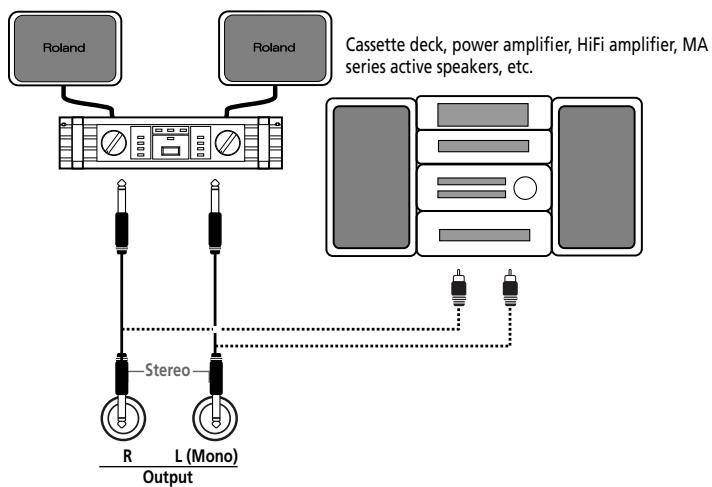
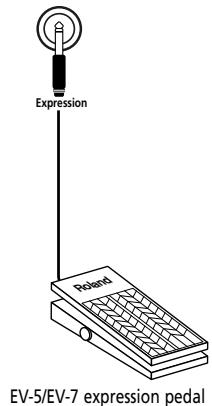
Note: By connecting the Output jacks, you do not switch off the KR103's amplification system.
You can connect an optional EV-5/EV-7 expression pedal to the Expression jack in order to control the KR103's volume by foot.
It is also possible to connect the outputs of an external instrument (synthesizer, sound module, etc.) or CD/MD player to the KR103's Input jacks. In that case, the signals of the external device are reproduced by the KR103's speakers and also audible in the headphones you may connect to the KR103.
Cassette deck, CD/MD player, sound module, synthesizer, etc.
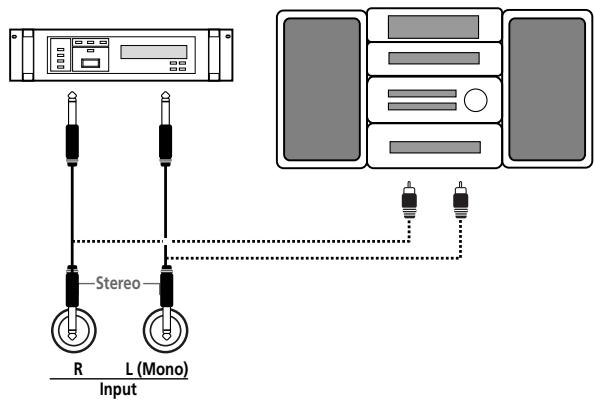
17. Functions for educational purposes
The KR103 provides two functions that may come in handy for music teachers or for those who use the KR103 in class:
Deactivating or activating the Arranger and Demo functions
This "educational" option allows you to switch off both the Demo and the Arranger functions in one go:
Use the following procedure to ensure that the
Arranger or demo song playback cannot be started or stopped.
(1) Switch off the KR103.
(2) Hold down the [Intro/Ending] and [Start/Stop] buttons while you switch the KR103 back on again.
The display briefly shows "DISABLED". It is now impossible to start/stop the Arranger or demo song playback.
Repeat the above procedure when you want to use the Arranger and Demo function again.
Deactivating or activating song playback
A second "educational" option allows you block the Recorder's [Play/Stop▶] button, so that song playback and recording become impossible.
(1) Switch off the KR103.
(2) Hold down the 1Reset and /Stop 1 buttons while you switch the KR103 back on again.
The display briefly shows "DISABLED". It is now impossible to start/stop the Recorder using the Play/Stop button.
Repeat the above procedure when you want to use the Recorder again.
18. Specifications
KR103 Digital Intelligent Piano
Keyboard
88 keys, touch sensitive
Sound source
Max polyphony: 64 voices
Tones: 400 panel tones + 542 XG-compatible tones + 256 GM2-compatible tones (PCM)
Drum Sets: 10 Drum Sets + 11 XG compatible + 9 GM2
Multitimbral parts: 19
Compatibility: GM2, GS, XG Lite
■Display type & controls
New Large Backlit Custom Display
Panel controls: VOLUME knob, BALANCE knob
("Accomp/Keyboard"), Tempo +0 buttons, Tone family selection buttons (6), Style family selection buttons (6),
SYNC START button, REVERB button, COUNT/MARKER
button, METRONOME button, selection buttons (▶▶), value buttons (⊕▶), PART BALANCE button (Keyboard parts and Arranger tracks), FUNCTION button.
■Styles
170 Styles
One Touch Program: Adjustable (OFF, AUTO, TEMPO, TONE)
Style Orchestrator: 3 levels (BASIC, ADVANCED, FULL)
Style pattern selection: FILL TO VARIATION, FILL TO ORIGINAL, INTRO/ENDING
Songs
Realtime SMF player + 16-track Recorder
3 easy modes: ALL, SOLO, PUNCH IN/OUT
Internal songs: more than 50
■User Programs
34
■ Effects
Reverb: 8 types
Chorus: 8 types
Multi-FX: 47 types
Data Storage
Floppy disk drive: 3.5'' 2HD/2DD
Type of files managed: Styles, songs (SMF), Roland "i"
format, User Program sets
■ Metronome
Time Signature: 1/4, 2/4, 3/4, 4/4, 5/4, 6/4, 6/8, 9/8
Adjustable volume
Other functions
3 easy modes: Piano, Arranger, Piano Arranger
Music Assistant registrations: 180
Keyboard modes: Split (Arranger and/or Lower Tone in left half), Layer
Melody Intelligence: 18 types
Arranger chord recognition in Piano mode
Octave: -4 +4
Transpose: -12 +12 semitones
V-LINK function
System updates: via floppy disk
Connectors
USB: USB-MIDI
MIDI: IN, OUT
Audio outputs: L/MONO, RIGHT
Audio inputs: L/MONO, Right
Phones sockets: 2
Pedals: Damper, Sostenuto, Soft
Socket for optional expression pedal
Others
Output power: 25W + 25W
Stereo speakers: 2 × 20 cm
Power Supply: AC 117V, 230V, 240V
Dimensions (mm)
Piano: 1402 × 531 × 245.5 ~mm
Stand: 1400 × 643 × 455 ~mm
Total: 1402 × 531 × 888.5 mm
Weight: 60.5kg
Supplied accessories
Owner's Manual, CD-ROM
Note: Specifications are subject to change without prior notice.
KR103 DIGITAL INTELLIGENT PIANO
Manual del Nombre
Compatibility: GM2, GS, XG Lite
One Touch Program: Ajustable (OFF, AUTO, TEMPO, TONE)
Style Orchestrator: 3 niveles (BASIC, ADVANCED, FULL)
Pedales: Damper, Sostenuto, Soft
③ Bouton [Transpose]
⑥ Commande [Brilliance]
⑦ Commande [Balance]
⑧ Bouton [User Program]
⑨ Boutons [Style Orchestrator]
15 Bouton [Count/Mark]
Bouton [Melody Intelligence]
(4) Prises MIDI Out, In
$$ \mathbf {W R I T E} $$
$$ j = \begin{array}{l} T E M P O \ 1 2 0 \end{array} $$
$$ E n t $$
$$ j = \begin{array}{l} T E M P O \ 1 2 0 \end{array} $$
$$ E n t $$
$$ \begin{array}{l} - # \ \text {A B C D E F G H I J K L M} \ \text {N O P Q R S T U U W X Y Z} \ 0 1 2 3 4 5 6 7 8 9 \end{array} $$
Compatibility: GM2, GS, XG Lite
One Touch Program: Régiable (OFF, AUTO, TEMPO, TONE)
Style Orchestrator: 3 niveaux (BASIC, ADVANCED, FULL)
3 modes simples: ALL, SOLO, PUNCH IN/OUT
3 modes simples: Piano, Arranger, Piano Arranger
Mémoires Music Assistant: 180
Melody Intelligence: 18 types
Chord Intelligence ("Md1" setting)
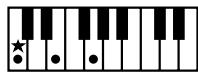
C
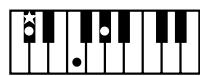
C#
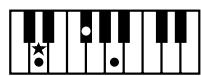
D
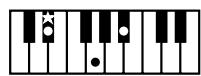
Eb
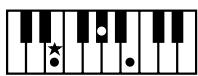
E
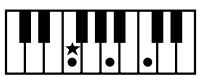
F
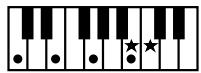
CM7
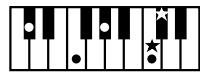
C#M7
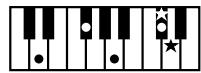
DM7
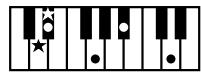
Eb M7
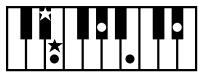
EM7
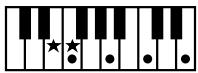
FM7
C7
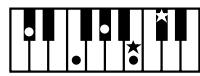
C#7

D7
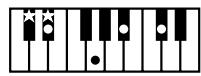
Eb7
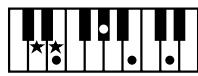
E7

F7
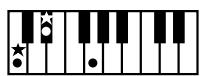
Cm
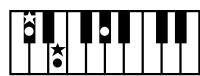
C#m
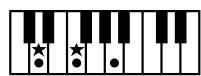
Dm
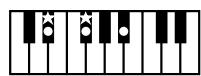
Ebm
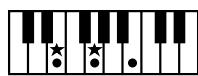
Em
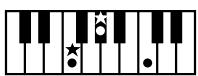
Fm
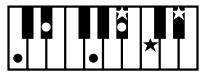
Cm7
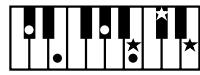
C#m7
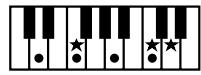
Dm7
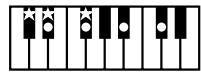
EBm7
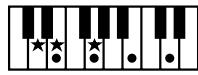
Em7
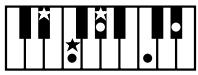
Fm7
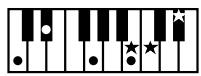
CmM7
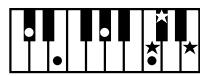
C#m7
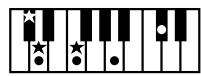
DmM7
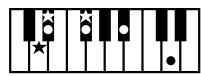
Eb mM7
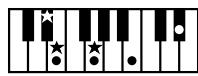
EmM7
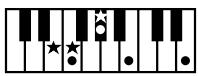
FmM7
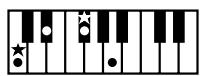
Cdim
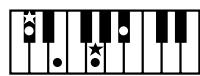
C#dim
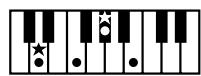
Ddim

Ebdim
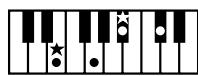
Edim
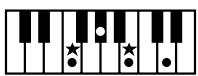
Fdim
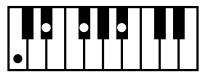
Cm7(b5)
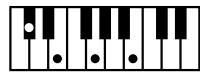
C#m7(b5)
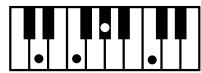
Dm7(b5)
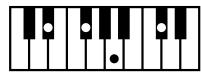
Eb m7 (b5)
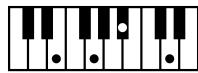
Em7(b5)
Fm7(b5)
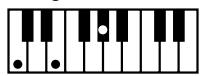
Caug
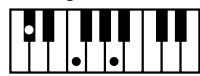
C#aug
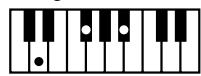
Daug
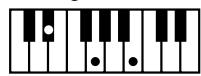
Ebaug
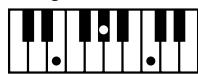
Eaug
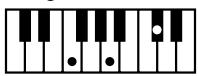
Faug
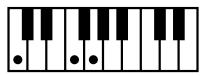
Csus4
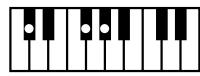
C#sus4
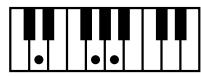
Dsus4

Eb sus4
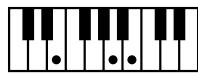
Esus4
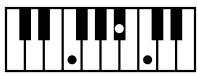
Fsus4
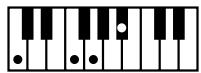
C7sus4
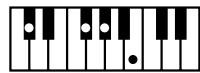
C#7sus4
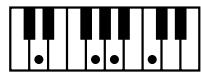
D7sus4
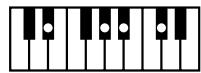
Eb 7sus4
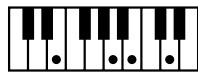
E7sus4
F7sus4
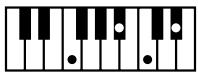
= Keys you need to press to hear this chord.
= Constituent notes of this chord.
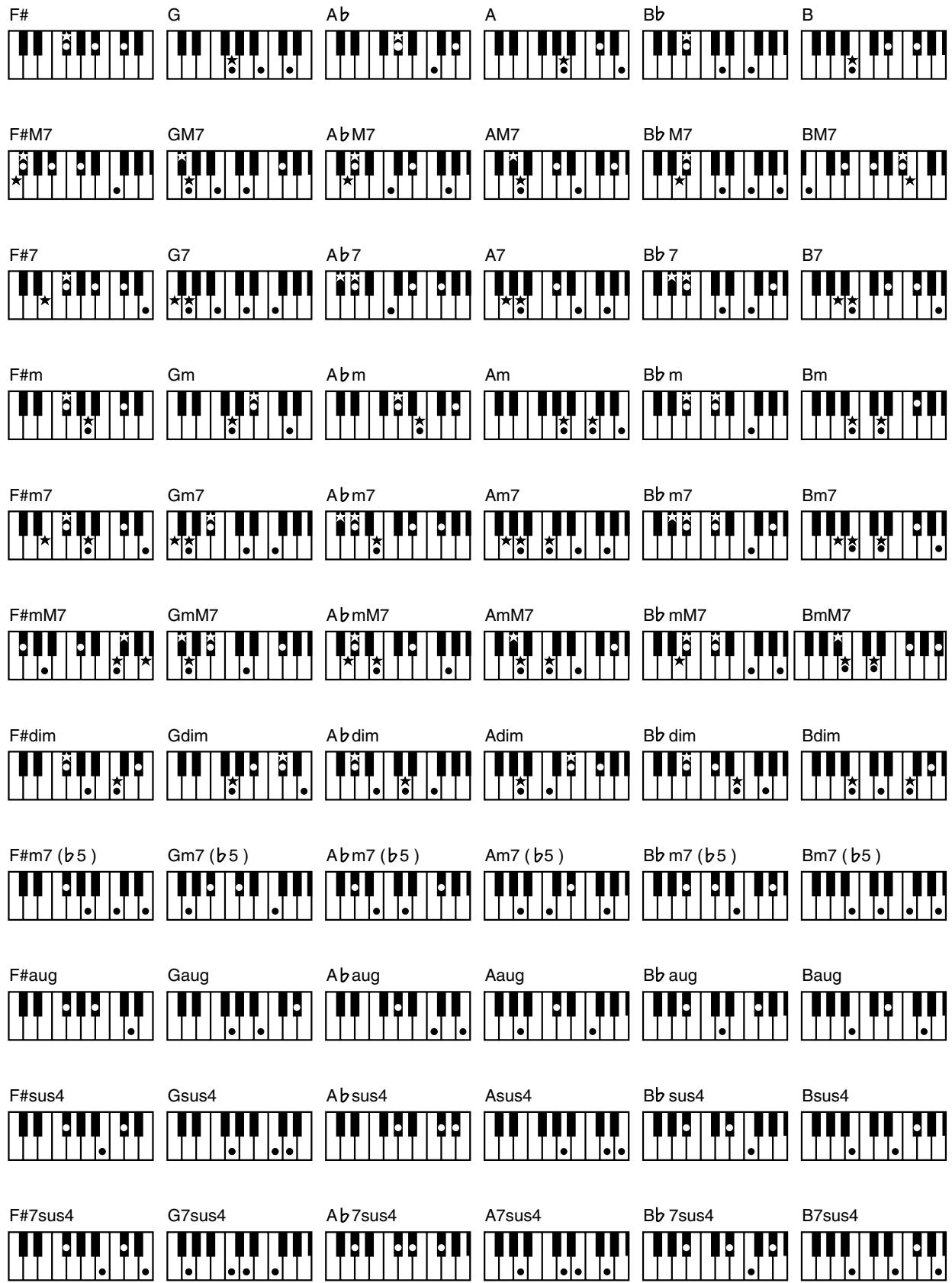
= Keys you need to press to hear this chord.
= Constituent notes of this chord.
MIDI Implementation Chart
[Digital Intelligent Piano]
Model: KR103
Date: March 2005
Version: 1.01
| Function... | Transmitted | Recognized | Remarks | |
| Basic Channel | Default | 1 | 1~16 | 32 Parts |
| Changed | 1~16 (1 channel) | X | ||
| Mode | Default | Mode 3 | Mode 3 | *2 |
| Message | Mode 3, 4 (M=1) | Mode 3, 4 (M=1) | ||
| Altered | **** | |||
| Note | 0~127 | 0~127 | ||
| Number | True Voice | **** | 0~127 | |
| Velocity | Note ON | O | O | |
| Note OFF | X | X | ||
| After | Key's | X | O | |
| Touch | Ch's | X | O | |
| Pitch Bend | O | O | ||
| Control Change | 0,32 | O | O | Bank Select Modulation Portamento Time Data Entry Volume Panpot Expression V-Link control Hold 1 Portamento Sostenuto Soft Filter Resonance Release Time Attack Time Cutoff Decay Time Vibrato Rate Vibrato Delay Portamento Control Effect 1 Depth Effect 3 Depth NRPN LSB, MSB RPN LSB, MSB |
| 1 | O | O | ||
| 5 | O | O | ||
| 6, 38 | O | O | ||
| 7 | O | O | ||
| 10 | O | O | ||
| 11 | O | O | ||
| 23 | O | X | ||
| 64 | O | O | ||
| 65 | O | O | ||
| 66 | O | O | ||
| 67 | O | O | ||
| 71 | X | O | ||
| 72 | X | O | ||
| 73 | X | O | ||
| 74 | X | O | ||
| 75 | X | O | ||
| 76 | X | O | ||
| 77 | X | O | ||
| 78 | X | O | ||
| 84 | X | O | ||
| 91 | O | O (Reverb) | ||
| 93 | O | O (Chorus) | ||
| 98, 99 | O | O | ||
| 100, 101 | O | O | ||
| Program Change | True # | O **** | O 0~127 | Program Number 1~128 |
| System Exclusive | O | O | ||
| System Common | Song Position Pointer | O | O | |
| Song Sel | X | X | ||
| Tune | X | X | ||
| System Real Time | Clock | O | O | |
| Commands | O | O | ||
| Aux Messages | All Sounds Off | X | O (120, 126, 127) | |
| Reset All Controllers | X | O (121) | ||
| Local On/Off | O *1 | O | ||
| All Notes Off | X | O (123-125) | ||
| Active Sense | O | O | ||
| Reset | X | X | ||
| Notes | *1 O X is selectable *2 Recognized as M=1 even if M≠1 | |||
Mode 1: OMNI ON, POLY
Mode 3: OMNI OFF, POLY
Mode 2: OMNI ON, MONO
Mode 4: OMNI OFF, MONO
O:Yes
X: No
Information
When you need repair service, call your nearest Roland Service Center or authorized Roland distributor in your country as shown below.
AFRICA
EGYPT
AI Fanny Trading Office 9, EBN Hagar A1 Askalany Street.
ARD El Golf, Heliopolis, Cairo 11341, EGYPT
TEL: 20-2-417-1828
REUNION
Maison FO-YAM Marcel 25 Rue Jules Hermann, Chaudron-BP79 97491 Ste Clotilde Cedex, REUNION ISLAND TEL: (0262)218-429
SOUTH AFRICA
That Other Music Shop(PTY)Ltd.
11 Melle St., Braamfontein, Johannesburg,
SOUTH AFRICA
TEL: (011) 403 4105
FAX: (011) 403 1234
Paul Bothner(PTY)Ltd.
Royal Cape Park, Unit 24
Londonderry Road, Ottery 7800
Cape Town, SOUTH AFRICA
TEL: (021) 799 4900
ASIA
CHINA
Roland Shanghai Electronics Co.,Ltd. 5F.No.1500 Pingliang Road Shanghai 200090,CHINA TEL: (021) 5580-0800
Roland Shanghai Electronics Co., Ltd.
(BEIJING OFFICE)
10F. No. 18.3 Section Anhuaxili Chaoyang District Beijing
100011 CHINA
TEL: (010) 6426-5050
Roland Shanghai Electronics Co.,Ltd. (GUANGZHOU OFFICE) 2/F, No.30 Si You Nan Er Jie Yi Xiang, Wu Yang Xin Cheng Guangzhou 510600, CHINA TEL: (020)8736-0428
HONG KONG
Tom Lee Music Co., Ltd.
Service Division
22-32 Pun Shan Street, Tst
Wan, New Territories,
HONG KONG
TEL: 2415 0911
Parsons Music Ltd.
8th Floor, Railway Plaza, 39
Chatham Road South, T.S.T,
Kowloon, HONG KONG
TEL: 2333 1863
INDIA
Rivera Digitec (India) Pvt. Ltd. 409, Nirman Kendra Mahalaxmi Flats Compound Off. Dr. Edwin Moses Road, Mumbai-400011, INDIA TEL: (022) 2493 9051
INDONESIA
PT Cira IntiRama
JL. Cideng Timur No. 15j-150
Jakarta Pusat
INDONESIA
TEL: (021) 6324170
KOREA
Cosmos Corporation 1461-9, Seocho-Dong, Seocho Ku, Seoul, KOREA TEL: (02) 3486-8855
MALAYSIA
Roland Asia Pacific Sdn. Bhd. 45-1, Block C2, Jalan PJU 1/39, Dataran Prima, 47301 Petaling Jaya, Selangor, MALAYSIA TEL: (03) 7805-3263
PHILIPPINES
G.A. Yupangco & Co. Inc.
339 Gil J. Puyat Avenue
Makati, Metro Manila 1200,
PHILIPPINES
TEL: (02) 899 9801
SINGAPORE
SWEE LEE MUSIC COMPANY PTE. L 150 Sims Drive, SINGAPORE 38738 TEL: 6846-3676
TAIWAN
ROLAND TAIWAN
ENTERPRISE CO., LTD.
Room 5, 91f. No. 112 Chung
Shan N.Road Sec.2, Taipei,
TAIWAN, R.O.C.
TEL: (02) 2561 3339
THAILAND
Theera Music Co., Ltd.
330 Soi Veng NakornKasem,
New Road, Sumpantawongse,
Bangkok 10100, THAILAND
TEL: (02) 224-8821
VIETNAM
SAIGON MUSIC DISTRIBUTOR (TAN DINH MUSIC 128 Tran Quong Qi
Dist. 1, Ho Chi Minh City
VIETNAM
TEL: (08) 848-4068
AUSTRALIA/ NEW ZEALAND
AUSTRALIA/
NEW ZEALAND
Roland Corporation
Australia Pty.,Ltd.
38 Campbell Avenue
Dee Why West NSW 2099
AUSTRALIA
For Australia
Tel: (02) 9982 8266
For New Zealand
Tel: (09) 3098 715
CENTRAL/LATIN AMERICA
ARGENTINA
Instrumentos Musicales S.A.
Av.Santa Fe 2055
(1123) Buenos Aires
ARGENTINA
TEL: (011) 4508-2700
BARBADOS
A&B Music Supplies LTD 12 Webster Industrial Park Wildey, St.Michael, Barbados TEL: (246)430-1100
BRAZIL
Roland Brasil Ltda.
Rua San Jose, 780 Sala B
Parque Industrial San Jose
Cotla - Sao Paulo - SP, BRAZIL
TEL: (011) 4615 5666
CHILE
Comercial Fancy II S.A.
Rut.: 96,919,420-1
Nataniel Cox #739, 4th Floor
Santiago - Centro, CHILE
TEL: (02) 688-9540
COLOMBIA
Centro Musical Ltda.
Cra 43 B No 25 A 41 Bododega 9
Medellin, Colombia
TEL: (574)3812529
COSTA RICA
JUAN Bansbach Instrumentos Musicales
Ave.1. Calle 11, Apartado 10237, San Jose, COSTA RICA
TEL: 258-0211
CURACAO
Zeelandia Music Center Inc.
Orionweg 30
Curacao, Netherland Antilles
TEL:(305)5926866
DOMINICAN REPUBLIC
Instrumentos Fernando Giraldez
Calle Proyecto Central No.3
Ens.La Esperilla
Santo Domingo, Dominican Republic
TEL: (809) 683 0305
ECUADOR
Mas Musika Rumichaca 822 y Zaruma Guayaquil-Ecuador TEL.(593-4)2302364
EL SALVADOR
OMNI MUSIC
75 Avenida Norte y Final
Alameda Juan Pablo II,
Edificio No.4010 San Salvador,
EL SALVADOR
TEL: 262-0788
GUATEMALA
Casa Instrumental
Calzada Roosevelt 34-01, zona 11
Ciudad de Guatemala
Guatemala
TEL: (502) 599-2888
HONDURAS
Almacen Pajaro Azul S.A.de C.V.
BO.Paz Barhona
3 Ave.11 Calle S.O
San Pedro Sula, Honduras
TEL: (504) 553-2029
MARTINIQUE
Roland Ireland
G2 Calmount Park, Calmout
Avenue, Dublin 12
Republic of IRELAND
TEL: (01) 429444
ITALY
SPAIN Roland Iberia, S.I. Paseo Garcia Faria 08005 Barcelona S.F. Tel: 93493.91.00
SWEDEN
Roland Scandinavia A/S
SWEDISH SALES OFFICE
Danvik Center 28, 2 tr.
S-131 30 Nacka SWEDEN
TEL: (0) 87 002 00
SWITZERLAND
Roland (Switzerland) AG Landstrasse 5, Postfach, CH-4452 Itingen, SWITZERLAND TEL: (061) 927-8383
UKRAINE TIC-TAC Mira Srt.190, P.O.Box 180 295400Mun UKRAINE
TEL: (03131) 414-40
UNITED KINGDOM
Roland (U.K.) Ltd. Atlantic Close, Swar Enterprise Park, SW SA7 9F1, UNITED KINGDOM TEL: (01792) 702701
MIDDLE EAST
BAHRAIN
Moon Stores
No.16, Bab Al Bahrain Avenue, P.O.Box 247, Manama 304, State of BAHRAIN
TEL: 17 21 1 005
CYPRUS
Radex Sound Equipment Ltd 17, Diagorou Street, Nicosia, CYRUS TEL: (022) 66-9426
IRAN
MOOC INC.
No.41 Nike St., Dr.Shiariyat Ave., Roberoye Cerahe Mirdamad
Tehran, Iran
TEL: (021) 285-4169
ISRAEL
Halilit P. Greenspoon & Sons Ltd.
8 Retzif Ha'aliya Hashnaya St.
Tel-Aviv-Yafo ISRAEL
TEL: (03) 6823666
JORDAN
MUSIC HOUSE CO. LTD.
FREDDY FOR MUSIC
P. O. Box 922846
Amman 11192 JORDAN
TEL: (06) 5692696
KUWAIT
EASA HUSAIN AL-YOUSIFI & SONS CO.
Abdullah Saleem Street,
Safat, KUWAIT
TEL: 243-6399
LEBANON
Chahine S.A.L.
Gerge Zeidan St., Chahine
Bldg., Achrafieh, P.O.Box: 16-5857
Beirut, LEBANON
TEL: (01) 20-1441
OMAN
TALENTZ CENTRE L.L.C.
Malatan House No.1
Al Noor Street, Ruwi
SULTANATE OF OMAN
TEL: 2478 3443
QATAR
Al Emadi Co. (Badie Studio & Stores)
P.O. Box 62, Doha, QATAR
TEL: 4423-5544
SAUDI ARABIA
aDawlaiah Universal Electronics APL Corniche Road, Aldossary Bldg., 1st Floor, Alkhobar, SAUDI ARABIA
P.O.Box 2154,Alkhobter 31952
SAUDI ARABIA
TEL:(03)8982081
SYRIA
Technical Light & Sound Center Rawda, Abdul Qader Jaza Bldg. No. 21, P.O. BOX 137 Damascus, SYRIA TEL: (011) 223-5384
TURKEY
ZUHAL DIS TICARET A.S.
Galip Dede Cad. No.37
Beyoglu- Istanbul / TURKEY
TEL: (0121) 249 85 10
U.A.E.
Zak Electronics & Musical Instruments Co. L.L.C.
Zabeel Road, Al Sherooq Bldg.
No. 14, Grand Floor, Dubai, U.A.E.
TEL: (04) 3360715
NORTH AMERICA
CANADA
Roland Canada Music Ltd. (Head Office) 5480 Parkwood Way Richmond B.C.,V6V2M4 CANADA TEL: (604)270 6626
Roland Canada Music Ltd. (Toronto Office) 170 Admiral Boulevard Mississauga On L5T 2N6 CANADA
TEL: (905) 362 9707
U.S.A.
Roland Corporation U.S. 5100 S. Eastern Avenue Los Angeles, CA 90040-2938, U. S. A.
TEL: (323) 890 3700

This product complies with the requirements of European Directives EMC 89/336/EEC and LVD 73/23/EEC.
For EU Countries
FEDERAL COMMUNICATIONS COMMISSION RADIO FREQUENCY INTERFERENCE STATEMENT
This equipment has been tested and found to comply with the limits for a Class B digital device, pursuant to Part 15 of the FCC Rules. These limits are designed to provide reasonable protection against harmful interference in a residential installation. This equipment generates, uses, and can radiate radio frequency energy and, if not installed and used in accordance with the instructions, may cause harmful interference to radio communications. However, there is no guarantee that interference will not occur in a particular installation. If this equipment does cause harmful interference to radio or television reception, which can be determined by turning the equipment off and on, the user is encouraged to try to correct the interference by one or more of the following measures:
- Reorient or relocate the receiving antenna.
- Increase the separation between the equipment and receiver.
- Connect the equipment into an outlet on a circuit different from that to which the receiver is connected.
- Consult the dealer or an experienced radio/TV technician for help.
This device complies with Part 15 of the FCC Rules. Operation is subject to the following two conditions:
(1) This device may not cause harmful interference, and
(2) This device must accept any interference received, including interference that may cause undesired operation.
Unauthorized changes or modification to this system can void the users authority to operate this equipment.
This equipment requires shielded interface cables in order to meet FCC class B Limit.
For Canada
NOTICE
This Class B digital apparatus meets all requirements of the Canadian Interference-Caising Equipment Regulations.
AVIS
- IMPORTANT SAFETY INSTRUCTIONS SAVE THESE INSTRUCTIONS
- KR103
- DIGITAL INTELLIGENT PIANO
- Main features
- Superior sound source
- Two instruments in one
- Piano Tones that rely on stereo sampling
- New concept
- Excellent Arranger
- And much, much more...
- USING THE UNIT SAFELY
- ALWAYS OBSERVE THE FOLLOWING
- WARNING
- CAUTION
- Contents
- Important notes
- Power Supply
- Placement
- Maintenance
- Additional precautions
- Before using floppy disks
- Panel descriptions
- Front panel
- [Power On] switch (not pictured)
- ① [Function] button
- ② [Part Balance] button
- ③ [Transpose] button
- [Reverb] button
- ⑤ [Volume] knob
- ⑥ [Brilliance] knob
- ⑦ [Balance] knob
- [User Program] button
- [Style Orchestrator] buttons
- [Music Style] buttons
- [Fill In] buttons
- [Intro/Ending] button
- [Start/Stop] button
- Before using the KR103
- Connections
- Connecting the power cord
- Setting up the music stand
- Opening/closing the lid
- Connecting headphones
- Notes on using headphones
- Turning the power on/off
- About the pedals
- Damper pedal (right pedal)
- Sostenuto pedal (central pedal)
- Soft pedal (left pedal)
- About the adjuster
- First steps
- Adjusting the sound's volume and brilliance
- Listening to the demo songs
- Playing back a Tone demo song
- Playing back a Style demo song
- Leaving demo mode
- Connecting external amplifiers and other devices
- Sending audio to external equipment
- Receiving audio signals from external sources
- Automatic registration: Music Assistant
- 007Imagine 1402
- Playing piano music
- Playing with accompaniment (Arranger)
- Starting/using the Arranger
- Using the count-in function
- Changing the tempo
- Automatic playback start (Sync Start)
- Stopping Arranger playback
- Using different Music Style patterns
- ORIGINAL and VARIATION patterns
- ■INTRO and ENDING
- Selecting Music Styles
- Selecting an internal Style
- Working with the +0 buttons
- Selecting a Style on floppy disk
- POP 1 JEnt
- Using the Style Orchestrator function
- Balance
- Playing without accompaniment
- Using the Upper part
- Using the Upper and Lower parts
- Using the Upper and Layer parts
- Using the metronome
- | Playing back songs
- Basic song playback
- TEMPO MEASURE 1 LiebestrJEnt
- JAMMIN9 Ent
- Additional playback functions
- Fast Forward, Rewind, and Reset
- Repeat function
- Switching off certain song parts (part 1)
- What are tracks?
- Switching off certain song parts (part 2)
- Changing the volume of certain tracks
- Recording your music
- Recording with Arranger backing
- Listening to your song
- Recording without accompaniment
- Other recording functions
- About the recording modes
- ■ Modes
- ■ Recorder memory
- More about "New Song" mode
- Solo recording mode
- Punch I/O
- Using a pedal for punching in/out
- Additional Music Style functions
- Using the Arranger without a split (Piano Arranger mode)
- One Touch
- Melody Intelligence
- Changing the Melody Intelligence harmony type
- Bass Inversion (BassInv)
- More Music Style functions
- Keyboard part functions
- Selecting sounds for the Upper, Lower and Layer parts
- Drum sounds and sound effects ("SFX")
- Drum Sets
- Sound effects ("SFX")
- Transpose
- Other Keyboard part functions
- Performance functions and effects
- Keyboard Touch (velocity sensitivity)
- Using the pedals as switches
- Using effects
- Reverb
- Switching the Reverb on/off
- Using the multi-effects processor (MFX)
- Chorus
- Switching the chorus effect on/off
- Setting the volume of individual parts or sections
- V-LINK function
- Function menu
- Editing parameters (general procedure)
- Available parameters
- Working with User Programs
- Writing your settings to a User Program
- Notes about writing User Programs
- Leaving the User Program environment
- Meaning of the asterisk
- 水 USERPROG
- Mode selection
- ■User Programs and the USR memory
- Selecting a User Program
- Selecting User Programs by foot
- Managing your User Programs
- Save Set
- Possible error messages
- Load Set
- MIDI functions
- Editing MIDI parameters
- MIDI parameters
- Disk functions
- Saving a song to disk
- Deleting song files on disk
- Formatting floppy disks
- Using the outputs and an optional expression pedal
- Functions for educational purposes
- Deactivating or activating the Arranger and Demo functions
- Deactivating or activating song playback
- Specifications
- Keyboard
- Sound source
- ■Display type & controls
- ■Styles
- Songs
- ■User Programs
- ■ Effects
- Data Storage
- ■ Metronome
- Other functions
- Connectors
- Others
- Supplied accessories
- KR103 DIGITAL INTELLIGENT PIANO
- Bouton [Melody Intelligence]
- Prises MIDI Out, In
- Chord Intelligence ("Md1" setting)
- MIDI Implementation Chart
- Information
- AFRICA
- EGYPT
- REUNION
- SOUTH AFRICA
- ASIA
- CHINA
- HONG KONG
- INDIA
- INDONESIA
- KOREA
- MALAYSIA
- PHILIPPINES
- SINGAPORE
- TAIWAN
- THAILAND
- VIETNAM
- AUSTRALIA/ NEW ZEALAND
- AUSTRALIA/
- CENTRAL/LATIN AMERICA
- ARGENTINA
- BARBADOS
- BRAZIL
- CHILE
- COSTA RICA
- CURACAO
- DOMINICAN REPUBLIC
- ECUADOR
- EL SALVADOR
- GUATEMALA
- HONDURAS
- ITALY
- SWEDEN
- SWITZERLAND
- TEL: (03131) 414-40
- UNITED KINGDOM
- MIDDLE EAST
- BAHRAIN
- CYPRUS
- IRAN
- ISRAEL
- JORDAN
- KUWAIT
- LEBANON
- OMAN
- QATAR
- SAUDI ARABIA
- SYRIA
- TURKEY
- U.A.E.
- NORTH AMERICA
- CANADA
- U.S.A.
- FEDERAL COMMUNICATIONS COMMISSION RADIO FREQUENCY INTERFERENCE STATEMENT
- NOTICE
- AVIS
Brand : ROLAND
Model : KR103
Category : Digital piano