
T-WIRELESS 3 IN 1 RUMBLE FORCE - Wireless game controller THRUSTMASTER - Free user manual and instructions
Find the device manual for free T-WIRELESS 3 IN 1 RUMBLE FORCE THRUSTMASTER in PDF.



| Product Type | Wireless game controller |
| Brand | Thrustmaster |
| Model | T-WIRELESS 3 IN 1 RUMBLE FORCE |
| Compatibility | PC (Windows XP/Vista), PlayStation 3, PlayStation 2 |
| Connectivity | Wireless (RF) with dedicated receiver |
| Power Supply | 3 LR03/AAA 1.5 V batteries (not included) |
| Estimated Battery Life | Approximately 40 hours |
| Dimensions (approx.) | 155 x 105 x 60 mm |
| Weight (with batteries) | Approximately 300 g |
| Vibration Motors | 2 motors (adjustable intensity) |
| Action Buttons | 8 action buttons, 2 analog sticks, 1 D-Pad, SELECT, START, HOME, MAPPING, CONNECT buttons |
| Main Functions | Vibration, button programming, auto sleep (5 min) |
| Switches | POWER (on/off), MOTORS (vibration ON/OFF) |
| Wireless Range | Approximately 10 m |
| Warranty | 2 years |
| Maintenance and Cleaning | Clean with a soft, dry cloth. Do not use solvents or abrasive products. |
| Safety | Do not expose to moisture, do not open, use recommended batteries, observe polarity. |
| Spare Parts | Not available at retail. Contact technical support. |
| Repairability | Repair by after-sales service only. |
| General Information | Made in China. CE certification. WEEE recycling. |
Frequently Asked Questions - T-WIRELESS 3 IN 1 RUMBLE FORCE THRUSTMASTER
User questions about T-WIRELESS 3 IN 1 RUMBLE FORCE THRUSTMASTER
0 question about this device. Answer the ones you know or ask your own.
Ask a new question about this device
Download the instructions for your Wireless game controller in PDF format for free! Find your manual T-WIRELESS 3 IN 1 RUMBLE FORCE - THRUSTMASTER and take your electronic device back in hand. On this page are published all the documents necessary for the use of your device. T-WIRELESS 3 IN 1 RUMBLE FORCE by THRUSTMASTER.
USER MANUAL T-WIRELESS 3 IN 1 RUMBLE FORCE THRUSTMASTER
- 2 vibration motors
(for PC and PlayStation® 2) - 8 action buttons
- SELECT and START buttons
- 2 analog mini-sticks / 2 digital action buttons
- D-Pad
- MAPPING button (for programming)
-
HOME button for PlayStation® 3 and Analog/Digital for PlayStation® 1 and 2
-
Gamepad CONNECT button
- PS2 Gameport connector on Wireless receiver
- USB PC and PS3 connector on Wireless receiver
- Gamepad LED
- Receiver CONNECT button (with LED)
- POWER and MOTORS switches
- Battery compartment
INSTALLING BATTERIES
Insert 3 1.5V type LR03 / AAA batteries in the battery compartment located at the back of the gamepad (14).
OVERVIEW
- POWER switch (13):
- OFF position = the gamepad is off (and doesn't use up batteries).
-
ON position = the gamepad is on.
-
MOTORS switch (13):
-
OFF position = vibration mode is disabled (uses less battery power).
-
ON position = vibration mode is enabled (uses more battery power).
-
CONNECT buttons (8 and 12)
The connection between the gamepad and the receiver is established automatically.
These 2 buttons allow you to establish a connection in case of failure or when using more than one T-
Wireless gamepad at the same time.
- Both LEDs are on = signal between the gamepad and the receiver.
- Both LEDs flash quickly = no signal between the gamepad and the receiver.
- Both LEDs are off = the gamepad is in standby mode or switched off.
- Both LEDs flash slowly = change batteries.
STANDBY MODE:
The gamepad switches off automatically after 5 minutes of inactivity.
- To reactivate it, press the START button.
PLAYSTATION® 2
INSTALLATION ON PLAYSTATION® 2
- Connect the receiver's PS2 Gameport connector (9) to port number 1 on your console.
- Switch on your console.
- Switch on your gamepad using the POWER ON switch (13).
- Start up your game.
You are now ready to play!
ATTENTION: NEVER CONNECT THE USB CABLE (10) TO YOUR PLAYSTATION® 2 (to avoid the risk of damaging your gameplay or your console)
PLAYSTATION® 3
INSTALLATION ON PLAYSTATION® 3
- Connect the receiver's USB connector (10) to USB port number 1 on your console.
- Switch on your console.
- Switch on your gamepad using the POWER ON switch (13).
- Start up your game.
You are now ready to play!
USING THE "HOME" BUTTON (7)
Your gamepad's HOME button allows you to exit your game, access menus and directly switch off your PlayStation83 system.
IMPORTANT NOTES FOR PLAYSTATION® 3
- On PlayStation® 3, the T-Wireless gameplay is only compatible with PlayStation® 3 games (and will not function with PlayStation® 2 games).
- Your T-Wireless gamepad does not include a motion sensor.
- In "1 Player" mode: If your official gamepad is turned on, you must switch it to "gamepad port 2" in order for your T-Wireless gamepad to be functional.
PC
INSTALLATION ON PC
The CD-ROM included with this product allows you to install the Force Feedback drivers.
- Insert the installation CD-ROM into your CD-ROM drive. Follow the on-screen instructions to install the Force Feedback drivers. Once the installation is complete, click Finish and restart your computer.
- Once your computer has restarted, connect the receiver's USB connector (10) to one of your computer's USB ports. Windows® XP or Vista will automatically detect the new device.
- Switch on your gamepad using the POWER ON switch (13).
- Click Start/Settings/Control Panel and double-click Game Controllers (or Gaming Options, depending on your operating system).
The Game Controllers dialog box displays the gamepad's name along with OK status.
-
In the Control Panel, click Properties to configure your gamepad:
-
Test device: Allows you to test and visualize the buttons, the D-Pad and the mini-sticks.
- Test forces: Allows you to test 8 vibration effects and configure the vibration effect settings.
You are now ready to play!
ADVANCED FUNCTIONS
PROGRAMMING BUTTONS / MINI-STICKS / D-PAD
All progressive buttons (on PS2 and PS3) or digital buttons (on PC), directions of the mini-sticks and of the D-Pad can be switched using the MAPPING button (6).
Examples of possible applications:
- Switching the functions of buttons
- Switching the 2 mini-sticks
(in this case, you must map the 4 directions of the first mini-stick to the 4 directions of the second)
- Switching the D-Pad with a mini-stick
(in this case, you must map the 4 directions of the D-Pad to the 4 directions of the mini-stick in question).
- Programming/switching procedure:
| Steps | Action | LED (11) (onNES) |
| 1 | Press and release the MAPPING button (6) | FLASHES SLOWLY |
| 2 | Press and release the button or direction to switch | FLASHES QUICKLY |
| 3 | Press and release the button or direction where you wish to place the function | ON |
The two functions are now switched.
- To return to "default" programming (to erase all of your programming):
| Steps | Action | LED (11) (on gamepad) |
| 1 | Press and hold the MAPPING button (6) for 2 seconds | FLASSES SLOWLY |
| 2 | Release the MAPPING button (6) | ON |
Your programming is now erased.
Please note that your programming also disappears each time the gamepad is disconnected, or when the gamepad or console restarts.
USING MORE THAN ONE T-WIRELESS GAMEPAD AT THE SAME TIME
(In multiplayer mode)
You can use up to 4 T-Wireless gamepads at the same time (in multiplayer mode).
To do so, channel detection must absolutely be carried out manually, as described below.
Procedure:
- For 2 seconds, simultaneously press and hold the 2 CONNECT buttons on the gamepad and the receiver you wish to use (8 and 12).
- Repeat this procedure for other players.
Once a connection has been established, the LEDs stop flashing and stay lit.
TROUBLESHOOTING AND WARNING
- My gamepad doesn't function properly or doesn't seem to be properly calibrated:
- In the event of malfunction during use due to electrostatic emission, please exit the game, switch off your gamepad and unplug the receiver from your console or PC. Resume normal game play by plugging the receiver back in, then switch on the gamepad and launch the game again.
-
Never move the mini-sticks when connecting your gamepad (to avoid any calibration problems).
-
I can't configure my gamepad:
-
In your game's "Options/Controller/Gamepad" menu: select the most appropriate configuration.
- Please refer to you game's user manual or online help for more information.
-
You can also use your gamepad's "programming" function to resolve this type of problem.
-
On PC, the vibrations don't stop:
-
Decrease the intensity of force effects in your game's controller options or adjust the forces in the gamepad's control panel.
When you're done using your gamepad, we recommend that you always set your gamepad's POWER switch (13) to the OFF position (to extend battery life).
TECHNICAL SUPPORT
If you encounter a problem with your product, please go to http://its.thrustmaster.com and click Technical Support. From there you will be able to access various utilities (Frequently Asked Questions (FAQ), the latest versions of drivers and software) that may help to resolve your problem. If the problem persists, you can contact the Thrustmaster products technical support service ("Technical Support"):
By email:
In order to take advantage of technical support by email, you must first register online. The information you provide will help the agents to resolve your problem more quickly. Click Registration on the left-hand side of the Technical Support page and follow the on-screen instructions. If you have already registered, fill in the Password and Password fields and then click Login.
By telephone:
| United Kingdom | 08450800942Charges at local rate | Monday to Friday from Noon to 4pm and 5pm to 10pm Saturday from 9am to Noon and 1pm to 7pm Sunday from 9am to Noon and 1pm to 4pm |
| United States | 1-866-889-5036Free | Monday to Friday from 7am to 11am and from Noon to 5pm Saturday and Sunday from 7am to Noon (Eastern Standard Time) |
| Canada | 1-866-889-2181Free | Monday to Friday from 7am to 11am and from Noon to 5pm Saturday and Sunday from 7am to Noon (Eastern Standard Time) |
| Denmark | 80887690Free | Monday to Friday from 1pm to 5pm and 6pm to 11pm (English) Saturday from 9am to 1pm and 2pm to 8pm Sunday from 10am to 1pm and 2pm to 5pm |
| Sweden | 0200884567Free | Monday to Friday from 1pm to 5pm and 6pm to 11pm (English) Saturday from 9am to 1pm and 2pm to 8pm Sunday from 10am to 1pm and 2pm to 5pm |
| Finland | 0800 913060Free | Monday to Friday from 2pm to 6pm and 7pm to Midnight (English) Saturday from 10am to 2pm and 3pm to 9pm Sunday from 11am to 2pm and 3pm to 6pm |
WARRANTY INFORMATION
Worldwide, Guillermot Corporation S.A. ("Guillemot") warrants to the consumer that this Thrustmaster product will be free from material defects and manufacturing flaws for a period of two (2) years from the original date of purchase. Should the product appear to be defective during the warranty period, immediately contact Technical Support, who will indicate the procedure to follow. If the defect is confirmed, the product must be returned to its place of purchase (or any other location indicated by Technical Support).
Within the context of this warranty, the consumer's defective product will, at Technical Support's option, be either repaired or replaced. Where authorized by applicable law, the full liability of Guillemot and its subsidiaries (including for indirect damages) is limited to the repair or replacement of the Thrustmaster product. The consumer's legal rights with respect to legislation applicable to the sale of consumer goods are not affected by this warranty.
This warranty shall not apply: (1) if the product has been modified, opened, altered, or has suffered damage as a result of inappropriate or abusive use, negligence, an accident, normal wear, or any other cause not related to a material defect or manufacturing flaw; (2) in the event of failure to comply with the instructions provided by Technical Support, (3) to software not published by Guilemot, said software being subject to a specific warranty provided by its publisher.
Additional warranty provisions
In the United States of America and in Canada, this warranty is limited to the product's internal mechanism and external housing. Any applicable implied warranties, including warranties of merchantability and fitness for a particular purpose, are hereby limited to two (2) years from the date of purchase and are subject to the conditions set forth in this limited warranty. In no event shall Guillemot Corporation S.A. or its affiliates be liable for consequential or incidental damage resulting from the breach of any express or implied warranties. Some States/Provinces do not allow limitation on how long an implied warranty lasts or exclusion or limitation of incidental/consequential damages, so the above limitation may not apply to you. This warranty gives you specific legal rights, and you may also have other legal rights which vary from State to State or Province to Province.
COPYRIGHT
© 2007 Guillemot Corporation S.A. All rights reserved. Thrustmaster® is a registered trademark of Guillemot Corporation S.A. PlayStation® is a registered trademark of Sony Computer Entertainment Inc. Windows® and Windows® XP are registered trademarks of Microsoft Corporation in the United States and/or other countries. Pentium® is a registered trademark of Intel Corporation. All other trademarks and brand names are hereby acknowledged and are property of their respective owners. Illustrations not binding. Contents, designs and specifications are subject to change without notice and may vary from one country to another. Made in China.
ENVIRONMENTAL PROTECTION RECOMMENDATION
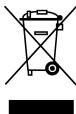
At the end of its working life, this product should not be disposed of with standard household waste, but rather dropped off at a collection point for the disposal of Waste Electrical and Electronic Equipment (WEEE) for recycling.
This is confirmed by the symbol found on the product, user manual or packaging.
Depending on their characteristics, the materials may be recycled. Through recycling and other forms of processing Waste Electrical and Electronic Equipment, you can make a significant contribution towards helping to protect the environment.
Please contact your local authorities for information on the collection point nearest you.
FAQs, tips and drivers available at www.thrustmaster.com
T-Wireless
3-in-1 Rumble Force
Compatible : PC - Playstation® 3 - Playstation® 2

m = 311
(in multiplayer-modus)
INFORMATIE MET BETREKKING TOT DE GARANTIE
Tenepb MoXHO HaNuHaTb Irgpy!
BHIMAHNE: 3APIEUAECTCPOIKIOUATb KABEL USB (10) K PLAYSTATION©2 (oU36eJahue no8peKdEHHaupo8o2o KOHmpollepa unu KOhconu)
PLAYSTATION® 3
IIOKJIIOUHNEKPLAYSTATION®3
- Ппсоевине разьем USB ппимнika (10) к USB-nорту 1 на koнсоли.
- BkHIOHTe KOHCOJIb.
- BkIIOUHTe mroboi KOHTPOJIeP npn nomOu nnpeKJIIOHateTl PAWER ON (BKJIIOUHHE NITAHN) (13).
- 3anyctnte nrgy.
Tenepb moxho haunhaTb np!
KHONKA HOME (7)
C NIOOMOJIHKO HONKHO HMOPOBO ROKHTPOnJIpea MOXHO BByTn N3 INrpyI, BOITN B MEHIO n HApRMyo BbIKJIOHHTB CNTcEMy PlayStation© 3.
BAXHBIE 3AMEUAHNIO PABOTE C PLAYSTATION® 3
- B npstabke PlayStation® 3, 6ecnpobodnoH irpoBoi KOnTpOllpe T-COBMeTUM Tolbko C irpamn dIaPlayStation® 3 (и не уdent paobotb c irpamn dIra PlayStation® 2).
-BaIb 6ecnpoBODHOIrpoBoi KOthpOJIpeT-He BkIIOuaeT Be6a DaTuHK DnIXKeHna.
-B pexime oDnHOroIrpoKa "1 Player":EcnnKoHTpOJIpep (oΦmuaIbHaB aBcPcR) BKnIOUeH,Heo6xoIMMo nepeKIOUHTb er HoA IIOPT 2 KOHTpOJIpepa),TTO6bl 6ecIpBOIoHOI rpoBo KOnHTpOJIpeT-Pa60tan.
#
ПОДКЛЮЧЕНИС K П
CD-dnck, noctabnembmy c n3deJnem, no3BONrEt yctaHOBtI daPBeBy Force Feedback.
- BCTabTe yctahOBouhCy CD-DCN B pRnOB CD DC NcKOB. DIny yctAHOBKn dpaBHePoB Force Feedback bblonlne He mChtpkym, KOTOpbIe 6byUT NoBbTbCbHa hKePAne. Pocne 3aBepeHneH yctAHOBKn HaxMnte Finish (3akOnHT) npeepa3pynte KomnbloteP.
- Поссг.TORa, КамКьТерТауртугСТС, РОДКИЧУТЕ разьEM USB рпсимнka (10) К.OДНOMY 33 noptOB USB TOKIOTepe.Опационные CTeMБI WindowsXP mNVI Vista automatneckn obharapxKat HOBO yctpoNTbTO.
- BkniouhTe nIrpOBoi KoTHpOJIeP npn nomoi nipeKNIouaTeIa POWER ON (13).
- Μεληκητe Start (Flyck)/Settings (Hactpoɪka)/Control Panel (Πανηνγρανβενη), nος ευσίανητe έθουύнοι Σηνηκόν Ḍα Ανγκενινην Μερούνει Εναλενημεις (Irρoʊbε Koθροπηρεύ) (IriN Gaming Options (Irρoʊbε yctροικTBa), B 3aɪbɪcɪmòctɪŋ O t yctaɪhɒbɪn Hɔŋ O npəpɑɪnHɒŋ CnCTeMbɪ).
Duao08oe OKHO Game Controllers (HapoeBie KOhmponnpb) 6b10dum UMa upo8o20 KOhmpnepa u KhoNky cocmOHHU OK.
-
B OkHe Control Panel (Panaelb ynpaBneHn), Bbl6epnte nyHKT Properties (CboiCTBa) n BblOJIHnTe HactpoKy uRpoBOrO KOHTpOJIpe:
-
Khoika Test device (PpOBepntb yctpoCTBO): P03B0JrT pOBePTb n IPOCMOTpeTb H3aHaeHne KHOtOK KOHTpOJIepe, MaHmIyJIaTOpa D-pad m MmHn-DxIoCHTkoB.
- Khonka Test forces (Поберпь обатун CB3b): Позвоглет поberпь 8 3ффektob Вибраци и Нachtponь IX ДЯ NCПьЗOBаня.
Tenepb MoXHO NaHnHaBt Hpy!
ФУнКЦИДЯ ONblTHbIX NOЛьЗОВATEJIЕI
KHOTIKI PIOPTPAMMPOBAHNAI / MHNJ-IXKOCTNIKU / MAHINYJTOP D-PAD
Bce KhoNtKc c npopnpOnHaIbHbIM (Ha PS2 n PS3) mIu IuPpOBbIM (Ha PI) ynpaIbeHnEm, a taKke oCmMHn-dXoJcTknOB uD-Pad mOry TpepeonpeJeIbTbc npu pOMOUI KhoNtKne PEPeONPeJEENHIA (6).
- He nepeBmraTe MmN-dKoCTMn BO BpEmnoKlIOUeHn KOHTpoJIpepa (BO n36EkaHne HapuShen npOcecca KaIb6pOBKn).
-Я He Mory HacptpontbIrpoBoi KOHTpOllnep:
B MeHIO Options (Параметрь)/Controller (Контpondлп)/Gamepad (Игравов Контpondлп)" Ирь: bIbepHTe Han6OJIe neOxOJauy KoHФmRpyaUN.
IOnonHnTeBnyu HnOpMaunu CMOpnte B pykoBDCTBe noIb3OBaTeJrIrpyiN INHTepHete.
He npekpaaetcBn6paunHa PIK:
-ymehblnte nHTehncBHOCTb 3ΦfkeTob o6paTHoB CBA3n B npaMeTpax INrpbl nHactpoTe 3ΦfKeTbI o6paTHo CB3n Ha naHEm ynpabHeM INrPoBO rKoTHpOJIepa.
IIO KOHuaHIN HcNpIbO3OBaHIN IHPBOBO KOTPONpIeBaMbI pKeOMeHyEe BcEJa BbIKIHOHTbI NTAHHe yCtpoIcbTa, nepeBdMHyB peKJIIOHaTeB POWER (13) B noJIoKeHne OFF (TTO6bI yBewnHbI cPOK aboTo b6aatepe).
TEXHNUECKA NIOIDEPXKA
Пиь ВОЗнИКовениnpobemc,CБВAZHbIX cNcIbI3OBAHnEM KOHTPONJIpe,3aIINTE Ha Be6-caIT http://sths.trustmaster.com И поелдуnotс noCbIke Technical Support (Texnueckan noJdpeKka).Ha 30t StpamHule ectbdoCTy n pazlNHbY m yTInlTAM (cAto 3ZadaaBembe BOpocbl (FAQ),camble HOBBe BepCSn dpaIeBepov n nporpammHOrO obSeCneHEni) -30TO MOKOT NOMOH YpeuHENIO npobembl. Ecnm 3TO He NOMORLO,MOXHO CBZATbCS co Cnyk6b TeHXnEcko noJdpeKnn Thrustmaster ("Technical Support"):
No 3neKtpnoHn noUte:
4Tob6I OTnpaBn7b 3anpoc B oTeI TeXHneccko NIO depEKKN NO 3eKTPONHO NIOHTe, Heo6xoDMIO 3apeMCTPPOBaTbC8.
PiOeOCTABENHNA INFOPMACMQN NOMOKET b6cTpee peuINb IPO6NEMy. PpeiDITE no cBlynke Registration (perHrtpaun), KOTOPAR HaxoDITc CNEba HA CTpaHnIe TexHneccko NIO depEKKN Technical Support n CneDuYte
HnctpykUAMH Ma 3kaane. Ecnbl BBy xye 3apEHNCTPPOBaHbI, BBeNTe IMN NObn5OBaTeRn n napOn, 3atem 0eLKnHtne
Login (Bxod).
INHOPMALIOROTAPAHTN
Bo exce 3tpaHax, Kopnoapna Guillemot Corporation S.A. ("Guillemot") dae raptanHO HA iKdennr Thrustmaster B Tom, OTO 3TH iKdennIO HE MMEOT DEkTeO MATepHAnOB NINI pNOBcDCTBa H (2) 0ra DT aTbNpOKYNK. Pn6 OhapyKeHHEN DEkTeA B TcEHNNI raptAHNIHoro cPcXeHMeNDHNBO CBrXtHeC bCnyXbO TeHXNcckO NOpeDPKKQ, KOTOPAR pA3bCHNT NoCDOBATEBNOCT bDeCTBN. Ecn DeEeT NOCTBEPDITCA, iKdenni NeoBxOIMBO BepHTb NO MeCTY nPiOpBeTENH (NIN dpyrOe, YkaaHNoOH cNyXbOte TXNcHexNK oNDPeDKY).
ECN HINCNPAHBOE hINDNIE NAMADNAIeTND cYNOBNIraPahNTM, OHO 6yEDe NIO 3aMEHNO, HIOO 0PTOPMOHTPOBAHO.
PnHANNN PEPNNUPOUZero 3aKHOATATENBCTBA, HANBOBUNAOTBEETBHECHTB (BXKHOAB KOCBENHHe ybTuKN)
KoprnapoAur GUILEMOT e He dOeyHPNx PneDpNRTM orpAnHMeH aPEMOHTBOM NIM 3aENHOJ NIDENI THRThustMaR.
OpHNDCNE KpNA tnoPteBNB E bTOHOENHc AHOATATENBCTBA, pPmEHHMIMO K npODAkAM nTOpeBtEnbCKX X TOBABEO H NkAA3aHNbE PAANTNHIBe O6BaTeAEbCTBA.
37a rapaHTnHa he pACPocTpaHHe: (1) Ha 3eJIna MoDinuPBOAHHH, BCKbIbTh, DapooBtAHbIe IIN NPOBekdHBe Hbe3eybTahe HEPaBnHbHO IIN npy60oOBpOcHEn, HEoCmOpTeJIbHOCTN, HeCACTHO CnyUa, HOPMaHbHOr hO3HOba, INM MeIOUeJIIOboIpyoDeKeK, cBeyAahBaC KCAHEbOM MATEpRAna IIN aROTOBHeE; (2) bCnuYae HecoBIOHnIHcTpyuK, bByaDHbXs TkHeKcNe IOJpeKkO; (3) hAporpaMMHe pOyoDKtbp, papaObaTHHe He Guillemot, papaOCTpaeeTcPARaHTOnOTBetYBEhONbCTpaobApOTHka nporpAM.
ABTOPCKOE IIPABO
© 2007 Guillemot Corporation S.A. Bce npaba zauuuehby. Thrustmaster® yraenctca aepnrntpobahnoi troporboe Mapko Guillimot Corporation. PlayStation® yraenctca aepnrntpobaoHHoT troporboe Mapko Sony Computer Entertainment Inc. Microsoft® Windows® yraenctca aepnrntpobahnoH troporboe Mapko Microsoft Corporation B CoedmneBnix tIatax AmePkn M/Inn pyrtnk ctapaHax. Bce pnoche troporboe mapK nPhiMEnHe hae baaHbany npBvEbeHbte B daHnom DokyMeHTe, yraHOTcA cO6tBeHNCTbIO COOTBCTBY KNOBtXmK NADeNbueB. NIIIOCTaPauM mOryT he COOTBCTBOBaTb BHeUNHemy BNDy/fYNHzmuK MOKHKeTHORO 3ndENMa. CodepKAnHe pyKOBoDcTBa, KOHCTpyKUaN H TeHXUeCKHe XapKaTePnCtIKN i3dJIINa N3MeHNHOTcR 6e3 npdeBaPntbHOrO yBeDOMnHn I 3abCrt O T cPaHbI npioBcTeHnHa.
PEKOMEHDAUINIPO3AUITEOKPYXIAOUICECPEDbl
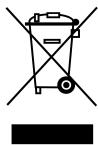
Tocne OOKOHAN CPOCA NcKb6B DAHOOE 3dENIE He cNEyET yTNINIOBATb MBECTe C bTOBtBM MYCOPOM, BD u NYHTe Cbopa xTOXDBN 3eKNPTCKECHO r 3eNKPTHOBO6PQDyABAHn.
JaHHeO yKa3aHne ToNtBpRkAeTcC OTOBETCTByOuIM CMMBOJON, HAnEChEHbIM Ha 3dJeHne, pyKOBDCBTO NpIbSbATEnI INIyAnbOKy.
B 3aBnCIMoCTN OT CBOIcTB, MaTePnaJIbI MOrT nepeDaBaTbCBy B NOBTOpHyNo nepepa6OToKy.
TOBOPHRA nepepaOtka OTXoDko 3eKPTPcUeCKrOHO 06OpYOBaHMO MOKET BHECTNaHTeBnHbN BkIAd B COxPAHEnOg OkyAkuuIe cpeSd.
6bpaTHTecB B MeCTHbIe OprahbI BnactH 3a HΦOpMaueH o 6JIHKaHMe mnyKTe npHema TAKHX OTXoOB.
- INSTALLING BATTERIES
- OVERVIEW
- PLAYSTATION® 2
- INSTALLATION ON PLAYSTATION® 2
- PLAYSTATION® 3
- INSTALLATION ON PLAYSTATION® 3
- USING THE "HOME" BUTTON (7)
- IMPORTANT NOTES FOR PLAYSTATION® 3
- PC
- INSTALLATION ON PC
- ADVANCED FUNCTIONS
- PROGRAMMING BUTTONS / MINI-STICKS / D-PAD
- USING MORE THAN ONE T-WIRELESS GAMEPAD AT THE SAME TIME
- TROUBLESHOOTING AND WARNING
- TECHNICAL SUPPORT
- By email:
- WARRANTY INFORMATION
- Additional warranty provisions
- COPYRIGHT
- ENVIRONMENTAL PROTECTION RECOMMENDATION
- T-Wireless
- 3-in-1 Rumble Force
- (in multiplayer-modus)
- INFORMATIE MET BETREKKING TOT DE GARANTIE
- IIOKJIIOUHNEKPLAYSTATION®3
- KHONKA HOME (7)
- BAXHBIE 3AMEUAHNIO PABOTE C PLAYSTATION® 3
- #
- ПОДКЛЮЧЕНИС K П
- ФУнКЦИДЯ ONblTHbIX NOЛьЗОВATEJIЕI
- KHOTIKI PIOPTPAMMPOBAHNAI / MHNJ-IXKOCTNIKU / MAHINYJTOP D-PAD
- TEXHNUECKA NIOIDEPXKA
- No 3neKtpnoHn noUte:
- INHOPMALIOROTAPAHTN
- ABTOPCKOE IIPABO
- PEKOMEHDAUINIPO3AUITEOKPYXIAOUICECPEDbl
Brand : THRUSTMASTER
Model : T-WIRELESS 3 IN 1 RUMBLE FORCE
Category : Wireless game controller