
APPTDTUSBV2 - TV receiver Approx - Free user manual and instructions
Find the device manual for free APPTDTUSBV2 Approx in PDF.


| Product type | Digital TV receiver (DVB-T2) |
| Dimensions | 10 x 10 x 3 cm |
| Weight | 150 g |
| Power supply | 5 V DC via USB adapter (included) |
| Power consumption | 5 W (max) |
| Main functions | Reception of HD digital TV, USB recording, electronic program guide (EPG), parental control, HDMI output, USB port for media playback |
| Connectivity | HDMI, USB 2.0, RF antenna, coaxial audio output |
| Maximum resolution | 1080p (Full HD) |
| Supported video formats | MPEG-2, MPEG-4, H.264 |
| Supported audio formats | MP3, AAC, AC3 |
| USB recording | Yes, on USB flash drive or external hard drive (FAT32 format) |
| Remote control | Yes, included (battery CR2025 not included) |
| Maintenance and cleaning | Clean with a soft, dry cloth. Do not use abrasive products or liquids. |
| Safety | Do not expose to humidity or extreme temperatures. Disconnect during thunderstorms. |
| Spare parts and repairability | Remote control and power adapter available from the manufacturer. Repair by a professional recommended. |
| General information | Brand: Approx, Model: APPTDTUSBV2, Use: digital terrestrial television reception. |
Frequently Asked Questions - APPTDTUSBV2 Approx
User questions about APPTDTUSBV2 Approx
0 question about this device. Answer the ones you know or ask your own.
Ask a new question about this device
Download the instructions for your TV receiver in PDF format for free! Find your manual APPTDTUSBV2 - Approx and take your electronic device back in hand. On this page are published all the documents necessary for the use of your device. APPTDTUSBV2 by Approx.
USER MANUAL APPTDTUSBV2 Approx
USB Digital Terrestrial Receiver
Version2.1
Guía de usuario User guide Guide de l'utilisateur Handleiding Guida per l'utente Manual do utilizador
Español....1
English....17
Français.... 33
Deutsch.... 48
Italiano....66
Português....81
BlazeVideo HDTV Player v6.0R
Manual del Usuario
1 Índice
2 Vista general ....†
BlazeVideo HDTV Player v6.0R User's Manual
1 Content
2 Overview....18
2.1 Introducon.... 18
2.2 Features.... 18
2.3 System Requirements.... 19
3 Appearance & Menus....20
4 Remote Control 22
5 Operaon Guide 23
5.1 Scan Channels.... 23
5.1.1 Auto Scan Channels 23
5.1.2 Manually Scan Channels 24
5.2 Watch Live TV Show 24
5.3 Display Teletext 25
5.4 TimeShi 25
5.5 Program Guide....25
5.6 Live Record TV Show 26
5.7 Create Schedule Task 26
5.8 Schedule Record TV Show 27
5.9 Reminded to Watch.... 27
5.10 Mul-channel Preview 27
5.11 Favorite Management....28
5.12 Take Snapshot 29
6 Sengs....30
6.1 DTV Seng 30
6.2 Record Seng 30
7 Technical Support.... 31
7.1 Troubleshoong 31
7.2 Contact/Support 31
2 Overview
2.1 Introducon
BlazeVideo HDTV Player is a full-featured Digital & Analog TV soware soluon for you to watch, record, pause, replay live TV/teletext program or listen to digital radio on your PC. The intelligent EPG guides you through what and when to watch. Record feature lets you record and replay favorite TV shows whenever you want; TimeShi enables you to control over live TV shows, pause live watching or skip commercial Ad. or other parts of TV shows. Smart Search and mul-channel preview bring you a more exible choice to pick your favorite TV shows.
BlazeVideo HDTV Player also acts as your mul-media center with superior video and audio quality. It supports DVD, VCD, SVCD (only available on Professional Version), and most popular media les. The more advanced features, such as video capture, bookmark preview, picture slideshow, screen control, special audio eect and oponal skin bring you an innate wonderful mul-media world.
Compliant with DVB-T, DVB-S, DMB-T/H, CMMB, ATSC Digital TV standard and PAL, NTSC, SECAM Analog TV standard, BlazeVideo HDTV Player supports most popular TV Card with BDA interface on market. The soware runs stable on Windows 98 SE/Me/2000/XP/Vista/7 operang system.
2.2 Features
Full-featured Digital & Analog TV Soluon:
➢ Watch, record, pause, replay TV show
➢ Intelligent EPG guides you through what and when to watch (DTV only)
TimeShi to pause live TV shows for a break or skip commercial (DTV only)
Smart search to quickly locate favorite TV shows or desired TV Show me
➢ Search Iter helps to display program by me or by type
Remind to watch at scheduled me
➢ Auto & manually scan for all available channels
➢ Display subtle, support mulple languages & audio channels
➢ Freely manage favorite TV channels, rename TV channels
- Mul-channel preview, to quickly access favorite programs
Wide compatibility, support both DVB-T, DVB-S, DMB-T/H, CMMB, ATSC Digital TV standard and PAL, NTSC, SECAM Analog TV standard
Advanced Personal Recording (Digital & Analog TV):
Record as video or audio le in hard disk; play them in full original quality
Real-me record while watching live TV shows
➢ Scheduled record, never miss any wonderful TV show
➢ Auto wakeup to perform scheduled task at PC hibernaon status
SII Image Capture:
Capture digital or analog TV shows as xed-image
Capture DVD video as xed-image (Only available on Professional Version)
▶ Capture MPEG video as xed-image
Powerful Media Center:
Play DVD/SVCD/VCD/CD disc (Only available on Professional Version)
▶ Play most popular media les
DVD bookmark preview (Only available on Professional Version)
➢ High Denion & Crystal Clear Video Quality
Superior Audio Quality
View Digital Teletext
Receive Composite or S-Video Signal
Advanced power saving scheme for Notebook PC
Outstanding Video & Audio Quality:
➢ High video quality, support mulple aspect rao and video hardware accelerang
Video desktop lets you view video in true background mode, just like wallpaper
Dierent video quality selectable according to device performance to keep smoothest video
Smart stretch lets video smart t on all monitor with dierent aspect rao, avoid video loss or distoron
➢ Enhanced audio eect and equalizer, supports 5.1, 6.1, 7.1 channel output
2.3 System Requirements
| CPU | Intel Celeron 600MHz or higher |
| System Memory | 128MB RAM or higher |
| Operang System | Windows 98 SE/ME/ 2000/ XP/ Vista/7 |
| Display Card | Have 24 Bits resoluon and support DirectX, 8MB Video-ROM or more |
| Sound Card | PCI sound cards, Integraon chipset on Mother Board, USB audio devices etc. compatible with Windows and stereo speakers |
| Device | All DVD drives; HDTV receiver and its driver should be properly installed for HDTV playback |
| Hard-disk Available Capacity | At least 512 MB temporary space for TimeShiing; Large enough space for HDTV/DVD record |
| DirectX | DirectX 9.0 or later |
3 Appearance & Menus
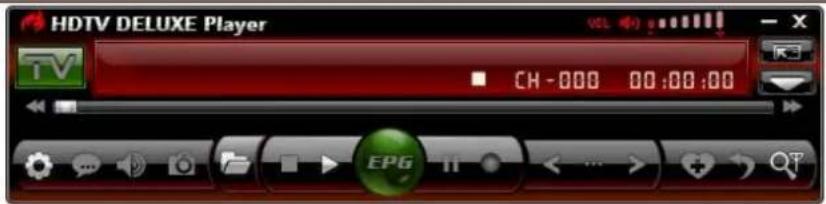
| Buon/Icon | Name | Descripon |
 | EPG | Open HDTV EPG window |
 | Play | Play HDTV or Media |
| [342T] | TimeShi/Pause | TimeShi (for HDTV) or pause playback |
 | Stop | Stop playback |
 | Record | Record HDTV or DVD (only available on Pro. Version) |
 | Previous | Skip to play previous HDTV channel / DVD chapter (only available on Professional Version) |
 | Browse | Browse channel |
 | Next | Skip to play next HDTV channel / DVD chapter(only available on Professional Version) |
 | Open | Select playback type |
 | Subtle | Select Subtle |
 | Audio | Select Audio |
 | Capture | Capture video as .bmp sll image |
 | Volume Control | Drag slider bar to adjust volume |
 | Mute | Turn on/o audio |
 | Media Type | Display playback type |
 | Playback status | Display playback status |
 | Signal Quality | Display HDTV signal quality |
 | Signal Strength | Display HDTV signal strength |
 | Channel/chapter | Display current HDTV channel / DVD chapter(onlyavailable on Professional Version) |
 | Time | Display current me of HDTV / DVD(only available on Professional Version) |
 | Fast backward | Fast backward, switch between 1X, 2X, 4X, 8X, 16X at each press |
 | Slider bar | Drag the slider to new posion for playback. |
 | Fast Forward | Fast forward, switch between 1X, 2X, 4X, 8X, 16X at each press |
 | Open Floang Panel | Show Floang Panel |
 | Show Advanced Panel | Show/Hide Advanced Panel |
4 Remote Control
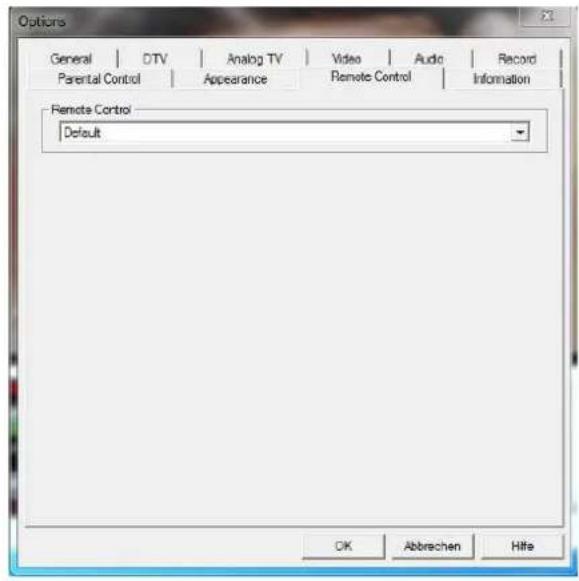
For the correct usage of the remote control with English language sengs of the soware you have to adjust the sengs of the remote control as follows:
➢ Start the delivered soware “Blaze DTV 6.0” aer installaon procedure.
Click on the opons-window will be opened.
Choose the index page "Remote Control".
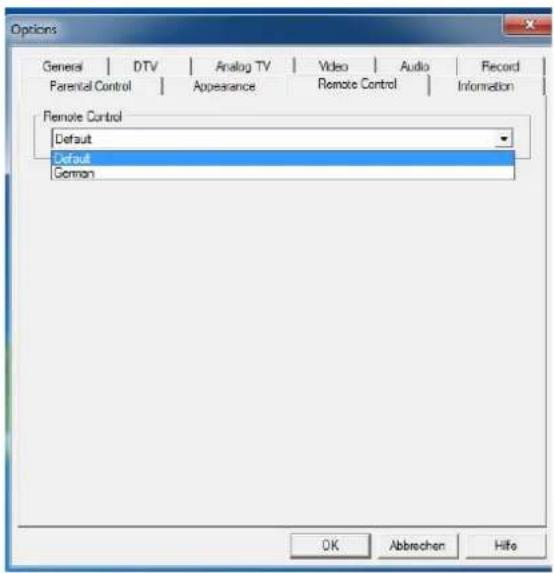
The standard seng of the remote control is "German". If you click on the drop-down list, you can change the language seng for the remote control. Choose "Default".
Aer changing the language seng, click "OK" for saving your adjustments.
You do not have to restart "Blaze DTV 6.0".
5 Operaon Guide
BlazeVideo HDTV Player features very easy usage, below we just guide you through the HDTV operaon, for DVD (only available on Professional Version) and medial les playback, please refer to the Help le which is aached on the driver disc.
5.1 Scan Channels
5.1.1 Auto Scan Channels
If a HDTV device installed or connected to your PC, and its driver has been properly installed, aer launching BlazeVideo HDTV Player, a box will pop up to enquire you whether to scan channels.
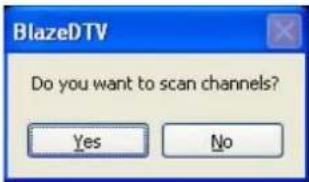
Click Yes, the "Scan" box ejects for you to set scan opons.
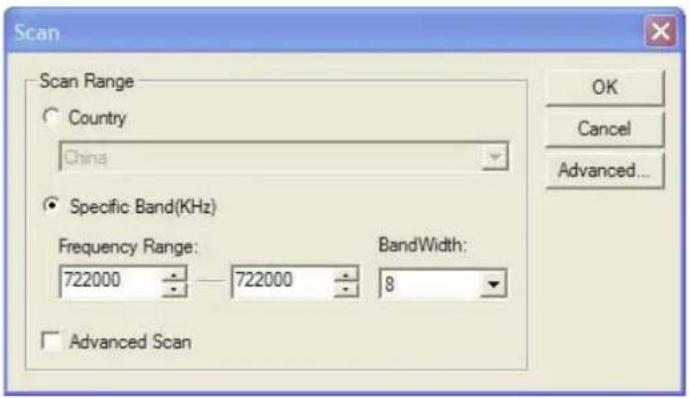
Advanced Seng: Check in "Advanced Scan" and click "Advanced..." to popup "Advanced Seng" box, here you can set advanced scan properes.
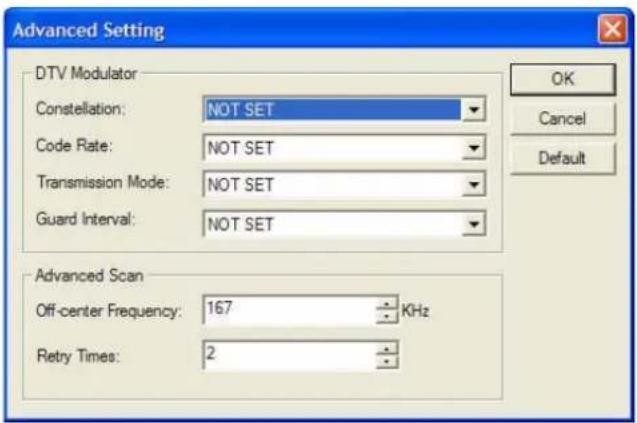
5.1.2 Manually Scan Channels
In TV Advanced Panel click;
In EPG_Channels window click;
Go to Opons->DTV window, click "Scan" buon under "DTV Source".

Abort Scanning: Just press "Abort" buon to stop scanning. (It is recommended you nish scanning one me at least).
5.2 Watch Live TV Show
Select Channel: In EPG_Channels window, double click a desired channel; or click to open channel list to select.
Switch Channel: Click ← to → ch channel.
Browse Channel: Click open channel list, all of the channels will be displayed.
Return to Last Channel: Click → resume the last viewed channel.
Select Subtle: Click

lect your desired subtle.
Select Audio: Click

elect your desired audio seng.
5.3 Display Teletext
Note: The Teletext is acvated only if HDTV service provider provides such service.
Display Teletext:
Click Click "Teletext" in pop-up menu.
Click and click "Show Teletext" in pop-up menu.
Go To: Go to specied teletext page, or press, to go to previous or next page.
Hold: Keep displaying current teletext during other operaons.
Transparent: Display Teletext over the current video by transparent mode.
5.4 TimeShi
TimeShi means you can pause watching a live program to have a break, when you come back you will resume watching from the point at which you paused.
Click to 📄, the video screen will freeze, but the recording will connue.
Click again or click to connue watching TV show from the point at which it was paused.
Click two mes to stop TimeShi and return to the live program.
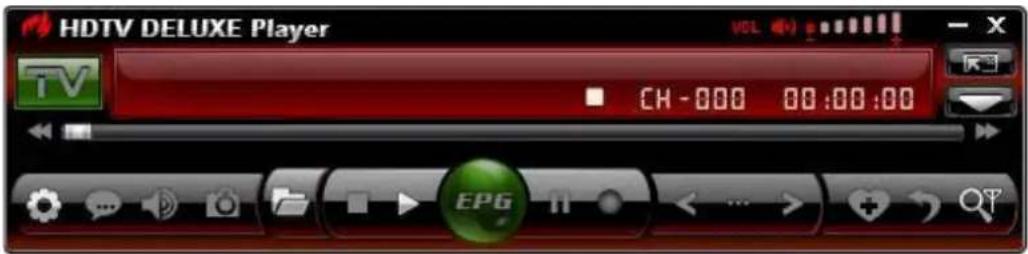
Note: The record duraon depends on your TimeShi Buer Size which can be set in DTV Seng.
5.5 Program Guide
In EPG_Guide panel, click a program to access program details: program tle, start me, end me and program descripon.

Smart Search: Type the start me or keyword of your desired program in the Search box, all the relave program guide will be displayed. Click ,you will clear the search result and resume display all the program guide.
5.6 Live Record TV Show
While you are watching a TV show, click pop up Record oang panel, you will begin to record live HDTV show into MPEG2 le. You can also stop record, play record or delete record le in this record panel.
5.7 Create Schedule Task
In EPG_Schedule window, click create a task.
Aer creang a task and eject below Task box: here you can set task name, task type and task me.

Auto wakeup to perform schedule task at PC hibernaon status: Your PC can auto wakeup to launch schedule task in hibernaon status for power saving, the operaon is below:
Set schedule task;
Hibernate your PC,
Note: To hibernate your PC, you must acvate "Enable Hibernaon" in your PC's Power Opons Properes.
Your PC will auto wake up to perform task at the scheduled me.
5.8 Schedule Record TV Show
Following 4.7 chapter "Create Schedule Task", set task type as "Recording File" and set task start me, it will auto record the preset TV show by the task start me, even though you are away from PC or your PC is hibernated.
5.9 Reminded to Watch
You will be reminded to watch TV show at the schedule me, thus you will never miss any of your favorite program. Just set Task Type as Viewing Reminder when you create schedule task. The other operaons are as schedule record TV.
5.10 Mul-channel Preview
Preview while scanning channels: Tick "Preview found channels" box while scanning channels, each found channel will sequentially display on video window.
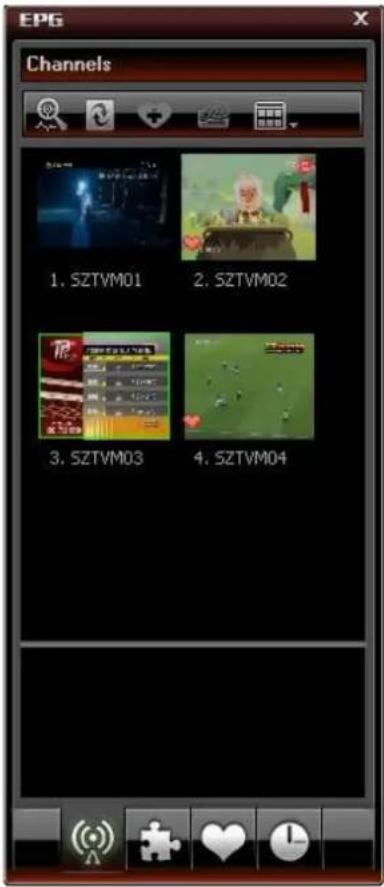
Mul-channel preview in EPG window: Click iG_Channels window to refresh channels, each program will display on video window by sequence, aer refresh nishes, all programs' snapshot will be listed in EPG_Channels window. Double click a program, you will directly playback it.
5.11 Favorite Management
Add to favorite: In EPG_Channels window, select a channel and click add to add favorite.
Watch favorite channel: Double click the favorite channel to directly watch this channel's program.
Favorite management: In EPG_Favorite window, you can freely create, rename, change or delete favorite folder.

5.12 Take Snapshot
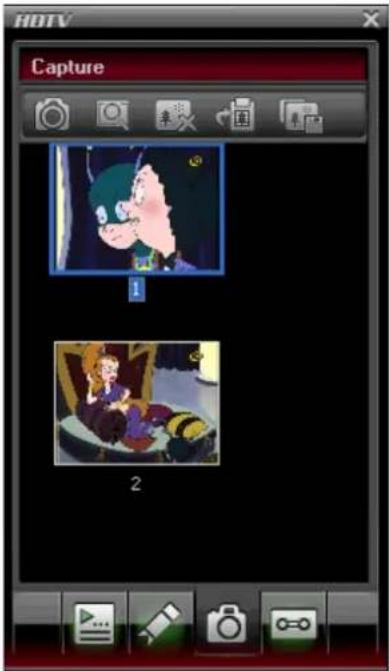
Click take snapshot, the captured image will display in Capture oang panel, default saved as .bmp le in "My Pictures" by sequence number 1, 2, 3, etc. You can freely capture, preview, delete, copy or save the snapshot in Capture oang panel.
6 Sengs
Right click Video window and click Opons, you will open Opons box for advanced seng, below we just take DTV and Record seng as examples.
6.1 DTV Seng

Device: If a HDTV device installed or connected to your PC, the device name will display.
Scan: Click to launch channel scanning.
TimeShi:
Buer File: Display the directory of buer le, please select a directory with large enough space.
Buer Size: Hard disk size for buer and saving paused programs, the bigger size, the longer me of saving program.
Note: Aer you change the buer le or buer size, please restart the program to acvate the change.
Days to keep EPG history: Set the days to keep the EPG history, maximum 7 days to keep EPG history.
Clear History: Delete the EPG history.
Scroll browse programs: Selected to scroll browse programs aer click

6.2 Record Seng

Record Type:
Video & Audio: record HDTV with both video and audio
➢ Audio only: record HDTV with audio only
Save Record File to: Specify the path to save the record le
Locate on Disk: To quickly open the record le's folder
7 Technical Support
7.1 Troubleshoong
How to clear the saved channel:
➢ Please exit the program rstly, then locate "DVB_T.gsl" le in program installaon folder and delete it.
Fail to search channel:
Expand frequency range.
Adjust o-center frequency.
Change parameter in Advanced Seng box.
Fail to playback HDTV show:
Current channel has no data stream, please research channel.
Note: Please view the clock in Main Control Panel to check: if clock change with the me, there is data stream; clock unchanged, no data stream.
Cannot record some channel's program:
The channel adopts AC-3 audio encoding mode.
7.2 Contact/Support
Please collect the following informaon and E-mail us. We will respond you as soon as possible:
Product Order ID
- BlazeVideo HDTV Player's version number
Windows Operang System's version
Hardware conguraon (sound card, VGA card, Image Capture card) and their specicaons
The warning message
The me and process descripons about your troubles.
Email: support@blazevideo.com
Website: hp://www.blazevideo.com
3 Appearance & Menus 36
4 Remote Control 38
5 Operation Guide 39
5.1 Scan Channels 39
5.1.1 Auto Scan Channels 39
5.1.2 Manually Scan Channels 39
5.2 Watch Live TV Show 40
5.3 Display Teletext.... 40
5.4 TimeShift 40
5.5 Program Guide 41
5.6 Live Record TV Show 41
5.7 Create Schedule Task 42
5.8 Schedule Record TV Show 42
5.9 Reminded to Watch 42
5.10 Multi-channel Preview 42
5.11 Favorite Management 43
5.12 Take Snapshot 44
6 Settings 45
6.1 DTV Setting 45
6.2 Record Setting 46
7 Technical Support 47
7.1 Troubleshooting 47
7.2 Contact/Support 47
2 Vue d'ensemble
2.1 Introduction
Still Image Capture:
3 Appearance & Menus


7.2 Contacter le support technique
5.3 Apresentar Teletexto
Apresentar Teletexto:
- USB Digital Terrestrial Receiver
- BlazeVideo HDTV Player v6.0R
- Manual del Usuario
- Índice
- Vista general ....†
- BlazeVideo HDTV Player v6.0R User's Manual
- Content
- Overview
- Introducon
- Features
- Full-featured Digital & Analog TV Soluon:
- Advanced Personal Recording (Digital & Analog TV):
- SII Image Capture:
- Powerful Media Center:
- View Digital Teletext
- Receive Composite or S-Video Signal
- Advanced power saving scheme for Notebook PC
- Outstanding Video & Audio Quality:
- System Requirements
- Appearance & Menus
- Remote Control
- Operaon Guide
- Scan Channels
- Auto Scan Channels
- Manually Scan Channels
- Watch Live TV Show
- Display Teletext
- Display Teletext:
- TimeShi
- Program Guide
- Live Record TV Show
- Create Schedule Task
- Schedule Record TV Show
- Reminded to Watch
- Mul-channel Preview
- Favorite Management
- Take Snapshot
- Sengs
- DTV Seng
- TimeShi:
- Record Seng
- Record Type:
- Technical Support
- Troubleshoong
- How to clear the saved channel:
- Fail to search channel:
- Fail to playback HDTV show:
- Cannot record some channel's program:
- Contact/Support
- Appearance & Menus 36
- Remote Control 38
- Operation Guide 39
- Settings 45
- Technical Support 47
- Vue d'ensemble
- Introduction
- Still Image Capture:
- Contacter le support technique
- Apresentar Teletexto
- Apresentar Teletexto:
Brand : Approx
Model : APPTDTUSBV2
Category : TV receiver