
APPKBWS02 - Keyboard Approx - Free user manual and instructions
Find the device manual for free APPKBWS02 Approx in PDF.


| Product Type | Wireless keyboard and optical mouse |
| Brand | Approx |
| Model | APPKBWS02 |
| Connectivity | Wireless via USB receiver |
| Keyboard power supply | 2 AAA alkaline batteries (not included) |
| Mouse power supply | 2 AAA alkaline batteries (not included) |
| Keyboard shortcut functions | Homepage, email, music, calculator |
| Mouse power saving | LED turns off if receiver disconnected, sleep after 30 min of inactivity |
| Factory reset | Mouse: right button + scroll wheel; keyboard: Esc + Q |
| Receiver storage | Inside the mouse (dedicated compartment) |
| Package contents | Keyboard, mouse, USB receiver, user manual |
| Maintenance | Clean with a soft dry cloth, do not use solvents |
| Safety | Do not expose to moisture, do not open the case |
| Operating systems | Compatible with Windows, Mac OS, Linux (standard USB port) |
| Number of keyboard keys | 104 keys (standard AZERTY estimate) |
| Mouse type | Wireless optical |
| Mouse buttons | 2 buttons + clickable scroll wheel |
| Wireless range | Approximately 10 meters (typical estimate) |
| Keyboard weight | Approximately 500 g (estimate) |
| Mouse weight | Approximately 80 g (estimate) |
Frequently Asked Questions - APPKBWS02 Approx
User questions about APPKBWS02 Approx
0 question about this device. Answer the ones you know or ask your own.
Ask a new question about this device
Download the instructions for your Keyboard in PDF format for free! Find your manual APPKBWS02 - Approx and take your electronic device back in hand. On this page are published all the documents necessary for the use of your device. APPKBWS02 by Approx.
USER MANUAL APPKBWS02 Approx
Wireless Multimedia Keyboard Set
VERSION1.1
Guía de usuario User guide Guide de l'utilisateur Handleiding Guida per l'utente Manual do utilizador
Español.... 1
English.... 4
Français.... 7
Deutsch.... 10
Italiano 13
Português 16
natural_image
Diagram showing a mechanical component with a cutout and an attached plastic housing (no text or symbols)natural_image
Line drawing of a handheld electronic device with a hand inserting a small component (no text or symbols)
natural_image
Line drawing of a hand inserting a small electronic device into a mobile phone case (no text or symbols)Caution: to use this device properly, please read the user's guide before installation.
Installing the batteries
Wireless keyboard and optical mouse are using two AAA alkaline batteries.
Installing batteries in the mouse
Step 1: open the battery compartment
Step 2: Insert the batteries as shown inside the battery compartment
Step 3. Replace the cover

Installing the batteries in the keyboard
Step 1:Remove the battery compartment cover on the bottom of keyboard by squeezing the cover in from the tab to release it
Step 2: Insert the batteries as shown inside the battery compartment
Step 3 Replace the cover

Connecting the receiver
- Insert the receiver into an USB port of your Notebook or PC.

natural_image
Diagram showing a mechanical component with a slot and an attached plastic housing, no text or symbols present.Storage of the receiver in the mouse
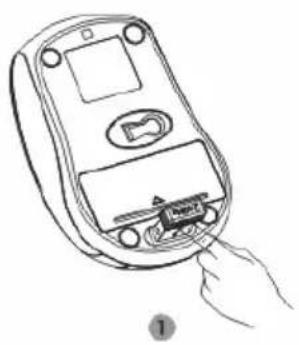
- When you want to use the mouse, you can take out the receiver to computer by the list 1 step
- When you need stop the work or go to travel, you can store the receiver on the bottom of mouse for the moving by the list 2 step
natural_image
Line drawing of a handheld electronic device with a hand inserting a plug into it (no text or symbols)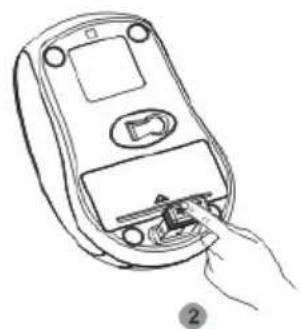
natural_image
Line drawing of a handheld device with a hand inserting a plug into the interior (no text or symbols)Hotkeys on the keyboard
This keyboard have 4 hotkeys located on the top of keyboard

Web Home


Media

Calculator
Power-Save function
This mouse is equipped with Traveling-power-save function,
When you are travelling with this mouse, this Led of the mouse will be switched off automatically for the purpose of power-save, but the pre-condition is that the receiver is disconnected with your notebook or PC.
When your mouse no any click or scroll or moving, the mouse will come into sleeping state for the economize after about 30 minutes, for the wake up, you can click any button for this
Restoring factory default settings
When you find this set doesn't work, you can make the mouse or keyboard in working condition by restoring the mouse back to factory default settings
check the battery volume is normal, if the battery is used out, please replace the new batteries
For the mouse, you could press the right button and middle button(under the scroll wheel) simultaneously, then insert the nano receiver onto the USB port of PC or notebook
For the keyboard, you can press the keys of "ESC" And "Q" at the same time, then insert the nano receiver onto the USB port of PC or Notebook.
natural_image
Diagram showing a mechanical component with a highlighted rectangular slot and an arrow pointing to it, next to a separate 3D block (no text or symbols)natural_image
Line drawing of a handheld mobile phone with a hand inserting a small electronic device (no text or symbols visible)
natural_image
Line drawing of a hand inserting a plug into a device (no text or symbols)natural_image
Diagram showing a mechanical component with a cutout and an attached plastic housing (no text or symbols)natural_image
Line drawing of a handheld electronic device with a hand inserting a plug into it (no text or symbols)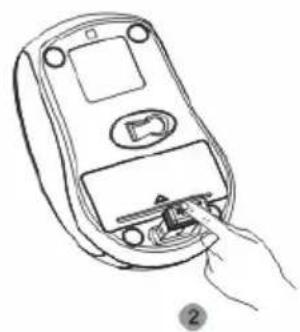
natural_image
Line drawing of a hand inserting a small electronic device into a mobile phone case (no text or symbols)natural_image
Diagram showing a mechanical component with a cutout and an attached housing, no text or symbols presentnatural_image
Line drawing of a handheld electronic device with a small component inserted, showing hand and base (no text or symbols)
natural_image
Line drawing of a handheld electronic device with a hand inserting a plug into the socket (no text or symbols)Tastidi sudltatarpera
natural_image
Diagram showing a mechanical component with a highlighted rectangular slot and an arrow pointing to it, next to a separate 3D block (no text or symbols)Guardar o receptor no rato
natural_image
Line drawing of a handheld electronic device with a hand inserting a small component (no text or symbols)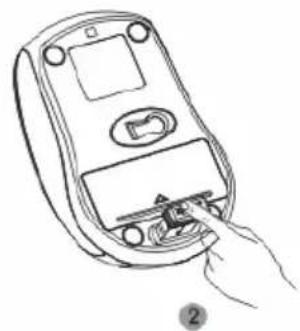
natural_image
Line drawing of a hand inserting a small electronic device into a mobile phone case (no text or symbols)


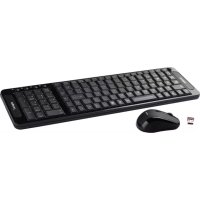
- Wireless Multimedia Keyboard Set
- Installing the batteries
- Installing batteries in the mouse
- Installing the batteries in the keyboard
- Connecting the receiver
- Storage of the receiver in the mouse
- Hotkeys on the keyboard
- Power-Save function
- Restoring factory default settings
- Tastidi sudltatarpera
- Guardar o receptor no rato
Brand : Approx
Model : APPKBWS02
Category : Keyboard