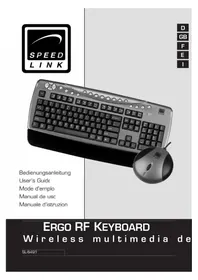
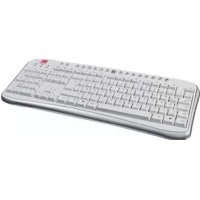
SL-6491 Ergo RF - Keyboard Speedlink - Free user manual and instructions
Find the device manual for free SL-6491 Ergo RF Speedlink in PDF.


User questions about SL-6491 Ergo RF Speedlink
0 question about this device. Answer the ones you know or ask your own.
Ask a new question about this device
Download the instructions for your Keyboard in PDF format for free! Find your manual SL-6491 Ergo RF - Speedlink and take your electronic device back in hand. On this page are published all the documents necessary for the use of your device. SL-6491 Ergo RF by Speedlink.
USER MANUAL SL-6491 Ergo RF Speedlink
text_image
SPEED LINK
text_image
D GB F E I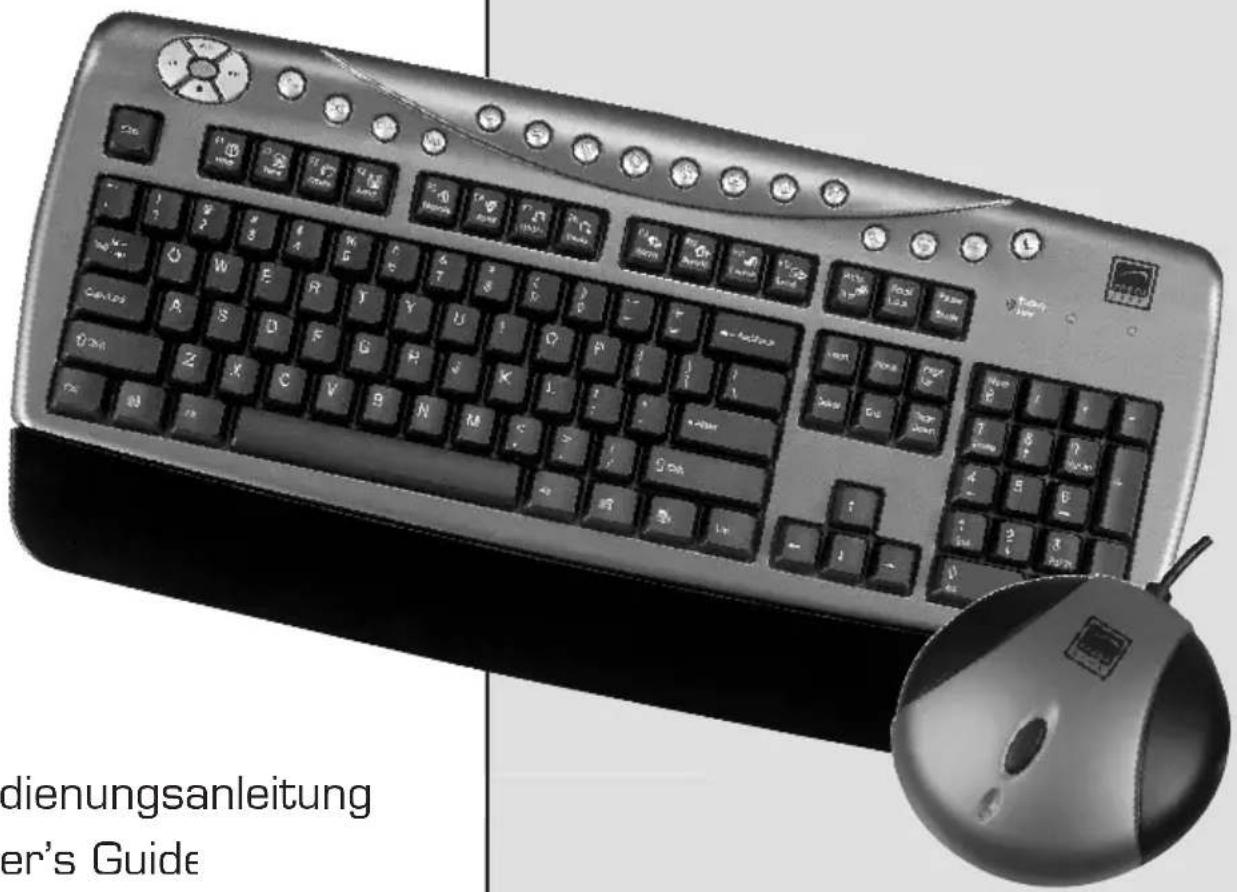
text_image
Press button Battery compartmentThank you for purchasing the wireless Multimedia Keyboard. This keyboard enables wireless working at your PC and offers numerous hotkeys to simplify everyday work at the PC.
GB
Product features
- Wireless keyboard and receiver with PS2 connection
- Practical multimedia, Office and Internet buttons
- Removable wrist support
- PS2 connection
Product includes
- Wireless keyboard and receiver
- Manual
- Software on CD
System requirements
- Windows 95/98/98SE/2000/Me/NT/XP
- PS2 port
- CD ROM drive
1. Software installation under Windows 95/98/98SE/Me/2000/NT/XP
Note Install the supplied software fi rst and then connect the keyboard
- Insert the supplied software in your CD ROM drive.
- If the installation program does not start automatically, click on "Start/Run/Browse" and select your CD ROM drive.
- In the window that opens, select "Keyboard Driver" and click on "Next".
- Follow the instructions on the screen
- Restart the PC after installation is finished if you are asked to
2. Inserting the batteries
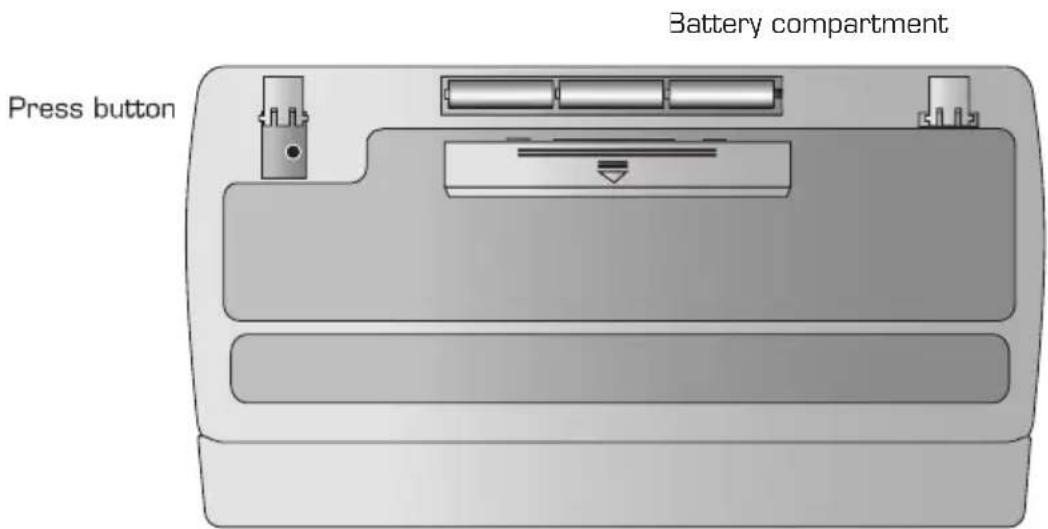
- Remove the cover of the battery compartment on the bottom of the keyboard..
- Insert the two supplied batteries.
- Fit the cover of the battery compartment.
When the battery indicator on the top of the keyboard lights, change the batteries and synchronise the keyboard and receiver again (see section "Establishing a connection between keyboard and receiver").
GB
Use of batteries:
- Keep batteries out of the reach of children.
- Never use old and new batteries together or different types of battery.
- Follow the instructions of the battery manufacturer concerning the handling of batteries.
• Always replace old or weak batteries straight away. - Dispose of and recycle used batteries in accordance with local laws and recommendations.
3. Setting up
- Switch off your computer
- Connect the PS2 plug of the receiver to the appropriate PS2 port of your computer, identified with a keyboard symbol or purple colouring
- Switch on your computer. The operating system may ask you to insert the Windows installation CD. Follow the instructions on the screen.
- Now establish a connection between keyboard and receiver, see section 4 for this.
4. Establishing a connection between keyboard and receiver
I o establish a radio connection between keyboard and receiver, proceed as follows:
- Press the button on the top of the receiver, the LED will start fl ashing
- Press the sunk-in button located under the folding left foot on the bottom of the keyboard, using a pointed object such as a pencil. The LED will stop fl ashing
If interference with other radio equipment occurs, simply repeat the above steps 1-2. A different radio channel will automatically be used.
Note: Synchronisation has to be repeated each time the batteries are changed. Complete the synchronisation procedure within 15 seconds otherwise it will be necessary to repeat the above steps.
text_image
Press button Battery compartment5 Functions
| Button | Function |
| Goes to previous track | |
| Starts and stops the media player. Press once to start the player and again to stop it | |
| Goes to next track | |
| Stops media player | |
| Increases the volume | |
| Mutes the media player | |
| Reduces the volume | |
| Lock | Activates (LED on)/deactivates (LED off) the function keys (F1-F12) |
| Loads the previous web page opened in the web browser. | |
| Loads the next already visited web page in your web browser. | |
| Stops the loading of a web page | |
| Updates the selected web page | |
| Opens the search engine in the web browser | |
| Opens “My Favourites” in your web browser | |
| Opens the start page in your web browser | |
| Opens your default e-mail program (e.g. Outlook) | |
| Opens the “Shut Down Windows” window, ensuring quick log-off of a user. | |
| Opens “My Computer” on your PC, to let you display the content of all networks. | |
| Opens the calculator |
GB
GB

Puts the PC in standby mode if the power management function is activated (in the BIOS of your system)
* The I FD is located on the front of the receiver
Function keys (F1-F12)
The function keys have 2 assigned functions each and can be activated/deactivated by pressing the "Lock" button
 | Activates the Help function in the open program (if available) |
 | Creates a new document in the open program* |
 | Opens a new document (only in programs which support this function) |
 | Saves the file in the active window |
 | Finds and replaces selected text |
 | Starts spell checking in the active document (if the program supports this function) |
 | Undoes the last action |
 | Repeats the last action |
 | Replies to the active e-mail |
 | Replies to all e-mails in the active window |
 | Forwards the e-mail in the active window |
 | Sends the e-mail in the active window |
 | Prints the active document |
 | ["Num Lock" key) For direct input of the Euro symbol |
* On keyboards with Spanish layout, this key has the function "bolc
LED on the keyboard lights when battery status is low
6. Troubleshooting
The keyboard is not working properly.
-
Make sure the keyboard is correctly connected and the software is fully installed.
-
Remove any other already installed keyboard drivers and repeat software installation.
- Perform synchronisation between keyboard and receiver. The radic connection may not have been established between the two devices.
The keyboard is slow to respond
Check whether the battery indicator is lit on the keyboard. If yes, change the batteries and repeat the steps described in section 4.
Safety advice
- Do not attempt to service or repair the device yourself.
- Refer all servicing to qualified service personnel
- Do not use the device in the vicinity of water (e.g. wash basins, bath or swimming pools) and keep it away from moisture, dripping o splashing liquids and rain
Technical data
Model no: SI -6491
Interface: PS/2
Frequency: 27 MHz
Guarantee
We guarantee this product in respect of workmanship and all built-in components for a period of two years from date of purchase
If you need help...
In the event of technical problems, please contact our technical support. The hotline number can be found on the back of this manua
Introduction
text_image
Press button Battery compartment F- Fonctionnement
text_image
Press button Battery compartment Etext_image
Press button Battery compartmentDeclaration of Conformity
The following equipment:
SL-6491
Ergo RF Keyboard
Is herewith confirmed to comply with the requirements set out in the R&TTE Directive 1999/5/EC Annex IV
For the evaluation regarding the Directives, the following standards were applied:
1999/5/EC:
The following manufacturer/importer is responsible for this:
First Wise Media GmbH
Im Dort 5,
D-2/404 Heeslingen
Person responsible for this declaration: