
GP-E2 - Camera CANON - Free user manual and instructions
Find the device manual for free GP-E2 CANON in PDF.


| Product type | GPS receiver for Canon EOS cameras |
| Dimensions (W × H × D) | Approx. 54.3 × 72.9 × 44.2 mm |
| Weight (without battery) | Approx. 82 g |
| Power supply | One AA/LR6 battery (alkaline, NiMH, or Li-ion) |
| Battery life | Approx. 39 hours with alkaline battery (default positioning interval) |
| Receiving frequency | 1,575.42 MHz (L1 band) |
| Positioning intervals | 1 s, 5 s, 10 s, 15 s, 30 s, 1 min, 2 min, 5 min |
| Main functions | Geotagging images, log recording (LOG mode), digital compass, automatic time setting |
| Geotagging | Latitude, longitude, altitude, direction, UTC time |
| Digital compass | Triaxial geomagnetic sensor + triaxial accelerometer |
| Interface | Digital connector for dedicated cable (cables supplied: 25 cm and 1.5 m) |
| Operating temperature | 0 °C to +40 °C |
| Operating humidity | 85% or less |
| Supplied accessories | Storage case, connection cables (25 cm and 1.5 m), regulatory brochure |
| Spare parts and repairability | Contact Canon after-sales service. Batteries and cables replaceable. |
| Maintenance and cleaning | Clean with a dry cloth. Do not use solvents (thinner, benzene). |
| Safety precautions | Avoid short circuits, excessive heat, humidity. Remove battery if not in use for a long time. |
Frequently Asked Questions - GP-E2 CANON
User questions about GP-E2 CANON
0 question about this device. Answer the ones you know or ask your own.
Ask a new question about this device
Download the instructions for your Camera in PDF format for free! Find your manual GP-E2 - CANON and take your electronic device back in hand. On this page are published all the documents necessary for the use of your device. GP-E2 by CANON.
USER MANUAL GP-E2 CANON
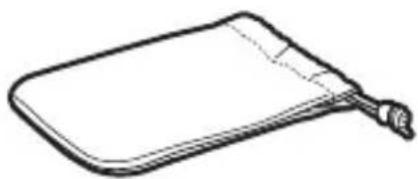
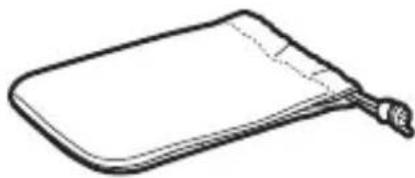
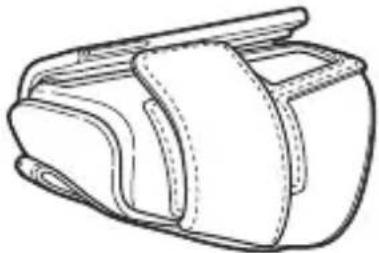
GP-E2 storage case


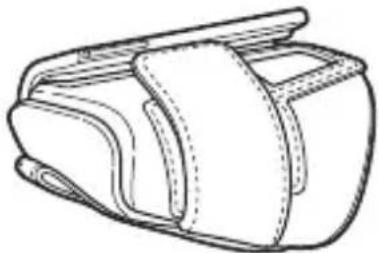
Carrying case
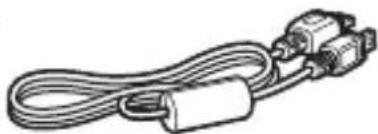
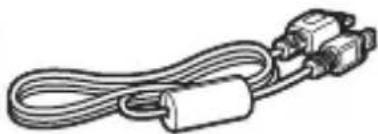
Connection cable

Approx. 25 cm
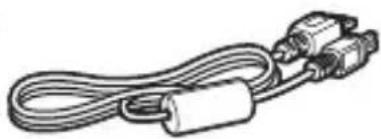
Approx. 1.5 m
Please read before use
Regulatory documentation
About the case
1 Open the lid
2 Insert the batteries
- Insert the negative terminal of the battery first.

3 Close the lid
Battery check
Check with the <BATT.> lamp.
● Slow flashing: sufficient remaining ● Fast flashing: low remaining - Off: no battery
ON position
4 Moving the Camera

The GPS Receiver GP-E2 can geotag your shots and record the route you travel. The log file containing the shooting location and movement can be saved to a computer or converted to a KMZ file format with the EOS software GPS Log File Utility (p.28). The receiver can also set the camera time.
Before Use
Before use, check whether your camera menu displays [GPS device settings].

Example of menu display
Cameras that display the settings
- The functions described in this manual are supported by the receiver. (With certain cameras, some functions cannot be used.)
Cameras that do not display the settings
- Geotagging images (and adding direction information) is not supported while shooting.
- Only the logging function (LOG> mode) is available.
EOS 5D Mark III and EOS 7D Users
If [GPS device settings] is not displayed on your EOS 5D Mark III or EOS 7D camera, update the camera firmware to a version compatible with the receiver. The menu item will be displayed after you update the firmware.
For details, contact a Canon Service Center.

- With the EOS 7D, you cannot append the shooting direction data to the images. (It cannot use the receiver's digital compass.)
- With certain cameras other than the EOS 7D, you also cannot append the shooting direction data to the images. (They cannot use the receiver's digital compass.) For details, refer to the camera's instruction manual or Canon Web site.
Geotagging Images and Adding the Shooting Direction
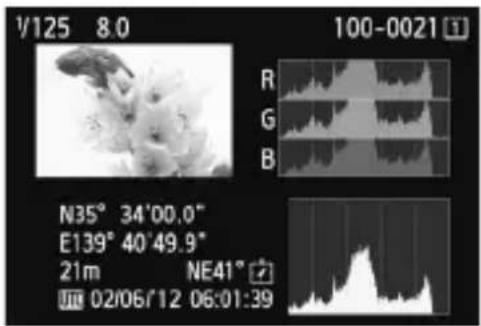
- Supported by cameras that display [GPS device settings] in the menu.
- Shots taken while the receiver is attached to the camera are geotagged, adding location information (latitude, longitude, elevation, and shooting time (UTC)) to images.
- Shooting locations of geotagged images can be viewed on a virtual map on a computer.
Images can also be tagged with the shooting direction using the receiver's digital compass (magnetic north standard).
Logging Routes Traveled with the Receiver
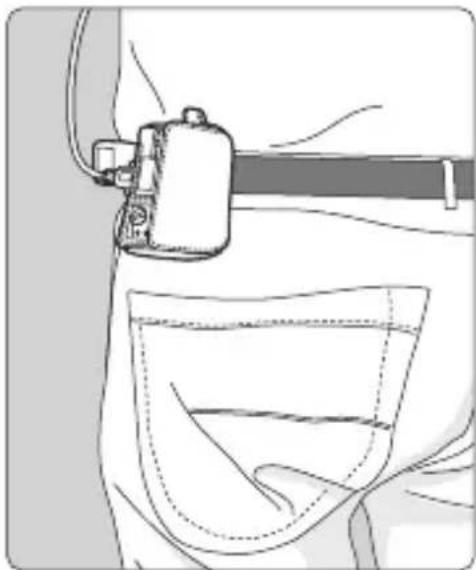
- In logging mode (p.18), the receiver keeps a record of location information along the route traveled. The route can be viewed on a virtual map.
- Logs can also be used to geotag images at a later time.
Setting the Camera Time
- Supported by cameras that display [GPS device settings] in the menu, except the EOS 7D.
- The camera time can be set using GPS signals. On the EOS-1D X, high-precision adjustment is performed with a margin of error of approx. ±0.02 second relative to UTC time, and on other cameras, the margin is approx. ±1 second.

- With the EOS 7D, you cannot append the shooting direction data to the images. (It cannot use the receiver's digital compass.)
- With certain cameras other than the EOS 7D, you also cannot append the shooting direction data to the images. (They cannot use the receiver's digital compass.) For details, refer to the camera's instruction manual or Canon Web site.
- Some traveling conditions, locations, or receiver settings may cause inaccurate location information to be added to images.
- You cannot use the cameras with the GP-E2 connected using the connecting cable if they do not support the communication with the connecting cable. Refer to the camera's instruction manual or Canon Web site for details.

Coordinated Universal Time, abbreviated UTC, is essentially the same as Greenwich Mean Time.
Item Checklist
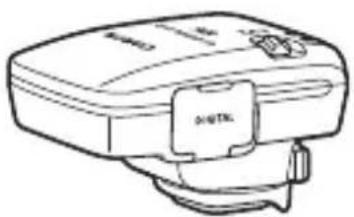
GP-E2 Storage case
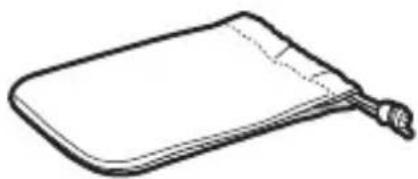
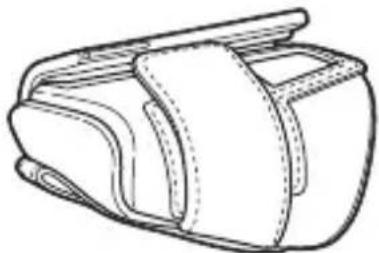
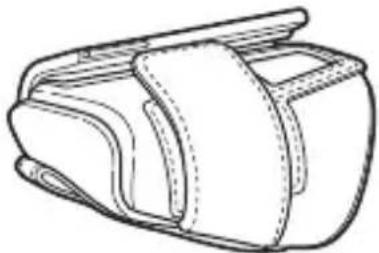
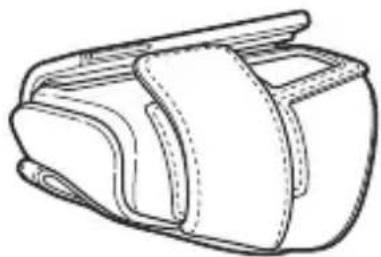
Carrying case
Connecting cables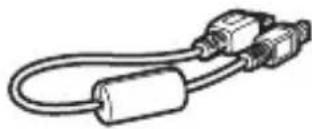
Approx. 25 cm / 9.8 in.

Approx. 1.5 m / 4.9 ft.
Preliminary Notes (Read before use)
Regulation leaflet
Storage and Carrying Cases
Before using the storage case, insert the receiver in the carrying case to prevent scratches. The storage case also accommodates the connecting cables.
Connecting Cables
- Use the 25 cm / 9.8 in. or 1.5 m / 4.9 ft. connecting cable if your camera displays [GPS device settings] in the menu.
- Use the 25 cm / 9.8 in. cable to connect the receiver to the EOS 7D or other camera that does not support communication through the hot shoe. Also use this cable when attaching the receiver to the optional Accessory Bracket AB-E1 (p.30).
- Use the 1.5 m / 4.9 ft. cable when connecting the receiver to your camera while it is in the provided carrying case.

- With certain cameras, you cannot use the connection cable. For details, refer to the camera's instruction manual or Canon Web site.
- For cameras that do not support the communication through the hot shoe other than the EOS 7D, refer to the camera's instruction manual or Canon Web site for details.
Contents
Introduction.... 2
Features 3
Item Checklist.... 5
Conventions Used in this Manual.... 7
Nomenclature 8
Inserting the Battery 9
Attaching and Detaching the Receiver 10
Turning the Receiver On 11
Acquiring GPS Signals.... 13
Geotagging Images as You Shoot 16
Logging the Route Traveled.... 18
Setting the Positioning Interval.... 20
Using the Digital Compass.... 22
Setting Time from GPS on the Camera.... 26
GPS Precautions.... 27
GPS Log File Utility 28
Using a Bracket (Sold Separately) 30
Specifications 31
Safety Precautions 32
Conventions Used in this Manual
Meaning of Symbols

: Warning to prevent shooting problems.
: Supplemental information.
(p. **): Reference page numbers for more information.
The icons and markings indicating the receiver's controls and settings used in the manual correspond to the icons and markings on the camera and on the receiver.
Basic Assumptions
- All operations in this manual assume that the power switches of both the camera and receiver are set to .
- The EOS 5D Mark III is used as an example for illustrations and screens in this manual. Note that the screens displayed on your camera may differ, depending on the camera model used.
- Windows is a trademark or registered trademark of Microsoft Corporation in the United States and other countries.
- macOS is a registered trademark of Apple Inc. in the United States and other countries.
- Google™, Google Maps™, and Google Earth™ are trademarks of Google Inc.
- All other corporate and brand names in this manual are trademarks or registered trademarks of their respective owners.

Inserting the Battery
Insert one AA/LR6 battery as follows.

1 Open the cover.
- Slide the battery compartment cover as shown by the arrows to open the cover.
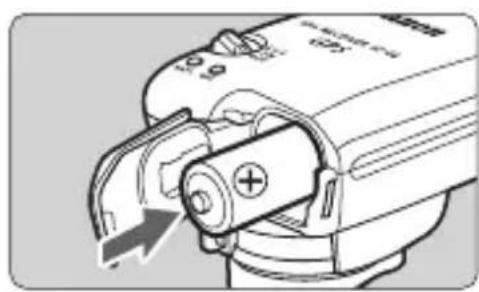
Insert the battery.
- Insert the battery with the negative terminal first, all the way in.
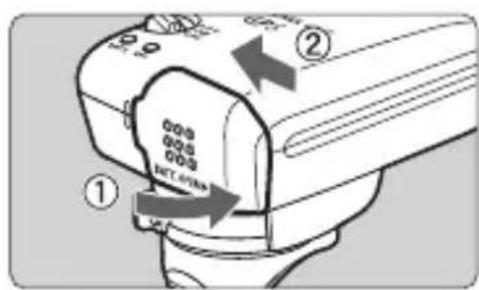
3 Close the cover.
- Close the cover and slide it as shown by the arrows.
Battery Life
The receiver can be used for about 39 hours under default settings with a new AA/LR6 alkaline battery (based on Canon testing standards). Battery life varies depending on the positioning interval for location information, as well as GPS signal conditions (p.21).

Using AA/LR6 batteries other than the alkaline type may cause improper battery contact due to the irregular shape of battery contacts.

NiMH and Li-ion AA/LR6 batteries can also be used.
Attaching and Detaching the Receiver
The receiver can either be attached directly to your camera or carried with you in the carrying case.

1
Attach the receiver.
- Turn off the receiver.
- Insert the receiver's mounting foot fully into the hot shoe.
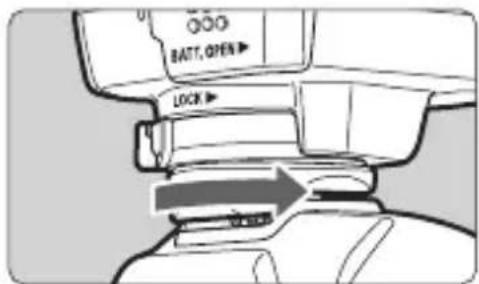
2
Secure the receiver.
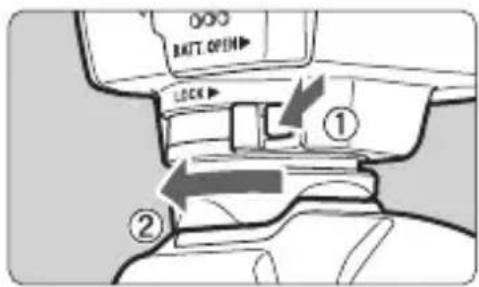
- Slide the mounting foot locking lever to the right. The locking lever will click into place.
3
Detach the receiver.
- Turn off the receiver.
- While pressing the release button, slide the mounting foot locking lever to the left and detach the receiver from the camera.

● Always make sure to turn the receiver off before attaching or detaching it. - Depending on the camera model, if you turn on/off the GP-E2 or connect/disconnect the interface cable during Live View shooting or movie shooting, Live View shooting or movie shooting may stop. - Attaching the receiver directly to the camera will prevent you from using the camera's built-in flash or an external flash unit. To use flash, keep the receiver in the carrying case and connect it to the camera with the provided 1.5 m / 4.9 ft. cable, or attach the receiver to the Accessory Bracket AB-E1 (sold separately, p.30).
Turning the Receiver On

Checking the battery level
Check the battery level on the indicator.
Slow blinking : Level OK
- Fast blinking : Little power left
- Off : Replace battery
Position
The receiver functions in this position only with EOS DIGITAL cameras that display [GPS device settings] in the menu.
- Shots taken while the receiver is attached to the camera are geotagged, adding location information (latitude, longitude, elevation, and UTC, Coordinated Universal Time) to images.
Images can also be tagged with the shooting direction, using the receiver's digital compass.
Position
- With the switch in this position, the receiver keeps a record of location information along the route traveled.
- The route can be viewed on a virtual map. Logs can also be used to geotag images at a later time.
- The images that can be geotagged after shooting with logging information are JPEG and RAW images (file extension: CR2) shot with EOS DIGITAL cameras.
- Movie files can also be geotagged this way at a later time, when using cameras that display [GPS device settings] in the menu.
- When the receiver is attached or connected to a camera that displays the [GPS device settings] menu item, the receiver will geotag images as you shoot, and periodically log the location information. Images can also be tagged with the shooting direction.

- With the EOS 7D, you cannot append the shooting direction data to the images. (It cannot use the receiver's digital compass.)
- With certain cameras other than the EOS 7D, you also cannot append the shooting direction data to the images. (They cannot use the receiver's digital compass.) For details, refer to the camera's instruction manual or Canon Web site.
Acquiring GPS Signals
To acquire GPS signals, bring the receiver outdoors where the sky is unobstructed and aim it up. Keep your hand or other objects off the top of the receiver.
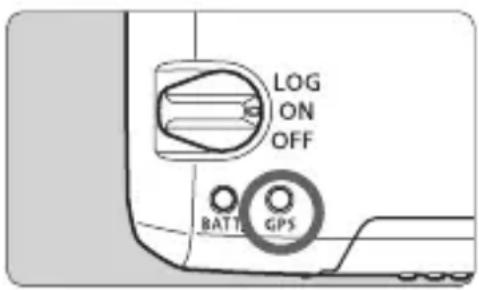
Turn the power switch to or to start automatic GPS signal acquisition. To check the acquisition status, watch the blinking of the red indicator.
Fast blinking: Signal not acquired yet Slow blinking: Signal acquired

Signal acquisition (indicated by slow blinking) takes about 30 – 60 seconds under favorable conditions after you turn the receiver on.
Blinking after Acquisition
The receiver blinks every 3 seconds or every 6 seconds. In 6-second blinking mode, although it blinks every 6 seconds as needed to conserve battery power, the GPS functions are the same as usual 3-second blinking mode.
Camera Icon
When the receiver is attached or connected to a camera that displays the [GPS device settings] menu item, GPS signal status is also shown on the camera LCD panel or LCD monitor (p.15).
Blinking: Signal not acquired yet. Constant: Signal acquired.
* The icon is only displayed when the receiver is communicating with the camera.

Places with Poor GPS Coverage
Location information may not be recorded, or inaccurate information may be recorded where GPS signal coverage is poor, such as in the following places.
- Indoors, underground, near buildings or in valleys, in tunnels or forests
- Near high-voltage power lines or mobile phones operating on the 1.5 GHz band
- When the receiver is inside a bag or suitcase
- When traveling through different environments
- Even in other places, GPS satellite movement may interfere with geotagging and cause missing or inaccurate location information. The information may also indicate that the camera has been used in a different location, even if you are shooting at the same place.
Appended Information
- When the receiver and the camera are connected with a cable, shots taken immediately after turning on the camera's power switch (or resuming use after auto power off) may not be geotagged. Similarly, directions may not be recorded correctly. Either wait a moment before shooting or, if your camera supports communication through the hot shoe, attach the receiver to the hot shoe. When the receiver is attached to the hot shoe, do not connect the camera and receiver with a cable. The EOS 7D does not support communication through the hot shoe.
- Certain cameras other than the EOS 7D also do not support communication through the hot shoe. For details, refer to the camera's instruction manual or Canon Web site.
- With the EOS 7D, you cannot append the shooting direction data to the images. (It cannot use the receiver's digital compass.)
- With certain cameras other than the EOS 7D, you also cannot append the shooting direction data to the images. (They cannot use the receiver's digital compass.) For details, refer to the camera's instruction manual or Canon Web site.
- If mirror lockup is performed when the receiver is attached to the hot shoe, location information where the mirror was locked will be attached to the images. If mirror lockup is performed when the receiver is connected to the camera with a cable, shooting location will be attached to the images as location information. For convenience, the receiver can be left attached to the hot shoe.
Viewing GPS Information
Check GPS information as follows when the receiver is attached or connected to a camera that displays [GPS device settings] in the menu.
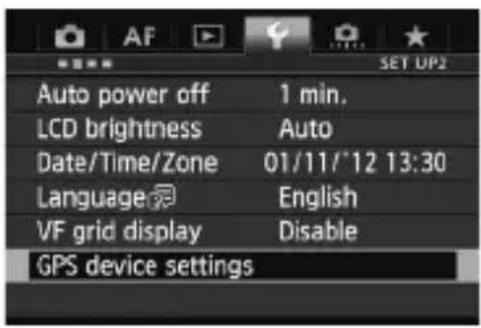
1 Select [GPS device settings].
- On the EOS-1D X and other models that display the following screen, set [GPS device] to [Enable], and then select [GPS device settings].
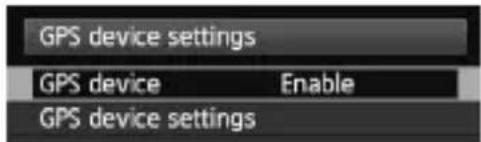

Select [GPS information display].
Detailed GPS information is displayed.
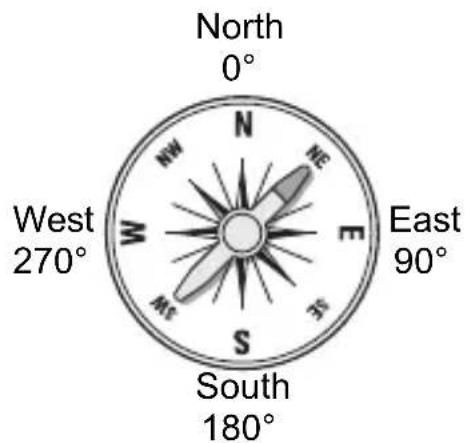
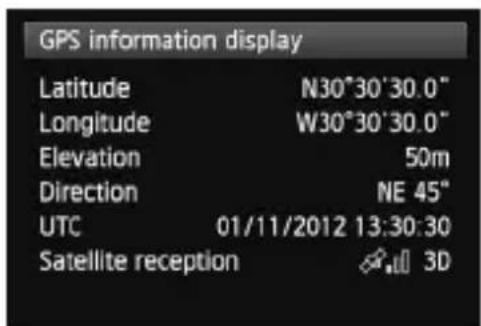
- In this sample screenshot, [Direction: NE 45°] indicates that the camera was facing 45° northeast.
[UTC] (Coordinated Universal Time) is essentially the same as Greenwich Mean Time.
The icon indicates signal conditions. When <3D> is displayed, elevation can also be recorded. However, elevation cannot be recorded when <2D> is displayed.
Geotagging Images as You Shoot
When the receiver is attached or connected to a camera that displays the [GPS device settings] menu item, images are geotagged as you shoot.
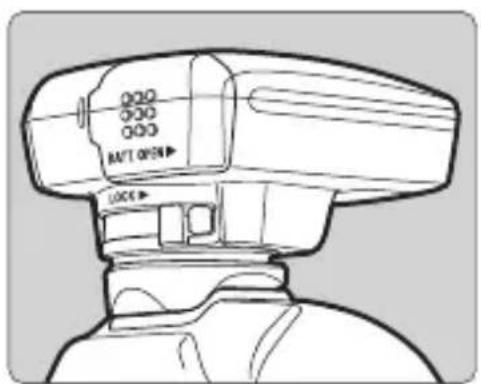
- Simply shoot with the receiver attached to your camera. Images can also be tagged with the shooting direction.
Users of the EOS 7D or other camera that does not support communication through the hot shoe

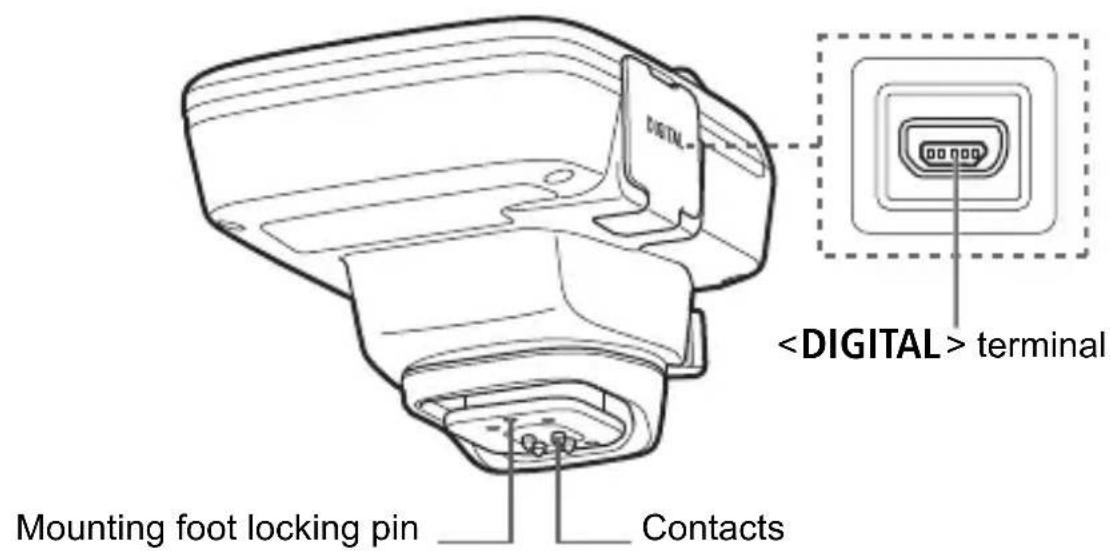
- Plug the end of the cable labeled into the receiver's terminal. Plug the other end of the terminal, labeled , into the camera's terminal. Do not plug the end of the cable labeled into the camera's terminal, which may damage it.
Geotagging Information
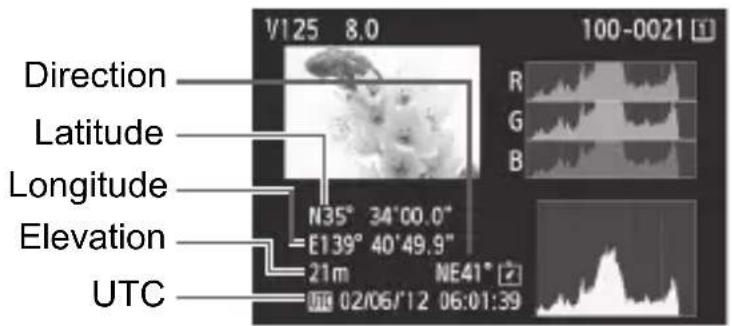

- With the EOS 7D, you cannot append the shooting direction data to the images. (It cannot use the receiver's digital compass.)
- With certain cameras other than the EOS 7D, you also cannot append the shooting direction data to the images. (They cannot use the receiver's digital compass.) For details, refer to the camera's instruction manual or Canon Web site.
- For movies, the location information for when you started movie shooting is recorded. Note that signal acquisition conditions are not recorded.

When using the receiver at the same time as an external or built-in flash, attach the receiver to the Accessory Bracket AB-E1 (sold separately, p.30).
Logging the Route Traveled
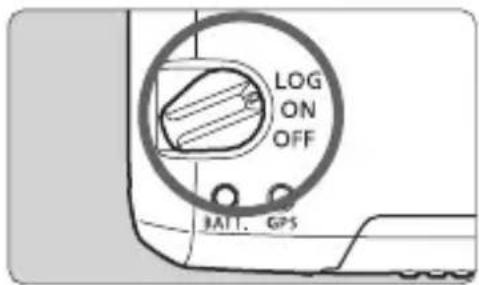
Setting the power switch to will automatically record location information along the route traveled on the receiver itself. (There is no need to connect the receiver to the camera.)

When the receiver is attached or connected to a camera that displays the [GPS device settings] menu item, the receiver will geotag images as you shoot, and periodically log the location information. Images can also be tagged with the shooting direction.

- With the EOS 7D, you cannot append the shooting direction data to the images. (It cannot use the receiver's digital compass.)
- With certain cameras other than the EOS 7D, you also cannot append the shooting direction data to the images. (They cannot use the receiver's digital compass.) For details, refer to the camera's instruction manual or Canon Web site.
Location Information Logs
Location information is recorded at regular intervals along the route traveled with the receiver, as shown in the positioning interval table.
Daily logs (p.27) are saved on the receiver itself. The number of days for which you can store logs depends on the positioning interval you specify in [Position update timing] (p.20). Log files can be saved to a computer or converted to a KMZ file format with the EOS software GPS Log File Utility (p.28).
When the receiver's internal memory becomes full, the oldest log files are overwritten with new information, one by one.
Log File Capacity, by Positioning Interval
| Position Update Timing | Log Files (Approx.) | Position Update Timing | Log Files (Approx.) |
| Every second 4.5 | days Every 30 sec. | 128 days | |
| Every 5 sec. 23 | days Every minute 1 | 28 days | |
| Every 10 sec. 45 | days Every 2 min. 1 | 28 days | |
| Every 15 sec. 68 | days Every 5 min. 1 | 28 days |
* Capacity when logging eight hours per day

- When carrying the receiver in a bag or suitcase as you travel, make sure the receiver faces upward and nothing is on top of it.
- Set the camera time and date as accurately as possible. Also, on cameras that support time zones and daylight saving time, use appropriate settings for the shooting location.

- Logging also enables subsequent geotagging of JPEG and RAW images (file extension: CR2) shot with EOS DIGITAL cameras.
- Movie files can also be geotagged this way at a later time, when using cameras that display [GPS device settings] in the menu.
Setting the Positioning Interval
You can specify the positioning interval when the receiver is attached or connected to a camera that displays the [GPS device settings] menu item. Shorter positioning intervals yield more accurate location information for your images. However, this also consumes more battery power. Location information for cameras without this menu item are updated every 15 seconds (the update interval can be changed with the EOS software GPS Log File Utility (p.28).
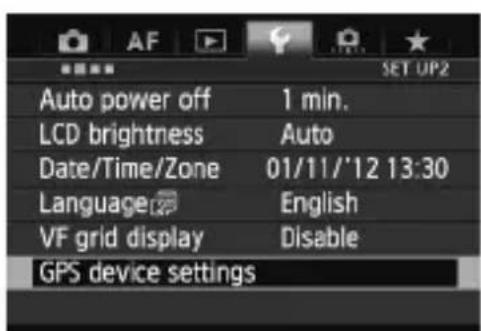
1 Select [GPS device settings].
- On the EOS-1D X and other models that display the following screen, set [GPS device] to [Enable], and then select [GPS device settings].
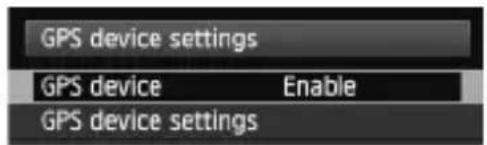

Select [Position update timing].
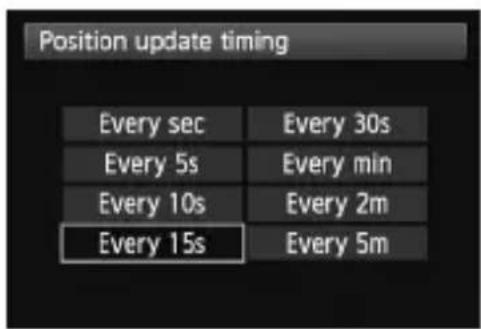
3 Select the time.
Estimated Battery Life, by Positioning Interval
| Position Update Timing | Battery Life (Approx.) | Position Update Timing | Battery Life (Approx.) |
| Every second 10 | hours Every 30 sec. | 39 hours | |
| Every 5 sec. 27 | hours Every minute | 54 hours | |
| Every 10 sec. 37 | hours Every 2 min. | 63 hours | |
| Every 15 sec. 39 | hours Every 5 min. | 92 hours |
*With an AA/LR6 alkaline battery. *At normal temperature (23°C / 73°F). *Battery life will be shorter when signal conditions are unfavorable. *The nature of GPS may cause some inconsistency between positioning intervals.
Using the Digital Compass
When the receiver is attached or connected to a camera that displays [GPS device settings] in the menu or mounted on a bracket (p.30), images are tagged with the direction the receiver is facing.
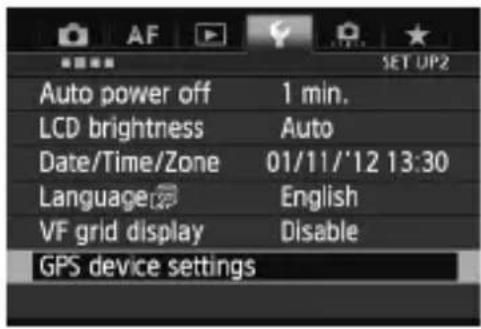
1 Select [GPS device settings].
- On the EOS-1D X and other models that display the following screen, set [GPS device] to [Enable], and then select [GPS device settings].

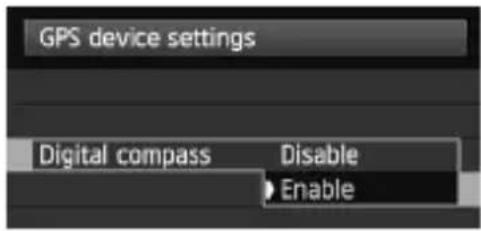
Enable the digital compass.
- Select [Digital compass] and press .
- Select [Enable] and press .
Viewing the Compass When Shooting
You can see which direction the camera is facing as you shoot.
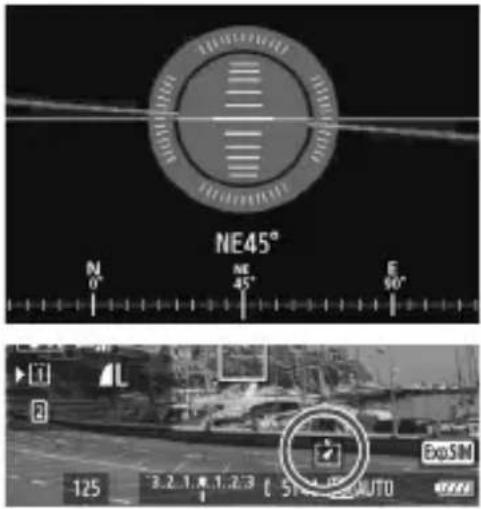
- To view the compass, press the button or button.
- Cameras equipped with an electronic level will display the compass with the level.
- The compass is also displayed in Live View or movie shooting.

- With the EOS 7D, you cannot use the receiver's digital compass.
- With certain cameras other than the EOS 7D, you also cannot use the receiver's digital compass. For details, refer to the camera's instruction manual or Canon Web site. Images will not be tagged with the correct shooting direction unless the camera and receiver are facing exactly the same direction. The direction is not logged.
Calibrating the Digital Compass
Calibrate the digital compass at the shooting location. Also calibrate the compass if the direction shown as you shoot seems incorrect.

1 Select [GPS device settings].
- On the EOS-1D X and other models that display the following screen, set [GPS device] to [Enable], and then select [GPS device settings].


2 Set [Digital compass] to [Enable].
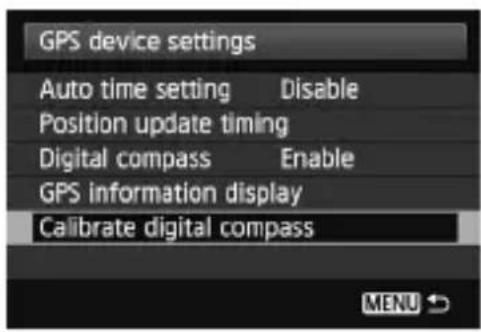
3 Select [Calibrate digital compass].
- Press <SET> to prepare for calibration.

- Move the camera as shown on the next page.
![graph TD A["1: Camera Setup"] --> B["2: Display"] B --> C["3: Equipment Setup"]](/content/2026/06/1238670/images/eac39764154ee7abbed164188d4af639d150911f8b47ec48794803198f7329a8.jpg)
4 Move the camera.
① Wave the camera laterally in at least a 180° arc. ② Wave the camera up and down in at least a 180° arc. ③ Rotate the camera in at least a 180° arc as it faces the same direction. - Be careful not to drop the camera during calibration. Steps ①, ②, and ③ can be done in any order. Keep moving the camera until calibration is finished. - If the compass is not calibrated after you do this, turn your body to the right or left and move the camera again.

5 Finish calibration.
- A screen indicating completion is displayed when calibration is finished. Although this screen may be displayed while you are still moving the camera in a direction of step 4 (①, ②, or ③), calibration has been finished successfully.

- For safety, remove the lens and other accessories before calibration.
- Calibration may not be possible under the following conditions because the digital compass uses geomagnetism: At high altitudes, near magnetic fields, in steel-structure buildings, or underground. Even if calibration is possible, the receiver may not be able to detect the shooting direction correctly.
Setting Time from GPS on the Camera
You can set the time from GPS when the receiver is attached or connected to a camera that displays the [GPS device settings] menu item (except on the EOS 7D). The EOS-1D X performs high-precision adjustment with a margin of error of approx. ±0.02 second relative to UTC time. With other cameras, the margin is approx. ±1 second.

1 Select [GPS device settings].
- On the EOS-1D X and other models that display the following screen, set [GPS device] to [Enable], and then select [GPS device settings].


Select [Auto time setting].
- Select an option and press < > .
- [Auto update] updates the time after the camera and the receiver are turned on and a GPS signal is received.
![CANON GP-E2 - Select [Auto time setting]. - 1](/content/2026/06/1238670/images/ee159d6f0065202598fc89fccfb91a10d17aafc2b9f4b2acf8b3c536d3c05f36.jpg)
- If the GPS signal cannot be received from five or more satellites, time setting is not possible. [Set now] will be unavailable.
- Even if [Set now] is selected, auto time adjustment may not be possible, depending on the timing of GPS signal acquisition.
- When [Auto time setting] is set to [Auto update], the date and time cannot be set manually using [Date/Time/Zone] in the menu.
- If you prefer not to change the time (when using [Sync time between cameras] with WFT series, for example), select [Auto time setting: Disable].
GPS Precautions
Keep the following points in mind when using the receiver.
- In certain countries and regions, the use of GPS may be restricted. Therefore, be sure to use GPS in accordance with the laws and regulations of your country or region. Be particularly careful when using GPS outside your home country.
- Be careful about using GPS functions where the operation of electronic devices is restricted.
- Others may be able to locate or identify you by using location data in your geotagged pictures or movies. Be careful when sharing these still photos, movies, or GPS log files with others, as when posting them online where many others can view them.
- GPS signal reception may take longer after battery replacement, or when the power switch has been off for a prolonged period.
- Never leave the receiver near any equipment that generates a strong magnetic field, such as magnets or electric motors.
Log Files
One log file is created every 24 hours according to Coordinated Universal Time (UTC). For this reason, depending on the time difference from UTC (essentially the same as Greenwich Mean Time) to the shooting location, only one log file may be created even if logging is active across two days. Similarly, two separate log files may be created even if logging is only active within one day.
GPS Log File Utility
Log files recorded with the GP-E2 can be saved to a computer or converted to a KMZ file format with the EOS software GPS Log File Utility.
Downloading and Installing
1. Download GPS Log File Utility.
- Connect to the Internet from a computer and access the following Canon Web site.
www.canon.com/icpd
- Download GPS Log File Utility. • Decompress it on the computer.
For Windows: Click the displayed installer file to start the installer.
For macOS: A dmg file will be created and displayed. Follow the steps below to start the installer.
(1) Double-click the dmg file.
A drive icon and installer file will appear on the desktop. If the installer file does not appear, double-click the drive icon to display it.
(2) Double-click the installer file.
The installer starts.
2. Follow the on-screen instructions to install.
Using a Bracket (Sold Separately)
Attaching the Accessory Bracket AB-E1 (sold separately) enables you to use the receiver and an external or built-in flash at the same time. Attach the camera and receiver to the bracket as shown.
Keep the camera aligned with the bracket during attachment. Even a little misalignment will prevent accurate direction recording.
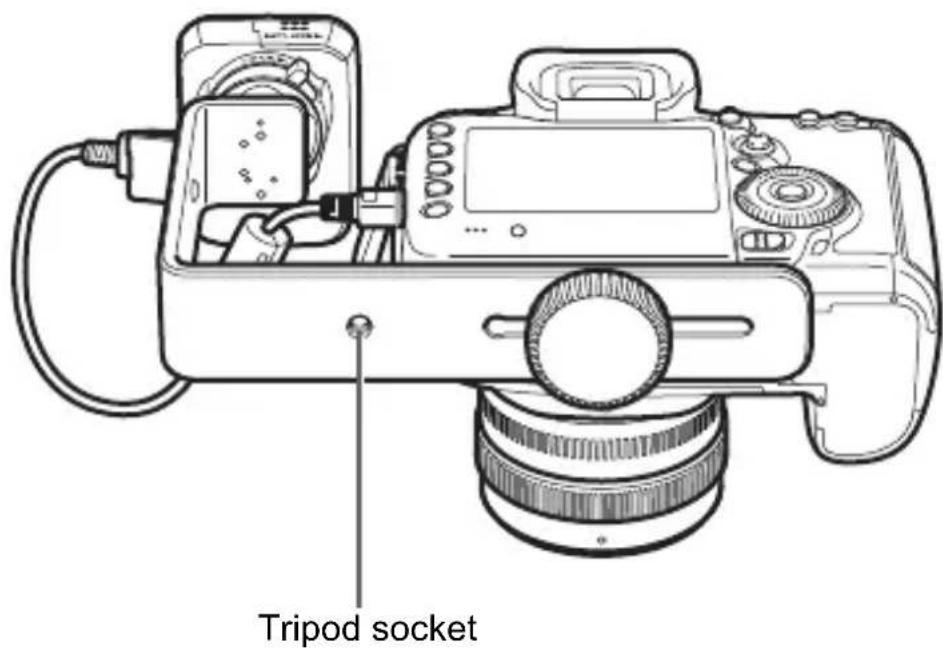
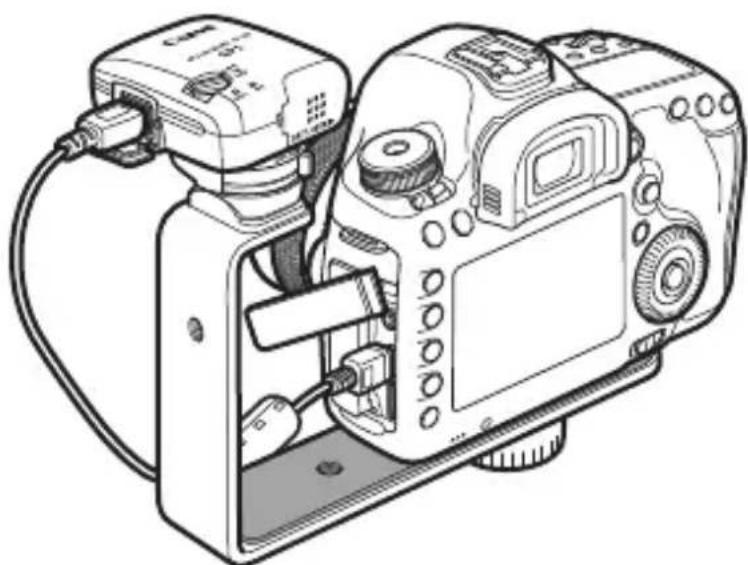

With certain cameras, you cannot use the connection cable. For details, refer to the camera's instruction manual or Canon Web site.
Specifications
Compatible cameras EOS DIGITAL cameras
*Cameras with [GPS device settings] menu item: All features available *Cameras without [GPS device settings] menu item: mode available
Geotagging images Latitude, longitude, elevation, direction,
Coordinated Universal Time (UTC) and signal acquisition status
*GPS-compatible cameras allow images to be geotagged during shooting (cameras that cannot use the receiver's digital compass cannot tag the shooting direction)
Reception frequency 1575.42 MHz (L1 band)
Positioning interval 1, 5, 10, 15, or 30 seconds, or 1, 2, or 5 minutes
Logging mode NMEA-0183
One file per day, based on UTC
Time adjustment Camera time can be set from GPS time data
Digital compass Triaxial geomagnetic sensor and triaxial acceleration sensor used to calculate direction (some cameras do not support this function)
Interface Digital terminal for connecting a dedicated interface cable
Power supply One AA/LR6 alkaline battery
(NiMH and Li-ion batteries supported)
Dimensions Approx. 54.3 x 72.9 x 44.2 mm /
2.1 x 2.9 x 1.7 in. (W x H x D)
Weight Approx. 82 g / 2.89 oz.
*Excluding battery
Operating temperature 0°C to +40°C / 32°F to 104°F
Operating humidity 85% or less
● All information in this manual is based on Canon testing standards. ● Receiver specifications and appearance are subject to change without notice.
Safety Precautions
The following precautions are intended to prevent harm to you and others as well as damage to equipment. Become familiar with the precautions before using the receiver to ensure correct and safe operation.

Warning
Preventing Serious Injury or Death
- To prevent fire, excessive heat, chemical leakage, or explosion, follow these safety guidelines.
- Do not insert metallic objects between electrical contacts of the receiver, accessories, or connecting cables.
- Do not short-circuit, disassemble, modify, heat, solder, or burn batteries. Do not use or charge batteries that have swollen, or batteries not specified in this manual.
- Do not use batteries with the polarity (+/- ends) reversed.
- Keep batteries and accessories away from children. In case of accidental ingestion, consult a physician immediately. (Chemicals in batteries may harm the stomach and intestines.)
- When disposing of batteries, insulate the electrical contacts with tape to prevent contact with metallic objects or other batteries, which may cause fire or explosion.
- In case of excessive heat, smoke, or fumes, immediately remove the batteries, being careful to avoid burns. Continued use in this state may cause fire or burns.
- Do not operate the receiver while driving. This poses a risk of traffic accidents.
- If the receiver will not be used for an extended period, remove the battery to avoid damaging or soiling the unit.
- Do not use the receiver where there is flammable gas. There is a risk of explosion or fire.
- If the receiver is dropped and internal parts are exposed, do not touch the exposed parts. There is a risk of electrical shock.
- Do not disassemble or modify the receiver. High-voltage internal parts may cause electrical shock.
- Do not store the receiver in dusty or humid places. There is a risk of fire or electrical shock.
- Before using the receiver on board airplanes or in hospitals, make sure use is permitted. Electromagnetic waves emitted by the receiver may interfere with instrumentation or medical equipment.

Caution
Preventing Injury or Equipment Damage
- Do not leave the receiver inside a vehicle in hot weather or near a heat source. The receiver may become hot and cause burns if touched.
- Do not use the receiver when it is covered by or wrapped in a cloth. This may trap heat inside, posing a risk of case deformation or fire.
- Do not use paint thinner, benzene, or other organic solvents to clean the receiver. This poses a risk of fire and may be hazardous to your health.
- If you drop the receiver in water, or if water or metal objects get inside, immediately remove the batteries. This poses a risk of fire or electric shock.
If the unit malfunctions, becomes damaged, or requires repair, contact your dealer or a Canon Service Center.
Handling Precautions
Handle the receiver in accordance with “Handling Precautions: Camera Care” in the camera instruction manual.
Canon
The apparatus shall not be exposed to dripping or splashing.
Batteries shall not be exposed to excessive heat such as sunshine, fire or the like.
Dry batteries shall not be subjected to charging.
GPS RECEIVER
GP-E2
English
Introduction

Carrying case
Connection cables
GPS Log File Utility 28
2 Insert the battery.
constant: Signal acquired
GPS Log File Utility
1 Download GPS Log File Utility.

Carrying case
Connection cables
approx. 25 cm

GPS Log File Utility 28
3
GPS Log File Utility
Tripod mount


Approx. 25 cm

Approx. 1.5 m Sheet
GPS Log File Utility 28
Using a bracket (sold separately) 30
4 Move the camera.
GPS Log File Utility
1 Download GPS Log File Utility.

GP-E2
Approx. 25 cm / 9.8 in.

Approx. 1.5 m / 4.9 ft
Preliminary notes
(Read before
use)
GPS Log File Utility 28
1 Open the cover.
2 Insert the battery.
3 Close the cover.
4 Move the camera.
GPS Log File Utility
1 Download GPS Log File Utility.
Tripod screw


GP-E2 storage pouch

Carrying case
Connection cables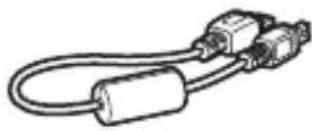
Approximately 25 cm

Approximately 1.5 m
GPS Log File Utility 28
1 Open the cover.
Insert the battery.
3 Close the cover.
Checking the battery charge
4 Move the camera.
GPS Log File Utility
1 Download GPS Log File Utility.

EOS DIGITAL camera's
GP-E2
Storage case
Approx. 25 cm
Approx. 1.5 m
GPS Log File Utility 28
1 Open the cover.
Close the cover.
GPS Log File Utility
Tripod socket


GP-E2 storage pouch

Carrying case
Connection cable
About 25 cm
GPS Log File Utility 28
Using the Mount (Sold Separately) 30
Specifications 31
Safety Precautions 32
Explanation of notation used in this manual
Meaning of symbols

: Indicates a warning to avoid shooting problems.

: Additional information.
(Page **): Reference page for more information.
1 Open the cover.
- Slide the battery cover as indicated by the arrow to open it.

2 Insert the battery.
3 Close the cover.
- Close the cover and slide it as indicated by the arrow.
Battery life
Checking the battery level
Check the battery level via the indicator light.
4 Move the camera.
https://www.canon.com.cn/supports/download/
Tripod socket

30-2, Shimomaruko 3-chome, Ohta-ku, Tokyo 146-8501, Japan
CANON EUROPA N.V.
Bovenkerkerweg 59, 1185 XB Amstelveen, The Netherlands
- ABOUT THE CASE
- OPEN THE LID
- INSERT THE BATTERIES
- CLOSE THE LID
- BATTERY CHECK
- ON POSITION
- MOVING THE CAMERA
- BEFORE USE
- CAMERAS THAT DISPLAY THE SETTINGS
- CAMERAS THAT DO NOT DISPLAY THE SETTINGS
- EOS 5D MARK III AND EOS 7D USERS
- GEOTAGGING IMAGES AND ADDING THE SHOOTING DIRECTION
- LOGGING ROUTES TRAVELED WITH THE RECEIVER
- SETTING THE CAMERA TIME
- ITEM CHECKLIST
- STORAGE AND CARRYING CASES
- CONNECTING CABLES
- CONTENTS
- CONVENTIONS USED IN THIS MANUAL
- MEANING OF SYMBOLS
- BASIC ASSUMPTIONS
- INSERTING THE BATTERY
- OPEN THE COVER
- INSERT THE BATTERY
- CLOSE THE COVER
- BATTERY LIFE
- ATTACHING AND DETACHING THE RECEIVER
- ATTACH THE RECEIVER
- SECURE THE RECEIVER
- DETACH THE RECEIVER
- TURNING THE RECEIVER ON
- CHECKING THE BATTERY LEVEL
- POSITION
- ACQUIRING GPS SIGNALS
- BLINKING AFTER ACQUISITION
- CAMERA ICON
- BLINKING: SIGNAL NOT ACQUIRED YET. CONSTANT: SIGNAL ACQUIRED
- PLACES WITH POOR GPS COVERAGE
- APPENDED INFORMATION
- VIEWING GPS INFORMATION
- SELECT [GPS DEVICE SETTINGS]
- SELECT [GPS INFORMATION DISPLAY]
- GEOTAGGING IMAGES AS YOU SHOOT
- USERS OF THE EOS 7D OR OTHER CAMERA THAT DOES NOT SUPPORT COMMUNICATION THROUGH THE HOT SHOE
- GEOTAGGING INFORMATION
- LOGGING THE ROUTE TRAVELED
- LOCATION INFORMATION LOGS
- SETTING THE POSITIONING INTERVAL
- SELECT [POSITION UPDATE TIMING]
- SELECT THE TIME
- USING THE DIGITAL COMPASS
- ENABLE THE DIGITAL COMPASS
- VIEWING THE COMPASS WHEN SHOOTING
- CALIBRATING THE DIGITAL COMPASS
- SET [DIGITAL COMPASS] TO [ENABLE]
- SELECT [CALIBRATE DIGITAL COMPASS]
- MOVE THE CAMERA
- FINISH CALIBRATION
- SETTING TIME FROM GPS ON THE CAMERA
- SELECT [AUTO TIME SETTING]
- GPS PRECAUTIONS
- LOG FILES
- GPS LOG FILE UTILITY
- DOWNLOADING AND INSTALLING
- DOWNLOAD GPS LOG FILE UTILITY
- WWW.CANON.COM/ICPD
- USING A BRACKET (SOLD SEPARATELY)
- SPECIFICATIONS
- COMPATIBLE CAMERAS EOS DIGITAL CAMERAS
- SAFETY PRECAUTIONS
- WARNING
- PREVENTING SERIOUS INJURY OR DEATH
- CAUTION
- PREVENTING INJURY OR EQUIPMENT DAMAGE
- HANDLING PRECAUTIONS
- CANON
- GPS RECEIVER
- GP-E
- INTRODUCTION
- CHECKING THE BATTERY CHARGE
- EOS DIGITAL CAMERA'S
- EXPLANATION OF NOTATION USED IN THIS MANUAL
Brand : CANON
Model : GP-E2
Category : Camera