
CU-VD20UE - DVD Burner JVC - Free user manual and instructions
Find the device manual for free CU-VD20UE JVC in PDF.


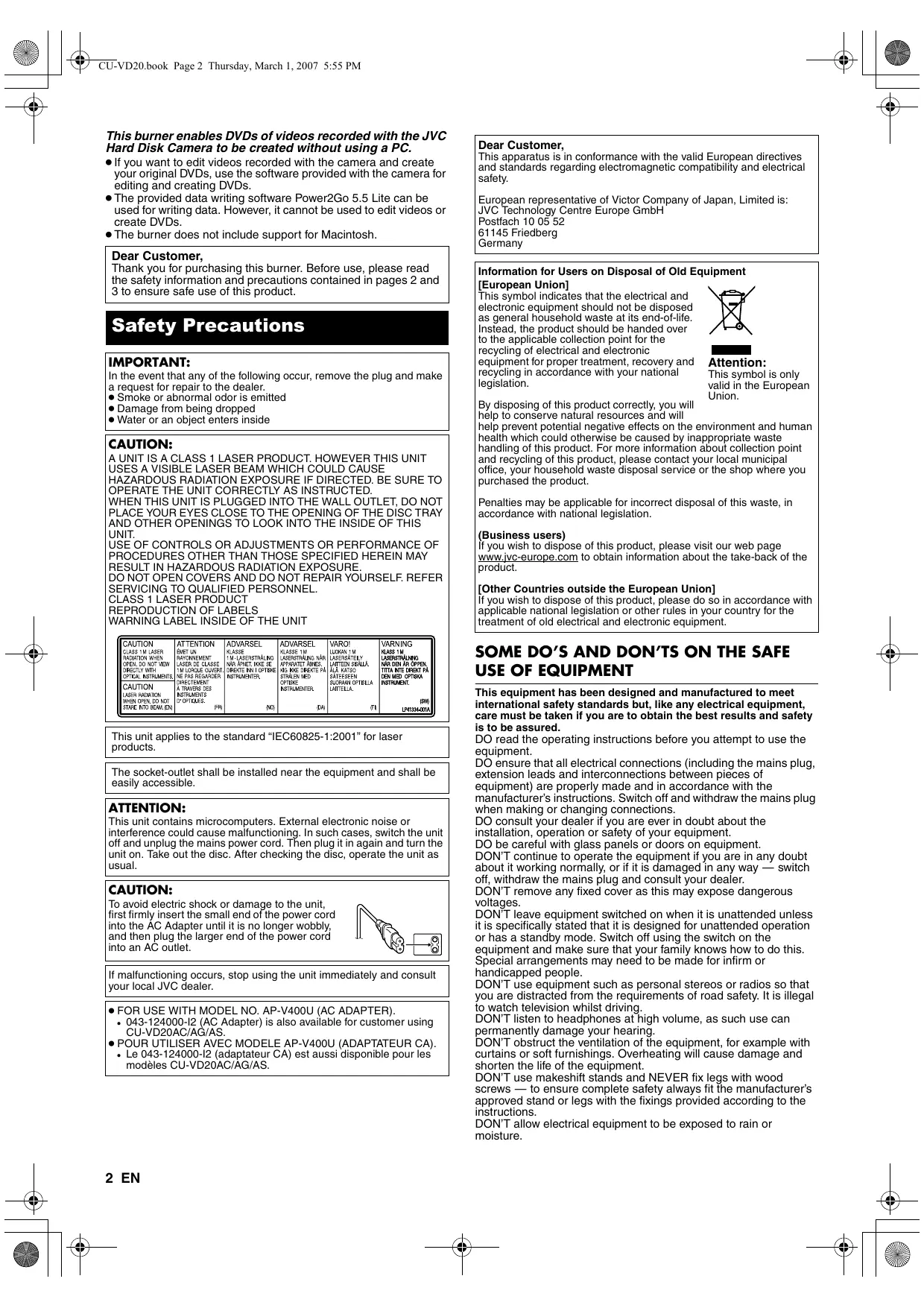


| Product type | External DVD writer |
| Brand | JVC |
| Model | CU-VD20UE |
| Dimensions (L x H x D) | 171 x 56 x 262 mm |
| Weight | Approximately 1.4 kg |
| Power supply | 12 V DC via AC adapter AP-V400U (110-240 V AC, 50/60 Hz) |
| Power consumption | Approximately 5.2 W / 1.4 A |
| Interface | Hi-Speed USB 2.0 (USB 1.1 compatible) |
| Write speed (DVD-R) | Up to 8x (USB 2.0) |
| Write speed (DVD-RW) | Up to 4x (USB 2.0) |
| Write speed (DVD-R DL) | Up to 4x (USB 2.0) |
| Read speed (DVD-ROM) | Up to 5x |
| Supported discs (write) | DVD-R, DVD-RW, DVD-R DL (12 cm) |
| Supported discs (read) | DVD-R, DVD-RW, DVD-R DL, DVD-ROM, CD-R/RW/ROM |
| Supported operating system | Windows XP Home / Professional (pre-installed) |
| Included software | CyberLink Power2Go 5.5 Lite (data writing) |
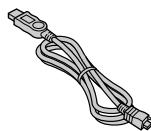
| Included accessories | AC adapter AP-V400U, power cord, USB cable (compatible with JVC cameras), installation CD-ROM, blank DVD-R disc |
| Compatibility | Direct connection with JVC Everio cameras equipped with USB host function |
| Safety | Class 1 laser product; do not open or repair yourself; use only the supplied adapter |
| Care and cleaning | Exterior: dry cloth; tray: soft dry cloth; discs: from center outward with a soft cloth |
| Operating temperature | 0 °C to 40 °C |
| Operating humidity | 35 % to 80 % |
Frequently Asked Questions - CU-VD20UE JVC
User questions about CU-VD20UE JVC
0 question about this device. Answer the ones you know or ask your own.
Ask a new question about this device
Download the instructions for your DVD Burner in PDF format for free! Find your manual CU-VD20UE - JVC and take your electronic device back in hand. On this page are published all the documents necessary for the use of your device. CU-VD20UE by JVC.
USER MANUAL CU-VD20UE JVC
E/EK/ER/AA/AC/AG/AS/TW

RW/R

A46
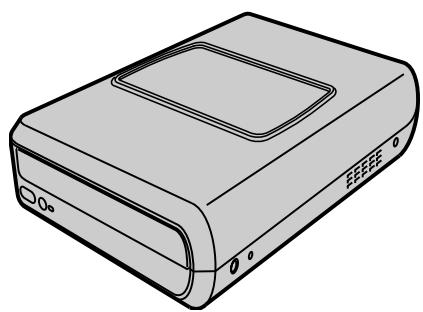
This burner enables DVDs of videos recorded with the JVC Hard Disk Camera to be created without using a PC.
- If you want to edit videos recorded with the camera and create your original DVDs, use the software provided with the camera for editing and creating DVDs.
- The provided data writing software Power2Go 5.5 Lite can be used for writing data. However, it cannot be used to edit videos or create DVDs.
- The burner does not include support for Macintosh.
Dear Customer,
Thank you for purchasing this burner. Before use, please read the safety information and precautions contained in pages 2 and 3 to ensure safe use of this product.
Safety Precautions
IMPORTANT:
In the event that any of the following occur, remove the plug and make a request for repair to the dealer.
Smoke or abnormal odor is emitted - Damage from being dropped Water or an object enters inside
CAUTION:
A UNIT IS A CLASS 1 LASER PRODUCT. HOWEVER THIS UNIT USES A VISIBLE LASER BEAM WHICH COULD CAUSE HAZARDOUS RADIATION EXPOSURE IF DIRECTED. BE SURE TO OPERATE THE UNIT CORRECTLY AS INSTRUCTED.
When this unit is plugged into the wall outlet, do not place your eyes close to the opening of the disc tray and other openings to look into the inside of this unit.
Use of controls or adjustments or performance of procedures other than those specified herein may result in hazardous radiation exposure. Do not open covers and do not repair yourself. Refer servicing to qualified personnel.
Class 1 Laser Product
Reproduction of Labels
Warning Label Inside of the Unit
| CAUTION CLASS 1M LASER RADIANING WISH OPEN, DO NOT VIEW DIRECTLY WITH OPTICAL INSTRUMENTS. CAUTION LASER RADIANING WHEN OPEN, DO NOT STARE INTO BEAM, (EN) OBTAINING INSTRUMENTS D'OPTIQUES. | ATTENTION EMET UN PAYRONEMENT LASER DE CLASSE 1M LOQUE OUVERT, NE PAS GRADINGHER DIRECTOR DUT A TRAVERS DESINSTRUMENTS O'OPTIQUES. | ADVARLESS KLASSE 1M-LASERSTRALING NAR APHEM, KIKE SE DRETEK INN I OPTEKSE INSTRUMENTER. | ADVARLESS KLASSE 1M LASERSTRALING NAR APPEARATE ABNES, KIG KEKE DRETEK PA STRALEN MED OPTIQUE INSTRUMENTER. | VAROJO LUKON 1M LASERSEATIPLY LIATTEEN SEIALLE ALAI KATSO SATSEESEN SUJRAAN OPTISLA LIATTELLA. | VARINING KUAS 1M LASERSTRALING NAR DEN AR OPSEN TTITE NTDE DEP KF DEN MED OPTISKA INSTRUMENT, (SW) LF41334-017A |
This unit applies to the standard "IEC60825-1:2001" for laser products.
The socket-outlet shall be installed near the equipment and shall be easily accessible.
Attention:
This unit contains microcomputers. External electronic noise or interference could cause malfunctioning. In such cases, switch the unit off and unplug the mains power cord. Then plug it in again and turn the unit on. Take out the disc. After checking the disc, operate the unit as usual.
Caution:
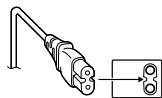
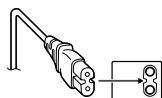
To avoid electric shock or damage to the unit, first firmly insert the small end of the power cord into the AC Adapter until it is no longer wobbly, and then plug the larger end of the power cord into an AC outlet.
If malfunctioning occurs, stop using the unit immediately and consult your local JVC dealer.
For use with model no. AP-V400U (AC adapter). 043-124000-I2 (AC adapter) is also available for customers using CU-VD20AC/AG/AS. Pour utiliser avec modèle AP-V400U (adaptateur CA). - Le 043-124000-I2 (adaptateur CA) est aussi disponible pour les modèles CU-VD20AC/AG/AS.
Dear Customer,
This apparatus is in conformance with the valid European directives and standards regarding electromagnetic compatibility and electrical safety.
European representative of Victor Company of Japan, Limited is: JVC Technology Centre Europe GmbH
Postfach 10 05 52
61145 Friedberg
Germany
Information for Users on Disposal of Old Equipment
[European Union]
This symbol indicates that the electrical and electronic equipment should not be disposed as general household waste at its end-of-life. Instead, the product should be handed over to the applicable collection point for the recycling of electrical and electronic equipment for proper treatment, recovery and recycling in accordance with your national legislation.
![JVC CU-VD20UE - [European Union] - 1](/content/2019/11/123589/images/0e5c85d8bdecacc7788daf3375b452461babe8566936d3176cb259215ed3f2b5.jpg)
Attention:
This symbol is only valid in the European Union.
By disposing of this product correctly, you will help to conserve natural resources and will help prevent potential negative effects on the health which could otherwise be caused by in handling of this product. For more information and recycling of this product, please contact y office, your household waste disposal service purchased the product.
Penalties may be applicable for incorrect disposal of this waste, in accordance with national legislation.
(Business users)
If you wish to dispose of this product, please visit our web page www.jvc-europe.com to obtain information about the take-back of the product.
[Other Countries outside the European Union]
If you wish to dispose of this product, please do so in accordance with applicable national legislation or other rules in your country for the treatment of old electrical and electronic equipment.
SOME DO'S AND DON'TS ON THE SAFE USE OF EQUIPMENT
This equipment has been designed and manufactured to meet international safety standards but, like any electrical equipment, care must be taken if you are to obtain the best results and safety is to be assured.
DO read the operating instructions before you attempt to use the equipment.
DO ensure that all electrical connections (including the mains plug, extension leads and interconnections between pieces of equipment) are properly made and in accordance with the manufacturer's instructions. Switch off and withdraw the mains plug when making or changing connections.
DO consult your dealer if you are ever in doubt about the installation, operation or safety of your equipment.
DO be careful with glass panels or doors on equipment.
DON'T continue to operate the equipment if you are in any doubt about it working normally, or if it is damaged in any way — switch off, withdraw the mains plug and consult your dealer.
DON'T remove any fixed cover as this may expose dangerous voltages.
DON'T leave equipment switched on when it is unattended unless it is specifically stated that it is designed for unattended operation or has a standby mode. Switch off using the switch on the equipment and make sure that your family knows how to do this. Special arrangements may need to be made for infirm or handicapped people.
DON'T use equipment such as personal stereos or radios so that you are distracted from the requirements of road safety. It is illegal to watch television whilst driving.
DON'T listen to headphones at high volume, as such use can permanently damage your hearing.
DON'T obstruct the ventilation of the equipment, for example with curtains or soft furnishings. Overheating will cause damage and shorten the life of the equipment.
DON'T use makeshift stands and NEVER fix legs with wood screws — to ensure complete safety always fit the manufacturer's approved stand or legs with the fixings provided according to the instructions.
DON'T allow electrical equipment to be exposed to rain or moisture.
ABOVE ALL
- NEVER let anyone, especially children, push anything into holes, slots, or any other opening in the case — this could result in a fatal electrical shock.
- NEVER guess or take chances with electrical equipment of any kind — it is better to be safe than sorry!
IMPORTANT (for owners in the U.K.)
Connection to the mains supply in the United Kingdom. DO NOT cut off the mains plug from this equipment.
If the plug fitted is not suitable for the power points in your home or the cable is too short to reach a power point, then obtain an appropriate safety approved extension lead or consult your dealer. In the unlikely event of the plug fuse failing, be sure to replace the fuse only with an identical approved type, as originally fitted, and to replace the fuse cover. If the fuse fails again, consult your nearest JVC dealer.
If nonetheless the mains plug is cut off, be sure to remove the fuse and dispose of the plug immediately, to avoid possible shock hazard by inadvertent connection to the mains supply. If this product is not supplied fitted with a mains plug, then follow the instructions given below:
DO NOT make any connection to the Larger Terminal coded E or Green.
The wires in the mains lead are coloured in accordance with the following code:
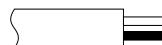
Blue to N (Neutral) or Black; Brown to L (Live) or Red.
If these colours do not correspond with the terminal identifications of your plug, connect as follows:
Blue wire to terminal coded N (Neutral) or coloured black. Brown wire to terminal coded L (Live) or coloured Red.
If in doubt — consult a competent electrician.
The I / button does not completely shut off main power from the unit, but switches operating current on and off. "Θ" shows electrical power standby and "I" shows ON.
Safety Precautions for the Burner
Be sure to observe the following precautions. Failing to do so may result in electric shock, fire, injury, or malfunction.
- Do not disassemble, dismantle, or modify the equipment. Requests for repair and inspection should be made to the dealer.
- Do not insert metal or combustible objects or pour water or other liquids inside the burner.
- Turn off the power when connecting equipment.
- Remove the plug when the burner will not be used for a prolonged time or prior to cleaning (electricity flows through the equipment even when the power is off).
- Do not block the ventilation holes of the burner.
- Do not use where there is condensation. Suddenly carrying the burner from a cold location to a hot location may result in the formation of drops, which may cause a malfunction or failure.
- Do not cause the burner to vibrate when discs are in.
Safety Precautions for Accessories
- When using the AC adapter, the power cord, and the USB cable, be sure to observe the following precautions. Failing to do so may result in electric shock, fire, injury, or malfunction.
- Do not insert or remove the plug when your hands are wet.
- Fully insert the plug into the outlet.
- Keep dust and metal objects away from the plug.
- Do not damage the cord.
- Place the cord where it will not trip someone up.
- Do not use when thunder can be heard.
- Do not dismantle.
- Do not use for any product other than this one.
- Do not play the provided CD-ROM with an audio player. Doing so may damage the circuits or speakers.
Safety Precautions for Discs
Do not use the following discs: cracked discs, deeply scratched discs.
Installation
Do not install in any of the following locations.
- Humid location
- Location of 60°C or above
- Location subject to direct sunlight
- Location where overheating is likely
- Dusty or smoky locations
- Locations subject to oily smoke or steam such as a kitchen counter or beside a humidifier
- Unstable location, bathroom, dusty places
- Slanted location
ATTENTION:
On placing the unit:
Some TVs or other appliances generate strong magnetic fields. Do not place such appliances on top of the unit as it may cause picture disturbance.
When moving the product:
Press I/O to turn off the power, and wait at least 30 seconds before unplugging the power cord. Then, wait at least 2 minutes before moving the product.
Cleaning Procedure
IMPORTANT:
- Be sure to unplug the burner before beginning cleaning.
- Do not use liquid or aerosol cleaners.
- Ensure that no moisture or liquid comes into contact with the drive during cleaning.
Exterior of the Burner:
Wipe dirt off with a dry cloth.
Disc Tray:
Wipe off dirt with a soft dry cloth.
Disc:
Gently wipe from the inner edge to the outer edge with a soft cloth.
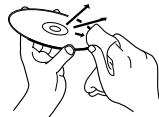
Storage:
Make sure that discs are kept in their cases. If discs are piled on top of one another without their protective cases, they can be damaged. Do not put discs in a location where they may be exposed to direct sunlight, or in a place where the humidity or temperature is high. Avoid leaving discs in your car!
Region Codes
Region codes are numbers for restricting DVD video playback. The world is separated into six regions and each region is identified by a number. If the number for a disc does not match the number for the player, the disc cannot be played on the player. (The initial region code is indicated on the label on the bottom of the burner.)
Changing the region codes
You can change the region code to play a DVD that has a different code. (The code cannot be changed for some playback software.) When you insert the disc, the Caution screen appears. Follow the on-screen instructions to change the code.
The region code for the burner can be changed 4 times only. The code set the fourth time becomes the final code, so be sure to set a frequently used code. Take sufficient care when changing the code.
Disclaimer
JVC accepts no liability whatsoever for loss of data resulting from inappropriate connections or handling.
Accessories
AC Adapter (AP-V400U*)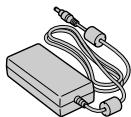
CD-ROM
Power Cord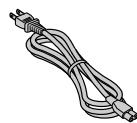
Blank Disc (DVD-R)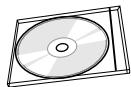
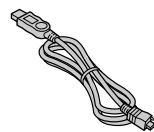
USB Cable (For connection with the camera.) Stand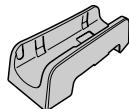
CAUTION:
Do not use AC adapter, power cord and USB cable other than those provided with this burner. Doing so may result in electric shock or fire.
NOTE:
- 043-124000-I2 (AC Adapter) is also available for customer using CU-VD20AC/AG/AS.
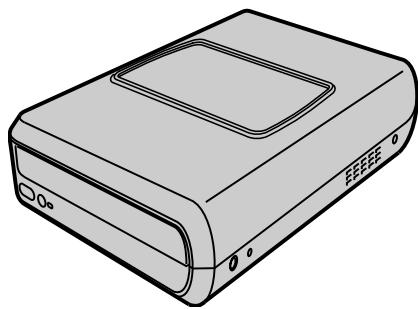
Guide to Parts and Controls
Front ① Power Button (I/O) ②EjectButton ③ Power Lamp ④ Disc Tray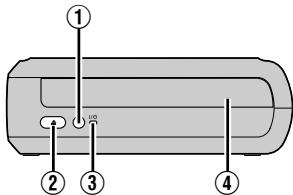
Rear ⑤ DC Connector 6 USB Connector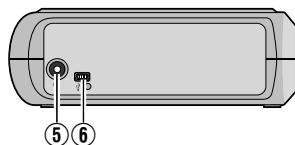
Placing the Burner
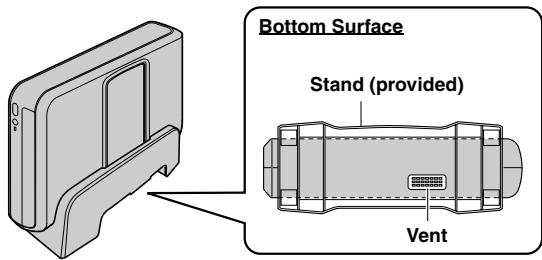
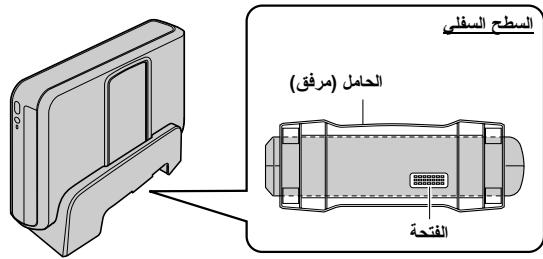
This burner can be used either in the horizontal or vertical orientation. When using in the vertical orientation, align the vent of the burner and the provided stand then place and fix the burner securely on the stand.
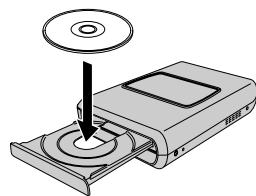
Inserting A Disc
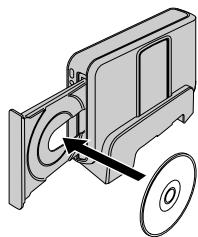
When handling a disc, be sure not to touch the playback/recording side of the disc.
Horizontal orientation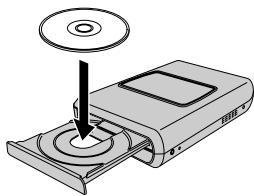
Vertical orientation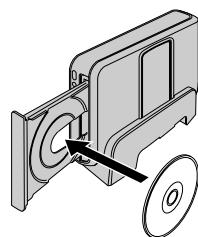
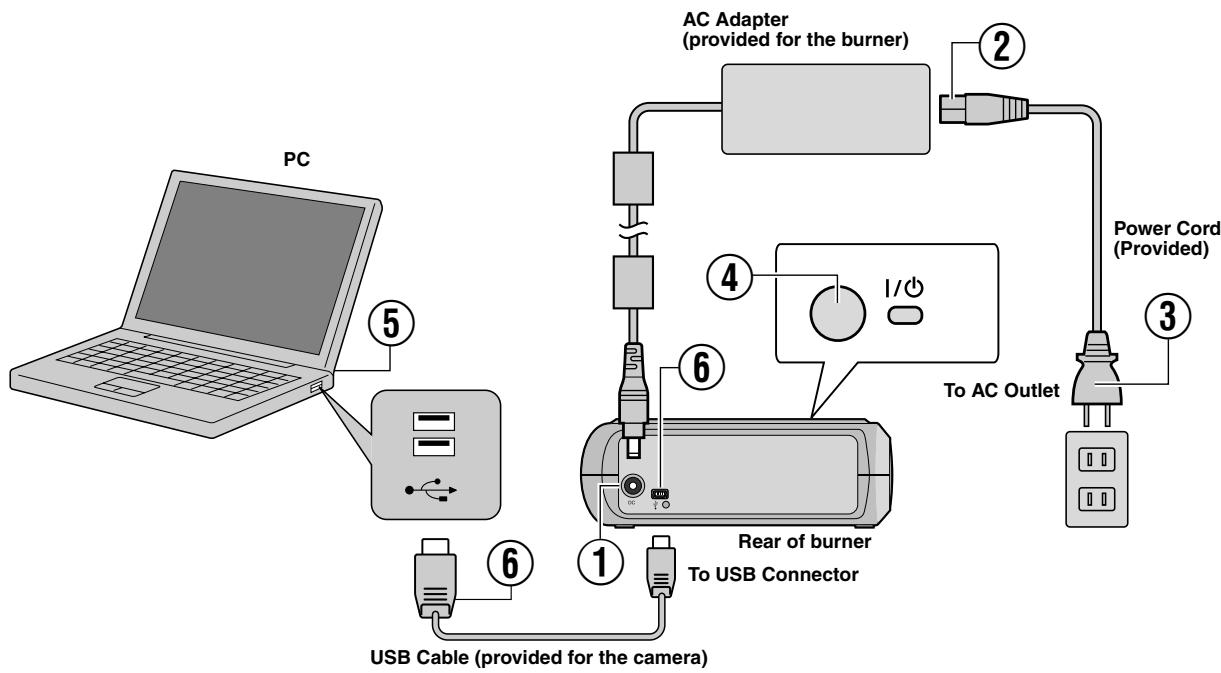
Connecting to PC
① Connect the AC adapter to the burner. ② Connect the power cord to the AC adapter. ③ Connect the power cord to an AC outlet. ④ Press the power button (I/O) on the front to turn on the burner. The power lamp lights in green. ⑤ Turn on the PC. ⑥ Connect the burner to the PC with the USB cable.
NOTE:
To connect the burner to a PC, use the USB cable provided with the camera.
Writing Software — CyberLink Power2Go 5.5 Lite —
Power2Go 5.5 Lite is software for writing video, image, audio, and other data files to data DVDs.
System Requirements
The following shows the system requirements for installation.
| Operating system | Windows® XP Home Edition [XP] (pre-installed) or Windows® XP Professional [XP] (pre-installed) |
| CPU | Intel® Pentium® III, at least 800 MHz (Intel® Pentium® 4, at least 2 GHz recommended) |
| Free hard disk space | At least 50 MB for installation At least 5 GB recommended for making DVDs |
| RAM | At least 128 MB (at least 256 MB recommended) |
| Connector | USB 2.0/1.1* connector |
| Display | Must be capable of displaying 800 x 600 dots |
- If you use a USB1.1 cable, it will take approximately 3 hours to write.
Installation Procedure
- Insert the installation CD-ROM in the CD-ROM drive.
- The language selection screen appears.
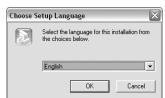
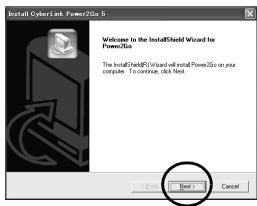
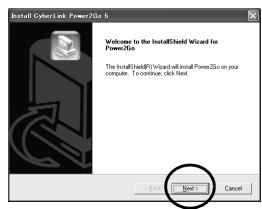
- The installation start screen appears.
Click [Next].
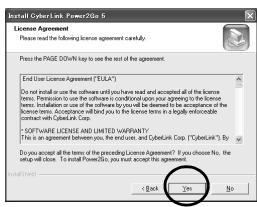
- Confirm the contents and then click [Yes].
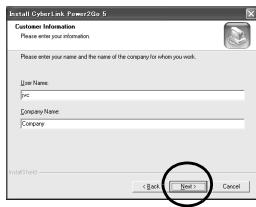
- Enter the user information and then click [Next].
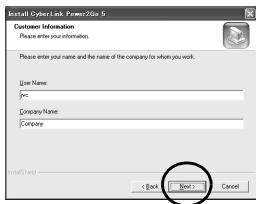
Follow the on-screen instructions.
- Installation starts.
- The screen on the right appears when the installation is complete.
Select the desired checkbox and then click [Finish].
- If you select [No, I will restart my computer later], the setup complete screen in step 8 appears.
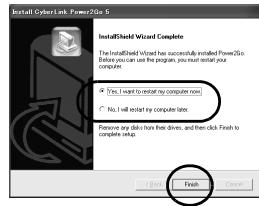
- Click [Finish].
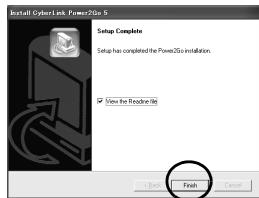
The installation is now finished.
NOTES:
- The above procedure is just a brief explanation on installing the software. For details on operating Power2Go 5.5 Lite, refer to the User's guide, Help, and ReadMe installed at the same time as the software. You can view the User's guide, Help, and ReadMe from the start menu of the PC.
- This product does not apply to write files into CD-R or CD-RW. Also, it is not responded to all the functions of Power2Go 5.5 Lite.
- To get customer support and to register the software, you need the following product key (CD-Key): PXNVIM-NWE4G-XQD9Q-CU9DX-3FQFN-NAKUS
- Power2Go 5.5 Lite does not support conversion of audio files to MP3 format.
- When the [Enter Activation Key] screen appears while using Power2Go 5.5 Lite, close the screen without entering the activation key.
CyberLink Power2Go 5.5 Lite Contact Information
For information on CyberLink Power2Go 5.5 Lite or other products, use the following contact information.
Telephone/fax support
| Location | Language | Office hours (Mon. to Fri.) | Phone # | Fax # |
| Germany | English / German / French / Spanish / Italian / Dutch | 9:00 am to 5:00 pm | +49-700-462-92375 | +49-241-70525-25 |
| Taiwan | Mandarin | 9:00 am to 6:00 pm | +886-2-8667-1298 ext. 333 | +886-2-8667-1300 |
Paid voice support
| Location | Language | Lines are open (Mon. to Fri.) | URL |
| U.S.A. | English | 1:00 pm to 10:00 pm CST | http://www.cyberlink.com/english/cs/support/new_site/voice_support.jsp |
Support web/e-mail
| Language | URL/e-mail address |
| English | http://www.cyberlink.com/english/cs/support/new_site/support_index.html |
| German / French / Spanish / Italian | goCyberlink@aixtema.de |
Troubleshooting
If you think there is a malfunction, first check the following items. If you are still unable to solve the problem, consult your local JVC dealer.
| Trouble | Cause/Action |
| Cannot turn the power on. | Make sure the AC adapter is connected properly. |
| The camera/PC is not recognized. | Make sure the USB cable is connected properly. |
| The burner or AC adapter is hot. | This is not a malfunction. If the burner is abnormally hot, remove the AC adapter and consult the dealer from which you purchased the burner. |
| Cannot open the disc tray. | A disc cannot be ejected by pressing the eject button if data is being written to the disc. Wait until writing finishes. If a disc cannot be ejected with the eject button because of a failure or a malfunction caused by, for example, the burner being dropped, use the force eject hole to eject the disc. (See below.) |
| Writing fails. | Make sure an appropriate disc is being used. (€3 pg. 3, 8) Use discs recommended for the burner. (€3 pg. 8) Insert the disc with the label facing up. Make sure the writing surface of the disc is not damaged. Make sure the disc tray is not dirty. Writing to irregularly shaped discs such as heart-shaped discs or octagonal discs is not possible. Check the writing speed of the disc being used. |
| Reading fails. | Insert the disc with the label facing up. Make sure the writing surface of the disc is not damaged. Writing to irregularly shaped discs such as heart-shaped discs or octagonal discs is not possible. Any CD recorded using the packet-write method cannot be played. Any CD that does not comply with standards such as the CD-DA standard (copy-control CDs) cannot be played. |
| Writing/reading at maximum speed is not possible. | Reading at maximum speed may not be possible if a non-standard disc is used. Use discs recommended for the burner. (€3 pg. 8) |
| Commercial DVDs cannot be played when the burner is connected to PC. | Check the region code. (€3 pg. 3) |
| It is impossible to dub the DVD discs, which were written with this burner, with DVD recorder with HDD. | Connect the burner to the camera, playback using [PLAY DVD] function of the camera, and dub the DVD discs with the DVD recorder. (Refer to “Connecting to a TV, VCR or DVD Recorder” or “Using a DVD Burner for Dubbing” in the camera's manual.) |
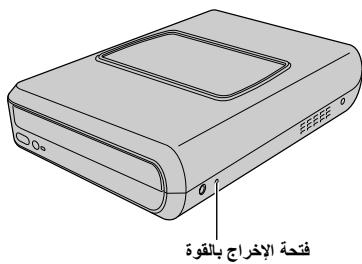
Force Eject Hole
If a disc cannot be ejected with the eject button because of a malfunction, use this hole to eject the disc.
Force eject hole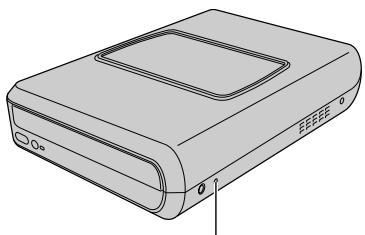
Procedure
① Turn off the burner and disconnect the USB cable and AC adapter. ② Insert a thin rod of about 10 cm long into the force eject hole located on the left side of the burner. The disc tray will be ejected for about 10 mm. ③ Pull out the disc tray manually and take out the disc.
NOTE:
Be sure to place the burner horizontally.
Copyrights and Trademarks
Copyrights
Duplicating copyright protected material, for other than personal use, without the permission of the copyright holder is prohibited by copyright law.
Registered Trademarks and Trademarks
- Windows® is either a registered trademark or trademark of Microsoft Corporation in the United States and/or other countries.
- Other company and product names mentioned herein are registered trademarks and/or trademarks of their respective holders.
Specifications
For general
| Power supply | DC 12 V | ||
| Power consumption (during data transfer) | Approx. 5.2 W/1.4 A | ||
| Dimensions of main unit (W x H x D) | 171 x 56 x 262 mm (6-3/4" x 2-1/5" x 10-3/10") | ||
| Weight of main unit | Approx. 1.4 kg (3.1 lbs) | ||
| Operating temperature | 0 °C to 40 °C (32 °F to 104 °F) | ||
| Operating humidity | 35 % to 80 % | ||
| Storage temperature | -20 °C to 50 °C (-4 °F to 122 °F) | ||
| Laser Power | For DVD | Wavelength | 653 to 663 nm |
| Output | 1.0 mW | ||
| For CD | Wavelength | 770 to 810 nm | |
| Output | 0.4 mW | ||
| Interface | High Speed USB 2.0 | ||
| Writing speed (for USB 2.0) | Writing | DVD-R | Maximum 8x |
| DVD-RW | Maximum 4x | ||
| DVD-R DL | Maximum 4x | ||
| Reading | DVD-R | Maximum 12x | |
| DVD-RW | Maximum 12x | ||
| DVD-R DL | Maximum 8x | ||
| DVD-ROM | Maximum 5x | ||
| CD-R/RW/ROM | Maximum 10x | ||
| Supported disc | DVD | Writing | DVD-R, DVD-R DL, DVD-RW |
| Reading | DVD-ROM, DVD-VIDEO, DVD-R, DVD-R DL, DVD-RW | ||
| CD | Reading | CD-ROM, CD-DA, CD Extra, Video-CD, Mixed-CD, CD-R, CD-RW | |
| Supported operating systems | Windows® XP Home Edition/Professional (pre-installed) | ||
| Interface cable | USB cable provided with the camera | ||
| Supported software | Provided for the camera | CyberLink PowerProducer 3 NE/PowerCinema NE for Everio (Authoring) | |
| Provided for the burner | CyberLink Power2Go 5.5 Lite (data writing) | ||
When connected to an Everio
c
| Interface | High Speed USB 2.0 | |
| Supported discs | DVD-R, DVD-RW | |
| Recording format | Everio | DVD video (video only) |
| High definition Everio | Data DVD (video, still image) | |
| Recording time | Everio (for each 4.7 GB disc) | Approx. 30 minutes (approx. 90 minutes of video recorded in fine mode) |
| High definition Everio | Refer to the instruction manual for the high definition Everio. | |
| Interface cable | Provided USB cable | |
Recommended discs
| DVD-R | JVC, TDK, Verbatim, SONY |
| DVD-R DL | JVC, Verbatim |
| DVD-RW | JVC |
Interface cable
Mini USB type A and type B, USB 1.1 and 2.0 compliant
AC adapter (AP-V400U)
| Power requirement | AC 110 V to 240 V~, 50 Hz/60 Hz |
| Output | DC 12 V~, 4 A |
NOTES:
- Only 12 cm discs can be used with this burner. DVD-R DL discs can be used when the burner is connected to a high definition Everio or a PC.
- A double-layer DVD-RW disc cannot be used.
- Optimal performance of the burner may not be possible depending on the disc used. Using discs of manufacturers for which compatibility has been confirmed is recommended. The appearance and specifications of the product may change without notice.
- Any CD recorded using the packet-write method cannot be played. Operation is not guaranteed for any CD not compliant with the CD-DA standard (copy control CD).
- When connected to the PC, it may not be possible to read the audio files depending on the music CDs (CD-DA). In this case, make use of applications such as Windows Media Player.
Before transporting these products:
Support via Web/E-Mail
CLASS 1 LASER PRODUCT
REPRODUCTION OF LABELS
WARNING LABEL INSIDE THE DEVICE
| CAUTION CLASS 1. LASER RADIATION WHEN OPEN,DO NOT VIEW DIRECTLY WITH OPTICAL INSTRUMENTS. CAUTION LASER RADIATION WHEN OPEN,DO NOT STARE INTO BEAM.(EN) | ATTENTION EXTENT RAYONEMENT LASER DE CLASSE 1M LONGUE OUVERT NE PAS RESIDUER INSTRUMENT, A TRAVERS DES INSTRUMENTS D'OPTIQUES. (FR) | ADVARSEL KAGESE 1M-LASERSTRALING NAR APHET,IKKE SE DRETEK INN I OPTIREX INSTRUMENTER, (NO) | ADVARSEL KAGESE 1M LASERSTRALING NAR APPEARATE ABNES, KEG IKKE DRETEK PA STRALEN MED OPTIREX INSTRUMENTER, (DA) | VARIOI LACKON 1M LASERESTILLED LIATTEEN SEEALY, ALAI KATSO SATESESEN SUOJAAP OPTISBA LIATTELEA. (FI) | VANNING KAGESE 1M LASERSTRALING NAR DEN AR OPENN. TIITE NTIE DECENT PA DEN MED OPTISKA INSTRUMENT. (SW) LAH334-001A |
AC adapter (AP-V400U)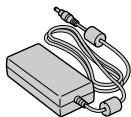
Power cord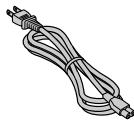
The installation is now complete.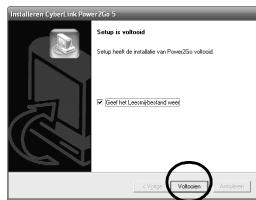
NOTES:
AC adapter (AP-V400U)
| Stroomvereiste | AC 110 V tot 240 V~, 50 Hz/60 Hz |
| Output | DC 12 V----, 4 A |
NOTES:
CLASS 1 LASER PRODUCT
REPRODUCTION OF LABELS
WARNING LABEL INSIDE THE DEVICE
| CAUTION CLASS 1M LASER RADIATION WHEN OPEN, DO NOT VIEW DIRECTLY WITH OPTICAL INSTRUMENTS. | ATTENTION EME NTN RAYONEMENT LASER DE CLASSE 1M LOUGE OUVERT NE PAS AGGERON D'AVRES DES INSTRUMENTS. | ADVARSEL KLASSE 1M-LASERSTRALING NAR AMET, KEKE SE DIRETEX INN I OPTIKE INSTRUMENTER. | ADVARSEL KLASSE 1M LASERSTRALING NAR APPEARATE ABES, KEG KEKE DIRETEX PA STRAVEN MED OPTIQUE INSTRUMENTER. | VARO! LOKAN 1M LASERSTALING LIATTEEN SEGALE ALI KATSO SATESEEN SUJATAH OPTISBA LIATTELA. | VARINING KLASSE 1M LASERSTRALING NAR DEN AR OPENN TITA NETE DEKT PA DEN MED OPTISKA INSTRUMENT. |
| CAUTION LASER RADIATION WHEN OPEN, DO NOT STARE INTO BEAM (EN) | (FR) | (NO) | (DA) | (FI) | (SW) L41334-001A |
This device complies with the standard "IEC60825-1:2001" for laser products.
European representative for Victor Company of Japan, Limited is: JVC Technology Centre Europe GmbH
Postfach 10 05 52
61145 Friedberg
Germany
AC adapter (AP-V400U)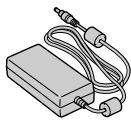
CD-ROM
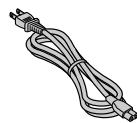
Cable Blank disc (DVD-R)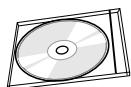
Support via web/e-mail
| Sprog | URL-/e-mail-adresse |
| Engelsk | http://www.cyberlink.com/english/cs/support/new_site/support_index.html |
| Tysk / Fransk / Spansk / Italiensk | goCyberlink@aixtema.de |
Troubleshooting
AC adapter (AP-V400U)
| Stromforsyning | 110 V til 240 V AC~, 50 Hz/60 Hz |
| Output | 12 V DC ——, 4 A |
NOTE:
LASER PRODUCT CLASS 1
REPRODUCTION OF LABELS
WARNING LABEL INSIDE THE UNIT
| CAUTION CLASS LASER RADIATION WHEN OPEN,DO NOT VIEW DIRECTLY WITH OPTICAL INSTRUMENTS. | ATTENTION ENHANCE RAYONNEMENT LASER DE CLASSE 1M LORQUE OUVERT NE PAS AGGERED DIRECTOR OUT A TRAVES DES INSTRUMENTS O'OPTICUES. | ADVARSEL KLASES 1M-LASERSTRALING NAR AMPT,IKKE SE DIRECTOR INN I OPTIREX INTRUMENTER. (FR) | ADVARSEL KLASES 1M LASERSTRALING NAR APPEARATE ABES, KIG IKKE DIRECTOR PA STRALEN MED OPTIQUE INSTRUMENTER. (NO) | VARIOI LUCKAN 1M LASERSTALING LIATTEEN SEALLE ALAI KATSO SATESEEN SUADRAN OPTILSA LIATTELA. (DA) | VANNING KLASER 1M LASERSTALING NAR DEN AP OR OPSEN TITA NTIE DEGREEPA DEN MED OPTISKA INSTRUMENT. (FI) |
| CAUTION LASER RADIATION WHEN OPEN,DO NOT STARE INTO BEAM.(EN) |
This unit complies with the standard "IEC60825-1:2001" for laser products.
European representative for Victor Company of Japan, Limited is: JVC Technology Centre Europe GmbH
Postfach 10 05 52
61145 Friedberg
Germany
AC adapter (AP-V400U)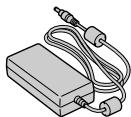
Power cord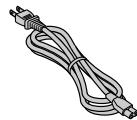
USB cable (for connection to the camera)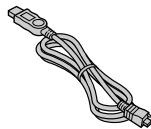
CD-ROM
Blank disc (DVD-R)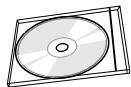
Setup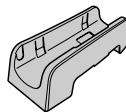
WARNING:
Internet/e-mail support
| Språk | webbadress/e-postadress |
| Engelska | http://www.cyberlink.com/english/cs/support/new_site/support_index.html |
| Tyska / Franska / Spanska / Italienska | goCyberlink@aixtema.de |
Troubleshooting
AC Adapter (AP-V400U)
| Nätspanning | AC 110 V - 240 V~, 50 Hz/60 Hz |
| Uteffekt | DC 12 V--, 4 A |
NOTES:
CLASS 1 LASER PRODUCT
REPRODUCTION OF SIGN
WARNING SIGN IS LOCATED INSIDE THE UNIT
| CAUTION CLASS 1M LASER RADIATION WHEN OPEN,DO NOT VIEW DIRECTLY WITH OPTICAL INSTRUMENTS. | ATTENTION EME NTN RAYONENMENT LASER DE CLASSE 1M LOUGE OUVERT NE PAS GRASHER DIRECTOR A TRAVES DES INSTRUMENTS O' OPTICUES. | ADVARSEL KLASSE 1M-LASERSTRAILING NAR AMET,IKKE SE DRETEK INN I OPTEKIE INSTRUMENTER. | AD/ARSEL KLASSE 1M LASERSTRAING NAR APPEARATE ABES, KIG IKKE DRETEKA STRALEN MED OPTIQUE INSTRUMENTER. | VARO! LOXAN 1M LASERSELTAGI LIATTEEN SIGALLA ALAI KATO SATESEEN SUJATAH OPTISBA LIATTELLA. (DA) (FI) | VARNING KUAS 1M LASERSTRALING NAR DEN AR OPENN. TITTE NIDED DE DEN MED OPTICSKA INSTRUMENT. (SW) (A41334-010A) |
| CAUTION LASER RADIATION WHEN OPEN,DO NOT STARE INTO BEAM (EN) | (FR) | (NO) |
This unit uses the standard "IEC60825-1:2001" for laser products.
The European representative for Victor Company of Japan, Limited, is:
JVC Technology Centre Europe GmbH
P.O. Box 10 05 52
61145 Friedberg
Germany
AC Adapter (AP-V400U)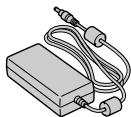
Power cord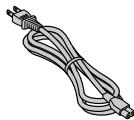
- The installation start screen appears.
Click [Next].
AC adapter (AP-V400U)
CLASS 1 LASER PRODUCT
MEANING OF LABELS
CAUTION LABELS INSIDE THE DEVICE
| CAUTION Laser DURATION OPEN, DO NOT VIEW DIRECTLY WITH OPTICAL INSTRUMENTS, CAUTION LAUNCH DURATION OPEN, DO NOT VIEW DIRECTLY WITH OPTICAL INSTRUMENTS, CAUTION LAUNCH DURATION OPEN, DO NOT VIEW DIRECTLY WITH OPTICAL INSTRUMENTS, CAUTION LAUNCH DURATION OPEN, DO NOT VIEW DIRECTLY WITH OPTICAL INSTRUMENTS, CAUTION LAUNCH DURATION OPEN, DO NOT VIEW DIRECTLY WITH OPTICAL INSTRUMENTS, SAVING CLASS 1M LARSTRALING LABOUR LABOUR LABOUR LABOUR LABOUR LABOUR LABOUR LABOUR LABOUR LABOUR LABOUR LABOUR LABOUR LABOUR LABOUR LABOUR LABOUR LABOUR LABOUR LABOUR LABOUR LABOUR LABOUR LABOUR LABOUR LABOUR LABOUR LABOUR LABOUR LABOUR LABOUR LABOUR LABOUR LABOUR | ATTENTION EMEET RANIMENT LASER DE CLASSE 1M LORQUE OUVERT. NE PAS AGGERON DIRECTIONS A TRAVERS DESINSTRUMENTS OT OPTICIES (FR) | ADVARSLRE KLESE 1M LARSTRALING NAR AMPT, KKE SE DIRECTIONS INI 1 OPTIQUE INTRUMENTER, (NO) | ADVARSLRE KLESE 1M LARSTRALING NAR AMPT, KKE SE DIRECTIONS INI 1 OPTIQUE INTRUMENTER, (NO) | VARIOI LASSER 1M LASSER 1M LASSERATELY LIATTEEN SE SALLLA ALA KATO SATSEESSEN SUADRAN OPTISBA LIATTELA (FI) | VARNING KLASS 1M LARSTRALING NAR DEN AR OPEN, TITA NETE DIRKT PA DEN MED OPTISKA INSTRUMENT, (SW) LP4134-0014 |
This device complies with the standard "IEC60825-1:2001" for laser equipment.
The power outlet must be located near the device and be easily accessible.
CAUTION:
This device contains microprocessors. External electrical interference may cause malfunctions. In such cases, turn off the device and unplug the power cord from the outlet. Then plug the power cord back into the outlet and turn on the device. Remove the disc. Check the disc, then operate the device as usual.
PRECAUTION:
To avoid electric shock or damage to the system, firmly insert the small end of the cord into the AC adapter so that it is secure, then connect the large end of the cord to the outlet.
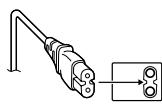
If serious malfunctions occur, immediately stop using the camera and contact your local JVC dealer.
Dear Customer.
This device complies with the current European Directives and standards regarding electromagnetic compatibility and electrical safety.
Representative in Europe: Victor Company of Japan, Limited JVC Technology Centre Europe GmbH
Postfach 10 05 52
61145 Friedberg
FepmaHnA
Information for users on the disposal of old equipment
[European Union]
This symbol indicates that after the end of its service life
the corresponding electrical or electronic equipment must not be disposed of with normal household waste. Instead, it
must be handed over to the appropriate collection point for electrical and electronic equipment
or processed for recycling in accordance with national legislation.
![JVC CU-VD20UE - [European Union] - 1](/content/2019/11/123589/images/dd94105368e71696d2c9c383fa380b666524cf5fd4fab8c27974141a9d00868e.jpg)
Attention:
(User organizations)
Before disposing of this product, please familiarize yourself with the information on the collection points for recycling, provided on the website www.jvc-europe.com.
[Countries not in the European Union]
If you intend to dispose of this product, follow the national legislation and other regulations applicable in your country regarding the recycling of such electrical and electronic equipment.
In accordance with the Law of the Russian Federation "On Protection of Consumer Rights", the service life (durability) of this product, after which it may pose a danger to life, health of the consumer, cause damage to their property or the environment, is 7 (seven) years from the date
of manufacture. This period is the time during which the consumer of this product can safely use it in accordance with the operating instructions for this product, perform the necessary maintenance, including replacement of consumable materials and/or appropriate repair service at a specialized JVC service center. Additional cosmetic materials for this product, supplied with it, can be stored for 2 (two) years from the date of manufacture. The service life (durability), except for the storage period of additional cosmetic materials mentioned in the previous two paragraphs, does not affect any other consumer rights, in particular the JVC warranty certificate, which the consumer may receive in accordance with the Law on Consumer Rights or other related laws.
The device does not produce complete shutdown of the device; only the operating voltage is switched off. The indicator "Standby" indicates that the device is in standby mode, and the indicator "I" indicates that the device is in the on state (ON).
Safety precautions for the recording device
Observe the following safety precautions. Failure to observe them may result in electric shock, fire, injury, or malfunction.
Do not attempt to disassemble or modify the device. Contact the service center for repair and inspection. Do not insert metal or conductive objects, and do not allow liquids or other foreign substances to enter the recording device. Disconnect the power supply from the device. - Unplug the plug from the wall outlet if you do not intend to use the recording device for an extended period, as well as before cleaning it (electric current passes through the device even when the power is off). Do not cover the ventilation openings of the recording device. Do not use the device during condensation. When moving the recording device from a cold place to a warm room, condensation may form, which could cause malfunctions or damage to the device. Do not subject the recording device to vibration with a disc inserted.
Safety precautions for accessories
When using the AC adapter, AC cord, and USB cable, observe the following safety precautions. Failure to observe them may result in electric shock, fire, injury, or malfunction.
Do not insert or remove the AC plug with wet hands. Insert the plug into the wall outlet securely. Protect the AC plug from dust and contact with metal objects. - Protect the AC cord from damage. Place the AC cord where it will not be stepped on. - Do not use accessories during a thunderstorm. - Do not disassemble accessories. Do not use accessories with other devices except for these.
Do not play the supplied compact disc on audio CD players. This may cause damage to the microchips or acoustic systems.
Safety precautions for discs
Do not use the following discs.
-Discs with scratches. -Discs with deep scratches.
Placement
Do not place the device in the following locations.
- In humid places. In places with temperatures of 60 °C or higher. Where direct sunlight reaches. Where overheating is possible. In dusty or dirty rooms. In places where oil or steam is emitted, for example, near a kitchen stove or next to a humidifier. In unstable places in bathrooms. In dusty places. On inclined surfaces.
CAUTION:
Device placement:
Some televisions and other devices are susceptible to strong electromagnetic fields. Do not place such devices on the device, as they may distort the image.
When changing the device placement:
Press the I/O button to turn off the power, wait at least 30 seconds before unplugging the power cord. Then wait at least 2 minutes before moving the product.
Cleaning
IMPORTANT:
Before cleaning, do not forget to unplug the plug from the wall outlet. Do not use liquid or aerosol cleaners. Make sure that during cleaning, liquid does not come into contact with the drive.
Exterior surfaces:
Remove dirt with a dry cloth made of cloth.
Tray:
Remove dirt from the tray with a dry cloth made of cloth.
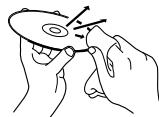
Disc:
Carefully wipe from the center to the edges of the disc with a soft dry cloth made of cloth.
Storage:
Store discs in their cases. Stacking discs without protective cases may damage them. Do not leave discs where they may be exposed to direct sunlight, or in places with high temperature or humidity. Do not leave discs in a car!
Regional Codes
Regional codes (numbers) serve to limit the reproduction of DVD video discs. All countries are divided into six regions, each of which has its own code. If the regional codes of the disc and the player do not match, the disc will not play on that player. (The regional code is indicated on the label on the back side of the recording device.)
How to change the regional code
To play DVD discs with a different regional code, you can change the regional code of the recording device. (Some programs allow you to change the code during playback.) Insert the disc. The "Caution" window will open. Change the code, following the on-screen instructions.
The regional code of the recording device can be changed only 4 times. Since the fifth change will be permanent, you should choose the code used most often. Be careful when changing the code.
Limitation of liability
JVC Company is not responsible for data loss due to improper connection or handling.
Accessories
Network adapter (AP-V400U)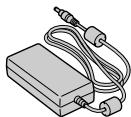
Network cable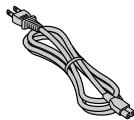
USB cable (for camera connection)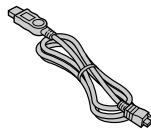
CD-ROM
Blank disc (DVD-R)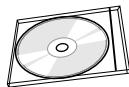
Stand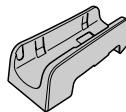
PRECAUTIONS:
Use only the supplied AC adapter, USB cable, and accessories included with this recording device. Replacing these components may result in electric shock or cause damage.
Overview of elements and controls
Front side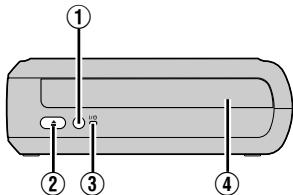
① Power button (I/O) ② Disc eject button ③ Power indicator ④ Disc tray
Rear side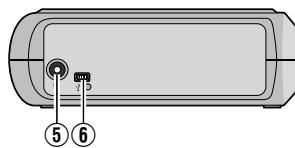
Do not touch the working surface of the disc.
Horizontal position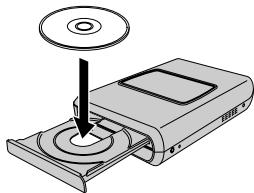
Vertical position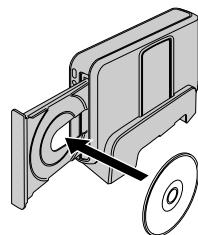
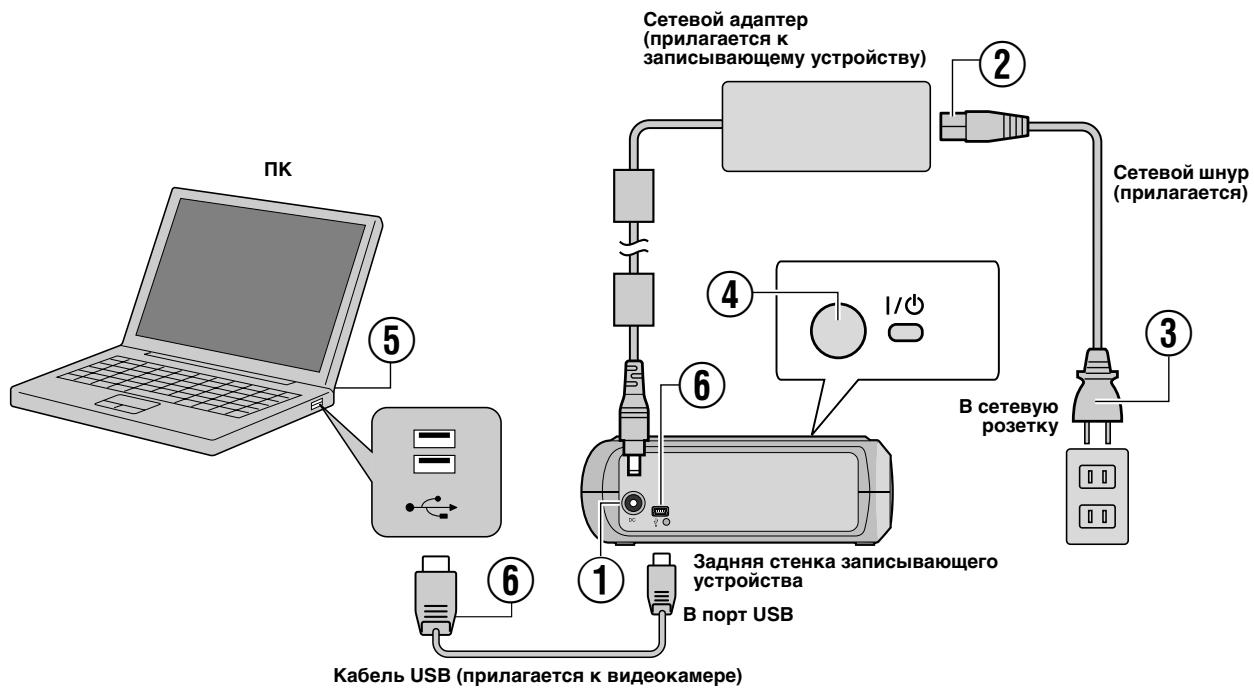
Connecting to AC power
① Connect the AC adapter to the recording device. ② Connect the power plug to the AC adapter. ③ Connect the power plug to a wall outlet. Press the power button (I/O) on the front panel of the recording device to turn it on. The green power indicator lights up. ⑤ Turn on the PC. ⑥ Connect the recording device to the PC using the USB cable.
NOTE:
* Using a USB 1.1 cable, charging takes about 3 hours.
Installation procedure
- Insert the supplied compact disc into the disc drive.
- The language selection window opens.
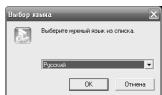
- The installation of the program begins. Click [Next].
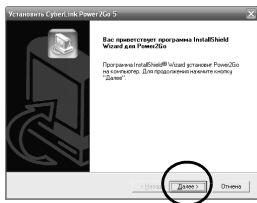
4. Confirm agreement with the terms and conditions [Next].
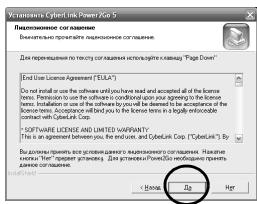
- Enter user information and click [Next].
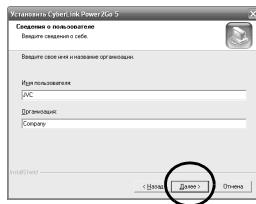
Follow the on-screen instructions.
- The installation starts.
- After the installation is complete, a window appears as shown on the right.
Set the necessary checkboxes and click [Finish].
- If you select [No, restart the computer later], at step 8 a message about the completion of the installation will appear.
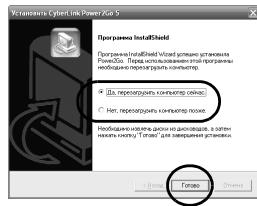
- Click [Finish].
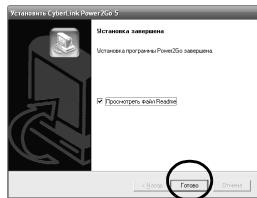
The installation is now complete.
NOTES:
The listed items contain only a brief description of the program installation. More detailed information about working with the Power2Go 5.5 Lite program is provided in the user manual, help, and ReadMe file, which are installed simultaneously with the program. The user manual, help, and ReadMe file open via the "Start" menu. - This product is not intended for writing files to CD-R and CD-RW discs. It also does not support all functions of the Power2Go 5.5 Lite program. For technical support and registration of the software, you need the following key (CD-Key): PXNVM-NWE4G-XQD9Q-CU9DX-3FQFN-NAKUS - Power2Go 5.5 Lite does not support converting audio files to MP3 format. When using Power2Go 5.5 Lite, if the [Enter Activation Key] screen appears, close the screen without entering the activation key.
CyberLink Power2Go 5.5 Lite Contact Information
For more information about the CyberLink Power2Go 5.5 Lite program and other products, use the following contact information.
Phone/fax numbers of the support service
Recommended Disks
| Диас DVD-R | JVC, TDK, Verbatim, SONY |
| Диас DVD-R DL | JVC, Verbatim |
| DVD-RW | JVC |
Combined Cable
| MннUSB TиN A n TиN B, COBmecTиMbI c USB 1.1 n 2.0 |
Network Adapter (AP-V400U)
Adapter for Power Supply (AP-V400U)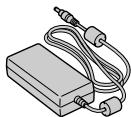
Power Cord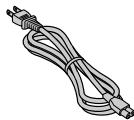
USB Cable (for connecting cameras)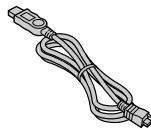
Compact Disc (CD-ROM)
Disc cavity (DVD-R)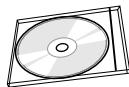
Setup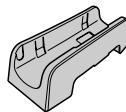
WARNING:
Do not use devices with alternating current, power supplies, and USB cables other than those included with the device. Improper use may result in electric shock or interference.
Device elements and controls
Front panel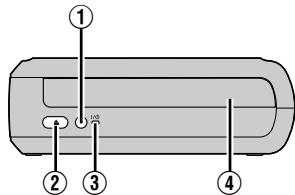
① Power button (I/O) ② Disc eject button ③ Power indicator ④ Disc slot
User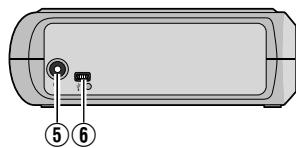
⑤ CD drive ⑥ USB port
Installation procedure
- Insert the CD into the CD drive, which is included in the package.
- The language selection window will open.
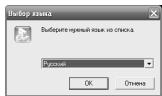
- The installation window will open. Click [Next].
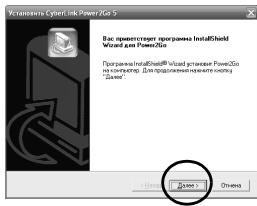
Enter the product information and click [Next].
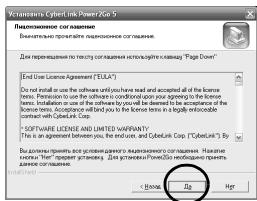
- Enter the user information and click [Next].
Follow the instructions displayed on the screen.
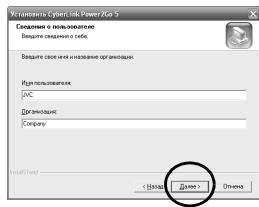
6. The installation will begin.
7. After the installation is complete, a screen showing the license will appear. Set the required licenses and click the [Finish] button.
- If you select [No, restart the computer later], a screen will appear indicating that the installation is complete.
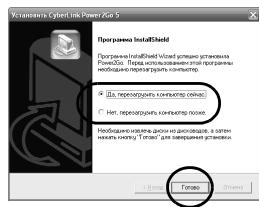
- Click [Finish].
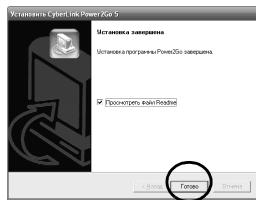
The installation is now complete.
NOTE:
Troubleshooting
If you notice any incorrectness, first check the result again with the search. If this does not help fix the problem, consult your local JVC dealer.
| ПюбLEMа | Причина / 3axodn 3ucyhenня |
| He в金融机构 сожделения | • Перевироту, чь правлино рid'еданни щадпорпervимногоструму |
| Вideokамера / PK не розидастая | • Перевироту, чь правлино рid'еданни кабель USB |
| Коруну записалыного пистою aоб щадлеса р事儿риминогоструму harpvся. | • Лучка ддя ддя сдя п事儿риминдя лдя щадлеса щадлеса щадлеса щадлеса щадлеса щадлеса щадлеса щадлеса щадлеса щадлеса щадлеса щадлеса щадлеса щадлеса щадлеса щадлеса щадлеса щадlеса щадлеса щадлеса щадлеса щадлеса щадлеса щадлеса щадлеса щадлеса щадлеса щадлеса щадлеса щадлеса щадлеса щадлеса щадлеса щадлеса Ѯдяпсьаг. |
| Лоток ддя ддя сдя не biderкраостья. | • Ддь не ддястая сдя п事儿риминдя лдя щадлеса щадлеса щадлеса щадлеса щадлеса щадлеса щадлеса щадлеса щадлеса щадлеса щадлеса щадлеса щадлеса щадлеса щadлеса щадлеса щадлеса щадлеса щадлеса щадлеса щадлеса щадлеса щадлеса щадлеса щадлеса щадлеса щадлеса щадлеса щадлеса щадлеса щадлеса �шорувся. |
| 36i по р事儿 записалынii. | • Переконайся, сдя вористою сдя натуckанни ддя, кон сдя вця вця вця вця вця вця вця вця вця вця вця вця вця вця вця вця вця вця вця вця вця вця вця вця вця вця вця вця вця вця вця вця вця вцЯ �постю �постю �постю �постю �постю �пostю �постю �постю �пostю �пostю �пostю �пostю �пostю �пostю �пostю �пostю �пostю �пostю �пostю �пostю �пostю �пostю �пostю �пostю �пostю �пostю �пostю �пostю �пostю �пostю �пostю �пostю �пostю �пOSTю �пOSTю �пOSTю �пOSTю �пOSTю �пOSTю �пOSTю �пOSTю �пOSTю �пOSTю �пOSTю �пOSTю �пOSTю �пOSTю �пOSTю �пOSTю �пOSTю �пOSTю �пOSTю �пOSTю �пOSTю �пOSTю �пOSTю �пOSTю �пOSTю �пostю �пOSTю �пOSTю �пOSTю �пOSTю �пOSTю �пOSTю �пOSTю �пOSTю �пOSTю �пOSTю �пOSTю �пOSTю �пOSTю �пOSTю �пOSTю �пOSTю �пOSTю �пOSTю �пOSTю �пOSTю �пOSTю �пOSTю �пOSTю �п OSTю �пOSTю �пOSTю �пOSTю �пOSTю �пOSTю �пOSTю �пOSTю �пOSTю �пOSTю �пOSTю �пOSTю �пOSTю �пOSTю �пOSTю �пOSTю �пOSTю �пOSTю �пOSTю �пOSTю �пOSTю �пOSTю �пOSTю �пOSTю �пOSTю �п OSTю �п Ostю �п Ostю �п Ostю �п Ostю �п Ostю �п Ostю �п Ostю �п Ostю �п Ostю �п Ostю �п Ostю �п Ostю �п Ostю �п Ostю �п Ostю �п Ostю �п Ostю �п Ostю �п Ostю �п Ostю �п Ostю �п Ostю �п Ostю �п Ostю �п Ostю �п OSTю �п Ostю �п Ostю �п Ostю �п Ostю �п Ostю �п Ostю �п Ostю �п Ostю �п Ostю �п Ostю �п Ostю �п Ostю �п Ostю �п Ostю �п Ostю �п Ostю �п Ostю �п Ostю �п Ostю �п Ostю �п Ostю �п Ostю �п Ostю �п OSTю �п OSTю �п Ostю �п Ostю �п Ostю �п Ostю �п Ostю �п Ostю �п Ostю �п Ostю �п Ostю �п Ostю �п Ostю �п Ostю �п Ostю �п Ostю �п Ostю �п Ostю �п Ostю �п Ostю �п Ostю �п Ostю �п Ostю �п Ostю �п Ostю �п OSTю �п Ostю �п Ostю �п Ostю �п Ostю �п Ostю �п Ostю �п Ostю �п Ostю �п Ostю �п Ostю �п Ostю �п Ostю �п Ostю �п Ostю �п Ostю �п Ostю �п Ostю �п Ostю �п Ostю �п Ostю �п Ostю �п Ostю �п Ostю �п Ostю �п OSTю �? • Береконайся, сдя вористою сдя натуckанни ддя, кон сдя вця вця вця вця вця вця вця вця вця вця вця вця вця вця вця вця вця вця вця вця вця вця вizapstvo �постю �постю �пostю �пostю �пostю �пostю �пostю �пostю �пostю �пostю �пostю �пostю �пostю �пostю �пostю �пostю �пostю �пostю �пostю �пostю �пostю �пostю �пostю �пostю �пostudio �пOSTю �пOSTю �пOSTю �пOSTю �пOSTю �пOSTю �пOSTю �пOSTю �пOSTю �пOSTю �пOSTю �пOSTю �пOSTю �пOSTю �пOSTю �пOSTю �пOSTю �пOSTю �пOSTю �пOSTю �пOSTю �пOSTю �пOSTю �пOSTю �пOSTudio �пOSTudio �пOSTudio �пOSTudio �пOSTudio �пOSTudio �пOSTudio �пOSTudio �пOSTudio �пOSTudio �пOSTudio �пOSTudio �пOSTudio �пOSTudio �пOSTudio �пOSTudio �пOSTudio �пOSTudio �пOSTudio �пOSTudio �пOSTudio �пOSTudio �пOSTudio �пOSTudio �пOSTudio �пOSTUDIO �пOSTudio �пOSTudio �пOSTudio �пOSTudio �пOSTudio �пOSTudio �пOSTudio �пOSTudio �пOSTudio �пOSTudio �пOSTudio �пOSTudio �пOSTudio �пOSTudio �пOSTudio �пOSTudio �пOSTudio �пOSTudio �пOSTudio �пOSTudio �пOSTudio �пOSTudio �пOSTudio �пOSTudio �пOSTRO �пOSTRO �пOSTRO �пOSTRO �пOSTRO �пOSTRO �пOSTRO �пOSTRO �пOSTRO �пOSTRO �пOSTRO �пOSTRO �пOSTRO �пOSTRO �пOSTRO �пOSTRO �пOSTRO �пOSTRO �пOSTRO �пOSTRO �пOSTRO �пOSTRO �пOSTRO �пOSTRO �пOSTRO �пOSTBro �пOSTRO �пOSTRO �пOSTRO �пOSTRO �пOSTRO �пOSTRO �пOSTRO �пOSTRO �пOSTRO �пOSTRO �пOSTRO �пOSTRO �пOSTRO �пOSTRO �пOSTRO �пOSTRO �пOSTRO �пOSTRO �пOSTRO �пOSTRO �пOSTRO �пOSTRO �пOSTRO �пOSTRO �пOSTro �пOSTRO �пOSTRO �пOSTRO �пOSTRO �пOSTRO �пOSTRO �пOSTRO �пOSTRO �пOSTRO �пOSTRO �пOSTRO �пOSTRO �пOSTRO �пOSTRO �пOSTRO �пOSTRO �пOSTRO �пOSTRO �пOSTRO �пOSTRO �пOSTRO �пOSTRO �пOSTRO �пOSTRO �пOST stro �пOSTRO �пOSTRO �пOSTRO �пOSTRO �пOSTRO �пOSTRO �пOSTRO �пOSTRO �пOSTRO �пOSTRO �пOSTRO �пOSTRO �пOSTRO �пOSTRO �пOSTRO �пOSTRO �пOSTRO �пOSTRO �пOSTRO �пOSTRO �пOSTRO �пOSTRO �пOSTRO �пOSTRO �пOSTBO �пOSTRO �пOSTRO �пOSTRO �пOSTRO �пOSTRO �пOSTRO �пOSTRO �пOSTRO �пOSTRO �пOSTRO �пOSTRO �пOSTRO �пOSTRO �пOSTRO �пOSTRO �пOSTRO �пOSTRO �пOSTRO �пOSTRO �пOSTRO �пOSTRO �пOSTRO �пOSTRO �пOSTRO �пOSTTO �пOSTRO �пOSTRO �пOSTRO �пOSTRO �пOSTRO �пOSTRO �пOSTRO �пOSTRO �пOSTRO �пOSTRO �пOSTRO �пOSTRO �пOSTRO �пOSTRO �пOSTRO �пOSTRO �пOSTRO �пOSTRO �пOSTRO �пOSTRO �пOSTRO �пOSTRO �пOSTRO �пOSTRO �пOSTINO �пOSTRO �пOSTRO �пOSTRO �пOSTRO �пOSTRO �пOSTRO �пOSTRO �пOSTRO �пOSTRO �пOSTRO �пOSTRO �пOSTRO �пOSTRO �пOSTRO �пOSTRO �пOSTRO �пOSTRO �пOSTRO �пOSTRO �пOSTRO �пOSTRO �пOSTRO �пOSTRO �пOSTRO �пOSTLO �пOSTRO �пOSTRO �пOSTRO �пOSTRO �пOSTRO �пOSTRO �пOSTRO �пOSTRO �пOSTRO �пOSTRO �пOSTRO �пOSTRO �пOSTRO �пOSTRO �пOSTRO �пOSTRO �пOSTRO �пOSTRO �пOSTRO �пOSTRO �пOSTRO �пOSTRO �пOSTRO �пOSTRO �пOSTIO �пOSTRO �пOSTRO �пOSTRO �пOSTRO �пOSTRO �пOSTRO �пOSTRO �пOSTRO �пOSTRO �пOSTRO �пOSTRO �пOSTRO �пOSTRO �пOSTRO �пOSTRO �пOSTRO �пOSTRO �пOSTRO �пOSTRO �пOSTRO �пOSTRO �пOSTRO �пOSTRO �пOSTRO �пOSTRQ �пOSTRO �пOSTRO �пOSTRO �пOSTRO �пOSTRO �пOSTRO �пOSTRO �пOSTRO �пOSTRO �пOSTRO �пOSTRO �пOSTRO �пOSTRO �пOSTRO �пOSTRO �пOSTRO �пOSTRO �пOSTRO �пOSTRO �пOSTRO �пOSTRO �пOSTRO �пOSTRO �пOSTRO �пOST罗 �пOSTRO �пOSTRO �пOSTRO �пOSTRO �пOSTRO �пOSTRO �пOSTRO �пOSTRO �пOSTRO �пOSTRO �пOSTRO �пOSTRO �пOSTRO �пOSTRO �пOSTRO �пOSTRO �пOSTRO �пOSTRO �пOSTRO �пOSTRO �пOSTRO �пOSTRO �пOSTRO �пOSTRO �пOSTATO �пOSTRO �пOSTRO �пOSTRO �пOSTRO �пOSTRO �пOSTRO �пOSTRO �пOSTRO �пOSTRO �пOSTRO �пOSTRO �пOSTRO �пOSTRO �пOSTRO �пOSTRO �пOSTRO �пOSTRO �пOSTRO �пOSTRO �пOSTRO �пOSTRO �пOSTRO �пOSTRO �пOSTRO �пOSTRA �пOSTRO �пOSTRO �пOSTRO �пOSTRO �пOSTRO �пOSTRO �пOSTRO �пOSTRO �пOSTRO �пOSTRO �пOSTRO �пOSTRO �пOSTRO �пOSTRO �пOSTRO �пOSTRO �пOSTRO �пOSTRO �пOSTRO �пOSTRO �пOSTRO �пOSTRO �пOSTRO �пOSTRO �пOSTK �пOSTK �пOSTK �пOSTK �пOSTK �пOSTK �пOSTK �пOSTK �пOSTK �пOSTK �пOSTK �пOSTK �пOSTK �пOSTK �пOSTK �пOSTK �пOSTK �пOSTK �пOSTK �пOSTK �пOSTK �пOSTK �пOSTK �пOSTK �пOSTK �пOSTК �пOSTK �пOSTK �пOSTK �пOSTK �пOSTK �пOSTK �пOSTK �пOSTK �пOSTK �пOSTK �пOSTK �пOSTK �пOSTK �пOSTK �пOSTK �пOSTK �пOSTK �пOSTK �пOSTK �пOSTK �пOSTK �пOSTK �пOSTK �пOSTK �пOSTk �пOSTK �пOSTK �пOSTK �пOSTK �пOSTK �пOSTK �пOSTK �пOSTK �пOSTK �пOSTK �пOSTK �пOSTK �пOSTK �пOSTK �пOSTK �пOSTK �пOSTK �пOSTK �пOSTK �пOSTK �пOSTK �пOSTK �пOSTK �пOSTK �пOSTRQ �пOSTRO �пOSTRO �пOSTRO �пOSTRO �пOSTRO �пOSTRO �пOSTRO �пOSTRO �пOSTRO �пOSTRO �пOSTRO �пOSTRO �пOSTRO �пOSTRO �пOSTRO �пOSTRO �пOSTRO �пOSTRO �пOSTRO �пOSTRO �пOSTRO �пOSTRO �пOSTRO �п OSTRO �пOSTRO �пOSTRO �пOSTRO �пOSTRO �пOSTRO �пOSTRO �пOSTRO �пOSTRO �пOSTRO �пOSTRO �пOSTRO �пOSTRO �пOSTRO �пOSTRO �пOSTRO �пOSTRO �пOSTRO �пOSTRO �пOSTRO �пOSTRO �пOSTRO �пOSTRO �пOSTRO �пOSTRO �п OSTRO �пOSTK �пOSTK �пOSTK �пOSTK �пOSTK �пOSTK �пOSTK �пOSTK �пOSTK �пOSTK �пOSTK �пOSTK �пOSTK �пOSTK �пOSTK �пOSTK �пOSTK �пOSTK �пOSTK �пOSTK �пOSTK �пOSTK �пOSTK �пOSTK �п OSTRO �пOSTRO �пOSTRO �пOSTRO �пOSTRO �пOSTRO �пOSTRO �пOSTRO �пOSTRO �пOSTRO �пOSTRO �пOSTRO �пOSTRO �пOSTRO �пOSTRO �пOSTRO �пOSTRO �пOSTRO �пOSTRO �пOSTRO �пOSTRO �пOSTRO �пOSTRO �пOSTRO �пOSTK �п OSTRO �пOSTK �пOSTK �пOSTK �пOSTK �пOSTK �пOSTK �пOSTK �пOSTK �пOSTK �пOSTK �пOSTK �пOSTK �пOSTK �пOSTK �пOSTK �пOSTK �пOSTK �пOSTK �пOSTK �пOSTK �пOSTK �пOSTK �пOSTK �пOSTRQ �пUSTRO �пUSTRO �пUSTRO �пUSTRO �пUSTRO �пUSTRO �пUSTRO �пUSTRO �пUSTRO �пUSTRO �пUSTRO �пUSTRO �пUSTRO �пUSTRO �пUSTRO �пUSTRO �пUSTRO �пUSTRO �пUSTRO �пUSTRO �пUSTRO �пUSTRO �пUSTRO �пUSTRO �пUSTRO �пUSTRQ �пUSTRO �пUSTRO �пUSTRO �пUSTRO �пUSTRO �пUSTRO �пUSTRO �пUSTRO �пUSTRO �пUSTRO �пUSTRO �пUSTRO �пUSTRO �пUSTRO �пUSTRO �пUSTRO �пUSTRO �пUSTRO �пUSTRO �пUSTRO �пUSTRO �пUSTRO �пUSTRO �пUSTRO �нТРСО �нТРСО �нТРСО �нТРСО �нТРСО �нТРСО �нТРСО �нТРСО �нТРСО �нТРСО �нТРСО �нТРСО �нТРСО �нТРСО �нТРСО �нТРСО �нТРСО �нТPSCO �нТPSCO �нТPSCO �нТPSCO �нТPSCO �нТPSCO �нТPSCO �нТPSCO �нТPSCO �нТPSCO �нТPSCO �нТPSCO �нТPSCO �нТPSCO �нТPSCO �нТPSCO �нТPSCO �нТРSCO �нТPSCO �нТPSCO �нТPSCO �нТPSCO �нТPSCO �нТPSCO �нТPSCO �нТPSCO �нТPSCO �нТPSCO �нТPSCO �нТPSCO �нТPSCO �нТPSCO �нТPSCO �нТPSCO �N'TPSCO �N'TPSCO �N'TPSCO �N'TPSCO �N'TPSCO �N'TPSCO �N'TPSCO �N'TPSCO �N'TPSCO �N'TPSCO �N'TPSCO �N'TPSCO �N'TPSCO �N'TPSCO �N'TPSCO �N'TPSCO �N'TPSCO _N'TPSCO _N'TPSCO _N'TPSCO _N'TPSCO _N'TPSCO _N'TPSCO _N'TPSCO _N'TPSCO _N'TPSCO _N'TPSCO _N'TPSCO _N'TPSCO _N'TPSCO _N'TPSCO _NTO _N'TPSCO _NTO _N'TPSCO _NTO _N'TPSCO _NTO _N'TPSCO _NTO _N'TPSCO _NTO _N'TPSCO _NTO _N'TPSCO _NTO _N'TPSCO _NTO _N'TPSCO _NTO ‐ N'TPSCO _N'TPSCO _N'TPSCO _N'TPSCO _N'TPSCO _N'TPSCO _N'TPSCO _N'TPSCO _N'TPSCO _N'TPSCO _N'TPSCO _N'TPSCO _N'TPSCO _N'TPSCO _N'TTOK �нТРСО �нТРСО �нТРСО �нТРСО �нТРСО �нТРСО �нТРСО �нТРСО �нТРСО �нТРСО �нТРСО �нТРСО �нТРСО �нТРСО �нТРСО �нТРСО �нТТО _N'TPSCO _N'TPSCO _N'TPSCO _N'TPSCO _N'TPSCO _N'TPSCO _N'TPSCO _N'TPSCO _N'TPSCO _N'TPSCO _N'TPSCO _N'TPSCO _N'TPSCO _N'TPSCO -N'TPSCO _N'TPSCO _N'TPSCO _N'TPSCO _N'TPSCO _N'TPSCO _N'TPSCO _N'TPSCO _N'TPSCO _N'TPSCO _N'TPSCO _N'TPSCO _N'TPSCO _N'TPSCO _N'DTOK �нТРСО �нТРСО �нТРСО �нТРСО �нТРСО �нТРСО �нТРСО �нТРСО �нТРСО �нТРСО �нТРСО �нТРСО �нТРСО �нТРСО �нТРСО �нТРСО �N'TPSCO _N'TPSCO _N'TPSCO _N'TPSCO _N'TPSCO _N'TPSCO _N'TPSCO _N'TPSCO _N'TPSCO _N'TPSCO _N'TPSCO _N'TPSCO _N'TPSCO _N'TPSCO _ N'TPSCO _N'TPSCO _N'TPSCO _N'TPSCO _N'TPSCO _N'TPSCO _N'TPSCO _N'TPSCO _N'TPSCO _N'TPSCO _N'TPSCO _N'TPSCO _N'TPSCO _N'TPSCO _NTO TOK �нТРСО �нТРСО �нТРСО �нТРСО �нТРСО �нТРСО �нТРСО �нТРСО �нТРСО �нТРСО �нТРСО �нТРСО �нТРСО �нТРСО �нТРСО �нТРСО �нTPSTO _N'TPSCO _N'TPSCO _N'TPSCO _N'TPSCO _N'TPSCO _N'TPSCO _N'TPSCO _N'TPSCO _N'TPSCO _N'TPSCO _N'TPSCO _N'TPSCO _N'TPSCO _N'TPSCO (N'TPSCO _N'TPSCO _N'TPSCO _N'TPSCO _N'TPSCO _N'TPSCO _N'TPSCO _N'TPSCO _N'TPSCO _N'TPSCO _N'TPSCO _N'TPSCO _N'TPSCO _N'TPSCO _NΤOK _N'TPSCO _N'TPSCO _N'TPSCO _N'TPSCO _N'TPSCO _N'TPSCO _N'TPSCO _N'TPSCO _N'TPSCO _N'TPSCO _N'TPSCO _N'TPSCO _N'TPSCO _N'TPSCO /N'TPSCO _N'TPSCO _N'TPSCO _N'TPSCO _N'TPSCO _N'TPSCO _N'TPSCO _N'TPSCO _N'TPSCO _N'TPSCO _N'TPSCO _N'TPSCO _N'TPSCO _N'TPSCO _NTDTO _N'TPSCO _N'TPSCO _N'TPSCO _N'TPSCO _N'TPSCO _N'TPSCO _N'TPSCO _N'TPSCO _N'TPSCO _N'TPSCO _N'TPSCO _N'TPSCO _N'TPSCO _N'TPSC0 _N'TPSC0 _N'TPSC0 _N'TPSC0 _N'TPSC0 _N'TPSC0 _N'TPSC0 _N'TPSC0 _N'TPSC0 _N'TPSC0 _N'TPSC0 _N'TPSC0 _N'TPSC0 _N'TPSC0 _N'TPSC0 -N'TPSC0 _N'TPSC0 _N'TPSC0 _N'TPSC0 _N'TPSC0 _N'TPSC0 _N'TPSC0 _N'TPSC0 _N'TPSC0 _N'TPSC0 _N'TPSC0 _N'TPSC0 _N'TPSC0 _N'TPSC0 _NTO TOK _N'TPSC0 _N'TPSC0 _N'TPSC0 _N'TPSC0 _N'TPSC0 _N'TPSC0 _N'TPSC0 _N'TPSC0 _N'TPSC0 _N'TPSC0 _N'TPSC0 _N'TPSC0 _N'TPSC0 _N'TPSC0 + N'TPSC0 _N'TPSC0 _N'TPSC0 _N'TPSC0 _N'TPSC0 _N'TPSC0 _N'TPSC0 _N'TPSC0 _N'TPSC0 _N'TPSC0 _N'TPSC0 _N'TPSC0 _N'TPSC0 _N'TPSC0 _N'TTOK _N'TPSC0 _N'TPSC0 _N'TPSC0 _N'TPSC0 _N'TPSC0 _N'TPSC0 _N'TPSC0 _N'TPSC0 _N'TPSC0 _N'TPSC0 _N'TPSC0 _N'TPSC0 _N'TPSC0 _N'TPSC0 ⅡNTOK _N'TPSC0 ⅡNTOK _N'TPSC0 ⅡNTOK ⅡNTOK ⅡNTOK ⅡNTOK ⅡNTOK ⅡNTOK ⅡNTOK ⅡNTOK ⅡNTOK ⅡNTOK ⅡNTOK ⅡNTOK ⅡNTOK ⅡNTOK ⅡNTOK ⅡNTOK ⅡNTOK ⅡNTOK ⅡNTOK ⅡNTOK ⅡNT OK ⅡNTOK ⅡNTOK ⅡNTOK ⅡNTOK ⅡNTOK ⅡNTOK ⅡNTOK ⅡNTOK ⅡNTOK ⅡNTOK ⅡNTOK ⅡNTOK ⅡNTOK ⅡNTOK ⅡNTOK ⅡNTOK ⅡNTOK ⅡNTOK ⅡNTOK ⅡNT |
Opening the manual disc tray
If the disc is not inserted when writing, or if there is an error with the connection, use this opening to insert the disc.
Opening the manual disc tray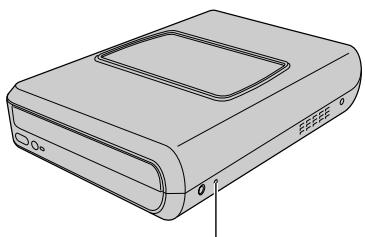
Procedure
① Turn off the recorder and disconnect the USB cable and the AC power cord. ② Insert a thin stick about 10 cm long into the hole for the manual disc tray and push the disc. The disc tray will open about 10 mm. ③ Pull out the disc tray and remove the disc.
NOTE:
Be sure to place the recorder horizontally.
Copyrights and Trademarks
Copyrights
Unauthorized use of copyrighted material, other than for personal use, without the permission of the copyright owner is prohibited by copyright law.
Registered Trademarks and Trademarks
- Windows® is a registered trademark or trademark of Microsoft Corporation in the U.S. and/or other countries.
- All other company names and product names mentioned herein are registered trademarks or trademarks of their respective owners.
Specifications
Victor Company of Japan, Limited
| .USB 2.0 and USB 1.1 for all applications, B and A for mobile USB |
(AP-V400U) :
| jürgen7.1/jürgen0..v.italy 14.2.11. jau 23.23.23.23.23.23.23.23.23.23.23.23.23.23.23.23.23.23.23.23.23.23.23.23.23.23.23.23.23.23.23.23.23.23. |
| Jürgen6.1.Jürgen5.11.23.23.23.23.23.23.23.23.23.23.23.23.23.23.23.23.23.23.23.23.23.23.23.23.23.23.23.23.23.23.23.23.23 |
J 14 J 15 J 16 J 17 J 18 J 19 J 20 J 21 J 22 J 23 J 24 J 25 J 26 J 27 J 28 J 29 J 30 J 31 J 32 J 33 J 34 J 35 J 36 J 37 J 38 J 39 J 40 J 41 J 42 J 43 J 44 J 45 J 46 J 47 J 48 J 49 J 50 J 51 J 52 J 53 J 54 J 55 J 56 J 57 J 58 J 59 J 60 J 61 J 62 J 63 J 64 J. Windows Media Player
JVC 45
Microsoft Corporation 55
Therefore, 4k = 3
CU-VD20AC/AG/AS 1543-124000-12*
JL JU ⑥ USB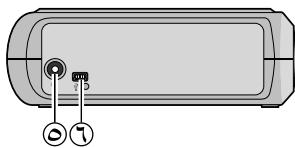
Gale 1
(1/6) ① j j j j j j j j j j j j j j j j j j j j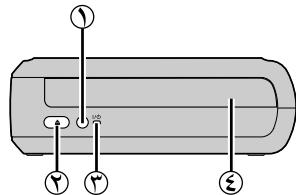
y 1
J
J 1 J
J
:
i#
y
a a a a a a a a a a a a a a
:
·
:
E/EK/ER/AA/AC/AG/AS/TW
AR46

RW/R

- E/EK/ER/AA/AC/AG/AS/TW
- THIS BURNER ENABLES DVDS OF VIDEOS RECORDED WITH THE JVC HARD DISK CAMERA TO BE CREATED WITHOUT USING A PC
- DEAR CUSTOMER
- SAFETY PRECAUTIONS
- IMPORTANT
- CAUTION
- ATTENTION
- INFORMATION FOR USERS ON DISPOSAL OF OLD EQUIPMENT
- [EUROPEAN UNION]
- (BUSINESS USERS)
- [OTHER COUNTRIES OUTSIDE THE EUROPEAN UNION]
- SOME DO'S AND DON'TS ON THE SAFE USE OF EQUIPMENT
- ABOVE ALL
- IMPORTANT (FOR OWNERS IN THE U.K.)
- BLUE TO N (NEUTRAL) OR BLACK; BROWN TO L (LIVE) OR RED
- SAFETY PRECAUTIONS FOR THE BURNER
- SAFETY PRECAUTIONS FOR ACCESSORIES
- SAFETY PRECAUTIONS FOR DISCS
- INSTALLATION
- CLEANING PROCEDURE
- REGION CODES
- CHANGING THE REGION CODES
- DISCLAIMER
- ACCESSORIES
- NOTE
- GUIDE TO PARTS AND CONTROLS
- PLACING THE BURNER
- INSERTING A DISC
- CONNECTING TO PC
- WRITING SOFTWARE — CYBERLINK POWER2GO 5.5 LITE
- SYSTEM REQUIREMENTS
- INSTALLATION PROCEDURE
- NOTES
- CYBERLINK POWER2GO 5.5 LITE CONTACT INFORMATION
- TROUBLESHOOTING
- FORCE EJECT HOLE
- PROCEDURE
- COPYRIGHTS AND TRADEMARKS
- COPYRIGHTS
- REGISTERED TRADEMARKS AND TRADEMARKS
- SPECIFICATIONS
- WHEN CONNECTED TO AN EVERIO
- INTERFACE CABLE
- BEFORE TRANSPORTING THESE PRODUCTS
- WARNING
- PRECAUTION
- INFORMATION FOR USERS ON THE DISPOSAL OF OLD EQUIPMENT
- (USER ORGANIZATIONS)
- [COUNTRIES NOT IN THE EUROPEAN UNION]
- SAFETY PRECAUTIONS FOR THE RECORDING DEVICE
- PLACEMENT
- DEVICE PLACEMENT
- WHEN CHANGING THE DEVICE PLACEMENT
- CLEANING
- EXTERIOR SURFACES
- TRAY
- DISC
- STORAGE
- REGIONAL CODES
- HOW TO CHANGE THE REGIONAL CODE
- LIMITATION OF LIABILITY
- PRECAUTIONS
- OVERVIEW OF ELEMENTS AND CONTROLS
- CONNECTING TO AC POWER
- DEVICE ELEMENTS AND CONTROLS
- OPENING THE MANUAL DISC TRAY
Brand : JVC
Model : CU-VD20UE
Category : DVD Burner