Nomad Q 6.0 P 9560 - Gps Pentagram - Free user manual and instructions
Find the device manual for free Nomad Q 6.0 P 9560 Pentagram in PDF.


User questions about Nomad Q 6.0 P 9560 Pentagram
0 question about this device. Answer the ones you know or ask your own.
Ask a new question about this device
Download the instructions for your Gps in PDF format for free! Find your manual Nomad Q 6.0 P 9560 - Pentagram and take your electronic device back in hand. On this page are published all the documents necessary for the use of your device. Nomad Q 6.0 P 9560 by Pentagram.
USER MANUAL Nomad Q 6.0 P 9560 Pentagram
PENTAGRAM Nomad Q 6.0 [P 9560] PENTAGRAM Nomad
Installation and Operation Manual
2011-08-302011-0
![Pentagram Nomad Q 6.0 P 9560 - PENTAGRAM Nomad Q 6.0 [P 9560] PENTAGRAM Nomad - 1](/content/2026/06/1168203/images/bf171808517a6e8e2c3678c51da7b350ee0de7f96947e5a0377502c12ce08a2e.jpg)
natural_image
Abstract geometric pattern with yellow triangles and a pentagon (no text or symbols)PENTAGRAM THE PERFECT SIMPLICITY
natural_image
Abstract geometric pattern with a yellow star-like shape inside a square frame (no text or symbols)2
![Pentagram Nomad Q 6.0 P 9560 - PENTAGRAM Nomad Q 6.0 [P 9560] PENTAGRAM Nomad - 2](/content/2026/06/1168203/images/207a72788bf55e934b818a41238a2a82e22d7301545dd84844507de60fba9f2d.jpg)
Menu FM Transmitter (Transmitter FM)
Installation and Operation Manual Installation and Operation
EN
EN
PENTAGRAM Nomad Q 6.0 [P 9560] PENTA
The latest versions of manual, drivers and applications are available on www.pentogram.eu
PENTAGRAM Nomad Q 6.0 [P 9560] PENTAGRAM Nomad Q 6.0 [P 9560]
EN

natural_image
Abstract geometric pattern with a yellow star-like shape inside a square frame (no text or symbols)2
Table of contentsTable of contents
IMPORTANT INFORMATION......5
SAFETY PRECAUTIONS....5
INFORMATION CONCERNING WASTE ELECTRONIC EQUIPMENT......5
INTRODUCTION....6
BOX CONTENTS....6
MINIMUM SYSTEM REQUIREMENTS....6
MOUNTING IN A CAR....9
CONNECTING TO THE COMPUTER....10
FIRMWARE UPGRADE....10
DEVICE OPERATION....11
MAIN MENU....11
GPS MENU....11
TOOLS MENU....11
MULTIMEDIA MENU....12
GAMES MENU....15
FM TRANSMITTER MENU....16
WINDOWS CE MENU....16
SETTINGS MENU....16
TROUBLESHOOTING....19
SPECIFICATIONS....20
Important information Important information
Safety precautions Safety precautions
- Using a belief in mitigating system does not reach that the sense can also be a fair regulation (e.g. lights, signs, etc.), stop behave politely when driving or stop using common sense.
- Do not use or store the device or it's accessories in dusty places, where the humidity is high or in extreme temperatures. This may lead to their damage not covered by warranty.
- Do not operate the device with wet hands to avoid the risk of device damage or electric shock.
- Do not clean the device with chemicals, such as benzine or detergents - always clean the device with a soft, dry cloth.
- Disconnect the device from the computer or another power source prior to cleaning.
- Do not modify or fix the device yourself in any way, it might void the guarantee.
- Do not drop or shake the device. Mechanical damage caused by means other than normal usage are not covered by warranty.
- Do not disconnect the device from the computer when transferring data. They might get irrecoverably lost.
- Files and data stored in the device memory and on the memory card are prone to damage like any other files. For this reason, if necessary, make the backup copies of those files and data.
- PENTAGRAM cannot be held responsible for any data loss.
EN
Information concerning waste electronic equipment Information concerning waste
The markings on the device and in the attached documentation indicate that it cannot be disposed of along with unsegregated general black bag waste when withdrawn from use. The device must be recycled or processed in another way to recover reusable materials and neutralize hazardous components.
The users should contact recycling/recovery authorities to determine how the device is to be disposed of in an environment-friendly manner.

natural_image
Symbol of a trash bin crossed with no text or labels, accompanied by a black rectangular block below (no readable text or symbols)NOTE: NO Teformation and technical data is subject to change without previous notice and/or indication in this manual.
Copyright ©2011 PENTAGRAM
All rights reserved; copying and reproduction is strictly forbidden.
Introduction Introduction
Thank you for purchasing the PENTAGRAM Nomad Q 6.0 [P 9560] navigation system. The device incorporates a GPS receiver, sound files (MP3, WMA, WAV) and video files (AVI, ASF, WMV) player, photo browser (JPG, BMP, GIF, PNG) and eBook text files (TXT) browser. Additionally, the device includes a built-in MicroSD card reader.
Box ContentsBox Contents
- PENTAGRAM Nomad Q 6.0 [P 9560]
- USB cable
- Operation manual
- Car charger
- Stylus
- Windscreen mounting kit (a suction cup with an arm and a frame for the navigation system)
- Cleaning cloth
- Warranty card
- Velvet carrying pouch
These requirements are only important when connecting the device to a computer.
• A PC with an available USB port
- Operating system: Windows Me / 2000 / XP / Vista / 7
EN
PENTAGRAM Nomad Q 6.0 [P 9560] PENTAGRAM Nomad Q 6.0 [P 9560]
Preparation for operationPreparation for operation
OverviewOverview
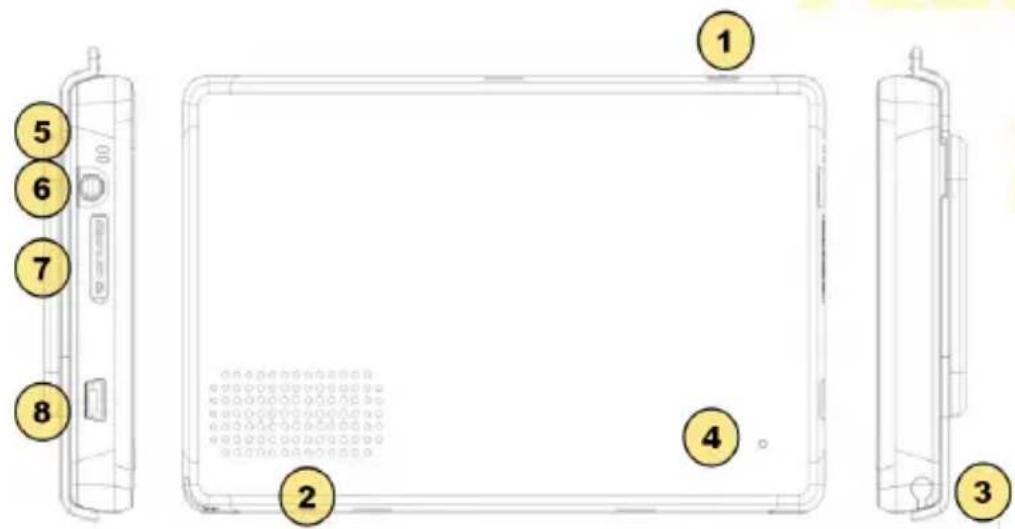
EN
-
Power button:
-
To turn on or off the device, press and hold this button for approx. 4 seconds.
-
To turn on or off the sleep (energy saving) mode, press and hold the button for approx. 2 seconds and then release it.
-
Speaker - if no headphones are connected to the device, all the sounds will be played through the built-in speaker.
-
Stylus - allows to use the device touch screen in a precise way.
- RESET button - used for device restart in case of a major fault.
- Status LED light
- Headphones socket - when connected, the headphones are used instead of the built-in speaker.
- microSD/SDHC card slot.
- USB socket
Memory card Memory card
Insert the memory card into the device in such a way so that when looking at the screen, the card connectors are visible. When looking at the back casing of the device, the card label is visible.
To remove the card from the device, press the card so that it gently slides out, and then pull it out. Prior to removing the card, make sure that all the applications using it (such as the media player, the navigation application) have been closed and that no files are being transferred from/to the card. Some navigation applications use the memory card for storing the configuration and map files. If you remove such a card, it may cause the application to operate improperly, and in extreme cases even the necessity to reinstall the application.
NOTE! Removing the card when device is in use can cause damage or loss of data application, crash or it can even freeze the device, even freeze the device.
Battery chargingBattery charging
Before you start to operate the device, it is recommended to charge and discharge the battery several times so that it reaches its full performance and service life.
In the top right corner of the main menu there is an icon representing the battery charge. When the icon is filled with bars, it means the battery is fully charged. If the icon is empty, the battery is very low and you have to charge it as quickly as possible. The battery will start charging automatically after connecting the device to the AC charger or the car charger, plugged in the appropriate socket. During charging, you can operate the device as normal. The light on the side panel is an additional battery charge indicator - it is red during charging and becomes green when the charging is complete.
To charge the battery, either:
- connect the device to a computer using the USB cable, or
- connect the device to the car cigarette lighter socket using the car charger included.
PENTAGRAM Nomad Q 6.0 [P 9560] PENTAGRAM Nomad Q 6.0 [P 9560]
Using the touch screen Using the touch screen
You can use your finger to operate the touch screen. However, as the screen surface area is big, the stylus is much more precise and just a little bit less comfortable. The stylus is located in the back of the device casing. If necessary, you can extend the stylus. You can use it to perform four basic operations:
- tapping - light touching the screen surface with the stylus,
- double tapping – quick tapping twice with the stylus on the same point of the screen,
- dragging – touching and dragging the stylus on the screen,
- holding - touching and holding the stylus several seconds on the same point of the screen.
Always operate the touchscreen with the style for fingering, using the object to light screen, render the device operation difficult, or it might even void the guarantee.
Mounting in a carMounting in a car
NOTE! If you have to connect the navigation system not of the or aoriger at the right end clock, start the going if yes first. Power surges during the ignition may damage the device permanently.
Use the supplied windscreen mounting kit (the suction cup with the arm and the holding frame) to mount the system on the vehicle windscreen. Make sure that:
- the device location does not obstruct the visibility for the driver;
- the suction cup is firmly holding to the windscreen;
- the device is firmly held in the frame;
- the frame with the device is properly mounted on the suction cup arm;
- the system is not mounted near the airbag.
Connecting to the computerConnecting to the computer
NOTES: NOTES:
- Only use the inserted memory card (visible as "SDMMC") for the installation of applications and storage of own files. Any other files stored beyond this location will be deleted when the system is turned off.
- When the data are being transferred, do not disconnect the device from the computer to prevent the possible damage or loss of data.possible damage or loss of data.
The device works with the following operating systems: Windows Me / 2000 / XP / Vista / 7.
Two basic connection modes are available at Settings//USB Settings / USB
- USB Mode (first icon) will connect the device as a portable device in Windows Explorer and start charging the battery.
- Windows Mobile Device Mode ActiveSync (second icon) will allow to sync and copy data, install Windows CE applications, creating and restoring system backup copy (ActiveSync only). It may be required to download and install free ActiveSync application (Windows Me, 2000, XP) or Windows Mobile Device Center (Windows Vista, 7).
Firmware upgrade
If necessary, you can upgrade the device firmware to a newer version. The latest firmware is available for download at www.pentagram.eu. The downloaded new firmware archive contains detailed information on preparing and performing the upgrade.
EN
PENTAGRAM Nomad Q 6.0 [P 9560] PENTAGRAM Nomad Q 6.0 [P 9560]
Device operation
Main menu
When you turn on the device, the welcome screen will be displayed for a moment. Then, the main system menu will be launched.
Navigating the menu is very simple - tap the appropriate icon with the stylus to launch it. In the top right corner of the display the battery status icon is visible (in the picture, the battery charging is shown).
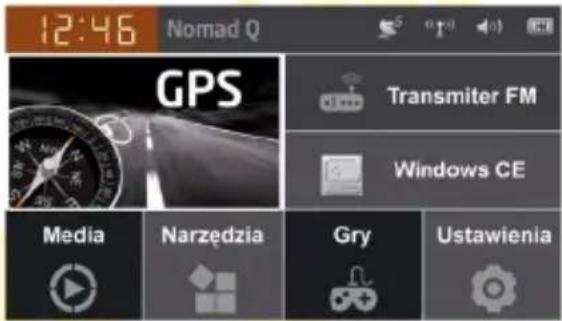
If the navigation application has been properly installed and configured, tapping the icon will launch the program. Path to navigation application can be changed in Settings / Application. If you turn off the device before closing the application, it may result in losing the entered data - for this reason, we recommend closing the application before you turn off the device.
EN
Tools menu
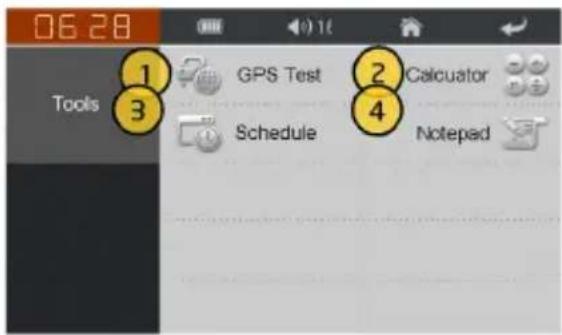
Tapping this icon will enable you to pick one of four features.
- GPS Test will start GPS module testing procedure showing the number of satellites, exact location and allows to reset the GPS module.
- Calculator helps you with math.
- Schedule allows you to put in meetings.
- Notepad allows you to take notes.
Multimedia menuMultimedia menu
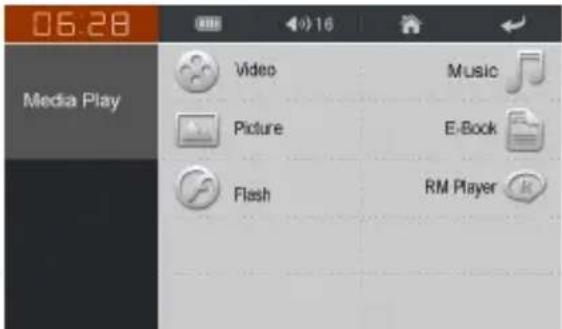
Tap the icon to enter the multimedia files playing mode. Tap MusicMoget to the audio files player, VideoWidget to the video files player, eBookBooken TXT files reader or PhotoPhoto the graphic file browser. You can also tap RMPlayerRMPlayRM and RMVB video files or FlashFlashay flash animations.
Tap the button to go back to the main menu.
NOTE: Not high quality multimedia files may not be played smoothly, may slow down device or, in extreme cases may not play at all. A full list of supported video and audio codecs is available at www.pentagram.eu
Multimedia/Musiedia
- Name of the file currently played.
- Track information.
- Current play status.
- Selected repeat mode.
- Progress bar.
- Go back to the file list.
- Pause/resume play.
- Previous track.
- Next track.
- Stop playing.
- Adjust volume.
- Go back to Main menu.
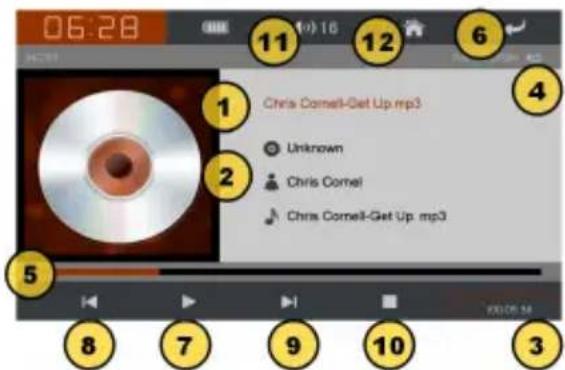
Tap the button to go back to the file list.

PENTAGRAM Nomad Q 6.0 [P 9560] PENTAGRAM Nomad Q 6.0 [P 9560]
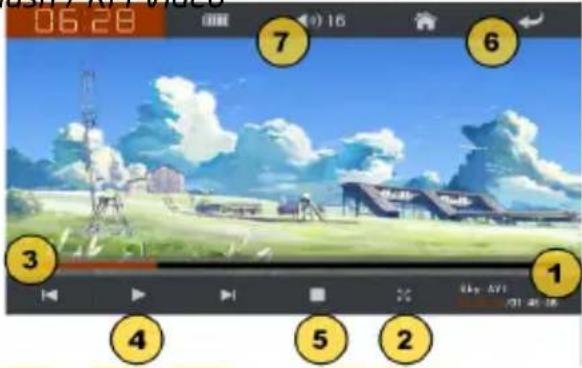
Multimedia Video Flash / RM Video / Video / Flash / RM Video
- Name of the file currently played.
- Full screen mode.
- Progress bar.
- Pause/resume playing.
- Stop playing.
- Go back to the file list.
- Adjust playing volume.
Tap the button to go back to the file list.
- Screening area
- Previous file.
- Next file.
- Full screen mode.
5 Zoom in. - Zoom out.
- Rotate right
- Rotate left.
- Start slideshow
10.10a back to the file list.
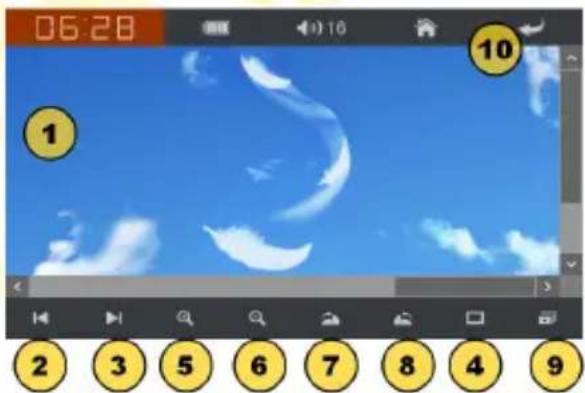
Tap the button to go back to the file list.
NOTE: Noise of some graphics formats, certain buttons may be unavailable.
PENTAGRAM Nomad Q 6.0 [P 9560] PENTAGRAM
MultimediaMeBookd@Book
- Name of the open file.
- Current page/No. of pages.
- File contents.
- Previous page.
- Next page.
- Go back to the file list of files.
- Settings.
-
Bookmarks.
-
TTS mode (Text To Speech) - if available.
Tap the button to go back to the file list.
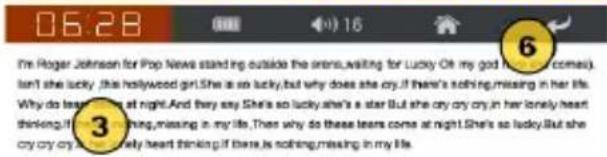

Games menu Games menu
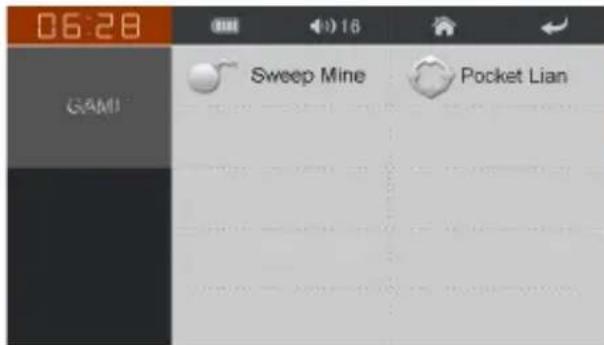
Tapping this icon will launch a sub-menu where you can chose one of two games: Seep Mine and Pocket Lian. Instructions for both games are available during gameplay.

FM Transmitter menu
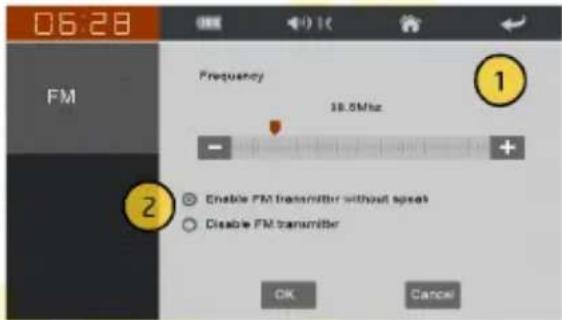
Tap the icon to enter the menu for FM Transmitter configuration.
- Frequency on which device will be broadcasting. Frequency can be selected by tapping on the scale or by using buttons on both sides of the scale.
- Enable or disable broadcasting on selected frequency. After you enable FM transmission the built-in speaker will be automatically turned off.
Tap the ↩ button to go back to the main menu.
NOTES:
- In some countries broadcasting on the FM band without appropriate approval is illegal. Before enabling FM Transmitter, make sure that it won't collide with local rules or regulations.
- Due to the enormous energy requirements of the FM Transmitter, it will be only enabled when device is connected to the external power supply.
EN
Windows CE menu
Tap the icon to get to the Windows CE desktop. To return to the main menu, double tap the Start GPS icon on the desktop.
Settings menu
Tap the icon to enter the system settings menu. Tap the icon corresponding to the option that you want to change. Tap the button to go back to the main menu.
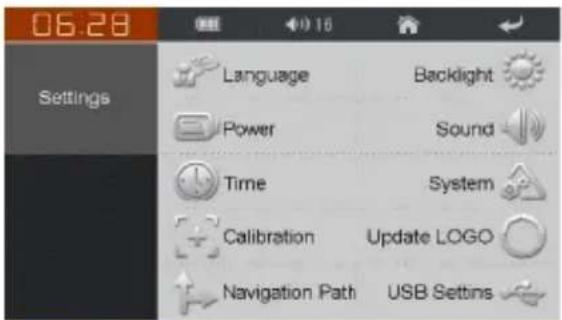
Settings / LanguageSettings / Language
In this menu, you can change the language of the display.
With the arrow buttons, set the preferred language.
Tap the button to go back to the System Settings menu.
Settings / BacklightSettings / Backlight
In this menu, you can change the backlight brightness and the time after which the backlight is turned off.
Use the + and = buttons to adjust the device screen brightness to your preferences or conditions. With the arrow buttons, you can set the idle time after which the device screen backlight will be turned off. You can select not to turn off the backlight automatically: Always on or two off after 1, 2, 3, 10 or 30 minutes.
Tap the button to go back to the System Settings menu.
Settings / Power Settings / Power
In this menu, you can check the battery charge level.
Tap the button to go back to the Settings menu.
Settings / SoundSettings / Sound
In this menu, you can adjust the sound volume and turn on/of the tapping sounds.
Use the + and - buttons to set the device volume as you want. If you do not want a sound to be played for each tap, uncheck the Enable tap sound field tap sound
Tap the button to go back to the Settings Settings
EN
Settings / Date & Time
In this menu, the current date, time and time zone settings of the device are displayed. To change individual settings, tap the corresponding icon.
Tap the button to go back to the Setting Settings Settings
Settings / System info.
In this menu, current data concerning the device and GPS position are displayed.
After tapping Info you will be able to see all system information, current FW version. Under Memory you will find all data about total and free RAM memory, built-in flash memory and memory card.
Tap the button to go back to the Setting Settings Settings
PENTAGRAM Nomad Q 6.0 [P 9560] PENTAGRAM Nomad Q 6.0 [P 9560]
Settings / CalibrationSettings / Calibration
You may have to calibrate the screen if there are differences between the displayed and the real point where you tap the screen with the stylus.
To calibrate the screen, hold the stylus pressed for a moment in the center of the white cross displayed on the screen. Repeat the operation until the calibration screen is closed.
Settings / Update Logo Settings / Update Logo
Allows you to use your own logo/icon which will be used in Main Menu screen to start the navigation application. To use your own picture, you should place the file on a memory card and follow the instructions on screen.
Tap the button to go back to the Settings Settings
Settings / Navi path Settings / Navi path
Tap this icon to change current map software. You can browse the flash memory and memory card to find new map's executable file. Select it. Then remember to tick the checkbox – only then the new map will be launched after tapping GPS icon in Main menu.
Tap the button to go back to the SettingSettings
Troubleshooting Troubleshooting
If you experience problems with the device, use the tips below. The current list of problems and solutions can be found at www.pentagram.eu/support. If the problem persists, contact Technical Support.
If you experience problems with the navigation application or another program, contact the technical support for the appropriate software manufacturer. You can find contact data in the documentation (also in the electronic form) attached to the software.
| Symptoms Probable cause | Probable cause Probable cause | How to fix How to fix |
| Problems with turning on. Battery low. Charge the battery. | ||
| Device turns off itself. Battery low or idle times for turning off the backlight or device are too short. | Charge the battery or change the times for automatic backlight/device turning off. | |
| Problems with inserting the memory card. | You insert the memory card in an incorrect way. | Read the Memory card section to find information on inserting the memory card. |
| Screen does not react to taps. | Device has frozen. | Turn off and on the device with the switch. If that does not help, press the RESET button on the back of the device. |
| Problems with connecting to the computer. | USB cable connected improperly. | Connect the USB cable properly. |
| The navigation application does not save the settings. | The device was turned off before the application exited. | Always close the navigation application before turning the device off. |
| No GPS signal | The environment conditions make it difficult to fix the position. | Move the device to a more open area. |
| The device is in a room. | Inside the buildings, the position fix may take much longer than on an open area, or it might not fix the position at all. | |
| The GPS receiver freezes. | Reset the GPS receiver. | |
PENTAGRAM Nomad Q 6.0 [P 9560] PENTAGRAM Nomad Q 6.0 [P 9560]
Specifications ^* Specifications
| System parametersSystem parameters | |
| CPU/GPS receiver SiRF Atlas V 533 MHz with SiRFAlwaysFix ^TM | |
| RAM 128 MB | |
| NAND flash 2 GB | |
| Card slot microSD/SDHC up to 8 GB | |
| Operating system Windows CE 6.0 | |
| Basic parametersBasic parameters | |
| Display 6.0" touch screen | |
| Resolution 800 x 480 | |
| Battery type Built-in rechargeable 3.7V Lithium 1600 mAh | |
| Sound Built-in mini speaker | |
| Earphones | 3,5mm stereo mini-jack |
| GPS parameters | |
| Channels number | 64 |
| Tracking sensitivity | -161 dBm |
| Accuracy | 5 meters |
| Antenna Type | Built-in active antenna |
| FM transmitter | |
| Frequency | 88 MHz - 92 MHz |
| Range | ~3 meters |
| Multimedia | |
| Audio | MP3, WMA, |
| Video** | AVI, XviD, DivX, MPEG1/2/4, RMVB, WMV |
| Image | JPG, BMP, GIF, TIF, PNG |
| Text | TXT |
| General info | |
| Size | 162mm x 96mm x 13mm |
| Working temp. | from 0°C to +40°C |
| Storage temp. | from 10°C to +40°C |
CE ^1111
DEKLARACJA ZGODNOŚCIDEKLARACJA ZGOI
IEC 61000-4-2 (2001), IEC 61000-4-3 (2002)
IEC 61000-4-4 (2004), IEC 61000-4-5 (2000)
IEC 61000-4-6 (2003) + A1 (2004)
IEC 61000-4-8 (2005), IEC 61000-4-11 (2004)
natural_image
Abstract geometric pattern with a yellow star-like shape inside a square frame (no text or symbols)20