Nomad Evo 5.0 P 9450 - Gps Pentagram - Free user manual and instructions
Find the device manual for free Nomad Evo 5.0 P 9450 Pentagram in PDF.


| Product Type | GPS Navigation System |
| Brand | Pentagram |
| Model | Nomad Evo 5.0 P 9450 |
| Display | 5.0-inch TFT touch screen, 480 x 272 pixels |
| Dimensions | 128 mm x 82 mm x 12 mm |
| Weight | 165 g (including battery) |
| Processor | SiRF Atlas V 533 MHz with SiRFAlwaysFix™ |
| RAM | 128 MB |
| Internal Storage | 2 GB NAND flash |
| Memory Card Slot | microSD/SDHC up to 8 GB |
| Operating System | Windows CE 6.0 |
| GPS Channels | 64 |
| GPS Sensitivity | -161 dBm |
| GPS Accuracy | 5 meters |
| Battery | Built-in rechargeable Li-ion 3.7 V, 1300 mAh |
| Connectivity | USB 2.0, Bluetooth 2.0, FM transmitter (88–92 MHz) |
| Audio Playback | MP3, WMA, WAV, OGG, AAC |
| Video Playback | AVI, XviD, DivX, MPEG1/2/4, 3GP, ASF, RMVB, WMV |
| Image Viewing | JPG, BMP, GIF, TIF, PNG |
| Text Reader | TXT |
| Power Supply | AC charger (100-240 V) and car charger (12/24 V) |
| Mounting | Windscreen suction cup with arm and frame included |
| Operating Temperature | 0 °C to 40 °C |
| Storage Temperature | -10 °C to 40 °C |
| Cleaning | Soft, dry cloth only; no chemicals |
| Safety Precautions | Do not use in dusty/humid areas; avoid drops; do not disassemble |
Frequently Asked Questions - Nomad Evo 5.0 P 9450 Pentagram
User questions about Nomad Evo 5.0 P 9450 Pentagram
0 question about this device. Answer the ones you know or ask your own.
Ask a new question about this device
Download the instructions for your Gps in PDF format for free! Find your manual Nomad Evo 5.0 P 9450 - Pentagram and take your electronic device back in hand. On this page are published all the documents necessary for the use of your device. Nomad Evo 5.0 P 9450 by Pentagram.
USER MANUAL Nomad Evo 5.0 P 9450 Pentagram
PENTAGRAM Nomad Evo 5.0 [P 9450]
Instrukcja obsługi
PL
Instruction Manual
EN

natural_image
Abstract geometric pattern with yellow triangles inside a square frame (no text or symbols)PENTAGRAM THE PERFECT SIMPLICITY
Instrukcja obsługi
PL
PL
PENTAGRAM Nomad Evo 5.0 [P 9450]
PENTAGRAM Nomad Evo 5.0 [P 9450]
Nawigacja
Główne menu
Multimedia / FM Transmitter (Transmitter FM)
UWAGA:
PENTAGRAM Nomad Evo 5.0 [P 9450]
PL
PENTAGRAM Nomad Evo 5.0 [P 9450]
natural_image
Abstract geometric pattern with yellow triangles inside a square frame (no text or symbols)PENTAGRAM THE PERFECT SIMPLICITY
Instruction Manual
EN
EN
PENTAGRAM Nomad Evo 5.0 [P 9450]
The latest versions of manual, drivers and applications are available on www.pentagram.eu.
PENTAGRAM Nomad Evo 5.0 [P 9450]
EN
Table of contents
IMPORTANT INFORMATION......4
SAFETY PRECAUTIONS......4
INFORMATION CONCERNING WASTE ELECTRONIC EQUIPMENT....4
INTRODUCTION....5
BOX CONTENTS....5
MINIMUM SYSTEM REQUIREMENTS....5
BATTERY CHARGING....6
MEMORY CARD....6
MOUNTING IN A CAR....7
CONNECTING TO COMPUTER....8
FIRMWARE UPGRADE....8
OPERATING THE DEVICE....9
NAVIGATION....10
MAIN MENU....10
NAVIGATION MENU....10
MULTIMEDIA MENU....11
MENU BLUETOOTH....16
NAVIGATION SETUP MENU....20
WINDOWS CE MENU....20
SYSTEM SETTINGS MENU....21
TROUBLESHOOTING....25
SPECIFICATIONS....26
Important information
Safety precautions
- Using a satellite navigation system does not mean that the user can disobey traffic regulations (lights, signs, etc.), stop behave politely when driving or stop using common sense.
- Do not use or store the device in dusty places, where the humidity is high or in extreme temperatures.
- Do not allow moisture or other objects inside the device;
- Do not operate the device with wet hands to avoid the risk of device damage or electric shock.
- Do not clean the device with chemicals, such as benzine or detergents – always clean the device with a soft, dry cloth.
- Disconnect the device from the computer and any other power source prior to cleaning.
- Do not modify or fix the device yourself in any way, it will violate the guarantee.
- Do not drop or shake the device.
- Do not disconnect the device from the computer during data transfer to prevent permanent data loss.
- Files and data stored on player's memory are, like any other files, susceptible to corruption and loss. Make backup copies if necessary.
- PENTAGRAM cannot be held responsible for any data loss.
EN
Information concerning waste electronic equipment
The markings on the device and in the attached documentation indicate that it cannot be disposed of along with unsegregated general black bag waste when withdrawn from use. The device must be recycled or processed in another way to recover reusable materials and neutralize hazardous components.
The users should contact recycling/recovery authorities to determine how the device is to be disposed of in an environment-friendly manner.

natural_image
Simple line drawing of a trash bin with crossed lines indicating no waste or restriction (no text or symbols)NOTE: All information and technical data is subject to change without previous notice and/or indication in this manual.
Copyright ©2011 PENTAGRAM
All rights reserved; copying and reproduction is strictly forbidden.
Introduction
Thank you for purchasing the PENTAGRAM Nomad Evo 5.0 [P 9450] navigation system. The device is a GPS receiver equipped with 5" size touch screen, multimedia player supporting music files (MP3, WMA, WAV, OGG) and video files (AVI, XviD, DivX, ASF and others), photo browser (JPG, BMP, GIF, PNG) and eBook text files (TXT) browser. There is also a Bluetooth module, FM transmitter and microSD/SDHC card reader on board.
Box contents
- PENTAGRAM Nomad Evo 5.0 [P 9450]
- USB cable
- Operation manual
- Car charger
- AC charger
- Cleaning cloth
- Warranty card
-
Carrying pouch
-
Windscreen mounting kit (a suction cup with an arm and a frame for the navigation system)
If any of the package contents are missing, please contact your vendor.
Minimum system requirements
These requirements are only important when connecting the device to a computer.
• A PC with an available USB port
- Operating system: Windows Me / 2000 / XP / Vista / 7
PENTAGRAM Nomad Evo 5.0 [P 9450]
Battery charging
Before you start to operate the device, it is recommended to charge and discharge the battery several times so that it reaches its full performance and service life.
In the top right corner of the main menu there is an icon representing the battery charge. When the icon is filled with bars, it means the battery is fully charged. If the icon is empty, the battery is very low and you have to charge it as quickly as possible. The battery will start charging automatically after connecting the device to the AC charger or the car charger, plugged in the appropriate socket. During charging, you can operate the device as normal. The light on the side panel is an additional battery charge indicator – it is red during charging and becomes green when the charging is complete.
To charge the battery:
- connect the player to computer's USB port, or
- connect the player to a power outlet via power USB charger, or
- connect the player to a car lighter socket via car USB charger
NOTE: Use only USB chargers supplied with the device. Using other chargers may cause device damage, which warranty will not cover.
EN
Memory card
Insert the memory card into the device in such a way so that when looking at the screen, the card connectors are visible. When looking at the back casing of the device, the card label is visible. Press the card into the slot till quiet click is heard, which means that card is in it's place.
To remove the card from the device, press the card (till quiet click can be heard) so that it gently slides out, and then pull it out. Prior to removing the card, make sure that it is not used by the player and that no files are being transferred from/to the card.
NOTE: Removing the card when it is in use can cause data loss or corruption.
Using the touch screen
You can use your finger to operate the touch screen. However, as the screen surface area is big, the stylus is much more precise and just a little bit less comfortable. The stylus is located in the back of the device casing. If necessary, you can extend the stylus. You can use it to perform four basic operations:
- tapping - light touching the screen surface with the stylus,
- double tapping – quick tapping twice with the stylus on the same point of the screen,
- dragging – touching and dragging the stylus on the screen,
- holding – touching and holding the stylus several seconds on the same point of the screen.
NOTE: Always operate the touch screen with the stylus or a finger. Using other objects might scratch the screen, render the device operation difficult, or it might even void the guarantee.
Mounting in a car
Use the supplied windscreen mounting kit (the suction cup with the arm and the holding frame) to mount the system on the vehicle windscreen. Make sure that:
- the device location does not obstruct the visibility for the driver;
- the suction cup is firmly holding to the windscreen;
- the device is firmly held in the frame;
- the frame with the device is properly mounted on the suction cup arm;
- the system is not mounted near the airbag.
NOTE: If you have to connect the navigation system to the car cigarette lighter socket, start the engine first. Power surges during the ignition may damage the device permanently.
PENTAGRAM Nomad Evo 5.0 [P 9450]
Connecting to computer
NOTES:
• Both memory card and internal memory can be used for installing applications and saving user files.
- When the data are being transferred, do not disconnect the device from the computer to prevent the possible damage or loss of data.
The device works with the following operating systems: Windows Me / 2000 / XP / Vista / 7.
After connecting the USB cable three basic connection modes will be available.
- USB Mode (first icon) will connect the device as a portable device in Windows Explorer and start charging the battery.
- Windows Mobile Device Mode (middle icon) will allow to sync and copy data, install Windows CE applications, creating and restoring system backup copy (ActiveSync only). It may be required to download and install free ActiveSyncapplication (Windows Me, 2000, XP) or Windows Mobile Device Center (Windows Vista, 7).
- Charging Mode (third icon) will begin to charge the battery via the USB port.
Firmware upgrade
NOTE:
- The firmware upgrade is meant to improve and optimize the performance of the player. In most cases, firmware upgrade is not necessary for proper player operation. Incorrectly performed firmware upgrade can cause the device not to work properly! The firmware upgrade software for this player is not meant for other PENTAGRAM players.
It's recommended to backup all data stored in player's memory prior to firmware upgrade. In some cases files may be erased during the upgrade procedure. PENTAGRAM Europe cannot be held responsible for any data loss.
• Make sure that you use only the genuine PENTAGRAM firmware dedicated for your player model for upgrading. You can download the latest firmware from www.pentagram.eu website. - Do not disconnect the player from your computer while the firmware upgrade procedure is in progress. This may cause a critical malfunction.
• Make sure that battery is charged before upgrade process.
Newest firmware for the player, along with upgrade instructions and necessary application (if applicable), is available for download at www.pentagram.eu/support web site.
Operating the device
1. Power button:
- To turn on or off the device, press and hold this button for approx. 4 seconds.
-
To turn on or off the sleep (energy saving) mode, press and hold the button for approx. 2 seconds and then release it. In the sleep mode, status LED on will light blue.
-
Speaker - if no headphones are connected to the device, all the sounds will be played through the built-in speaker.
-
Stylus - allows to use the device touch screen in a precise way.
- RESET button - used for device restart in case of a major fault.
- COM port - not used.
- Headphones socket - when connected, the headphones are used instead of the built-in speaker.
- microSD/SDHC card slot.
- Status LED - Lights red during battery charging, green after completing charging process and blue in sleep (energy saving) mode.
- USB socket.
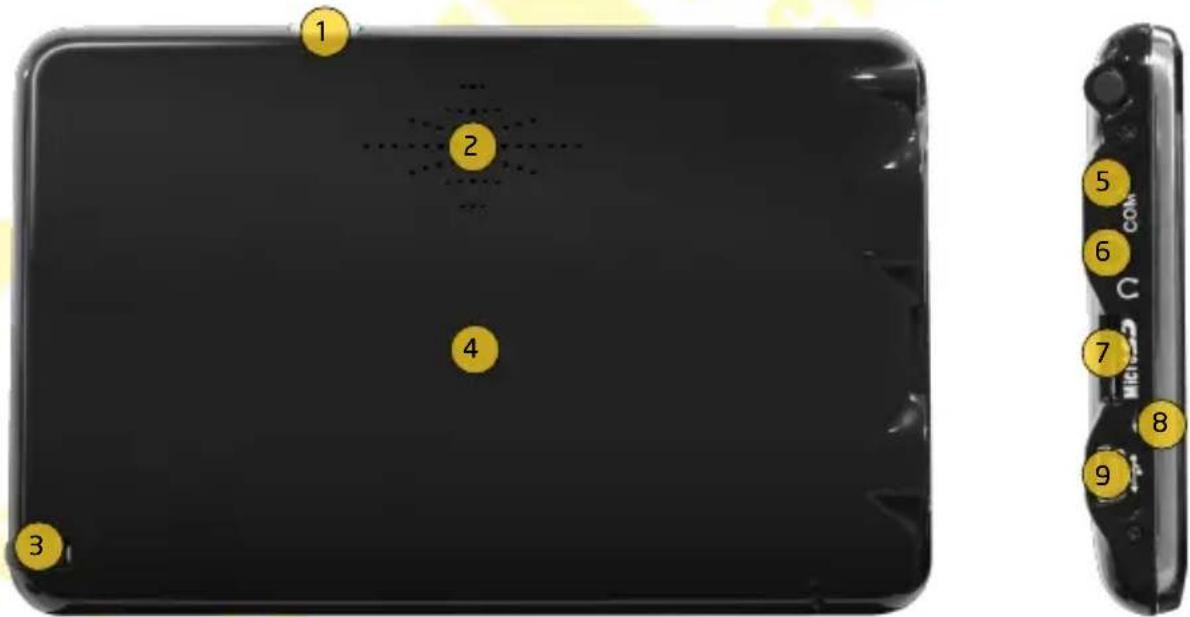
PENTAGRAM Nomad Evo 5.0 [P 9450]
Navigation
Main menu
When you turn on the device, the welcome screen will be displayed for a moment. Then, the main system menu will be launched.
Navigating the menu is very simple - tap the appropriate icon with the stylus to launch it. In the top right corner of the display the battery status icon is visible (in the picture, the battery charging is shown).
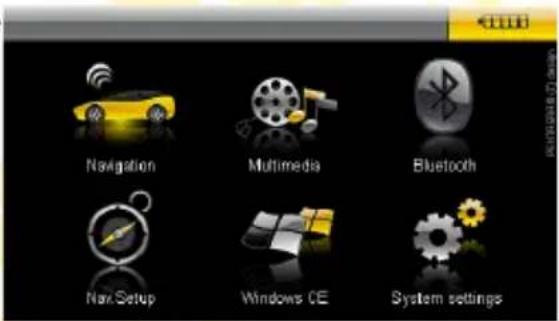
Navigation menu
If the navigation application has been properly installed and configured, tapping the icon will launch the program. Path to navigation application can be changed in Navigation setup menu. If you turn off the device before closing the application, it may result in losing the entered data – for this reason, we recommend closing the application before you turn off the device.
Multimedia menu
Tap the icon to enter the multimedia files playing mode. Tap Music to get to the audio files player, Video, to get to the video files player, Photo to open the graphic file browser, eBook to open TXT files reader or FM Transmitter to open transmitter configuration.
Tap the button to go back to the main menu.
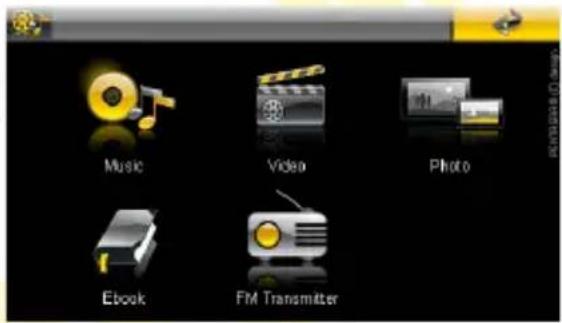
NOTE: High quality multimedia files may not be played smoothly, may slow down device or, in extreme cases may not play at all. A full list of supported video and audio codecs is available at www.pentagram.eu/nomad_5.0
After selecting an option other than FM Transmitter, a list of files will be displayed, enabling you to select a file to open. Tap the folder to display its content, or tap the file to open it.
- Path to the current directory.
- Current directory contents.
- Scroll the list up.
- Scroll the list down.
- Move to the parent directory or go back to the Multimedia menu.
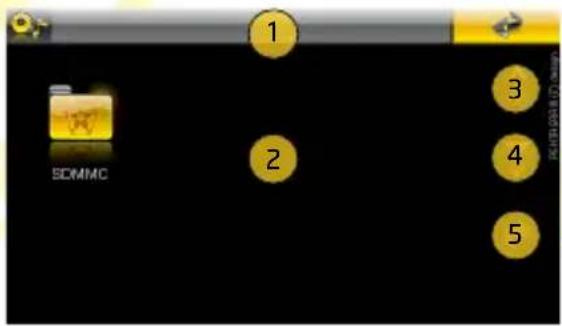
Tap the button to go back to the Multimedia menu.
PENTAGRAM Nomad Evo 5.0 [P 9450]
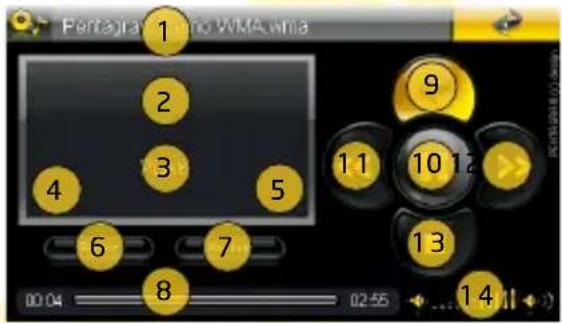
Multimedia / Music
- Name of the file currently played.
- Track information.
- Current play status.
- Selected repeat mode.
- Selected random play mode.
- Repeat mode change button.
- Random play mode change button.
- Progress bar. On the left side of the bar, the current play time, and on the right side - the total time of the track is shown.
- Go back to the file list.
- Pause/resume play.
- Previous track.
- Next track.
- Stop playing.
- Adjust playing volume.
Tap the button to go back to the file list.
EN
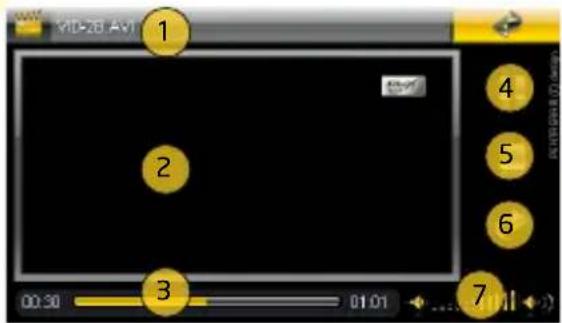
Multimedia / Video
- Name of the file currently played.
- File display area - Double tap this area to enter the full screen mode. To leave the full screen mode, double tap.
- Progress bar. On the left side of the bar, the current play time, and on the right side - the total time of the file is shown.
- Pause/resume playing.
- Stop playing.
- Go back to the file list.
- Adjust playing volume.
Tap the button to go back to the file list.
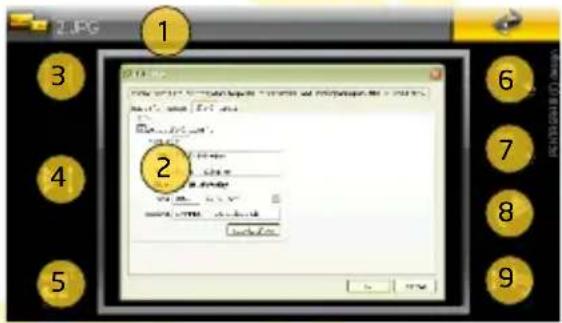
Multimedia / Photo
- Name of the open file.
- File display area. If the file is zoomed in, dragging will move the displayed file.
- Previous file.
- Next file.
- Enter the full screen mode. In this mode, tapping the screen will cause the displaying of the next file. To exit the full screen mode, double tap.
- Zoom in.
- Zoom out.
- Rotate by 90° CW.
- Go back to the file list.
Tap the button to go back to the file list.
NOTE: In case of some graphics formats, certain buttons may be unavailable.
EN
PENTAGRAM Nomad Evo 5.0 [P 9450]
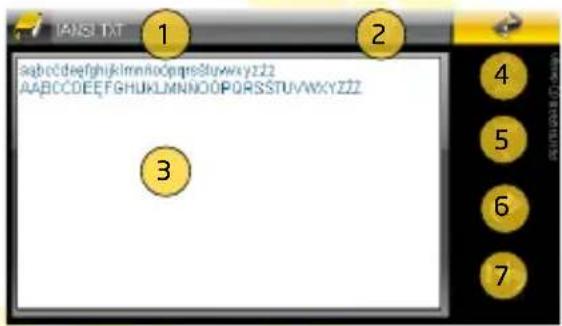
Multimedia / eBook
- Name of the open file.
- Current page/No. of pages.
- File contents.
- Previous page.
- Next page.
- Go back to the file list of files.
- Go to page (see below).
Tap the button to go back to the file list.
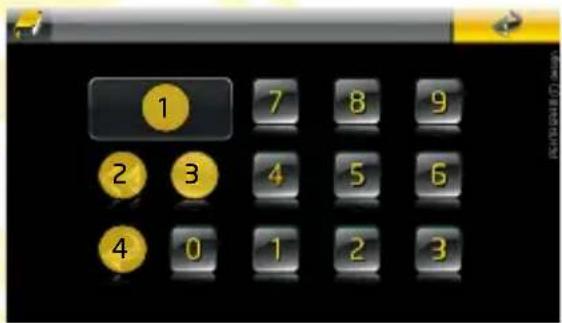
Go to page
To go to a particular page, tap the corresponding page number (it will display in the field). Then tap button. If you want to delete the previously entered page number, tap 3 button. To delete only the last digit, tap Button. To go back to the wile without changing the page, leave field empty and tap button.
Tap the button to go back to the eBook menu.
EN
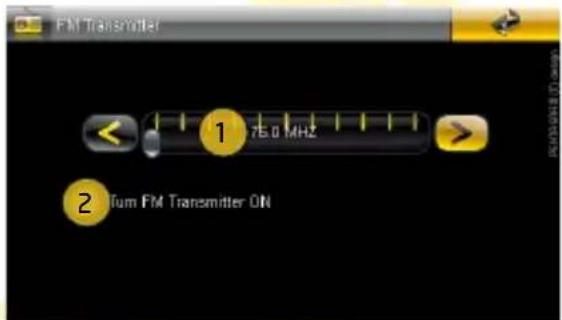
Multimedia / FM Transmitter
- Frequency on which device will be broadcasting. Frequency can be selected by tapping on the scale or by using buttons on both sides of the scale.
- Enable or disable broadcasting on selected frequency.
Tap the button to go back to the Multimedia menu.
NOTES:
- In some countries broadcasting on the FM band without appropriate approval is illegal. Before enabling FM Transmitter, make sure that it won't collide with local rules or regulations.
Due to the enormous energy requirements of the FM Transmitter, it will be only enabled when device is connected to the external power supply.
PENTAGRAM Nomad Evo 5.0 [P 9450]
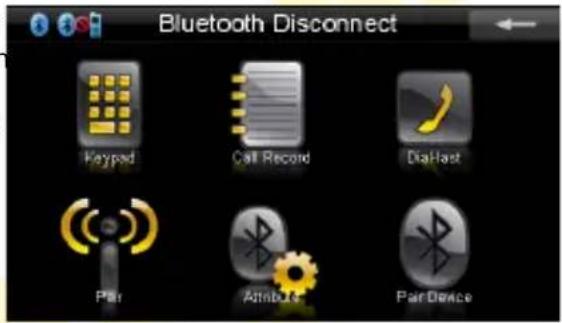
Menu Bluetooth
Tap the icon to turn on the device Bluetooth module and display the menu allowing you to configure and use the Bluetooth connection. Enabling the Bluetooth module increases battery power consumption, hence we recommend disabling it when not in use. Because of this, the Bluetooth module is disabled by default when you exit to the main menu (You can change it in the Settings screen of the Bluetooth menu).
On the top bar mobile phone connection status icon is visible:

- connection established.
- connection not established.
Tap the button to go back to the main menu.
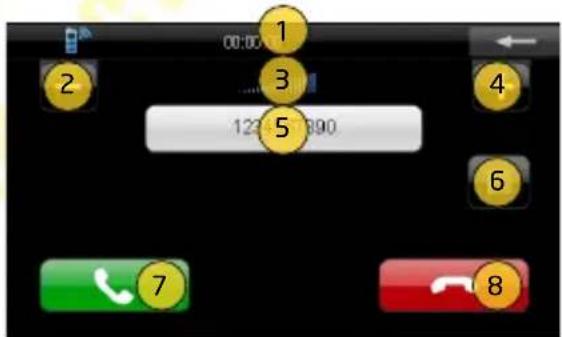
Telephone call screen
This screen is not accessible from the menu level, but is displayed every time you make (or have made) an inbound or outbound phone call. The window looks different depending on the connection type and status.
- Elapsed call time.
- Volume level decrease.
- Current volume level.
- Volume level increase.
- Calling/called phone number.
- Show or hide on-screen keypad for, e.g. dialing the extension number.
- End the call and go back to the previous menu.
- Accept the inbound call.
- Reject the inbound call and go back to the previous menu.
Tap the button to go back to the Bluetooth menu.
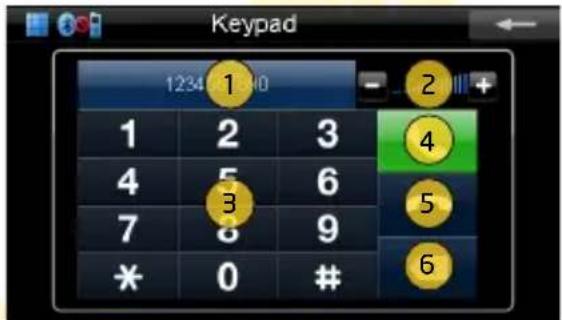
Keypad screen
This screen allows you to make a phone call with the given phone number.
- Phone number to be called.
- Current microphone volume level with regulation.
- Key pad for dialing.
- Establish connection with the dialed phone number.
- Establish connection with the last dialed phone number.
- Back to the previous menu.
Tap the button to go back to the Bluetooth menu.
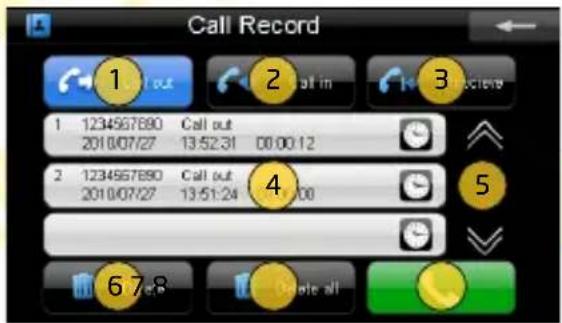
Call Record screen
Contains the lists of the last calls (outbound, answered, missed).
- Outbound calls list.
- Answered calls list.
- Missed calls list.
- Items of the currently selected list.
- Buttons for scrolling.
- Delete selected item from the list.
- Delete all items from the list.
- Call the number selected on the list.
EN
Each element on the list contains following information:
| Phone number Call type | ||
| Call date Call time Call duration | ||
Tap the button to go back to the Bluetooth menu.
PENTAGRAM Nomad Evo 5.0 [P 9450]
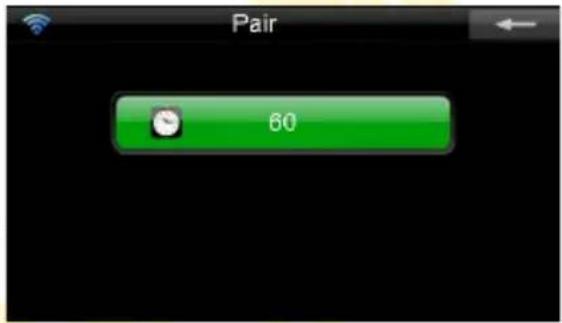
Search screen
In order to pair the device with a mobile phone, enable the Bluetooth module in the paired phone, then search for it and add to the devices list (the documentation that came with the phone should contain detailed instructions on Bluetooth enabling and configuration). The navigation system is identified as GPS, and the default pairing PIN code is 8888 (you can change the PIN code in the Settings screen of the Bluetooth menu). After pairing, connect the phone and the device.
To exit the screen without pairing, tap the button in the top right corner of the display.
Settings screen
The window contains the list of known Bluetooth devices.
- Name identifying the device (read-only).
- PIN code required for pairing with other Bluetooth devices.
- Open the Set PIN Code window for entering a new PIN code.
- When this option is selected, the Bluetooth module will remain enabled after you exit the Bluetooth menu. This is not recommended because the enabled Bluetooth module consumes more power.
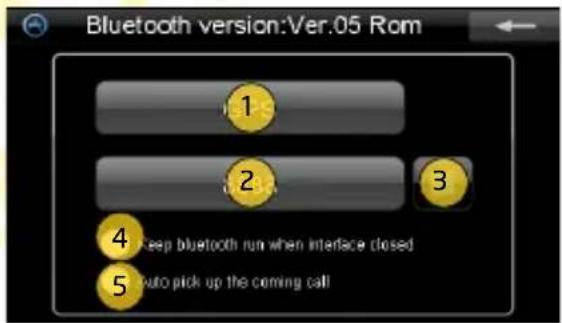
- When this option is selected, all incoming connections will be accepted automatically.
Tap the button to go back to the Bluetooth menu.
Set PIN Code screen
This window allows you to change the PIN code, which is required when pairing the device with a Bluetooth phone.
- New PIN code.
- Key pad for entering the new PIN code.
- Clear PIN code..
- Delete the last digit.
Tap the button to save PIN code and go back to the Settings screen.
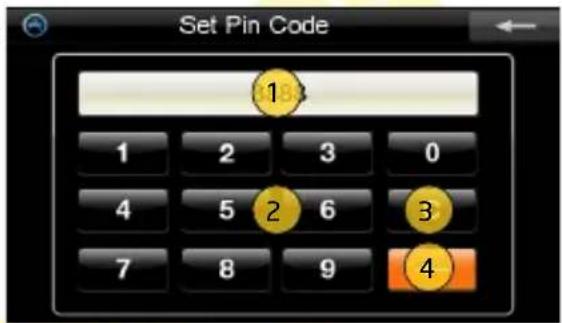
NOTE: PIN code must have 4 digits.
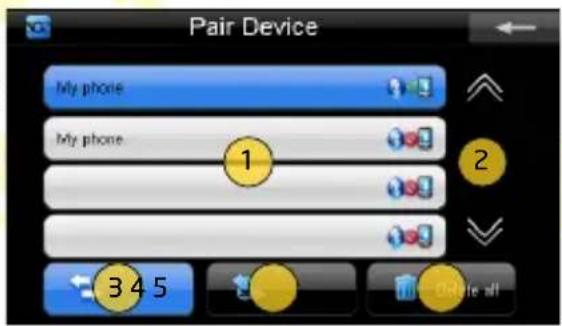
Pair Device screen
The window contains the list of known Bluetooth devices.
- List of known Bluetooth devices. Icons on the right indicate device to which device is currently connected.
- Buttons for scrolling.
- Connect with the selected device. It is not accessible if any connection is active.
- End the connection with the selected device.
- Clear the list. You will have to pair the connected device again.
Tap the button to go back to the Bluetooth menu.
PENTAGRAM Nomad Evo 5.0 [P 9450]
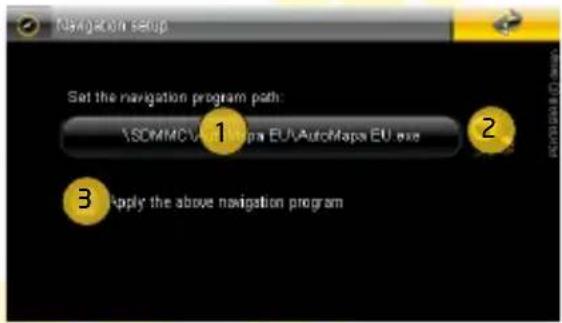
Navigation setup menu
Tap the icon to enter the menu for navigation application configuration.
- Current path to navigation application's executable file.
- Browse for new navigation application's executable file.
- If this option is checked, tapping Navigation icon in main menu will execute selected application. If this option is unchecked, default application will be executed.
Tap the button to go back to the main menu.
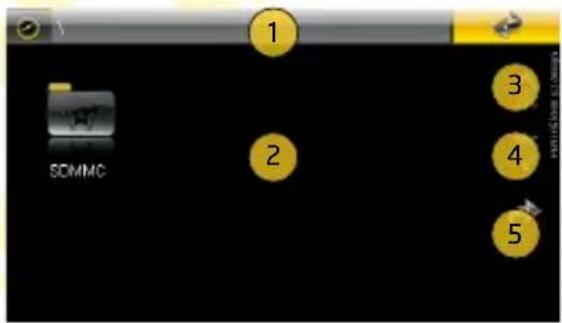
List of files
Click the directory, to display its contents, or the file to select it.
- Path to the current directory.
- Current directory contents.
- Scroll the list up.
- Scroll the list down.
- Move to the parent directory or go back to the Navigation setup menu.
Tap the button to go back to the Navigation setup menu.
Windows CE menu
Tap the icon to get to the Windows CE desktop. To return to the main menu, double tap the Main menu icon on the desktop.
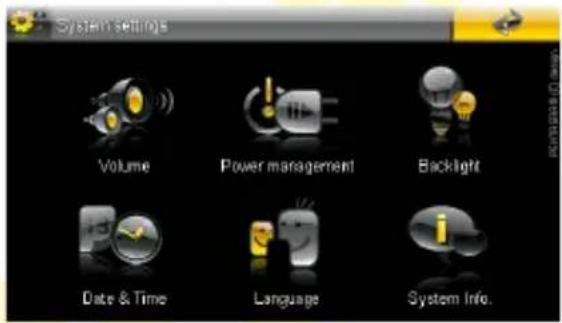
System Settings menu
Tap the icon to enter the system settings menu. Tap the icon corresponding to the option that you want to change. Tap the button to go back to the main menu.
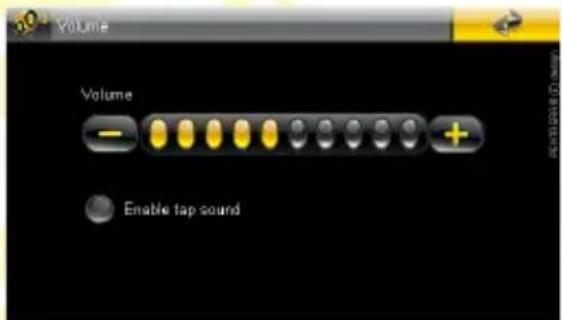
System Settings / Volume
In this menu, you can adjust the sound volume and turn on/of the tapping sounds.
Use the + and - buttons to set the device volume as you want. If you do not want a sound to be played for each tap, uncheck the Enable tap sound field.
Tap thei button to go back to the System Settings menu.
EN
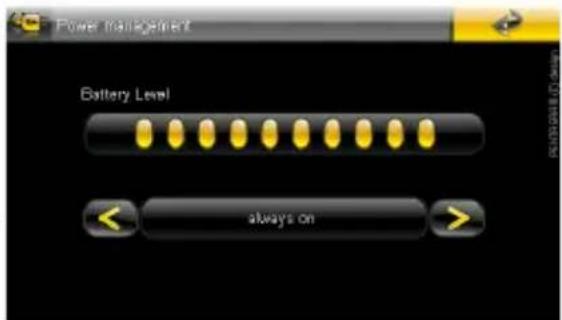
System Settings / Power management
In this menu, you can check the battery charge level and change the energy saving mode.
The more green fields are visible, the higher the battery charge level is. With the arrow buttons, you can set the idle time, after which the device will enter the energy saving (sleep) mode. You can select not to turn off the device automatically: Always on or turned off after 1, 2, 3, 10 or 30 minutes.
Tap the button to go back to the System Settings menu.
PENTAGRAM Nomad Evo 5.0 [P 9450]
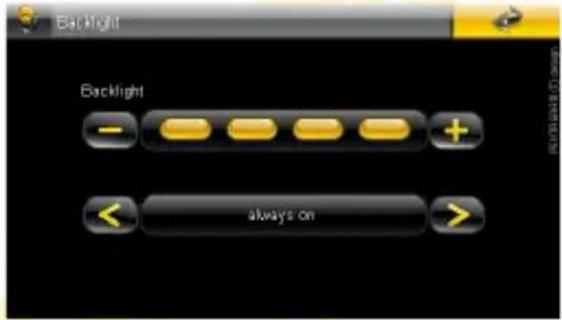
System Settings / Backlight
In this menu, you can change the backlight brightness and the time after which the backlight is turned off.
Use the + and - buttons to adjust the device screen brightness to your preferences or conditions. With the arrow buttons, you can set the idle time after which the device screen backlight will be turned off. You can select not to turn off the backlight automatically: Always on or turn off after 1, 2, 3, 10 or 30 minutes.
Tap the button to go back to the System Settings menu.
System Settings / Date & Time
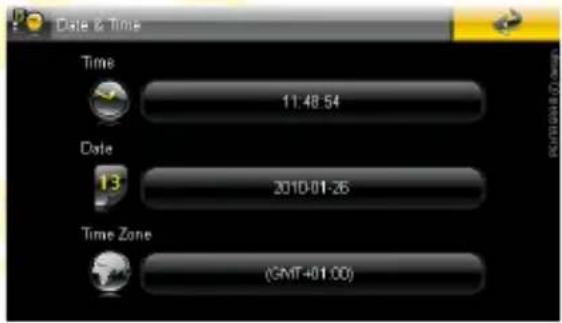
In this menu, the current date, time and time zone settings of the device are displayed. Those values are not remembered when device is turned off and are automatically synchronized with GPS time during first fix. To change individual settings, tap the corresponding icon.
Tap the button to go back to the System Settings menu.
EN
Time
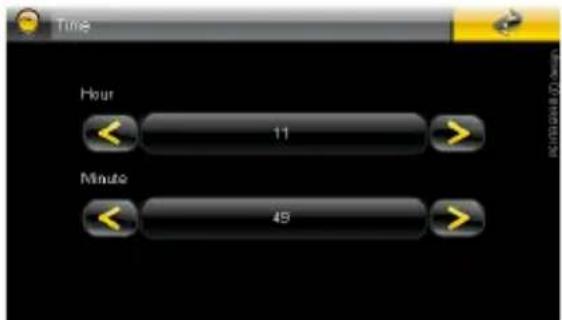
With the arrow buttons, set the correct values for Hour and Minute fields.
Tap the button to go back to the Date & Time menu.
Date
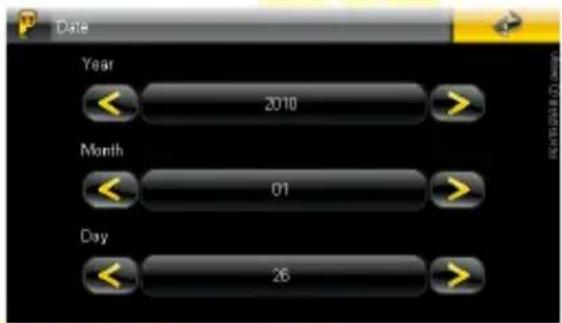
With the arrow buttons, set the correct values for the Year, Month and Day fields.
Tap the button to go back to the Date & Time menu.
Time Zone
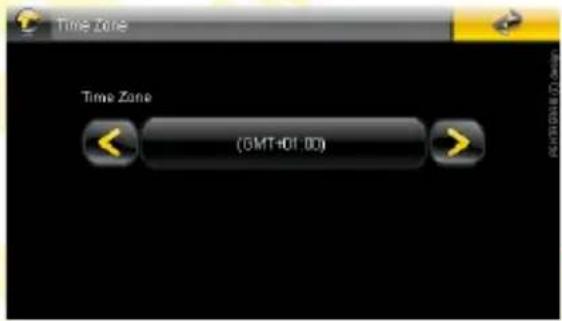
With the arrow buttons, set the time zone appropriate for your region. After changing the time zone, you may have to set the hour again.
Tap the button to go back to the Date & Time menu.
EN
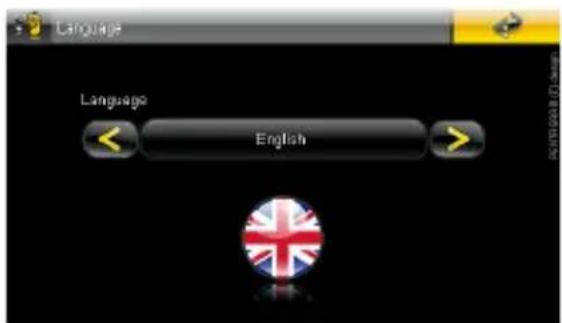
System Settings / Language
In this menu, you can change the language of the display.
With the arrow buttons, set the preferred language.
Tap the button to go back to the System Settings menu.
PENTAGRAM Nomad Evo 5.0 [P 9450]
System Settings / System info.
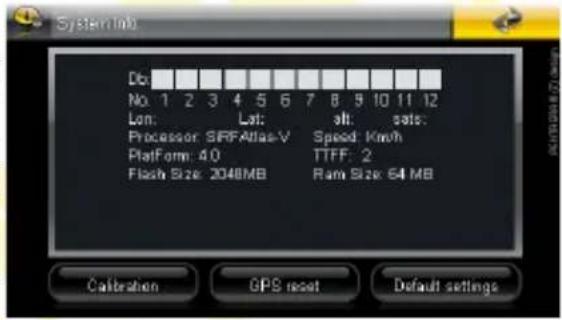
In this menu, current data concerning the device and GPS position are displayed. You can also calibrate the touch screen, reset the GPS receiver and restore the device factory default settings.
Tap the button to go back to the System Settings menu.
Db is the strength of the signal received from the satellite. The satellite number can be found below, in the No. row. The satellite signal strength can be determined by the field background (yellow - medium, green - good). In the sats field below, the number of satellites with signal strength good enough is shown. The Lon, Lat, alt and speed parameters denote, respectively, the longitude, latitude, altitude and speed (if the device is moving). TTFF (Time To First Fix) is the value determining time that has elapsed from the GPS receiver turning on/resetting to the moment of the first position fix.
Processor - the device central processing unit.
Platform - the device hardware version.
RAM Total - the total amount of the built-in RAM.
Calibration - tap this button to start the touch screen calibration (see below).
GPS reset - tap this button to reset the GPS receiver.
Default settings - tap this button to restore the device factory settings.
EN
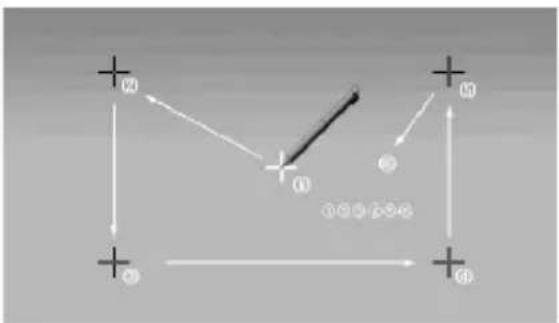
Touch screen calibration
You may have to calibrate the screen if there are differences between the displayed and the real point where you tap the screen with the stylus.
To calibrate the screen, hold the stylus pressed for a moment in the center of the white cross displayed on the screen. Repeat the operation until the calibration screen is closed.
Troubleshooting
If you experience problems with the device, use the tips below. The current list of problems and solutions can be found at www.pentagram.eu/support. If the problem persists, contact Technical Support.
If you experience problems with the navigation application or another program, contact the technical support for the appropriate software manufacturer. You can find contact data in the documentation (also in the electronic form) attached to the software.
| Symptoms Probable cause How to fix | ||
| Problems with turning on. Battery low. Charge the battery. | ||
| Device turns off itself. Battery low or idle times for turning off the backlight or device are too short. | Charge the battery or change the times for automatic backlight/device turning off. | |
| Problems with inserting the memory card. | You insert the memory card in an incorrect way. | Read the Memory card section to find information on inserting the memory card. |
| Screen does not react to taps. | Device has frozen. Turn off and on the device with the switch. If that does not help, press the RESET button on the back of the device. | |
| Problems with connecting to the computer. | USB cable connected improperly. Connect the USB cable properly. | |
| The navigation application does not save the settings. | The device was turned off before the application exited. | Always close the navigation application before turning the device off. |
| No GPS signal | The environment conditions make it difficult to fix the position. | Move the device to a more open area. |
| The device is in a room. | Inside the buildings, the position fix may take much longer than on an open area, or it might not fix the position at all. | |
| The GPS receiver freezes. | Reset the GPS receiver. | |
PENTAGRAM Nomad Evo 5.0 [P 9450]
Specifications*
| System parameters | |
| CPU/GPS receiver SiRF Atlas V 533 MHz with SiRFAlwaysFix ^TM | |
| RAM 128MB | |
| NAND flash 2 GB | |
| Card slot microSD/SDHC up to 8 GB | |
| Operating system Windows CE 6.0 | |
| Basic parameters | |
| Display 5.0" touch screen | |
| Resolution 480 x 272 | |
| Battery type Built-in rechargeable 3.7V Lithium 1300 mAh | |
| Sound Built-in mini speaker | |
| Earphones 3,5mm stereo mini-jack | |
| GPS parameters | |
| Channels number 64 | |
| Tracking sensitivity -161 dBm | |
| Accuracy 5 meters | |
| Antenna Type | Built-in active antenna |
| FM transmitter | |
| Frequency | 88 MHz - 92 MHz |
| Range | ~3 meters |
| Multimedia | |
| Audio | MP3, WMA, OGG, AAC |
| Video** | AVI, XviD, DivX, MPEG1/2/4, 3GP, ASF, RMVB, WMV |
| Image | JPG, BMP, GIF, TIF, PNG |
| Text | TXT |
| General info | |
| Size | 128mm x 82mm x 12mm |
| Weight | 165g (with built-in battery) |
| Working temp. | from 0°C to +40°C |
| Storage temp. | from 10°C to +40°C |
* Specifications are subject to change without prior notice.
** Complete list of supported audio & video codecs is available at www.pentagram.eu/nomad_5.0

natural_image
Abstract geometric pattern with yellow triangles inside a square frame (no text or symbols)PENTAGRAM THE PERFECT SIMPLICITY

natural_image
Abstract geometric pattern with yellow triangles inside a square frame (no text or symbols)PENTAGRAM THE PERFECT SIMPLICITY

natural_image
Abstract geometric pattern with yellow triangles inside a square frame (no text or symbols)PENTAGRAM THE PERFECT SIMPLICITY
CE ^10
DEKLARACJA ZGODNOŚCI
Importer: PENTAGRAM Europe Sp. z o.o.
IEC 61000-4-2 (2001), IEC 61000-4-3 (2002)
IEC 61000-4-4 (2004), IEC 61000-4-5 (2000)
IEC 61000-4-6 (2003) + A1 (2004)
IEC 61000-4-8 (2005), IEC 61000-4-11 (2004)
- Instrukcja obsługi
- PL
- PENTAGRAM Nomad Evo 5.0 [P 9450]
- Nawigacja
- Główne menu
- Multimedia / FM Transmitter (Transmitter FM)
- UWAGA:
- Instruction Manual
- EN
- Table of contents
- Important information
- Safety precautions
- Information concerning waste electronic equipment
- Introduction
- Box contents
- Minimum system requirements
- Battery charging
- Memory card
- Using the touch screen
- Mounting in a car
- Connecting to computer
- NOTES:
- Firmware upgrade
- NOTE:
- Operating the device
- Power button:
- Navigation
- Main menu
- Navigation menu
- Multimedia menu
- Multimedia / Music
- Multimedia / Video
- Multimedia / Photo
- Multimedia / eBook
- Go to page
- Multimedia / FM Transmitter
- Menu Bluetooth
- Telephone call screen
- Keypad screen
- Call Record screen
- Search screen
- Settings screen
- Set PIN Code screen
- Pair Device screen
- Navigation setup menu
- List of files
- Windows CE menu
- System Settings menu
- System Settings / Volume
- System Settings / Power management
- System Settings / Backlight
- System Settings / Date & Time
- Time
- Date
- Time Zone
- System Settings / Language
- System Settings / System info.
- Touch screen calibration
- Troubleshooting
- CE 10
- DEKLARACJA ZGODNOŚCI
Brand : Pentagram
Model : Nomad Evo 5.0 P 9450
Category : Gps