Iguana - Mp3 player Zipy - Free user manual and instructions
Find the device manual for free Iguana Zipy in PDF.


User questions about Iguana Zipy
0 question about this device. Answer the ones you know or ask your own.
Ask a new question about this device
Download the instructions for your Mp3 player in PDF format for free! Find your manual Iguana - Zipy and take your electronic device back in hand. On this page are published all the documents necessary for the use of your device. Iguana by Zipy.
USER MANUAL Iguana Zipy
The packaging contains removable materials in order to treat them later in waste management

Do not deposit the device or the battery in the bin. Please, put it in a recycling bin or carry it to your local nearby store

Deposit the packaging materials in the yellow bin

This device conforms to the EU directives

This unit conforms to the ROHS regulations

Symbol of frequency restriction in some countries of European Union
MP4 Iguana
Contenidos
Repeat (Repetir)
Local Folder (Carpeta local)
Local folder (carpeta local)
Delete (Eliminar)
Delete all (Elimina todo)
Exit
natural_image
Mobile phone icon showing a photo frame with camera and gear symbols, labeled 'Picture' at bottom (no readable text or symbols beyond icons)○ Delete All (Elimina todo)
natural_image
Illustration of a desktop computer with a smartphone connected via a cable to a screen (no text or symbols)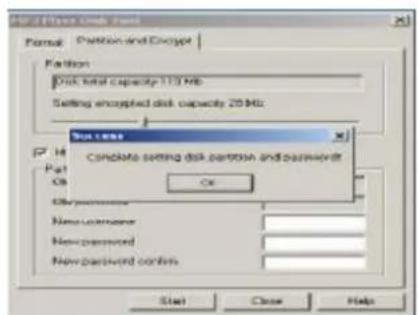
Notas:
Delete file (Eliminar tudo):
natural_image
Mobile phone interface showing a photo icon with camera, gear, and gear symbols, labeled 'Picture' at bottom (no readable text or symbols on the icon itself)natural_image
Illustration of a desktop computer monitor connected to a smartphone via a cable (no text or symbols)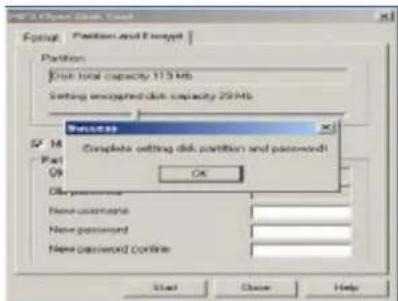
Notas:
18. Upgrading (Atualizar)
1. The Safety Instructions
The manual contains important safety instructions and information of the device's proper usage. Make sure to read carefully and understand all the instructions to avoid accident.
Do not expose the device to extreme temperature (above 40°C), especially in cars with shutting windows in summer.
Do not store in humid or dirty areas.
Avoid the device falling and bumping strongly. Do not make TFT screen suffer from violent shake; otherwise, TFT screen could be damaged or displayed abnormally.
Choose the suitable volume. Do not turn up the volume of the earphones too high while using it. If you feel ringing in your ears, stop using the device or turn the volume down.
Do not disassemble the device by yourself and do not wipe the surface of device with alcohol and benzene and thinners.
Do not use the device in areas where electronic devices is prohibited, such as in plane.
Do not use the device while driving an automobile or walking in the street, otherwise an accident may happen.
Our company reserves the right to improve the product so product's specification and design are subject to change without further notice.
2. Function Overview
I 1.8 inch true color screen
I Mass memory: 1GB/2GB /4GB /8GB optional
I Movie player, support AMV format
I Support various video formats convert to AMV format :RM /MOV /VOB /WMV /ASF /MPEG /DAT etc
I USB 2.0, fast download speed
I ID3 support, Lyrics display
I SP/LP digital recording function
I Electronic photo album
I FM Radio function
ZiPY MANUAL DEL USUARIO
I Play mode: Repeat A-B, repeat one, repeat all, repeat catalog, follow read etc
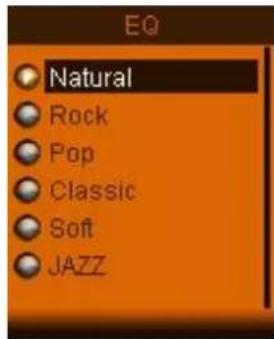
I EQ modes: JAZZ, CLASSIC, ROCK, POP, NORMAL, SOFT, DBB
I No driver is needed above Win98, plug & play to the computer
I Built-in hi-capacity rechargeable Li-polymer battery
I Managing disk function: set two partitions by accessorial tool. One is normal disk, the other is security disk in which files could not be accessed freely.
I Save 40 radio channels and record them to recording file
3. About Battery
The player adopts a built-in Li-polymer battery with large capacity which is very safe in usage.
If battery power is low, the screen will display "low power" then will automatically power off.
Recharge your battery by connection to PC via USB cable or by charger.
The screen displays battery icon and impulse when recharging battery. The icon will indicate full when completing recharging.
The running time of battery depends on volume setting, playing files format, button operation, etc.
The user can set time of [power off] in Setting to save power.
When you don't use the device for a period of time, please push [ON] to [OFF] side
4. Button function:
[ON/OFF]: power switch
[MENU]: enter menu and exit from sub-menu, confirm selection (under any status, hold [MENU] will enter main menu)
[>II]: play/stop, power on/off the player
[PRE] / [NEXT] : last/next, backward /forward
[VOL+] / [VOL-]: adjust volume, increase /decrease the volume
5. Basic operation
1) Power on: hold >II button for 3 seconds, the player will go to working condition.
2) Power off: hold [>II] (play/stop) button for three seconds, the player will be turned off.
Note: When battery power is low, it will automatically power off.
MP4 Iguana
3) Adjusting volume:
With MP3 mode, AMV mode, Voice mode and FM mode, press [VOL-] or [VOL+] to decrease/increase the volume one step, while hold [VOL-] or [VOL+] button will decrease/increase continuously.
6. Main menu
Hold [MENU] to enter main menu, there are seven modes which can switch into each other by pressing [PRE] or [NEXT].
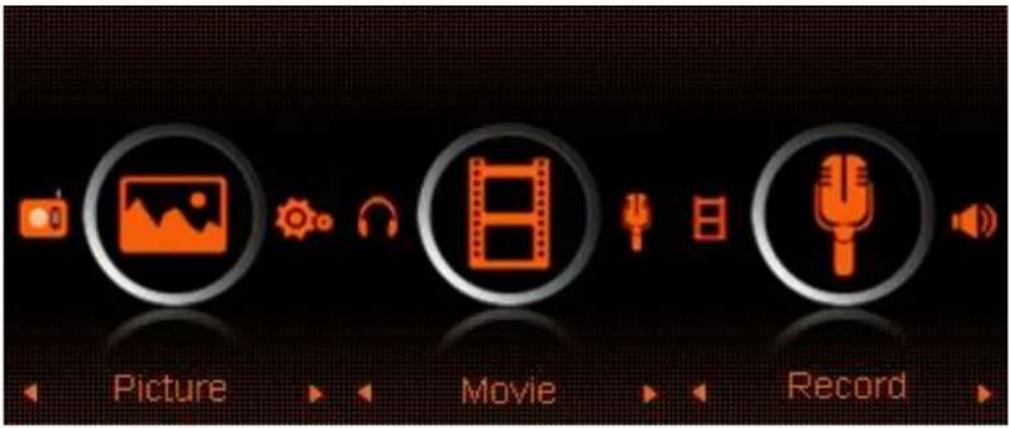
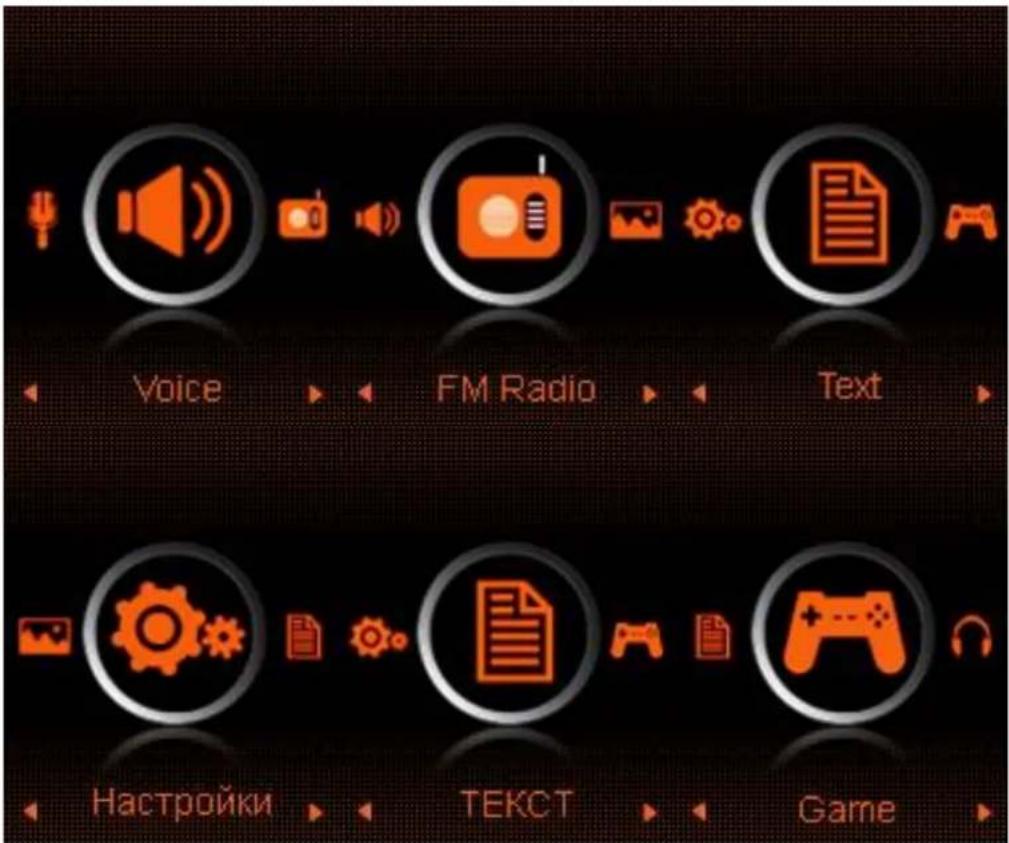
7. Music mode
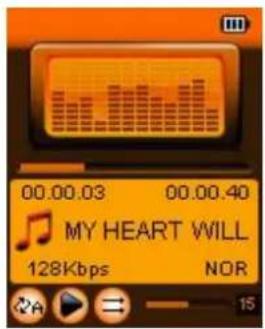
Sub-menu description:
A. sub-menu under playing status (there's no sub-menu while playing AMV file)
Select MUSIC mode in main menu, press [MENU] to confirm selection and then press PLAY/STOP [>II] button to play the song.
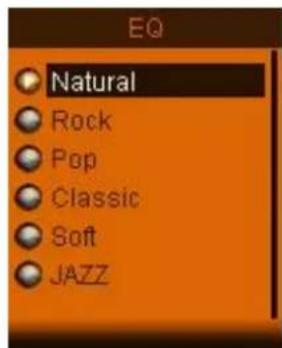
While music playing, press [MENU] button to enter sub-menu:
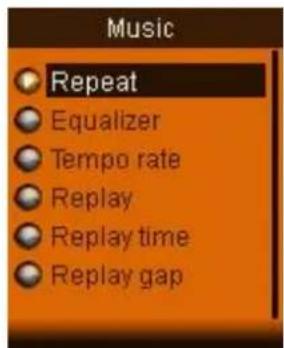
ZiPY MANUAL DEL USUARIO
| Repeat | Normal, Repeat one; Folder; Repeat Folder; Repeat All; Random; Intro. |
| Equalizer | NATURAL,ROCK,POP,CLASSIC,SOFT, JAZZ, DBB |
| SRS WOW mode | SRS WOW, User Setting, Disable SRS |
| Tempo Rate | Moving to positive direction will fast tempo rate and moving to negative direction will slow tempo rate. The digit “0” means normal tempo rate. |
| Replay | A-B repeat, when “A” in the icon [IMAGE] blinks, swing [NEXT] to confirm start point, swing [NEXT] as “B” point . The player will replay from A to B according to the setting in the replay times. (Return to A-B replay mode by swing [PRE] button in such status). |
| Replay times | Set how many times the A-B point replay Maximum is 10 times (1-10) |
| Replay gap | set replay time gap between every replay |
| Exit | Exit from sub-menu |
The device displays lyrics whose name is the same as MP3 file. For example, music format's name is "song.mp3" and LRC file's name must be "song.lrc", and they should be also in the same folder.
If there is lyrics file along together with playing song, the round ball beside the "lyric" icon is green. Otherwise it is red.
B. sub-menu under stop status: (Under playing status with MP3 mode、AMV mode mode, press [>II] to stop playing, then press Mode button)
| Local folder | Indicate the folder of present playing file |
| Delete file | Delete the present playing song |
| Delete All | Delete All songs |
| exit | Exit from the sub-menu |
Delete file:
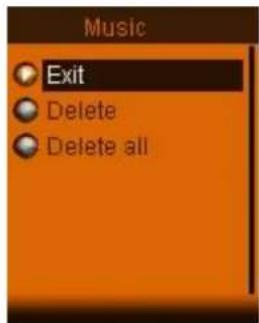
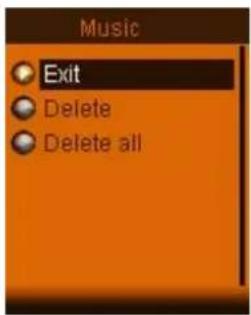
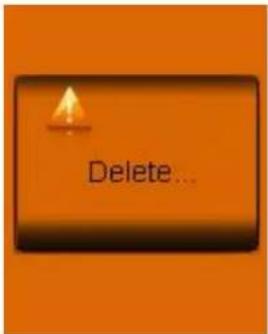
Sub-menu interface, select "Delete file", choose the file you want to delete, confirm "Delete", then the screen shows below:
8. Install (AMV) convert tool:
Make sure you have installed Windows media player 9.exe and DirectX9.0 before you install the software
- Put CD drive into computer and open the driver.
- Run Setup.exe to install the software, then restart the computer.
ZiPY MANUAL DEL USUARIO
- choose menu: start----program----mp3 player utilities --- AMV convert tool
-
There's a window appears, choose the file you want to convert, then choose the folder you want to put the new converted file, click "start converting"
-
Record mode:
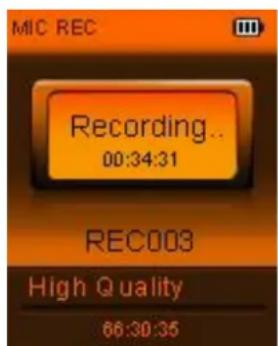
Press [MENU] button to select Record mode in main menu, then press [MENU] again enter into recording sub-menu.
| Local folder | Indicate the folder of present recording file |
| REC type: | Fine REC: WAV format, good voice quality;Long REC: ACT format, fair quality and longer recording time;Fine VOR: WAV format, good voice quality, will stop recording automatically when there is no sound detected;Long VOR: ACT format, fair quality, will stop recording automatically when there is no sound detected; |
| Exit | Exit form sub-menu |
After setting, press [>ll] to start recording. In the meantime please note:
- During recording, only [>II] (play/stop) and [MENU] can be effective.
- press [>ll] (play/stop) button shortly will save present recording file and start a new recording file
-
Ensure sufficient battery capacity during recording.
-
The player support 99 voice recording files storage in each directory. If the screen displays "out of space", which indicates the current directory has already saved 99 voice recording files, the user need to change to a new directory.
-
Voice mode
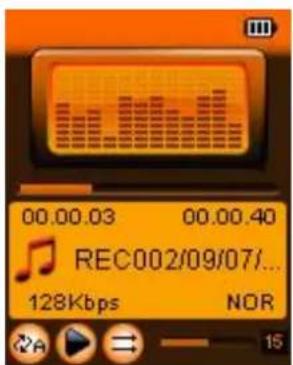
Main menu status, swing [PRE] or [NEXT] to select the Voice mode, then press [MENU] to confirm the selection, press [>II] to play the recording file. Press [>II] button to pause playback, swing [PRE] or [NEXT] button to select recording files.
Sub-menu while playing status:
| Repeat | Refers to “repeat” in music mode |
| Tempo rate | Refers to “tempo rate” in music mode |
| Replay | Refers to “replay” in music mode |

MANUAL DEL USUARIO
| Exit | Exit from sub-menu |
| Sub-menu while stop status: | |
| Local folder | Indicate the folder of present recording file |
| Delete | Delete recording song |
| Delete All | Delete all recording files |
| exit | Exit from the sub-menu |
11. FM mode
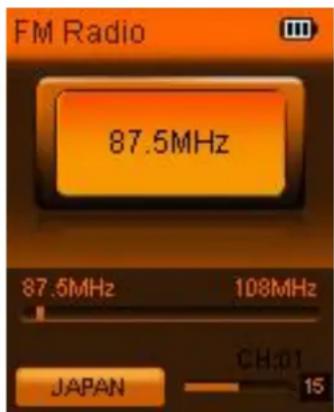
Under main menu, swing [PRE] or [NEXT] button to choose FM mode and press [MENU] to confirm. Press [>II] (play/stop) to save channel. If no channel is saved, you can look for channels by auto or manual searching. Press [MENU] again to get sub-menu as below:
| Save | Save currently tuned frequency; |
| Record | Record current preset channel; |
MP4 Iguana
| Delete | delete current preset channel; |
| Delete All | delete all saved channels; |
| Auto Search | Auto search FM channel |
| Normal Band | Frequencies from 87.5MHz---108MHz; |
| Japan Band | frequencies from76MHz---90MHz; |
| Exit | exit from FM sub-menu |
Auto search: Holding [PRE] button or [NEXT] button for two seconds will tune frequency upward or downward until a radio station is located then it stop automatically.
Manual search: swing [PRE] or [NEXT] button to search channel upward or downward one-step Notice: Normal band and Japan band can store 20 preset channels respectively.
12.Picture
natural_image
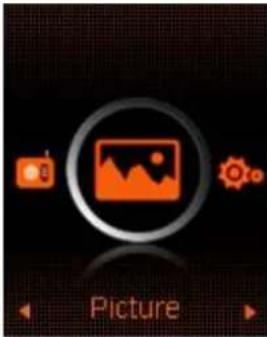
Camera interface showing image placeholder, camera icon, and gear symbol (no readable text or symbols)Under main menu, swing [PRE] or [NEXT] button to select Photo mode, then press [MENU] to confirm, screen shows as below:
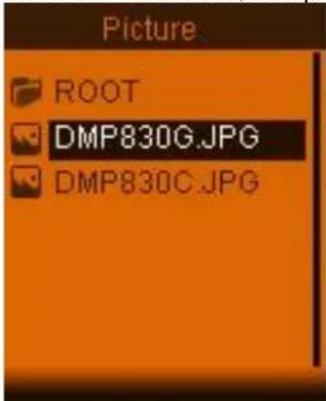
Press [MENU] button again to enter sub-menu:
| local folder | choose the folder where picture is saved; |
| play set | manual play or auto play (there is a time gap for auto play from 1-10 seconds) |
| delete, | Delete picture; |
| Delete All | Delete all pictures |
| exit | Exit from sub-menu |
Press [>11] (play/stop) button to display the picture automatically or manually according to previous playing setting.
13. SYS Setup
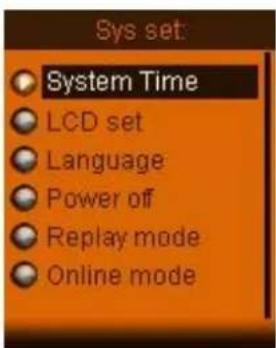
| System Time | Press [MENU] to edit recording time. Swing [NEXT] button and the digit of year will increase; swing [VOL+] button to edit next digit, push [PRE] or [NEXT] button to adjust the digit. Press [MENU] to confirm the setting |
| LCD set | Always light10 Sec20 Sec30 Sec |
| Language | Simple Chinese, English, Trad Chinese, Japanese, French, German, Italian, Dutch, Portuguese, Spanish, Swedish, Czech, Denmark, Polish etc. |
| Power off | Off time: set self-power off time when the player is stopped and no button is pressed. The time unit is seconds. 0 means set off the function.Sleep time: set self-power off time after last key pressed, regardless of whether the player is active or stopped. The time unit is minutes. |
| Replay mode | Manual replay; auto replay |
| Online mode | Multi Drive; Normal only; Encrypted only |
ZiPY MANUAL DEL USUARIO
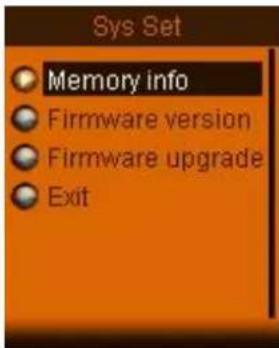
| Memory info. | Check the memory size and the remaining memory |
| Firmware version | Display the player's firmware version |
| Firmware upgrade | Firmware can be upgraded via connection to PC |
| Exit | Exit from the sub-menu |
14. TEXT
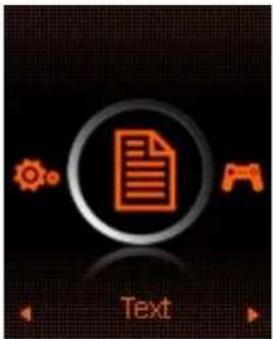
Enter TEXT mode by pressing Mode button, then you can read and edit the article in the device. The device only can recognize the article in "txt." Format.
Press [MENU] button again to enter sub-menu:
| local folder | choose the folder where picture is saved; |
| play set | manual play or auto play (there is a time gap for auto play from 1-10 seconds) |
| delete, | Delete picture; |
| Delete All | Delete all pictures |
| exit | Exit from sub-menu |
- Game
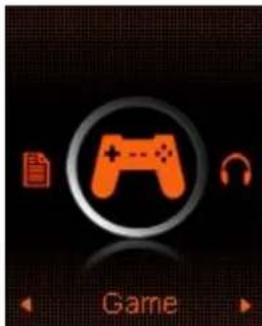
Enter Game function by pressing Mode button, then there's a game named MOVE BOX. Pressing [PRE], [NEXT], [VOL-], [VOL+] to move the pictures.
-
USB disk function
-
The player can be a large mobile storage device, supports 1GB/2GB/4GB memory
- Above windows 98 no driver is required, plug and play to the computer
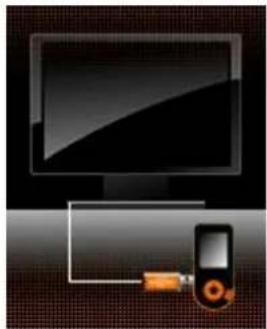
- The player supports USB bus-powered and begins to charge when connecting to PC.
When connected to a computer, the screen will indicate three different modes while operating:
suspending& download &upload
natural_image
Illustration of a desktop computer monitor connected to a smartphone via a cable (no text or symbols)17. Encrypt disk function
User can use the software to set partitions for USB disk. One is normal disk, the other is encrypted disk. (User can see two disk icons in computer. WINDOWS 2K need install SP4, otherwise, user only see one disk icon and selecting [normal only] or [encrypt only] from [online mode] of [system setting]. Encrypted disk would hide all private data, others cannot access data without password.
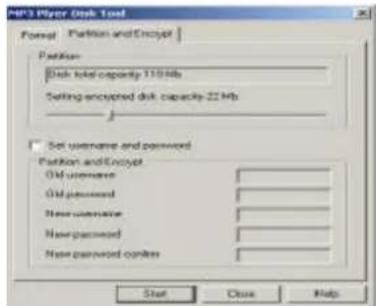
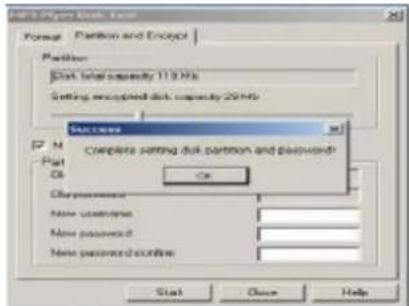
Notice:
*Data in encrypted disk cannot be readable in the player.
*It is necessary for encrypted disk to input user name and password when connecting to computer.
*Setting partitions will erase data, please backup data in advance. Combining disks would also erase data.
*Please do not lose username and password. Otherwise, you cannot access encrypted disk. You can combine disks to cancel encrypted disk at risk of damaging data in encrypted one.
18. Upgrading
Use update tool installed in your computer to update and repair the damaged driver.
-
Connect player to the computer
-
Run the software: Start----program----MP3 Player Utilities ---- MP3 Player Upgrade Tool, click [choose new version firmware] button.
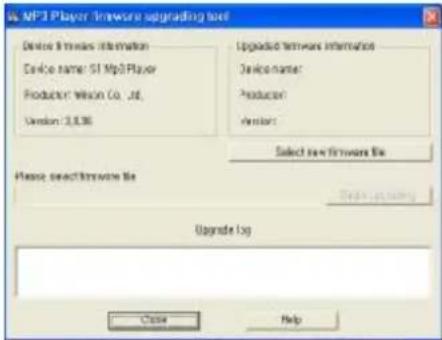
- Select the new firmware driver (from the drive CD or from the website of the supplier). Click [start] button to begin upgrading.
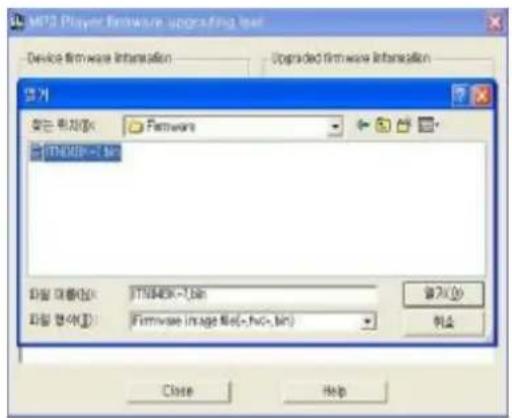
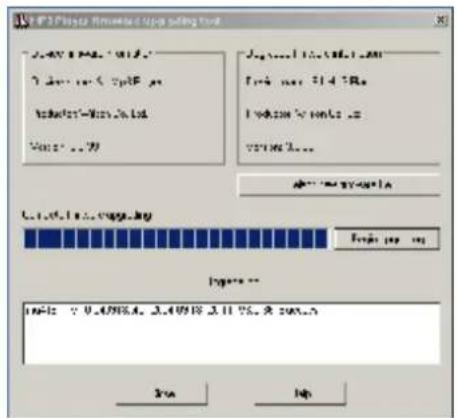
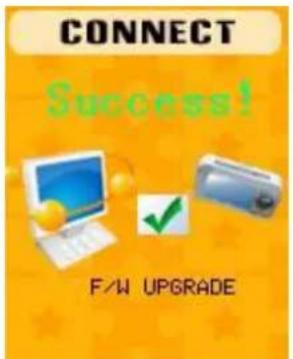
- When upgrading is successful, the display will indicate successfully upgraded.
- Find the icon of removable disk in [my computer]. Click the right button of mouse to select [format]. In formatting interface, select FAT system in [file system], then click [start] button to format disk. Notice: formatting disk would erase all the data and please backup data before formatting.
19. Troubleshooting
If the player couldn't play properly, please use trouble-shooting guide to help you.
| Symptom | Solution |
| The player cannot work | Please check the voltage of batteryMake sure the power button is onPlease check if volume is set to “0” or not and make sure that earphones are connected properly.Damaged music data will make noise in some extent; make sure there are files in the player.choose right FAT file system in dialogue when formatting disk. |
| The player cannot upload /download files; no disk icon in computer | Please check USB cable is correctly connected.Please properly re-install CD driver if under Win 98 |
| The player cannot record | Please check if memory is sufficient.Please check the battery voltage. |
| Strange characters are displayed | Please check if the correct language is selected. |
| FM radio signal is not clear | Readjust the position between player and earphone; earphone can be used as antenna to receive the signal |
If you had other difficulties in warranty period, please feel free contact our company to help you solve the problem.
- Specification
| Item Specification | |
| Transferring data rate | USB2.0 |
| File formats supported | Music: MP1、MP2、MP3、WMA、WAVRecord: WAVVideo support: AMV |
| FM frequency | 87.5MHz—108MHz |
| S/N rate 85dB | |
| The max output power | (L) 10mW+(R) 10mW (320hm) |
| Built-in memory | 1GB-8GB |
| Operating temperature | -5°C~40°C |
| Operating System | WINSE/ME/2K/XP, MacOS10.Linux2.4.2(Only WIN98 needs the CD driver) |
| Accessories | User Manual, Earphone, USB cable, Installation CD |
Specification and appearance are subject to change without further notice.
AID WARRANTY CONDITIONS
AID, in compliance with the Customer Protection Law (Ley 23/2003, July 10th, of Warranty in the Sale of Consumer Goods, BOE no. 165, 11/07/2003), offers Direct Warranty to Spain and Portugal customers for all our brands' products: ZIPY, MUSE, NEW ONE, AC-RAYAN, TNB, BARKAN, BRASFORMA, THE COMPLEMENTS, and GO BY ZIPY, under the following conditions:
A – Our products have a two year warranty. During the first year original defects that may be detected are repaired. In those cases stipulated by law, the buyer will be entitled to the replacement of the device by a new one, provided that the defects are not due to the negligence or exclusive fault of the buyer in handling the device. During the second year the buyer will need to prove that the malfunctioning of the device is due to a manufacturing defect. In both cases the warranty will apply provided that:
- The product has been used for its destined purpose alone.
- It was not opened, manipulated or altered in any way by someone other than the Official Technical Service.
- It has not undergone shock, flood, overheating, electric overcharge or any other external circumstance that may constitute a possible reason of INVALIDATING the warranty.
- The product will be returned to AID in proper packaging together with the receipt where the brand and type of product, the date of the purchase, the name and address of the shop that sold it
and the reason for the malfunctioning should be clearly stated.
Any of the following circumstances invalidates the present warranty:
-
Breaking the ports, the screen or the glass.
-
Loss of liquid from the screen.
-
Wearing out, obvious marks of incorrect manipulation, inappropriate use, ill-treatment, shock, falls, dirt, and so on.
-
The data contained in the products are under no circumstances covered by any warranty whatsoever, nor are they to be considered during the physical repairing process of the products. AID guarantees absolute confidentiality of the data.
-
AID does not cover the incorrect configuration or installation of the software / hardware on the part of the client, neither as a component nor as a peripheral, included prives / controllers included.
-
The legislation on guarantees sets certain limits. “the guarantee does not cover additional components such as batteries, nor any elements that are subject to maintenance due to its use such as earphones”. These accessories have a 6 months guarantee.
-
Waterproof bags have a 48-hour trial period, such as indicated on the product itself, therefore once this time period is elapsed they will no longer be covered by any guarantee.
-
Final users do not need to send us the device accessories, especially if they are not the original ones, since we will not be held responsible for them.
CASES:
-
If the product is out our guarantee, the AID technical department will facilitate a budget for the repair by fax or e-mail. Said budget will need to be authorized in writing, sealed and signed, and the user will have to satisfy the repair fee as well as the freight.
-
If the budget is not accepted a diagnosis fee will be charged. (6€)
-
Repairs have a 90 days guarantee, provided that the breakdown is under the same concept and in the case of budgeted breakdowns alone.
B – All the freight costs for the product will be covered by AID using only the transportation company designed by AID following the authorization procedure.
The expenses derived from incorrect or unjustified returns on the part of the client will be covered by the client alone.
C – Any incidence detected at the moment of the reception of the merchandise must be immediately notified at the AID Post-Sales Department: maria@accesoriosdigital.com in compliance with Article 366 from the Code of Commerce, AID will not consider complaints about breakages, shocks or absence of boxes or pieces 24 hours after the delivery of the merchandise.
In the case of shipments originated in Canarias, Ceuta and Melilla, AID will not pay the customs tax nor any kind of reimbursable expenses.
DECLARATION OF CONFORMITY
ACCESORIOS INTELIGENTES DIGITAL S.A. 6 CARPINTEROS, OF-13 VILLAVICIOSA DE ODON. 28670 MADRID
We hereby declare, under our exclusive responsibility, our conformity with the product:
MP/4 : IGUANA by ZIPY
To which this declaration refers with the following directives:
EN55013:2001-A1:2003+A2:2006
EN55022:2006+A1:2007
EN55020:2007
EN55024:1998+A1:2001+A2:2003
In compliance with the resolutions of the Directive 99/05/CE, of the European Parliament and the March 9 ^th 1999 Council, included in the Spanish law system by El Real Decreto 1890/2000, November 20 ^th .
Issue location and date
2/11/2009
Signed by: Miguel Fauro

ZiPY