
AVR 171S - AV receiver HARMAN KARDON - Free user manual and instructions
Find the device manual for free AVR 171S HARMAN KARDON in PDF.



User questions about AVR 171S HARMAN KARDON
0 question about this device. Answer the ones you know or ask your own.
Ask a new question about this device
Download the instructions for your AV receiver in PDF format for free! Find your manual AVR 171S - HARMAN KARDON and take your electronic device back in hand. On this page are published all the documents necessary for the use of your device. AVR 171S by HARMAN KARDON.
USER MANUAL AVR 171S HARMAN KARDON
AVR 1710S, AVR 171S, AVR 171S/230C
AVR 1610S, AVR 161S, AVR 161S/230C
Audio/video receiver
HOMI® HIGH-DEFINITION MULTIMEDIA INTERFACE

Owner's Manual
harman/kardon
by HARMAN
INTRODUCTION 3
SUPPLIED ACCESSORIES 3
IMPORTANT SAFETY INFORMATION 3
PLACE THE AVR 3
FRONT-PANEL CONTROLS 4
REAR-PANEL CONNECTORS 6
SYSTEM REMOTE CONTROL FUNCTIONS 8
INTRODUCTION TO HOME THEATER 10
TYPICAL HOME THEATER SYSTEM 10
MULTICHANNEL AUDIO 10
SURROUND MODES 10
PLACE YOUR SPEAKERS 11
PLACING THE LEFT, CENTER AND RIGHT SPEAKERS 11
PLACING THE SUBWOOFER 11
TYPES OF HOME THEATER SYSTEM CONNECTIONS 12
SPEAKER CONNECTIONS 12
SUBWOOFER CONNECTIONS 12
SOURCE DEVICE CONNECTIONS 12
VIDEO CONNECTIONS 13
RADIO CONNECTIONS 13
NETWORK CONNECTOR 14
USB PORT 14
MAKING CONNECTIONS 14
CONNECT YOUR SUBWOOFER 15
CONNECT YOUR TV OR VIDEO DISPLAY 15
CONNECT YOUR AUDIO AND VIDEO SOURCE DEVICES 16
USB AND IOS DEVICES 18
CONNECT TO YOUR HOME NETWORK 18
CONNECT THE RADIO ANTENNAS 18
INSTALL A MULTIZONE SYSTEM 19
CONNECT IR EQUIPMENT 20
CONNECT THE TRIGGER OUTPUT 20
CONNECT TO AC POWER 20
SET UP THE REMOTE CONTROL 21
INSTALL THE BATTERIES IN THE REMOTE CONTROL 21
PROGRAM THE REMOTE TO CONTROL YOUR SOURCE
DEVICES AND TV 21
SET UP THE AVR 22
TURN ON THE AVR 22
USING THE ON-SCREEN MENU SYSTEM 22
CONFIGURE THE AVR FOR YOUR SPEAKERS 22
SET UP YOUR SOURCES 23
SETUP THE NETWORK 24
HARMAN REMOTE APP 25
CONTROLLING THE VOLUME 25
MUTING THE SOUND 25
LISTENING THROUGH HEADPHONES 25
SELECTING A SOURCE 25
SELECTING A SURROUND MODE 25
LISTENING TO FM AND AM RADIO 26
LISTENING TO MEDIA ON A USB DEVICE 26
LISTENING TO AN IPOD/IPHONE/IPA D DEVICE 27
LISTENING TO VTUNER (INTERNET RADIO) 28
LISTENING TO MEDIA VIA YOUR HOME NETWORK 28
PLAYING MEDIA FROM A ROKU STREAMING STICK 29
LISTENING TO MEDIA VIA SPOTIFY CONNECT 29
USING THIS DEVICE WITH SPOTIFY CONNECT 29
ADVANCED FUNCTIONS 29
MANUAL SPEAKER SETUP 30
LISTENING IN ZONE 2 33
SYSTEM SETTINGS 34
SLEEP TIMER 34
PROCESSOR RESET 34
TROUBLESHOOTING 35
SPECIFICATIONS 36
APPENDIX 37
Introduction
Thank you for choosing this Harman Kardon product!
For more than fifty years, the Harman Kardon mission has been to share a passion for music and entertainment, using leading-edge technology to achieve premium performance. Sidney Harman and Bernard Kardon invented the receiver, a single component designed to simplify home entertainment without compromising performance. Over the years, Harman Kardon products have become easier to use, while offering more features and sounding better than ever.
The AVR 1710S/AVR 171S 7.2-channel and AVR 1610S/AVR 161S 5.1-channel digital audio/ video receivers (AVRs) continue this tradition with some of the most advanced audio and video processing capabilities yet, and a wealth of listening and viewing options.
To obtain the maximum enjoyment from your new AVR, please read this manual and refer back to it as you become more familiar with its features and their operation.
If you have any questions about this product, its installation or its operation, please contact your Harman Kardon retailer or custom installer, or visit the Web site at www.harmankardon.com.
Supplied Accessories
The following accessory items are supplied with your AVR. If any of these items are missing, please contact your Harman Kardon dealer or Harman Kardon customer service at www.harmankardon.com.
- System remote control
- EzSet/EQ™ microphone
- AM loop antenna
FM wire antenna - Two AAA batteries
- AC power cord (AVR 171S/AVR 161S only)
IMPORTANT SAFETY INFORMATION
Verify Line Voltage Before Use
The AVR 1710S and AVR 1610S have been designed for use with 120-volt alternating current (AC). The AVR 171S and AVR 161S have been designed for use with 220 - 240-volt AC. Connection to a line voltage other than that for which your receiver is intended can create a safety and fire hazard and may damage the unit. If you have any questions about the voltage requirements for your specific model, or about the line voltage in your area, contact your selling dealer before plugging the unit into a wall outlet.
Do Not Use Extension Cords
To avoid safety hazards, use only the power cord supplied with your unit. We do not recommend that extension cords be used with this product. As with all electrical devices, do not run power cords under rugs or carpets, or place heavy objects on them. Damaged power cords should be replaced immediately by an authorized service center with a cord meeting factory specifications.
Handle the AC Power Cord Gently
When disconnecting the power cord from an AC outlet, always pull the plug; never pull the cord. If you do not intend to use your AVR for any considerable length of time, disconnect the plug from the AC outlet.
Do Not Open the Cabinet
There are no user-serviceable components inside this product. Opening the cabinet may present a shock hazard, and any modification to the product will void your warranty. If water or any metal object such as a paper clip, wire or staple accidentally falls inside the unit, disconnect it from the AC power source immediately, and consult an authorized service center.
CATV or Antenna Grounding (AVR 1710S/AVR 1610S)
If an outside antenna or cable system is connected to this product, be certain that it is grounded so as to provide some protection against voltage surges and static charges. Section 810 of the United States National Electrical Code, ANSI/NFPA No. 70-1984, provides information with respect to proper grounding of the mast and supporting structure, grounding of the lead-in wire to an antenna discharge unit, size of grounding conductors, location of antenna discharge unit, connection to grounding electrodes and requirements of the grounding electrode.
NOTE TO CATV SYSTEM INSTALLER: This reminder is provided to call the CATV (cable TV) system installer's attention to article 820-40 of the NEC, which provides guidelines for proper grounding and, in particular, specifies that the cable ground shall be connected to the grounding system of the building, as close to the point of cable entry as possible.
Place the AVR
- Place the AVR on a firm and level surface. Be certain that the surface and any mounting hardware can support the AVR's weight.
- Provide proper space above and below the AVR for ventilation. Recommended clearance distances are 30cm above the unit, 30cm behind the unit and 30cm on each side of the unit.
- If you install the AVR in a cabinet or other enclosed area, provide cooling air within the cabinet. Under some circumstances, a fan may be required.
- Do not obstruct the ventilation slots on the top of the AVR or place objects directly over them.
- Do not place the AVR directly on a carpeted surface.
- Do not place the AVR in moist or humid locations, in extremely hot or cold locations, in areas near heaters or heat registers, or in direct sunlight.
Front-Panel Controls
Front-Panel Controls, continued
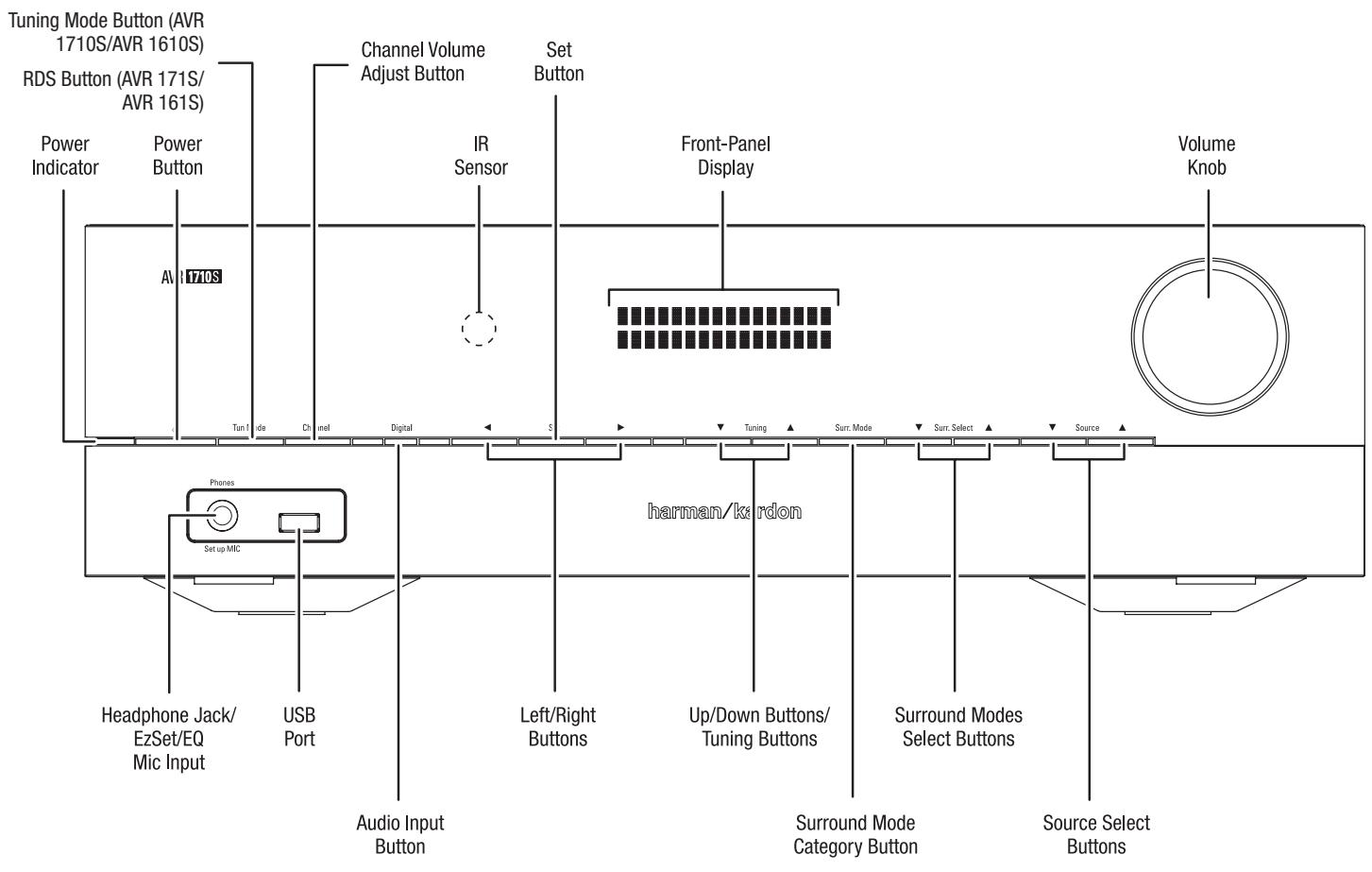
Power indicator/Power button: The AVR has three different power modes:
- Off (Power indicator glows solid amber): The Off mode minimizes energy consumption when you're not using the AVR. When the AVR is off, it will not automatically turn on or play audio in response to an AirPlay stream from a networked device (AVR 1710S/ AVR 171S only). When the AVR is off, pressing the Power button turns it on. To turn the AVR off when it is on, press the Power button for more than three seconds. The Front-Panel Display will indicate "Your device is switched off" for two seconds, then will switch off.
NOTE: You can use the System Setup menu to set the AVR to automatically enter the off mode after it has been in the Sleep mode for a certain period of time. See System Settings, on page 34.
- Sleep (Power indicator glows solid amber and front-panel display indicates "Device sleep"): The Sleep mode powers-down some of the AVR's circuitry, but allows the AVR to automatically turn on and play audio in response to an AirPlay or DLNA DMR stream from a networked device (AVR 1710S/AVR 171S only). When the AVR is in Sleep, pressing the Power button turns it on. To put the AVR into Sleep when it is on, press the Power button for less than three seconds. The front-panel display will indicate "Device sleep" while the AVR is in the Sleep mode.
NOTE: The AVR will automatically enter the Sleep mode after 30 minutes of no audio signal or user control input, unless USB, iPod, Home Network, vTuner, AirPlay, or DLNA DMR is active. In these cases, the AVR will automatically enter the Sleep mode after the number of hours set in the Auto Power Off system setting. See System Settings, on page 34.
- On (Power indicator glows solid white): When the AVR is on it is fully operational.
Headphone jack/EzSet/EQ Mic input: Connect a 1/4" stereo headphone plug to this jack for private listening. This jack is also used to connect the supplied microphone for the EzSet/EQ setup procedure described in Configure the AVR For Your Speakers, on page 22.
Tuning Mode button (AVR 1710S/AVR 1610S only): Press this button to toggle the radio between the manual (one frequency step at a time) and automatic (seeks frequencies with acceptable signal strength) FM tuning mode. The button also toggles the radio between stereo and mono modes when an FM station is tuned in.
RDS button (AVR 171S/AVR 161S only): When listening to an FM radio station that broadcasts RDS information, this button activates the various RDS functions.
USB port: The USB port can be used to play audio files from an Apple iOS® device connected to the port, and can also be used to play MP3 and WMA audio files from a USB device inserted into the port. Insert the connector or device into the USB port oriented so it fits all the way into the port. You may insert or remove the connector or device at any time – there is no installation or ejection procedure.
You can also use the USB port to perform firmware upgrades. If an upgrade for the AVR's operating system is released in the future, you will be able to download it to the AVR using this port. Complete instructions will be provided at that time.
IMPORTANT: Do not connect a PC or other USB host/controller to this port, or you may damage both the AVR and the other device.
Channel Volume Adjust button: Press this button to activate the individual channel level adjustment. After pressing this button, use the Up/Down buttons/Tuning buttons to select the channel for adjustment and use theLeft/Right buttons to adjust the channel's level.
Audio Input button: Press this button to change the audio input connection for the current source. Use the Left/Right buttons to cycle through the available input connections, and press the Set button to assign the currently-displayed connection to the source.
IR sensor: This sensor receives infrared (IR) commands from the remote control. Make sure that the sensor is not blocked.
Set button: Press this button to select the currently highlighted menu item.
Left/Right buttons: Use these buttons to navigate the AVR's menus.
Front-panel display: Various messages appear on this two-line display in response to commands and changes in the incoming signal. In normal operation, the current source name appears on the upper line, while the active surround mode is displayed on the lower line. When the on-screen display menu system (OSD) is in use, the current menu settings appear.
Up/Down buttons/Tuning buttons: Use these buttons to navigate the AVR's menus. When the radio is the active source, use these buttons to tune stations according to the setting of the Tuning Mode button (see above).
Surround Mode Category button: Press this button to select a surround-sound category. Each press changes the surround-mode category: Auto Select, Virtual, Stereo, HARMAN NSP, Movie, Music and Video Game. To change the specific surround-sound mode within the category, use the Surround Mode Select buttons. See Audio Processing and Surround Sound, on page 29, for more information about surround modes.
Surround Mode Select buttons: After you have selected the desired surround-mode category, press these buttons to select a specific mode within the category, such as to change from Dolby® Pro Logic® II Movie mode to DTS® NEO:6 Cinema mode. Surround mode availability depends on the nature of the source input signal, i.e., digital versus analog, and the number of channels encoded within the signal.
Source Select buttons: Press these buttons to select the active source.
Volume knob: Turn this knob to raise or lower the volume.
Rear-Panel Connectors
AVR 1710S/AVR 171S
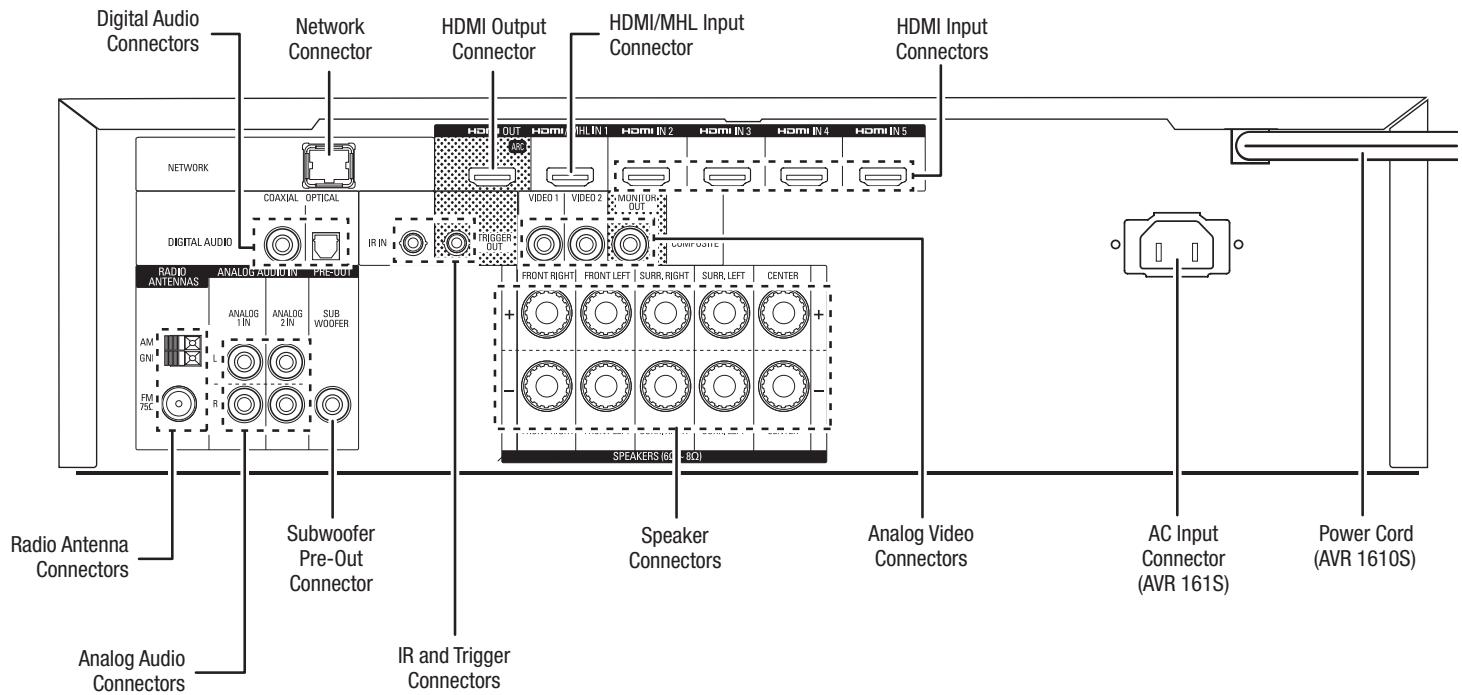
AVR 1610S/AVR 161S
Rear-Panel Connectors, continued
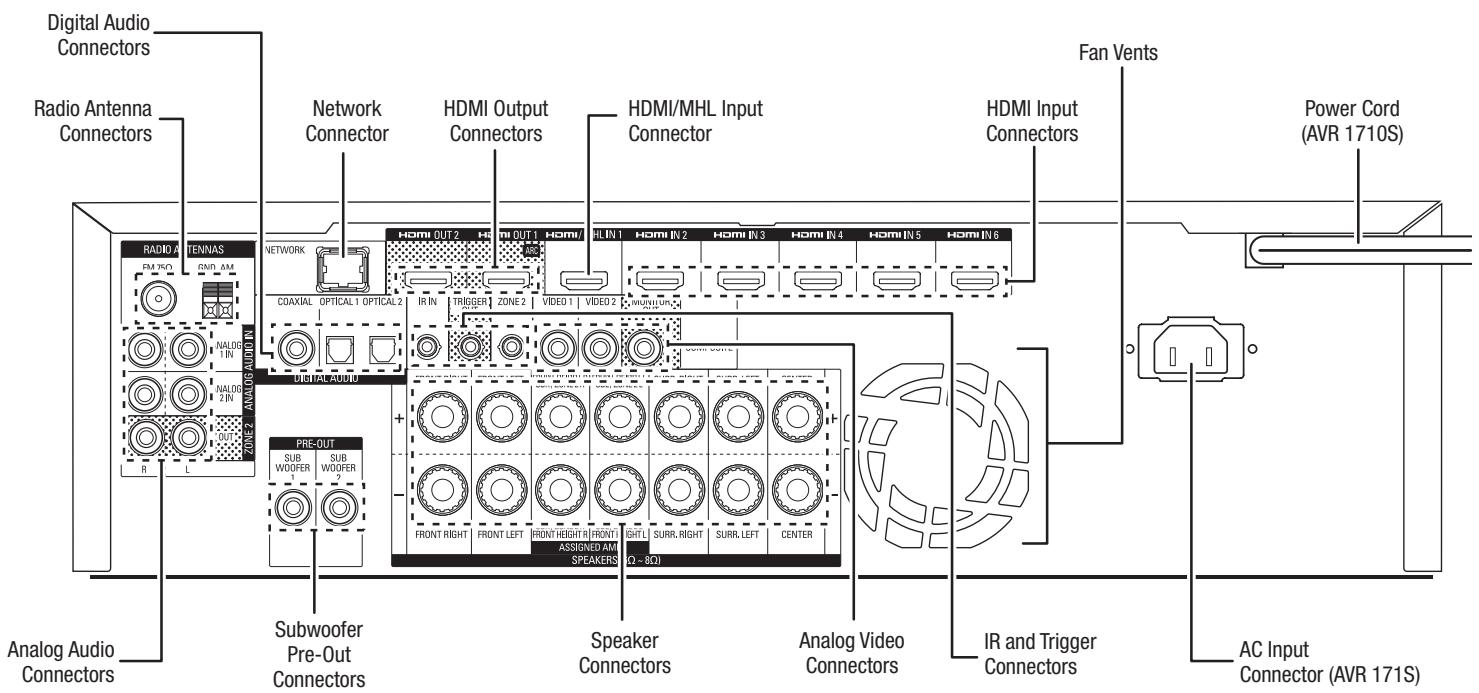
Digital Audio connectors: If your non-HDMI source devices have digital outputs, connect them to the AVR's digital audio connectors. NOTE: Make only one type of digital connection (HDMI, optical or coaxial) from each device. See Connect Your Audio and Video Source Devices, on page 16, for more information.
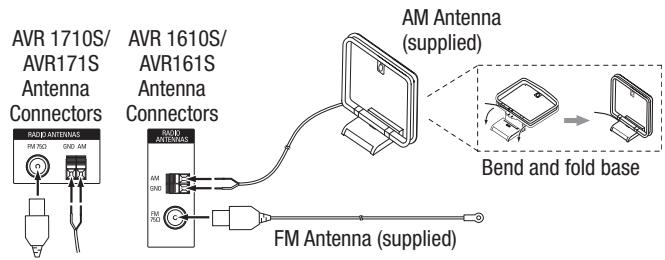
Radio Antenna connectors: Connect the supplied AM and FM antennas to their respective terminals for radio reception.
Analog Audio connectors: The following analog audio connectors are provided:
- Analog Audio Input connectors: Use the AVR's Analog Audio Input connectors for source devices that don't have HDMI or digital audio connectors. See Connect Your Audio and Video Source Devices, on page 16, for more information.
- Zone 2 Out connectors (AVR 1710S/AVR 171S only): Connect these jacks to an external amplifier to power the speakers in the remote zone of a multizone system.
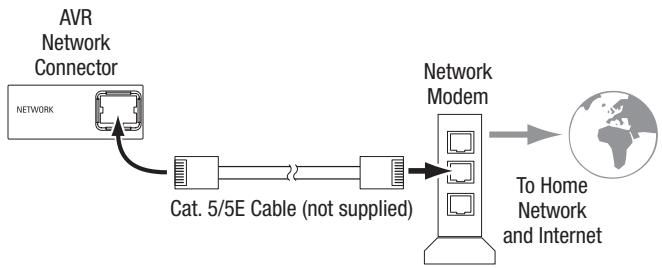
Network connector: If your home network is wired, use a Cat. 5 or Cat. 5E Ethernet cable (not supplied) to connect the AVR's Network connector to your home network to enjoy Internet radio and content from DLNA-compatible devices that are connected to the network. See Connect to Your Home Network, on page 18, for more information.
Subwoofer Pre-Out connector: Connect this jack to a powered subwoofer with a line-level input. See Connect Your Subwoofer, on page 15, for more information. NOTE: The AVR 1710S and AVR 171S have two subwoofer connectors.
HDMI Output connectors: If your TV has an HDMI connector and you are connecting HDMI source devices to the AVR, use an HDMI cable (not included) to connect it to the AVR's HDMI Out connector. NOTE: The AVR 1710S and AVR 171S have two HDMI Out connectors.
Notes on using the HDMI Output connector:
- When connecting a DVI-equipped display to the HDMI Out connector, use an HDMI-to-DVI adapter and make a separate audio connection.
- Make sure the HDMI-equipped display is HDCP (High-bandwidth Digital Content Protection)-compliant. If it isn't, do not connect it via an HDMI connection; use an analog video connection instead and make a separate audio connection.
- AVR 1710S/AVR 171S only: If you have connected a 3D-capable TV to HDMI Out 1 and a 2D-capable TV to HDMI Out 2, the AVR will not allow 3D playback when both TVs are powered on. To watch 3D content, turn off the AVR and both TVs, then first turn on the 3D TV, then turn on the AVR, and finally turn on the 3D source device. Do NOT turn the 2D TV back on.
HDMI/MHL Input connector: If you have a Roku Streaming Stick or other MHL-capable device, connect it only to this HDMI/MHL In connector. If you do not have an MHL device, you can use this connector for an HDMI-capable device.
Speaker connectors: Use two-conductor speaker wire to connect each set of terminals to the correct speaker. See Connect Your Speakers, on page 14, for more information.
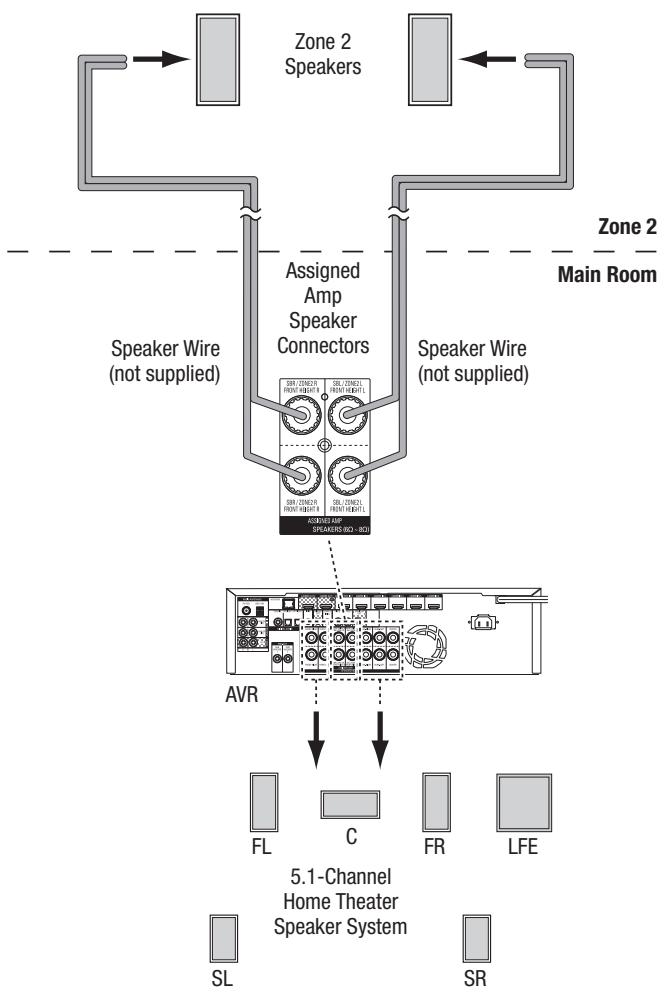
NOTE:The Assigned Amp speaker connectors (AVR 1710S/AVR 171S only) are used for the surround back or Front Height channels in a 7.1- channel home theater, or you can reassign them to a remote room for multizone operation or to front height channels for Dolby® Pro Logic llz operation. See Place Your Speakers, on page 11, for more information.
Analog Video connectors: The following Analog Video connectors are provided:
- Composite Video Input connectors: Use composite video connectors for video source devices that don't have HDMI connectors. You will also need to make an audio connection from the source device to the AVR. See Connect Your Audio and Video Source Devices, on page 16, for more information.
- Composite Video Monitor Out connector: If your TV or video display does not have an HDMI connector, or if your TV does have an HDMI connector but you are connecting some source devices with only composite video connectors, use a composite video cable (not included) to connect the AVR's Composite Video Monitor Out connector to your TV's composite video input.
HDMI® Input connectors: An HDMI connection transmits digital audio and video signals between devices. If your source devices have HDMI connectors, using them will provide the best possible video and audio performance quality. Since the HDMI cable carries both digital video and digital audio signals, you do not have to make any additional audio connections for devices you connect via the HDMI connection. See Connect Your Audio and Video Source Devices, on page 16, for more information.
IR and Trigger connector: The following IR and trigger connectors are provided:
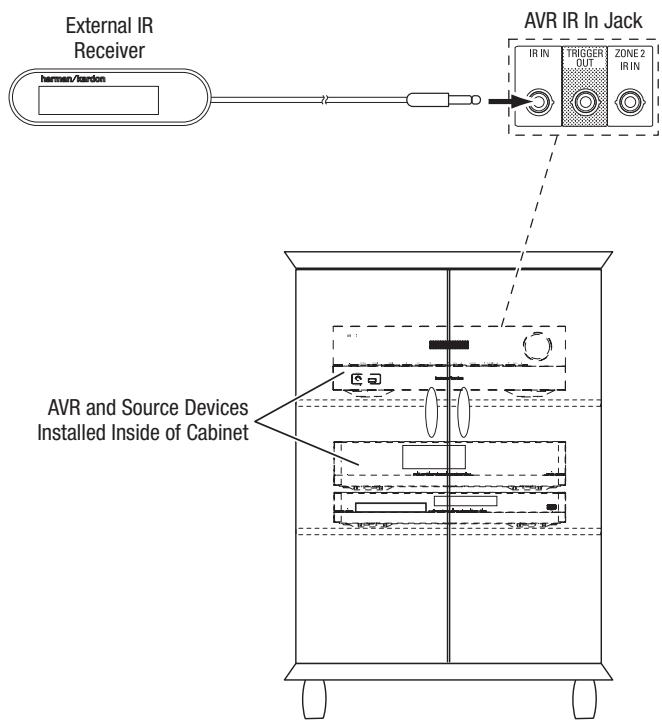
- IR In connectors: When the IR sensor on the front panel is blocked (such as when the AVR is installed inside a cabinet), connect an optional IR receiver to the IR In jack.
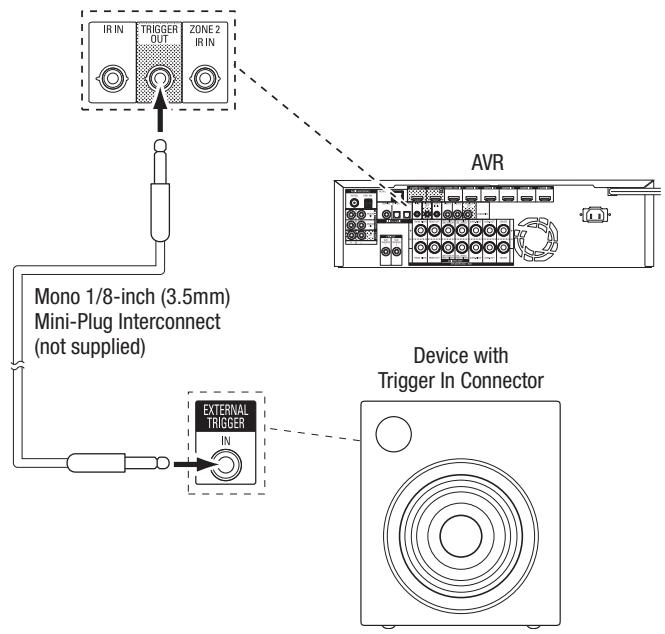
- 12V Trigger connector: This connector provides 12V DC whenever the AVR is on. It can be used to turn on and off other devices such as a powered subwoofer.
- Zone 2 IR Input connector (AVR 1710S/AVR 171S only): Connect a remote IR receiver located in Zone 2 of a multizone system to this jack to control the AVR from the remote zone.
Fan Vents (AVR 1710S/AVR 171S only): These vents are used by the AVR's fan to cool the system. Maintain a clearance of at least three inches (75mm) from the nearest surface to avoid overheating the unit. It is normal for the fan to remain off at most normal volume levels. An automatic temperature sensor turns the fan on only when it is needed.
IMPORTANT NOTE: Never block the fan vents. Doing so could allow the AVR to overheat to dangerous levels.
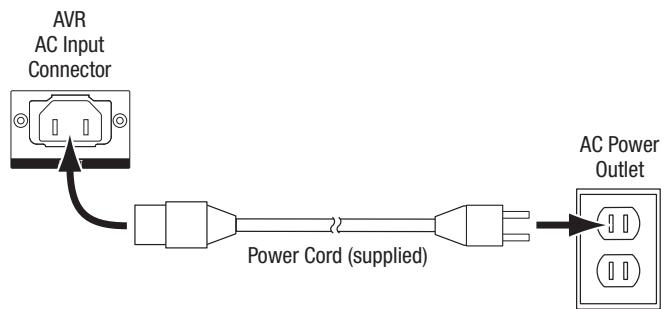
AC Input connector (AVR 171S/AVR 161S only): After you have made and verified all other connections, plug the supplied AC power cord into this receptacle and into an unswitched wall outlet.
Power cord (AVR 1710S/AVR 1610S only): After you have made and verified all other connections, plug the power cord into an unswitched wall outlet.
System Remote Control Functions

System Remote Control Functions, continued
In addition to controlling the AVR, the AVR remote is capable of controlling eight other devices, including an iPod/iPhone device connected to the AVR's front-panel USB port. During the installation process, you may program the codes for each of your source components into the remote. (See Program the Remote to Control Your Source Devices and TV, on page 21, for programming information.) To operate a component, press its Source Selector button to change the remote's control mode.
A button's function depends on which component is being controlled. See Table A13 in the Appendix for listings of the functions for each type of component. Most of the buttons on the remote have dedicated functions, although the precise codes transmitted vary depending on the specific device being controlled. Due to the wide variety of functions for various source devices, we have included only a few of the most-often used functions on the remote: number buttons, transport controls, television-channel control, menu access and power on and off. Buttons dedicated to the AVR - AVR Power On/Off, Surround Modes, Volume, Mute, Delay and Sleep Settings - are available at any time, even when the remote is controlling another device.
Power On/Power Off buttons: Press these buttons to turn the AVR on and put it into Sleep or turn it off. See Power Indicator/Power Button, on page 4, for more information.
IR Transmitter: As buttons are pressed on the remote, infrared codes are emitted through this lens.
Zone 2 button (AVR 1710S/AVR 171S only): Use this button to select whether the AVR commands will affect the main listening area (Zone 1) or the remote zone of a multizone system (Zone 2). When the remote is in the Zone 2 control mode, the Zone 2 button will illuminate whenever you press a button.
Mute button: Press this button to mute the AVR's speaker-output connectors and headphone jack. To restore the sound, press this button or adjust the volume.
Source Selector buttons: Press one of these buttons to select a source device, e.g., Disc, Cable/Sat, Radio, etc. This action will also turn on the AVR and switch the remote's control mode to operate the selected source device.
- The first press of the Radio button switches the AVR to the last-used tuner band (AM or FM). Each successive press changes the band.
- The first press of the USB button switches the AVR to the last-used source (USB or iPod). Each successive press cycles between the two sources.
- The first press of the Network button switches the AVR to the last-used source (Network or vTuner). Each successive press cycles between the two sources.
AVR button: Press to put the remote into the AVR control mode.
Surround Modes button: Press this button to access the Surround Modes submenu. Select a surround-mode category: Auto Select, Virtual Surround, Stereo, HARMAN NSP, Movie, Music or Game. When you select the category, it is highlighted and the surround mode changes.
To change the surround mode for the selected category navigate to the Surround Mode menu in the AVR's on-screen display menu, select the desired category, and use the Left/Right buttons to select one of the available surround modes. See the Advanced Functions section, on page 29, for more information.
OSD/Menu button: When the remote is controlling the AVR, press this button to display the AVR's on-screen display (OSD) menu. This button is also used within the tuner menus and an iPod connected to the AVR's front-panel USB port, and is also used to display the main menu on some source devices.
Up/Down/Left/Right buttons: These buttons are used to navigate the menu system and to operate the tuner.
OK button: This button is used to select items from the menu system.
Back/Exit button: Press this button to return to the previous menu or to exit the menu system.
Home button: Press this button to display the Home menu for a Roku Streaming Stick™ that is connected to the AVR's MHL/HDMI connector.
Number buttons: Use these buttons to enter numbers for radio-station frequencies or to select station presets.
Clear button: Press this button to clear a radio station frequency you have started to enter.
Test Tone button: Press this button to activate test noise that will circulate through each speaker, allowing you to adjust the individual speaker levels. Use the Up/Down buttons to switch the noise to a different speaker and use the Left/Right buttons to change the volume of the speaker the noise is playing through.
Delay Adjust button: Pressing this button lets you adjust two different types of delay settings (use the Up/Down buttons to cycle through the settings):
- Lip Sync: This setting lets you resynchronize the audio and video signals from a source to eliminate a "lip sync" problem. Lip-sync issues can occur when the video portion of a signal undergoes additional processing in either the source device or the video display. Use the Left/Right buttons to delay the audio by up to 180ms.
- Distance: These settings let you set the delay for each speaker to compensate for the different distances they may be from the listening position. Use the Up/Down buttons to cycle through each of the system's speakers, and use the Left/Right buttons to set the distance each speaker is from the listening position. See Manual Speaker Setup, on page 30, for more information.
Sleep button: Press this button to activate the sleep timer, which turns off the receiver after a programmed period of time. Each press increases the time by 10 minutes, up to 90 minutes - ending with the "Sleep Off" message.
Volume Up/Down buttons: Press these buttons to raise or lower the volume.
Channel/Tuner buttons: When radio has been selected, press these buttons to select a preset radio station. While operating a cable, satellite or HDTV set-top box or a television, press these buttons to change channels.
Info/Option button: Press to display the available option settings for the current source.
Display Dimmer button: Press this button to dim the AVR's front-panel Message Display partially or fully.
Preset Scan button: When Radio is the selected source, press this button to play each of your preset radio stations in order for five seconds. Pressing the button again to remain tuned to the current station.
RDS button (AVR 171S/AVR 161S only): When listening to an FM radio station that broadcasts RDS information, this button activates the various RDS functions.
Direct button: Press this button to directly tune to a radio station by using the Number buttons to enter its frequency.
Memory button: Press this button to save the current radio or vTuner station as a preset.
Transport Control buttons: These buttons are used to control source devices.
Previous Channel button: When TV is the selected source, press this button to switch to the previously-tuned channel.
Introduction to Home Theater
This introductory section will help you to familiarize yourself with some basic concepts unique to multichannel surround-sound receivers, which will make it easier for you to set up and operate your AVR.
Typical Home Theater System
A home theater typically includes an audio/video receiver, which controls the system and supplies amplification for the loudspeakers; a disc player; a source component for television broadcasts (cable box, satellite dish receiver, HDTV tuner or antenna connected to the TV); a TV or video display; and multiple loudspeakers.
Multichannel Audio
The main benefit of a home theater system is its ability to produce "surround sound." Surround sound uses multiple speakers and amplifier channels to immerse you in the audio/video presentation for a dramatically increased sense of realism.
Your AVR may have up to seven main speakers connected directly to it, plus a subwoofer. Each main speaker is powered by its own amplifier channel inside the AVR. A system with more than two speakers is called a multichannel system. The different main speaker types in a home theater system are:
Front Left and Right: The front left and right speakers are used as in a two-channel system. In many surround-sound modes, these speakers are secondary, while the main action, especially dialogue, is reproduced by the center speaker.
Center: When you are watching movies and television programs, the center speaker reproduces most of the dialogue and other soundtrack information, anchoring it with the picture. When you are listening to a musical program, the center speaker helps to create a seamless front soundstage, creating a realistic "you-are-there" listening experience.
Surround Left and Right: The surround left and right speakers produce ambient sounds that help create a realistic and immersive surround-sound environment. They also help recreate directional sound effects such as aircraft flyovers.
Many people expect the surround speakers to play as loudly as the front speakers. Although you will calibrate all of the speakers in your system to sound equally loud at the listening position, most artists use the surround speakers for ambient effects only, and they create their programs to steer relatively little sound to these speakers.
Subwoofer: A subwoofer is designed to play only the lowest frequencies (the deep bass). It augments smaller, limited-range main speakers that are usually used for the other channels. Many digital-format programs, such as movies recorded in Dolby Digital, contain a low-frequency effects (LFE) channel that is directed to the subwoofer. The LFE channel packs the punch of a rumbling train or airplane, or the power of an explosion, adding realism and excitement to your home theater. Some people use two subwoofoers for additional power and for even distribution of the sound.
Surround Back Left and Right (AVR 1710S/AVR 171S only): Surround back channel speakers are used with surround modes such as the Dolby Digital EX, Dolby Digital Plus, Dolby TrueHD, DTS-ES® (Discrete and Matrix), DTS-HD™ High Resolution Audio, DTS-HD Master Audio™ and Logic 7^© 7.1 modes that are designed for 7.1-channel systems.
Front Height Left and Right (AVR 1710S/AVR 171S only): Your AVR includes Dolby Pro Logic IIz decoding, which uses the AVR's Assigned Amp channels as front height channels. The addition of front height channels – an additional pair of speakers positioned above the front left and right speakers – produces a surround-sound experience with added depth and dimension by creating lifelike sound that comes at you from varying heights.
NOTE: You can set up your system to use either surround back speakers or front height speakers; you cannot use both.
The surround back and front height channel speakers are optional. If your system does not include surround back or front height speakers, you can set up your AVR with a 5.1-channel surround-sound system in the main listening area, and you can reassign the surround back channel amplifiers to power loudspeakers located in another room in a multizone system.
Surround Modes
There are different theories as to the best way to present surround sound and to distribute each audio channel's sounds to the surround-sound system's speakers. A variety of algorithms have been developed in an effort to recreate the way we hear sounds in the real world, providing you with a rich variety of options. Several companies have developed different surround-sound technologies, all of which can be accurately reproduced by your AVR:
- Dolby Laboratories: Dolby TrueHD, Dolby Digital Plus, Dolby Digital, Dolby Digital EX (AVR 170S/AVR 171S only), Dolby Pro Logic II, Dolby Pro Logic IIx and IIz (AVR 170S/AVR 171S only).
- DTS: DTS-HD High Resolution Audio, DTS-HD Master Audio, DTS, DTS-ES (Discrete and Matrix), DTS Neo:6®, DTS 96/24™.
HARMAN International: HARMAN NSP, HARMAN Headphone. - Stereo Modes: Generic modes that expand upon conventional two-channel stereo, including 5CH Stereo and 7CH Stereo (AVR 1710S/AVR 171S only).
Appendix Table A10, on page 41, contains detailed explanations of the different surround-sound options available on your AVR. Digital surround-sound modes, such as the Dolby Digital and DTS modes, are available only on specially encoded programs, such as those available via HDTV, DVD and Blu-ray Disc media and digital cable or satellite television. Other surround modes may be used with digital and analog signals to create a different surround presentation or to use a different number of speakers. Surround-mode selection depends upon the number of speakers in your system, the program you are watching or listening to, and your personal tastes.
Place Your Speakers
Determine the locations for your system's speakers according to their manufacturer's directions and the layout of your listening room. Use the illustrations below as a guide for 7.1-channel systems (AVR 1710S/AVR 171S only) and 5.1-channel systems.
To create the most realistic surround-sound environment possible, you should place your speakers in a circle with the listening position at its center. You should angle each speaker so it directly faces the listening position. Use the diagrams below as a guide.
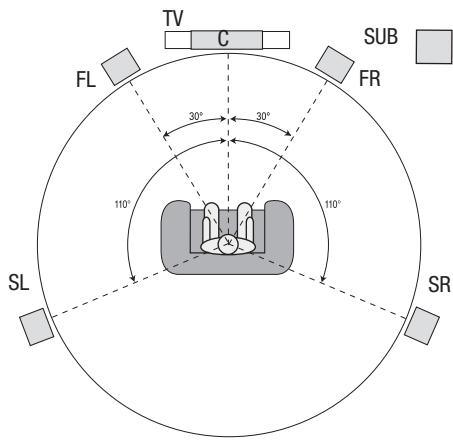
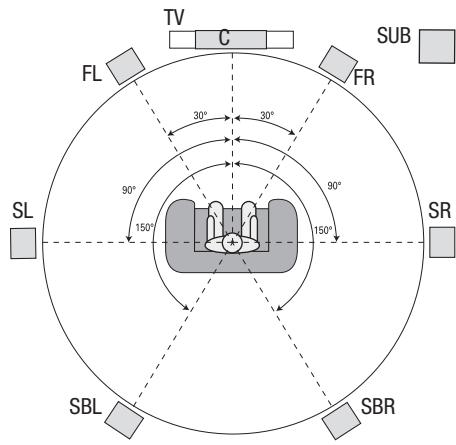
Speaker Positioning for 5.1-Channel Systems
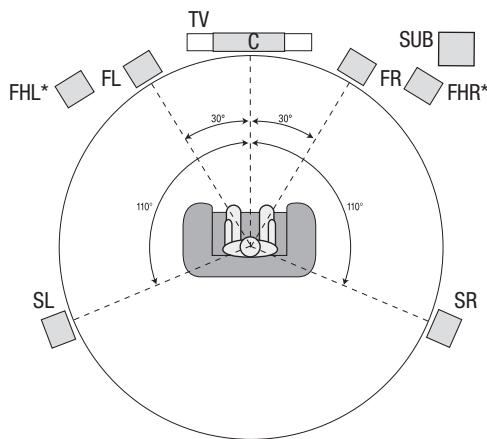
* FHL and FHR speakers should be at least 3 ft (0.9m) above the FL and FR speakers.
Speaker Positioning for 7.1-Channel Systems (AVR 1710S/AVR 171S only) (Middle: with Surround Back Speakers; Bottom: with Front Height Speakers)
NOTE: In a 7.1-channel system, you must choose to use either surround back speakers or front height speakers – you cannot use both simultaneously.
Placing the Left, Center and Right Speakers
Place the center speaker either on top of, below or mounted on the wall above or below the TV or video display screen. Place the front left and right speakers along the circle, about 30 degrees from the center speaker and angled toward the listener.
Place the front left, front right and center speakers at the same height, preferably at about the same height as the listener's ears. The center speaker should be no more than 2 feet (0.6m) above or below the left/right speakers. If you're using only two speakers with your AVR, place them in the front left and right positions.
Placing the Surround Speakers in a 5.1-Channel System
You should place the left and right surround speakers approximately 110 degrees from the center speaker, slightly behind and angled toward the listener. Alternatively, place them behind the listener, with each surround speaker facing the opposite-side front speaker. You should place the surround speakers 2 feet - 6 feet (0.6m - 1.8m) higher than the listener's ears.
AVR 1710S/AVR 171S only: Placing the Surround Speakers in a 7.1- Channel System
In a 7.1-channel system, place the side surround speakers 90 degrees from the center speaker, directly to either side of the listening position. Place the surround back left and right speakers 150 degrees from the center speaker, directly facing the opposite-side front speaker. You should place all the surround speakers 2 feet - 6 feet (0.6m - 1.8m) higher than the listener's ears.
AVR 1710S/AVR 171S only: Placing Front Height Speakers in a 7.1-Channel System
Your AVR includes Dolby Pro Logic IIz decoding, which uses the AVR's Assigned Amp channels as front height channels. The addition of front height channels – an additional pair of speakers positioned above the front left and right speakers – produces a surround-sound experience with added depth and dimension by creating lifelike sound that comes at you from varying heights.
We recommend placing front height speakers at least 3 feet (0.9m) higher than the front left and front right speakers, and directly above or farther apart than the front left and right speakers. The higher and further apart you place the front height speakers, the more you should angle them down and in toward the listening position.
NOTE: Your receiver will sound its best when the same model or brand of loudspeaker is used for all positions.
Placing the Subwoofer
Because a room's shape and volume can have a dramatic effect on a subwoofer's performance, it is best to experiment with placement so that you will find the location that produces the best results in your particular listening room. With that in mind, these rules will help you get started:
- Placing the subwoofer next to a wall generally will increase the amount of bass in the room.
- Placing the subwoofer in a corner generally will maximize the amount of bass in the room.
- In many rooms, placing the subwoofer along the same plane as the left and right speakers can produce the best integration between the sound of the subwoofer and that of the left and right speakers.
- In some rooms, the best performance could even result from placing the subwoofer behind the listening position.
A good way to determine the best location for the subwoofer is by temporarily placing it in the listening position and playing music with strong bass content. Move around to various locations in the room while the system is playing (putting your ears where the subwoofer would be placed), and listen until you find the location where the bass performance is best. Place the subwoofer in that location.
Types of Home Theater System Connections
There are different types of audio and video connections used to connect the AVR to your speakers, your TV or video display, and your source devices. The Consumer Electronics Association has established the CEA® color-coding standard.
| Analog Audio Connection | Color |
| Front Left/Right | White/Red |
| Center | Green |
| Surround Left/Right | Blue/Gray |
| Surround Back/Front Height Left/Right | Brown/Tan |
| Subwoofer | Purple |
| Digital Audio Connection | Color |
| Coaxial (input or output) | Orange |
| Optical Input | Black |
| Analog Video Connection | Color |
| Composite Video | Yellow |
Speaker Connections
Speaker cables carry an amplified signal from the AVR's speaker terminals to each loudspeaker. They contain two wire conductors, or leads, that are differentiated in some way, such as with colors or stripes.
The differentiation helps you maintain proper polarity, without which your system's low-frequency performance can suffer. Each speaker is connected to the AVR's speaker-output terminals using two wires, one positive (+) and one negative (-). Always connect the positive terminal on the speaker, which is usually colored red, to the positive terminal on the receiver, which is colored as indicated in the Connection Color Guide Table, above. The negative terminals on the speakers and the AVR are black.
Your AVR uses binding-post speaker terminals that can accept bare-wire cables or banana plugs. Bare-wire cables are installed as shown below:
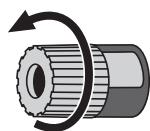
1. Unscrew Cap
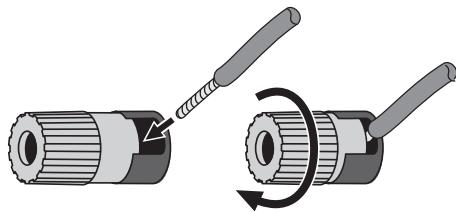
2. Insert Bare Wire
3. Tighten Cap
Banana plugs are inserted into the hole in the middle of the terminal cap, as shown below:
A. Tighten Cap
B. Insert Banana Connector into Hole in Cap


Always connect the colored (+) terminal on the AVR to the (+) terminal on the speaker (usually red), and the black (-) terminal on the AVR to the (-) terminal on the speaker (usually black).
IMPORTANT: Make sure the (+) and (-) bare wires do not touch each other or the other terminal. Touching wires can cause a short circuit that can damage your receiver or amplifier.
Subwoofer Connections
The subwoofer is a speaker dedicated to reproducing only the low (bass) frequencies, which require more power. To obtain the best results, most speaker manufacturers offer powered subwoofoers that contain their own amplifiers. Use a single RCA audio cable to make a line-level (non-amplified) connection from the AVR's Subwoofer connector to a corresponding input jack on the subwoofer. (The AVR 1710S and AVR 171S have two subwoofer output connections.)
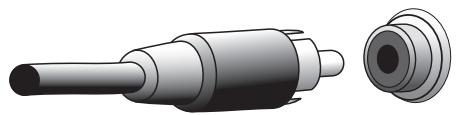
Although the AVR's purple subwoofer output looks similar to a full-range analog audio jack, it is filtered so that only the low frequencies pass through it. Don't connect this output to any device other than a subwoofer.
Source Device Connections
Audio and video signals originate in source devices (components where a playback signal originates) such as your Blu-ray Disc or DVD player, CD player, DVR (digital video recorder) or other recorder, tape deck, game console, cable or satellite television tuner, an iPod or iPhone (connected to the AVR's USB port) or an MP3 player. The AVR's FM/AM tuner also counts as a source, even though no external connections are needed other than the FM and AM antennas. Separate connections are required for the audio and video portions of the source device's signal, except for digital HDMI connections. The types of connections you use will depend upon the capabilities of the source device and of your TV or video display.
Digital Audio Connections - HDMI
There are two types of audio connections - digital and analog. Digital audio signals are required for listening to sources encoded with digital surround modes, such as Dolby Digital and DTS, or for uncompressed PCM digital audio. Your AVR has three types of digital audio connections: HDMI, coaxial and optical. Do not use more than one type of digital audio connection for each source device. However, it's okay to make both analog and digital audio connections to the same source.
Your AVR is equipped with rear-panel HDMI input and output connectors. HDMI technology enables high-definition digital audio and video information to be carried using a single cable, delivering the highest quality picture and sound. If your TV or video display device has an HDMI input connector, make a single HDMI connection from each HDMI-enabled source device to the AVR. Usually, a separate digital audio connection is not required.
The AVR's HDMI output connection contains an Audio Return Channel (ARC) that carries a digital audio signal from your TV or video display back to the AVR. It allows you to listen to HDMI devices that are connected directly to your TV (such as an Internet connection) without making an additional connection from the device to the AVR. The ARC signal is active when the TV source is selected. See System Settings, on page 34, for more information. (The AVR 1710S and AVR 171S have two HDMI output connections. Only HDMI Out 1 has ARC.)
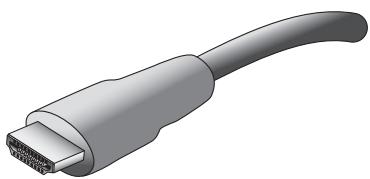
The HDMI connector is shaped for easy plug-in (see illustration, below), and HDMI cable runs are limited to about 10 feet (3m). If your video display has a DVI input and is HDCP-compliant, use an HDMI-to-DVI adapter (not included), and make a separate audio connection.
Digital Audio Connections - Coaxial
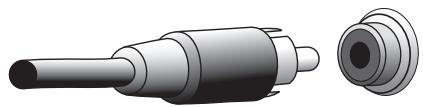
Coaxial digital audio jacks are usually color-coded in orange. Although they look like standard RCA-type analog jacks, you should not connect coaxial digital audio outputs to analog inputs or vice versa.
Digital Audio Connections - Optical
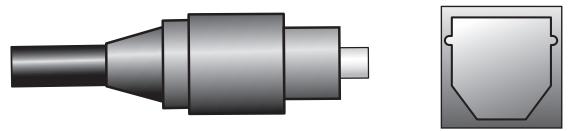
Optical digital audio connectors are normally covered by a shutter to protect them from dust. The shutter opens as the cable is inserted. Optical input connectors are color-coded using a black shutter.
Analog Audio Connections
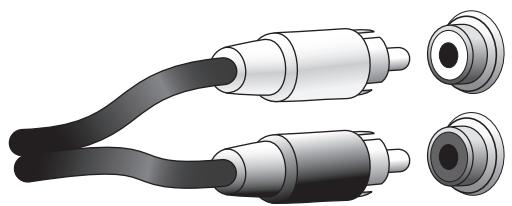
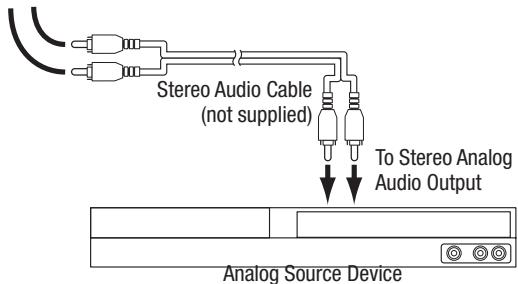
Two-channel analog connections require a stereo audio cable, with one connector for the left channel (white) and one for the right channel (red). These two connectors are attached to each other.
For source devices that have both digital and analog audio outputs, you may make both connections. If you are going to be setting up a multizone system (AVR 1710S/AVR 171S only), remember that Zone 2 is an audio-only zone (the AVR does not have a Zone 2 video output). Therefore, make analog connections for any audio source devices (such as a CD changer) that you will want available for listening in Zone 2 at all times.
Video Connections
Many source devices output both audio and video signals (e.g., Blu-ray Disc, DVD player, cable television box, HDTV tuner, satellite box, VCR, DVR). In addition to an audio connection as described above, make a video connection for each of these source devices. Make only one type of video connection for each device.
Digital Video Connections
If you have already connected a source device to one of the AVR's HDMI input connectors, you have automatically made a video connection for that device, since the HDMI cable carries both digital audio and digital video signals.
Analog Video Connections - Composite Video
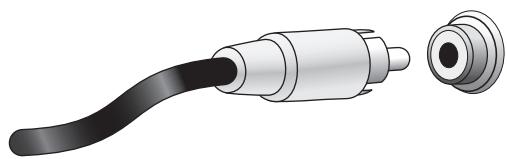
Composite video is the most commonly available analog video connection. Both the chrominance (color) and luminance (intensity) components of the video signal are transmitted using a single cable. The jack is usually color-coded yellow and looks like an analog audio jack. Do not connect a composite video jack to an analog audio or coaxial digital audio jack, or vice versa.
Radio Connections
Your AVR uses separate terminals for the included FM and AM antennas. The FM antenna uses a 75-ohm F-connector.
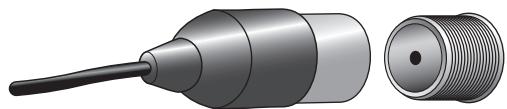
The AM antenna connector uses spring-clip terminals. After assembling the antenna as shown below, press the levers to open the connectors, insert the bare wires into the openings, and release the levers to secure the wires. The antenna wires are not polarized, so you can insert either wire into either connector.

Network Connector
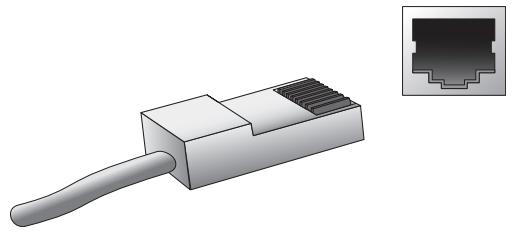
The AVR's Network connector allows you to enjoy Internet radio or content from other DLNA or Airplay-compatible devices that are connected to the same network. Use a Cat. 5 or Cat. 5E Ethernet cable to connect the AVR's RJ-45 connector to your home network.
USB Port
The AVR can play audio files from an Apple iOS® device connected to the USB port, and allows you to control the iOS device via the AVR remote control. The AVR can also play MP3 and WMA audio files from a USB device inserted into the USB port. Insert the connector or device into the USB port oriented so it fits all the way into the port. You may insert or remove the connector or device at any time – there is no installation or ejection procedure.
The USB port on your AVR is also used to perform firmware upgrades. If an upgrade for the AVR's operating system is released in the future, you will be able to download it to the AVR using this port. Complete instructions will be provided at that time.
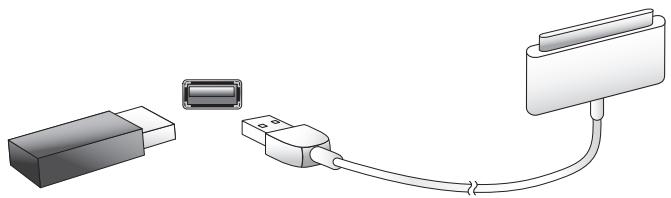
IMPORTANT: Do not connect a PC or other USB host/controller to the AVR's USB port, or you may damage both the AVR and the other device.
Making Connections
CAUTION: Before making any connections to the audio/video receiver, ensure that the AVR's AC cord is unplugged from the AC outlet. Making connections with the receiver plugged in and turned on could damage the speakers.
Connect Your Speakers
After you have placed your loudspeakers in the room as explained in Place Your Speakers, on page 11, connect each speaker to its color-coded terminal on the AVR as explained in Speaker Connections, on page 12. Connect the speakers as shown in the illustration.
AVR 1710S/AVR 171S only: Connect Surround Back L/R Speakers -OR- Front Height L/R Speakers Here
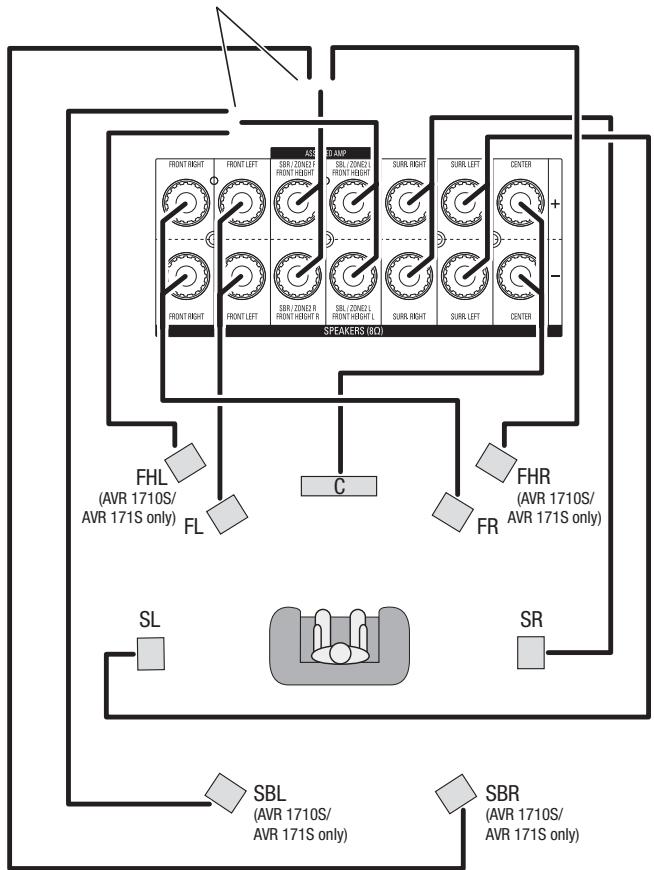
NOTE: If you installed front height speakers, connect them as shown for the SBL and SBR speakers.
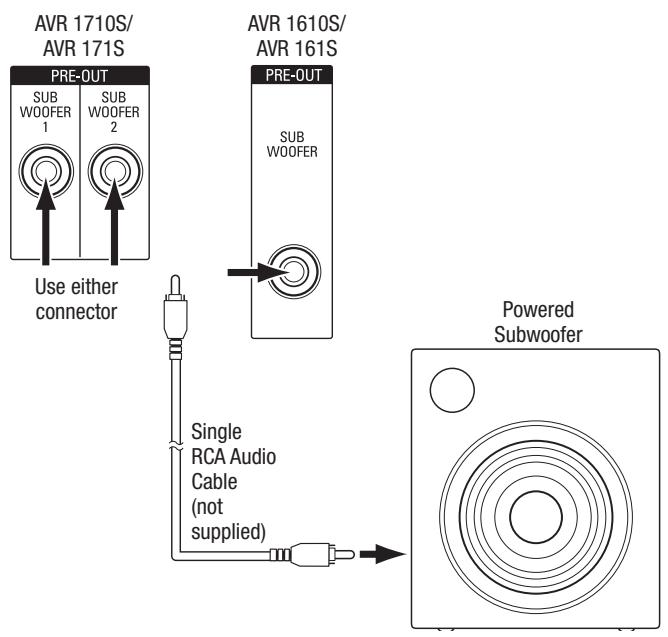
Connect Your Subwoofer
Use a single RCA audio cable to connect the AVR's Subwoofer connector to your subwoofer as explained in Subwoofer Connections, on page 12. NOTE: The AVR 1710S and AVR 171S provide connections for two subwooers. See Manual Speaker Setup: Number of Speakers, on page 31, for information about activating the two subwoofer outputs. Consult your subwoofer's user manual for specific information about making connections to it.
Connect Your TV or Video Display
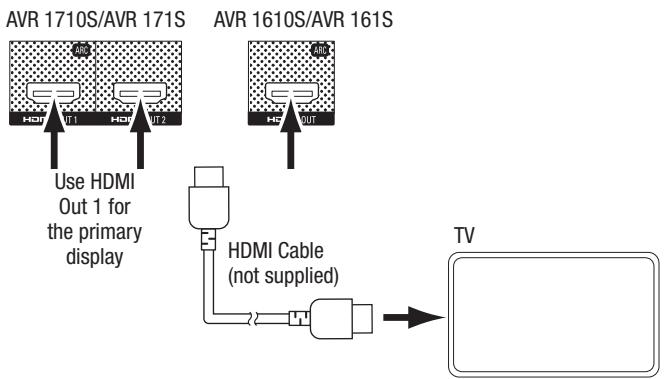
If your TV has an HDMI connector and you have HDMI source devices: Use an HDMI cable (not included) to connect it to the AVR's HDMI Monitor Out connector. The AVR 1710S and AVR 171S provide HDMI connections for two TVs (only HDMI Out 1 has ARC and enables you to view the AVR's on-screen menus). This will provide the best possible picture quality.
If your TV does not have an HDMI connector or if your TV does have an HDMI connector but you are connecting some source devices with only composite video connectors: Use a composite video cable (not included) to connect the AVR's Composite Monitor Out connector to your TV's composite video connector.
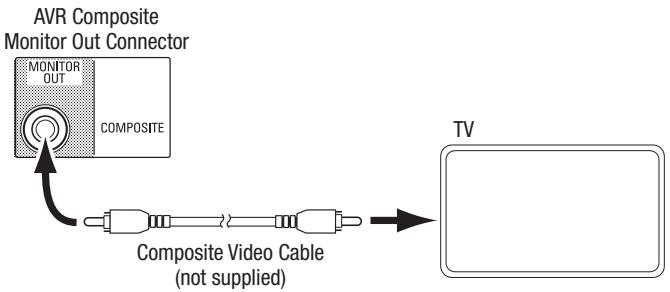
NOTE: If you use only the composite video connection to your TV, you will not be able to view the AVR's on-screen menus.
Connect Your Audio and Video Source Devices
Source devices are components where a playback signal originates, e.g. a Blu-ray Disc™ or DVD player; a cable, satellite or HDTV tuner; etc. Your AVR has several different types of input connectors for your audio and video source devices: HDMI, composite video, optical digital audio, coaxial digital audio and analog audio. The connectors are not labeled for specific types of source devices; they are labeled numerically, so you can connect your devices according to your individual system's makeup.
Your AVR's various source buttons have default assignments to different input connectors (listed in the "Default Connector(s)" column of the table below). For ease of setup, you should connect each source device to the connector where the corresponding default source button is assigned (e.g., connect your Blu-ray Disc player to HDMI 2).
However, you can connect your source devices as you wish and re-assign any of the input connections to any of the Source Buttons listed in the table according to where you actually connect each of your source devices.
As you connect your various source devices, fill out the "Connected Component" column in the table - it will make it easier for you to assign the various source buttons after you have completed making all of the connections. (You will make any changes to the source-button assignments and fill in the "Assigned Connector(s)" column later in the setup process.)
Note: You cannot assign connectors to the Network, Radio, TV and USB source buttons.
Source Buttons and Assigned Connectors
| Source Button | Default Connector(s) | Assigned Connector(s) | Connected Device |
| MHL | HDMI 1 | ||
| Disc | HDMI 2 | ||
| Cable-Sat | HDMI 3 | ||
| STB | HDMI 4 | ||
| Game | HDMI 5 | ||
| Audio | None/Analog 2 | ||
| Aux | Composite 1/Analog 1 | ||
| Monitor Output Connector | Connected Device | ||
| HDMI Out 1 | |||
| HDMI Out 2 (AVR 1710S/AVR 171S only) | |||
| Composite Video Monitor Out | |||
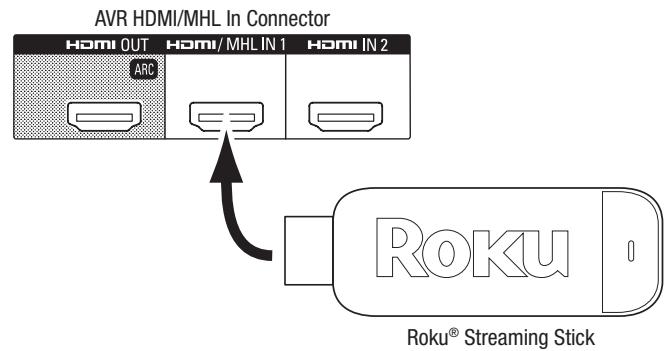
Roku Streaming Stick™:
If you have a Roku Streaming Stick device, insert it into the AVR's HDMI/MHL In connector. NOTE: Do not insert the Roku Streaming Stick device into any other HDMI In connector.
Connect Your HDMI Devices
If any of your source devices have HDMI connectors, using them will provide the best possible video and audio performance quality. Since the HDMI cable carries both digital video and digital audio signals, you do not have to make any additional audio connections for devices you connect via an HDMI cable.
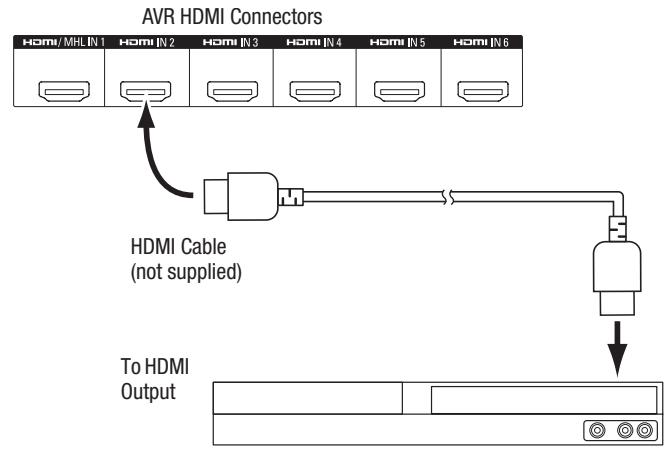
HDMI-Equipped Source Device
NOTE: If you have HDMI devices (such as an Internet connection) already connected directly to your TV, you can feed their sound to the AVR via the HDMI Out connector's Audio Return Channel, and they will not require additional connections to the AVR. AVR 1710S/AVR 171S only: Only the HDMI Out 1 connection has the Audio Return Channel.
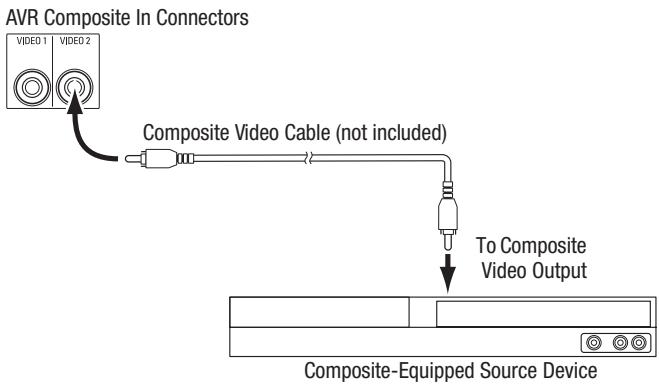
Connect Your Composite Video Devices
Use composite video connectors for video source devices that don't have HDMI connectors. You will also need to make an audio connection from the source device to the AVR.
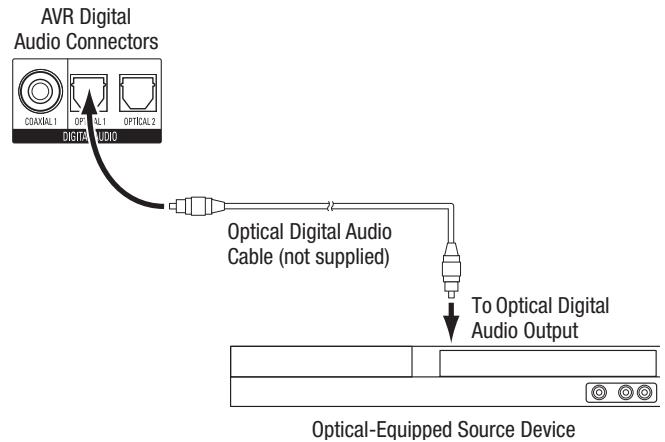
Connect Your Optical Digital Audio Devices
If your non-HDMI source devices have optical digital outputs, connect them to the AVR's optical digital audio connectors. NOTE: Make only one type of digital connection (HDMI, optical or coaxial) from each device.
Connect Your Coaxial Digital Audio Devices
If your non-HDMI source device has a coaxial digital output, connect it to the AVR's coaxial digital audio connector. NOTE: Make only one type of digital connection (HDMI, optical or coaxial) from each device.
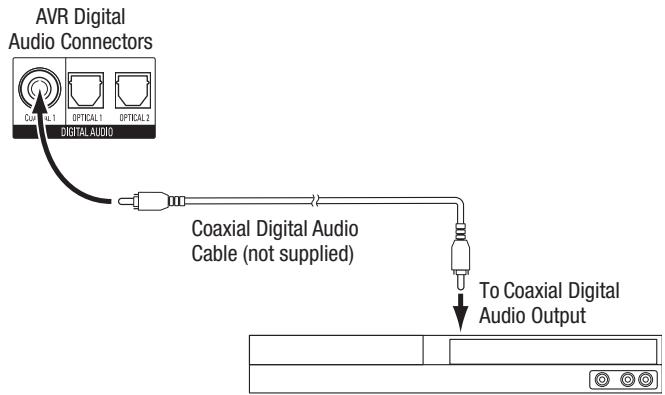
Coaxial-Equipped Source Device
Connect Your Analog Audio Devices
Use the AVR's analog audio connectors for source devices that don't have HDMI or digital audio connectors. NOTE: If you're installing a multizone system, make analog audio connections for any source devices you want to be able to listen to in Zone 2. Only analog sources are available in Zone 2.
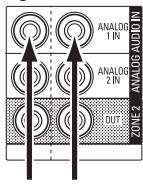
AVR 1710S/AVR 171S Analog Audio Connectors
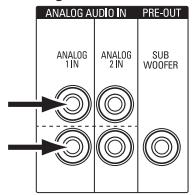
AVR 1610S/AVR 161S Analog Audio Connectors
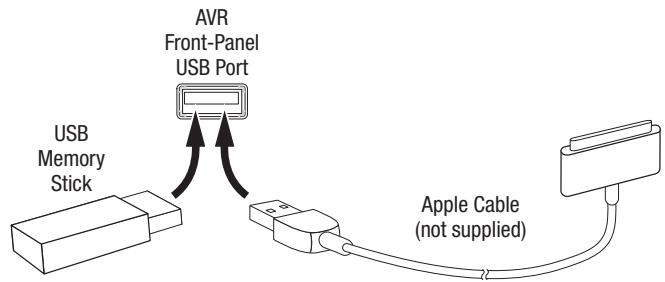
USB and iOS Devices
Use the AVR's front-panel USB port to connect an iPod, iPhone or iPad using an Apple cable (not supplied) or to directly connect a USB memory stick. You can play audio files from the device or memory stick and use the AVR's remote to control playback.
Connect to Your Home Network
Use a Cat. 5 or Cat. 5E cable (not supplied) to connect the AVR's Network connector to your home network to enjoy Internet radio and content from DLNA-compatible devices that are connected to the network.
Connect the Radio Antennas
- Connect the supplied FM antenna to the AVR's FM 75Ω antenna connector. For the best reception, extend the FM antenna as far as possible.
- Bend and fold the base of the supplied AM antenna as shown and connect the antenna wires to the AVR's AM and Gnd connectors. (You can connect either wire to either connector.) Rotate the antenna as necessary to minimize background noise.
AVR 1710S/AVR 171S only: Install a Multizone System
IMPORTANT SAFETY NOTE: Installing a multizone system typically requires running cables inside walls. Always comply with the appropriate safety codes when installing concealed wiring, particularly all applicable building codes. Failure to do so may present a safety hazard. If you have any doubt about your ability to work with electrical wiring, hire a licensed electrician or custom installer to install the multizone system.
NOTE: Only the following analog audio sources are available to Zone 2: the internal radio, an iPod/iPhone device or a USB memory device inserted in the AVR's USB port and up to two source devices connected to the rear-panel Analog Audio In 1 and 2 connectors.
Your AVR offers two different methods of distributing audio to other areas in your home. Each requires different connections:
A. Connect the Zone 2 speakers directly to the Assigned Amp Speaker Output connectors. Assign the Assigned Amp channels to power the Zone 2 speakers (see Manual Speaker Setup, on page 30). This method allows you to power a single pair of speakers for Zone 2.
This method offers the benefit of reduced cost and complexity, but your home theater system will be limited to 5.1 channels – the AVR will automatically downmix the playback of programs recorded in 6.1 or 7.1 channels to 5.1 channels.
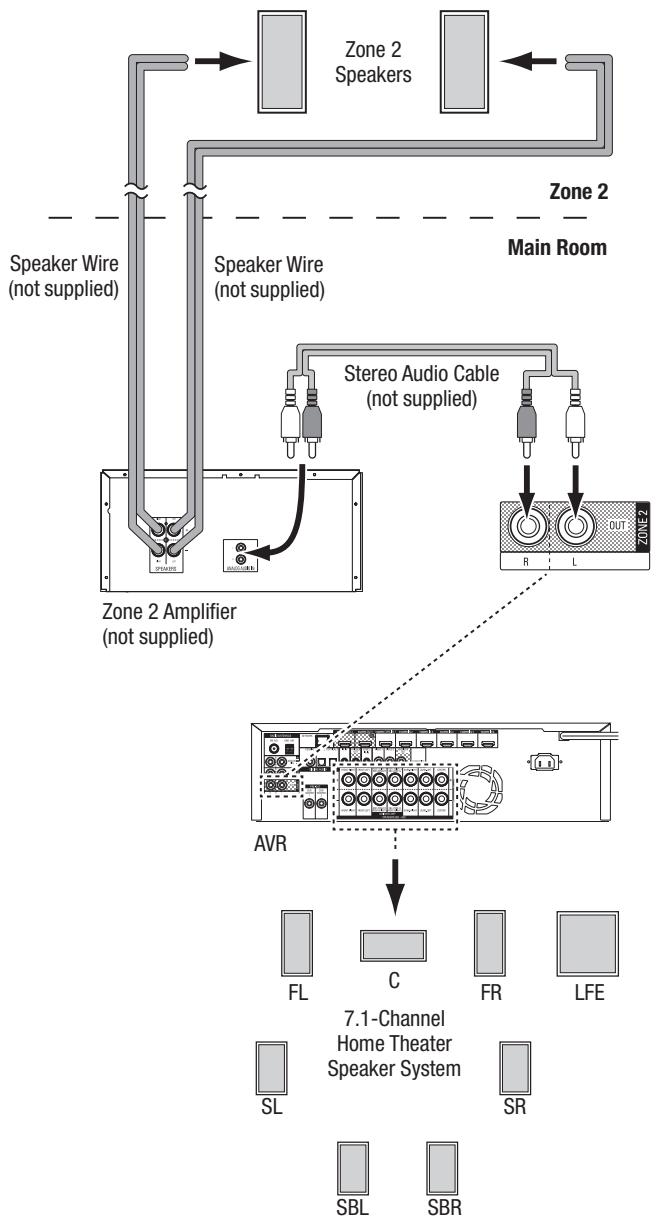
B. Connect an external amplifier to the AVR's Zone 2 Out connectors. This method offers the benefit of retaining a 7.1-channel home theater in the main room simultaneously with multizone operation, although it does require an additional amplifier for Zone 2.
We recommend that you place the Zone 2 amplifier in the same room as the AVR so that you can use a short length of stereo audio cable along with a long run of speaker wire to the remote room. A long run of stereo audio cable would increase the chance of signal degradation. Depending on your Zone 2 amplifier you can distribute the audio signal to a single pair of speakers or to several pairs placed in different rooms.
Connect IR Equipment
The AVR is equipped with a Remote IR Input connector that lets you remotely control the AVR in a variety of situations:
- When you place the AVR inside a cabinet or facing away from the listener, connect an external IR receiver, such as the optional Harman Kardon HE 1000, to the AVR's IR In jack.
- If you install a multizone system (AVR 1710S/AVR 171S only), connect an IR control device to the Zone 2 IR In connector for remote-room control of the multizone system, source devices and volume in the remote zone.
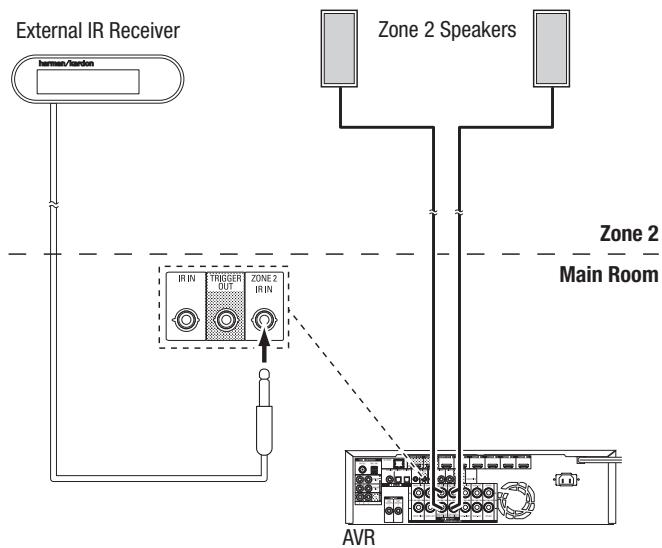
If a source device is shared with the main listening area, any control commands issued to that source will also affect the main room.
Connect the Trigger Output
If your system has equipment that can be controlled by a DC trigger signal, connect it to the AVR's Trigger Out connector with a mono 1/8-inch (3.5mm) mini-plug interconnect cable. The AVR will supply a 12V DC (100mA) trigger signal at this connection whenever it is powered on.
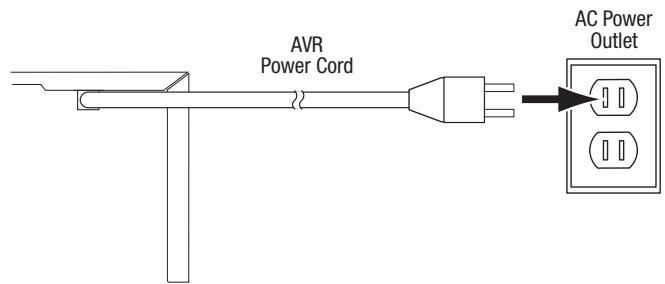
Connect to AC Power
AVR 171S/AVR 161S:
Connect the supplied AC power cord to the AVR's AC Input connector and then to a working, non-switched AC power outlet.
AVR 1710S/AVR 1610S:
Connect the AVR's power cord to a working, non-switched AC power outlet.
Set Up the Remote Control
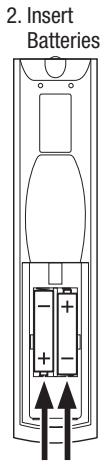
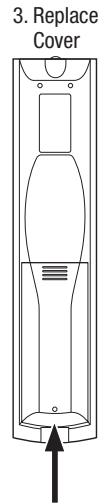
Install the Batteries in the Remote Control
Remove the remote control's battery cover, insert the two supplied AAA batteries as shown in the illustration, and replace the battery cover.

Program the Remote to Control Your Source Devices and TV
You can program your AVR remote to control many brands and models of audio/video source devices and TVs. The remote is also ready to operate your iPod or iPhone when it is connected to the AVR's front-panel USB port.
Each of the remote's Source Selector buttons has been preprogrammed to control certain types of source devices:
Cable/Sat: Controls cable TV and satellite TV tuner boxes
Disc: Controls Blu-ray Disc and DVD players
Radio: Controls the AVR's built-in FM/AM tuner
TV: Controls TVs and video displays
USB: Browsing compatible media on an Apple iOS device that is connected to, or a USB device that is inserted in the AVR's USB port Note: Does not require programming.
DVR: Controls TiVo® recorders
Game: Controls video-game consoles
Media Server: Controls media servers
Network: Browsing compatible media on DLNA-compatible devices connected to your home network and on vTuner (Internet Radio). Note: Does not require programming.
AUX: Controls HDTV tuning boxes, CD players, VCRs and PVDs.
Although the Source Selector buttons are preprogrammed for the device types listed above, you can reassign a Source Selector button to a different device type. See Reassigning a Source Selector Button for a Different Device Type, on page 21.
Once you have programmed the remote, you can switch the remote's control mode to access the functions for a particular device by pressing the remote's Source Selector button for that device.
Follow these steps to program the Source Selector buttons for your source devices:
-
Turn on the source device you want to program the remote to control.
-
Look up the code numbers for the device in Tables A10 - A20 in the Appendix. Write all the applicable code numbers in a convenient place.
- Press the Source Selector button for the device and hold it as it glows red, goes dark and glows red again. Then release it. The remote is now in the Programming mode.
NOTE: The remote will remain in the Programming mode for 20 seconds. If you do not complete Step 4 within 20 seconds, the remote will exit the Programming mode, and you will need to repeat Step 3.
- Aim the remote at the source device and use the remote's Number buttons to enter a code number from Step 1, above.
a) If the device turns off, press the Source Selector button again to save the code. The Source Selector button will flash, and the remote will exit the Programming mode.
b) If the device does not turn off, enter another code number.
c) If you run out of code numbers for a device, you can search through all of the codes in the remote's library for devices of its type by pressing the remote's Up button repeatedly until the device turns off. When it does, press the Source Selector button to save the code.
- Check that other functions control the device correctly. Sometimes manufacturers use the same Power code for several models, while other function codes vary. Repeat this process until you've programmed a satisfactory code set that operates most of the device's functions.
- If you searched through the remote's code library to find the code, you can find out which code number you have programmed by pressing and holding the Source Selector button to re-enter the Programming Mode. Then press the remote's OK Button, and the Source Selector button will flash in the code sequence. One flash represents "1," two flashes for "2," and so forth. A series of quick flashes represents "0." Record the code number programmed for each device in Table A7 in the Appendix.
Repeat Steps 3 - 6 for each source device you want to control with the AVR remote.
Reassigning a Source Selector Button for a Different Device Type
You can reassign a Source Button to control a different device type (for example, you can program the Media Server button to control a DVD player).
- Turn on the source device you want the remote to control.
- Look up the code numbers for the device in Tables A12 - A22 in the Appendix. Write all the applicable code numbers in a convenient place.
- Press the Source Selector button you want to override and hold it for three seconds as it glows red, goes dark and glows red again. Then release it. The remote is now in the Programming mode.
- Press the Source Selector button that corresponds to the source device's type (i.e., for a DVD player, press the Blu-ray button). The Source Selector button you pressed in Step 3 will flash once.
- Aim the remote at the source device and use the remote's Number buttons to enter a code number from Step 2, above.
a) If the device turns off, press the Source Selector button from Step 3 again to save the code. The Source Selector button will flash, and the remote will exit the Programming mode.
b) If the device does not turn off, enter another code number.
c) If you run out of code numbers for a device, you can search through all of the codes in the remote's library for devices of its type by pressing the remote's Up button repeatedly until the device turns off. When it does, press the Source Selector button from Step 3 to save the code.
Most of the button labels on the AVR remote describe each button's function when the remote is used to control the AVR. However, the button may perform a different function when used to control another device. Refer to the Remote Control Function List, Table A13 in the Appendix.
Set Up the AVR
In this section, you will configure the AVR to match your actual system's makeup. Although it's possible to configure the AVR using only the remote and the messages on the AVR's front-panel display, it is easier if you use the on-screen menu system.
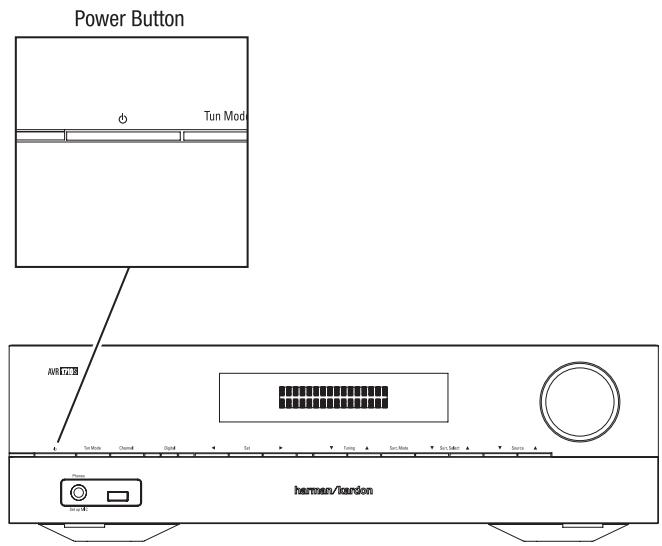
Turn On the AVR
Press the front-panel Power button.
Using the On-Screen Menu System
To access the menu system, press the OSD/Menu button on the remote. The OSD/Menu Menu will appear, and if a video source is playing, the menu will automatically re-size so the picture will be visible behind the menu.
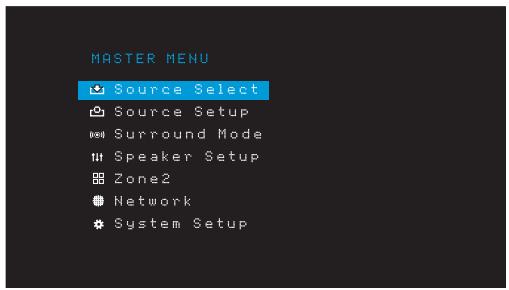
NOTE: The actual on-screen menus may differ slightly from the illustrations in this manual.
The Main Menu system consists of six submenus: Source Select, Source Setup, Surround Mode, Speaker Setup, Network and System Setup. (The AVR 1710S/AVR 171S also have a Zone 2 menu.) Use the Up/Down/Left/Right buttons on the remote or the front panel to navigate the menu system, and press the OK button to select a menu or setting line, or to enter a new setting.
The current menu, setting line or new setting will appear in the front-panel Message Display, as well as on screen.
To return to the previous menu or exit the menu system, press the Back/Exit button. Be certain all settings are correct, as any changes you have made will be retained.
Most users should follow the instructions in this Set Up the AVR section to configure a basic home theater system. You may return to these menus at any time to make additional adjustments, such as those described in the Advanced Functions section, on page 29.
Before beginning the following setup steps, all loudspeakers, a video display and all source devices should be connected. You should be able to turn on the AVR and view the main menu when you press the AVR button. If necessary, reread the Making Connections and Set Up the Remote sections before continuing.
Configure the AVR for Your Speakers
- Plug the supplied EzSet/EQ microphone into the AVR's Headphone connector.
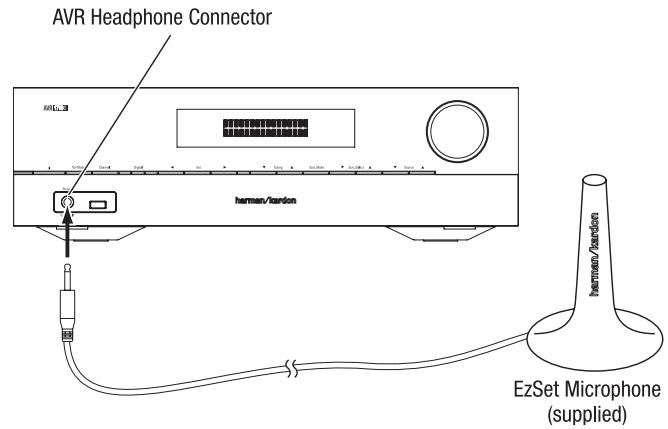
- Place the microphone at ear height in your listening position.
- Set the volume control on your subwoofer to approximately the halfway point.
- Turn on your TV and select the TV input where you connected the AVR in Connect Your TV or Video Display, on page 15.
- Press the remote control's AVR button. The AVR's on-screen display (OSD) Main Menu screen will appear on the TV.
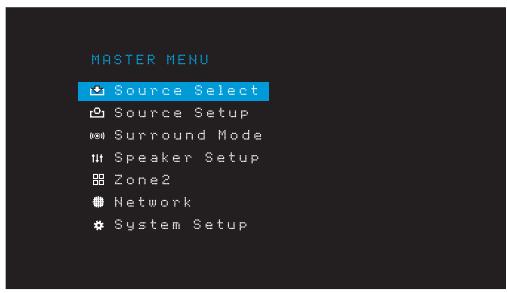
- Use the remote's Up/Down/Left/Right and OK buttons to select "Speaker Setup."
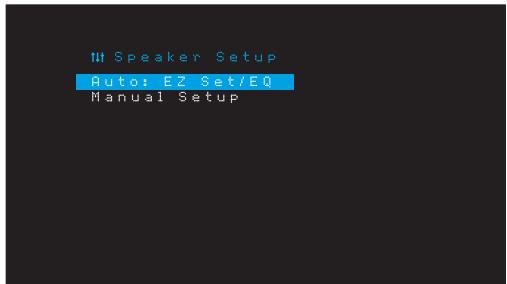
- Select "Auto: EzSet/EQ".
- If you have a subwoofer connected, select "Yes with Sub." Otherwise, select "Yes without Sub."
- For AVR 1610S/AVR 161S, or for AVR 1710S/AVR 171S's in 5.0- or 5.1-channel systems, select "5.0" or "5.1" in the Speaker Configuration screen. For AVR 1710S/AVR 171S's in 7.0- or 7.1-channel systems, select "7.0" or "7.1."
- The test will begin. Make sure that the room is quiet while the test noise is playing through the speakers.
- When the test finishes, select "Done" to exit.
NOTES:
- If there are fewer than five main speakers in your system, do not use the EzSet/ EQ process. Instead, proceed as described in Manual Speaker Setup, on page 30.
- If you are using an AVR 1710S/AVR 171S in 6.0- or 6.1-channel configuration with a single surround back speaker, do not use the EzSet/EQ process. Instead, proceed as described in Manual Speaker Setup, on page 30.
Set Up Your Sources
The Source Setup menu lets you assign the correct physical audio and video connections to each source and lets you set many audio and video playback features for each source. IMPORTANT: The "Video In" and "Audio In" settings are not optional and must be adjusted before you use your AVR to enable playback of each source. You can adjust the other settings later. See System Settings, on page 34, for complete information about adjusting all of the Settings menu options.
- Review the input connections you listed on the Source Buttons and Assigned Connectors table, on page 16. Note what changes (if any) you want to make from the default connector assignments that appear on the list.
- Turn on your TV and select the TV input where you connected the AVR in Connect Your TV or Video Display, on page 15.
- Press the remote control's OSD/Menu button. The AVR's OSD setup menu will appear on the TV. (Note: If you have used a composite video connection to your TV, the OSD menus will not appear on your TV. Follow the steps below using the AVR's front-panel display.)
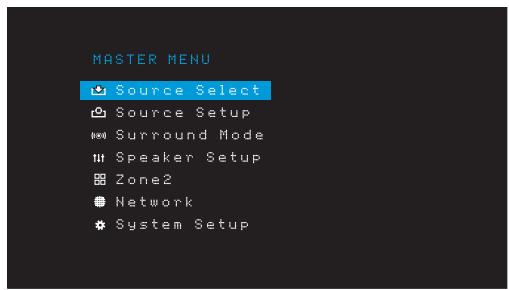
- Use the remote's arrow and OK buttons to select "Source Setup," and use the left/right arrow buttons to select a source button with connectors that you want to re-assign.
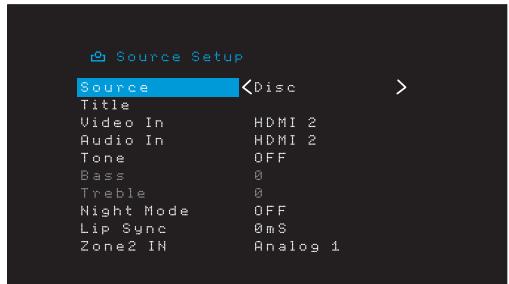
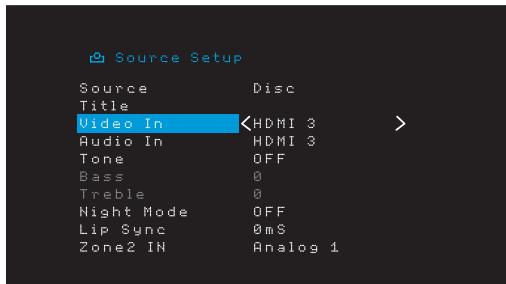
- Select "Video In" and select the video input connector you want to assign to the source button. Press the OK button. NOTE: If you select an HDMI connector as the video input connector, the audio input connector will automatically change to the same HDMI connector.
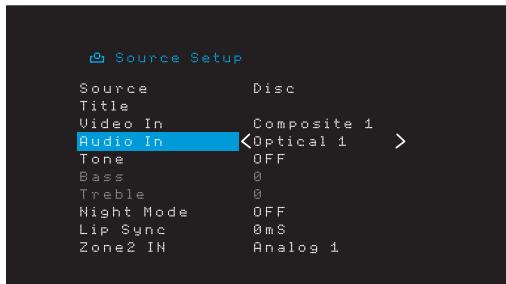
- If you have not selected an HDMI connector for Video In, select "Audio In" and select the audio input connector you want to assign to the source button. Press the OK button. You cannot use a different video input connector with an HDMI audio input connector.
- Press the remote's Back/Exit button and repeat steps 3 - 6 for the remaining source buttons with connectors you want to re-assign.
Title: This selection lets you change the display name for the source, which is useful if your source's device type is different from the source's preprogrammed name. Use the Up/Down buttons to scroll forward or backward through the alphanumeric characters until the desired character appears, then use the Left/Right buttons to move the cursor to the next or previous position. Move the cursor again to leave a blank space. (Your name can have a maximum of 10 characters.) When you have finished, press the OK Button. The new name will appear on the AVR's front panel and throughout the on-screen menu system.
Tone: This setting determines whether the treble and bass controls are active for the source. When it's set to Off, the tone controls are out of the circuit, with no changes to the sound. When it's set to On, the bass and treble controls are in the circuit.
Treble/Bass: These settings boost or cut the treble or bass frequencies by up to 10dB, in 2dB increments. Use the Left/Right buttons to change the setting. The default setting is 0dB.
Night Mode: This setting activates Night mode for the source, which works with specially encoded Dolby Digital discs or broadcasts. Night mode compresses the audio so that louder passages are reduced in volume to avoid disturbing others, while dialogue remains intelligible. The following settings are available:
- Off: No compression is applied. Loud passages in the program remain as they were recorded.
- Mid: Loud passages in the program are reduced moderately in volume. Dolby True HD stream is compressed automatically as set by the incoming stream.
- Max: Loud passages in the program are reduced more in volume.
Lip Sync: This setting lets you resynchronize the audio and video signals from the source to eliminate a "lip sync" problem. Lip-sync issues can occur when the video portion of a signal undergoes additional processing in either the source device or the video display. Use the Left/Right buttons to delay the audio by up to 180ms. (The active source's video will be visible behind the OSD menu, allowing you to synchronize the audio with the picture.)
You can also make lip sync adjustments without activating the AVR's OSD menus. Pressing the remote's Delay button will display the Lip Sync menu bar on the TV, superimposed at the bottom of the video. Use the Left/Right buttons to delay the audio until it is synchronized with the picture.
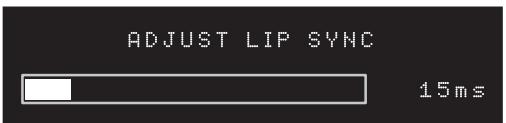
Zone 2 In (AVR 1710S/AVR 171S only): This setting determines the audio source for Zone 2 of a multizone system. Select the analog audio input the source is connected to. Digital audio is not available to the multizone system.
To configure the next source, press the Back/Exit button, then return to the Setup Source line of the Main Menu. When you have finished configuring all sources, press the Back/Exit button to clear the menus from view.
Set Up the Network
To play MP3 or WMA media located on DLNA-compatible devices connected to the network, use the AVR's internal Internet radio tuner or listen to sources via AirPlay (AVR 1710S/AVR 171S only), the AVR must be connected to your home network and you must join them with the network.
If your network uses an automatic IP address, you should not have to perform any network setup procedures. Once you connect the AVR to your home network, the network should automatically assign the AVR an IP address, and the AVR should automatically join your network.
If your AVR does not automatically join your network (in which case the AVR will display a "Not Connected" message when you press the Network source button):
- Press the OSD/Menu button, select System Setup, then select Network.
- The Network menu will appear.
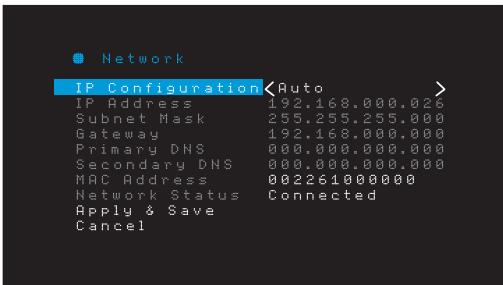
- Select IP Configuration, then press the Right button button twice to cycle the setting from "Auto" to "Manual" and back to "Auto."
- Select Apply & Save. The AVR will attempt to connect to the network.
- If the AVR again fails to connect to the network, you may need to enter your network's settings manually. You may need to obtain your network's settings from your ISP or network administrator.
NOTE: We recommend that you directly connect the AVR to a home-network router so that it can directly access the Internet for Internet radio, or access devices on the network for playback of content stored on the devices (see Listening to Media via Your Home Network, on page 28, for more information).
NOTE: If you have trouble connecting to the network at any time, cycle the AVR into the Sleep mode, and then turn it back on.
Pair the AVR with Your Bluetooth Device
- Press the OSD/Menu button and select "Source Select."
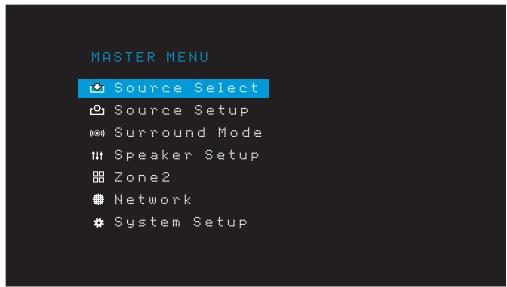
- Scroll to "Bluetooth" and select it. The OSD will display that Bluetooth is unpaired.
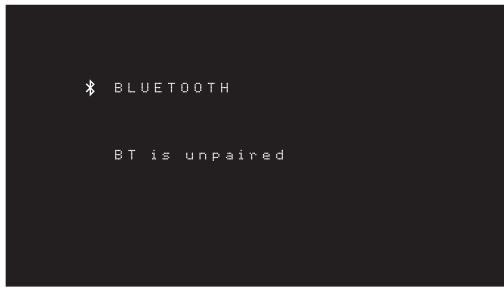
- Press the remote's Option /Info button. The Bluetooth Options Menu will appear.
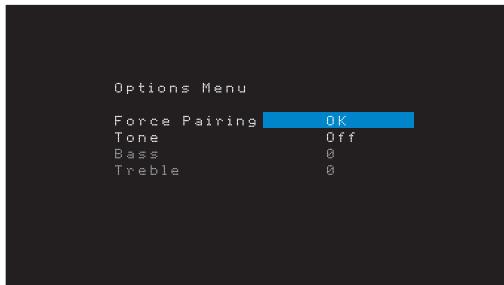
- Select "Force Pairing > OK" and press the OK button. The AVR will enter the pairing mode.
-
Open your Bluetooth device's pairing menu. The AVR will appear on your device's pairing menu as "HK AVR."
-
If your device requires a passcode, use 0000.
-
Pair your device with the AVR. Once paired, press the OSD/Menu button to exit the menu.
To stream audio from the paired Bluetooth device:
- Press the OSD/Menu button.
- Select the Source Select menu.
- Select Bluetooth from the source list.
Operating Your AVR
Now that you have installed your components and completed a basic configuration, you are ready to begin enjoying your home theater system.
HARMAN Remote App
For easy control of your AVR with your hand-held device, download the free Harman Kardon Remote app from iTunes App Store for compatible Apple products, or from Google Play for compatible Android powered smartphones.
The Harman Kardon Remote App controls virtually all the functions of AVR 1710S, AVR 171S, AVR 1610S and AVR 161S AVRs that are connected to the same network as the device that has the app installed. With this easy-to-use app you can turn the AVR on or off, select a source, control the volume and virtually any other function. You can also access and navigate all of the AVR's on-screen setup menus.
Controlling the Volume
Adjust the volume either by turning the front-panel Volume knob (clockwise to increase volume or counterclockwise to decrease volume) or by pressing the Volume Up/Down buttons on the remote. The volume is displayed as a negative number of decibels (dB) below the 0dB reference point (-80dB - +10dB)
0dB is the maximum recommended volume for your AVR. Although it's possible to turn the volume to a higher level, doing so may damage your hearing and your speakers. For certain more dynamic audio materials, even 0dB may be too high, allowing for damage to equipment. Use caution with regard to volume levels.
To change the volume level display from the default decibel scale to a 0-to-90 scale, adjust the Volume Units setting in the System Settings menu, as described in System Settings, on page 34.
Muting the Sound
To mute all speakers and the headphones, press the Mute button on the remote. Any recording in progress will not be affected. The MUTE message will appear in the display as a reminder. To restore the sound, press the Mute button again, or adjust the volume.
Listening Through Headphones
Plug the 1/4-inch stereo plug on a pair of headphones into the front-panel Phones jack for private listening. The default HARMAN Headphone mode uses virtual surround processing to emulate the sound of a 5.1-channel speaker system. Press the Surround Modes button on the front panel or the remote to switch to the Headphone Bypass mode, which delivers a conventional two-channel signal to the headphones. No other surround modes are available for the headphones.
NOTE: You will be unable to listen through headphones if the iPod source is selected.
Selecting a Source
There are three different ways to select a source:
- Press the front-panel Source buttons to scroll through the sources.
- Using the on-screen menus, press the OSD/Menu button, highlight "Source Select" and press the OK button. Scroll to the desired source and press the OK button.
- You can directly select any source by pressing its Source Selector button on the remote.
The AVR selects the audio and video inputs assigned to the source, and any other settings you made during setup.
The source name, the audio and video inputs assigned to the source, and the surround mode will appear on the front panel. The source name and active surround mode will also briefly appear on the TV screen.
Video Troubleshooting Tips
If there is no picture:
- Check the source selection and video input assignment.
- Check all connections for a loose or incorrect connection.
- Check the video input selection on the TV/display device.
Additional Tips for Troubleshooting HDMI Connections
- Turn off all devices (including the TV, the AVR and any source components).
- Unplug the HDMI cables, starting with the cable between the AVR and the TV, and continuing with the cables between the AVR and each source device.
- Carefully reconnect the cables from the source devices to the AVR. Connect the cable from the AVR to the TV last.
- Turn on the devices in this order: TV, AVR, source devices.
NOTE: Depending upon the particular components involved, the complexity of the required communication between HDMI components may cause delays of up to a minute in the completion of some actions, such as input switching or switching between SD and HD channels.
Selecting a Surround Mode
Selecting a surround mode can be as simple or sophisticated as your individual system and tastes. Feel free to experiment, and you may find a few favorites for certain sources or program types. You can find more detailed information on surround modes in Audio Processing and Surround Sound, on page 29.
To select a surround mode, press the OSD/Menu button and select Surround Mode. The Surround Mode menu will appear.
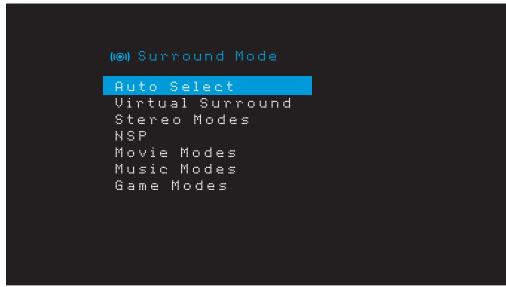
Auto Select: For digital programs, such as a movie recorded with a Dolby Digital or DTS soundtrack, the AVR will automatically use the soundtrack's native surround format. For two-channel analog and PCM programs, the AVR uses the HARMAN NSP mode.
Virtual Surround: When only two main speakers are present in the system, you can use Virtual Surround to create an enhanced soundfield that virtualizes the missing speakers.
Stereo: When you want two-channel playback, select the number of speakers you want to use for playback:
- "2 CH Stereo" uses two speakers.
- "5 CH Stereo" plays the left-channel signal through the front left and surround left speakers, the right-channel signal through the front right and surround right speakers, and a summed mono signal through the center speaker.
- "7 CH Stereo" (AVR 1710S/AVR 171S only) follows the same scheme as 5 CH Stereo but adds the surround back left and surround back right speakers. This mode is available only when the surround back speakers are present and have not been reassigned to multizone or front height operation. See Audio Processing and Surround Sound, on page 29, for more information.
HARMAN NSP: A HARMAN proprietary technology, NSP uses sophisticated digital processing to deliver a true natural sounding three-dimensional listening experience from conventional 2-channel stereo sources like CDs and stereo broadcasts. While preserving the recording's original timbre and spatial balance, HARMAN NSP creates a simulated listening space that automatically adjusts to suit the type of program you are listening to.
The following adjustments are available:
- Stage Width: This adjustment allows you to widen or narrow the width of the apparent listening space in front of you. For example, a higher setting would be appropriate for a recording of an orchestra playing in a concert hall, while a lower setting would be more appropriate for a recording of a singer playing an acoustic guitar.
- Stage Depth: This adjustment lets you control the total size of the apparent listening space. A higher setting would approximate the acoustic qualities of larger listening spaces, such as concert halls and arenas, while a lower setting would approximate the acoustic qualities of smaller listening spaces like small clubs or coffee houses.
Movie: Select from the following when you want a surround mode for movie playback: DTS Neo:6 Cinema or Dolby Pro Logic II (llx or Ilz when seven main speakers are present) in the AVR 1710S/AVR 171S.
Music: Select from the following when you want a surround mode for music playback: DTS Neo:6 Music or Dolby Pro Logic II (Ilx or Ilz when seven main speakers are present in the AVR 1710S/AVR 171S). The Dolby Pro Logic II/llx/llz Music mode allows access to a submenu with some additional settings. See Audio Processing and Surround Sound, on page 29, for more information.
Game: Dolby Pro Logic II (llx/llz when seven main speakers are present) Game is available for video game playback..
After you have made your selection, press the Back/Exit button.
You can also change surround mode categories by repeatedly pressing the Surround Mode button on either the remote or the front panel.
- You can change surround modes within surround mode categories by pressing the Surround Mode Select buttons on the front panel.
See Audio Processing and Surround Sound, on page 29, for more information on surround modes.
Listening to FM and AM Radio
Select the Radio source. A screen similar to the one in the illustration below will appear.
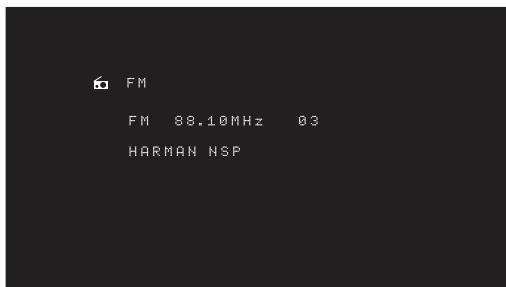
Use the Up/Down buttons or the Remote's Channel buttons to tune a station as displayed on the front panel and on-screen display.
The AVR defaults to automatic tuning, meaning each press of the Up/Down buttons scans up or down the frequency band until a station with acceptable signal strength is found. To switch to manual tuning, in which each press of the Up/Down buttons steps through a single tuning frequency increment, press the Tuning Mode button on the front panel or press and hold the OK button on the remote control for more than 3 seconds. Each press of the button toggles between automatic and manual tuning modes.
Once you have tuned an FM station, toggling the Mode setting also switches the radio between stereo and monaural reception. (Mono reception may improve reception of weaker stations.) Note that some surround modes are not available with monaural reception.
Preset Stations
You can store a total of 30 stations (AM and FM combined) as presets. When you want to save the currently tuned station as a preset, press the remote's Memory button. Use the Number buttons to enter the desired preset number.
To tune to a preset station:
- Press the Left/Right buttons.
- Press the remote's Preset Scan button. The AVR will tune to each preset station in order for five seconds. When the desired preset is tuned, press the Preset Scan button again.
- Enter the preset number using the Number buttons. For preset 10 through 30, press 0 before the preset number. For example, to enter preset 21, press 0-2-1.
Auto Store is an alternate method for storing presets automatically. When you select Auto Store, your AVR will scan for any frequencies with good signal and save them as presets automatically. To use Auto Store:
- In either FM or AM source, press the Info/Option button on the AVR's remote control.
- Press OK to select "Auto Store."
- Highlight "Yes" and press "OK."
Your AVR may take several minutes to complete the Auto Store process. Note that performing Auto Store will erase all currently saved preset station.
Listening to Media on a USB Device
Your AVR is compatible with MP3 and WMA media.
MP3 compatibility: Mono or stereo, constant bit rates (CBR) from 8kbps to 320kbps, variable bit rates (VBR) from lowest to highest quality, with sample rates from 8kHz - 48kHz.
WMA compatibility: Ver. 9.2 basic, stereo CBR with 32kHz - 48kHz sampling rate and 40kbps - 192kbps bit rate, mono CBR with 8kHz - 16kHz sampling rate and 5kbps - 16kbps bit rate, VBR Pass Encoding and Quality Encoding 10 - 98, 44kHz and 48kHz sampling rate.
No other types of media are supported.
Playing files on a USB device
- Insert the USB drive into the AVR's front-panel USB port.
IMPORTANT: Do not connect a personal computer or peripheral to the USB port. USB hubs and multi-card readers are not supported. - Press the USB source selector button on the remote until the front-panel display's "USB" as the source. The USB screen will appear.
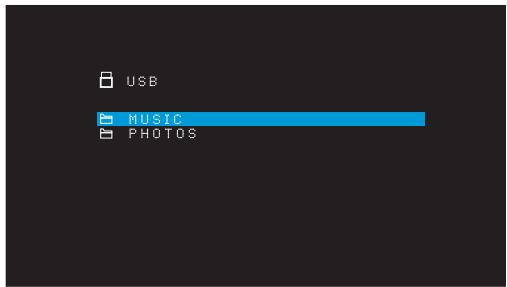
-
Select a folder and press the OK button. The AVR will list all compatible audio files.
-
Select a file to begin playback. The USB play screen will appear. Any ID3 information will be displayed, along with the track's elapsed/current time and icons indicating the current playback status.
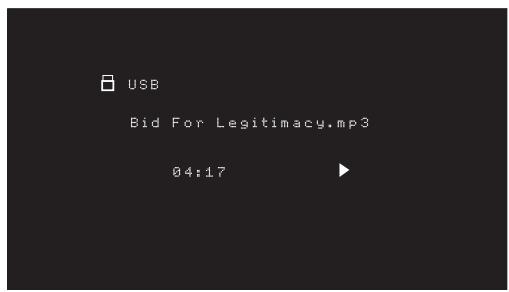
NOTES:
- To skip to the next track, press the Right button; to skip to the beginning of the current track, press the Left button once; to skip to the beginning of the previous track, press the Left button twice (or the Left button once if the track's elapsed time is less than 5 seconds.)
- You can use the Transport Control buttons to control playback (skipping to the previous or next track, searching at high speed forward or backward within a track, playing a file, pausing playback or stopping playback).
- To repeat a file or folder, press the Option/Info Button and select the Repeat option. Each press of the Left or Right buttons will change the setting from Off (no repeat) to repeat One (file) to repeat All (files at the current directory level of the drive). Repeat All will always be activated when Shuffle Music playback is turned on.
- To play the audio tracks in random order, press the Options/Info button and select Shuffle. Each press of the Shuffle turns the setting on or off. The AVR will automatically repeat the tracks until playback is stopped manually.
- To collapse a folder or return to the previous menu level, press the Back/Exit button.
Listening to an iPod/iPhone/iPad Device
When an iPod, iPhone or iPad device is connected to the AVR's front-panel USB port, you may play audio files through your high-quality audio system, operate the iPod, iPad or iPhone using the AVR remote or the AVR's front-panel controls, view navigation messages on the AVR's front panel or a connected video display and charge the iPod, iPad or iPhone. For the latest compatibility information, please see our Web site: www.harmankardon.com.
Press the USB source selector button on the remote until the front-panel displays "iPod" as the source. The iPod screen will appear.
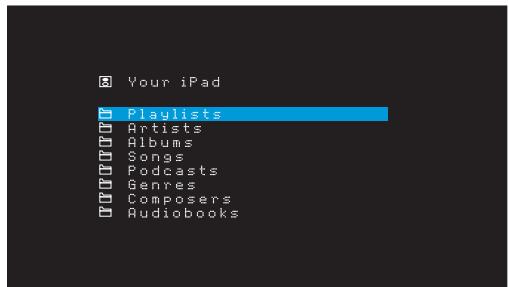
The table below summarizes the controls available during normal playback via the USB port.
| iPod or iPhone Function | Remote Control Button |
| Play | Play |
| Pause | Pause |
| Menu | OSD/Menu |
| Back/Exit | Back/Exit or Left Arrow |
| Select | OK or Right Arrow |
| Scroll Reverse | Up Arrow |
| Scroll Forward | Down Arrow |
| Forward Search | Forward Search |
| Reverse Search | Reverse Search |
| Next Track | Skip Forward or Right Arrow |
| Previous Track | Skip Backward or Left Arrow |
While scrolling, hold the button to scroll faster.
While a selection is playing, the song title, and play mode icon will appear on the front-panel display.
If the AVR is connected to your TV, an iPod screen will appear and display the play mode icon, song title, artist and album. If random or repeat play has been programmed, an icon will appear.
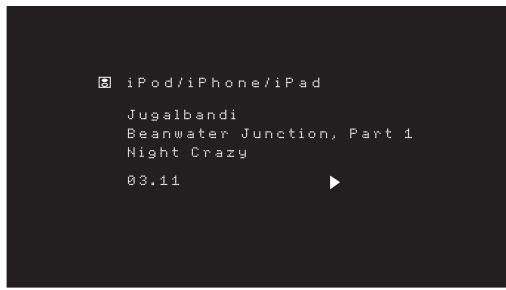
CAUTION: We strongly recommend that you use the screen saver built into your video display to avoid possible damage from "burn-in" that may occur with plasma and CRT displays when a still image, such as a menu screen, remains on the display for an extended period of time.
Press the Option/Info button to view the iPod options menu:
Repeat: Select this setting to repeat a track or all tracks in the current album or playlist. Each press of the OK button switches the setting: repeat Off, repeat One or repeat All.
Shuffle: Select this setting to play all the available songs in random order. Each press of the OK button switches the setting: shuffle by Song, shuffle by Album, or Off to end shuffle playback.
NOTE: The iTunes application allows you to exempt some tracks from Shuffle mode. The AVR cannot override this setting.
Listening to Media via AirPlay (AVR 1710S/AVR 171S only)
If you have joined an AVR 1710S/AVR 171S to your home network you can stream audio to it via AirPlay from compatible Apple devices with iOS 4.2 or newer and computers that have iTunes 10.1 or newer that are joined on the same network. See Connect to Your Home Network, on page 18, for information about connecting to your network, and Set Up the Network, on page 24 for information about joining your network.
To initiate AirPlay streaming to the AVR:
- To initiate AirPlay streaming from a computer with iTunes, launch iTunes, click on the AirPlay button that appears at the bottom of the computer's iTunes window, and select "HK AVR" in the pop-up list that appears.
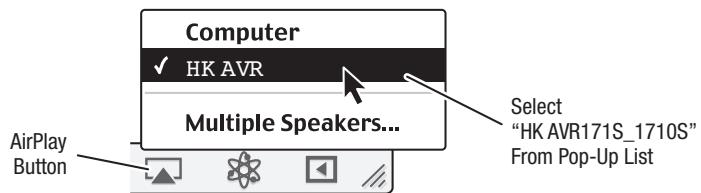
- To initiate AirPlay streaming from an iPod, iPhone or iPad device, tap the AirPlay button on the device's screen and select "HK AVR171S_1710S" in the speakerselection list that appears.
The AirPlay audio stream will break in (the OSD will display an "AirPlay activated" message) and interrupt the source that is currently playing through the AVR. If the AVR is in the Sleep mode, it will turn on and begin playing the AirPlay audio stream. The music playback screen will appear on the OSD.
Use the remote's Transport Control buttons to control playback.
Listening to vTuner (Internet Radio)
Your AVR's Network connection brings you a world of MP3- and WMA-format streams via the Internet. After you have successfully connected to your home network as described in Connect to Your Home Network, on page 18, and set up the network as described in Set Up the Network, on page 24, press the Network Source Selector button on the remote. Each press toggles between the Network and vTuner screens.
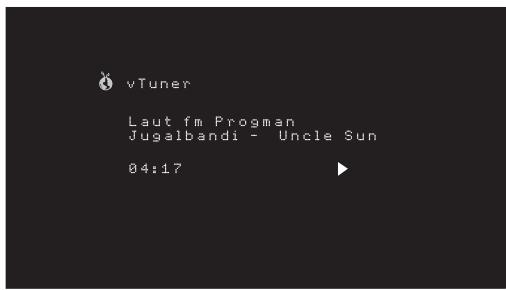
With the vTuner screen (above) displayed, the AVR will automatically connect to the Internet via the www-radioharmankardon.com portal. To select a stream use the Up/Down buttons to search by category.
NOTE: The categories displayed vary by region.
To create a Favourites list, log onto www-radioharmarkardon.com from your computer. Enter your either you AVR's MAC address as its ID # (the MAC address is on the Network Settings screen in the System Settings menu - AVR 171S/AVR 1710S only) or your AVR's vTuner ID # (the vTuner ID # is found on the Help page on the vTuner main menu - AVR 161S/AVR 1610S only) and create an account. Favourites that you select on the Web site will be available on the AVR.
Navigation is similar to other menus. Scroll to the desired item and press the OK button to select it. To return to the previous menu level (or to clear the top-level menu from view), press the Back/Exit button or the Left button.
The AVR is not able to connect to streams that require site registration or other interaction prior to playing the stream. If the AVR cannot connect to the stream, a "Network Error" message will appear briefly, and the Internet Radio screen will remain essentially blank.
Listening to Media via Your Home Network
Your AVR can access MP3 and WMA audio media that is stored on other DLNA-compatible devices that are connected to the same network as your AVR.
MP3 compatibility: Mono or stereo, constant bit rates (CBR) from 8kbps to 320kbps, variable bit rates (VBR) from lowest to highest quality, with sample rates from 8kHz - 48kHz.
WMA compatibility: Ver. 9.2 basic, stereo CBR with 32kHz - 48kHz sampling rate and 40kbps - 192kbps bit rate, mono CBR with 8kHz - 16kHz sampling rate and 5kbps - 16kbps bit rate, VBR Pass Encoding and Quality Encoding 10 - 98, 44kHz and 48kHz sampling rate.
Before you can access files located on other devices via the network, each device must first give permission to share files with the AVR:
To share media on PCs:
- Open Windows Media Player.
- Open the Library menu and select Media Sharing. The Media Sharing window will appear.
- Check the "Share My Media" box. An icon for the AVR will appear in the window.
- Select the AVR icon, select "Allow," then select "OK."
The computer's WMA and MP3 media should now be available to the AVR.
To share media on other types of computers, operating systems or media software: Check the instructions for the computer, operating system or media player.
To listen to shared media, press the Network Source Selector button. (If vTuner appears as the source, press the button a second time to switch from the Internet Radio source to the Network source.) The Home Network screen will appear.
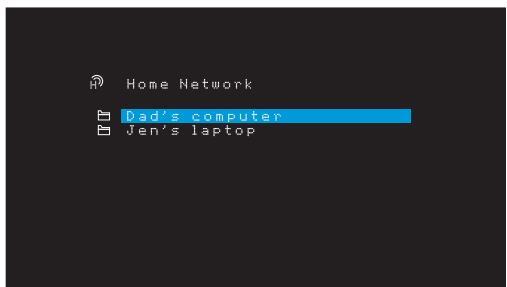
The screen will list by name all devices on the network that allow sharing. Use the Up/ Down and OK buttons to browse the content stored in the device's media player library. Scroll to the desired item and press the OK button to select it. To return to the previous menu level (or to clear the menu from view from the top level), press the Back/Exit button.
NOTE: Although video content may appear in the menu, the AVR does not support video playback from the network connection.
Playing Media from a Roku Streaming Stick
When you connect a Roku Streaming Stick to the AVR's MHL/HDMI input and join it with your home Wi-Fi network, you can use the AVR's remote to search for and control streaming media. NOTE: Your home network must be Wi-Fi for you to be able to use the Roku Streaming Stick with your AVR.
- After connecting the Roku Streaming Stick to the AVR's MHL/HDMI input, select the AVR's MHL source. The Roku Streaming Stick's video output should be displayed on your TV.
- Follow the Roku instructions for joining the Roku Streaming Stick with your Wi-Fi network, using the Roku remote.
- Once the Roku Streaming Stick is joined with your Wi-Fi network, the AVR remote buttons shown below will perform the same functions as their counterparts on the Roku remote:
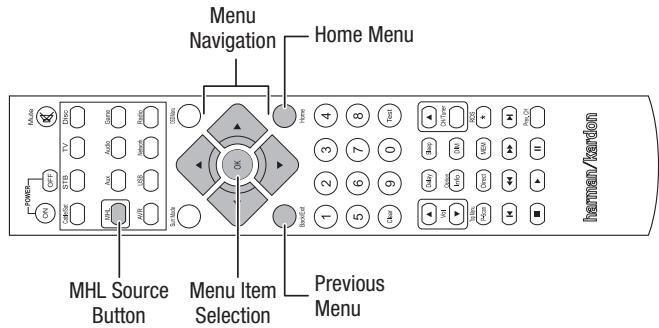
Listening to Media via Spotify Connect
Your Harman Kardon AVR and Spotify control device need to be on the same wi-fi network to work.
From the Spotify App on your mobile device tap on the Now Playing bar to reveal extra controls, and select the Speaker icon. From the Connect screen, just choose your AVR models from the list as a destination device and it'll start playing. Adjust the volume directly from the app using the volume bar from the Connect screen.

Spotify
Using This Device With Spotify Connect
Spotify lets you listen to millions of songs – the artists you love, the latest hits and discoveries just for you.
If you are a Spotify user, you can control this device using your Spotify app.
Step 1 Connect your device to the same wifi network as your phone, tablet or PC running the Spotify app.
Step 2 Open the Spotify app, and play any song.
Step 3 Tap the song image in the bottom left of the screen.
Step 4 Tap the Connect icon
Step 5 Pick your speaker from the list.
For information on how to set up and use Spotify Connect please visit www.spotify. com/connect
Licenses
The Spotify Software is subject to third party licenses found here: www.spotify.com/ connect/third--party--licenses.
Advanced Functions
Much of the adjusting and configuration your AVR requires is handled automatically, with little intervention required on your part. You can also customize your AVR to suit your system and your tastes. In this section we will describe some of the more advanced adjustments available to you.
Audio Processing and Surround Sound
Audio signals can be encoded in a variety of formats that can affect not only the quality of the sound but the number of speaker channels and the surround mode. You may also manually select a different surround mode, when available.
Analog Audio Signals
Analog audio signals usually consist of two channels - left and right. Your AVR is able to process two-channel audio signals to produce multichannel surround sound, even when no surround sound has been encoded in the recording. Among the available modes are the Dolby Pro Logic II/IIx/IIz, Virtual Speaker, DTS Neo:6, HARMAN NSP, 5 CH and 7 CH Stereo modes. To select one of these modes, press the Surround Modes button.
Digital Audio Signals
Digital audio signals offer greater flexibility and capacity than analog signals, and allow the encoding of discrete channel information directly into the signal. The result is improved sound quality and startling directionality, since each channel's information is transmitted discretely. High-resolution recordings sound extraordinarily distortion-free, especially in the high frequencies.
Surround Modes
Surround-mode selection depends upon the format of the incoming audio signal as well as your personal taste. Although there is never a time when all of the AVR's surround modes are available, there is usually a wide variety of modes available for a given input. Table A12 in the Appendix, on page 47, offers a brief description of each mode and indicates the types of incoming signals or digital bitstreams the mode may be used with. Additional information about the Dolby and DTS modes is available on the companies' Web sites: www.dolby.com and www.dtsonline.com.
When in doubt, check the jacket of your disc for more information on which surround modes are available. Usually, nonessential sections of the disc, such as trailers, extra materials or the disc menu, are available only in Dolby Digital 2.0 (two-channel) or PCM two-channel mode. If the main title is playing and the display shows one of these surround modes, look for an audio or language setup section in the disc's menu. Also, make sure your disc player's audio output is set to the original bitstream rather than two-channel PCM. Stop play and check the player's output setting.
Multichannel digital recordings are produced in five-channel, six-channel or seven-channel formats, with or without a ".1" channel. The channels included in a typical 5.1-channel recording are front left, front right, center, surround left, surround right and LFE (low-frequency effects). The LFE channel is denoted as ".1" to represent the fact that it is limited to the low frequencies. 6.1-channel recordings add a single surround back channel, and 7.1-channel recordings add surround back left and surround back right channels to the 5.1-channel configuration. New formats are available in 7.1-channel configurations. Your AVR is able to play the new audio formats, delivering a more exciting home theater experience.
AVR 1710S/AVR 171S only: To use the 6.1- and 7.1-channel surround modes, the surround back channels must be enabled. See Manual Speaker Setup, on page 30 for more information.
Digital formats include Dolby Digital 2.0 (two channels only), Dolby Digital 5.1, Dolby Digital EX (6.1), Dolby Digital Plus (7.1), Dolby TrueHD (7.1), DTS-HD High-Resolution Audio (7.1), DTS-HD Master Audio (7.1), DTS 5.1, DTS-ES (6.1 Matrix and Discrete), DTS 96/24 (5.1), two-channel PCM modes in 32kHz , 44.1kHz , 48kHz , 88.1kHz , 96kHz , 176.4kHz or 192kHz , and 5.1 or 7.1 multichannel PCM.
When the AVR receives a digital signal, it detects the encoding method and the number of channels, which is displayed briefly as three numbers, separated by slashes (e.g., "3/2/.1").
The first number indicates the number of front channels in the signal: "1" represents a monophonic recording (usually an older program that has been digitally remastered or, more rarely, a modern program for which the director has chosen mono as a special effect). "2" indicates the presence of the left and right channels but no center channel. "3" indicates that all three front channels (left, right and center) are present.
The second number indicates whether any surround channels are present: "0" indicates that no surround information is present. "1" indicates that a matrixed surround signal is present. "2" indicates discrete left and right surround channels. "3" is used with DTS-ES bitstreams to represent the presence of the discrete surround back channel, in addition to the side surround left and right channels. "4" is used with 7.1-channel digital formats to indicate the presence of two discrete side surround channels and two discrete back surround channels.
The third number is used for the LFE channel: “0” indicates no LFE channel.“.1” indicates that an LFE channel is present.
The 6.1-channel signals - Dolby Digital EX and DTS-ES Matrix and Discrete - each include a flag that signals the receiver to decode the surround back channel, indicated as 3/2/.1 EX-ON for Dolby Digital EX materials, and 3/3/.1 ES-ON for DTS-ES materials.
Dolby Digital 2.0 signals may include a Dolby Surround flag indicating DS-ON or DS-OFF, depending on whether the two-channel bitstream contains only stereo information or a downmix of a multichannel program that can be decoded by the AVR's Dolby Pro Logic decoder. By default, these signals are played in Dolby Pro Logic IIx Movie mode.
When a PCM signal is received, the PCM message and the sampling rate (32kHz, 44.1kHz, 48kHz, 88.2kHz, 96kHz, 176.4kHz or 192kHz) will appear.
When only two channels – left and right – are present, the analog surround modes may be used to decode the signal into multiple channels. If you would prefer a different surround format than the native signal's digital encoding, press the Surround Modes button to display the Surround Modes menu (see Selecting a Surround Mode, on page 25).
The Auto Select option sets the surround mode to the native signal's digital encoding, e.g., Dolby Digital, DTS, Dolby TrueHD or DTS-HD Master Audio. For two-channel materials, the AVR defaults to the HARMAN NSP mode. If you prefer a different surround mode, select the surround-mode category: Virtual Surround, Stereo, Movie, Music or Video Game. Press the OK button to change the mode.
Each surround-mode category is set to a default surround mode:
Virtual Surround: Virtual speaker.
- Stereo: 7-CH Stereo or 5-CH Stereo (depending on how many main speakers are present in the system).
NSP: HARMAN NSP.
- Movie: Dolby Pro Logic II Movie.
Music: Dolby Pro Logic II Movie.
Video Game: Dolby Pro Logic II Movie.
You may select a different mode for each category. Below is a complete list of available surround modes. (The actual surround modes available will depend on the number of speakers in your system.)
- Virtual Surround: Virtual speaker.
- Stereo: 2-CH Stereo, 5-CH Stereo or 7-CH Stereo (AVR 1710S/AVR 171S only).
NSP: HARMAN NSP. - Movie: DTS Neo:6 Cinema, Dolby Pro Logic II Movie, Dolby Pro Logic Ilx Movie (AVR 1710S/AVR 171S only), Dolby Pro Logic Ilz (AVR 1710S/AVR 171S only).
- Music: DTS Neo:6 Music, Dolby Pro Logic II Music, Dolby Pro Logic Ilx Music (AVR 1710S/AVR 171S only), Dolby Pro Logic Ilz (AVR 1710S/AVR 171S only).
- Video Game: Dolby Pro Logic II Game, Dolby Pro Logic Ilx Game (AVR 1710S/AVR 171S only), Dolby Pro Logic Ilz (AVR 1710S/AVR 171S only).
Once you have programmed the surround mode for each type of audio, select the line from the Surround Modes menu to override the AVR's automatic surround-mode selection. The AVR will use the same surround mode the next time the source is selected.
AVR 1710S/AVR 171S only: Dolby Pro Logic IIx is available only if you have set up the AVR's Assigned Amp to Surround Back; Dolby Pro Logic IIz is available only if you have set up the AVR's Assigned Amp to Front Height. See Manual Speaker Setup, on page 30, for more information.
PLlZ Height Gain (AVR 1710S/AVR 171S only): When you have set the Assigned Amp to Front Height (see Manual Speaker Setup, on page 30), the PLlZ Height Gain setting will become available. The front height channels can greatly improve the spatial experience of a surround-sound system. Some listeners may want the depth and dimension that height channels provide, but from a seemingly transparent experience. Other listeners may prefer to accentuate the front height channels by using a higher volume setting.
The PLlZ Height Gain control gives you the ability to change the volume of the front height channels to suit different programs. The control has three settings: Low (normal volume), Mid (moderate volume increase) and High (maximum volume increase). Note that you can also fine-tune the front height channel volume levels. See Setting Channel Output Levels Manually, on page 32, for details.
Dolby PLII/Dolby PLIIx Music: Some additional settings are available when you select the Dolby Pro Logic II or Ilx Music Mode in the Surround Modes menu:
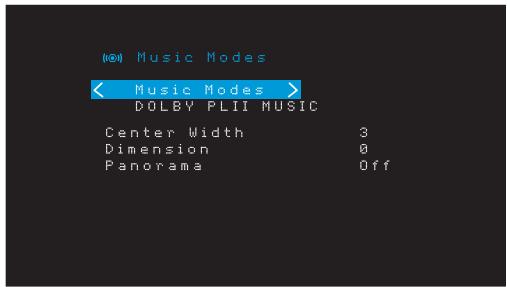
Center Width: This setting affects how vocals sound through the three front speakers. A lower number focuses the vocal information tightly on the center channel. Higher numbers (up to 7) broaden the vocal soundstage. Use the Left/Right buttons to adjust.
Dimension: This setting affects the depth of the surround presentation, allowing you to "move" the sound toward the front or rear of the room. The setting of "0" is a neutral default. Setting "F-3" moves the sound toward the front of the room, while setting "R-3" moves the sound toward the rear. Use the Left/Right buttons to adjust it.
Panorama: With the Panorama mode turned on, some of the sound from the front speakers is moved to the surround speakers, creating an enveloping "wraparound" effect. Each press of the OK button toggles the setting On or Off.
Please refer to Table A10 in the Appendix for more information on which surround modes are available with different bitstreams.
Manual Speaker Setup
Your AVR is flexible and may be configured to work with most speakers and to compensate for the acoustic characteristics of your room.
The EzSet/EQ process automatically detects the capabilities of each connected speaker and optimizes the AVR's performance with your speakers. If you are unable to run EzSet/ EQ calibration, or if you wish to set up your AVR for your speakers manually, use the Speaker Setup on-screen menus.
Before beginning, place your loudspeakers as explained in the Place Your Speakers section, on page 11, and connect them to the AVR. Consult the owner's guide for the speakers or the manufacturer's Web site for their frequency-range specification. Although you may set the AVR's individual channel levels "by ear," an SPL (sound-pressure level) meter purchased at a local electronics store will provide greater accuracy.
Record your configuration settings in Tables A3 through A12 in the Appendix for easy re-entry after a system reset or the unit has been unplugged for more than four weeks.
Step One - Determine Your Speakers' Crossover Frequencies
Without using the EzSet/EQ process, the AVR can't detect how many speakers you've connected to it; nor can it determine their capabilities. Consult the technical specifications for all of your speakers and locate the frequency response, usually given as a range, e.g., 100Hz - 20kHz ( ± 3dB ). Write down the lowest frequency that each of your speakers (except the subwoofer) is capable of playing (100Hz in the above example) as the crossover in Table A3 in the Appendix. NOTE: This is not the same as the crossover frequency listed in the speaker's specifications.
The AVR's bass management determines which speakers will be used to play back the low-frequency (bass) portion of the source program. Sending the lowest notes to small satellite speakers will result in bad sound and may even damage the speakers. The highest notes may not be heard at all through the subwoofer.
With proper bass management, the AVR divides the source signal at a crossover frequency. All information above that crossover frequency is played through your system's speakers, and all information below the crossover frequency is played through the subwoofer. This way, each loudspeaker in your system will perform at its best, delivering a more powerful and enjoyable sound experience.
Step Two - Measure the Speaker Distances
Ideally, all of your speakers would be placed in a circle, with the listening position at the center. However, you may have had to place some speakers a little farther away from the listening position than others. Because of this, sounds that are supposed to arrive simultaneously from different speakers may blur, due to different arrival times.
Your AVR provides a Distance adjustment that compensates for these real-world speaker placement differences.
Measure the distance from each speaker to the listening position, and write it down in Table A4 in the Appendix. Even if all of your speakers are the same distance from the listening position, enter your speaker distances as described in Set the Speaker Distances, on page 32.
Step Three - Manual Speaker Setup Menu
Now you are ready to program the AVR. Sit in your usual listening position, and make the room as quiet as possible.
With the AVR and video display turned on, press the OSD/Menu button to display the menu system. Select the Speaker Setup menu, and then select Manual Setup.
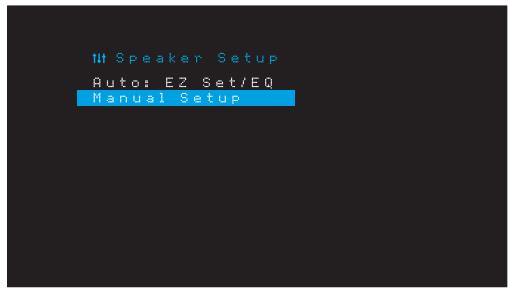
If you have already run the EzSet/EQ process as explained in Configure the AVR for Your Speakers, on page 22, the AVR saved the results. To fine-tune the EzSet/EQ results, or to configure the AVR from scratch, select Manual Setup. The Manual Setup screen will appear.
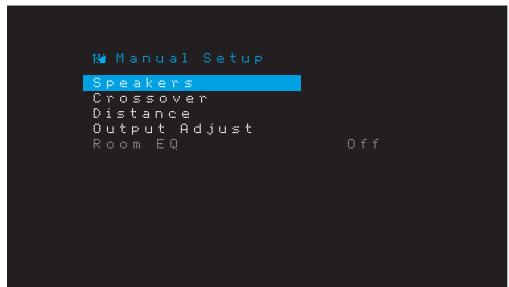
NOTE: To save the current settings, press the Back/Exit button.
For best results, adjust the submenus in this order: Speakers, Crossover, Distance and Output Adjust.
Speakers
This selection lets you program the correct setting for each speaker group. The settings in this menu affect the remainder of the speaker setup process and the availability of various surround modes at any time.
Select ON when the speakers are present in the system; select OFF for positions where no speakers are installed. The Front Left & Right setting is always ON and may not be disabled.
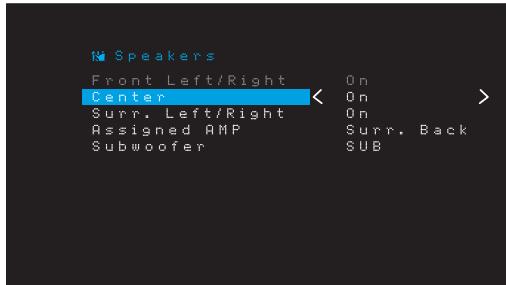
Any changes will be reflected in the total Number Of Speakers displayed at the top of the screen.
AVR 1710S/AVR 171S only: The Assigned AMP setting includes four options:
- Surround Back: Select the Surr. Back option if your main system is a 7.1-channel system and you are using surround back left and surround back right speakers.
- Zone 2: Select the Zone 2 option if your main system is a 5.1-channel system and you want to use the Assigned Amp speaker outputs to power speakers in Zone 2. See Install a Multizone System, on page 19, for more information.
- Front Height: Select the Front Height option if your main system is a 7.1-channel system and you are using Front Height speakers with Dolby Pro Logic Ilz.
- Off: Select Off if you have not connected speakers to the Assigned Amp speaker outputs.
NOTE: When you set Assigned AMP to “Zone 2,” the speakers connected to the Assigned Amp outputs will not be configured during the EzSet/EQ process. Configure the speakers manually, as explained below.
When you have finished, press the Back/Exit button.
Crossover
After you return to the Speaker Setup menu, navigate to the Crossover line and press the OK button to display the Crossover menu.
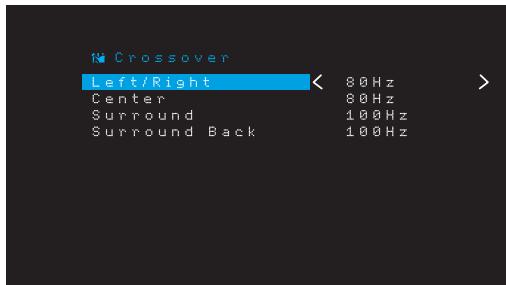
The AVR will display only those speaker groups you set to On in the Number of Speakers menu.
Refer to Table A3 to see the crossover frequencies that you wrote down for your speakers.
For each speaker group, select one of these eight crossover frequencies: Large, 40Hz, 50Hz, 60Hz, 70Hz, 80Hz, 90Hz, 100Hz, 110Hz, 120Hz, 140Hz, 150Hz, 160Hz, 180Hz or 200Hz. If the speaker's crossover frequency is below 40Hz, select the first option, "Large." This setting doesn't refer to the speaker's physical size but to its frequency response, which is also called "full range."
NOTE: If you have Room EQ set to On, the crossover frequencies have been automatically set by the AVR and cannot be adjusted.
Write down the settings in Table A6 in the Appendix.
When you have finished entering the settings, press the Back/Exit button to return to the Manual Setup menu.
Select the "Speakers" menu again and note the Subwoofer setting: This setting depends upon the Crossover setting you selected for the front left and right speakers.
- If you set the front speakers to a numeric crossover frequency, the subwoofer setting will always be SUB. All low-frequency information will always be sent to the subwoofer. If you don't have a subwoofer, either upgrade to full-range front left and right speakers or add a subwoofer at the earliest opportunity.
- If you set the front left/right speakers to LARGE, select one of the three following settings for the subwoofer:
L/R+LFE: This setting sends all low-frequency information to the subwoofer, including a) information that would normally be played through the front left and right speakers and b) the special low-frequency effects (LFE) channel information.
OFF: Select this setting when no subwoofer is in use. All low-frequency information will be sent to the front left and right speakers.
LFE: This setting plays low-frequency information contained in the left and right program channels through the front left and right speakers, and directs only the LFE-channel information to the subwoofer.
Distance
As described above in Step Two, when you measured the distances from each of your speakers to the listening position, your AVR provides an adjustment that compensates for the different distances so that the sound from each speaker will reach the listening position at the proper time. This process will improve the clarity and detail of the sound.
On the Manual Setup menu, move the cursor to the Distance line and press the OK button to display the Adjust Speaker Distance menu.
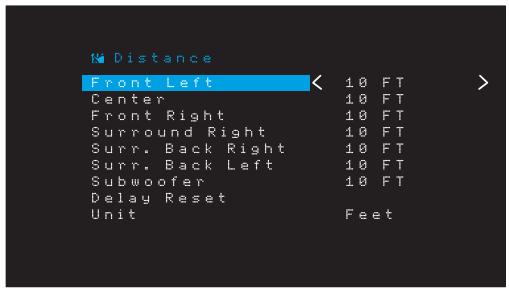
Enter the distance from each speaker to the listening position that you measured in Step Two and recorded in Table A4 in the Appendix (see page 39). Select a speaker, then use the Left/Right buttons to change the measurement. You can enter distances between 0 and 30 feet (9.1m). The default distance for all speakers is 10 feet (3m).
The default unit of measurement is feet. To change the unit to meters, select the Unit of Measure line and press the Left or Right button to change the setting.
NOTE: If you set the Assigned AMP channels to Zone 2, you will not be able to adjust their delay settings.
Step Four - Setting Channel Output Levels Manually
For a conventional stereo receiver, a simple balance control adjusts the stereo imaging by varying the relative loudness of the left and right channels. In a home theater system with up to seven main channels plus up to two subwoofoers, achieving proper imaging becomes both more critical and more complex. The goal is to ensure that each channel is heard at the listening position with equal loudness (when signals of equal loudness are played through them).
Your AVR's EzSet/EQ calibration can handle this critical task for you simply and automatically. However, the Output Adjust menu allows you to calibrate the levels manually, either using the system's built-in test tone or while playing source material.
From the Manual Setup menu select Output Adjust to display the speaker volume adjustment menu.
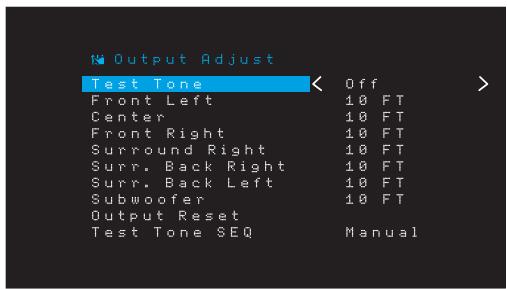
All of the system's speakers will appear with their current level settings. You can adjust each speaker's level between -10dB and +10dB in 1dB increments.
While making adjustments, you can measure the channel levels in one of these ways:
- Preferably, use a handheld SPL meter set to the C-weighting, slow scale. Adjust each speaker so that the meter reads 75dB when the AVR's built-in test noise is playing.
- By ear. Adjust the levels so that the test tone sounds equally loud to you when it plays through each speaker.
To set your levels using the AVR's internal test tone, select the menu's Test Tone line and use the Left/Right buttons to turn the test tone on. Then select the Test Tone SEQ line to select between Auto and Manual:
Auto: The test tone will automatically circulate to all speakers, as indicated by the highlight bar. Use the Left/Right buttons to adjust the level for any speaker when the test tone is paused there. Use the Up/Down buttons to move the highlight bar to another line, and the test tone will follow the bar. To stop the test tone, use the Up/Down buttons to move the cursor out of the screen's speaker listings area.
Manual: The test tone will stay on the selected speaker until you use the Up/Down buttons to move it to another speaker. Use the Left/Right buttons to adjust the level for the speaker through which the test tone is playing.
If you are using an external source to set your output levels, set Test Tone to Off, use the Up/Down buttons to navigate to each speaker, and use the Left/Right buttons to adjust the speaker's level while the source plays.
NOTE: If you are using a handheld SPL meter with external source material, such as a test disc or an audio selection, play it and adjust the AVR's master volume control until the meter measures 75dB. Then adjust the individual speaker levels.
Output Reset: To reset all levels to their factory defaults of 0dB, scroll down to this line and press the OK button.
When you have finished adjusting the speaker levels, record the settings in Table A3 in the Appendix. Then press the Back/Exit Button.
Notes on Setting Speaker Volumes in Home Theater Systems:
While setting your system's individual speaker volume levels is ultimately up to your personal taste, here are some ideas you may find helpful:
- For films and video-music programs, your overall goal should be to create an enveloping, realistic sound field that draws you into the film or music program without drawing your attention away from the action on the screen.
- For multichannel music recordings, some music producers will create a sound field that places the musicians all around you; others will create a sound field that places the musicians in front of you, with more subtle ambience in the surround speakers (as you would experience in a concert hall).
- In most 5.1-channel and 7.1-channel film soundtracks, the surround speakers are not intended to be as loud or as active as the front speakers. Adjusting the surround speakers so they are always as loud as the front speakers could make dialogue difficult to understand and will make some sound effects sound unrealistically loud.
Notes on Setting Subwoofer Volume:
- Sometimes the ideal subwoofer volume setting for music is too loud for films, while the ideal setting for films is too quiet for music. When setting the subwoofer volume, listen to both music and films with strong bass content and find a "middle ground" volume level that works for both.
- If your subwoofer always seems too loud or too quiet, you may want to place it in a different location. Placing the subwoofer in a corner will always tend to increase its bass output, while placing it away from any walls or corners will always tend to reduce its bass output.
AVR 1710S/AVR 171S only: Listening in Zone 2
With the multizone system in use, you may enjoy an exciting 5.1-channel home theater presentation in the main listening area, while others listen to an entirely different source in another room. See Install a Multizone System, on page 19, for installation information.
You set up and activate the AVR's multizone system from the on-screen Zone 2 menu. Press the OSD/Menu button, and navigate to the Zone 2 line. Press the OK button to display the Zone 2 menu.
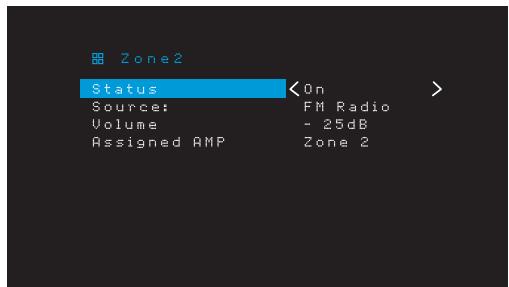
Status: This line lets you turn Zone 2 on or off.
Source: This line lets you select the source input for Zone 2. You may select a different source from the one currently operating in the main listening area. However, if the same source has been selected for both the main listening area and Zone 2, listeners in both areas will hear the same content.
Only analog audio sources are available to Zone 2. To hear digital devices such as a CD player in Zone 2, follow these steps:
- In addition to making a digital audio connection, connect the source device's analog audio outputs to the AVR. Make a note in Table A5 on page 39 to record which set of analog inputs you used.
- Use the AVR's front-panel Audio Input button to select the analog audio input. (Leave the Audio setting for the source device in the Source Setup menu set to the digital input.)
Notes about listening in Zone 2:
- Although you can listen to iPod or USB as a source in Zone 2, you cannot begin iPod or USB playback from within Zone 2. You must initially select iPod or USB as a source in Zone 1 and begin playback of a track or playlist from there. Then you can select iPod as the Zone 2 source and control playback from within Zone 2 even if you switch Zone 1 to a different source.
- Only one of the AVR's internal sources (iPod, USB, vTuner, Network, AirPlay, DLNA DMR) can be active at a time across both zones. For example, if you are listening to vTuner as the source in Zone 1 and switch the source in Zone 2 to USB, it will switch the source in Zone 1 to USB(and vice versa). To listen to different sources in Zone 1 and Zone 2 at the same time, at least one source must be one of the AVR's configurable external sources (Cable/Sat, Disc, STB or TV) that is connected to one of the AVR's analog audio inputs, or one of the AVR's terrestrial radio sources (FM or AM).
Volume: Highlight this line, and use the Left/Right buttons to control the volume in Zone 2.
Assigned AMP: This line lets you assign the Assigned AMP channels to “Zone 2” for multizone operation (see Number of Speakers, on page 31). When this line is set to Zone 2, you may configure the main listening room for only up to 5.1 channels.
To use the remote to control the sound in Zone 2, press the remote's Zone 2 button. The volume, mute and source select buttons will control the sound in Zone 2 and the Zone 2 button will illuminate whenever you press a button to indicate that the remote is in the Zone 2 control mode. Press the Zone 2 button again to return the remote to the main listening area control mode.
System Settings
The AVR's System Settings menu lets you customize in what way many of the AVR's features operate. Press the OSD/Menu button and navigate to the System line. Press the OK button to display the System Settings menu.
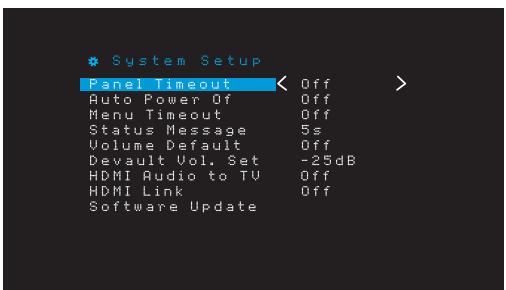
Panel Timeout: This setting allows you to set the AVR's front-panel display to automatically turn off after remaining on for a predetermined time (3 - 10 seconds) each time you use a control. Set this to "Off" to have the display remain on continually.
Auto Power Off: This setting allows you to set the AVR to automatically switch to the Off mode after being in the Sleep mode for a predetermined time (1 - 8 hours). See Power Indicator/Power Button, on page 4, for more information. It also allows the AVR to automatically switch to the Sleep mode after being on for the predetermined amount of time. Note that it will not transition to Sleep mode this way if the active source has one of the Digital Audio Connectors selected as the Audio Input. See Source Setup, on page 23, for more information.
Menu Timeout: This setting allows you to set the amount of time (20 - 50 seconds) a menu screen will remain on after the last adjustment. Set this to "Off" to have the menus remain on continually until you press the OSD/Menu button.
Status Message: When the AVR is turned on, the volume is adjusted, the source is changed or a change in the input signal is detected, a status message will be displayed on the TV screen. Select how long the message remains visible, from 2 to 10 seconds, with a default of 3 seconds. Select "Off" if you do not wish to see the status messages on the TV screen (they will still appear on the AVR's front-panel display).
Volume Default and Default Volume Setting: These two settings are used together to program the volume level when you turn on the AVR. Set Volume Default to On, and then set the Default Volume Setting to the desired turn-on volume. When Volume Default is set to Off, the AVR will turn on at the last-used volume setting from the previous listening session.
HDMI Audio to TV: This setting determines whether HDMI audio signals are passed through the HDMI Monitor Out connector to the video display. In normal operation, leave this setting at Off, as audio will be played through the AVR. To use the TV by itself, without the home theater system, turn this setting to On.
HDMI Link: This setting allows the communication of control information among the HDMI devices in your system. Turn this setting to On to allow control communication between the HDMI devices; turn the setting to Off to forbid control communication.
Software Update: If a software upgrade is released for your AVR, installation instructions will be available in the Product Support section of the Web site or from Harman Kardon customer service. At that time, you may use this submenu to install the upgrade software.
IMPORTANT: During a software upgrade, do not power off the AVR or use any of its controls. Doing so could permanently damage the AVR.
Sleep Timer
The sleep timer sets the AVR to play for up to 90 minutes and then turn off automatically.
Press the Sleep button on the remote, and the time until turn-off will be displayed. Each additional press of the Sleep button increases the play time by 10 minutes, with a maximum of 90 minutes. The SLEEP OFF setting disables the sleep timer.
When the sleep timer has been set, the front-panel display will automatically dim to half brightness.
If you press the Sleep button after the timer has been set, the remaining play time will be displayed. Press the Sleep button again to change the play time.
The front-panel display will count down during the final 10 seconds before going to Sleep mode. Pressing any button during this countdown will cancel the process and disable the Sleep timer.
Processor Reset
If the AVR behaves erratically after a power surge, unplug the AC power cord for at least 3 minutes. Plug the cord back in and turn the AVR on. If this procedure doesn't help, reset the AVR's processor as described below.
NOTE: A processor reset erases all user configurations, including speaker and level settings and tuner presets. After a reset, reenter all of these settings from your entries in the Appendix worksheets.
To reset the AVR's processor:
-
Press the front-panel Power Button for more than three seconds to turn the AVR off (the Power Indicator will turn amber).
-
Press and hold the front-panel Surround Mode Category button for at least 5 seconds until the RESET message appears on the front-panel display.
NOTE: After performing a processor reset, wait at least 1 minute before pressing any Source Selector buttons.
If the AVR does not function correctly after a processor reset, contact an authorized Harman Kardon service center for assistance. Authorized service centers may be located by visiting our Web site at www.harmankardon.com.
Symptom
Cause
Solution
| Unit does not function | • No AC power | • Ensure that the power cord is plugged into a live AC power outlet • Check if the AC outlet is switch-controlled |
| Front-panel display lights, but there's no sound or picture | • Intermittent input connection • Mute is on • Volume control is turned down | • Secure all input and speaker connections • Press Mute button • Turn up Volume control |
| No sound from any speaker | • Amplifier is in protection mode due to possible short circuit • Amplifier is in protection mode due to internal problems | • Check all speaker wires at speaker and AVR connections for crossed wires • Contact your local Harman Kardon service center |
| No sound from center or surround speakers | • Incorrect surround mode • Program material is monophonic • Incorrect speaker configuration • Program material is stereo | • Select a surround mode other than stereo • Mono programs contain no surround information • Check the speaker configuration in the setup menu • The surround decoder may not create center- or surround-channel information from nonencoded programs |
| Unit does not respond to remote control commands | • Weak batteries in remote • Remote sensor is obscured | • Change batteries in remote • Ensure that the AVR's front-panel remote sensor is in the line of sight of the remote |
| Intermittent buzzing in tuner | • Local interference | • Move the AVR or antenna away from computers, fluorescent lights, motors or other electrical appliances |
| (AVR 1710S/AVR 171S only): Surround-back speaker settings cannot be accessed, and the test tone does not play through the surround back speakers | • Multi-zone operation has been selected/Assigned AMP channels have been assigned to Zone 2 | • Use the Speaker Setup menu to reassign the Assigned AMP to the surround back left and right channels |
| Unable to activate remote control Programming mode | • Source Selector button is not held for at least 3 seconds | • Be sure to hold the Source Selector button for at least 3 seconds |
| Remote buttons light, but AVR does not respond | • Remote is in Zone 2 mode | • Press Zone 2 button (button will not illuminate when remote is in Zone 1 control mode). |
| Unable to establish network connection | • AVR network programming requires rebooting | • Cycle the AVR into the Off mode, and then turn it on again |
Additional information on troubleshooting possible problems with your AVR and installation-related issues may be found in the list of "Frequently Asked Questions," which is located in the Product Support section of our Web site: www.harmankardon.com
Specifications
Audio Section
| Stereo power: | AVR 1710S/AVR 171S: 100W per channel, two channels driven @ 6/8 ohms, 1kHz, <0.9% THD |
| AVR 1610S/AVR 161S: 85W per channel, two channels driven @ 6/8 ohms, 1kHz, <0.9% THD | |
| Multichannel power: | AVR 1710S/AVR 171S: 100W per channel, two channels driven @ 6/8 ohms, 1kHz, <0.9% THD |
| AVR 1610S/AVR 161S: 85W per channel, two channels driven @ 6/8 ohms, 1kHz, <0.9% THO | |
| Input sensitivity/impedance: | 250mV/27k ohms |
| Signal-to-noise ratio (IHF-A): | 100dB |
| Surround system adjacent channel separation: | Dolby Pro Logic/DPLII: 40dB Dolby Digital: 55dB DTS: 55dB |
| Frequency response (@ 1W): | 10Hz – 130kHz (+0dB/−3dB) |
| High instantaneous current capability (HCC): | ±40 amps (AVR 1710S/AVR 171S); ±29 amps (AVR 1610S/AVR 161S) |
| Transient intermodulation distortion (TIM): | Unmeasurable |
| Slew rate: | 40V/μsec |
FM Tuner Section
| Frequency range: | 87.5 – 108.0MHz |
| Usable sensitivity IHF: | 1.3μV/13.2dBf |
| Signal-to-noise ratio (mono/stereo): | 70dB/68dB |
| Distortion (mono/stereo): | 0.2%/0.3% |
| Stereo separation: | 40dB @ 1kHz |
| Selectivity (±400kHz): | 70dB |
| Image rejection: | 80dB |
| IF rejection: | 80dB |
AM Tuner Section
| Frequency range: | 520 – 1710kHz (AVR 1710S/AVR 1610S) |
| 522 – 1620kHz (AVR 170S/AVR 160S) | |
| Signal-to-noise ratio: | 38dB |
| Usable sensitivity (loop): | 500μV |
| Distortion (1kHz, 50% mod): | 1.0% |
| Selectivity (±10kHz): | 30dB |
Bluetooth Section
| Frequency range: | 2402MHz - 2480MHz |
| Transmitter power: | 0-4dBm |
| Modulation: | GFSK, π/4-DQPSK, 8-DPSK |
| Functions: | Streaming audio play, supports Bluetooth 3.0, A2DP v1.2, AVRCP v1.4 |
Video Section
| Television format: | NTSC (AVR 1710S/AVR 1610S); PAL (AVR 171S/AVR 161S) |
| Input level/impedance: | 1Vp-p/75 ohms |
| Output level/impedance: | 1Vp-p/75 ohms |
| Video frequency response (composite video): | 10Hz – 8MHz (−3dB) |
| HDMI: | HDMI 1.4 with 4k x 2k bypass |
General Specifications
| Power requirement: | 120V AC/60Hz (AVR 1710S/AVR 1610S); 220V – 240V AC/50Hz – 60Hz (AVR 171S/ AVR 161S) |
| Power consumption: | <0.5W (standby); 510W maximum (AVR 1710S/AVR 171S); 450W maximum (AVR 1610S/AVR 161S) |
| Dimensions (W x H x D): | 17-5/16" x 4-3/4" x 11-3/16" (440mm x 121mm x 300mm) |
| Weight | (AVR 1710S/AVR 171S): 11 lb (5.1kg) (AVR 1610S/AVR 161S): 10 lb (4.6kg) |
Depth measurement includes knobs, buttons and terminal connections.
Height measurement includes feet and chassis.
Appendix – Default settings, worksheets, remote product codes
Table A1 – Recommended Source Component Connections
| Device Type | AVR Source | Digital Audio Connection | Analog Audio Connection | Video Connections |
| Roku Streaming Stick or other portable device; HDMI-capable device | MHL (AVR 1710S/AVR 171S/ AVR 1610S/AVR 161S) | HDMI 1/MHL | Analog 1 or 2 | HDMI 1/MHL |
| DVD Audio/Video, SACD, Blu-ray Disc, HD-DVD player | Disc | HDMI 2 | Analog 1 or 2 | HDMI 2 |
| Cable TV, satellite TV, HDTV or other device that delivers television programs | Cable/Sat | HDMI 3 | Analog 1 or 2 | HDMI 3 |
| DVR or set-top box | STB | HDMI 4 | Analog 1 or 2 | HDMI 4 |
| Video-game console | Game | HDMI 5 | Analog 1 or 2 | HDMI 5 |
| Any audio or video device, e.g., CD player, camcorder, cassette deck | Aux | Coaxial or Optical | Analog 1 or 2 | Composite Video 1 or 2 (not used for audio-only devices) |
| Any audio-only playback device (e.g. CD player, cassette deck) | Audio | Coaxial or Optical | Analog 1 or 2 | None |
| iPod, iPhone, iPad or USB memory stick | USB/iPod | USB | N/A | N/A |
Table A2 - Speaker/Channel Setting Defaults
| Default Settings | Your Settings Position 1 | Your Settings Position 2 | |
| Front Left/Right Speakers | ON | ||
| Center Speaker | ON | ||
| Surround Left/Right Speakers | ON | ||
| Surround Back Left/Right Speakers (AVR 1710S/AVR 171S only) | OFF | ||
| Subwoofer | ON | ||
| Front Left/Right Speakers Crossover Frequency | 100Hz | ||
| Center Speaker Crossover Frequency | 100Hz | ||
| Surround Left/Right Speakers Crossover Frequency | 100Hz | ||
| Surround Back Left/Right or Left/Right Front Height Speakers Crossover Frequency (AVR 1710S/AVR 171S only) | 100Hz | ||
| Subwoofer Mode (if Front Speakers are set to Large) | L/R + LFE | ||
| Front Left Level | 0dB | ||
| Center Level | 0dB | ||
| Front Right Level | 0dB | ||
| Surround Right Level | 0dB | ||
| Surround Back Right/Right Height Right Level (AVR 1710S/AVR 171S only) | 0dB | ||
| Surround Back Left/Right Height Left Level (AVR 1710S/AVR 171S only) | 0dB | ||
| Surround Left Level | 0dB | ||
| Subwoofer Level | 0dB |
Table A3 - Delay Setting Defaults
| Speaker Position | Distance From Speaker to Listening Position | Your Delay Settings Position 1 | Your Delay Settings Position 2 |
| Front Left | 10 feet (3 meters) | ||
| Center | 10 feet (3 meters) | ||
| Front Right | 10 feet (3 meters) | ||
| Surround Right | 10 feet (3 meters) | ||
| Surround Left | 10 feet (3 meters) | ||
| Surround Back Right/Right Height Right | 10 feet (3 meters) | ||
| Surround Back Left/Right Height Left | 10 feet (3 meters) | ||
| Subwoofer | 10 feet (3 meters) |
Table A4 - Source Settings
| Cable/ Sat | Disc | MHL | Radio | TV | iPod/ USB | Network / vTuner | Game | AUX | STB | Audio | Bluetooth | |
| Connected Device | USB | N/A | ||||||||||
| Surround Mode | ||||||||||||
| Video Input | N/A | N/A | N/A | N/A | N/A | |||||||
| Audio Input | Radio | HDMI ARC | USB | Network | Bluetooth | |||||||
| Night Mode | N/A | N/A | N/A | N/A | ||||||||
| Adjust Lip Sync | N/A | N/A | N/A | N/A | ||||||||
| Change Name | N/A | N/A | N/A | N/A | N/A | |||||||
| Zone 2 Input | N/A | N/A | N/A | N/A | ||||||||
| Bass | ||||||||||||
| Treble |
Table A5 - HARMAN NSP Settings
| Default Settings | Your Settings | |
| Stage Width | 45 | |
| Stage Depth | 30 | |
Table A6 - Dolby Pro Logic II Music Settings
| Default Settings | Your Settings | |
| Center Width | 3 | |
| Dimension | 0 | |
| Panorama | Off | |
Table A7 - Remote Control Codes
| Source Input | Device Type (if changed) | Product Brand and Code Number |
| Cable/Sat | ||
| Disc | ||
| TV | ||
| Game | ||
| AUX |
Table A8 - System Settings
| Feature | Default | Your Settings |
| Panel Timeout | Off | |
| Auto Power Off | 8 hours | |
| Menu Timeout | 20 seconds | |
| Status Message | 5 seconds | |
| Volume Default | Off | |
| Default Volume Setting | -25dB | |
| HDMI Audio to TV | Off | |
| HDMI Link | Off |
Table A9 - Zone 2 Settings
| Source Input | Default | Your Settings |
| Status | Off | |
| Source | FM | |
| Volume | -25dB | |
| Assigned AMP | Surround Back |
Table A10 - Surround Modes
| Surround Mode | Description | Incoming Bitstream or Signal |
| Dolby Digital | Provides up to five separate main audio channels and a dedicated low-frequency effects (LFE) channel. | ● Dolby Digital 1/0/.0 or .1, 2/0/.0 or .1, 3/0/.0 or .1, 2/1/.0 or .1, 2/2/.0 or .1, 3/2/.0 or .1● Dolby Digital EX (played as 5.1)● Dolby Digital Plus decoded and delivered via coaxial or optical connection |
| Dolby Digital EX (AVR 1710S/ AVR 171S only) | An expansion of Dolby Digital 5.1 that adds a surround back channel that may be played through one or two surround back speakers. May be manually selected when a non-EX Dolby Digital stream is detected. | ● Dolby Digital EX● Dolby Digital 2/2/.0 or .1, 3/2/.0 or .1 |
| Dolby Digital Plus | An enhanced version of Dolby Digital encoded more efficiently, Dolby Digital Plus has the capacity for additional discrete channels and for streaming audio from the Internet, all with enhanced audio quality. Source material may be delivered via an HDMI connection or decoded to Dolby Digital or PCM and transmitted via coaxial or optical digital audio. | ● Dolby Digital Plus via HDMI connection (source device decodes to Dolby Digital when a coaxial or optical connection is used) |
| Dolby TrueHD | Dolby TrueHD is an expansion of MLP Lossless™ audio, the same format used on DVD-Audio discs. Dolby TrueHD adds the features found in Dolby Digital, such as night mode settings, while delivering fully lossless audio that is a true reproduction of studio master recordings. | ● Blu-ray Disc or HD-DVD encoded with Dolby TrueHD, delivered via HDMI |
| Dolby Digital Stereo | Delivers a two-channel downmix of Dolby Digital materials. | ● Dolby Digital 1/0/.0 or .1, 2/0/.0 or .1, 3/0/.0 or .1, 2/1/.0 or .1, 2/2/.0 or .1, 3/2/.0 or .1● Dolby Digital EX |
| Dolby Pro Logic II Mode Group | Analog decoder that derives five full-range, discrete main audio channels from matrix surround-encoded or two-channel analog sources. Four variants are available. | See below |
| Dolby Pro Logic II Movie | Variant of Dolby Pro Logic II that is optimized for movie and television programs. | ● Dolby Digital 2.0 or 2.1● Analog (two-channel)● Tuner● PCM (32kHz, 44.1kHz, 48kHz, 96kHz) |
| Dolby Pro Logic II Music | Variant of Dolby Pro Logic II that is optimized for music selections. Allows adjustment of sound-field presentation in three dimensions:● Center Width (adjusts width of vocal soundstage)● Dimension (adjusts depth of soundstage)● Panorama (adjusts wraparound surround effect) | ● Dolby Digital 2.0 or 2.1● Analog (two-channel)● Tuner● PCM (32kHz, 44.1kHz, 48kHz, 96kHz) |
| Dolby Pro Logic | Variant of Dolby Pro Logic II that emphasizes use of the surround channels and subwoofer for total immersion in the video gaming experience. | ● Dolby Digital 2.0 or 2.1● Analog (two-channel)● Tuner● PCM (32kHz, 44.1kHz, 48kHz, 96kHz) |
| Dolby Pro Logic II Game | Original version of Dolby Pro Logic that steered a mono signal containing information below 7kHz to the surround channels. | ● Dolby Digital 2.0 or 2.1● Analog (two-channel)● Tuner● PCM (32kHz, 44.1kHz, 48kHz, 96kHz) |
| Dolby Pro Logic II Mode Group (AVR 1710S/ AVR 171S only) | An expansion of Dolby Pro Logic II that adds a surround back channel which may be played through one or two surround back speakers. The Dolby Pro Logic IIx modes may be selected not only with Dolby Digital bitstreams, but thanks to the AVR's post-processor, they may also be used with some DTS bitstreams to add a surround back channel to 5.1 modes. | See below |
Table A10 - Surround Modes - continued
| Surround Mode | Description | Incoming Bitstream or Signal |
| Dolby Pro Logic IIx Music (AVR 1710S/ AVR 171S only) | This mode is similar to Dolby Pro Logic II Movie, with an added surround back channel. | • Dolby Digital 2/0/.0 or .1, 2/2/.0 or .1, 3/2/.0 or .1, EX • Analog (two-channel) • Tuner • PCM (32kHz, 44.1kHz, 48kHz, 96kHz) |
| Dolby Pro Logic IIx Music (AVR 1710S/ AVR 171S only) | This mode is similar to Dolby Pro Logic II Music, including the availability of center width, dimension and panorama adjustments. Dolby Pro Logic IIx Music adds a surround back channel. | • Dolby Digital 2/0/.0 or .1, 2/2/.0 or .1, 3/2/.0 or .1, EX • Analog (two-channel) • Tuner • PCM (32kHz, 44.1kHz, 48kHz, 96kHz) |
| Dolby Pro Logic IIx Game (AVR 1710S/ AVR 171S only) | This mode is similar to Dolby Pro Logic II Game, with the added benefit of a surround back channel. | • Dolby Digital 2/0/.0 or .1 • Analog (two-channel) • Tuner • PCM (32kHz, 44.1kHz or 48kHz) |
| Dolby Pro Logic IIz (AVR 1710S/ AVR 171S only) | An expansion of Dolby Pro Logic II that adds left and right front height channels that are played through two front height speakers mounted above and outside of the front left and right speakers. | • Dolby Digital 2/0/.0 or .1, 2/2/.0 or .1, 3/2/.0 or .1, EX • Analog (two-channel) • Tuner • PCM (32kHz, 44.1kHz, 48kHz, 96kHz) |
| Virtual speaker | Simulates 5.1 channels when only two speakers are present or a more enveloping sound field is desired. | • Dolby Digital • Analog (two-channel) • Tuner • PCM (32kHz, 44.1kHz or 48kHz) |
| DTS Digital | Using a different encoding/decoding method than Dolby Digital, DTS Digital also provides up to five discrete main channels, plus an LFE channel. | • DTS 1/0/.0 or .1, 2/0/.0 or .1, 3/0/.0 or .1, 3/1/.0 or .1, 2/2/.0 or .1, 3/2/.0 or .1 • DTS-ES Matrix (played as 5.1) • DTS-ES Discrete (played as 5.1) |
| DTS-HD | DTS-HD is a new high-definition audio format that complements the high-definition video found on Blu-ray Disc and HD-DVD discs. It is transmitted using a DTS core with high-resolution extensions. Even when only DTS 5.1 surround sound is desired (or available, if the multizone system is in use), the higher capacity of high-resolution discs serves up DTS at twice the bit rate used on DVD-Video discs. | • Blu-ray Disc or HD-DVD discs encoded with DTS-HD modes, delivered via HDMI connection |
| DTS-HD Master Audio | DTS-HD Master Audio technology delivers bit-for-bit reproductions of the studio master recording in up to 7.1 channels for an incredibly accurate performance. | • Blu-ray Disc or HD-DVD discs encoded with DTS-HD Master Audio technology, delivered via HDMI connection |
| DTS-ES Matrix | DTS Extended Surround adds a single surround back channel to DTS 5.1 digital surround sound. The Matrix version includes the surround back channel information "matrixed" into the left and right (side) surround channels for compatibility with 5.1-channel systems. | • DTS-ES Matrix |
| DTS-ES Discrete | DTS-ES Discrete is another Extended Surround mode that adds a surround back channel, but this information is encoded discretely on the disc and is not derived from information contained in the surround channels. | • DTS-ES Discrete |
| DTS Stereo | Delivers a two-channel downmix of DTS Digital materials or presents a matrix-encoded surround presentation. | • DTS 1/0/.0 or .1, 2/0/.0 or .1, 3/0/.0 or .1, 3/1/.0 or .1, 2/2/.0 or .1, 3/2/.0 or .1 • DTS 96/24 • DTS-ES Matrix • DTS-ES Discrete |
Table A10 - Surround Modes - continued
| Surround Mode | Description | Incoming Bitstream or Signal |
| DTS Neo:6 Mode Group | DTS Neo:6 analog processing is available with DTS and DTS 96/24 signals and two-channel analog or PCM signals to create a 3-, 5- or 6-channel presentation. | See below |
| DTS Neo:6 Cinema | Depending on the number of speakers in your system, select 3-, 5- or 6-channel modes, enhanced for movie or video presentations. | • DTS 2/2/.0 or .1, 3/2/.0 or .1 • DTS 96/24 • Analog (two-channel) • PCM (32kHz, 44.1kHz or 48kHz) |
| DTS Neo:6 Music | Available only in 5- and 6-channel modes, creates a surround presentation suitable for music recordings. | • DTS 2/2/.0 or .1, 3/2/.0 or .1 • DTS 96/24 • Analog (two-channel) • PCM (32kHz, 44.1kHz or 48kHz) |
| HARMAN NSP | A HARMAN proprietary technology, NSP uses sophisticated digital processing to deliver a true natural sounding three-dimensional listening experience from conventional 2-channel stereo sources like CDs and stereo broadcasts. While preserving the recording's original timbre and spatial balance, HARMAN NSP creates a simulated listening space that automatically adjusts to suit the type of program you are listening to. Adjustments are available for the size of the simulated space and for how aggressively NSP automatically adjusts the simulated space to compliment the program material. | • Analog (two-channel) • Tuner • PCM (32kHz, 44.1kHz, 48kHz, 96kHz) |
| 5-Channel Stereo | Useful for parties, the left- and right-channel information is played through both the front and surround speakers on each side, while the center speaker plays a summed mono mix. | • Analog (two-channel) • Tuner • PCM (32kHz, 44.1kHz, 48kHz, 96kHz) |
| 7-Channel Stereo (AVR 1710S/ AVR 171S only) | Expands the 5-Channel Stereo presentation to include the surround back channels. | • Analog (two-channel) • Tuner • PCM (32kHz, 44.1kHz, 48kHz, 96kHz) |
| 2-Channel Stereo | Turns off all surround processing and plays a pure two-channel signal or a downmix of a multichannel signal. The signal is digitized and bass management settings are applied, making it appropriate when a subwoofer is used. | • Analog (two-channel; DSP downmix available for multichannel) • Tuner • PCM (32kHz, 44.1kHz, 48kHz, 96kHz) |
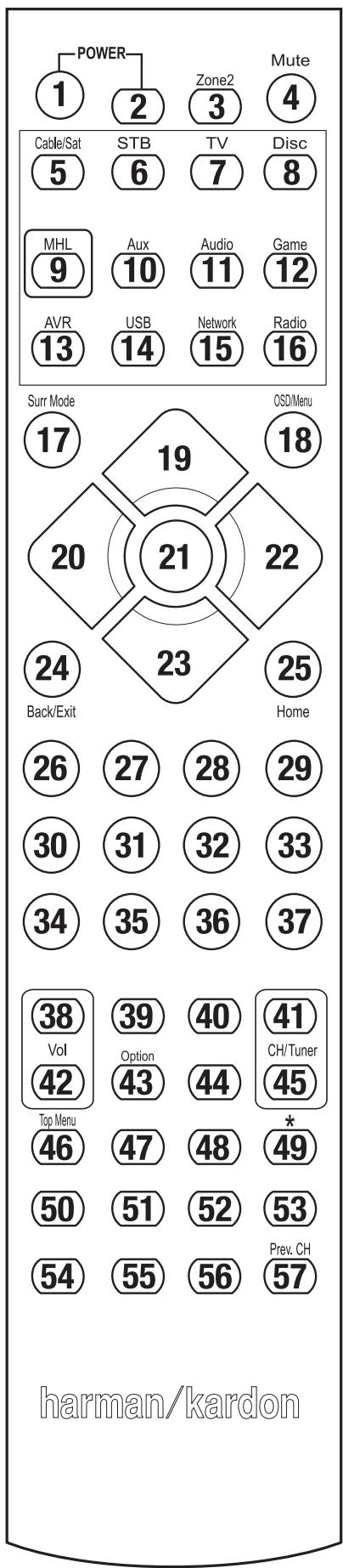
Refer to the numbered buttons when using the Function List in Table A11.
Table A11 - Remote Control Function List
| No. | Button Name | AVR | Radio | NETWORK/VTUNER | Blu-ray/DVD | Media Server DMC1000 | TV | USB/IPod | |
| FM | AM | ||||||||
| 01 | AVR Power On | AVR Power On | AVR Power On | AVR Power On | AVR Power On | AVR Power On | AVR Power On | AVR Power On | AVR Power On |
| 02 | AVR Power Off | AVR Power Off | AVR Power Off | AVR Power Off | AVR Power Off | AVR Power Off | AVR Power Off | AVR Power Off | AVR Power Off |
| 03* | Zone 2 | Zone 2 Toggle | Zone 2 Toggle | Zone 2 Toggle | Zone 2 Toggle | Zone 2 Toggle | Zone 2 Toggle | Zone 2 Toggle | Zone 2 Toggle |
| 04 | Mute | AVR Mute | AVR Mute | AVR Mute | AVR Mute | AVR Mute | AVR Mute | AVR Mute | AVR Mute |
| 05 | Cable/Sat | Input Sel | Input Sel | Input Sel | Input Sel | Input Sel | Input Sel | Input Sel | Input Sel |
| 06 | STB | Input Sel | Input Sel | Input Sel | Input Sel | Input Sel | Input Sel | Input Sel | Input Sel |
| 07 | TV | Input Sel | Input Sel | Input Sel | Input Sel | Input Sel | Input Sel | Input Sel | Input Sel |
| 08 | Disc | Input Sel | Input Sel | Input Sel | Input Sel | Input Sel | Input Sel | Input Sel | Input Sel |
| 09 | MHL | Input Sel | Input Sel | Input Sel | Input Sel | Input Sel | Input Sel | Input Sel | Input Sel |
| 10 | Aux | Input Sel | Input Sel | Input Sel | Input Sel | Input Sel | Input Sel | Input Sel | Input Sel |
| 11 | Audio | Input Sel | Input Sel | Input Sel | Input Sel | Input Sel | Input Sel | Input Sel | Input Sel |
| 12 | Game | Input Sel | Input Sel | Input Sel | Input Sel | Input Sel | Input Sel | Input Sel | Input Sel |
| 13 | AVR | Input Sel | Input Sel | Input Sel | Input Sel | Input Sel | Input Sel | Input Sel | Input Sel |
| 14 | USB | Input Sel | Input Sel | Input Sel | Input Sel | Input Sel | Input Sel | Input Sel | Input Sel |
| 15 | Network | Input Sel | Input Sel | Input Sel | Input Sel | Input Sel | Input Sel | Input Sel | Input Sel |
| 16 | Radio | Input Sel | Input Sel | Input Sel | Input Sel | Input Sel | Input Sel | Input Sel | Input Sel |
| 17 | Surround Modes | Surround Modes | Surround Modes | Surround Modes | Surround Modes | Surround Modes | Surround Modes | Surround Modes | Surround Modes |
| 18 | OSD/Menu | Menu | Start | Menu | Menu | Menu | Menu | Menu | |
| 19 | Up | Up | Up | Up | Up | Up | Up | Up | |
| 20 | Left | Left | Left | Left | Left | Left | Left | Left | |
| 21 | OK | OK | Select | Enter | Setup | Select | Enter | Setup | |
| 22 | Right | Right | Right | Right | Right | Right | Right | Right | |
| 23 | Down | Down | Down | Down | Down | Down | Down | Down | |
| 24 | Back/Exit | Bypass | Clear | Exit/Cancel | Exit | Exit | Cancel | Exit | |
| 25 | Home | MHL Home | |||||||
| 26 | 1 | 1 | 1 | 1 | 1 | 1 | 1 | 1 | 1 |
| 27 | 2 | 2 | 2 | 2 | 2 | 2 | 2 | 2 | 2 |
| 28 | 3 | 3 | 3 | 3 | 3 | 3 | 3 | 3 | 3 |
| 29 | 4 | 4 | 4 | 4 | 4 | 4 | 4 | 4 | 4 |
| 30 | 5 | 5 | 5 | 5 | 5 | 5 | 5 | 5 | 5 |
| 31 | 6 | 6 | 6 | 6 | 6 | 6 | 6 | 6 | 6 |
| 32 | 7 | 7 | 7 | 7 | 7 | 7 | 7 | 7 | 7 |
| 33 | 8 | 8 | 8 | 8 | 8 | 8 | 8 | 8 | 8 |
| 34 | Clear | Clear | Clear | Exit | Clear | Clear | |||
| 35 | 9 | 9 | 9 | 9 | 9 | 9 | 9 | 9 | 9 |
| 36 | 0 | 0 | 0 | 0 | 0 | 0 | 0 | 0 | 0 |
| 37 | Test | ||||||||
| 38 | Volume + | Volume + | Volume + | Volume + | Volume + | Volume + | Volume + | Volume + | Volume + |
| 39 | Delay | ||||||||
| 40 | Sleep | Sleep | Sleep | Sleep | Sleep | Sleep | Sleep | Sleep | Sleep |
| 41 | Channel/Tuner Up | Channel Up | Scan Up | Channel Up | Page Up | Channel Up | (+10) | Channel Up | Page Up |
| 42 | Volume - | Volume - | Volume - | Volume - | Volume - | Volume - | Volume - | Volume - | Volume - |
| 43 | Info/Option | Options | Options | Options | Options | Options | |||
| 44 | Dim | ||||||||
| 45 | Channel/Tuner Down | Channel Down | Scan Down | Channel Down | Page Down | Channel Down | Disc Skip | Channel Down | Page Down |
| 46 | Preset Scan | ||||||||
| 47 | Direct | ||||||||
| 48 | Memory | FAV | Repeat/Live TV | ||||||
| 49 | RDS | ||||||||
| 50 | Previous | Slow Down | Back | Previous | Thumb Down | Skip Down | Scan Down | Previous | |
| 51 | Rew← | Previous | Rew← | Rew← | Rew← | R. Search | Rew← | Rew← | |
| 52 | FF→← | FF→← | Next | FF→← | FF→← | FF→← | F. Search | FF→← | FF→← |
| 53 | Next | Slow Up | Replay | Next | Thumb Up | Skip Up | Scan Up | Next | |
| 54 | Top Menu | ||||||||
| 55 | Stop | Stop | Stop | Stop | Stop | Stop | Stop | Stop | |
| 56 | Play→/Pause | Play→/Pause | Play→/Pause | Play→/Pause | Play→/Pause | Play→/Pause | Play→/Pause | Play→/Pause | |
| 57 | Prev.CH | Prev.CH | |||||||
- AVR 1710S/AVR 171S only.
Table A11 - Remote Control Function List - continued
| No. | Button Name | Cable/SAT | Game | DVR | AUX | |||
| HDTV | PVD | TIVO | CD | VCR | ||||
| 01 | AVR Power On | AVR Power On | AVR Power On | AVR Power On | AVR Power On | AVR Power On | AVR Power On | AVR Power On |
| 02 | AVR Power Off | AVR Power Off | AVR Power Off | AVR Power Off | AVR Power Off | AVR Power Off | AVR Power Off | AVR Power Off |
| 03* | Zone 2 | Zone 2 Toggle | Zone 2 Toggle | Zone 2 Toggle | Zone 2 Toggle | Zone 2 Toggle | Zone 2 Toggle | Zone 2 Toggle |
| 04 | Mute | AVR Mute | AVR Mute | AVR Mute | AVR Mute | AVR Mute | AVR Mute | AVR Mute |
| 05 | Cable/Sat | Input Sel | Input Sel | Input Sel | Input Sel | Input Sel | Input Sel | Input Sel |
| 06 | STB | Input Sel | Input Sel | Input Sel | Input Sel | Input Sel | Input Sel | Input Sel |
| 07 | TV | Input Sel | Input Sel | Input Sel | Input Sel | Input Sel | Input Sel | Input Sel |
| 08 | Disc | Input Sel | Input Sel | Input Sel | Input Sel | Input Sel | Input Sel | Input Sel |
| 09 | MHL | Input Sel | Input Sel | Input Sel | Input Sel | Input Sel | Input Sel | Input Sel |
| 10 | Aux | Input Sel | Input Sel | Input Sel | Input Sel | Input Sel | Input Sel | Input Sel |
| 11 | Audio | Input Sel | Input Sel | Input Sel | Input Sel | Input Sel | Input Sel | Input Sel |
| 12 | Game | Input Sel | Input Sel | Input Sel | Input Sel | Input Sel | Input Sel | Input Sel |
| 13 | AVR | Input Sel | Input Sel | Input Sel | Input Sel | Input Sel | Input Sel | Input Sel |
| 14 | USB | Input Sel | Input Sel | Input Sel | Input Sel | Input Sel | Input Sel | Input Sel |
| 15 | Network | Input Sel | Input Sel | Input Sel | Input Sel | Input Sel | Input Sel | Input Sel |
| 16 | Radio | Input Sel | Input Sel | Input Sel | Input Sel | Input Sel | Input Sel | Input Sel |
| 17 | Surround Modes | Surround Modes | Surround Modes | Surround Modes | Surround Modes | Surround Modes | Surround Modes | Surround Modes |
| 18 | OSD/Menu | Menu | Start | Menu | Menu | Menu | Menu | |
| 19 | Up | Up | Up | Up | Up | Up | Up | |
| 20 | Left | Left | Left | Left | Left | Left | Left | |
| 21 | OK | OK | Select | Enter | Setup | Select | Enter | |
| 22 | Right | Right | Right | Right | Right | Right | Right | |
| 23 | Down | Down | Down | Down | Down | Down | Down | |
| 24 | Back/Exit | Bypass | Clear | Exit/Cancel | Exit | Exit | Cancel | |
| 25 | Home | |||||||
| 26 | 1 | 1 | 1 | 1 | 1 | 1 | 1 | 1 |
| 27 | 2 | 2 | 2 | 2 | 2 | 2 | 2 | 2 |
| 28 | 3 | 3 | 3 | 3 | 3 | 3 | 3 | 3 |
| 29 | 4 | 4 | 4 | 4 | 4 | 4 | 4 | 4 |
| 30 | 5 | 5 | 5 | 5 | 5 | 5 | 5 | 5 |
| 31 | 6 | 6 | 6 | 6 | 6 | 6 | 6 | 6 |
| 32 | 7 | 7 | 7 | 7 | 7 | 7 | 7 | 7 |
| 33 | 8 | 8 | 8 | 8 | 8 | 8 | 8 | 8 |
| 34 | Clear | Clear | Clear | Exit | Clear | |||
| 35 | 9 | 9 | 9 | 9 | 9 | 9 | 9 | 9 |
| 36 | 0 | 0 | 0 | 0 | 0 | 0 | 0 | 0 |
| 37 | Test | |||||||
| 38 | Volume + | Volume + | Volume + | Volume + | Volume + | Volume + | Volume + | Volume + |
| 39 | Delay | |||||||
| 40 | Sleep | Sleep | Sleep | Sleep | Sleep | Sleep | Sleep | Sleep |
| 41 | Channel/Tuner Up | Channel Up | Scan Up | Channel Up | Page Up | Channel Up | (+10) | Channel Up |
| 42 | Volume - | Volume - | Volume - | Volume - | Volume - | Volume - | Volume - | Volume - |
| 43 | Info/Option | |||||||
| 44 | Dim | |||||||
| 45 | Channel/Tuner Down | Channel Down | Scan Down | Channel Down | Page Down | Channel Down | Disc Skip | Channel Down |
| 46 | Preset Scan | |||||||
| 47 | Direct | |||||||
| 48 | Memory | FAV | Repeat/Live TV | |||||
| 49 | RDS | |||||||
| 50 | Previous | Slow Down | Back | Previous | Thumb Down | Skip Down | Scan Down | |
| 51 | Rew ▲ | Previous | Rew ▲ ▲ | Rew ▲ ▲ | Rew ▲ ▲ | R. Search | Rew ▲ ▲ | |
| 52 | FF ▲ ▲ ▲ | FF ▲ ▲ ▲ | Next | FF ▲ ▲ ▲ | FF ▲ ▲ ▲ | FF ▲ ▲ ▲ | F. Search | FF ▲ ▲ ▲ |
| 53 | Next | Slow Up | Replay | Next | Thumb Up | Skip Up | Scan Up | |
| 54 | Top Menu | |||||||
| 55 | Stop | Stop | Stop | Stop | Stop | Stop | Stop | |
| 56 | Play ▲/Pause | Play ▲/Pause | Play ▲/Pause | Play ▲/Pause | Play ▲/Pause | Play ▲/Pause | Play ▲/Pause | |
| 57 | Prev. CH | Prev. Ch | ||||||
- AVR 1710S/AVR 171S only.
Refer to Tables A12 through A22 when programming the codes for your components into the remote.
Table A12 - Remote Control Product Codes: TV
| TV Manufacturer/Brand | Setup Code Number |
| ADMIRAL | 192 |
| ANAM | 045 106 109 112 122 |
| AOC | 037 122 123 128 |
| AUDIOVOX | 012 |
| BLAUPUNKT | 084 |
| BROKSONIC | 205 206 |
| CITIZEN | 045 123 128 132 |
| CONTEC | 045 |
| CRAIG | 045 157 158 159 |
| CROWN | 045 132 |
| CURTIS MATHES | 123 128 132 |
| DAEWOO | 045 087 102 105 106 108 111 114 116 119 127 128 132 |
| DAYTRON | 128 132 |
| DYNATECH | 063 |
| DYNEX | 014 |
| ELECTROHOME | 115 132 |
| EMERSON | 045 123 128 132 139 157 158 159 162 205 |
| FUJITSU | 041 042 |
| FUNAI | 045 |
| FUTURETECH | 045 |
| GE | 029 087 121 123 128 133 145 159 163 |
| GRUNDIG | 193 |
| HALL MARK | 128 |
| HARMAN KARDON | 201 |
| HITACHI | 123 128 132 144 147 |
| HYTEK | 016 |
| INKEL | 120 |
| JC PENNEY | 115 123 128 132 145 |
| JENSEN | 019 |
| JVC | 079 087 134 |
| KEC | 045 |
| KLH | 006 |
| KTV | 045 123 132 162 |
| LG/GOLDSTAR | 002 013 101 110 122 128 132 |
| LLOYTRON | 172 173 |
| LODGENET | 069 |
| LXI 077 | 145 148 |
| MAGNAVOX | 030 040 123 128 132 145 148 |
| MARANTZ | 115 123 148 |
| MEMOREX | 069 128 |
| METZ | 084 |
| MGA | 115 123 128 |
| MITSUBISHI | 077 115 123 128 160 167 168 |
| MTC | 175 176 |
| NATIONAL | 148 177 179 180 181 182 |
| NEC | 010 115 121 123 125 |
| OLEVIA | 007 |
| TV Manufacturer/Brand | Setup Code Number |
| OPTONICA | 077 |
| ORION | 207 208 209 210 211 |
| PANASONIC | 087 148 169 |
| PHILCO | 045 115 123 128 132 148 |
| PHILIPS | 033 034 035 036 123 128 132 145 148 |
| PIONEER | 024 123 128 |
| POLAROID | 003 004 005 006 043 |
| PORTLAND | 128 132 |
| PROSCAN | 133 |
| PROTON | 008 059 122 128 132 165 |
| QUASAR | 032 087 |
| RADIO SHACK | 045 128 132 180 196 197 |
| RCA | 021 115 123 128 133 145 161 163 |
| REALISTIC | 045 167 196 |
| RUNCO | 044 046 152 153 |
| SAMPO | 059 123 128 |
| SAMSUNG | 020 022 124 128 132 145 |
| SANYO | 026 054 |
| SCOTT | 045 128 132 |
| SEARS | 128 132 145 |
| SHARP | 077 128 132 |
| SIEMENS | 084 |
| SIGNATURE | 069 |
| SONY | 028 031 117 130 136 194 212 |
| SOUNDESIGN | 045 128 |
| SYLVANIA | 025 123 128 145 148 |
| SYMPHONIC | 184 |
| TANDY | 077 |
| TATUNG | 063 |
| TECHNICS | 181 |
| TECHWOOD | 128 |
| TEKNIKA | 045 069 115 123 128 132 |
| TELERENT | 069 |
| TERA | 156 |
| THOMSON | 190 191 |
| TIVO | 051 052 and See Table A22 |
| TMK | 128 |
| TOSHIBA | 063 129 202 |
| TOTEVISION | 132 |
| VIDEO CONCEPTS | 160 |
| VIDTECH | 128 |
| VIEWSONIC | 011 038 039 047 |
| VIZIO | 001 002 |
| WARD | 069 128 132 148 |
| WESTINGHOUSE | 017 018 023 |
| YAMAHA | 123 128 |
| YORK | 128 |
| ZENITH | 069 090 |
Table A13 - Remote Control Product Codes: AUX-HDTV
| TV Manufacturer/Brand | Setup Code Number |
| APEX | 614 616 |
| DISH NETWORK | 612 |
| LG | 604 |
| MAGNAVOX | 607 608 609 610 611 |
| MOTOROLA | 605 |
| RCA | 601 612 |
| SAMSUNG | 603 |
| TATUNG | 618 |
| TIVO | See Table A22 |
| ZENITH | 602 606 619 |
Table A14 - Remote Control Product Codes: AUX-VCR
| VCR Manufacturer/Brand | Setup Code Number |
| AIWA | 340 |
| AKAI | 348 408 409 426 |
| AUDIO DYNAMICS | 318 348 |
| BROKSONIC | 410 447 |
| CANON | 435 440 |
| CAPEHART | 394 |
| CITIZEN | 434 |
| CRAIG | 345 416 |
| DAEWOO | 317 394 404 |
| DAYTRON | 394 |
| DBX | 318 348 |
| DYNATECH | 340 |
| EMERSON | 313 340 342 410 412 |
| FISHER | 317 |
| FUNAI | 340 |
| GE | 376 395 424 |
| HARMAN KARDON | 302 303 318 349 |
| HITACHI | 340 348 |
| JC PENNEY | 318 345 |
| JENSEN | 348 |
| JVC | 318 348 411 432 |
| KENWOOD | 320 348 |
| LG/GOLDSTAR | 318 407 |
| LLOYD | 340 |
| LXI | 320 340 |
| MAGNAVOX | 340 |
| MARANTZ | 318 |
| MEMOREX | 317 320 340 352 353 354 376 442 |
| MGA | 349 |
| MITSUBISHI | 349 431 |
| MULTITECH | 340 |
| VCR Manufacturer/Brand | Setup Code Number |
| NAD | 439 |
| NATIONAL | 440 |
| NEC | 318 348 |
| NORDMENDE | 348 |
| OPTIMUS | 459 |
| ORION | 447 |
| PANASONIC | 425 450 467 472 |
| PHILCO | 340 |
| PHILIPS | 340 375 |
| PORTLAND | 394 |
| PULSAR | 376 |
| QUASAR | 301 425 |
| RADIO SHACK | 355 434 440 442 458 459 |
| RCA | 395 424 425 457 472 |
| REALISTIC | 317 320 340 345 459 |
| SAMSUNG | 345 351 395 405 409 |
| SANSUI | 348 416 447 |
| SANYO | 317 320 |
| SCOTT | 410 412 |
| SEARS | 317 320 |
| SHARP | 429 456 |
| SONY | 380 429 |
| SOUNDESIGN | 340 |
| SYLVANIA | 340 |
| SYMPHONIC | 340 |
| TANDY | 317 340 |
| TEAC | 340 348 |
| TEKNIKA | 340 |
| THOMAS 340 | |
| TIVO See Table A22 | |
| TMK | 313 |
| TOSHIBA | 412 455 |
| TOTEVISION | 345 |
| UNITECH | 345 |
| VECTOR RESEARCH | 318 |
| VIDEO CONCEPTS | 318 340 |
| VIDEOSONIC | 345 |
| WARDS | 340 345 412 |
| YAMAHA | 318 340 348 |
| ZENITH | 340 350 376 383 |
Table A15 - Remote Control Product Codes: AUX-CD
| CD Manufacturer/Brand | Setup Code Number |
| ADCOM | 063 069 |
| AIWA | 072 111 118 156 170 |
| AKAI | 050 177 184 |
| AUDIO TECHNICA | 053 |
| AUDIOACCESS | 125 |
| AUDIOFILE | 211 |
| BSR | 044 |
| CALIFORNIA AUDIO | 109 |
| CAPETRONIC | 070 |
| CARRERA | 087 |
| CARVER | 136 140 141 143 144 145 185 186 |
| CASIO | 117 166 |
| CLARINETTE | 166 |
| DENON | 187 188 213 |
| EMERSON | 052 093 108 |
| FISHER | 055 095 |
| FUNAI | 126 |
| GE | 164 |
| HAITAI | 099 214 |
| HARMAN KARDON | 001 002 025 054 190 |
| HITACHI | 093 |
| INKEL | 216 |
| JC PENNEY | 098 147 |
| JENSEN | 153 |
| JVC | 176 195 196 |
| KENWOOD | 030 062 078 079 148 151 176 178 181 |
| LG/GOLDSTAR | 016 087 |
| LOTTE | 108 |
| LUXMAN | 077 102 |
| LXI | 164 |
| MAGNAVOX | 039 113 |
| MARANTZ | 058 084 191 192 193 |
| MCINTOSH | 194 |
| MCS | 080 098 |
| MITSUMI | 152 |
| MODULAIRE | 166 |
| NAD | 013 074 197 198 |
| NAKAMICHI | 199 200 201 |
| NEC | 069 |
| NIKKO | 053 055 |
| ONKYO | 037 038 045 046 171 175 202 203 |
| OPTIMUS | 065 089 091 092 099 104 212 |
| PANASONIC | 075 109 119 158 183 204 |
| PHILIPS | 039 138 149 209 |
| PIONEER | 071 094 100 112 123 131 161 162 215 |
| PROTON | 210 |
| RADIO SHACK | 126 166 213 |
| CD Manufacturer/Brand | Setup Code Number |
| RCA | 024 081 093 150 |
| REALISTIC | 058 093 095 104 105 108 164 166 |
| SANSUI | 047 081 134 157 172 |
| SANYO | 033 082 095 |
| SCOTT | 108 |
| SHARP | 058 105 114 151 159 167 180 181 |
| SHERWOOD | 003 041 058 105 133 |
| SONY | 103 115 116 118 132 139 163 205 206 207 208 212 217 |
| SOUNDSTREAM | 124 |
| SYMPHONIC | 059 110 |
| TAEKWANG | 177 |
| TEAC | 011 058 085 086 106 107 110 121 137 146 154 |
| THETA DIGITAL | 039 |
| TOSHIBA | 013 074 097 151 155 173 |
| VECTOR RESEARCH | 087 |
| VICTOR | 120 130 |
| WARDS | 095 |
| YAMAHA | 019 031 053 061 135 169 |
| YORK | 166 |
Table A16 - Remote Control Product Codes: DVD
| DVD Manufacturer/Brand | Setup Code Number |
| APEX DIGITAL | 061 |
| DENON | 019 020 051 |
| GE | 003 004 |
| HARMAN KARDON | 001 002 032 |
| JVC | 006 |
| LG/GOLDSTAR | 005 010 055 064 066 |
| MAGNAVOX | 056 |
| MARANTZ | 059 |
| MITSUBISHI | 023 |
| NAD | 062 |
| ONKYO | 009 048 |
| PANASONIC | 008 024 030 044 |
| PHILIPS | 016 056 |
| PIONEER | 018 027 041 065 |
| PROCEED | 060 |
| PROSCAN | 003 004 |
| RCA | 003 004 |
| SAMSUNG | 017 053 054 |
| SHARP | 028 |
| SONY | 011 012 015 043 045 |
| THOMSON | 003 004 |
| TOSHIBA | 009 058 067 |
| YAMAHA | 030 063 |
| ZENITH | 005 055 064 |
Table A17 - Remote Control Product Codes: SAT
| SAT Manufacturer/Brand | Setup Code Number |
| BIRDVIEW | 425 |
| CHANNEL MASTER | 320 321 325 361 |
| CHAPARRAL | 315 316 451 |
| CITOH | 360 |
| DIRECTV | 309 310 314 |
| DISH NETWORK | 364 |
| DRAKE | 313 317 318 413 481 |
| DX ANTENNA | 331 352 379 483 |
| ECHOSTAR | 364 395 397 452 453 463 477 478 484 485 |
| ELECTRO HOME | 392 |
| FUJITSU | 324 329 334 |
| GENERAL INSTRUMENT | 303 311 323 365 403 454 468 474 |
| HITACHI | 304 455 |
| HOUSTON TRACKER | 463 |
| HUGHEs | 305 306 437 489 |
| JANIEL | 366 |
| JERROLD | 454 468 484 |
| LEGEND | 453 |
| MACOM | 317 365 369 370 371 |
| MAGNAVOX | 461 473 |
| MEMOREX | 453 |
| MITSUBISHI | 307 |
| MOTOROLA | 312 319 |
| NEXTWAVE | 423 |
| NORSAT | 373 |
| OPTIMUS | 466 |
| PACE | 328 487 |
| PANASONIC | 353 366 457 469 |
| PANSAT | 420 |
| PERSONAL CABLE | 418 |
| PHILIPS | 375 |
| PICO | 407 |
| PRESIDENT | 381 404 |
| RCA | 301 358 439 458 465 490 |
| REALISTIC | 349 480 |
| SAMSUNG | 322 326 442 |
| SATellite SERVICE CO | 335 388 |
| SCIENTIFIC ATLANTA | 339 356 |
| SONY | 362 405 |
| STAR CHOICE DBS | 459 |
| STARCAST | 347 |
| SUPER GUIDE | 327 423 |
| TELECOM | 330 333 390 391 393 409 |
| TOSHIBA | 302 426 460 461 462 470 |
| UNIDEN | 323 332 348 349 350 351 354 355 381 383 389 403 466 479 480 |
| ZENITH | 359 384 385 387 394 419 488 |
Table A18 - Remote Control Product Codes: Game
| GAME Manufacturer/Brand | Setup Code Number |
| Microsoft (XBOX, XBOX 360) | 001 003 |
| NYKO (PS3) | 005 |
| SONY (PS2, PS3) | 002 004 |
Table A19 - Remote Control Product Codes: Cable
| Cable Manufacturer/Brand | Setup Code Number |
| ABC | 001 011 |
| ALLEGRO | 111 |
| AMERICAST | 212 |
| ARCHER | 112 |
| BELCOR | 113 |
| CABLE STAR | 033 113 |
| CITIZEN | 111 |
| COMCAST | 007 |
| DIGI LINK | 114 |
| EAGLE | 186 |
| EASTERN | 066 070 |
| EMERSON | 112 |
| GENERAL INSTRUMENT | 001 011 017 096 097 210 |
| GC ELECTRONICS | 113 |
| GEMINI | 032 060 |
| HAMILIN | 056 099 100 101 117 175 208 |
| HITACHI | 001 188 |
| JASCO | 111 |
| JERROLD | 001 002 011 017 073 096 097 162 188 210 |
| LINSAY | 118 |
| MACOM | 191 |
| MAGNAVOX | 017 019 068 |
| MOVIETIME | 035 039 |
| NSC | 035 190 |
| OAK | 197 220 |
| PACE | 179 |
| PANASONIC | 053 176 177 189 214 |
| PANTHER | 114 |
| PHILIPS | 013 019 020 085 090 |
| PIONEER | 001 041 119 171 209 215 216 |
| RADIO SHACK | 111 112 213 |
| RCA | 053 214 |
| RECOTON | 116 |
| REGAL | 056 099 100 101 208 |
| REMBRANT | 032 |
| SAMSUNG | 003 072 186 |
| SCIENTIFIC ATLANTA | 183 203 221 222 |
| SEAM | 121 |
| SIGNATURE | 001 188 |
| SPRUCER | 053 081 177 189 |
Table A19 - Remote Control Product Codes: Cable - continued
| Cable Manufacturer/Brand | Setup Code Number |
| STARCOM | 002 011 163 |
| STARGATE | 120 |
| TANDY | 024 |
| TELECAPATION | 028 |
| TEXSCAN | 036 |
| TFC | 122 |
| TIVO | 029 030 and See Table A22 |
| TOCOM | 170 205 |
| UNITED CABLE | 011 |
| UNIVERSAL | 033 034 039 042 113 |
| VIDEOWAY | 124 211 |
| VIEWSTAR | 019 025 053 086 089 190 |
| ZENITH | 065 125 211 219 |
Table A20 - Remote Control Product Codes: Media Server
| Manufacturer/Brand | Setup Code Number |
| APPLE | 008 009 |
| BEYOND | 003 |
| ESCIENT (FIREBALL) | 004 005 006 007 |
| HARMAN KARDON | 001 002 |
| LOGITECH | 012 |
| MICROSOFT | 003 |
| NAIM | 011 |
| REQUEST | 010 |
| SONOS | 013 |
Table A21 - Remote Control Product Codes: AUX-Cable/SAT Recorder (PVR)
| Manufacturer/Brand | Setup Code Number |
| DAEWOO | 701 704 |
| ECHOSTAR | 714 715 716 |
| EXPRESSVU | 714 |
| HUGHES | 717 727 |
| HYUNDAI | 718 |
| PANASONIC | 710 723 |
| PHILIPS | 711 717 724 727 |
| PROSCAN | 719 |
| RCA | 719 727 |
| REPLAYTV | 708 710 712 725 726 |
| SONICBLUE | 710 712 |
| SONY | 707 713 720 721 722 723 724 |
Table A22 - Remote Control Product Codes: AUX-TiVo
| Manufacturer/Brand | Setup Code Number |
| COMCAST TIVO | 808 |
| COX TIVO | 808 |
| DIRECTV TIVO | 806 |
| HUMAX TIVO | 803 |
| Nero LiquidTV TIVO | 805 |
| PIONEER TIVO | 801 |
| TIVO HD XL DVR | 807 |
| TIVO HD DVR | 804 |
| TIVO SERIES2™ DT DVR | 802 |
| TOSHIBA TIVO | 803 |
Toproba Mapka: harman/kardon
Ha3nauhenie TObapa: AUYIO-BNIDEO PECINBEP
I3roTOBntJIb:XAPMAH INHTEPHEUHJI INHDACTPN3 INHKOPNOEITeI,CLSA,
06901 KOHHEKTKKYT, r.CT3MΦOPД, ATNAHTNK CTPNT 400, OΦIC 1500
Cpok xpaHEnIy: He orpaHnueH
YcIOBnX xpaHeHn: CtAndpTHbIe npn HopMaJIbHbIX 3NaueHnIX KInMaTNUeCKNX fakTopoB BHeUHeN cpebl
HomepdoKymeHTa COOTBeCTBnA:
IgD npOn3B0DCTBa: Igd n3rOToBHeNnBa WbEero yCtPoIcTBA MoXHO OnpTeJInTb no CepuHOMy Homepy n3dJIeN. CepuHbH homOp coCToNT n3 4-x rpynn:
26ykbbl,4zufpbl,26ykbl,7zufp (XX 0000XY 0000000),rgeBtopa6ykBa n32-086ykbENHO rpynnb (CnebaHnpaBO) 6o3naeT roD npO3BOCTBA
CoOTBcTbIe 6yKBeHHOrO KoJa rOdy npEcdTabIeHO TabJIne.
| A | 2010 | N | 2023 |
| B | 2011 | O | 2024 |
| C | 2012 | P | 2025 |
| D | 2013 | Q | 2026 |
| E | 2014 | R | 2027 |
| F | 2015 | S | 2028 |
| G | 2016 | T | 2029 |
| H | 2017 | U | 2030 |
| I | 2018 | V | 2031 |
| J | 2019 | X | 2032 |
| K | 2020 | Y | 2033 |
| L | 2021 | Z | 2034 |
| M | 2022 | ПОВТOPНО наразь с A | |
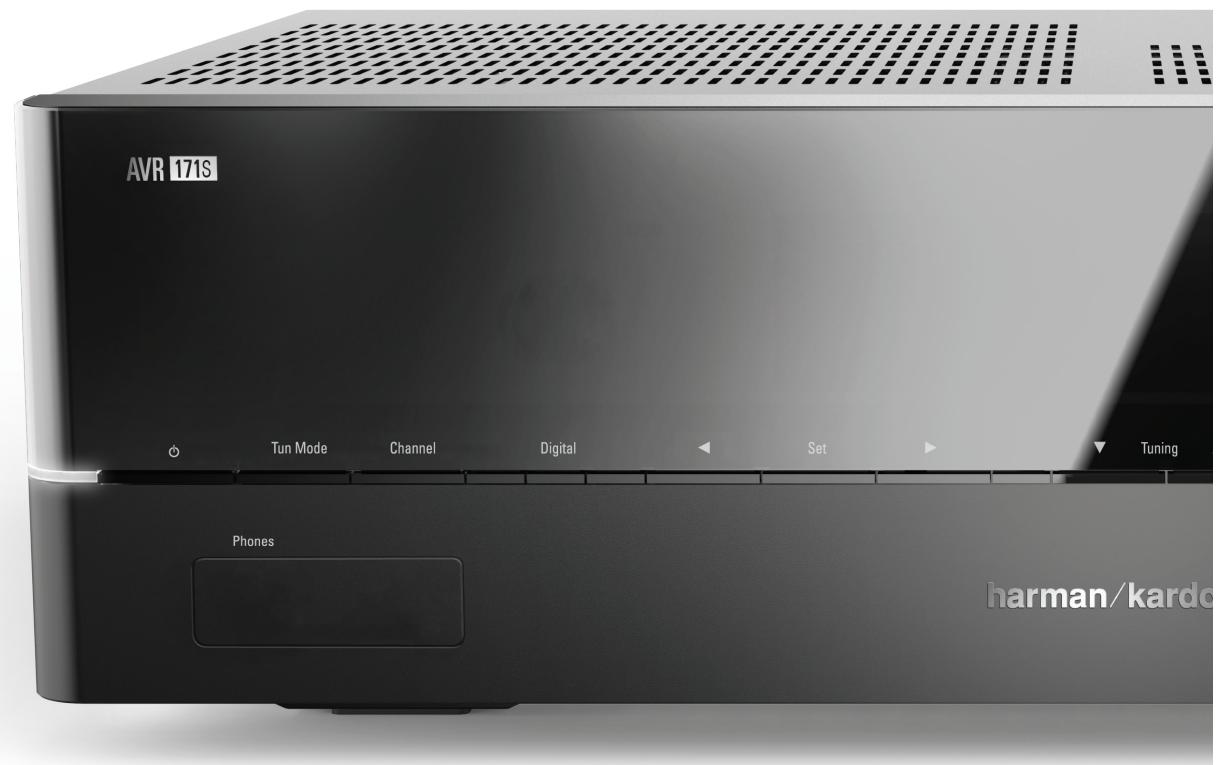
HARMAN
HARMAN International Industries, Incorporated
8500 Balboa Boulevard, Northridge, CA 91329 USA
© 2015 HARMAN International Industries, Incorporated. All rights reserved. Harman Kardon is a trademark of HARMAN International Industries, Incorporated, registered in the United States and/or other countries. EzSet/EQ is a trademark of HARMAN International Industries, Incorporated. The Bluetooth® word mark and logos are registered trademarks owned by Bluetooth SIG, Inc., and any use of such marks by HARMAN International Industries, Incorporated, is under license. Other trademarks and trade names are those of their respective owners. Apple, AirPlay, iPhone, iPod and iTunes are trademarks of Apple Inc., registered in the U.S. and other countries. Blu-ray Disc is a trademark of the Blu-ray Disc Association. CEA is a registered trademark of the Consumer Electronics Association. Manufactured under license from Dolby Laboratories. Dolby, Pro Logic, and the double-D symbol are trademarks of Dolby Laboratories. MLP Lossless is a trademark of Dolby Laboratories. Manufactured under license under U.S. Patent #s 5,956,674; 5,974,380; 6,226,616; 6,487,535; 7,212,827; 7,333,929; 7,392,195; 7,272,567 & other U.S. and worldwide patents issued and pending. DTS-HD, the Symbol, & DTS-HD and the Symbol together are registered trademarks, and DTS-HD Master Audio is a trademark, of DTS, Inc. Product includes software. © DTS, Inc. All Rights Reserved. HDMI, the HDMI logo and High-Definition Multimedia Interface are registered trademarks of HDMI Licensing LLC in the United States and other countries. Intel is a registered trademark of Intel Corporation. iOS is a registered trademark of Cisco Systems, Inc., and/or its affiliates in the United States and certain other countries. Roku is a registered trademark of Roku, Inc. Roku Streaming Stick is a trademark of Roku, Inc. All rights reserved. TiVo is a registered trademark of TiVo Inc. Series2 is a trademark of TiVo, Inc. Windows Media is a registered trademark of Microsoft Corporation in the United States and/or other countries.
Features, specifications and appearance are subject to change without notice.
Spotify Connect feature may not be used in countries where Spotify service is not available.
TR00306_B
harman/kardon
by HARMAN
www.harmankardon.com
AVR 1710S, AVR 171S, AVR 171S/230C
AVR 1610S, AVR 161S, AVR 161S/230C
RéCEPTEUR audio / video
HOMI
HIGH-DEFINITION MULTIMEDIA INTERFACE

Spotify

Moded'emploi
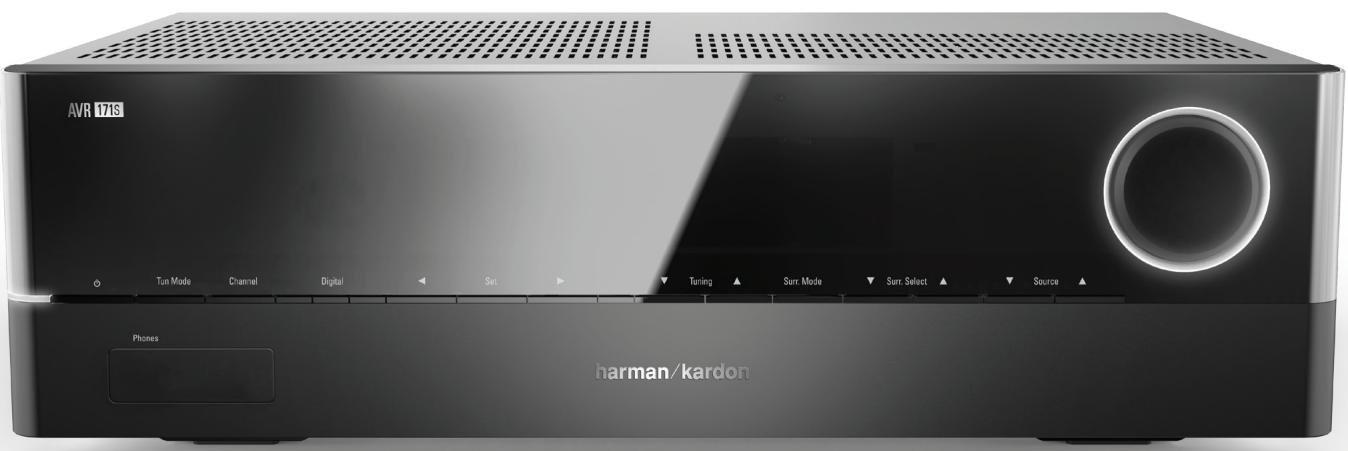
harman/kardon
by HARMAN
INTRODUCTION 3
ACCESSIONS FOURNIS 3
CONSIGNES DE SECURITE IMPORTANTES 3
POSITIONNEMENT DE L'AVR 3
COMMANDES DU PANNEAU AVANT 4
CONNECTEURS DU PANNEAU ARRIERE 6
FONCTIONS DE LA TÉLÉCOMMANDE 8
INTRODUCTION AUX SYSTÉMES CINÉMA MAISON 10
SYSTÉME CINÉMA MAISON STANDARD 10
SON MULTICANAL 10
MODES AMBIOPHONIQUES 10
POSITIONNEMENT DE VOS ENCEINTES 11
POSITIONNEMENT DES ENCEINTES GAUCHE, CENTRALE ET DROITE 11
POSITIONNEMENT DES ENCEINTES AMBIOPHONIQUES DANS UN SYSTÉME À 5.1 CANAUX 11
AVR 1710S/AVR 171S UNIQUEMENT:POSITIONNEMENT DES ENCEINTES AMBIOPHONIQUES DANS UN SYSTème À 7.1 CANAUX 11
AVR 1710S/AVR 171S UNIQUEMENT:POSITIONNEMENT DES ENCEINTES AVANT EN HAUTEUR DANS UN SYSTème 7.1 CANAUX 11
POSITIONNEMENT DU CAISSON DE GRAVES 11
TYPES DE CONNXIONS DES SYSTÉMES CINÉMA MAISON 12
CONNEXIONS DES ENCEINTES 12
CONNEXIONS DU CAISSON DE GRAVES 12
CONNEXIONS DES PÉRIPHÉRIQUES SOURCES 12
CONNEXIONS VIDEO 13
CONNEXIONS RADIO 13
CONNECTEUR RÉSEAU 14
PORT USB 14
RACCORDEMENTS 14
RACCORDEMENT DE VOS ENCEINTES 14
RACCORDEMENT DE VOTRE CAISSON DE GRAVES 15
RACCORDEMENT DE VOTRE TELÉVISEUR OU DE VOTRE DISPOSITIF D'AFFICHAGE VIDÉO 15
RACCORDEMENT DE VOS PÉRIPHÉRIQUES SOURCES AUDIO ET VIDEO 16
PERIPHÉRIQUES USB ET IOS 18
RACCORDEMENT A VOTRE RÉSEAU DOMESTIQUE 18
RACCORDEMENT DES ANTENNES RADIO 18
INSTALLLEZ UN SYSTÉME MULTIZONE 19
RACCORDEMENT D'UN ÉQUIPEMENT À INFRAROUGE 20
RACCORDEMENT A LA SORTIE DE DÉCLENCHEMENT 20
RACCORDEMENT A LALIMENTATION CA 20
CONFIGURATION DE LA TELÉCOMMANDE 21
INSERTION DES PILES DANS LA TELÉCOMMANDE 21
PROGRAMMATION DE LA TÉLÉCOMMANDE EN VUE DE COMMANDER VOS PÉRIPHÉRIQUES SOURCES ET VOTRE TÉLÉVISEUR 21
CONFIGURATION DE L'AVR 22
MISE SOUS TENSION DE L'AVR 22
APPLICATION HARMAN REMOTE 25
CONTRÔLDE DU VOLUME 25
COUPURE DU SON 25
UTILISATION DU CASQUE D'ÉCOUTE 25
SELECTION D'UNE SOURCE 25
SELECTION D'UN MODE AMBIOPHONIQUE 25
ÉCOUTE DE LA RADIO FM ET DE LA RADIO AM 26
LECTURE DE FICHIERS ENREGISTRÉS SUR UN PÉRIPHÉRIQUE USB 26
UTILISATION D'UN IPOD/IPHONE/IPAD 27
ÉCOUTER LA VTUNER (RADIO PAR INTERNET) 28
LECTURE DE FICHIERS VIA VOTRE RÉSEAU DOMESTIQUE 28
LECTURE D'UN MÉDIA À PARTIR D'UN ROKU STREAMING STICK 29
ÉCOUTE DE MÉDIAS VIA SPOTIFY CONNECT 29
USING THIS DEVICE WITH SPOTIFY CONNECT 29
FONCTIONS AVANCÉES 29
TRAITEMENT AUDIO ET SON AMBIOPHONIQUE 29
CONFIGURATION MANUELLE DES ENCEINTES 30
ÉCOUTER DANS LA ZONE 2 33
PARAMÉTRES DU SYSTÉME 34
MINUTERIE DE VEILLE 34
RéINITIALISATION DU PROCESSEUR 34
DEPANNAGE 35
CARACTERISTIQUES TECHNIQUES 36
ANNEXE 37
Introduction
A. Resserrez I'embout
Application HARMAN Remote
Using This Device With Spotify Connect
Spotify lets you listen to millions of songs – the artists you love, the latest hits and discoveries just for you.
If you are a Spotify user, you can control this device using your Spotify app.
Step 1 Connect your device to the same wifi network as your phone, tablet or PC running the Spotify app.
Step 2 Open the Spotify app, and play any song.
Step 3 Tap the song image in the bottom left of the screen.
Step 4 Tap the Connect icon
Step 5 Pick your speaker from the list.
For information on how to set up and use Spotify Connect please visit www.spotify. com/connect
Licenses
The Spotify Software is subject to third party licenses found here: www.spotify.com/ connect/third--party--licenses.
Fonctions avancées
HARMAN International Industries, Incorporated
Spotify Connect feature may not be used in countries where Spotify service is not available.
TR00306_B
harman/kardon
by HARMAN
www.harmankardon.com
AVR 1710S, AVR 171S, AVR 171S/230C
AVR 1610S, AVR 161S, AVR 161S/230C
Receptor de audio/video
HOMI
HIGH-DEFINITION MULTIMEDIA INTERFACE

Spotify

USING THIS DEVICE WITH SPOTIFY CONNECT 29
FUNCTIONES AVANZADAS 29
PROCESAMENTO DE AUDIO Y SONIDO ENVOLVENTE 29
CONFIGURACION MANUAL DE LOS ALTAVOCES 30
Using This Device With Spotify Connect
Spotify lets you listen to millions of songs – the artists you love, the latest hits and discoveries just for you.
If you are a Spotify user, you can control this device using your Spotify app.
Step 1 Connect your device to the same wifi network as your phone, tablet or PC running the Spotify app.
Step 2 Open the Spotify app, and play any song.
Step 3 Tap the song image in the bottom left of the screen.
Step 4 Tap the Connect icon
Step 5 Pick your speaker from the list.
For information on how to set up and use Spotify Connect please visit www.spotify. com/connect
Licenses
The Spotify Software is subject to third party licenses found here: www.spotify.com/ connect/third--party--licenses.
Funciones avanzadas
HARMAN International Industries, Incorporated 8500 Balboa Boulevard, Northridge, CA 91329
harman/kardon* by HARMAN
www.harmankardon.com
AVR 1710S, AVR 171S, AVR 171S/230C
AVR 1610S, AVR 161S, AVR 161S/230C
Receptor de audio/video
HOMI
HIGH-DEFINITION MULTIMEDIA INTERFACE

Spotify

CONECTE O SUBWOOFER 15
CONECTE A TV OU O MONITOR DE VIDEO 15
CONECTE OS DISPOSITIVOS DE FONTE DE AUDIO E VIDEO 16
USING THIS DEVICE WITH SPOTIFY CONNECT 29
FUNÇÖES AVANÇADAS 29
PROCESSAMENTO DE AUDIO E SOM SURROUND 29
Controles do paine frontal
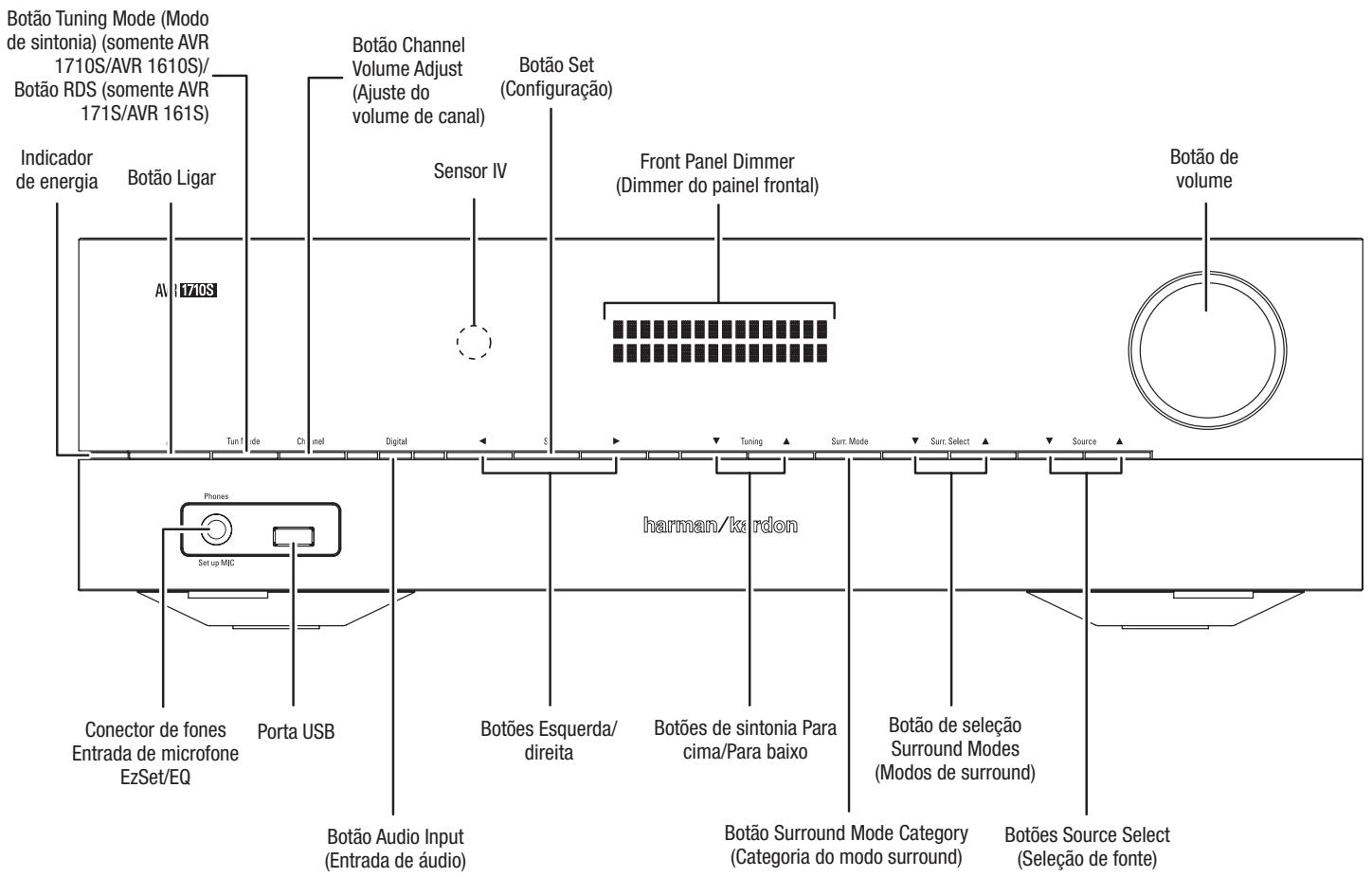
Conexões de audio digital - coaxial
Conecte as antenas de raudio
Instale as pilhas no controle remoto
Using This Device With Spotify Connect
Spotify lets you listen to millions of songs – the artists you love, the latest hits and discoveries just for you.
If you are a Spotify user, you can control this device using your Spotify app.
Step 1 Connect your device to the same wifi network as your phone, tablet or PC running the Spotify app.
Step 2 Open the Spotify app, and play any song.
Step 3 Tap the song image in the bottom left of the screen.
Step 4 Tap the Connect icon
Step 5 Pick your speaker from the list.
For information on how to set up and use Spotify Connect please visit www.spotify. com/connect
Licenses
The Spotify Software is subject to third party licenses found here: www.spotify.com/ connect/third--party--licenses.
Funções avançadas
Tabela A10 - Modos surround
HARMAN International Industries. Incorporated
8500 Balboa Boulevard, Northridge, CA 91329 USA
Spotify Connect feature may not be used in countries where Spotify service is not available.
TR00306_B
harman/kardon
by HARMAN
www.harmankardon.com
AVR 1710S, AVR 171S, AVR 171S/230C
AVR 1610S, AVR 161S, AVR 161S/230C
Audio/Video-Receiver
HOMI
HIGH-DEFINITION MULTIMEDIA INTERFACE

Spotify

Bedienungsanleitung
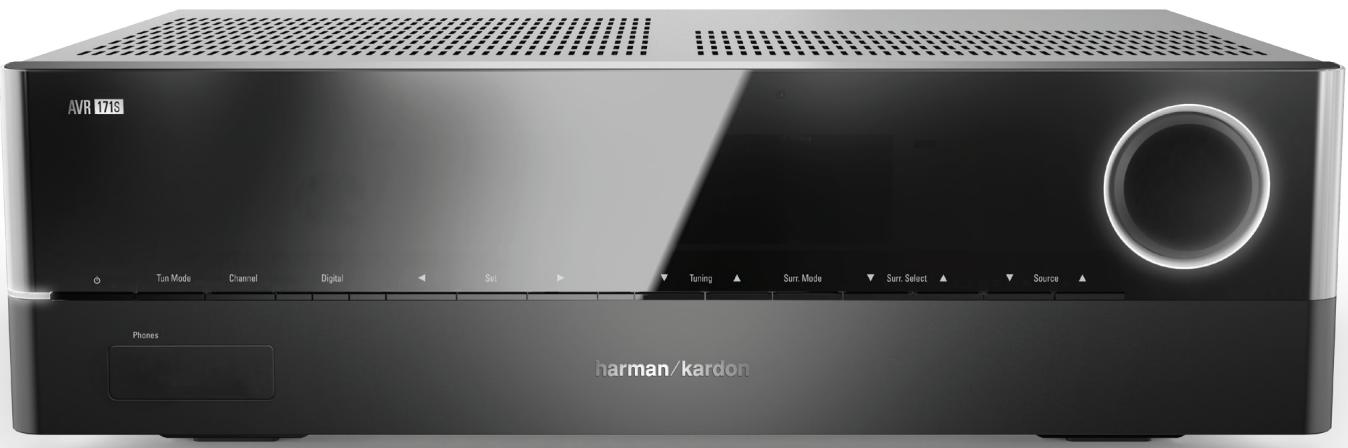
harman/kardon
by HARMAN
EINFUHRUNG 3
LIEFERUMFANG 3
HARMAN REMOTE APP 25
USING THIS DEVICE WITH SPOTIFY CONNECT 29
Using This Device With Spotify Connect
Spotify lets you listen to millions of songs – the artists you love, the latest hits and discoveries just for you.
If you are a Spotify user, you can control this device using your Spotify app.
Step 1 Connect your device to the same wifi network as your phone, tablet or PC running the Spotify app.
Step 2 Open the Spotify app, and play any song.
Step 3 Tap the song image in the bottom left of the screen.
Step 4 Tap the Connect icon
Step 5 Pick your speaker from the list.
For information on how to set up and use Spotify Connect please visit www.spotify. com/connect
Licenses
The Spotify Software is subject to third party licenses found here: www.spotify.com/ connect/third--party--licenses.
HARMAN International Industries, Incorporated 8500 Balboa Boulevard, Northridge, CA 91329
harman/kardon* by HARMAN
www.harmankardon.com
AVR 1710S, AVR 171S, AVR 171S/230C
AVR 1610S, AVR 161S, AVR 161S/230C
ACCENSIONE DELL'AVR 22
USO DEL SISTEMA DI MENU VISUALIZZATO SU SCHERMO 22
CONFIGURAIZIONE DELL'AVR PER I DIFFUSORI 22
APP HARMAN REMOTE 25
CONTROLLO DEL VOLUME 25
USING THIS DEVICE WITH SPOTIFY CONNECT 29
Surround Modes (Modalityà surround)
Using This Device With Spotify Connect
Spotify lets you listen to millions of songs – the artists you love, the latest hits and discoveries just for you.
If you are a Spotify user, you can control this device using your Spotify app.
Step 1 Connect your device to the same wifi network as your phone, tablet or PC running the Spotify app.
Step 2 Open the Spotify app, and play any song.
Step 3 Tap the song image in the bottom left of the screen.
Step 4 Tap the Connect icon
Step 5 Pick your speaker from the list.
For information on how to set up and use Spotify Connect please visit www.spotify. com/connect
Licenses
The Spotify Software is subject to third party licenses found here: www.spotify.com/ connect/third--party--licenses.
Funzioni avanzate
HARMAN International Industries, Incorporated 8500 Balboa Boulevard, Northridge, CA 91329
Spotify Connect feature may not be used in countries where Spotify service is not available.
TR00306_B
harman/kardon* by HARMAN
www.harmankardon.com
AVR 1710S, AVR 171S, AVR 171S/230C
AVR 1610S, AVR 161S, AVR 161S/230C
Odbiornik audio/video
HOMI
HIGH-DEFINITION MULTIMEDIA INTERFACE

Spotify

Instrukcja obstrugi
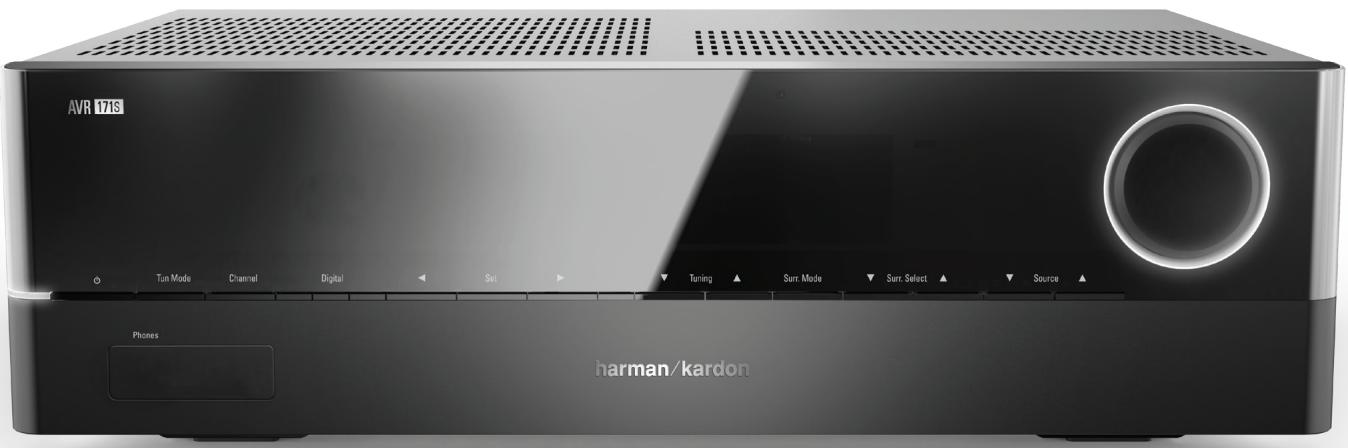
DST0d
harman/kardon
by HARMAN
WPROWADZENIE 3
AKCESORIA WCHODZACE W ZAKRES DOSTAWY 3
WAZNE INFORMACJE DOTYCZACE BEZPIECZEINSTWA 3
UMIEJSCOWIENIE ODBIORNiKA AVR 3
APLIKACJA HARMAN REMOTE 25
REGULACJA GLOSNOSCI 25
WYCISZANIE DZWIKU 25
ODBIOR DZWIEKUPRZEZ SLUCHAWKI 25
WYBóR URZADZENIA ZRóDŁOWEGO 25
WYBóR TRYBU DžWIEKU PRZESTRZENNEGO 25
ODTWARZANIE AUDYCJI Z URZADZEN RADIOWCH FM/AM 26
ODTWARZANIE MULTIMEDIOW Z URZADZENIA USB 26
ODTWARZANIE NAGRÁN DžWIEKOWYCH Z URZADZENIA
IPOD/IPHONE/IPAD 27
SLUCHANIE TUNERA VTUNER (RADIA INTERNETOWEGO) 28
ODTWARZANIE MULTIMEDIOW W SIECI DOMOWEJ 28
ODTWARZANIE MULTIMEDIOW Z URZADZENIA ROKU STREAMING STICK 29
ODTWARZANIE MULTIMEDIOW PRZY UZYCIU FUNKCJI SPOTIFY CONNECT 29
USING THIS DEVICE WITH SPOTIFY CONNECT 29
FUNKCJE ZAAWANSOWANE 29
Using This Device With Spotify Connect
Spotify lets you listen to millions of songs – the artists you love, the latest hits and discoveries just for you.
If you are a Spotify user, you can control this device using your Spotify app.
Step 1 Connect your device to the same wifi network as your phone, tablet or PC running the Spotify app.
Step 2 Open the Spotify app, and play any song.
Step 3 Tap the song image in the bottom left of the screen.
Step 4 Tap the Connect icon
Step 5 Pick your speaker from the list.
For information on how to set up and use Spotify Connect please visit www.spotify. com/connect
Licenses
The Spotify Software is subject to third party licenses found here: www.spotify.com/ connect/third--party--licenses.
HARMAN International Industries. Incorporated
8500 Balboa Boulevard, Northridge, CA 91329 USA
Spotify Connect feature may not be used in countries where Spotify service is not available.
TR00306_B
harman/kardon
by HARMAN
www.harmankardon.com