DL 232EX - AV receiver HARMAN KARDON - Free user manual and instructions
Find the device manual for free DL 232EX HARMAN KARDON in PDF.


| Product type | Audio-video receiver with DVD player |
| Brand | Harman Kardon |
| Model | DL 232EX |
| Dimensions (W x H x D) | 350 mm x 84 mm x 250 mm |
| Weight | 3.8 kg |
| Power supply | 230 V ~, 50 Hz |
| Maximum consumption | 180 W |
| Standby consumption | Less than 2 W |
| Amplifier power | 2 x 65 W (6 ohms) |
| FM tuner | PLL, 87.5 - 108 MHz |
| Compatible disc formats | DVD, DVD±R/RW, CD, CD-R/RW, MP3, WMA, DivX, JPEG |
| Analog audio inputs | 2 pairs RCA (Audio In, TV Audio In) |
| Analog audio outputs | 1 pair RCA (Audio Out) |
| Digital audio inputs | 1 coaxial, 1 optical |
| Digital audio output | 1 coaxial |
| Video inputs | HDMI, DVI, Component, S-Video, Composite, SCART |
| Video output | HDMI |
| USB connectivity | 2 USB On-The-Go inputs (front and rear) |
| iPod connector | The Bridge (optional) |
| Main functions | Progressive scan, PIP, Teletext, Parental control, Zoom |
| Maintenance and cleaning | Soft cloth and supplied ScreenClean liquid; do not use solvents |
| Safety | Do not open the casing; unplug before cleaning; avoid moisture |
| Spare parts and repairability | No user-serviceable parts; refer to an authorized service center |
| General information | DVD region code: 2; HDCP compatible; firmware update via Internet |
Frequently Asked Questions - DL 232EX HARMAN KARDON
User questions about DL 232EX HARMAN KARDON
0 question about this device. Answer the ones you know or ask your own.
Ask a new question about this device
Download the instructions for your AV receiver in PDF format for free! Find your manual DL 232EX - HARMAN KARDON and take your electronic device back in hand. On this page are published all the documents necessary for the use of your device. DL 232EX by HARMAN KARDON.
USER MANUAL DL 232EX HARMAN KARDON
Harman Kardon Digital Lounge 232 EX/240 HD
OWNER'S MANUAL
Page
3 Introduction
4 Safety Information
5 Installation Location, Cleaning, Unpacking
6 Terminology
7 Features
8 Front Panel Controls
9 Front Panel Display
10 Rear Panel Connections
12 Rear Panel Connections TV
14 Remote Control
17 Second Remote Control
18 Basic Information
18 About This Manual
18 Regional Coding
System Connection
19 Installation and Connections
19 Equipment
19 Optional Set Top Box or Cable Box Connections
20 Connecting a PC
20 Optional Audio Connections
20 Speaker Placement
21 Screen Placement
21 Connecting AC Power
21 First Turn On
21 Automatic Channel Search
22 Digital Tuner
23 Basic Playback
24 DiscPlaybackFeatures
24 Skipping tracks or titles/chapters
24 Fast Motion Playback/Fast Search
24 Freeze Frame and Frame Advance (with DVD only)
24 Slow Motion Playback (with DVD only)
24 About DivX Movie Files
System Setup
25 System Defaults
25 General Functionality of the User Interface
25 Setup Menu for Screen
26 TV Setup
27 Analog TV Search
28 DVD Setup
28 Picture Calibration
29 HDMI Setup
29 DVI Setup
29 Component, S-Video, Composite, Scart 1 and Scart 2 Setup
29 General Setup
30 Setup Menu for DVD Receiver
30 System Settings
30 Display Language
30 Preferred Subtitle Language
30 Panel Time-Out
30 Status Bar Time-Out
30 Parental Control
30 Disc Recognition
30 PBC Support
30 Screen Saver
30 Show Angle Icon
31 Audio Settings
31 Preferred Audio Language
31 Dynamic Range
31 Tone Control
31 Bass Level
31 Treble Level
31 DVD Sound Mode
31 Audio Adjustment
31 Video Settings
31 Video Mode
32 DivX Video On Demand
Test Screen
33 Picture Calibration with Test Disc
Player Menu
34 Using the Status Bar Menu
34 On Screen Display Menus
34 Disc Player Menu
35 Information Displays
35 Programmed Play
Radio Menu
35 Radio Menu
36 Rearranging the station list
36 Selecting presets
36 Removing presets
36 RDS Station ID
36 Surround Mode for Tuner
TV Menu, AUX Menu, Digital
In Menu
37 TV Menu
37 AUX Menu
37 Digital In Menu
38 Surround Mode Chart
USB Menu / The Bridge
38 USB Menu
39 The Bridge
39 TV Functions
39 Changing Channels
39 Picture-In-Picture (PIP) Function
40 Aspect Ratio
40 Teletext
Remote Control
41 Learning Codes
41 Erasing Learned Codes
DVD Languages Codes
42 Languages Codes
Troubleshooting
43 Troubleshooting
Glossary
45 Glossary
Specifications
46 Specifications
Declaration of Conformity

We, Harman Consumer Group, Inc.
2, route de Tours
72500 Château-du-Loir,
FRANCE
declare in own responsibility, that the product described in this owner's manual is in compliance with technical standards:
EN 55013:2001 + A1:2003
EN 55020:2002 + A1:2003
EN 61000-3-2:2000
EN 61000-3-3:1995 + A1:2001
EN 60065:2002
Jurjen Amsterdam
Harman Consumer Group, Inc.
03/08
Typographical Conventions
In order to help you use this manual with the remote control, front-panel controls and rear-panel connections, certain conventions have been used.
EXAMPLE - (bold type) indicates a specific remote control or front-panel button, or rear-panel connection jack
EXAMPLE - (OCR type) indicates a message that is visible on the front-panel information display
1 - (number in a square) indicates a specific front-panel control
1 - (number in a circle) indicates a rear-panel connection
1 - (number in an oval) indicates a button or indicator on the main remote control
A - (letter in a square) indicates an indicator on the front panel display
A - (letter in a circle) indicates a rear-panel connection on the TV
A - (letter in an oval) indicates a button on the small remote control
The appearance of the text or cursor for your receiver's on-screen menus may vary slightly from the illustrations in this manual. Whether the text appears in all uppercase or upper- and lowercase characters, performance and operation remain the same.
Thank you for choosing Harman Kardon!
With the purchase of a Harman Kardon Digital Lounge system you are about to begin many years of listening enjoyment.
Designed to provide all the excitement and detail of movie soundtracks and every nuance of musical selections using only one pair of stereoloudspeakers and a subwoofer, the Digital Lounge is truly a multichannel system for the new millennium.
The Digital Lounge system has been engineered so that it is easy to take advantage of all the power of its digital technology. To obtain the maximum enjoyment from your new system, we urge you to read this manual. A few minutes spent learning the functions of the various controls will enable you to take advantage of all the power the Digital Lounge system is able to deliver.
If you have any questions about this product, its installation or its operation, please contact your retailer or custom installer. They are your best local sources of information.
Description and Features
The Digital Lounge system is among the most complete and versatile home cinema systems. It incorporates a range of carefully designed, sophisticated integrated system components that combine an Audio Video Controller, DVD Audio player, a flat panel TV, 2.1 loudspeaker system and floor stands. The Dolby® Virtual Speaker surround modes for Matrix surround-encoded or Stereo recordings is available for use with sources such as CD, VCR, TV broadcasts and the system's own FM tuner.
Harman Kardon Digital Lounge system offers our well-known audio and video performance and ease of use, together with complete control via one dedicated system remote control.
Along with conventional Video and CD audio discs, the Digital Lounge is also compatible with MP3, CD-R and CD-RW as well as DivX® and VCD discs.
To enable you to get the maximum quality from DVDs, the Digital Lounge system is equipped with the latest in design techniques, including a High Definition Multimedia Interface delivering the finest quality digital video transmitted over one single cable from the Harman Kardon Digital Lounge receiver/DVD-Audio player to the Harman Kardon Digital Lounge display. The oneway HDMI connection will allow you to watch your blockbuster movies in a high resolution up to 720p or 1080i. A DVI input to connect a PC is available too, as well as multiple HDMI inputs.
The 40" display is a Full HD display, fully compliant with future HD signals, ready to bring the latest technology for clearer and sharper pictures into your home. The 32" version is HD Ready.
With one simple connection between the Digital Lounge and the Harman Kardon ™Bridge ™, you are able to listen to audio files stored on your compatible Apple® iPod**. The Bridge ™ will even let you charge your iPod.
Along with conventional Video and CD audio discs, the Digital Lounge system is also compatible with MP3, CD-R and CD-RW as well as DivX® and VCD discs.
As portable USB devices increase in popularity, Harman Kardon's Digital Lounge system is among the first integrated home theater system that allows mobile interconnectivity by playing compatible music or image files from portable devices via two USB On-The-Go inputs.
A wide range of programming features makes it easy to program an evening's worth of entertainment. When playing DVDs, easy-to-understand on-screen menus and icons make it simple to change languages, soundtracks, subtitles or aspect ratio, while a parental-lock function enables you to control which discs may be viewed by younger members of the household.
For total user convenience, Harman Kardon Digital Lounge offers a system remote control, ready to operate the screen, the DVD player and the receiver. Besides the standard full function remote control used for initial setup and system calibration, Harman Kardon offers a second and smaller remote control. By limiting the buttons on this remote control to those that will be used during every day use, system control becomes extremely easy and pleasant.
Plays a Wide Range of Video and Audio Formats, Including DVD-Video Discs, VCD, Standard CD Audio Discs, CD-R/RW, DVD-R/RW, DVD+-R/RW, Audio Discs and MP3 Discs
HDMI One-wire Digital Video Connection between the Screen and the Controller
High-Quality Video Playback 10-Bit DACs, Progressive Scan
Independent Picture Calibrations for Each Individual Input
NOTE: This player is designed and manufactured for compatibility with Region Management Information that is encoded on most DVD discs. This player is designed only for playback of discs with Region Code 2, or for discs that do not contain Region Code information. If there is any other Region Code on a disc, that disc will not play on the DVD.

Advanced Analog Signal Conversion (AASC) Technology
Automatic TV Channel Search
Full HD (HD Ready on the DL 232) with 4 HDMI and DVI inputs
High-bandwidth Digital Content Protection (HDCP)
■ Built-in DVB-T Tuner and integrated Multi Standard TV tuner with Picture in Picture (PIP) and Teletext
Easy-to-Use On-Screen Navigation System
■Playback of MP3 and Windows® WMA Audio Discs and JPEG image files
Connects to Harman Kardon's ^The Bridge (optional) for charging, playback and control of a compatible Apple® iPod® device
SimultaneousPlaybackofMP3and JPEGfiles
Side- and rear-panel USB On-The-Go connections for playing compatible music or image files from portable devices
Extensive Programming Capability for Audio and Video Discs
Parental Lock Controls Prevent Unauthorized Viewing of Restricted Movies
■Playback of DivX compressed video files
Multiple Options for Language, Soundtrack and Subtitle Selection
Multiple-Angle Capabilities With Specially Encoded DVD Discs
■ Ergonomically Designed Remote Controls
Multiple digital inputs and outputs
Multiple Analog Inputs and Outputs
High Definition On-screen menu and display system
Subwoofer Trigger to Control Subwoofer On/Off
IMPORTANT NOTES:
This manual describes the working of your complete Harman Kardon Digital Lounge system, and replaces the individual manuals found in some of the components of your system.
Only use the Digital Lounge system controller with the loudspeaker system supplied. Failure to do so may cause damage to either the controller or the loudspeakers and will invalidate any warranty.
All of the optional system settings have been preset at our factory for correct operation of the system. All you have to do is insert a disc, sit back, and enjoy a great home theater experience.
You may want to change some of the optional settings. A description of all the optional settings and instructions for changing them are found in the second half of the manual.
This system was designed to provide you with many years of reliable operation with a minimum of care and maintenance. Every component in your system was in perfect working condition when it left our factory. If you experience any problems with the set-up or operation of this system, please review the Troubleshooting Guide at the end of this manual before you contact your authorized Harman Kardon dealer.
Important Safety Information
Verify Line Voltage Before Use
Your Digital Lounge system has been designed for use with 220-240-Volt AC current.
Connection to a line voltage other than that for which it is intended can create a safety and fire hazard and may damage the system.
If you have any questions about the voltage requirements for your specific model, or about the line voltage in your area, contact your dealer before plugging the unit into a wall outlet.
Do Not Use Extension Cords
To avoid safety hazards, use only the power cords attached to your system components. We do not recommend that extension cords be used with this product. As with all electrical devices, do not run power cords under rugs or carpets or place heavy objects on them. Damaged power cords should be replaced immediately by an authorized service depot with a cord meeting factory specifications.
Handle the AC Power Cord Gently
When disconnecting the power cord from an AC outlet, always pull the plug, never pull the cord. If you do not intend to use the system for any considerable length of time, disconnect the plug from the AC outlet.
Do Not Open the Cabinet
There are no user-serviceable components inside the system components. Opening the cabinets or rear panels may present a shock hazard, and any modification to the system components will void your guarantee. If water or any metal object such as a paper clip, wire or a staple accidentally falls inside the system components, disconnect them from the AC power source immediately, and consult an authorized service station.
Installation Location
To assure proper operation and to avoid the potential for safety hazards, place the system components on a firm and level surface. When placing any of the system components on a shelf, be certain that the shelf and any mounting hardware can support the weight of the product.
Make certain that proper space is provided both above and below the system components for ventilation. If this product will be installed in a cabinet or other enclosed area, make certain that there is sufficient air movement within the cabinet. Under some circumstances a fan may be required.
- Do not place the system components directly on a carpeted surface.
- Avoid installation in extremely hot or cold locations, or an area that is exposed to direct sunlight or heating equipment.
Avoid moist or humid locations.
- Do not obstruct the ventilation slots on the top of the system components, or place objects directly over them.
The display surface of the screen is sensitive to pressure and scratching. Treat the display surface with care in order to avoid lasting damage.
If the screen is brought into its operating room from cold surroundings, condensation can occur. Wait until the device has reached room temperature and is absolutely dry before you put it into operation.
The screen will set itself automatically to a mains voltage in the range of 100V to 240V . Ensure that the local mains voltage does not exceed and is not less than this range.
The screen may be connected to an earthed mains outlet only.
The On-Off switch does not disconnect the set from the mains voltage. For complete disconnection from the mains voltage you must pull out the mains plug.
The set must be disposed of as special waste in accordance with your local waste disposal regulations. The safety regulations that apply to luminous materials have to be taken into account for handling and disposal purposes.
The backlight of the LCD TV contains mercury. The safety regulations that apply to fluorescent tubes have to be taken into account for handling and disposal purposes.
For PC operation use a screen saver with moving pictures and activate the power management for your display to avoid screen "burns" being caused by still pictures.
Where the MAINS plug or an appliance coupler is used as the disconnect device, the disconnect device shall remain readily operable/accessible.
Cleaning
When the system components gets dirty, wipe it with the soft, dry cloth and the special ScreenClean liquid that is supplied with your Harman Kardon Digital Lounge product. NEVER use benzene, aerosol cleaners, thinner, alcohol or any other volatile cleaning agent. Do not use abrasive cleaners, as they may damage the finish of metal parts. Avoid spraying insecticide near the system components.
Moving the Unit
Before moving the system components, be certain to disconnect any interconnection cords with other components, and make certain that you disconnect the components from the AC outlet.
Unpacking
Before unpacking the screen, please take the protective white gloves from the accessory tool box. These gloves allow you to unpack the screen without damaging the screen and its high gloss finish.
The carton and shipping materials used to protect your new DVD player/receiver, TV and loudspeakers during shipment were specially designed to cushion it from shock and vibration. We suggest that you save the carton and packing materials for use in shipping if you move, or should the components ever need repair.
To minimize the size of the carton in storage, you may wish to flatten it. This is done by carefully slitting the tape seams on the bottom and collapsing the carton. Other cardboard inserts may be stored in the same manner. Packing materials that cannot be collapsed should be saved along with the carton in a plastic bag.
If you do not wish to save the packaging materials, please note that the carton and other sections of the shipping protection are recyclable. Please respect the environment and discard those materials at a local recycling center.
Copyright
Audio-visual material may consist of copyright works which must not be recorded without the permission of the owner of the copyright. Please refer to relevant laws covering copyright protection.
Copy protection
This DVD player supports Macrovision copy protection. On DVD discs that include a copy protection code, if the contents of the DVD disc are copied using a VCR, the copy protection code prevents the videotape copy from playing normally.
For Optimum Performance
The controller is a precision device that is constructed using extremely accurate technology. Soiling or friction affecting the pickup lens or disc drive can impair the image quality. In the worst case, neither video nor audio will be played back. To obtain optimum picture quality, the player should be checked (cleaning and replacement of some parts) every 1,000 hours. Note that this period varies depending on the environment (temperature, humidity, dust) in which the player is used.
Do not attempt to clean the pickup lens yourself.
CAUTION
RISK OF ELECTRIC SHOCK DO NOT OPEN

CAUTION: TO REDUCE THE RISK OF ELECTRIC SHOCK, DO NOT REMOVE COVER (OR BACK). NO USER-SERVICEABLE PARTS INSIDE. REFER SERVICING TO QUALIFIED SERVICE PERSONNEL.

The lightning flash with arrowhead symbol, within an equilateral triangle, is intended to alert the user to the presence of uninsulated "dangerous voltage" within the product's enclosure that may be of sufficient magnitude to constitute a risk of electric shock to persons.

The exclamation point within an equilateral triangle is intended to alert the user to the presence of important operating and maintenance (servicing) instructions in the literature accompanying the appliance.
WARNING: TO REDUCE THE RISK OF FIRE OR ELECTRIC SHOCK, DO NOT EXPOSE THIS APPLIANCE TO RAIN OR MOISTURE.
Terminology
Since they share some of the characteristics and technology of CD players, many of the terms and operational concepts used in a DVD player are similar to what you may be familiar with from CD players and changers, or older video disc formats such as Laser Disc. However, if this is your first DVD product, some of the terms used to describe the features of a DVD player may be unfamiliar. The following explanations should solve some of the mysteries of DVD, and help you to enjoy all the power and flexibility of the DVD format and the DVD.
With the arrival of DVD, disc data capacity has increased dramatically. On a DVD Video disc most of this capacity is taken up by MPEG 2 video and the multichannel movie soundtrack in Dolby Digital and/or DTS. This information is compressed.
Full HD and HD Ready
High Definition (HD) is the future broadcast standard, delivering much higher video resolution. The "HD ready" logo is introduced by the European Industry Association for Information Systems (EICTA). It is a quality sign for the differentiation of display equipment, capable of processing and displaying these new HD signals, awarded on the basis of minimum functionality requirements.
High Definition Multimedia Interface (HDMI): HDMI has emerged as the digital standard for connecting High Definition devices, displays and components, and provides for the pristine transmission of high-definition digital video. HDMI is the first and only digital interface for Consumer Electronics devices that can carry uncompressed high-definition video, and command data, allowing customers to obtain pure digital high-definition video.
Digital Visual Interface™ (DVI) Input The DVI input provides a high speed, digital connection for visual data types. The interface is primary focused at providing a connection between a computer and the display.
High-bandwidth Digital Content Protection (HDCP)
HDCP is a specification developed to protect digital entertainment content across the DVI/HDMI interface. The HDCP specification provides a robust, and transparent method for transmitting and receiving digital entertainment content from our Harman Kardon Digital Lounge DVD-Audio/Video player to the DVI/HDMI-inputs on the Harman Kardon Digital Lounge display.
USB On-The-Go: Due to its widespread acceptance, USB is becoming the de facto industry standard for connecting peripherals to PCs and laptops. Many of the new peripherals using USB are also portable devices.
As these portable devices increase in popularity, there is a growing need for them to communicate directly with each other when a PC is not available, for instance in consumer electronics products. The USB On-The-Go technology addresses this need for mobile interconnectivity.
Title: For a DVD, a title is defined as an entire movie or program. There can be as many chapters within a title as the producers decide to include. Most discs include only one title, but some may have more than one, to give you a "Double Feature" presentation.
Chapter: DVD programs are divided into chapters and titles. Chapters are the sub-sections programmed into a single title on a disc. Chapters may be compared to the individual tracks on an audio CD.
Progressive scan: Due to the immense data storage capacity of DVD, images are nowadays stored progressively (intact, rather than interlaced). This allows all of the lines in each frame (odd and even) to be shown at the same time. Harman Kardon Digital Lounge comes with true progressive scan video output resulting in a 40% greater light output than a conventional TV and a stunningly detailed, high definition image with absence of visible scanlines and motion artifacts.
Advanced Analog Signal Conversion (AASC) Technology
Standard definition analog TV tuners broadcast an image of 576 lines; LCD screens have a resolution that have much more available scan lines. If an analog tuner signal is not handled appropriately, the picture quality of analog tuner signals on higher definition screens risks looking distorted, with pixels being clearly visible, sharp edges and a loss of definition.
Our systems use Advanced Analog Signal Conversion technology to optimize the picture coming from analog tuners. The result is a very defined and smooth picture that is comparable with digital images coming from higher resolution, digital tuners.
DVB-T
DVB-T stands for Digital Video Broadcasting - Terrestrial and it is the European consortium standard for the broadcast transmission of Digital terrestrial television.
Multiple Angle: DVDs have the capability to show up to four different views of the same scene in a program. When a disc is encoded with multiple-angle information, pressing the Angle button will enable you to switch between these different views. Note that at present, few discs take advantage of this capability and, when they do, the multiple-angle technology may only be present for short periods of time within the disc. Producers will usually insert some sort of icon or graphic in the picture to alert you to the availability of multiple viewing angles.
Reading: This is a message that you will see after you've loaded the disc. It refers to the fact that the player must first examine the contents of the disc to see if it is a CD or DVD, and then extract the information about the type of material on the disc, such as languages, aspect ratios, subtitles, number of titles and more. The slight delay while the contents of the disc are read is normal.
Resume: The operation of the Stop Button on the DVD works differently from what you are used to on CD players. On a traditional CD player, when you press the Stop button, the unit does just that: it stops playback. On a CD player, when you press the start button again, the disc starts from the beginning. With the DVD, however, you have two options when playing DVD discs. Pressing Stop once will stop playback, but it actually puts the unit in the Resume mode. This means that you can turn the machine off and, when you press play the next time, the disc will resume or continue from the point on the disc where the Stop button was pressed. This is helpful if you are watching a movie and must interrupt your viewing session but wish to pick up where you left off. Pressing the Stop button twice will stop the machine in a traditional manner and, when the disc is played again, it will start from the beginning.
In resume mode, the cover of the DVD will be displayed, if available. Otherwise, the Harman Kardon screen will appear.
DivX
DivX is the name of a new video codec which is based on the MPEG-4 compression standard for video. This DVD player will playback discs created with DivX software. The DVD player's playback functionalities of DivX video discs will vary depending on the DivX software version used for creating your movies. For more information about the different software versions of DivX, please go to www.divx.com.
High quality video
- High Definition Multimedia Interface (HDMI) for a single wire, digital connection to your screen.
- Digital Visual Interface (DVI) provides a high speed, digital connection between a computer and the screen.
- Advanced sophisticated 10-bit MPEG-2 video decoding circuits.
- DVB-T for digital terrestrial television broadcast.
- Advanced Analog Signal Conversion (AASC) Technology for optimized pictures coming from analog tuners.
- Test screen videos available for testing video performance and setup.
Pure PAL with NTSC disc due to true NTSC/PAL conversion. - Dual-layer compatibility for extended play DVD.
- Playback of JPEG image files
High quality digital audio
- High quality 2.1 digital surround sound from DVD-Audio, DTS or Dolby Digital discs.
- With linear PCM audio at 16-24 bits and 44 - 96kHz , audio quality exceeding that of CD becomes possible.
Coaxial digital audio output.
Many convenient features
- On-Screen Menu Icons for disc information or player information and access to many major functions of this unit.
- Thumbs nails for easy search of image files.
- Subtitles may be displayed in one of numerous languages*.
- The multi-angle function allows you to choose the viewing angle of scenes which were shot from a number of different angles (Limited to DVD's recorded with multiple camera angles.)
- Multiple options for dialog language and soundtrack selection (limited to DVD's recorded with multiple dialog languages or soundtracks).
- Intuitive menu operating system.
- 4 step Zoom during play and pause.
- Backlit, ergonomically designed main remote control and a second, smaller remote control for day to day usage.
- Future software upgrades accessible via Internet. (See information below.)
- The number of languages recorded depends on the software.
Compatible with CD as well as DVD
- The Digital Lounge system will play any conventional Audio CD or recordable (CD-R) or erasable CD (CD-RW), MP3, WMA (v9) or any DivX or VCD or DVD-Audio and DVD-Video with the region code 0 or 2.
Disc formats supported by this player
The unit can play the following disc formats (8 cm and 12 cm size):
DVD
DVD-R
DVD-RW
DVD+R
DVD+RW
CD
CD-R
CD-RW
VCD
S-VCD
WMA (v9)
DivX and XviD
NOTE: Due to differences in the format of certain discs, it is possible that some discs may include a mix of features that are not compatible with the DVD. Similarly, although the DVD is capable of a wide range of features, not all discs include every capability of the DVD system. For example, although the DVD is compatible with multi-angle discs, that feature is only possible when the disc is specially encoded for multiple angle play. In addition, the DVD is capable of playing back both Dolby Digital and DTS soundtracks, but the number and types of tracks available will vary from disc to disc. To make certain that a specific feature or soundtrack option is available, please check the options noted on the disc jacket.
- Playback capability for CD-R, CD-RW, WMA, JPEG, MP3, DivX, VCD/SVCD, DVD-R, DVD+R, DVD-RW and DVD+RW discs may vary due to variations in the quality of the disc and the recorder used to create the disc.
The Digital Lounge system is compatible with most discs recorded with files encoded using MP3 or Windows Media 9, as well as JPEG still images. However, note that variations in the encoder or codec used and the bit rate of the encoding may affect the Digital Lounge system's ability to play back a specific disc. As a result, we cannot guarantee complete compatibility with all encoders and versions of the CODECs. For best results, we recommend that MP3 files be encoded at bit rates ranging between 32kbps and 320kbps. WMA files should be encoded at bit rates between 64kbps and 320kbps. Although the Digital Lounge systems is capable of playing some WMA 9 files, not all features of version 9 are supported. JPEG Files should not be created with the SRGB or CMYK mode.
Upgradeability via Internet
The "firmware" controlling the functionality of the Harman Kardon Digital Lounge system is fully upgradeable. In the event of future improvements to its operations and features, it will be possible to download firmware upgrades from www.harmankardon.com/International/ All you have to do is create a CD-R with the data and insert it in the DVD for an automatic upgrade. You can also load the upgrade on a portable mass storage device to connect to any of the two USB inputs.
Packing List
1 Harman Kardon Digital Lounge system DVD Player/Controller
1 Harman Kardon HKTS 2 BQ Home Theater Speaker System
1 HT 32EX or HT 40HD LCD TV
1 Harman Kardon HTFS 2 Loudspeaker Stands
Tool Kit:
1 Main remote control
1 Day-to-day use remote control
1 Owner's manual
1 Safety booklet
6 Batteries
1 HDMI - SP-DIF - Remote In/Out cable
1 Drilling jig
1 ScreenClean kit
2 Pair of gloves
1 DVD with test material
1 Pair of calibration glasses
1 After sales card
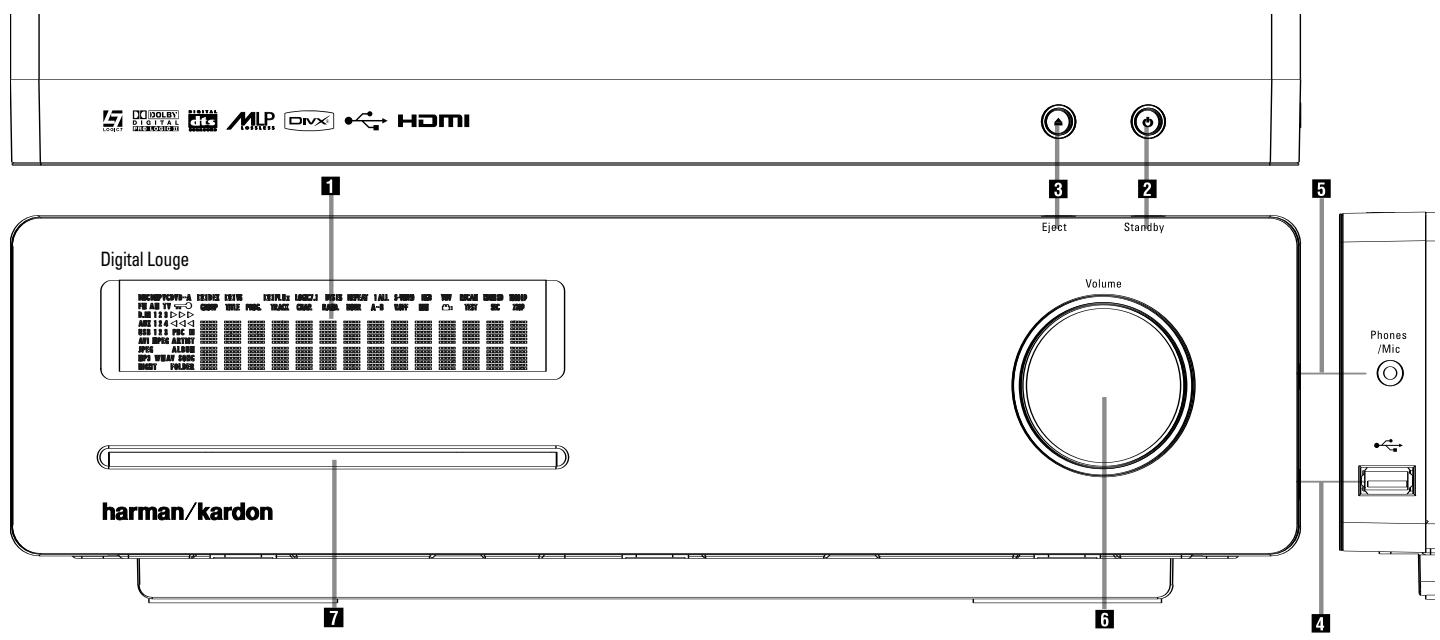
1 Main Information Display
2 Power On/Off (Standby)
3 Open/Close
4 USB On-The-Go Input
5 Headphone Jack
6 Volume Control
Slot Loader
1 Main Information Display: This display delivers messages and status indications to help you operate the Digital Lounge Controller.
2 Power On/Off (Standby): Press the button once to turn the Digital Lounge Controller on, press it again to put the unit in the Standby mode.
Note that when the Digital Lounge Controller is switched on, the Power Indicator around the button turns white
3 Eject: Press this button to release a disc from the loader.
4 USB On-The-Go Input: This input may be used to temporarily connect a USB thumb device or portable hard disk for direct playback of audio, image of video files or a USB hub. The USB inputs are designed to power a single USB device at a time. If additional hard disks are connected through a hub it is necessary that additional external power supplies are used to power the hub and hard disks.
5 Headphone Jack: This jack may be used to listen to the system's output through a pair of headphones. Be certain that the headphones have a standard 3.5mm stereo phone plug. Note that the main room speakers will automatically be turned off when the headphone jack is in use.
6 Volume Control: Turn this knob clockwise to increase the volume, counterclockwise to decrease the volume. If the system is muted, adjusting volume control will automatically release the unit from the silenced condition.
7 Slot loader: Gently insert a CD or DVD into this slot, with the printed side of the disc facing up. Note there is no drawer. Press the Eject Button 3 to release the disc
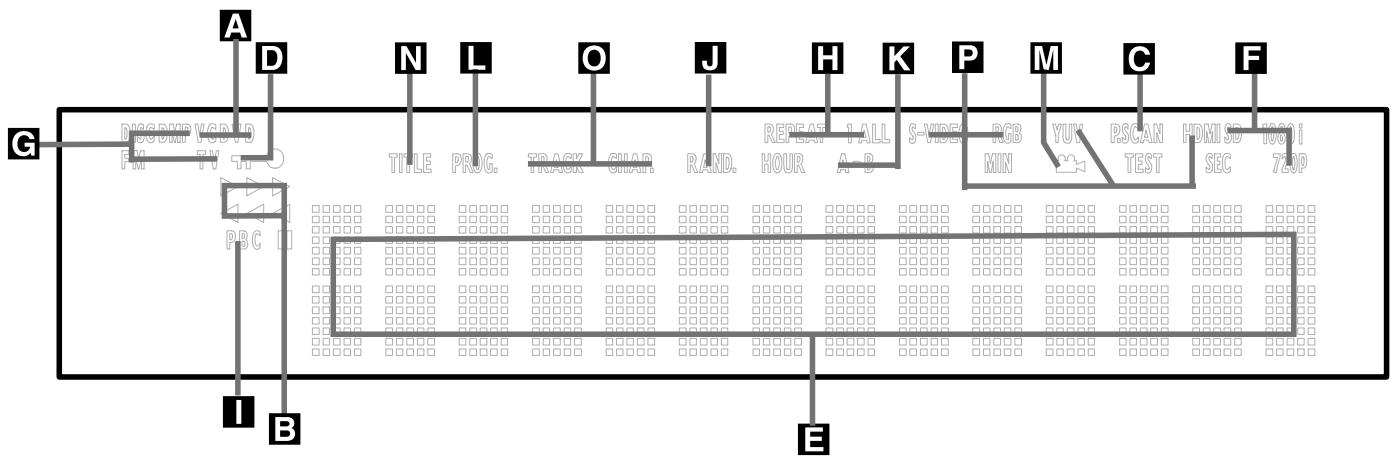
A Disc Type Indicators
3Playback-Mode Indicators
Progressive Scan Indicator
D Parental Lock Indicator
Time Indicators
F Video Format Indicators
C Source Indicators
Repeat Indicators
VCDPlaybackControlIndicator
J Random Indicator
A-B Repeat Indicator
L Program Indicator
Angle Indicator
N Title Indicators
Chapter/Track Number Indicators
Video Output Indicators
A Disc Type Indicators: The CD or DVD indicator will illuminate to show the type of disc currently being played.
Playback-Mode Indicators: These indicators light to show the current playback mode:
Lights when a disc is playing in the normal mode
Lights when the disc is in the Fast Search Forward mode. The on-screen banner display indicates the selected speed (2x, 8x, 16x, 100x).
II Lights when the disc is paused.
Lights when the disc is in the Fast Search Reverse mode. The on-screen banner display indicates the selected speed (2x, 8x, 16x, 100x).
Progressive Scan Indicator: This indicator lights when the unit sends out a progressive scan signal.
D Parental Lock Indicator: This indicator lights when the parental-lock system is engaged in order to prevent anyone from changing the rating level without a code.
Time Indicators: These positions in the indicator will show the running time of a DVD in play. When a CD is playing, these indicators will show the current track time, time remaining in the current track, or the total remaining time on the disc. When an iPod is playing, the display will show the elapsed and remaining time on the top line. The bottom line will scroll information about the song, title, album and artist.
NOTE: The Indicators NOE will also display text messages about the DVD's status, including Reading when a disc is loading, STANDBY when the unit is turned off, and Disc Error when a disc not compatible with the DVD is put into the play position.
Video Format Indicators: These indicators will represent the video format currently playing.
Source Indicators: These indicators will light to show which source is currently selected.
H Repeat Indicators: These indicators light when any of the Repeat functions are in use.
VCD Playback Control Indicator: This indicator lights when the playback control function is turned on with VCDs.
J Random Indicator: This indicator lights when the unit is in the Random Play mode.
K A-B Repeat Indicator: This indicator lights when a specific passage for repeat playback has been selected.
L Program Indicator: This indicator lights when the programming functions are in use.
M Angle Indicator: This indicator blinks when alternative viewing angles are available on the DVD currently playing.
N Title Indicators: These two positions in the display will show the current title number when a DVD disc is playing.
Chapter/Track Number Indicators: When a DVD disc is playing, these two positions in the display will show the current chapter. When a CD disc is playing they will show the current track number.
Video Output Indicators: These indicators will represent the active video output.
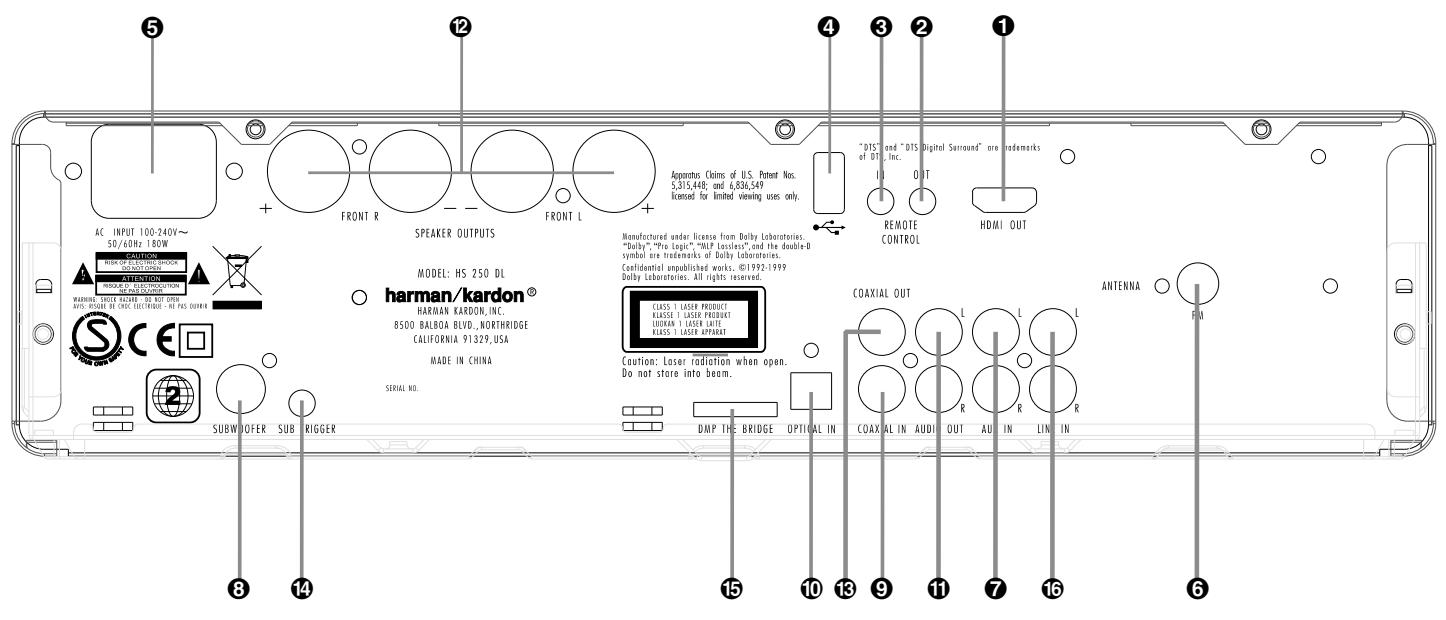
1 HDMI Output
Remote IR Output
Remote IR Input
4 USB On-The-Go Input
5 AC Power Cord
6 FM Antenna
7 Audio In
Subwoofer Output
Coaxial Digital Input
Optical Digital Input
1 Analog Audio Outputs
Speaker Outputs
13 Coaxial Digital Output
14 Subwoofer Trigger Output
DMP The Bridge Input
16 Analog Audio Inputs
1 HDMI Output: Connect this output to the HDMI input 0 of the screen, using the supplied HDMI - SP-DIF - Remote In/Out cable.
Remote IR Output: This connection permits the IR sensor in the receiver to serve other remote controlled devices. Connect this jack to the "IR IN" jack on Harman Kardon or other compatible equipment. Note this connection is only necessary for optional, additional products connected to the player. It is not necessary for proper control of the Digital Lounge system.
Remote IR Input: Connect this input to the Remote IR Output 1 of the TV, using the special HDMI - SP-DIF - Remote In/Out cable. This will allow you to control all components in your system by pointing the remote control to the TV only.
4 USB On-The-Go Input: This input may be used to temporarily connect a USB thumb device or portable hard disk for direct playback of audio, image of video files, a digital photo camera or a USB hub.
AC Power Cord: Connect this plug to an AC outlet. If the outlet is controlled by a switch, make certain that it is in the ON position.
6 FM Antenna: Connect to the supplied FM antenna.
7 Audio In: Connect to a line-level analog audio source: TV, tape player, Minidisc, PC, etc.
Subwoofer Output: Connect to the SUB/LFE input on the subwoofer.
Coaxial Digital Input: Connect the coaxial digital output from a DVD player, HDTV receiver, LD player, MD player, satellite receiver or CD player to this jack. The signal may be either a Dolby Digital signal, DTS signal or a standard PCM digital source.
Optical Digital Input: Connect the optical digital output from a DVD player, HDTV receiver, LD player, MD player, satellite receiver or CD player to this jack. The signal may be either a Dolby Digital signal, DTS signal or a standard PCM digital source.
1 Analog Audio Outputs: Connect these jacks to the RECORD/INPUT jacks of an optional audio recorder for recording.
Speaker Outputs: Connect these outputs to the matching + or - terminals on your left and right speakers. In conformance with the new CEA color code specification, the White terminal is the positive, or "+" terminal that should be connected to the red (+) terminal on Left speaker with the older color coding, while the Red terminal is the positive, or "+" terminal that should be connected to the red (+) terminal on Right speaker. Connect the black (-) terminals on the Digital Lounge system to the black (-) terminals on the speakers. See page 19 for more information on speaker polarity.
Note: You'll find more details about all Audio/Video connections under Setup and Connections on the following pages.
Coaxial Digital Output: Connect this jack to the matching digital input connector on a digital recorder such as a CD-R or MiniDisc recorder.
Subwoofer Trigger Output: Connect this trigger output to the trigger input of the Harman Kardon subwoofer, so that the subwoofer will switch on and off at the same time as the rest of the system.
15 Bridge Digital Media Player (DMP)
Connector: With the Digital Lounge turned off, connect one end of the optional Harman Kardon Bridge to this proprietary connector, and the other to your compatible Apple iPod. When the Digital Media Player source is selected, you may view your iPod's control and navigation messages on your video display and in the Upper and Lower Display Lines E. You may navigate the iPod and select tracks for playback using the / / 4 Buttons 10 and the Enter Button 7.
16 Analog Audio Inputs: Connect these jacks to the analog audio output on a TV set or external audio system for analog audio playback.
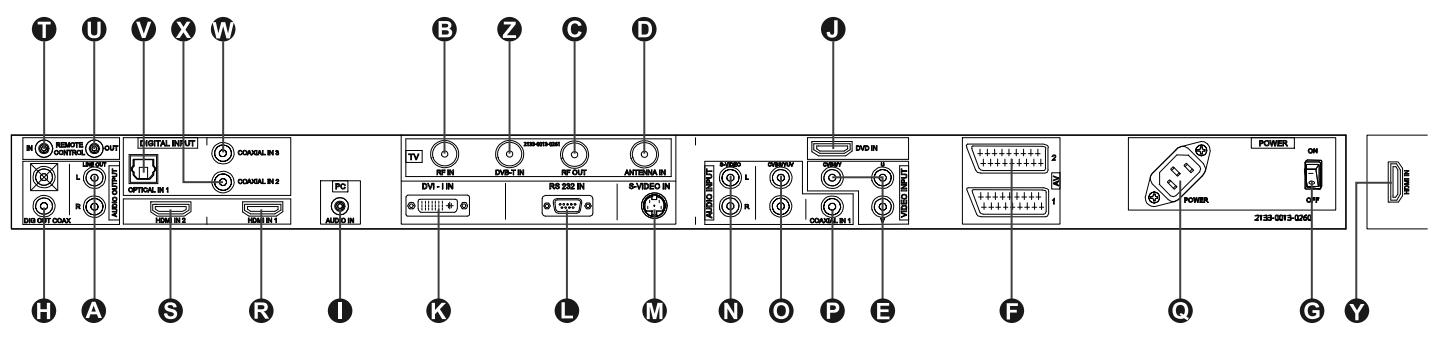
A Audio Output
RF Antenna Input
RF Antenna Output
Antenna Input
Component Video Inputs (and Composite Video Input)(CVBS/Y)
Scart Inputs
Power On/Off Switch
Coaxial Digital TV Output
PC Audio Input
DVD Input
K DVI Input
RS 232 Port
M S-Video Input (YC)
Audio Input for S-Video
Audio Input for Component Video
Coaxial Digital 1 Input
AC Power Cord Socket
R HDMI 1 Input
HDMI 2 Input
Remote IR Input
Remote IR Output
Optical Digital 1 Input
Coaxial Digital 2 Input
Coaxial Digital 3 Input
HDMI 3 Input (Side)
DVB-T Antenna Input
Audio Output: These jacks have no direct function in the system. They will output the internal audio signal of the screen, either from its tuner or an external source connected to any other input.
RF Antenna Input: Keep the attached patch cord connected to the RF Antenna Output
RF Antenna Output: Keep the attached patch cord connected to the RF Antenna Input E.
Antenna Input: Connect the output of your terrestrial antenna or cable to this input.
Component Video Inputs (and Composite Video Input): These jacks have no direct function in the system. If you have optional video sources like a satellite receiver or VCR with a component (or composite) video output, connect the video output of these sources to these inputs. In the TV Menu system, these inputs are referred to as YUV for Component Video (1 RCA-Phono Plug) and CVBS for Composite Video (3 RCA-Phono Plugs).
Scart Inputs: These inputs have no direct function in the system. If you have optional video sources like a satellite receiver or VCR with a scart video output, connect it to any of the two inputs. In the TV Menu system, these inputs are referred to as AV1 and AV2.
Power On/Off Switch: Press this button to switch the screen on or off.
Coaxial Digital Audio/TV Output: Connect the Coax Digital TV Input 9 of the DVD Receiver to this jack, using the supplied SP-DIF cable.
PC Audio Input: Connect the audio output of a computer connected to the DVI input K to this jack.
DVD Input: Connect the HDMI output of the DVD Receiver to this input, using the supplied HDMI cable.
DVI Input: Connect this jack to the DVI Output of a personal computer or the DVI or HDMI output (via HDMI/DVI adaptercable) of any digital source. Note that in order to have analog 2 channel sound from this source, you should also connect the audio output of the source to the PC Audio Input 1 of the screen. This input can also be connected to your digital set top box, satellite receiver or other video source with a DVI output connector. If your video source only has an HDMI connector, please use the supplied HDMI to DVI connector. For more information please see page 19.
RS-232 Port: This jack may be used to control the screen over a bi-directional RS-232 serial control link to a compatible computer or programmable remote control system. Due to the complexity of programming RS-232 commands, we strongly recommend that connections to this port for control purposes be made by a trained and qualified technician. This jack may also link to a compatible computer to upgrade the software and operating system of the screen when upgrades are available.
S-Video Input: This input has no direct function in the system. If you have optional video sources like a satellite receiver or VCR with an S-Video output, connect it to this input. In the TV Menu system, this input is referred to as YC.
Audio Input for S-Video: If you have connected optional video sources to the S-Video Input, the audio output of that source should be connected to this input.
Audio Input for Component Video: If you have connected optional video sources to the Component Video Inputs , the audio output of that source should be connected to this input.
Coaxial Digital 1 Input This jack has no direct function in the system. If you connect it with the coaxial digital output of any source the signal will be looped through to the analog output A and the digital output H of the screen as soon as the appropriate source is selected on the screen associated with that SPDIF input. Note that only PCM signals (44.1k, 48k, 96k) are accepted (and, converted to 48k, pathed to the digital TV out), all other signals will be muted.
AC Power Cord Socket: Connect the AC Power Cord to this jack when the installation is completed.
R HDMI 1 Input: Connect any high definition video device that has a 1080p output to this input.
HDMI 2 Input: Connect any high definition video device that has a 1080p output to this input.
Remote IR Input: If you intend to point your remote control at the Source/DVD unit to control your complete system, connect one end of the supplied, combined HDMI/coaxial digital/remote cable to this input and the other end to the Remote IR Output on the Source/DVD unit.
Remote IR Output: If you intend to point your remote control at the TV to control your complete system, connect one end of the supplied, combined HDMI/coaxial digital/remote cable to this Output and the other end to the Remote IR Input on the Source/DVD unit.
Optical Digital Audio 1 Input: Connect any source with an Optical Digital Output for Audio to this input. The digital signal is transmitted to the Source/DVD unit via the Coaxial Digital Audio/TV Output on the TV.
Coaxial Digital Audio 2 Input: Connect any source with a Coaxial Digital Output for Audio to this input. The digital signal is transmitted to the Source/DVD unit via the Coaxial Digital Audio/TV Output on the TV.
Coaxial Digital Audio 3 Input: Connect any source with a Coaxial Digital Output for Audio to this input. The digital signal is transmitted to the Source/DVD unit via the Coaxial Digital Audio/TV Output on the TV.
HDMI 3 Input (Side of TV). Connect any high definition video device that has a 720p or 1080i output to this input.
DVB-T Antenna Input. Connect your DVB-T roof antenna or indoors antenna to this input.
System On/Source Selection Button
Power Off Button
Subtitle Button
4 Title Button
Angle Button
Audio Button
Enter Button
Eject Button
9 Set-Up/Button
10 Arrows Button
Mute Button
12 Disc Menu/Teletext Button
13 Pause Button
14 Status/Mix/EPG Button
15 Skip/Step (Previous) Button
16 Skip/Step (Next) Button
17 Play Button
18 Search/Slow Reverse Button
STOP Button
20 Search/Slow Forward Button
21 Audio System On/Source Selection Button
2 Presets - Button
Zoom Button
24 Playlist Button
25 Random Button
26 Learn Button
Volume up/down Button
28 Light Button
29 Numeric Key Buttons
Repeat Button
31 Clear Button
OSD Button
IR Transmitter Window
Aspect Button
35 Screen Power Buttons
36 Info Button
Teletext Buttons
33 Picture in Picture Button
39 Mode button
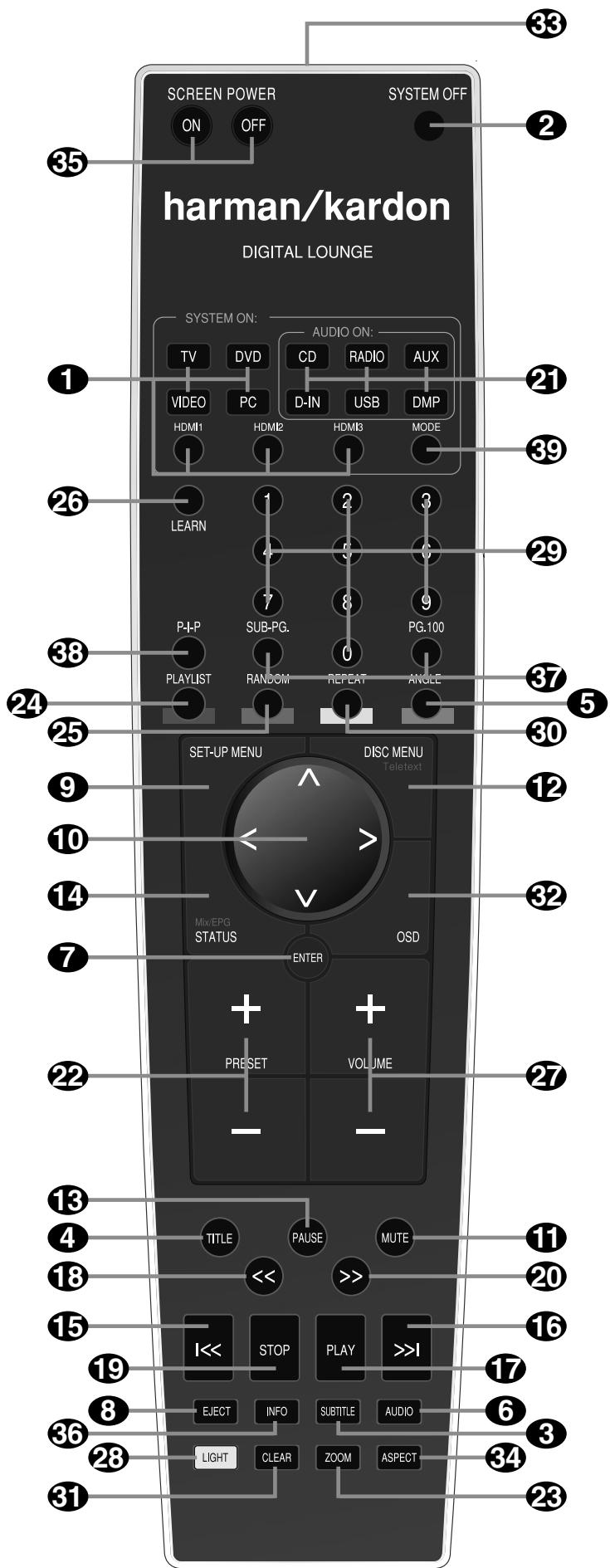
System/Source Selection Buttons:
Pressing one of these buttons will perform three actions at the same time for those sources that require the display to be switched on. First, if the System is not turned on, this will power up the system. Next, "DVD" will select the player as source, the other buttons will select TV IN as source on the receiver while the screen will always turn to the last input selected. If the system is on already TV will select the TV tuner as screen source, DVD the HDMI input, VIDEO will toggle though all analog inputs of the screen and PC will toggle through the RGB-DVI or the digital DVI input. Finally pressing one of these buttons will change the remote control so that it controls the device selected (TV,VIDEO and PC the screen, the others the receiver).
Power Off Button: Turns off the system to standby mode.
Subtitle Button: When a DVD is playing, press to select a subtitle language or to turn subtitles off.
4 Title Button: When a disc is playing, press to make the player go back to the first section of the disc.
Angle Button: Press to access various camera angles on a DVD (If the DVD contains multiple camera angles) or to rotate JPEG images.
Audio Button: Press to access various audio languages on a DVD (If the DVD contains multiple audio streams).
7 Enter Button: Press this button to activate a setting or option.
Eject Button: Press to release the disc from the loader.
Set-up: This button has several functions. In TV mode (press the TV Button 1 prior to pressing the Set-up Button) it gives access to TV Set-up menu, in which the picture calibration settings of each individual input can be set. In any other mode (press any of the other source selection buttons 1 or 2 prior to the Set-up Button) it will access the Set-up menu of the DVD receiver. Press to access the On Screen Display Menu.
10 Arrow ( / / /) Buttons: Use to move the cursor in the OSD.
Mute Button: Mutes the sound.
12 Disc Menu/Teletext Button: Displays the actual DVD Disc Menu on the TV screen in play mode. When playing discs with JPEG images, pressing this button will access the thumbnails. In TV mode, pressing this button will activate the Teletext function, pressing it a second time will add the TV program in splitscreen form.
When only the Teletext is visible pressing the STATUS/MIX/EPG button will mix the Teletext and the TV program.
Pause Button: Freezes a picture (with DVD/VCD) and pauses the playback signal (CD) when a disc is playing. Press again for normal playback.
Status/Mix/EPG Button: Press while a disc is playing to view banner display. Use the ARROW buttons to move through the different features in the Banner Display. When a symbol is highlighted, press ENTER on the remote to select it. In DVB-T TV mode pressing this button calls up the Electronic Program Guide (EPG), which lists future programming for the day or week, (depending on the country in which you live and the station). In analog TV mode pressing this button blends the teletext information with the TV picture.
Skip/Step (Previous) Button: Press to go to beginning of current track. Press again quickly to go to beginning of previous track. After pressing the PAUSE button, each press of this button will move the image in reverse frame by frame.
Skip/Step (Next) Button: Press to go to beginning of next track. After pressing the PAUSE button, each press of this button will move the image forwards frame by frame.
17 Play Button: Begins to play disc (closes disc tray first, if it is open).
Search/Slow (Rev.) Button: Allows you to search in reverse through a disc while it is in play mode. Each time you press this button, the search speed changes as indicated by a number of arrows on the right top of your screen. After pressing the PAUSE button, each press of this button will change the slow down speed indicated by a number of arrows in the right top of the screen.
19 Stop Button: Stops playing a disc. When a disc is playing, if you press STOP and PLAY, the disc will resume play, i.e. it will start from the same point on the disc where the unit was stopped. If you press STOP twice and the PLAY button, the disc will start play from the beginning.
20 Search/Slow (Fwd.) Button: Allows you to search forward through a disc while it is in play mode. Each time you press this button, the search speed changes as indicated by a number of arrows on the right top of your screen. After pressing the PAUSE button, each press of this button will change the slow down speed as indicated by a number of arrows in the right top of the screen.
Audio System On/Source Selection Buttons: Pressing one of these buttons will perform three actions at the same time for sources that do NOT necessarily require the screen to be switched one. First, if the System is not turned on, this will power up the system without the screen. Next, it will select the source shown on the button as the input to the system. Finally, it will change the remote control so that it controls the device selected. With audio-only sources, the screen can be temporarily switched on or off with the Screen Power Buttons 35.
2 Presets Buttons: Pressing these buttons in JPEG mode will move to the previous or next image.
In TV mode these buttons will scroll through the available preset TV stations. With DivX movies these buttons will jump forward or backward for 10 minutes.
Zoom Button: When a DVD or VCD is playing, press this button to zoom the picture so that it is enlarged. There are 4 steps to the zoom function, each progressively larger. Press through each of the zoom stages to return to a normal picture. The Zoom function is not available when watching High Definition material.
24 Playlist Button: Press this button to change the playback order of the disc.
25 Random Button: Press for RANDOM playback in random order.
26 Learn Button: Press this button to begin the process of "learning" the codes from another product's remote into the Digital Lounge System's remote. (See page 41 for more information on using the remote's learning function.)
Volume Up/Down: Increase/decrease the master volume level.
23 LIGHT Button: Press to illuminate remote controller.
29 Numeric Key Buttons: Select numbers by pressing these buttons.
30 Repeat Button: Press to go to the Repeat menu. You can repeat a chapter, track or the entire disc.
31 Clear Button: Press to remove the Banner menu from the screen.
32 OSD Button: This button has several functions. In TV mode (press the TV Button 1 prior to pressing the Set-up Button) it gives access to TV OSD menu, in which the video input selection can be made. In any other mode (press any of the other source selection buttons 1 or 21 prior to the Set-up Button) it will access the OSD menu of the DVD receiver.
IR Transmitter Window: Point this window towards the Digital Lounge system when pressing buttons on the remote to make certain that infrared commands are properly received.
4 Aspect Button: Press this button to scroll through the available screen formats. The default setting is Fill All.
35 Screen Power Buttons: Use these buttons to temporarily switch on or off the screen when listening to audio-only sources. This could be helpful for instance for scrolling through the contents of MP3 discs or portable hard disk devices.
36 INFO: Press for detailed informations on the disc playing (Video/Audio Bit rate, Movie aspect ratio and others), and for current player settings made. Press again to remove information from screen.
37 Teletext Buttons: Press these buttons with Teletext activated (by button 12) to select the different Teletext functions. Pressing the 100-Button will always call up the main Teletext page. Pressing the Sub Page Button consecutively will scroll through the available sub pages of a page.
Picture in Picture Button: Press this button once to activate the Picture in Picture function. Press it again to activate the picture out of picture function (split screen).
Note: When Picture in Picture is activated the main picture can be selected by the numeric buttons (when TV tuner is source) and the secondary picture by the PRESET Buttons while pressing the PC or VIDEO button will toggle through all available PC and Video sources as secondary picture.
39 Mode Button: This button enables you to switch the remote to another mode so that it operates another device without selecting it as the source. Each press of the Mode button changes the remote's mode in this order: TV, DVD, VIDEO, PC, HDMI 1, HDMI 2 and HDMI 3 and then back to TV again. The corresponding Source Selector will light to indicate the mode.
Important Note: When toggling through the resolution modes by pressing this button repeatedly be sure to have your screen connected via HDMI or Component cable, otherwise you will not see a picture with the progressive or the HD modes. Note that via HDMI the Standard interlaced signals (480/576i) will not appear.
Important notes.
The large system remote control contains several buttons that have more than one function. The Set-up Button is a good example. It can both access the set-up menu of the TV and the set-up menu of the DVD receiver. The final function of the button depends on the button pressed prior to pressing the Set-up Button. Pressing the TV,VIDEO or PC Source Selector Button before the Set-up Button will access the TV Set-up Menu. Pressing any of the other Source Selector Buttons will access the Set-up Menu of the DVD receiver.
There are two ways to switch on the system. For those sources that require the screen to be switched on (TV, DVD, VIDEO or PC), pressing one of the System On/Source Selector Buttons will power on the complete system.
For those sources that do not necessarily require the screen to be switched on (CD, RADIO, AUX, D-IN, USB 1 and USB 2) pressing one of the Audio System On/Source Selector Buttons will power on the DVD receiver and the speakers, but will leave the screen in stand by mode. In this mode the screen can be switched on and off temporarily by pressing the Screen Power On or Off Buttons
For correct functioning of the remote control, it is important NOT to switch on or off the DVD receiver with the front panel Power On/Off switch 2, but only to use the remote control's System On 1 21 and System Off 2 Buttons.
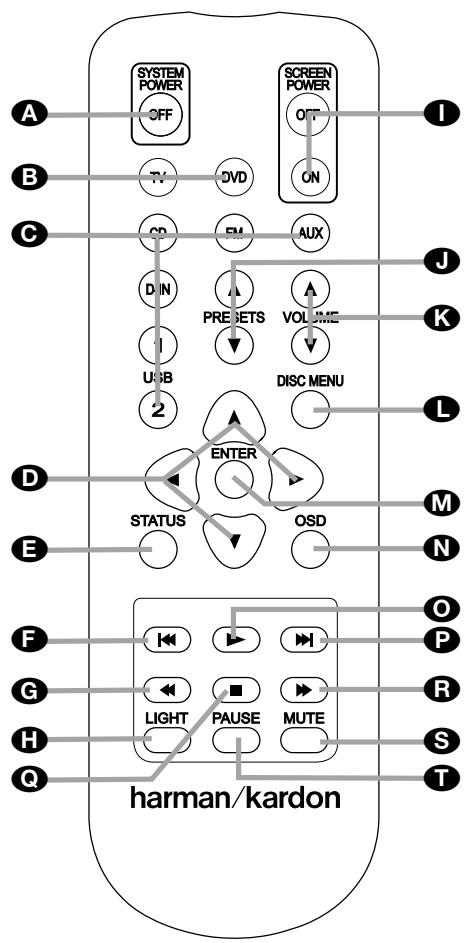
A Power Off Button
B System On/Source Selector Buttons
Audio System On/Source Selection Buttons
Arrow Buttons
Status Button
F Skip/Step (Previous) Button
Search/Slow Reverse Button
Light Button
Screen Power Buttons
Presets Buttons
Volume Buttons
Disc Menu Button
M Enter Button
N OSD Button
Play Button
Skip/Step (Next) Button
Stop Button
Search/Slow Forward Button
Mute Button
Pause Button
A Power Off Button: Turns off the DL system to standby mode.
System/Source Selection Buttons:
Pressing one of these buttons will perform three actions at the same time for those sources that require the display to be switched on. First, if the System is not turned on, this will power up the system. Next on the receiver, it will select the source shown on the button as the input while the screen will always turn on to the last source selected. Finally, it will change the remote control so that it controls the device selected.
Audio System On/Source Selection
Buttons: Pressing one of these buttons will perform three actions at the same time for sources that NOT necessarily require the screen to be switched one. First, if the System is not turned on, this will power up the system without the screen. Next, it will select the source shown on the button as the input to the system. Finally, it will change the remote control so that it controls the device selected. With audio-only sources, the screen can be temporarily switched on or off with the Screen Power Buttons 1
Arrow buttons ( / / / ) Buttons: Use to move the cursor in the OSD.
Status Button: Press while a disc is playing to view banner display. Use the ARROW buttons to move through the different features in the Banner Display. When a symbol is highlighted, press ENTER on the remote to select it.
Skip/Step (Previous) Button: Press to go to beginning of current track. Press again quickly to go to beginning of previous track. After pressing the PAUSE button, each press of this button will move the image in reverse frame by frame.
Search/Slow Reverse Button: Allows you to search in reverse through a disc while it is in play mode. Each time you press this button, the search speed changes as indicated by a number of arrows on the right top of your screen. After pressing the PAUSE button, each press of this button will change the slow down speed indicated by a number of arrows in the right top of the screen.
LIGHT Button: Press to illuminate remote controller.
Screen Power Buttons: Use these buttons to temporarily switch on or off the screen when listening to audio-only sources. This could be helpful for instance for scrolling through the contents of MP3 discs or portable hard disk devices.
PRESETS-Buttons: Pressing these buttons in JPEG mode will move to the previous or next image. In TV mode these buttons will scroll through the available preset TV stations. With DivX movies these buttons will jump forward or backward for 10 minutes.
Volume Buttons: Increase/decrease the master volume level.
Disc Menu Button: Displays the actual DVD Disc Menu on the TV screen in play mode. When playing discs with JPEG images, pressing this button will access the thumbnails.
M Enter Button: Press this button to activate a setting or option.
N OSD Button: Press to access the On Screen Display Menu.
Play Button: Begins to play disc (closes disc tray first, if it is open).
Skip/Step (Next) Button: Press to go to beginning of next track. After pressing the PAUSE button, each press of this button will move the image forwards frame by frame.
Stop Button: Stops playing a disc. When a disc is playing, if you press STOP and PLAY, the disc will resume play, i.e. it will start from the same point on the disc where the unit was stopped. If you press STOP twice and the PLAY button, the disc will start play from the beginning.
Search/Slow Forward Button: Allows you to search forward through a disc while it is in play mode. Each time you press this button, the search speed changes as indicated by a number of arrows on the right top of your screen. After pressing the PAUSE button, each press of this button will change the slow down speed as indicated by a number of arrows in the right top of the screen.
Mute Button: Mutes the sound.
Pause Button: Freezes a picture (with DVD/VCD) and pauses the playback signal (CD) when a disc is playing. Press again for normal playback.
About This Manual
- The types of functions and operations that can be used for a particular disc vary depending on the features of that disc. In some cases, these functions and operations may differ from the descriptions given in this manual. In this event, follow the instructions given on the screen. This manual only covers basic disc operations.
- For some operations, the icon may appear on the screen. This indicates that the operation described in this manual is not available on the disc in the player.
- On-screen and front panel display illustrations in this manual are purely for the purposes of explanation. The actual displays may differ slightly from these illustrations.
Disc handling precautions
- To keep the disc clean, handle the disc by its edge. Do not touch the surface.
- Do not stick paper or tape on the disc. If there is glue (or a similar substance) on the disc, remove the glue completely before using the disc.
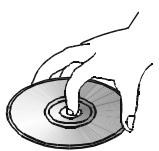
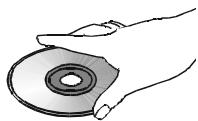
- Do not expose the disc to direct sunlight or sources such as hot air ducts, or leave it in a car parked in direct sunlight as there can be a considerable rise in temperature inside the car.
After playing, store the disc in its case. - Do not write on the label side with a ball-point pen or other writing utensils.
- Be careful not to drop or bend the disc.
Disc cleaning precautions
- Before playing, clean the disc with a cleaning cloth. Wipe the disc from the center out.
- Do not use solvents such as benzine, thinner, commercially available cleaners or anti-static spray intended for vinyl LPs.
Disc installing precautions
- Do not install more than 1 disc on disc tray.
- Do not place the disc on the tray up-side down.
- Do not try to close the disc tray when the disc is not installed and centered properly.
Regional Coding
DVD players and discs are designed with regional restrictions which dictate the regions in which a disc can be played. If the region number on the disc you want to play does not match the region number of your DVD player, you will not be able to play the disc. The message "REGION ERR" will appear in the front panel display.
The region code of this player is indicated on the rear and on the external packaging.
Important basic principles for use
The LCD meets the highest quality requirements and has been checked for pixel defects. Despite taking the greatest care during production of these units, for technological reasons it cannot be excluded absolutely that there are some pixels with defects.
We request your understanding for the fact that such defects, provided that they are within the limits specified by the standard, cannot be considered to be as an appliance defect in the terms of the warranty.
If used for a long period of time as a PC screen, shadows can occur on the screen as with any other TV set. This phenomenon with LCD screens can be reduced by heeding the following points:
- do not display a still picture for a long period of time
- use your display in full screen format (16:9)
- activate the screen saver
- display moving images as far as possible
- always switch off the display when it is not being used
- reduce the contrast and brightness as much as possible.
Unfavourable conditions can cause your screen to hum. The humming generally comes from the mains voltage supply and can occur through the connection of different earth conductors. You can provide a remedy by putting a so-called sheath current filter between the incoming aerial lead and the aerial input socket on the display. Sheath-type current filters are offered in the form of a small adaptor plug in the retail trade.
If your display is connected to an external aerial, the latter must be earthed as protection against electric shocks and static charging. The earthing must comply with the valid regulations.
If using it as a PC screen, we recommend for ergonomic reasons that you avoid the use of red and blue fonts or symbols against dark backgrounds.
To avoid aching eyes and obtain an optimized viewing distance, the distance from the unit should be five to six times the display's diagonal dimension. In your television room it should be so light that you could also read. Too little light strains the eyes due to the alternation between light and dark on the display.
Cleaning the Screen
Before you start any cleaning, turn off the unit and disconnect the mains plug from the plug outlet.
Cleaning the screen
The Harman Kardon Digital Lounge screens come with a special cleaning kit that allows for proper cleaning without damaging the screen or its high gloss finish. Use the mild detergent and soft cloth only. Do not use any abrasives!
Cleaning the housing
The cleaning kit can also be used to clean the housing of the screen.
Do not use any chemical solvents or cleaning agents for cleaning the housing, otherwise the surface of the unit could get damaged.
If you clean the surface of the housing with a wet cloth, drops of water can get inside the unit, which will cause malfunctions. Use a vacuum cleaner with a soft brush attachment for cleaning the ventilating openings.
Important Note
Please open the Harman Kardon Digital Lounge Accessory Tool Kit before opening any of the other system components. The Kit contains two pairs of gloves, that can be used to unpack the LCD screen without damaging its frame nor leaving fingerprints on it.
After unpacking the different system components, and placing them on a solid surface capable of supporting their weight, you will need to make the connections to your audio and video equipment.
Equipment Connections
We recommend that you use the supplied cables when making connections to source equipment and high quality interconnect cables to additional equipment to preserve the integrity of the signals.
When making connections to audio source equipment or speakers it is always a good practice to unplug the units from the AC wall outlet. This prevents any possibility of accidentally sending audio or transient signals to the speakers that may damage them.
Making the necessary connections to the Digital Lounge system is done in five easy steps.
- Connect the speaker outputs to the speakers.
Cables that are run inside walls should have the appropriate markings to indicate listing with any appropriate testing agency standards. Questions about running cables inside walls should be referred to your installer or a licensed electrician who is familiar with the applicable local building codes in your area.
When connecting wires to the speakers, be certain to observe proper polarity. Note that the positive (+) terminal of each speaker connection now carries a specific color code. However, most speakers will still use a red terminal for the positive (+) connection. Connect the "negative" or "black" wire to the same terminal on both the receiver and the speaker.
We also recommend that the length of cable used to connect speaker pairs be identical. For example, use the same length piece of cable to connect the front-left and front-right or surround-left and surround-right speakers, even if the speakers are a different distance from the Digital Lounge system controller.
- Connections to the subwoofer are made via a line level audio connection from the Subwoofer Output 3 to the line-level SUB input (purple) of the subwoofer. Connect at the same time the Subwoofer Trigger Output 16 to the Trigger Input of the subwoofer.
- Connect the supplied FM antenna to the FM (75 ohm) connection ⑥. The FM antenna may be an external roof antenna, an inside powered or wire lead antenna or a connection from a cable system. Note that if the antenna or connection uses 300-ohm twin-lead cable, you should use a 300-ohm-to-75-ohm adapter to make the connection.
- Your system comes with an combined HDMI/SP-DIF/Remote in/out cable to make a digital video connection over HDMI and digital audio connection from the TV to the DVD receiver. Connect the HDMI connector on one end of the wire to the HDMI Output 1 of the receiver and the other end to the HDMI Input 0 of the screen. Connect the Coaxial Digital connector on one end of the cable to the Coaxial Digital Input 9 of the receiver and the other end to the Coaxial Digital Output H of the screen.
Connect one end of the remote connector (the single pin connector) to the Remote Input of the screen and the other end to the Remote Input of the DVD Receiver. Please note that you may run the remote signal both ways. If you decide that it is easiest for you to control both screen and receiver by pointing the remote control towards the screen, plug the remote cable into the Remote Control Out of the screen and into the Remote Control In of the receiver. If your setup makes it more practical to aim the remote at the receiver to control both receiver and screen, plug the remote cable into the Remote Control Out of the receiver and into the Remote Control In of the screen.
- If you use a standard analog TV antenna, connect to the Antenna Input 1 on the rear panel of the screen. In case you use a DVB-T antenna, connect that one to the DVB-T Input 2 on the rear panel of the screen.
All necessary connections are now made. If you have additional source components to add, please refer to the next paragraphs. If not, please continue with the next chapter of the manual.
Optional Analog Set Top or Cable Box Connections
If you do not use an aerial antenna but a set top box or cable box to watch TV, please follow the instructions below to connect these products.
SCART
If you decide to connect your set top or cable box to your system using a Scart cable, connect the Scart output of the set top or cable box to one of the Scart Inputs on the rear panel of the screen.
YUV/Component
If you decide to connect your set top or cable box to your system using a YUV or Component cable, connect the YUV outputs of the set top or cable box to the YUV Inputs E on the rear panel of the screen. At the same time connect the analog audio outputs of the box to the Audio Input for Component Video Jacks O on the rear panel of the screen, or the digital output of the box to the Coaxial Digital Input P .
S-Video
If you decide to connect your set top or cable box to your system using an S-Video cable, connect the S-Video output of the set top or cable box to the S-Video Input W on the rear panel of the screen. At the same time connect the analog audio outputs of the box to the Audio Input for S-Video Jacks N on the rear panel of the screen, or the digital output of the box to the Coaxial Digital Input P .
Composite
If you decide to connect your set top or cable box to your system using a Composite cable, connect the Composite output of the set top or cable box to the Composite/CVBS Input on the rear panel of the screen. At the same time connect the analog audio outputs of the box to the Audio Input for Component Video Jacks on the rear panel of the screen, or the digital output of the box to the Coaxial Digital Input.
Important Note: The Coaxial Digital Input of the screen will accept only 2-channel PCM signals (see item on page 12). To listen to the multichannel sound from an optical digital output of any external source you can connect it to the Optical Input of the unit, see next page. If your source has only a Coaxial Digital output disconnect the SPDIF cable on the screen (output H) and the unit (input 9), connect the screen via the analog audio cable to the unit (Audio Output A on screen to the TV Audio Input 7 on the unit). Then connect the coaxial digital output of your source to the Coaxial Digital Input of the unit.
Connecting a PC
If you wish to connect your PC to the screen, the best way is to connect the DVI output of the computer to the DVI Input ±b on the rear panel of the screen. At the same time connect the audio output of your computer to the PC Audio Input 1 on the rear panel of the screen. If your PC does not have a DVI output, but VGA only, use an adapter cable VGA->DVI to connect your PC to the DVI input of the screen. If the graphic card of your PC has also other video outputs, please use any of the available outputs of your computer to the matching input of the screen.
Connecting a Digital Set Top Box or Satellite Receiver
If you wish to connect your digital set top box or satellite receiver to the screen, the best way is to connect the HDMI output of the satellite receiver to any of the HDMI 1 or HDMI 2 RS on the rear panel of the screen. Both inputs are capable of accepting up to 1080p signals.
Optional Audio Connections
Aux Input for External Source
You may connect a line-level stereo analog audio source such as a Sat receiver, tape deck, phono preamp of a record player, etc. to the controller's rear panel AUDIO IN Input ⑦ sockets to enjoy the benefits of your system with other source components.
- VCR Connection-Audio (Cables Not Included). To listen to the sound from your stereo VCR through the speakers of this system, connect the Left/Right audio output jacks of your stereo VCR to the Left/Right audio input jacks AUDIO IN ⑦ of this system.
Aux Output for Recording
To record the sound of the system with your VCR or any audio recording device (tape deck, MD, CDR and some others.) the Audio Out jacks 1 should be connected to the analog Record In jacks of the appropriate device.
Digital In- and Outputs
Connect the optical digital output of any digital sources such as an optional CD or DVD changer or player, advanced video game, a digital satellite receiver, HDTV tuner or digital cable set-top box or the output of a compatible computer sound card to the Optical Digital Inputs 1, 2 or 3 PXXW. The Coaxial Digital output of those devices may be connected with the Coaxial Digital input F on the screen, (for PCM only) or the Coaxial Digital Input on the unit (for all formats), see page 19. Connect the Coaxial Digital Output on the rear panel of the Digital Lounge system to the matching digital input connections on a CD-R or MiniDisc recorder.
Note: When connecting the optical digital audio cable (optional).
Gently push the cable plug through the built-in shutter that covers the optical digital audio output and connect the cable firmly so that the configurations of both the cable and the connector match.
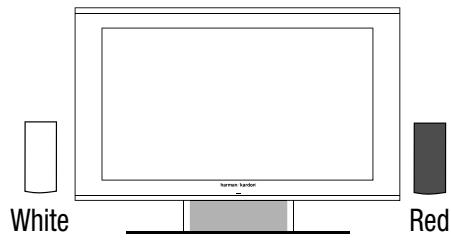
Speaker placement
A) Speaker Installation
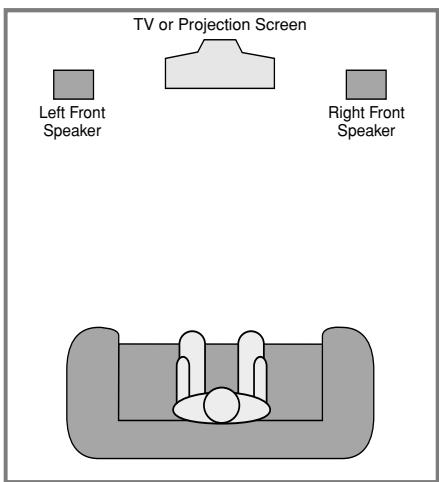
B) The distance between the left and right speakers should be equal to the distance from the seating position to the viewing screen.
Screen Placement
Note: Please use the supplied pair of gloves found in the Tool Kit when placing the screen. This will prevent the high gloss finish of the screen to be scratched or damaged. The screen comes delivered with an integrated stand, that has a dedicated place for the system's center loudspeaker. Place the screen and the stand on a surface that is strong enough to support its weight.
You can also opt for hanging the screen on the wall. Note that the screen should be mounted on vertical walls only that are capable of bearing three times the weight of the screen (see page 46 for the weight of your screen). We recommend you to do the mounting with two people. Before installing the screen on the wall, make sure that it is switched off and that the mains cable and signal cables are unplugged. Protect the front of the screen using the cloth bag and turn the screen so that its front is pointing downwards and place it carefully on a completely flat and firm surface.
Loosen and remove the 8 screws (M4x5) in the stand. Please keep the screws in a safe place in case you would like to re-install the screen on the stand in the future.
Look at the attached drilling template in the accessory pack to determine the appropriate distance between the two holes in the wall for your individual display size.
Fit two plugs and hooks capable of carrying three times the weight of the screen in the wall and position the screen so that the hooks can be introduced into the openings provided for this purpose on the rear side of the screen.
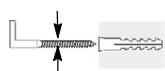
min. 6,5mm
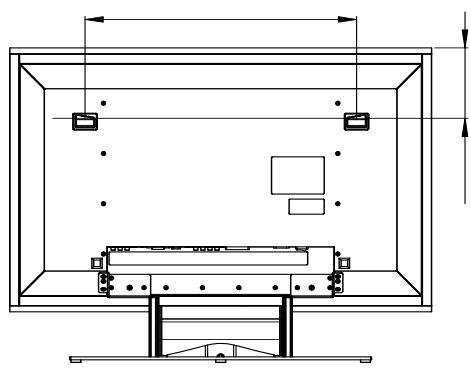
Connecting the AC Power
Notes
The Power Requirement is: AC 230V, 50 Hz.
- Connecting to power other than the one listed above may damage the system or cause abnormal operation.
- Before connecting the AC power cord of this system to a wall outlet, connect the speakers and other component cables to the system.
- Connect the AC power cord of the active subwoofer.
- Connect the AC power cords of your TV and any optional components to a wall outlet.
Once the speakers have been placed in the room and connected, the remaining steps are to program the system configuration memories.
First Turn On
You are now ready to power up the system to begin final adjustments.
- Plug the Power Cable 5 of the DVD receiver and TV into an unswitched AC outlet. Press the Power On Switch to the "I" position to switch on the TV to Standby mode. Note that the Power Indicator 2 and the Power Indicator on the screen will turn orange, indicating that system unit is in the Standby mode. At the same time, plug the power cord of the subwoofer into an unswitched AC outlet.
- Remove the protective plastic film from the main front-panel lens of the DVD receiver. If left in place, the film may affect the performance of your remote control.
- Install the four supplied AAA batteries in the main remote as shown. Be certain to follow the (+) and (-) polarity indicators that are on the top of the battery compartment. Follow the same instructions to install the three supplied AAA batteries into the smaller second remote control.
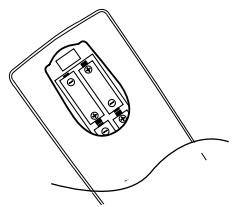
- Turn the system on by pressing the TV Input Source Selector 1 on the remote control. The Power Indicator 2 and the Power Indicator of the screen will turn blue to confirm that the system is on, and the Main Information Display 1 will also light up.
Automatic Channel Search
The first step after switching on your system is to set the language you prefer and the country you reside in. Once that is done, the automatic TV channel search will start.
Setting the language
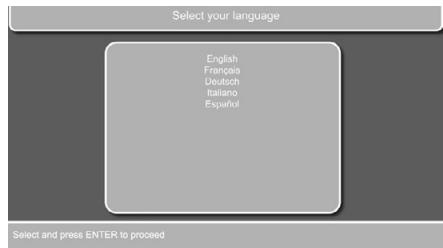
Figure 1a
- The first screen you will see is the Language Selection screen. Use the [▼] or [▲] Buttons to select the language you prefer to see the menu's of the TV in. Press the Enter Button to confirm.
Selection of country for the sorting sequence
Figure 1b
- Once you have selected the menu language, the next screen allows you to select the country in which the TV will be operated. Use the [▼] or [▲] Buttons to select your country.
Selection of tuner type
You will now be asked to choose between analog or digital tuner.
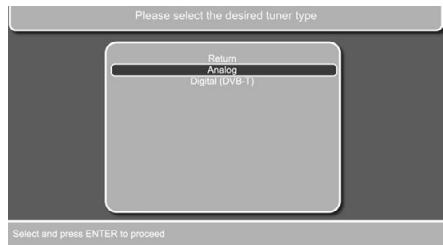
Figure 1c
Depending on your choice of tuner type, select either "Analog" or "Digital (DVB-T)" by using the [arrow down]/[arrow up] Buttons 10. Press the Enter Button to confirm.
If you select the analog tuner, proceed as described immediately below. If you select the digital tuner, go to the DIGITAL TUNER (DVB-T) section further down.
For analog tuner: proceed as follows:
When you press the Enter Button ⑦ to confirm, the automatic channel search will start to scan the available TV channels. The automatic search can take several minutes, depending on the number of channels that are available.
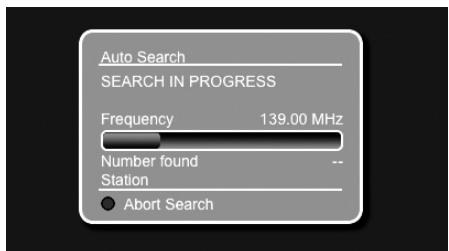
Figure 1d
- Should you wish to abort the automatic channel search, please press the Red Button on your remote control.
If no TV channel is found, check the aerial connections and attempt to search for the channels again.
When the automatic search is finished, the Edit Channel List Menu will show on your screen. It will show all the TV channels found indicated by a name consisting a maximum of 5 characters. This menu allows you to sort the TV channels according to your preferences. Move the blue bar by pressing the Button until the TV channel you would like to move is highlighted by the blue bar. Press the Enter Button so that the bar turns white. You can now move it up, down, left or right with the / / / Buttons until it is at the requested preset. Press the Enter Button to confirm. The white bar will turn blue to confirm. Continue with all the other channels until each preset contains your preferred TV channel.
The menu also allows you to delete TV channels from your channel list. Move the blue bar to the TV channel to be deleted using the / Buttons 10. Press the Green Button 25 to delete the TV channel.
When you are done making changes to the Channel List, press the Red Button 24 to remove the list from the screen.
Digital Tuner
If you have selected the digital tuner (DVB-T), proceed as described below.
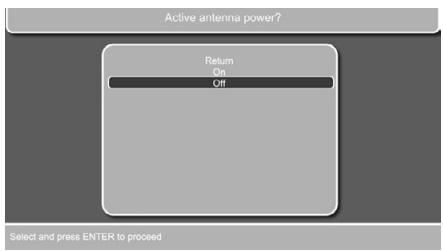
Figure 1e
You will now be asked whether you use an actively powered antenna. Select either "On" or "Off" by using the / Buttons 10.
The following automatic search screen will show:
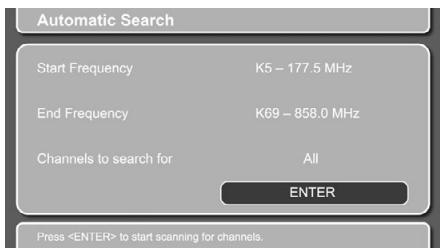
Figure 1f
Press "Enter" to start the scanning process. Scanning may take several minutes, and you will see a status screen keeping you updated as to how many percent of the scanning has been performed. You can interrupt the scanning at any time by pressing the OSD button 32. When scanning is complete, you will be asked to save the new channels, and you are informed how many channels were found.
(If no channels are found, check the antenna connection. If you have used and indoor antenna, it may be necessary to use an outdoor antenna instead. It may be a good idea to check with your TV network provider if there is DVB-T coverage in your area at all. If not, use analog tuner or cable/satellite reception instead). Press "Enter" to confirm the line "Yes, add new channels". If you want to completely replace an earlier version channel list, press the button to select "Yes, replace old channel list" and confirm with the "Enter" Button. If you do not want to save any new channels, press the Button to select "No, discard new channels" and confirm with the "Enter" Button. After confirming, the following screen will show:
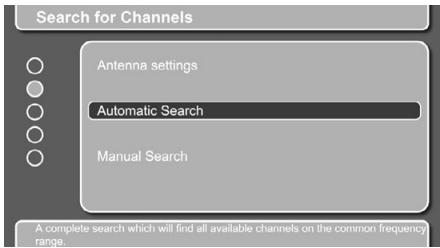
Figure 1g
Press the Setup Button button 9 to close the Search for Channels menu and start watching TV.
Remember that once inside the menu system, you simply press the "OSD"(On Screen Display) button to return to the previous screen and the "Setup Menu" button to exit the menu system entirely.
If you want to change additional settings in the DVB-T menu, like sorting channels, watch technical information or set security settings, press the OSD Button 32 once to go back one level, followed by the / Button 10 to select the menu you want (when coming directly from the Channel Search function).
If you want to change settings for the DVB-T tuner when watching TV, press the "Set-Up Menu" button 9 to enter the Setup Menu with the TV heading showing black, press the [arrow down] button 10 twice to move the indicator bar down to the DVB-T Setup line and press "Enter" 7. The screen changes to System settings, with the blue dot at the left side indicating which menu point you have chosen. The top menu line states the name of the menu item in the following order, downwards: System Settings, Search for Channels, Sort Channels, Technical Information and Security. You select the menu you want by scrolling down and up with the / Buttons 10. Notice that the bottom menu line offers further explanation for the menu you have selected. Press "Enter" 7 to enter the detailed menu inside each main menu, and press "OSD" 32 to return to the previous menu. Once inside a detailed menu, you may alter various settings.
If you select Sort Channels, you will see the menu below:
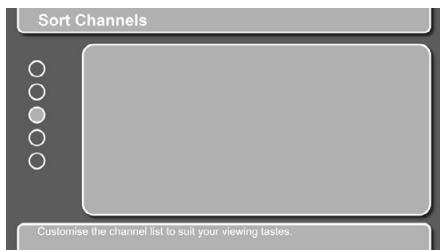
Figure 1h
Press the Enter button to enter the Sort TV channels menu and the overview of the channels in the memory.
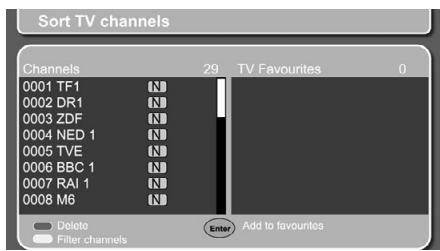
Figure 1i
The Sort TV channels menu permits you to rearrange the channels, sorting them in numerical order or alphabetically from A - Z or Z - A, even according to Network or Provider if you wish. Also, you may select channels to be your Favourites and move them to a separate Favourites list, which you can use for everyday viewing. You are also informed which channels are scrambled and therefore cannot be watched.
To delete channels, select a channel with the / Button 10. Delete with the Red button 24.
To filter channels, press the Yellow button 30. The Filter Channels screen will show. You may select Free to air, Scrambled or All channels for filtering, as well as the order of filtering.
You can move channels from the Channels list to the Favourites list by pressing the "Enter" button ⑦ after having selected the station you want to move with the ▲/▼ Buttons ⑩. Switch between Channels and Favourites with the Blue button ⑤. If you want to move a station out of the Favourites list, simply switch to this list with the Blue button, find the station with the ▲/▼ Buttons and press the Red button ②4 to delete.
When watching TV, you can switch between the total channel list and your selected favorite list by pressing the Blue Button. Each press toggles from one list to the other and back, to make it easy for you to have all available channels or just the ones you prefer present for selection.
You may also choose to do a manual search if you know the frequency for a channel that you want to see.
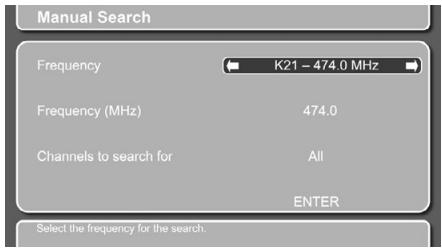
Figure 1j
In the Technical Information menu you can see details regarding the channel that you are currently watching, or the DVB-T tuner. You may update the DVB-T software via the antenna by pressing Enter to confirm the Update Software prompt. This may take several minutes, and if no new software is available, you will be informed about this.
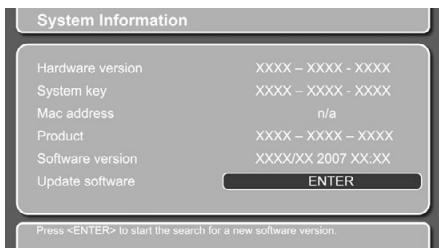
Figure 1k
The Security menu gives you the option to lock the DVB-T tuner in order to avoid children watching programs unsuited for their age. When pressing "Enter", the screen asks for a four-digit PIN code. The default code is "0000". Enter the code and press "Enter". You will see the menu lines "Parental Control" and "Change Pin". The Parental Control permits ages from 4 to 18 years to be selected, or "Off". At the time of writing, this age-based system is not in use, but plans are progressing to introduce age codes to be transmitted along with the program content, to exclude programs that are marked to be for children older than the set limit.
You may also change the PIN code. You will be asked to give the present code once, the new code once and then once more to confirm. Remember the new code.
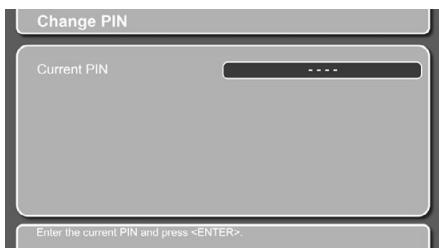
Figure 11
The topmost menu is "System Settings", which permits you to customize the DVB-T tuner settings that you do not need to alter very often.
Entering "System Settings" shows the following screen with three setting options: Language, Menu and Miscellaneous.
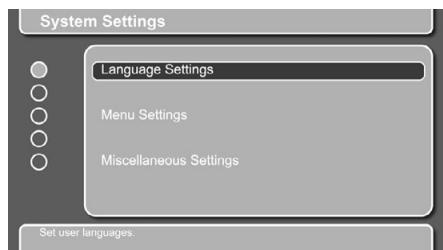
Figure 1m
Language Settings lets you select your first and second choices of Audio language, your first and second choices of subtitle languages and whether or not you want subtitles at all. Please note that these options are available only if the channel you watch transmits them.
Menu Settings lets you decide how long the Information Banners should be visible on the screen. You may select from 1 second to 15 seconds as well as Permanent and None. If you select 4 seconds or more, you may also select the Info Banner Automatic to be On or Off. This option shows an information bar when a new programme starts if selected On.
Miscellaneous Settings lets you choose between manual or automatic time zone adjustment. If manual is chosen, you may enter the time zone of your choice. If automatic is chosen, the tuner receives time information from the DVB-T system, including info about Summertime/Daylight Savings Time. You may also select active antenna or not, if you change the antenna to another type. Do not select Active if you are not absolutely sure that you do have an active antenna. You may switch the channel list appearance to list the channels alphabetically A-Z or Z-A, or according to provider, or to show no sorting at all.
Basic Play
Preparation
- Depending on what source you would like to watch or listen to, there are two ways to switch on the system. In order to switch on the whole system, including the screen, to watch a source, press any of System On/Source Selectors 1. If you would only like to switch on the DVD receiver, for instance to simply listen to a CD, press any of the Audio System On/Source Selector Buttons 21.
- When you switch on the complete system, a Harman Kardon Digital Lounge welcome image should appear on the screen.
- If there is no picture at all, not even the Harman Kardon screen, please check whether the HDMI cable has been inserted correctly. This cable needs always to be connected before switching on the screen and the receiver.
TV
- If the TV Source Selector Input Button 1 has been pressed to switch on the complete system, the system and the remote control are in TV mode.
- Press the Preset Up or Preset Down Buttons 22 J to scroll through the available channel presets.
- Press the Volume Up or Volume Down Buttons 27 K to increase or decrease the system's volume level.
DVD Receiver
If any of the DVD 1 or Audio Source Selector Buttons 2 have been pressed to switch on the system (with or without screen), the system and the remote control are in receiver mode.
- Insert a disc into the Slot Loader 7. Hold the disc without touching either of its surfaces, position it with the side you wish to play facing down, align it with the guides, and place it in its proper position.
- 3'' (8 cm) discs or 5'' (12 cm) discs can be used.
- After the discs slides into the loader, it will start playing automatically.
DiscPlaybackFeatures
Skipping tracks or titles/chapters
To move forward or backward through the tracks on a CD or the titles or chapters on a DVD, press Previous/Next 15 16.
Fast Motion Playback/Fast Search
- To move forward or backward through the DVD or CD disc being played at fast speed, press Search 18 20 on the remote. Once one of these buttons is pressed, the fast search will continue until Play is pressed.
There are four fast-play speeds. Each press of the Search Buttons will cycle to the next speed in the following order: 2x, 4x, 16x, 100x, indicated by a number of arrow indicators on the right top of the screen. - Press PLAY 17 at any time to resume normal playback.
Note that there will be no audio playback during fast-forward or -reverse play of DVD discs. This is normal for DVD, as surround processors cannot process the digital audio streams during fast-play modes; audio will be heard during fast-play of conventional CD's.
Freeze Frame and Frame Advance (with DVD only)
- Press PAUSE 13 when a DVD is playing to freeze the picture.
- Each time you press one of the STEP (FWD or REV 15 16) buttons, the picture advances one frame in the selected direction.
- Press PLAY to resume normal playback.
Slow Motion Playback (with DVD only)
- When a DVD disc is in pause or freeze frame mode, you may move slowly forward or backward through the program being played at one of four speeds by pressing the SEARCH Buttons 18 20 on the remote. Each press of the buttons will move to the next speed, indicated by a number of arrow indicators on the right top of the screen.
2. Press PLAY 17 to resume normal playback.
Note that there will be no audio playback during slow-forward or -reverse play of DVD discs. This is normal for DVD, as surround processors cannot process the digital audio streams during slow modes. Slow play is not available for CD.
Notes: Playback features may not be available during the opening credits of a movie. This is intended by the disc author and is not a failure of the Digital Lounge system Controller.
Playback of a DVD with 96 kHz/24-bit audio requires the use of circuitry normally used for other features. Accordingly, Slow Play Reverse and Step Advance features are not available with these discs.
Depending on the structure of a VCD disc, the functions Slow Reverse and Step Reverse may be prohibited or have no function and Fast Playback (Search) may not function.
About DivX Movie Files
The DivX disc compatibility of this DVD player is limited by the following:
- the available resolution size of the DivX file should be maximum 720x576 (W x H) pixels.
- the total number of files and folders on the disc should be less than 999.
- the number of screen frames per second should be maximum 29.97 frames per second.
- the video and audio structure of recorded file should be interleaved.
The player is capable of playing DivX files with the extensions ".avi".
The player is capable of playing subtitle files with the extensions ".smi", ".srt", ".sub (Micro DVD format only)" or "ssa". Other subtitle files won't be displayed. Subtitle files need to carry the same name as the movie file (but with either one of the above extensions) and should be located in the same directory.
Playing a DivX Movie Disc
Before playing DivX movie discs, please note the following:
- multi session DVD containing Windows Media Audio files may not be supported.
open session discs are not supported. - the DVD player does not support PC data.
-
this DVD player does not support an unfinalized disc with a closed session.
-
Insert a disc into the Slot Loader 7. Hold the disc without touching either of its surfaces, position it with the side you wish to play facing down, align it with the guides, and place it in its proper position.
- In the On Screen Display opening select a folder by pressing the up/down cursor buttons and press ENTER. A list of files in the folder appears. If you are in a file list and want to return to the Folder list, use the up/down buttons on the remote to highlight the return icon on top of the list and press ENTER.
- If you want to view a particular file, press the up/down buttons to highlight a file and press ENTER (PLAY will always play the first file on the disc).
When playing back a DivX movie you can use variable playback functions like fast backward and forward, as well as step and slow forward while slow and step backward are not possible. To facilitate the navigation with DivX/XviD movies you can jump forward/backward for 10 minutes by pressing the Preset+/Preset- - buttons on the remote.
- Press STOP to stop the playback.
The DVD player's playback functionalities of DivX video discs will vary depending on the DivX version used for creating your movies.
System Defaults
The final step of the installation is to establish the system's defaults. It is helpful to take a few minutes to familiarize yourself with these settings, as they may require change before the first use and later from time to time.
General Functionality of the User Interface
The complete setup and control of the Digital Lounge takes place in an advanced Guided User Interface menu system. The Guided User Interface integrates four individual menu structures, all easily accessible via the remote control:
- Set Up Menu for the Screen
- Set Up Menu for the DVD receiver
- On Screen Display Menu for the Screen
- On Screen Display Menu for the DVD receiver All menus are easily accessible via the remote control.
The main menu of the DVD-Receiver is available by pressing the OSD Button on the remote, being in receiver mode (see page 24). It consists of a DISC Menu, RADIO Menu, TV Menu, AUX Menu, DIGITAL Menu, USB Menu, DMP menu and a SET-UP Menu. The DISC Menu will show all information and options available for the disc currently playing. The RADIO Menu will show radio and RDS options. The TV, AUX and DIGITAL Menus show the surround options for these specific audio inputs. The USB Menu will show all information and options available when USB thumb devices or portable hard disks are connected. The DMP menu helps you browse through your music library once your iPod is connected to your Bridge. The SET-UP Menu will help you configure all audio and video settings which are normally only made once.
As the connection between the screen and the DVD receiver is over HDMI, you will be able to benefit from having high resolution interface images, that are text based.
Many menus contain Submenus or text lines. These submenus are shown on the left side of the menu. They can be highlighted by a white square around the text by moving the cursor with the ARROW 10 buttons. Text can be activated by pressing ENTER 7 when they are highlighted. When ENTER 7 has been pressed, the color of the circle behind the text will change to light blue, and you will see that the current settings of this submenu will appear on the right side of the menu. Although some Menus have various Submenus and Settings, they are all navigated in the same way. All submenus, settings and options can be accessed with the help of the ARROW (▲▼▶4 10) and ENTER 7 buttons on the remote control.
To change a setting, simply move the cursor to the setting you wish to change. This setting will be highlighted in a white square, and a brief explanation will appear in the Upper Menu Line on the bottom of your screen, together with the available options for this setting on the Lower Menu Line.
Once the setting is highlighted, pressing ENTER will show an and icon next to the current setting to indicate that the setting can be changed by pressing the left or right ARROW Button 10. Press the ARROW Buttons 10 until the requested setting is shown, and confirm this setting by pressing ENTER 7. Note that when you cycle though the options for this setting, the cursor cycles though the options on the Lower Menu Line, and the rest of the Display fades out.
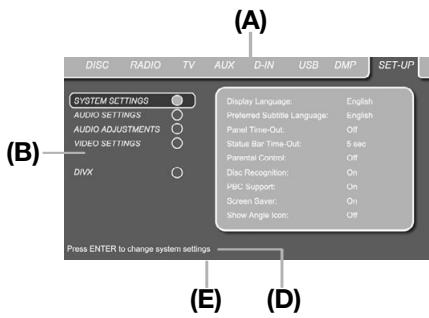
Figure 2a
(A) Main Menu Line
(B) Submenus
(D) Upper Menu Line with Brief Explanation
(E) Lower Menu Line with Possible Options (not shown in the menu here)
Set Up Menu for Screen
If the Screen Set Up Menu is not already on the screen, press the TV Button 1 followed by the Set-Up Button 9 to call it on the screen.
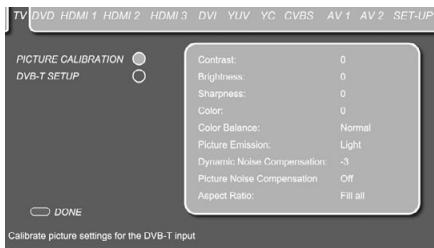
Figure 2b
The Screen Setup Menu handles picture calibration and set up of each individual input connected to the screen. All possible video inputs are listed on the top of the menu, and can be selected by moving from one tab to the next one using the Buttons 10 on the remote control. The selected input is highlighted by a dark blue lit tab, all other tabs will be shown in light blue.
TV Set Up
The TV Set Up Menu contains 2 submenus. Each subroutine can be selected by moving the blue bar with the Buttons until the requested subroutine is highlighted and pressing the Enter Button to confirm. The selected subroutine will be marked by a light blue circle behind the subroutine text line.
Figure 2c
Picture Calibration
The first submenu is the Picture Calibration Submenu that allows you to calibrate the picture of your TV. With the TV Set Up Menu on the screen, press the Button 10 until the Picture Calibration text line is highlighted. Press Enter 7 to select, followed by pressing the Button 10 to access the different calibration settings.
Contrast: The optimal contrast setting will depend on your preference and the surrounding light in the TV room. Should you wish to change this setting, press the Enter Button 7 once it is highlighted. The TV Set Up Menu will be replaced temporarily by a Mini Bar on the right top of the screen, allowing you to verify the changes made to the contrast setting in real time. To change the setting press any of the or Buttons 10 until the right contrast setting has been reached. Press the Enter Button 7 to return to the calibration process or the Red Button 24 to return to your TV channel.
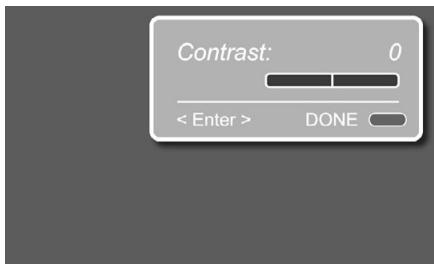
Figure 2d
Brightness: The next line in the picture calibration process is the Brightness Setting. Should you wish to change this setting, press the Enter Button ⑦ once it is highlighted. The TV Set Up Menu will be replaced temporarily by a Mini Bar on the right top of the screen, allowing you to verify the changes made to the brightness setting in real time. To change the setting press any of the ▷ or ▲ Buttons ⑩ until the right brightness setting has been reached. Press the Enter Button ⑦ to return to the calibration process or the Red Button ② to return to your TV channel.
Sharpness: The next line in the picture calibration process is the Sharpness Setting. Should you wish to change this setting, press the Enter Button ⑦ once it is highlighted. The TV Set Up Menu will be replaced temporarily by a Mini Bar on the right top of the screen, allowing you to verify the changes made to the sharpness setting in real time. To change the setting press any of the ▷ or ▲ Buttons ⑩ until the right sharpness setting has been reached. Press the Enter Button ⑦ to return to the calibration process or the Red Button ② to return to your TV channel.
Color: The next line in the picture calibration process is the Color Setting, in which the color saturation can be adjusted. Should you wish to change this setting, press the Enter Button ⑦ once it is highlighted. The TV Set Up Menu will be replaced temporarily by a Mini Bar on the right top of the screen, allowing you to verify the changes made to the color setting in real time. To change the setting press any of the ▷ or Buttons ⑩ until the right color setting has been reached. Press the Enter Button ⑦ to return to the calibration process or the Red Button ② to return to your TV channel.
Color Balance: The next line in the picture calibration process is the Color Balance Setting, allowing to adjust the color temperature. Should you wish to change this setting, press the Enter Button ⑦ once it is highlighted. The TV Set Up Menu will be replaced temporarily by a Mini Bar on the right top of the screen, allowing you to verify the changes made to the color balance setting in real time. To change the setting press any of the ▷ or ▲ Buttons ⑩ until the right color balance setting has been reached. Press the Enter Button ⑦ to return to the calibration process or the Red Button ②4 to return to your TV channel.
Picture Emission: The next line in the picture calibration process is the Picture Emission Setting. This setting adjusts the intensity of the light of the display. Brightly lit rooms will get best video performance with a Picture Emission set to "Light". In dark rooms, the "Dark" setting should be chosen. Should you wish to change this setting, press the Enter Button ⑦ once it is highlighted. The TV Set Up Menu will be replaced temporarily by a Mini Bar on the right top of the screen, allowing you to verify the changes made to the picture emission setting in real time. To change the setting press any of the ▶ or ④ Buttons ⑩ until the right picture emission setting has been reached. Press the Enter Button ⑦ to return to the calibration process or the Red Button ②4 to return to your TV channel.
Dynamic Noise Compensation: The next line in the picture calibration process is the Dynamic Noise Compensation Setting. With this setting you can compensate for possible noise that is detected in any analog video signal. Should you wish to change this setting, press the Enter Button ⑦ once it is highlighted. The TV Set Up Menu will be replaced temporarily by a Mini Bar on the right top of the screen, allowing you to verify the changes made to the dynamic noise compensation setting in real time. To change the setting press any of the ▲ or ▲ Buttons ⑩ until the right dynamic noise compensation setting has been reached. Press the Enter Button ⑦ to return to the calibration process or the Red Button ② to return to your TV channel.
Aspect Ratio: The next line in the picture calibration process is the Aspect Ratio Setting, defining in what format you watch a specific video input. Should you wish to change this setting, press the Enter Button 7 once it is highlighted. The TV Set Up Menu will be replaced temporarily by a Mini Bar on the right top of the screen, allowing you to verify the changes made to the aspect ratio setting in real time. To change the setting press any of the or Buttons 10 until the right settings has been reached. Press the Enter Button 7 to return to the calibration process or the Red Button 24 to return to your TV channel. The aspect ratio can also be changed directly (and individually for each input) by pressing the Screen Format Button 34.
The second line in this menu depends on your choice of TV tuner. If you have selected a DVB tuner, the DVB-T Setup line will appear, allowing you to access the DVB T system Settings Menu, as described on page 22-23.
If you use the analog TV tuner, the Automatic Search and Manual Search menu lines will appear.
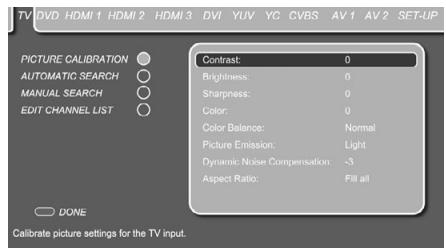
Figure 2e
Automatic Search (For analog TV only)
The Automatic Search Menu allows you to automatically search for available TV channels. With the TV Set Up Menu on the screen, press the Button 10 until the Automatic Search text line is highlighted. Press Enter 7 to select, followed by pressing the Button 10 to access the different automatic search settings. The TV's tuner has a memory for 99 TV stations.
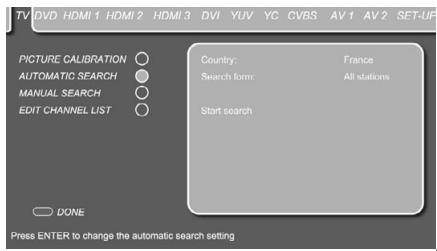
Figure 2f
Country: The country line lets you select the country you reside in to do a country-specific sorting sequence of the TV channels. Should you wish to change this setting, press the Enter Button ⑦ once it is highlighted.
The blue bar will disappear and the rest of the settings will fade out. Select the country you reside in by pressing the or Buttons 10 until the requested country is shown. Press the Enter Button to confirm.
Search Form: Selects whether you would like to search for All Stations or New Stations. Should you wish to change this setting, press the Enter Button ⑦ once it is highlighted. The blue bar will disappear and the rest of the settings will fade out. Select the search form by pressing the ▲ or ▲ Buttons ⑩. Press the Enter Button ⑦ to confirm.
Start Search: Starts the search for all or new TV stations, depending on the setting made in the previous line. To start the search, press the Enter Button ⑦ once it is highlighted. The automatic search menu will be replaced by the Auto Search Progress Menu during the time of the search. When the search is finished the Edit Channel List Menu will appear on the screen. Follow the instructions on page 28 should you wish to make changes to the order of the presets or would like to delete presets from the list.
Manual Search (For analog TV only)
The third submenu in the TV Set Up Menu is the Manual Search Menu that allows you to manually search for available TV channels. With the TV Set Up Menu on the screen, press the Button 10 until the Manual Search text line is highlighted. Press Enter 7 to select, followed by pressing the Button 10 to access the different manual search settings.
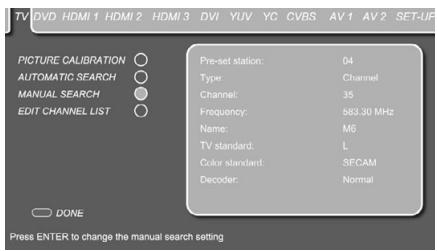
Figure 2g
Pre-set Station: Selects a new preset station number. Should you wish to change this position, press the Enter Button ⑦ once the line is highlighted. The blue bar will disappear and the rest of the settings will fade out. Select the requested position by pressing the ▷ or ▲ Buttons ⑩ until it is shown. Press the Enter Button ⑦ to confirm.
Type: Selects whether you would like to search for Channels or S-Channels (Special Channels, Cable channels). Should you wish to change the channel type, press the Enter Button ⑦ once it is highlighted. The blue bar will disappear and the rest of the settings will fade out. Select the requested type from the list by pressing the ▷ or Buttons ⑩. Press the Enter Button ⑦ to confirm.
The next steps depend on which information about the TV station to add you have on hand. Depending on whether you have the correct channel number or the correct frequency, follow one of the two steps described below.
Channel: Assigns the TV station's channel number. If you know the correct channel number of the TV station to add, press the Enter Button 7 once the line is highlighted. The blue bar will disappear and the rest of the settings will fade out. Select the correct station number by pressing the or Buttons 10 from the list or by typing it with the Numeric Keys 29 on the remote control. Press the Enter Button 7 to confirm. Note that once confirmed, the frequency matching this channel will automatically be shown.
Frequency: Assigns the TV station's frequency. If you know the correct frequency of the TV channel to add, press the Enter Button ⑦ once the line is highlighted. The blue bar will disappear and the rest of the settings will fade out. Type the station's frequency with the help of the Numeric Keys ②9 on the remote control. Press the Enter Button ⑦ to confirm. Note that once confirmed, the channel number matching this frequency will automatically be shown.
Name: The line shows the input for the TV station's name and can contain up to five characters. To enter the name, press the Enter Button ⑦ once the line is highlighted. The blue bar will disappear and the rest of the settings will fade out. Press the ▲ or ▼ Buttons ⑩ to scroll through the available characters to form the stations name. When the first position contains the right character, move the cursor to the right by pressing the > Button ⑩ and select the next character. Repeat this until all characters are filled or until the correct name shows on the line. Press the Enter Button ⑦ to confirm.
TV Standard: Selects the TV standard. Should you wish to change the TV standard, press the Enter Button ⑦ once it is highlighted. The blue bar will disappear and the rest of the settings will fade out. Select the requested TV standard from the list by pressing the ▷ or ④ Buttons ⑩. Press the Enter Button ⑦ to confirm.
Note: If you do not know which TV standard to choose, we recommend that you run the automatic channel search procedure.
Color Standard: Selects the Color standard. Should you wish to change the color standard, press the Enter Button ⑦ once it is highlighted. The blue bar will disappear and the rest of the settings will fade out. Select the requested TV standard from the list by pressing the ▷ or ④ Buttons ⑩. Press the Enter Button ⑦ to confirm.
Note: If you do not know which color standard to choose, we recommend that you run the automatic channel search procedure.
Decoder: Older Pay TV systems that require an external decoder can be connected to either one of the 2 Scart inputs. Depending on the decoder type, change the Decoder Settings according to the table below.
| Decoder | TV channel | |
| Sound | Picture | |
| Normal | Uncoded | Uncoded |
| Decoder A SCART1 | Uncoded | Coded |
| Decoder B SCART1 | Coded | Coded |
| Decoder A SCART2 | Uncoded | Coded |
| Decoder B SCART2 | Coded | Coded |
Edit Channel List (For analog TV only)
The last submenu in the TV Set Up Menu is the Edit Channel List Menu that allows you to make adjustments to the order of the TV channels. With the TV Set Up Menu on the screen, press the Button 10 until the Edit Channel List text line is highlighted. Press Enter 7 to select, followed by pressing the Button 10 to access the Edit Channel List Menu. In order to move a channel up or down the list, select it first by moving the cursor until it is highlighted by the blue bar. Press the Enter Button 7 to confirm.
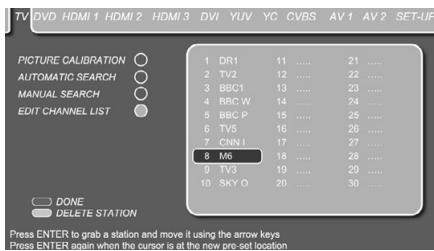
Figure 2h
The blue bar will turn white and the channel can now be moved on the list using the / Buttons 10. Once the TV channel is on its new position, press the Enter Button to confirm the new position. All stations after the new position will automatically move one station down the list.
Stations can also be deleted from the channel list. In order to delete a channel from the list, select it first by moving the cursor until it is highlighted by the blue bar. Press the Green Button 25 to delete the station from the list.
DVD Set Up
To access the DVD Set Up Menu, press the TV Button 1 followed by the Set Up Button 9. Move the cursor to the right using the [right arrow] Button 10 until the DVD tab is highlighted in dark blue.
The DVD Set Up Menu contains 2 submenus. Each submenu can be selected by moving the blue bar with the / Buttons until the requestedsubmenu is highlighted, and pressing the Enter Button to confirm. The selectedsubmenu will be marked by a light blue circle behind thesubmenu text line.
Picture Calibration
The Harman Kardon Digital Lounge is among the few systems that have individual picture calibration settings for each individual video input. As the picture calibration menus for each of the video inputs are the same, please refer to the explanations of the Picture Calibration on page 26. An exclusive setting for the DVD and HDMI inputs is TINT. This will vary the color temperature between green and purple in many small steps in contrast to the "Color Balance" setting. It can be selected and changed in the same way as described for all other Picture Calibration settings on page 26.
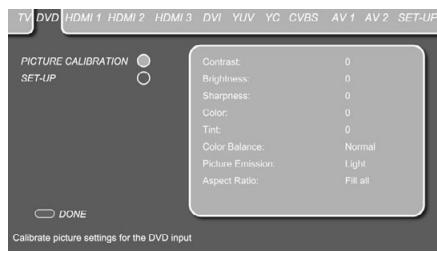
Figure 2i
Set Up
The DVD Set Up Menu permits changes to Film Mode, Overscan and Interlaced Mode.
Film Mode: This mode allows you to switch the Film Mode on or off. When switched to On, this setting will activate the correct film mode detection. The Film Mode should be switched on for all inputs that are used to watch movie playback. If you are not watching movies on a specific video input, the Film Mode setting should be set to Off. Should you wish to change the film mode, press the Enter Button ⑦ once the line is highlighted. The blue bar will disappear and the rest of the screen will fade out. Switch the film mode on or off by pressing the or Buttons ⑩. Press the Enter Button ⑦ to confirm.
Overscan: This mode allows you to switch Overscan Mode on or off.
Interlaced Mode: This mode allows you to switch the field order for interlaced signals between Mode A and Mode B. If your video source sends an interlaced signal to the screen, you can select the mode that results in the best image quality.
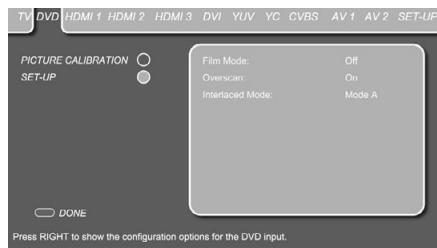
Figure 2j
HDMI Set Up
To access the HDMI Set Up Menu, press the TV Button 1 followed by the Set Up Button 9. Move the cursor to the right using the Button 10 until the HDMI tab is highlighted in dark blue.
The HDMI Set Up Menu contains 2 submenus. Each submenu can be selected by moving the blue bar with the or Buttons until the requestedsubmenu is highlighted and pressing the Enter Button to confirm. The selectedsubmenu will be marked by a light blue circle behind thesubmenu text line.
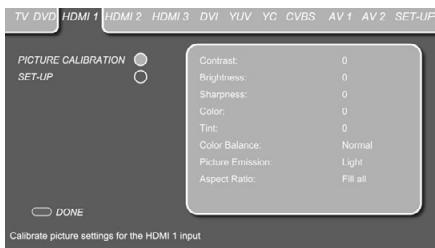
Figure 3a
Set Up
The second submenu in the HDMI Set Up menu is the Set Up Menu. With the HDMI Set Up Menu on the screen, press the Button 10 until the Set Up text line is highlighted. Press Enter 7 to select, followed by pressing the Button 10 to access the Set Up Menu.
DVI Set Up
To access the DVI Set Up Menu, press the TV Button 1 followed by the Set Up Button 9. Move the cursor to the right using the Button 10 until the DVI tab is highlighted in dark blue. The DVI Set Up Menu contains 2 submenus. Each submenu can be selected by moving the blue bar with the Buttons 10 until the requested submenu is highlighted and pressing the Enter Button 7 to confirm. The selected submenu will be marked by a light blue circle behind the submenu text line.
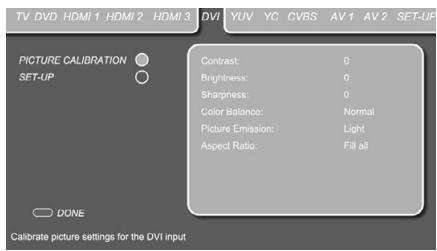
Figure 3b
Set Up
The second submenu in the DVI Set Up menu is the Set Up Menu. With the DVI Set Up Menu on the screen, press the Button 10 until the Set Up text line is highlighted. Press Enter 7 to select, followed by pressing the Button 10 to access the Set Up Menu.
The Set-Up menu appearing depends on the DVI source selected by the PC button 1. When the digital DVI-input "PC(DVI)" is selected the same Film Mode, Overscan and Interlaced Mode settings are available as previously described in the DVD Set Up section on this page.
When the analog DVI-input "PC(RGB)" is selected the following menu items will appear on the Set-Up menu:
Auto Setup: When this option is selected and Enter 7 is pressed, the screen will optimize its settings to the PC graphics card automatically.
All other settings below can be made manually, but normally the datas automatically found will be optimal, only varying the phase sometimes may avoid the small noise/flicker effect appearing in fine structures.
H Total: Will vary the width of the complete picture on screen.
V Pos: This will shift the picture vertically.
V Size: Will vary the height of the picture.
H Pos: Will shift the picture horizontally.
H Size: Will vary the horizontal picture size.
Phase: Will vary the phase of the video signal referring to the pixels on screen.
Component (YUV), YC (S-Video), CVBS (Composite), AV 1 (SCART) and AV 2 (SCART) Set Up
To access any of the Component, S-Video, Composite or Scart Set Up Menus, press the TV Button 1 followed by the Set Up Button 9. Move the cursor to the right using the Button 10 until the requested tab is highlighted in dark blue.
The Set Up Menus of all above inputs contain 2 submenus. Each submenu can be selected by moving the blue bar with the Buttons until the requestedsubmenu is highlighted and pressing the Enter Button to confirm. The selectedsubmenu will be marked by a light blue circle behind thesubmenu text line.
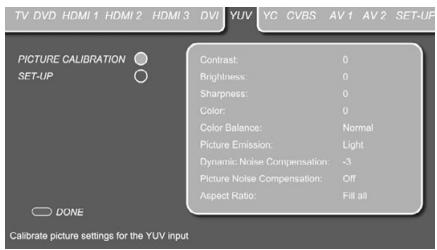
Figure 3c
Important Notes:
- The Film Mode will be effective only with Scan Mode Interlaced, i.e. not via Component or DVI inputs when in Progressive mode. In case of the Digital Lounge system connected through the HDMI input, the Film Mode setting should remain OFF whatever video resolution chosen.
- The Film Mode can be turned on/off directly, also without the OSD opened, by pressing the STATUS button with the remote in TV mode (as long as the Teletext is not activated).
Exclusively for all analog inputs there is a setting for Picture Noise Compensation.
This should be used only for Still Pictures like JPEGs. When turned on, this feature will compensate the low noise that may be contained in the pictures. Note that simultaneously the setting for the "Dynamic Noise Compensation" will change appropriately.
Set Up
The second submenu in the component, S-Video, composite or Scart Set Up menus is the Set Up Menu. With any of these Set Up Menus on the screen, press the Button 10 until the Set Up text line is highlighted. Press Enter to select, followed by pressing the Button 10 to access the Set Up Menu.
Exclusively for the SCART (AV 1 and AV 2) inputs of the TV there are the following setting options important for the proper working of each SCART input in use:
Scart Device Detection: This function must be On, if automatic switching-over to the corresponding SCART input is to take place when an active device is connected to the appropriate SCART1 or SCART2 input.
Video Input Selection: With this setting the TV can be forced to show only the Composite or RGB video signal on the SCART 1 input respectively only the Composite or S-Video signal on the SCART 2 input. The input signal on SCART 1 is automatically detected and the TV will switch to RGB mode automatically when such a signal is present.
Aspect Ratio Detection: This setting selects the signal for the format detection (4:3 or 16:9) on the SCART inputs and will be effective only with the Aspect Ratio set to "Auto Zoom" mode (in the Picture Calibration menu). Three options are available for the selection:
General Set Up
To access the General Set Up Menu, press the TV Button 1 followed by the Set Up Button 9. Move the cursor to the left using the Button 10 that the Set Up tab is highlighted in dark blue.
Global Setup: In the (General) Setup menu, you can select two sub-menus, Global Setup and Sound Setup.
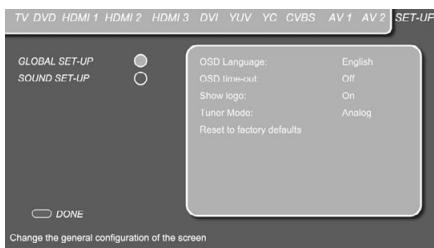
Figure 3d
OSD Language: Sets the language in which all set up menus related to the screen will be presented. Should you wish to change the OSD Language, press the Enter Button ⑦ once it is highlighted. The blue bar will disappear and the rest of the settings will fade out. Select the requested language from the list by pressing the ▲ or ▲ Buttons ⑩. Press the Enter Button ⑦ to confirm.
OSD Time Out: Sets the amount of time it will take to automatically switch off the different menus. Should you wish to change the Time Out timing, press the Enter Button ⑦ once the OSD Time Out line is highlighted. The blue bar will disappear and the rest of the settings will fade out. Select the requested time interval from the list by pressing the ▲ or ④ Buttons ⑩. Press the Enter Button ⑦ to confirm.
Show Logo: Defines whether the Harman Kardon Digital Lounge splash screen will be shown each time the system is turned on. Should you wish to change the Show Logo Setting, press the Enter Button ⑦ once the Show Logo line is highlighted. The blue bar will disappear and the rest of the settings will fade out. Set the logo on or off by pressing the ▲ or ▲ Buttons ⑩. Press the Enter Button ⑦ to confirm.
Tuner Mode: Switches between the analog and the digital (DVB-T) tuners. Please remember to make sure that when changing from one tuner mode to the other, the one you have selected is connected to the antenna.
Reset to factory defaults: The Reset procedure erases all TV station memories and returns all picture adjustments to default values.
When all the Set Up Menus for the Screen have been set, press the Red Button 24 to exit the Screen Set Up Menu and continue with the Set Up Menus of the DVD Receiver.
Sound Set Up:
This function is necessary to combine one of the three Digital Coaxial sound Inputs and the one Digital Optical sound Input on the rear panel of the screen (Inputs P,V,W and x ) with the desired Video Input Source. Each of the four Digital Sound Inputs may be allocated to work with one of the 11 possible Video Inputs. Of course, you only have to perform this procedure for those inputs that you actually wish to use.
From the Setup Start Screen shown above, scroll down with the Button 10 to highlight first Global Setup, then Sound Setup. As explained in the On Screen bottom text line, press Enter 7 to choose the Sound Setup options, followed by pressing the Button 10 to highlight the topmost Coaxial In 1 menu line. Again, press Enter 7 to open access to Coaxial In 1. Now you can scroll through the options with the (right arrow) or Buttons 10. The start option for all inputs is "None", followed by (scrolling with the Button): AV 1, AV 2, CVBS, YC, YUV, HDMI 1, HDMI 2, DVD, HDMI 3, PC (RGB) and PC (DVI) inputs. Note that you may scroll in both directions, and that both Digital and Analog Inputs are available for selection. Having chosen the proper video input, press Enter again. You may now proceed to the other Coaxial Inputs or the Optical Input. When you are done, press the Red Button 24 to exit the Menu.
Set Up Menu for the DVD Receiver
The next step in checking or changing the system defaults is to access the Setup Menu of the DVD receiver. First, make certain that the DVD receiver is properly connected to the screen, and that power is connected. For this process, however, you do not need to load a disc into the unit.
The Set Up of the receiver can be called at any time, even during STOP, PAUSE or PLAY mode. Now press the DVD Source Selector 1 to put the system in DVD receiver mode, followed by pressing the Set Up Button 9. This will access the Set Up Menu of the DVD receiver.
The Set Up Menu of the DVD receiver and all menus in the following section may look different, listing the settings with different languages, depending on the settings made previously. With the factory default setting all languages are set to "English", that's why with all menus the English version is shown in the manual.
In the SET-UP Menu you will find submenus for making or changing all settings and adjustments for both Audio and Video handling of your Digital Lounge system.
Press Enter ⑦ to activate the SYSTEM Settings.
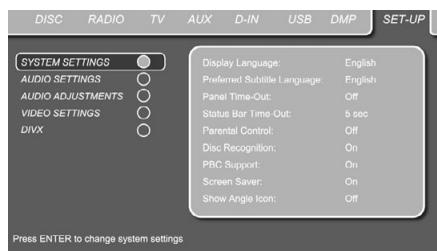
System Settings
Figure 3e
The System Setting Submenu contains the following settings. Follow the explanations in the Upper Menu Line on the bottom of your screen to change the settings.
Display Language: Sets the language in which the OSD menus are shown on your screen.
Preferred Subtitle Language: Defines your preferred subtitle language. Every time a disc contains this subtitle language, it will be shown automatically. If you do not find your preferred language in the list of options, you can select your preferred language by selecting OTHER, and then typing a 4-digit code found in the code list on page 42. You can also set the preferred subtitle language to OFF. In that case no subtitles will be shown.
Panel Time-Out: Sets the time-out interval for the Front Panel Information Display. After the selected time, the display will dim completely.
Status Bar Time-Out: Sets the time-out interval for the Status Bar, after which the Status Bar will disappear from the screen.
Parental Control: Defines a password used to control viewing of restricted programs. The default password is 8888. After pressing the default password, either the parental control setting can be chosen, or a new password. The five standard US rating symbols are "G" (General, level 1), "PG" (Parental Guidance, level 3), "PG13" (Parental Guidance and 13 years old, level 4), "R" (Restricted, level 6) and "NC 17" (from 17 years old, level 7). The DVD will accommodate a total of eight rating steps, as set by the DVD creators. These additional steps allow for more critical control of program playback for all audiences. Level 8: All DVDs can be played. Levels 7 to 2: DVDs for general audiences/ children can be played. Level 1: DVDs for children can be played; DVDs for adults/general audiences are prohibited. Follow the explanations on the screen to set a new password.
Disc Recognition: When set to on, the next time a disc is inserted, the screen will show a "Disc Recognized" message, with the question if you would like to play the disc from the beginning or would like to resume from where you last stopped the disc. The memory can contain information of the last 100 discs played.
PBC Support: Activates PBC (Play Back Control) Support for VCD discs.
Screen Saver: Activates a Screen Saver to prevent image "burn" in your screen, we recommend you activate the screen saver at all times.
Show Angle Icon: Determines whether the Angle Icon will appear on the screen when there are different angles available on a DVD disc.
Once all System Settings have been set to your personal taste, move the cursor to the left until AUDIO SETTINGS is highlighted. Press Enter 7 to access the Audio Settings Menu.
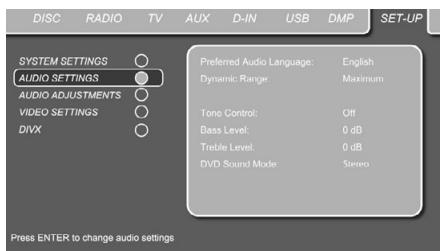
Audio Settings
Figure 4
The Audio Setting Submenu contains the following settings. Follow the explanations in the Upper Menu Line on the bottom of your screen to change the settings.
Preferred Audio Language: Defines your preferred audio language. Every time a disc is played that contains this audio language, it will be activated automatically. If you do not find your preferred language in the list of options, you can select your preferred language by selecting OTHER, and than typing a 4-digit code found in the code list on page 42.
Dynamic Range: This setting allows you to take advantage of the programming present on some Dolby Digital recordings to reduce the volume of louder passages while maintaining intelligibility of quieter passages. This means that you may listen to programs at a level that allows the full impact of a soundtrack to be heard at a volume that is lower than you might otherwise use to avoid disturbing others. The Digital Lounge accomplishes this by compressing the audio to a greater or lesser degree, depending on which setting you choose. Three options are available:
MINIMUM does not make any changes to the original playback, and should be used when the volume setting in the listening room may be as loud as you desire.
- MEDIUM applies a moderate amount of compression so that louder passages are a little bit quieter.
- MAXIMUM applies more compression so that louder passages are much softer.
Feel free to experiment with the settings at any time.
Tone Control: Activates or De-activates the Bass and Treble settings. Once either the Bass or Treble Settings are changed, the Tone Control automatically switches to ON.
Bass Level: Sets the level of low frequencies.
Treble Level: Sets the level of high frequencies.
DVD Sound Mode: Sets the audio format of the DVD-disc playing (for other sources, see Surround Mode in each respective chapter). Once set to stereo, every surround format on a DVD will be converted to a pure stereo signal. Once set to any of the Dolby Virtual Speaker modes, all stereo signals on a DVD are forced any of the Dolby Virtual Speaker modes into virtual surround for surround playback with only two loudspeakers.
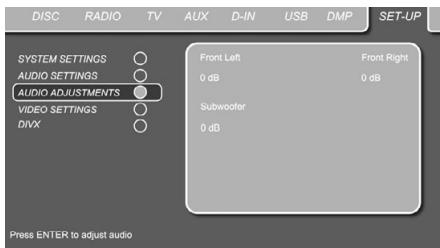
Audio Adjustment
Figure 5
The Audio Adjustment Submenu contains the access to the output level adjustment settings of the Digital Lounge. Follow the explanations in the Upper Menu Line on the bottom of your screento make adjustments.
Output level adjustment
The default settings of the DVD player is 0 dB for front speakers and subwoofer. If you wish to alter the balance between left and right speaker, you can do this by increasing level to one channel or decreasing it to the other channel, or both. Adjust the subwoofer level until the subwoofer blends in well with the main speakers.
The level can be adjusted by pressing ENTER and selecting an appropriate level indicated in the Lower Menu Line.
Once all Audio Adjustment Settings have been set to your personal taste, move the cursor to the left until VIDEO SETTINGS is highlighted. Press ENTER 7 to access the Video Settings Menu.
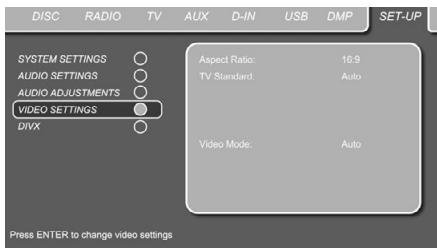
Video Settings
Figure 6
The Video Setting Submenu contains the following settings. Follow the explanations in the Upper Menu Line on the bottom of your screen to change the settings.
Aspect Ratio: This option is not used in the DL 232/DL 240.
TV Standard: Select PAL (Europe), NTSC (USA) or Automatic (recommended setting). This option is relevant only if you wish to use the DL DVD receiver with another screen than the one included, and only if this screen utilizes another standard.
Video Mode: In most cases, the "automatic" mode is your best choice, as it senses whether the disc being played was originally recorded on video or shot on film. However, in some cases you may wish to compensate for errors in the disc authoring that occur when the lag for the film mode detection is not properly set when films are converted to video.
- Auto: This is the recommended setting, as it lets the DVD player analyze the signals from the DVD and adjust the output accordingly.
- Movie: Choose this option for optimal playback of material that was shot on film, even though you are viewing it on video via a DVD.
Video: Choose this option for optimal playback of material that was shot directly to video, such as concerts and sports programming.
DivX Video On Demand
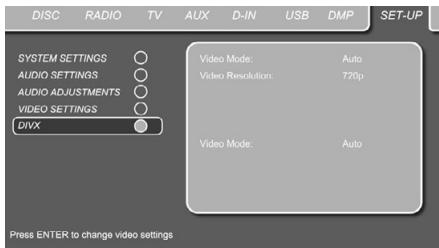
Figure 7a
Use the cursors to highlight the DIVX menu line and press Enter to access the DIVX screen. You cannot enter the DIVX screen if a DVD is being shown. Press STOP to disrupt the DVD movie first.
This code allows you to rent and purchase videos using the DivX VOD service. For more information, visit www.divx.com/vod. Follow the instructions and download the video onto a disc for playback on this unit. Note that all the downloaded videos from DivX VOD can only be played back on this unit.
Once the DivX icon is highlighted, press ENTER to access your personal DivX VOD code.
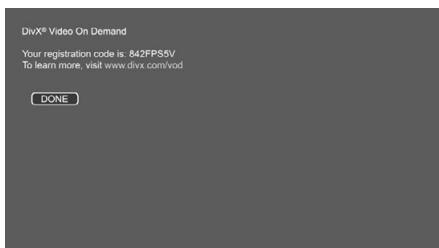
Figure 7b
Picture Calibration Using the supplied Test Disc
When doing the calibration first insert the disc in the slot loader 7. The disc will start reading, and a main menu will appear on the screen. Select the test pattern required using the or
Buttons 10. Once the pattern appears on the screen, press the Pause Button 13 to make sure the test pattern will stay long enough on the screen to make the adjustments.
With the requested test pattern on the screen press the Mode Button 41 repeatedly until the TV Button turns red. This will change the remote control to the TV mode, without changing the system's source to TV. Next, press the Setup
Button 9, and use the Buttons to select any of the calibration settings to be changed and follow the directions mentioned previously to find the right settings.
When the first calibration setting has been correctly made, press the Enter Button to go back to the Setup Menu. Use the Buttons to select the next calibration setting.
Once all calibration settings for the specific video input have been confirmed, press the Mode
Button 45 once so that the DVD Button turns red. Should additional calibration settings be made using the supplied disc, these can be selected by pressing the Disc Menu Button
12 and select the next calibration setting to be changed. Follow the directions above to make all other calibration settings.
Once all calibration settings have been made, press the Mode Button 41 until the DVD Button turns red to change the remote control back to controlling the DVD receiver.
Using the Status Bar Menu
The on-screen Status Bar contains many playback features. To see the Status Banner Menu, press STATUS 14 on the remote control while a disc is playing. Use the ARROW 10 buttons on the remote to move through the different features in the Status Bar. When a feature is highlighted, press ENTER 7 on the remote to select it and to change it with the help of the options listed on the screen. Press ENTER 7 to activate the change.
Title: The number shown indicates the number of the title that is currently playing.
Chapter: The number shown indicates the number of the chapter that is currently playing on a disc.
Time: This item displays the time in DVD mode. To change the Time mode, first move the cursor to the TIME. The current mode will be highlighted. Press ENTER and the ARROW button to activate the following time modes: Title Elapsed, Title Remaining, Chapter Elapsed, Chapter Remaining. Depending on the choice made, the bar will show a graphic view on where the disc is currently playing.
On Screen Display Menus
When all settings in both the Set Up Menu of the Screen and in the Set Up Menu of the DVD receiver have been made, the Digital Lounge system is ready to play.
These Set Up settings normally only have to be made once. Day-to-day operation of the screen and the DVD receiver is done by two On Screen Displays (OSD).
On Screen Display Menu for the Screen
The On Screen Display of the screen allows you to select the video source to be watched. Press the TV Button 1 followed by the OSD Button 32 to call the OSD Menu for the screen on the display.
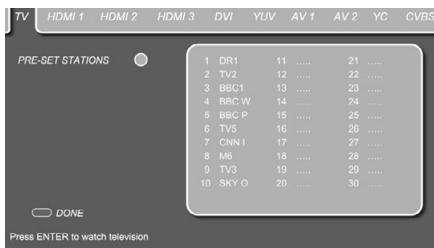
Figure 8
This OSD menu reflects the status with the analog TV tuner active. If you have selected to watch the DVB-T digital tuner, no pre-set stations list will appear. The OSD contains different tabs for each individual video input. These are visible on the top of the screen. The video input currently active will be highlighted in dark blue. In order to select another video input, move the cursor on the screen using the Buttons until the
requested video input is highlighted. Press the Enter Button 7 to confirm. Once this button is pressed, the OSD Menu will disappear, and the selected video input will show on the screen.
One of the tabs, the TV tab, will not only select the TV as video input, but will also allow you to select the TV channel you would like to watch. With the TV tab highlighted in dark blue, press the Button 10 followed by the Button 10 to access the Channel List. If the TV tab is not already highlighted, press the arrow Buttons to select. Use the Buttons 10 to the TV channel you would like to watch. Press the Enter Button 7 to confirm. The OSD Menu will disappear, and the selected TV channel will show on the screen.
NOTE: This direct station select is only available if you have chosen the analog TV tuner. If you want to perform direct station select when you have chosen the digital DVB-T tuner, just press the Enter Button while watching TV to call up the TV Channel menu or Favorite Channel menu (press blue button), from which you can choose channels directly.
On Screen Display Menu for the DVD receiver
The On Screen Display of DVD receiver allows you to select any of the audio or audio/video sources connected to the DVD receiver. Press the DVD Button 1 followed by the OSD Button
32 to call the OSD Menu for the DVD receiver on the display.
The OSD contains different tabs for each individual audio or audio/video input. These are visible on the top of the screen. The input currently active will be highlighted in dark blue. In order to select another audio or audio/video input, move the cursor on the screen using the Buttons
10 until the requested input is highlighted. Press the Enter Button 7 to confirm. Once this button is pressed, the OSD Menu will disappear, and the selected input will show on the screen.
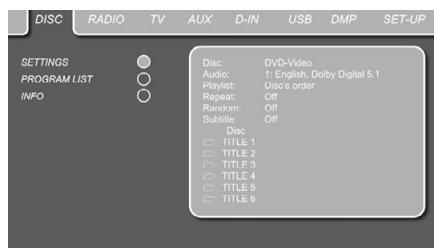
DISC PLAYER Menu
Figure 9
Once you have inserted a disc into the player you can explore the DISC PLAYER Menu by pressing the OSD button 32. This menu hosts all playback and program features, as well as all disc information. As you will see, the layout of this menu is comparable to the SET-UP Menu. The functionality is the same too. The Submenus are
shown on the left side of the screen. As in the SET-UP Menu, settings can be highlighted with the ARROW 10 buttons and selected with the ENTER 7 button on the remote control. Options for the settings are shown in the Lower Menu Line on the bottom of the screen.
Disc: Shows the type of the disc.
Audio: Shows the audio track that is currently playing. Options are shown on both Menu Lines on the bottom of the screen.
** Playlist:** Sets the order in which the current disc is played back.
Repeat: Sets the repeat mode.
Random: Activates Random Playback when possible.
Subtitle: Shows the subtitle of the disc currently playing.
With JPEG files, when the THUMBNAIL icon on the left side of the menu is activated, you will be able to use the Thumbnail function to quickly and easily search for image files. Any JPEG image file that has been created on the computer with a thumbnail image included will show up on the right top of the screen when scrolling though the contents list.
In the DISC PLAYER Menu, the chapter, track or picture currently playing will be marked with an arrow symbol in front of the Chapter (DVD), Track (CD, MP3, WMA) or Picture (JPEG). Chapters, tracks and pictures can be selected from this list at any time by moving the cursor to the desired chapter or track and pressing ENTER ⑦ to confirm.
The top part of this screen can be de-activated to show the complete Track list on the screen. To de-activate, move the cursor to the upper SETTINGS (DVDs) or INFO (CDs) Submenu on the left side of the screen. Press ENTER 7 until the icon is highlighted in dark blue and the full Track list is visible on the screen. In the same way the Disc list can be opened or removed from the screen by activating or de-activating the PROGRAM LIST Submenu showing the number of each track on disc (if none is programmed) or the program number of all tracks programmed (see next page).
When the DVD Receiver is in play mode, pressing the PLAY button on the remote control will highlight the track being played.
Information Displays
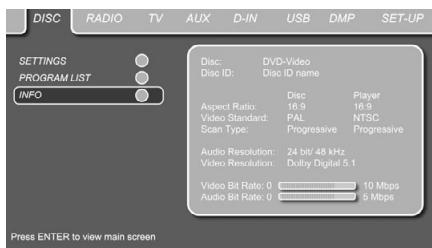
Figure 10
In DVD and MP3 mode, activating the INFO (DVD) or ID3 INFO (MP3) Submenu will show information about the player and the disc currently playing. The first lines will show Disc Type and Disc ID. Below you can compare the Aspect Ratio, Video Standard and Scan Type available on the disc with the actual output of your player or ID3 info for MP3 files.
In the lower part of the screen, the Audio Resolution and Audio Format are shown, (DVD only) and at the bottom a graphical presentation of the Video Bit Rate (DVD only) and the Audio Bit Rate of the disc currently playing.
You also have a direct access to the Information Display by pressing the INFO Button 36 on the remote control.
Programmed Play
In STOP mode, the Disc List can be used to create your own program list for DVD, CD, MP3, WMA or JPEG discs. Move the cursor to the right of the menu, into the Disc List. If the disc list is not active, move the cursor to the PROGRAM LIST icon on the left to activate. Move the cursor to the Disc List, and select Clear Program to clear the current list. Once the disc list is clear move the cursor up or down to the first track you would like to program and press ENTER 7. The cursor will move to the options in the Lower Menu Line. You can either add the selected track (or picture) to the playlist or give it the number you would like it to have in your playlist, or clear the track from the list. Move the cursor down to the next track you would like to program and continue until your playlist is complete. Once completed press PLAY on the remote control to start normal playback or, move the cursor up to the Playlist setting and select Programmed order from the options or simply press the PLAYLIST Button 24 on the remote and press PLAY to start the program playback.
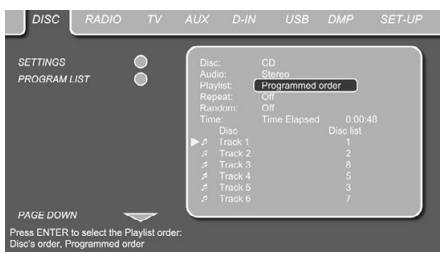
Figure 11
If you have a disc that contains both MP3 files and JPEG images, you can choose to run these simultaneously, mixing the MP3 audio with your own images. The time interval can be chosen in the Picture Setting.
Also you can have the image files follow the audio signal: at the end of each audio track, the next JPEG image will be shown. To activate this feature select Follow Audio Track in the Picture Setting.
With such discs, you can also either listen to the MP3 audio or watch the JPEG video files only. In order to do so, in stop mode, click on the LIST MUSIC FILES or LIST PICTURES icons on the left part of the screen to select or deselect the desired format. Once done, the tracklist will only show the MP3 or JPEG files.
Radio Menu
The FM Tuner in the Digital Lounge system can be used to listen to the Radio. Before listening to the radio stations, you need to preset your favorite stations. The easiest way to do so is with the OSD screen on your monitor.
- Press the Radio button 2 on the remote control to turn the DVD Receiver on and select Radio as the source. Make sure your screen is switched on to be able to make the initial Radio setup with the use of the OSD menu. If the screen is not already on, switch it on by pressing the Screen Power On Button 3, if the receiver's OSD is not visible press the Radio Button 2 again.
- The TV monitor will show the RADIO Menu, as shown below. You can also select the RADIO Menu with the ARROW 10 keys on the remote control. Once the RADIO tab is highlighted, press ENTER 7 to access the RADIO Menu.
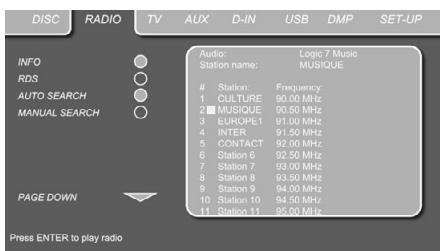
Figure 12
The RADIO Menu shows the selected Audio mode, the name of a station currently played (as long as RDS is available) and a Station list listing the 30 stations with their preset, station name and frequency.
Note: The stations can be preset automatically or manually. The Manual Preset mode is described first. The Auto Preset mode is described later in this manual.
3. The INFO, RDS and AUTO Tune functions are switched on by default, shown by the light blue icons, to make the process of tuning your favorite stations as easy as possible. Move the cursor to the end of the first station line in the menu. The frequency will be highlighted and a brief explanation will appear in the Upper Menu Line on the bottom of the menu.
NOTE: The INFO, RDS and AUTO Tune functions can be switched off by moving the cursor button to the icon at the left side of the menu and pressing the Enter Button on the remote control so that it turns dark blue.
- Pressing the search / button 1820 will scan the FM band for the first available radio station with acceptable reception. The scan will stop once a station is found and the name of the station will be displayed (as long as RDS is transmitted by the station). The station will be stored automatically in the current preset.
If you know the frequency of your station, you can also tune the frequency directly with the help of the numeric keys of the remote control. Move the cursor to the end of the station line and press the frequency with the numeric keys. - Move the cursor to the next station line in the menu. Follow the directions in step 3 and in the Upper Menu Line to store all your radio stations in the tuner's memory.
Rearranging the station list
Once all the stations have been stored in the memory, you can rearrange the station list, putting your favorite stations on top of the list.
- Move the cursor in the left column in the station list to the first station you would like to rearrange.
- Press Enter to activate the current station. The cursor will move to the Lower Menu Line of the screen.
- Select the desired preset from the list by moving the cursor right or left. Press Enter 7 to activate the change. The cursor will move back to the new station line.
- Repeat step 3 until all radio stations have been rearranged according to your preferences.
Selecting presets
Once rearranged, presets can be chosen at any time (except cursor is on frequency row) by pressing the numeric key corresponding to the preset you would like to listen to. Depending on whether the RDS function is active, the station name will show on the front panel Information Display.
Pressing the Previous/Next / Button 15 16 or the PRESETS Up/Down Buttons 22 will select the previous or next radio station.
Presets can also be chosen in the Radio Menu. Move the cursor to the preset you would like to listen to and press Enter ⑦ to activate. An arrow in front of the preset will light to show the active radio station. The cursor can be moved around the menu without changing the current radio station. Pressing the Previous/Next 〈 / >按钮 15 16 at any position in the menu will select the previous or next radio station, that is for instance from preset 3 to preset 4, even if the cursor is highlighting preset 11. Pressing the Play button will always return the cursor to the current station played, no matter were it was previously (even when another menu is open).
Removing presets
If you wish to remove presets from your preset list, follow the steps below.
- Move the cursor in the left column in the station list to the preset you would like to remove.
- Press Enter to activate the current station. The cursor will move to the Lower Menu Line of the screen.
- Select Remove from the list and press Enter 7 . The cursor will move back to the original station line.
- Repeat step 3 until all radio stations you would like to delete have been removed.
Auto Preset function
When the cursor is moved to the " # " icon on top of the preset numbers you can activate the Auto Preset function, clear the complete frequency list or restore all default frequencies set by the factory.
When the Auto Preset is selected the tuner will scan the full FM range and store all stations with acceptable reception one after another on the presets. The frequency scanned will appear on the left lower side of the menu, while the frequency of each station stored will be shown on the right side of the list. When the complete FM range is scanned or all presets (30) are loaded with stations the scan will stop and the first preset be selected.
You also can stop the scan at any time by pressing the STOP button 19. Stations can be rearranged by following the explanations in the chapter "Rearranging the station list" above.
RDS Station ID
With the help of RDS (Radio Data System) you can show the name of the station you are currently listening to as well as the station names of all other presets.
The RDS function is set to active by default, shown by the light blue RDS icon at the left of the menu. In this mode, all station names will be visible both on the OSD menu as well as on the Information Display on the front panel.
If the RDS function on the left side of the menu is inactive (dark blue), you will only see the frequency of the current preset shown in the menu and on the front panel display. The Station Name line on top of the menu will disappear, but the name of all other stations preset will keep in the list.
Pressing STATUS 14 on the remote will change the front panels display's indication from the frequency to the name of an RDS station or vice versa and will simultaneously turn the RDS indication in the OSD on or off.
Surround Mode for Tuner
As with all other inputs of the Digital Lounge DVD receiver, you can also select your preferred surround mode when listening to the radio. The actual surround mode is listed on the first line of the tuner menu. Follow the steps below to change the surround format:
- Move the cursor to the AUDIO line on the top of the tuner menu. The actual surround format will be highlighted. Press Enter 7 to activate the possible surround formats. These will be shown in the bottom line of the menu.
- Move the cursor right or left, until the desired surround format is highlighted.
- Press Enter to activate the change. The setting will apply to all tuner presets.
Note: As with all other inputs of the DVD receiver, the Audio mode can easily be selected by pressing the AUDIO button 6 on the remote repeatedly until the desired surround mode appears in the first line of the OSD menu.
TV MENU
The TV Menu setting of the DVD receiver sets the audio format and the level adjustment of the audio signal of the TV screen. This adjustment is done once only. All other settings for the TV screen are made in the TV Setup Menu as described on page 26.
- When the system is on, make sure the OSD is shown on the screen. If not so, press the DVD button 1, then OSD 32. Then move the cursor to the TV Menu.
- The TV screen will show the TV Menu, as shown below. Once the TV tab is highlighted, press ENTER to access it.
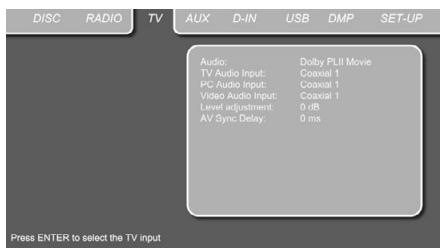
Figure 13
The TV Menu contains the following settings.
Follow the explanations in the Upper Menu Line on the bottom of your screen to change the settings.
Important Note: When an external A/V source like a DVD-S/T/C receiver is connected to the screen, you have the option to feed its sound through the screen to the unit directly to any of the digital audio inputs on the Digital Lounge receiver. The coaxial digital input of the unit can also be used when the screen is connected via analog audio only, see "Important Note" end of page 19.
In the following you can select the audio input that will be associated with the Video input selected on the screen by pressing the appropriate Source Selection Button 1 on the remote. When e.g. "Optical" has been set for the Video Audio Input, the optical input on the unit will be selected when the VIDEO Button 1 is pressed (no matter how often).
Audio: Selects the Surround Mode you would like to use when listening to your TV or other video device connected to the Scart input.
TV Audio Input: The default setting for the TV Audio Input is Coaxial In. For proper functioning of the system, this setting should not be changed. Only when the Coaxial input 9 of the unit must be used by external sources, "Line" should be selected and the screen be connected appropriately (see Important Note end of page 19).
PC Audio Input: This setting defines which Audio Input should be selected on the unit when the PC Button 1 on the remote is pressed.
Level adjustment: This setting gives you the possibility to increase or decrease the input level of the TV, so that its sound will have the same level as the radio, the DVD player or the other audio inputs.
AUX MENU
In addition to the built-in DVD-Audio/Video and CD player, and the built-in radio, you can connect one more analog audio source to the DVD receiver. The analog source can be connected to the AUX IN input ⑦ connectors on the rear panel.
- Press the AUX button 2 on the remote control to turn the DVD Receiver on and select Aux as the source. Make sure your screen is switched on to be able to make the initial AUX setup with the use of the OSD menu. If the screen is not already on, switch it on by pressing the Screen Power On Button 35, if the receiver's OSD is not visible press the AUX Button 2 again.
- The TV monitor will show the AUX Menu, as shown below. You can also select the AUX Menu with the ARROW keys 10 on the remote control. Once the AUX tab is highlighted, press ENTER 7 to access it.
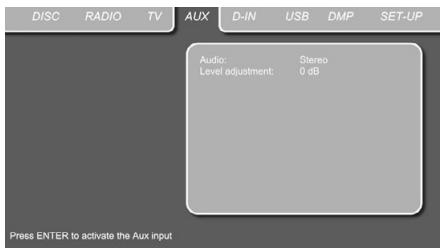
Figure 14
The AUX Menu contains the following settings. Follow the explanations in the Upper Menu Line on the bottom of your screen to change the settings.
Audio: Selects the Surround Mode you would like to use when listening to your additional analog audio source.
Level adjustment: This setting gives you the possibility to increase or decrease the input level of the analog input, so that its sound will have the same level as the radio, the DVD player or the other audio inputs.
DIGITAL IN MENU
In addition to all analog audio and video sources, the Digital Lounge DVD receiver also gives you the opportunity to connect a digital audio source, for instance a digital set-top box or satellite receiver. Connect the source to the Coaxial Digital Input Connector (see "Important Note" end of page 19) or the Optical Digital Input Connector on the rear panel.
- Press the D-IN button 21 on the remote control to turn the DVD Receiver on and select Digital In as the source. Make sure your screen is switched on to be able to make the initial DIGITAL IN setup with the use of the OSD menu. If the screen is not already on, switch it on by pressing the Screen Power On Button 35, if the receiver's OSD is not visible press the D.In Button 21 again.
- The TV monitor will show the D. IN Menu, as shown below. You can also select the D. IN Menu with the ARROW keys 10 on the remote control. Once the D. IN tab is highlighted, press ENTER 7 to access it.
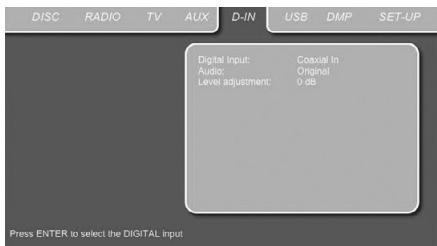
Figure 15
The DIGITAL IN Menu contains the following settings. Follow the explanations in the Upper Menu Line on the bottom of your screen to change the settings.
Digital Input: The default setting for the Audio Input is Optical In. You may select Coaxial In by selecting the Digital Input line with the Arrow Buttons on the remote 10 and entering the selection option by pressing the ENTER Button 7. Then you can switch between Optical and Coaxial with the Arrow Buttons ( / ) .
Audio: Selects the Surround Mode you would like to use when listening to one of the digital audio sources.
Level adjustment: This setting gives you the possibility to increase or decrease the input level of the digital input, so that its sound will have the same level as the radio, the DVD player or the other audio inputs.
Surround Mode Chart
Dolby Digital: Available only with digital input sources encoded with Dolby Digital data. It provides up to five separate main audio channels and a special dedicated Low Frequency Effects channel. Dolby Digital signals will be down-mixed to 2-channel Stereo or processed to Dolby Virtual Speaker in order to be played back over the 2.1 loudspeaker system.
DTS: Available only with digital input sources encoded with DTS data. Available on special DVD, LD and audio-only discs, DTS provides up to five separate main audio channels and a special dedicated low frequency channel.
DTS signals will be down-mixed to 2-channel Stereo or processed to Dolby Virtual Speaker in order to be played back over the 2.1 loudspeaker system.
Dolby Virtual Speaker: This technology uses a next-generation advanced algorithm to reproduce the dynamics and surround sound effects of a precisely placed 5.1-channel speaker system using only front left and right speakers. In the Reference Mode, the apparent width of the sound across the front image is defined by the distance between the two speakers. The Wide Mode provides a wider, more spacious front image when the two speakers are close together. Select Movie or Music according to source material.
USB MENU
The Harman Kardon Digital Lounge systems are among the first to allow direct playback of compatible files from portable USB devices. Two USB On-The-Go inputs are available, one on the right side of the product (USB 1) and one on the rear panel (USB 2).
Connect your USB thumb drive or portable hard disk, to either of the side or rear panel USB
Inputs 47. If you have more than two devices that you would like to connect at the same time, you can use a standard USB-hub with an external power supply, to which you can connect up to 16 portable USB devices.
-
Press the USB Button 2 on the remote control to turn the DVD Receiver on. In order to browse through your collection or to simply watch images stored on the drives, you can temporarily switch on your TV screen. If the screen is not already on, switch it on by pressing the Screen Power On Button 3, if the receiver's OSD is not visible press the USB Button 2 again.
-
The TV monitor will show the below screen, allowing you to select which of the file types available on the device you would like to display and play. Showing different file types at the same time like MP3 and JPEG is possible.
- Move the cursor to the different file types, and press ENTER to select or deselect the requested file types. Once done, move the cursor to DONE, and press ENTER.
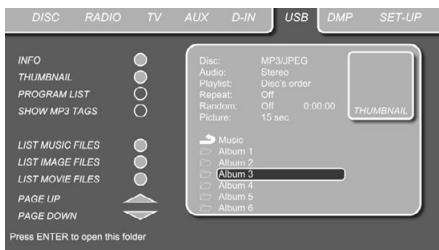
Figure 18
Important Notes:
- Via USB only the following files can be listed and played: MP3 or WMA music, JPEG pictures, DivX or XviD movie files. Normal MPEG2 movies, MPEG1, VCD/SVCD or MJPEG movie files will not be played.
- Only FAT32 formatted Hard Drives can be connected to USB. When your HD is preformatted with NTFS, it must be re-formatted with FAT32 before any files are stored onto it. Note that the FORMAT-function of Windows XP can create FAT32-partitions with max. 32 GB only. To use a bigger HD with FAT32, specific tools are needed (e.g. Norton Partition Magic or Acronis Partition Expert). Please ask your Dealer to get more information about those specific programs.
- With USB as source, programming and random functions are not available.
In case several USB devices are connected, all will be shown in the same USB Menu. To differentiate the drives, they will be shown as 1 and 2. USB drives can have more than one partition. If that is the case, the different partitions will be shown as 1a, 1b, 1c etc.
The USB Menu contains the following settings. Follow the explanations in the Upper Menu Line on the bottom of your screen to change the settings.
Audio: Shows the audio track that is currently playing. Options are shown on both Menu Lines on the bottom of the screen. Please note that Virtual Dolby Surround is not available with USB signal sources.
Repository:
Repository: Fixed to Discs's Order (programming not possible with USB).
Repeat: Sets the repeat mode.
(Repeat All, Repeat Folder).
Random: Fixed to Off, Random play not possible with USB.
Picture: Selects the interval between the current picture on the screen and the next one.
In the USB Menu, the chapter, track or picture currently playing will be marked with an arrow symbol in front of the Track (MP3, WMA), Movie (DivX, XviD) or Picture (JPEG). Tracks and pictures can be selected from this list at any time by moving the cursor to the desired track or file and pressing ENTER to confirm.
The top part of this screen can be de-activated to show the complete Track list on the screen. To de-activate, move the cursor to the upper INFO Submenu on the left side of the screen. Press ENTER 7 until the icon is highlighted in dark blue and the full Track list is visible on the screen. In the same way the Disc list can be removed from the screen by deactivating the PROGRAM LIST Submenu.
You will be able to use the THUMBNAI function to quickly and easily search for image files. Any JPEG image file that has been created on the computer with a thumbnail image included, will show up on the right top of the screen when scrolling though the contents list. The Thumbnail function can be activated by moving the cursor to the Thumbnail icon on the left and pressing ENTER 7 until the icon is lit light blue.
When the DVD receiver is in play mode, pressing the PLAY button on the remote control will highlight the track being played.
If you have a USB device that contains both music files (MP3, WMA) and JPEG images, you can choose to run these simultaneously, mixing the MP3 or WMA audio with your own images. The time interval can be chosen in the Picture Setting.
With such devices, you can also either listen to the MP3 or WMA audio or watch the JPEG files only. In order to do so, click in stop mode on the LIST MUSIC FILES, LIST PICTURES or LIST MOVIES icons on the left part of the screen to select or deselect the desired format.
Using Bridge
When Harman Kardon's Bridge is connected and a compatible Apple iPod is docked in The Bridge, press the DMP Selector Button to choose the iPod as the input source allowing playback of audio materials on your iPod through your high-quality audio/video system.
When The Bridge is properly connected and a compatible iPod is properly docked, the Upper Display Line will read DMP IN. Once that message appears, use the remote to control the iPod.
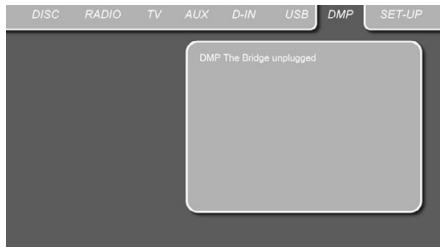
Figure 17a
Whether or not an iPod is docked in The Bridge, the screen shown in the figure above will appear on a video display connected to the Digital Lounge, but you will not be able to affect the screen without an iPod docked in The Bridge. Once an iPod is docked in The Bridge and selected as a source, the On Screen Display will change to show a reflection of your iPod menu.
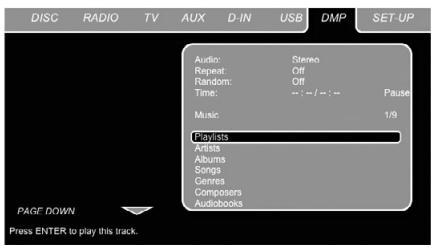
Figure 17b
Navigate The Bridge's screens by using the Buttons to highlight a line and pressing the Enter Button to select the line. Press the Menu Button to return to the previous level of The Bridge's menu system.
Audio: Shows the audio track that is currently playing. Options are shown on both menu lines on the bottom of the screen. You may select Stereo or one of the Virtual Surround effects.
Repeat: Sets the repeat mode. (Repeat 1, Repeat Folder).
Random: Activates Random Playback when possible.
Time: Shows the elapsed time and remaining time of a song currently playing.
NOTE: iTunes allows you to set certain selections to always or never remember playback position, or to be skipped in Shuffle mode. The Digital Lounge's settings cannot override these iTunes settings.
While a selection is playing, the song title, artist and album name, if available on the iPod, will scroll across the lower line in the front panel Message Display 1. The upper line will display the elapsed time of the track on the left, the play mode icon, and the time remaining on the right.
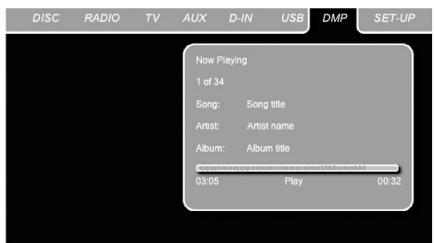
Figure 17c
In addition, if a video display is connected to the Digital Lounge, a screen will appear to display information about the iPod's status and the track. The top line will display the play mode icon, with the phrase "Now Playing" appearing to the right to remind you that you are viewing the status of the current track, as opposed to another menu screen. Below that the Digital Lounge displays the total number of tracks in the current play list on the right (all materials on the iPod are considered one of the play lists) with the number of the current track on the left. The song title, artist and album are displayed. At the bottom of the screen is a graphic bar indicating the current play position within the track, with the elapsed and remaining times appearing below the bar.
TV Functions
The Digital Lounge system offers several TV functions that require special attention. Please make yourself familiar with these functions by reading the chapter below.
To switch on the TV, press the TV Button 1 on the remote control. The Digital Lounge system will switch on, shown by the amber Power On indicator switching to blue. Please note that for all the functions described below, the system needs to be in TV mode. When TV tuner signal is not shown on the screen, press the TV button again.
Changing Channels
Once the TV has been selected as input, channels can be changed by pressing the number of the TV channel using the numeric keys 29 on the remote control. For any of the channels that are stored at preset 10 and above, first press the first digit, quickly followed by the second digit.
Channels can also be changed with the Preset Up and Down Buttons 22. Each press of these buttons will select the next or previous TV channel. When you are changing a TV channel, a mini bar will appear on the right top of the screen, showing the selected TV channel and it's name.
Picture in Picture (PIP) Function
With this function you can watch two video inputs simultaneously on your Digital Lounge display. The second video input can either be shown in the right corner of the display, or the display can simply be divided in two equally big squares, each of them showing another video input. All video inputs that are connected to the display can be selected to run as a second video source, however there are some exceptions. If the HDMI, DVI, or YUV inputs have been chosen as main video input, the second video input can not be HDMI, DVI or YUV. Please note that only the analog TV tuner can be used in connection with PIP functions. The Digital (DVB-T) Tuner is not available for PIP use, even if it has been selected during Setup.
To activate the function, press the Picture in Picture (PIP) Button on the remote control. You will see that the second source will appear in a square on the right top of the screen. At the same time a mini bar will appear showing the two video inputs currently watched. The video input shown on the top is the original video input, and the one shown below is the second video input. Pressing the PIP Button again will show both video inputs in the same size. Pressing the PIP Button a third time will de-activate the Picture in Picture function.
When the Picture in Picture function is active, the main picture can be selected by the Numeric Key Buttons (29) (when TV tuner is source) and the secondary picture by the Presets Buttons (22) while pressing the PC or VIDEO Source Selection buttons (1) will toggle through all available PC and Video sources.
Aspect Ratio
The Digital Lounge display allows for watching video sources in several aspect ratios. The default setting is Fill All and can be set to your personal taste for each individual input, as described on page 26. Should you wish to temporarily change the aspect ratio of a video input, press the Screen Format Button repeatedly until you have found your preferred picture format. With each press of the button, the current aspect ratio will be shown in the mini bar on the right top of the screen. Below is a short description of the different picture formats:
Available picture formats for TV signals
Normal: This format setting displays a PAL 4:3 picture with the correct side ratio. Dark stripes are visible on the left and right-hand edges of the picture.
Fill all: In this format setting the picture is adapted in horizontal direction until the screen's width is filled completely. This format is needed to display all so called "Widescreen" (also named "16:9" or anamorphic) movies with optimal size and aspect ratio that will be stretched vertically in the "Normal" mode (see below).
16:9: In this mode the picture is scaled horizontally to the complete picture width, approx. 25% in total being cut off the top and bottom of the picture recorded with 4:3 format.
Available picture formats for PC signals over the DVI input
When you have a computer connected to the DVI input, the following picture formats can be chosen:
Normal: Displays the PC picture filling the complete height of the screen, without changing the side ratio. Dark stripes are visible on the left and righthand edges of the picture depending on the input format of the PC picture.
Fill All, 16:9: These are the same settings as with TV source described above.
14:9: With a 14:9 zoom the picture is enlarged vertically by a total of 15 % , i.e. approx. 15 % of the picture content is cut off vertically. Horizontally the picture is reduced in size in comparison with the full picture display by 15 %, i.e. narrow bars are displayed on the right and left. This mode is a good compromise to enlarge "4:3" video material (like e.g. from the TV tuner) and keeping the correct aspect ratio without cutting too much on top and bottom of the picture. It can also be used with non-
anamorphic pictures that will show a small frame around in Normal mode.
One to one: With this setting the number of visible screen pixels is adapted to the input signal, i.e. 1366 x 768 pixels are always reproduced by the PC picture for a screen resolution of 1366 x 768 while e.g. the frequently used PC graphics card resolution 1024 x 768 will fill the height of the screen and keep big black bars on the sides (as with a 4:3 video). This PC mode is recommended for getting PC Pictures with optimal performance.
Available picture formats for all other video sources
Normal, Fill All, 16:9, 14:9: These are the same settings as with TV and PC source described above.
Auto zoom: This function is available with TV and analog inputs only. With the SCART inputs selected it evaluates the current picture format and switches automatically between normal mode and Fill All depending of the signal format (4:3, 16:9) received and the settings for the Aspect Ratio Detection made in the Scart Setup menu (see page 29). With other analog inputs selected, this function will sense black bars around the movie and, after some seconds, zoom it in all directions, filling the width of the screen while keeping the aspect ratio of the original.
This mode should be used for the full screen display of any non-anamorphic letterbox video material (with a black frame around).
16:9 Top: Select with picture in letterbox format as described above but with subtitles below. This will zoom the video and shift it upwards.
14:9 Top: Select with same pictures as above but with subtitles below. This will zoom the video and shift it upwards.
Panorama: This format setting scales the input signal automatically in horizontal direction to fit the full screen, but not linearly. i.e. the picture contents in the centre of the screen are displayed as the original and towards the edges more intense scaling takes place. This mode can be used to fill the screen horizontally with "4:3" material without affecting the centre part of the video too much.
Teletext
Teletext, also known as Videotext, is an information system broadcast by some TV-channels. It can be consulted like an interactive newspaper for the latest news, sports and entertainment. Harman Kardon Digital Lounge teletext also offers access to subtitles for hearing impaired viewers. Colored buttons on the remote control give direct access to various pages, depending on the TV-channel.
To activate the teletext function, press the Teletext Button on the remote control. A first press will display the teletext instead of the TV channel you were watching. A second press will show both the TV channel you were watching to and the teletext next to each other. Pressing the Teletext Button again will de-activate the teletext function. It is also possible to have the teletext page shown with the TV image in the background. In order to do so, press the Mix Button when Teletext has been activated.
The first page of the teletext that will be displayed is always page 100, an index page used by all channels. Other pages can be searched for by pressing the page number on the top of the screen with the help of the Numeric Keys 23 of the remote control. At all times, the index page can be re-called by pressing the PG 100 Button 57.
Once you have teletext on your screen, you will see that there are 4 colored squares on the bottom of the screen, each with a specific teletext page number in it. These colored buttons correspond to the colored buttons 5 24 25 30 on the remote control. Pressing the corresponding colored button on the remote control will select the page highlighted in the square. Note that the shown pages are dynamic, and change with each button press.
Some teletext pages contain additional sub pages. These sub pages can be selected directly by pressing the SUB PG Button on the remote control. Each button press will increment the sub page number to enable direct selection of the sub pages.
Note that as long as Teletext is activated no other source can be selected on the screen.
Learning Codes from a Remote
The Digital Lounge remote is able to "learn" codes from other remote controls that might be part of your system setup, like the one from your TV. To learn or transfer codes from an IR remote to the DL's remote, follow these steps:
- Place the front of the original remote with the code being sent so that it is facing the IR Transmitter Window 33 on the DL remote "head-to-head." The remotes should be between 2 and 4cm apart.
- Select the button on the remote that you wish to use as the device selector for the codes about to be entered. You can use the buttons VIDEO, PC, HDMI 1-2-3, The buttons TV, DVD and the six Audio On buttons cannot be used for programming.
- Press the Learn button 26 and one Device Selector Button (in the System On group 1, chosen among the five buttons mentioned above until the device button light remains on. Release the buttons. It is important that you begin the next step within 25 seconds.
- Press the button on the DL remote that you wish to program. Note that the Device button flashes once. To learn a command into the VIDEO, PC, HDMI1-2-3 buttons , press these buttons for three seconds.
Important Note: Codes cannot be taught to all buttons on the remote. In these cases the device button flashes rapidly several times to indicate that this particular button cannot be programmed
5. As long as the Device button is on steadily (for five seconds), briefly press the button on the original remote that you wish to "teach" into the DL remote. If you pressed the button too late or no command was received within five seconds, the Device button flashes rapidly several times, then simply repeat step four. When the Device button flashes 4 times, the learning process has been successful for the chosen button.
NOTE: If the Device button remains red without flashing 4 times during Step 5, the programming was not successful. Repeat the steps to see if the code will "take." If the indicator remains red in step 5, this code cannot be taught.
- Repeat steps 4 though 5 for each button on the source remote that you wish to transfer to the DL remote.
- Once all codes have been transferred from the original source remote to the DL remote, press the Learn button 26. This will make the Device button flash 3 times to indicate that you have completed the Learn procedure, and turn off the learning mode. You may also wait 20 seconds, after which the remote exits learn mode automatically.
- Repeat Steps 1 through 7 for any additional remotes you wish to "teach" into the DL Remote.
Erasing Learned Codes
The DL's remote allows you to remove or erase the code learned into a single button for a single device, to remove or erase all the codes that have been learned for a single device, or to erase all commands that have been learned to all devices.
To erase a single learned code from within in a single device's settings, follow these steps:
- Press the Learn Button 26 and the Device Selector Button (in the System On group 1 together until the device button light remains on.
- Release the buttons.
- Press and release the Device Selector 1 again for the device within which the individual button to be erased has been programmed.
- Press the 7 button 29 three times.
- Press and release the individual button for which the code is to be erased. The Device/System On button blinks three times to confirm.
- To erase other buttons within the same device, press them as noted in Step 5.
- When all buttons to be erased have been pressed, press the Learn button 26 to complete the process.
Note: When the learned code has been erased, the button returns to the original code.
To erase all codes within a single device, follow these steps:
- Press the Learn button 26 and the Device Selector Button (in the System On group 1 together until the device button light remains on.
- Release the buttons
- Press the same Device/System On Button again.
- Press the 8 button three times.
The Device Button blinks three times and goes out. You are done.
Note: When the learned codes for a device are erased, all codes for that device return to the original code.
To erase all codes within all devices, follow these steps:
- Press the Learn button 26 and any of the Device Selector Buttons (in the System On group 1 together, until the device button light remains on.
- Release the buttons
- Press the same Device/System On Button again.
- Press the 9 button 29 three times.The Device Button blinks three times and goes out. You are done.
Note: When all learned codes for all devices are erased, all devices return to their original codes.
To perform ALL CLEAR function:
You may also do this very simple operation to initialize the Remote to be returned to all factory codes:
- Press the TV Button in the System On group and the 0 29 Button simultaneously. The TV Button will light up.
- Press the 3 29 Button three times.
- All the device buttons blink three times. You are done.
The availability of specific languages for the main audio track or subtitles is dependent on the choices made by a disc's producer. You should always consult the disc's jacket for information on languages for any disc. In the case of some languages, you may be required to enter a code from the list below to access that language.
| Language | Code | Language | Code | Language | Code |
| Abkhazian | 6566 | Hausa | 7265 | Samoan | 8377 |
| Afar | 6565 | Hebrew | 7387 | Sangho | 8371 |
| Afrikaans | 6570 | Hindi | 7273 | Sanskrit | 8365 |
| Albanian | 8381 | Hungarian | 7285 | Scotts Gaelic | 7168 |
| Ameharic | 6577 | Icelandic | 7383 | Serbian | 8382 |
| Arabic | 6582 | Indonesian | 7378 | Servo-Groatian | 8372 |
| Armenian | 7289 | Interlingua | 7365 | Sesotho | 8384 |
| Assamese | 6583 | Interlingue | 7369 | Setswana | 8478 |
| Aymara | 6588 | Innpiak | 7375 | Shona | 8378 |
| Azerbaijani | 6590 | Irish | 7165 | Sindhi | 8368 |
| Bashkir | 6665 | Italian | 7384 | Singhalese | 8373 |
| Basque | 6985 | Japanese | 7465 | Siswati | 8383 |
| Bengali; Bangla | 6678 | Javanese | 7487 | Slovak | 8375 |
| Bhutani | 6890 | Kannada | 7578 | Slovenian | 8376 |
| Bihari | 6672 | Kashmiri | 7583 | Somali | 8379 |
| Bislama | 6673 | Kazakh | 7575 | Spanish | 6983 |
| Breton | 6682 | Kinyarwanda | 8287 | Sundanese | 8385 |
| Bulgarian | 6671 | Kirghiz | 7589 | Swahili | 8387 |
| Burmese | 7789 | Kirundi | 8278 | Swedish | 8386 |
| Byelorussian | 6669 | Korean | 7579 | Tagalog | 8476 |
| Cambodian | 7577 | Kurdish | 7585 | Tajik | 8471 |
| Catalan | 6765 | Laothian | 7679 | Tamil | 8465 |
| Chinese | 9072 | Latin | 7665 | Tatar | 8484 |
| Corsican | 6779 | Latvian, Lettish | 7686 | Telugu | 8469 |
| Croatian | 7282 | Lingala | 7678 | Thai | 8472 |
| Czech | 6783 | Lithuanian | 7684 | Tibetan | 6679 |
| Danish | 6865 | Macedonian | 7775 | Tigrinya | 8473 |
| Dutch | 7876 | Malagysy | 7771 | Tonga | 8479 |
| English | 6978 | Malay | 7783 | Tsonga | 8483 |
| Esperanto | 6979 | Malayalam | 7776 | Turkish | 8482 |
| Estonian | 6984 | Maltese | 7784 | Turkmen | 8475 |
| Faroese | 7079 | Maori | 7773 | Twi | 8487 |
| Fiji | 7074 | Marathi | 7782 | Ukrainian | 8575 |
| Finnish | 7073 | Moldavian | 7779 | Urdu | 8582 |
| French | 7082 | Mongolian | 7778 | Uzbek | 8590 |
| Frisian | 7089 | Naru | 7865 | Vietnamese | 8673 |
| Galician | 7176 | Nepali | 7869 | Volapuk | 8679 |
| Georgian | 7565 | Norwegian | 7879 | Welsh | 6789 |
| German | 6869 | Occitan | 7967 | Wolof | 8779 |
| Greek | 6976 | Oriya | 7982 | Xhosa | 8872 |
| Greenlandic | 7576 | Oromo (Afan) | 7977 | Yiddish | 7473 |
| Guarani | 7178 | Panjabi | 8065 | Yoruba | 8979 |
| Gujarati | 7185 | Pashto, Pushto | 8083 | Zulu | 9085 |
| Persian | 7065 | ||||
| Polish | 8076 | ||||
| Portuguese | 8084 | ||||
| Quechua | 8185 | ||||
| Rhaero-Romance | 8277 | ||||
| Romanian | 8279 | ||||
| Russian | 8285 |
For the Controller
If you experience any of the following difficulties while using the system, use this troubleshooting guide to help you remedy the problem. Should any problem persist, consult your authorized Harman Kardon dealer.
No power.
- Is the power cord firmly plugged into the power outlet?
- One of the safety mechanisms may be operating. In this event, unplug the player from the power outlet briefly and then plug it in again.
No picture.
- Check that the system is connected correctly and securely.
- The video cable may be damaged. Replace it with a new one.
- Make sure the system is connected to a video input on the TV (see page 12).
- Make sure the TV is turned on.
- Make sure the correct video input on the TV is selected for viewing with this system.
Noise (interference) appears in the picture.
- Clean the disc.
- If video from this system has to go through your VCR to get to your TV, the copy-protection applied to some DVD programs could affect picture quality. If you still experience problems after checking your connections, please try connecting your DVD system directly to your TV's S-Video input.
The aspect ratio of the screen is wrong (picture vertically expanded) when you play a wide picture by the player or an external source connected to the screen even though you set "TV DISPLAY" in the SETUP menu to "Auto".
- If you connect the system or the external source with the SCART cable, connect directly to the TV. Otherwise the autoswitch function of the aspect ratio for the TV may not work.
- If the TV is not connected with a SCART cable to the DL (as recommended) or the external source, or if the autoswitch function does not work you should turn the TV to "Fill All".
There is no sound or volume is very low
- Check that the speakers and components are connected correctly and securely.
- Make sure that you have selected the correct source on the system.
- Press MUTE on the remote control, if the words MUTE ON are blinking on the front panel display.
- The protective circuitry has been activated because of a short circuit. Turn off the system, eliminate the short circuit problem and turn on the power again.
- The audio interconnect is damaged. Replace it with a new one.
-
The system is in pause mode or in slow-motion play mode, or fast forward or fast reverse. Press to return to normal play mode.
-
Check the speaker settings (see page 31).
The left and right channels are unbalanced or reversed.
- Check that the speakers and components are connected correctly and securely.
Severe hum or noise is heard.
- Check that the speakers and components are connected securely.
- Check that the connecting cords are away from a transformer or motor and at least 3 meters away from fluorescent light.
- Move your TV away from the audio components.
- The plugs and jacks are dirty. Wipe them with a cloth slightly moistened with alcohol.
- Clean the disc.
- Disconnect antenna cables from external sources (also PC) connected to the screen or system. If hum disappears use an antenna transformer between antenna and source.
- If PC is connected to the system disconnect the Audio and Video cables. If hum disappears use an audio transformer between PC audio out and system input. If hum persists unplug PC from your system and ask your local dealer for a proper solution (ground loop interrupt).
The volume goes down automatically and cannot be increased.
- The internal temperature is too high. Wait approximately one minute for the amplifier to reach normal working temperature.
Radio stations cannot be tuned in.
- Check that the antenna is connected correctly. Adjust the antenna and connect an external antenna if necessary.
- The signal strength of the stations is too weak for automatic tuning. Use manual tuning.
- No stations have been preset.
- The tuner mode is not selected, select the Radio mode.
The remote does not function.
- Remove any obstacles between the remote control and the system.
- Move the remote control closer to the system.
- Point the remote control at the remote sensor on the front panel.
- Replace all the batteries in the remote control with new ones if they are weak.
- Check that the batteries are loaded correctly.
The disc does not play.
- There is no disc inside. ("NO DISC" appears on the front panel display and the TV screen.) Insert a disc.
- Insert the disc correctly with the playback side facing down.
- Clean the disc.
- The system cannot play CD-ROM's, etc. (see page 3).
DVD with wrong region code (see page 18).
Playback stops automatically.
- Some discs include an auto pause signal. When playing such a disc, the system stops playback at the signal.
Track Skip or direct select with numeric buttons, Search, Slow-motion play, repeat play or Program play, etc., cannot be done.
- Depending on the DVD or VCD, some of the above operations may not be available (Playback control).
Messages do not appear on the TV screen in the language you want.
- Select the language for Display and Preferred Subtitle in the SETUP menu (see page 22). For all messages from the DVD (DVD menu, subtitles) in the proper language, the disc must have the language you selected, if not, another language will be selected.
For the TV
The audio language cannot be changed when you play a DVD.
- Multilingual sound is not recorded on the DVD.
- Changing the language for the sound by the Audio button on the remote or the Audio line in the Player Menu is prohibited on the DVD. In that case the audio language must be selected by the main menu on the DVD.
The subtitle language cannot be changed when you play a DVD.
- Multilingual subtitles are not recorded on the DVD.
- Changing the language for the subtitles by the Subtitle button on the remote or the Subtitle line in the Player Menu is prohibited on the DVD. In that case the subtitle language must be selected by the main menu on the DVD.
The subtitles cannot be turned off when you play a DVD.
Depending on the DVD, you may not be able to turn the subtitles off.
The angles cannot be changed when you play a DVD.
- Multi-angles are not recorded on most DVDs.
- Change the angles when the angle mark appears on the TV screen.
- Changing the angles is prohibited on some DVDs.
The system does not operate properly.
- Static electricity, etc., may affect the system's operation. Disconnect the AC power cord, then connect it again.
Please also refer to the Troubleshooting guide contained in your loudspeaker Owners Manual
Defect
Possible cause
Possible remedy
| No picture although the mains plug is inserted and the unit is switched on. | • Mains switch in position "0" (OFF). • Mains plug of unit is not inserted into the plug receptacle. • The HDMI cable is not properly inserted. • Defective mains cable. | • Shift mains switch to position "1". • Insert the mains cable plug into the plug receptacle. • Insert the HDMI cable firmly. • Call the service hotline. |
| Screen dark. | • Contrast setting too low. • No input signal, wrong input selected. | • Set the brightness and/or contrast correctly (see Picture Calibration). • Check the connection cable; assign correct input to source. |
| Weak or excessive colours. | • Colour not correctly set. • Connection cable not correctly connected. | • Set the colour correctly (see Picture Calibration). • Connect the cable correctly. |
| The picture is too large or too small. | • Picture format set wrongly. | • Repeatedly press the Screen Format Button until the picture is displayed as full screen. |
| The displayed picture is too dark. | • The picture quality is not set correctly. | • Correct the picture brightness and contrast (see Picture Calibration) |
| The picture is displayed, but there is no sound. | • The sound is switched to mute. • The Coaxial Digital Audio cable is not properly inserted. • Volume is set to minimum. | • Press the Mute Button on the remote control. • Insert the Coaxial Digital Audio cable firmly. • Increase the volume. |
| Horizontal stripes with TV or video signals. | • Signal source is placed in front of the display. | • Always place the signal sources on the side of or behind the display. |
Bit rate
Value indicating the amount of video data compressed in a DVD per second. The unit is Mbps (megabit per second). 1 Mbps indicates that the data per second is 1,000,000 bits. The higher the bit rate, the larger the amount of data. However, this does not always mean higher quality pictures.
Chapter
Sections of a picture or a music piece on a DVD that are smaller than titles. Many titles are composed of several chapters, but many others are not. Each chapter is assigned a chapter number enabling you to locate the chapter you want.
Dolby Digital ("5.1", "AC-3")
This sound format for movie theaters is more advanced than Dolby Pro Logic Surround. In this format, the rear speakers output stereo sound with an expanded frequency range and a subwoofer channel for deep bass is independently provided. This format is also called "5.1" because the subwoofer channel is counted as 0.1 channel (since it functions only when a deep bass effect is needed). All six channels in this format are recorded separately for superior channel separation. Furthermore, since all the signals are processed digitally, less signal degradation occurs. The name "AC-3" comes from the fact that it is the third audio coding method to be developed by the Dolby Laboratories Licensing Corporation.
Manufactured under license from Dolby Laboratories. "Dolby", "AC-3", "Pro Logic" and the Double-D symbol are trademarks of Dolby Laboratories. Confidential Unpublished Works. © 1992.1997 Dolby Laboratories, Inc. All rights reserved.
Dolby Pro Logic II Surround
This is a method of decoding stereo or surround recordings that produces five channels from two-channel sound. Compared with the former Dolby Surround system, Dolby Pro Logic II Surround reproduces left-to-right panning more naturally and localizes sounds more precisely. To take full advantage of Dolby Pro Logic II Surround, you should have a pair of rear speakers and a center speaker. The rear speakers output stereo sound.
DTS
Digital audio compression technology developed by Digital Theater Systems, Inc. This technology conforms to 5.1-channel surround. The rear channels are stereo and there is a discrete subwoofer channel in this format. DTS provides 5.1 discrete channels of high quality digital audio. Good channel separation is realized, because all channels are recorded discretely and processed digitally.
Manufactured under license from Digital Theater Systems, Inc. US Pat. No. 5,451,942 and other worldwide patents issued and pending. "DTS" and "DTS Digital Surround" are trademarks of Digital Theater Systems, Inc. © 1996 Digital Theater Systems, Inc. All rights reserved.
MPEG AUDIO
International standard coding system to compress audio digital signals authorized by ISO/IEC. MPEG 1 conforms to up to 2-channel stereo, used on some DVD's as alternate (other language) track.
DVD
A disc that contains up to 8 hours of moving pictures even though its diameter is the same as a CD. The data capacity of a single-layer and single-sided DVD, at 4.7 GB (Giga Byte), is 7 times that of a CD. Furthermore, the data capacity of a dual-layer and single-sided DVD is 8.5 GB, a single-layer and double-sided DVD 9.4 GB, and a dual-layer and double-sided DVD 17 GB. The picture data uses the MPEG 2 format, one of the worldwide standards of digital compression technology. The picture data is compressed to about 1/40 of its original size. The DVD also uses the variable rate coding technology that changes the data to be allocated according to the status of the picture. The audio data is recorded in Dolby Digital, DTS and/or PCM, allowing you to enjoy more natural audio presence. Furthermore, various advanced functions such as multi-angle, multilingual, and subtitles may be provided with the DVD.
Multi-angle function
Various angles or viewpoints of the video camera for a scene are recorded on some DVDs.
Multilingual function
Several languages for the sound or subtitles in a picture are recorded on some DVDs.
Parental Control
A function of some (particular US) DVD's to limit playback of the disc by the age of the users. The limitation varies from disc to disc. When it is activated, playback is completely prohibited, violent scenes are skipped or replaced with other scenes and so on.
Title
The longest sections of a picture or a music piece on a DVD; a movie, etc., for a picture piece on video software; or an album, etc., for a music piece on an audio software. Each title is assigned a title number enabling you to locate the title you want.
Track
Sections of a music piece on a CD. Each track is assigned a track number enabling you to locate the track you want.
PCM
Pulse code modulation, an uncompressed data formation.
NTSC
National TV Systems Committee: a video standard used in USA.
PAL
Phase Alternation Line: a video standard used in many European countries.
Harman Kardon Digital Lounge Specifications
| Display | Size / diagonal: | 32" (81 cm) or 40" (102 cm), 16:9 format |
| Resolution: | 1366 x 768 pixels HD ready for 32", 1920x1080 Full HD for 40". | |
| Colour display: | 16.7 million colours | |
| Viewing angle: | 178° typical | |
| Video standards | ||
| Video: | DVB-T, PAL / SECAM / NTSC | |
| TV tuner: | DVB-T, PAL (BG, DK, I) / SECAM (BG, DK, L), 47 - 861 MHz (VHF, UHF, Hyperband) | |
| PALplus, Cinescope: | Automatic format detection (full screen) | |
| Formats: | 4:3, 16:9 (top), 14:9 (top), panorama, Fill All | |
| PC Frequency Range | ||
| Horizontal frequency: | 30 - 80 kHz | |
| Vertical frequency: | 50 - 90 Hz | |
| Clock frequency: | max. 110 MHz | |
| Resolutions (VGA analogue): | DOS: 640 x 480 @ 60 Hz, 720 x 400 @ 70 Hz, | |
| VGA: 640 x 480, SVGA: 800 x 600; WVGA: 848 x 480 @ 60 Hz | ||
| XGA: 1024 x 768 @ 60 Hz | ||
| WXGA: 1366 x 768 @ 60 Hz | ||
| SXGA: 1280 x 1024 @ 60 Hz | ||
| Recommended resolution: | 1024 x 768 @ 60 Hz | |
| Formats: | 1:1, Normal, 16:9, 14:9, Fill All | |
| Inputs / Connections / Synchronization | ||
| PC / Video input port: | RGB analogue and automatic sync detection | |
| Video connections TV tuner: | IEC, 75 ohms input resistance | |
| SCART1: | RGB, CVBS input, CVBS output | |
| SCART2: | YC, CVBS input, CVBS output | |
| Y/C: | MiniDIN (HOSIDEN) | |
| YUV (CVBS): | 3 x RCA Cinch (HDTV) | |
| CVBS: | RCA Cinch | |
| 4xHDMI: | digital video/audio (HDTV) | |
| PC analogue/digital connection: | DVI-I: analog RGB digital DVI 1.0 - HDCP (HDTV) | |
| Stereo input: | 2 x 2 RCA Cinch L/R 1Vrms (YUV (CVBS), YC) | |
| 1 x PC AUDIO IN | ||
| 1 x RCA Cinch digital audio input (DIG IN COAX) | ||
| 2 x SCART 1 Vrms | ||
| Digital audio output: | 1 x RCA Cinch (DIG OUT COAX) | |
| Synchronization: | Sync on green, composite sync with automatic detection, Separate H and V sync | |
| Operator control elements: | Mains switch, IR remote control (OSD menu 10 languages), local operator control | |
| Operating Conditions | ||
| Temperature: | +5 °C - +35 °C (in operation), -20 °C - +60 °C (storage) | |
| Air humidity: | 20 % - 85 % (non-condensing) @ 35 °C | |
| Elevation: | max. 2,000 m (7,000 ft) | |
| Data Mains Connection | ||
| Voltage supply: | 230 V ~ | |
| Mains frequency: | 50 / 60 Hz | |
| Power consumption: | 32": 170 W typical, < 3 W in standby mode | |
| 40": 270 W typical, < 5 W in standby mode | ||
| Dimensions and weight | ||
| Display with stand H x W x D: | 32": 626 mm x 839 mm x 200 mm +/- 3 mm | |
| 40": 727 mm x 1031 mm x 280 mm +/- 3 mm | ||
| Display without stand H x W x D: | 32": 525 mm x 839 mm x 96 mm +/- 3 mm | |
| 40": 626 mm x 1031 mm x 113 mm +/- 3 mm | ||
| Weight Display: | 32": 13.5 kg +/- 10% | |
| 40": 24 kg +/- 10% | ||
Digital Lounge Controller Specifications
| DVD player | Pickup: | Semiconductor laser, wavelength 650nm |
| Signal system: | NTSC / PAL | |
| Video signal horizontal resolution: | More than 480 lines (DVD) | |
| Video signal-to-noise ratio: | More than 60 dB (DVD) | |
| Audio frequency response: (Stereo) | DVD (PCM): 20 Hz ~ 22 kHz (+/- 1.0 dB) CD (PCM): 20 Hz ~ 20 kHz (+/- 1.0 dB) | |
| Audio signal-to-noise ratio: | More than 80 dB (PCM) | |
| Total harmonic distortion:: | Less than 0.01% (PCM) | |
| Dynamic range: | DVD (PCM): More than 85 dB (EIAJ, 2 kHz) CD: More than 85 dB (EIAJ) | |
| Amplifier output | Power (per channel): | 65 W (6ohms) |
| Signal-to-noise ratio: | > 85 dB | |
| Total Harmonic distortion: | < 0.2% | |
| FM Tuner | System: | PLL quartz-locked digital synthesizer system |
| Tuning range: | 87.50 ~ 108.00 MHz | |
| Antenna terminals: | 75 ohms, unbalanced | |
| Intermediate frequency: | 10.7 MHz | |
| Video Outputs: | HDMI™ Output: Video: | 576p, 720p, 1080i HDMI Version 1.0-compliant HDCP Version 1.1-compliant |
| Audio line Outputs | Audio L/R: | 2 Vrms, 1 kilohms |
| General | Power requirements: | AC 230 V, 50 Hz |
| Max power consumption: | 180 W | |
| Idle power consumption: | Less than 2 W | |
| Dimensions (WxHxD): | 350mm x 84mm x 250mm | |
| Weight: | 3,8 kg |
- Designs and specifications are subject to change without notice.
Depth measurement includes knobs, buttons and terminal connections. Height measurement includes feet and chassis.
All features and specifications are subject to change without notice.
Harman Kardon The Bridge, is a registered trademark of Harman International Industries, Incorporated.
Dolby, Pro Logic and the double-D symbol are trademarks of Dolby Laboratories, registered in the United States and/or other countries.
All rights reserved.
DTS is a trademark of Digital Theater Systems, Inc.
Windows Media® Audio (WMA) is a proprietary file format developed by Microsoft.
DivX is a registered trademark of DivX, Inc.
HDMI, the HDMI logo and High-Definition Multimedia Interface are trademarks or registered trademarks of HDMI Licensing LLC.
HKTS 2
System
Frequency Response
35Hz-20kHz(-6dB)
SAT-TS
Satellites
Recommended Power
10-120 Watts
Impedance
8 Ohms nominal
Sensitivity
86dB @ 1 Watt/1 meter
Tweeter
One 1/2" dome, video-shielded
Midrange
Dual 3" drivers, video-shielded
Dimensions (H x W x D)
243mm x 100mm x 92mm
Weight
1kg
SUB-TS
Subwoofer
Amplifier
200 Watts RMS
Bass
10" Wooper, bass-reflex enclosure
Dimensions (H x W x D)
479mm x 340mm x 340mm
Weight
15kg
All features and specifications are subject to change without notice.
Harman Kardon, The Bridge _B^H Bridge and Logic 7 are registered trademarks of Harman International Industries, Incorporated.
- Trademarks of Dolby Laboratories.
DTS is a registered trademark of Digital Theater Systems, Inc.