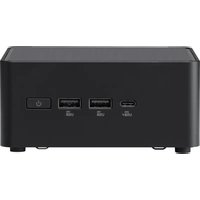
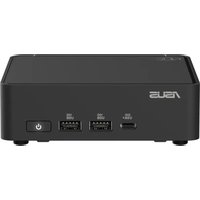
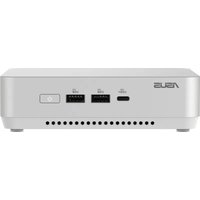
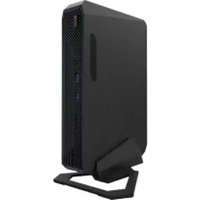
ASUS EEEBOX PC EB1033-B012G,  EEEBOX PC EB1033-B014E - Mini PC

EEEBOX PC EB1033-B012G, EEEBOX PC EB1033-B014E - Mini PC ASUS - Free user manual and instructions

Find the device manual for free EEEBOX PC EB1033-B012G, EEEBOX PC EB1033-B014E ASUS in PDF.
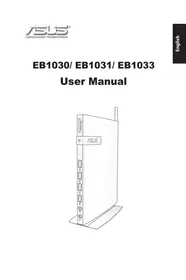
📄 240 pages English EN Download 💬 AI Question
Notice ASUS EEEBOX PC EB1033-B012G,  EEEBOX PC EB1033-B014E - page 4
Pick your language and provide your email: we'll send you a specifically translated version.

User questions about EEEBOX PC EB1033-B012G, EEEBOX PC EB1033-B014E ASUS

0 question about this device. Answer the ones you know or ask your own.

Ask a new question about this device

The email remains private: it is only used to notify you if someone responds to your question.

No questions yet. Be the first to ask one.

Download the instructions for your Mini PC in PDF format for free! Find your manual EEEBOX PC EB1033-B012G, EEEBOX PC EB1033-B014E - ASUS and take your electronic device back in hand. On this page are published all the documents necessary for the use of your device. EEEBOX PC EB1033-B012G, EEEBOX PC EB1033-B014E by ASUS.

USER MANUAL EEEBOX PC EB1033-B012G, EEEBOX PC EB1033-B014E ASUS

natural_image Line drawing of a Huawei ASUS wireless router with ports and antenna (no text or symbols on the device body)

E6785

First Edition

January 2012

No part of this manual, including the products and software described in it, may be reproduced, transmitted, transcribed, stored in a retrieval system, or translated into any language in any form or by any means, except documentation kept by the purchaser for backup purposes, without the express written permission of ASUSTeK COMPUTER, INC. ("ASUS").

Products and corporate names mentioned in this manual may or may not be registered trademarks or copyrights of their respective companies, and are used for identification purposes only. All trademarks are the property of their respective owners.

Every effort has been made to ensure that the contents of this manual are correct and up to date. However, the manufacturer makes no guarantee regarding the accuracy of its contents, and reserves the right to make changes without prior notice.

Contents

Contents....3

Notices....4

Safety information....9

Global Environmental Regulation Compliance and Declaration ....11

ASUS Recycling/Takeback Services 11

ENERGY STAR complied product....12

Notes for this manual....12

Welcome....13

Package contents....13

Knowing your PC 14

Front view....14

Rear view....16

Positioning your PC....18

Installing the stand (optional)....18

Installing your PC to a monitor (optional) 19

Setting up your PC....22

Connecting to a display....22

Connecting to USB devices....22

Connecting to a network device....23

Connecting to LAN 23

Connecting to Wi-Fi via wireless antenna 23

Turning on the system 24

Using your PC....25

Configuring wireless connection....25

Configuring wired connection....26

ASUS Easy Update 30

Recovering your system....31

Using the recovery partition....31

Using the USB storage device (USB Restore) 33

Notices

Federal Communications Commission Statement

This device complies with Part 15 of the FCC Rules. Operation is subject to the following two conditions:

• This device may not cause harmful interference, and
- This device must accept any interference received including interference that may cause undesired operation.

This equipment has been tested and found to comply with the limits for a Class B digital device, pursuant to Part 15 of the FCC Rules.

These limits are designed to provide reasonable protection against harmful interference in a residential installation. This equipment generates, uses and can radiate radio frequency energy and, if not installed and used in accordance with manufacturer's instructions, may cause harmful interference to radio communications. However, there is no guarantee that interference will not occur in a particular installation. If this equipment does cause harmful interference to radio or television reception, which can be determined by turning the equipment off and on, the user is encouraged to try to correct the interference by one or more of the following measures:

• Reorient or relocate the receiving antenna.
- Increase the separation between the equipment and receiver.
- Connect the equipment to an outlet on a circuit different from that to which the receiver is connected.
- Consult the dealer or an experienced radio/TV technician for help.

CAUTION: Any changes or modifications not expressly approved by the grantee of this device could void the user's authority to operate the equipment.

RF exposure warning

This equipment must be installed and operated in accordance with provided instructions and the antenna(s) used for this transmitter must be installed to provide a separation distance of at least 20 cm from all persons and must not be co-located or operating in conjunction with any other antenna or transmitter. End-users and installers must be provide with antenna installation instructions and transmitter operating conditions for satisfying RF exposure compliance.

Declaration of Conformity (R&TTE directive 1999/5/EC)

The following items were completed and are considered relevant and sufficient:

• Essential requirements as in [Article 3]
• Protection requirements for health and safety as in [Article 3.1a]
• Testing for electric safety according to [EN 60950]
- Protection requirements for electromagnetic compatibility in [Article 3.1b]
- Testing for electromagnetic compatibility according to [EN 301 489-1] & [EN 301 489-17]
• Effective use of the radio spectrum as in [Article 3.2]
• Radio test suites according to [EN 300 328-2]

CE Marking

CE

CE marking for devices without wireless LAN/Bluetooth

The shipped version of this device complies with the requirements of the EEC directives 2004/108/EC "Electromagnetic compatibility" and 2006/95/EC "Low voltage directive".

CE!

CE marking for devices with wireless LAN/ Bluetooth

This equipment complies with the requirements of Directive 1999/5/EC of the European Parliament and Commission from 9 March, 1999 governing Radio and Telecommunications Equipment and mutual recognition of conformity.

Wireless Operation Channel for Different Domains

N. America 2.412-2.462 GHz

Ch01 through CH11

Japan 2.412-2.484 GHz

Ch01 through Ch14

Europe ETSI 2.412-2.472 GHz

Ch01 through Ch13

France Restricted Wireless Frequency Bands

Some areas of France have a restricted frequency band. The worst case maximum authorized power indoors are:

• 10mW for the entire 2.4 GHz band (2400 MHz–2483.5 MHz)
• 100mW for frequencies between 2446.5 MHz and 2483.5 MHz

ASUS EEEBOX PC EB1033-B012G,  EEEBOX PC EB1033-B014E - France Restricted Wireless Frequency Bands - 1

Channels 10 through 13 inclusive operate in the band 2446.6 MHz to 2483.5 MHz.

There are few possibilities for outdoor use: On private property or on the private property of public persons, use is subject to a preliminary authorization procedure by the Ministry of Defense, with maximum authorized power of 100mW in the 2446.5–2483.5 MHz band. Use outdoors on public property is not permitted.

In the departments listed below, for the entire 2.4 GHz band:

• Maximum authorized power indoors is 100mW
• Maximum authorized power outdoors is 10mW

Departments in which the use of the 2400–2483.5 MHz band is permitted with an EIRP of less than 100mW indoors and less than 10mW outdoors:

01 Ain02 Aisne03 Allier
05 Hautes Alpes08 Ardennes09 Ariège
11 Aude12 Aveyron16 Charente
24 Dordogne25 Doubs26 Drôme
32 Gers36 Indre37 Indre et Loire
41 Loir et Cher45 Loiret50 Manche
55 Meuse58 Nièvre59 Nord
60 Oise61 Orne63 Puy du Dôme
64Pyrénées Atlantique66Pyrénées Orientales
67 Bas Rhin68 Haut Rhin
70Haute Saône71Saône et Loire
75 Paris82 Tarn et Garonne
84 Vaucluse88 Vosges89 Yonne

This requirement is likely to change over time, allowing you to use your wireless LAN card in more areas within France. Please check with ART for the latest information (www.arcep.fr)

ASUS EEEBOX PC EB1033-B012G,  EEEBOX PC EB1033-B014E - France Restricted Wireless Frequency Bands - 2

Your WLAN Card transmits less than 100mW, but more than 10mW.

Canadian Department of Communications Statement

This digital apparatus does not exceed the Class B limits for radio noise emissions from digital apparatus set out in the Radio Interference Regulations of the Canadian Department of Communications.

This class B digital apparatus complies with Canadian ICES-003.

IC Radiation Exposure Statement for Canada

This equipment complies with IC radiation exposure limits set forth for an uncontrolled environment. To maintain compliance with IC RF exposure compliance requirements, please avoid direct contact to the transmitting antenna during transmitting. End users must follow the specific operating instructions for satisfying RF exposure compliance.

Operation is subject to the following two conditions:

• This device may not cause interference and
- This device must accept any interference, including interference that may cause undesired operation of the device.

REACH

Complying with the REACH (Registration, Evaluation, Authorization, and Restriction of Chemicals) regulatory framework, we publish the chemical substances in our products at ASUS REACH website at http://csr.asus.com/english/REACH.htm.

Safety information

Your PC is designed and tested to meet the latest standards of safety for information technology equipment. However, to ensure your safety, it is important that you read the following safety instructions.

Setting up your system

  • Read and follow all instructions in the documentation before you operate your system.
  • Do not use this product near water or a heated source such as a radiator.
  • Use the provided stand according to need. Be sure to set up the system on a stable surface when using the stand.
  • Openings on the chassis are for ventilation. Do not block or cover these openings. Make sure you leave plenty of space around the system for ventilation. Never insert objects of any kind into the ventilation openings.
  • Use this product in environments with ambient temperatures between 0^ C and 35^ C.
  • If you use an extension cord, make sure that the total ampere rating of the devices plugged into the extension cord does not exceed its ampere rating.

Care during use

  • Do not walk on the power cord or allow anything to rest on it.
  • Do not spill water or any other liquids on your system.
  • Setting the rotation wheel upright when the system is in use is recommended.
  • When the system is turned off, a small amount of electrical current still flows. Always unplug all power, modem, and network cables from the power outlets before cleaning the system.
    • If you encounter the following technical problems with the

product, unplug the power cord and contact a qualified service technician or your retailer.

• The power cord or plug is damaged.
• Liquid has been spilled into the system.
- The system does not function properly even if you follow the operating instructions.
• The system was dropped or the cabinet is damaged.
• The system performance changes.

Lithium-Ion Battery Warning

CAUTION: Danger of explosion if battery is incorrectly replaced. Replace only with the same or equivalent type recommended by the manufacturer. Dispose of used batteries according to the manufacturer's instructions.

LASER PRODUCT WARNING

CLASS 1 LASER PRODUCT

NO DISASSEMBLY The warranty does not apply to the products that have been disassembled by users
ASUS EEEBOX PC EB1033-B012G,  EEEBOX PC EB1033-B014E - NO DISASSEMBLY The warranty does not apply to the products that have been disassembled by users - 1

DO NOT throw the PC in municipal waste. This product has been designed to enable proper reuse of parts and recycling. This symbol of the crossed out wheeled bin indicates that the product (electrical, electronic equipment, and mercury-containing button cell battery) should not be placed in municipal waste. Check local technical support services for product recycling.

ASUS EEEBOX PC EB1033-B012G,  EEEBOX PC EB1033-B014E - NO DISASSEMBLY The warranty does not apply to the products that have been disassembled by users - 2

DO NOT throw the battery in municipal waste. This symbol of the crossed out wheeled bin indicates that the battery should not be placed in municipal waste. Check local technical support services for battery replacement.

Global Environmental Regulation Compliance and Declaration

ASUS follows the green design concept to design and manufacture our products, and makes sure that each stage of the product life cycle of ASUS product is in line with global environmental regulations. In addition, ASUS disclose the relevant information based on regulation requirements.

Please refer to http://csr.asus.com/english/Compliance.htm for information disclosure based on regulation requirements ASUS is complied with:

Japan JIS-C-0950 Material Declarations
EU REACH SVHC
Swiss Energy Laws

ASUS Recycling/Takeback Services

ASUS recycling and takeback programs come from our commitment to the highest standards for protecting our environment. We believe in providing solutions for you to be able to responsibly recycle our products, batteries, other components as well as the packaging materials. Please go to http://csr.asus.com/english/Takeback.htm for detailed recycling information in different regions.

ENERGY STAR complied product

ASUS EEEBOX PC EB1033-B012G,  EEEBOX PC EB1033-B014E - ENERGY STAR complied product - 1

text_image Energy ENERGY STAR

ENERGY STAR is a joint program of the U.S. Environmental Protection Agency and the U.S. Department of Energy helping us all save money and protect the environment through energy efficient products and practices.

All ASUS products with the ENERGY STAR

logo comply with the ENERGY STAR standard, and the power management feature is enabled by default. The monitor and computer are automatically set to sleep after 15 and 30 minutes of user inactivity. To wake your computer, click the mouse or press any key on the keyboard.

Please visit http://www.energy.gov/powermanagement for detail information on power management and its benefits to the environment. In addition, please visit http://www.energystar.gov for detail information on the ENERGY STAR joint program.

ASUS EEEBOX PC EB1033-B012G,  EEEBOX PC EB1033-B014E - ENERGY STAR complied product - 2

ENERGY STAR is NOT supported on FreeDOS-based products or without OS.

Notes for this manual

To make sure that you perform certain tasks properly, take note of the following symbols used throughout this manual.

ASUS EEEBOX PC EB1033-B012G,  EEEBOX PC EB1033-B014E - Notes for this manual - 1

WARNING: Vital information that you MUST follow to prevent injury to yourself.

ASUS EEEBOX PC EB1033-B012G,  EEEBOX PC EB1033-B014E - Notes for this manual - 2

IMPORTANT: Instructions that you MUST follow to complete a task.

ASUS EEEBOX PC EB1033-B012G,  EEEBOX PC EB1033-B014E - Notes for this manual - 3

TIP: Tips and useful information that help you complete a task.

ASUS EEEBOX PC EB1033-B012G,  EEEBOX PC EB1033-B014E - Notes for this manual - 4

NOTE: Additional information for special situations.

Welcome

Congratulations on your purchase of EB1030/ EB1031/ EB1033. The following illustrations display the package contents of your new PC. If any of the below items is damaged or missing, contact your retailer.

Package contents
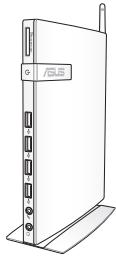
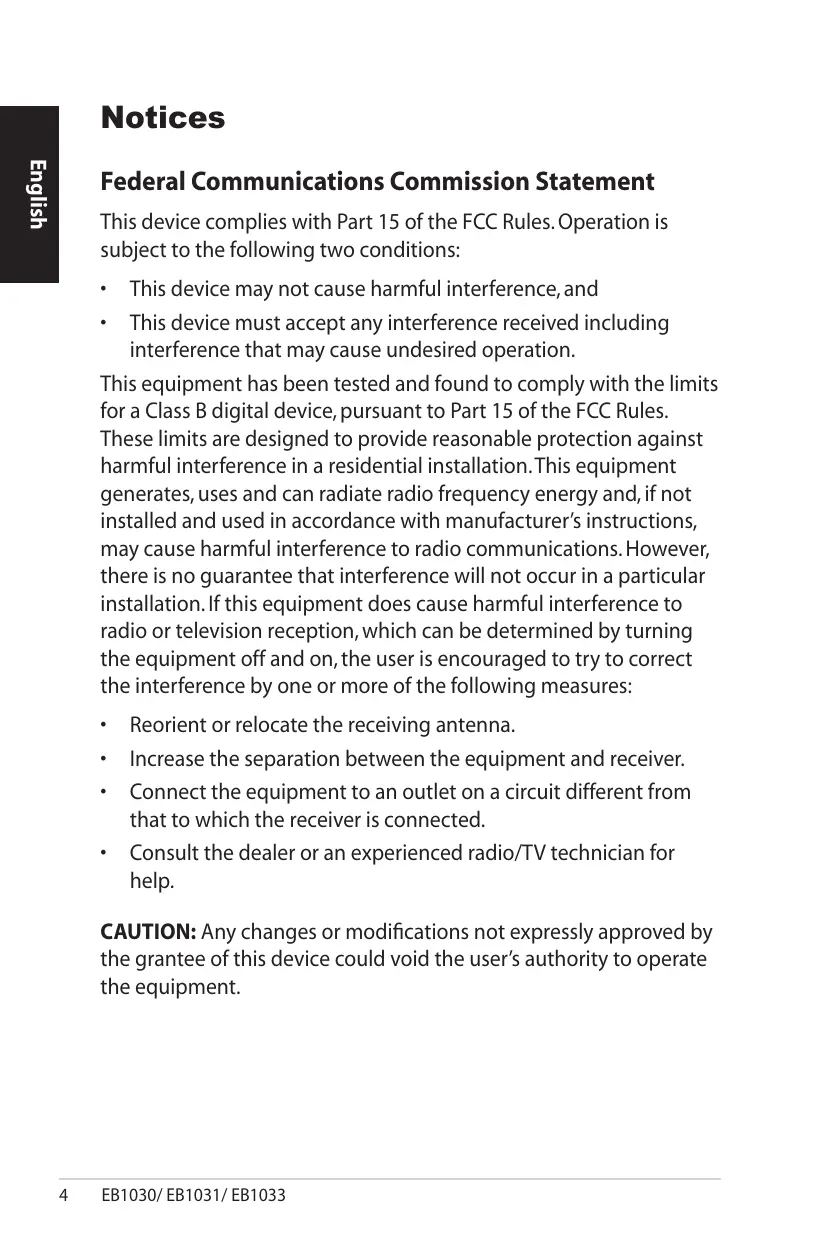
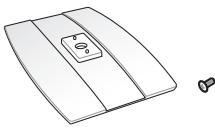
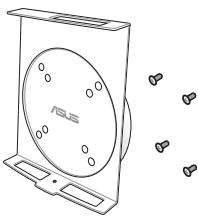
ASUS EEEBOX PC EB1033-B012G,  EEEBOX PC EB1033-B014E - Welcome - 1ASUS EEEBOX PC EB1033-B012G,  EEEBOX PC EB1033-B014E - Welcome - 2ASUS EEEBOX PC EB1033-B012G,  EEEBOX PC EB1033-B014E - Welcome - 3
EB1030/ EB1031/ EB1033Stand (optional)VESA mount and Screw pack (optional)
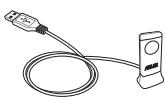
ASUS EEEBOX PC EB1033-B012G,  EEEBOX PC EB1033-B014E - Welcome - 4###ASUS EEEBOX PC EB1033-B012G,  EEEBOX PC EB1033-B014E - Welcome - 5
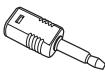
Remote Receiver (optional)AntennaMini jack to S/PDIF adapter (EB1031/EB1033)
ASUS EEEBOX PC EB1033-B012G,  EEEBOX PC EB1033-B014E - Welcome - 6ASUS EEEBOX PC EB1033-B012G,  EEEBOX PC EB1033-B014E - Welcome - 7ASUS EEEBOX PC EB1033-B012G,  EEEBOX PC EB1033-B014E - Welcome - 8
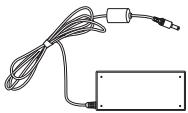
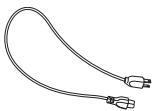
AC adapterPower cord
ASUS EEEBOX PC EB1033-B012G,  EEEBOX PC EB1033-B014E - Welcome - 9ASUS EEEBOX PC EB1033-B012G,  EEEBOX PC EB1033-B014E - Welcome - 10
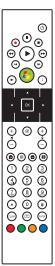
Remote Control (optional)Warranty cardQuick start guide

ASUS EEEBOX PC EB1033-B012G,  EEEBOX PC EB1033-B014E - Welcome - 11

If the device or its components fail or malfunction during normal and proper use within the warranty period, bring the warranty card to the ASUS Service Center for replacement of the defective components.

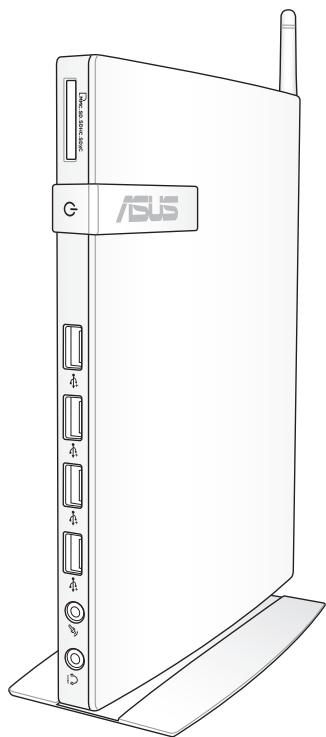
Front view

Refer to the diagram below to identify the components on this side of the system.
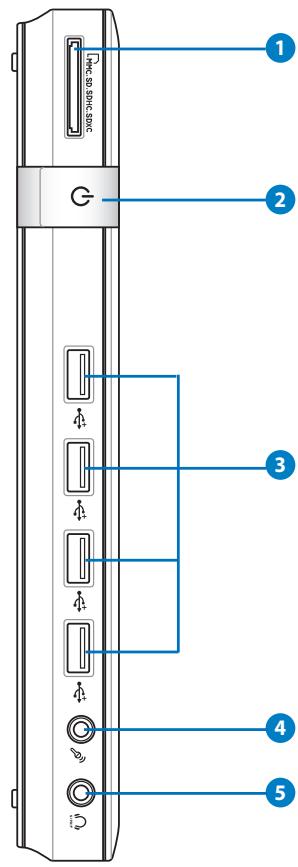
ASUS EEEBOX PC EB1033-B012G,  EEEBOX PC EB1033-B014E - Front view - 1

text_image 1 2 3 4 5

1 Memory card slot

The built-in memory card reader reads MMC/SD/SDHC/SDXC cards used in devices like digital cameras, MP3 players, mobile phones, and PDAs.

2 Power switch

The power switch allows powering ON and OFF the system.

3 USB port

The USB (Universal Serial Bus) port is compatible with USB devices such as keyboards, mouse devices, cameras, and hard disk drives. USB allows many devices to run simultaneously on a single computer, with some peripheral acting as additional plug-in sites or hubs.

4 Microphone jack

The microphone jack is designed to connect the microphone used for video conferencing, voice narrations, or simple audio recordings.

5 📊 Headphone/Audio Out (S/PDIF Out) jack

The stereo headphone jack is used to connect the system's audio out signal to amplified speakers or headphones. Plug an 3.5mm mini-jack audio cable into this jack for analog or digital audio transfer.

ASUS EEEBOX PC EB1033-B012G,  EEEBOX PC EB1033-B014E - 📊 Headphone/Audio Out (S/PDIF Out) jack - 1

ASUS EEEBOX PC EB1033-B012G,  EEEBOX PC EB1033-B014E - 📊 Headphone/Audio Out (S/PDIF Out) jack - 2

For S/PDIF Out function, use the optional mini jack to S/PDIF adapter to connect to your amplifier. (EB1031/ EB1033 only)

ASUS EEEBOX PC EB1033-B012G,  EEEBOX PC EB1033-B014E - 📊 Headphone/Audio Out (S/PDIF Out) jack - 3

Rear view

Refer to the diagram below to identify the components on this side of the system.
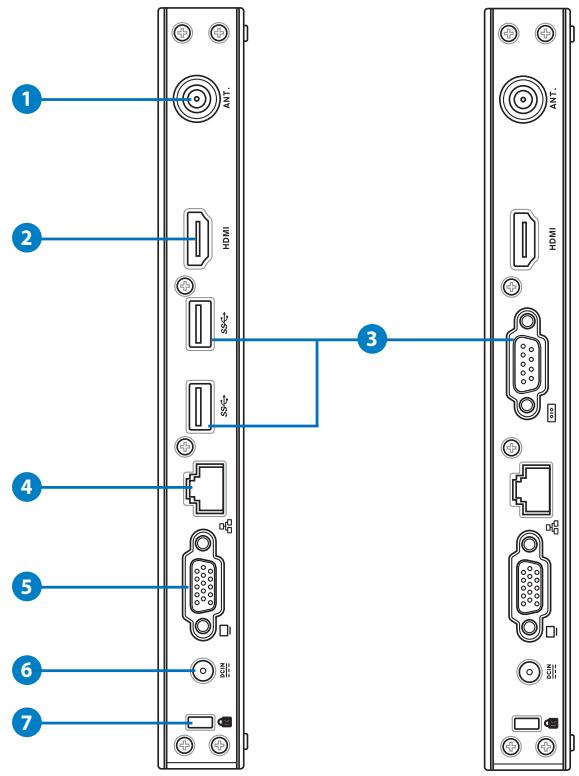
ASUS EEEBOX PC EB1033-B012G,  EEEBOX PC EB1033-B014E - Rear view - 1

text_image 1 2 3 4 5 6 7

1 (●) Antenna jack

The jack is used to connect the supplied wireless antenna to enhance wireless signal reception.

ASUS EEEBOX PC EB1033-B012G,  EEEBOX PC EB1033-B014E - (●) Antenna jack - 1

The antenna is installable/ removable according to need. Fasten the antenna onto the PC for better signal reception when Wi-Fi is in use.

2 HDMI HDMI port

The HDMI (High Definition Multimedia Interface) port supports a Full-HD device such as an LCD TV or monitor to allow viewing on a larger external display.

3 ss↔ USB port (3.0) (EB1031/EB1033)

The USB (Universal Serial Bus) port is compatible with USB devices such as keyboards, mouse devices, cameras, and hard disk drives. USB allows many devices to run simultaneously on a single computer, with some peripheral acting as additional plug-in sites or hubs.

Serial Port (COM Port) (EB1030)

The 9-pin D-sub serial port supports native serial devices such as a serial drawing tablets, serial mouse, or serial modem.

4 LAN port

The eight-pin RJ-45 LAN port supports a standard Ethernet cable for connection to a local network.

5 □ Display (Monitor) Output

The 15-pin D-sub monitor port supports a standard VGA-compatible device such as a monitor or projector to allow viewing on a larger external display.

6 DCIN Power input (DC 19V, 2.1A)

The supplied power adapter converts AC power to DC power for use with this jack. Power supplied through this jack supplies power to the PC. To prevent damage to the PC, always use the supplied power adapter.

ASUS EEEBOX PC EB1033-B012G,  EEEBOX PC EB1033-B014E - DCIN Power input (DC 19V, 2.1A) - 1

The power adapter may become warm to hot when in use. Do not cover the adapter and keep it away from your body.

7 Kensington® Lock Port

The Kensington ^® lock port allows the PC to be secured using Kensington ^® compatible security products. These security products usually include a metal cable and lock that prevent the PC to be removed from a fixed object.

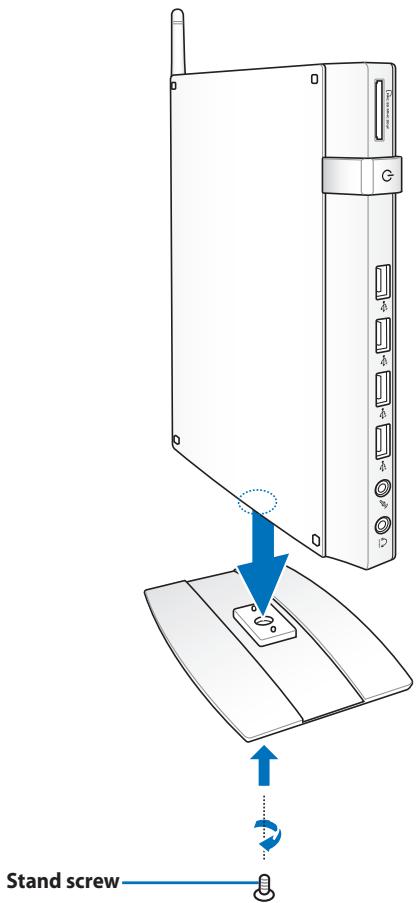
Installing the stand (optional)

Erect your EB1030/ EB1031/ EB1033 with the optional stand.

To do so:

  1. Locate the screw hole on the bottom of the PC.
  2. Align the stand screw to the PC screw hole, and then secure the stand to the PC with a screw driver.

ASUS EEEBOX PC EB1033-B012G,  EEEBOX PC EB1033-B014E - Installing the stand (optional) - 1

text_image Stand screw

Installing your PC to a monitor (optional)

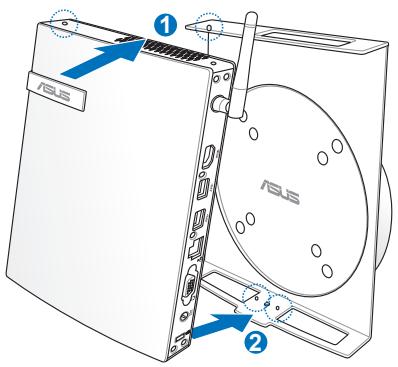
You can also install your EB1030/ EB1031/ EB1033 to the back of a monitor. To do so:

  1. Secure the optional VESA mount to your monitor with the four screws provided by the VESA mount kit.

ASUS EEEBOX PC EB1033-B012G,  EEEBOX PC EB1033-B014E - Installing your PC to a monitor (optional) - 1

To fasten the VESA mount, your monitor must comply with VESA75 or VESA100 standard.
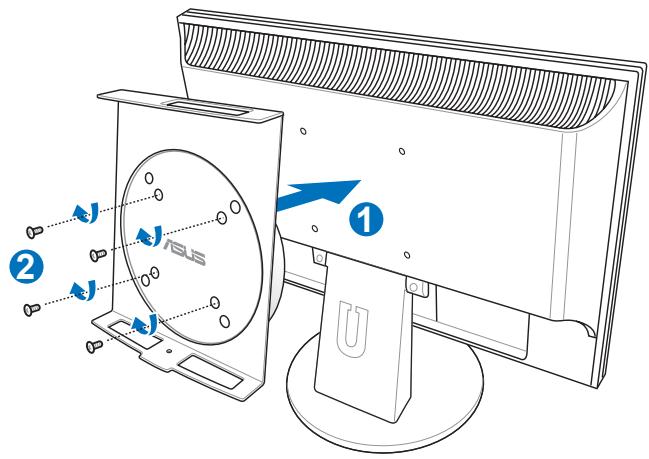
ASUS EEEBOX PC EB1033-B012G,  EEEBOX PC EB1033-B014E - Installing your PC to a monitor (optional) - 2

text_image ① ② J J ASUS
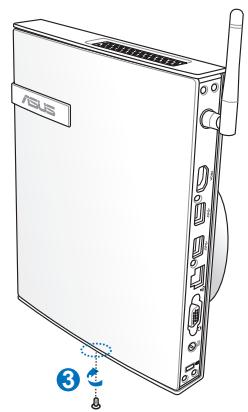
  1. Place your PC onto the VESA mount noting the correct alignment, and then secure the PC to the VESA mount from below with the stand screw.
ASUS EEEBOX PC EB1033-B012G,  EEEBOX PC EB1033-B014E - Installing your PC to a monitor (optional) - 3

text_image ① ASUS ② ASUS

ASUS EEEBOX PC EB1033-B012G,  EEEBOX PC EB1033-B014E - Installing your PC to a monitor (optional) - 4

natural_image Line drawing of a Huawei ASIS server with visible ports and ventilation slots (no text or symbols)

ASUS EEEBOX PC EB1033-B012G,  EEEBOX PC EB1033-B014E - Installing your PC to a monitor (optional) - 5

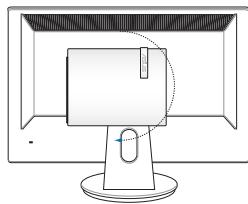
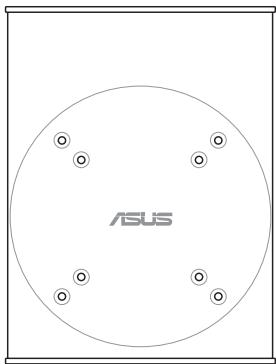
Make sure that the ASUS trademark on the rotation wheel of the VESA mount is set to its customary position when putting in the PC so that the machine can rotate properly.
ASUS EEEBOX PC EB1033-B012G,  EEEBOX PC EB1033-B014E - Installing your PC to a monitor (optional) - 6

natural_image Circular diagram with four dots and the word 'ASUS' at the center, no additional text or symbols present.
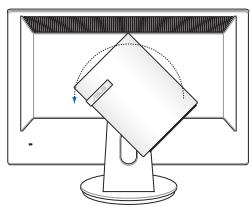
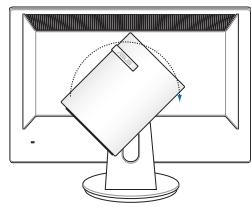
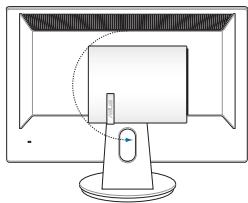
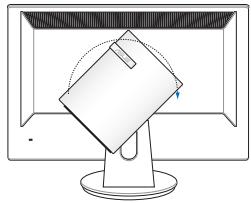
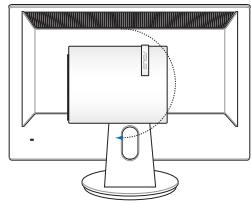
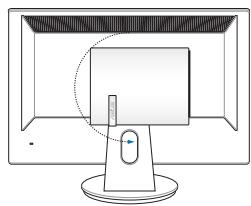
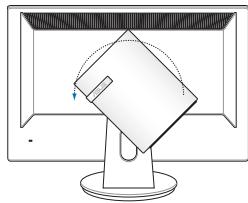
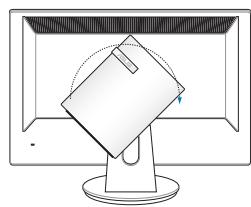
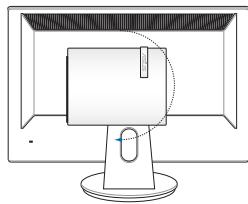
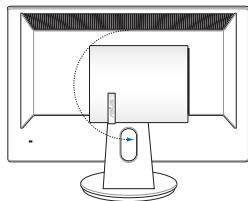
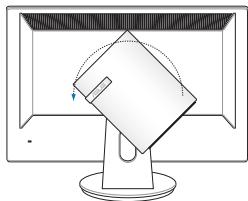
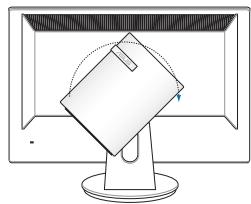
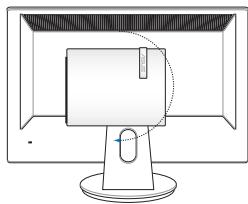
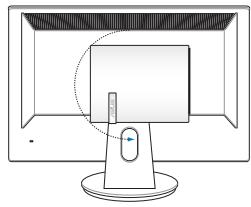
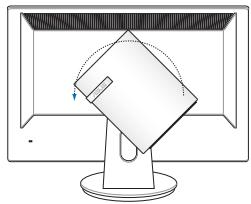
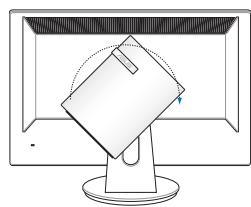
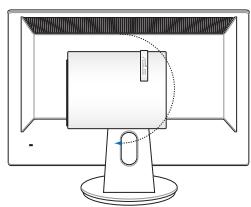
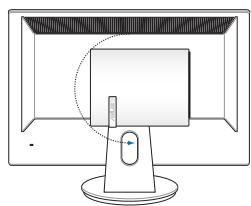
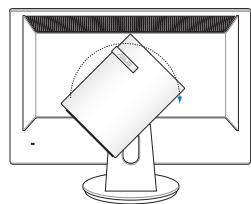
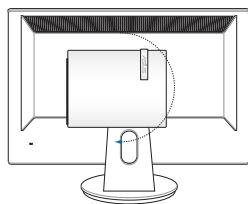
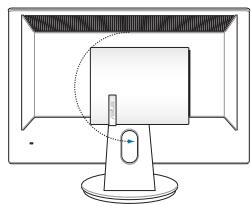
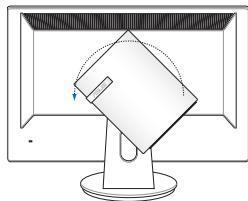
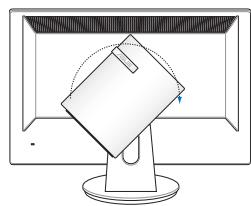
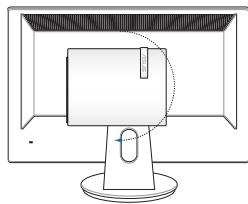
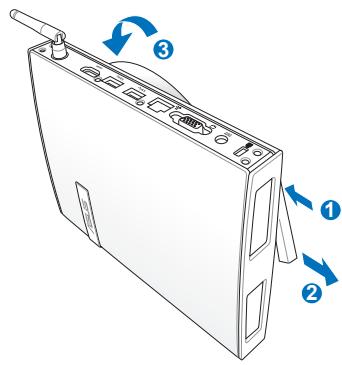
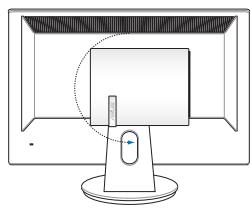
  1. The VESA mount is designed for you to rotate the PC so to use the front and rear I/O ports at convenient angles. To turn the PC secured in the VESA mount, press the lever switch at the bottom of the VESA mount to unlock the wheel. Then turn according to preference.
ASUS EEEBOX PC EB1033-B012G,  EEEBOX PC EB1033-B014E - Installing your PC to a monitor (optional) - 7

text_image Diagram of a computer case with labeled parts and directional arrows indicating rotation or movement

ASUS EEEBOX PC EB1033-B012G,  EEEBOX PC EB1033-B014E - Installing your PC to a monitor (optional) - 8

natural_image Line drawing of a computer monitor with a stand and a screen, no text or symbols present

ASUS EEEBOX PC EB1033-B012G,  EEEBOX PC EB1033-B014E - Installing your PC to a monitor (optional) - 9

natural_image Simple line drawing of a computer monitor with a screen and a stand, no text or symbols present.

ASUS EEEBOX PC EB1033-B012G,  EEEBOX PC EB1033-B014E - Installing your PC to a monitor (optional) - 10

natural_image Illustration of a computer monitor displaying a tilted rectangular object on its screen (no text or symbols visible)

ASUS EEEBOX PC EB1033-B012G,  EEEBOX PC EB1033-B014E - Installing your PC to a monitor (optional) - 11

natural_image Line drawing of a computer monitor with a stand and screen (no text or symbols)

ASUS EEEBOX PC EB1033-B012G,  EEEBOX PC EB1033-B014E - Installing your PC to a monitor (optional) - 12

  1. Setting the rotation wheel upright when the system is in use is recommended.
  2. Please take note of the cables connected to the PC while operating the rotation wheel. To prevent hazards from loosened cables, the wheel is designed to rotate no more than 90^ clock/ counterclock-wise.

You need to connect peripherals before using your EB1030/ EB1031/ EB1033.

Connecting to a display

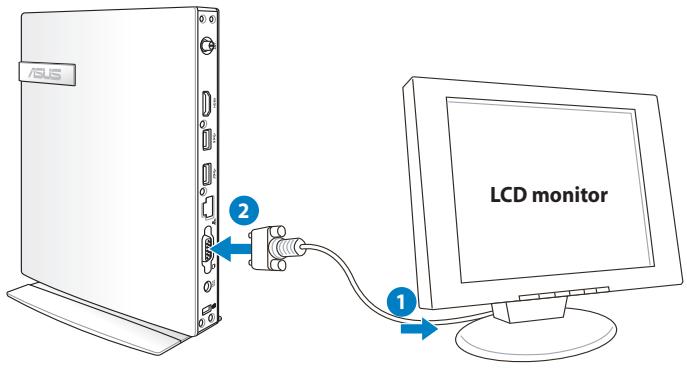
Connect one end of the VGA cable to an LCD monitor (1) and the other end to the Display (Monitor) Output port on the system rear panel (2).
ASUS EEEBOX PC EB1033-B012G,  EEEBOX PC EB1033-B014E - Connecting to a display - 1

text_image SUS 2 LCD monitor 1

Connecting to USB devices

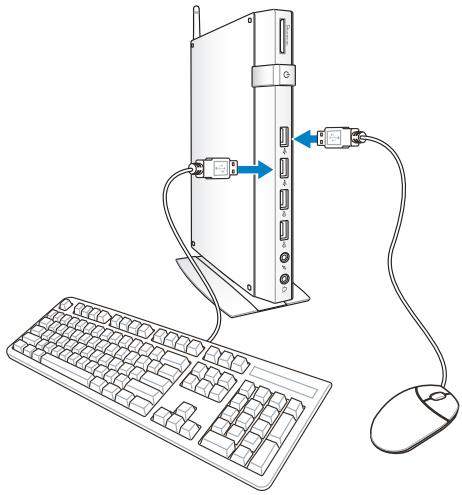
Connect USB devices like wired/wireless keyboards (vary by areas), mouse devices, and printers to the USB ports on the system front or rear panels.
ASUS EEEBOX PC EB1033-B012G,  EEEBOX PC EB1033-B014E - Connecting to USB devices - 1

natural_image Line drawing of a computer setup with a tower, keyboard, mouse, and cable (no text or symbols)

Connecting to a network device

Connecting to LAN

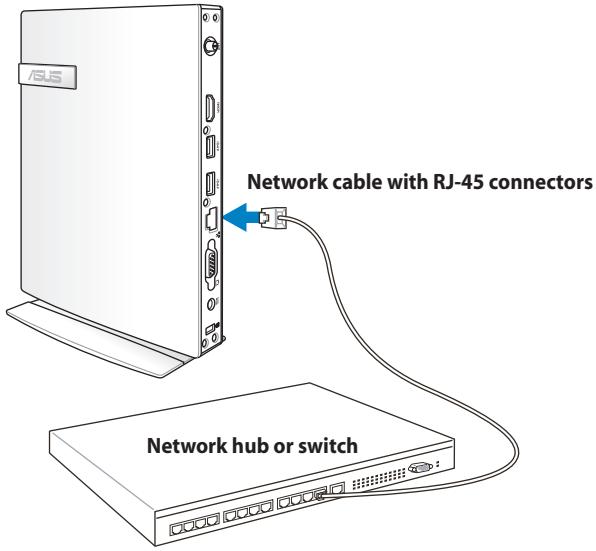
Connect one end of a network cable to the LAN port on the system rear panel and the other end to a hub or switch.
ASUS EEEBOX PC EB1033-B012G,  EEEBOX PC EB1033-B014E - Connecting to LAN - 1

text_image RSU Network cable with RJ-45 connectors Network hub or switch

Connecting to Wi-Fi via wireless antenna

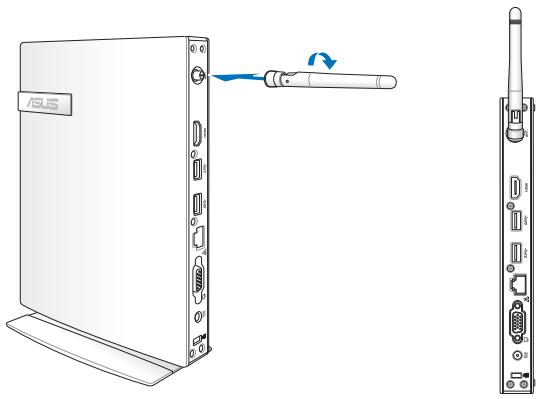
The wireless antenna is provided for enhancing wireless signal reception. The antenna is installable/ removable according to need. Fasten the antenna onto the PC for better signal reception when Wi-Fi is in use

ASUS EEEBOX PC EB1033-B012G,  EEEBOX PC EB1033-B014E - Connecting to Wi-Fi via wireless antenna - 1

natural_image Diagram of a Sony USB router with an external cable, shown from front and side views (no text or symbols)

Turning on the system

Connect the supplied AC adapter to the DC IN jack on the system rear panel, and then press the power switch on the front panel to turn on the system.
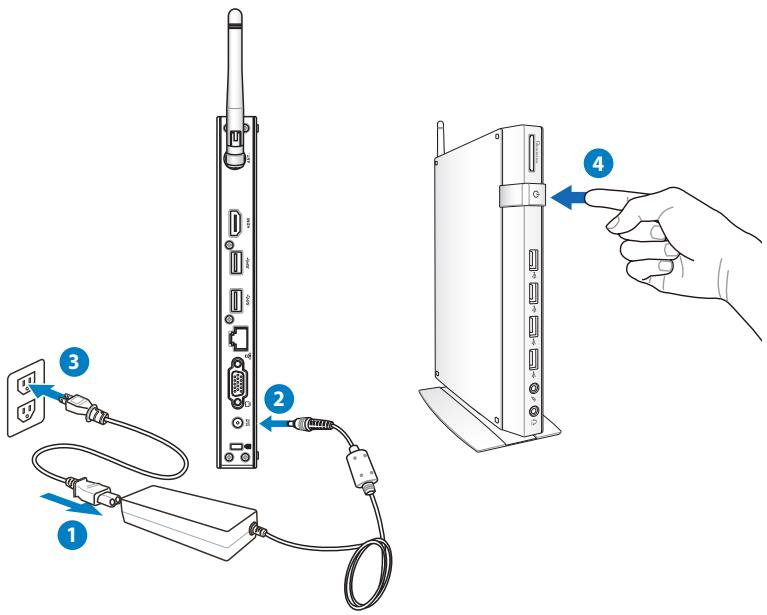

ASUS EEEBOX PC EB1033-B012G,  EEEBOX PC EB1033-B014E - Turning on the system - 1

text_image Diagram showing cable connection to a device with labeled components and a hand pointing to the right panel.

ASUS EEEBOX PC EB1033-B012G,  EEEBOX PC EB1033-B014E - Turning on the system - 2

  • When your PC is not in use, unplug the power adapter or switch off the AC outlet to save on power consumption.
  • Adjust the power management settings in the Window® Control Panel. This is to ensure that your PC is set to a low power consumption mode and is fully operational at the same time.

ASUS EEEBOX PC EB1033-B012G,  EEEBOX PC EB1033-B014E - Turning on the system - 3

To enter the BIOS setup, press repeatedly during bootup.

ASUS EEEBOX PC EB1033-B012G,  EEEBOX PC EB1033-B014E - Turning on the system - 4

All screenshots in this section are for reference only. Actual screen images may vary with operating systems. Visit the ASUS website at www.asus.com for the latest information.

Configuring wireless connection

To connect to a wireless network, follow the instructions below:

ASUS EEEBOX PC EB1033-B012G,  EEEBOX PC EB1033-B014E - Configuring wireless connection - 1

For security concerns, DO NOT connect to an unsecured network. Otherwise, the transmitted information without encryption might be visible to others.

  1. Click the wireless network icon with an orange star 📋 in the Windows® Notification area.
  2. Select the wireless access point you want to connect to from the list and click Connect to build the connection.

ASUS EEEBOX PC EB1033-B012G,  EEEBOX PC EB1033-B014E - Configuring wireless connection - 2

If you cannot find the desired access point, click the Refresh icon ↗ on the upper right corner to refresh and search in the list again.

ASUS EEEBOX PC EB1033-B012G,  EEEBOX PC EB1033-B014E - Configuring wireless connection - 3

text_image Currently connected to: Unidentified network No Internet access Wireless Network Connection Steven Office Connect automatically Connect Joshua_Peng WL-520GC ASUS_GUEST Open Network and Sharing Center
  1. When connecting, you may have to enter a password.
  2. After a connection has been established, the connection is shown on the list.
  3. You can see the wireless network icon in the Notification area.

Configuring wired connection

To establish a wired network, follow the instructions below:

Using a dynamic IP / PPPoE network connection:

  1. Click the network icon with a yellow warning triangle in the Windows® Notification area and select Open Network and Sharing Center.
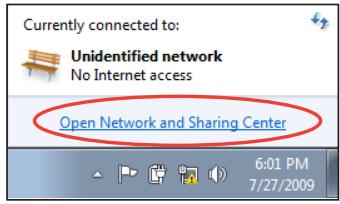
ASUS EEEBOX PC EB1033-B012G,  EEEBOX PC EB1033-B014E - Configuring wired connection - 1

text_image Currently connected to: Unidentified network No Internet access Open Network and Sharing Center 6:01 PM 7/27/2009
  1. Click Change adapter settings in the left blue pane.
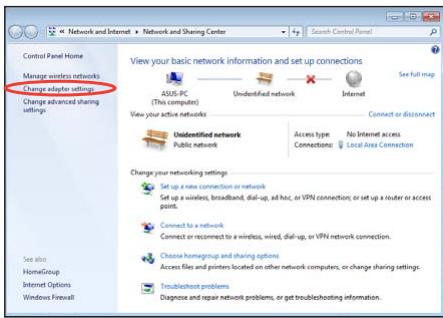
ASUS EEEBOX PC EB1033-B012G,  EEEBOX PC EB1033-B014E - Configuring wired connection - 2

text_image Network and Internet Network and Sharing Center Control Panel Home Manage wireless networks Change adapter settings Change advanced sharing settings View your basic network information and set up connections ASUS-PC (This computer) Undidentified network Internet View your active networks Undidentified network Public network Connect or disconnect Access type Connections No Internet access Local Area Connection Change your networking settings Set up a new connection or network Set up a wireless, broadband, dial-up, ad hoc, or VPN connection; or set up a router or access point. Connect to a network Connect or reconnect to a wireless, wired, dial-up, or VPN network connection. Choose homegroup and sharing options Access files and printers located on other network computers, or change sharing settings. Troubleshoot problems Diagnose and repair network problems, or get troubleshooting information.
  1. Right-click Local Area Connection and select Properties.
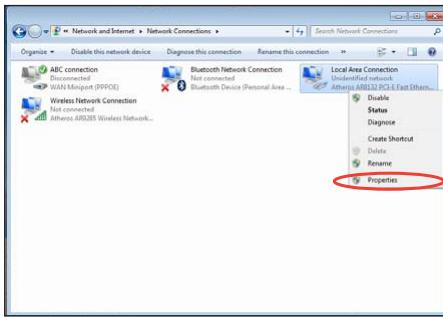
ASUS EEEBOX PC EB1033-B012G,  EEEBOX PC EB1033-B014E - Configuring wired connection - 3

text_image Network and Internet Network Connections Organize Disable this network device Diagnose this connection Rename this connection ABC connection Disconnected WASI Mongolia (PPDOS) Wireless Network Connection Not connected Atheros ARDS/RS Wireless Network... Bluetooth Network Connection Not connected Bluetooth Device (Personal Area... Local Area Connection Undefined network Atheros ARDS/RS PCS E Fact Others... Status Disable Diagnose Create Shortcut Delete Rename Properties

4. Click Internet Protocol Version 4(TCP/IPv4) and click Properties.

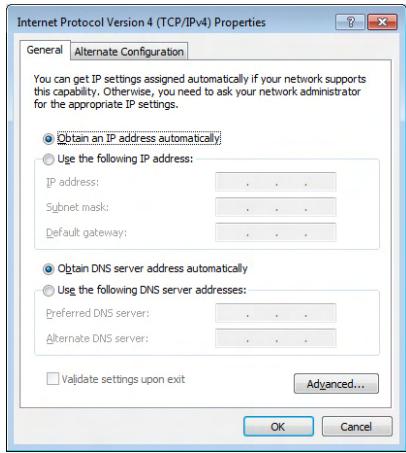
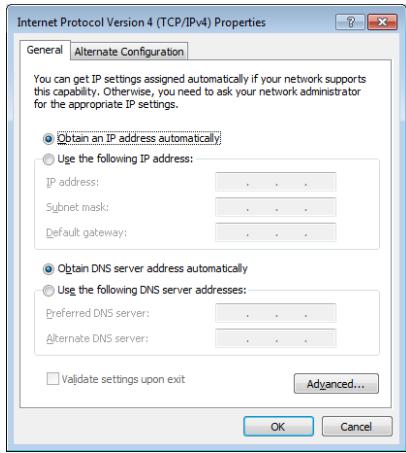
5. Click Obtain an IP address automatically and click OK.

ASUS EEEBOX PC EB1033-B012G,  EEEBOX PC EB1033-B014E - Click Obtain an IP address automatically and click OK. - 1
text_image Local Area Connection Properties Networking Connect using: Atheros AR8132 PCI-E Fast Ethernet Controller Configure... This connection uses the following items: ✓ Client for Microsoft Networks ✓ Trend Micro NDIS 6.0 Filter Driver ✓ QoS Packet Scheduler ✓ File and Printer Sharing for Microsoft Networks ✓ Internet Protocol Version 6 (TCP/IPv6) ✓ Internet Protocol Version 4 (TCP/IPv4) ✓ Link-Layer Topology Discovery Mapper I/O Driver ✓ Link-Layer Topology Discovery Responder Install... Uninstall Properties Description Transmission Control Protocol/Internet Protocol. The default wide area network protocol that provides communication across diverse interconnected networks. OK Cancel

ASUS EEEBOX PC EB1033-B012G,  EEEBOX PC EB1033-B014E - Click Obtain an IP address automatically and click OK. - 2

text_image Internet Protocol Version 4 (TCP/IPv4) Properties General Alternate Configuration You can get IP settings assigned automatically if your network supports this capability. Otherwise, you need to ask your network administrator for the appropriate IP settings. Obtain an IP address automatically Use the following IP address: IP address: .. Subnet mask: .. Default gateway: .. Obtain DNS server address automatically Use the following DNS server addresses: Preferred DNS server: .. Alternate DNS server: .. Validate settings upon exit Advanced... OK Cancel

(Continue the following steps if using PPPoE)

6. Return to the Network and Sharing Center and then click Set up a new connection or network.
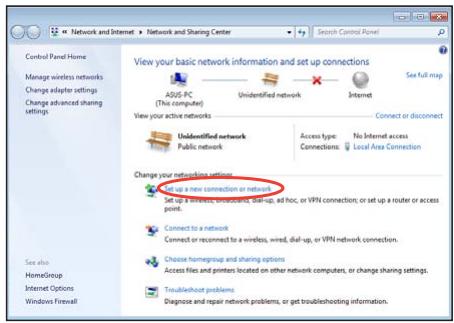
ASUS EEEBOX PC EB1033-B012G,  EEEBOX PC EB1033-B014E - Return to the Network and Sharing Center and then click Set up a new connection or network. - 1

text_image Network and Internet Control Panel Home Manage wireless networks Change adapter settings Change advanced sharing settings View your basic network information and set up connections ASUS PC (This computer) Unidentified network Internet See full map View your active networks Connect or disconnect Unidentified network Public network Access type: No Internet access Connections Local Area Connection Change your networking settings Choose a new connection or network Set up a wireless, wireless, dial-up, ad hoc, or VPN connection; or set up a router or access point. Connect to a network Connect or reconnect to a wireless, wired, dial-up, or VPN network connection. Choose homegroup and sharing options Access files and printers located on other network computers, or change sharing settings. Troubleshoot problems Diagnose and repair network problems, or get troubleshooting information.

7. Select Connect to the Internet and click Next.
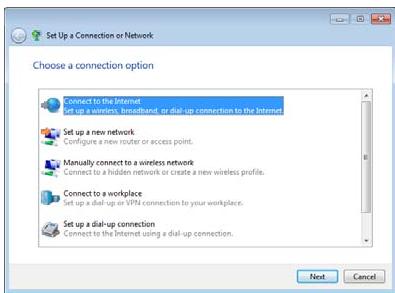
ASUS EEEBOX PC EB1033-B012G,  EEEBOX PC EB1033-B014E - Select Connect to the Internet and click Next. - 1

text_image Set Up a Connection or Network Choose a connection option Connect to the Internet Set up a wireless, broadband, or dial-up connection to the Internet Set up a new network Configure a new router or access point. Manually connect to a wireless network Connect to a hidden network or create a new wireless profile. Connect to a workplace Set up a dial-up or VPN connection to your workplace. Set up a dial-up connection Connect to the Internet using a dial-up connection. Next Cancel

8. Select Broadband (PPPoE) and click Next.
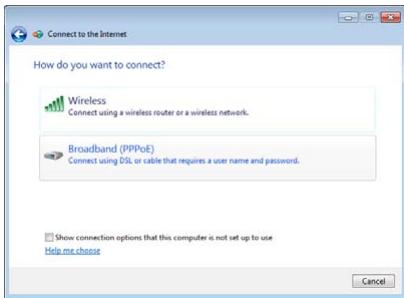
ASUS EEEBOX PC EB1033-B012G,  EEEBOX PC EB1033-B014E - Select Broadband (PPPoE) and click Next. - 1

text_image Connect to the Internet How do you want to connect? Wireless Connect using a wireless router or a wireless network. Broadband (PPPoE) Connect using DSL or cable that requires a user name and password. Show connection options that this computer is not set up to use Help me choose Cancel

9. Enter your User name and, Password, and Connection name. Click Connect.

ASUS EEEBOX PC EB1033-B012G,  EEEBOX PC EB1033-B014E - Enter your User name and, Password, and Connection name. Click Connect. - 1

text_image Connect to the Internet Type the information from your Internet service provider (ISP) User name: ASUS Password: ****** Show characters Remember this password Connection game: ABC connection Allow other people to use this connection This option allows anyone with access to this computer to use this connection. I don't have an ISP Connect Cancel

10. Click Close to finish the configuration.
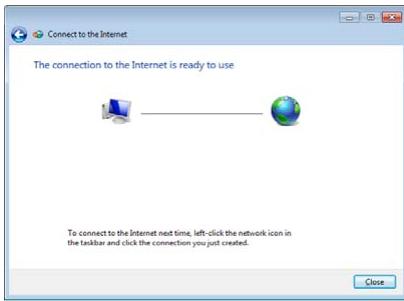
ASUS EEEBOX PC EB1033-B012G,  EEEBOX PC EB1033-B014E - Click Close to finish the configuration. - 1

text_image Connect to the Internet The connection to the Internet is ready to use To connect to the Internet next time, left-click the network icon in the taskbar and click the connection you just created. Close
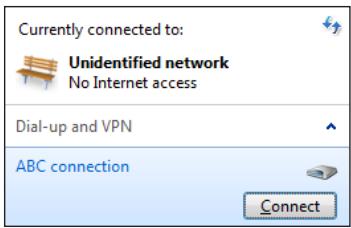
11. Click the network icon in the taskbar and click the connection you just created.

ASUS EEEBOX PC EB1033-B012G,  EEEBOX PC EB1033-B014E - Click the network icon in the taskbar and click the connection you just created. - 1

text_image Currently connected to: Unidentified network No Internet access Dial-up and VPN ABC connection Connect

12. Enter your user name and password. Click Connect to connect to the Internet.
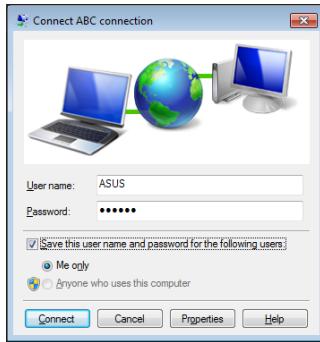
ASUS EEEBOX PC EB1033-B012G,  EEEBOX PC EB1033-B014E - Enter your user name and password. Click Connect to connect to the Internet. - 1

text_image Connect ABC connection User name: ASUS Password: •••••• Save this user name and password for the following users Me only Anyone who uses this computer Connect Cancel Properties Help

Using a static IP:

  1. Repeat steps 1–4 in Using a dynamic IP to start the static IP network configuration.
    2 Click Use the following IP address.
  2. Enter the IP address, Subnet mask and Gateway from your service provider.
  3. If needed, enter the preferred DNS Server address and alternative address.
  4. After entering all the related values, click OK to build the network connection.
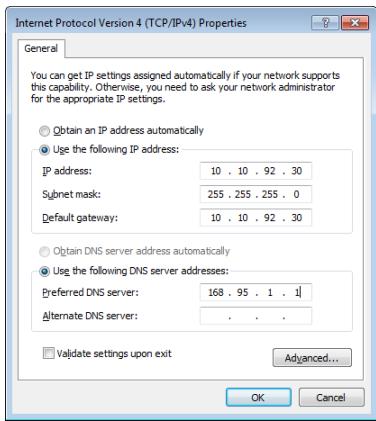
ASUS EEEBOX PC EB1033-B012G,  EEEBOX PC EB1033-B014E - Using a static IP: - 1

text_image Internet Protocol Version 4 (TCP/IPv4) Properties General You can get IP settings assigned automatically if your network supports this capability. Otherwise, you need to ask your network administrator for the appropriate IP settings. Obtain an IP address automatically Use the following IP address: IP address: 10 . 10 . 92 . 30 Subnet mask: 255 . 255 . 255 . 0 Default gateway: 10 . 10 . 92 . 30 Obtain DNS server address automatically Use the following DNS server addresses: Preferred DNS server: 168 . 95 . 1 . 1 Alternate DNS server: . Validate settings upon exit Advanced... OK Cancel

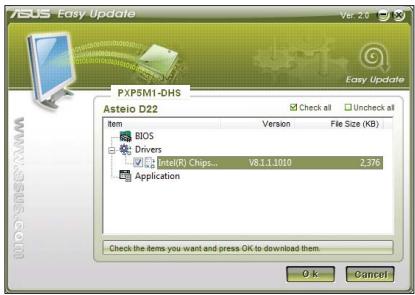
ASUS Easy Update

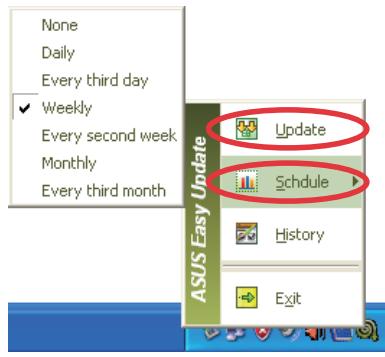
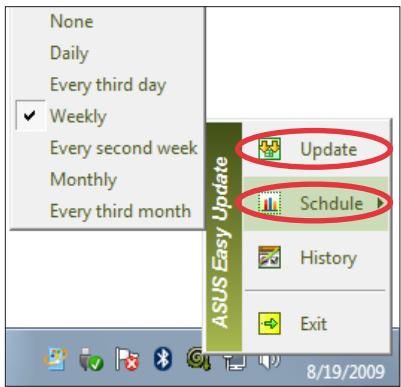
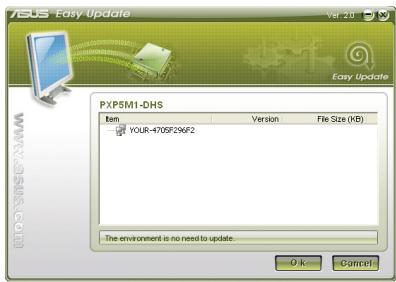
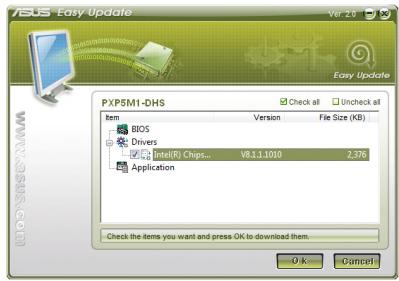
ASUS Easy Update is a software tool that automatically detects and downloads the latest BIOS, drivers, and applications for your PC.

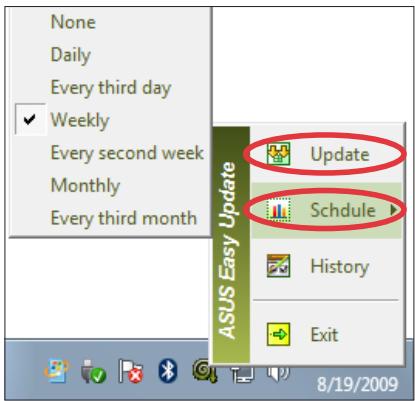
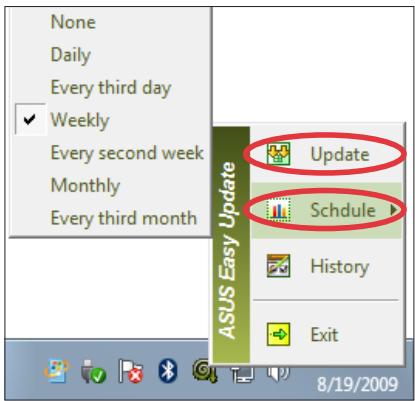
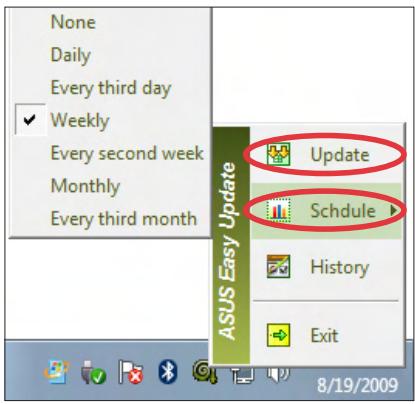
  1. From the Windows® notification area, right-click the ASUS Easy Update icon.
  2. Select Schedule to set how often you want to update your system.
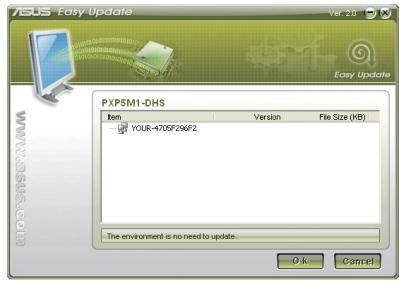
  3. Select Update to activate the update.

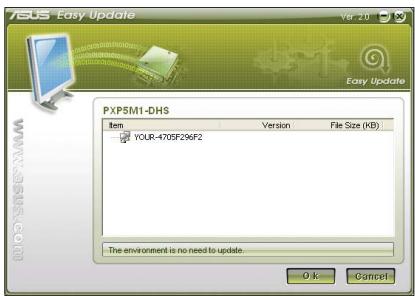
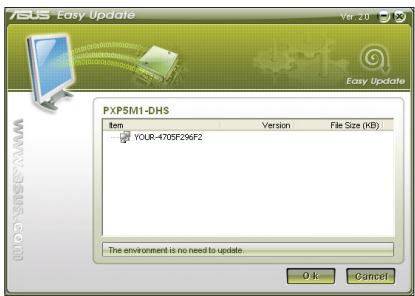
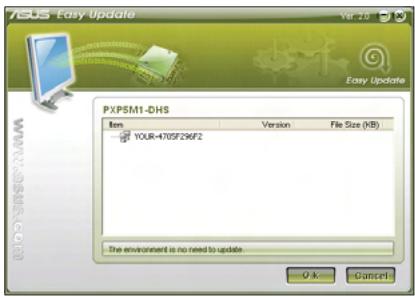
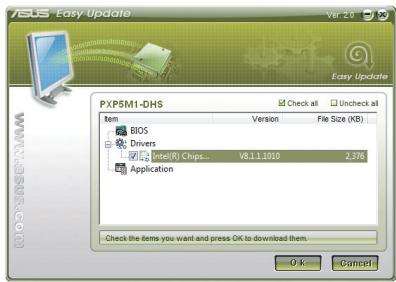
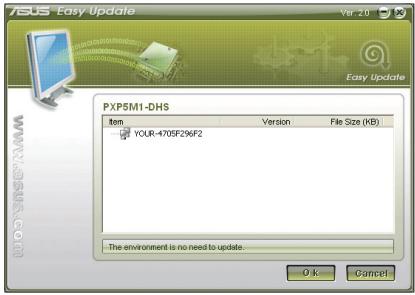
  4. Click OK to display the items you can download.

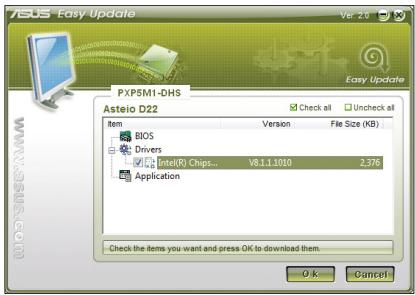
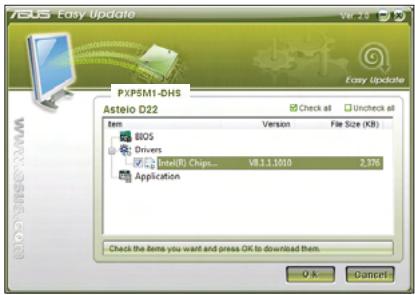
  5. Check the item(s) you want to download, and then click OK.
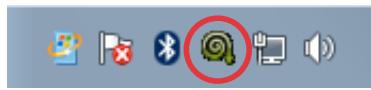
ASUS EEEBOX PC EB1033-B012G,  EEEBOX PC EB1033-B014E - ASUS Easy Update - 1

natural_image Toolbar with icons including headphones, Bluetooth, and a gear icon (no readable text or labels)

ASUS EEEBOX PC EB1033-B012G,  EEEBOX PC EB1033-B014E - ASUS Easy Update - 2

text_image None Daily Every third day ✓ Weekly Every second week Monthly Every third month Update Schedule History Exit ASUS Easy Update 8/19/2009

ASUS EEEBOX PC EB1033-B012G,  EEEBOX PC EB1033-B014E - ASUS Easy Update - 3

text_image PXP5M1-DHS Item Version File Size (KB) YOUR-470SF296F2 The environment is no need to update. OK Cancel

ASUS EEEBOX PC EB1033-B012G,  EEEBOX PC EB1033-B014E - ASUS Easy Update - 4

text_image XPS8M1-DHS PXP8M1-DHS Asteio D22 Item BOS Drivers Intel(R) Chips... Application Check all Uncheck all Version File Size (KB) V8.1.1.1010 2,376 OK... Cancel

Using the recovery partition

The Recovery Partition includes an image of the operating system, drivers, and utilities installed on your system at the factory. The recovery partition provides a comprehensive recovery solution that quickly restores your system's software to its original working state, provided that your hard disk drive is in good working order. Before using the recovery partition, copy your data files (such as Outlook PST files) to a USB device or to a network drive and make note of any customized configuration settings (such as network settings).

Recovering the Windows OS to the Factory Default Partition (F9 Recovery)

  1. Press [F9] during bootup.
  2. Select Windows setup [EMS Enabled] when this item appears and press [Enter].
  3. Select the language and click Next.
  4. Select Recover the OS to the Default Partition and click Next.
  5. The factory default partition will be displayed. Click Next.
  6. Data on the default partition will be cleared. Click Recover to start the system recovery.

ASUS EEEBOX PC EB1033-B012G,  EEEBOX PC EB1033-B014E - Recovering the Windows OS to the Factory Default Partition (F9 Recovery) - 1

You will lose all your data on the selected partition. Ensure to back up your important data beforehand.

  1. When recovery is successfully completed, click Reboot to restart the system.

Backing up the Factory Default Environment Data to a USB Drive (F9 Backup)

  1. Repeat steps 1–3 in the previous section.
  2. Select Backup the Factory Environment to a USB Drive and click Next.
  3. Connect a USB storage device to your PC to start the Factory Default Environment backup.

ASUS EEEBOX PC EB1033-B012G,  EEEBOX PC EB1033-B014E - Backing up the Factory Default Environment Data to a USB Drive (F9 Backup) - 1

The required size of the connected USB storage device should be larger than 20GB. The actual size may vary with your PC model.

  1. Select a desired USB storage device if more than one USB storage device is connected to your PC and click Next.

ASUS EEEBOX PC EB1033-B012G,  EEEBOX PC EB1033-B014E - Backing up the Factory Default Environment Data to a USB Drive (F9 Backup) - 2

If there is already a partition with proper size in the selected USB storage device (for example, a partition that has been used as the backup partition), the system will show this partition automatically and reuse it for backup.

  1. Based on the different situations in the previous step, data on the selected USB storage device or on the selected partition will be cleared. Click Backup to start backup.

ASUS EEEBOX PC EB1033-B012G,  EEEBOX PC EB1033-B014E - Backing up the Factory Default Environment Data to a USB Drive (F9 Backup) - 3

You will lose all your data on the selected USB storage device or on the selected partition. Ensure to back up your important data beforehand.

  1. When backing up the factory default environment is successfully completed, click Reboot to restart the system.

Using the USB storage device (USB Restore)

When the Recovery Partition in your system is crashed, use the USB storage device to restore the system to the factory default partition or the factory environment data to the entire hard disk.

  1. Connect the USB storage device that you back up the factory environment data to.
  2. Press for on bootup and the Please select boot device screen appears. Select USB:XXXXXX to boot from the connected USB storage device.
  3. Select the language and click Next.
  4. Select Restore and click Next.
  5. Select a task and click Next. Task options:

Restore the OS to the Default Partition only

Select this option if you simply want to restore the OS to the factory default partition. This option deletes all data on the system partition "C" and keeps the partition "D" unchanged.

After you click Next, the factory default partition will be displayed. Click Next again.

Restore the Whole Hard Disk

Select this option if you want to restore your PC to the factory default state. This option deletes all data from your hard disk and creates a new system partition as drive "C", an empty partition as drive "D" and a Recovery Partition.

  1. Data on the factory default partition or on the whole hard disk will be cleared depending on the option you selected in the previous step. Click Restore to start the task.

  2. When restore is successfully completed, click Reboot to restart the system.

ASUS contact information

ASUSTeK COMPUTER INC.

Address15 Li-Te Road, Peitou, Taipei, Taiwan 11259
Telephone+886-2-2894-3447
Fax+886-2-2890-7798
E-mailinfo@asus.com.tw
Web sitewww.asus.com.tw

Technical Support

Telephone+86-21-38429911
Online supportsupport.asus.com

ASUS COMPUTER INTERNATIONAL (America)

Address800 Corporate Way, Fremont, CA 94539, USA
Telephone+1-510-739-3777
Fax+1-510-608-4555
Web siteusa.asus.com

Technical Support

Telephone+1-812-282-2787
Support fax+1-812-284-0883
Online supportsupport.asus.com

ASUS COMPUTER GmbH (Germany and Austria)

AddressHarkort Str. 21-23, D-40880 Ratingen, Germany
Fax+49-2102-959911
Web sitewww.asus.de
Online contactwww.asus.de/sales

Technical Support

Component Telephone+49-1805-010923
System/Notebook/Eee/LCD Telephone+49-1805-010920
Support Fax+49-2102-9599-11
Online supportsupport.asus.com

EB1031/EB1030/EB1033 Manuel

ASUS EEEBOX PC EB1033-B012G,  EEEBOX PC EB1033-B014E - EB1031/EB1030/EB1033 Manuel - 1

natural_image Line drawing of a Huawei 8.0 network device with visible ports and antenna (no text or symbols)

F6785

Seconde édition

Janvier 2012

ASUS Easy Update ....30

PRODUIT LASER DE CLASSE 1

PAS DE DÉMONTAGE

text_image Diagram of a computer monitor with labeled components and directional arrows indicating assembly or movement.
natural_image Line drawing of a Huawei ASIS server with ports and ventilation slots (no text or symbols)

ASUS EEEBOX PC EB1033-B012G,  EEEBOX PC EB1033-B014E - PAS DE DÉMONTAGE - 1

natural_image Circular diagram with four dots and the word 'ASUS' at the center, no additional text or symbols present.
text_image Diagram of a device with labeled parts and directional arrows indicating rotation or movement

ASUS EEEBOX PC EB1033-B012G,  EEEBOX PC EB1033-B014E - PAS DE DÉMONTAGE - 2

natural_image Line drawing of a computer monitor with a stand and screen (no text or symbols)

ASUS EEEBOX PC EB1033-B012G,  EEEBOX PC EB1033-B014E - PAS DE DÉMONTAGE - 3

natural_image Simple line drawing of a computer monitor with a stand and a curved screen (no text or symbols)

ASUS EEEBOX PC EB1033-B012G,  EEEBOX PC EB1033-B014E - PAS DE DÉMONTAGE - 4

natural_image Simple line drawing of a computer monitor with a stand and a tilted rectangular object on the screen (no text or symbols)

ASUS EEEBOX PC EB1033-B012G,  EEEBOX PC EB1033-B014E - PAS DE DÉMONTAGE - 5

natural_image Line drawing of a computer monitor with a mounted device (no text or symbols)

ASUS EEEBOX PC EB1033-B012G,  EEEBOX PC EB1033-B014E - PAS DE DÉMONTAGE - 6

natural_image Line drawing of a desktop computer setup with keyboard, mouse, and tower (no text or symbols)

Connexion réseau

natural_image Diagram of a Sony computer tower with USB port and cable connector, showing front and side views (no text or symbols)

Allumer le système

text_image Diagram showing connections of a device with labeled components including power, cable, and switch, alongside a hand pointing to a network device.

ASUS EEEBOX PC EB1033-B012G,  EEEBOX PC EB1033-B014E - Allumer le système - 1

natural_image Toolbar with icons including audio, headphones, Bluetooth, and a gear icon (no text or labels visible)

ASUS EEEBOX PC EB1033-B012G,  EEEBOX PC EB1033-B014E - Allumer le système - 2

text_image None Daily Every third day ✓ Weekly Every second week Monthly Every third month Update Schedule History Exit ASUS Easy Update 8/19/2009

ASUS EEEBOX PC EB1033-B012G,  EEEBOX PC EB1033-B014E - Allumer le système - 3

text_image PXP5M1-DHS Item Version File Size (KB) YOUR-470SF296F2 The environment is no need to update. OK Cancel

ASUS EEEBOX PC EB1033-B012G,  EEEBOX PC EB1033-B014E - Allumer le système - 4

text_image XPS8M1-DHS Asteio D22 Item BIOS Drivers Intel(R) Chips... Application Check all Uncheck all Version File Size (KB) V8.1.1.1010 2.376 OK... Cancel

Utiliser la partition de restauration

natural_image Line drawing of a Huawei network device with visible ports and antenna (no text or symbols)

G6785

Erste Ausgabe V1

Februar 2012

ASUS Easy Update ....30

Diese Ausrüstung erfüllt die Anforderungen der Directive 1999/5/EC of the European Parliament and Commission from 9 March, 1999 governing Radio and Telecommunications Equipment and mutual recognition of conformity.

LASER-PRODUKTWARNUNG LASER-PRODUKT DER KLASSE 1

text_image ① ② J J/8.5 J J
natural_image Line drawing of a white electronic device labeled 'ASUS' with ports and connectors, showing no readable text or symbols beyond the label.

ASUS EEEBOX PC EB1033-B012G,  EEEBOX PC EB1033-B014E - LASER-PRODUKTWARNUNG LASER-PRODUKT DER KLASSE 1 - 1

natural_image Circular diagram with four dots and the word 'ASUS' at the center, no additional text or symbols present.
text_image Diagram of a device with labeled parts and directional arrows indicating rotation or movement

ASUS EEEBOX PC EB1033-B012G,  EEEBOX PC EB1033-B014E - LASER-PRODUKTWARNUNG LASER-PRODUKT DER KLASSE 1 - 2

natural_image Line drawing of a computer monitor with a stand and a screen, no text or symbols present

ASUS EEEBOX PC EB1033-B012G,  EEEBOX PC EB1033-B014E - LASER-PRODUKTWARNUNG LASER-PRODUKT DER KLASSE 1 - 3

natural_image Simple line drawing of a computer monitor with a stand and a curved screen (no text or symbols)

ASUS EEEBOX PC EB1033-B012G,  EEEBOX PC EB1033-B014E - LASER-PRODUKTWARNUNG LASER-PRODUKT DER KLASSE 1 - 4

natural_image Simple line drawing of a computer monitor with a stand and a tilted square object, no text or symbols present.

ASUS EEEBOX PC EB1033-B012G,  EEEBOX PC EB1033-B014E - LASER-PRODUKTWARNUNG LASER-PRODUKT DER KLASSE 1 - 5

natural_image Line drawing of a computer monitor with a stand and screen (no text or symbols)

ASUS EEEBOX PC EB1033-B012G,  EEEBOX PC EB1033-B014E - LASER-PRODUKTWARNUNG LASER-PRODUKT DER KLASSE 1 - 6

text_image ASUS 2 LCD-Monitor 1
natural_image Line drawing of a computer setup with a keyboard, mouse, and connected device (no text or symbols)
text_image BJS Signal amplification in Wi-Fi Modus

System einschalten

text_image Diagram showing connections of a device with labeled parts including power outlet, cable, and network switch

ASUS EEEBOX PC EB1033-B012G,  EEEBOX PC EB1033-B014E - System einschalten - 1

text_image Currently connected to: Unidentified network No Internet access Wireless Network Connection Steven Office Connect automatically Connect Joshua_Peng WL-520GC ASUS_GUEST Open Network and Sharing Center
text_image Currently connected to: Unidentified network No Internet access Open Network and Sharing Center 6:01 PM 7/27/2009
text_image Network and Internet Control Panel Home Manage wireless networks Change adapter settings Change advanced sharing settings View your basic network information and set up connections ASUS-PC (This computer) Undidentified network Internet View your active networks Unidentified network Public network Connect or disconnect Access type: No Internet access Connections: Local Area Connection Change your networking settings Set up a new connection or network Set up a wireless, broadband, dial-up, ad hoc, or VPN connection; or set up a router or access point. Connect to a network Connect or reconnect to a wireless, wired, dial-up, or VPN network connection. Choose homegroup and sharing options Access files and printers located on other network computers, or change sharing settings. Troubleshoot problems Diagnose and repair network problems, or get troubleshooting information.
text_image Network and Internet Network Connections Organize Disable this network device Diagnose this connection Rename this connection ABC connection Disconnected WALL Monount (PPPO) Wireless Network Connection Not connected Atheros ARIS205 Wireless Network... Bluetooth Network Connection Not connected Bluetooth Device (Personal Area ... Local Area Connection Undefined network Atheros ARIS13 PCS 1 Fast Other... Disable Status Diagnose Create Shortcut Delete Rename Properties
text_image Local Area Connection Properties Networking Connect using: Atheros AR8132 PCI-E Fast Ethernet Controller Configure... This connection uses the following items: ✓ Client for Microsoft Networks ✓ Trend Micro NDIS 6.0 Filter Driver ✓ QoS Packet Scheduler ✓ File and Printer Sharing for Microsoft Networks ✓ Internet Protocol Version 6 (TCP/IPv6) ✓ Internet Protocol Version 4 (TCP/IPv4) ✓ Link-Layer Topology Discovery Mapper I/O Driver ✓ Link-Layer Topology Discovery Responder Install... Uninstall Properties Description Transmission Control Protocol/Internet Protocol. The default wide area network protocol that provides communication across diverse interconnected networks. OK Cancel

ASUS EEEBOX PC EB1033-B012G,  EEEBOX PC EB1033-B014E - System einschalten - 2

text_image Internet Protocol Version 4 (TCP/IPv4) Properties General Alternate Configuration You can get IP settings assigned automatically if your network supports this capability. Otherwise, you need to ask your network administrator for the appropriate IP settings. Obtain an IP address automatically Use the following IP address: IP address: .. Subnet mask: .. Default gateway: .. Obtain DNS server address automatically Use the following DNS server addresses: Preferred DNS server: .. Alternate DNS server: .. Validate settings upon exit Advanced... OK Cancel
text_image Control Panel Home Manage wireless networks Change adapter settings Change advanced sharing settings View your basic network information and set up connections ASUS-PC (This computer) Undidentified network Internet View your active networks Connect or disconnect Unidentified network Public network Access type: No Internet access Connections Local Area Connection Change your networking settings Up a new connection of networks Set up a network to the start-up, ad hoc, or VPN connections; or set up a router or access point. Connect to a network Connect or reconnect to a wireless, wired, dial-up, or VPN network connection. Choose homegroup and sharing options Access files and printers located on other network computers, or change sharing settings. Troubleshoot problems Diagnose and repair network problems, or get troubleshooting information.
text_image Set Up a Connection or Network Choose a connection option Connect to the Internet Set up a wireless, broadband, or dial-up connection to the Internet Set up a new network Configure a new router or access point. Manually connect to a wireless network Connect to a hidden network or create a new wireless profile. Connect to a workplace Set up a dial-up or VPN connection to your workplace. Set up a dial-up connection Connect to the Internet using a dial-up connection. Next Cancel
text_image Connect to the Internet Type the information from your Internet service provider (ISP) User name: ASUS Password: ****** Show characters Remember this password Connection game: ABC connection Allow other people to use this connection This option allows anyone with access to this computer to use this connection. I don't have an ISP Connect Cancel
text_image Currently connected to: Unidentified network No Internet access Dial-up and VPN ABC connection Connect
text_image Connect to the Internet How do you want to connect? Wireless Connect using a wireless router or a wireless network. Broadband (PPPoE) Connect using DSL or cable that requires a user name and password. Show connection options that this computer is not set up to use Help me choose Cancel
text_image Connect to the Internet The connection to the Internet is ready to use To connect to the Internet next time, left click the network icon in the taskbar and click the connection you just created. Close
text_image Connect ABC connection User name: ASUS Password: ••••••• Save this user name and password for the following users Me only Anyone who uses this computer Connect Cancel Properties Help
text_image Internet Protocol Version 4 (TCP/IPv4) Properties General You can get IP settings assigned automatically if your network supports this capability. Otherwise, you need to ask your network administrator for the appropriate IP settings. Obtain an IP address automatically Use the following IP address: IP address: 10 . 10 . 92 . 30 Subnet mask: 255 . 255 . 255 . 0 Default gateway: 10 . 10 . 92 . 30 Obtain DNS server address automatically Use the following DNS server addresses: Preferred DNS server: 168 . 95 . 1 . 1 Alternate DNS server: . Validate settings upon exit Advanced... OK Cancel

ASUS Easy Update

text_image Toolbar with icons including audio, wireless, and camera control symbols

ASUS EEEBOX PC EB1033-B012G,  EEEBOX PC EB1033-B014E - ASUS Easy Update - 1

text_image None Daily Every third day ✓ Weekly Every second week Monthly Every third month Update Schedule History Exit ASUS Easy Update 8/19/2009

ASUS EEEBOX PC EB1033-B012G,  EEEBOX PC EB1033-B014E - ASUS Easy Update - 2

text_image ASUS Easy Update PXP5M1-DHS Item Version File Size (KB) YOUR-4705F296F2 The environment is no need to update OK... Cancel

ASUS EEEBOX PC EB1033-B012G,  EEEBOX PC EB1033-B014E - ASUS Easy Update - 3

text_image PXP5M1-DHS Asteio D22 Item BIOS Drivers Intel(R) Chips... Application Check all Uncheck all Version File Size (KB) VR1.1.1010 2.376 OK... Cancel
natural_image Line drawing of a Huawei ASUS wireless router with ports and antenna (no text or symbols on the device itself)

16785

Prima Edizione

Gennaio 2012

text_image PHC-50 SDHC-250V PHC-50 SDHC-250V G 1 2 3 4 5

1 Jack Antenna Wireless

text_image Diagram of a computer monitor with labeled components and directional arrows indicating assembly or movement
natural_image Line drawing of a Huawei ASIS server with visible ports and antenna (no text or symbols)

ASUS EEEBOX PC EB1033-B012G,  EEEBOX PC EB1033-B014E - Jack Antenna Wireless - 1

natural_image Circular diagram with four dots and the word 'ASUS' at the center, no additional text or symbols present.
text_image Diagram of a computer case with labeled components and directional arrows indicating rotation or movement

ASUS EEEBOX PC EB1033-B012G,  EEEBOX PC EB1033-B014E - Jack Antenna Wireless - 2

natural_image Line drawing of a computer monitor with a stand and a screen, no text or symbols present

ASUS EEEBOX PC EB1033-B012G,  EEEBOX PC EB1033-B014E - Jack Antenna Wireless - 3

natural_image Simple line drawing of a computer monitor with a stand and a curved screen (no text or symbols)

ASUS EEEBOX PC EB1033-B012G,  EEEBOX PC EB1033-B014E - Jack Antenna Wireless - 4

natural_image Simple line drawing of a computer monitor with a stand and a tilted square object (no text or symbols)

ASUS EEEBOX PC EB1033-B012G,  EEEBOX PC EB1033-B014E - Jack Antenna Wireless - 5

natural_image Line drawing of a computer monitor with a stand and a paperclip, no text or symbols present

ASUS EEEBOX PC EB1033-B012G,  EEEBOX PC EB1033-B014E - Jack Antenna Wireless - 6

text_image 2 Monitor LCD
natural_image Line drawing of a desktop computer setup with keyboard, mouse, and router (no text or symbols)
natural_image Diagram of a device with an ISLE switch and external port, showing ports and connectors (no text or symbols)
text_image Diagram showing cable connection to a device with labeled components and a hand inserting a cable into a network switch.

ASUS EEEBOX PC EB1033-B012G,  EEEBOX PC EB1033-B014E - Jack Antenna Wireless - 7

natural_image Blue background with six icons: battery, computer, shield, mouse, speaker, laptop, and spiral (no text or symbols)

ASUS EEEBOX PC EB1033-B012G,  EEEBOX PC EB1033-B014E - Jack Antenna Wireless - 8

text_image None Daily Every third day ✓ Weekly Every second week Monthly Every third month Update Schedule History Exit

ASUS EEEBOX PC EB1033-B012G,  EEEBOX PC EB1033-B014E - Jack Antenna Wireless - 9

text_image PXP5M1-DHS Item Version File Size (KB) YOUR-470SF296F2 The environment is no need to update. OK Cancel

ASUS EEEBOX PC EB1033-B012G,  EEEBOX PC EB1033-B014E - Jack Antenna Wireless - 10

text_image PXP5M1-DHS Item Version File Size (KB) BIOS Drivers V6.1.1.1010 2.376 Application Check the items you want and press OK to download them. OK Cancel

Restore the OS to the Default Partition only

natural_image Line drawing of a Huawei ASUS wireless router with ports and antenna (no text or symbols on the device itself)

DU6785

Eerste editie

Februari 2012

WAARSCHUWING LASERPRODUCT

LASERPRODUCT KLASSE 1

NIET DEMONTEREN

text_image Diagram showing device components with labeled parts and directional arrows, including a 3D model and a computer monitor.
natural_image Line drawing of a Huawei 8.0 network device with visible ports and connectors (no text or symbols)

ASUS EEEBOX PC EB1033-B012G,  EEEBOX PC EB1033-B014E - NIET DEMONTEREN - 1

natural_image Circular diagram with four dots and the word 'ASUS' at center, no additional text or symbols present.
text_image Diagram of a computer case with labeled parts and directional arrows indicating rotation or movement

ASUS EEEBOX PC EB1033-B012G,  EEEBOX PC EB1033-B014E - NIET DEMONTEREN - 2

natural_image Line drawing of a computer monitor with a stand and a scroll wheel (no text or symbols)

ASUS EEEBOX PC EB1033-B012G,  EEEBOX PC EB1033-B014E - NIET DEMONTEREN - 3

natural_image Diagram of a computer monitor with a tilted screen and stand, showing no text or symbols

ASUS EEEBOX PC EB1033-B012G,  EEEBOX PC EB1033-B014E - NIET DEMONTEREN - 4

natural_image Illustration of a computer monitor with a stand and a tilted square object, no text or symbols present.

ASUS EEEBOX PC EB1033-B012G,  EEEBOX PC EB1033-B014E - NIET DEMONTEREN - 5

natural_image Line drawing of a computer monitor with a mounted device (no text or symbols)

ASUS EEEBOX PC EB1033-B012G,  EEEBOX PC EB1033-B014E - NIET DEMONTEREN - 6

text_image ASUS 2 LCD monitor 1
natural_image Diagram of a computer setup with a keyboard, mouse, and connected device (no text or symbols)
natural_image Diagram of a Huawei networking device showing front panel and side view with USB port (no text or symbols)
text_image Diagram showing cable connection to a device with labeled components and a hand pointing to the right panel.

ASUS EEEBOX PC EB1033-B012G,  EEEBOX PC EB1033-B014E - NIET DEMONTEREN - 7

natural_image Toolbar with icons including headphones, Bluetooth, and a gear icon (no readable text or labels)
text_image None Daily Every third day ✓ Weekly Every second week Monthly Every third month Update Schedule History Exit ASUS Easy Update 8/19/2009
  1. Klik op OK om de items die u kunt downloaden, weer te geven.

ASUS EEEBOX PC EB1033-B012G,  EEEBOX PC EB1033-B014E - NIET DEMONTEREN - 8

text_image PXP5M1-DHS Item Version File Size (KB) YOUR-4705F296F2 The environment is no need to update.
natural_image Line drawing of a Huawei ASUS wireless router with ports and antenna (no text or symbols on the device itself)

S6785

Primera edición

Febrero de 2012

ASUS Easy Update ....30

text_image Energy ENERGY STAR
text_image ① ② J J J J J J J U
natural_image Line drawing of a Huawei ASIS server unit with visible ports and ventilation slots (no text or symbols)

ASUS EEEBOX PC EB1033-B012G,  EEEBOX PC EB1033-B014E - NIET DEMONTEREN - 9

natural_image Circular diagram with four dots and the word 'ASUS' at the center, no additional text or symbols present.
text_image Diagram of a device rear panel with labeled directional arrows and component labels

ASUS EEEBOX PC EB1033-B012G,  EEEBOX PC EB1033-B014E - NIET DEMONTEREN - 10

natural_image Line drawing of a computer monitor with a stand and a scroll wheel (no text or symbols)

ASUS EEEBOX PC EB1033-B012G,  EEEBOX PC EB1033-B014E - NIET DEMONTEREN - 11

natural_image Simple line drawing of a computer monitor with a stand and a curved screen (no text or symbols)

ASUS EEEBOX PC EB1033-B012G,  EEEBOX PC EB1033-B014E - NIET DEMONTEREN - 12

natural_image Illustration of a computer monitor with a magnifying glass hovering over it, no text or symbols present.

ASUS EEEBOX PC EB1033-B012G,  EEEBOX PC EB1033-B014E - NIET DEMONTEREN - 13

natural_image Line drawing of a computer monitor with a stand and screen (no text or symbols)

ASUS EEEBOX PC EB1033-B012G,  EEEBOX PC EB1033-B014E - NIET DEMONTEREN - 14

text_image 2 1 Monitor LCD
natural_image Diagram of a computer setup with a keyboard, mouse, and connected device (no text or symbols)
natural_image Diagram of a server unit with USB port and external cable, showing internal components and connection (no text or symbols)

Encender el sistema

text_image Diagram showing cable connection to a device with labeled components and a hand pointing to the right panel.

ASUS EEEBOX PC EB1033-B012G,  EEEBOX PC EB1033-B014E - Encender el sistema - 1

natural_image Toolbar with icons including headphones, Bluetooth, and a gear icon (no readable text or labels)
text_image None Daily Every third day ✓ Weekly Every second week Monthly Every third month Update Schedule History Exit ASUS Easy Update 8/19/2009
text_image PXP5M1-DHS Item Version File Size (KB) YOUR-470SF296F2 The environment is no need to update. OK Cancel
text_image ASUS Easy Update Ver 23 Easy Update Asteio D22 Check all Uncheck all Item Version File Size (KB) BIOS Drivers Intel(R) Chips... V8.1.1.1010 2,376 Application Check the items you want and press OK to download them. OK Cancel

ASUS COMPUTER GmbH (Germany and Austria)

natural_image Line drawing of a Huawei ASUS wireless router with ports and antenna (no text or symbols on the device itself)

PG6785

Primeira edição V1

Fevereiro 2012

Declaração da Federal Communications Commission (FCC)

text_image ① ② J J J J J J U
natural_image Line drawing of a Huawei ASIS server with visible ports and ventilation slots (no text or symbols)

ASUS EEEBOX PC EB1033-B012G,  EEEBOX PC EB1033-B014E - Declaração da Federal Communications Commission (FCC) - 1

natural_image Circular diagram with four dots and the word 'ASUS' at the center, no text or symbols present.
text_image Diagram of a device with labeled parts and directional arrows indicating rotation or movement

ASUS EEEBOX PC EB1033-B012G,  EEEBOX PC EB1033-B014E - Declaração da Federal Communications Commission (FCC) - 2

natural_image Line drawing of a computer monitor with a screen and stand (no text or symbols)

ASUS EEEBOX PC EB1033-B012G,  EEEBOX PC EB1033-B014E - Declaração da Federal Communications Commission (FCC) - 3

natural_image Simple line drawing of a computer monitor with a stand and a curved screen (no text or symbols)

ASUS EEEBOX PC EB1033-B012G,  EEEBOX PC EB1033-B014E - Declaração da Federal Communications Commission (FCC) - 4

natural_image Illustration of a computer monitor with a stand and a tilted square object, no text or symbols present.

ASUS EEEBOX PC EB1033-B012G,  EEEBOX PC EB1033-B014E - Declaração da Federal Communications Commission (FCC) - 5

natural_image Line drawing of a computer monitor with a stand and screen (no text or symbols)

ASUS EEEBOX PC EB1033-B012G,  EEEBOX PC EB1033-B014E - Declaração da Federal Communications Commission (FCC) - 6

text_image SUS 2 Monitor LCD 1
natural_image Line drawing of a computer setup with a tower, keyboard, mouse, and cable (no text or symbols)
text_image Diagram showing cable connection to a device with labeled components and a hand pointing to the right panel.

ASUS EEEBOX PC EB1033-B012G,  EEEBOX PC EB1033-B014E - Declaração da Federal Communications Commission (FCC) - 7

natural_image Toolbar with icons including audio, headphones, Bluetooth, and a gear icon (no text or labels visible)

ASUS EEEBOX PC EB1033-B012G,  EEEBOX PC EB1033-B014E - Declaração da Federal Communications Commission (FCC) - 8

text_image None Daily Every third day ✓ Weekly Every second week Monthly Every third month Update Schedule History Exit ASUS Easy Update 8/19/2009

ASUS EEEBOX PC EB1033-B012G,  EEEBOX PC EB1033-B014E - Declaração da Federal Communications Commission (FCC) - 9

text_image PXP5M1-DHS Item Version File Size (KB) YOUR-470SF296F2 The environment is no need to update. OK Cancel

ASUS EEEBOX PC EB1033-B012G,  EEEBOX PC EB1033-B014E - Declaração da Federal Communications Commission (FCC) - 10

text_image ASUS Easy Update Ver 25 Easy Update PXP5M1-DHS Check all Uncheck all Item Version File Size (KB) BOS Drivers Intel(R) Chips... V8.1.1.010 2.376 Application Check the items you want and press OK to download them. OK Cancel
Table of contents Click a title to access it
Manual assistant
Powered by Anthropic
Waiting for your message
Product information

Brand : ASUS

Model : EEEBOX PC EB1033-B012G, EEEBOX PC EB1033-B014E

Category : Mini PC