
NUC 11 Essential Mini PC - Mini PC ASUS - Free user manual and instructions
Find the device manual for free NUC 11 Essential Mini PC ASUS in PDF.


| Product Type | Mini PC |
| Brand | ASUS |
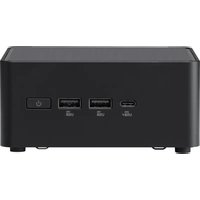
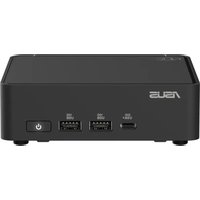
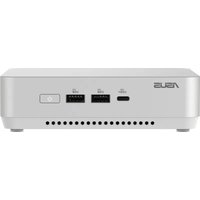
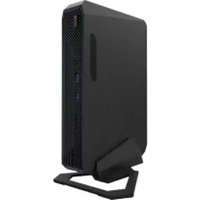
| Model | NUC 11 Essential Mini PC |
| Processor | Intel Celeron N4505 / Pentium Silver N6005 (Jasper Lake) |
| Memory (RAM) | Up to 16 GB DDR4-2933 (2x SO-DIMM slots) |
| Storage | 1x M.2 2280 PCIe 3.0 x4 for NVMe SSD, 1x SATA 2.5-inch drive bay |
| Graphics | Intel UHD Graphics |
| Dimensions (W x D x H) | 117 x 112 x 51 mm (4.6 x 4.4 x 2.0 inches) |
| Weight | Approximately 0.5 kg (1.1 lbs) |
| Power Supply | 65W external power adapter (19V DC) |
| Operating System | Windows 11 Home (pre-installed) |
| Wireless Connectivity | Wi-Fi 6 (802.11ax), Bluetooth 5.2 |
| Video Outputs | 1x HDMI 2.0b, 1x DisplayPort 1.4, 1x VGA (optional via adapter) |
| USB Ports | 2x USB 3.2 Gen 2 (front), 2x USB 3.2 Gen 1 (rear), 1x USB 2.0 (internal) |
| Audio | 3.5mm headphone/mic combo jack, HDMI/DP audio |
| Ethernet | Intel I225-V 2.5 GbE LAN |
| Memory Card Reader | microSD card slot (optional) |
| Cooling | Active fan cooling |
| Mounting | VESA mount bracket (75 x 75 mm) included |
| Maintenance & Cleaning | Periodically clean dust from vents using compressed air. Avoid liquids. |
| Safety Instructions | Keep away from water, heat, and magnetic fields. Unplug before cleaning. |
| Spare Parts & Repairability | RAM and SSD can be upgraded; battery is non-removable. Refer to service manual for other parts. |
| General Information | Compact design suitable for home, office, and digital signage. |
Frequently Asked Questions - NUC 11 Essential Mini PC ASUS
User questions about NUC 11 Essential Mini PC ASUS
0 question about this device. Answer the ones you know or ask your own.
Ask a new question about this device
Download the instructions for your Mini PC in PDF format for free! Find your manual NUC 11 Essential Mini PC - ASUS and take your electronic device back in hand. On this page are published all the documents necessary for the use of your device. NUC 11 Essential Mini PC by ASUS.
USER MANUAL NUC 11 Essential Mini PC ASUS
Intel® NUC 11 Essential Mini PC - NUC11ATKC2
User Guide
January 2022
You may not use or facilitate the use of this document in connection with any infringement or other legal analysis concerning Intel products described herein. You agree to grant Intel a non-exclusive, royalty-free license to any patent claim thereafter drafted which includes subject matter disclosed herein.
No license (express or implied, by estoppel or otherwise) to any intellectual property rights is granted by this document.
All information provided here is subject to change without notice. Contact your Intel representative to obtain the latest Intel product specifications and roadmaps.
The products described may contain design defects or errors known as errata which may cause the product to deviate from published specifications. Current characterized errata are available on request.
Copies of documents which have an order number and are referenced in this document may be obtained by calling 1-800-548-4725 or by visiting: http://www.intel.com/design/literature.htm.
Intel technologies' features and benefits depend on system configuration and may require enabled hardware, software or service activation. Performance varies depending on system configuration. No computer system can be absolutely secure.
Intel and the Intel logo are trademarks of Intel Corporation or its subsidiaries in the U.S. and/or other countries.
*Other names and brands may be claimed as the property of others.
Copyright © 2022, Intel Corporation. All rights reserved.
Contents
1.0 Introduction 5
1.1 Before You Begin 5 1.2 Installation Precautions....5 1.3 Observe Safety and Regulatory Requirements....6
2.0 Open the Chassis....7
3.0 Upgrade System Memory 8
3.1 Upgrade to Different Memory 8
4.0 Install an M.2 SSD....10
5.0 Close the Chassis....12 6.0 Use the VESA Bracket (Optional)....13 7.0 Connect Power....15 8.0 Set Up Microsoft® Windows® 11....17 9.0 Install the Latest Device Drivers and Software 18
Revision History
| Date Revision Description | |
| January 2022 1.0 | Initial release. |
1.0 Introduction
This User Guide provides step-by-step installation instructions for these products:
- Intel® NUC 11 Essential Mini PC - NUC11ATKC2
1.1 Before You Begin

CAUTIONS
The steps in this guide assume you're familiar with computer terminology and with the safety practices and regulatory compliance required for using and modifying computer equipment.
Disconnect the computer from its power source and from any network before performing any of the steps described in this guide.
Failure to disconnect power, telecommunications links, or networks before you open the computer or perform any procedures can result in personal injury or equipment damage. Some circuitry on the board can continue to operate even though the front panel power button is off.
Follow these guidelines before you begin:
Always follow the steps in each procedure in the correct order. Create a log to record information about your computer, such as model, serial numbers, installed options, and configuration information. Electrostatic discharge (ESD) can damage components. Perform the procedures described in this chapter only at an ESD workstation using an antistatic wrist strap and a conductive foam pad. If such a station isn't available, you can provide some ESD protection by wearing an antistatic wrist strap and attaching it to a metal part of the computer chassis.
1.2 Installation Precautions
When you install and test the Intel NUC, observe all warnings and cautions in the installation instructions.
To avoid injury, be careful of:
Sharp pins on connectors
- Sharp pins on circuit boards
- Rough edges and sharp corners on the chassis. Hot components (such as SSDs, processors, voltage regulators, and heat sinks).
- Damage to wires that could cause a short circuit.
Observe all warnings and cautions that instruct you to refer computer servicing to qualified technical personnel.
1.3 Observe Safety and Regulatory Requirements
If you don't follow these instructions, you increase your safety risk and the possibility of noncompliance with regional laws and regulations.
2.0 Open the Chassis
Unscrew the four corner screws on the bottom of the chassis and lift the cover.

3.0 Upgrade System Memory
The Intel® NUC 11 Essential Mini PC - NUC11ATKC2 has two 260-pin DDR4 SO-DIMM memory slots.
Pre-installed memory
| NUC11ATKC2 4GB memory module |
To upgrade memory, be sure to select memory modules that meet these requirements: 1.2V low voltage memory
• 2933 MHz SO-DIMMs - Non-ECC - Up to 32 GB total (2x 16GB memory modules)
Find compatible system memory modules at the Intel® Product Compatibility Tool:
- NUC11ATKC2
3.1 Upgrade to Different Memory
- Observe the precautions in "Before You Begin" in Section 1.1.
- Turn off all peripheral devices connected to the computer.
- Turn off the computer and disconnect the power cord.
- Remove the computer's bottom chassis cover.
- Remove the pre-installed memory module a. Gently spread the retaining clips at each end of the memory socket, which causes the module to pop out of the socket (C). b. Holding the module by the edges, lift it away from the socket, and store it in an anti-static package.
- Install the new memory modules
a. Align the small space at the bottom edge of the memory module with the key in the socket. b. Insert the bottom edge of the module at a 45-degree angle into the socket (A). c. When the module is inserted, push down on the outer edges of the module until the retaining clips snap into place (B). Make sure the clips are firmly in place (C).

4.0 Install an M.2 SSD
Intel® NUC 11 Essential Mini PC - NUC11ATKC2 supports 80mm and 42mm SSDs.
Find compatible M.2 SSDs at the Intel® Product Compatibility Tool:
- NUC11ATKC2
If you're installing an 80mm M.2 SSD:
- Remove the small silver screw from the 80mm metal standoff on the motherboard.
- Align the small notch at the bottom edge of the M.2 card with the key in the connector.
- Insert the bottom edge of the M.2 card into the connector.
- Secure the card to the standoff with the small silver screw.

If you're installing a 42mm M.2 SSD:
- Remove the small silver screw from the metal standoff on the motherboard.
- Move the standoff from the 80mm position to the 42mm position.
- Align the small notch at the bottom edge of the M.2 card with the key in the connector.
- Insert the bottom edge of the M.2 card into the connector.
- Secure the card to the standoff with the small silver screw.

5.0 Close the Chassis
After all components have been installed, close the Intel NUC chassis. Intel recommends this be done by hand with a screwdriver to avoid over-tightening and possibly damaging the screws.

6.0 Use the VESA Bracket (Optional)
Follow these instructions to attach and use the VESA mount bracket:
- Using the four small black screws that were included in the box, attach the VESA bracket to the back of the monitor or TV.

- Attach the two slightly larger black screws to the bottom chassis cover of the Intel NUC.

- Slide the Intel NUC onto the VESA mount bracket.

7.0 Connect Power
Country-specific power plug attachments are included in the box.
- Choose the attachment for your region.
| Plug |  |  |  |  |  |
| Code | US | UK | AU | EU | CN |
| Country | United States | United Kingdom | Australia | European Union | China |
* All power plugs may not be included in the box.
- Connect AC power.

Each Intel NUC model includes either a region-specific AC power cord or no AC power cord (only the power adapter).
| Product codes Power cord type | |
| BNUC11ATKC20RA0 | No power cord included. An AC power cord needs to be purchased separately. Power cords are available at many Internet sites for use in multiple countries. The connector on the power adapter is a C5 type connector. |
| BNUC11ATKC20RA1 | US power cord included. |
| BNUC11ATKC20RA2 | EU power cord included. |
| BNUC11ATKC20RA3 | UK power cord included. |
| BNUC11ATKC20RA4 | Australia/New Zealand power cord included. |
| BNUC11ATKC20RA6 | China power cord included. |
8.0 Set Up Microsoft® Windows® 11
Microsoft Windows* 11 is already installed on the Intel NUC. The first time you start the computer, you are guided through the Windows* 11 setup steps, including:
- Selecting your region and language.
- Accepting the Microsoft Windows license terms.
- Personalizing Windows and assign a PC Name.
- "Get Online" dialog to pick a wireless network (this step is optional).
- Choosing Express Settings or Customize.
- Assigning a User Name and Password.
Reinstalling the Operating System
If you upgrade or replace the computer's drive, you may need to install a new version of the operating system. See these resources:
• Supported Operating Systems - Operating System Installation for Intel® NUC
9.0 Install the Latest Device Drivers and Software
Here are the options for keeping device drivers current:
- Allow the Intel® Driver & Support Assistant (Intel® DSA) to detect out-of-date drivers
- Manually download drivers, BIOS, and software from Download Center: NUC11ATKC2
The following device drivers and software are available.
- Intel® Chipset Device Software
- Intel® HD Graphics
- Intel® Management Engine • Realtek* 10/100/1000 Ethernet
- Intel® Wireless
- Intel® Bluetooth
- Intel® GNA Scoring Accelerator
- Intel® Serial IO • Realtek* High-Definition Audio

- INTEL® NUC 11 ESSENTIAL MINI PC - NUC11ATKC
- CONTENTS
- INTRODUCTION
- OPEN THE CHASSIS
- UPGRADE SYSTEM MEMORY
- INSTALL AN M.2 SSD
- REVISION HISTORY
- BEFORE YOU BEGIN
- CAUTIONS
- INSTALLATION PRECAUTIONS
- OBSERVE SAFETY AND REGULATORY REQUIREMENTS
- UPGRADE TO DIFFERENT MEMORY
- IF YOU'RE INSTALLING AN 80MM M.2 SSD
- IF YOU'RE INSTALLING A 42MM M.2 SSD
- CLOSE THE CHASSIS
- USE THE VESA BRACKET (OPTIONAL)
- CONNECT POWER
- SET UP MICROSOFT® WINDOWS®
- REINSTALLING THE OPERATING SYSTEM
- INSTALL THE LATEST DEVICE DRIVERS AND SOFTWARE
Brand : ASUS
Model : NUC 11 Essential Mini PC
Category : Mini PC