ASPIRE 4830TG - Laptop ACER - Free user manual and instructions
Find the device manual for free ASPIRE 4830TG ACER in PDF.

 FR
FR
 BG
BG
 CS
CS
 DA
DA
 DE
DE
 EL
EL
 EN
EN
 ES
ES
 ET
ET
 FI
FI
 HU
HU
 ID
ID
 IT
IT
 JA
JA
 KO
KO
 LT
LT
 LV
LV
 NL
NL
 NO
NO
 PL
PL
 PT
PT
 RO
RO
 RU
RU
 SK
SK
 SL
SL
 SV
SV
 TR
TR
 ZH
ZH
| Product type | Laptop |
| Brand | ACER |
| Model | ASPIRE 4830TG |
| Dimensions (approx.) | 34.2 x 24.5 x 2.4 cm |
| Weight (approx.) | 2.2 kg |
| Power supply | 65 W AC adapter |
| Battery | Lithium-ion 6-cell, 48 Wh |
| Screen | 14 inches, LED backlit |
| Processor | Intel Core i5 2nd generation (depending on configuration) |
| RAM | Up to 8 GB DDR3 |
| Hard drive | Up to 750 GB SATA |
| Optical drive | DVD±RW SuperMulti |
| Ports | 2 USB 2.0 ports, 1 USB 3.0 port, HDMI, VGA, Ethernet RJ-45, headphone/microphone jack, SD/MMC/MS PRO/xD card reader |
| Touchpad | Multi-touch touchpad with left/right buttons |
| Webcam | Integrated, standard resolution |
| Security | Kensington lock slot, battery reset hole |
| Maintenance | Clean with a soft, dry cloth. Do not use abrasive products. |
| Spare parts | Battery, AC adapter (available from ACER or authorized resellers) |
| Operating temperature | 5°C to 35°C |
| Operating humidity | 20% to 80% (non-condensing) |
Frequently Asked Questions - ASPIRE 4830TG ACER
User questions about ASPIRE 4830TG ACER
0 question about this device. Answer the ones you know or ask your own.
Ask a new question about this device
Download the instructions for your Laptop in PDF format for free! Find your manual ASPIRE 4830TG - ACER and take your electronic device back in hand. On this page are published all the documents necessary for the use of your device. ASPIRE 4830TG by ACER.
USER MANUAL ASPIRE 4830TG ACER
Aspire Notebook Series
Quick Guide
Acer recommends...
Productivity Software
Work Great with Microsoft® Office 2010 - Express your ideas, solve problems and simplify everyday projects with Office 2010.
Photo editing - Easily edit and print your photos with Windows Live Photo Gallery. Then share them on Facebook, YouTube or Windows Live.
Search & Decide with Bing -- Find and organize the answers you need using Bing ^™ , so you can make faster, more informed decisions.
Model number: ____
Serial number: ____
Date of purchase: ____
Place of purchase: ____
First things first
We would like to thank you for making an Acer notebook your choice for meeting your mobile computing needs.
Your guides
To help you use your Acer notebook, we have designed a set of guides:
First off, the setup poster helps you get started with setting up your computer.
The Aspire Generic User Guide contains useful information applying to all models in the Aspire product series. It covers basic topics such as using the keyboard and audio, etc. Please understand that due to its nature, the Generic User Guide will occasionally refer to functions or features which are only contained in certain models of the series, but not necessarily in the model you purchased. Such instances are marked in the text with language such as "only for certain models".
The Quick Guide introduces you to the basic features and functions of your new computer. For more on how your computer can help you to be more productive, please refer to the Aspire Generic User Guide. This guide contains detailed information on such subjects as system utilities, data recovery, expansion options and troubleshooting. In addition it contains warranty information and the general regulations and safety notices for your notebook. It is available in Portable Document Format (PDF) and comes preloaded on your notebook.
Follow these steps to access it:
1 Click on Start > All Programs > AcerSystem.
2 Click on Aspire Generic User Guide.

Note: Viewing the file requires Adobe Reader. If Adobe Reader is not installed on your computer, clicking on Aspire Generic User Guide will run the Adobe Reader setup program first. Follow the instructions on the screen to complete the installation. For instructions on how to use Adobe Reader, access the Help and Support menu.
Your Acer notebook tour
After setting up your computer as illustrated in the setup poster, let us show you around your new Acer notebook.
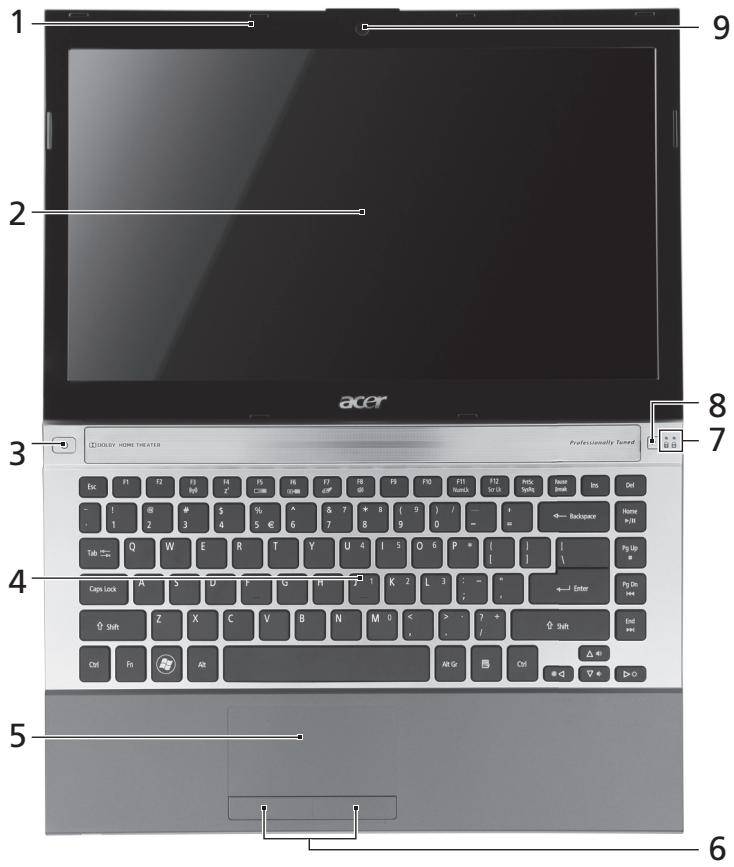
Top view
text_image
1 2 3 4 5 6 7 8 9 Acer GOOLEY HOME THEATER Professionally Tanned Esc F1 F2 F3 F4 F5 F6 F7 F8 F9 F10 F11 F12 F13 F14 - 1 @ $ % ^ & 7 * 8 ( 9 ) / - + - 1 2 3 4 5 € 6 7 8 9 0 - Tab←→ Q W E R T Y U 4 I 5 Q 6 P * [ ] | Caps Lock A S U F - G H - 1 K 2 L 3 : - * Shift Z X C V B N M 0 < > ? - Shift End Ctrl Fn Alt Alt Gr Ctrl ▲ → ▼ → ▶ → ▷ → ▶ → ▶ Backspace Home Up Up Enter End| # | Icon | Item | Description |
| 1 | Microphone | Internal microphone for sound recording. | |
| 2 | Display screen | Also called Liquid-Crystal Display (LCD), displays computer output (configuration may vary by model). | |
| 3 | [5083] | Power button/ indicator | Turns the computer on and off. Indicates the computer's power status. |
| 4 | Keyboard | For entering data into your computer. | |
| 5 | Touchpad | Touch-sensitive pointing device which functions like a computer mouse. | |
| 6 | Click buttons (left and right) | The left and right buttons function like the left and right mouse buttons. | |
| 7 | ### | NumLk indicator | Lights up when Num Lock is activated. |
| ### | Caps Lock indicator | Lights up when Caps Lock is activated. | |
| 8 | P | Acer PowerSmart button | Puts your computer into power-saving mode (configuration may vary by model). |
| P key | Programmable key (configuration may vary by model). | ||
| 9 | Integrated webcam | Web camera for video communication. |
Hotkeys
The computer employs hotkeys or key combinations to access most of the computer's controls like screen brightness and volume output.
To activate hotkeys, press and hold the
| Hotkey | Icon | Function | Description |
 | Communication | Enables/disables the computer's communication devices. | |
 | Sleep | Puts the computer in Sleep mode. | |
| □|□ | Display toggle | Switches display output between the display screen, external monitor (if connected) and both. | |
| [+■] | Screen blank | Turns the display screen backlight off to save power. Press any key to return. | |
 | Touchpad toggle | Turns the internal touchpad on and off. | |
| + |  Speaker toggle Speaker toggle | Turns the speakers on and off. | |
| + |  Brightness up Brightness up | Increases the screen brightness. | |
| + |  Brightness down Brightness down | Decreases the screen brightness. | |
| + |  Volume up Volume up | Increases the sound volume. | |
| + |  Volume down Volume down | Decreases the sound volume. | |
| + |  Play/Pause Play/Pause | Play or pause a selected media file. | |
| + |  Stop Stop | Stop playing the selected media file. | |
| + |  Previous Previous | Return to the previous media file. | |
| + |  Next Next | Jump to the next media file. |
Closed front view

text_image
1 2 3| # | Icon | Item | Description |
| 1 |  | Battery indicator button | Press to indicate the computer's battery status. |
| Note: Also functions when the computer is turned off. | When plugged in:Blue: Fully chargedAmber: ChargingWhen on battery power:Blue: >30% battery charge remainingAmber: Remaining charge is between 10% and 30%Red: <10% charge remaining | ||
| 2 | [3H05] | Power indicator | Indicates the computer's power status. |
| [XWW6] | HDD indicator | Indicates when the hard disk drive is active. | |
 | Communication indicator | Indicates the computer's wireless connectivity device status. | |
| 3 |  | Multi-in-1 card reader | Accepts Secure Digital (SD), MultiMediaCard (MMC), Memory Stick PRO (MS PRO), xD-Picture Card (xD).Note:Push to remove/install the card. Only one card can operate at any time. |
Rear view

natural_image
Exterior view of a black cylindrical device with a labeled component '1' (no other text or symbols visible)| # | Item | Description |
| 1 | SIM card slot | Accepts a 3G SIM card (configuration may vary by model). |
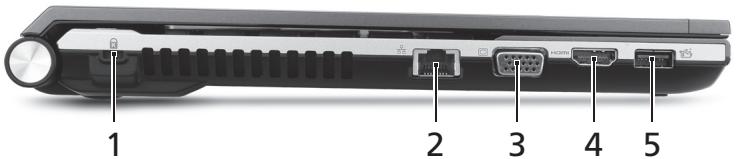
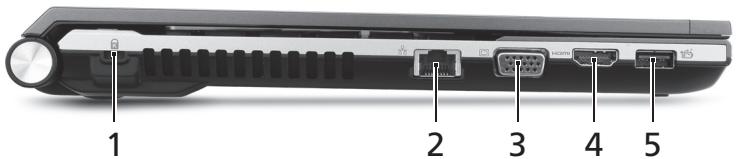
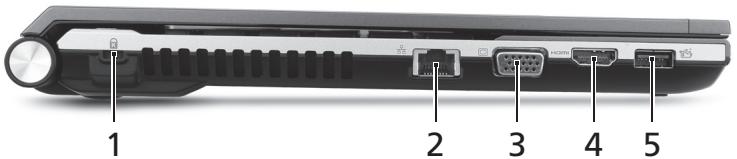
Left view
text_image
1 2 3 4 5| # | Icon | Item | Description |
| 1 | [W0CB] | Kensington lock slot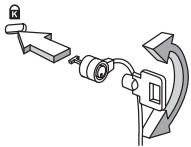 | Connects to a Kensington-compatible computer security lock.Note:Wrap the computer security lock cable around an immovable object such as a table or handle of a locked drawer. Insert the lock into the notch and turn the key to secure the lock. Some keyless models are also available. |
| 2 |  | Ethernet (RJ-45) port | Connects to an Ethernet 10/100/1000-based network. |
| 3 | [06WH] | External display (VGA) port | Connects to a display device (e.g., external monitor, LCD projector). |
| 4 | HDMI | HDMI port | Supports high-definition digital video connections. |
| 5 |  | USB 3.0 port | Connects to USB devices.A USB 3.0 port can be distinguished by its blue connector. |
Information on USB 3.0
• Supports power-off USB charging, allowing you to charge supported mobile devices while the notebook is switched off.
• Defined by the USB 3.0 (SuperSpeed USB) specification.
• Devices without USB 3.0 certification may not be compatible.
Right view
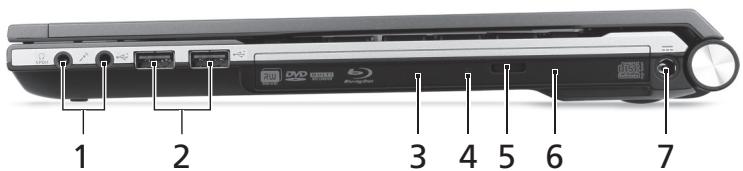
text_image
1 2 3 4 5 6 7| # | Icon | Item | Description |
| 1 |  | Microphone jack | Accepts inputs from external microphones. |
 | Headphones/speaker jack | Connects to audio devices (e.g., speakers, headphones). | |
| 2 | [AZA2] | USB 2.0 ports | Connect to USB 2.0 devices (e.g., USB mouse, USB camera). |
| 3 | Optical drive | Internal optical drive; accepts CDs or DVDs. | |
| 4 | Optical disk access indicator | Lights up when the optical drive is active. | |
| 5 | Optical drive eject button | Ejects the optical disk from the drive. | |
| 6 | Emergency eject hole | Ejects the optical drive tray when the computer is turned off.Note:Insert a paper clip to the emergency eject hole to eject the optical drive tray when the computer is off. | |
| 7 |  | DC-in jack | Connects to an AC adapter. |
Base view
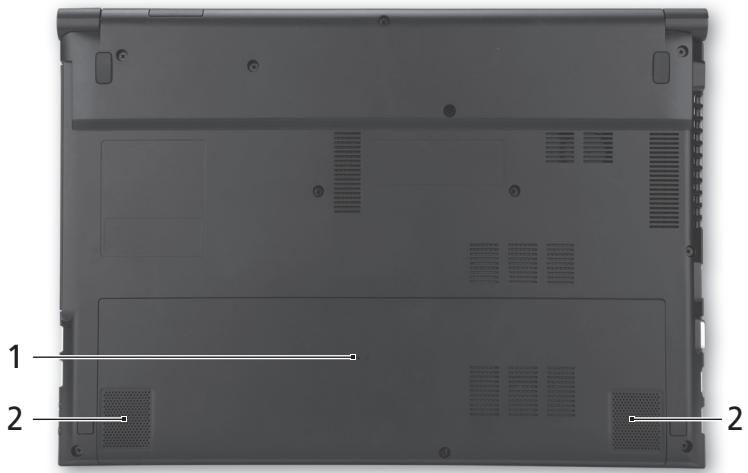
natural_image
Laptop back panel with labeled parts (1 and 2), showing front, rear, and side views without any text or symbols on the body.| # | Icon | Item | Description |
| 1 |  | Battery reset pinhole | Insert a paperclip into the hole to reset the computer (simulates removing and reinstalling the battery). |
| 2 | Speakers | Deliver stereo audio output. |
Environment
- Temperature:
• Operating: 5°C to 35°C
• Non-operating: -20°C to 65°C
• Humidity (non-condensing):
• Operating: 20% to 80%
• Non-operating: 20% to 80%
Gamme de notebook Aspire
Guide rapide
natural_image
Exterior view of a black cylindrical device with a labeled component '1' (no other text or symbols visible)natural_image
Laptop back panel with labeled components (1 and 2), showing internal structure and mounting holes (no text or symbols beyond labels)natural_image
Exterior view of a black cylindrical device with a labeled component '1' (no other text or symbols visible)natural_image
Laptop back panel with labeled components (1 and 2), showing front, rear, and side views without any text or symbols beyond labels.natural_image
Exterior view of a black cylindrical device with a labeled component '1' (no other text or symbols visible)natural_image
Laptop back panel with labeled components (1 and 2), showing internal structure and mounting holes (no text or symbols beyond labels)natural_image
Black cylindrical electronic device with labeled component '1' (no text or symbols on body)natural_image
Laptop back panel with labeled components (1 and 2), showing internal structure and mounting holes (no text or symbols beyond labels)Acer notebook is bundled with the approved telecom modules for your networking. Those modules' model number and specific homologation number refers to below:
[Modem]
| Modelo: RD02-D330 | CNC 54-4512 |
| Modelo: Delphi D40 (AM5) | CNC 54-5681 |
[Bluetooth]
| Modelo: BCM92046 | CNC 16-6735 |
| Modelo: BCM92070MD_REF | CNC 16-7165 |
| Modelo: T77H056 | CNC 16-7788 |
| Modelo: AR5BBU12 | CNC 16-7946 |
[Bluetooth+802.11bgn]
| Modelo: BCM943225HMB | CNC C-7497 |
[802.11AGN]
| Modelo: 512AN_MMW | CNC C-6399 |
| Modelo: 533AN_MMW | CNC C-6385 |
| Modelo: 512AN_HMW | CNC C-7612 |
| Modelo: 533AN_HMW | CNC C-7618 |
| Modelo: 622ANHMW | CNC C-7682 |
| Modelo: 633ANHMW | CNC C-7681 |
[802.11BGN]
| Modelo: AR5B95 | CNC C-7152 |
| Modelo: AR5B93 | CNC C-7151 |
| Modelo: 112BNHMW | CNC C-7470 |
| Modelo: 112BNMMW | CNC C-7471 |
| Modelo: RTL8192SE | CNC C-7495 |
| Modelo: BCM943225HM | CNC C-7395 |
| Modelo: AR5B97 | CNC C-7781 |
| Modelo: BCM94313HMG2L | CNC C-7881 |
[802.11BG]
| Modelo: BCM94312HMG | CNC 16-6180 |
[3G]
| Modelo: UNDP-1 | CNC 17-6334 |
| Modelo: Gobi2000 | CNC 17-7291 |
[Brasil] Noticia adicional de regulamento Anatel
Acer notebook is bundled with the approved telecom modules for your networking. Those modules' model number and specific homologation number refers to below:
[Modem]
| Modelo: RD02-D330 | COFETEL: TTDCORD06-536 |
| Modelo: Delphi_D40 (AM5) | COFETEL: TTDAGDE07-056 |
[Bluetooth]
| Modelo: BCM92046 | COFETEL: RCPFOBC08-0472 |
| Modelo: BCM92070MD_REF | COFETEL: RCPBRBC09-0213 |
| Modelo: T77H056 | COFETEL: RCPATT709-1049 |
| Modelo: AR5BBU12 | COFETEL: RCPATAR10-0064 |
[Bluetooth+802.11BGN]
| Modelo: BCM943225HMB | COFETEL: RCPBRBC09-0574 |
[802.11AGN]
| Modelo: 512AN_HMW | COFETEL:RCPIN5108-0260 |
| Modelo: 512AN_MMW | COFETEL:RCPIN5108-0260-A3 |
| Modelo: 533AN_HMW | COFETEL:RCPIN5108-0260-A2 |
| Modelo: 533AN_MMW | COFETEL:RCPIN5108-0260-A1 |
| Modelo: 622ANHMW | COFETEL:RCPIN6209-1009 |
| Modelo: 633ANHMW | COFETEL:RCPIN6309-1010 |
[802.11BGN]
| Modelo: AR5B95 | COFETEL:RCPATAR09-0168 |
| Modelo: AR5B93 | COFETEL: RCPATAR09-0167 |
| Modelo: 112BNHMW | COFETEL: RCPIN1109-0613-A1 |
| Modelo: 112BNMMW | COFETEL: RCPIN1109-0613 |
| Modelo: RTL8192SE | COFETEL: RCPRERT09-0751 |
| Modelo: BCM943225HM | COFETEL: RCPBRBC09-0464 |
| Modelo: AR5B97 | COFETEL: RCPATAR09-1103 |
| Modelo: BCM94313HMG2L | COFETEL: RCPBRBC09-1196 |
[802.11BG]
| Modelo: BCM94312HMG | COFETEL: RCPBRBC08-0015 |
[3G]
| Modelo: UNDP-1 | COFETEL:RTIQUUN08-0253 |
| Modelo: Gobi2000 | COFETEL:RTIQUGO09-0555 |
| Modelo: EM770W | COFETEL:RTIHUEM10-0096 |
[WiMax]
| Modelo: 622ANXHMW | COFETEL: RCPIN6210-0219 |
natural_image
Exterior view of a black cylindrical device with a labeled component '1' (no other text or symbols visible)natural_image
Laptop back panel with labeled components (1 and 2), showing front, rear, and side views without any text or symbols beyond labels.natural_image
Black cylindrical device with a labeled component '1' on its side (no other text or symbols visible)natural_image
Laptop back panel with labeled components (1, 2) showing internal structure and mounting holes (no text or symbols beyond labels)natural_image
Exterior view of a black cylindrical device with a labeled component '1' (no other text or symbols visible)| # | Element | Beskrivelse |
| 1 | SIM-kortspor | Godtar et 3G SIM-kort (konfigurasjonen kan variere avhengig av modell). |
Venstre visning
text_image
1 2 3 4 5natural_image
Laptop back panel with labeled components (1, 2) showing internal structure and mounting holes (no text or symbols beyond labels)natural_image
Exterior view of a black cylindrical device with a labeled component '1' (no other text or symbols visible)natural_image
Back view of a laptop computer showing front panel, rear panel, and ventilation slots (no text or symbols visible)natural_image
Black cylindrical electronic device with labeled component '1' (no text or symbols on body)natural_image
Laptop back panel with labeled components (1 and 2), showing internal structure and mounting holes (no text or symbols beyond labels)natural_image
Black cylindrical electronic device with labeled component '1' (no text or symbols on body)natural_image
Laptop back panel with labeled components (1 and 2), showing front, rear, and side views without any text or symbols beyond labels.natural_image
Black cylindrical device with a labeled component '1' on its side (no other text or symbols visible)natural_image
Laptop back panel with labeled components (1 and 2), showing internal structure and mounting holes (no text or symbols beyond labels)natural_image
Exterior view of a black cylindrical device with a labeled component '1' (no other text or symbols visible)natural_image
Laptop back panel with labeled components (1 and 2), showing internal structure and mounting holes (no text or symbols beyond labels)natural_image
Exterior view of a black cylindrical device with a labeled component '1' (no other text or symbols visible)natural_image
Laptop back panel with labeled components (1 and 2), showing front, rear, and side views without any text or symbols beyond labels.natural_image
Exterior view of a black cylindrical device with a labeled component '1' (no other text or symbols visible)natural_image
Laptop back panel with labeled components (1 and 2), showing internal structure and mounting holes (no text or symbols beyond labels)natural_image
Black cylindrical device with a labeled component '1' on its side (no other text or symbols visible)natural_image
Laptop back panel with labeled components (1 and 2), showing internal structure and mounting holes (no text or symbols beyond labels)natural_image
Exterior view of a black cylindrical device with a labeled component '1' (no other text or symbols visible)natural_image
Laptop back panel with labeled components (1 and 2), showing front, rear, and side views without any text or symbols beyond labels.natural_image
Black cylindrical device with a labeled component '1' on its side (no other text or symbols visible)| # | Stavka | Opis |
| 1 | Utor za SIM karticu | Prihvaća 3G SIM karticu (konfiguracija se može razlikovati ovisno o modelu). |
Pogled s lijeve strane
text_image
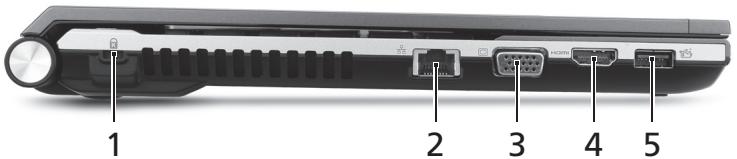
1 2 3 4 5| # | Ikona | Stavka | Opis |
| 1 | [364T] | Utor za Kensington bravu | Povezuje se s Kensington-kompatibilnom računalnom sigurnosnom bravom. |
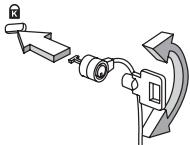 | Napomena: Omotajte kabel sigurnosne brave računala oko nepokretnog objekta kao što je stol ili ručka zaključane ladice. Umetnite bravu u utor i okrenite ključ kako bi osigurali bravu. Dostupni su i neki modeli bez ključa. | ||
| 2 | [607W] | Ethernet (RJ-45) priključak | Povezuje se na Ethernet 10/100/1000-baziranu mrežu. |
| 3 | [1242X] | Priključak vanjskog ekrana (VGA) | Povezuje se s uređajem za prikaz (primjerice vanjskim monitorom, LCD projektorom). |
| 4 | HDMI | HDMI ulaz | Podržava veze digitalnog video visoke definicije. |
| 5 | [TTB8] | USB 3.0 priključak | Povezuje USB uređaje. USB 3.0 priključak razlikuje se prema plavoj priključnici. |
Informacije o USB 3.0
natural_image
Laptop back panel with labeled components (1, 2) showing internal structure and mounting holes (no text or symbols beyond labels)| # | Ikona | Stavka | Opis |
| 1 |  | Iglični otvor za poništavanje akumulatora | Umetnite spajalicu za papir u otvor za poništavanje računala (simulira uklanjanje i ponovno postavljanje akumulatora). |
| 2 | Zvučnici | Omogućuju stereo audio izlaz. |
Okruženje
- Temperatura:
• Radna: 5°C do 35°C
• Pohrana: - 20°C do 65°C
• Vlažnost (nekondenzirajuća):
• Radna: 20% do 80%
• Pohrana: 20% do 80%
Seria Aspire de computere portabile
Ghid rapid
natural_image
Exterior view of a black cylindrical device with a labeled component '1' (no other text or symbols visible)natural_image
Laptop back panel with labeled components (1 and 2), showing internal structure and mounting holes (no text or symbols beyond labels)natural_image
Black cylindrical device with a labeled component '1' on its side (no other text or symbols visible)natural_image
Laptop back panel with labeled components (1 and 2), showing front, rear, and side views without any text or symbols beyond labels.natural_image
Exterior view of a black cylindrical device with a labeled component '1' (no other text or symbols visible)natural_image
Laptop back panel with labeled components (1 and 2), showing internal structure and mounting holes (no text or symbols beyond labels)natural_image
Exterior view of a black cylindrical device with a labeled component '1' (no other text or symbols visible)natural_image
Laptop back panel with labeled components (1 and 2), showing internal structure and mounting holes (no text or symbols beyond labels)1 Spauskite AcerSyst

Start (pradèti) > All Programs (visos programos) >
2 Spauskite Aspire Generic User Guide.

natural_image
Black cylindrical electronic device with labeled component '1' (no text or symbols on body)natural_image
Laptop back panel with labeled components (1 and 2), showing internal structure and mounting holes (no text or symbols beyond labels)natural_image
Black cylindrical device with a labeled component '1' on its side (no other text or symbols visible)natural_image
Laptop back panel with labeled components (1 and 2), showing front, rear, and side views without any text or symbols beyond labels.natural_image
Black cylindrical device with a labeled component '1' on its side (no other text or symbols visible)natural_image
Laptop back panel with labeled components (1 and 2), showing internal structure and mounting holes (no text or symbols beyond labels)natural_image
Exterior view of a black cylindrical device with a labeled component (1), no visible text or symbols on the body itself.natural_image
Black cylindrical device with a labeled component '1' on its side (no other text or symbols visible)natural_image
Back view of a laptop computer showing two labeled parts (1 and 2) with visible internal structure and ventilation slots (no text or symbols on the panel itself)natural_image
Exterior view of a black cylindrical device with a labeled component (1), no visible text or symbols on the body itself.natural_image
Laptop back panel with labeled parts (1 and 2), showing front, rear, and side views without any text or symbols on the body.text_image
Laptop keyboard layout with labeled keys and function buttons, showing front, back, and interior viewsnatural_image
Exterior view of a black cylindrical device with a labeled component (1), no visible text or symbols on the body itself.natural_image
Laptop back panel with labeled components (1 and 2), showing internal structure and ventilation slots (no text or symbols beyond labels)natural_image
Exterior view of a black cylindrical device with a labeled component '1' (no other text or symbols visible)| # | Item | Keterangan |
| 1 | Slot kartu SIM | Menerima kartu SIM 3G (konfigurasi mungkin berbeda bergantung model). |
Tampak kiri