
SC-NT10E - Bluetooth speaker PANASONIC - Free user manual and instructions
Find the device manual for free SC-NT10E PANASONIC in PDF.



| Product type | Portable Bluetooth Speaker |
| Brand | Panasonic |
| Model | SC-NT10E |
| Power supply | Built-in NiMH battery 3.6 V / 1500 mAh, recharge via USB (DC IN 5 V 0.5 A) |
| Battery life | Approximately 8 hours (depending on usage conditions) |
| Charging time | Approximately 5 hours |
| Connectivity | Bluetooth® 3.0, NFC (One-Touch), 3.5 mm AUX input |
| Bluetooth profiles | A2DP, AVRCP, HFP |
| Audio codec | SBC |
| Output power | 2 W x 2 (1 kHz, 6 Ω, Boost Mode), Total RMS 4 W |
| Speaker | 34 mm, 50 mm passive radiator |
| Splash resistance | IPX4 |
| Drop resistance | Up to 76 cm |
| Dust resistance | Yes (manufacturer test) |
| Cold/heat resistance | -10°C to +50°C |
| Additional functions | Boost Mode, hands-free calling, auto power off, factory reset |
| Maintenance | Wipe with a soft, dry cloth. Do not use solvents. |
| Supplied accessories | USB cable |
| Repairability | Battery replacement by a professional only. |
Frequently Asked Questions - SC-NT10E PANASONIC
User questions about SC-NT10E PANASONIC
0 question about this device. Answer the ones you know or ask your own.
Ask a new question about this device
Download the instructions for your Bluetooth speaker in PDF format for free! Find your manual SC-NT10E - PANASONIC and take your electronic device back in hand. On this page are published all the documents necessary for the use of your device. SC-NT10E by PANASONIC.
USER MANUAL SC-NT10E PANASONIC
Wireless Speaker System
Model No. SC-NT10

natural_image
Top-down view of a circular mechanical component with textured surface and mounting brackets (no text or symbols)
Bluetooth®
Operating Instructions
Bedienungsanleitung
Mode d'emploi
Thank you for purchasing this product. Please read these instructions carefully before using this product, and save this manual for future use.
Table of contents
Precautions 2
About Bluetooth ^® 3
Maintenance.... 3
Accessories....3
Control reference guide.... 4
(Important) About the splashproof, dustproof, shockproof and freezeproof/heatproof....5
About the power of this unit...... 6
Listening to audio from a Bluetooth ^® device 7
Connecting via Bluetooth® menu......7
One-Touch Connection (Connecting by NFC) 8
Selecting Transmission mode setting....9
Disconnecting Bluetooth ^® .....9
Using Boost Mode.... 10
Using the AUX input.... 10
Auto Power Off.... 10
Receiving a call with Hands-Free..... 11
To return to the factory preset state.... 11
Troubleshooting 12
Specifications 13
To remove the battery when disposing of this unit....74
Licenses 76
Limited Warranty (ONLY FOR AUSTRALIA) 83
Precautions
WARNING
Unit
To reduce the risk of fire, electric shock or product damage,
- Do not let water or other liquids drip or splash inside the unit.
- Do not expose accessory to rain, moisture, dripping or splashing.
- Do not place objects filled with liquids, such as vases, on accessory.
• Use only the recommended accessory. - Do not remove the cover except disassembling for discarding.
- Do not repair this unit by yourself. Refer servicing to qualified service personnel.
USB cable
The cable is the disconnecting device. Install this unit so that the cable can be unplugged from the USB terminal of PC immediately.
CAUTION
Unit
- Product identification marking is located on the bottom of the unit.
- Do not throw.
- Do not hit this unit to anything. Do not apply strong pressure to this unit. External case may break when strong impact is applied, causing to damage or malfunction.
- Do not leave the unit in a car exposed to direct sunlight for a long period of time with doors and windows closed.
- This unit may receive radio interference caused by mobile telephones during use. If such interference occurs, please increase separation between this unit and the mobile telephone.
Batteries
This unit has a built-in battery.
- In order to secure splashproof performance, battery replacement by the customer is not guaranteed. If you desire battery replacement, please contact our service department.
The following is the caution for removing the battery when disposing of this unit ( 74).
• Do not heat or expose to flame.
- Do not short circuit.
• Do not disassemble, crush.
- Do not re-use.
• Do not place in microwave ovens.
About Bluetooth®
Panasonic bears no responsibility for data and/or information that is compromised during a wireless transmission.
Frequency band used
This unit uses the 2.4 GHz frequency band.
Certification of this device
- This unit conforms to frequency restrictions and has received certification based on frequency laws. Thus, a wireless permit is not necessary.
- The actions below are punishable by law in some countries:
– Taking apart/modifying the unit.
– Removing specification indications.
Restrictions of use
- Wireless transmission and/or usage with all Bluetooth® equipped devices is not guaranteed.
- All devices must conform to standards set by Bluetooth SIG, Inc.
- Depending on the specifications and settings of a device, it can fail to connect or some operations can be different.
- This system supports Bluetooth ^ security features. But depending on the operating environment and/or settings, this security is possibly not sufficient. Transmit data wirelessly to this system with caution.
- This system cannot transmit data to a Bluetooth® device.
Range of use
Use this device at a maximum range of 10 m. The range can decrease depending on the environment, obstacles or interference.
Interference from other devices
- This unit may not function properly and troubles such as noise and sound jumps may arise due to radio wave interference if this unit is located too close to other Bluetooth ^® devices or the devices that use the 2.4 GHz band.
- This unit may not function properly if radio waves from a nearby broadcasting station, etc. is too strong.
Intended usage
• This unit is for normal, general use only.
- Do not use this system near an equipment or in an environment that is sensitive to radio frequency interference (example: airports, hospitals, laboratories, etc).
Declaration of Conformity (DoC)
Hereby, "Panasonic Corporation" C€1731
declares that this product is in compliance with the essential requirements and other relevant provisions of Directive 1999/5/EC.
Customers can download a copy of the original DoC to our R&TTE products from our DoC server: http://www.doc.panasonic.de
Contact to Authorised Representative: Panasonic Marketing Europe GmbH,
Panasonic Testing Centre, Winsbergring 15, 22525 Hamburg, Germany
This product is intended for general consumer. (Category 3)
Maintenance
Turn off the power of this unit and wipe with dry soft cloth. Disconnect the USB cable when the USB cable is used.
- When it get very dirty, wipe off dirt with a cloth immersed in water and wrung strongly, and then wipe with dry soft cloth.
- Solvents such as benzine, thinner, alcohol, oil, detergents, etc., may cause the external case to be altered or the coating may come off, so do not use them.
• Before using chemically treated cloth, read the instructions that came with the cloth carefully.
Accessories
Check the supplied accessories before using this unit.
1 USB cable (K1HY04YY0074)
- The USB cable is dedicated for this unit, so do not use with other devices. Also, do not use the USB cable for other devices with this unit.
Note
- Product numbers provided in these operating instructions correct as of July 2013. These may be subject to change.
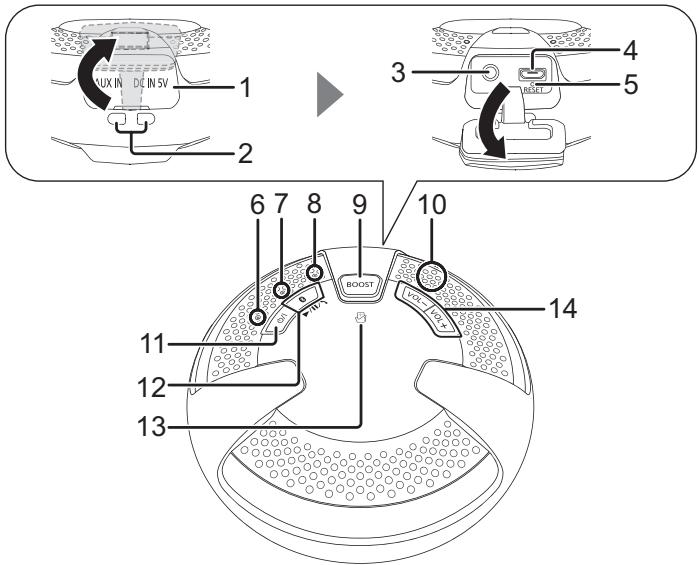
1 Terminal cover
2 Strap hole
3 AUX IN jack ( 10)
• Recommended plug type: Straight Plug
4 DC IN terminal
5 RESET
- Use a paper clip, etc., to press the switch if this unit does not operate correctly, like when you cannot turn off/on the power.
6 Battery indicator (red) ( 6)
• Indicates the battery status.
7 Bluetooth® indicator (blue)
8 Boost Mode indicator (orange)
9 Boost button (⇒ 10)
10 Microphone (⇒ 11)
11 Standby/on switch [⏻/l]
- Press to switch the unit from on to standby mode or vice versa. In standby mode, the unit is still consuming a small amount of power.
12 Bluetooth® pairing button ( 7)/Play button (below)/Pause button (below)/Receiver button ( 11)
- Play / Pause: Press this button to switch between play and pause while playing music with the paired device.
13 NFC touch area ( 8)
14 Volume buttons
(Important) About the splashproof, dustproof, shockproof and freezeproof/heatproof
■ Splashproof performance\*
Specifications for this unit are equivalent of IPX4 of IEC 60529.
About the IPX4 (liquid ingress protection level against splashing water)
This unit is compatible to operate after splashing from nozzles approximately 1.8 L/min of room temperature tap water from every direction approximately 20 cm from this unit for 10 minutes. Supplied USB cable is not splashproof.
■ Dustproof performance\*
Dustproof performance test established by company has been passed. (Corresponds to the fact that this unit operates. Does not apply to items concerning change in appearance such as paint peeling, deformation, contamination, etc.)
■ Shockproof performance\*
This unit has passed the test where product is dropped from height of 76 cm in the downward direction (2 surfaces, 8 side surfaces) on a piece of plywood that is 3 cm thick (Corresponds to the fact that the device operates. Does not apply to items concerning change in appearance such as paint peeling and deformation of parts where collision occurred.)
■ Freezeproof/Heatproof performance\*
Performance is guaranteed under -10 °C to +50 °C ambient temperature.
- For safety reasons, this device will automatically shutdown when it reaches a certain temperature level.
* Non-destruction, non-failure or splashproof is not guaranteed under all conditions.
■ Cautions for using around water
Conform to following. Improper use may result in a malfunction.
- Securely close the terminal cover.
- Do not open or close the terminal cover with wet hands or when water droplets are on this unit. Doing so may cause malfunction such as terminal rusting with the water droplets.
- Do not connect and use a USB cable or an audio cable (not supplied).
- Do not pour soap water or detergent, or immerse in water.
- Remove any hair, lint, sand, dust, etc., that may be attached to the rubber seal on the terminal cover before closing.
- Leaving the device with water droplets in a cold region may result to malfunction such as the covers stuck closed.
- The sound may become smaller or warped when water is accumulated in the speaker or microphone of this unit. Wipe this unit with dry soft cloth.
- Water may accumulate inside the speaker of this unit. Tilt the set toward the water drain hole to drain water.
The bottom of the unit

- If this product is routinely used outdoors, in a very humid environment, or in a manner that relies on the splashproof durability of this product, we recommend the maintenance each 2 year to maintain the splashproof performance of the product. Please consult your dealer for more information.
- When water enters inside this unit, stop using this unit, and contact the nearest Dealer or Service Center. Malfunction due to exposure to water by improper handling by the customer will not be covered by the warranty. Supplied accessories are not splashproof.
About the power of this unit
This unit has a built-in battery. Please charge the battery before using this unit for the first time.
- If the battery level is low when this unit is turned on, the Battery indicator (red) ( 4) blinks slowly.
■ Charging the battery
Connect this unit with the power turned off and the PC with the power turned on using the USB cable (supplied).

If charging is necessary, the Battery indicator (red) lights. When charging is complete, the Battery indicator goes off.
| Battery life in use | Approx. 8 hours*1 |
| Battery Charge time | Approx. 5 hours*2 |
| Rechargeable times | Approx. 500 times |
*1 Measured by the test method established by the company [while connecting with Bluetooth®, turning off Boost Mode (⇒ 10), using at the surrounding temperature of 25 °C]
*2 When charging at the surrounding temperature of 25 °C after the battery is depleted.
■ Using and charging with connecting to a PC turned on
Press [⏻/l] for turning on this unit. The Bluetooth® indicator (blue) blinks or lights, and it is possible to operate this unit with the supplied power from a PC.
- Depending on the power supply capacity of the connected USB device, the sound may be interrupted or the volume may drop. It is recommended to connect to a device with supply performance of 1.6 A or larger when full power playback with USB connection is required.
- It takes longer to charge while this unit is turned on.
Note
- You may need to charge the battery before using this unit.
- Do not use any other USB cables except the supplied one. (Operation is not guaranteed.)
- When this unit is not used over a long period of time, charge the built-in battery at least once every six months to prevent it from deteriorating.
- Communication is not possible when this unit is connected to a PC with the USB cable.
- Charging may not start if the battery level is sufficiently high even if it is not full.
- It is recommended to charge the battery in the temperature of between 5 °C and 35 °C. The Battery indicator (red) may flash and charging may not be possible when it is out of recommended temperature range.
- The battery may not charge when the temperature surrounding the battery is high during the operation or right after the operation even when it is within the recommended temperature range. In such case, stop the usage and let it cool down.
- To ensure safety, in the case of an excessive input signal, the system may be automatically interrupted and power is turned off.
Listening to audio from a Bluetooth® device
Preparation
While charging this unit or after charging this unit, turn on the Bluetooth ^® feature of the device and place the device near this unit.
If you intend to use an NFC (Near Field Communication)-compatible Bluetooth ^® device, proceed to “One-Touch Connection (Connecting by NFC)” ( 8).
Connecting via Bluetooth® menu
For each Bluetooth ^® device you want to connect to via Bluetooth ^® , perform pairing first.
■ Pairing with Bluetooth® device
1 Press [⏻/l] to turn this unit on.
- The Bluetooth® indicator (blue) blinks slowly.
- If this unit is being used for the first time (factory preset state):
The Bluetooth ^® indicator (blue) blinks fast. → The unit will enter pairing standby.
→ Skip to step 3.
2 Press and hold [ ✉ ] until the Bluetooth® indicator (blue) blinks fast.
• The unit will enter pairing standby.
3 Select "SC-NT10" from the Bluetooth® device's Bluetooth® menu.
- When the Bluetooth ^ device is paired and connected, the Bluetooth ^ indicator (blue) on the unit lights up.
- If prompted for a passkey, input "0000".
- If the Bluetooth® device need to operate the Bluetooth® pairing setting and the Bluetooth® connecting setting, operate both settings.
4 Start playing back music, a movie, etc. on your Bluetooth ^® device.
- Adjust the volume using the [VOL-/VOL+] buttons on the unit. When the maximum or minimum volume is reached, you will be notified by a beep sound.
■ Listening to audio from a paired device
When this unit is turned on, the Bluetooth ^® indicator (blue) will blink slowly indicating that the unit is in connection standby mode. Please perform Steps 3 and 4.
- When the power is turned on, this unit is connected to the last-used Bluetooth® device. At this point, please perform Step 4.
For NFC-compatible Android ^TM devices only
By simply touching this unit to an NFC (Near Field Communication)-compatible Bluetooth ^® device, this unit automatically turns on, and performs the starting operation, from pairing the Bluetooth ^® device to establishing a connection. Designed to skip the starting operation, this feature is very convenient.
About NFC (Near Field Communication)
It is a short range wireless technology that makes use of interacting radio communications.
Preparation
Turn on the NFC feature of the device. And connect the device to the internet to install a dedicated app. Separate data charges apply for the internet use.
1 Download the app "Panasonic Music Streaming" (free of charge) to your Bluetooth® device from Google Play™.
- Enter “Panasonic Music Streaming” in the search box of Google Play™ and search → select “Panasonic Music Streaming” to download the app
2 Start the app "Panasonic Music Streaming" on your Bluetooth® device.
- Follow on-screen instructions on your device.
• Always use the latest version of the app.
3 Touch and hold your device on the NFC touch area of this unit. (Until a pop-up window on your device indicates that the connection is established.)
- When this unit turns on and a connection is established, the Bluetooth® indicator (blue) lights up.
- When the Bluetooth® indicator (blue) does not light up even if you have touched the NFC touch area, change the touching position.
4 Start playing back music, a movie, etc. on your Bluetooth ^® device.
■ Connecting to another device
If you touch another device to this unit, you can update the Bluetooth ^® connection. The previously connected device will be disconnected automatically.
You can change the transmission speed to prioritise sound quality or connectivity.
- The default setting is “Sound Quality Priority MODE”. When the sound is interrupted, select “Connectivity Priority MODE”.
1 Set either of the following modes.
■ Sound Quality Priority MODE:
While pressing and holding [ Ⓧ ], press and hold [VOL -] until the Bluetooth® indicator (blue) and the Boost Mode indicator (orange) blink once.
■ Connectivity Priority MODE:
While pressing and holding [BOOST], press and hold [VOL -] until the Bluetooth ^® indicator (blue) and the Boost Mode indicator (orange) blink once.
2 Press [⏻/l] to turn this unit off, and press [⏻/l] again to turn on.
- The Bluetooth® connection is automatically established, and the Bluetooth® indicator (blue) lights up.
Disconnecting Bluetooth®
- Turn off this unit or the device.
- Stop / disable the Bluetooth® transmission of the device.
• (For NFC-compatible devices only)
Touch and hold your device to NFC touch area of this unit again.
Note
- This unit can only be connected to one device at a time.
- This unit can register up to 8 devices. If a 9th device is paired, the device that has not been used for the longest time will be replaced.
- Even when this unit is turned off, if this unit is connected to the PC that is powered on with an USB cable and this unit is selected on the device that is paired with this unit, power of this unit will be turned on and connected via Bluetooth® automatically.
- If the image and sound are out of sync during playback, restart the playback app you are using. If the problem persists, connect the Bluetooth® device and this unit with an audio cable.
- The One-Touch Connection may not work properly depending on the type of device being used.
Using Boost Mode
It will make the sound played back on this unit easier to hear by boosting the level of specific frequency band.
Press [BOOST] of this unit to switch the effect on/off.
- The Boost Mode indicator (orange) lights up.
Note
- If sound is distorted during playback, switch off the "Boost Mode".
- When saving the power consumption, set "Boost Mode" to "off".
- Location of this unit may move due to vibration.
Using the AUX input
You can listen to audio via the AUX IN jack ( 4) when this unit is connected to a device with an audio cable (not supplied).
Note
- When using the AUX input, AUX input has priority than the Bluetooth ^ features and NFC features. (It will be possible to receive a call hands-free by pressing [ ✉ ] when there is a call coming in on the device connected with Bluetooth ^ . ⇒ 11)
- The setting of the Bluetooth ^ is not changed even if the audio cable (not supplied) is inserted into AUX IN jack.
- When using the AUX input, the volume may seem low depending on the connected device. In that case, check if the volume limit can be changed on the device. For details, refer to the manual of the device.
- If an audio cable is inserted during audio playback with a Bluetooth® connection, noise may occur. In this case, stop the playback on the device connected via Bluetooth®.
Auto Power Off
This unit automatically turns off if there is no audio input and no operation is performed for approximately 10 minutes.
Note
- This function will not operate when the AUX input is used while connected with the USB cable.
- This function may operate even when the music is being played back if the volume of the connected device is low.
- This function may not operate depending on the connected device.
Receiving a call with Hands-Free
If receiving a call on the mobile phone connected to this unit with Bluetooth ^® , you can make a hands-free call through this unit.
Preparation
For connecting Bluetooth ^® , refer to “Connecting via Bluetooth ^® menu” ( 7) or “One-Touch Connection (Connecting by NFC)” ( 8).
■ Receiving a call
Press [ ✉ ] when this unit rings.
- When receiving the call, the Bluetooth® indicator (blue) on the unit blinks.
- Talk into the microphone ( 4) on this unit.
■ Ending the call
Press [ ✉ ].
Note
- Adjust the volume during a call with [VOL +] and [VOL -] on this unit.
- During a hands-free call, if you want to switch from this unit to the hands-free device, operate the hands-free device.
- If this unit receives a call while playing audio with Bluetooth ^® , it changes the audio to a ringtone automatically. In addition, during playback with the AUX IN jack, the audio of this unit automatically changes to a ringtone of the pairing device.
- If you touch other devices to the NFC touch area of this unit when receiving a call, Bluetooth® connection will not switch.
- To mute the ringtone of this unit, press [VOL -] until the volume reaches minimum.
- Some apps for the mobile phone may not be available for hands-free.
To return to the factory preset state
Perform the following when you want to delete pairing device information, etc.
1 Press [⏻/l] to turn the power on.
2 Press and hold [⏻/l] for 10 seconds until Bluetooth® indicator (blue) and Boost Mode indicator (orange) blink twice.
The pairing device information will be deleted by the reset, so it will be necessary to perform pairing again. Delete the pairing information for this unit from the Bluetooth ^® device, then perform the pairing operation again. (See “Pairing with Bluetooth ^® device” ⇒ 7)
Troubleshooting
Before requesting service, make the following checks. If you are in doubt about some of the check points, or if the solutions indicated in the following guide do not solve the problem, consult your dealer for instructions.
Sound from the device is cut off.
- The device is out of the 10 m communication range. Move the device nearer to this unit. (See “About Bluetooth®” ⇒ 3)
- Remove any obstacle between this unit and the device.
- Switch off any wireless LAN device.
- Select “Connectivity Priority MODE” for stable communication. (See “Selecting Transmission mode setting” ⇒ 9)
The device cannot be connected.
- Refer to the operating instructions of the device, and perform the pairing operation again. (See "Pairing with Bluetooth® device" 7)
- Make sure that this unit is not connected to a different device.
The device is connected but audio cannot be heard from this unit.
- For some built-in Bluetooth ^ devices, you have to set the audio output to "SC-NT10" manually. Read the operating instructions of the device for details.
This unit is not operating correctly. For example, this unit turns off all of a sudden or all indicator blink.
- A problem has occurred. Turn off this unit, disconnect USB cable and press [RESET] ( 4).
The One-Touch Connection (NFC feature) is not working.
- Turn on the NFC feature of the device.
Volume is low when this unit is connected to a TV via Bluetooth ^® .
- Adjust the volume on the TV. The volume of headphone output may be coupled with the volume of the Bluetooth® output depending on the TV. In such case, adjust the volume of the headphone output on the TV.
Specifications
Amplifier section
Output power
RMS Output Power
10 % total harmonic distortion
Front ch (both ch driven):
2 W per channel (1 kHz, 6 Ω, Boost Mode)
Total RMS power:
4 W
Speaker section
Front Speaker (L/R)
Type:
1 way 1 speaker system
(Passive Radiator)
Unit(s):
34 mm
Impedance:
6 Ω
Passive Radiator:
50 mm
Bluetooth® section
Bluetooth ^® system specification:
Bluetooth® Ver. 3.0
Wireless equipment classification:
Class 2 (2.5 mW)
Supported profiles:
A2DP/AVRCP/HFP
Supported codec:
SBC
Frequency band:
2.4 GHz band FH-SS
Operating distance:
Approx. 10 m Line of Sight
Prospective communication distance.
Measurement environment:
Hight 1.0 m
Microphone section
Type:
Mono
Terminals section
DC IN:
USB Micro Type B
AUX input:
Stereo 3.5 mm jack
General
Power supply:
DC IN 5 V 0.5 A
Internal Battery 3.6 V (NiMH 1500 mAh)
Battery Life in Use:
Approx. 8 h (Normal Mode, Bluetooth®)
Approx. 1.5 h (Boost Mode, Bluetooth®)
Battery Charge Time:
Approx. 5 h
Dimensions (W × H × D):
120 mm × 53.8 mm × 120 mm
Mass:
Approx. 330 g
Operating temperature range:
-10 °C to +50 °C
Operating humidity range:
35% to 80% RH (no condensation)
Splash Proof:
IPX4 equivalent
Shock Proof:
76 cm Drop
Note
- Specifications are subject to change without notice. Mass and dimensions are approximate.
- Total harmonic distortion is measured by a digital spectrum analyzer.
Notes on Speakers
• Decrease the volume when the audio is distorted.
natural_image
Diagram showing a laptop connected to a device with an attached plug and connecting tubing (no text or symbols present)Über NFC (Near Field Communication)
Ca. 8 h (Normal Mode, Bluetooth®)
Ca. 1,5 h (Boost Mode, Bluetooth®)
Batterieladezeit:
Ca. 5 h
Abmessungen (B × H × T):
120 mm × 53,8 mm × 120 mm
Gewicht:
Ca. 330 g
A propos du NFC (Near Field Communication)
Distance de communication prospective.
Environ 8 h (Mode Normal, Bluetooth®)
Environ 1,5 h (Mode Boost, Bluetooth®)
Dimensions (L × H × P):
120 mm × 53,8 mm × 120 mm
Poids :
Environ 330 g
natural_image
Illustration of a laptop connected to a gas stove with a connector (no text or symbols)NFC (Near Field Communication)
Dimensioni (L × A × P):
120 mm × 53,8 mm × 120 mm
Peso:
Circa 330 g
natural_image
Illustration of a laptop connected to a device with an attached cable, showing no text or symbols.Cable USB (suministrado)
Aprox. 8 h (Modo Normal, Bluetooth®)
Aprox. 1,5 h (Modo Boost, Bluetooth®)
NFC (Near Field Communication)
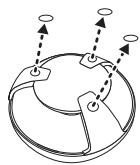
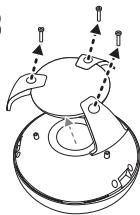
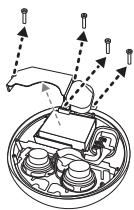
The following instructions are not intended for repairing purposes but for the disposal of this unit. This unit is not restorable once disassembled. When disposing of this unit, take out the battery installed in this unit and recycle it.
- Use up the battery before disassembling. (For Cautions of the battery 2)
- Keep the rubber sheets and the screws out of reach of children to prevent swallowing.
natural_image
Diagram of a mechanical component with a circular cross-section and an upward arrow indicating rotation (no text or symbols)2
natural_image
Diagram of a circular mechanical or electrical component with directional arrows and control points (no text or symbols)3
natural_image
Diagram of a mechanical device with arrows indicating motion or force direction (no text or symbols)4

natural_image
Technical diagram of a mechanical assembly with exploded view and internal components (no text or labels)5
6

Disposal of Old Equipment and Batteries
Only for European Union and countries with recycling systems

These symbols on the products, packaging, and/or accompanying documents mean that used electrical and electronic products and batteries must not be mixed with general household waste.

For proper treatment, recovery and recycling of old products and used batteries, please take them to applicable collection points in accordance with your national legislation.

By disposing of them correctly, you will help to save valuable resources and prevent any potential negative effects on human health and the environment.
For more information about collection and recycling, please contact your local municipality.
Penalties may be applicable for incorrect disposal of this waste, in accordance with national legislation.
Note for the battery symbol (bottom symbol):
This symbol might be used in combination with a chemical symbol. In this case it complies with the requirement set by the Directive for the chemical involved.
Panasonic Testing Centre, Winsbergring 15, 22525 Hamburg, Germany
Panasonic Testing Centre, Winsbergring 15, 22525 Hamburg, Germany
- The product is warranted for 12 months from the date of purchase. Subject to the conditions of this warranty Panasonic or its Authorised Service Centre will perform necessary service on the product without charge for parts or labour, if in the opinion of Panasonic, the product is found to be faulty within the warranty period.
- This warranty only applies to Panasonic products purchased in Australia and sold by Panasonic Australia or its Authorised Distributors or Dealers and only where the products are used and serviced within Australia or it's territories. Warranty cover only applies to service carried out by a Panasonic Authorised Service Centre and only if valid proof of purchase is presented when warranty service is requested.
- This warranty only applies if the product has been installed and used in accordance with the manufacturer's recommendations (as noted in the operating instructions) under normal use and reasonable care (in the opinion of Panasonic). The warranty covers normal domestic use only and does not cover damage, malfunction or failure resulting from use of incorrect voltages, incorrect installation, accident, misuse, neglect, build-up of dirt or dust, abuse, maladjustment of customer controls, mains supply problems, thunderstorm activity, infestation by insects or vermin, tampering or repair by unauthorised persons (including unauthorised agents), such as humidity or liquids, commercial use such as hotel, office, restaurant, or other business or rental use of the product, exposure to abnormalities corrosive conditions or any foreign object or matter having entered the product.
-
This warranty does not cover the following items unless the fault or defect existed at the time of purchase:
(a) Cabinet Part(s)
(e) DVD, Blu-ray or Recordable Discs
(b) Video or Audio Tapes
(f) Video / Audio Heads from wear and tear in normal use
(c) SD cards or USB devices
(g) Information stored on Hard Disk Drive, USB stick or SD card
(d) User replaceable Batteries etc
(h) DTV reception issues caused by TV Aerial / Cabling / Wall socket(s) -
Some products may be supplied with Ethernet connection hardware. The warranty is limited on such products and will not cover
(a) Internet and or DLNA connection / setup related problems
(b) Access fees and or charges incurred for internet connection
(c) The use of incompatible software or software not specifically stipulated in the product operations manual; and
(d) Any indirect or consequential costs associated with the incorrect use or misuse of the hardware, its connection to the internet or any other device. -
To claim warranty service, when required, you should:
-
Telephone Panasonic's Customer Care Centre on 132600 or visit our website referred to below and use the Service Centre Locator for the name/address of the nearest Authorised Service Centre.
- Send or take the product to a Panasonic Authorised Service Centre together with your proof of purchase receipt as a proof of purchase date. Please note that freight and insurance to and / or from your nearest Authorised Service Centre must be arranged by you.
• Note that home or pick-up/delivery service is available for the following products in the major metropolitan areas of Australia or the normal operating areas of the nearest Authorised Service Centres: -
Plasma/LCD televisions / displays (screen size greater than 103 cm)
-
The warranties hereby conferred do not extend to, and exclude, any costs associated with the installation, de-installation or re-installation of a product, including costs related to the mounting, de-mounting or remounting of any screen, (and any other ancillary activities), delivery, handling, freighting, transportation or insurance of the product or any part thereof or replacement of and do not extend to, and exclude, any damage or loss occurring by reason of, during, associated with, or related to such installation, de-installation, re-installation or transit.
Panasonic Authorised Service Centres are located in major metropolitan areas and most regional centres of Australia, however, coverage will vary dependant on product. For advice on exact Authorised Service Centre locations for your product, please telephone our Customer Care Centre on 132600 or visit our website and use the Service Centre Locator.
In addition to your rights under this warranty, Panasonic products come with consumer guarantees that cannot be excluded under the Australian Consumer Law. If there is a major failure with the product, you can reject the product and elect to have a refund or to have the product replaced or if you wish you may elect to keep the goods and be compensated for the drop in value of the goods. You are also entitled to have the product repaired or replaced if the product fails to be of acceptable quality and the failure does not amount to a major failure.
If there is a major failure in regard to the product which cannot be remedied then you must notify us within a reasonable period by contacting the Panasonic Customer Care Centre. If the failure in the product is not a major failure then Panasonic may choose to repair or replace the product and will do so in a reasonable period of time from receiving notice from you.
THIS WARRANTY CARD AND THE PURCHASE DOCKET (OR SIMILAR PROOF OF PURCHASE) SHOULD BE RETAINED BY THE CUSTOMER AT ALL TIMES
If you require assistance regarding warranty conditions or any other enquiries, please visit the Panasonic Australia website www.panasonic.com.au or contact by phone on 132 600 If phoning in, please ensure you have your operating instructions available.
Panasonic Australia Pty. Limited
ACN 001 592 187 ABN 83 001 592 187
1 Innovation Road, Macquarie Park NSW 2113
PRO-031-F11 Issue: 4.0
01-01-2011
Norsk
■ ADVARSEL
Produkt
For the United Kingdom and Ireland customers
Sales and Support Information
Customer Communications
Centre
• For customers within the UK: 0844 844 3899
• For customers within Ireland: 01 289 8333
- Monday–Friday 9:00 am - 5:00 pm (Excluding public holidays).
- For further support on your product, please visit our website: www.panasonic.co.uk
Direct Sales at Panasonic UK
- Order accessory and consumable items for your product with ease and confidence by phoning our Customer Communications Centre Monday–Friday 9:00 am - 5:00 pm (Excluding public holidays).
- Or go on line through our Internet Accessory ordering application at www.pas-europe.com.
- Most major credit and debit cards accepted.
- All enquiries transactions and distribution facilities are provided directly by Panasonic UK.
- It couldn't be simpler!
- Also available through our Internet is direct shopping for a wide range of finished products. Take a browse on our website for further details.
EU

natural_image
Symbol of a trash bin crossed out by two diagonal lines (no text or numbers present)EU
Manufactured by: Panasonic Corporation Kadoma, Osaka, Japan Importer: Panasonic Marketing Europe GmbH Panasonic Testing Centre: Winsbergring 15, 22525 Hamburg, Germany
- Wireless Speaker System
- Bluetooth®
- Table of contents
- Precautions
- WARNING
- Unit
- USB cable
- CAUTION
- Batteries
- About Bluetooth®
- Frequency band used
- Certification of this device
- Restrictions of use
- Range of use
- Interference from other devices
- Intended usage
- Declaration of Conformity (DoC)
- Maintenance
- Accessories
- USB cable (K1HY04YY0074)
- Note
- (Important) About the splashproof, dustproof, shockproof and freezeproof/heatproof
- ■ Splashproof performance\*
- About the IPX4 (liquid ingress protection level against splashing water)
- ■ Dustproof performance\*
- ■ Shockproof performance\*
- ■ Freezeproof/Heatproof performance\*
- ■ Cautions for using around water
- The bottom of the unit
- About the power of this unit
- ■ Charging the battery
- ■ Using and charging with connecting to a PC turned on
- Listening to audio from a Bluetooth® device
- Preparation
- Connecting via Bluetooth® menu
- ■ Pairing with Bluetooth® device
- Press [⏻/l] to turn this unit on.
- Press and hold [ ✉ ] until the Bluetooth® indicator (blue) blinks fast.
- Select "SC-NT10" from the Bluetooth® device's Bluetooth® menu.
- Start playing back music, a movie, etc. on your Bluetooth ® device.
- ■ Listening to audio from a paired device
- For NFC-compatible Android TM devices only
- About NFC (Near Field Communication)
- Set either of the following modes.
- Press [⏻/l] to turn this unit off, and press [⏻/l] again to turn on.
- Disconnecting Bluetooth®
- Using Boost Mode
- Press [BOOST] of this unit to switch the effect on/off.
- Using the AUX input
- Auto Power Off
- Receiving a call with Hands-Free
- ■ Receiving a call
- ■ Ending the call
- To return to the factory preset state
- Troubleshooting
- Sound from the device is cut off.
- The device cannot be connected.
- The device is connected but audio cannot be heard from this unit.
- This unit is not operating correctly. For example, this unit turns off all of a sudden or all indicator blink.
- The One-Touch Connection (NFC feature) is not working.
- Volume is low when this unit is connected to a TV via Bluetooth ® .
- Specifications
- Amplifier section
- Output power
- RMS Output Power
- Speaker section
- Front Speaker (L/R)
- Passive Radiator:
- Bluetooth® section
- Microphone section
- Terminals section
- General
- Notes on Speakers
- A propos du NFC (Near Field Communication)
- NFC (Near Field Communication)
- Disposal of Old Equipment and Batteries
- Only for European Union and countries with recycling systems
- Note for the battery symbol (bottom symbol):
- THIS WARRANTY CARD AND THE PURCHASE DOCKET (OR SIMILAR PROOF OF PURCHASE) SHOULD BE RETAINED BY THE CUSTOMER AT ALL TIMES
- Panasonic Australia Pty. Limited
- Norsk
- ■ ADVARSEL
- Produkt
- For the United Kingdom and Ireland customers
- Sales and Support Information
- Customer Communications
- Centre
- Direct Sales at Panasonic UK
- EU
Brand : PANASONIC
Model : SC-NT10E
Category : Bluetooth speaker