P55H4011 - Television HITACHI - Free user manual and instructions
Find the device manual for free P55H4011 HITACHI in PDF.


| Product Type | Television |
| Brand | Hitachi |
| Model | P55H4011 |
| Screen Size | 55 inches (140 cm) |
| Display Technology | LED LCD |
| Resolution | 3840 x 2160 (4K UHD) |
| Refresh Rate | 60 Hz |
| Smart TV Platform | Hitachi Smart TV (Linux-based) |
| HDR Support | HDR10, HLG |
| Connectivity | 3x HDMI 2.0, 2x USB 2.0, 1x Ethernet, 1x Optical Out, 1x CI+ Slot |
| Wireless | Wi-Fi 802.11ac, Bluetooth 4.2 |
| Audio Output | 2x 10W speakers with Dolby Audio |
| Power Supply | AC 100-240V, 50/60 Hz |
| Power Consumption (Typical) | 120 W |
| Standby Power | < 0.5 W |
| Energy Efficiency Class | A+ |
| Dimensions (with stand) | 1232 x 773 x 242 mm |
| Dimensions (without stand) | 1232 x 712 x 71 mm |
| Weight (with stand) | 16.5 kg |
| VESA Mount Pattern | 300 x 300 mm |
| Remote Control Type | IR with Bluetooth (voice control) |
| Tuner | DVB-T2/C/S2 (triple tuner) |
Frequently Asked Questions - P55H4011 HITACHI
User questions about P55H4011 HITACHI
0 question about this device. Answer the ones you know or ask your own.
Ask a new question about this device
Download the instructions for your Television in PDF format for free! Find your manual P55H4011 - HITACHI and take your electronic device back in hand. On this page are published all the documents necessary for the use of your device. P55H4011 by HITACHI.
USER MANUAL P55H4011 HITACHI
IMPORTANT SAFETY INSTRUCTIONS 2-3
FIRST TIME USE 4-22
THE REMOTE CONTROL 23-31
ON-SCREEN DISPLAY 32-54
USEFUL INFORMATION 55-64
OPERATING GUIDE IN SPANISH 65-128
END USER LICENSE AGREEMENT FOR HITACHI DTV SOFTWARE 129-137
APPENDIXES 138-139
INDEX 140
ULTRAVISION
SPANISH
SAFETY POINTS YOU SHOULD KNOW ABOUT YOUR HITACHI PLASMA TELEVISION
Our reputation has been built on the quality, performance, and ease of service of HITACHI plasma televisions.
Safety is also foremost in our minds in the design of these units. To help you operate these products properly, this section illustrates safety tips which will be of benefit to you. Please read it carefully and apply the knowledge you obtain from it to the proper operation of your HITACHI plasma television.
Please fill out your warranty card and mail it to HITACHI. This will enable HITACHI to notify you promptly in the improbable event that a safety problem should be discovered in your product model.
Follow all warnings and instructions marked on this plasma television.

CAUTION
RISK OF ELECTRIC SHOCK DO NOT OPEN

CAUTION: TO REDUCE THE RISK OF ELECTRIC SHOCK, DO NOT REMOVE COVER (OR BACK). NO USER SERVICEABLE PARTS INSIDE. REFER SERVICING TO QUALIFIED SERVICE PERSONNEL.

The lightning flash with arrowhead symbol, within an equilateral triangle, is intended to alert the user to the presence of uninsulated "dangerous voltage" within the
product's enclosure that may be of a sufficient magnitude to constitute a risk of electric shock to a person.

The exclamation point within an equilateral triangle, is intended to alert the user to the presence of important operating and maintenance (servicing) instructions in the
literature accompanying the appliance.
READ BEFORE OPERATING EQUIPMENT
Follow all warnings and instructions marked on this plasma television.
- Read these instructions.
- Keep these instructions.
- Heed all warnings.
- Follow all instructions.
- Do not use this apparatus near water.
-
Clean only with a dry cloth.
-
Do not block any ventilation openings. Install in accordance with the manufacturer's instructions.
-
Do not install near any heat sources such as radiators, heat registers, stoves, or other apparatus (including amplifiers) that produce heat.
-
Do not defeat the safety purpose of the polarized or grounding-type plug. A polarized plug has two blades with one wider than the other. A grounding type plug has two blades and a third grounding
prong. The wide blade or the third prong are provided for your safety. If the provided plug does not fit into your outlet, consult an electrician for replacement of the obsolete outlet.
-
Protect the power cord from being walked on or pinched particularly at plugs, convenience receptacles, and the point where they exit from the apparatus.
-
Only use the attachments/accessories specified by the manufacturer.
-
Use only with the cart, stand, tripod, bracket, or table specified by the manufacturer, or sold with the apparatus. When a cart is used, use caution when moving the cart/apparatus combination to avoid injury from tip-over.
-
Unplug this apparatus during lightning storms or when unused for long periods of time.
-
Refer all servicing to qualified service personnel. Servicing is required when the apparatus has been damaged in any way, such as power-supply cord or plug is damaged, liquid has been spilled or objects have fallen into apparatus, the apparatus has been exposed to rain or moisture, does not operate normally, or has been dropped.
-
Televisions are designed to comply with the recommended safety standards for tilt and stability. Do not apply excessive pulling force to the front, or top, of the cabinet which could cause the product to overturn resulting in product damage and/or personal injury.
-
Follow instructions for wall, shelf or ceiling mounting as recommended by the manufacturer.
-
An outdoor antenna should not be located in the vicinity of overhead power lines or other electrical circuits.
-
If an outside antenna is connected to the receiver be sure the antenna system is grounded so as to provide some protection against voltage surges and built up static charges. Section 810 of the National Electric Code, ANSI/NFPA No. 70-1984, provides information with respect to proper grounding for the mast and supporting structure, grounding of the lead-in wire to an antenna discharge unit, size of grounding connectors, location of antenna discharge unit, connection to grounding electrodes and requirements for the grounding electrode.
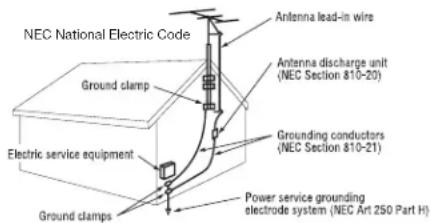
Note to the CATV system installer: This reminder is provided to call the CATV system installer's attention to Article 820-44 of the NEC that provides guidelines for proper grounding and, in particular, specifies that the cable ground shall be connected to the grounding system of the building, as close to the point of cable entry as practical.
Important Safety Instructions

Power source
This plasma television is designed to operate on 120 volts 60 Hz, AC current. Insert the power cord into a 120 volt 60 Hz outlet. The mains plug is used as the disconnect device and shall remain readily operable.
To prevent electric shock, do not use the plasma television's (polarized) plug with an extension cord, receptacle, or other outlet unless the blades and ground terminal can be fully inserted to prevent blade exposure.
Never connect the plasma television to 50 Hz, direct current, or anything other than the specified voltage.
Caution

Never remove the back cover of the plasma television as this can expose you to very high voltages and other hazards. If the television does not operate properly,
unplug the plasma television and call your authorized dealer or service center.
Caution
Adjust only those controls that are covered in the instructions, as improper changes or modifications not expressly approved by HITACHI could void the user's warranty.
Warning
- To reduce the risk of fire or electric shock, do not expose this apparatus to rain or moisture.
- The plasma television should not be exposed to dripping or splashing and objects filled with liquids, such as vases, should not be placed on the television.
- This apparatus shall be connected to a mains socket outlet with a protective earthing connection.
Public viewing of copyrighted material
Public viewing of programs broadcast by TV stations and cable companies, as well as programs from other sources, may require prior authorization from the broadcaster or owner of the video program material.
This product incorporates copyright protection technology that is protected by U.S. patents and other intellectual property rights. Use of this copyright protection technology must be authorized, and is intended for home and other limited consumer uses only unless otherwise authorized. Reverse engineering or disassembly is prohibited.
Note
This digital television is capable of receiving analog basic, digital basic cable television programming by direct connection to a cable system providing such programming. Certain advanced and interactive digital cable services such as video-on-demand, a cable operator's enhanced program guide and data-enhanced television services may require the use of a set-top box.
For more information call your local cable company.
Note
- There are no user serviceable parts inside the plasma television.
- Model and serial numbers are indicated on back side and right side of the plasma television.
Prevention of screen damages
Continuous on-screen displays such as video games, stock market quotations, computer generated graphics, and other fixed (non-moving) patterns can be permanently imprinted onto your TV screen. Such "SCREEN DAMAGES" constitute misuse and are NOT COVERED by your HITACHI Factory Warranty.
If still images are left on the screen for more than 2.5 minutes, protection function will work automatically so that contrast reduces to minimize image retention on plasma display panel.
Please note that this is not a malfunction but it helps to minimize image retention.
The original contrast will restore after moving images are displayed for about 6 minutes. Original contrast can be restored quickly by turning power Off/On with remote control or power switch on unit.
Lead Notice
This product contains lead. Dispose of this product in accordance with applicable environmental laws. For product recycling and disposal information, contact your local government agency or www.eRecycle.org (in California), the Electronic Industries Alliance at www.eiae.org (in the US) or the Electronic Product Stewardship Canada at www.epsc.ca (in Canada).
FOR MORE INFORMATION, CALL 1-800-HITACHI.
Accessories
Check to make sure you have the following accessories before disposing of the packing material.
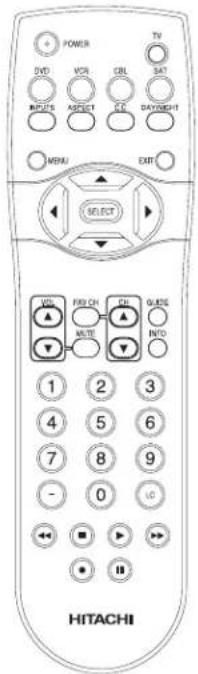
① Remote Control
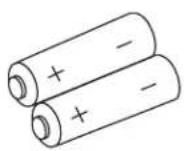
② Two "AA" size, 1.5V batteries
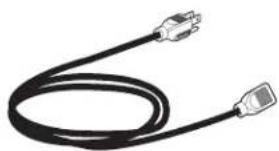
4 Power Cord
natural_image
Coiled black cable with two connectors (no text or symbols visible)⑤ Wire Clamp (50" models only)

③ Table Top Stand (50" included)
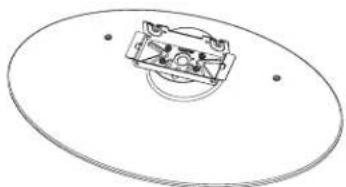
natural_image
Pure technical diagram of a mechanical component inside an oval frame, without any text, numbers, or symbols.③ Table Top Stand (42" included)
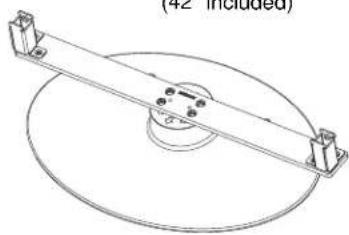
natural_image
Technical line drawing of a mechanical assembly with a circular base and radial arms (no text or symbols)For U.S. models:
For optional accessories, please access our web site at: www.hitachi.us/tv
Note: Please visit our website for optional accessories.
Note : The accessories for models H4011, H4011A series are similar as the H401, H401A series.

CAUTION:
- Ceiling mounting is not recommended. Mounting the panel on the ceiling does not provide adequate ventilation for the electronics or proper support for the front glass panel. This plasma television product is designed for a maximum tilting angle of 45 degrees from vertical.
- This stand for use only with Hitachi P42H401, P42H401A, P50H401 and P50H401A models. The use of other apparatus is capable of resulting in instability causing possible injury.
- The wall mount unit for the 50" and 42" models is WM07S and for the 55" models is WM07L. Please see page 7 for important information related to the wall mount. Wall Mount unit is an optional accessory (Not Included).
① Remote Control Unit CLU-4371UG2 (Part No HL02075 only H401 series) Remote Control Unit CLU-4372UG2 (Part No HL02076 only H4011 series)
⑤ Wire Clamp (50" models only)
② Two "AA" size, 1.5V batteries.
③Table Top Stand (UX27661 42" model) (UX27281 50" models).
④Power Cord (P# EV01841).
REMOTE CONTROL BATTERY INSTALLATION AND REPLACEMENT
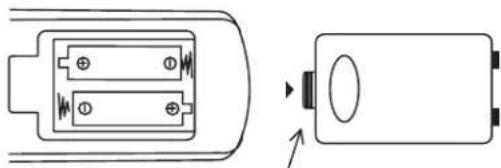
- Open the battery cover of the remote control by pushing down and sliding the back cover off.
- Insert two new "AA" size batteries for the remote control. When replacing old batteries, push them towards the springs and lift them out.
- Match the batteries to the (+) and (-) marks in the battery compartment.
- Insert the bottom of the battery the (-) side, into the battery compartment first, push towards the springs and insert the top of the battery, the (+) side, into place. Do not force the battery into the battery compartment.
- Replace the cover.
Bottom View (Remote Control)
natural_image
Diagram showing two battery components with internal circuitry and a separate cylindrical device (no text or symbols)Lift up on tab to remove back cover.

CAUTION: Do not insert batteries with '+' and '-' polarities reversed as this may cause the batteries to swell or rupture resulting in leakage.
How To Set Up Your New Hitachi Plasma Television
To take measures to prevent the Plasma Television from tipping over and prevent possible injury it is important to mount the unit in a stable and flat surface.
Securing to a table-top
-
Using wood screws (two) fasten the set to the clamping screw holes on the rear of the Plasma TV stand as shown below.
-
Using commercially available wood screws, secure the set firmly in position.
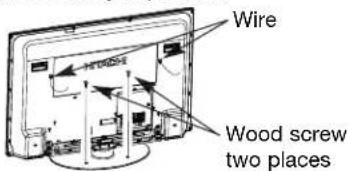
Securing to a Wall
-
Keep the Plasma television 4 inches away from the wall except when mounted using the wall mount bracket.
-
Secure the television to the wall as shown.
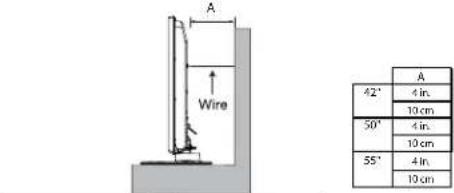
* Please adjust the wire length to avoid touching the wall when turning the TV.
NOTES:1. Do not block the ventilation holes of the Plasma Television. Blocking the ventilation holes might cause fire or defect.
- In case of an abnormal symptom, unplug the AC cord.
- If you purchased the wall mount bracket option, please ask for professional installer. Do not install by yourself.
- Install the unit at a proper area where it does not expose anyone to any danger of hitting themselves (for example their hands, head or face, etc.) against the edge of the unit and cause personal injury.

Caution when moving the main unit
As this product is heavy, whenever it is moved, two people are required to transport it safely. Whenever the unit is moved it should be lifted forward using the top and base on both sides of the Television for stability. When moving the Television, lift the handles, then support the top frame as shown below.
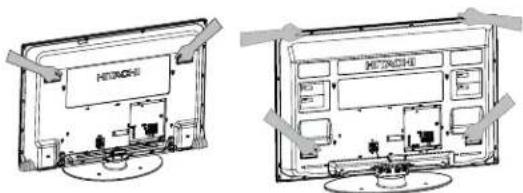
42" 50"
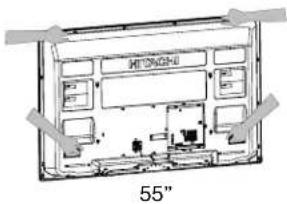
NOTE: The Table Top Stand for model P55H401 and P55H4011 is not included (Optional).
ANTENNA
Unless your Plasma Television is connected to a cable TV system or to a centralized antenna system, a good outdoor color TV antenna is recommended for best performance. However, if you are located in an exceptionally good signal area that is free from interference and multiple image ghosts, an indoor antenna may be sufficient.
LOCATION
Select an area where sunlight or bright indoor illumination will not fall directly on the picture screen. Also, be sure that the location selected allows a free flow of air to and from the perforated back cover of the set. In order to prevent an internal temperature increase, maintain a space of 10 cm (4 inches) from the sides/back of the Television, and 30 cm (12 inches) from the top of the television to the wall. To avoid cabinet warping, cabinet color changes, and increased chance of set failure, do not place the TV where temperatures can become excessively hot, for example, in direct sunlight or near a heating appliance, etc.
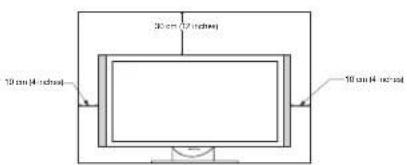
How to set up your new HITACHI Plasma Television
AC CORD INSTALLATION INSTRUCTION
The AC cord provided with your new Plasma Television needs to be installed correctly to avoid the AC cord from disconnecting when rotating the TV on its Table top stand. Located on the back of the TV are 2 plastic clamps to hold the AC cord. Please follow the instructions below.
① Pass the AC cord through Clamp #1 and connect it to the TV. Pull on the clamp to tighten the AC cord to the TV.
② The AC cord and the signal cables can all be held together with Clamp #2.
③ Depend on the model size 42",50" or 55", the clamp may be different shapes. Only for 50" models the clamp #2 will be included on the accessories bag.
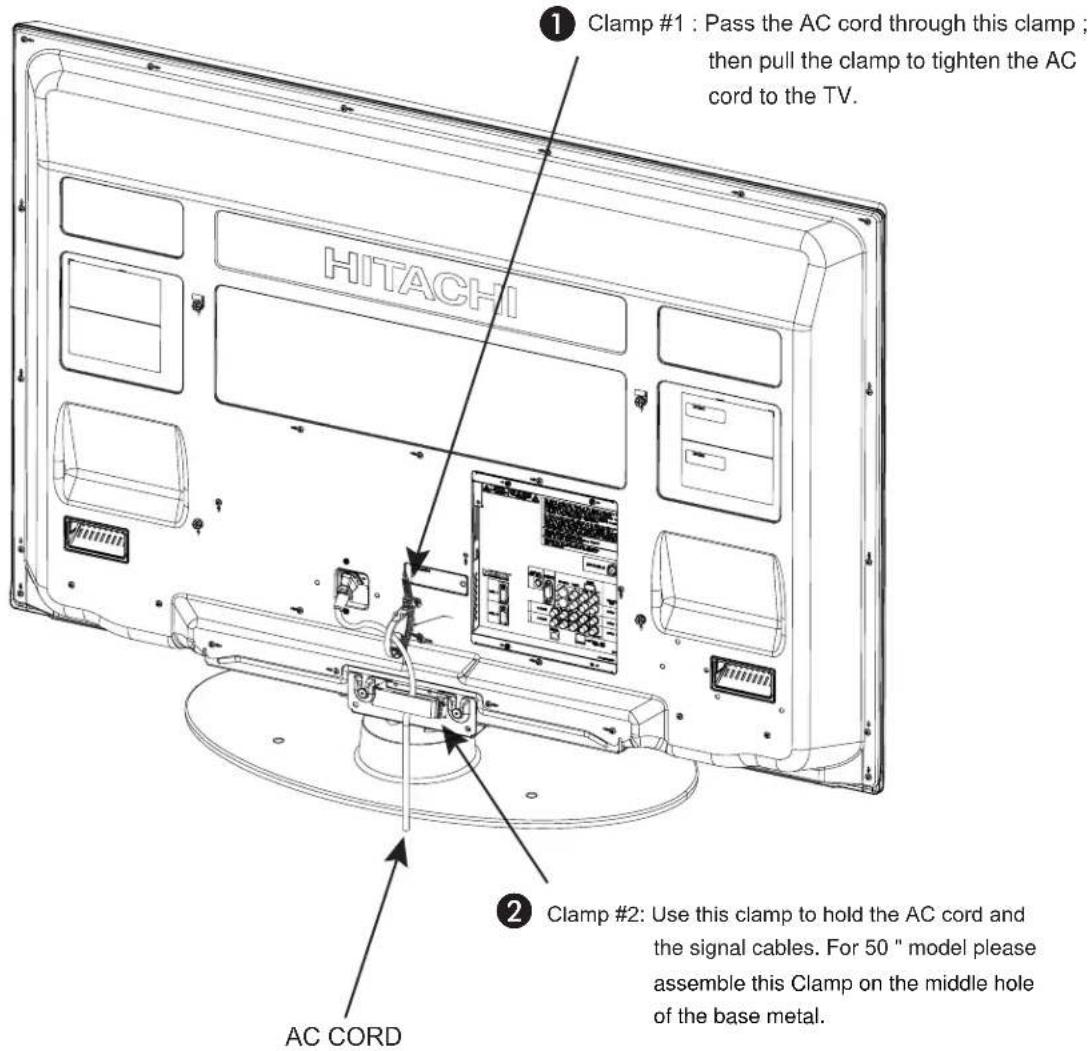
How to set up your new HITACHI Plasma Television
SETTING FOR WALL MOUNTING ON 50" & 55" MODELS
STEP (1):
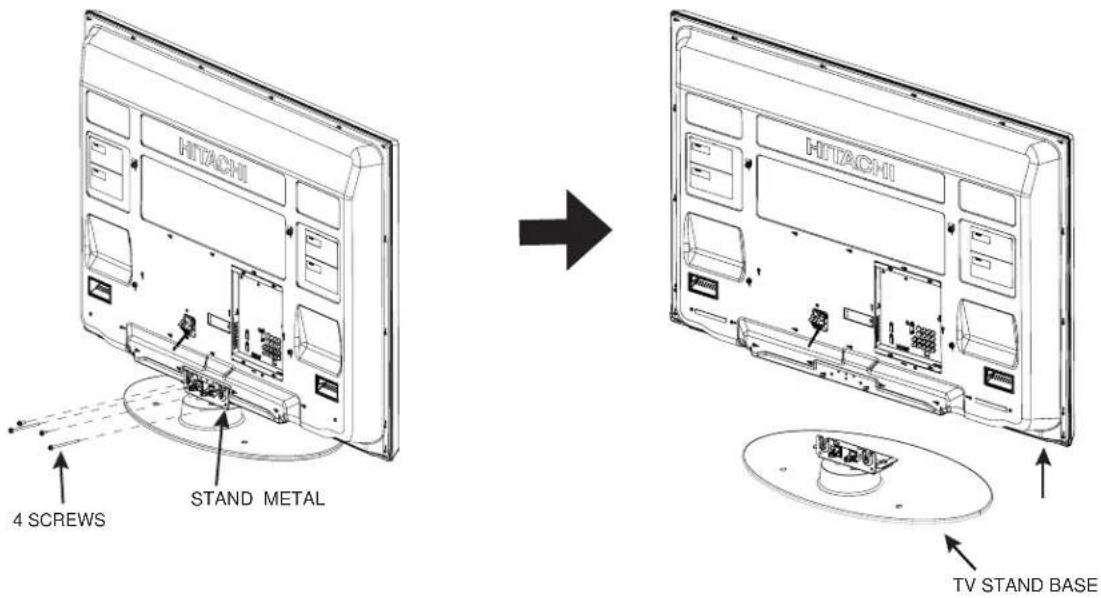
Please locate the STAND METAL on the back of the TV. This metal is use to hold the TV and the Base; so it needs to remove 4 screws from the STAND base in order to separate the TV from the Base.
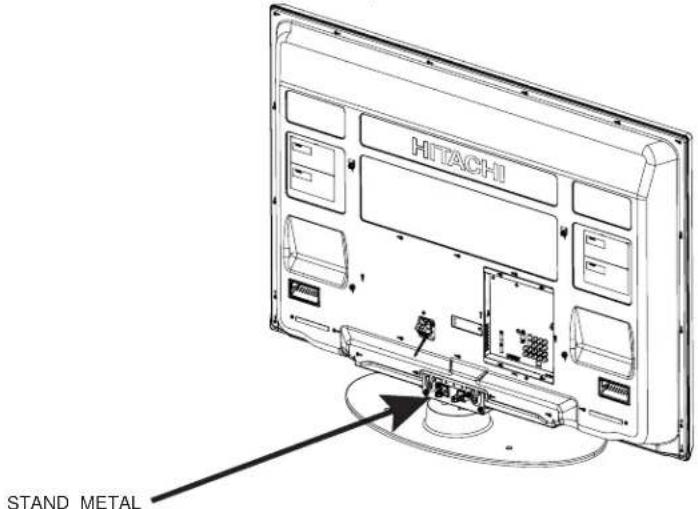
STEP (2):
Please remove the 4 screws of the STAND metal from the TV, now the TV STAND can be separated from the TV. For dimensions of the WALL MOUNT assembly please refer to page 61 & 62.
For Model P50H401, P50H401A, P50H4011 and P50H4011A
CAUTION- This Plasma Display Panel for use only with Hitachi WM07S Wall Mount. Use with other Wall Mount is capable of resulting in instability causing possible injury.
For Model P55H401 and P55H4011
CAUTION- This Plasma Display Panel for use only with Hitachi WM07L Wall Mount. Use with other Wall Mount is capable of resulting in instability causing possible injury.
NOTE: Use the specified WALL MOUNT unit for the Plasma TV depending on the size of your TV. Please access our web site at: www.hitachi.usltv for recommended accessories for your tv.
How to set up your new HITACHI Plasma Television
SETTING FOR WALL MOUNTING ON 42" MODELS
STEP (1):
Please locate the STAND METAL on the back of the TV. This metal is use to hold the TV and the Base; so it needs to remove 6 screws from the STAND base in order to separate the TV from the Base.
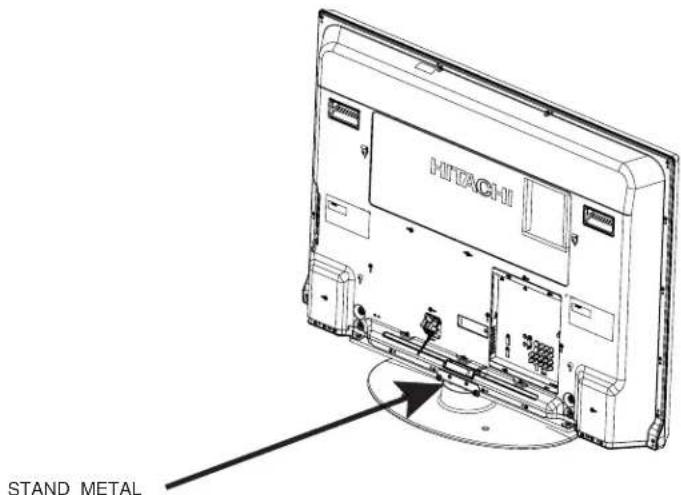
STEP (2):
Please remove the 2 screws of the STAND metal from the TV, then remove 4 screws that hold the TV STAND BASE; now the TV STAND can be separated from the TV. For dimensions of the WALL MOUNT assembly please refer to page 60.
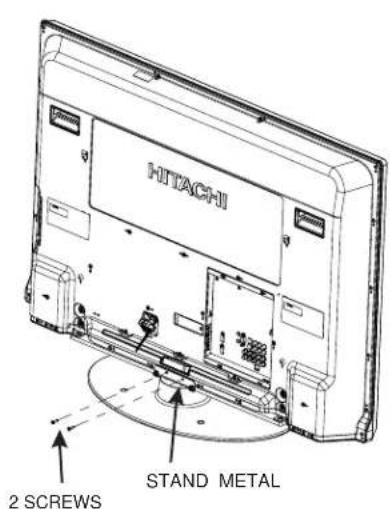
Remove these 2 screws first to separate the TV from the stand metal. Then put these 2 screws back to the TV.
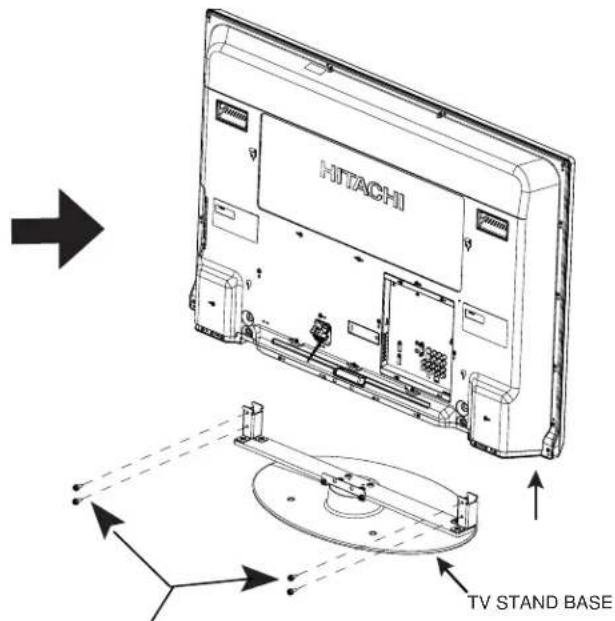
Remove these 4 screws to separate the TV from the stand base.
For Model P42H401, P42H401A, P42H4011 and P42H4011A
CAUTION- This Plasma Display Panel for use only with Hitachi WM07S Wall Mount. Use with other Wall Mount is capable of resulting in instability causing possible injury.
NOTE:
Use the specified WALL MOUNT base for the Plasma TV depending on the size of your TV.
Please access our web site at: www.hitachi.us/tv for recommended accessories for your tv.
How to set up your new HITACHI Plasma Television
VIEWING
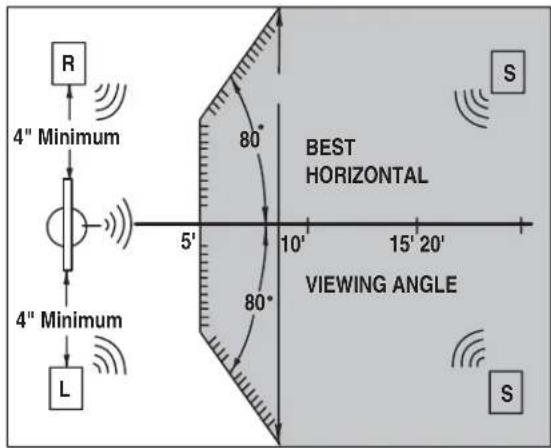
The best picture is seen by sitting directly in front of the TV and about 10 to 18 feet from the screen.
During daylight hours, reflections from outside light may appear on the screen. If so, drapes or screens can be used to reduce the reflection or the TV can be located in a different section of the room.
If the TV's audio output will be connected to a Hi-Fi system's external speakers, the best audio performance will be obtained by placing the speakers equidistant from each side of the receiver cabinet and as close as possible to the height of the picture screen center. For best stereo separation, place the external speakers at least four feet from the side of the TV, place the surround speakers to the side or behind the viewing area. Differences in room sizes and acoustical environments will require some experimentation with speaker placement for best performance.
ANTENNA CONNECTIONS TO REAR JACK PANEL
VHF (75-Ohm) antenna/CATV (Cable TV)
When using a 75-Ohm coaxial cable system, connect CATV coaxial cable to the AIR/CABLE (75-Ohm) terminal. Or if you have an antenna, connect the coaxial cable to the same AIR/CABLE terminal.
VHF (300-Ohm) antenna/UHF antenna
When using a 300-Ohm twin lead from an outdoor antenna, connect the VHF or UHF antenna leads to screws of the VHF or UHF adapter. Plug the adapter into the antenna terminal on the TV.
When both VHF and UHF antennas are connected
Attach an optional antenna cable mixer to the TV antenna terminal, and connect the cables to the antenna mixer. Consult your dealer or service store for the antenna mixer.
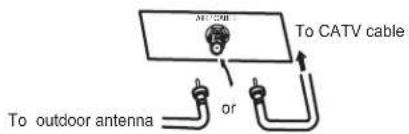
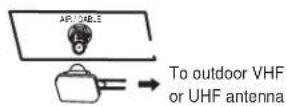
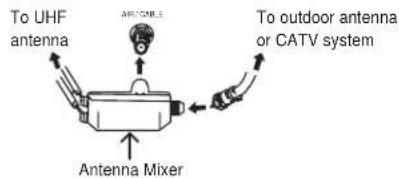
NOTE:
Connecting a 300-Ohm twin lead connector may cause interference. Using a 75-Ohm coaxial cable is recommended.
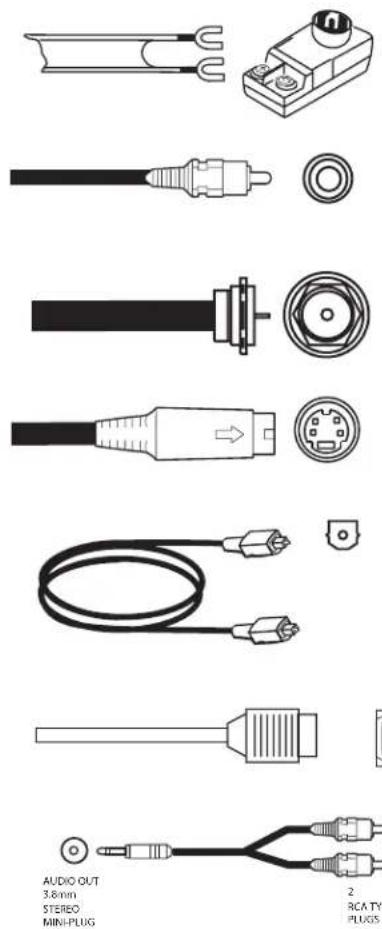
Hook-up Cables and Connectors
Most video/audio connections between components can be made with shielded video and audio cables that have phono connectors. For best performance, video cables should use 75-Ohm coaxial shielded wire. Cables can be purchased from most stores that sell audio/video products. Below are illustrations and names of common connectors. Before purchasing any cables, be sure of the output and input connector types required by the various components and the length of each cable.
300-Ohm Twin Lead Cable
This outdoor antenna cable must be connected to an antenna adapter (300-Ohm to 75-Ohm).
Phono or RCA Cable
Used on all standard video and audio cables which connect to inputs and outputs located on the television's rear jack panel and front control panel.
"F" Type 75-Ohm Coaxial Antenna
For connecting RF signals (antenna or cable TV) to the antenna jack on the television.
S-Video (Super Video) Cable
This connector is used on camcorders, VCRs and laser-disc players with an S-Video feature in place of the standard video cable to produce a high quality picture.
Optical Cable
This cable is used to connect to an audio amplifier with an Optical Audio In jack. Use this cable for the best sound quality.
HDMI Cable
This cable is used to connect your external devices such as Set-Top-Boxes or DVD players equipped with an HDMI output connection to the TV's HDMI input.
Stereo Cable (3.8mm plug to 3.5mm plug)
Used on all standard video and audio cable which connect to inputs and outputs located on the rear jack panel and front control panel.
Quick Reference Remote Control Buttons and Functions
In addition to controlling all of the functions on your HITACHI Plasma TV, the new remote control is designed to operate different types of devices, such as, DVD Players, CBL (Cable Boxes), set-top-boxes, satellite receivers, and VCRs. The remote control must be programmed to control the chosen device. Please see pages 23-31 for a complete description of all features and programming of the Remote Control.
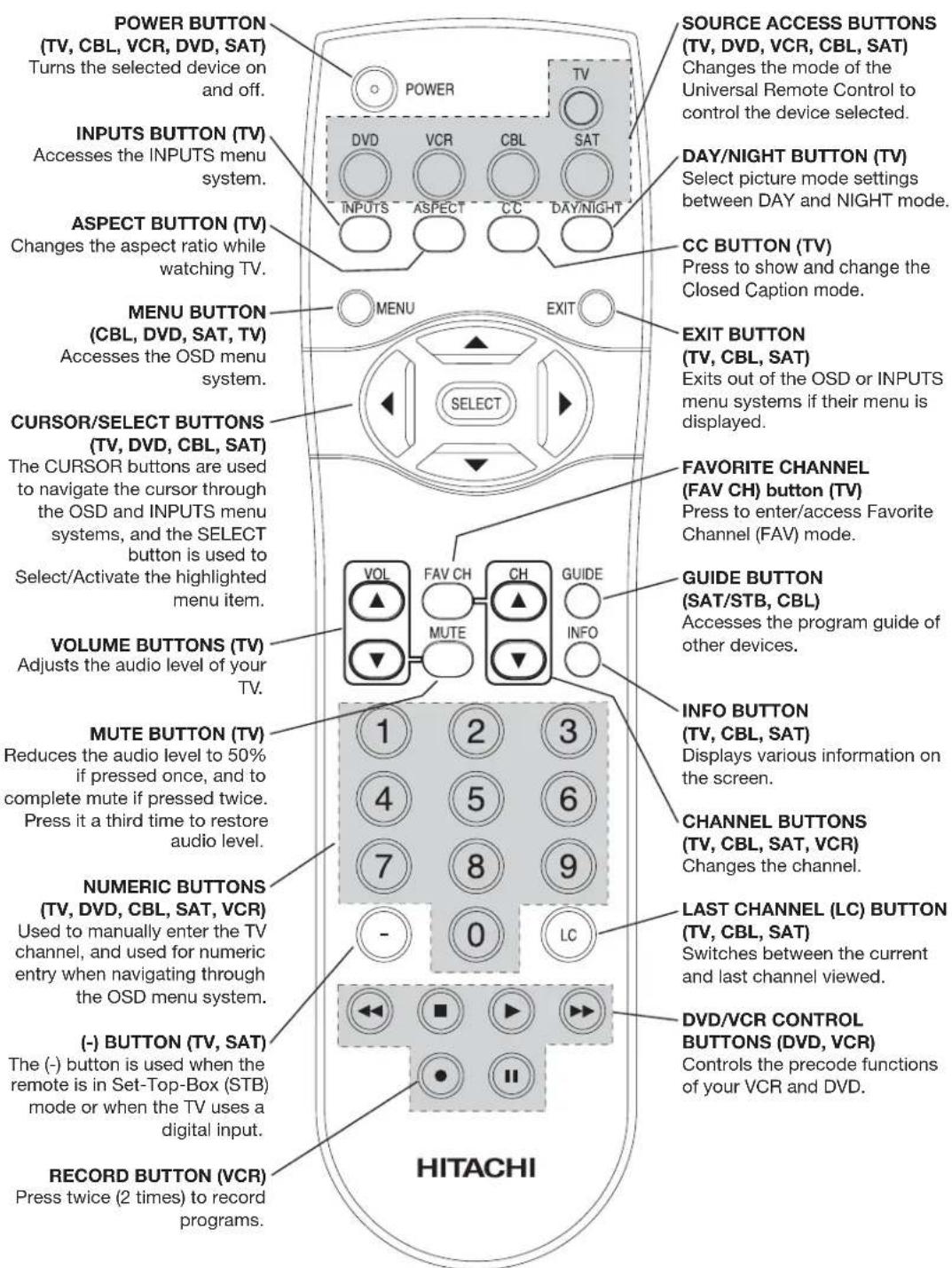
LEGEND
TV—Television
VCR — Video Cassette Recorder/Player
SAT — Satellite Receiver
CBL - Cable Box
DVD — Digital Video Disc Player
NOTES: 1. The TV's remote control sensor is located on the right bottom portion of the TV screen. To control TV functions, please point the remote control directly at the remote control sensor for best results.
Front Panel Controls
FRONT VIEW
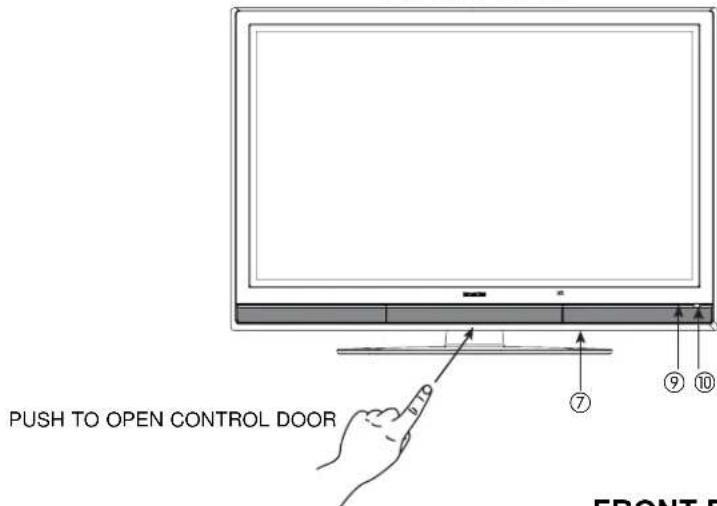
FRONT PANEL CONTROLS

①FRONT POWER button
Press this button to turn the Plasma Television ON/OFF. It can also be turned ON/OFF by remote control. The "MAIN POWER" button must be at stand-by mode.
②MENU/SELECT button
This button allows you to enter the MENU, making it possible to set TV features to your preference without using the remote. This button also serves as the SELECT button when in MENU mode.
③ HDMI-FRONT
Use the front HDMI input for extremal devices such as Set-Top-Boxes or DVD players equipped with an HDMI output connection (see page 15 for reference).
④INPUT/EXIT button
Press this button to access the INPUT menu. Press again to exit the MENU mode.
⑤CHANNEL selector
Press these buttons until the desired channel appears in the top right corner of the TV screen. These buttons also serve as the cursor down (▼) and up (▲) buttons when in MENU mode.
⑥VOLUME level
Press these buttons to adjust the sound level. The volume level will be displayed on the TV screen. These buttons also serve as the cursor left (◀) and right (▶) buttons when in MENU mode.
⑦POWER button
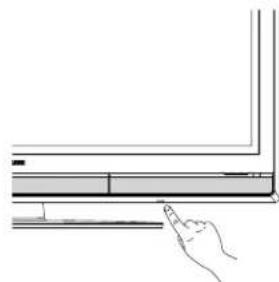
Television MAIN POWER button
This power button is for the complete system, and must be turned ON/OFF manually. It is recommended to leave the "MAIN POWER" to ON condition (lights red) for stand-by mode.
natural_image
Line drawing of a hand interacting with a laptop screen (no text or symbols)The Main Power button is located on the broadside bottom, under the mark "①".
NOTE: When the "MAIN POWER" button is set to OFF or the TV is unplugged, the clock will stop and may eventually reset itself.
⑧ Upgrade Card
This card slot is for future software upgrades. Hitachi will notify you if a software upgrade is required for your TV. In order to receive written notification, please complete and return your warranty card.
Front Panel Controls
⑨ POWER light indicator
To turn the TV ON, press the main power switch located on the lower right side of the TV. A red stand-by indicator lamp located on the lower right corner of the front bezel will illuminate. The Plasma TV is now ready for remote ON/OFF operation.
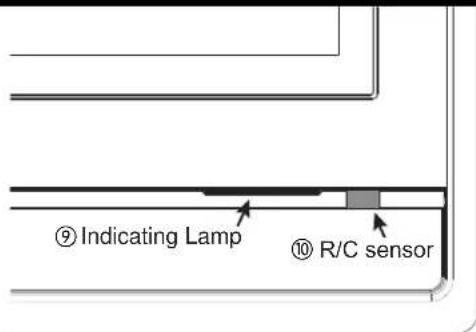
| Indicating Lamp | Power Status | Operating |
| Off | OFF. | When the main power switch is set to Off. |
| Lights Red | OFF.(Stand-by) | When the main power switch on the TV is ON. |
| Lights Blue | On | TV MAIN POWER is ON ; picture is shown. |
| Lights Orange | Off(Power Saving) | TV MAIN POWER is ON with no signal input except antenna (no sync. signal). |
| Blinking Blue | On When | TV receives the IR signal from R/C. |
⑩ REMOTE CONTROL sensor
Point your remote at this area when selecting channels, adjusting volume, etc.
⑪ INPUT-FRONT JACKS
INPUT-FRONT provide composite Video jacks for connecting equipment with this capability, such as a DVD player or Camcorders.
NOTES:
- Your HITACHI Plasma TV will appear to be turned OFF (lights orange) if there is no video input when INPUT: 1, 2, 3, Front or HDMI: 1, 2, Front is selected. Check the Power Light to make sure the TV is turned off or in Stand-by mode (lights red) when not in use.
- Remote Control can not turn ON/OFF the "MAIN POWER" of the TV.
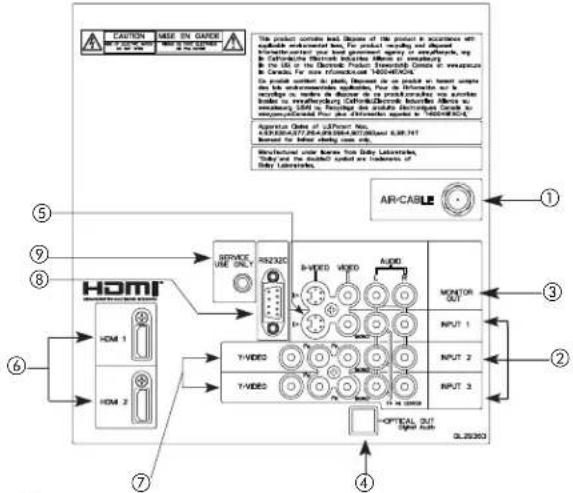
Rear Panel Connections
①Antenna Input
To switch between Cable and Air input, go to the Channel Manager option to change the signal source CABLE or AIR.
②Audio/Video Inputs 1, 2 and 3
By using the INPUTS button, the CURSOR PAD (▲ and ▼), and the SELECT button or CURSOR PAD ▶ of the remote control, you can select each video source. Use the audio and video inputs to connect external devices, such as VCRs, camcorders, laserdisc players, DVD players etc. (if you have mono sound, insert the audio cable into the left audio jack).
③MONITOR OUT & AUDIO OUT
These jacks provide fixed audio and video signals (CABLE/AIR or INPUTS) which are used for recording. Use the S-VIDEO output for high quality video output. Component signal to Input 2 and 3, and HDMI inputs will not have monitor output.
④Optical Out (Digital Audio)
This jack provides Digital Audio Output for your audio device that is Dolby®Digital and PCM compatible, such as an audio amplifier.
NOTE: *Manufactured under license from Dolby Laboratories. "Dolby" and the double-D symbol are trademarks of Dolby Laboratories.
⑤S-VIDEO Input 1
Input 1 provide S-VIDEO (Super Video) jacks for connecting equipment with S-VIDEO output capability.
NOTE: 1. You may use VIDEO or S-VIDEO inputs to connect to INPUT 1, but only one of these inputs may be used at a time. 2. S-VIDEO output may be used for recording, only when the input is of S-VIDEO type.
⑥HDMI 1, 2 (High Definition Multimedia Interface)
ABOUT HDMI – HDMI is the

next-generation all digital interface for consumer electronics. HDMI enables the secure distribution of uncompressed high-definition video and multi-channel audio in a single cable. Because digital television (DTV) signals remain in digital format, HDMI assures that pristine high-definition images retain the highest video quality from the source all the way to your television screen.
Use the HDMI input for your external devices such as Set-Top-Boxes or DVD players equipped with an HDMI output connection.
HDMI, the HDMI logo and High-Definition Multimedia Interface are trademarks or registered trademarks of HDMI Licensing LLC.
flowchart
graph TD
    A["⑤"] --> B["HDMI"]
    C["⑧"] --> B
    D["⑥"] --> B
    B --> E["Service Use Only"]
    E --> F["3-VI/20"]
    F --> G["T-Video"]
    G --> H["T-Video"]
    H --> I["AIR-CABLE"]
    I --> J["①"]
    I --> K["③"]
    I --> L["②"]
    I --> M["④"]
    N["⑦"] --> O["HDMI 1"]
    N --> P["HDMI 2"]
    Q["⑦"] --> R["T-Video"]
    R --> S["T-Video"]
    S --> T["OFTWARE Out Digital Audio"]
    U["⑦"] --> V["T-Video"]
    V --> W["MONITOR OUT INPUT 1"]
    X["⑦"] --> Y["T-Video"]
    Y --> Z["MONITOR OUT INPUT 2"]
    AA["⑦"] --> AB["T-Video"]
    AB --> AC["MONITOR OUT INPUT 3"]
NOTE: 1. The HDMI input is not intended for use with personal computers.
- Only DTV formats such as 1080p, 1080i, 720p, 480i and 480p are available for HDMI input.
⑦Component: Y-P BPR Inputs
INPUTS 2 and 3 provide Y-PBPR jacks for connecting equipment with this capability, such as a DVD player or Set Top Box. You may use composite video signal for both inputs.
NOTE: 1. Do not connect composite VIDEO and S-VIDEO to INPUT 1 at the same time. S-VIDEO has priority over VIDEO input.
2. Your component outputs may be labeled Y, B-Y, and R-Y. In this case, connect the components B-Y output to the TV's P_B input and the components R-Y output to the TV's P_R input.
3. Your component outputs may be labeled Y-CBCR. In this case, connect the component CB output to the TV's P_B input and the component CR output to the TV's P_R input.
4. It may be necessary to adjust TINT to obtain optimum picture quality when using the Y-PBPR inputs (see page 34).
5. To ensure no copyright infringement, the MONITOR OUT output will be abnormal, when using the Y-PBPRjacks and HDMI Input.
6. INPUT 2, and 3 (Y/VIDEO) can be used for composite video and component video input.
⑧For Special AV control use only.
⑨For Factory use only.
Connecting External Video Sources
The FRONT panel jacks are provided as a convenience to allow you to easily connect HDMI or DVI signals from a DVD, Set Top Box, Video Game as shown in the following examples (When connecting DVI signal it will need to connect the audio output into the Front Audio Input jacks):
NOTE: 1. Completely insert connection cord plugs when connecting to front panel jacks. If you do not, the played back picture may be abnormal.
Connecting External Video Sources
The FRONT panel jacks are provided as a convenience to allow you to easily connect a camcorder, DVD, Video Game and a VCR as shown in the following examples:
FRONT INPUT PANEL
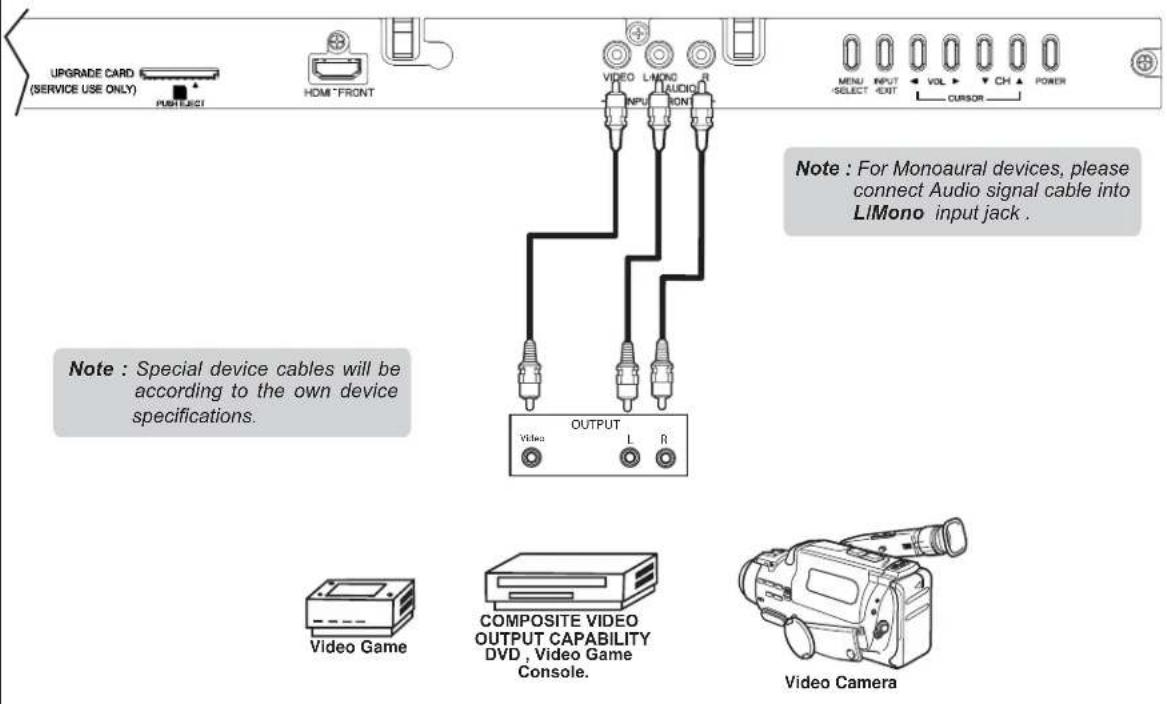
NOTE:1. Completely insert connection cord plugs when connecting to front panel jacks. If you do not, the played back picture may be abnormal.
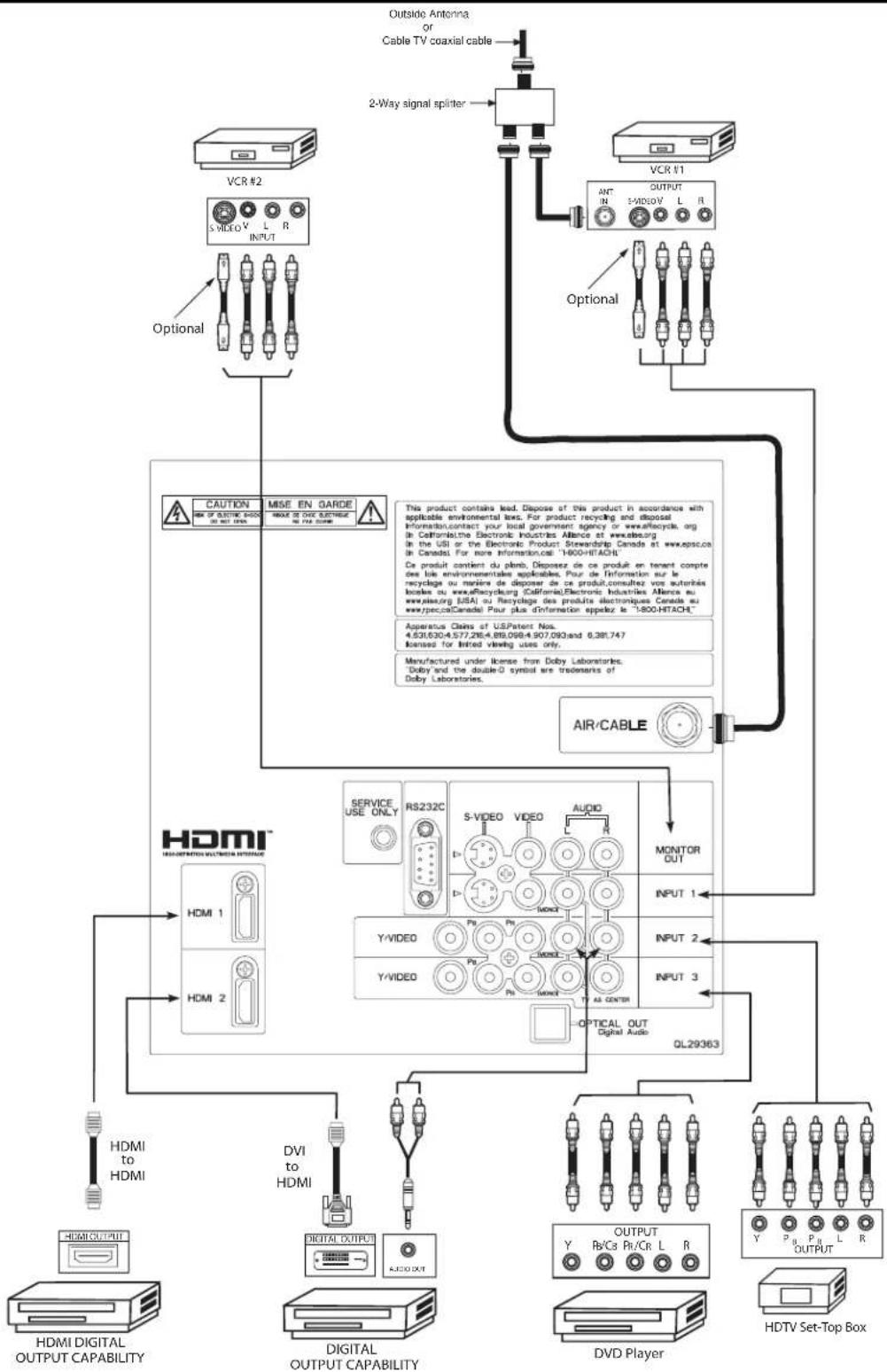
The exact arrangement you use to connect the VCR, camcorder, laserdisc player, DVD player, or HDTV Set Top Box to your Plasma TV is dependent on the model and features of each component. Check the owner's manual of each component for the location of video and audio inputs and outputs.
The following connection diagrams are offered as suggestions. However, you may need to modify them to accommodate your particular assortment of components and features. For best performance, video and audio cables should be made from coaxial shielded wire.
Before Operating External Video Source
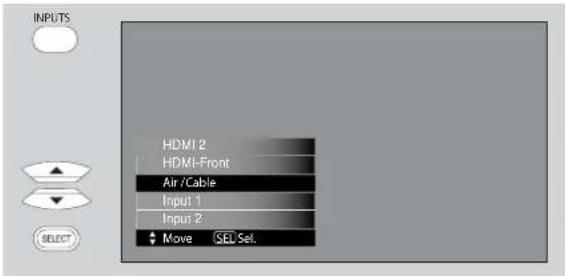
Connect an external source to one of the INPUT terminals, then press the INPUTS button to show the INPUTS menu. Use the CURSOR PAD (▲ and ▼) to select the Input of your choice. Then press the SELECT button or the CURSOR PAD ▶ to confirm your choice (see page 26).
Rear Panel Connections
flowchart
graph TD
    A["HDMI"] --> B["HDMI to HDMI"]
    B --> C["HDMI DIGITAL OUTPUT CAPABILITY"]
    C --> D["DVI to HDMI"]
    D --> E["DIGITAL OUTPUT CAPABILITY"]
    E --> F["DVD Player"]
    F --> G["OUTPUT"]
    G --> H["QL29363"]
    H --> I["OPTICAL OUT Digital Audio"]
    I --> J["AIR/CABLE"]
    J --> K["Service Use Only"]
    K --> L["RS232C"]
    L --> M["S-VIDEO"]
    M --> N["AUDIO"]
    N --> O["MONITOR OUT"]
    O --> P["INPUT 1"]
    P --> Q["INPUT 2"]
    Q --> R["INPUT 3"]
    R --> S["Output"]
    S --> T["OUTDO OUTPUT"]
    T --> U["HDTV Set-Top Box"]
    U --> V["Optional"]
    V --> W["VCR #2"]
    W --> X["VCR #1"]
    X --> Y["OUTDO OUTPUT"]
    Y --> Z["2-Way signal splitter"]
    Z --> AA["Outside Antenna or Cable TV coaxial cable"]
    AA --> AB["CAUTION & MISE EN GARDE"]
    AB --> AC["&V/VIDEO & DVD INPUT"]
    AC --> AD["&V/VIDEO & DVD INPUT"]
    AD --> AE["&V/VIDEO & DVD INPUT"]
    AE --> AF["&V/VIDEO & DVD INPUT"]
    AF --> AG["&V/VIDEO & DVD INPUT"]
    AG --> AH["&V/VIDEO & DVD INPUT"]
NOTE: Cables are optional, except when specified.
Tips on Rear Panel Connections
- S-VIDEO, Y-PbPR, or HDMI connections are provided for high performance laserdisc players, VCRs etc. that have this feature. Use these connections in place of the standard video connection if your device has this feature.
- If your device has only one audio output (mono sound), connect it to the left audio jack on (L/(MONO)) the Rear Panel.
- Refer to the operating guide of your other electronic equipment for additional information on connecting your hook-up cables.
- A single VCR can be used for VCR #1 and VCR #2, but note that a VCR cannot record its own video or line output (INPUT: 1 in the example on page 17). Refer to your VCR operating guide for more information on line input-output connections.
- Connect only 1 component (VCR, DVD player, camcorder, etc.) to each input jack.
- COMPONENT: Y-P _B PR (Input 2 & 3) connections are provided for high performance components, such as DVD players and set-top-boxes. Use these connections in place of the standard video connection if your device has this feature.
- Your component outputs may be labeled Y, B-Y, and R-Y. In this case, connect the components B-Y output to the TV's P_B input and the components R-Y output to the TV's P_R input.
- Your component outputs may be labeled Y-C B C R . In this case, connect the components C B output to the TV's P B input and the components C R output to the TV's P R input.
- It may be necessary to adjust TINT to obtain optimum picture quality when using the Y-P B^PR inputs. (See page 34).
- To ensure no copyright infringement, the MONITOR OUT output will be abnormal, when using the Y-PBPR and HDMI input jacks.
- Input HDMI 1, HDMI 2 or HDMI FRONT can accept HDMI signal.
- S-VIDEO monitor output may be used for recording only when the input is of S-VIDEO type.
- When using a HDMI input from a Set-Top-Box, it is recommended to use a 1080p, 1080i or 720p input signal.
- When HDMI input a 1080p signal, it is recommended that the length of the cable should be less than 5 meters.
INSTALLATION RECOMMENDATION:
- Video signals fed through a VCR may be affected by copyright protection systems and the picture will be distorted on the television.
- Connecting the television directly to the Audio /Video output of a Set-Top-Box will assure a more normal picture.
Connecting External Video Sources
CONNECTING A VIDEO AND STEREO AUDIO SOURCE TO INPUT1 \~ INPUT-FRONT
-
Connect the cable from the VIDEO OUT of the VCR or the laserdisc player to the INPUT (VIDEO) jack, as shown on the Rear Panel to the right.
-
Connect the cable from the AUDIO OUT R of the VCR or the laserdisc player to the INPUT (AUDIO/R) jack.
-
Connect the cable from the AUDIO OUT L of the VCR or the laserdisc player to the INPUT (AUDIO/L) jack.
-
Press the INPUTS button, then select INPUT 1 2,3 or Front from the INPUTS menu to view the program from the VCR or laserdisc player.
-
Select CABLE or AIR from the INPUTS menu to return to the last channel tuned.
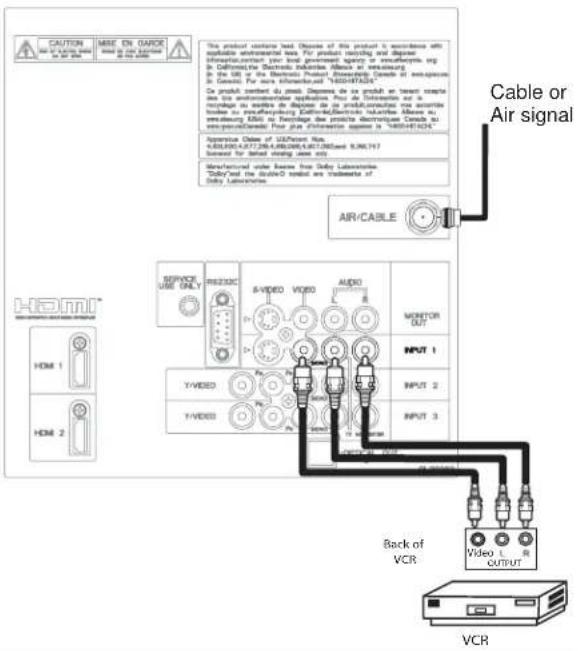
NOTE: 1. Completely insert the connection cord plugs when connecting to rear panel jacks. The picture and sound that is played back will be abnormal if the connection is loose.
-
A single VCR can be used for VCR #1 and VCR #2 (see page 17) but note that a VCR cannot record its own video or line output. Refer to your VCR operating guide for more information on line input-output connections.
-
When INPUT 2 or 3 are used, it is necessary to connect the video output of the device to the Y/VIDEO input jack of the TV.
CONNECTING AN S-VIDEO AND STEREO AUDIO SOURCE TO INPUT 1
-
Connect the cable from the S-VIDEO OUT of the S-VHS VCR or the laserdisc player to the INPUT (S-VIDEO) jack, as shown on the Rear Panel to the right.
-
Connect the cable from the AUDIO OUT R of the VCR or the laserdisc player to the INPUT (AUDIO/R) jack.
-
Connect the cable from the AUDIO OUT L of the VCR or the laserdisc player to the INPUT (AUDIO/L) jack.
-
Press the INPUTS button, then select INPUT 1 from the INPUTS menu to view the program from the VCR or laserdisc player.
-
Select CABLE or AIR from the INPUTS menu to return to the last channel tuned.
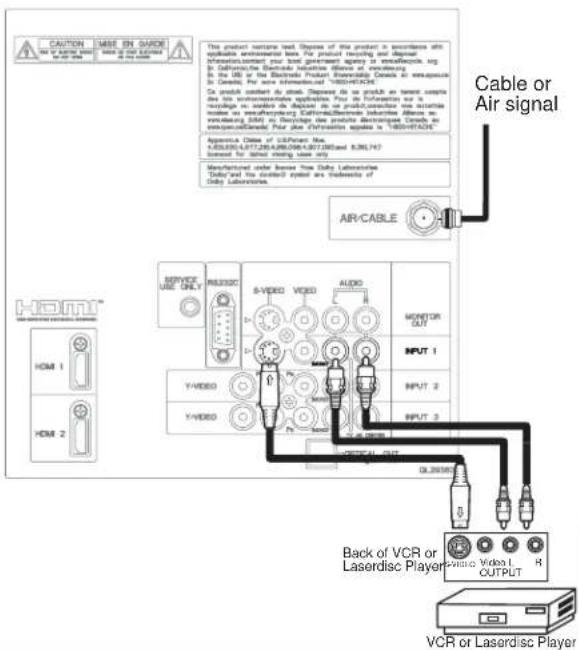
NOTE: 1. Completely insert the connection cord plugs when connecting to rear panel jacks. The picture and sound that is played back will be abnormal if the connection is loose.
- A single VCR can be used for VCR #1 and VCR #2 (see page 17), but note that a VCR cannot record its own video or line output. Refer to your VCR operating guide for more information on line input-output connections.
Connecting External Video Sources
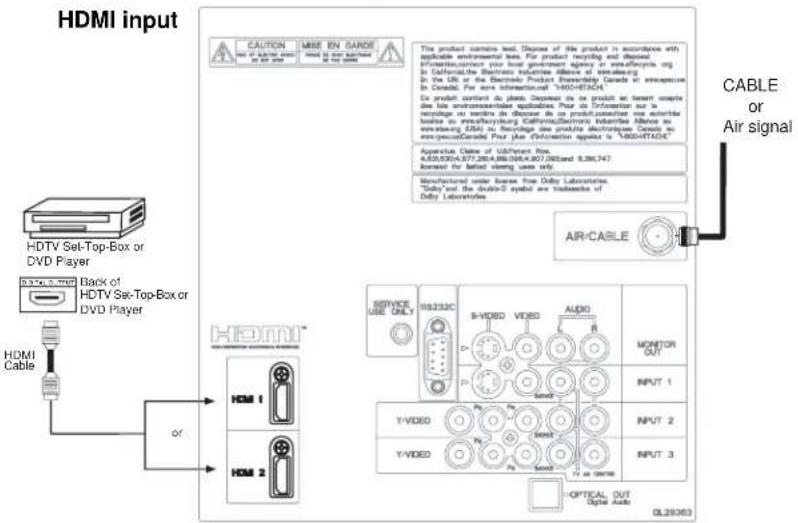
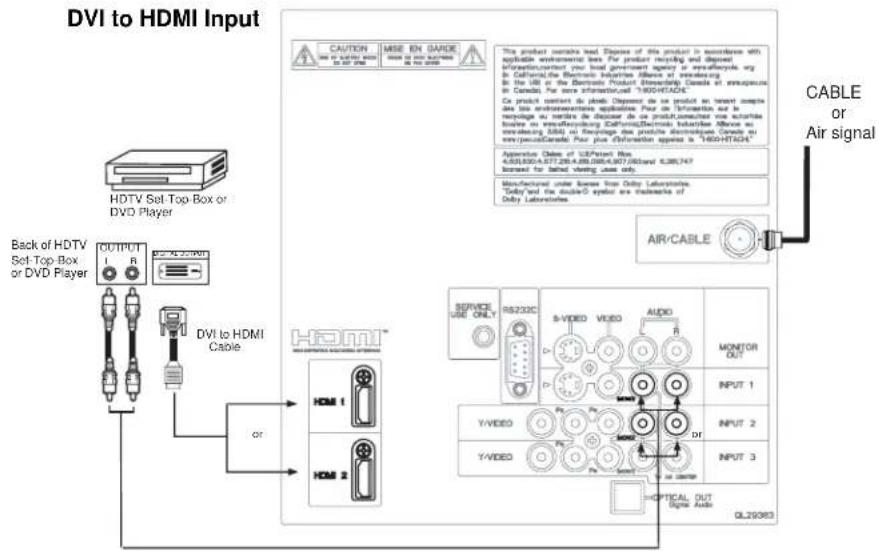
CONNECTING A COMPONENT SOURCE WITH HDMI OR DVI CAPABILITY TO HDMI 1, HDMI 2 OR HDMI FRONT
- Connect the HDMI or DVI to HDMI connection cable from the output of the HDTV set top box or DVD player to the HDMI input as shown on the Rear panel below.
- With DVI output, connect the cable from the AUDIO OUT R of the HDTV set top box or DVD player to the INPUT (AUDIO/R) jack as shown on the Rear Panel below.
- With DVI output, connect the cable from the AUDIO OUT L of the HDTV set top box or DVD player to the INPUT (AUDIO/L) jack as shown on the Rear Panel below.
- Press the INPUTS button, then select HDMI 1, 2 or FRONT to view the program from the HDTV SET TOP BOX or DVD player.
- Select CABLE or AIR from the INPUTS menu to return to the last channel viewed.
NOTE:1. Completely insert the connection cord plugs when connecting to rear panel jacks. The picture and sound that is played back will be abnormal if the connection is loose.
2. The HDMI input on HDMI 1, 2 and FRONT contains the copy protection system called High-bandwidth Digital Content Protection (HDCP). HDCP is a cryptographic system that encrypts video signals when using HDMI connections to prevent illegal copying of video contents.
3. HDMI is not a "NETWORK" technology. It establishes a one-way point-to-point connection for delivery of uncompressed video to a display.
4. The connected digital output device controls the HDMI interface so proper set-up of device user settings determines final video appearance.
5. When using a DVI to HDMI cable, connect the Audio Out L and R cables at the same INPUT (1, 2 or Front) as your HDMI INPUT(1, 2 or Front). (For FRONT INPUT see page 15 for reference).
Connecting External Audio/Video Devices
CONNECTING A COMPONENT AND STEREO AUDIO SOURCE TO INPUT 2 or 3 :Y-PBPR.
- Connect the cable from the Y OUT of the Laserdisc/DVD player or HDTV set top box to the INPUT (Y) jack, as shown on the Rear panel below.
- Connect the cable from the P B /C B OUT or B-Y OUT of the Laserdisc/DVD player or HDTV set top box to the INPUT (P _B ) jack.
- Connect the cable from the P R /C R OUT or R-Y OUT of the Laserdisc/DVD player or HDTV set top box to the INPUT (P _R ) jack.
- Connect the cable from the AUDIO OUT R of the Laserdisc/DVD player or HDTV set top box to the INPUT (AUDIO/R) jack.
- Connect the cable from the AUDIO OUT L of the Laserdisc/DVD player or HDTV set top box to the INPUT (AUDIO/L) jack.
- Press the INPUTS button, then select INPUT 2 or 3 from the INPUTS menu to view the program from the Laserdisc/DVD player or HDTV set top box.
- Select CABLE or AIR to return to the last channel tuned.
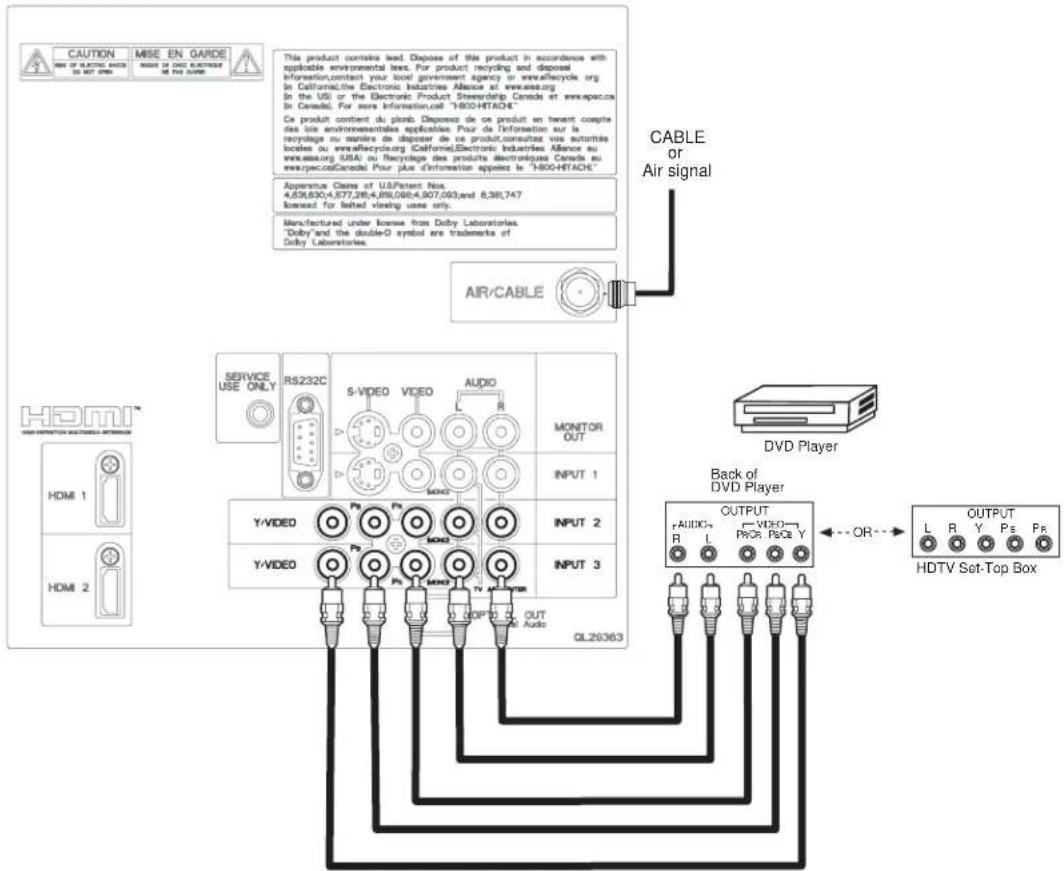
NOTE:1. Completely insert the connection cord plugs when connecting to rear panel jacks. The picture and sound that is played back will be abnormal if the connection is loose.
- See page 18 for tips on REAR PANEL CONNECTIONS.
Connecting External Audio/Video Devices
CONNECTING A VIDEO AND MONAURAL AUDIO SOURCE TO INPUT 1 \~ FRONT INPUT
- Connect the cable from the VIDEO OUT of the VCR or the laserdisc player to the INPUT (VIDEO) jack, as shown on the Rear Panel on the right.
- Connect the cable from the AUDIO OUT of the VCR or the laserdisc player to the INPUT (MONO)/L(AUDIO) jack.
-
Press the INPUTS button, then select INPUT 1 2,3 or Front from the INPUTS menu to view the program from the VCR or the laserdisc player.
-
Select CABLE or AIR from the INPUTS menu to return to the previous channel. (For INPUT FRONT please see page 16 for reference).
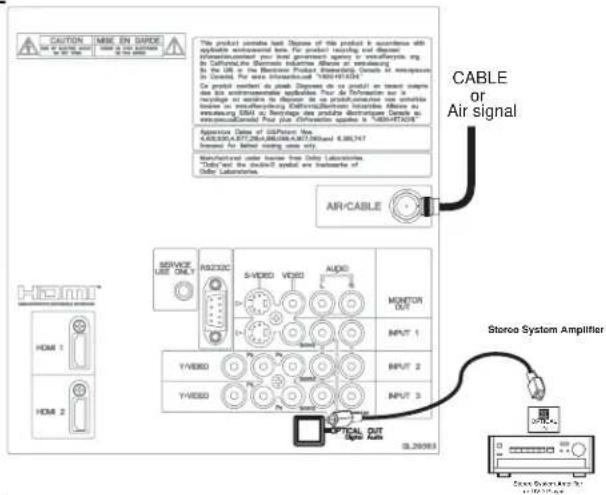
CONNECTING AN EXTERNAL AUDIO AMPLIFIER
To monitor the audio level of the Plasma TV to an external audio amplifier, connect the system as shown on the right. The "OPTICAL OUT" from the Rear Panel is a fixed output. The Volume of the amplifier is controlled by the amplifier, not by the Plasma Television. The OPTICAL OUT terminal outputs all audio sources with Optical IN capability.
- Connect an optical cable from the Optical out to the Optical input of a separate Stereo System Amplifier as shown on the Rear Panel on the right.
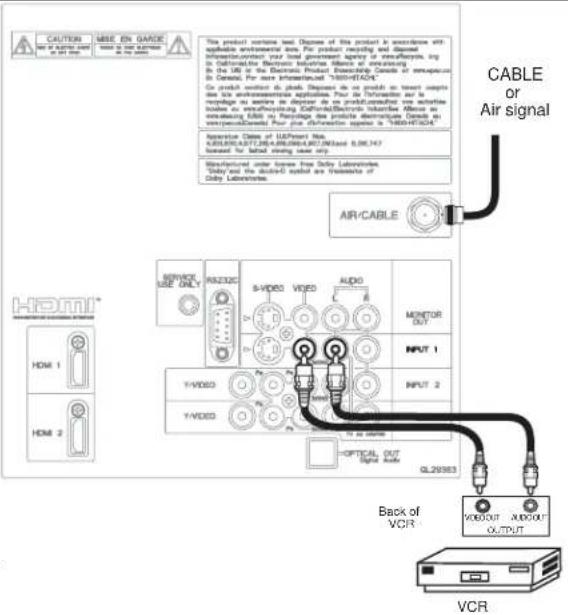
CONNECTING MONITOR OUT
The MONITOR OUT terminal outputs video and audio of CABLE/AIR and INPUTS 1, 2, 3 and Front. It does not output component and HDMI video.
- Connecting S-Video: Connect the cable from the S-VIDEO OUT of the Rear Panel to the INPUT (S-VIDEO) jack, of the VCR or Laserdisk player.
Connecting Video: Connect the cable from the VIDEO INPUT of the VCR or the laserdisc player to the VIDEO out jack on the TV Rear Panel.
-
Connect the cable from the AUDIO IN R of the VCR or the laserdisc player to the OUTPUT (AUDIO/R) jack on the TV Rear Panel.
-
Connect the cable from the AUDIO IN L of the VCR or the laserdisc player to the OUTPUT (AUDIO/L) jack on the TV Rear Panel.
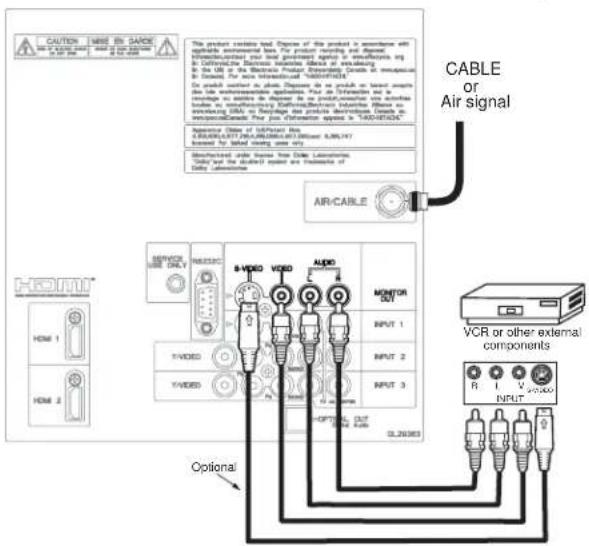
NOTE: When making video connections, connect S-Video only or Video only. If both are connected, S-Video takes priority.
The Remote Control
In addition to controlling all the functions on your HITACHI Plasma Television, the new remote control is designed to operate different types of VCRs, CATV (Cable TV) converters, set-top-boxes, satellite receivers (SAT) and DVD players with one touch. Basic operation keys are grouped together in one area.
To operate your TV, press the TVbutton. The remote will now control your television.
To operate your VCR, press the VCR button. The remote will now control your VCR (see page 31 for instructions on how to program the remote to control your VCR).
To operate your cable box, press the CABLE (CBL) button. The remote will now control your cable box (see page 28 for instructions on how to program the remote to control your cable box).
To operate your set-top-box or satellite receiver, press the SAT button. The remote will now control your set-top-box or satellite receiver. If you have a satellite receiver, use this button to program your satellite receiver (see page 29 for instructions on how to program the remote to control your SAT).
To operate your DVD player, press the DVD button. The remote will now control your DVD player (see page 30 for instructions on how to program the remote to control your DVD player).
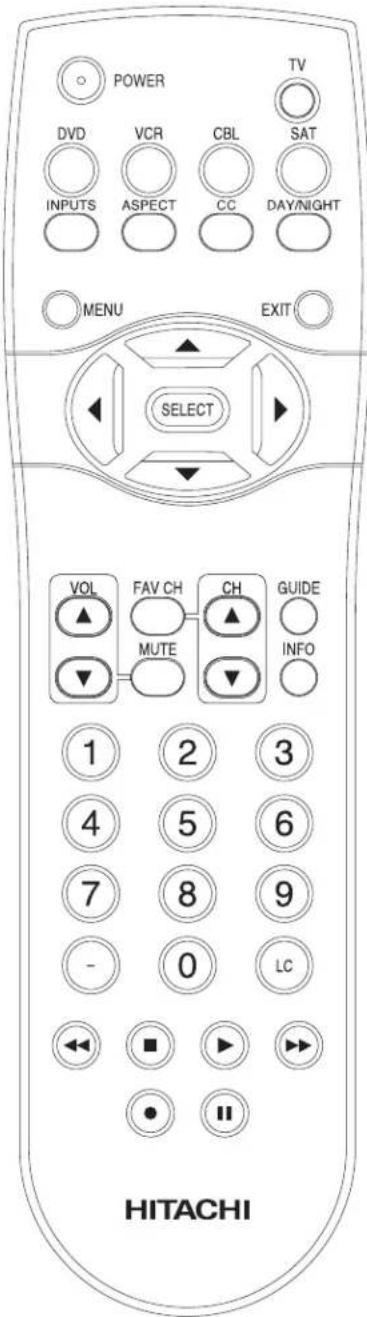
How to Use the Remote to Control Your TV
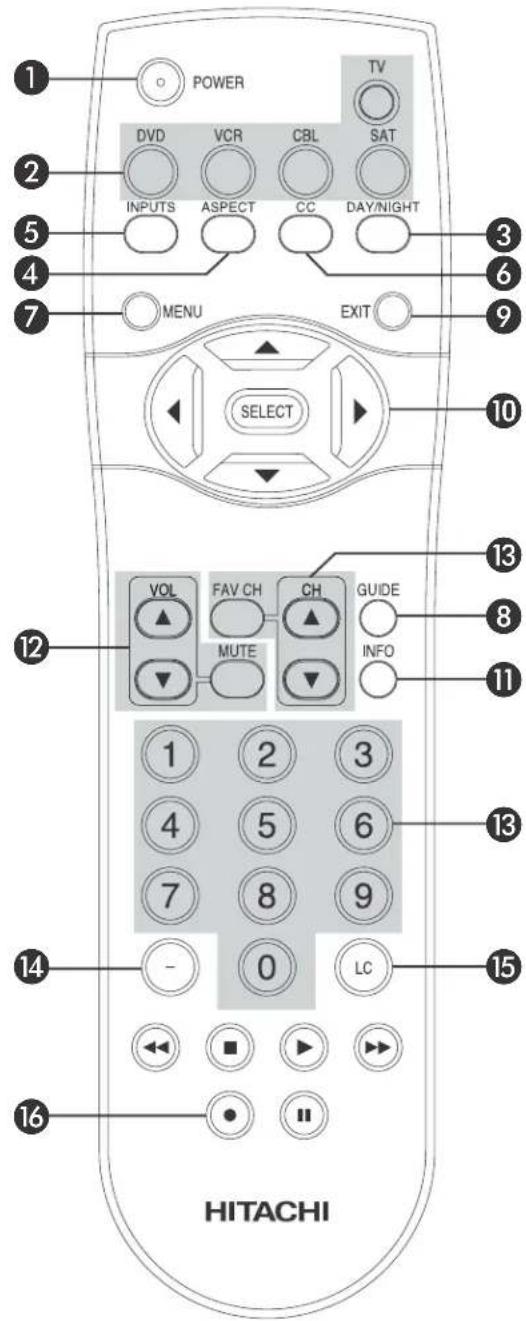
①POWER button
Press this button to turn the TV set on or off when the remote is in TV mode.
②MODE buttons
These buttons allow the remote to control your TV, VCR, DVD, Cable box/Satellite box depending on which button is pressed. Refer to page 28\~31 for how to change between each of these modes.
③DAY/NIGHT button
Press this button to toggle between Day (Normal), Day (Dynamic) and Night picture mode settings. Select DAY for day time viewing with more brightness and contrast to compete with room light. Select NIGHT for night time viewing with less brightness and contrast for a more detailed picture (see page 34 for settings changes).
NOTE: For automatic DAY/NIGHT picture mode settings, see page 48.
How to Use the Remote to Control Your TV
④ ASPECT button
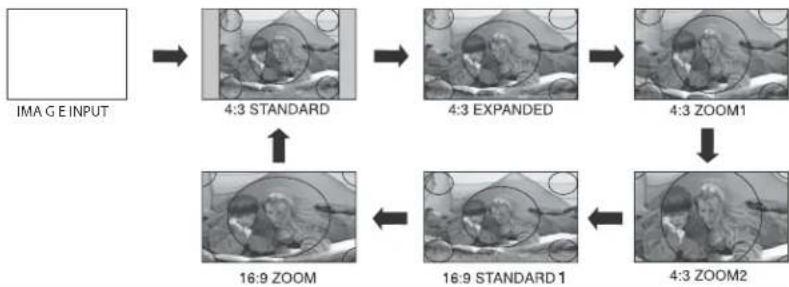
Press this button to quickly change the picture format ASPECT ratio. Depending on the input signal format received, the picture format ratio allows you to adjust the images through the following options.
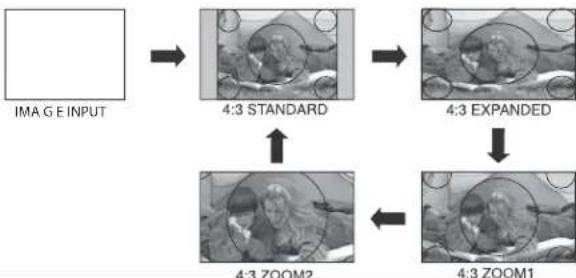
4:3 STANDARD
Use this aspect mode to display conventional (4:3) images. Side panels (gray areas) are placed to the left and right of the image to preserve the original aspect ratio of the source. Note: Use this mode for only 15% of your total viewing time to prevent uneven aging of the phosphors. Phosphors in the lighted area of the picture will age more rapidly than the gray areas.
4:3 EXPANDED
Use this aspect mode to display conventional (4:3) sources by linearly increasing image expansion from the center towards the edges of the display area in order to fill it.
4:3 ZOOM1/ZOOM2
Use these aspect modes to zoom in on conventional (4:3) sources.
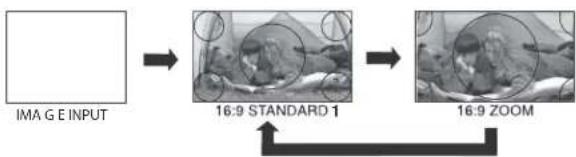
16:9 STANDARD 1
Use this aspect mode to display 16:9 sources like HDTV and DVD's preserving the original 16:9 aspect ratio showing 95% of the size.
16:9 STANDARD 2
Use this aspect mode to display 16:9 sources like HDTV and DVD's preserving the original 16:9 aspect ratio showing 100% of the size.
16:9 ZOOM
Use this aspect to Zoom-in once while in 16:9 aspect.
- Antenna-Analog Channel
• S-Video/Video Input (Auto Aspect: Off)
• HDMI-480i/480p Input (Auto Aspect: Off) - Component-480i/480p Input (Auto Aspect: Off)
Note: Please see Appendix A on page 138-139.
flowchart
graph TD
    A["IMAGE INPUT"] --> B["4:3 STANDARD"]
    B --> C["4:3 EXPANDED"]
    C --> D["4:3 ZOOM1"]
    D --> E["4:3 ZOOM2"]
    E --> F["16:9 STANDARD 1"]
    F --> G["16:9 ZOOM"]
• Antenna-Digital Channel (4:3)
• S-Video/Video 4:3/Letter Input (Auto Aspect: On)
• HDMI-480i/480p 4:3/
Letter Input (Auto Aspect: On)
- Component-480i/480p 4:3/
Letter Input
(Auto Aspect: On)
Note: Please see Appendix A on page 138-139.
• S-Video/Video 16:9 Input (Auto Aspect: On)
- HDMI-480i/480p 16:9 Input (Auto Aspect: On)
- Component-480i/480p 16:9 Input (Auto Aspect: On)
Note: Please see Appendix A on page 138-139.
flowchart
graph TD
    A["IMAGE INPUT"] --> B["4:3 STANDARD"]
    B --> C["4:3 EXPANDED"]
    C --> D["4:3 ZOOM1"]
    D --> E["4:3 ZOOM2"]
flowchart
graph LR
    A["IMA G E INPUT"] --> B["16:9 STANDARD 1"]
    B --> C["16:9 ZOOM"]
• Antenna-Digital Channel (16:9)
• HDMI-720p/1080i/1080p Input
- Component-720p/1080i Input
Note: Please see Appendix A on page 138-139.
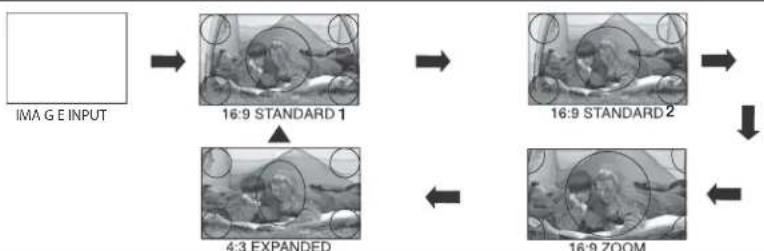
flowchart
graph TD
    A["IMAGE INPUT"] --> B["16:9 STANDARD 1"]
    B --> C["16:9 STANDARD 2"]
    C --> D["16:9 ZOOM"]
    D --> E["4:3 EXPANDED"]
    E --> B
NOTE:1. The Aspect Style in all video inputs have independent Aspect Style setting.
- Vertical position adjustments are directly available when you choose 4:3 EXPANDED/ZOOM1/ZOOM2 or 16:9 ZOOM aspect style (see also page 36).
- When displaying 16:9 STANDARD 2 it may appear lines at the edge of the picture this is normal operation of the TV
How to Use the Remote to Control Your TV
⑤ INPUTS button
When the remote control is in TV mode, press this button to access the INPUTS menu. Use the CURSOR and SELECT buttons to scroll and select the inputs that are being used. Pressing the INPUTS button repeatedly will also cycle through the Inputs menu items. Then press the SELECT button to select.
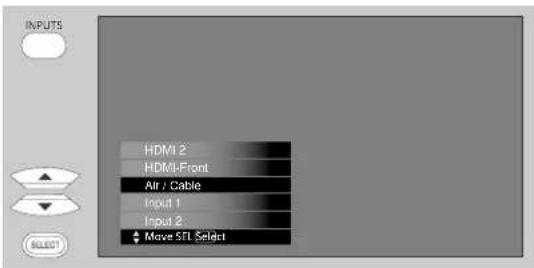
INPUT 1 Select to choose INPUT 1.
INPUT 2 Select to choose INPUT 2.
INPUT 3 Select to choose INPUT 3.
INPUT-FRONT Select to choose FRONT INPUT.
HDMI 1 Select to choose HDMI 1 INPUT.
HDMI 2 Select to choose HDMI 2 INPUT.
HDMI-FRONT Select to choose FRONT HDMI INPUT.
AIR/CABLE Select between Air or Cable signal.
⑥ CLOSED CAPTIONS (CC) button
Use this button to display the dialogue, narration, and/or sound effects of a television program or home video which are displayed on the TV screen when available. Your local TV program guide denotes these programs as
⑦ MENU button
The MENU button will start the On-Screen Display.
⑧ GUIDE button
[Cable Box (CBL), Satellite Receiver (SAT)/Set-Top-Box (STB) mode only]
The use of this button is only applicable when the remote control is in (CBL) and (SAT/STB) mode. Press this button to access the Channel Guide of the (CBL), and (SAT/STB).
⑨ EXIT button
This button will exit all On-Screen Displays.
⑩ CURSOR buttons/SELECT button
All the On-Screen Display features can be set or adjusted by using the CURSOR buttons and the SELECT button, except for numeric entries. Press the CURSOR buttons toward desired direction and press the SELECT button to select.
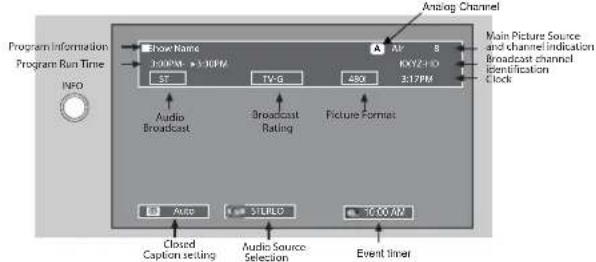
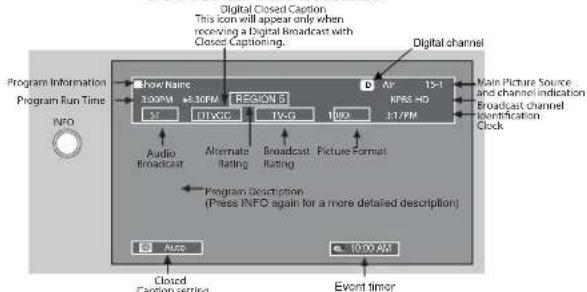
⑪ INFO button
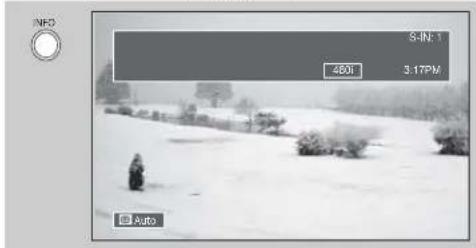
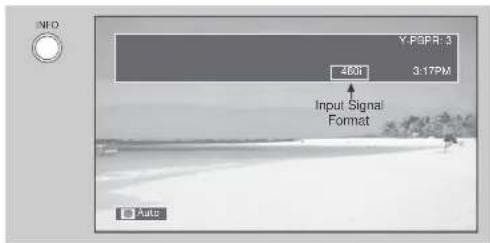
Press this button when you want to check the channel being received, the picture source, if the channel has stereo (ST) or second audio program (SA), the time, CHANNEL ID and if the TIMER is set.
ANALOG CHANNELS
DIGITAL CHANNELS
When an S-VIDEO Input is connected to INPUT 1
When a Component Video: Y-PbPr Input is connected to INPUT 3
NOTE: 1. Press the INFO button again or the EXIT button to return to normal viewing.
- The Aspect setting will not be shown if the channel is locked.
How to Use the Remote to Control Your TV
⑫ VOLUME (VOL), MUTE button
Press the VOLUME button (▲ or ▼) until you obtain the desired sound level.
To reduce the sound to one half of normal volume (SOFT MUTE) to answer the telephone, etc., press the MUTE button. Press the MUTE button again to turn the sound off completely (MUTE). To restore the sound, press the MUTE button one more time, or VOL UP (▲).
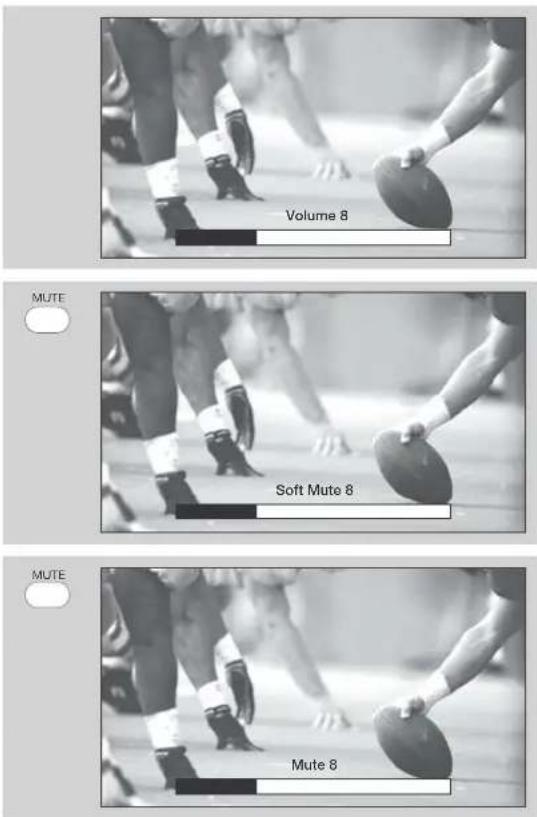
Closed Captioning will display automatically when MUTE/SOFT MUTE is on and Closed Caption is set to AUTO (see page 53).
When the TV power is turned off at a volume level 31 or greater, the volume level will default to 30 when the TV is turned on. However, if it is set to a level 30 or less, the volume level will be at the level it was set when the TV is turned on.
13 CHANNEL SELECTOR/FAVORITE CHANNEL (FAV CH) buttons
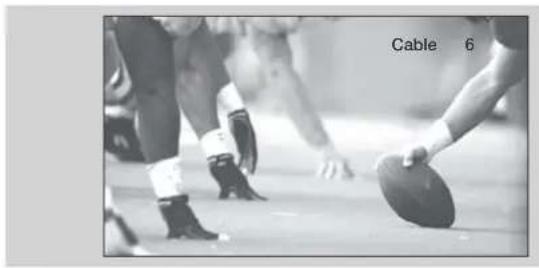
The CHANNEL SELECTOR buttons are used to select channels, lock access code, etc. Use the CHANNEL SELECTOR buttons to enter one, two, or three numbers to select channels. Enter 0 first for channels 1 to 9, or simply press the single digit channel you wish to tune then wait a few seconds for the TV to tune. Channel selection may also be performed by CHANNEL (CH) UP (▲) or CHANNEL (CH) DOWN (▼).
Press the FAV CH button to switch to Favorite (FAV) channel mode. You will know you are in Favorite Channel mode when (FAV) is displayed and the displayed channel is GREEN. Press it again to return to your regular tuned channels. You can add any channel to your Favorite channel list by pressing and holding down the FAV CH button until the displayed channel turns from WHITE to highlighted GREEN. You can also delete a channel from your favorite channel list by pressing and holding down the FAV CH button until the displayed channel turns highlighted GREEN to WHITE.
natural_image
Black-and-white photo of a table tennis player in action, with hands reaching toward the ball (no visible text or symbols)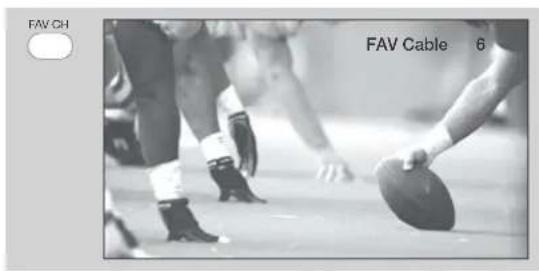
natural_image
Black-and-white photo of a football player's arm and ball during a game, no visible text or symbols on the image itself.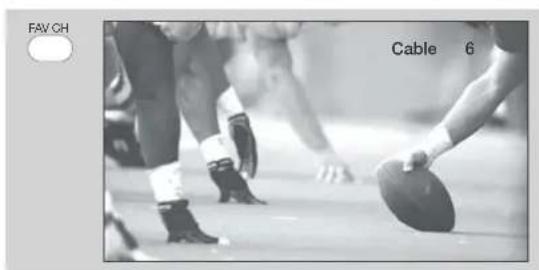
natural_image
Black-and-white photo of a table tennis player in action, with hands reaching for the ball (no visible text or symbols)⑭ (-) DASH button
Use the (-) DASH button with the CHANNEL SELECTOR buttons to enter Digital Channels that have subchannel numbers indicated by (-) DASH (example 15-1).
⑮ LAST CHANNEL (LC) button
Press this button to toggle between the current and last channel viewed.
16 RECORD button
Press twice (two times) to record programs when the remote is in VCR mode.
The Remote Control for Cable Box Functions
This remote is designed to operate different types of cable boxes. You must first program the remote to match the remote system of your cable box (refer below for pre-codes).
- Turn ON your cable box.
- To switch to Cable (CBL) pre-coded mode, press and release the CABLE (CBL) button.
- Hold down the CBL button on the remote and enter the two digit preset code that matches your cable box, as shown below. Release the CBL button.
- Aim the remote at the cable box and press the POWER button. The remote will turn off your cable box when the correct two digit preset code is entered. When this occurs, the remote control is programmed for your cable box. If the cable box does not turn off, try a different two digit preset code.
- The remote will now control your Cable box.
NOTE:1. If your cable box cannot be operated after performing the above procedures, your cable box code has not been precoded into the remote.
2. In the unlikely event that your cable box cannot be operated after performing the above procedures, please consult your cable box operating guide.
3. The remote control will remember the codes you have programmed until the batteries are removed from the remote control. After replacing the batteries repeat the entire programming procedure as stated above.
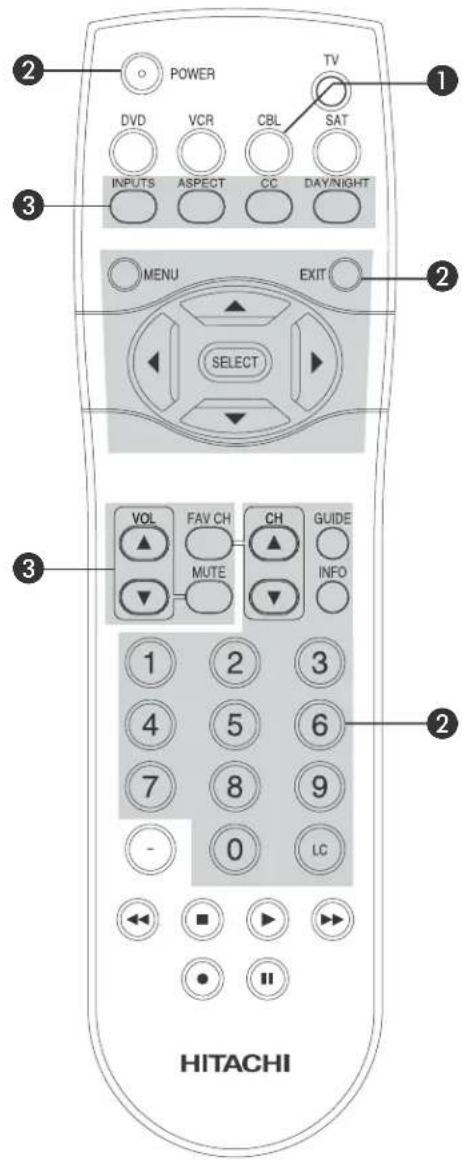
①CABLE (CBL) button
This button allows the remote to control your cable box by setting it to CABLE mode.
②PRECODED CABLE BOX buttons
These buttons transmit the chosen precoded cable codes.
③EXCLUSIVE TV buttons
These buttons are for operating the TV.
CABLE BRAND ANALOG TYPE CODES
HAMLIN....22, 23, 24, 25
JERROLD 00, 01, 02, 03, 04, 05, 06, 07, 21
OAK....26, 27, 28
PANASONIC.... 18, 19, 20
PIONEER 13,14
SCIENTIFIC ATLANTA....08, 09, 10
TOCOM 15, 16
ZENITH....11, 12
G.I. 17
CABLE BRAND DIGITAL TYPE CODES
PIONEER....29
SCIENTIFIC ATLANTA ....30
MY CABLE BOX CODE IS:
NOTE: Refer to instruction manual of the Cable Box for operation of the buttons exclusively for the Cable Box.
The Remote Control for Set-Top Box/Satellite Receiver Functions
OPERATING THE PRECODED FUNCTION FOR YOUR SET-TOP-BOX/SATELLITE RECEIVER.
This remote is designed to operate different types of set-top-box/satellite systems. You must first program the remote to match the remote system of your set-top-box/satellite systems (refer below for pre-codes).
- Turn ON your set-top-box/satellite systems.
- To switch to set-top-box/satellite (STB) pre-coded mode, press and release the SAT button.
- Hold down the SAT button on the remote and enter the two digit preset code that matches your set-top-box/satellite receiver, as shown below. Release the SAT button.
- Aim the remote at the set-top-box/satellite receiver and press the POWER button. The remote will turn off your set-top-box/satellite receiver when the correct two digit preset code is entered. When this occurs, the remote control is programmed for your set-top-box/satellite receiver. If the set-top-box/satellite receiver does not turn off, try a different two digit preset code.
- The remote will now control your set-top-box/satellite receiver.
NOTE: 1. If your set-top-box/satellite receiver cannot be operated after performing the above procedures, your set-top-box/satellite receiver code has not been precoded into the remote.
- In the unlikely event that your set-top-box/satellite receiver cannot be operated after performing the above procedures, please consult your set-top-box/satellite receiver operating guide.
- The remote control will remember the codes you have programmed until the batteries are removed from the remote control. After replacing the batteries repeat the entire programming procedure as stated above.
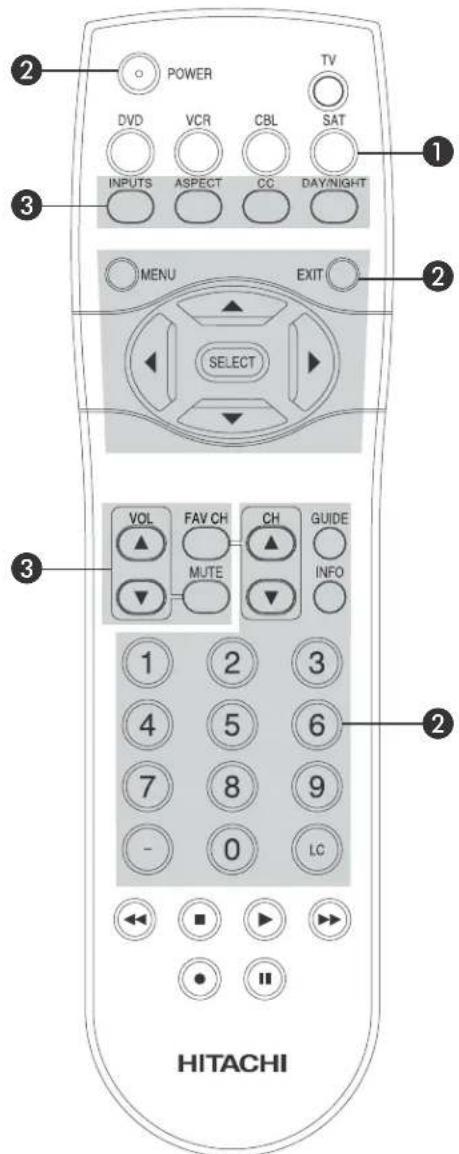
①SAT (Set-Top-Box/Satellite) button
This button allows the remote to control your set-top-box/satellite receiver by setting it to SET-TOPBOX/SATELLITE mode.
②PRE-CODED SET-TOP-BOX/SATELLITE RECEIVER buttons
These buttons transmit the chosen pre-coded set-top-box/satellite codes.
③EXCLUSIVE TV buttons
These buttons are for operating the TV.
SATELLITE BRAND CODES
2006 DIRECT TV 09
ECOSTAR 03
HITACHI....00
HUGHES 04
RCA 01
SONY 02
SET TOP BOX BRAND CODES
PANASONIC 05
RCA 06
SAMSUNG 07
ZENITH....08
MY SATELLITE RECEIVER/
SET TOP BOX CODE IS:
NOTE: Refer to instruction manual of the set-top-box/satellite receiver for operation of the buttons exclusively for the set-top-box/satellite receiver.
The Remote Control for DVD Functions
OPERATING THE PRECODED FUNCTION FOR YOUR DVD PLAYER.
This remote is designed to operate different types of DVD players. You must first program the remote to match the remote system of your DVD player (refer below for pre-codes).
- Turn ON your DVD player.
- To switch to DVD pre-coded mode, press and release the DVD button.
- Hold down the DVD button on the remote and enter the two digit preset code that matches your DVD player, as shown below. Release the DVD button.
- Aim the remote at the DVD player and press the POWER button. The remote will turn off your DVD player when the correct two digit preset code is entered. When this occurs, the remote control is programmed for your DVD player. If the DVD player does not turn off, try a different two digit preset code.
- The remote will now control your DVD player.
NOTE:1. If your DVD player cannot be operated after performing the above procedures, your DVD player's code has not been precoded into the remote.
2. In the unlikely event that your DVD player cannot be operated after performing the above procedures, please consult your DVD player operating guide.
3. The remote control will remember the codes you have programmed until the batteries are removed from the remote control. After replacing the batteries repeat the entire programming procedure as stated above.
①DVD button
This button allows the remote to control your DVD player by setting it to DVD mode.
②PRECODED DVD Buttons
These buttons transmit the chosen precoded DVD codes.
③EXCLUSIVE TV Buttons
These buttons are for operating the TV.
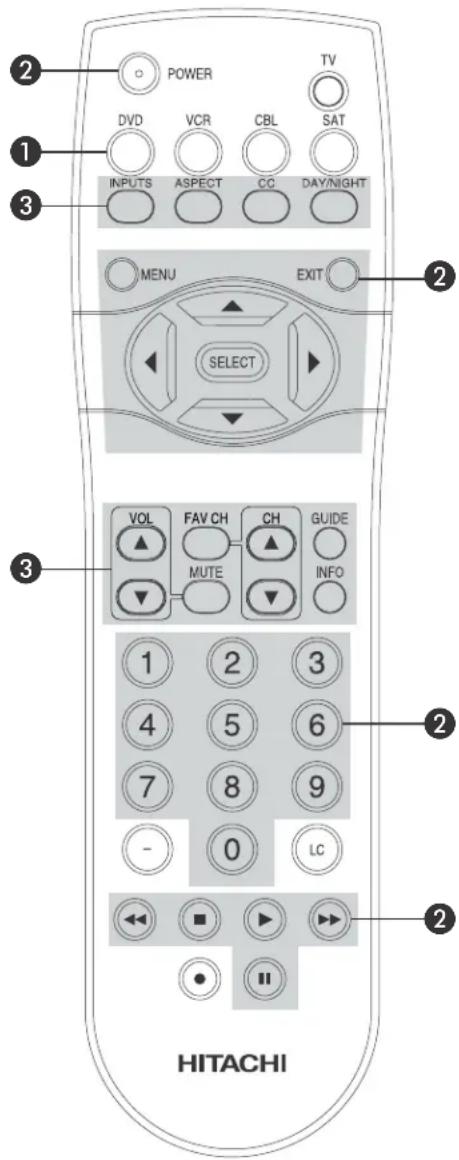
DVD BRAND CODES
APEX 10
GO VIDEO 09
HITACHI....00
KENWOOD 11
PANASONIC 02
PIONEER 03
RCA 04
SAMSUNG 06
SANYO 07
SONY 01
TOSHIBA 05
NOTE: Refer to instruction manual of the DVD player for operation of the buttons exclusively for the DVD player.
The Remote Control for VCR Functions
This remote is designed to operate different types of VCRs. You must first program the remote to match the remote system of your VCR (refer below for pre-codes).
- Turn ON your VCR.
- To switch to VCR pre-coded mode, press and release the VCR button.
- Hold down the VCR button on the remote and enter the two digit preset code that matches your VCR, as shown below. Release the VCR button.
- Aim the remote at the VCR and press the POWER button. The remote will turn off your VCR when the correct two digit preset code is entered. When this occurs, the remote control is programmed for your VCR. If the VCR does not turn off, try a different two digit preset code.
- The remote will now control your VCR.
NOTE:1. If your VCR cannot be operated after performing the above procedures, your VCR's code has not been precoded into the remote.
- In the unlikely event that your VCR cannot be operated after performing the above procedures, please consult your VCR operating guide.
- The remote control will remember the codes you have programmed until the batteries are removed from the remote control. After replacing the batteries repeat the entire programming procedure as stated above.
- Press the Record button twice to record.
①VCR button
This button allows the remote to control your VCR player by setting it to VCR mode.
②PRECODED VCR Buttons
These buttons transmit the chosen precoded VCR codes.
③EXCLUSIVE TV Buttons
These buttons are for operating the TV.
NOTE: Refer to instruction manual of the VCR for operation of the buttons exclusively for the VCR.
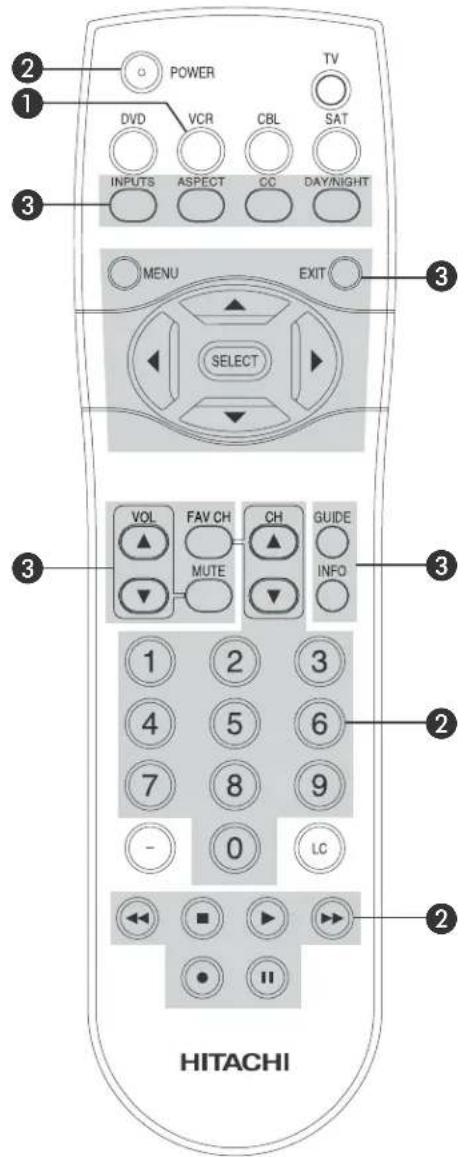
VCR BRAND CODES
AIWA 48
DAEWOO 45
EMERSON.... 20, 21, 22, 23
FISHER 34, 37, 38, 39
FUNAI....52
GE 33
GOLD STAR 36
HITACHI 00, 01, 02, 03, 04, 05, 06
JVC....49, 50, 51, 18
MAGNAVOX 12, 13
MITSUBISHI....27, 28, 29, 30
NEC 40, 41
PANASONIC....10, 11
PHILIPS 14
SAMSUNG 25, 26, 17
SHARP 31, 32
SONY 07,08,09
TOSHIBA....15
ZENITH 35
- Press MENU on the remote control to display the different features on your HITACHI Plasma TV.
- Use the CURSOR PAD (buttons ▲,▼,◀ and ▶) and highlight a different feature of the On-Screen Display menu. Press the SELECT button to select.
- Press EXIT on the remote control to quickly exit from a menu.
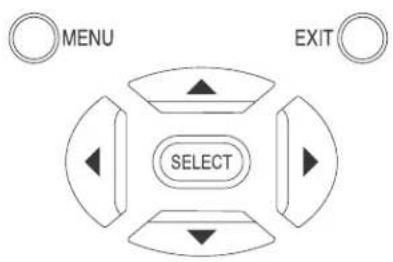
flowchart
graph TD
    A["MENU"] --> B["SELECT"]
    C["EXIT"] --> B["SELECT"]
    B --> D["Downward Arrow"]
    B --> E["Upward Arrow"]
This part of the screen shows which selections are available.
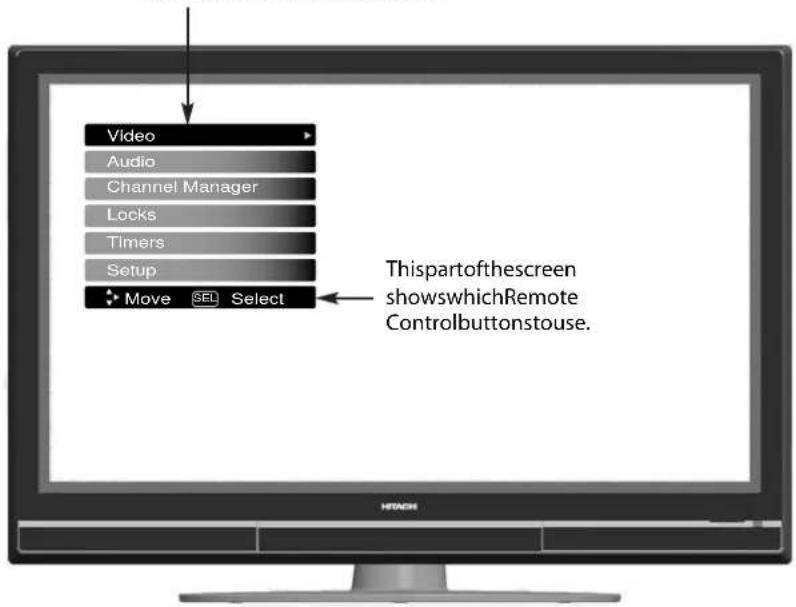
NOTE: The On Screen Display (OSD) for the different submenus shown in next pages are for illustration purposes only, therefore; doesn't reflect the actual appearance of the OSD of your HITACHI Plasma TV.
On-Screen Display
Video
| Picture Mode | Select between 3 pictures modes; Day Dynamic, Day Normal and Night. |
| Contrast Adjust contrast. | |
| Brightness Adjust brightness. | |
| Color Adjust color. | |
| Tint Adjust tint. | |
| Sharpness Adjust sharpness. | |
| Color Temperature Set this to High for less intense color with more blue, set to Medium for natural color, set to Standard for standard colors. | |
| Black Enhancement Enhance picture brightness in light scenes. | |
| Contrast Mode Use this function to choose between two Contrast Mode settings. | |
| Noise Reduction Reduces conspicuous noise in the picture. | |
| MPEG NR | Reduces mosquito noise in the picture. |
| Auto Movie Mode Turn On/Off the 3:2 Pulldown detection feature. | |
| Black Side Panel | Set the gray side bars from gra to black when watching 4:3 signals in standard mode. |
| Aspect Choose the picture format aspect ratio. | |
| Reset Video Settings Choose to Reset Video Settings to factory settings. | |
Audio
| Treble Adjust the treble. | |
| Bass Adjust the bass. | |
| Balance | Adjust the balance. |
| Surround | Select Surround settings (Off, Wide, Normal) |
| Bass Boost | Select Bass Boost option ON or OFF |
| Audio Source | Select between three Audio Sources. |
| Internal Speakers Select internal or external speakers. | |
| Auto Noise Cancel | Eliminates the noise between stations. |
| Perfect Volume | Adjust volume in fixed setting between stations. |
| Loudness | Adjust Loudness. |
| Language | Select Language options if available. |
| Digital Output | Select Optical Output options. |
| DRC | Select Dynamic Range Compression to ON or OFF. |
NOTE: The Language, Digital Output, and the Dynamic Range Compression feature of the Audio OSD are only available for Digital channels.
Channel Manager
| Signal Meter | Access Signal Meter. |
| Auto Channel Scan | Set Auto Channel Scan. |
| Channel List | Set Channel List. |
Locks
| Change Access Code | Change Lock access code. |
| Engage Lock | Choose to lock channel, and/or Front panel. |
| Movie Ratings | Block various types of movies and video types based on motion picture ratings. |
| TV Ratings | Block various types of movies and television programming based on a parental guide ratings. |
| Canadian Ratings (ENG) | Block various types of movies and television programming based on the Canadian ratings system. |
| Canadian Ratings (FRN) | Block various types of movies and television programming based on the Canadian French ratings system. |
| Region 5 | Ratings system for DTV Signal to block various types of programs. |
Timers
| Set the Clock | Set Clock Settings. |
| Set Sleep Timer | Set Sleep Timer intervals (30 min. intervals, 00:30-3:00). |
| Set Day/Night Timer | Set Day/Night picture mode settings. |
| Set Event Timer | Set viewing reservation for TV programs. |
Setup
| Set The Menu Options | Choose English, French, or Spanish text and Background. |
| Set The Screen Saver | Select Screen Saver options to prevent screen burn. |
| Set The Inputs | Label Video Inputs, VCR, DVD, etc. |
| Set The Closed Captions | Feature to display dialogue/text |
| Set The Quick Start Options | Select the TV Quick Start Up options. |
| Reset The Software | Select to upgrade TV software and to Reset TV settings. |
NOTE: 1. The Signal Meter feature of the Channel Manager OSD is only available for Digital channels.
Video
Video

Select VIDEO to adjust picture settings and improve picture quality. You can independently customize each of the Video Inputs to your preference to increase viewing performance and pleasure depending upon the video program being viewed. If RESET is selected, only the selected input will reset to initial conditions.
Picture Mode
Use this function to choose from automatic picture settings to optimize your TV's performance.
- Use the CURSOR buttons ◀ or ▶ to highlight and select PICTURE MODE settings (Day-Normal, Day-Dynamic or Night).
- Then press the SELECT button to set the mode and return to the Video menu or press EXIT to quit menu.
- There are 3 Picture Modes available for the customer Day (Dynamic), Day (Normal) and Night mode. Day (Dynamic) is the original factory preset mode, this can be changed by adjusting any video setting to your desire conditions. Day (Normal) can be used as a second video setting for daytime viewing. Night is set to watch programing during nighttime.

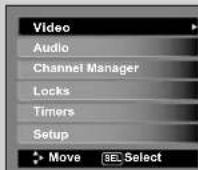
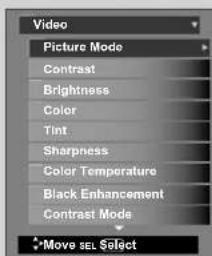
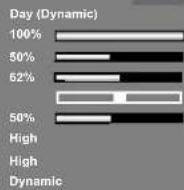

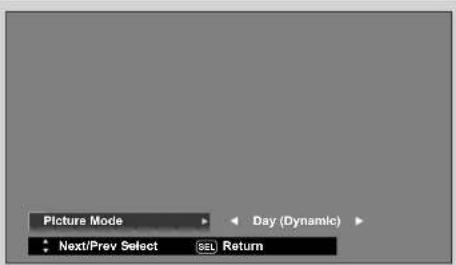


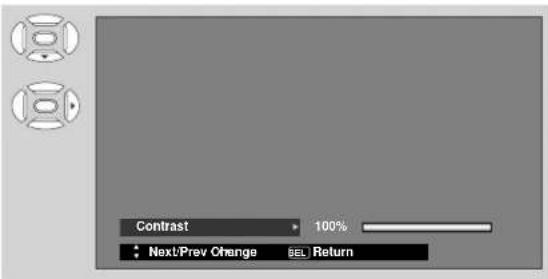
- Use the CURSOR PAD ▲ or ▼ to highlight the function to be adjusted.
- Press the SELECT button or the CURSOR PAD ▶ to select the function settings.
- Press the CURSOR PAD ◀ or ▶ to adjust the function.
- Press MENU to return to main menu.
- Press EXIT to quit menu.
Contrast
Use this function to change the contrast between black and white levels in the picture.
Brightness
Use this function to adjust overall picture brightness.
Color
Use this function to adjust the level of color in the picture.
Tint
Use this function to adjust flesh tones so they appear natural.
Sharpness
Use this function to adjust the amount of fine detail in the picture.
Video
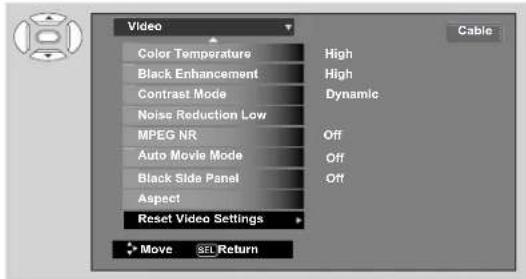
Color Temperature
Set this to High for cooler color with more blue, set to Medium for more natural color, set to Standard for accurate color.
Black Enhancement
Use this function to enhance the shadow detail in dark scenes using the settings off, low, middle and high.
NOTE: 1. If CONTRAST is selected, you are adjusting CONTRAST. The additional menu items BRIGHTNESS, COLOR, TINT, and SHARPNESS can be selected and adjusted in the same manner.
2. It may be necessary to adjust TINT to obtain optimum picture quality when using the COMPONENT VIDEO Y-PBPR input jacks.
3. CABLE and AIR share a Video setting. Also, each of the video inputs have their own independent settings.
Contrast Mode
Use this function to choose between 2 Contrast Mode settings. Set to DYNAMIC for darker images more in the level of Black, set to NORMAL for a balanced White to Black level.
Noise Reduction
The NOISE REDUCTION function automatically reduces conspicuous noise in the picture without degrading picture quality. Set NOISE REDUCTION to OFF if the TV experiences picture blocking.
MPEG NR
The MPEG NR (Noise Reduction) function automatically reduces mosquito noise in the picture without degrading picture quality. Set MPEG NR to OFF if the TV experiences picture block noise.
Auto Movie Mode
The AUTO MOVIE MODE function turn ON or OFF the 3:2 PULLDOWN DETECTION SPECIAL FEATURE. Theatrical movies are shot on film at 24 frames or still pictures per second, instead of 30 frames or 60 fields like video. When film is transferred to video for television viewing, the disparity between the two frame rates must be reconciled. This involves a process known as 3:2 pulldown.
When AUTO MOVIE MODE is turned ON from the VIDEO menu, your Hitachi Plasma Television will activate the circuitry for this special feature to improve video performance when watching film based sources. Set to OFF to desactivate this feature.
Black Side Panel
The BLACK SIDE PANEL function turns the gray side bars from gray to black when watching 4:3 signals in Standard mode.
- Press the CURSOR PAD ◀ or ▶ to set to ON or OFF.
- Press EXIT to quit menu or select SET BLACK SIDE PANEL to return to the previous menu.
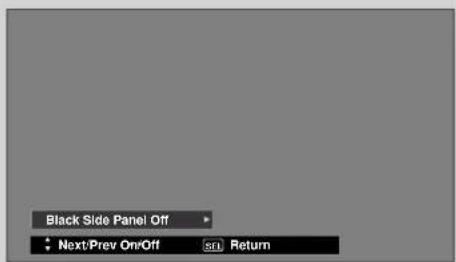
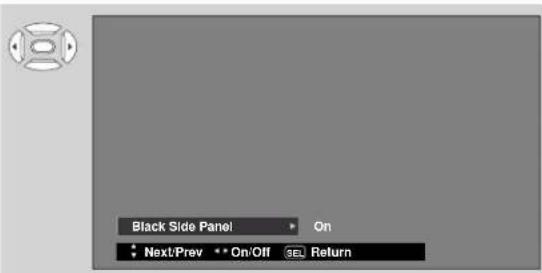
NOTE: 1. To prevent screen damage when watching 4:3 signal, turn off the BLACK SIDE PANEL. It is recommended to watch 4:3 signal with gray side bar.
2. This setting return to Off automatically after TV power Off/On.
Video
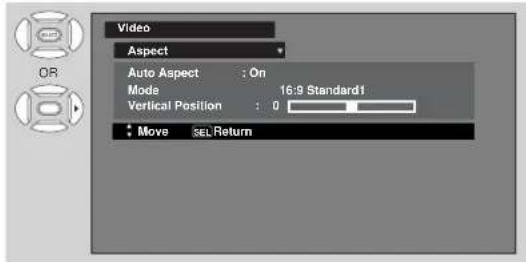
Aspect
Use this function to select the Picture Format Aspect Ratio.
Auto Aspect
Automatically adjust the Aspect Ratio depending on the input signal to fill the screen.
Mode
Manually select the Aspect Ratio.
Vertical Position
This function allows you to select when aspect style is either 4:3 EXPANDED/ZOOM1/ZOOM2 or 16:9 ZOOM. Vertical position can be changed with these modes. For example, it will be useful for centering the picture area at both the top and bottom of the picture with 480i/ /480p signal. Adjustable range is -10 (video center is toward bottom of screen) to +10 (video is toward top of screen).
- Use the CURSOR PAD ▲ or ▼ to to select menu item.
- Press the CURSOR PAD ◀ or ▶ to adjust the function.
- Press the EXIT to quit the MENU, or select ASPECT to return to the main menu.
NOTE:1. Vertical Position will not be available in 4:3 Standard and 16:9 Standard modes.
- Vertical Position setting returns to "0" automatically after TV power On/Off.
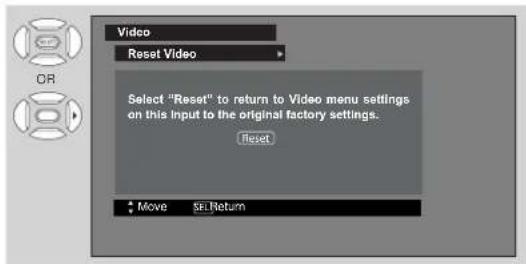
Reset Video Settings
This function allows you to Reset the Video Menu Settings of the present input and return it to the Day-Dynamic VIDEO mode.
- Use CURSOR PAD ▲,▼ to highlight functions.
- Press the SELECT button or CURSOR PAD ▶ to select Reset Video Settings.
- Use the CURSOR PAD ▼ to access at the Reset softkey.
- Press the SELECT button to Reset the Video Settings.
You can customize each of the Video Inputs to your preference to increase viewing performance and pleasure, depending upon the video program being viewed. If RESET is selected, only the selected Input will reset to the initial conditions as explained above.
If RESET is selected in Input 1, only Input 1 will return to factory conditions.
Audio
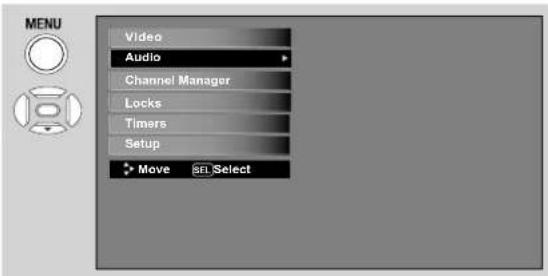
Audio
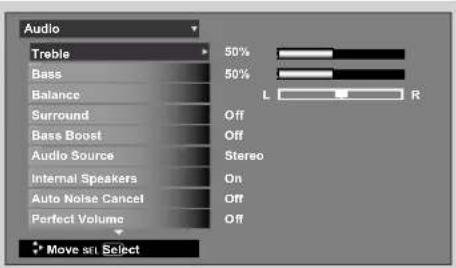
Select AUDIO to adjust the TV to your preference and to improve the sound quality.
- Press CURSOR PAD ▲ or ▼ to select menu item.
- Press CURSOR PAD ◀ or ▶ to adjust the function.
- Press EXIT to quit the MENU, or select AUDIO to return to the main menu.
NOTE: If TREBLE is selected you are adjusting treble. The additional menu items BASS and BALANCE can be selected and adjusted in the same manner.
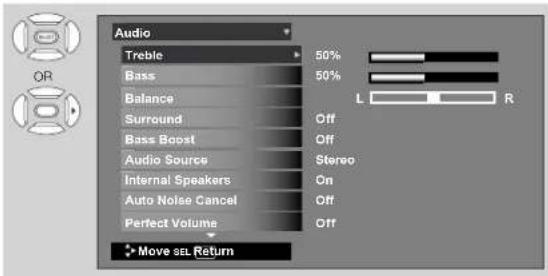
Treble
This function controls the high frequency audio to all speakers.
Bass
This function controls the low frequency audio to all speakers.
Balance
This function will control the left to right balance of the Plasma TV internal speakers.
Surround
Surround sound is the concept of expanding the spatial imaging of audio from one dimension (Mono/Left-Right) to two or three dimensions. This is often done to create a more realistic audio environment.
1.- Use CURSOR PAD ▲ or ▼ to highlight surround option.
2.- Use CURSOR PAD ◀ or ▶ to select Off, Normal or Wide.
Off : turns off the surround sound effect.
Normal Surround: Provides the surround effect by locating two or more speakers to the rear of the listener.
Wide Surround : Reproduce much better quality 5 channel sound signals from ordinary stereo contents comparing with normal surround technology. Wide surround enable users to enjoy sound playback in wide surround virtual area like 5 channel contents with ordinary stereo contents.
Bass Boost
This function allows to enhance the low frequency audio performance of your speaker system.
Audio
Audio Source
Multi-Channel Television Sound will allow you to select STEREO (a stereo broadcast), MONO (monaural sound) used when receiving a weak stereo broadcast or SECOND AUDIO PROG (SAP) which may be a secondary language, weather report, etc.
Internal Speakers
This function is useful when setting up the external speakers.
ON Select this feature if using the internal speakers only.
TV as Center Select this feature when setting up external speakers from a separate stereo system.
The TV's speakers will work as the center speaker.
OFF Select this feature if you prefer to use only speakers from a separate stereo system.
Auto Noise Cancel
This function eliminates the noise between stations. If a channel is tuned and is noisy, this function will automatically eliminate the audio for that channel.
Perfect Volume
This function will automatically adjust volume so each channel and input has the same average volume level.
Loudness
Set this function to ON to emphasize bass and treble at low volume levels.
Language
Some programs transmit more than one DTV language option. Most will have English as a default language. The language function will allow you to select up to 4 language options (if available).
Digital Output
This function allows you to select between Dolby® Digital and PCM. This setting will be fed into optical output.

Dolby®Digital - Select this feature if the TV is connected to an amplifier/receiver with a Dolby®Digital only decoder; it will provide six independent soundtrack channels through the optical output jack (Digital Audio).
NOTE: *Manufactured under license from Dolby Laboratories. "Dolby" and the double-D symbol are trademarks of Dolby Laboratories.
PCM - Select this feature if the TV is connected to an amplifier/receiver with a PCM only decoder; it will provide two independent soundtrack channels through the optical output jack (Digital Audio).
DRC
Dynamic Range Compression - Use this function to compress the range of sound volume. By compressing the range of sound volume, it is possible not only to suppress the output of loud sound at night but also to raise the volume of low sound. The default setting is ON.
Use the CURSOR PAD ◀ or ▶ to select the chosen options.
NOTE: The functions Language, Digital Output and DRC are only available when viewing digital programs.
Use the functions at right if your TV is connected to an amplifier/receiver with optical digital input with Dolby® Digital or PCM decoder capabilities.
NOTE: 1.- The DRC control affects only Dolby ^® Digital signals decoded internally by the TV.
2.- DRC does not affect the Dolby Digital bitstream available at the digital audio output.

![Audio Bass Boost Audio Source Internal Speakers Auto Noise Cancel Perfect Volume Loudness Language Digital Output DRC Off On Off Off Off 1 [Unknown] Doiby Digital On Move set Select](/content/2026/05/1049282/images/f12c79d444731507f8002b594cba32eeb599d501f1627bd2a32f6c18d45ba132.jpg)
Channel Manager
Channel Manager
Select CHANNEL MANAGER to set your Antenna options, run Auto Channel Scan, Check Signal Meter and Set Channel List.
- Press CURSOR PAD ▲,▼ to highlight functions.
- Press the SELECT button or CURSOR PAD ▶ to select.
Signal Meter
Select SIGNAL METER when using an indoor or outdoor antenna. This feature will show the signal strength and peak values of the Antenna signal to help you adjust your antenna to optimize signal reception.
Use the CURSOR PADS and the SELECT button to highlight and select CLOSE to exit.
NOTE: The Signal Meter will not be available (grayed out) when watching analog channels.
Auto Channel Scan
This feature will automatically store active Analog and Digital channels in Auto Channel Scan memory.
- Use the CURSOR buttons ◀ or ▶ to highlight AIR, CABLE (1) or CABLE(2) source.
- Press the CURSOR buttons ◀ or ▶ to highlight the START or RESET option.
- Press the SELECT button to select.
NOTE: 1. If certain channels are poor or not possible in cable(1) mode, set cable source to cable(2) by using the CURSOR buttons ◀ or ▶.
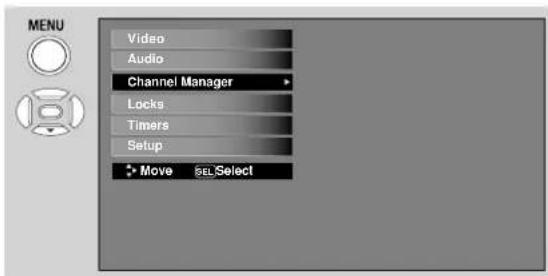
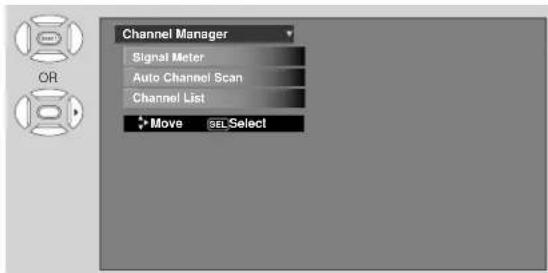
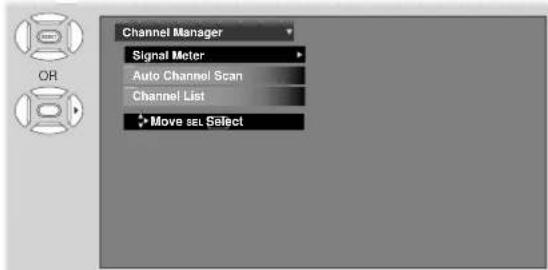
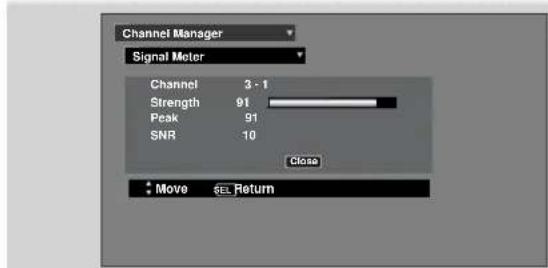
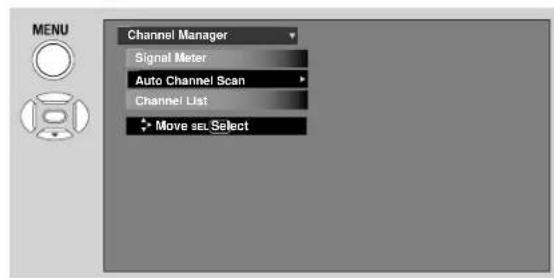
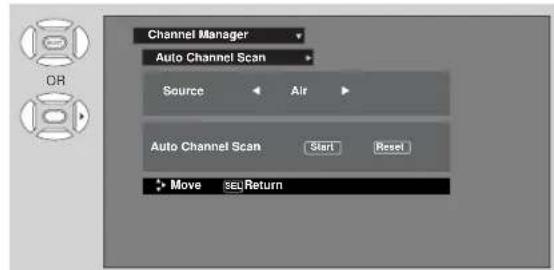
Channel Manager
Channel List
This function allows you to review which channels are labeled (ID), which have been added to CHANNEL MEMORY (SCAN), which are protected by LOCK and which are your FAVORITE (FAV) CHANNELS.
- Use the CURSOR PAD to navigate the Channel List.
- Press the SELECT button to select ON or OFF on the SCAN and LOCK columns.
- To select LOCK column, input the access code. (Default access code: 0000)
- Press the FAV button to set or remove the FAVORITE settings.
- Press the EXIT button to return to normal viewing.
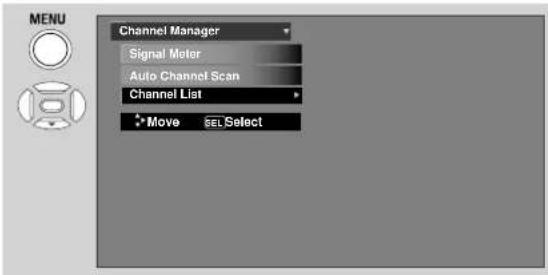
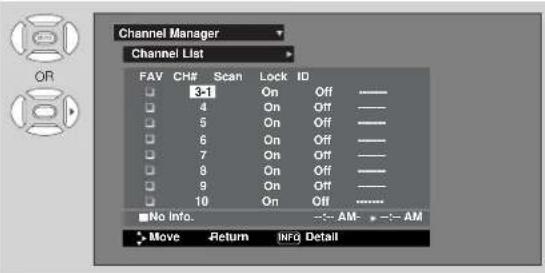
NOTE: 1. The Channel List cannot be updated by only changing the cable source. Auto Channel Scan must be performed for the Channel List to be updated.
Notice: United States federal law requires broadcasters to stop transmitting analog (non-digital) television signals after February 17, 2009.
Accordingly, this TV's analog tuner will not be capable of receiving over-the-air analog television broadcasts after such analog broadcasts are no longer available.
After February 17, 2009, this TV's analog tuner will continue to work with compatible cable and satellite TV systems, gaming consoles, VCRs, DVD players and other similar products.
Both before and after February 17, 2009, this TV's digital tuner will receive available over-the-air digital television broadcasts using an antenna and other digital television broadcasts using compatible cable, satellite or other digital television system connections.
Please review this Operating Guide for further information regarding such connections.
Locks
Locks

This function will block out the picture and sound of the selected channel or video input.
The code to enter the Locks feature is a four digit access code number. The factory preset code is 0000. Use the NUMBER buttons to enter the access code.
- Use the CURSOR PAD ▲,▼ to highlight the desired function in the LOCKS menu.
- Press the SELECT button to select.
Change Access Code
- To change the ACCESS CODE NUMBER, select CHANGE ACCESS CODE to change the factory preset code (0000) to your preference.
If you forget your ACCESS CODE NUMBER, use the factory code 7777 to erase your key number. This will reset the access code number back to the factory preset (0000).
- Enter a new four digit number.
- Press EXIT to quit the menu.
Engage Lock
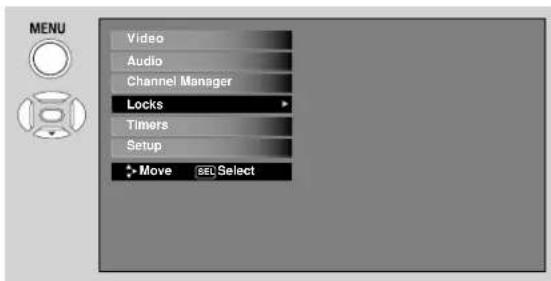
![Please Enter Access Code Access Code ---- [#Keys] Enter Code](/content/2026/05/1049282/images/b21a83096ee053d64fa9e39affd7f4113d83bb59e39596ef0e211030d4288d4e.jpg)
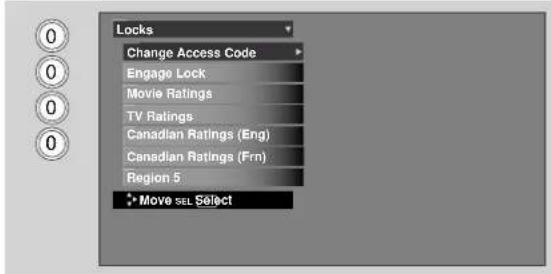
When ENGAGE LOCK is selected, SET CHANNEL LOCK and SET FRONT PANEL LOCK can be set individually.
When SET CHANNEL LOCK is turned on, the picture and sound for the chosen channel will be blocked out.
When FRONT PANEL LOCK is turned on, all buttons on the Front Panel will be deactivated, except the POWER button.
When MOVIE RATINGS is selected, you can block various types of movies and video tapes based on motion picture ratings (see page 42).
When TV RATINGS is selected, various types of television programming based on a parental guide ratings will be blocked (see page 43).
Use CANADIAN RATINGS to block various types of movies and television programs based on the two rating systems used in Canada that you feel may be inappropriate due to its content (see pages 44-45).
Use REGION 5 to block various types of movies and television pograms based on ratings systems used in U.S. that you feel may be inappropriate due to its content (see page 46).
NOTE:
The REGION 5 option will operate for Digital Channels only.
Locks
Movie Ratings
Use Movie Ratings to prevent viewing of any movie that you feel may be inappropriate due to its content.
- Use the CURSOR PAD ▲,▼ to select the MOVIE RATING category that you want to block.
- Press SELECT to block the MOVIE RATING that you have selected. Once rating is selected, for example PG-13, all movies rated PG-13 and higher (R, NC-17, and X) will be blocked.
- Press EXIT to quit the menu or select MOVIE RATING to return to the previous menu.
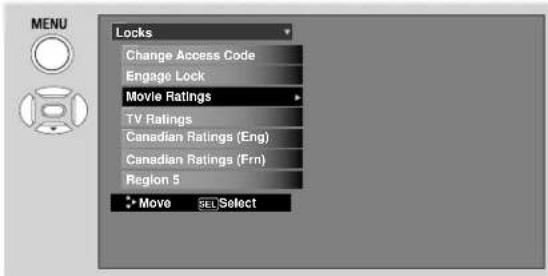
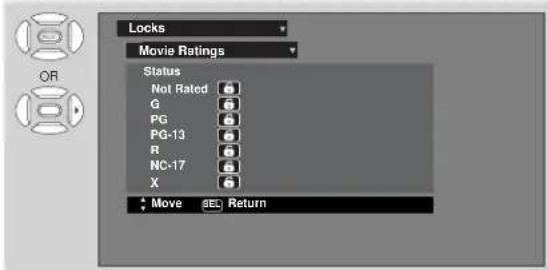
Motion Picture Ratings Table
NOT RATED Contains no rating. Not Rated (NR) and Not Applicable (NA) programs. Movie has not been rated or ratings do not apply.
G General audiences. All ages admitted.
PG Parental guidance suggested. Some material may not be suitable for children.
PG-13 Parents strongly cautioned. Some material may be inappropriate for children under 13.
R Restricted. Under 17 requires accompanying parent or adult guardian.
NC-17 No one 17 and under admitted.
X Adults only
NOTE: 1. A movie rating is dependent upon the movie that is viewed. If the movie does not carry a rating, the TV will not block it.
- Blocking NOT RATED programs may block emergency programming, sports, news, public service announcements, religious programs and weather.
Locks
TV Ratings
Use TV RATINGS to prevent the viewing of any TV program that you feel may be inappropriate due to its content.
- Use the CURSOR PAD ▲,▼ to select the TV RATING category that you want to block.
- Press SELECT to block the TV RATING that you have selected.
- Press EXIT to quit the menu or select TV RATING to return to the previous menu.
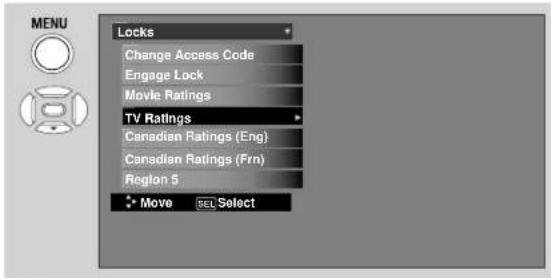
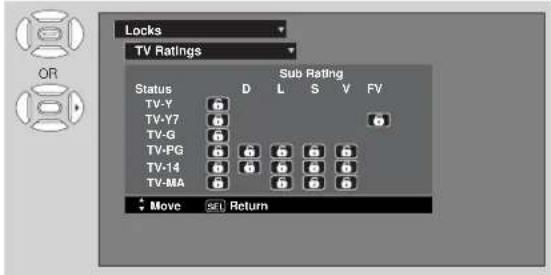
TV Parental Guide Ratings Table
| TV-Y All children. The themes and elements in this program are specifically designed for a very young audience, including children from ages 2-6. | |
| TV-Y7 Directed to older children. Themes and elements in this program may include mild physical or comedic violence, or may frighten children under the age of 7. | |
| TV-G General audience. It contains little or no violence, no strong language, and little or no sexual dialogue or situations. | |
| TV-PG Parental guidance suggested. The program may contain infrequent coarse language, limited violence, some suggestive sexual dialogue and situations. | |
| TV-14 | Parents strongly cautioned. This program may contain sophisticated themes, intense sexual situation, more intense violence and intensely suggestive dialogue. |
| TV-MA | Mature audiences only. This program may contain mature themes, indecent language, graphic violence, and explicit sexual content. |
| FV | Fantasy Violence |
| V | Violence |
| S | Sexual Situation |
| L | Adult Language |
| D | Sexually Suggestive Dialogue |
NOTE: 1. If you Block TV-14D, you will still permit TV-MA programs; If you block TV-14V, you will automatically block TV-MAV programs, but you will still permit TV-MALS programs. This means that the TV will block violence in TV-14 and higher (TV-MA), but not language and sex.
- TV program ratings are dependent on the broadcaster. If the program is not rated, the TV will not block it.
Locks
Canadian Ratings (Eng)
Use CANADIAN RATINGS (ENG) to block any type of movie and television program in Canada that you feel might be inappropriate in its content.
- Use the CURSOR PAD ▲,▼ to select the CANADIAN RATINGS (ENG) category that you want to block.
- Press SELECT to block the CANADIAN RATINGS (ENG) that you have selected. Once rating is selected, for example C8+, all movies and television programs rated C8+ and higher (G,PG, 14+ and 18+) will be blocked automatically.
- Press EXIT to quit the menu or select CANADIAN RATINGS (ENG) to return to the previous menu.
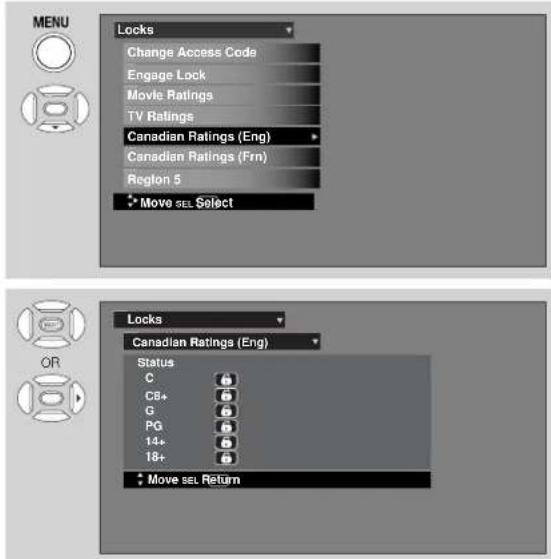
Canadian Ratings English Table
| C Programming intended for children under age 8 - Violence Guidelines; Careful attention is paid to themes, which could threaten children's sense of security and well-being. There will be no realistic scenes of violence. Depictions of aggressive behaviour will be infrequent and limited to portrayals that are clearly imaginary, comedic or unrealistic in nature. Other Content Guidelines: There will be no offensive language, nudity or sexual content. |
| C8+ Programming generally considered acceptable for children 8 years and over to watch on their own - Violence Guidelines: Violence will not be portrayed as the preferred, acceptable, or only way to resolve conflict; or encourage children to imitate dangerous acts which they may see on television. Any realistic depictions of violence will be infrequent, discreet, of low intensity and will show the consequences of the acts. Other Content Guidelines: There will be no profanity, nudity or sexual content. |
| G General Audience - Violence Guidelines: Will contain very little violence, either physical or verbal or emotional. Will be sensitive to themes which could frighten a younger child, will not depict realistic scenes of violence which minimize or gloss over the effects of violent acts. Other Content Guidelines: There may be some inoffensive slang, no profanity and no nudity. |
| PG Parental Guidance - Programming intended for a general audience but which may not be suitable for younger children. Parents may consider some content inappropriate for unsupervised viewing by children ages 8-13. Violence Guidelines: Depictions of conflict and/or aggression will be limited and moderate; may include physical, fantasy, or supernatural violence. Other Content Guidelines: May contain infrequent mild profanity, or mildly suggestive language. Could also contain brief scenes of nudity. |
| 14+ Programming contains themes or content which may not be suitable for viewers under the age of 14 - Parents are strongly cautioned to exercise discretion in permitting viewing by pre-teens and early teens. Violence Guidelines: May contain intense scenes of violence. Could deal with mature themes and societal issues in a realistic fashion. Other Content Guidelines: May contain scenes of nudity and/or sexual activity. There could be frequent use of profanity. |
| 18+ Adult - Violence Guidelines: May contain violence integral to the development of the plot, character or theme, intended for adult audiences. Other Content Guidelines: May contain graphic language and explicit portrayals of nudity and/or sex. |
Locks
Canadian Ratings (Frn)
Use CANADIAN RATINGS (FRN) to block Canadian French programs according to various program ratings that you feel might be inappropriate in its content.
- Use the CURSOR PAD ▲, ▼ to select the CANADIAN RATINGS (FRN) category that you want to block.
- Press SELECT to block the CANADIAN RATINGS (FRN) that you have selected. Once rating is selected, for example 8 ANS+, all movies and television programs rated 8 ANS+ and higher will be blocked automatically.
- Press EXIT to quit the menu or select CANADIAN RATINGS (FRN) to return to the previous menu.
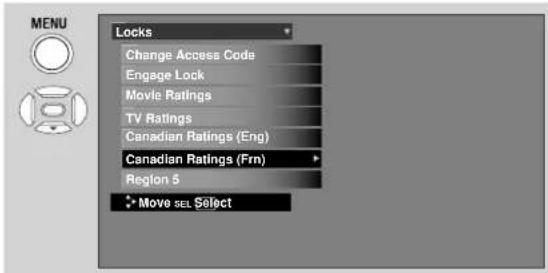
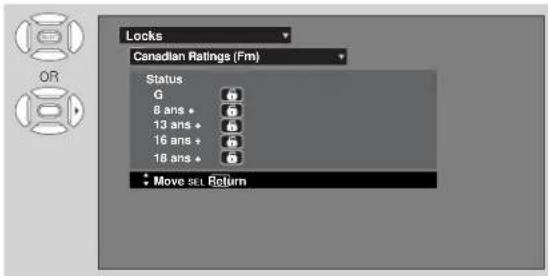
Canadian Ratings French Chart
| G General - Programming intended for audiences of all ages. Contains no violence, or the violence content is minimal or is depicted appropriately with humor or caricature or in an unrealistic manner. |
| 8 ans + 8 + General - Not recommended for young children - Programming intended for a broad audience but contains light or occasional violence that could disturb young children. Viewing with an adult is therefore recommended for young children (under the age of 8) who cannot differentiate between real and imaginary portrayals. |
| 13 ans + Programming may not be suitable for children under the age of 13 - Contains either a few violent scenes or one or more sufficiently violent scenes to affect them. Viewing with an adult is therefore strongly recommended for children under 13. |
| 16 ans + Programming is not suitable for children under the age of 16 - Contains frequent scenes of violence or intense violence. |
| 18 ans + Programming restricted to adults - Contains constant violence or scenes of extreme violence. |
Locks
Region 5
Use Region 5 Ratings to prevent viewing of any movie or program that you feel may be inappropriate due to its content. This feature will operate only for ATSC Digital signal.
In order to set the Region 5 Ratings the ATSC Digital channel received must include Region 5 Ratings data. To see if the channel has Region 5 Ratings, press the INFO key on the R/C. See fig. (1) for reference. Once the TV has received Region 5 Ratings data, the Region 5 option in the lock menu will display the data.
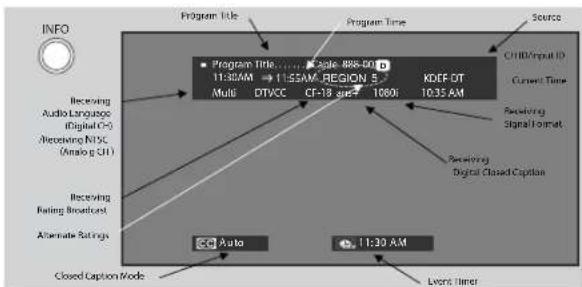
Fig. (1)
- Use the CURSOR buttons ▼ ▲ select the REGION 5 category that you want to block.
- Press SELECT to block the REGION 5 that you have selected. Once rating is selected, for example PG-13, all movies rated PG-13 and higher (R, NC-17 and X) will be blocked.
- Press EXIT to quit the menu or select REGION 5 to return to the previous menu.
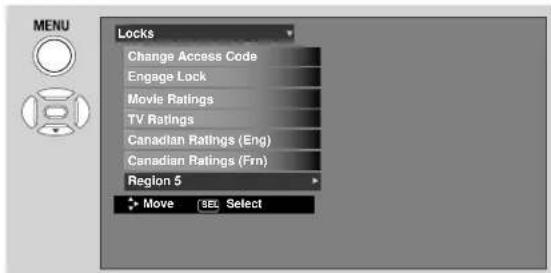
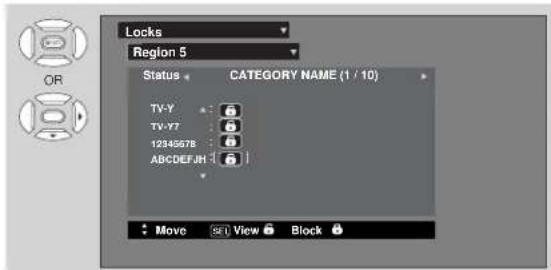
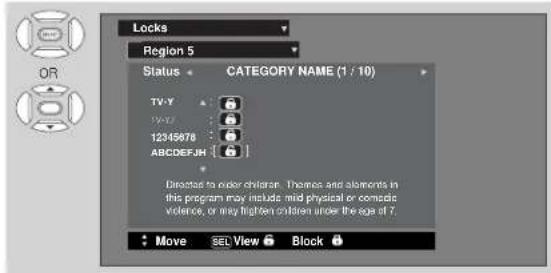
Alternate Ratings (Example Only) :
G General audiences. All ages admitted.
PG Parental guidance suggested. Some material may not be suitable for children.
PG-13 Parents strongly cautioned. Some material may be inappropriate for children under 13.
R Restricted. Under 17 requires accompanying parent or adult guardian.
NC-17 No one 17 and under admitted.
X Adults only
Y Adults only
Timers
Timers

Select TIMERS to set your Clock, Sleep Timer, Event Timer and Day/Night Timer.
- Use the CURSOR buttons ▲ or ▼ to highlight the function to be adjusted.
- Press the SELECT button to select.
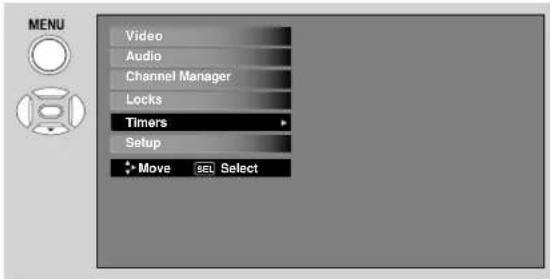
Set The Clock
The Clock must be adjusted before you can use the SET EVENT TIMER or DAY/NIGHT TIMER feature.
- Use the CURSOR PAD ◀,▶,▲,▼ to highlight the chosen TIME ZONE settings.
- Press the SELECT button to select. If you observe daylight savings, use CURSOR PAD to highlight DAYLIGHT SAVING CORRECTION and press the SELECT button to select.
- Use the CURSOR PAD ◀,▶,▲,▼ to highlight the CURRENT TIME (hour and minute), AM or PM, MONTH, DAY, and YEAR.
- Use the CURSOR PAD ▲, ▼ to adjust settings.
- Press the SELECT button to set the TIME AND DATE.
- Press EXIT to quit the menu or select SET THE CLOCK to return to the previous menu.
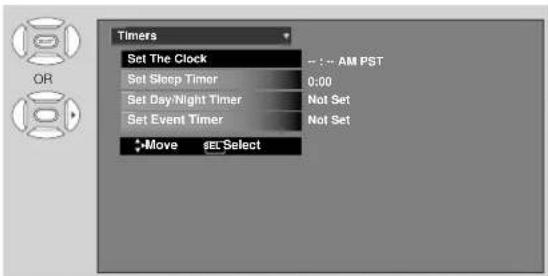
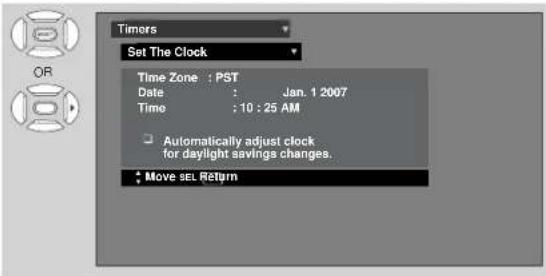
NOTE: 1. When AUTOMATICALLY ADJUST CLOCK FOR DAYLIGHT SAVING CHANGES is checked √, the TV will automatically calculate the clock adjustment for Daylight Saving.
2. The TV counts electrical pulses for regulating the TIMERS. When the "Main Power button" is set to OFF and ON quickly, or the power cord is unplugged then plugged quickly the clock is stopped momentarily and the TIME indication will become slow.
Timers
Set Sleep Timer
Select this feature to set your SLEEP TIMER from 30 minutes to 3 hours (30 minute increments).
- Press the CURSOR PAD ▶ repeatedly to set your Timer from 0:00, 0:30, 1:00, 1:30, 2:00, 2:30 and 3:00.
NOTE: The Sleep Timer info will show for 1 minute before the TV turns off.


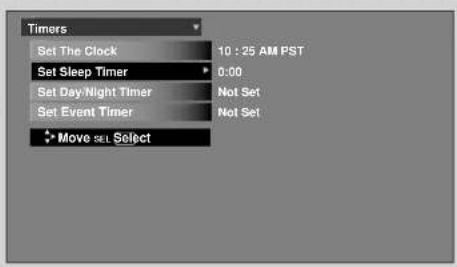

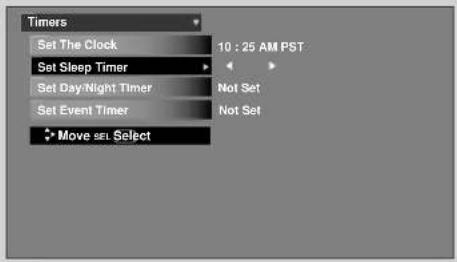
Set Day/Night Timer
Select this feature to activate and set your TV's DAY/NIGHT PICTURE MODE automatically. This feature is not available until the clock is set.
- Use the CURSOR PADS to highlight SET DAY/NIGHT TIMER settings.
- Press the SELECT button to select the option.
- Use the CURSOR PADS to select DAY NORMAL MODE ON and to set it's TIMER.
- Use the CURSOR PADS to select DAY DYNAMIC MODE ON and to set it's TIMER.
- Use the CURSOR PADS to select NIGHT MODE ON and to set it's TIMER.
- Press EXIT to quit the menu or select SET DAY/NIGHT TIMER to return to the previous menu.

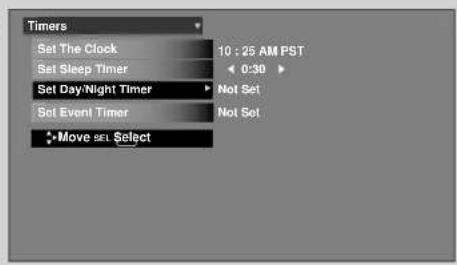

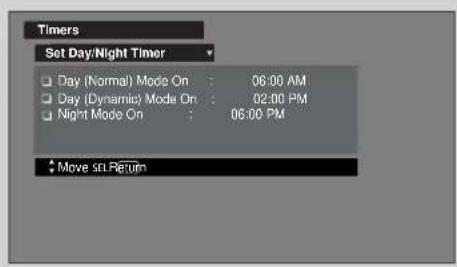
Timers
Set Event Timer
This function will automatically operate the Plasma TV viewing reservation of a program. If the clock is not set, you can not use this function and the screen at right will appear. The message on the screen will disappear after 3 seconds, then the screen automatically goes to the clock setup mode (see page 47).
- Use the CURSOR PAD ▲, ▼ to highlight EVENT 1, EVENT 2, EVENT 3, EVENT 4 and then press the SELECT button to select.
- Use the CURSOR PAD ▲, ▼ to highlight and select START TIME HOUR/MINUTE.
- Use the CURSOR PAD ▲, ▼ to highlight and select START TIME AM/PM.
- Use the CURSOR PAD ▶, ▲ or ▼ to highlight and select FINISH TIME HOUR/MINUTE.
- Use the CURSOR PAD ▶, ▲ or ▼ to highlight and select FINISH TIME AM/PM.
- Use the CURSOR PAD ▶ to highlight the MONTH.
- Use the CURSOR PAD ▲ to select a MONTH or CURSOR PAD ▼ to select DAILY, WEEKLY - SUNDAY TO MONDAY. Use the CURSOR PAD ◀ to return to MONTH.
- Use the CURSOR PAD ▶, ▲ or ▼ to highlight and select the DAY of the MONTH.
- Use the CURSOR PAD ▶, ▲ or ▼ to highlight and select the YEAR.
- Use the CURSOR PAD ▶,▲ or ▼ or NUMBER buttons to set the channel the TV will tune into.
- A √ in the box means the Event is enabled.
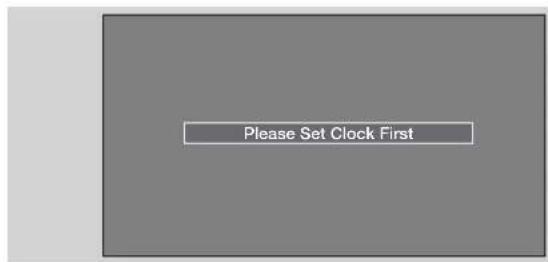
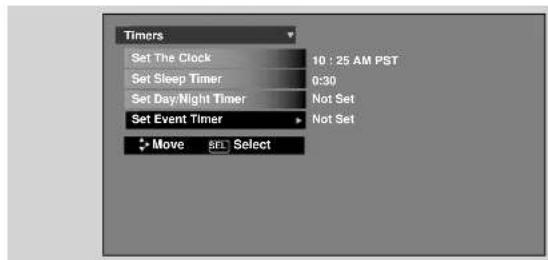
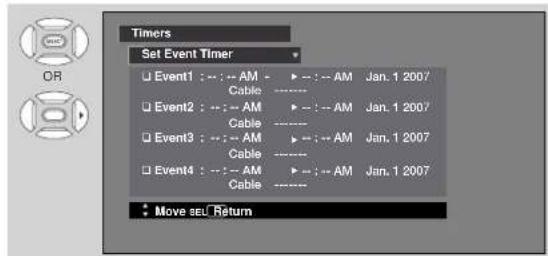
NOTE: 1. When the INFO button is pressed, the Event Timer Icon will only display the current date ON/OFF timer.
2. The OFF TIMER will only activate if the TV was turned on by the ON TIMER, and any menu operations (includes channel selection) were not made after this time. If you change the channel or operate the menu after the ON TIMER has been activated, the OFF TIMER will deactivate.

CAUTION: Do not use your TV as a deterrent when away from home by using the ON and OFF TIMERS. For safety, the TV should be turned off when you are away from home.
Setup
Setup
Select SETUP when setting your TV up for the first time.
- Use the CURSOR PAD ▲ or ▼ to select the sub-menu of your choice.
- Press the SELECT button to select.
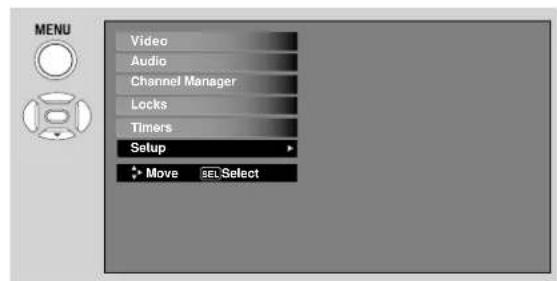
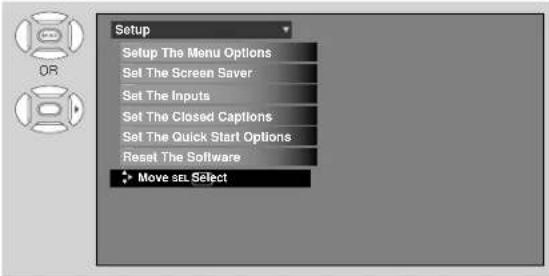
Set The Menu Options
Setup the Language and background of the Menu OSD.
Set The Language
This feature will allow you to select any one of three different languages for all on-screen displays.
- Use the CURSOR PAD ◀ or ▶ to select the language of your choice.
- Press EXIT to quit menu or select SET THE MENU OPTIONS to return to previous menu.
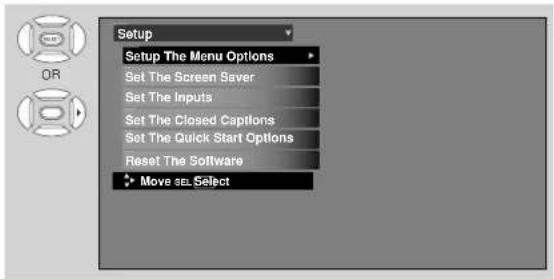
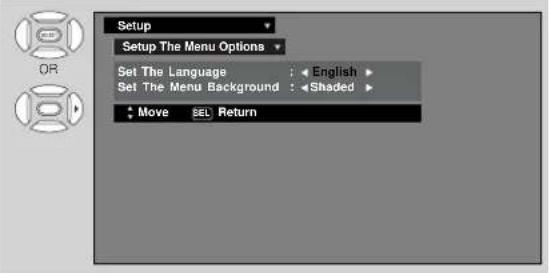
Setup
Set The Menu Background
This function allows you to choose from two menu backgrounds.
- Use the CURSOR PAD ▲ or ▼ to highlight SET THE MENU BACKGROUND (SHADED OR SOLID) of your choice. Use the CURSOR PAD ◀ or ▶ to select shaded or solid.
- Select SOLID for a black background (no picture can be seen behind menu screen), select SHADED and a light background is visible.
- Press EXIT to quit menu or select SET THE MENU OPTIONS to return to the previous menu.
Set The Screen Saver
Continuous on-screen displays such as video games, stock market quotations, computer generated graphics, and other fixed (non-moving) patterns can cause permanent damage to the Plasma Television. Use the SCREEN SAVER feature to hide screen burn.
- Use CURSOR PAD ▲ or ▼ to highlight Screen Saver's Picture Orbiting and Image Power options.
- Use the CURSOR PAD ◀ or ▶ to select your choices.
Option 1
The whole picture will shift every 2 minutes by one pixel.
Option 2
The whole picture will shift every 10 minutes by one pixel.
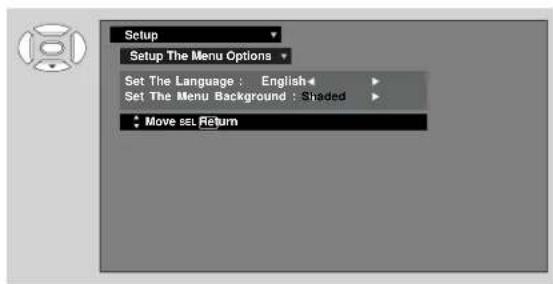
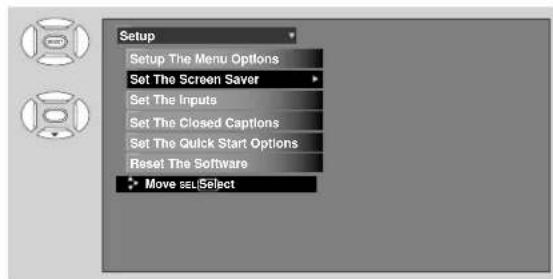
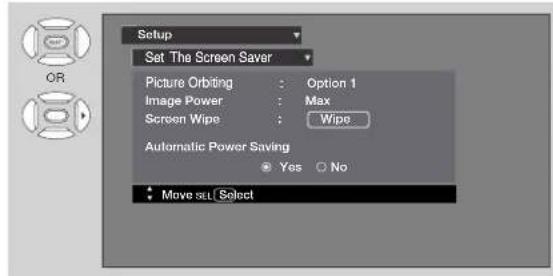
Option 3
The whole picture will shift every 20 minutes by one pixel.
Image Power
This function allows you to choose power consumption reduction based on 3 levels (min., medium and max).
Screen Wipe
If pattern mark occurs, use Screen Wipe (White Field Signal) for at least 10 minutes to refresh any damage that may have occurred from a pattern mark. Screen Wipe can resolve pattern mark to a certain degree, if caution is not used, permanent damage may occur.
- Use the CURSOR PAD ▲ or ▼ to highlight Screen Wipe.
- Press the SELECT button to start.
- Press the EXIT button to return to normal viewing.
Automatic Power Saving
Use this feature to turn power off automatically when a video input signal is not detected for 15 seconds.
NOTE: This feature works only for INPUT 1, 2, 3, Front and HDMI 1, 2, Front.
Setup
Set The Inputs
Use this feature to give a name to any of the video inputs.
- Press the CURSOR PAD ▲, ▼ to highlight the video inputs.
- Press the CURSOR PAD ◀, ▶ to select your choices.
Note: The inputs labeled Gray out (Skip) or Hide (Skip) are disabled in the INPUTS selection.
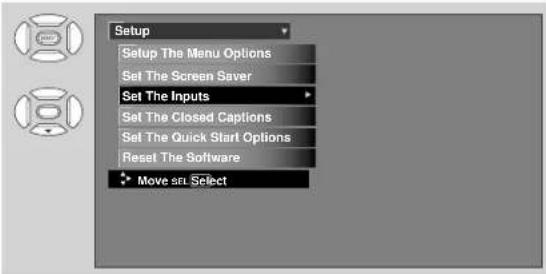
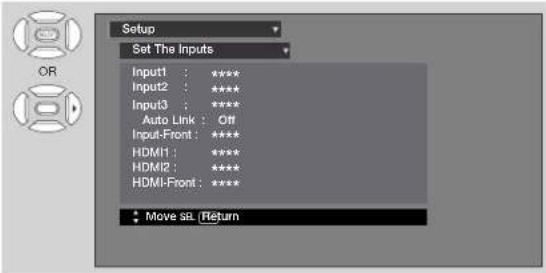
INPUT 3 Auto Link
Use this function to automatically turn the TV on and tune to INPUT 3 when it detects a video signal to INPUT 3.
- Use the CURSOR PAD ▲ or ▼ to highlight the AUTO LINK option and ◀ or ▶ to select between the Off and Auto settings.
Auto
When AUTO is selected, the TV will turn on and switch to INPUT 3 automatically, when the INPUT 3 input device is turned on. This is convenient when you want to watch a movie with your VCR, laserdisc player, or DVD player.
Off
Select OFF to disable this function.
- Press EXIT to quit menu or select SET THE INPUTS to return to previous menu.
NOTE: 1. Once the TV has been turned on using the AUTO LINK feature, it must be reset before AUTO LINK is used again. To do this, turn your VCR, laserdisc, or DVD player OFF. This feature is now reset and will turn on your TV as described above.
2. If no remote control button is pressed after the TV is turned on by AUTO LINK, the TV will automatically turn off after three hours.
Setup
Set The Closed Captions
Closed Captions are the dialogue, narration, and/or sound effects of a television program or home video which are displayed on the TV screen. Your local TV program guide denotes these programs as ☐☐
- Use the CURSOR PAD ◀, ▶, ▲ and ▼ to highlight and select the function to change.
- Press EXIT to quit menu or select SET THE CLOSED CAPTIONS to return to the previous menu.
Caption Display:
ON/OFF will turn the display on or off. AUTO will turn the display on when Mute/Soft Mute is on.
Analog Captions:
Set CAPTIONS for Analog programs. This function will help choose and set available mode and channel.
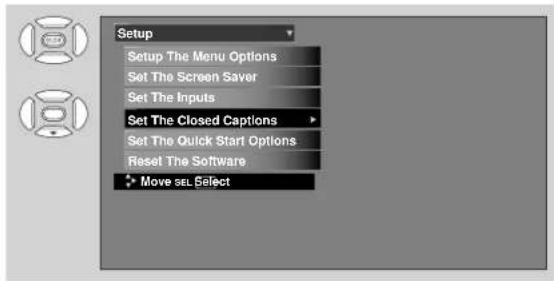
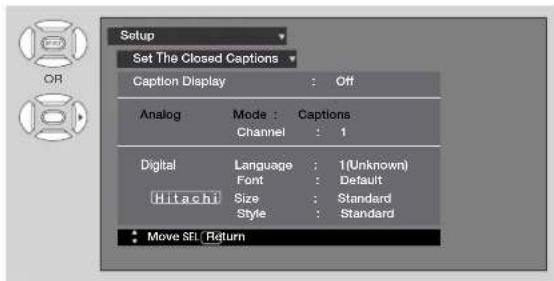
Caption Mode:
CAPTIONS is for the program you are viewing.
TEXT is for additional information such as news reports or a TV program guide. This information covers the entire screen and viewing the TV program is not possible. Text may not be available with every cc program.
Channel:
1 is used for the primary language (usually English).
2 is sometimes used for a second language (may vary by region).
3 is sometimes used for a third language (may vary by region).
4 is sometimes used for a fourth language (may vary by region).
Digital Captions
Set captions for digital programs. This function will help choose and set available language, font, size and style of digital captions.
- Use the CURSOR PAD ◀, ▶, ▲ or ▼ to highlight and select desired DIGITAL CAPTIONS feature.
- Press EXIT to quit menu or select SET CLOSED CAPTION to return to the previous menu.
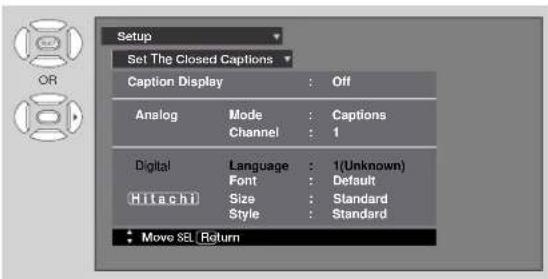
NOTES: 1. Some types of digital closed captions will not work with this TV.
- Caption Display will not work when viewing a 480p, 720p, or 1080i input via the COMPONENT: Y-PBPR or HDMI inputs.
- Digital Captions Font Style are sometimes different from the Font Style of Analog Captions.
- Closed Caption and Digital Captions availability and content depends on the broadcaster. Closed Caption is available when Closed Caption icon is displayed on screen.
- Digital Captions language will not be available (grayed out) when using analog channels.
Setup
Set The Quick Start Options
This feature will select QUICK START UP options. Set this feature to ON to have the TV tune channels (both Analog and Digital) quickly when first turning the TV on. Set this feature to OFF to save electricity. Selecting ON for the QUICK START UP feature will activate the TV tuners circuits when the TV is in "standby mode" which is commonly referred to as "off". This will allow you to quickly tune to channels when first turning the TV on. Digital signals often change and this feature will monitor any changes and prepare the television to quickly present a picture. A small amount of electricity is used to continually monitor signals when this feature is selected.
NOTE: 1. When setting the Quick Start option to ON the option of Reset TV Settings will not operate unless you turn ON/OFF the main power button.
Reset The Software
This feature shows software information and easy upgrade procedure. This function allows the TV software to be upgraded by using a flash card (MMC/SD CARD). If a future software upgrade is required for your TV, HITACHI will notify and provide you with a flash card. In order to receive written notification and the flash card, please complete and return the warranty card.
- Insert MMC/SD CARD.
- Press the CURSOR PAD ▲ or ▼ to highlight UPGRADE NOW.
- Press the SELECT button to select and start upgrading.
- Unplug the AC power cord when the UPGRADE is complete.
NOTE: Any power interruption during the upgrade process will cancel the upgrade. When this happens, repeat the upgrade procedure.

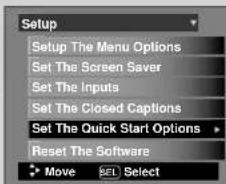


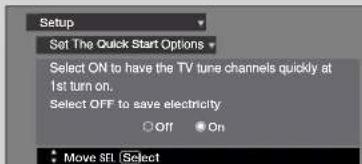

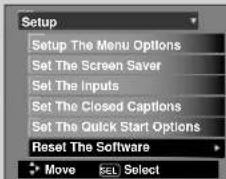


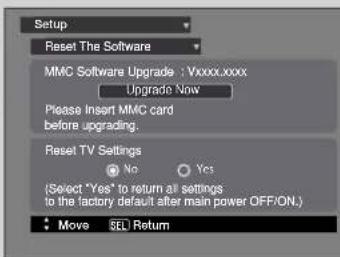
Reset TV Settings
This function allows you to Reset all TV Settings to the original factory settings on all modes during the next power off/on.
- Use CURSOR PAD ▲, ▼ to highlight functions.
- Press the SELECT button or CURSOR PAD ▶ to select Reset the Software Menu.
- Use the CURSOR PAD ▼ to access the Reset TV settings option.
- Select the "YES" option to Reset ALL the TV functions during the next main power on/off.
NOTE: 1. If YES is selected, ALL TV MENU SETTINGS will be reset to the original factory settings on all modes during the next power offlon. 2. When the Quick Start option has been set to ON, this option needs POWER OFFION operation by the Main Power SW.
Equipment Care and Troubleshooting
DO
Dust the screen and cabinet with a soft cloth.
Clean the screen with a soft cloth moistened in warm water and dry with a soft cloth. A mild soap may be used if the screen is extremely dirty.
Place your Plasma Television away from extreme heat, humidity, and extremely dusty places.
Remove the plug from the wall outlet if your Plasma Television will not be used for a long period of time, for instance, when you go on vacation.
DO NOT
Do not clean your screen with strong cleaners, polishes or a chemically treated cloth.
Do not place rubber or vinyl products or cellophane tape on your Plasma Television.
Avoid repeatedly touching the screen.
Do not subject the remote control to shocks such as dropping it on the floor, etc. This may cause damage to the precision parts.
Avoid placing the remote control in a high humidity place or getting it wet. Do not leave it on or near a heater. Excessive heat or moisture may cause the unit to fail.
When the batteries run down, remote control operation will become erratic or become unresponsive. Replace the old batteries with two new "AA" size batteries. Do not use an old battery with a new battery.
Exposing the screen to direct sunlight for a long period of time or heat may cause damage to the plasma screen.
TROUBLESHOOTING
Your HITACHI Plasma Television incorporates advanced power surge protection technology designed to protect against component or circuit damage due to external or internal voltage power surges.
IF YOUR TELEVISION SHOULD APPEAR TO HAVE A LOSS OF POWER, PLEASE FOLLOW THIS PROCEDURE:
- Press the POWER SWITCH (ON/OFF SWITCH) once.
- If there is still no power, wait 30 seconds and press the POWER SWITCH again.
- If there is still no power, unplug the power cord from the wall. Wait 30 seconds and plug the power cord back in. Press the POWER SWITCH again.
This protective technology should provide for years of lasting entertainment from your HITACHI Plasma Television.
| SYMPTOMS | CHECK THESE ITEMS ANDTRY THESE ADJUSTMENTS | |||||||||||
| Be sure external connection is correct | ||||||||||||
| Be sure power cord is plugged in | ||||||||||||
| Try another channel (dilation trouble) | ||||||||||||
| Check antenna connections (back of TV) | ||||||||||||
| Check antenna for brok en lead-in wire | ||||||||||||
| Check for local interference | ||||||||||||
| Adjust Contrast control | ||||||||||||
| Adjust Brightness control | ||||||||||||
| Adjust Tim control | ||||||||||||
| Adjust Volume control | ||||||||||||
| No Picture, no sound | ● | ● | ● | ● | ● | ● | ● | |||||
| Sound OK, picture poor | ● | ● | ● | ● | ● | ● | ● | ● | ||||
| Picture OK, sound poor | ● | ● | ● | ● | ● | ● | ● | |||||
| Picture blurred | ● | ● | ● | ● | ● | ● | ||||||
| Lines or streaks in picture | ● | ● | ● | ● | ● | |||||||
| Poor reception on some channels | ● | ● | ● | ● | ● | |||||||
| Picture rolls vertically | ● | ● | ||||||||||
| No color | ● | ● | ● | ● | ● | ● | ||||||
| Poor color | ● | ● | ● | ● | ● | ● | ● | |||||
Reception Problems
natural_image
Black-and-white family portrait of three people (no text or symbols visible)IGNITION NOISE:
Black spots or horizontal streaks may appear, picture may flutter or drift. Usually caused by interference from automobile ignition systems, neon lamps, electrical drills, and other electrical appliances.
natural_image
Black-and-white photo of three people outdoors, including an elderly man with a child, smiling (no text or symbols visible)GHOSTS:
Ghosts are caused by the television signal following two paths. One is the direct path and the other is reflected from tall buildings, hills or some other objects. Changing the direction or position of the antenna may improve reception. Ghosting may also be caused by defects in the antenna system such as unshielded leads or connecting several sets to the same antenna without using multiple antenna couplers.
natural_image
Black-and-white photo of three people posing together (no visible text or symbols)SNOW:
If your receiver is located in the fringe area of a television station where the signal is weak, your picture may be marred by the appearance of small dots. When the signal is extremely weak, it may be necessary to install a special antenna to improve the picture.
natural_image
Abstract grayscale pattern with diagonal striped texture and a faint circular highlight (no text or symbols)RADIO FREQUENCY INTERFERENCE:
The interference produces moving ripples or diagonal streaks, and in some cases, causes loss of contrast in the picture.
• PREVENTION OF AN OBSTACLE TO RADIO RECEIVERS
This television has been designed pursuant to the FCC class B Rules. This is to prevent a problem to Radio receivers. If this television causes a problem to Radio receivers, then take the following steps:
- Keep the television away from Radio.
- Adjust Radio antennas in order for the television not to receive interference.
- The antenna cable of Radio should be kept away from the television.
- Use a coaxial cable for antenna.
You can check if this television influences Radio receivers by turning off all other equipment other than the television. If you find a problem receiving Radio when using the television, check the instructions mentioned above.
natural_image
Black-and-white photo of three people outdoors, including an adult and a child (no visible text or symbols)BLOCK NOISE (DIGITAL INPUT):
Fuzzy blocks may appear in some area or the whole area of the screen. This is usually caused by interference from automobile ignition systems, neon lamps, electrical drills, ghosting of the image and weak signals.

natural_image
Completely black image with no visible content or text.BLACK SCREEN:
When using an antenna, weak signals will display a black screen. It may be necessary to upgrade your antenna.
NOTE: The TV set can generate sound distortion in external devices such as a radio. Please separate radio equipment from the TV set to a considerable distance.
Troubleshooting
- Plasma Television Troubleshooting
| No. Items Notes | ||
| 1 | Buzzing sound from Plasma display panel. | A buzzing sound may be heard when the plasma television is turned on in a very quiet room. This is due to the plasma panel drive circuit when it is functioning. The buzzing sound is normal and is not a malfunction. |
| 2 | Infrared interference | Some infrared rays are emitted from the plasma television panel that might affect the operation of other infrared controlling equipment. |
| 3 | Bright and dark spots | High precision technology is used to manufacture the plasma television. But there maybe points that do not illuminate, points that are too bright, and points with color different from that of the periphery. Please note that this is not a malfunction. |
| 4 | Picture Image | In some cases, residual images may remain after the short term display of still images when the picture changes. |
| 5 | Display panel surface temperature is too high. | The plasma display panel display images by means of electrical discharges inside the panel. This may cause the temperature of the panel surface to increase. Please note that this is not a malfunction. |
| 6 | Plasma Surface | A reinforced glass filter is installed over the plasma panel surface. A strong impact to the front panel risk a danger of glass breakage. |
| 7 | Transportation | Please transport the plasma television in it's packing box and placed in an upright position. Do not transport the plasma television in a horizontal position. This increases the possibility of panel breakage and pixel failure. |
| 8 | Granular spots | When a screen is seen at point-blank range, a random fine grain may be visible in the dark areas of the picture. |
| 9 | High temperature environment | High temperature affect the electric discharge/luminescence characteristic of the PDP panel. Do not place the plasma television in high temperature environments. |
| 10 | Operation | Operating altitude: 700 to 1,114hPa (9,676ft to -2,484ft). Operating temperature: 41°F to 95°F. |
| 11 | Storage | Storage altitude: 300 to 1,114hPa (31,912ft to -2,484ft). Storage temperature: 5°F to 140°F |
| 12 | Power ON or OFF | Repeatedly turning the plasma television Power ON and OFF at short intervals may result in failure of the television. |
| 13 | Lip sync | The on-screen motion of an actor's lips or other moving object may not be in sync with the associated audio heard from the TV's speakers. This is caused by timing differences in the broadcast signal or DVD content and is not caused by a defect in the television. |
| 14 | Control Buttons Response Delay | There's a few seconds response delay on the control buttons (Control panel or R/C) after the TV is turned ON; due to TV start-up routine. Please note that this is not a TV malfunction. |
Useful Info
AGENCY REGULATORY INFORMATION
Federal Communications Commission Notice
This equipment has been tested and found to comply with the limits for a Class B digital device, pursuant to Part 15 of the FCC Rules. These limits are designed to provide reasonable protection against harmful interference in a residential installation. This equipment generates, uses and can radiate radio frequency energy and if not installed and used in accordance with the instructions, may cause harmful interference to radio communications. However, there is no guarantee that interference will not occur in a particular installation. If this equipment does cause harmful interference to radio or television reception, which can be determined by turning the equipment off and on, the user is encouraged to try to correct the interference by one or more of the following measures:
- Reorient or relocate the receiving antenna.
- Increase the separation between the equipment and the receiver.
- Connect the equipment into an outlet on a circuit different from that to which the receiver is connected.
- Consult the dealer or an experienced radio/television technician for help.
FCC Information
This device complies with part15 of the FCC Rules. Operation is subject to the following two conditions :
(1) This device may not cause harmful interference and (2) This device must accept any interference received, including interference that may cause undesired operation.
Modifications
The FCC requires the user to be notified that any changes or modifications made to this device that are not expressly approved by Hitachi America, Ltd. Home Electronics Division may void the user's authority to operate the equipment.
Cables
Connections to this device must be made with shielded cables with metallic RFI/EMI connector hoods to maintain compliance with FCC Rules and Regulations.
Any cables that are supplied with the system must be replaced with identical cables in order to assure compliance with FCC rules. Order Hitachi spares as replacement cables.
Note
This Plasma Television receiver will display television closed captioning, ( CC or □ ), in accordance with paragraph 15.119 and 15.122 of the FCC rules.
INDUSTRY CANADA AGENCY REGULATORY INFORMATION
Cable Compatible Television Apparatus- Télèvision câblocompatible, Canada.
Features and Specifications
Features:
- New Easy-to-Use On-Screen Menu Control (3 Language)
• Region 5 (Downloadable V-Chip)
• Preprogrammed Remote Control
• Power Management: ON/OFF via signal detection
• Picture Enhancement
• Input Signal Identification - HDMI (High Definition Multimedia Interface)(High Bandwidth Digital Content Protection V1.1 Compatible)
• Closed Captions (Analog and Digital)
• Sleep and Event Timer
• DOLBY Digital Technology
Video:
• 1024 x 1080 Display Resolution (42")
• 1280 x 1080 Display Resolution (50")
• 1280 x 1080 Display Resolution (55")
• ALiS (Alternate Lighting of Surfaces Technology)
• High-Contrast Pure-Color Glass Shield
• Wide Viewing Angle: More than 160°
• Color Temperature Presets: High, Standard, and Medium
- Multiple Screen Fill Modes
(4:3 Standard/4:3 Expanded/4:3 Zoom 1/
4:3 Zoom 2/16:9 Standard1/Standard2/16:9 Zoom) ^1
• 4MB 10-bit 3D Y/C Comb Filter
• Picture Modes :Day(Normal), Day(Dynamic) and Night
Inputs:
• Power Input .....AC 120V, 60Hz
• Power Consumption
Average Power : ..... (42") 220 W
(50") 282 W
(55") 362 W
Maximum Power: (42") 356 W, 3.0 A
(50") 460 W, 3.9 A
(55") 560 W, 5.3 A
- Antenna input impedance ....75 Ohm
• Channel coverage .....203 ch.
VHF-Band 2\~13
UHF-Band 14\~69
CATV Mid Band....A-5 \~ A-1
A-I
Super Band J-W
Hyper Band W+1 - W+28
Ultra Band W+29 - W+94 - Television System .... NTSC Standard ATSC Standard (8 VSB, 64-QAM, 256-QAM)
• Video 1.0Vp-p, 75 Ohm
- S-Video Luminance (Y) 1.0Vp-p, 75 Ohm Chrominance (C) 0.286Vp-p, 75 Ohm
- Component Video Luminance (Y)....1.0Vp-p, 75 Ohm Chrominance (P B /P R )....0.7Vp-p, 75 Ohm
• Audio input Impedance ..... 270k Ohm
• Average input level 470mVrms
• HDMI ..... (19 PIN)
Outputs:
• Video1.0Vp-p. 75 Ohm
• Audio .....470mVrms, 1k Ohm
• Optical Out (Digital Audio) .....1 Optical Connector
MTS Stereo/SAP
- Bass Boost
- Surround Sound
• 20W
- Soft Mute (50%)
Audio:
Supplied Accessories:
- Remote Control
- Batteries (AA)
• 6' AC Power cord cable
• Table Top Stand(42" and 50" only) included in a box
• Wire Clamp (50" models only)
Optional Accessories:
- For U.S. Models: Please access our website: www.hitachi.us/tv
INPUTS/OUTPUTS
- Wideband Component Y, PB, PR 2
- Composite Video 4
• S-Video .... 1 - Antenna (RF)Inputs....1
• Audio Output....1
• Monitor Output .... 1
• Optical Output....1 - Upgrade Card Slot 1
• HDMI 3 - RS232C Interface 1
SPECIFICATIONS
- Pixel Pitch . . . . 0.900(horiz.) x 0.485(vert.) mm.(42")
.0.864(horiz.) x 0.580(vert.) mm.(50")
.0.960(horiz.) x 0.640(vert.) mm.(55") - FCC class: . . . . . . . . . . B for Consumer Use
• Power Requirements: ..... 108-132VAC, 60Hz - Operating Temperature .... 41°F to 95°F.
^1 Screen mode availability varies by input format
HDTV Televisions display HDTV only when an HDTV source is available.
All specifications, weights, and dimensions are subject to change without prior notice. Please access www.hitachi.us/tv for detailed specifications and dimensions for custom installations.
UltraVision Digital is a registered trademark of Hitachi Home Electronics (America), Inc.
montavista
COPYRIGHT c 1999-2007 MONTAVISTA SOFTWARE, INC. ALL RIGHTS RESERVED.
HDMI® HDMI, the HDMI logo and High-Definition Multimedia Interface are trademarks or registered trademarks of HDMI Licensing LLC.
*Manufactured under license from Dolby Laboratories. "Dolby" and the double-D symbol are trademarks of Dolby Laboratories.
Set Dimensions
42 Inch Models (Includes Table Top Stand) Weight (lbs./kg): 80.4/36.5
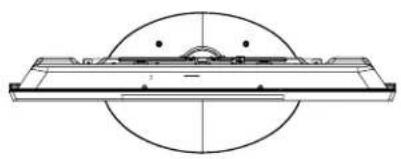
natural_image
Technical line drawing of a mechanical assembly with circular base and plate (no text or symbols)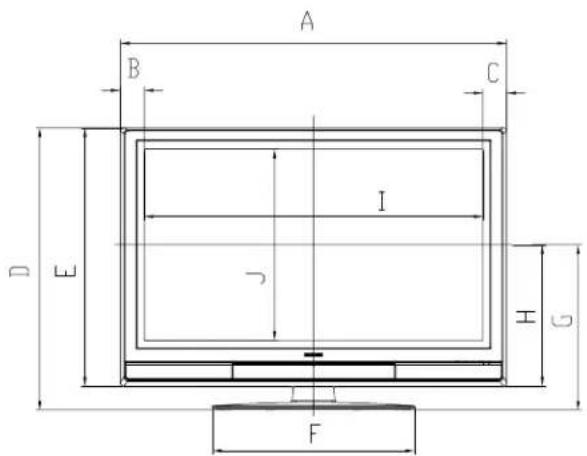
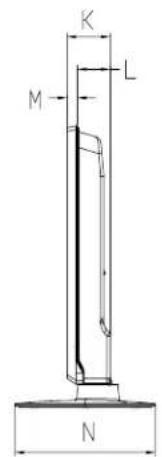
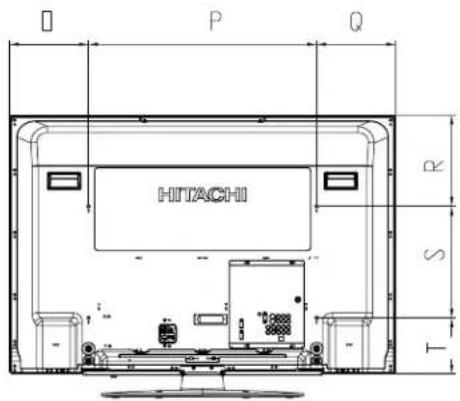
Rear View, Use as Reference for Wall Mount Bracket
| Units | A | B | C | D | E | F | G | H | I | J | K | L | M | N | O | P | Q | R | S | T |
| Inches | 42 2-3/4 | 2-34 30-2 | 92 28-16 | 21-31/32 | 17-31/32 | 15-11/32 | 36-7/16 | 20-23/32 | 4-23/32 | 3-9/16 | 1-1/8 | 15-9/32 | 8-19/32 | 24-13/16 | 8-16/32 | 8-7/6 | 12-1/8 | 6-1/16 | ||
| mm | 1067.00 | 0.5 70.5 | 779.15 | 713.00 | 558.32 | 456.15 | 390.00 | 926 | 525.60 | 119.50 | 90.80 | 28.70 | 388.38 | 218.50 | 630.00 | 218.50 | 251.00 | 308.00 | 154.00 |
Set Dimensions
50 Inch Models (Includes Table Top Stand) Weight (lbs./kg): 116.7/53
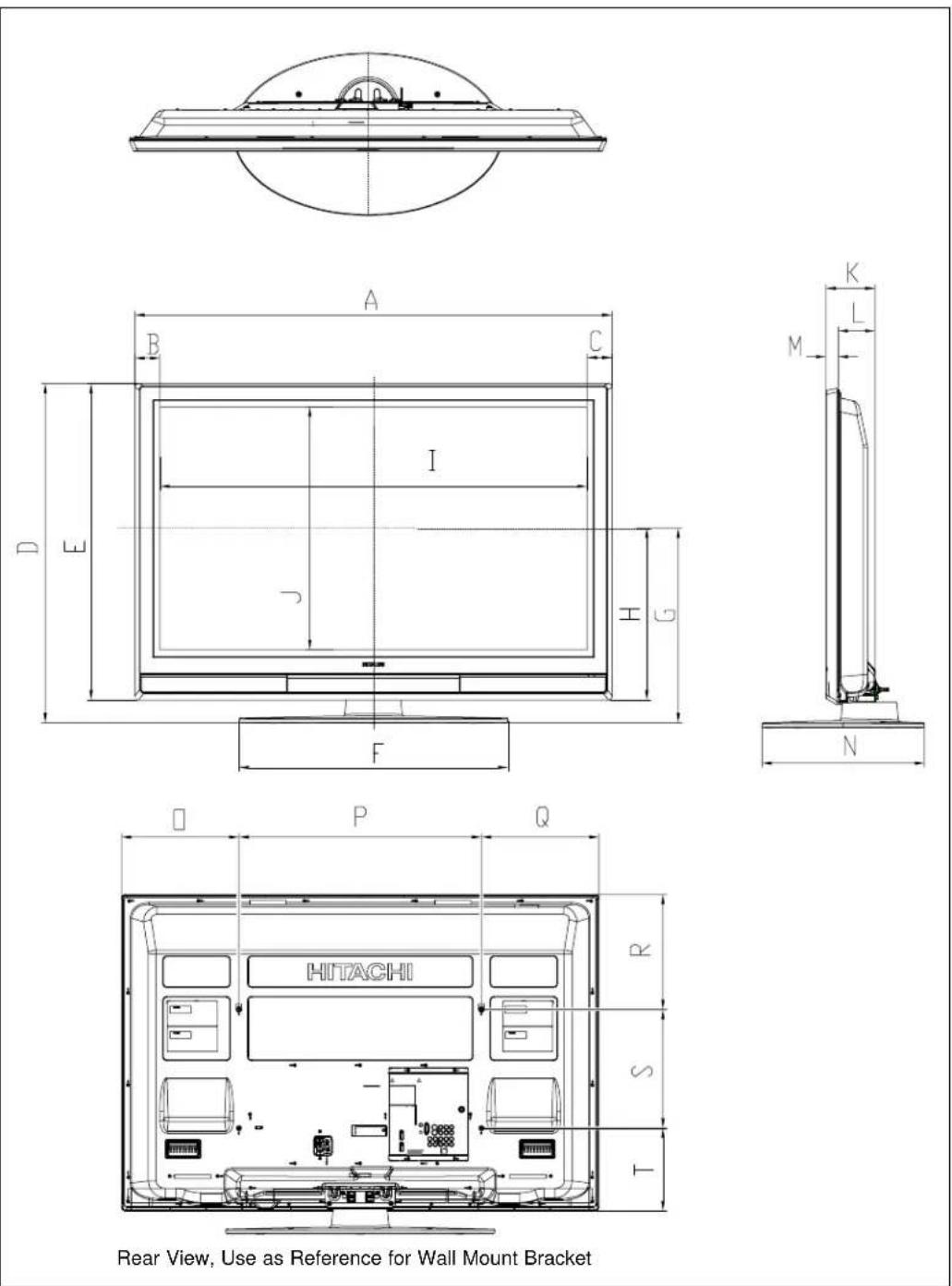
| Units | A | B | C | D | E | F | G | H | I | J | K | L | M | N | O | P | Q | R | S | T |
| Inches | 48-13/16 | 2-9/16 | 2-9/16 | 34-11/16 | 32-5/16 | 27-17/32 | 18-29/32 | 17-17/32 | 43-23/32 | 24-13/16 | 5-1/2 | 3-25/32 | 1-1/4 | 16-5/8 | 12 | 24-13/16 | 12 | 11-3/4 | 12-1/8 | 8-7/16 |
| mm | 1240 | 65.00 | 55.00 | 880.85 | 620.50 | 699.12 | 505.85 | 445.5 | 1110.00 | 630.00 | 127.50 | 96.00 | 31.50 | 422.08 | 335.00 | 630.00 | 305.00 | 298.00 | 328.00 | 214.50 |
Set Dimensions
55 Inch Models (Not Includes Table Top Stand) Weight (lbs./kg): 133.3/60.5
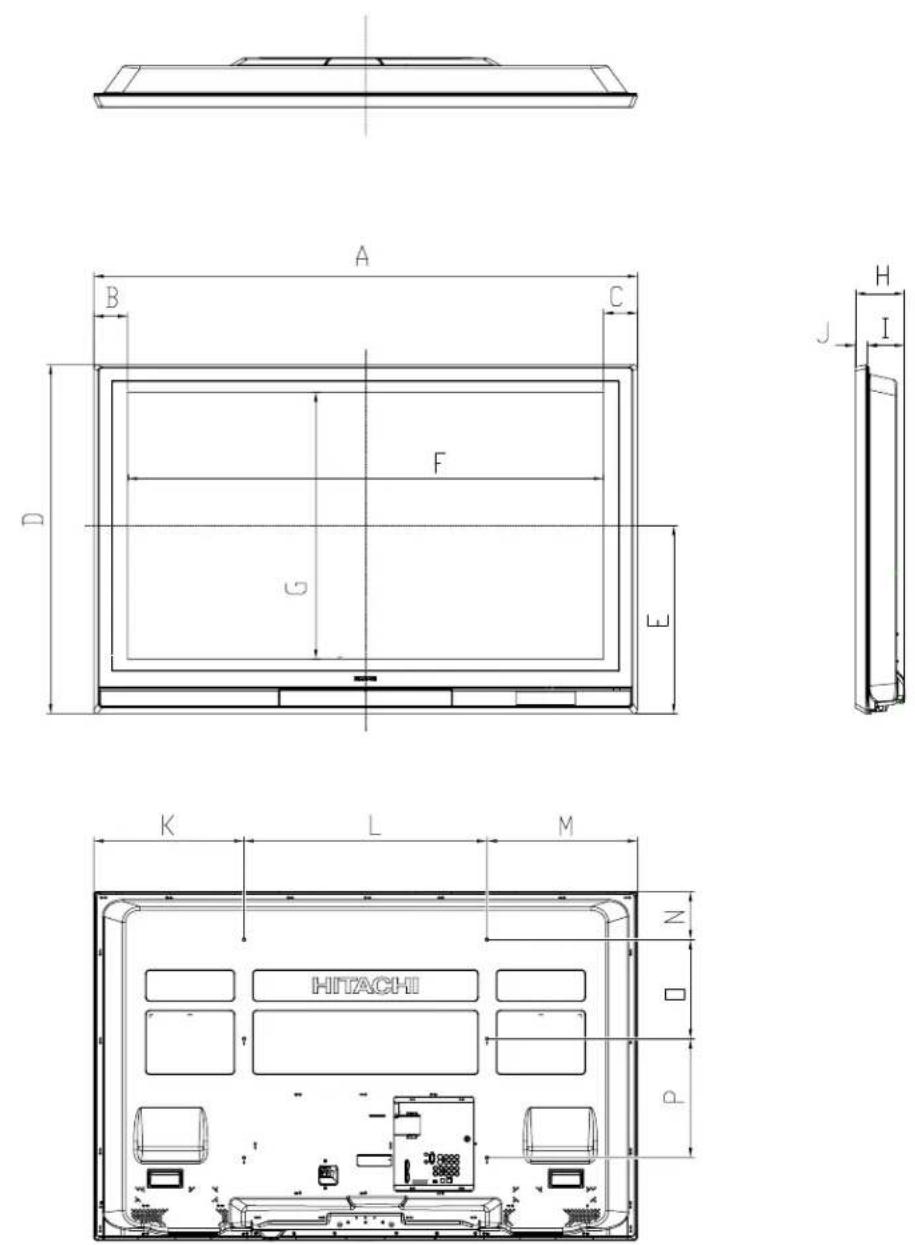
Rear View, Use as Reference for Wall Mount Bracket
| Units | A | B | C | D | E | F | G | H | I | J | K | L | M | N | O | P |
| Inches | 55 1/2 3 | 55/32 3-15 | 32 35.58 | 19 3/16 | 48-19/32 | 27-1/4 | 5-1/32 3-25/32 | 1-1/4 | 15-11/32 | 24-13/16 | 15-11/32 4-15 | 5/16 10-1/8 | 12-1/8 | |||
| mm | 1410.00 | 88.00 88.00 | 904.50 | 45 5.50 1234.00 | 692.00 | 127.50 | 96.00 | 31.50 | 390.00 | 530.00 | 390.00 | 125.00 | 257 308 |
Hitachi
HITACHI
Inspire the Next
Service Hotline
To locate an authorized HITACHI service facility in the continental
U.S.A. and Canada,
DIAL TOLL FREE
7 days a week, 24 hours a day
1-800-HITACHI
(1-800-448-2244)

natural_image
Black-and-white photo of a smiling woman using a computer, with another person visible in the background (no text or symbols)HITACHI has made every effort to assure you hours of trouble free operation from your unit. However, should you require service, a network of HITACHI Authorized Service Facilities has been established in all 50 states and Puerto Rico. Each facility will provide you with convenient and expedient assistance. Our service hotline operator will direct you to the HITACHI Authorized Service Facility nearest you. Just present proof of purchase and/or delivery receipts to the Hitachi Authorized Service Facility, and service will be rendered in accordance with the terms of the limited warranty as stated on your warranty card or operating guide.
Should you have any questions regarding warranty, service, operation, or technical assistance, please contact:
Hitachi America, LTD.
Home Electronics Division 900 Hitachi Way
Chula Vista, CA 91914-3556
DIGITAL MEDIA DIVISION
Should you have any questions regarding warranty, service, operation, or technical assistance, please contact:
In Canada: 1-800-HITACHI (1-800-448-2244)
Monday – Friday (EST)....9:00am – 7:00pm
Saturday (EST) 9:00am - 5:00pm
Look for your French Manual on the outside of the box. If the manual is missing, call 1-800-HITACHI
(1-800-448-2244) for a copy.
Lundi - Vendredi L'EST .....9:00am - 7:00pm
Samedi L'EST....9:00am - 5:00pm
1-2495 Meadowpine Blvd.
Mississauga, Ontario L5N 6C3
Service Information
When you call HITACHI SERVICE HOTLINE they will require some information related to the TV MODEL NAME and SERIAL # in order to give you the proper support. This information is located on the back of the TV and also on the RIGHT SIDE of your TV set. Please follow the next steps to find this information and then provide to SERVICE.
① Look on the right side of the TV.
② Locate the LABEL where it shows the information related to MODEL NAME and SERIAL #.
③ HITACHI Service Department will require this information in order to give you the proper support regarding your questions.
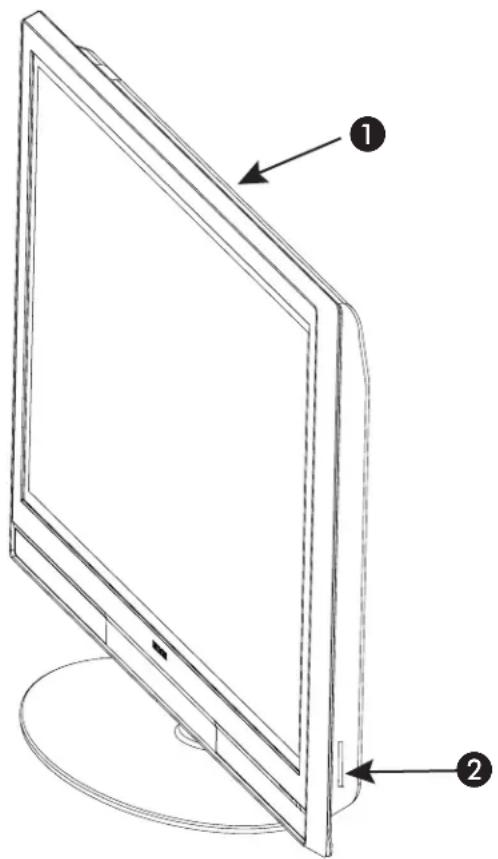
HITACHI
Inspire the Next
TELEVISOR DE PLASMA
Guía de funcionamiento para P42H401 P42H401A, P50H401, P50H401A, P55H401 P42H4011, P42H4011A, P50H4011 P50H4011A y P55H4011
natural_image
Coiled black cable with two connectors (no text or symbols visible)natural_image
Pure technical diagram of a mechanical component inside an oval frame, without any text, numbers, or symbols.natural_image
Technical line drawing of a circular mechanical component with a central hub and mounting feet (no text or symbols)natural_image
Diagram showing two components: a battery pack with internal circuit and a battery with an output arrow (no text or symbols)| A | |
| 42' | 4 in. |
| 10 cm | |
| 50' | 4 in. |
| 10 cm | |
| 55' | 4 in. |
| 10 cm |
natural_image
Technical line drawing of a mechanical assembly with no visible text or symbols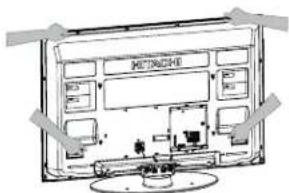
42" 50"
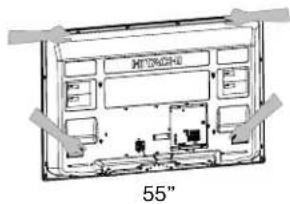
Antena VHF (75-Ohm) /CATV (Cable TV)
Cable Coaxial tipo "F" a 75-Ohm
natural_image
Pure graphical icons of a T-shaped button layout without any text or symbolsHITACHI
natural_image
Line drawing of a hand interacting with a laptop screen (no text or symbols)flowchart
graph TD
    A["⑤"] --> B["HDMI"]
    C["⑧"] --> B
    D["⑥"] --> B
    E["⑦"] --> B
    B --> F["PRIVATE USE ONLY"]
    F --> G["RS230C"]
    G --> H["S+VIDEO VIDEO"]
    H --> I["AUDO"]
    I --> J["MONITOR OUT"]
    J --> K["INPUT 1"]
    J --> L["INPUT 2"]
    J --> M["INPUT 3"]
    N["①"] --> O["AR/CABLE"]
    P["②"] --> O
    Q["③"] --> O
    R["④"] --> S["OPTICAL OUT<br>Signal Auth"]
    T["⑤"] --> U["Product contains leaf. Disperse of file product in accordance with applicable wireless ports. For product recycling and disposal. In the following case, you are not required to receive any or without any delivery. For the UBI or the Diagnostics Product, please check for every package & Canada. For more informational 100%/40%"]
    U --> V["Do product contains a pair. Disperse de sa product in smart units can be used as an electronic outlet. Pour to information on the website to send to destination to the manufacturer's network. To order to refueling Offshore/Offshore Industrial ABOS to resusikling Body or Northing the products. Send to every company. Pour all other services in 100%/40%"]
    V --> W["Manufactured via Base from Baby Laboratories, Under and the cloud system are materials of Baby Laboratories"]
HAMLIN....22, 23, 24, 25
JERROLD 00, 01, 02, 03, 04, 05, 06, 07, 21
OAK....26, 27, 28
PANASONIC.... 18, 19, 20
PIONEER 13, 14
SCIENTIFIC ATLANTA 08, 09, 10
TOCOM 15, 16
ZENITH....11, 12
G.I. 17
EMERSON....20, 21, 22, 23
FISHER 34, 37, 38, 39
FUNAI....52
GE 33
GOLD STAR 36
HITACHI 00, 01, 02, 03, 04, 05, 06
JVC....49, 50, 51, 18
MAGNAVOX 12, 13
MITSUBISHI....27, 28, 29, 30
NEC....40,41
PANASONIC....10, 11
PHILIPS 14
SAMSUNG 25, 26, 17
SHARP 31, 32
SONY 07,08,09
TOSHIBA....15
ZENITH 35
EL CÓDIGO DE MI VCR ES:
Menú en Pantalla
Panel Lateral Obscuro
natural_image
Black-and-white family portrait of three people (no text or symbols visible)RUIDO DE ENCENDIDO:
natural_image
Black-and-white photo of three people smiling together (no text or symbols visible)IMÁGENES FANTASMAS:
natural_image
Black-and-white photo of three people posing together (no visible text or symbols)NIEVE:
natural_image
Abstract pattern of diagonal striped lines with no text or symbolsnatural_image
Black-and-white photo of three people outdoors, including an elderly woman and a young child (no text or symbols visible)IMAGEN DIGITALIZADA Ó CUADRICULADA(ENTRADA DIGITAL):
natural_image
Completely black image with no visible content or text.IMAGEN OBSCURA:
natural_image
Technical line drawing of a mechanical assembly with circular base and central component (no text or symbols)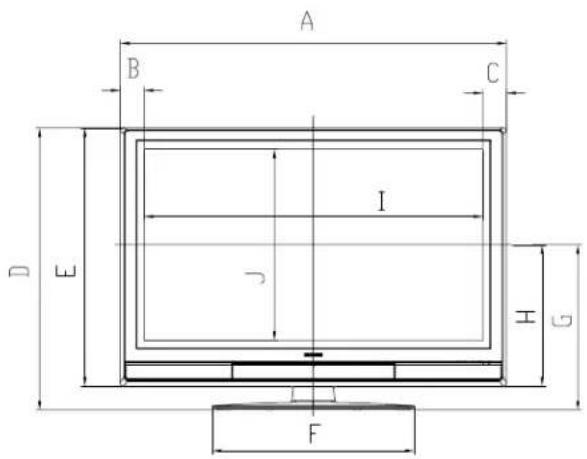
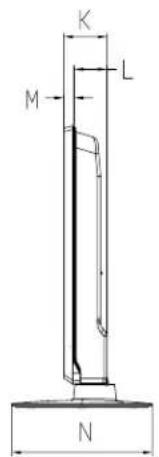
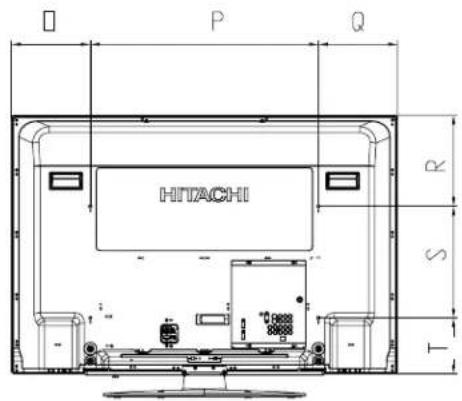
natural_image
Black-and-white photo of a smiling woman using a computer, with another person visible in the background (no text or symbols)Home Electronics Division
900 Hitachi Way
Chula Vista, CA 91914-3556
DIGITAL MEDIA DIVISION
Lunes a Viernes (EST)....9:00am – 7:00pm Sábado (EST)....9:00am – 5:00pm
Lundi - Vendredi L'EST .....9:00am - 7:00pm Samedi L'EST.....9:00am - 5:00pm
1-2495 Meadowpine Blvd.
Mississauga, Ontario L5N 6C3
End User License Agreement for HITACHI DTV Software
END USER LICENSE AGREEMENT FOR HITACHI DTV SOFTWARE
IMPORTANT - READ CAREFULLY: This End User License Agreement for HITACHI DTV Software (this "Agreement") is a legal agreement between you ("you" or "your"), in your capacity as the owner of a HITACHI brand digital television (the "DTV"), and HITACHI America, Ltd., Home Electronics Division ("HITACHI"). By using the DTV or the digital television software installed on the DTV (the "DTV Software") or any Upgrade (as defined below, and together with the DTV Software, the "Software"), you agree to be bound by the terms and conditions of this Agreement. IF YOU DO NOT AGREE TO BE BOUND BY THIS LICENSE AGREEMENT, DO NOT USE THE DTV OR THE SOFTWARE.
- LICENSE GRANT. HITACHI grants to you, for the life of the DTV, a non-exclusive, non-transferable, revocable license to install and use one copy of the Software on the DTV, subject to the following limitations and restrictions:
a. You may not share, duplicate, republish or redistribute the Software;
b. You may not resell, rent, lease, sublicense, gift, loan, assign or otherwise transfer the Software or any of your rights under this Agreement;
c. You may not modify, adapt, translate, reverse engineer, decompile, disassemble or make derivative works from the Software or use the Software in combination with any non-Hitachi software; and
d. You may not use the Software for any commercial purpose.
-
VIOLATIONS; INDEMNITY. You understand and agree that your use of the Software in any manner except as permitted under this Agreement could constitute a serious crime and could subject you to damages and an award to HITACHI of attorneys' fees in connection with your violation of this Agreement. You further understand that you may be held legally responsible for any copyright infringement or other violation of intellectual property rights caused or facilitated by your failure to abide by the terms of this Agreement. You agree to defend, indemnify and hold HITACHI and its parent and affiliate companies harmless from and against any and all liability resulting from any breach by you of this Agreement.
-
INTELLECTUAL PROPERTY. The Software is protected by federal copyright laws, international copyright treaties and other intellectual property laws and treaties. The Software is licensed, not sold, to you. All right, title and interest in and to the Software and any intellectual property associated therewith, including any accompanying printed materials, shall belong to HITACHI and its licensors and suppliers. Except as expressly provided herein, neither HITACHI nor any of its licensors or suppliers grants to you under this Agreement any express or implied right in or to any patents, copyrights, trademarks, trade secrets or other intellectual property. All right, title and interest in and to the intellectual property rights associated with any content that is accessible through use of the Software shall belong to the applicable content owners and may be protected by copyright or other intellectual property laws and treaties. This Agreement grants you no rights to use such content. Any rights of HITACHI not expressly granted to you hereunder are reserved expressly by Hitachi.
-
SOFTWARE UPGRADES. In the future, HITACHI may release or make available one or more upgrades to the DTV Software (each, an "Upgrade"). You understand and agree that if you decide to install or use any Upgrade, your installation and use of such Upgrade and/or any other software or intellectual property HITACHI may provide in connection therewith shall be governed by the terms and conditions of this Agreement, except to the extent that HITACHI provides different or supplementary license terms or conditions that accompany such Upgrade or other software or intellectual property. In the event HITACHI provides you with a "flash card" or other media to effect or facilitate an Upgrade, you understand and acknowledge that your failure to return such flash card or other media to HITACHI as HITACHI may require could result in HITACHI placing your name and your DTV's serial number on a "No Further Upgrades" list, which will prohibit you from receiving any subsequent Upgrades HITACHI may later release or make available. IF YOU DO NOT AGREE WITH ALL THE TERMS AND CONDITIONS OF THIS AGREEMENT OR ALL THE TERMS AND CONDITIONS OF ANY DIFFERENT OR SUPPLEMENTARY LICENSE THAT MAY ACCOMPANY SUCH UPGRADE, (A) DO NOT USE ANY HITACHI-PROVIDED FLASH CARD OR OTHER MEDIA, (B) DO NOT PERFORM INSTALL ANY HITACHI-PROVIDED UPGRADE SOFTWARE ON YOUR DTV, AND (C) PROMPTLY RETURN SUCH FLASH CARD OR OTHER MEDIA TO HITACHI.
-
EXPORT RESTRICTIONS. HITACHI is licensing the Software for use within North America only. You agree that you will not export or re-export the Software. You specifically agree not to export or re-export the Software: (i) to any country to which the U.S. has embargoed or restricted the export of goods or services, which currently include, but are not necessarily limited to Cuba, Iran, Libya, North Korea, Sudan and Syria, or to any national of any such country, wherever located, who intends to transmit or transport the Software back to such country; (ii) to any person or entity who you know or have reason to know will utilize the Software in the design, development, or production of nuclear, chemical, or biological weapons; or (iii) to any person or entity who has been prohibited from participating in U.S. export transactions by any federal agency of the U.S. government. You warrant and represent that neither the U.S. Bureau of Industry and Security nor any other U.S federal Agency has suspended, revoked, or denied your export privileges.
- NOWARRANTIES. The software is provided to you in "as is" condition and HITACHI makes no warranties of any kind whatsoever regarding the software and, to the maximum extent permitted by law, hereby expressly disclaims all warranties of any kind whatsoever, express or implied, with respect to the software. All implied warranties, including without limitation, the implied warranties of non-infringement, merchantability and fitness for a particular purpose are hereby expressly disclaimed by hitachi to the maximum extent permitted by law.
- LIMITATION OF LIABILITY. To the maximum extent permitted by applicable law, HITACHI, its licensors, suppliers, parent companies, affiliates, subsidiaries, employees and agents shall not under any circumstances be liable to you or any third parties for any damages of any nature arising in any way from this agreement, your use of the software or otherwise, whether indirect, special, incidental, consequential or otherwise, including, without limitation, any claims for lost profits, lost good will, lost data, business interruption, procurement of substitute goods or services, or expenditures made or committed for in reliance on the continuation of this agreement, even if advised in advance of the possibility of such damages.
- NO FAILURE OF ESSENTIAL PURPOSE. You agree that neither HITACHI'S breach of this agreement nor its failure to repair a defect, error or bug in the software shall constitute a failure of the essential purpose of this agreement.
- CRYPTOGRAPHIC SOFTWARE. The software contains software developed by the OpenSSL Project, including cryptographic software written by eric young (the "cryptographic software"). The cryptographic software is provided by the OpenSSL Project in "as is" condition and any express or implied warranties, including but not limited to, the implied warranties of merchantability and fitness for a particular purpose are hereby expressly disclaimed to the maximum extent permitted by law. In no event shall the OpenSSL Project, its contributors, HITACHI or any of its parent or affiliate companies be liable for any direct, indirect, incidental, special, exemplary, or consequential damages (including, but not limited to, procurement of substitute goods or services; loss of use, data, or profits; or business interruption) however caused and on any theory of liability, whether in contract, strict liability, or tort (including negligence or otherwise) arising in any way out of the use of the software or the cryptographic software, even if advised in advance of the possibility of such damages.
- TERMINATION. HITACHI may terminate this Agreement immediately at any time by providing notice to you.
- GOVERNING LAW; SEVERABILITY. This Agreement will be governed by the laws of the State of New York, and you consent to the exclusive jurisdiction and venue in the federal courts sitting in the Southern District of New York, unless no federal subject matter jurisdiction exists, in which case you consent to the exclusive jurisdiction and venue in the Borough of Manhattan, New York, USA.
End User License Agreements for Operating System Software
OPERATING SYSTEM LICENSE INFORMATION
This HITACHI TV incorporates certain open source operating system software distributed under the GNU GENERAL PUBLIC LICENSE Version 2 and GNU LESSER GENERAL PUBLIC LICENSE Version 2.1 as defined by the Free Software Foundation, Inc.
The operating system software incorporated in this Hitachi TV is shown in the table below and the applicable license(s) are detailed on the following pages of this Owner's Guide.
| Software Module | Applicable Software License |
| Linux Kernel busybox dhcpcd ifupdow net-tool iptables libstdc++5 | GNU GENERAL PUBLIC LICENSE Version 2 |
| glibc libposixtime | GNU LESSER GENERAL PUBLIC LICENSE Version 2.1 |
If you want to know more about the Software Module, please E-mail us at : tvsoftwaresupport@hhea.hitachi.com
End User License Agreement for Operating System Software
GNU GENERAL PUBLIC LICENSE Version 2, June 1991
Copyright © 1989, 1991 Free Software Foundation, Inc.
51 Franklin St, Fifth Floor, Boston, MA 02110-1301 USA
Everyone is permitted to copy and distribute verbatim copies of this lincense document, but changing is not allowed.
Preamble
The licenses for most software are designed to take away your freedom to share and change it. By contrast, the GNU General Public License is intended to guarantee your freedom to share and change free software—to make sure the software is free for all its users. This General Public License applies to most of the Free Software Foundation's software and to any other program whose authors commit to using it. (Some other Free Software Foundation software is covered by the GNU Library General Public License instead.) You can apply it to your programs, too.
When we speak of free software, we are referring to freedom, not price. Our General Public Licenses are designed to make sure that you have the freedom to distribute copies of free software (and charge for this service if you wish), that you receive source code or can get it if you want it, that you can change the software or use pieces of it in new free programs; and that you know you can do these things.
To protect your rights, we need to make restrictions that forbid anyone to deny you these rights or to ask you to surrender the rights. These restrictions translate to certain responsibilities for you if you distribute copies of the software, or if you modify it.
For example, if you distribute copies of such a program, whether free or for a fee, you must give the recipients all the rights that you have. You must make sure that they, too, receive or can get the source code. And you must show them these terms so they know their rights.
We protect your rights with two steps: (1) copyright the software, and (2) offer you this license which gives you legal permission to copy, distribute and/or modify the software.
Also, for each author's protection and ours, we want to make certain that everyone understands that there is no warranty for this free software. If the software is modified by someone else and passed on, we want its recipients to know that what they have is not the original, so that any problems introduced by others will not reflect on the original authors' reputations.
Finally, any free program is threatened constantly by software patents. We wish to avoid the danger that redistributors of a free program will individually obtain patent licenses, in effect making the program proprietary. To prevent this, we have made it clear that any patent must be licensed for everyone's free use or not licensed at all.
The precise terms and conditions for copying, distribution and modification follow.
GNU GENERAL PUBLIC LICENSE TERMS AND CONDITIONS FOR COPYING, DISTRIBUTION AND MODIFICATION
- This License applies to any program or other work which contains a notice placed by the copyright holder saying it may be distributed under the terms of this General Public Lincense. The "Program", below, refers to any such program or work, and a "work based on the Program" means either the Program or any derivative work under copyright law: that is to say, a work containing the Program or a portion of it, either verbatim or with modifications and/or translated into another language.
(Hereinafter, translation is included without limitation in the term "modification".) Each licensee is addressed as "you".
Activities other than copying, distribution and modification are not covered by this License; they are outside its scope. The act of running the Program is not restricted, and the output from the Program is covered only if its contents constitute a work based on the Program (independent of having been made by running the Program). Whether that is true depends on what the Program does.
- You may copy and distribute verbatim copies of the Program's source code as you receive it, in any medium, provided that you conspicuously and appropriately publish on each copy an appropriate copyright notice and disclaimer of warranty; keep intact all the notices that refer to this License and to the absence of any warranty; and give any other recipients of the Program a copy of this License along with the Program.
You may charge a fee for the physical act of transferring a copy, and you may at your option offer warranty protection in exchange for a fee.
- You may modify your copy or copies of the Program or any portion of it, thus forming a work based on the Program, and copy and distribute such modifications or work under the terms of Section 1 above, provided that you also meet all of these conditions:
a) You must cause the modified files to carry prominent notices stating that you changed the files and the date of any change.
b) You must cause any work that you distribute or publish, that in whole or in part contains or is derived from the Program or any part thereof, to be licensed as a whole at no charge to all third parties under the terms of this License.
c) If the modified program normally reads commands interactively when run, you must cause it, when started running for such interactive use in the most ordinary way, to print or display an announcement including an appropriate copyright notice and a notice that there is no warranty (or else, saying that you provide a warranty) and that users may redistribute the program under these conditions, and telling the user how to view a copy of this License. (Exception: if the Program itself is interactive but does not normally print such an announcement, your work based on the Program is not required to print an announcement.)
These requirements apply to the modified work as a whole. If identifiable sections of that work are not derived from the Program, and can be reasonably considered independent and separate works in themselves, then this License, and its terms, do not apply to those sections when you distribute them as separate works. But when you distribute the same sections as part of a whole which is a work based on the Program, the distribution of the whole must be on the terms of this License, whose permissions for other licenses extend to the entire whole, and thus to each and every part regardless of who wrote it.
Thus, it is not the intent of this section to claim rights or contest your rights to work written entirely by you; rather, the intent is to exercise the right to control the distribution of derivative or collective works based on the Program.
End User License Agreement for Operating System Software
In addition, mere aggregation of another work not based on the Program with the Program (or with a work based on the Program) on a volume of a storage or distribution medium does not bring the other work under the scope of this License.
- You may copy and distribute the Program (or a work based on it, under Section 2) in object code or executable form under the terms of Sections 1 and 2 above provided that you also do one of the following:
a) Accompany it with the complete corresponding machine-readable source code, which must be distributed under the terms of Sections 1 and 2 above on a medium customarily used for software interchange; or,
b) Accompany it with a written offer, valid for at least three years, to give any third party, for a charge no more than your cost of physically performing source distribution, a complete machine-readable copy of the corresponding source code, to be distributed under the terms of Sections 1 and 2 above on a medium customarily used for software interchange; or,
c) Accompany it with the information you received as to the offer to distribute corresponding source code. (This alternative is allowed only for noncommercial distribution and only if you received the program in object code or executable form with such an offer, in accord with Subsection b above.)
The source code for a work means the preferred form of the work for making modifications to it. For an executable work, complete source code means all the source code for all modules it contains, plus any associated interface definition files, plus the scripts used to control compilation and installation of the executable. However, as a special exception, the source code distributed need not include anything that is normally distributed (in either source or binary form) with the major components (compiler, kernel, and so on) of the operating system on which the executable runs, unless that component itself accompanies the executable.
If distribution of executable or object code is made by offering access to copy from a designated place, then offering equivalent access to copy the source code from the same place counts as distribution of the source code, even though third parties are not compelled to copy the source along with the object code.
- You may not copy, modify, sublicense, or distribute the Program except as expressly provided under this License. Any attempt otherwise to copy, modify, sublicense or distribute the Program is void, and will automatically terminate your rights under this License. However, parties who have received copies, or rights, from you under this License will not have their licenses terminated so long as such parties remain in full compliance.
- You are not required to accept this License, since you have not signed it. However, nothing else grants you permission to modify or distribute the Program or its derivative works. These actions are prohibited by law if you do not accept this License. Therefore, by modifying or distributing the Program (or any work based on the Program), you indicate your acceptance of this License to do so, and all its terms and conditions for copying, distributing or modifying the Program or works based on it.
-
Each time you redistribute the Program (or any work based on the Program), the recipient automatically receives a license from the original licensor to copy, distribute or modify the Program subject to these terms and conditions. You may not impose any further restrictions on the recipients' exercise of the rights granted herein. You are not responsible for enforcing compliance by third parties to this License.
-
If, as a consequence of a court judgment or allegation of patent infringement or for any other reason (not limited to patent issues), conditions are imposed on you (whether by court order, agreement or otherwise) that contradict the conditions of this License, they do not excuse you from the conditions of this License. If you cannot distribute so as to satisfy simultaneously your obligations under this License and any other pertinent obligations, then as a consequence you may not distribute the Program at all.
For example, if a patent license would not permit royalty-free redistribution of the Program by all those who receive copies directly or indirectly through you, then the only way you could satisfy both it and this License would be to refrain entirely from distribution of the Program. If any portion of this section is held invalid or unenforceable underany particular circumstance, the balance of the section is intended to apply and the section as a whole is intended to apply in other circumstances.
It is not the purpose of this section to induce you to infringe any patents or other property right claims or to contest validity of any such claims; this section has the sole purpose of protecting the integrity of the free software distribution system, which is implemented by public license practices. Many people have made generous contributions to the wide range of software distributed through that system in reliance on consistent application of that system; it is up to the author/donor to decide if he or she is willing to distribute software through any other system and a license cannot impose that choice.
This section is intended to make thoroughly clear what is believed to be a consequence of the rest of this License.
- If the distribution and/or use of the Program is restricted in certain countries either by patents or by copyrighted interfaces, the original copyright holder who places the Program under this License may add an explicit geographical distribution limitation excluding those countries, so that distribution is permitted only in or among countries not thus excluded. In such case, this License incorporates the limitation as if written in the body of this License.
- The Free Software Foundation may publish revised and/or new versions of the General Public License from time to time. Such new versions will be similar in spirit to the present version, but may differ in detail to address new problems or concerns.
Each version is given a distinguishing version number. If the Program specifies a version number of this License which applies to it and "any later version", you have the option of following the terms and conditions either of that version or of any later version published by the Free Software Foundation. If the Program does not specify a version number of this License, you may choose any version ever published by the Free Software Foundation. - If you wish to incorporate parts of the Program into other free programs whose distribution conditions are different, write to the author to ask for permission. For software which is copyrighted by the Free Software Foundation, write to the Free Software Foundation; we sometimes make exceptions for this. Our decision will be guided by the two goals of preserving the free status of all derivatives of our free software and of promoting the sharing and reuse of software generally.
NO WARRANTY
- BECAUSE THE PROGRAM IS LICENSED FREE OF CHARGE, THERE IS NO WARRANTY FOR THE PROGRAM, TO THE EXTENT PERMITTED BY APPLICABLE LAW. EXCEPT WHEN OTHERWISE STATED IN WRITING THE COPYRIGHT HOLDERS AND/OR OTHER PARTIES PROVIDE THE PROGRAM "AS IS" WITHOUT WARRANTY OF ANY KIND, EITHER EXPRESSED OR IMPLIED, INCLUDING, BUT NOT LIMITED
End User License Agreement for Operating System Software
TO, THE IMPLIED WARRANTIES OF MERCHANTABILITY AND FITNESS FOR A PARTICULAR PURPOSE. THE ENTIRE RISK AS TO THE QUALITY AND PERFORMANCE OF THE PROGRAM IS WITH YOU. SHOULD THE PROGRAM PROVE DEFECTIVE, YOU ASSUME THE COST OF ALL NECESSARY SERVICING, REPAIR OR CORRECTION.
- IN NO EVENT UNLESS REQUIRED BY APPLICABLE LAW OR AGREED TO IN WRITING WILL ANY COPYRIGHT HOLDER, OR ANY OTHER PARTY WHO MAY MODIFY AND/OR REDISTRIBUTE THE PROGRAM AS PERMITTED ABOVE, BE LIABLE TO YOU FOR DAMAGES, INCLUDING ANY GENERAL, SPECIAL, INCIDENTAL OR CONSEQUENTIAL DAMAGES ARISING OUT OF THE USE OR INABILITY TO USE THE PROGRAM (INCLUDING BUT NOT LIMITED TO LOSS OF DATA OR DATA BEING RENDERED INACCURATE OR LOSSES SUSTAINED BY YOU OR THIRD PARTIES OR A FAILURE OF THE PROGRAM TO OPERATE WITH ANY OTHER PROGRAMS), EVEN IF SUCH HOLDER OR OTHER PARTY HAS BEEN ADVISED OF THE POSSIBILITY OF SUCH DAMAGES.
END OF TERMS AND CONDITIONS
How to Apply These Terms to Your New Programs
If you develop a new program, and you want it to be of the greatest possible use to the public, the best way to achieve this is to make it free software which everyone can redistribute and change under these terms.
To do so, attach the following notices to the program. It is safest to attach them to the start of each source file to most effectively convey the exclusion of warranty; and each file should have at least the "copyright" line and a pointer to where the full notice is found.
Copyright ©
This program is free software; you can redistribute it and/or modify it under the terms of the GNU General Public License as published by the Free Software Foundation; either version 2 of the License, or (at your option) any later version.
This program is distributed in the hope that it will be useful, but WITHOUT ANY WARRANTY: without even the implied warranty of MERCHANTABILITY or FITNESS FOR A PARTICULAR PURPOSE. See the GNU General Public License for more details.
You should have received a copy of the GNU General Public License along with this program; if not, write to the Free Software Foundation, Inc., 51 Franklin St, Fifth Floor, Boston, MA 02110-1301 USA
Also add information on how to contact you by electronic and paper mail.
If the program is interactive, make it output a short notice like this when it starts in an interactive mode:
Gnomovision version 69, Copyright © year name of author Gnomovision comes with ABSOLUTELY NO WARRANTY; for details type 'show w'. This is free software, and you are welcome to redistribute it under certain conditions; type 'show c' for details.
The hypothetical commands 'show w' and 'show c' should show the appropriate parts of the General Public License. Of course, the commands you use may be called something other than 'show w' and 'show c'; they could even be mouse-clicks or menu items--whatever suits your program.
You should also get your employer (if you work as a programmer) or your school, if any, to sign a "copyright disclaimer" for the program, if necessary. Here is a sample; alter the names:
Yoyodyne, Inc., hereby disclaims all copyright interest in the program 'Gnomovision' (which makes passes at compilers) written by James Hacker.
This General Public License does not permit incorporating your program into proprietary programs. If your program is a subroutine library, you may consider it more useful to permit linking proprietary applications with the library. If this is what you want to do, use the GNU Library General Public License instead of this License.
End User License Agreement for Operating System Software
GNU LESSER GENERAL PUBLIC LICENSE Version 2.1, February 1999
Copyright © 1991, 1999 Free Software Foundation, Inc. 51 Franklin St, Fifth Floor, Boston, MA 02110-1301 USA Everyone is permitted to copy and distribute verbatim copies of this license document, but changing it is not allowed.
[This is the first released version of the Lesser GPL. It also counts as the successor of the GNU Library Public License, version 2, hence the version number 2.1.]
Preamble
The licenses for most software are designed to take away your freedom to share and change it. By contrast, the GNU General Public Licenses are intended to guarantee your freedom to share and change free software--to make sure the software is free for all its users.
This license, the Lesser General Public License, applies to some specially designated software packages--typically libraries--of the Free Software Foundation and other authors who decide to use it. You can use it too, but we suggest you first think carefully about whether this license or the ordinary General Public License is the better strategy to use in any particular case, based on the explanations below.
When we speak of free software, we are referring to freedom of use, not price. Our General Public Licenses are designed to make sure that you have the freedom to distribute copies of free software (and charge for this service if you wish); that you receive source code or can get it if you want it; that you can change the software and use pieces of it in new free programs; and that you are informed that you can do these things.
To protect your rights, we need to make restrictions that forbid distributors to deny you these rights or to ask you to surrender these rights. These restrictions translate to certain responsibilities for you if you distribute copies of the library or if you modify it.
For example, if you distribute copies of the library, whether gratis or for a fee, you must give the recipients all the rights that we gave you. You must make sure that they, too, receive or can get the source code. If you link other code with the library, you must provide complete object files to the recipients, so that they can relink them with the library after making changes to the library and recompiling it. And you must show them these terms so they know their rights.
We protect your rights with a two-step method: (1) we copyright the library, and (2) we offer you this license, which gives you legal permission to copy, distribute and/or modify the library.
To protect each distributor, we want to make it very clear that there is no warranty for the free library. Also, if the library is modified by someone else and passed on, the recipients should know that what they have is not the original version, so that the original author's reputation will not be affected by problems that might be introduced by others.
Finally, software patents pose a constant threat to the existence of any free program. We wish to make sure that a company cannot effectively restrict the users of a free program by obtaining a restrictive license from a patent holder. Therefore, we insist that any patent license obtained for a version of the library must be consistent with the full freedom of use specified in this license.
Most GNU software, including some libraries, is covered by the ordinary GNU General Public License. This license, the GNU Lesser General Public License, applies to certain designated libraries, and is quite different from the ordinary General Public License. We use this license for certain libraries in order to permit linking those libraries into non-free programs.
When a program is linked with a library, whether statically or using a shared library, the combination of the two is legally speaking a combined work, a derivative of the original library. The ordinary General Public License therefore permits such linking only if the entire combination fits its criteria of freedom. The Lesser General Public License permits more lax criteria for linking other code with the library.
We call this license the "Lesser" General Public License because it does Less to protect the user's freedom than the ordinary General Public License. It also provides other free software developers Less of an advantage over competing non-free programs. These disadvantages are the reason we use the ordinary General Public License for many libraries. However, the Lesser license provides advantages in certain special circumstances.
For example, on rare occasions, there may be a special need to encourage the widest possible use of a certain library, so that it becomes a de-facto standard. To achieve this, non-free programs must be allowed to use the library. A more frequent case is that a free library does the same job as widely used non-free libraries. In this case, there is little to gain by limiting the free library to free software only, so we use the Lesser General Public License.
In other cases, permission to use a particular library in non-free programs enables a greater number of people to use a large body of free software. For example, permission to use the GNU C Library in non-free programs enables many more people to use the whole GNU operating system, as well as its variant, the GNU/Linux operating system.
Although the Lesser General Public License is Less protective of the users' freedom, it does ensure that the user of a program that is linked with the Library has the freedom and the wherewithal to run that program using a modified version of the Library.
The precise terms and conditions for copying, distribution and modification follow. Pay close attention to the difference between a "work based on the library" and a "work that uses the library". The former contains code derived from the library, whereas the latter must be combined with the library in order to run.
GNU LESSER GENERAL PUBLIC LICENSE TERMS AND CONDITIONS FOR COPYING, DISTRIBUTION AND MODIFICATION
- This License Agreement applies to any software library or other program which contains a notice placed by the copyright holder or other authorized party saying it may be distributed under the terms of this Lesser General Public License (also called "this License"). Each licensee is addressed as "you".
A "library" means a collection of software functions and/or data prepared so as to be conveniently linked with application programs (which use some of those functions and data) to form executables.
The "Library", below, refers to any such software library or work which has been distributed under these terms. A "work based on the Library" means either the Library or any derivative work under copyright law: that is to say, a work containing the Library or a portion of it, either verbatim or with modifications and/or translated
End User License Agreement for Operating System Software
straightforwardly into another language. (Hereinafter, translation is included without limitation in the term "modification".)
"Source code" for a work means the preferred form of the work for making modifications to it. For a library, complete source code means all the source code for all modules it contains, plus any associated interface definition files, plus the scripts used to control compilation and installation of the library.
Activities other than copying, distribution and modification are not covered by this License; they are outside its scope. The act of running a program using the Library is not restricted, and output from such a program is covered only if its contents constitute a work based on the Library (independent of the use of the Library in a tool for writing it). Whether that is true depends on what the Library does and what the program that uses the Library does.
- You may copy and distribute verbatim copies of the Library's complete source code as you receive it, in any medium, provided that you conspicuously and appropriately publish on each copy an appropriate copyright notice and disclaimer of warranty; keep intact all the notices that refer to this License and to the absence of any warranty; and distribute a copy of this License along with the Library.
You may charge a fee for the physical act of transferring a copy, and you may at your option offer warranty protection in exchange for a fee.
- You may modify your copy or copies of the Library or any portion of it, thus forming a work based on the Library, and copy and distribute such modifications or work under the terms of Section 1 above, provided that you also meet all of these conditions:
a) The modified work must itself be a software library.
b) You must cause the files modified to carry prominent notices stating that you changed the files and the date of any change.
c) You must cause the whole of the work to be licensed at no charge to all third parties under the terms of this License.
d) If a facility in the modified Library refers to a function or a table of data to be supplied by an application program that uses the facility, other than as an argument passed when the facility is invoked, then you must make a good faith effort to ensure that, in the event an application does not supply such function or table, the facility still operates, and performs whatever part of its purpose remains meaningful. (For example, a function in a library to compute square roots has a purpose that is entirely well-defined independent of the application. Therefore, Subsection 2d requires that any application-supplied function or table used by this function must be optional: if the application does not supply it, the square root function must still compute square roots.)
These requirements apply to the modified work as a whole. If dentifiable sections of that work are not derived from the Library, and can be reasonably considered independent and separate works in themselves, then this License, and its terms, do not apply to those sections when you distribute them as separate works. But when you distribute the same sections as part of a whole which is a work based on the Library, the distribution of the whole must be on the terms of this License, whose permissions for other licenses extend to the entire whole, and thus to each and every part regardless of who wrote it.
Thus, it is not the intent of this section to claim rights or contest your rights to work written entirely by you: rather, the intent is
to exercise the right to control the distribution of derivative or collective works based on the Library.
In addition, mere aggregation of another work not based on the Library with the Library (or with a work based on the Library) on a volume of a storage or distribution medium does not bring the other work under the scope of this License.
- You may opt to apply the terms of the ordinary GNU General Public License instead of this License to a given copy of the Library. To do this, you must alter all the notices that refer to this License, so that they refer to the ordinary GNU General Public License, version 2, instead of to this License. (If a newer version than version 2 of the ordinary GNU General Public License has appeared, then you can specify that version instead if you wish.) Do not make any other change in these notices.
Once this change is made in a given copy, it is irreversible for that copy, so the ordinary GNU General Public License applies to all subsequent copies and derivative works made from that copy.
This option is useful when you wish to copy part of the code of the Library into a program that is not a library.
- You may copy and distribute the Library (or a portion or derivative of it, under Section 2) in object code or executable form under the terms of Sections 1 and 2 above provided that you accompany it with the complete corresponding machine-readable source code, which must be distributed under the terms of Sections 1 and 2 above on a medium customarily used for software interchange.
If distribution of object code is made by offering access to copy from a designated place, then offering equivalent access to copy the source code from the same place satisfies the requirement to distribute the source code, even though third parties are not compelled to copy the source along with the object code.
- A program that contains no derivative of any portion of the Library, but is designed to work with the Library by being compiled or linked with it, is called a "work that uses the Library". Such a work, in isolation, is not a derivative work of the Library, and therefore falls outside the scope of this License.
However, linking a "work that uses the Library" with the Library creates an executable that is a derivative of the Library (because it contains portions of the Library), rather than a "work that uses the library". The executable is therefore covered by this License. Section 6 states terms for distribution of such executables.
When a "work that uses the Library" uses material from a header file that is part of the Library, the object code for the work may be a derivative work of the Library even though the source code is not. Whether this is true is especially significant if the work can be linked without the Library, or if the work is itself a library. The threshold for this to be true is not precisely defined by law.
If such an object file uses only numerical parameters, data structure layouts and accessors, and small macros and small inline functions (ten lines or less in length), then the use of the object file is unrestricted, regardless of whether it is legally a derivative work. (Executables containing this object code plus portions of the Library will still fall under Section 6.)
Otherwise, if the work is a derivative of the Library, you may distribute the object code for the work under the terms of Section 6. Any executables containing that work also fall under Section 6, whether or not they are linked directly with the Library itself.
- As an exception to the Sections above, you may also combine or link a "work that uses the Library" with the Library to produce
End User License Agreement for Operating System Software
a work containing portions of the Library, and distribute that work under terms of your choice, provided that the terms permit modification of the work for the customer's own use and reverse engineering for debugging such modifications.
You must give prominent notice with each copy of the work that the Library is used in it and that the Library and its use are covered by this License. You must supply a copy of this License. If the work during execution displays copyright notices, you must include the copyright notice for the Library among them, as well as a reference directing the user to the copy of this License. Also, you must do one of these things:
a) Accompany the work with the complete corresponding machine-readable source code for the Library including whatever changes were used in the work (which must be distributed under Sections 1 and 2 above); and, if the work is an executable linked with the Library, with the complete machine-readable "work that uses the Library", as object code and/or source code, so that the user can modify the Library and then relink to produce a modified executable containing the modified Library. (It is understood that the user who changes the contents of definitions files in the Library will not necessarily be able to recompile the application to use the modified definitions.)
b) Use a suitable shared library mechanism for linking with the Library. A suitable mechanism is one that (1) uses at run time a copy of the library already present on the user's computer system, rather than copying library functions into the executable, and (2) will operate properly with a modified version of the library, if the user installs one, as long as the modified version is interface-compatible with the version that the work was made with.
c) Accompany the work with a written offer, valid for at least three years, to give the same user the materials specified in Subsection 6a, above, for a charge no more than the cost of performing this distribution.
d) If distribution of the work is made by offering access to copy from a designated place, offer equivalent access to copy the above specified materials from the same place.
e) Verify that the user has already received a copy of these materials or that you have already sent this user a copy.
For an executable, the required form of the "work that uses the Library" must include any data and utility programs needed for reproducing the executable from it. However, as a special exception, the materials to be distributed need not include anything that is normally distributed (in either source or binary form) with the major components (compiler, kernel, and so on) of the operating system on which the executable runs, unless that component itself accompanies the executable.
It may happen that this requirement contradicts the license restrictions of other proprietary libraries that do not normally accompany the operating system. Such a contradiction means you cannot use both them and the Library together in an executable that you distribute.
- You may place library facilities that are a work based on the Library side-by-side in a single library together with other library facilities not covered by this License, and distribute such a combined library, provided that the separate distribution of the work based on the Library and of the other library facilities is otherwise permitted, and provided that you do these two things:
a) Accompany the combined library with a copy of the same work based on the Library, uncombined with any other library facilities. This must be distributed under the terms of
the Sections above.
b) Give prominent notice with the combined library of the fact that part of it is a work based on the Library, and explaining where to find the accompanying uncombined form of the same work.
-
You may not copy, modify, sublicense, link with, or distribute the Library except as expressly provided under this License. Any attempt otherwise to copy, modify, sublicense, link with, or distribute the Library is void, and will automatically terminate your rights under this License. However, parties who have received copies, or rights, from you under this License will not have their licenses terminated so long as such parties remain in full compliance.
-
You are not required to accept this License, since you have not signed it. However, nothing else grants you permission to modify or distribute the Library or its derivative works. These actions are prohibited by law if you do not accept this License. Therefore, by modifying or distributing the Library (or any work based on the Library), you indicate your acceptance of this License to do so, and all its terms and conditions for copying, distributing or modifying the Library or works based on it.
-
Each time you redistribute the Library (or any work based on the Library), the recipient automatically receives a license from the original licensor to copy, distribute, link with or modify the Library subject to these terms and conditions. You may not impose any further restrictions on the recipients' exercise of the rights granted herein. You are not responsible for enforcing compliance by third parties with this License.
-
If, as a consequence of a court judgment or allegation of patent infringement or for any other reason (not limited to patent issues), conditions are imposed on you (whether by court order, agreement or otherwise) that contradict the conditions of this License, they do not excuse you from the conditions of this License. If you cannot distribute so as to satisfy simultaneously your obligations under this License and any other pertinent obligations, then as a consequence you may not distribute the Library at all. For example, if a patent license would not permit royalty-free redistribution of the Library by all those who receive copies directly or indirectly through you, then the only way you could satisfy both it and this License would be to refrain entirely from distribution of the Library.
If any portion of this section is held invalid or unenforceable under any particular circumstance, the balance of the section is intended to apply, and the section as a whole is intended to apply in other circumstances.
It is not the purpose of this section to induce you to infringe any patents or other property right claims or to contest validity of any such claims; this section has the sole purpose of protecting the integrity of the free software distribution system which is implemented by public license practices. Many people have made generous contributions to the wide range of software distributed through that system in reliance on consistent application of that system; it is up to the author/donor to decide if he or she is willing to distribute software through any other system and a license cannot impose that choice.
This section is intended to make thoroughly clear what is believed to be a consequence of the rest of this License.
- If the distribution and/or use of the Library is restricted in certain countries either by patents or by copyrighted interfaces, the original copyright holder who places the Library under this License may add an explicit geographical distribution limitation excluding those countries, so that distribution is permitted only in
End User License Agreement for Operating System Software
or among countries not thus excluded. In such case, this License incorporates the limitation as if written in the body of this License.
- The Free Software Foundation may publish revised and/or new versions of the Lesser General Public License from time to time. Such new versions will be similar in spirit to the present version, but may differ in detail to address new problems or
If the Library specifies a version number of this License which applies to it and "any later version", you have the option of following the terms and conditions either of that version or of any later version published by the Free Software Foundation. If the Library does not specify a license version number, you may choose any version ever published by the Free Software Foundation.
- If you wish to incorporate parts of the Library into other free programs whose distribution conditions are incompatible with these, write to the author to ask for permission. For software which is copyrighted by the Free Software Foundation, write to the Free Software Foundation; we sometimes make exceptions for this. Our decision will be guided by the two goals of preserving the free status of all derivatives of our free software and of promoting the sharing and reuse of software generally.
NO WARRANTY
-
BECAUSE THE LIBRARY IS LICENSED FREE OF CHARGE, THERE IS NO WARRANTY FOR THE LIBRARY, TO THE EXTENT PERMITTED BY APPLICABLE LAW. EXCEPT WHEN OTHERWISE STATED IN WRITING THE COPYRIGHT HOLDERS AND/OR OTHER PARTIES PROVIDE THE LIBRARY "AS IS" WITHOUT WARRANTY OF ANY KIND, EITHER EXPRESSED OR IMPLIED, INCLUDING, BUT NOT LIMITED TO, THE IMPLIED WARRANTIES OF MERCHANTABILITY AND FITNESS FOR A PARTICULAR PURPOSE. THE ENTIRE RISK AS TO THE QUALITY AND PERFORMANCE OF THE LIBRARY IS WITH YOU. SHOULD THE LIBRARY PROVE DEFECTIVE, YOU ASSUME THE COST OF ALL NECESSARY SERVICING, REPAIR OR CORRECTION.
-
IN NO EVENT UNLESS REQUIRED BY APPLICABLE LAW OR AGREED TO IN WRITING WILL ANY COPYRIGHT HOLDER, OR ANY OTHER PARTY WHO MAY MODIFY AND/OR REDISTRIBUTE THE LIBRARY AS PERMITTED ABOVE, BE LIABLE TO YOU FOR DAMAGES, INCLUDING ANY GENERAL, SPECIAL, INCIDENTAL OR CONSEQUENTIAL DAMAGES ARISING OUT OF THE USE OR INABILITY TO USE THE LIBRARY (INCLUDING BUT NOT LIMITED TO LOSS OF DATA OR DATA BEING RENDERED INACCURATE OR LOSSES SUSTAINED BY YOU OR THIRD PARTIES OR A FAILURE OF THE LIBRARY TO OPERATE WITH ANY OTHER SOFTWARE), EVEN IF SUCH HOLDER OR OTHER PARTY HAS BEEN ADVISED OF THE POSSIBILITY OF SUCH DAMAGES.
END OF TERMS AND CONDITIONS
How to Apply These Terms to Your New Libraries
If you develop a new library, and you want it to be of the greatest possible use to the public, we recommend making it free software that everyone can redistribute and change. You can do so by permitting redistribution under these terms (or, alternatively, under the terms of the ordinary General Public License).
To apply these terms, attach the following notices to the library. It is safest to attach them to the start of each source file to most effectively convey the exclusion of warranty; and each file should have at least the "copyright" line and a pointer to where the full notice is found.
Copyright ©
This library is free software; you can redistribute it and/or modify it under the terms of the GNU Lesser General Public License as published by the Free Software Foundation; either rebmunnings or inscribed inscribed in this version?
This library is distributed in the hope that it will be useful, but WITHOUT ANY WARRANTY; without even the implied warranty of MERCHANTABILITY or FITNESS FOR A PARTICULAR PURPOSE. See the GNU Lesser General Public License for more details.
You should have received a copy of the GNU Lesser General Public License along with this library; if not, write to the Free Software Foundation, Inc., 51 Franklin St, Fifth Floor, Boston, MA 02110-1301 USA
Also add information on how to contact you by electronic and paper mail.
You should also get your employer (if you work as a programmer) or your school, if any, to sign a "copyright disclaimer" for the library, if necessary. Here is a sample; alter the names: Yoyodyne, Inc., hereby disclaims all copyright interest in the library 'Frob' (a library for tweaking knobs) written by James Random Hacker.
Ty Coon, President of Vice
That's all there is to it!
Appendixes
Appendix A:
Picture Format for Each Input Source
Aspect Specifications
Yes : Selectable - : Un-selectable
| Input Auto Aspect AspectSignal Aspect Video ID 16:9 | |||||||||||
| Standard 1 | 16:9 Standard 2 | 16:9 Zoom | 4:3 Standard | 4:3 Expanded | 4:3 Zoom 1 | 4:3 Zoom 2 | |||||
| ANT Analog | Video | NTSC | - | 4x3 | Yes | - | Yes | Yes | Yes | Yes | Yes |
| ANT YC Digital | _B C_R | 480p480i | - | 16x9 | Yes | - | Yes | - | Yes | - | - |
| - | 4x3 | - | - | - | Yes | Yes | Yes | Yes | |||
| YP_BP_R | 1080i/720p | - | 16x9 | Yes | Yes | Yes | - | Yes | - | - | |
| Input 1 | VideoS-Video | NTSC | Auto ON | 16x9 | Yes Initial | - | Yes | - | - | - | - |
| Letter | - | - | - | Yes | Yes | Yes Initial | Yes | ||||
| 4x3 | - | - | - | Yes | Yes Initial | Yes | Yes | ||||
| No ID | Yes | - | Yes | Yes | Yes | Yes | Yes | ||||
| Auto OFF | - | Yes | - | Yes | Yes | Yes | Yes | Yes | |||
| Input 2 | YP_BP_R | 1080i/720p | - | 16x9 | Yes | Yes | Yes | - | Yes | - | - |
| 480p480i | Auto ON | 16x9 | Yes Initial | - | Yes | - | - | - | - | ||
| Letter | - | - | - | Yes | Yes | Yes Initial | Yes | ||||
| 4x3 | - | - | - | Yes | Yes Initial | Yes | Yes | ||||
| No ID | Yes | - | Yes | Yes | Yes | Yes | Yes | ||||
| Auto OFF | - | ||||||||||
| No Signal | - | - | |||||||||
| Video | NTSC | Auto ON | 16x9 | Yes Initial | - | Yes | - | - | - | - | |
| Letter | - | - | - | Yes | Yes | Yes Initial | Yes | ||||
| 4x3 | - | - | - | Yes | Yes Initial | Yes | Yes | ||||
| No ID | Yes | - | Yes | Yes | Yes | Yes | Yes | ||||
Appendixes
Appendix A:
Aspect Specifications
(Continuation)
| Input Auto Aspect Signal Aspect Video | Aspect ID 16:9 | ||||||||||
| Standard 1 | 16:9 Standard 2 | 16:9 Zoom | 4:3 Standard | 4:3 Ex panded | 4:3 Zoom 1 | 4:3 Zoom 2 | |||||
| HDMI 1 HDMI (DVI) | 1080p/ 1080i/720p | - | 16x9 | Yes | Yes | Yes | - | Yes | - | - | |
| 480p 480i | Auto ON | 16x9 | Yes Initial | - | Yes | - | - | - | - | ||
| Letter | - | - | - | Yes | Yes | Yes Initial | Yes | ||||
| 4x3 | - | - | - | Yes | Yes Initial | Yes | Yes | ||||
| No Info | Yes | - | Yes | Yes | Yes | Yes | Yes | ||||
| Auto OF F | - | ||||||||||
| HDMI 2 HDMI (DVI) | 1080p/ 1080i/720p | - | 16x9 | Yes | Yes | Yes | - | Yes | - | - | |
| 480p 480i | Auto ON | 16x9 | Yes Initial | - | Yes | - | - | - | - | ||
| Letter | - | - | - | Yes | yes | Yes Initial | Yes | ||||
| 4x3 | - | - | - | Yes | Yes Initial | Yes | Yes | ||||
| No Info | Yes | - | Yes | Yes | Yes | Yes | Yes | ||||
| Auto OF F | - | ||||||||||
| HDMI Front (InputFront -DVI) | HDMI (DVI) | 1080p/ 1080i/720p | - | 16x9 | Yes | Yes | Yes | - | Yes | - | - |
| 480p 480i | Auto ON | 16x9 | Yes Initial | - | Yes | - | - | - | - | ||
| Letter | - | - | - | Yes | Yes | Yes Initial | Yes | ||||
| 4x3 | - | - | - | Yes | Yes Initial | Yes | Yes | ||||
| No Info | Yes | - | Yes | Yes | Yes | Yes | Yes | ||||
| Auto OF F | - | ||||||||||
| Horizontal Expansion | 16x9 | 105% | 100% | 133% | - | 133% | - | - | |||
| 4x3 | 105% | 100% | 133% | 75% | 100% | 100% | 133% | ||||
| Vertical Expansion | 105% | 100% | 133% | 110% | 110% | 133% | 176% | ||||
Index
A
Accessories, 4
Antennas (Connecting), 9
Aspect Ratio, 25, 36
Audio
Bass Boost....37
Audio Settings 37
Audio Source .38
Auto Noise Cancel ....38
B
Balance 37
Bass 37
Black Enhancement....35
Black Side Panel 35
Brightness....34
C
Caution and Safety Tips .....2-3
Channel Manager .....39-40
Auto Channel Scan ....39
Clock 47
Closed Captions Captions ....53
Color Temperature 35
Color 34
Contrast. 34
Contrast Mode .35
E
Event Timer 49
External Video Source .....14-22
F
Favorite Channel 27
Front Panel Controls 12,13
H
HDMI 15,17
|
Input Setup .....26,52
L
Language
Menu Language ....50
Locks
Change Access Code 41
Channel Lock 41
Front Panel Lock 41
Movie Ratings 42
TV Ratings 43
TV Ratings (Canadian - English) .....44
TV Ratings (Canadian - French) .....45
Region 5(Downloadable VChip)....46
M
Menu Preference
Language .50
Background .51
N
Noise Cancel ....38
P
Perfect Volume 38
Picture Mode 34
Power Saving 51
R
Remote Control
Functions .....23-27
Programming Codes .....28-31
Installing Batteries ....4
S
Screen Saver . . . . . . . . . . . . . . . . . . . . . . . . . . . . . . . . . . . . . . . . . . . . . . . 51
Sharpness 34
Spanish Section 65-128
Speakers 38
Connecting External Speakers .....38
Internal 38
Surround 37
T
Timers 47-49
Tint 34
Treble 37
V
Video Settings . . . . . . . . . . . . . . . . . . . . . . . . . . . . . . . . . . . . . . . . . . . . . . . . 34-36