VZ435100 - Television HITACHI - Free user manual and instructions
Find the device manual for free VZ435100 HITACHI in PDF.


User questions about VZ435100 HITACHI
0 question about this device. Answer the ones you know or ask your own.
Ask a new question about this device
Download the instructions for your Television in PDF format for free! Find your manual VZ435100 - HITACHI and take your electronic device back in hand. On this page are published all the documents necessary for the use of your device. VZ435100 by HITACHI.
USER MANUAL VZ435100 HITACHI
natural_image
Modern flat-screen TV displaying a blue eye with red roses, no visible text or symbols on the screen or background.For Model:
VZ435100
Remote Control
1 POWER: Set the unit in standby mode; press it again to switch it on.
2 GOTO: Jump to a different chapter of the DVD.
3 ANGLE: View DVD playback from different angles, (if tv has DVD feature.)
4 REPEAT: Repeat a different chapter/ title or the entire
5 FAV: Press to display your favourite program in DTV mode.
6 TEXT: Switch between TV and Teletext mode.*
7 SUBTITLE: Enable/disable subtitles.
8 SIZE / ZOOM: Change the picture size.
9 MEDIA: Select USB mode.
10 ▶: PLAY/PAUSE in TIMESHIFT and USB mode.
11 RECORD: Record program in DTV mode. D-SETUP: Display the main disc menu
12 ■: Stop playing.
13 MENU: Display the main TV menu.
14 ↗ ↗ /▲ : Press the UP/DOWN/RIGHT/LEFT buttons to navigate the on-screen menus and adjust the system settings to your preference. Press OK to confirm your selection.
15 SOURCE: Switch the input source.
16 VOL +/-: Turn the volume up/down.
17 NUMBER BUTTONS (0-9): Press to select a TV channel directly when watching TV. The channel changes after 2 seconds.
18 -/--: Switch the digits.
19 LANG/AUDIO: Switch the available sound-track language. 20
PMODE: Cycle through the different picture modes.
21 S.MODE: Cycle through the different sound modes.
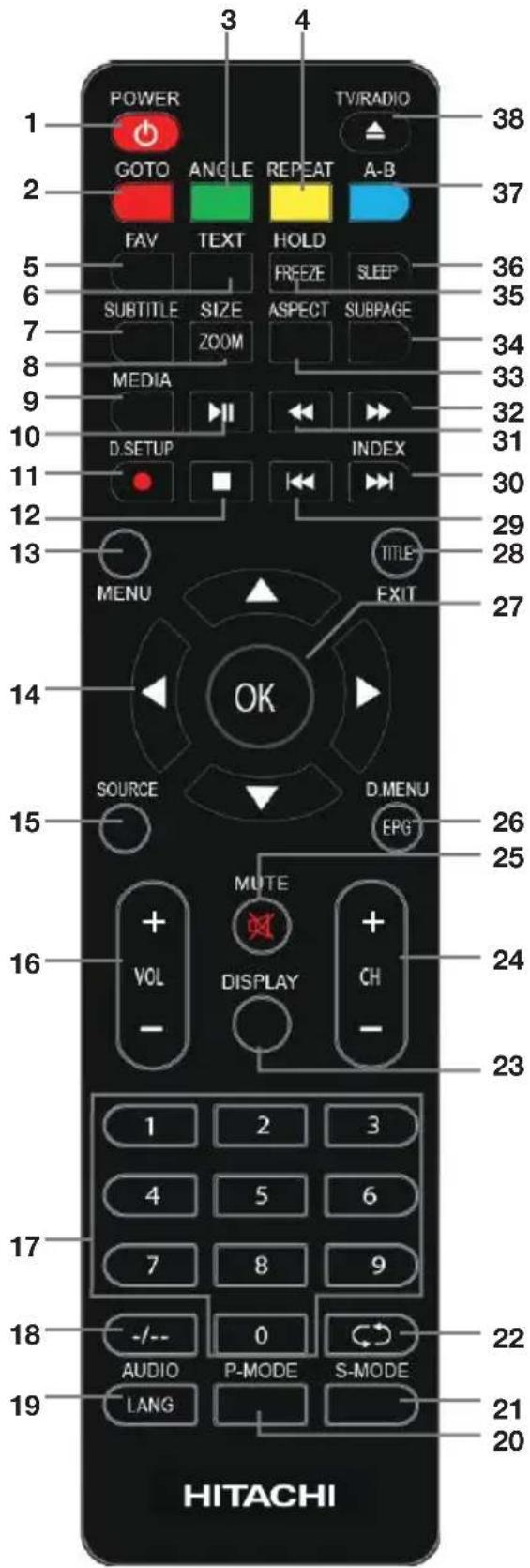
text_image
POWER GOTO FAV SUBTITLE MEDIA D.SETUP SOURCE 3 4 TV/RADIO ANGLE TEXT SIZE 200M REPEAT HOLD ASPECT FREEZE SLEEP ASPECT SUBPAGE TITLE EXIT D.MENU MUTE VOL -Remote Control (Cont.)

text_image
1 POWER GOTO ANGLE REPEAT A-B TV/RADIO 38 2 37 FAV TEXT HOLD SLEEP 36 5 SUBTITLE SIZE ASPECT SUBPAGE 35 7 ZOOM MEDIA 34 9 32 33 10 D.SETUP INDEX 31 11 INDEX 30 29 12 MENU TITLE EXIT 28 13 SOURCE OK D MENU EFG 27 14 MUTE 26 15 VOL DISPLAY CH 25 16 - - - 24 23 1 2 3 4 5 6 7 8 9 -/- 0 22 AUDIO P-MODE S-MODE LANG 21 20 HITACHI22 Return to the previous channel.
23 DISPLAY: Display information of the current program.
24 CH+/-: Press to play the next or previous channel; press repeatedly to scan through the channels.
25 MUTE: Mute the sound. Press again or press V+ to restore the sound.
26 EPG: Launch the Electronic Program Guide (DTV)
D.MENU: Display the main disc menu.
27 OK: Confirm selection.
28 EXIT: Exit from the main TV menu displayed on the screen.
TITLE: Display the title menu (for DVD Version).
29 : Play the previous file.
30 ▶▶: Play next file.
31 : Move fast backward.
32 ▶: Move fast forward.
33 ASPECT: Press to zoom in and out of the picture.
34 SUBPAGE: Manually jump to the previous or next subpage of Teletext.
35 FREEZE: Hold the picture.
36 SLEEP: Set the TV sleep timer.
37 A-B: Repeat DVD scenes of your preference. (For DVD Version)
38 TV / RADIO: Switch the unit between TV and radio.
▲ : Open or close the disc compartment (For DVD Version).
* Teletext or Austext is no longer available, nor is there any plan for a replacement teletext service in Australia. For more information, please visit the websites of the Australian charne providers.
However, one teletext option, "closed captions", is still working on most Australian television channels. This service allows you to activate subtitles while watching normal television programs that provide it.
Remote Control (Cont.)
Using the remote control
Inserting batteries
Install the batteries as illustrated in Fig. 1, right.
- Open the cover at the back of the remote control unit completely.
- Insert two AAA size batteries according to the polarity markings (+ / -) inside the compartment. Make sure the batteries are correctly aligned and properly pushed into place so they can power the remote control unit.
- Slide the cover back into position.
NOTE: When testing the remote control unit after replacing the batteries, make sure the TV is properly connected to the mains power supply.
Battery service life
- The service life of batteries depends on usage and environmental conditions. They should normally last for about one year.
- If the remote control fails to work even when it is operated near the TV, replace the batteries.
Precautions when using batteries
- Do not use old and new batteries together.
- Do not use different types of battery (for example, Manganese and Alkaline batteries) together.
- Note that there are chargeable and non-chargeable batteries. Do not attempt to charge non-chargeable batteries.
- Remove the batteries from the remote control unit if you do not intend to use the unit for a long time.
- When discarding used batteries, follow any guidelines for recycling and disposal of batteries that apply in your local area.
- Keep batteries away from children and pets.
- Never throw batteries into a fire or expose them to fire or other sources of extreme heat.

text_image
① Push ② Open ③ Press ④Remote Control (Cont.)
Using the remote control
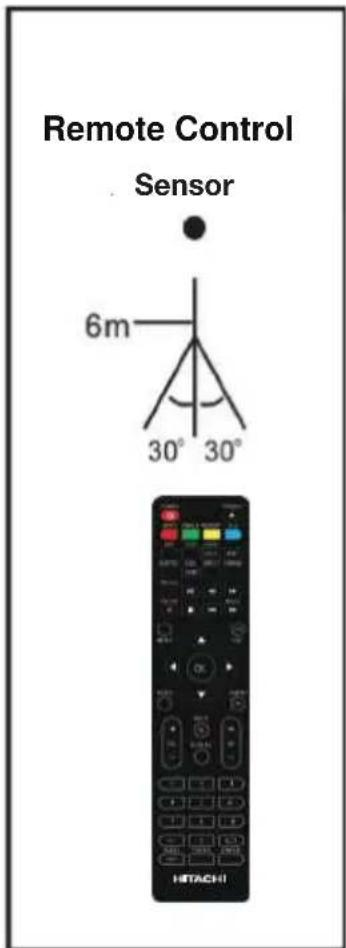
To use the remote control, point it towards the remote sensor at the front of the television.
The remote control has a range of up to approximately six metres (6m) from the TV at an angle of up to 30 degrees each to the right and left of the sensor, as illustrated on the right.
The remote control will not operate if its path is blocked.
NOTES:
- Do not drop, step on or otherwise impact the remote control. This may damage the parts or lead to malfunction
- The operating distance may vary according to the brightness of the room.
- Do not point bright light at the remote control sensor.
- Do not place objects between the remote control and the remote control sensor.
- Do not use this remote control while simultaneously operating a remote control of other devices.
text_image
Remote Control Sensor 6m 30° 30° HITACHIWelcome
Congratulations on choosing to buy a HITACHI product. All products brought to you by HITACHI are manufactured to the highest standards of performance and safety and, as part of our philosophy of customer service and satisfaction, are backed by our comprehensive 2 Year Warranty. We hope you will enjoy using your purchase for many years to come.
Contents
| Remote Control | iii |
| Welcome | vii |
| General Safety Instructions | 1 |
| Installation | 5 |
| Controls and Connections | 7 |
| Getting Started | 14 |
| Basic Operations | 15 |
| Electronic Program Guide (EPG) | 17 |
| Recording | 18 |
| USB Mode | 21 |
| Menus | 24 |
| FAQs | 37 |
| Specifications | 39 |
| Warranty Details | 40 |
General Safety Instructions
Read this manual thoroughly before first use and keep it in a safe place for future reference, along with the completed warranty card, purchase receipt and carton. The safety precautions enclosed herein reduce the risk of fire, electric shock and injury when correctly adhered to.
Follow all instructions and take notice of all the warnings.
text_image
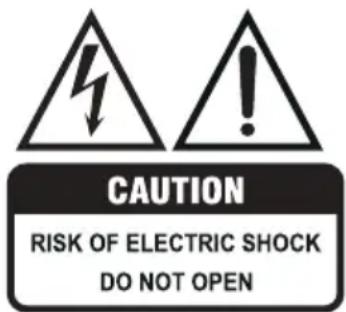
CAUTION RISK OF ELECTRIC SHOCK DO NOT OPENTo reduce the risk of electric shock, do not remove the cover (or back).
This unit contains no user-serviceable parts inside. Refer all servicing to qualified service personnel only.

The lightning flash with an arrowhead symbol within an equilateral triangle is intended to alert you to the presence of non-insulated dangerous voltage within the product's enclosure that may be of sufficient magnitude to constitute a risk of electric shock to persons.

The exclamation point within an equilateral triangle is intended to alert you to the presence of important operating and maintenance (servicing) instructions in the literature accompanying the product.
IMPORTANT WARNINGS AND CAUTIONS!
- Only connect this TV to a mains socket with a protective earthing connection.
- To prevent damage which may result in fire or an electric shock hazard, do not expose this appliance to rain or moisture.
- Do not change or modify the appliance in any way.
- Only use the attachments/accessories specified by the manufacturer.
General Safety Instructions (Cont.)
Installation
- Follow instructions: Only install this TV set in accordance with the instructions in this manual. If a television is not positioned in a sufficiently stable location, it can be potentially hazardous due to falling and causing injury, particularly to children.
- This TV is equipped with standard wall-mounting points, and we recommend that a wall bracket be installed between the TV and the wall to prevent the TV from falling from a cabinet. (The bracket is not included.)
-
To prevent injuries from your television falling, take a few simple precautions:
-
Do not place the TV on tall furniture (e.g., on a cupboard or bookcase) without anchoring both the furniture and the TV to a suitable support.
- Only use furniture that can safely support the television.
- Ensure the TV is not overhanging the edge of the supporting furniture.
- Educate children about the dangers of climbing on furniture to reach TV controls.
- Do not place the TV on cloth or other materials.
- When deciding on where to put the TV set, make sure the place is:
- Well ventilated, and away from damp and cold.
- Protected from overheating and away from direct sunlight.
- Away from moisture drips or splashes.
- Protected from excessive dust or grease.
- Bookcase: Do not install this equipment in a confined space such as a bookcase or similar unit.
- Heat: Do not install the TV set near heat sources such as radiators, stoves or other audio visual equipment (including amplifiers) that produce heat.
- Water: Do not place containers with liquids (such as vases) or with small metallic objects on top of the unit. If liquid enters the unit or any metal object falls into the unit, it may result in short-circuit, fire or electric shock.
- Fire or explosion: Do not use or store flammable or combustible materials near the unit. Doing so may result in fire or explosion. Do not place any naked flame sources, such as lit candles, cigarettes or incense sticks on top of the TV set.
- Antenna: Install the antenna away from high-voltage power lines and communication cables and make sure it is installed securely. If the antenna touches a power line, contact with the antenna could result in fire, electric shock or serious injury.
- Ventilation: Install the unit at an adequate distance from the wall to ensure sufficient ventilation. If the temperature inside the unit rises, it may result in fire.
General Safety Instructions (Cont.)
Electrical safety and cord handling
- Voltage: Before installing this TV set, make sure your outlet voltage corresponds to the voltage stated on the appliance rating label.
- Protect from moisture: To reduce the risk of fire or electric shock, do not expose this appliance to rain or moisture; do not use it anywhere near water; do not touch the power plug with wet hands.
- Damage: Do not use a damaged power cord, plug or loose outlet. Doing so may cause an electric shock.
- Power outlet: Do not plug several devices into the same outlet. Doing so may cause the outlet to overheat and start a fire. Make sure the outlet is readily accessible during operation of the equipment.
- Power plug: Make sure the plug is properly installed before inserting it fully into the outlet. A loose or improperly inserted power plug may cause a fire.
- Protect the cord: Do not bend, twist or kink the power cord excessively. Do not allow anything to rest on or roll over the power cord and antenna cable. Doing so may cause a fire or an electric shock. Do not run the power cord near heat-producing appliances such as radiators, stoves or irons. The excessive heat could melt the insulation and expose live wires, resulting in fire or electric shock.
- Disconnect: Always grasp the plug when disconnecting the power cord. Pulling the cord can damage the internal wire and may cause a fire.
- Lightning storms: Unplug this TV during lightning storms or when unused for long periods of time. Not doing so may result in fire or electric shock.
Usage conditions and restrictions
- Adjustments: Follow the instructions in this manual when installing and adjusting the TV set. Only adjust those controls that are covered in this manual, as improper adjustment of other controls may result in damage. If this happens, unplug the TV set and have it serviced by appropriately qualified personnel, or phone the after sales support line for advice.
- Ventilation: Do not cover the ventilation openings with items such as newspapers, tablecloths, curtains etc. as this could impede ventilation.
- Cabinet slots: Do not insert objects of any kind into this unit through the cabinet slots, as they could touch the current-carrying parts or short-circuit parts, resulting in fire, electric shock or damage to the unit.
- Smoke or odour: If you notice any unusual odours or smoke around the unit, immediately disconnect the unit from the outlet and contact the service centre. Failure to do so may result in fire or electric shock.
General Safety Instructions (Cont.)
- When not in use: When not using the unit for long periods of time, disconnect the power cord from the wall outlet. Dust could accumulate over time on the unit and cause it to generate heat and ignite, or deteriorate insulation, which in turn may result in an electrical fire.
- Moving: When moving the unit, be sure to turn it off and unplug it from the wall outlet. Moving the unit with the power cord connected to the outlet may cause damage to the cord, resulting in fire or electric shock.
- Batteries: When removing the batteries from the remote control, make sure to keep them out of reach of infants and children. Seek medical attention immediately if a child has swallowed a battery.
- Usage restriction: This product is not intended for use by persons (including children) with reduced physical, sensory or mental capabilities, or lack of experience and knowledge, unless they have been given supervision or instructions concerning use of the product by a person responsible for their safety.
- Children: Supervise young children to ensure they do not play with the TV.
Cleaning and maintenance
- Unplug: To reduce the risk of fire and electric shock, always unplug the TV before cleaning.
- Cleaning: Only use a soft, dry cloth for cleaning the TV; do not use a damp cloth. Never clean with industrial strength polish, wax, benzene, paint thinner, air freshener, lubricant, detergent or other chemicals. Wipe off any moisture, dirt or dust on the power plug pins with a clean, dry cloth.
- Repair: If the unit requires repair, contact the after sales support line; never disassemble or modify the unit or attempt to service it yourself.
- Service: Refer all servicing to qualified service personnel. Servicing is required when the TV has been damaged in any way, such as when the power supply cord or plug is damaged, liquid has been spilled or objects have fallen into the TV, when the TV has been exposed to rain or moisture, does not operate normally, or has been dropped.
Installation
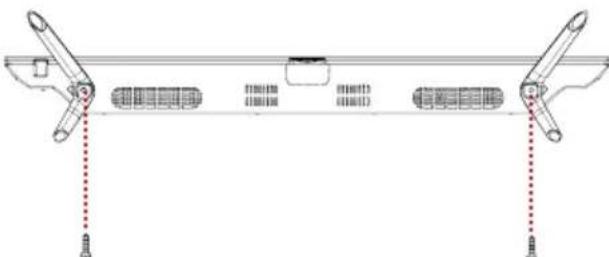
Your TV is packaged with the stand and the cabinet separated. Before using the TV, install the stand as described below, or if you want to mount it to a wall, see page 6 for mounting advice; the wall mount itself is not supplied.
IMPORTANT!
- Make sure the TV set is unplugged from the power supply before installing or removing the stand.
- The TV panel may be awkward to install on your own. We recommend you ask someone to help with installation and/or removal of the stand.
Attaching the stand
Step 1
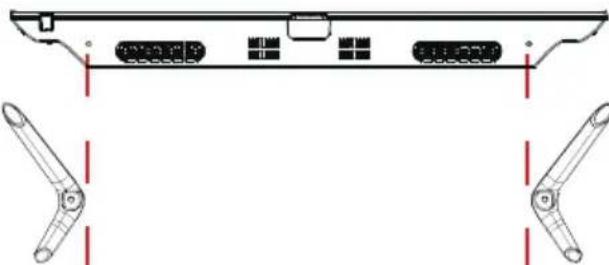
Place a soft cushioned material on top of a flat surface to prevent damaging the screen panel. Then place the TV monitor flat on top, with the screen side facing down, as illustrated on the right (1).
Step 2
Align the screw holes on the stand and the bottom of the TV, as illustrated on the right (2). Push the stand into the bottom of the TV until the TV is fully seated on the stand.
NOTE: Make sure the orientation of the trapezoid head on the stand corresponds to the trapezoid slot on the bottom of the TV.
Step 3
Tighten the screws (supplied) with a screwdriver to affix the stand to the panel, as illustrated on the right (3).
NOTE: Do not apply excessive force as this may damage the screw holes.

natural_image
Top-down schematic of a computer monitor rear panel showing internal components and ventilation slots (no text or labels)①
natural_image
Technical line drawing of a mechanical component with two side views (no text or symbols)②
natural_image
Technical line drawing of a mechanical linkage or support structure with two vertical connectors and internal components (no text or symbols)③
Installation (Cont.)
Wall-mounting instructions
IMPORTANT!
- Make sure the TV set is unplugged from the power supply before wall-mounting it and removing the stand.
-
We recommend you contact a professional for assistance when wall-mounting the TV. We assume no liability for any eventual damage to the product or injury to yourself if you mount the TV on your own.
-
The TV set is equipped with holes on the back panel for use with wall-mounting brackets (not included). Please use the illustration below as a reference when buying wall-mounting brackets.
- Use four standard M6*200mm screws (or longer, depending on the mounting bracket) to mount this TV.
Back of the TV

text_image
200mm 200mmNOTE: The screws in the package are for securing the TV stand only. If you are wall-mounting the TV, please consult a qualified installer for further instructions on bracket support and wall support.
Controls and Connections
text_image
1 2 3
natural_image
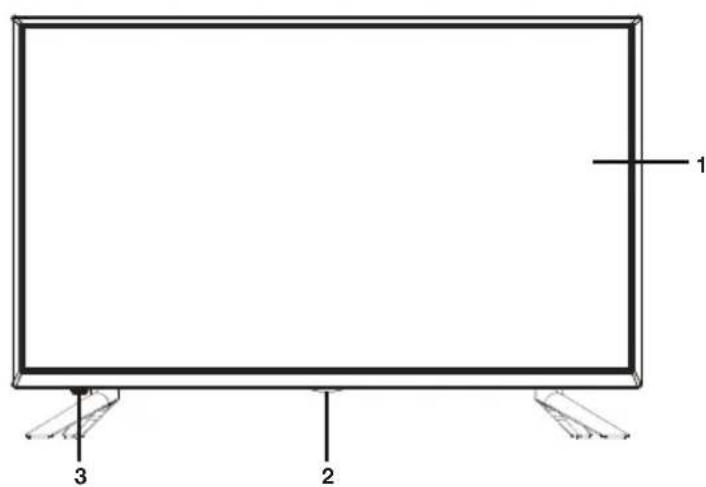
Line drawing of a modern flat-screen TV with three legs and a central screen (no text or symbols)1 LED display screen
2 Power indicator
3 IR (infra-red) sensor for remote control
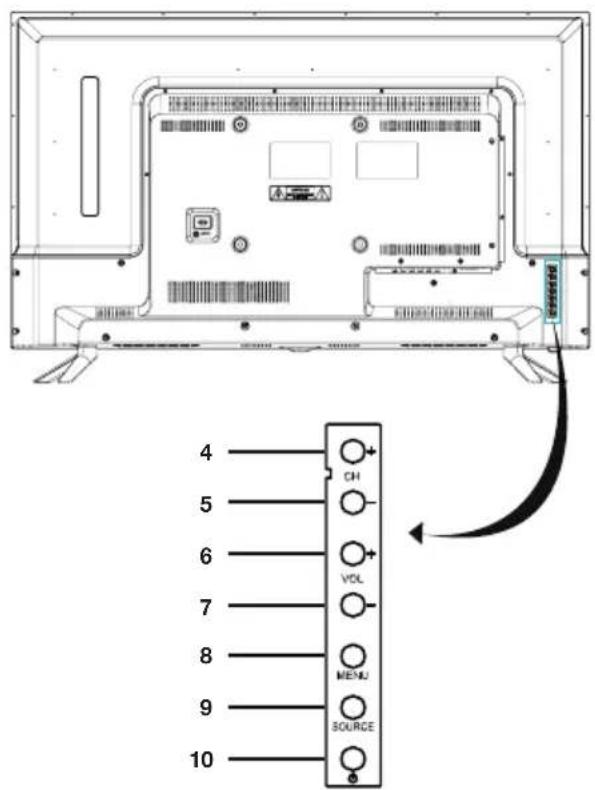
4 CHANNEL +: select the next channel or move up/down
5 CHANNEL -: select the previous channel or move up/down
6 VOLUME +: increase the volume level or move left/right
7 VOLUME -: decrease the volume level or move left/right
8 MENU: enter the settings menu
9 SOURCE : select the input source
10 POWER: turn the TV on/off
text_image
4 5 6 7 8 9 10 CH VOL MENU SOURCENOTE: See page 8 for a detailed description of all sockets on the back panel.
Controls and Connections (Cont.)
Main unit back view controls and sockets
text_image
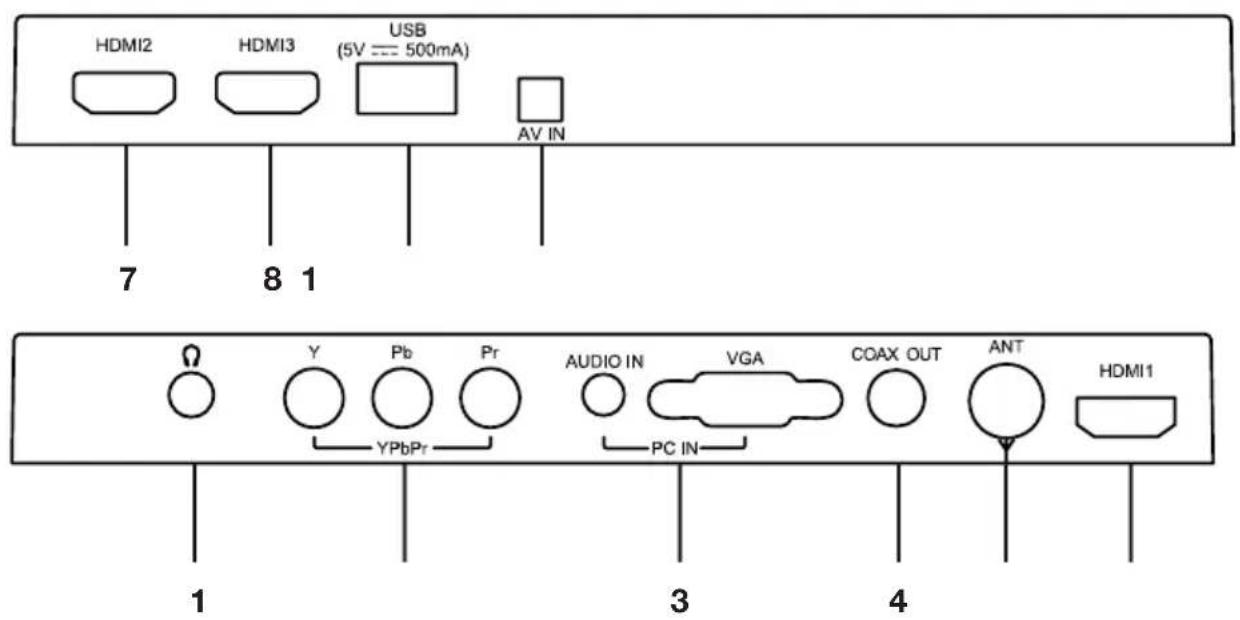
HDMI2 HDMI3 USB (5V === 500mA) AV IN 7 8 1 1 Y Pb Pr AUDIO IN VGA COAX OUT ANT HDMI1 YPbPr PC IN 3 41 EARPHONE output
2 YPbPr (Component) input
3 PC AUDIO input / VGA input (for PC connection)
4 COAXIAL S/PDIF output
5 ANT input: for connection of the external antenna
6 HDMI input 1
7 HDMI input 2
8 HDMI input 3
9 USB input terminal: for multimedia file playback
10 AV in
Input / Output may change model to model
Controls and Connections (Cont.)
IMPORTANT!
- Ensure all cables are disconnected from the main unit before connecting the TV to an AC power source.
- Read through the instructions before connecting the TV to other equipment.
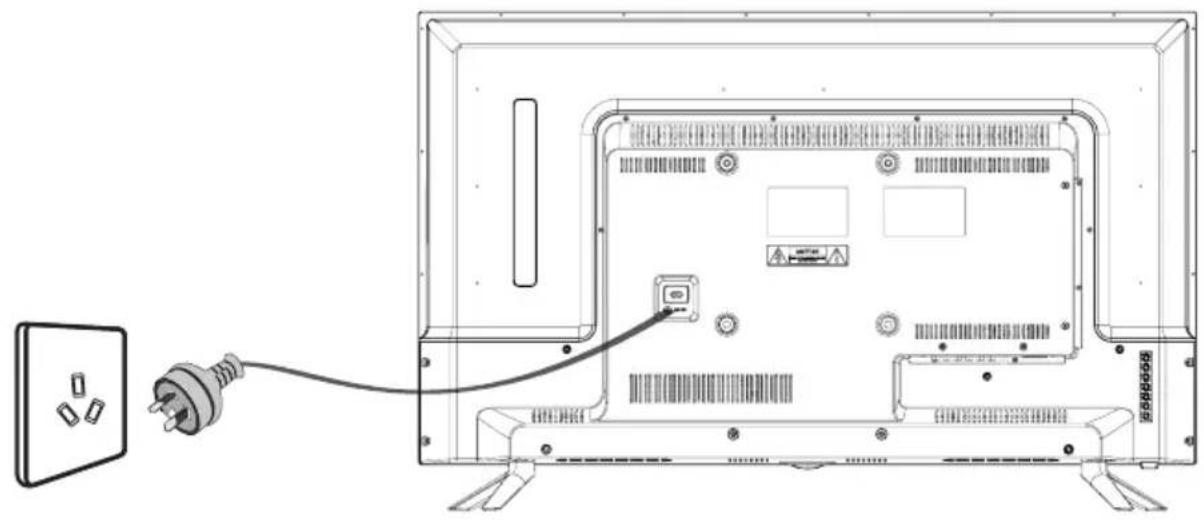
Connecting to an AC power source
To power outlet
natural_image
Line drawing of a flat-screen TV rear panel with an attached power outlet, showing internal components and wiring (no text or symbols)Connecting an external antenna
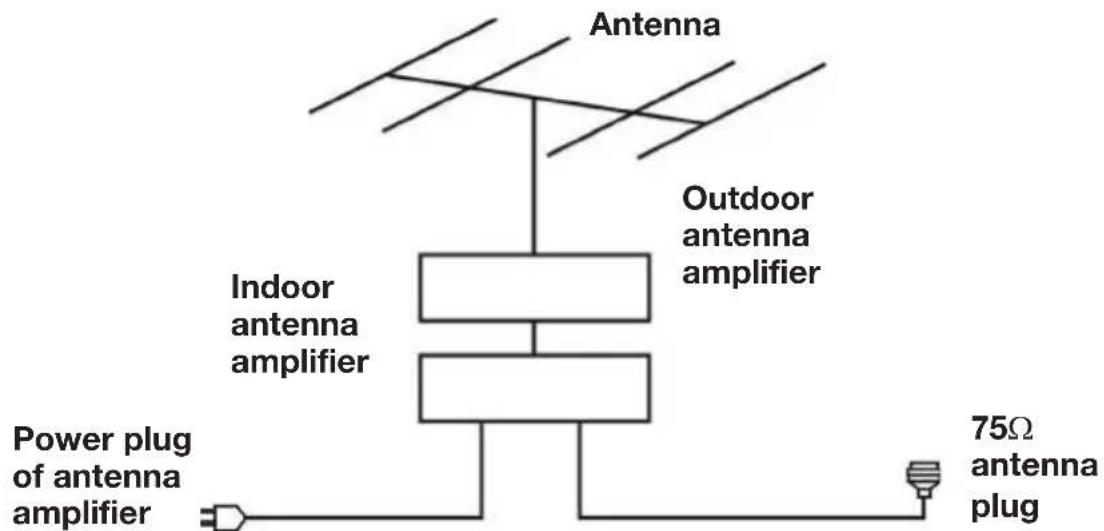
For best picture quality, we recommend connecting the TV set to an external antenna.
text_image
Antenna Outdoor antenna amplifier Indoor antenna amplifier Power plug of antenna amplifier 75Ω antenna plugControls and Connections (Cont.)
Composite video (CVBS) connection

text_image
USB AV IN Mini AV Connect the AV adapter cable (supplied) to the mini av socket. Then connect one end of the Composite AV cable to the AV adapter cable and other end to your external device. AV cable (not included) For basic connection, use the composite Audio L/R (white/red) and CVBS (yellow) cable to connect the unit with other devices. DVD or VCR Back DVD or VCRNOTE: AV adapter cable's L/R audio connections are shared between Y/Pb/Pr as well.
HDMI connection

flowchart
graph TD
    A["HDMI"] -->|HDMI cable (not included)| B["HDMI OUT"]
    C["HDMI1"] --> B
    D["HDMI"] -->|HDMI cable (not included)| B
    B --> E["DVD or VCR Back"]
    E --> F["Use HDMI cable to connect the unit with other devices to receive high-definition multimedia signal."]
Controls and Connections (Cont.)
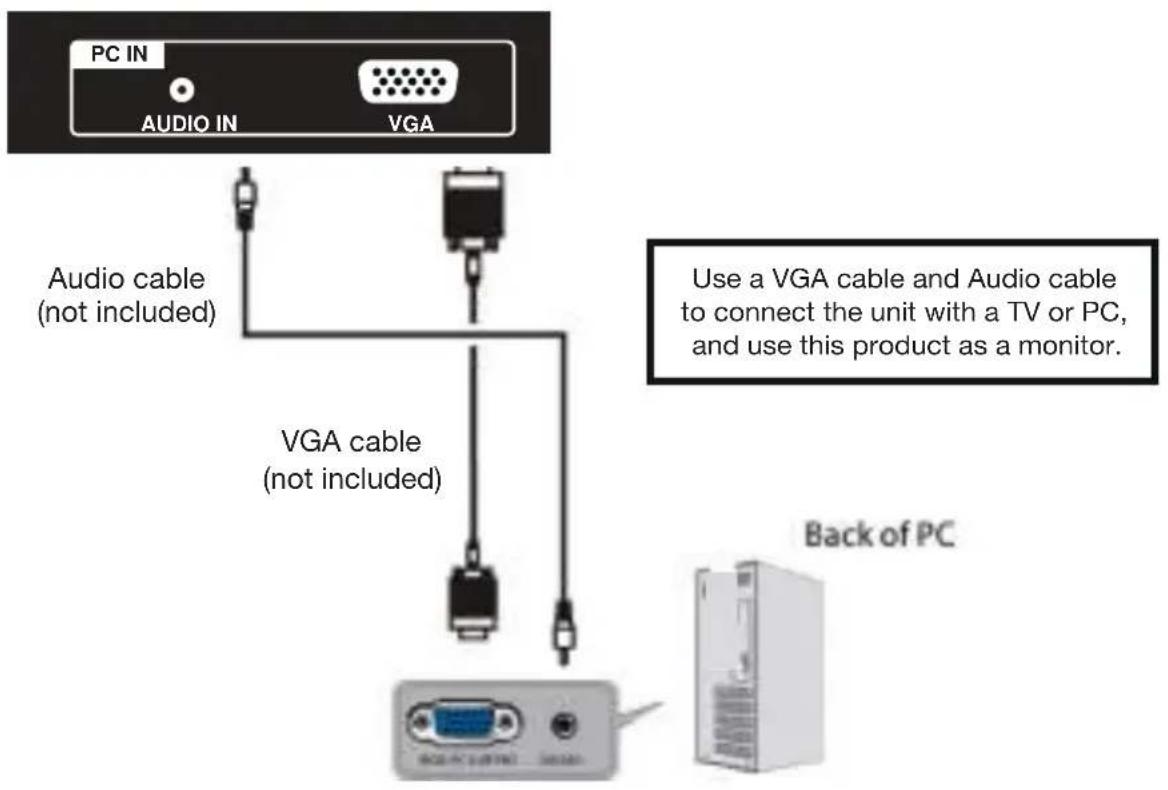
PC/VGA connection
text_image
PC IN AUDIO IN VGA Audio cable (not included) VGA cable (not included) Use a VGA cable and Audio cable to connect the unit with a TV or PC, and use this product as a monitor. Back of PCCoaxial (S/PDIF) connection

text_image
COAX OUT Use a coaxial cable to connect the unit with an amplifier or other audio decoding device for coaxial audio signal output. (Coaxial cable is not included)Controls and Connections (Cont.)
Component (YPbPr) connection
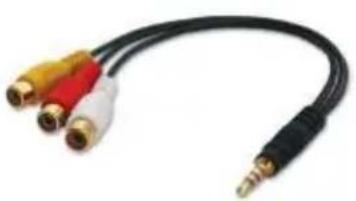
Connect the AV adapter cable (supplied) to the mini av socket. Then connect one end of the Composite AV cable to the AV adapter cable and other end to your external device.
natural_image
Black and red audio jack cable with three connected ports (no text or symbols visible)NOTE: AV adapter cable's L/R audio connections are shared between Y/Pb/Pr as well.

text_image
AV IN Mini AV YPbPr IN Y Pb-Pr— ——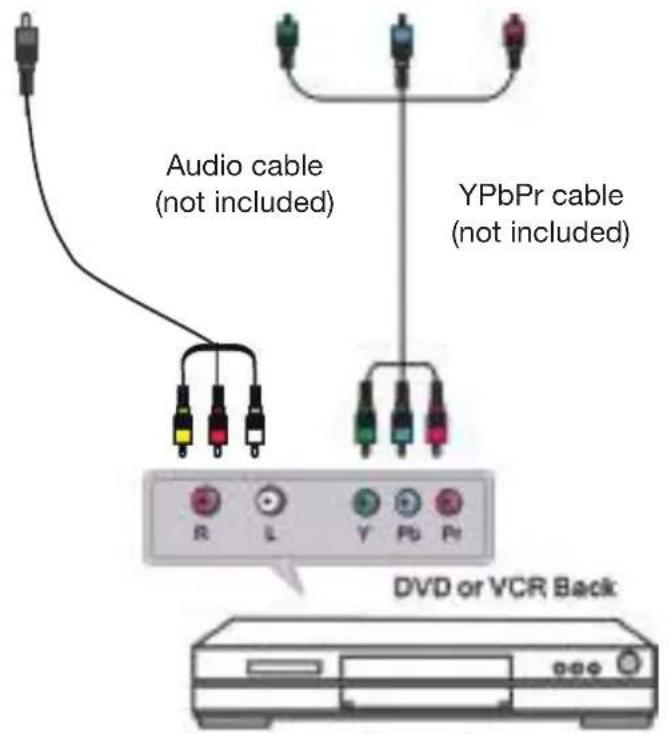
text_image
Audio cable (not included) YPbPr cable (not included) DVD or VCR BackControls and Connections (Cont.)
USB connection
Insert a USB memory device into the USB port for playback of video/music/photo multimedia files.

text_image
USB USBUSB device (not included)
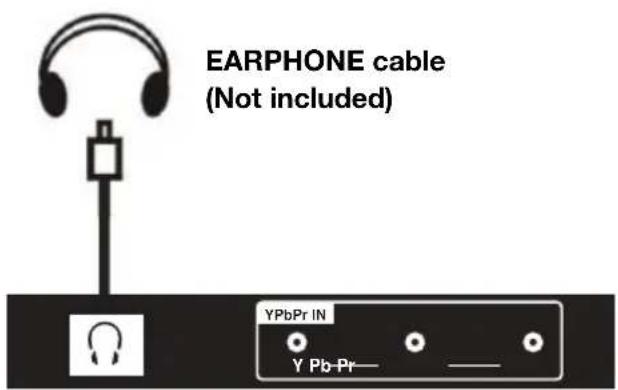
Earphone connection
text_image
EARPHONE cable (Not included) YPbPr IN Y Pb-Pr— —Getting Started
IMPORTANT! Make sure all relevant equipment is properly connected (as illustrated on the previous pages) before connecting the unit to a wall socket and turning on the power.
Powering the TV
To turn the power on or off:
- Plug the power cord into a suitable power point, then turn on the power at the outlet.
- Press the POWER button, on the lower side of the back panel (or on the remote control, making sure to aim it at the sensor at the front of the TV); the indicator will glow blue. Press it again to power off (standby mode); the indicator will glow red.
First use
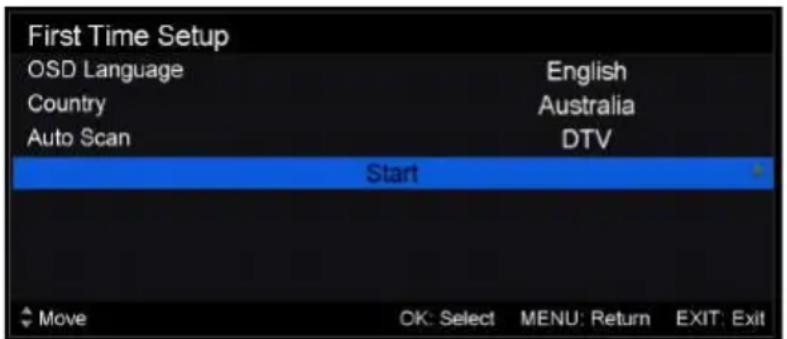
When you switch on the TV for the first time, the First Time Setup menu will be displayed on the screen, as illustrated below.
text_image
First Time Setup OSD Language Country Auto Scan English Australia DTV Start Move OK: Select MENU: Return EXIT: Exit- OSD language: Use the ◀/▶ buttons to select your OSD language and then use the ▼ button to go to the next item.
- Country: Use the ◀/▶ buttons to select the country you are living in and then use the ▼ button to go to the next item.
- Auto scan: Use the ◀/▶ buttons to select the type of scan (ATV, DTV, DTV + ATV) and then use the ▼ button to go to the next item.
- Press OK to begin scanning for stations.
- To exit channel tuning, press the EXIT button and use the ➕ buttons to select YES; select NO to continue tuning.
- When auto searching is complete, your TV will show the first channel found.
Basic Operations
Selecting an input source
- Press the SOURCE button at the left lower side of the back panel, or on the remote control, to display the input source list.
- Press the ▲▼ buttons to select the desired input source, and then press OK to confirm your selection from the following options: DTV, ATV, AV, YPbPr, DVD, HDMI1, HDMI2, HDMI3, PC, USB.
NOTE: When you switch on this TV for the first time, you need to select the language and the country to auto-search for all the DTV programs in your area. See opposite for instructions.
Channel selection
- Press the CH+/- button to select the next/previous channel.
- Alternatively, press the number buttons to select a channel directly (press the -- button repeatedly to select the first or second digit).
Volume control
- Press the VOL+/- button to adjust the volume level.
- Press the MUTE button to mute the sound, press it again to restore sound.
Picture and sound mode
- Press the P-MODE button on the remote control repeatedly to select the picture mode directly (available options: Standard, Mild, Personal, Dynamic).
- Press the S-MODE button on remote control repeatedly to select the sound mode directly (available options: Standard, Music, Personal, Movie).
Sleep time setting
- Press the SLEEP button on the remote control repeatedly to select the desired sleep time directly (available options: Off, 5min, 15min, 30min, 60min, 90min, 120min, 240min).
Video and audio settings
- Press the ASPECT button repeatedly to select the desired video size directly from the following options: Auto, 4:3, Just scan, 16:9, Zoom1, Zoom2 (Available sizes may vary for different input sources.)
NOTE: If there is no signal, pressing this button will be ineffective and the available video size may be different for different input sources. - Press the AUDIO button repeatedly to select the desired audio language. NOTE: The channel you are watching must support multi-audio languages.
Information display
- Press the DISPLAY button to display information about the current program.
Basic Operations (Cont.)
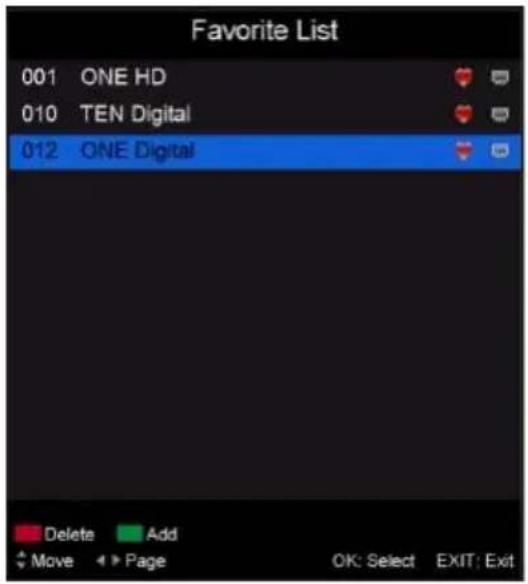
Favourites list
- While viewing a channel, press the FAV button on the remote control to enter the Favourites List menu.
- Press the √ button to select the channel and press OK to watch it.
- Press the GREEN button to add the selected channel to the Favourites List.
- Press the RED button on the remote control to remove the current channel from the Favourites List.
Quick select
- While viewing a channel, press the OK button to enter the Channels List directly.
- Press the √buttons to select the channel and press OK to watch it.
Teletext
- Press the TEXT button on the remote control to view the available teletext information. Press OK to hide the information.
NOTE: See the note on page iii for important information about teletext services in Australia.
TV/Radio (for DTV mode only)
- Press the TV/RADIO button on the remote control to switch the unit between TV and radio mode.
text_image
Favorite List 001 ONE HD 010 TEN Digital 012 ONE Digital Delete Add Move Page OK: Select EXIT: Exit
text_image
Channel List 001 ONE HD 002 AFD0, 4:3 003 AFD1, 16:9 004 AFD1, 4:3 005 AFD2, 16:9 006 AFD2, 4:3 007 AFD3, 16:9 008 AFD3, 4:3 009 AFD5, 16:9 010 TEN Digital 011 ONE HD 012 ONE Digital Move Page OK: Select EXIT: ExitSubtitle
- Press the SUBTITLE button on the remote control to enter the subtitle menu. NOTE: The channel you are watching must support multi-subtitles.
Freeze
- During normal playback, press the FREEZE button on the remote control to hold the picture, press it again to resume normal playback.
Electronic Program Guide (EPG)
EPG TV Guide (for DTV mode only)
EPG stands for Electronic Program Guide. It is supplied by the program providers and offers information about the programs to be broadcast. You can access it in digital mode by pressing the EPG button on the remote control.

text_image
PROGRAM GUIDE 05 Nov 2010 13:03:37 05 Nov 2010 22:59 - 05 Nov 2010 01:00 Rugby: Grand Slam Tour 2009 [-][Sport] The Wallabies ended the 2009 Grand Slam Tour with a solid victory over Wales in front of 74,000 fans at Millennium Stadium. On the eve of the 2010 Spring Tour kicking off in Cardiff, revisit the game. [Program info © Ten] 001 ONE HD 22:59 Rugby: Grand Slam Tour 2009 010 TEN Digital 01:00 Sports Tonight Late 011 ONE HD 01:30 MVP 012 ONE Digital 02:01 Real NBA 02:31 Omnisport 03:01 Football: Arsenal TV PrevDate NextDate Schedule Reminder Move Rec: Record OK: Display EXIT: Exit- Press the EPG button to display the EPG interface (above). The area at the top will display information about the selected program or channel, and the columns below will display the list of available channels and their programs at various timeslots.
- Before you can view any EPG information, you have to 'activate' every channel for which you want to view program information. To do this, use the ▲ /▼buttons to select a channel in the left column, then press OK to confirm.
- Press the ★ buttons to switch between columns.
- Press the buttons to select a different channel/program in the list.
- Press the RED button to display the TV guide of the previous day.
- Press the GREEN button to display the TV guide of the next day.
- Press the YELLOW button to enter the schedule list page.
- Press the ■ BLUE button to schedule a reminder for the selected program.
- Press the RECORD button to schedule a recording for the selected program.
- Press the OK button to display full program information.
- Press EXIT to exit the EPG menu.
Recording
One-touch recording (in DTV mode only)
IMPORTANT!
Before you can record with this TV set (including time-shift recording), you must have inserted a FAT32 formatted USB storage device into the USB port.
- First, insert your USB memory device into the USB port.
When watching a program in DTV mode:
- Press the RECORD button on the remote control to start recording directly. Press it again to display information about the current recording.
- Press the ■STOP button to display a dialogue box: select Yes to stop recording, select No to dismiss the dialogue box.
To watch a recorded program:
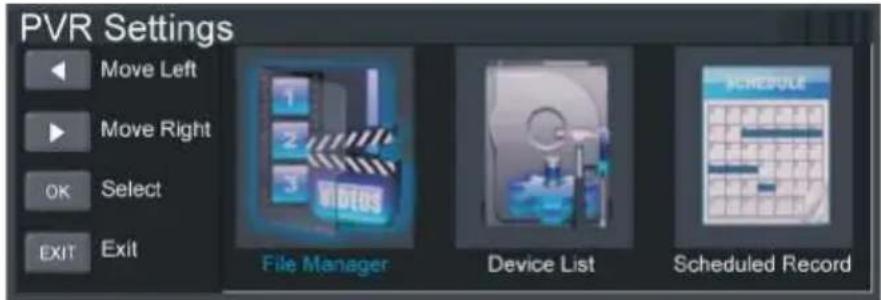
- Press the INDEX button on the remote control to display the PVR Settings page. (Alternatively, go to the Setup Menu and select PVR Settings.)
text_image
PVR Settings Move Left Move Right OK Select EXIT Exit File Manager Device List Scheduled Record- Highlight File Manager and press OK to enter it (see page 34).
- Use the ▲▼ buttons to select a recorded file and press OK to start playback in full screen mode.
Scheduled Recording (in DTV mode only)
See instructions under EPG on the previous page or press the INDEX button, select Schedule Recording and follow the instructions on page 35.
Recording (Cont.)
Time-shift recording and playback (in DTV mode only)
IMPORTANT!
Before you can record with this TV set (including time-shift recording), you must have inserted a FAT32 formatted USB storage device into the USB port.
The time-shift function allows you to pause the live TV signal, then resume playback at your convenience.
- First, insert your USB memory device into the USB port.
When watching a program in DTV mode:
- Press the ▶ button on the remote control to initiate time-shift mode and pause the program.
- Press the ▶ button again to resume playback; the tool bar pictured below will appear on the screen.

text_image
00:00:00 00:02:14 Play FB FF Prev. Next Stop Available Time 01.07.22 / 01.09.36 18:32- Use the ➕ buttons to select Play, then and press OK to play the program in time-shift mode.
- Use the keys, then press OK to select a function such as Fast Forward from the on-screen toolbar.
- To stop time-shift, press the ■ STOP button on the remote control to display a dialogue box, then select Yes to exit time-shift mode and return to live TV signal, or select No to dismiss the dialogue box.
NOTE: The USB storage device will not retain recorded data after exiting the time-shift function
Recording (Cont.)
Important notes
When using the USB/Media function, remember the following important points:
- We strongly recommend you back up all data in the USB storage device to another storage device so you do not risk losing any data in case of an unexpected device failure or accident. We do not assume liability for any loss of data due to misuse or malfunction. Data backup is your personal responsibility.
- You cannot change to a channel from another broadcaster or select another function while in recording mode.
- If the signal is interrupted or removed while in recording mode, the recording will stop until the signal is established. This may cause you to lose program content.
- Do not turn the TV off during recording, otherwise the TV will exit the time-shift function and turn to standby mode.
- The file recorded can only be used in this TV. Do not copy it to any other device.
- When you are in time-shift recording mode, you may experience some difficulty with a scheduled recording at different times without removing the USB recording device. You will need to remove the USB device as it is required to reset after each recording to protect the device from damage. If you see the message ‘DISK NOT READY’ displayed, remove the device, reconnect and proceed with your recording.
- Some USB storage devices may not be compatible for smooth operation with this TV.
- For large file sizes and large capacity storage devices, the loading speed may be longer. The recognition speed of a USB storage device may vary depending on the device.
- When connecting or disconnecting the USB storage device, ensure the TV is not in USB mode, otherwise the USB device or the files stored in it may be damaged.
- Only use a USB storage device formatted in a FAT32 file system provided with the Windows operating system. If it is formatted by a different utility program that is not supported by Windows, it may not be recognised.
- Ensure any USB devices connected to the TV do not use/exceed 500mA power rating.
- If an “Unsupported File” message is displayed, the file format or codec is unsupported or corrupted.
USB Mode
Media playback
- First, insert a USB memory device into the USB port.
- Press the SOURCE button on the back panel, or on the remote control, to switch the unit to USB mode. (Alternatively, press the MEDIA button on the remote control to enter USB mode directly.)
- Press the ▲ /▼ / ◀/ ▶ buttons to move the cursor.
- Press the EXIT button to return to the previous menu page.

text_image
Photo Music Movie Text FILESPhoto
- Press the◀/▶buttons to select Photo in the main menu, then press OK to enter it. Photos files can only be played in this menu category.
- Use the ▲ /▼ / ◀/ ▶buttons to select the desired folder or file, then press OK to open the folder or start playing the file.

text_image
1/5 1320503627223346s16y3cquku3ucg6c.jpg Date 2012-04-19 12:50:06 Resolution 1000x1004 OK Slide Show / Single View Previous / Next Rotate EXIT Back Quick MenuWhen playing photo files:
- Press the DISPLAY button on the remote control to hide/display the on-screen tool bar.
- Press OK repeatedly to switch between Slide Show and Single View.
- Press the◄/►buttons to play the previous/next file.
- Press the▲ /▼ buttons to rotate a photo clockwise/counterclockwise.
NOTE: You can rotate a photo only when slide show is paused.
- Press the BLUE button on the remote to display the Quick Menu, press it again to dismiss the menu.
- Interval Time: Set the slide show interval time.
- Repeat: Select the repeat mode.
- Slide Show Effect: Select the slide show effect.
• Background Music: Turn on/off background music.

text_image
Quick Menu Interval Time 10 sec. Repeat ALL Slideshow Effect Fade In / Fade Out Background Music OnUSB Mode (Cont.)
Music
- Press the◀/▶buttons to select Music in the main menu, then press OK to enter it. Music files can only be played in this menu category.
- Use the ▲ /▼ / ←/ ▶ buttons to select the desired folder or file, then press OK to open the folder or start playing the file.

text_image
Music USB1/ /MUSIC/One - One T Cool T The Magic Key.mp3 1 / 1 One - One T Cool T The Magic Key.mp3 One - One T Cool T The Magic Key.mp3 1 / 1 Title one T cool T the magic key Artist one Album Track Year Date 2012-07-17 FileSize 5.53MB 00:00:00 00:03:50 Move OH# FileList OK Select Quick Menu EXIT ReturnWhen playing music files:
- Press the CH + / - button on the remote control to switch between Player and File List.
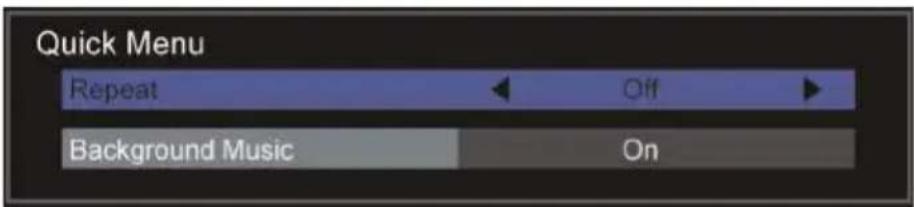
- Press the ■ BLUE button on the remote control to display the Quick Menu, press it again to dismiss the menu.
text_image
Quick Menu Repeat Off Background Music OnRepeat: Select the repeat mode.
Background Music: Turn on/off background music.
USB Mode (Cont.)
Movie
- Press the◀/▶buttons to select Movie in the menu, then press OK to enter. Movie files can only be played in this menu category.
- Use the ▲ /▼ / ←/ ▶ buttons to select the folder or file, then press OK to open the folder or start playing the file.

text_image
00:00:17 00:03:00When playing movie files:
- Press the DISPLAY button on the remote control to hide/display the tool bar.
- Press the◀/▶buttons to select the preferred option, then press OK to confirm.
Text
- Press the ◀/▶ buttons to select Text in the main menu, then press OK to enter.
- Use the ▲ /▼ / ←/ ▶buttons to select the folder or file, then press OK to open the folder or start playing the file.
When playing text files:
- Press the◀/▶buttons to display the previous/next page.
- Input your desired page using the number buttons, then press OK to go to the desired page.
-
Press the BLUE button on the remote to display the Quick Menu, press it again to dismiss the menu.
-
Repeat: Select the repeat mode.
- Background Music: Turn on/off background music.
- Encode Type: Select the encode type.

text_image
Quick Menu Repeat ALL Background Music On Encode Type AutoRemote operations when playing multimedia files:
- Press the button to play or pause playing.
- Press the button to stop playing.
- Press the button to move fast backward.
- Press the button to move fast forward.
- Press the button to play the previous file.
- Press the button to play the next file.
NOTE: To play your multimedia files, make sure you have selected the correct icon in the main media playback menu.
Menus
This TV set contains different settings menus where you can program your preferred settings. Once you have programmed any settings, the unit will retain them in its memory until you change them, even when switching the unit to standby mode. This means you can always operate the system under the same conditions.
Menu navigation
natural_image
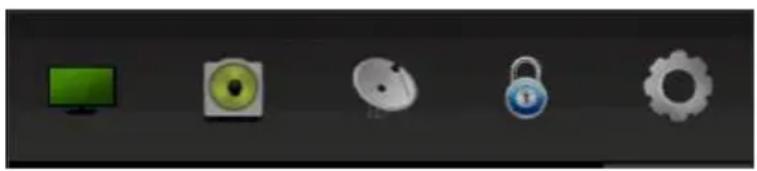
Five gray icons on dark background: monitor, gear, padlock, lock, and gear (no text or symbols)- Press the MENU button on the back panel, or on the remote control, to display the main menu.
- Press the ▼/▶buttons to select different submenus.
- Press OK or▶ to enter the submenu page.
- Press the▲▼ buttons to select the preferred option.
- Press the ▶buttons to adjust the value.
- Press the MENU button to return to the previous menu page.
- Press the EXIT button to exit the menu page.
There are menus for television operation in DTV and ATV mode (pages 25-32), for PC mode (page 36) and for DVD mode (pages 44-45).
- Press the SOURCE button on the back panel, or on the remote control, to display the input source list.
- Press the √√buttons to select the desired input source from the options available.
NOTE: When you switch on this TV for the first time, you need to select the language and the country to auto-search for all the available channels in your area. See page 14 for first time installation instructions.
Menus (Cont.)
Picture menu (DTV & ATV mode)
text_image
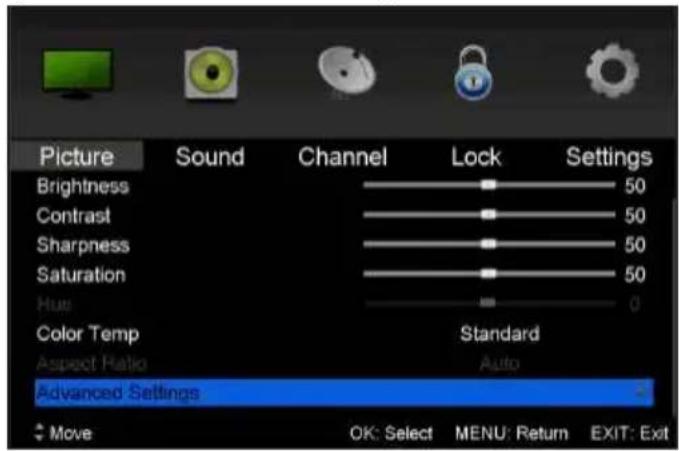
Picture Sound Channel Lock Settings Brightness 50 Contrast 50 Sharpness 50 Saturation 50 Hue 0 Color Temp Standard Aspect Ratio Auto Advanced Settings Move OK: Select MENU: Return EXIT: ExitPicture Mode: Available options: Standard, Mild, Personal, Dynamic.
Brightness / Contrast / Sharpness / Saturation: These values can be adjusted from 0-100. NOTE: When these values are adjusted, picture mode will automatically switch to Personal.
Hue: Use this item to adjust the colour tone (for NTSC system only) from -50 to 50.
Color Temp: Use this item to adjust the optimum colour temperature for suitable viewing. Available options: Normal, Cool, Warm.
AspectRatio: Use this item to adjust the video size. Available options: Auto, 4:3, Just scan, 16:9, Zoom1, Zoom2
NOTE: If there is no signal, pressing the ASPECT button on the remote control will not work. The available video size may be different in different input sources.
Advanced Settings:
NR (Noise Reduction):
Available options:
Off, Weak, Medium, Strong.
MPEG NR (MPEG Noise
Reduction): Available options:
Off, Weak, Medium, Strong.
DynamicContrast:
Available options: Off, Weak,
Medium, Strong

text_image
Advanced Settings NR Medium MPEG NR Medium Dynamic Contrast Off Move Adjust MENU: Return EXIT: ExitMenus (Cont.)
Sound menu (DTV & ATV mode)
text_image
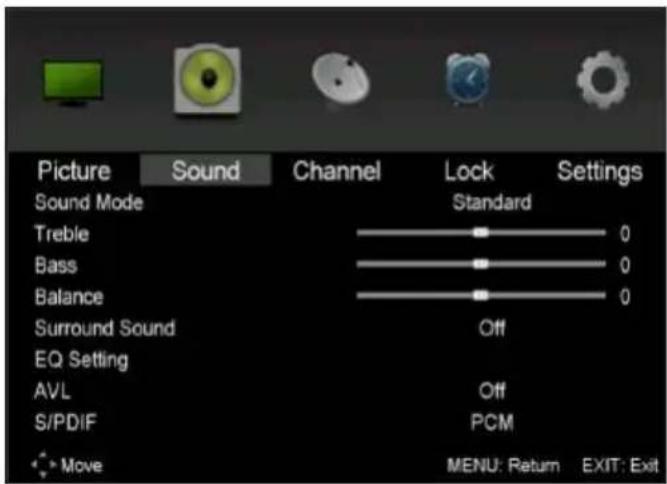
Picture Sound Channel Lock Settings Sound Mode Standard Treble 0 Bass 0 Balance 0 Surround Sound Off EQ Setting AVL Off S/PDIF PCM Move MENU: Return EXIT: ExitSound Mode: Available options: Standard, Music, Personal, Movie.
Treble / Bas s: Use these items to adjust the levels of higher-pitched sounds (Treble) and lower-pitched sounds (Bass) from -50 to 50.
NOTE: When the Treble or Bass values are changed, sound mode will automatically switch to Personal.
Balance: Use this item to adjust the audio output between the left and right speaker from -50 to 50.
Surround Sound: Use this item to turn on/off Surround Sound simulation.
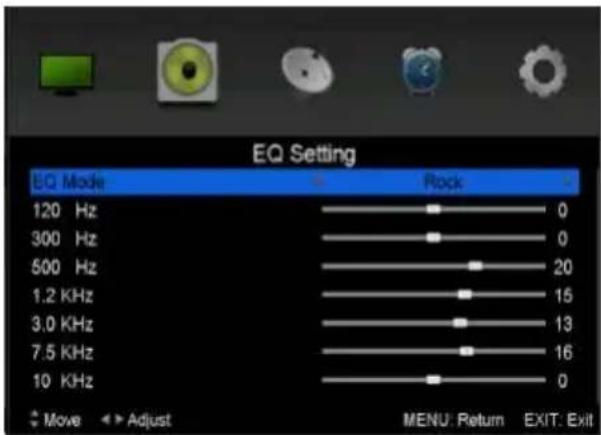
EQ Setting: Use this item to set the equalizer. Available EQ Modes: Off, Rock, Pop, Jazz, User.
AVL (Auto Volume Level): Use this item to turn on/off AVL.
text_image
EQ Setting EQ Mode 120 Hz 300 Hz 500 Hz 1.2 KHz 3.0 KHz 7.5 KHz 10 KHz Move Adjust Rock 0 0 20 15 13 16 0 MENU: Return EXIT: ExitS/PDIF: Use this item to select the SPDIF audio output type.
Available options: Off, Auto, PCM.
AD (Audio Description): Press the OK button (or the ▶ button) to enter this item. Then you can set the AD switch to ON or OFF.
NOTE: Audio description for visual representation works only with programs that contain related narration information (for people with vision impairments).
SoundType: Use this item to select the desired sound Type.
Available options: Stereo, Dual I, Dual II, Mixed.
Menus (Cont.)
Channel menu (DTV & ATV mode)
text_image
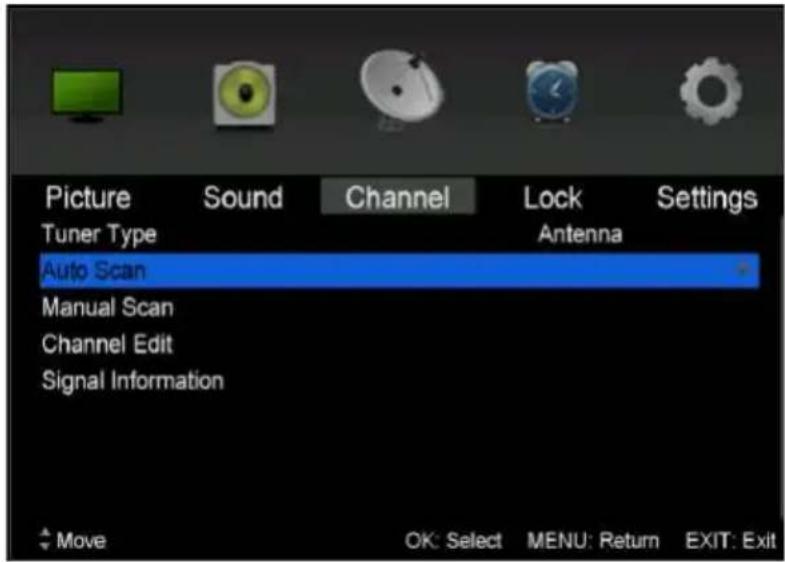
Picture Tuner Type Sound Channel Lock Antenna Settings Auto Scan Manual Scan Channel Edit Signal Information Move OK: Select MENU: Return EXIT: ExitAuto Scan
- Press OK or▶ to enter. Then select your country, scan type and start scanning.
Manual Scan
- Press OK or▶ to enter. Then select digital or analog manual scan.
Digital Manual Scan
- Press OK or▶ to enter.
Digital Scan: Press ◀ /▶ to select the channel.
Start: Start scanning.
Frequency: This is not user adjustable.
Strength: This displays the signal strength of the current channel. It is not user adjustable.
Analog Manual Scan
- Press OK or▶ to enter.
Analog Scan: Press ◀/ ▶ to fine tune.
Channel to Save: Select the channel number to be saved.
Colour System: Select the colour system (PAL in Australia).
Sound System: Select the sound system.
AFC: Turn on/off automatic fine tuning.
Start: Start scanning.
NOTE: Colour System, Sound System and AFC can only be adjusted if there is a signal.
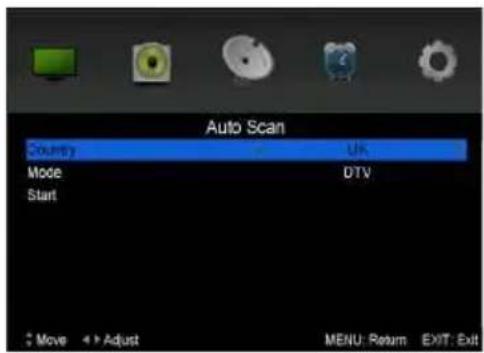
text_image
Auto Scan Country UK Mode DTV Start Move Adjust MENU: Return EXIT: Exit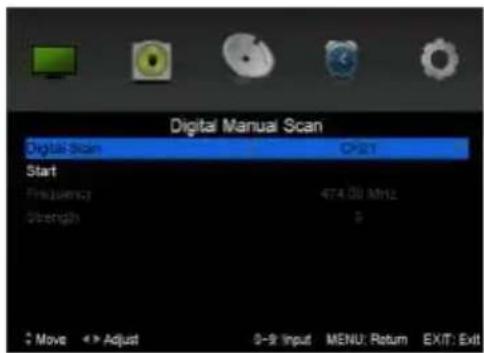
text_image
Digital Manual Scan Digital Scan Start Frequency Strength 474.00 MHz 9 Move ▶▶ Adjust 0-9 Input MENU: Return EXIT: Exit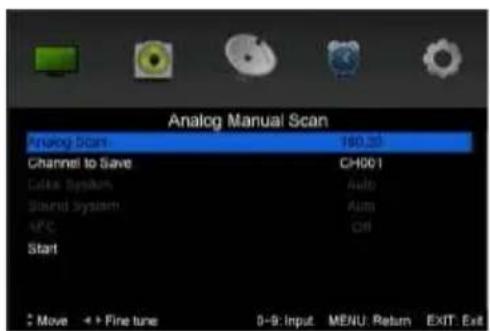
text_image
Analog Manual Scan Analog Scan 160.20 Channel to Save CH001 Color System Auto Sound System Auto AFC Ctrl Start Move + Fine tune 0-9: Input.MENU Return EXIT ExitMenus (Cont.)
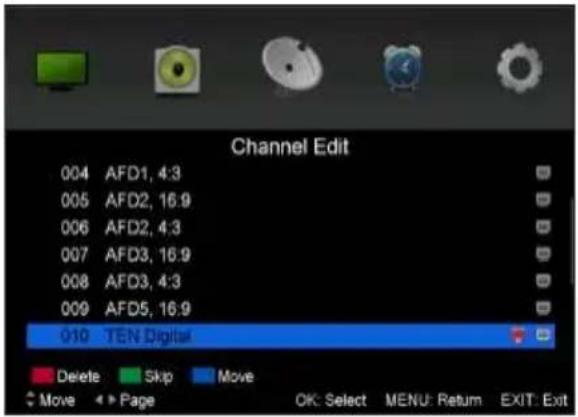
Channel Edit
- Press OK or to enter.
- Press the ▲ /▼ button to highlight the desired channel.
- Press the RED button on the remote control to delete the highlighted channel.
- Press the GREEN button on the remote control to skip the highlighted channel.
- Press the BLUE button on the remote control to enter Move mode.
Use the ▲/▼buttons to select the preferred position, then press the BLUE button again to move the channel.
text_image
Channel Edit 004 AFD1, 4:3 005 AFD2, 16:9 006 AFD2, 4:3 007 AFD3, 16:9 008 AFD3, 4:3 009 AFD5, 16:9 010 TEN Digital Delete Skip Move Move Page OK: Select MENU: Return EXIT: ExitSignal Information
This item is used to display signal details, such as Channel Number, Frequency, Quality and Strength.
Menus (Cont.)
Lock menu (DTV & ATV mode)
text_image
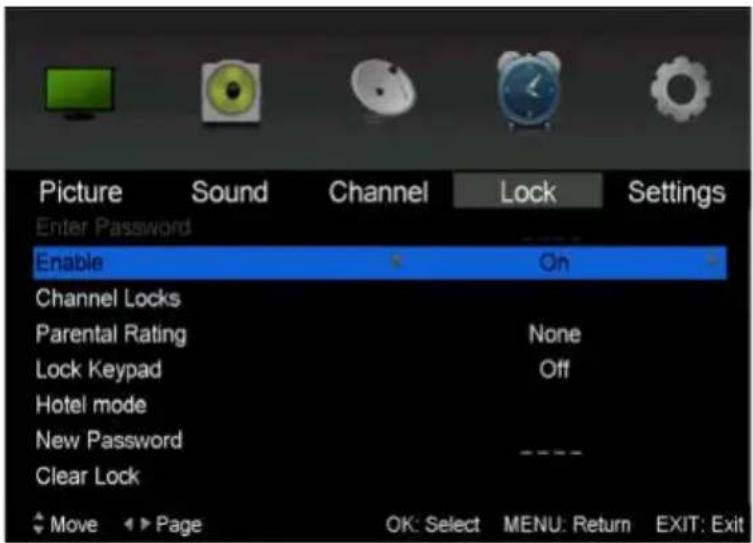
Picture Sound Channel Lock Settings Enter Password Enable On Channel Locks Parental Rating None Lock Keypad Off Hotel mode New Password Clear Lock Move Page OK: Select MENU: Return EXIT: Exit- Press OK or to enter.
- Input the factory default password "0000" using the number buttons on the remote control.
- Press the▲ /▼ button to select the preferred item.
NOTE: If you forget the password, please use the master password "4711".
Enable
- Use this item to enable/disable the lock system.
Channel Locks
- Press OK or▶ to enter.
- Press the ▲ /▼ button to select the channel you want to lock.
- Press OK repeatedly to lock/unlock the highlighted channel.
Parental Rating
- Use this item to select the desired program rating. Available options: No Block, Block G+, Block PG+, Block M+, Block MA+, Block AV+, Block R+, Block All+.
Lock Keyboard
- Use this item to turn on/off the key lock on this unit.
Menus (Cont.)
Hotel Mode
- Press OK or to enter.
- Press the▲/▼button to select the desired item.
- Press the◀/▶button to adjust the value.
- Press OK or to enter the submenu.
- Press the MENU button to return to the previous page.
text_image
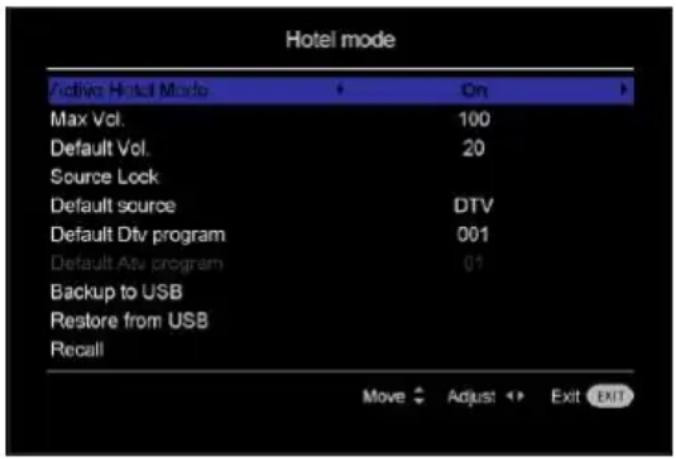
Hotel mode Active Hotel Mode On Max Vol. 100 Default Vol. 20 Source Lock Default source DTV Default Dtv program 001 Default Atv program 01 Backup to USB Restore from USB Recall Move Adjust Exit EXITActive Hotel Mode: Turn on/off Hotel Mode.
Max Vol.: Set the maximum volume level.
Default Vol.: Set the default volume level.
Source Lock: Turn on/off the lock of available sources.
Default source: Set the default source.
Default DTV program: Set the default digital program.
Default ATV program: Set the default analog program.
Backup to USB: Backup the data to USB memory device.
Restore from USB: Restore data from USB memory device and then your TV will switch to STANDBY mode.
Recall: Recall the default settings of Hotel Mode.
New Password
- Input your new password using the number buttons on the remote control and confirm it again to set your private password.
Clear Lock
- Use this item to clear your current lock settings.
Menus (Cont.)
Setup menu (DTV & ATV mode)
text_image
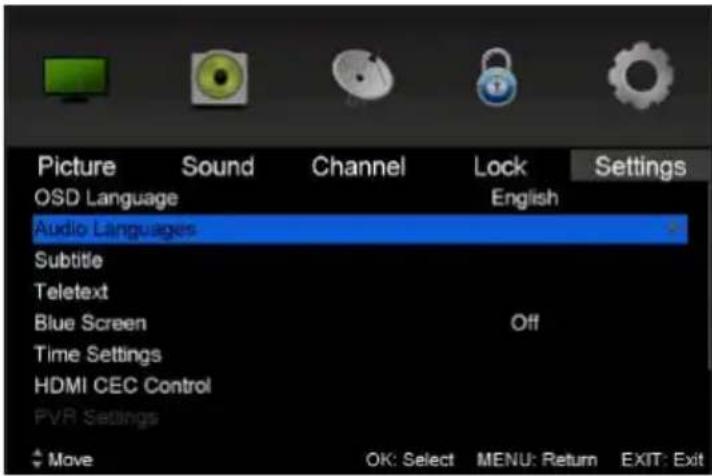
Picture Sound Channel Lock Settings OSD Language English Audio Languages Subtitle Teletext Blue Screen Off Time Settings HDMI CEC Control PVR Settings Move OK: Select MENU: Return EXIT: ExitOSD Language
- Use this item to select the desired on-screen display language.
Audio Languages
- Press OK or ▶ to enter. Then you can select the desired primary and secondary audio language (only adjustable if there is a signal).
Subtitle
- Press OK or ▶ to enter. Then you can select the desired primary and secondary subtitle language and turn on/off the Hearing Impaired function when this mode is on (only adjustable if there is a signal).
Teletext
- Press OK or ▶ to enter. Then you can select the desired digital Teletext language and decoding page language. (See the note on page iii for more information about Teletext in Australia.)
Blue Screen
- Turn on/off blue screen
Time Settings
- Press OK or to enter.
-
Press the ▲ / ▼ button to select the desired item.
-
Press the◀/▶button to adjust the value.
OSDTime:This item is used to select desired OSD menu duration.
Available options: Off, 10/20/30/60 seconds.
Sleep Timer: This item is used to adjust the Sleep Timer.
Available options: Off, 5/15/30/60/90/120/240 minutes.
Menus (Cont.)
AutoSleep: This item is used to select desired Auto Sleep (standby) duration. Available options: Off, 3/4/5 hours.
Time Zone: This item is used to select desired time zone.
Time: Press OK or ▶ to enter it.
Press the ▲ / ▼ button to select the desired item.
Press the ◀/ ▶button to adjust the value.
text_image
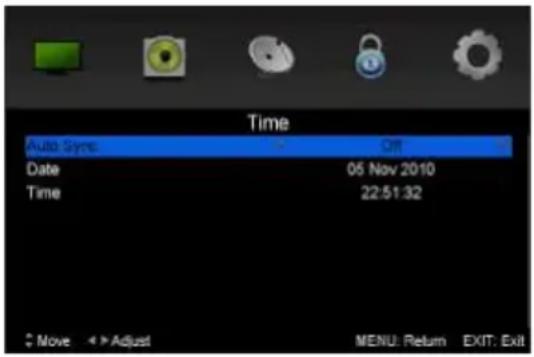
Time Auto Sync Date 05 Nov 2010 Time 22:51:32 Move Adjust MENU: Return EXIT: ExitAuto Sync: Synchronise the time with your channel if Auto Sync is on. And when Auto Sync is off, you can adjust the Date and Time.
Power On Timer: Turn the auto power on timer on or off. You can adjust the Time, Power On Source, Power On Channel when this timer is on.
Power Off Timer: Turn the auto power off timer on or off. You can adjust the Time when this timer is on.
To adjust the date and (or) time:
- Highlight the date and (or) time and press OK to enter the adjusting page.
- Press the ▲ / ▼ button to adjust it.
- Press OK to confirm the setting; press EXIT to cancel it.
HDMI CEC Control
- To use the HDMI CEC function, make sure the HDMI device (amplifier, etc.) is connected correctly.
- Press the SOURCE button on the unit or remote control to select HDMI input source.
HDMI CEC Control: This item is used to turn on/off HDMI CEC (Consumer Electronic Control).
ARC: This item is used to turn on/off Audio Return Channel. When ARC is on, the TV can return the audio to the connected HDMI device (amplifier, etc.).
Menus (Cont.)

text_image
HDMI CEC Control HDMI CEC Control On ARC Off CEC Menu Control Device List Move OK: Select MENU: Return EXIT: ExitCEC Menu Control: Press OK or ▶ to enter it.
• Home menu: Display the Home menu of the connected CEC device.
- Option: Display the Option menu of the connected CEC device.
- Content: Display the Content menu of the connected CEC device.
Device List: This item is used to display the available device that connected.
Menus (Cont.)
PVR Settings
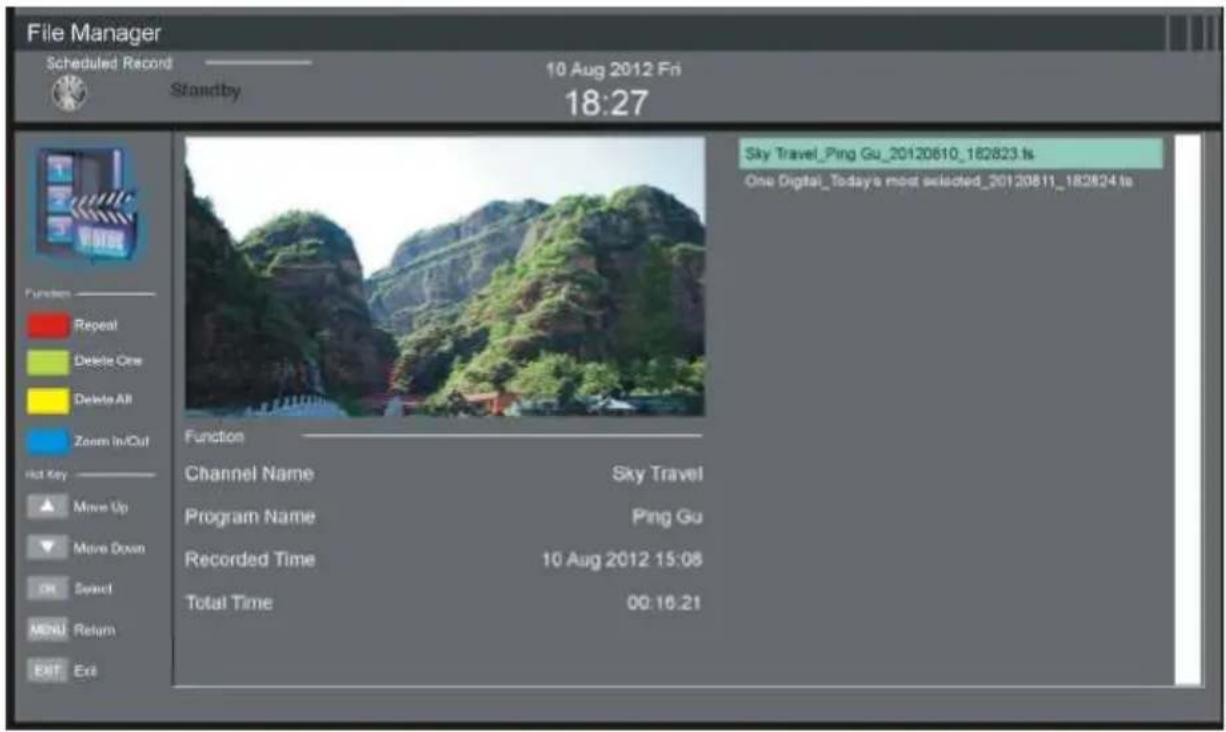
File Manager
- Press the ▲ ✗ button to select a recorded file.
- Press the RED button on the remote control to play the highlighted file from the beginning.
- Press the GREEN button to delete the highlighted file.
- Press the YELLOW button to delete all recorded files.
- Press the BLUE button to zoom in/out.
text_image
File Manager Scheduled Record 10 Aug 2012 Fri Standby 18:27 Function Repeat Delete One Delete All Zoom In/Cut Hot Key Move Up Move Down OK Select MENU Return EXIT End Function Channel Name Sky Travel Program Name Ping Gu Recorded Time 10 Aug 2012 15:06 Total Time 00:16:21 Sky Travel_Ping Gu_20120610_182823.ts One Digital_Today's most selected_20120811_182824.tsDevice List
- In this item you can check the available space and file system of your memory device connected to USB port.
- Press the RED button on the remote control to format your USB memory device.

text_image
Device List Device Available Space File System LPG1 2216 MD PATTM Periton Format Hot Key Move Up Move Down OK Select MENU Return EXIT ExitMenus (Cont.)
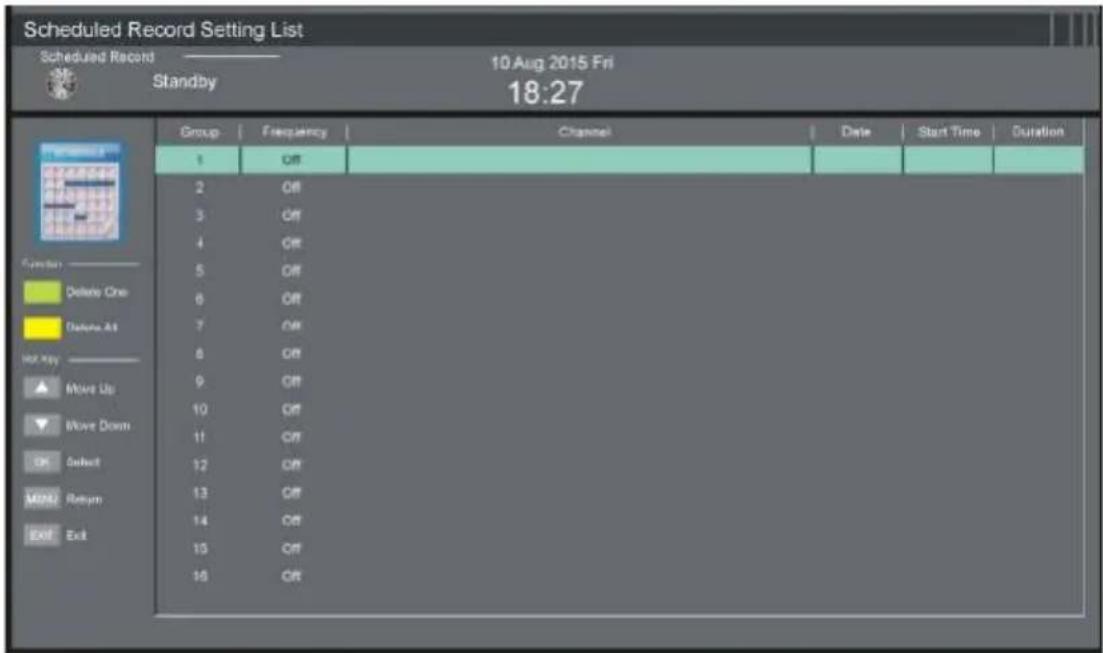
Scheduled Record
text_image
Scheduled Record Setting List Scheduled Record ———— 10 Aug 2015 Fri Standby 18:27 Group | Frequency | Channel | Date | Start Time | Duration | 1 | Off | 2 | Off | 3 | Off | 4 | Off | 5 | Off | 6 | Off | 7 | Off | 8 | Off | 9 | Off | 10 | Off | 11 | Off | 12 | Off | 13 | Off | 14 | Off | 15 | Off | 16 | Off- Press the GREEN button to delete the highlighted option.
- Press the YELLOW button to delete all.
- Press the ▲ /▼ button to select a schedule.
- Press OK to edit the highlighted Scheduled Recording.
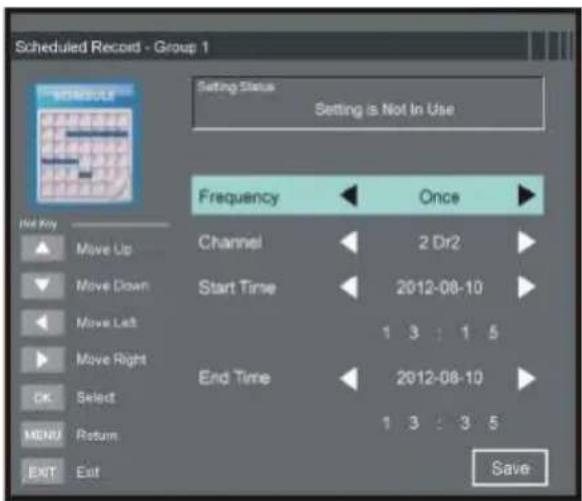
Frequency: Press the ◀/▶ buttons to select the desired mode: Off, Once, Daily, Weekly, Weekday.
Channel: Press the ◀/▶buttons to select the desired channel.
Start Time: Press the ▲/▼/ ↕▶ buttons to select the desired start date and time of the recording.
End Time: Press the ▲/▼/◄► buttons to select desired end date and time of your scheduled recording.
text_image
Scheduled Record - Group 1 Setting Status Setting is Not In Use Frequency Once Channel 2 Dr2 Start Time 2012-08-10 1 3 : 1 5 End Time 2012-08-10 1 3 : 3 5 SaveNOTE: After successful completion, select "Save" to save the settings.
First Time Setup
This item is used to recall the First Time Setup page (see page 14 for details).
Reset
This item is used to reset to factory default settings.
Software Update (USB)
This item is used to update software through USB memory device.
Menus (Cont.)
PC Mode
- Connect a personal computer to this unit and power on both the computer and this unit.
- Press the SOURCE button on the back panel, or on the remote control, to select PC input source.
- Press the MENU button to display the main menu, then select Picture using the ▶/ ▶buttons.
- Use the ▲/▼ buttons to highlight PC Setting, then press OK or ▶ to enter.
- Press the ▲ /▼ buttons to select the preferred item.
- Press OK or ▶ to enter the submenu, press the ◀/▶ buttons to adjust the value.

text_image
PC Setting Auto Adjust H Position 0 V Position 0 Phase 0 Clock 0 Move OK: Select MENU: Return EXIT: ExitAuto Adjust
Use this item to adjust the PC screen automatically.
H Position
Use this item to adjust the horizontal position value from -30 to 30.
V Position
Use this item to adjust the vertical position value from -30 to 30.
Phase
Use this item to adjust the phase value from 0 to 31.
Clock
Use this item to adjust the signal transfer speed from -30 to +30.
NOTE: For other menu operations in PC mode, please refer to the menu operations of DTV mode.
NOTE: A signal must be connected in order to change these settings.
FAQs
If you experience any problems with your TV, check the list below and take any necessary steps before calling for service. If none of the solutions help you solve the problem, turn the power off and contact the after sales support line for advice.
General problems with the TV set
| Problem Solution | |
| No power. Insert the power plug securely into the power outlet. | |
| No picture. Ensure that the equipment is connected properly.Adjust the antenna or use an external antenna.Relocate the unit near a window (if inside a building).Move the TV set away from any product that causes interference.Auto-tune the unit again.Try another channel. | |
| No sound or distorted sound. | Ensure that the equipment is connected properly.Ensure that the input setting for the TV is correct.Ensure the audio settings are properly set.Ensure the volume is not muted. If it is, press the MUTE button to restore the sound.If earphones are connected, unplug them.Adjust the volume to a suitable level by pressing the VOL+/VOL- button. |
| No operations can be performed with the remote control unit. | Check the batteries are correctly installed.The batteries may be exhausted: replace them.Make sure to point the remote control at the remote control sensor and try it again.Make sure to use the remote control at a distance of no more than 6m from the sensor.Remove any obstacles between the remote control and remote control sensor. |
| No key operation (by the main unit and/or the remote control) is effective. | Disconnect the power plug and then reconnect it. (The unit may not be operating properly due to lightning, static electricity or some other factors.) |
| Noise or other interface | Electronic equipment near the unit is causing interface.Relocate the unit or move the equipment. |
Problems relating to the USB device
| Problem Solution | |
| My TV does not recognise my USB device or my external hard disk. | Please refer first to the instructions describing how to use USB devices with this unit.If the problem still occurs, your device may not be compatible. This machine has been tested with the majority of Flash memory-based devices and hard disks (Music/Movie players with HDD) on the market; however, it may not be compatible with certain devices, in particular external self-powered hard disks. |
Specifications
| Display Device | VZ435100 43” (108cm) FHD LED TVDisplay area: 853.92 (H)x 480.33V( |
| ResolutionH | 1920 x 1080 |
| Pixel Pitch | 0.4902 (H) x 0.4902 (V) |
| Luminance | 250 cd/m2 |
| Contrast Ratio | 1200 : 1 |
| Aspect Ratio | 16 : 9 |
| Response Time | 8ms |
| Viewing Angle ±85° max. | |
| Multimedia PlaybackFormat under TV Mode | avi, mpeg, mpeg 4, ts, mkv, flv, vc-1/wmv9, rmvb |
| Operating temperature | 5°C - 35°C |
| Power Source 100 - 240V~, 50/60Hz | |
| Power Consumption | 85 W |
| Dimensions (mm) | Unit: 965.3 x 618.9 x 208.7 (with stand) |
| Boxed: 1065 x 655 x 160 | |
| Weight | 10.6 kg (with box) |
| 8.0 kg | |
Warranty
PRODUCT WARRANTY: IMPORTANT INFORMATION PLEASE READ CAREFULLY:
If your product is faulty or you are experiencing difficulties using this product and require assistance please call our customer assistance helpline as listed below:
Customer service helplines: 1300 886 649 (calling within Australia 8:30am - 5pm) 0800 836 761 (calling within NZ - 9am - 7pm) Open Monday to Friday except on public holidays.
Distributed by: Tempo (Aust) Pty Ltd PO Box 6056 Frenchs Forest DC 2086 Australia Info@tempo.org
This product has been manufactured to the highest quality standards. This product is warranted to the original purchaser or gift recipient and is not transferable.
Warranty
The p roduct is guaranteed to be free from defects i n w orkmanship and p arts for a period of 24 months from the d ate o f p urchase. Defects that occur w ithin t his w arranty p eriod, under n ormal use a nd care will be repaired, replaced or refunded with no charge for p arts or labour.
The benefits conferred by this warranty are in addition to all other rights and remedies of the consumer under a Commonwealth, state and territory laws in relation to the goods or services to which this warranty relates.
Our goods come with guarantees that cannot be excluded under the Australian Consumer Law (Schedule 2 of the Competition and Consumer A & 2010 (Cth)). You are entitled to a replacement or refund for a major failure and compensation for any other reasonably foreseeable loss or damage. You are also entitled to have the goods repaired or replaced if the goods fail to be of acceptable quality and the failure does not amount to a major failure. If you require further information on the Australian Consumer Law, please visit the Australian Consumer Law website at http://www.consumerlaw.gov.au.
Goods presented for repair may be replaced by refurbished goods of the same type rather than being repaired. Refurbished parts may be used to repair the goods.
Proof of Purchase
This warranty is valid of the original purchase only and is not transferable. Please keep your purchase docket or receipt as proof of purchase and as proof of the date on which the purchase was made. The purchase docket or receipt must be presented with the warranty when making a claim under this warranty.
Servie during the warranty period
The first point of contact for ALL product issues is the Tempo (Aust) Pty Ltd After
Sales Support Centre Ph: 1300 886 649 (AUS) 0800 836 761 (NZ). Customer must
NOT take any product back to the store unless they have obtained a Return Authorisation (RA) number from our After Sales Support Team
Warranty
The product can be personally returned to the original place of purchase for product repair, replacement or refund. Please ensure the product is properly packaged so as to ensure, that no damage occurs to the product during transit. Also make sure that you have included an explanation of the problem.
In the event of goods requiring repair under warranty, the owner is responsible for the cost of transportation. The product will be at owner's risk whilst in transit to or from the Tempo or Authorised Service Centres. Should the goods be found to be in sound working order the owner might be charged a fee.
☐ In the event of repair under warranty on goods more than 30km away from the place of purchase, additional travel costs will be billed to the owner.
ExtentofWarranty
This warranty is limited to defects in workmanship or parts. All defective products or parts will be repaired, replaced or refunded. This warranty does not extend to accessories not supplied with the product or by Tempo. This warranty does not cover manuals and packaging. This warranty does not cover batteries or any other consumable item.
Normal Wear and Tear
This warranty does not cover normal wear and tear of the products or parts.
Exclusions
This warranty does not cover:
☐ Any defect caused by an accident, misuse, abuse, improper installation or operation, lack of reasonable care, unauthorised modification, loss of parts, tampering or attempted repair by a person not authorised by the distributor.
□ Any product that has been damaged by a lightning strike either directly or indirectly or a main's power surge or liquid ingress.
Any product that has not been installed, operated or maintained in accordance with the manufacturer's operating instructions provided with the product.
☐ Any product that has been used for purposes other than domestic use.
☐ If the product is located outside Australia.
☐ Any damage caused by improper matching of amplifier, improper power input or improper cable connection.