L26HR1U - Television HITACHI - Free user manual and instructions
Find the device manual for free L26HR1U HITACHI in PDF.


| Product Type | LCD Television |
| Brand | Hitachi |
| Model | L26HR1U |
| Screen Size | 26 inches (66 cm) |
| Resolution | 1366 x 768 pixels (HD Ready) |
| Aspect Ratio | 16:9 |
| Refresh Rate | 50 Hz / 60 Hz |
| Contrast Ratio | 1000:1 (typical) |
| Brightness | 300 cd/m² |
| Viewing Angle | 178° horizontal / 178° vertical |
| Tuner | Analog & DVB-T |
| Connectivity | 2x HDMI, 1x SCART, 1x Component, 1x Composite, 1x USB, 1x VGA, 1x RF In, Audio Out |
| Audio Output | 2 x 10W speakers |
| Power Consumption | Max 120W, Standby < 1W |
| Power Supply | AC 220-240V, 50Hz |
| Dimensions (with stand) | 660 x 490 x 220 mm |
| Dimensions (without stand) | 660 x 440 x 90 mm |
| Weight (with stand) | 7.5 kg |
| Weight (without stand) | 6.5 kg |
| VESA Mount | 200 x 200 mm |
| Energy Class | A |
| Remote Control | Included (model RP-....) |
| Manual Languages | English, French, German, Italian, Spanish |
Frequently Asked Questions - L26HR1U HITACHI
User questions about L26HR1U HITACHI
0 question about this device. Answer the ones you know or ask your own.
Ask a new question about this device
Download the instructions for your Television in PDF format for free! Find your manual L26HR1U - HITACHI and take your electronic device back in hand. On this page are published all the documents necessary for the use of your device. L26HR1U by HITACHI.
USER MANUAL L26HR1U HITACHI
Safety Precautions 3
Features 6
Accessories ....
LCD TV Front View 7
Rear View and Peripheral Connections ..... 7
Remote Control Buttons 8
Preparation 9
Before Switching On Your TV 9
Power Connection 9
Connections To The Aerial Input Socket 9
Inserting Batteries In The Remote Control
Handset 9
Handling the Remote Control 9
Operating Range for the Remote Control ..... 9
Switching The TV ON/OFF 10
Navigating the Menu System 10
Initial Settings 10
Basic Operations 11
Operation with the buttons on the TV 11
Volume Setting 11
Programme Selection 11
Entering Main Menu 11
AV Mode 11
Operation with Remote Control 11
Volume Setting 11
Programme Selection (Previous or next programme) 11
Programme Selection (direct access) ..... 11
Everyday Operation 12
Information Banner 12
Electronic Programme Guide (EPG) 12
Displaying The Subtitles 13
Digital Teletext 13
Over Air Download 13
Widescreen 13
IDTV Menu System 14
Channel List 14
Navigating the whole channel list 14
Deleting the channels in the channel list ..... 14
Renaming channels 14
Adding locks to channels 15
Setting Favourites 15
On Screen Help Pressing INFO Button ..... 15
Installation 16
Automatic Search 16
Manual Search 16
Configuration 17
Audio Language 17
Subtitle 17
Favourite mode 17
EPG Preference 17
Receiver Upgrade 17
Automatic Download (Automatic upgrade) . 18
Search For New Version (Manual upgrade)18
Parental Settings 18
Timers 18
Recording From IDTV 19
Language 19
TV Setup 20
Common Interface 20
Analogue TV Menu System 21
Picture Menu 21
Mode 21
Contrast/Brightness/Sharpness/Colour/Hue21
Colour Temp 21
Noise Reduction 21
Film Mode 21
3D Comb 21
Picture Zoom 21
Reset 21
Store 21
Sound Menu 21
Volume 21
Equalizer 21
Balance 22
Headphone 22
volume 22
sound mode 22
balance 22
Sound Mode 22
AVL 22
Effect 22
Dynamic Bass 22
Subwoofer 22
3DS 22
Store 22
Feature Menu 23
PIP 23
PIP ON-OFF 23
PIP Picture 23
PIP Position 23
PIP Source 23
PIP SWAP 23
PAP 23
PAP ON-OFF 23
PAP Picture 23
PAP Source 24
PAP SWAP 24
Sleep Timer 24
Child Lock 24
Language 24
AV-2 Out 24
PC Audio In 24
Blue Background 24
Menu Background 24
Menu Timeout 24
Teletext Language 24
Default Zoom 24
Install Menu 24
Program Table 25
Name 25
Insert 25
Delete 25
APS (Auto Programming System) 25
A.P.S. (Auto Programming System) Country25
Program 25
Band 26
Channel 26
Colour System 26
Sound System 26
Fine Tune 26
Search 26
Store 26
Install menu in AV modes 26
Colour System 26
VCR 26
Store 26
Source menu 26
PC Mode 27
Installation 27
Menu System in PC mode 27
Sound Menu/Feature Menu 27
PC Picture Menu 27
PC POSITION Menu 27
Autoposition 27
H (Horizontal) Position 27
V (Vertical) Position 27
Phase 27
Dot Clock 27
Sound in PC mode 27
Other Features 28
TV Status 28
Mute Indicator 28
PIP and PAP Modes 28
AV Modes 28
Zoom Modes 28
Auto 28
Zoom 28
Cinema 28
16:9 Zoom 28
Subtitle 29
4:3 29
14:9 Zoom 29
Panoramic 29
Freeze Picture 29
Teletext 29
Connect Peripheral Equipment 30
High Definition 30
Via The Scart 30
Via Aerial Input 30
Decoder 30
Connect a decoder with an aerial socket to the TV 30
Connect a decoder without an aerial socket to the TV 30
TV And Video Recorder 30
Playback NTSC 30
Camera And Camcorder 30
To Connect To AV Input 30
To Connect To S-VHS Input 30
Connect The Decoder To The Video Recorder 30
Connecting Headphones (optional) 30
Audio Lineout 30
Connecting Subwoofer 30
Tips 31
Care Of The Screen 31
Poor Picture 31
No Picture 31
Sound 31
Remote Control 31
Peripheral Equipment Connections 32
Aerial Connection 32
Specifications 33
S-input connector pin specifications 35
HDMI connector pin specifications 35
SCART connector pin specifications 35
Signal Input 35
PC RGB Terminal (D-sub 15-pin connector) .... 35
Appendix A: PC Input Typical
Display Modes 36
Appendix B: Main and PIP-PAP Picture
Combinations 37
UK Guarantee 38
Safety Precautions
Please read the following recommended safety precautions carefully for your safety.
IMPORTANT SAFETY INFORMATION ON OPERATING YOUR TV
Do's and Don'ts
DO's
This Television has been designed and manufactured to meet international safety standards, but like any electrical equipment, care must be taken if you are to obtain the best results and safety is to be assured.
DO read the operating instructions before you attempt to use the equipment.
DO consult your dealer if you are in any doubt about installation, operation or safety of your equipment.
DO be careful with glass panels or doors on equipment.
This TV is supplied with a fitted mains plug. This plug must not be cut off as it may contain a special radio interference filter, the removal of which could lead to impaired performance. If you wish to extend the lead, obtain an appropriate safety approved extension lead or consult your dealer.
Observe the manufacturers instructions when connecting extension leads to the TV. Check the fuse rating on the new plug, this should be fitted with a 5 Amp fuse which conforms to either ASTA or BSI (BS1 362) approvals, these are easily identifiable by either the A\$A or symbols. If
you are in any doubt about the installation of an extension lead, please consult a competent electrician.
DON'Ts
DON'T continue to operate the equipment if you are in any doubt about it working normally, or if it is damaged in any way switch off, withdraw the mains plug and consult your dealer.
DON'T place water filled vessels on top of T.V. cabinets.
DON'T remove any fixed cover as this may expose dangerous voltages.
DON'T leave equipment switched on when it is unattended unless it is specifically stated that it is designed for unattended operation or has a stand-by mode. Switch off using the switch on the equipment and make sure your family know how to do this. Special arrangements may need to be made for infirm or handicapped people.
DON'T use equipment such as personal stereos or radios so that you are distracted from the requirements of traffic safety. It is illegal to watch television whilst driving.
DON'T obstruct the ventilation of the equipment, for example with curtains or soft furnishings. Overheating will cause damage and shorten the life of the equipment.
DON'T use makeshift stands and NEVER fix legs or stands to the TV with any screws other than those provided - to ensure complete safety always use the manufacturers approved stand with the fixings provided.
DON'T allow electrical equipment to be exposed to rain or moisture.
ABOVE ALL
- NEVER let anyone, especially children push anything into holes, slots or any other opening in the case - this could result in a fatal electric shock.
- NEVER guess or take chances with electrical equipment of any kind - it is better to be safe than sorry!
PE Connection to mains
Be sure to ground the connection properly. Connect the ground terminal of TV with the ground terminal provided at the power outlet using the enclosed power cord. If the provided plug does not fit your outlet, consult an electrician for replacement of the obsolete outlet.

- Surely connect the ground wire.
1. Power Source
The TV set should be operated only from a 220-240 V AC, 50 Hz outlet. Ensure that you select the correct voltage setting for your convenience.
2.Power Cord
Do not place the set, a piece of furniture, etc. on the power cord (mains lead) or pinch the cord. Handle the power cord by the plug. Do not pull out the plug by tugging the cord and never touch the power cord when your hands are wet as this could cause a short circuit or electric shock. Never make a knot in the cord or tie it with other cords. The power cords should be placed in such a way that they are not likely to be stepped on. A damaged power cord can cause fire or give you an electric shock. When it is damaged and needs to be changed, it should be done by qualified personnel.
3. Moisture and Water
Do not use this equipment in a humid and damp place (avoid the bathroom, the sink in the kitchen, and near the washing machine). Do not expose this equipment to rain or water, as this may be dangerous and do not place objects filled with liquids, such as flower vases, on top. Avoid from dripping or splashing.
If any solid object or liquid falls into the cabinet, unplug the TV and have it checked by qualified personnel before operating it any further.
4.Cleaning
Before cleaning, unplug the TV set from the wall outlet. Do not use liquid or aerosol cleaners. Use soft and dry cloth.
5. Ventilation
The slots and openings on the TV set are intended for ventilation and to ensure reliable operation. To prevent overheating, these openings must not be blocked or covered in anyway.
6. Heat and Flames
The set should not be placed near to naked flames and sources of intense heat, such as an electric heater. Ensure that no naked flame sources, such as lighted candles, are placed on top of the TV. Batteries shall not be exposed to excessive heat such as sunshine, fire or the like.
7. Lightning
In case of storm and lightning or when going on holiday, disconnect the power cord from the wall outlet.
8. Replacement Parts
When replacement parts are required, be sure the service technician has used replacement parts which are specified by the manufacturer or have the same specifications as the original one. Unauthorized substitutions may result in fire, electrical shock, or other hazards.
9. Servicing
Please refer all servicing to qualified personnel. Do not remove the cover yourself as this may result in an electric shock.
10. Waste Disposal
Instructions for waste disposal:
- Packaging and packaging aids are recyclable and should principally be recycled. Packaging materials, such as foil bag, must be kept away from children.
- Battery, including those which are heavy metal-free, should not be disposed of with household waste. Please dispose of used battery in an environmentally sound manner. Find out about the legal regulations which apply in your area.
- Cold cathode fluorescent lamp in LCD PANEL contains a small amount of mercury; please follow local ordinates or regulations for disposal.
Information for users applicable in European Union countries

natural_image
Symbol of a trash bin with crossed lines and a blank rectangular base (no text or labels)This symbol on the product or on its packaging means that your electrical and electronic equipment should be disposed at the end of life separately from your household wastes. There are separate collection systems for recycling in EU.
For more information, please contact the local authority or the dealer where you purchased the product.
11. Disconnect Device
The mains plug is used to disconnect TV set from the mains and therefore it shall remain readily operable.
-
Excessive sound pressure from earphones and headphones can cause hearing loss.
-
To prevent injury, this device must be securely attached to the wall in accordance with the installation instructions when mounted to the wall (if the option is available).

text_image
Diagram illustrating weather and heating restrictions on a computer monitor, with symbols for sun, rain, smoke, fire, and water.14. Connection to a television distribution system (Cable TV etc.) from tuner:
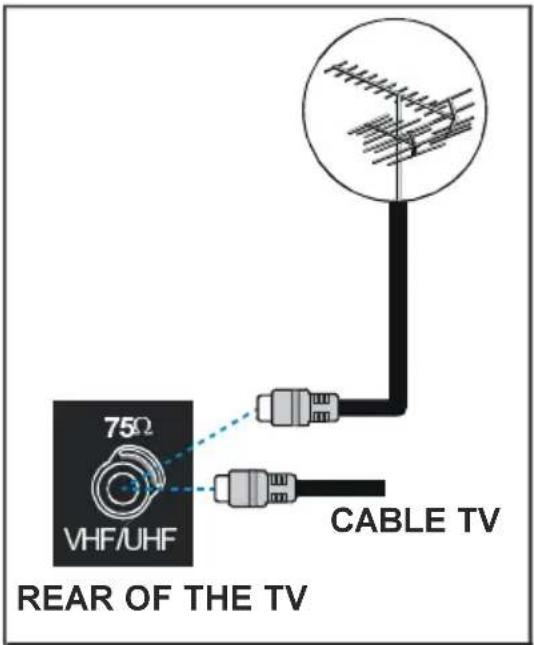
Apparatus connected to the protective earthing of the building installation through the mains connection or through other apparatus with a connection to protective earthing - and to a television distribution system using coaxial cable, may in some circumstances create a fire hazard.
To ground the antenna system properly, be sure that the cable grounding is connected with the building's grounding system. Note that the connection should follow IEC 60364-7-707 and IEC 603646-5-548 standards which require that the grounding should be as close as possible to the cable connection.
text_image
75Ω VHF/UHF REAR OF THE TV CABLE TVFeatures
- Remote controlled colour LCD TV.
• Fully integrated Digital TV (DVB-T)
- 100 programmes from VHF, UHF bands or cable channels can be preset.
- It can tune cable channels.
- Controlling the TV is very easy by its menu driven system.
- It has 2 Scart sockets for external devices (such as video, video games, audio set, etc.)
- Stereo sound system (German+Nicam).
• Full function Teletext (1000 pages).
- Fastext, TOP text.
• Headphone connection.
• A.P.S. (Automatic Programming System).
- All programmes can be named.
- Forward or backward automatic tuning.
- Sleep timer.
- Child Lock.
• Automatic sound mute when no transmission.
- NTSC Playback.
• AV in and S-VIDEO in are available.
- It has two HDMI connectors for Digital Video and Audio. This connection is also designed to accept High Definition signals.
• AVL (Automatic Volume Limiting)
- When no valid signal is detected, after 5 minutes the TV switches itself automatically to stand-by mode.
- PLL (Frequency Search)
- PC Input
- Plug&Play for Windows 9X, ME, Vista, 2000, XP.
- Audio Line Out
Accessories

natural_image
Illustration of a cord with connectors and a bulb (no text or symbols)UK Plug

natural_image
Coiled cable with two connectors (no text or symbols visible)EU Plug

text_image
HIACH HiTACHRemote Controller
CLE-984
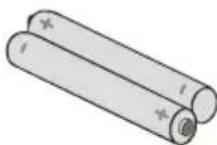
Batteries 2 X AA

natural_image
Open book with a grayscale image of a hand holding a computer (no visible text or symbols)Instruction Book
LCD TV Front View

text_image
FRONT VIEW TV/AV SOURCE SELECT MENU MENU BUTTON P/CH PROGRAMME UP/DOWN VOLUME UP/DOWN STANDBY BUTTON HITACHI Standby LED IR ReceiverRear View and Peripheral Connections
text_image
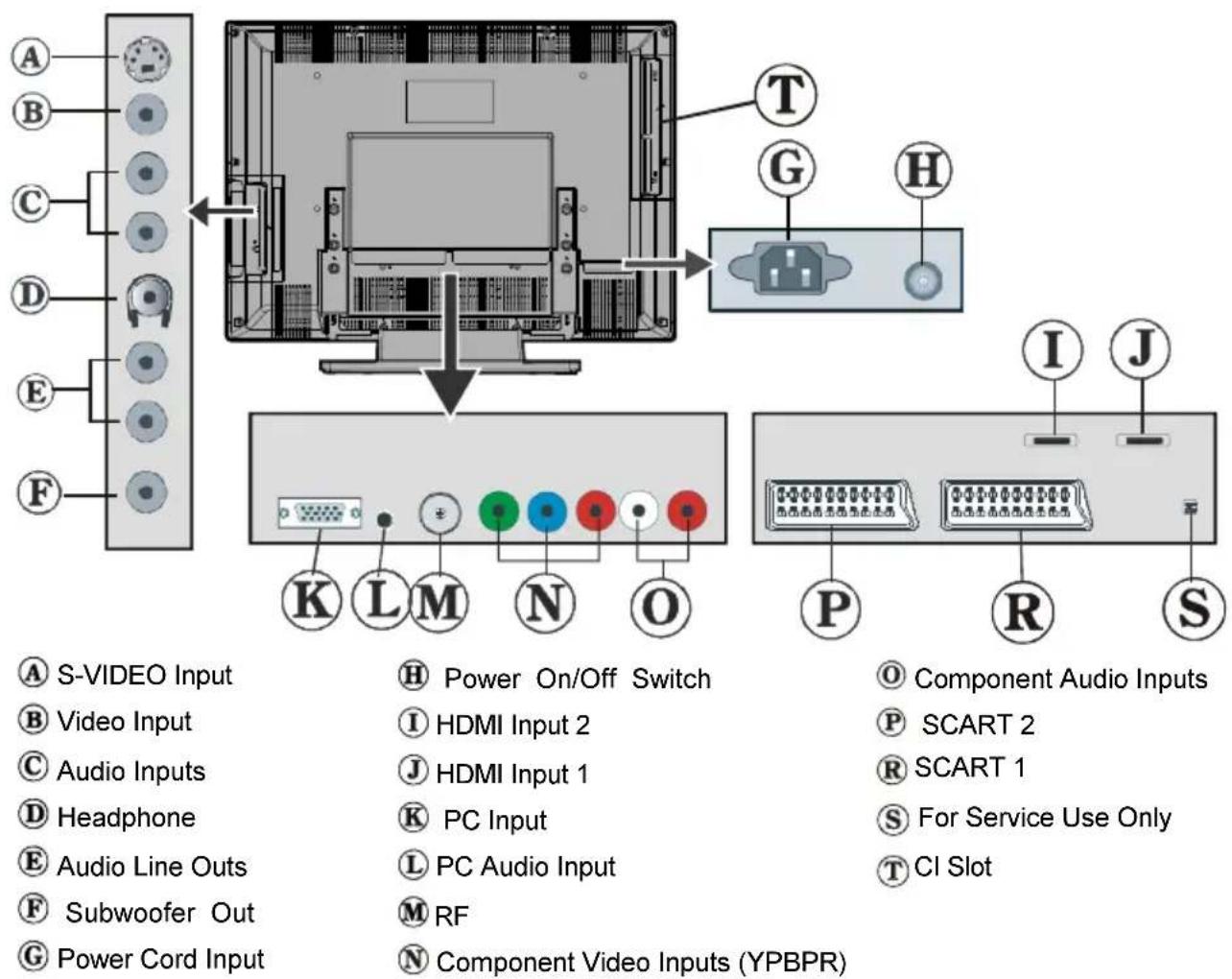
A B C D E F T G H K L M N O I S-VIDEO Input B Video Input C Audio Inputs D Headphone E Audio Line Outs F Subwoofer Out G Power Cord Input H Power On/Off Switch I HDMI Input 2 J HDMI Input 1 K PC Input L PC Audio Input M RF N Component Video Inputs (YPBPR) O Component Audio Inputs P SCART 2 R SCART 1 S For Service Use Only T Cl Slot P R SNote: Because FAV CVBS and SVHS Y are connected parallelly, the picture may blend if the two peripherals are used at the same time. Likewise, because SVHS C and SCART II R are connected parallelly, the picture may blend if the two peripherals are used at the same time. Thus these two are not to be used at the same time.
Remote Control Buttons
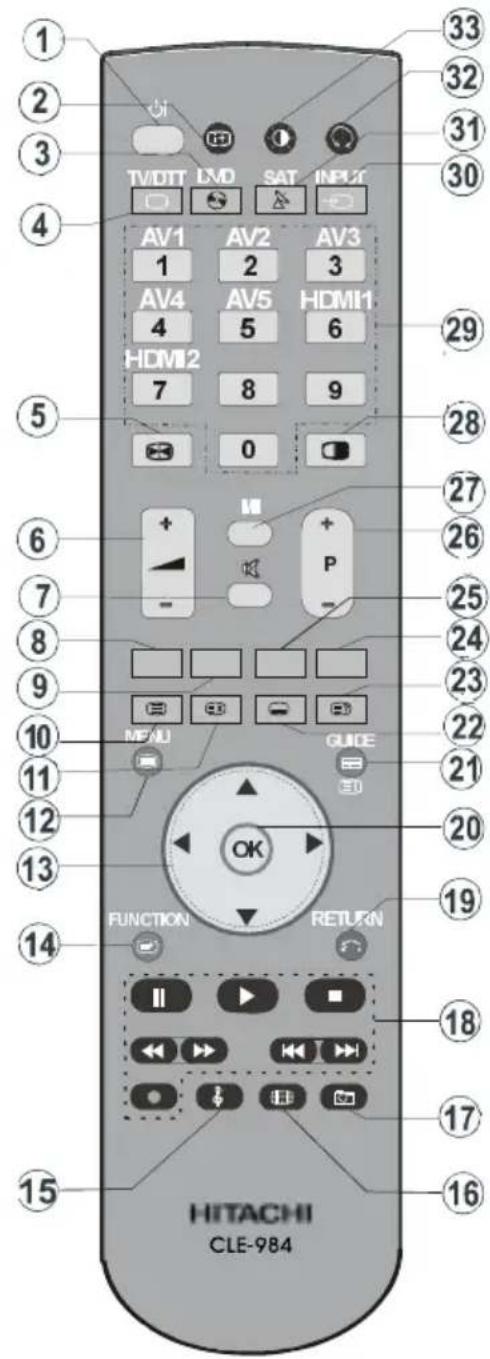
① Stand by On/Off
② = Info
③ DVD = Select DVD
④ TV/DTT = Selector button for Digital/Analogue mode
⑤ Hold in teletext mode, Freeze picture
⑥ = Volume Up/ Down
⑦ = Mute On/Off
⑧ RED
⑨ GREEN
10 = Teletext On-Off
⑪ Update
12 Menu On/Off
⑬ ▼ / ▲ / ◀ / ▶ = Cursor buttons
14 FUNCTION = No function
15 Equalizer Sound Mode
16 Aspect ratio
⑰ No Function
18 Control buttons for DVD players/recorders (**)
⑲ Go back to previous menu
20 OK = Enter
21 / [REDACTED] GUIDE = Index Page / Guide for DTT
22 = Subtitle On/Off in DTV; Subpage in teletext mode.
23 = Reveal
24 BLUE
25 YELLOW
26 P+/- = Programme Up/ Down
27 = Mono/Stereo - Dual A-B
28 = PIP, PAP On-Off / PAT
29 0 - 9 = Digit buttons
30 INPUT = INPUT
31 SAT = Select SAT
text_image
1 2 3 4 5 6 7 8 9 10 11 12 13 14 15 33 32 31 30 TVDIT LVD SAT INPUT AV1 AV2 AV3 1 2 3 AV4 AV5 HDMI1 4 5 6 HDMI2 7 8 9 0 + - P MENU GUIDE OK FUNCTION RETURN 18 17 16 HITACHI CLE-98432 = No function
33 = Picture mode
Preparation
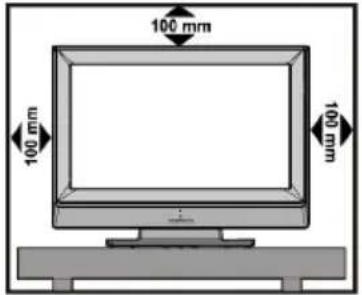
For ventilation, leave a space of at least 10 cm free all around the set. To prevent any fault and unsafe situations, please do not place any objects on top of the set.
Use this apparatus in moderate climates.
text_image
100 mm 100 mm 100 mmBefore Switching On Your TV
Power Connection
IMPORTANT: The TV set is designed to operate on 220-240V AC, 50 Hz.
• After unpacking, allow the TV set to reach the ambient room temperature before you connect the set to the mains.
Connections To The Aerial Input Socket
- Connect the aerial or cable TV plug to the Aerial input socket located at the rear of the TV and connect the cable plug coming out from the TV out socket located on the devices (VCR, DVB etc.) to this socket as well.
Inserting Batteries In The Remote Control Handset
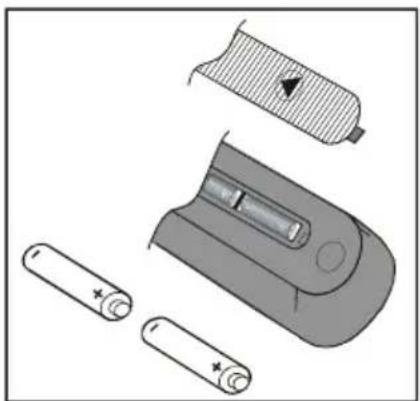
WARNING : Remote control is battery included. A plastic protector is used to disconnect the batteries in order to prevent the battery life from reducing. Please remove the plastic protector before the first use.
- Remove the battery cover located on the back of the handset by gently pulling backwards from the indicated part.
- Insert two AA/R6 or equivalent type batteries inside. Place the batteries in the right directions and replace the battery cover.
natural_image
Illustration of battery components including a cylindrical device, a slot, and two batteries with plus signs (no text or symbols)Note: Remove the battery from remote control handset when it is not to be used for a long period. Otherwise it can be damaged due to any leakage of battery.
Handling the Remote Control
- It could cause corrosion or battery leakage and may result in physical injury and/or property damage including fire.
- Never mix used and new batteries in the device.
- Replace all the batteries in a device at the same time.
- Remove the batteries if the remote control is not going to be used for an extended period of time.
- To avoid possible failure, read the following instructions and handle the remote control properly.
- Do not drop or cause impact to the remote control.
- Do not spill water or any liquid on the remote control.
- Do not place the remote control on a wet object.
- Do not place the remote control under the direct sunlight or near sources of excessive heat.
Note: Remove the battery from remote control handset when it is not to be used for a long period. Otherwise it can be damaged due to any leakage of battery.
Operating Range for the Remote Control
- Point the top of the remote control toward the LCD TV's remote sensor LED while pressing a button.

text_image
30° 30°Remote Control range is approx 7m/23ft.
Switching The TV ON/OFF
To switch the TV on
Your TV will switch on in two steps:
1- Connect the power cord to the system. Press Power On/Off switch. Then the TV switches itself to stand-by mode (optional).
2- To switch on the TV from stand-by mode either:
Press a digit button on the remote control so that a programme number is selected, or Press the "-P/CH" or "P/CH+" button on the TV or press the P+ or P-button on the remote control, so that last mode switched off is selected.
By either method the TV will switch on.
To switch the TV off
- Press the “(stand-by)” button on the remote control or On/Off switch on the TV, so the TV will switch to stand-by mode.
To power down the TV completely, press On/Off switch
or,
Unplug the power cord from the mains socket.
Navigating the Menu System
text_image
For Displaying Menu Options MENU GUIDE #1 For Navigation OK FUNCTION RETURN To Confirm Choices1- Press to display the menu.
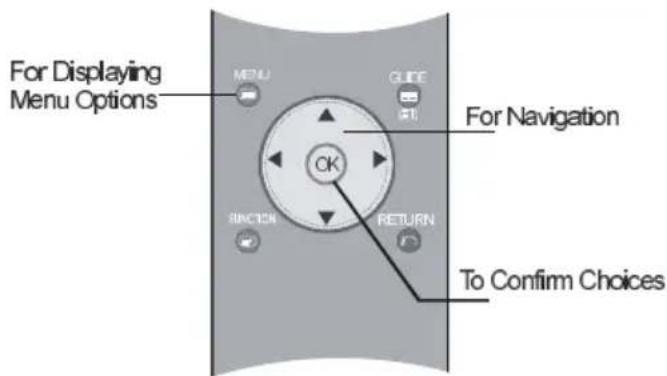
2- Press ◀ / ▶ button to select an icon.
3- Use ▲ / ▼ button to highlight. Press ▶ for more options in analogue TV mode. Use OK in DTV mode for viewing a submenu.
4- Press ◀/▶ buttons to change the settings. Press OK to set as default.
5- To exit the menu or return from sub-menu screen,
press
These explanations are available for the navigation of the whole menu system. To select options that are explained in the following parts, refer to "Navigating The Menu System".
Initial Settings
When the TV is turned on for the first time, it is in the digital mode.
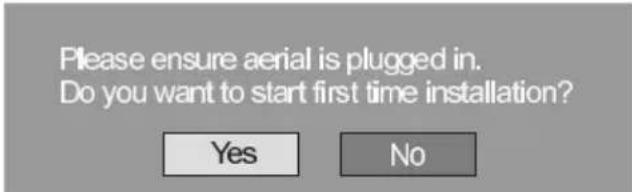
Because this is the first time the TV is used, there are no channels stored in the memory and the following message appears on the screen.
text_image
Please ensure aerial is plugged in. Do you want to start first time installation? Yes No- To start installation process, select Yes, to cancel select No.
- To select an option Yes or No, highlight the item by using ◀ / ▶ buttons and press the OK button.
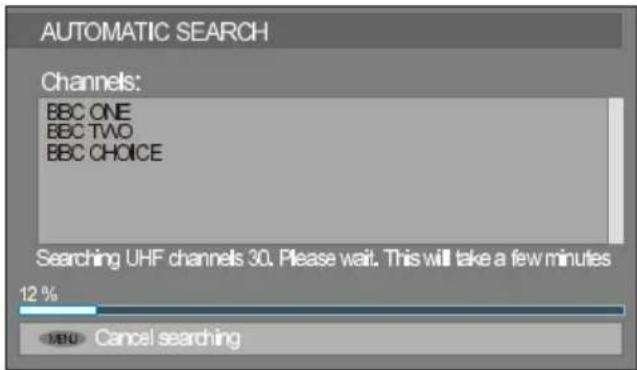
The IDTV will automatically tune to the UHF transmission channels 21 to 68 looking for digital terrestrial TV broadcasts and displaying the names of channels found.
This process will take about five minutes. To cancel searching, you can press the button at any time during the process.
text_image
AUTOMATIC SEARCH Channels: BBC ONE BBC TWO BBC CHOICE Searching UHF channels 30. Please wait. This will take a few minutes 12 % MENU Cancel searchingAfter Automatic Search process is completed, the following message asking for analogue channel search appears on the screen. TV switches to the analogue TV mode.

text_image
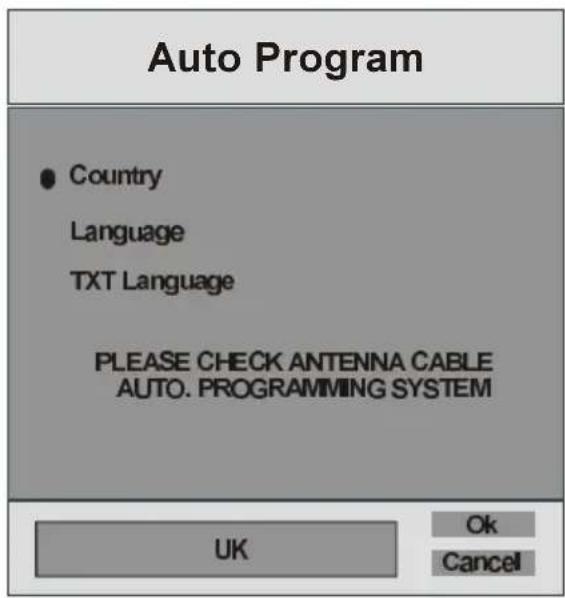
Do you want to search for analogue channels? Yes NoTo search for analogue channels, select Yes. The menu below is displayed to search for analogue channels.
text_image
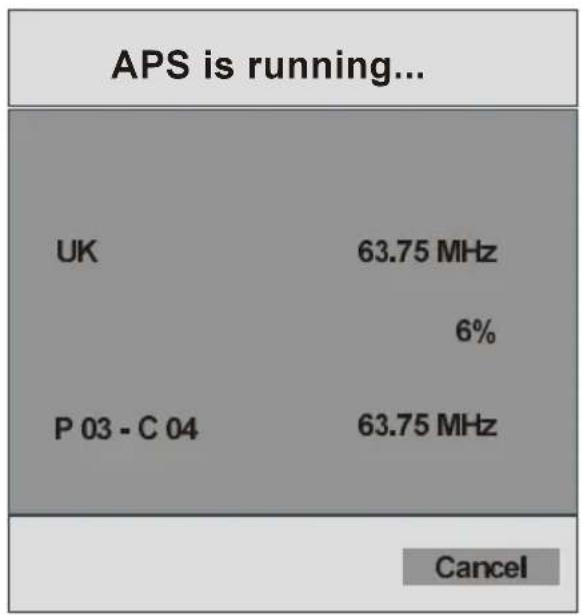
Auto Program ● Country Language TXT Language PLEASE CHECK ANTENNA CABLE AUTO. PROGRAMMING SYSTEM UK Ok CancelBy pressing ◀/▶ button, adjust the Country item and press ▼ to highlight Language item. Use ◀/▶ button to set Language. Use ◀/▶ buttons to select TXT Language and set it by using ◀/▶ buttons. Press OK button to continue:
other
APS is running... | Country | Frequency (MHz) | | :--- | :--- | | UK | 63.75 | | P 03 - C 04 | 63.75 | CancelAfter APS is finalized, a programme list will appear on the screen. In the programme list you will see the programme numbers and names assigned to the programmes.
If you do not accept the locations and / or t programme names of programmes, you can change them in Install Menu. For details see Install Menu section.
To display channel list in IDTV, switch to the IDTV via
pressing the button. Then press the button to enter main menu, Channel List will be highlighted. Press the OK button to enter the menu.
Basic Operations
You can operate your TV using both the remote control and onset buttons.
Operation with the buttons on the TV
Volume Setting
- Press ▲ - button to decrease volume or ▲ + button to increase volume, so a volume level scale (slider) will be displayed at the middle of the bottom on the screen.
Programme Selection
- Press P/CH + button to select the next programme or P/CH - button to select the previous programme.
Entering Main Menu
- Press the MENU button to enter Main menu. In the Main menu select sub-menu using P/CH - or P/CH + buttons and enter the sub-menu using ▲ - or ▲ + buttons. To learn the usage of the menus, refer to the Menu System sections.
AV Mode
Press the TV/AV button at the control panel on the the TV to switch your TV to AV modes.
Operation with Remote Control
The remote control of your TV is designed to control all the functions of the model you selected. The functions will be described in accordance with the menu system of your TV.
Functions of the menu system are described in the following sections.
Volume Setting
Press ▲ + button to increase volume. Press ▲ - button to decrease volume. A volume level scale (slider) will be displayed in the middle at the bottom of the screen.
Programme Selection (Previous or next programme)
- Press P- button to select the previous programme.
- Press P+ button to select the next programme.
Programme Selection (direct access)
Press digit buttons on the remote control to select programmes between 0 and 9. TV will switch to the selected programme. To select programmes between 10 - 999 (for IDTV) or 10-99 (for analogue), press the digit buttons consecutively which programme you want to select (eg. for programme 27, first press 2 and then 7). When it is late to press second digit button only the first digit programme will be displayed. The limit of the delay time is 3 seconds.
Press directly the programme number to reselect single digit programmes.
Everyday Operation
Pressing the button at any time while watch-
ing television programmes will switch the TV set between displaying the digital terrestrial television broadcasting and its normal analogue broadcasting.
Information Banner
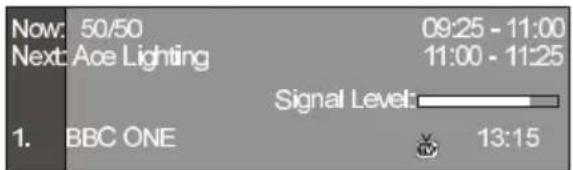
Whenever you change channel, using the P- / P+ button or the digit buttons, TV displays the channel picture along with an information banner at the bottom of the screen. This will remain on the screen for approximately three seconds. The information banner can also be displayed at any time while watching TV by pressing the 📊 button on the remote control.
text_image
Now: 50/50 Next: Ace Lighting 09:25 - 11:00 11:00 - 11:25 Signal Level: 1. BBC ONE 13:15The information banner gives a number of facts on the channel selected and the programmes on it. The name of the channel is displayed, along with its channel list number and an indication of the strength of the signal received on this tuning channel.
Hint
Not all channels broadcast the programme data. If the name and times of the programme is not available then "No Information Available" are displayed in the information banner.
Icons are also displayed in the information banner and if this channel is a favourite channel:
Favourite channel icon

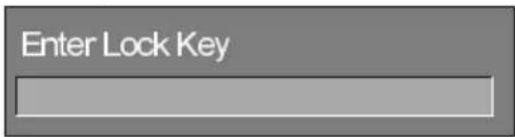
If the selected channel is locked, you must enter the correct four digit code to view the channel.
text_image
Enter Lock KeyElectronic Programme Guide (EPG)
Some, but not all, channels send information about the current and next events. Please note that event information is updated automatically. If there is no event information data available in channels, only channel names with "No Information Available" banner is displayed.
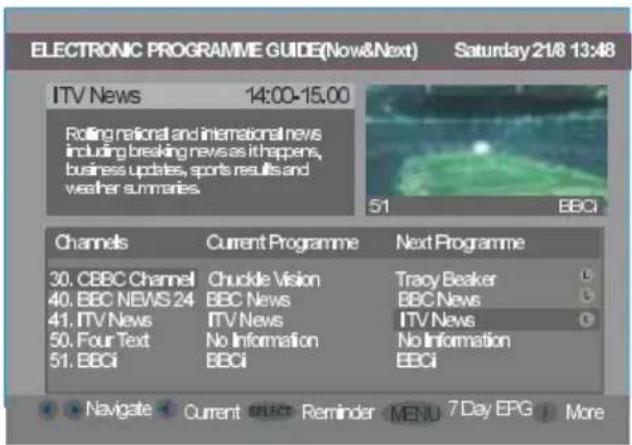
- Press GUIDE button to view the EPG menu.
- In EPG Menu, you can easily see the extended help information by pressing INFO button and by pressing this button again you can close this window.
text_image
ELECTRONIC PROGRAMME GUIDE(Now&Next) Saturday 21/8 13:48 ITV News 14:00-15.00 Rotating national and international news including breaking news as it happens, business updates, sports results and weather summaries. 51 BBCI Channels Current Programme Next Programme 30. CEEC Channel Chuckle Vision Tracy Beaker 40. BBC NEWS 24 BBC News BBC News 41. ITV News ITV News ITV News 50. Four Text No Information No Information 51. BBCi BBCi BBCi Navigate Current SELECT Reminder MENU 7 Day EPG More- In the EPG Menu all channels are displayed. Current channel is highlighted. Use ▲ / ▼ buttons to change channels. Also press RED or GREEN buttons to make page up/down scroll for the channels.
- If you highlight an event, short event description, extended event description, start and finish times of event are displayed on the screen.
- When the current programme is highlighted, the box is switched to the highlighted channel by pressing the OK button.
- If you press the OK button when a next event is highlighted, a reminder is set for the highlighted programme and a clock appears across the highlighted channel line.
Programme reminders can be set to signal that a programme is about to start when you are watching another channel. If you set reminder to a programme, then you will be asked for switching to that channel when the reminder time is reached.
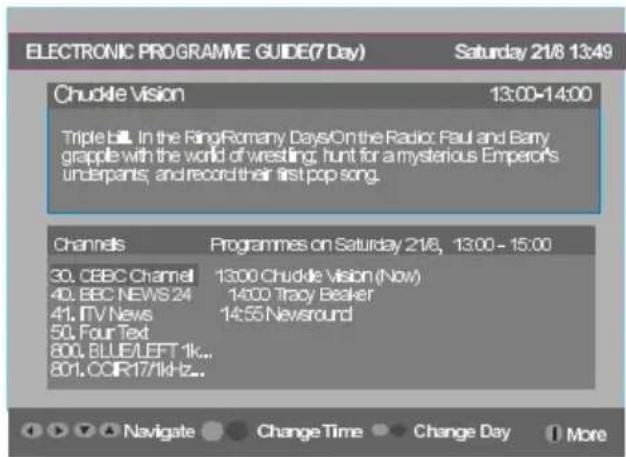
- Press the button to view the 7 day EPG.
- Press ▲ / ▼ button to navigate in Channels or Programmes.
- Press ◀ / ▶ button to navigate through the channel and programme list.
text_image
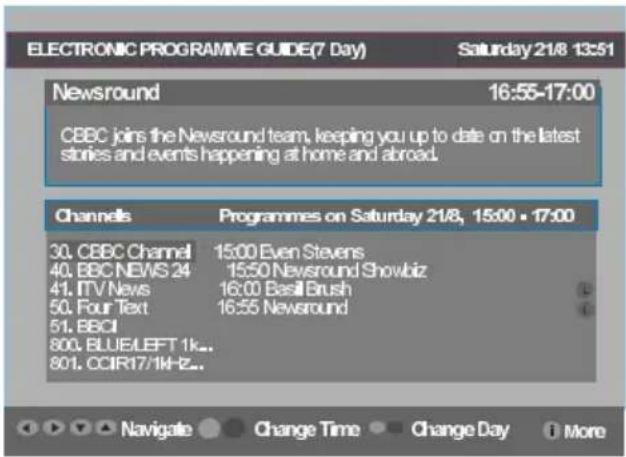
ELECTRONIC PROGRAMME GUIDE(7 Day) Saturday 21/8 13:49 Chuckle Vision 13:00-14:00 Triple bill. In the RingRomany Days/On the Radio: Paul and Barry grapple with the world of wrestling, hunt for a mysterious Emperor's underpants; and record their first pop song. Channels Programmes on Saturday 21/8, 13:00 - 15:00 30. CEEC Channel 13:00 Chuckle Vision (Now) 40. BBC NEWS 24 14:00 Tracy Beaker 41. ITV News 14:55 Newsround 50. Four Text 800. BLUE/LEFT 1k.. 801. OOR 17/1kHz.. Navigate Change Time Change Day More- With RED/GREEN buttons you can change schedule time. By pressing YELLOW/BLUE you can advance the schedule backward / forward of a day.
- If you press button you can see the detailed help information easily. And by pressing button again you can exit Help menu.
- The starting time for EPG is the current time. You can see the event information for the next two hours. By pressing ▲ / ▼ button, you can go to the next previous hours while Programmes list is highlighted.
- If you press the OK button when a next event is highlighted, a reminder is set for the highlighted programme and a clock appears on the screen. Programme reminders can be set to signal that a programme is about to start when you are watching another channel. If you set reminder to a programme, then you will be asked for switching to that channel when the reminder time is reached.
text_image
ELECTRONIC PROGRAMME GUIDE(7 Day) Saturday 21/8 13:51 Newsround 16:55-17:00 CEBC joins the Newsround team, keeping you up to date on the latest stories and events happening at home and abroad. Channels Programmes on Saturday 21/8, 15:00 • 17:00 30. CEBC Channel 15:00 Even Stevens 40. BBC NEWS 24 15:50 Newsround Showbiz 41. ITV News 16:00 Basil Brush 50. Four Text 16:55 Newsround 51. BBCI 800. BLUELEFT 1k.. 801. CCIR17/1kHz.. Navigate Change Time Change Day MoreDisplaying The Subtitles
With Digital terrestrial broadcasting (DVB-T), some programmes are broadcast with subtitles. Subtitles can be displayed when watching these programmes.
Press the □ button to display the Main menu, highlight the Configuration line using▲ / ▼ button and press the OK button to display the Configuration menu.
Highlight the "Subtitle" item in Configuration menu and use ◀ / ▶ button to set Subtitle to off or a language.
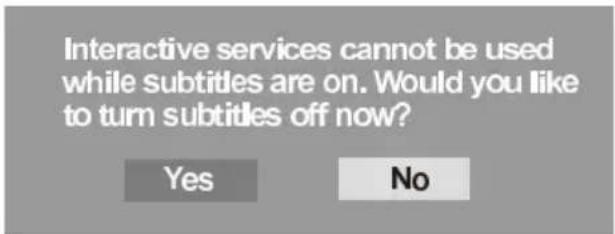
If "Subtitle" is on via selecting one language option, pressing the ☐ button causes the following warning message display on the screen.
text_image
Interactive services cannot be used while subtitles are on. Would you like to turn subtitles off now? Yes NoDigital Teletext
With Digital terrestrial broadcasting (DVB-T), in addition to pictures and sound, you can also watch digital teletext.
Digital teletext is sometimes broadcast at the same time as normal broadcasting.
- Press the ☐ button.
The digital teletext information appears.
- Operate it with the coloured buttons, ◀, ▶/▲, ▼ buttons and OK button.
The operation method may differ depending on the contents of the digital teletext.
Follow the instructions displayed on digital teletext screen.
- When "Press SELECT" button or similar message appears on the screen, press the OK button.
- When the ☐ (Text) button is pressed, the TV returns to television broadcasting.
- With Digital terrestrial broadcasting (DVB-T), in addition to digital teletext broadcasting at the same time as normal broadcasting, there are also channels with just digital teletext broadcasting.
- The aspect ratio when watching a channel with just digital teletext broadcasting is the same as the aspect ratio of the picture watched previously.
- When you press the (Text) button again, the digital teletext screen is displayed.
Over Air Download
To ensure that your IDTV always has the most up-to-date information, please ensure that after use it is set to its standby mode. At 3AM each day, the IDTV automatically searches for any new information which may be broadcast and will download this to your IDTV automatically. This operation will normally take approximately 30 seconds.
If you want to do this, you need to set Automatic Download to "Enabled" in Receiver Upgrade setting. For details see page 17.
Widescreen
Depending on the type of broadcast being transmitted, programmes can be viewed in a number of formats.
Press the button repeatedly to select between Auto,16:9, 4:3, Panaromic, 14:9 Zoom, Cinema, Subtitle or Zoom.
When Auto is selected, the format being displayed is determined by the picture being broadcast.
Please Note: Menu size changes depending on the chosen image size.
IDTV Menu System
The IDTV menu can only be shown when watching
Digital terrestrial broadcasting. Press the button to turn IDTV on while TV is in analogue mode.
Press the button. The menu below appears on the screen:

text_image
Main Menu Channel List Installation Configuration Timers Language TV Setup Common InterfaceChannel List
Using the ▲ / ▼ button on the remote control in Main menu, make sure that the first item, Channel List, is highlighted and press the OK button to display the Channel List.
The following operations can be performed in this menu:
- Navigating the whole list of channels
- Deleting channels
- Renaming channels
- Adding locks to channels
- Setting favourites
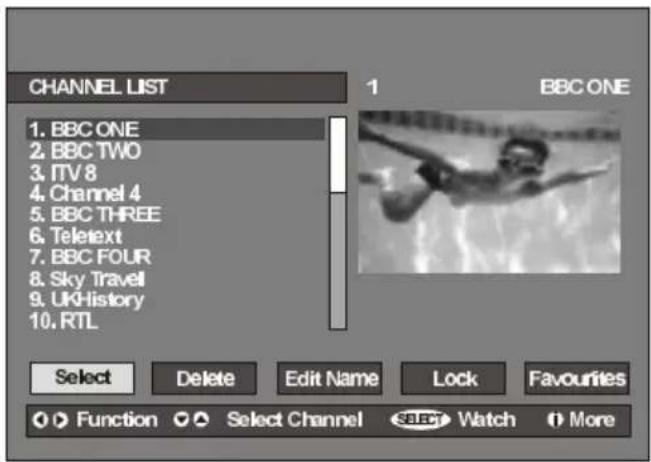
Channel List is the place where the channels are managed.
text_image
CHANNEL LIST 1. BBC ONE 2. BBC TWO 3. ITV 8 4. Channel 4 5. BBC THREE 6. Teletext 7. BBC FOUR 8. Sky Travel 9. UK-History 10. RTL BBC ONE Select Delete Edit Name Lock Favourites ○ Function ○ Select Channel Select Watch MoreNavigating the whole channel list
Press ▲ / ▼ button for selecting the previous or next channel. You can press RED or GREEN button to move page up or page down.
To watch a specific channel, highlight it using ▲ / ▼ button and then press OK button, while the "Select" item on Channel List menu is highlighted by using ◀/ ▶.
Then the name and number of the selected channel will be displayed in the top-left and top-right of the channel display at the top-right of the screen, respectively.
Deleting the channels in the channel list
Press ▲ / ▼ button to select the channel that will be deleted.
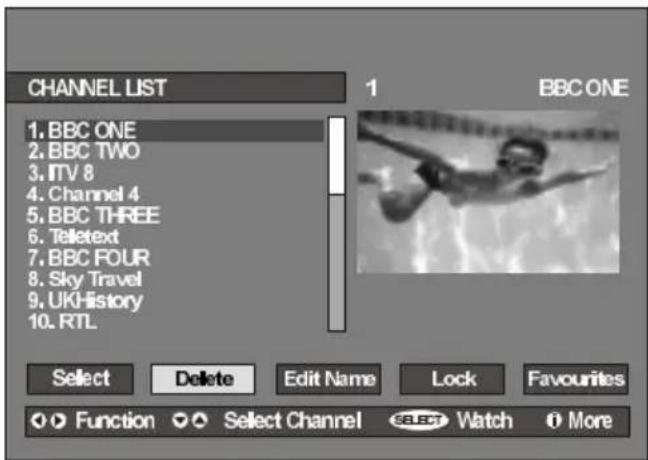
Press ◀/▶ button to select the "Delete" item on Channel List menu. As seen on Channel List menu, SELECT is written next to Delete item at the bottom of the screen to indicate that press the OK button to delete the highlighted channel in the channel list.
text_image
CHANNEL LIST 1 BBC ONE 1. BBC ONE 2. BBC TWO 3. ITV 8 4. Channel 4 5. BBC THREE 6. Teletext 7. BBC FOUR 8. Sky Travel 9. UKHistory 10. RTL Select Delete Edit Name Lock Favourites Function Select Channel Select Watch MorePress the OK button to delete the highlighted channel in the channel list. Then the message below appears on the screen.

text_image
The selected service will be permanently deleted. Are you sure? Yes NoPress ◀/▶ button to highlight the desired option. If OK button is pressed while "Yes" is highlighted, the highlighted channel is deleted. Selecting "No" cancels the delete operation.
Renaming channels
To rename a specific channel, the channel must be highlighted via pressing ▲ / ▼ button and then highlight the Edit Name item by pressing◀ / ▶ button. Press the OK to activate rename feature.

text_image
CHANNEL LIST 1. BBC ONE 2. BBC TWO 3. ITV 8 4. Channel 4 5. BBC THREE 6. Teletext 7. BBC FOUR 8. Sky Travel 9. UK History 10. RTL BBC ONE Select Delete Edit Name Lock Favourites Function Select Channel Select Watch MoreNow pressing ◀ / ▶ button moves to the previous/next character. Pressing ▲ / ▼ button toggles the current character, i.e., 'b' character becomes 'a' by ▼ and 'c' by ▲. Pressing the numeric buttons '0...9' replaces the highlighted character with the characters printed above the button one by one as the button is pressed.
Press the button to cancel the editing or OK button to save the new name.
Adding locks to channels
Channel Locking provides a password-protected access to channels selected by parents. In order to lock a channel you should know the Parental Lock password (default value is set to 0000 in the factory and can only be changed from the Configuration Menu).
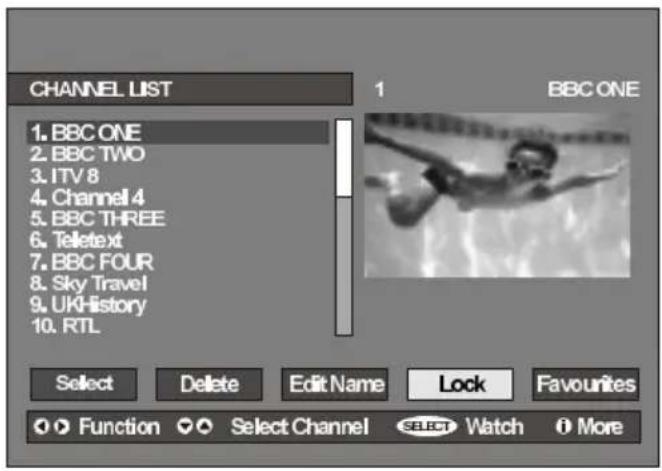
Select the channel to be locked by highlighting it and select the "Lock" option by pressing◄ / ► button. When the OK button is pressed, a password box is displayed.
text_image
CHANNEL LIST 1. BBC ONE 2. BBC TWO 3. ITV 8 4. Channel 4 5. BBC THREE 6. Teletext 7. BBC FOUR 8. Sky Travel 9. UK History 10. RTL BBC ONE Select Delete Edit Name Lock Favourites Function Select Channel Select Watch More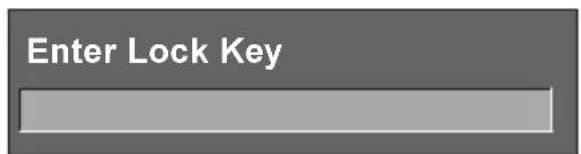
text_image
Enter Lock KeyEnter the password using the digit buttons on the
remote control. The Lock icon will now be displayed next to the selected channel. Repeat the same operation to cancel the Lock.
Setting Favourites
You can set various channels as favourites so that only the favourite channels are navigated. To set a favourite you should highlight the "Favourites" item at bottom of the Channel List menu.
Use ◀ / ▶ button to highlight the Favourites item at the base of the screen and then, in turn, highlight each channel you want to add to the favourites list, using the ▲ / ▼ buttons, and press the OK button.
A channel selected as a favourite appears in the main channel list with a favourites icon ( 😊 ) against the channel name.

text_image
CHANNEL LIST 1. BBC ONE 2. BBC TWO 3. ITV 8 4. Channel 4 5. BBC THREE 6. Teletext 7. BBC FOUR 8. Sky Travel 9. UK History 10. RTL BBC ONE Select Delete Edit Name Lock Favourites Function Select Channel Select Watch MoreOn Screen Help Pressing INFO Button
For all menus press the button to display the help information about the menu functions. For Channel List menu the following message is displayed on the screen.
Press the SELECT button on your remote control to tune to the highlighted channel. Press MENU to exit this screen.
Installation
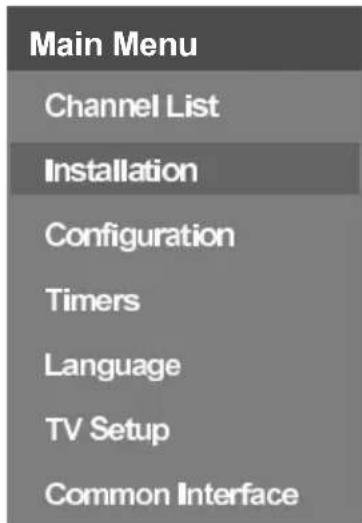
The Installation menu mainly intends to help you for building a Channel Table in the most efficient way.
text_image
Main Menu Channel List Installation Configuration Timers Language TV Setup Common InterfaceThis menu includes the following items:
- Add New Channels
- First Time Installation.
ADD NEW CHANNELS:
This tuning menu consists of two parts:
- Automatic Search
- Manual Search
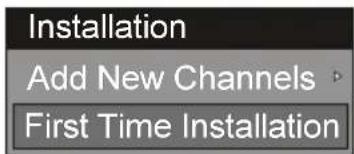
Installation
Add New Channels · Automatic Search
First Time Installation Manual Search
Automatic Search
Automatic search is started by pressing the OK button in the auto-search pop up menu. All the services are searched and a channel table is created automatically.
All channels found are stored in a sorted form with respect to their channel numbers. Some services may not appear with the correct channel number. At the time of printing, not all broadcasters are sending their channel number information.
Manual Search
In manual search, the number of the multiplex is entered manually and only that multiplex is searched for the channels. For every valid channel number, signal level, signal quality and network name are shown at the bottom of the screen.
In both manual and auto search any existing channel in the database is not re-stored to avoid redundant duplicates of that channel.
FIRST TIME INSTALLATION
The user can use this item to load default settings which had been loaded to the receiver at the factory.
To install factory settings, highlight "First Time Installation" menu and press the OK button, then you will be asked to confirm for deleting all channels and settings.
text_image
Installation Add New Channels First Time Installation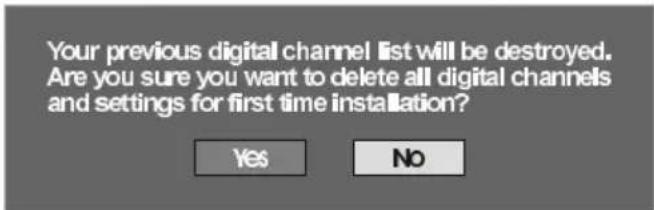
text_image
Your previous digital channel list will be destroyed. Are you sure you want to delete all digital channels and settings for first time installation? Yes NoBy selecting YES and pressing the OK button, the existing channel table will be deleted.
After factory settings is loaded, "First Time Installation" menu will be displayed.

text_image
Please ensure aerial is plugged in. Do you want to start first time installation? Yes NoPress the OK button to start installation. After search is completed for digital channels, a message asking search for analogue channels appears on the screen.
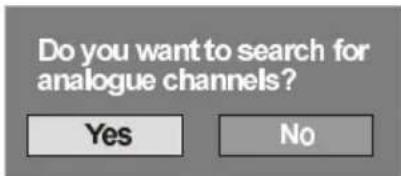
text_image
Do you want to search for analogue channels? Yes NoPress the OK button to search for analogue channels. The following menu appears on the screen for analogue channel search.
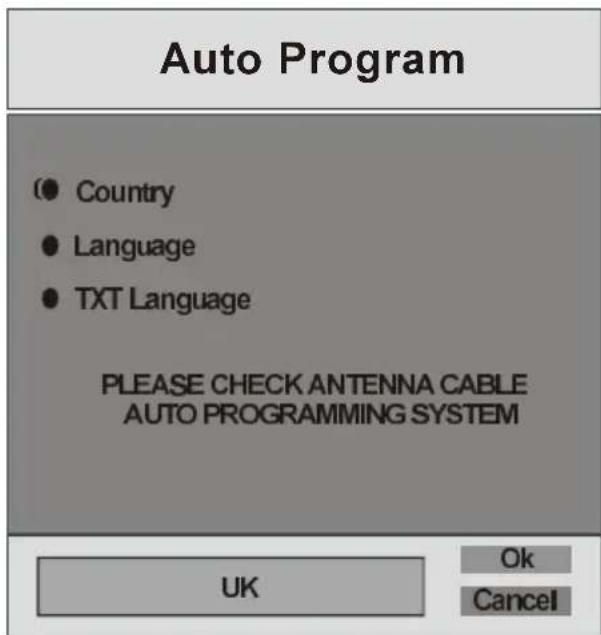
text_image
Auto Program ● Country ● Language ● TXT Language PLEASE CHECK ANTENNA CABLE AUTO PROGRAMMING SYSTEM UK Ok CancelFirst of all choose Language, Country and TXT Language by using ▲ / ▼ and ◀ / ▶ buttons. This will affect the sort process in APS. To start APS press OK button:
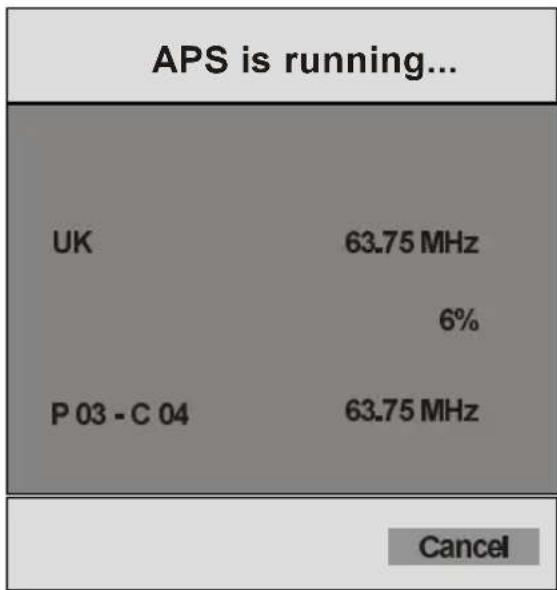
other
APS is running... UK 63.75 MHz 6% P 03 - C 04 63.75 MHz CancelAfter APS is finalized, the programme table will appear on the screen. In the programme table you will see the programme numbers and names assigned to the programmes.
If you do not accept the locations and / or the programme names, you can change them in the Program menu.
Configuration
Press the button to display the Main Menu and the button twice to highlight Configuration, then press the OK button to display the Configuration menu. Press the button to leave the menu.

text_image
Main Menu Channel List Installation Configuration Timers Language TV Setup Common InterfaceThe various configuration functions are displayed in a list, along with a quarter-screen image of the currently selected channel. You can select a function by highlighting the corresponding menu line using the ▲ / ▼ button.

text_image
CONFIGURATION Audio Language English Subtitle Off Favourite Mode Off EPG Preference Now&Next Receiver Upgrade V.1.5 Parental Settings ○○ Change Default Audio Language ○ MoreAudio Language
Digital terrestrial television channels can broadcast simultaneous soundtracks in more than one language. This function selects which language soundtrack you will hear when switching to a channel broadcasting with the multiple soundtracks.
Highlight the Audio Language line in the Configuration menu and use the ◀ / ▶ button to cycle through the language options.
Subtitle
Digital terrestrial television channels can broadcast subtitles displayed on-screen for the hard-of-hearing. This function selects the desired subtitle language and enables the automatic display of subtitles whenever subtitle information is broadcast.
Highlight the Subtitle line in the Configuration menu and use the ◀ / ▶ button to cycle through "Off" and language options.
Favourite mode
This function enables or disables the favourite channel list mode. See Channel List menu Favourites on page 15.
Use ◀/▶ button to turn on/off favourite mode. If the "Favourite Mode" is on, in normal operating mode pressing "P+" and "P-" buttons will only navigate through the channels that were previously defined as favourites in Channel List.
EPG Preference
Digital terrestrial television channels can broadcast simultaneous Next&Now and 7-Day electronic programme.
Highlight the EPG Preference line in the Configuration menu and use the ◀/▶ button to select Next&Now or 7-Day.
Receiver Upgrade
The IDTV can be upgraded via the configuration menu, entered from the main menu.
In the Configuration menu, highlight the "Receiver Upgrade" item by pressing ▲ / ▼ button and press the OK button to start upgrade process.
There are two possibilities for Receiver software to be upgraded: automatic and manual.
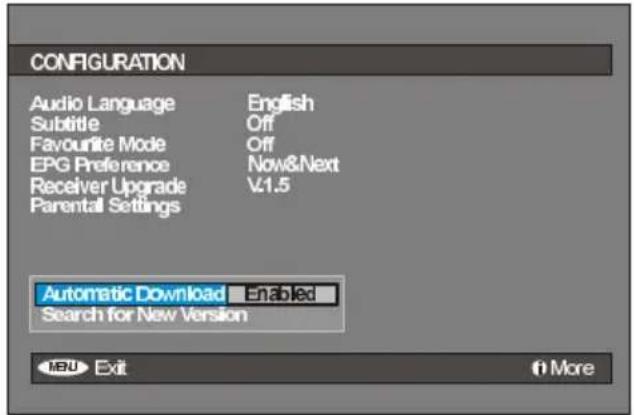
text_image
CONFIGURATION Audio Language English Subtitle Off Favourite Mode Off EPG Preference Now&Next Receiver Upgrade V.1.5 Parental Settings Automatic Download Enabled Search for New Version MENU Exit + MoreAutomatic Download (Automatic upgrade)
Automatic Download can be enabled or disabled by pressing ◀/▶ button. If it is enabled, then there are two ways for automatic upgrade. The first one is checking the existence of a new software every time the IDTV goes to standby. The second one is waking up at 03:00 a.m. every night, provided that the IDTV is left in standby mode. Both automatic upgrade methods result in standby mode either upgraded or not. If the automatic upgrade is set to "Disabled" then this function will not work.
Search For New Version (Manual upgrade)
Manual upgrade starts if the "Search for New Version" item is highlighted by using ▲ / ▼ button and activated via pressing the OK button.
After “Search for New Version” is activated, the IDTV tunes to each frequency that have been stored in its database and looks for the new software.

text_image
Software Upgrade Searching for upgrade. Please wait, or press MENU to cancel. Search Progress:Parental Settings
Some channels broadcast material which you do not want younger members of the family to watch. Any channel can be 'locked' so that it cannot be selected for viewing without first a four-digit PIN code being entered. In this way any channel not suitable for younger viewers can be protected.
This function enables or disables the menu protection system and allows the PIN code to be changed.
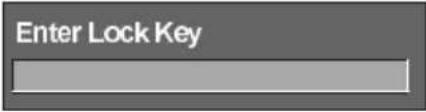
Use ▲ / ▼ button to go to Parental Settings option. Press the OK button to enter Parental Settings Menu. A box asking for the lock key is displayed.
text_image
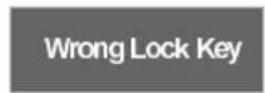
Enter Lock KeyThere is only one key which is set to "0000" initially. Enter lock key. If wrong Lock key is entered, the following message is displayed on the screen and it is returned back.
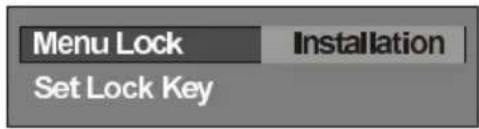
If it is correct, the Parental Settings Menu including following items is displayed:
text_image
Menu Lock Set Lock Key InstallationThere you can set/reset locking for the Main Menu, or the Installation Menu to restrict access. If the menu lock is disabled, there will be free access to the menu system. Also in this menu you can change the lock key and set/change parental lock mode.
Disabled: All menus are unlocked.
Main Menu: Main menu is accessible only with the correct lock key. So the user cannot add, delete, rename, move channels, cannot set timers.
Installation: Installation menu is locked, so the user cannot add channels.
Changes will be updated after exiting Configuration Menu.
Timers
You can set a timer to switch the TV to any channel without your intervention. This is also for making video recordings of programmes when you are out.
Display the Main Menu by pressing the button. Highlight the Timers line by pressing ▲ / ▼ button and press the OK button to display the Timer menu.

text_image
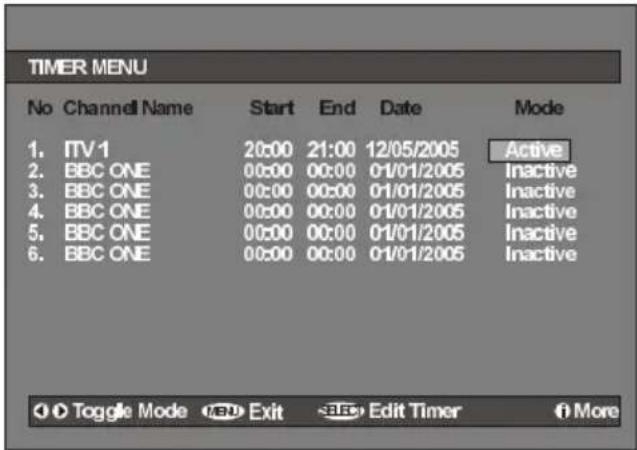
Main Menu Channel List Installation Configuration Timers Language TV Setup Common InterfaceUp to five separate timer events can be set and each is displayed in the Timer screen, showing the event number, the channel to be selected, the start time, end time, date and the mode - whether that event is active (and will be acted on) or not.
text_image
TIMER MENU No Channel Name Start End Date Mode 1. ITV 1 20:00 21:00 12/05/2005 Active 2. BBC ONE 00:00 00:00 01/01/2005 Inactive 3. BBC ONE 00:00 00:00 01/01/2005 Inactive 4. BBC ONE 00:00 00:00 01/01/2005 Inactive 5. BBC ONE 00:00 00:00 01/01/2005 Inactive 6. BBC ONE 00:00 00:00 01/01/2005 Inactive Toggle Mode Exit Edit Timer More- To set an event, highlight its mode button using the ▲ / ▼ button and press the OK button to display the timer entry window.

text_image
Name: 3. ITV 1 Start: 00:00 End: 00:00 Date: 03/06/2005 Mode: Once- Here the five settings of channel name, start time, end time, date and frequency mode can be set. You can move freely between each setting using the ▲ / ▼ buttons.
- The channel name is set using the ◀ / ▶ button to display the channel which broadcasts the programme.
- The start time, end time and date are each set with the digit buttons on the remote control in 24-hour format.
- The frequency mode determines how often the receiver operates this event and is set with the ◀/▶ button to be either Once, Daily, or Weekly.
If an invalid number for the start or end times or the date is entered, "Entered time is not valid" message appears on the menu.
If timer action occurs while the TV is watched, the TV switches to the selected channel. When timer expires, the TV switches to the channel which it is switched from.
Selected digital channel will be output via Scart-2. You should connect your VCR to Scart-2 for recording digital broadcast.
Recording From IDTV
Connect your VCR to AV-2 via a scart lead.
Set the AV-2 OUT in the feature menu to DDT, as illustrated and described on page 24.
Set the time as described above.
Set your TV to standby using the remote control.
Set your VCR to correspond with the time set on your TV and select external input (refer to your VCR instruction book).
NB. If you switch on your TV whilst the timer recording is active and then switch back to standby, the timer recording will be cancelled; the timer setting will be deleted and the desired programme will not be recorded.
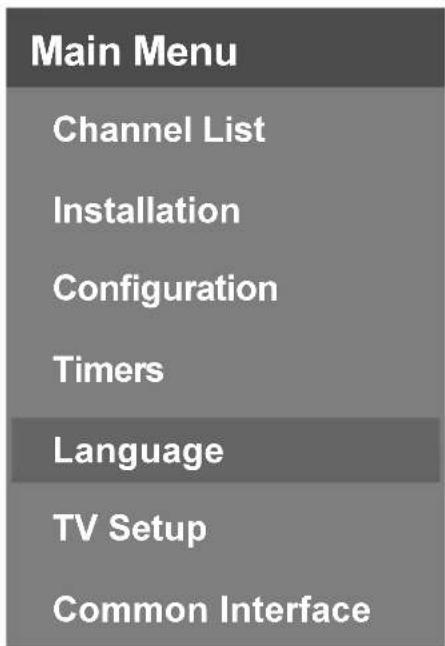
Language
Some programmes are broadcast in two or more languages simultaneously. The language heard can be selected from the Language Menu.
- Press the □ button to display the Main Menu and use ▲ / ▼ button to highlight the Language line and press the OK button.
text_image
Main Menu Channel List Installation Configuration Timers Language TV Setup Common Interface- Use the ▲ / ▼ button to highlight the soundtrack language required and press the OK button. Normal viewing, with the required language soundtrack, can be resumed by pressing the □ button.

text_image
Languages EnglishTV Setup
To be able to go through TV functions, you can use this item.
The digital TV Setup menu screen is accessed from the main menu. Press the button to display the main menu and use ▲ / ▼ button to highlight "TV Setup", press the OK button to display TV Setup menu screen.
| Main Menu |
| Channel List |
| Installation |
| Configuration |
| Timers |
| Language |
| TV Setup |
| Common Interface |
Detailed information about Sound, Picture and Feature menus are in Analogue TV Menu System section on page 21.
Common Interface
- Press the button to display the Main Menu and use the ▲ / ▼ button to highlight the “Common Interface” line and press the OK button.
| Main Menu |
| Channel List |
| Installation |
| Configuration |
| Timers |
| Language |
| TV Setup |
| Common Interface |
It is required to subscribe to a pay channel company to view the pay channels of the Digital Terrestrial broadcasting.
Obtain the Conditional Access Module (CAM) and the Viewing card by subscribing to a pay channel company, then insert those to the Television using the following procedure.
- Switch off the TV and unplug from the mains.
- Insert the CAM, then Viewing Card to the slot that is located in the terminal cover at the left-hand side of the TV (from front view).
- The CAM should be correctly inserted, it is impossible to insert fully if reversed. The CAM or the TV terminal may be damaged if the CAM is forcefully inserted.
- Connect the TV to the mains supply, switch on and then wait for few moments until the card is activated.
- Some CAMs may require the following set up. Please set the CAM by entering the IDTV menu, Common Interface then pressing the OK button. (CAM set up menu is not displayed when it is not required.)
• To see the viewing contract information:
Enter IDTV; press the button, then highlight Common Interface and press the OK button.
- When no module is inserted, "No Common Interface module detected" message appears on the screen.
- Refer to the module instruction manual for details of the settings.
Analogue TV Menu System
Picture Menu

text_image
PICTURE • Mode • Contrast • Brightness • Sharpness • ColourIn the picture menu; if PC, YPbPr or HDMI modes is selected, resolution information is displayed at the bottom of the menu OSD.
Mode
By pressing ▲ / ▼ button, select Mode. Press ◀ / ▶ button to choose from one of these options: Cinema, Dynamic and Natural.
Contrast/Brightness/Sharpness/Colour/Hue
By pressing ▲ / ▼ button, select the desired Option.
Press ◀ / ▶ button to set the level.
Hint: Hue is displayed in picture menu when the TV receives an NTSC signal.
Colour Temp
- By pressing ▲ / ▼ button select Colour Temp.
- Press ◀ / ▶ to choose from one of these options: Cool, Normal and Warm.
Noise Reduction
By pressing ▲ / ▼ button select Noise Reduction. Press ◀ / ▶ to choose from one of these options Low, Medium, High or Off.
Film Mode
Films are recorded at a different number offrames per second to normal television programmes.
By pressing ▲ / ▼ button, select Film Mode.
Press ◀ / ▶ button to set this feature On or Off. Turn this feature on when you are watchingfilms to see the fast motion scenes clearly.
3D Comb
3D Comb is used to improve colour transitions and colour quality of pictures.
By pressing ▲ / ▼ button, select 3D Comb. Press ◀ / ▶ button to set this feature On or Off.
Note: 3D Comb feature is not functional in NATURAL picture mode.
Picture Zoom
By pressing ▲ / ▼ button select Picture Zoom. Use ◀ / ▶ buttons, to change picture zoom to Auto, 16:9, 4:3, Panaromic, 14:9 Zoom, Cinema, Subtitle or Zoom.
Reset
By pressing ▲ / ▼ button, select Reset. Press ▶ or "OK" button to reset the picture modes to factory default settings.
Store
- By pressing ▲ / ▼ button select Store.
- Press ▶ or OK button to store the adjustments. "Stored" will be displayed on the screen.
Sound Menu

text_image
SOUND Volume Equalizer Balance Headphone Sound ModeVolume
By pressing ▲ / ▼ select Volume . Press◀ / ▶ button to change the level of the Volume.
Equalizer
By pressing ▲ / ▼ select Equalizer. Press ◀ / ▶ button to change the Equalizer setting. In equalizer menu, the mode can be changed to Pop, Rock, Jazz, Flat, Classic or User. Select the desired frequency by ▲ / ▼ button and increase or decrease the frequency gain by pressing ◀ / ▶ button.
Note: Equalizer menu settings can be altered only when the Equalizer Mode is in User.
Balance
By pressing ▲ / ▼ select Balance.Press ◀ / ▶ button to change the level of the balance.Balance level can be adjusted between -32 and +32.
Headphone
By pressing ▲ / ▼ button, select Headphone. Press ▶ button to enter hedphone menu.
volume
By pressing ▲ / ▼ button, select Volume. Press ▶ button to increase hp volume level. Press ◀ button to decrease hp volume level. Headphone volume level can be adjusted between 0 and 63.
sound mode
By pressing ▲ / ▼ button, select Sound Mode. Press ◀ / ▶ button to change sound mode.
Sound mode is used to identify sound mode of the headphone and can be set to mono, stereo, dual I or dual II according to the transmission.
balance
By pressing ▲ / ▼ button, select Balance. Press ▶ button to increase balance to the right. Press ◀ button to decrease balance to the left. Balance level can be adjusted between -32 and +32.
Press the MENU button to return to the previous menu.
Sound Mode
By pressing ▲ / ▼ select Sound Mode. Press ◀ / ▶ button, you can select Mono, Stereo, Dual I or Dual II mode, only if the selected channel supports that mode.
AVL
By pressing ▲ / ▼ select AVL. Press ◀ / ▶ button to set the AVL as on or off.
Effect
By pressing ▲ / ▼ select Effect. Press ◀ / ▶ button to set Effect as on or off.
Dynamic Bass
Dynamic Bass is used to increase bass effect of the TV set.
By pressing ▲ / ▼ button, select Dynamic Bass. By pressing ◀ / ▶ button set Dynamic bass to Low, High or Off. It is not recommended to select High if listening at high volume levels. There is a subwoofer output that can accept an active subwoofer if you wish to create very high levels of Bass.
Subwoofer is active only if Dynamic Bass is set to Off.
Subwoofer
It is possible to connect an external, active subwoofer to the set to give a much deeper bass effect.
By pressing ▲ / ▼ button, select Subwoofer. Subwoofer can be set to On or Off.
Dynamic Bass is not available if Subwoofer is set to On.
Set Subwoofer to On when you connect an external subwoofer to the set.
3DS
By pressing ▲ / ▼ button, select 3DS. 3DS can be set to On or Off.
Set 3DS to On when you connect an external subwoofer to the set.
Store
- By pressing ▲ / ▼ button select Store.
- Press ▶ or OK button to store the adjustments. "Stored" will be displayed on the screen.
Feature Menu

text_image
FEATURE • PIP • PAP • Sleep Timer • Child Lock • LanguagePIP
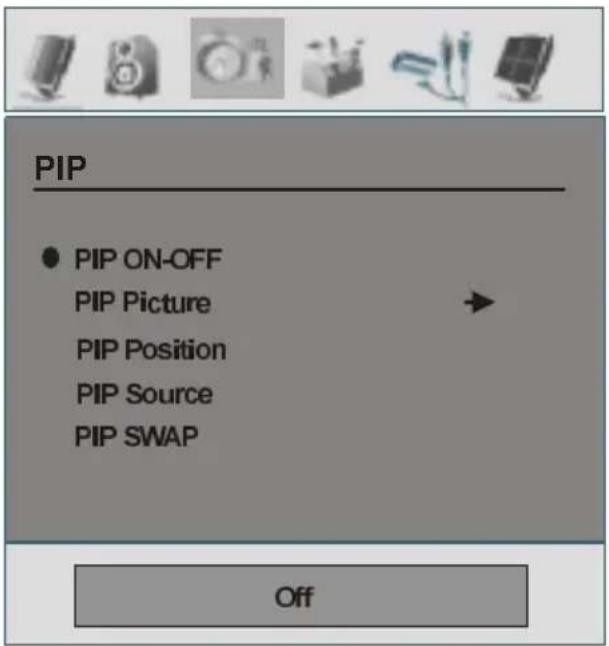
In the Feature menu, highlight PIP item by pressing ▲ / ▼ buttons. Press ▶ button to enter PIP submenu:
text_image
PIP ● PIP ON-OFF PIP Picture PIP Position PIP Source PIP SWAP OffPIP ON-OFF
You can activate or deactivate PIP mode by pressing ◀ / ▶ button.
PIP Picture
Press ▶ button to enter PIP Picture submenu. Adjustments of Contrast, Brightness, Sharpness, Colour, Reset and Store items in this part are identical with Picture menu in the analogue TV menu System. Refer to Picture menu explanations in the previous parts.
PIP Position
Select PIP Position item by using ▲ / ▼ button. Use ◀ / ▶ button to adjust PIP position. PIP Position info will be displayed at the bottom of the menu OSD. You can directly change PIP position by pressing ▲ / ▼ buttons.
Positions available are: Bottom Right, Bottom Centre, Bottom Left, Top Left, Top Center and Top Right.
PIP Source
Select PIP Source item by using ▲/▼ button. Use ◀/▶ button to set PIP source.
Note: When main picture source is DTT, TV, AV-1, AV-2 or AV-3, PIP Window can only be set to HDMI-1, HDMI-2, AV-5, PC source or vice versa.
PIP SWAP
Select PIP SWAP item by using ▲/▼ button. Use ◀ / ▶ button to set. This function enables to swap between the main and the PIP picture.
PAP
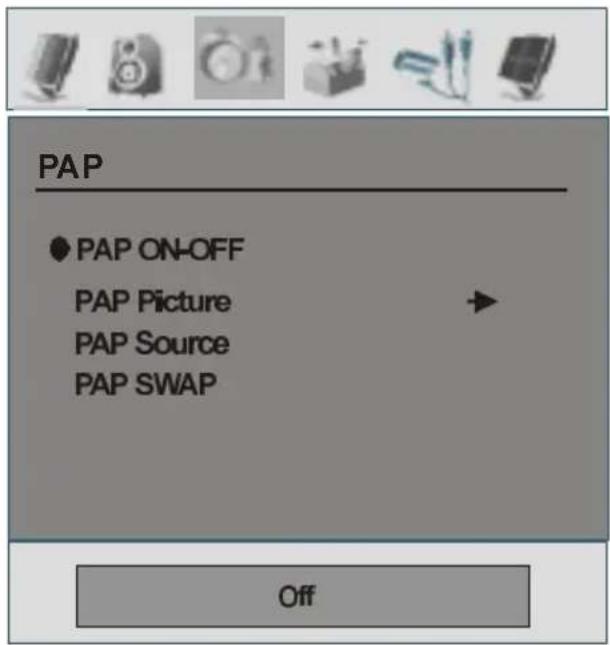
In the Feature menu, highlight PAP item by pressing ▲ / ▼ buttons. Press ▶ button to enter PAP submenu:
text_image
PAP ● PAP ON-OFF PAP Picture PAP Source PAP SWAP OffPAP ON-OFF
You can activate or deactivate PAP mode by pressing ◀/▶ button.
PAP Picture
Press ▶ button to enter PAP Picture submenu. Adjustments of Contrast, Brightness, Sharpness, Colour, Reset and Store items in this part are identical with Picture menu in the Menu System. Refer to Picture menu explanations in the previous parts.
PAP Source
Select PAP Source item by using ▲ / ▼ button. Use ◀ / ▶ button to set PAP source.
Note: When main picture source is TV, AV-1, AV-2 or AV-3, PIP window can only be set to HDMI-1, HDMI-2, AV-5, PC source or vice versa.
PAP SWAP
Select PAP SWAP item by using ▲ / ▼ button. Use ◀ / ▶ button. This function enables to swap between the main and the PAP picture.
Note: See Appendix B for all PIP/PAT modes.
Sleep Timer
By pressing ▲ / ▼ select "Sleep Timer".Press ◀ / ▶ button to set the Sleep Timer.
The timer can be programmed between Off and 120 minutes in steps of 10 minutes.
Child Lock
By pressing ▲ / ▼ select Child Lock.
Press ◀ / ▶ button to set the Child Lock on or off. When on is selected, the TV can only be controlled by the remote control handset. In this case the control panel buttons will not work (except for the STANDBY button). Hence, if one of these buttons is pressed, "Child Lock On" will be displayed on the screen when the menu screen is not visible.
Language
By pressing ▲ / ▼ button, select Language.Use ◀ / ▶ button to select the language. Available language options are; English, French, German, Italian, Spanish, Portuguese, Dutch, Greek, Swedish, Norwegian, Danish, Finnish, Turkish, Croatian, Slovenian, Polish, Czech, Hungarian, Russian, Bulgarian, Greek, Slovak.
AV-2 Out
By pressing ▲ / ▼ select AV-2 Out. Use ◀/ ▶ button, to set AV-2 Out to TV/DTT, AV-1, AV-3, FAV, YPbPr Audio or PC Audio.
Note: When TV Source is set to HDMI, HDMI Audio setting will be available among AV-2 Out options.
PC Audio In
By pressing ▲ / ▼ select Pc Audio In. By pressing ◀ / ▶ button, you can change the PC Audio In to TV/ DTT, AV-1, AV-2, AV-3, FAV, YPbPr Audio, PC Audio.
Blue Background
You can set the TV to automatically change to a blue screen if the signal is weak or absent, or when there is no input from an external device.
The Blue Background feature can be turned on or off by pressing ◀ / ▶ button.
Menu Background
By pressing ▲ / ▼ button, select Menu Background. Transparency level is adjusted by pressing ◀ / ▶ button.
Menu Timeout
By pressing ▲ / ▼ button, select Menu Timeout. Press ◀/ ▶ button to change menu timeout to 15 sec, 30 sec or 60 sec.
Teletext Language
By pressing ▲ / ▼ button, select Teletext Language. Press ◀ / ▶ button to change Teletext Language to West, East, Turk/Gre, Cyrillic, or Arabic.
Default Zoom
Default zoom is a feature that provides the zoom mode of the TV set to be switched to the selected default zoom mode (Panoramic, 4:3, 14:9 zoom) in case no WSS or 4:3 signal by end-user.
By pressing ▲ / ▼ button, select Default Zoom. You can set Default Zoom to Panoramic, 4:3 or 14:9 Zoom by pressing ◀ / ▶ button.
Install Menu

natural_image
Row of five grayscale icons representing audio equipment and devices (no text or symbols)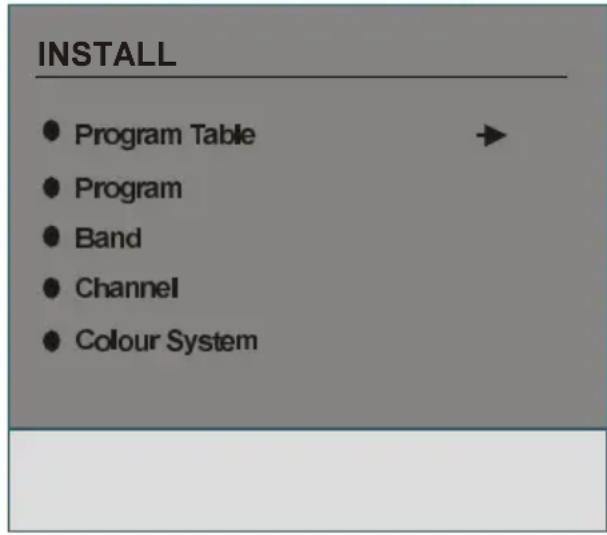
text_image
INSTALL Program Table Program Band Channel Colour SystemProgram Table
By pressing ▲ / ▼ button, select Program Table. Press ▶ to display Program Table.

text_image
Program Table P01 BBC 1 P11 S 18 P02 C 04 P12 S 29 P03 C 05 P13 S 31 P04 BBC 1 P14 S 33 P05 CH 4 P15 S 34 P06 BBC 2 P16 S 35 P07 C 04 P17 S 36 P08 C 07 P18 S 37 P09 C 12 P19 S 40 P10 C 15 P20 C 21 Name Insert Delete APSBy moving the cursor in four directions you can reach 20 programmes in the same page. You can scroll the pages up or down by pressing the navigation buttons to see all the programmes in TV mode (except the AV mode). By cursor action, programme selection is done automatically.
Name
To change the name of a decided programme, select the programme and press the RED button.
The first letter of the selected name will be highlighted. Press ▲ / ▼ button to change that letter and ◀ / ▶ button to select the other letters. By pressing the RED button, you can store the name.
Insert
Select the programme which you want to insert by navigation buttons. Press the GREEN button. By navigation buttons move the selected programme to the decided programme space and press the GREEN button again.
Delete
To delete a programme, press the YELLOW button. Pressing the YELLOW button again erases the selected programme from the programme list, and the programmes below shift one up.
APS (Auto Programming System)
When you press the BLUE button for APS, Auto Programming System Menu will appear on the screen.
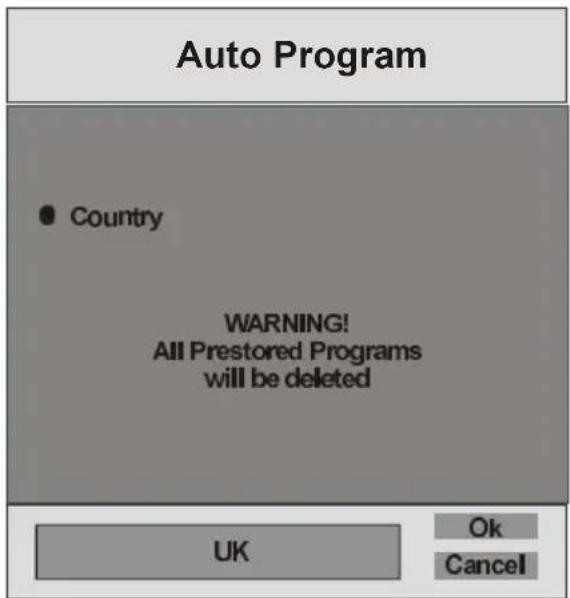
text_image
Auto Program ● Country WARNING! All Prestored Programs will be deleted UK Ok CancelA.P.S. (Auto Programming System) Country
Press ◀ / ▶ button to select your country. If you want to exit from A.P.S. function, press the BLUE button. When you press OK or RED button for starting APS, all stored programs will be erased and the following screen will be displayed:
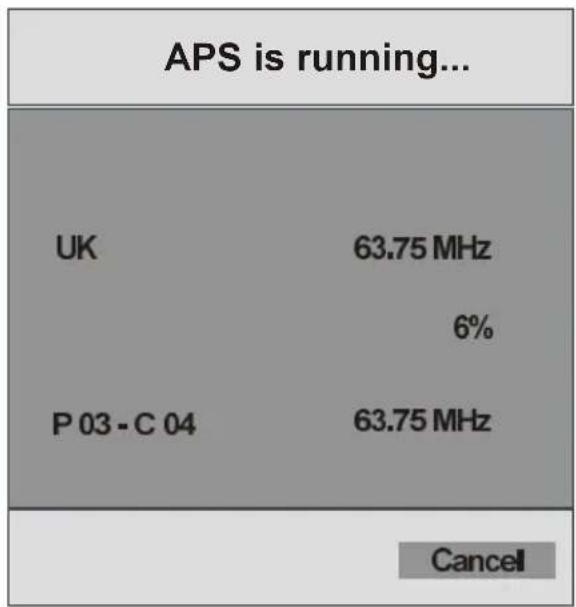
other
APS is running... UK 63.75 MHz 6% P 03 - C 04 63.75 MHz CancelWhenever you press the BLUE button, A.P.S. function stops and Program Table appears on the screen. If you wait until the end of A.P.S., Program Table is displayed with the programmes found and located.
Program
By pressing ▲ / ▼ button, select Program. Press ◀ / ▶ button to select the program number. You can also enter a number via digit buttons on the remote control. There are 100 program storage between 0 and 99.
Band
Band can be selected either C or S by press ◀ / ▶ button.
Channel
Channel can be changed by ◀ / ▶ button or Digit Buttons.
Colour System
By pressing ▲ / ▼ button, select Colour System. Press ◀ / ▶ button to change the colour system to PAL, SECAM, PAL60 or AUTO.
If Sound System is set to I, SECAM is not available for the Colour System.
Note: In AV mode, you can choose NTSC 3.58 and NTSC 4.43 as well.
Sound System
By pressing ▲ / ▼ button, select Sound System. Press ◀/▶ button to change the sound system to BG, I, L, L', DK.
Fine Tune
By pressing ▲ / ▼ button, select Fine Tune. Press ◀ / ▶ button to adjust the tuning.
Search
By pressing ▲ / ▼ button, select Search. Press ◀ / ▶ button to start program searching. You can also enter the desired frequency via digit buttons when search item is highlighted.
Store
By pressing ▲ / ▼ button, select Store. Press ▶ or OK button to store the adjustments. "Stored..." will be displayed on the screen.
Install menu in AV modes
The following screen appears in the install menu:

text_image
INSTALL ● Colour System ● VCR ● StoreColour System
By pressing ▲ / ▼ select Colour System. By pressing ◀/▶ button, you can change the colour system to PAL, SECAM, PAL 60, NTSC 4,43, NTSC 3,58 or AUTO.
VCR
By pressing ▲ / ▼ select VCR. By pressing◀ / ▶ button, you can set the VCR to ON or OFF.
Store
By pressing ▲ / ▼ button, select Store. Press ▶ or OK button to store the adjustments. "Stored..." will be displayed on the screen.
Source menu
By pressing ◀ button, select the fifth icon. Source menu appears on the screen.

text_image
SOURCE • TV • DTT • AV-1 • AV-2 • AV-2 SIn source menu, highlight a source by pressing ▲ / ▼ button and switch to that mode by pressing▶ or OK button. Source options are; TV, DTT, AV-1, AV-2, AV-2 S, AV-3 (*), FAV, S-Video, YPbPr, HDMI-1, HDMI-2 and PC.
* Note: AV-3 is only functional for the models with 3 SCART sockets.
PC Mode
Installation
- Power off both Computer and Display before making any connections.
- Set your PC's resolution correctly before connecting to the TV. See the table on Appendix A on page 36.
- Use 15-pin display cable to connect a PC to the LCD TV.
Menu System in PC mode
Sound Menu/Feature Menu
The items in these menus are described at Sound & Feature Menu explained in "Menu System".
PC Picture Menu
By pressing ▲ /▼ button, select the second icon. PC Picture menu appears on the screen.
Brightness, Contrast and Colour Temperature adjustments in this menu are identical to adjustments defined in TV picture menu in "MENU SYSTEM".
PC POSITION Menu
By pressing ▲ /▼ button, select the sixth icon. PC POSITION menu appears on the screen.

text_image
PC POSITION ● Autoposition ● H Position ● V Position ● Phase ● Dot ClockAutoposition
If you shift the picture horizontally or vertically to an unwanted position, use this item to put the picture into correct place automatically.
- Select Autoposition item by using ▲ / ▼ buttons. Press or OK button.
Warning: Auto position adjustment recommended to be done with the full screen image for the proper adjustment.
H (Horizontal) Position
This item shifts the image horizontally to right hand side or left hand side of the screen.
- Select H Position item by using ▲ / ▼ button.
- Use ◀ / ▶ button to adjust the value.
V (Vertical) Position
This item shifts the image vertically towards the top or bottom of the screen.
- Select V Position item by using ▲ / ▼ button.
- Use ◀ / ▶ button to adjust the value.
Phase
Depending on the resolution and scan frequency that you input to the TV Set, you may see a hazy or noisy picture on the screen. In such a case you can use this item to get a clear picture by trial and error method.
- Use ◀ / ▶ button to adjust the value.
Dot Clock
Dot Clock adjustments correct interference that appear as vertical banding in dot intensive presentations like spreadsheets or paragraphs or text in smaller fonts.
- Use ◀ / ▶ button to adjust the value.
Sound in PC mode
- Connect the PC's Audio output to the TV's PC Audio In socket with an audio cable.
Other Features
TV Status
Programme Number, Programme Name, Sound Indicator and Zoom Mode are displayed on the screen when a new programme is entered.
Mute Indicator
It is placed in the upper side of the screen when enabled.
Mute
To cancel mute, there are two alternatives; the first one is pressing the button and the second one is increasing the volume level.
PIP and PAP Modes
PIP picture is displayed on the screen by pressing button. At PIP Mode, a small picture (PIP picture) is displayed in the main picture.
When PIP Mode is entered, the default active window is PIP window and the active window is indicated by a red frame around it. The active window can changed by pressing ◀ / ▶ buttons.
PIP position can be changed by pressing ▲ / ▼ buttons.
When button is pressed again, the TV switches to PAP mode. In PAP Mode, two pictures with equal sizes are displayed on the screen. Aspect Ratios of the windows are fixed.
When you switch to PAP Mode, main window in PAP Mode is displayed on the right side of the screen. The active window can be changed by pressing / ▶ button.
Press the button again to exit the PAP mode.
Note: When main picture source is TV, AV-1, AV-2 AV-3 or AV-4; PAP or PIP window can only be set to HDMI-1, HDMI-2, YPBPR, PC source or vice versa.
AV Modes
You can switch your TV to AV modes by using related buttons on the remote control.
First, press → button till INPUT OSD is displayed on the screen. You can then use; AV1, AV2, AV3, AV4, AV5, HDMI1 or HDMI2 buttons on your remote control to select the desired source (except being in teletext).
Note that in PIP/PAP modes, pressing → button will directly change sources.
Zoom Modes
Zoom mode can be changed by pressing the button. You can change the screen size according to the picture aspect ratio. Select the optimum one from the following ZOOM modes.
Note:
- In YPBPR and HDMI modes, while in 720p-1080i resolutions, only FULL mode is available.
• In PC mode, only 4:3 and 16:9 modes are available.
Auto
When a WSS (Wide Screen Signalling) signal, which shows the aspect ratio of the picture, is included in the broadcast signal or the signal from an external device, the TV automatically changes the ZOOM mode according to the WSS signal.
- When the AUTO mode does not function correctly due to poor WSS signal quality or when you want to change the ZOOM mode, change to another ZOOM mode manually.
Zoom
This uniformly stretches the left and right sides of a normal picture (4:3 aspect ratio) to fill the wide TV screen.

natural_image
Diagram showing transformation of a square with four circles into a larger square with four circles (no text or symbols)- For 16:9 aspect ratio pictures that have been squeezed into a normal picture (4:3 aspect ratio), use the Full mode to restore the picture to its original shape.
Cinema
This zooms up the wide picture (16:9 aspect ratio) to the full screen.

natural_image
Diagram showing transformation of a square with circular holes into a larger square with circles (no text or symbols)16:9 Zoom
This zooms up the wide picture (16:9 aspect ratio) to the full screen.

natural_image
Diagram showing transformation of a square with circular holes into a larger square with circles (no text or symbols)Subtitle
This zooms up the wide picture (16:9 aspect ratio) with subtitles to the full screen.

text_image
SUBTITLE SUBTITLE4:3
Use to view a normal picture (4:3 aspect ratio) as this is its original shape.

natural_image
Diagram showing transformation of a square with four circles into a larger square, no text or symbols present14:9 Zoom
This zooms up the wide picture (14:9 aspect ratio) to the upper and lower limits of the screen.

natural_image
Diagram showing transformation of a square with a circle inside, resulting in a larger square with circles and dots (no text or symbols)Panoramic
This stretches the left and right sides of a normal picture (4:3 aspect ratio) to fill the screen, without making the picture appear unnatural.

natural_image
Diagram showing transformation of a square with four circles into a larger square with four circles (no text or symbols)The top and bottom of the picture are slightly cut off.
Freeze Picture
You can freeze the picture on the screen by pressing the 📋 button.
Note: This feature will be unavailable to be used while watching PC, YPBPr and HDMI sources.
Teletext
Teletext system transmits information such as news, sports and weather on your TV. Note that if the signal becomes insufficient, some text errors may occur or the teletext mode may be quitted. Teletext function buttons are listed below:

Teletext On/Off
Activates teletext mode when pressed once.

Teletext PAT mode
Pressing this buton will split the screen into two windows, one displaying the teletext and the other displaying the current channel. Pressing again will switch to teletext mode in a single screen.

Index
Selects the teletext index page.

Reveal
Shows hidden information (solutions of games, for example).

Hold
Holds a text page when convenient. Press again to resume.

Subcode Pages / Time
Selects subcode pages if available when the teletext is activated. When the teletext is not activated, displays time info if the programme has teletext transmission.
P+ / P- and numbers (0-9)
Press to select a page.
Note: Most TV stations use code 100 for their index pages.
Coloured buttons (RED/GREEN/YELLOW/BLUE)
Your TV supports both FASTEXT and TOP text systems. When these systems are available, the pages are divided into groups or topics.
When FASTEXT system is available, sections in a teletext page will become colour-coded and can be selected by pressing the coloured buttons. Press a coloured button that corresponds with your needs.
The coloured writings will appear, showing you which coloured buttons to use when TOP text transmission is present. Pressing P - or P + commands will request the next or previous page respectively.
Connect Peripheral Equipment
High Definition
Your LCD Television is capable of displaying High Definition pictures from devices such as a High Definition Satellite Receiver or DVD Player. These devices must be connected via the HDMI socket or Component Socket. These sockets can accept either 720p or 1080i signals.
Note: When it is desired to watch HDMI source with a DVI to HDMI cable; in order to enable audio, Audio Input (which is located at the left side of the antenna input) is to be used to get DVI device's audio signals.
Via The Scart
The TV has 2 Scart sockets. If you want to connect peripherals (e.g. video, decoder, etc.) which have Scart sockets to the TV, you can use SCART socket of the TV.
Note: If an external device is connected via the Scart sockets, the TV will automatically switch to AV mode. If both sockets are employed at the same time, SCART 1 becomes the preferential.
Via Aerial Input
If the device you want to connect does not have Scart socket, you should connect it to the Aerial input of the TV.
If the VCR is connected via Aerial input, it suggested to use Programme 0.
Decoder
If you are subscribed to cable TV offers, the organisation will supply you a corresponding decoder unit to allow the programmes to be unscrambled.
For further information consult your dealer.
Connect a decoder with an aerial socket to the TV
- Connect the aerial cable.
Connect a decoder without an aerial socket to the TV
- Connect the decoder to the EXTERNAL socket of TV with a RCA cable. Through the SCART/RCA socket of the decoder, you may attain a better display resolution.
TV And Video Recorder
- Connect the aerial cables.
Better picture quality can be obtained if you also connect a Scart cable to SCART sockets.
Playback NTSC
- Connect NTSC VCR player to a SCART socket of the TV.
- Then, select the related source from the SOURCE menu.
Source selection for VCR recording.
- Select Feature menu.
- Select AV-2 Out by pressing ▼ / ▲ button.
- For copying the picture that comes from the tuner, select SCART 1.
Note: Scart-1 socket cannot be used as DTV output. Please use Scart-2 instead.
Camera And Camcorder
To Connect To AV Input
Connect your camera or camcorder to AV input of the TV.
- Connect your equipment to the TV via VIDEO (yellow), AUDIO R (red) and AUDIO L (white) inputs. You must connect the jacks into the input with the same colour.
To Connect To S-VHS Input
Connect your camera or camcorder S-VHS input of the TV.
a• Connect your equipment to the TV via S-VHS input and audio inputs of AV inputs by using S-VHS cables.
isConnect The Decoder To The Video Recorder
Some video recorders have a special Scart socket for decoder.
- Connect a Scart cable to the Scart socket of your decoder and to the special Scart socket of your video recorder. Refer to the booklet of your video recorder.
Connecting Headphones (optional)
Use the stereo headphone socket of the TV, to connect headphones.
Note: If you want to connect more equipment to your TV, consult your dealer.
Audio Lineout
To connect the external speakers to your TV, use the Line Outs of the TV.
Note: While watching PC or YPbPr sources, Lineout selection could only be the current source.
Connecting Subwoofer
Use Subwoofer Out socket to connect an external, active subwoofer to the set to give a much deeper bass effect.
Tips
Care Of The Screen
Clean the screen with a slightly damp, soft cloth. Do not use abrasive solvents as they may damage the TV screen coating layer.
Poor Picture
Have you selected the correct TV system? Is your TV set or house aerial located too close to non-earthed audio equipment or neon lights, etc.?
Mountains or high buildings can cause double pictures or ghost images. Sometimes you can improve the picture quality by changing the direction of the aerial.
Is the picture or Teletext unrecognisable? Check you have entered the correct frequency.
The picture quality may degrade when two peripherals are connected to the TV at the same time. In such a case, disconnect one of the peripherals.
No Picture
Is the aerial connected properly? Are the plugs connected tightly to the aerial socket? Is the aerial cable damaged? Are suitable plugs used to connect the aerial? If you are in doubt, consult your dealer.
No Picture means that your TV is not receiving a transmission. Have you selected the correct button on the remote control? Try once more.
Sound
You can not hear any sound. Did you perhaps interrupt the sound, pressing the 📄 button?
Sound is coming from only one of the speakers. Is the balance set to one extreme? See Sound menu.
Remote Control
Your TV no longer responds to the remote control. Perhaps the batteries are exhausted. If so you can still use the local buttons at the bottom of the TV.
Peripheral Equipment Connections
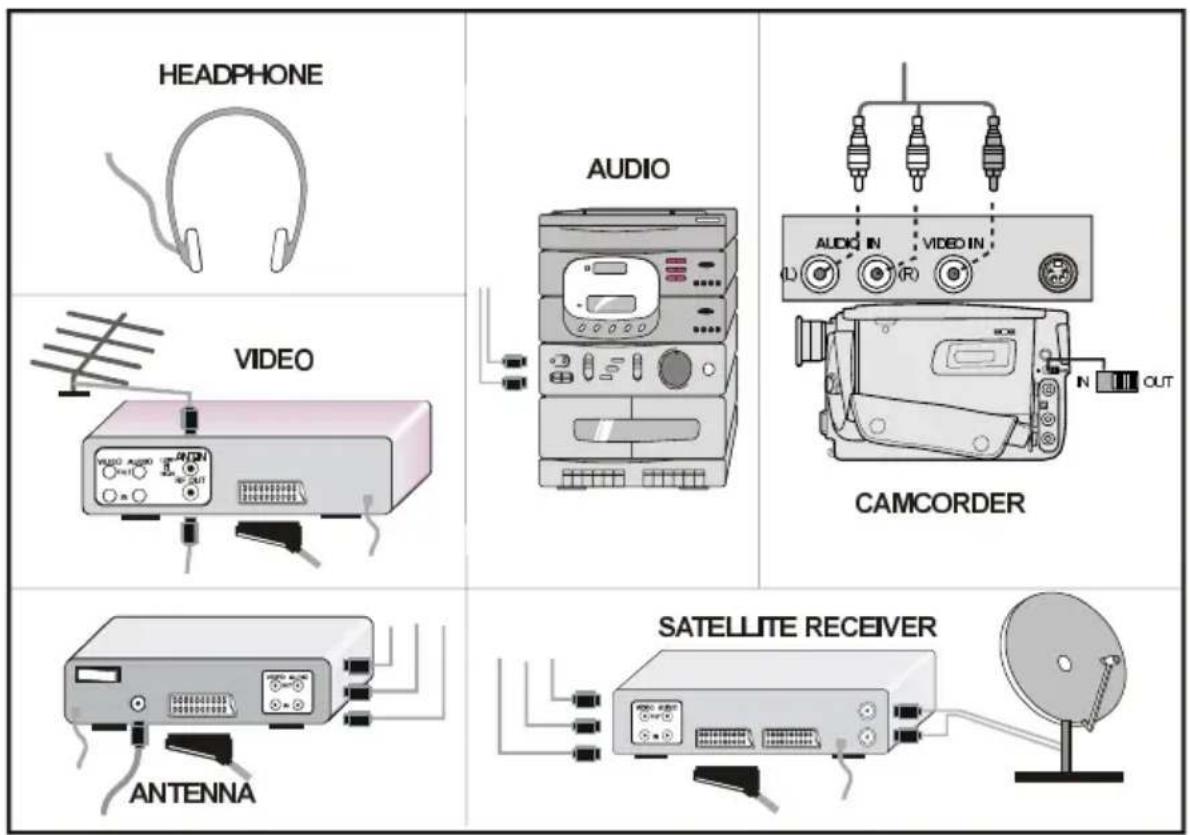
text_image
HEADPHONE AUDIO CAMCORDER VIDEO ANTENNA SATELLITE RECEIVERAerial Connection
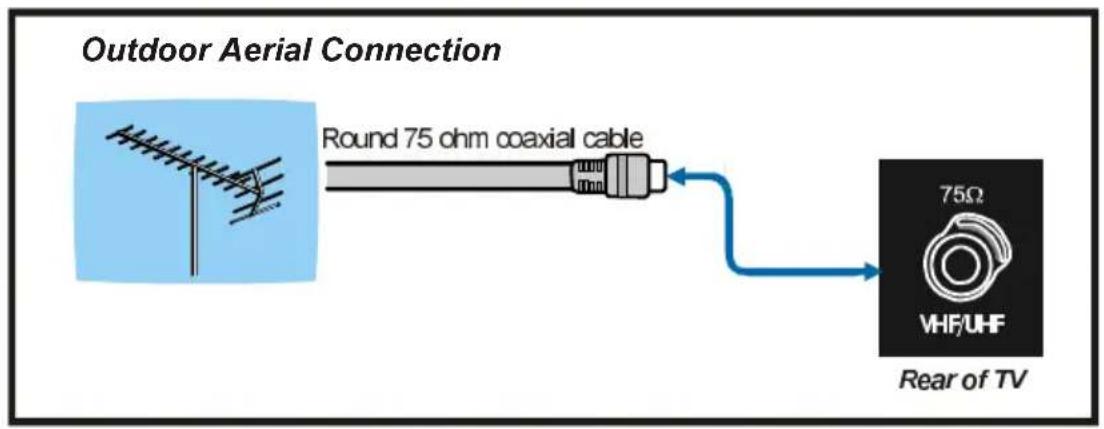
flowchart
graph LR
    A["Outdoor Aerial Connection"] --> B["Round 75 ohm coaxial cable"]
    B --> C["Rear of TV"]
    C --> D["75Ω VHF/UHF"]
Specifications
| DISPLAY | |
| Size/Diagonal | 26" (16:9 Display) |
| Veiwable size/Diagonal | 57.7 x 32.5 (cm) / 66.22 (cm) |
| VIDEO STANDARDS | |
| Video | PAL/NTSC/SECAM |
| TV Tuner (Analog) | PAL/SECAMB/G D/K K' W' L/L'VHF (BAND VIII)UHF (BAND U)HYPERBANDCABLE TV (S1-S20 / S21-S41)100 PRESET CHANNELS |
| TV Tuner (Digital) | MHEG-5 ENGINE compliant with ISO/IEC 13522-5Ukengine Profile 1Object carousel support compliant with ISO/IEC 135818-6 and UK DTT profileFrequency range: 474-850 MHzTransmission standard: DVB-T, MPEG-2Demodulation: COFDM with 2K/8K FFT modeFEC: all DVB modesVideo: MP@ML, PAL, 4:3/16:9Audio: MPEG Layer I&II 32/44.148kHz. |
| Formats | 4:3, 16:9, 14:9, Panoramic, Default Zoom, Auto Wide |
| AUDIO | German + Nicam Stereo |
| FREQUENCY RANGE PC | |
| Horizontal Frequency: | 64 Khz (max) |
| Vertical Frequency: | 75 Hz (max) |
| Clock Frequency: | 108 Mhz (max) |
| Resolutions: | 1360 x 768 (max) |
| Formats: | 4:3, 16:9 |
| INPUT CONNECTIONS | |
| PC | D-SUB 15 (VGA) |
| VIDEO | TVTUNER: IEC 75 Ohms input resistanceSCART1: CVBS, RGBSCART2: CVBS, SCVBS: 1 x RCAY/C (S-Video) MiniDNYPbPr: 3 x RCAHDMI x 2: Multimedia Interface |
| AUDIO | SCART1: Audio L/RSCART2: Audio L/RY/C or CVBS: Audio Phono L/RYPbPr: Audio Phone L/RPC: 3.5mm Jack StereoHeadphones: 3.5mm Jack Stereo |
Specifications
OUTPUT CONNECTIONS
| Line Out | Audio Phono L/R |
| Subwoofer | 1 x Phono (Mono) |
| Audio Speaker Output | 2x8 W RMS |
| Synchronization | Sync on green, composite sync with automatic detection separate H and V sync. |
| Operator Control Keys | On/Off, Standby, Vol+, Vol-, Prog +, Prog -, Menu, TV/AV. |
OPERATING CONDITIONS
| Temperature | 0°C ~40°C (in operation) |
| Air Humidity | 20%~80% (no condensation) |
| Atmospheric Pressure | 800~1114 HPa |
POWER SUPPLY
| Voltage Supply | 220-240V AC |
| Mains Frequency | 50Hz |
| Power Consumption | 120W (Max), <1 W (Standby) |
DIMENSIONS AND WEIGHT
| Display with stand D x L x H: | 245 x 675 x 538 (mm) |
| Display without stand: D x L x H: | 122 x 675 x 480 (mm) |
| Weight Display: | 11 kg |
| Weight Stand: | 3 kg |
| Weight (net): | 14 kg |
Specifications
Signal Input
PC RGB Terminal (D-sub 15-pin connector)
| Pin | Input signal |
| 1 | R |
| 2 | G or sync on green |
| 3 | B |
| 4 | No connection |
| 5 | No connection |
| 6 | R.GND |
| 7 | G.GND |
| 8 | B.GND |
| 9 | No connection |
| 10 | GND |
| 11 | No connection |
| 12 | [SDA] |
| 13 | H.sync or H/V composite sync |
| 14 | V.sync. [V.CLK] |
| 15 | [SCL] |
S-input connector pin specifications
| Pin | Input signal |
| 1 | Y |
| 2 | Y-GND |
| 3 | C |
| 4 | C-GND |
| Frame | GND |
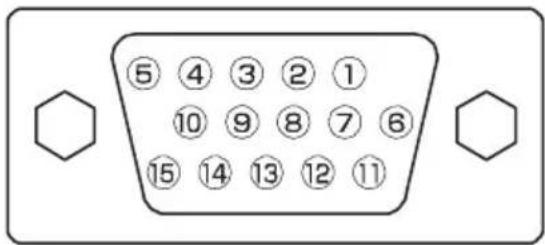
text_image
⑤ ④ ③ ② ① ⑩ ⑨ ⑧ ⑦ ⑥ ⑮ ⑭ ⑬ ⑭ ⑮- When different kinds of input signals are simultaneously input to the monitor via a graphics board or the like, the monitor will automatically select the signals in the following priority order:
| Sync signal type | Priority |
| H/V separate sync. | 1 |
| H/V composite sync. | 2 |
| sync.on Green * | 3 |
- Even in the case of the recommended signals shown on the following page, there may be instances when correct display is not possible. In this case, use H/V separate sync, H/V composite sync.

text_image
③ ① ② ④HDMI connector pin specifications
| Pin | Input signal | Pin | Input signal |
| 1 | TMDS Data2+ | 11 | TMDS Clock Shield |
| 2 | TMDS Data2 Shield | 12 | TMDS Clock- |
| 3 | TMDS Data 2- | 13 | CEC |
| 4 | TMDS Data 1+ | 14 | Reserved (N.C. on device) |
| 5 | TMDS Data1 Shield | 15 | SCL |
| 6 | TMDS Data1- | 16 | SDA |
| 7 | TMDS Data0+ | 17 | DDC/CED Ground |
| 8 | TMDS Data0 Shield | 18 | +5V Power |
| 9 | TMDS Data0- | 19 | Hot Plug Detect |
| 10 | TMDS Clock+ |

text_image
18 17 15 13 11 9 7 5 3 1 18 16 14 12 10 8 6 4 2SCART connector pin specifications
| Pin | Input signal | Pin | Input signal |
| 1 | ALDIO OUT (RIGHT) | 12 | Not used |
| 2 | ALDIO IN (RIGHT) | 13 | RGB-R GND |
| 3 | ALDIO OUT (LEFT/MONO) | 14 | GND |
| 4 | AUDIO GND | 15 | RGB-R / S.VHS CHROMINANCE IN |
| 5 | RGB-B GND | 16 | BLANKING SIGNAL |
| 6 | AUDIO IN (LEFT/MONO) | 17 | COMPOSITE VIDEO GND |
| 7 | RGB-B IN | 18 | BLANKING SIGNAL GND |
| 8 | AUDIO / RGB SWITCH / 16:9 | 19 | COMPOSITE VIDEO OUT |
| 9 | RGB-G GND | 20 | COMPOSITE VIDEO / S.VHS LUMINANCE IN |
| 10 | Not used | 21 | GND / SHELD (CHASSIS) |
| 11 | RGB-G IN |
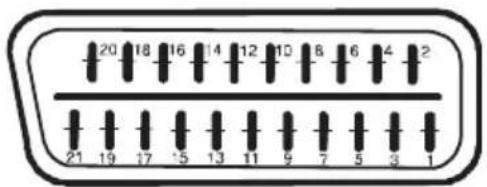
text_image
20 18 16 14 12 10 8 6 4 2 21 19 17 5 13 11 9 7 5 3 1Appendix A: PC Input Typical Display Modes
The display has a maximum resolution of 1360 x 768, frequency range of 56-75 Hz. The following table is an illustration of some of the typical video display modes.
| Mode | ResolutionFrequency | |||
| Horizontal | Vertical | Hor.(kHz) | Ver.(Hz) | |
| 1 | 640480 | 31.560 | ||
| 2 | 640480 | 37.972 | ||
| 3 | 640480 | 37.575 | ||
| 4 | 800600 | 35.256 | ||
| 5 | 800600 | 37.960 | ||
| 6 | 800600 | 48.172 | ||
| 7 | 800600 | 46.975 | ||
| 8 | 1024768 | 48.460 | ||
| 9 | 1024768 | 56.570 | ||
| 10 | 1024768 | 6075 | ||
| 11 | 1280102 | 46460 | ||
| 12 | 1280768 | 47.860 | ||
| 13 | 1360768 | 47.760 | ||
Main and PIP, PAP picture combinations
| MAIN PIP.PAP↓ | TUNER | AV-1CVBS | AV-1RGB | AV-2CVBS | AV-2SVHS | AV-3(*) | DTT | YPbPr | FAVCVBS | S-VHS | HDMI | PC |
| TUNER | X | X | X | X | X | X | X | X | X | X | O | O |
| AV-1CVBS | X | X | X | X | X | X | X | X | X | X | O | O |
| AV-1RGB | X | X | X | X | X | X | X | X | X | X | O | O |
| AV-2CVBS | X | X | X | X | X | X | O | X | X | X | O | O |
| AV-2S-VHS | X | X | X | X | X | X | O | X | X | X | O | O |
| DTT | X | X | X | X | X | X | O | X | X | X | O | O |
| YPbPr | O | O | O | O | O | O | X | O | O | O | X | X |
| FAVCVBS | X | X | X | X | X | X | O | X | X | X | O | O |
| SVHS | X | X | X | X | X | X | O | X | X | X | O | O |
| HDMI 1 | O | O | O | O | O | O | X | O | O | O | X | X |
| HDMI 2PC | OO | OO | OO | OO | OO | OO | XX | OO | OO | OO | XX | XX |
(X: Not available, O: Available)
* Functional for the models having 3 SCART sockets.
UK Guarantee
Your Guarantee of Excellence
Thank you for purchasing this Hitachi Television.
In the unlikely event that this product should develop a fault, we undertake to replace or repair any part of the product which fails due to a manufacturing defect within 12 months of the date of purchase provided that:
i) The product has been installed and used only in accordance with the instructions supplied with the product
ii) The product has not been repaired, maintained, or modified by any person other than an Hitachi authorised engineer
iii) The product serial number has not been removed or altered
This guarantee does not apply to product acquired second hand or for commercial or communal use
This guarantee does not cover the replacement of exhausted batteries, the adjustment of user controls, or aerial alignment.
Any parts replaced under this guarantee shall become the property of Hitachi Europe Ltd.
Please note that evidence of the date of purchase will be required before any service under this guarantee is carried out.
THIS GUARANTEE DOES NOT AFFECT YOUR STATUTORY RIGHTS.
IN ALL CASES OF DIFFICULTY PLEASE CONSULT YOUR HITACHI DEALER
HITACHI
Inspire the Next
Hitachi,Ltd.
ConsumerBusinessGroup
Shin-OtemachiBldg5f,2-1,Otemachi2-Chome,
Chiyoda-Ku,Tokyo100-0004Japan
HITACHIEUROPELTD.
ConsumerAffairsDepartment
POBox3007
Maidenhead
BerkshireSL68ZE
UNITEDKINGDOM
Tel:08704054405
Email: consumer.mail@hitachi-eu.com
HITACHIEUROPES.A.
364,KifissiasAve.&1,DelfonStr.
15233Chalandri
Athens
GREECE
Tel:1-6837200
Fax:1-6835694
Email: dmgservice.gr@hitachi-eu.com
HITACHIEUROPEGmbH
MunichOffice
DornacherStrasse3
Hotline:0180-5512551(12ct/min.)
Email: dmg-mun.service@hitachi-eu.com
HITACHIEUROPES.A.
GranViaCarlesIII,86Planta5 ^4
Email: customerservice.italy@hitachi-eu.com
HITACHIEUROPEAB
Box77
S-16494KISTA
SWEDEN
Tel:0856271100
Fax:0856271111
Email: csgswe@hitachi-eu.com
HITACHIEUROPES.A.S
LyonOffice
DigitalMediaGroup
94QuaiCharlesdeGaulles,69006Lyon
FRANCE
Tel:0472142970
Fax:0472142999