C28W411TN - Television HITACHI - Free user manual and instructions
Find the device manual for free C28W411TN HITACHI in PDF.


User questions about C28W411TN HITACHI
0 question about this device. Answer the ones you know or ask your own.
Ask a new question about this device
Download the instructions for your Television in PDF format for free! Find your manual C28W411TN - HITACHI and take your electronic device back in hand. On this page are published all the documents necessary for the use of your device. C28W411TN by HITACHI.
USER MANUAL C28W411TN HITACHI
natural_image
Close-up of a hand pressing down on a black electronic device with a finger (no visible text or symbols)HITACHI
TV Introduction
Dear Hitachi Customer,
Congratulations on your purchase of the very latest ‘state of the art’ television from HITACHI. At Hitachi we pride ourselves on producing high quality televisions with outstanding picture and audio capabilities, coupled with Hitachi’s reputation for superior reliability.
You should enjoy many years of trouble free operation from your TV. Take some time to read the Operating Guide thoroughly, and if you encounter any difficulty, firstly refer to the Trouble Shooting guide at the rear of this manual. If, in the unlikely event of a problem occurring on your TV, contact your dealer immediately. Please read the Guarantee carefully, this is found on page 24.
CONTENTS
Introduction & Contents Page 2
TV Safety Page 3
Battery Safety & Installation Page 4
TV Installation Page 5
General TV Controls Overview Page 6
Automatic Tuning Procedure Page 7 - 8
Manual Tuning Procedure Page 9 - 11
Picture & Audio Controls Page 12 - 13
Feature Menu Page 14
NICAM Features Page 15
Widescreen Modes Page 16 - 17
Handset Layout Page 18
Handset Functions Page 19
Connecting External AV equipment Page 20 - 21
Teletext & VCR Operation Page 22
Trouble Shooting Guide Page 23
Your Guarantee Page 24
Technical Specifications Page 25
Environmental Notice from HITACHI Page 26

This television has been designed and manufactured to meet international safety standards, but like any electrical equipment, care must be taken if you are to obtain the best results and safety is to be assured.

DO read the operating instructions before you attempt to use the equipment.

DO ensure that all connections, (including the mains plug, extension leads and inter-connections between the pieces of equipment), are properly made and in accordance with the manufacturers instructions. Switch off and withdraw the mains plug before making or changing connections.

DO observe the manufacturers instructions when connecting extension leads to your TV. The fuse should be a 5 Amp fuse with the safety symbols and displayed. If you are in any doubt about the extension installation, please consult a competent electrician.

Should you require to replace the fuse in the moulded mains plug with a new fuse then please replace with one of the same value, type and approval as the original. Ensure the fuse cover is returned to its original position.

DO consult your dealer if you are in any doubt about installation, operation or safety of your equipment.

DO be careful with any glass panels or doors on equipment.

DO place your TV on a flat surface, or if supplied, the stand accessory.

DO NOT remove any fixed cover as this may expose dangerous voltages.

DO NOT cut off the fitted mains plug as it may contain a special radio interference filter, the removal of which could lead to impaired performance. If you wish to extend the lead, obtain an appropriate extension lead or consult your dealer.

DO NOT continue to operate the equipment if you are in any doubt about it working normally or if it is damaged in any way - switch off, withdraw the mains plug and consult your dealer.

IF you intend placing this TV into a cabinet or a wall alcove, please ensure there is at least a 100mm (10cm) gap to the sides, rear and top of the TV. This is to allow for adequate ventilation during your TV's operation.

DO NOT leave equipment switched on when it is unattended unless it is specifically stated that it is designed for unattended operation or has a stand-by mode. Switch off using the switch on the equipment and show your family how to do this. Make special arrangements for infirm or handicapped people.

DO NOT obstruct the ventilation of the equipment, for example with curtains or soft furnishings. Overheating will cause damage and shorten the lifespan of your equipment.

DO NOT use makeshift stands and NEVER fix legs with wood screws - to ensure complete safety, always fit the manufacturers approved stand or legs with the fixings provided according to the instructions.

DO NOT allow electrical equipment to be exposed to rain or moisture.

DO NOT place hot objects such as candles or nightlights on, or close to, equipment. High temperatures can melt plastic and lead to fires.

DO NOT listen to headphones at high volume, as such use can permanently damage your hearing.

NEVER let anyone, especially children, push anything into holes, slots, or any other opening in the case - this could result in a fatal electrical shock.

NEVER guess or take chances with electrical equipment of any kind - it is better to be safe than sorry!

DO NOT use equipment such as personal stereos or radios so that you are distracted from the requirements of traffic safety. It is illegal to watch television whilst driving.
Battery Installation

natural_image
Four-step diagram showing a mechanical assembly process with an arrow indicating motion (no text or symbols present)1 Remove cover of handset by lifting up the cover at the recess.
2) Insert batteries into handset as shown and replace cover.

- When inserting the batteries make sure the polarities are correct, that is, '+' to '+', '-' to '-'
- Replace the batteries with the equivalent 'AA' type.
- Discard old batteries safely, following the battery safety guidelines.
Battery Safety Guidelines
Used correctly, batteries are a safe and dependable source of portable power. However, problems can occur if they are misused or abused - resulting in leakage, or in extreme cases, fire or explosion. Here are some simple guidelines to safe battery use designed to eliminate any such problems.
always

Take care to fit your batteries correctly, observing the plus '+' and minus '-' marks on the battery and appliance. Incorrect fitting can cause leakage, or in extreme cases, fire or explosion.
always

natural_image
3D technical illustration of a mechanical component with mounting brackets and internal channels (no text or symbols)Replace the whole set of batteries at one time, taking care not to mix old and new batteries of different types, since this can result in leakage, or in extreme cases, fire or explosion.
always
natural_image
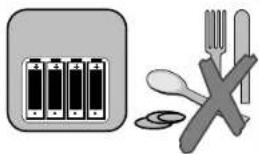
Illustration of battery pack, fork, and crossed cutlery (no text or symbols)Store unused batteries in their packaging and away from metal objects which may cause a short circuit resulting in leakage, or in extreme cases, fire or explosion.
always
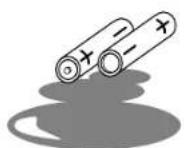
Remove dead batteries from equipment, and all batteries from equipment that is to be left for long periods of time without any use. Otherwise the batteries may leak and cause damage.
never!

natural_image
Illustration of a tree crossing a diagonal line with a fire and a cross symbol (no text or labels)Never dispose of batteries in fire as this can cause an explosion.
Respect the environment - always dispose of batteries in an environmentally friendly manner.
never!

Never attempt to recharge ordinary batteries, either in a charger or by applying heat to them.
They may leak, cause fire or even explode. Rechargeable
NiCAD batteries and chargers can be purchased from any good High Street electrical retailer.
TV Installation
Before installing your TV please read the following important notes:
If you intend placing this TV into a cabinet or a wall alcove, please ensure there is at least a 100 mm (10 cm) gap to the sides, rear and top of the Television. This is to allow for adequate ventilation during TV operation.
Don't allow soft furnishings such as curtains to be draped over the TV whilst in operation.
Never place the TV on to a carpet during normal operation - this could obstruct ventilation slots on the base of the TV. Always place the TV on a flat surface, or if supplied, the stand accessory.
Failure to observe the above guidelines could result in serious overheating of your TV, or in extreme cases, even fire.
Step 1.
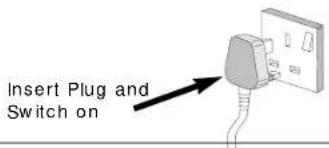
Connecting your TV to the mains socket.
(Please read the Safety Notes on page 3 with reference to unattended operation).
text_image
Insert Plug and Switch on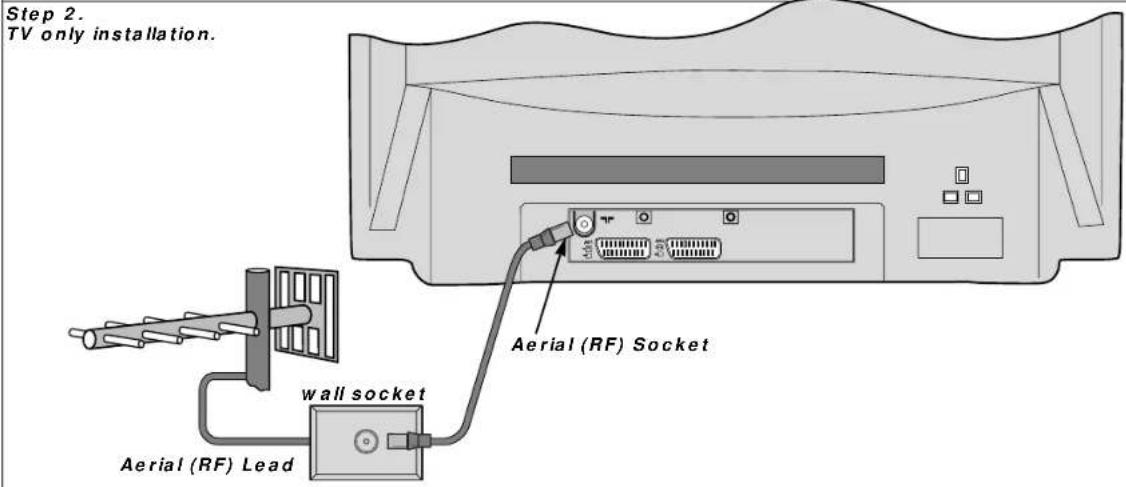
text_image
Step 2. TV only installation. Aerial (RF) Socket wall socket Aerial (RF) Lead
text_image
Step 3. Installation via a VCR. Aerial (RF) Socket TV (RF) connector lead VCR to TV wall socket *Optional Scart Lead TV to VCR Aerial (RF) Lead Aerial (RF) Socket VCR*A scart lead should be fitted between your TV and VCR to enhance your picture and sound quality. Scart leads are essential if you have a stereo TV and VCR and wish to obtain stereo sound from your equipment. These leads can be purchased from your Hitachi dealer or any good 'High Street' electrical retailer.
TV Controls Overview
FRONT CONTROL PANEL

text_image
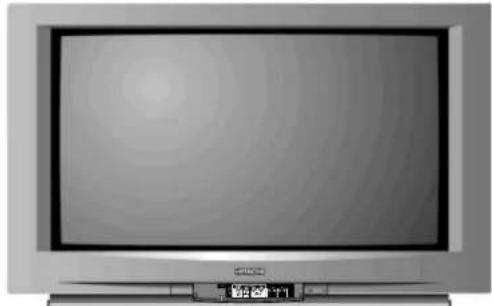
HITACHIAccess to the front control panel is gained by pushing the door in and releasing. The front control panel contains items such as the Headphone socket, Audio/Video sockets, Programme +/- and Volume +/- buttons. Also located on the front are the ON/OFF button, Infra Red Lens and TV Mode Light.
natural_image
Front view of a flat-screen television displaying a blank screen with no visible text or symbols on the screen.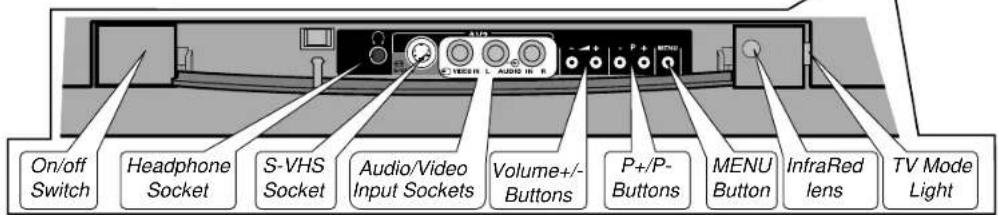
text_image
On/off Switch Headphone Socket S-VHS Socket Audio/Video Input Sockets Volume+/- Buttons P+/P- Buttons MENU Button InfraRed lens TV Mode LightREAR CONNECTING SOCKETS
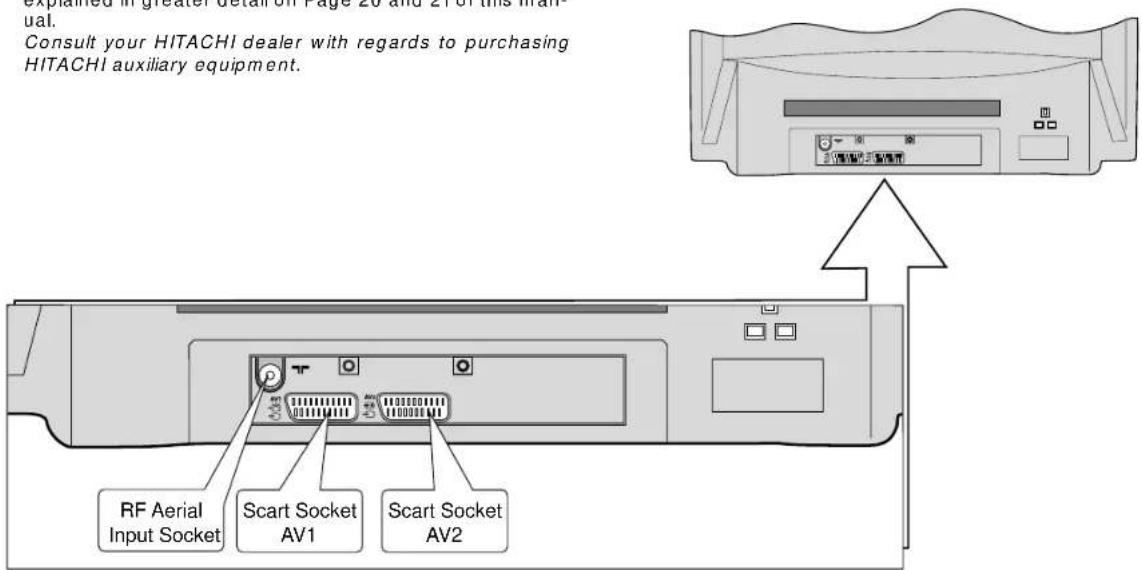
The rear of your TV contains an aerial RF input and two scart sockets, AV1 and AV2. The RF/ aerial socket is permanently connected to an RF source i.e. an aerial antenna (shown on Page 5). The scart sockets are used to connect external equipment such as VCR's, Satellite Receivers / Decoder etc. Connection of this equipment is explained in greater detail on Page 20 and 21 of this manual.
Consult your HITACHI dealer with regards to purchasing HITACHI auxiliary equipment.
text_image
Explained in greater detail on Page 26 and ETR of this manual. Consult your HITACHI dealer with regards to purchasing HITACHI auxiliary equipment. RF Aerial Input Socket Scart Socket AV1 Scart Socket AV2SWITCHING ON
To switch your TV on, press the ON/OFF button shown above. If the TV fails to display anything on the screen, but the red TV mode light appears bright, then the TV is in Stand by mode. Press the Stand by button on your handset (key 2) to activate the TV. The red TV mode light will then dim and you should allow the TV a few seconds for a picture to appear.
SIGNAL QUALITY - If poor or noisy signals are experienced from your TV during normal operation, fit the supplied Relay RF cable between your VCR and TV. This measure will improve the picture quality on your TV.
To automatically tune this TV to your local broadcasting stations follow the step by step guide below. Once the TV has found all your local stations, then they are automatically assigned into the following order: 1.BBC1; 2: BBC2; 3: ITV; 4:CH4/S4C; 5: CH5 (subject to availability); 6: Satellite.
Alternatively, if you are familiar with local broadcasting frequency or CH numbers, then these can be entered manually. Please refer to the Manual Tuning Procedure section of this booklet.

IMPORTANT NOTE: If you have a VCR or a Satellite receiver connected to this TV please ensure that they are switched on before Autotune commences. In the case of a VCR, insert a pre-recorded tape and begin playback of your equipment. With a Satellite receiver, select SKY NEWS. These measures ensure that all your equipment is tuned in during the AUTOTUNE procedure. (Satellite equipment installation is explained on Page 20 and 21). Note: The VCR programme number should always be set to 0
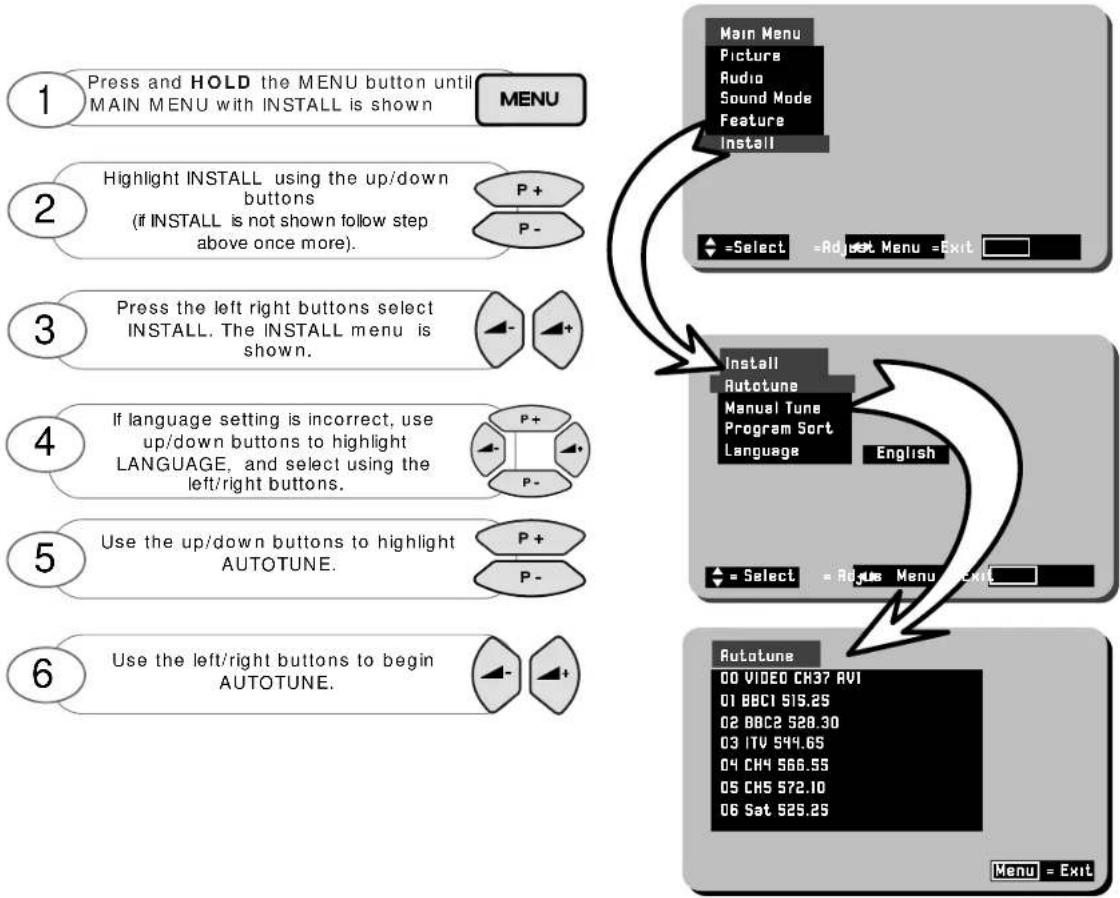
flowchart
graph TD
    A["1 Press and HOLD the MENU button until MAIN MENU with INSTALL is shown"] --> B["2 Highlight INSTALL using the up/down buttons (if INSTALL is not shown follow step above once more)."]
    B --> C["3 Press the left right buttons select INSTALL. The INSTALL menu is shown."]
    C --> D["4 If language setting is incorrect, use up/down buttons to highlight LANGUAGE, and select using the left/right buttons."]
    D --> E["5 Use the up/down buttons to highlight AUTOTUNE."]
    E --> F["6 Use the left/right buttons to begin AUTOTUNE."]

    G["Main Menu"] --> H["Picture"]
    G --> I["Audio"]
    G --> J["Sound Mode"]
    G --> K["Feature"]
    G --> L["Install"]
    M["Select"] --> N["Adjust Menu =Exit"]

    O["Install\nAutotune"] --> P["Manual Tune\nProgram Sort\nLanguage"]
    Q["English"] --> R["Select = Route Menu Exit"]

    S["Autotune"] --> T["00 VIDEO CH37 RV1\n01 BBC1 515.25\n02 BBC2 528.30\n03 ITV 544.65\n04 CH4 566.55\n05 CH5 572.10\n06 Sat 525.25"]
    U["Menu - Exit"] --> V["End"]
Completed Autotune example.
Automatic Tuning cont.
Program Sort
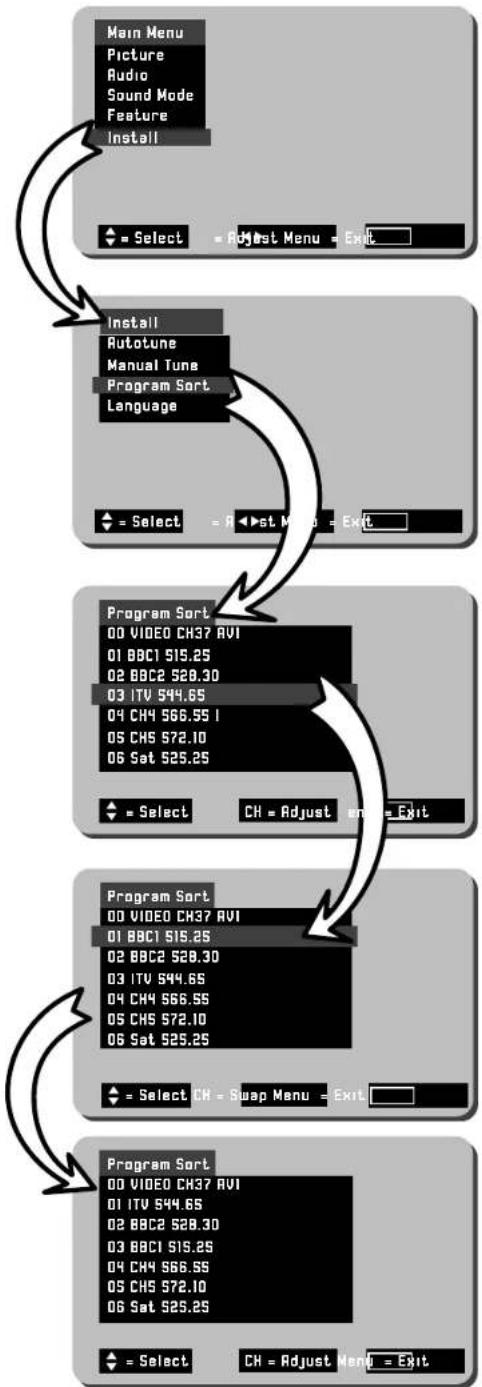
The PROGRAM SORT menu allows the user to swap programme numbers from one location to another. If necessary follow the steps below.
1 Press and HOLD the MENU button until MAIN MENU with INSTALL is shown
MENU
2
Use up/down buttons to highlight INSTALL and use the left/right buttons to select.

3
Use the up/down buttons to highlight PROGRAM SORT.

4
Use left/right buttons to select PROGRAM SORT.
5
The PROGRAM SORT menu is displayed.
6
Use the up/down buttons to highlight Program to change (example shows Program 3 ITV)
P+
P-
7
Press the 'CH' button to select (selection bar turns RED in colour)
CH
8
Use the up/down buttons to highlight Program to be replaced (example shows Program 1 BBC1)
P+
P-
9
Once highlighted press CH key once more to confirm selection (selection bar returns to BLUE)
CH
10
Repeat above to swap other programs, or repeatedly press MENU button to return to TV operation.
MENU
flowchart
graph TD
    A["Main Menu"] --> B["Select"]
    B --> C["Adjust Menu"]
    C --> D["Exit"]
    E["Picture"] --> F["Install"]
    G["Audio"] --> F
    H["Sound Mode"] --> F
    I["Feature"] --> F
    J["Install"] --> K["Program Sort Language"]
    L["Auto"] --> K
    M["Manual Tune"] --> K
    N["Language"] --> K
    O["Select"] --> P["Select"]
    P --> Q["Adjust Menu"]
    Q --> R["Exit"]
    S["Program Sort"] --> T["00 VIDEO CH37 AVI"]
    S --> U["01 BBC1 515.25"]
    S --> V["02 BBC2 528.30"]
    S --> W["03 ITV 544.65"]
    S --> X["04 CH4 566.55 I"]
    S --> Y["05 CH5 572.10"]
    S --> Z["06 Sat 525.25"]
    AA["Select"] --> AB["CH = Adjust"]
    AB --> AC["Exit"]
    AD["Program Sort"] --> AE["00 VIDEO CH37 AVI"]
    AD --> AF["01 BBC1 515.25"]
    AD --> AG["02 BBC2 528.30"]
    AD --> AH["03 ITV 544.65"]
    AD --> AI["04 CH4 566.55"]
    AD --> AJ["05 CH5 572.10"]
    AD --> AK["06 Sat 525.25"]
    AL["Select"] --> AM["CH = Swap Menu"]
    AM --> AN["Exit"]
    AO["Program Sort"] --> AP["00 VIDEO CH37 AVI"]
    AO --> AQ["01 ITV 544.65"]
    AO --> AR["02 BBC2 528.30"]
    AO --> AS["03 BBC1 515.25"]
    AO --> AT["04 CH4 566.55"]
    AO --> AU["05 CH5 572.10"]
    AO --> AV["06 Sat 525.25"]
    AW["Select"] --> AX["CH = Adjust Menu"]
    AX --> AY["Exit"]
In this example BBC1 on Program 1 has been selected so that it may be swapped with Program 3 (ITV).
Manual Tuning Procedure
If desired, you may manually tune this TV. There are several methods of Manual Tuning, these include Search Tuning / Fine Tuning and Frequency or CH manual input (this requires you to know your local broadcasting frequency or CH number). This section will also deal with items such as assigning AV sockets to program numbers and Program Naming.
Search Tuning / Fine Tuning
This section deals with locating broadcasting stations using the Search Tuning and combined Fine Tuning facility. Fine Tuning may be required after Search or Automatic Tuning is complete.
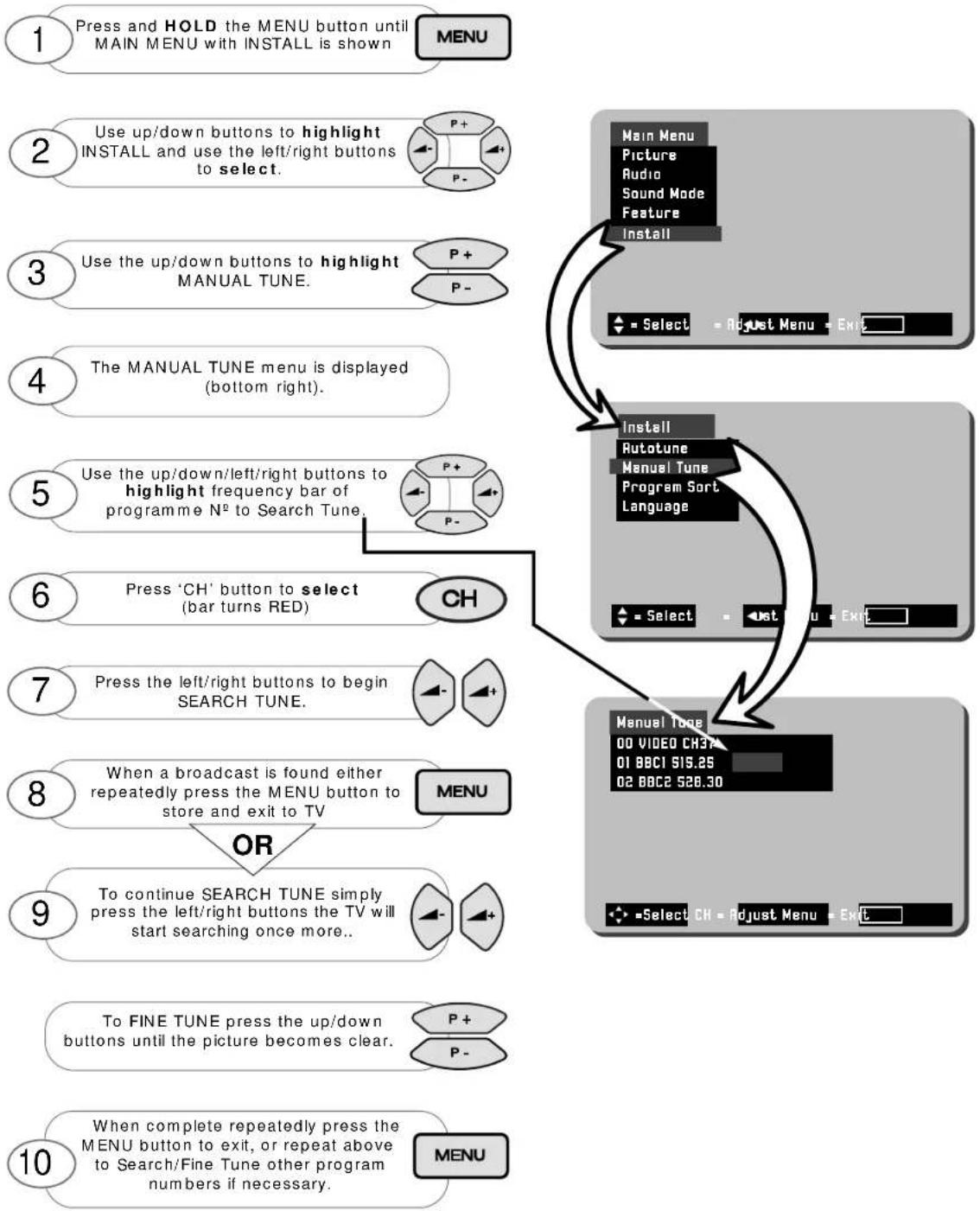
flowchart
graph TD
    A["1 Press and HOLD the MENU button until MAIN MENU with INSTALL is shown"] --> B["2 Use up/down buttons to highlight INSTALL and use the left/right buttons to select."]
    B --> C["3 Use the up/down buttons to highlight MANUAL TUNE."]
    C --> D["4 The MANUAL TUNE menu is displayed (bottom right)."]
    D --> E["5 Use the up/down/left/right buttons to highlight frequency bar of programme N° to Search Tune."]
    E --> F["6 Press 'CH' button to select (bar turns RED)"]
    F --> G["7 Press the left/right buttons to begin SEARCH TUNE."]
    G --> H["8 When a broadcast is found either repeatedly press the MENU button to store and exit to TV"]
    H --> I["9 To continue SEARCH TUNE simply press the left/right buttons the TV will start searching once more.."]
    I --> J["10 When complete repeatedly press the MENU button to exit, or repeat above to Search/Fine Tune other program numbers if necessary."]

    K["Main Menu Picture Audio Sound Mode Feature Install"] --> L["Install R Autotune Manual Tune Program Sort Language"]
    L --> M["Manual Tune 00 VIDEO CH37 01 BBC1 515.25 02 BBC2 526.30"]
    M --> N["Select CH Adjust Menu Exit"]

    O["Menu"] --> P["OR"]
    P --> Q["To continue SEARCH TUNE simply press the left/right buttons the TV will start searching once more.."]
    Q --> R["To Fine TUNE press the up/down buttons until the picture becomes clear."]
    R --> S["When complete repeatedly press the MENU button to exit, or repeat above to Search/Fine Tune other program numbers if necessary."]
Manual Tuning cont.
Entering Known Frequencies
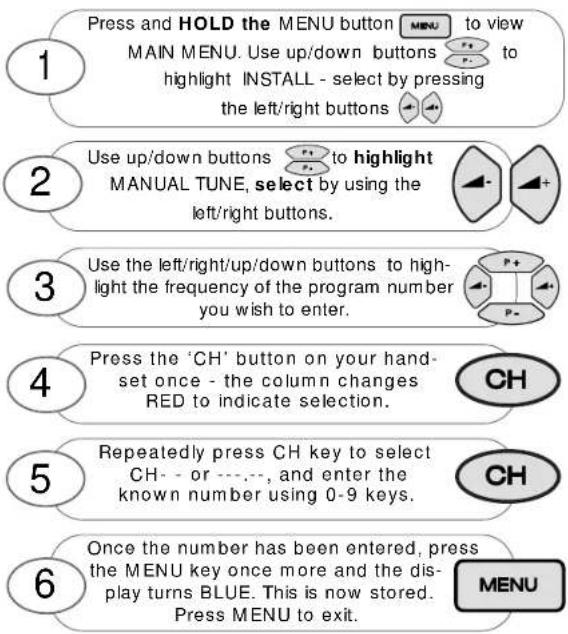
Broadcasting stations transmit the signal to your TV on a particular defined frequency i.e. 525.25MHz. These frequencies can be entered manually if known, and you can obtain this information by calling your local operator. In
addition to frequency transmission a corresponding CHANNEL N° is also used e.g. CH34, and this too can be directly input to your TV if known. (The S-- number has no function on this TV).
text_image
Press and HOLD the MENU button MENU to view MAIN MENU. Use up/down buttons to highlight INSTALL - select by pressing the left/right buttons Use up/down buttons to highlight MANUAL TUNE, select by using the left/right buttons. Use the left/right/up/down buttons to highlight the frequency of the program number you wish to enter. Press the 'CH' button on your handset once - the column changes RED to indicate selection. Repeatedly press CH key to select CH- or ---, and enter the known number using 0-9 keys. Once the number has been entered, press the MENU key once more and the display turns BLUE. This is now stored. Press MENU to exit.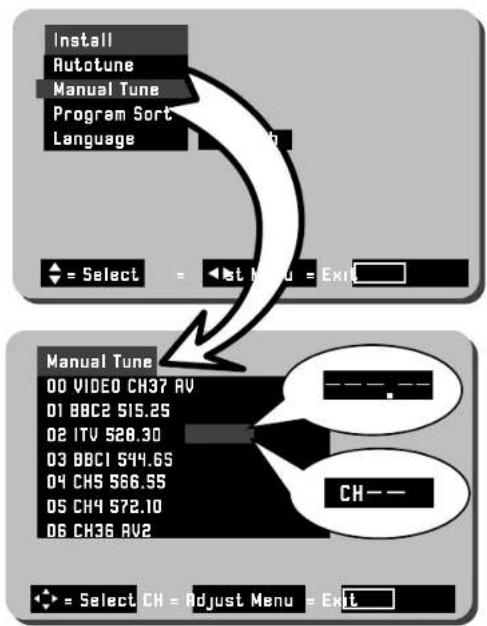
text_image
Install Autotune Manual Tune Program Sort Language = Select = At Menu = Exit Manual Tune 00 VIDEO CH37 RV 01 BBC2 515.25 02 ITV 528.30 03 BBC1 544.65 04 CHS 566.55 05 CH4 572.10 06 CH36 RV2 = Select CH = Adjust Menu = ExitAssigning AV Prog. N ^a s
When AV sockets are commonly used, for example, if you view camcorder recorded events frequently, then we suggest assigning a dedicated program number on your TV. This can be any program number that has not already been assigned. Follow the step by step guide below.

flowchart
graph TD
    1["Press and HOLD MENU button"] --> 2["Use up/down buttons to highlight MANUAL TUNE, select by using the left/right buttons."]
    2 --> 3["Use the left/right/up/down buttons to highlight the AV column of the program number you wish to use."]
    3 --> 4["Once highlighted press the 'CH' button to allow changes to be entered."]
    4 --> 5["Select between each AV mode using the left/right buttons"]
    5 --> 6["Repeat above to enter other AV sockets or repeatedly press MENU button to store and exit to TV mode."]
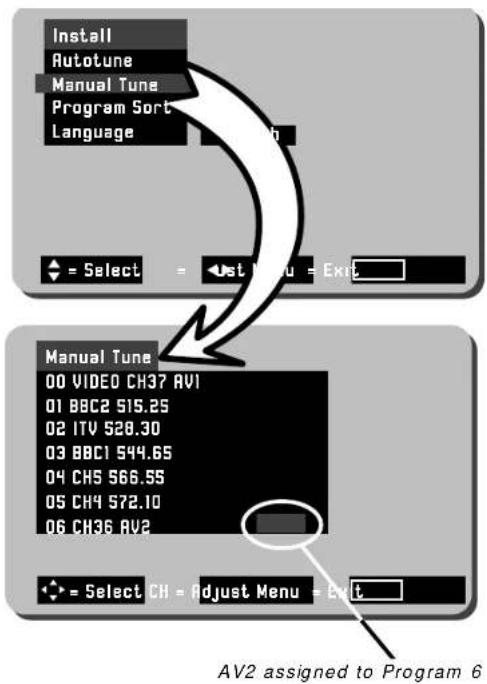
text_image
Install Autotune Manual Tune Program Sort Language = Select = 0st Menu = Exit Manual Tune 00 VIDEO CH37 AV1 01 BBC2 515.25 02 ITV 528.30 03 BBC1 544.65 04 CH5 566.55 05 CH4 572.10 06 CH36 AV2 = Select CH = Adjust Menu = Exit AV2 assigned to Program 6Program Naming
After Tuning in, most broadcasting station names appear on screen i.e. BBC1, BBC2, ITV etc.. However, you may change or add program names whenever you desire. To
add or change program names follow the simple step by step guide below.

text_image
Press and HOLD the MENU button to view MAIN MENU. Use up/down buttons to highlight INSTALL - select by pressing the left/right buttons 1 2 Use up/down buttons to highlight MANUAL TUNE, select by using the left/right buttons. 3 Use the left/right/up/down buttons to highlight the program name you wish to change. 4 Press the 'CH' button to select program name you wish to change (the first digit will blink). 5 Use the left/right cursor keys to scroll through the characters. 6 Once the first character has been entered select next digit using the right button and repeat above step. 7 You may use up to 5 characters for any one Programme Name. Press MENU button to store. 8 Repeat above steps to assign other Program Names or repeatedly press MENU button to exit to TV mode.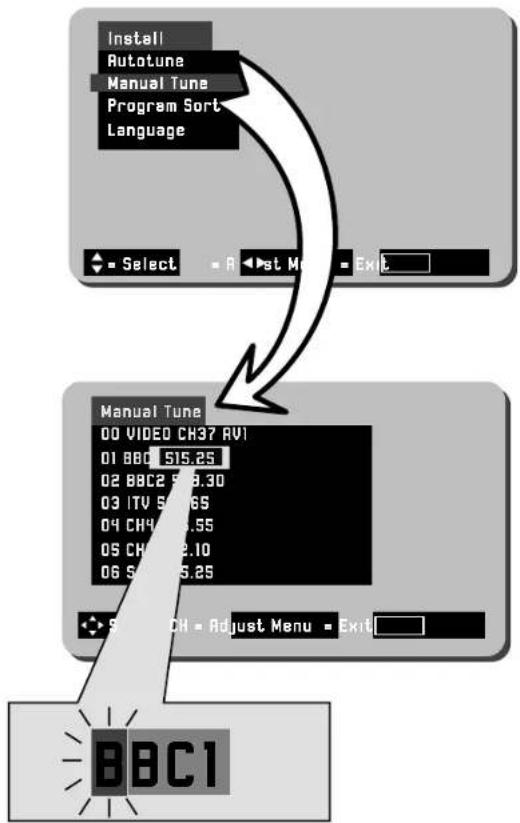
flowchart
graph TD
    A["Install\nAutotune\nManual Tune\nProgram Sort\nLanguage"] --> B["Select"]
    B --> C["Next Menu"]
    C --> D["Exit"]
    E["Manual Tune\n00 VIDEO CH37 AV1\n01 BBC 515.25\n02 BBC2 59.30\n03 ITV 50.65\n04 CH4 55.55\n05 CH3 2.10\n06 S 55.25"] --> F["Switch CH - Adjust Menu - Exit"]
    F --> G["BBC1"]
When selected the character will blink on and off.
Picture and Audio Controls
Picture settings are controlled via the TV's on board Menu system. These levels have already been preset at the factory and should require no adjustment. However, your personal viewing preferences may vary from these settings and alteration should be performed as follows:-

flowchart
graph TD
    A["1: Press the MENU button on your handset until the MAIN MENU appears."] --> B["2: Use the up/down buttons to highlight PICTURE."]
    B --> C["3: Use the left/right buttons to select the PICTURE option."]
    C --> D["4: Highlight the control to be adjusted using the up/down buttons."]
    D --> E["5: Use the left/right buttons adjust your selection."]
    E --> F["6: Select and adjust controls as necessary, once complete press MENU button repeatedly to exit."]
    F --> G["7: To obtain the MORE sub menu highlight MORE using the up/down cursor keys."]
    G --> H["8: Select and adjust controls as necessary, once complete press menu button to exit."]

    I["Main Menu"] --> J["Picture"]
    J --> K["Audio"]
    J --> L["Sound Mode Feature"]
    I --> M["Select"]
    I --> N["Adjust"]
    I --> O["Menu"]
    I --> P["Exit"]

    Q["Picture Menu"] --> R["Picture"]
    R --> S["Text Brightness"]
    R --> T["Noise Reduction"]
    R --> U["White"]
    R --> V["Cool"]
    R --> W["Normal"]
    R --> X["Warm"]
    R --> Y["Select"]
    R --> Z["Adjust"]
    R --> AA["Menu"]
    R --> AB["Exit"]

    AC["Menu"] --> AD["Select"]
    AC --> AE["Adjust"]
    AC --> AF["Menu"]
    AC --> AG["Exit"]
Function Controls
CONTRAST:
BRIGHTNESS:
COLOUR:
SHARPNESS:

Minimum setting

Maximum setting
*HUE:
*(Hue control appears on-screen only if an NTSC signal is received via the AV sockets).
More Functions
TEXT BRIGHTNESS : This function allows the user to adjust the text brightness of On Screen Display windows and Teletext pages.
NOISE REDUCTION : Noise Reduction improves picture quality when a signal becomes weak or when viewing poorly recorded VCR tapes. When selected a √ is displayed.
WHITE: This feature controls the colour temperature displayed on the picture tube.
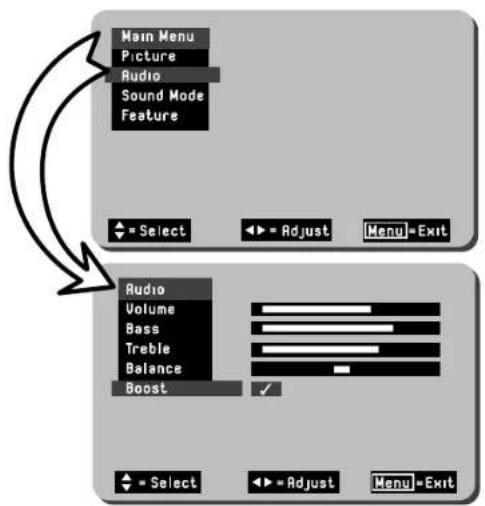
The Sound Menu is accessed via the TV's on-board MENU system, and allows the user to control such features as Volume, Bass, Treble, Balance and Bass Boost. These settings have already been preset at the factory, however, your personal listening tastes may differ from those set. Please follow the guide below for adjustment and setting.

flowchart
graph TD
    A["1 Press the MENU button on your handset until the MAIN MENU appears."] --> B["2 Use the up/down buttons to highlight AUDIO."]
    B --> C["3 Use the left/right buttons to select the AUDIO option."]
    C --> D["4 Highlight the control to be adjusted using the up/down buttons."]
    D --> E["5 Use the left/right buttons adjust your selection."]
    E --> F["6 Select and adjust controls as necessary, once complete press MENU button repeatedly to exit."]
text_image
Main Menu Picture Audio Sound Mode Feature Select Adjust Menu=Exit Audio Volume Bass Treble Balance Boost Select Adjust Menu=ExitFunction Controls

text_image
VOLUME: BASS: TREBLE: Minimum setting Maximum setting BALANCE: Left Speaker Right & Left Speakers Right SpeakerNOTE: The balance control is disabled whilst in Dolby® Pro Logic and Dolby® Pro Logic Theatre modes
BASS BOOST: When selected a √ is displayed.
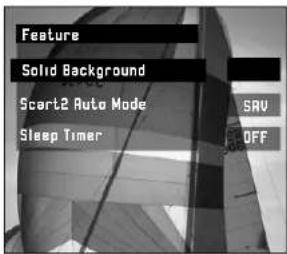
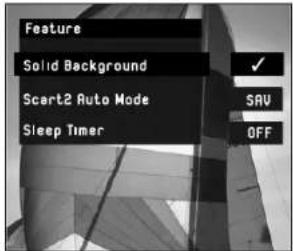
Solid Background
The Solid Background feature controls the appearance of the OSD (On Screen Display) window environment, with either a solid or transparent appearance to the
OSD. There are two modes to select from and these are simply ON and OFF. Follow the guide below.
1
Press the MENU button on your handset until the MAIN MENU appears.
MENU
2
Press the BLUE colour coded button to view FEATURE menu.
3
Select SOLID BACKGROUND mode by using the up/down buttons.
P-
4
Adjust the controls ON or OFF using the up or down handset buttons. Press MENU to exit.
MENU
text_image
Feature Solid Background Scart2 Auto Mode Sleep Timer SAV OFFWith Solid Background deselected the OSD window becomes transparent, allowing you to view the TV picture behind the OSD.
text_image
Feature Solid Background Scart2 Auto Mode Sleep Timer SAV OFFWith Solid Background selected the OSD window becomes solid.
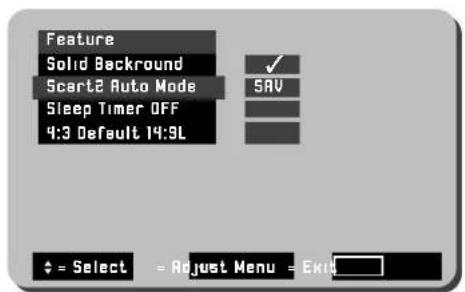
Scart2 Auto Mode
This feature is used to set the condition of Scart 2 Audio/Video input socket. If, for example, you regularly connect external equipment such as S-VHS (Super VHS) Video recorders or cam-
corders to AV2, then the TV can be set to SAV mode to accommodate such equipment. Standard AV mode can also be set if desired.
1
Press the MENU button on your handset until the MAIN MENU appears.
MENU
2
Press the BLUE colour coded button to view FEATURE menu.
3
Select SCART2 AUTO MODE mode by using the up/down buttons.

4
Adjust the controls by using the left or right handset buttons. Pres MENU to exit.
text_image
Feature Solid Background Scart2 Auto Mode Sleep Timer OFF 4:3 Default 14:9L ✓ SAV ♦ = Select = Adjust Menu = ExitSleep Timer Function
The Feature Menu also incorporates a Sleep Timer Facility. This allows the user to input a
set amount of time before the TV automatically shuts down in to Stand by mode. The amount of time is input in 5 minute intervals, to a maximum of 120 minutes (2 hours). When there is only 60 seconds remaining a countdown appears in the top right hand corner of the screen.
1
Press the MENU button on your handset until the MAIN MENU appears.
MENU
2
Press the BLUE colour coded button to view FEATURE menu.
3
Select SLEEP TIMER mode by using the up/down buttons.
P+
4
Adjust the time value by using the left or right handset buttons. Pres MENU to exit.
P-

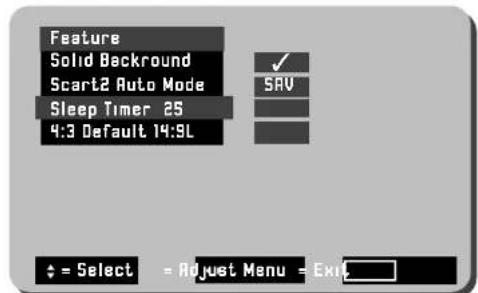
text_image
Feature Solid Background Scart2 Auto Mode Sleep Timer 25 4:3 Default 14:9L ✓ SAV ♦ = Select = Adjust Menu = ExitAn example of the Sleep Timer function with 25 minutes entered is shown.
NOTE: The 4:3 default mode relates to Wide Screen modes. Please refer to page 17 for instructions on settings
In addition to the standard features found, your TV also has NICAM sound capabilities. NICAM transmitted signals provide stereo sound whilst viewing the TV in NICAM mode, thus giving the user even greater listening pleasure. The TV also provides 16:9 (Wide Screen Format) viewing capabilities, together with automatic wide screen detection software built in.
Nicam Features
The Nicam facility features two modes which provide the viewer with various sound effects. These features are activated by pressing the 📋 on the handset. When repeatedly pressed the TV will cycle through each mode and will display a particular on-screen symbol. The various modes and on-screen identification is explained below.
Stereo
This effect produces NICAM digital stereo sound from the
TV. Use this mode for the majority of TV viewing. When selected the STEREO symbol is displayed in the top right hand corner of the TV screen as shown.

natural_image
Abstract graphic with a dark rectangular block and a white wavy base, no text or symbols present.Wide Stereo
This effect enhances NICAM digital stereo by forcing a wide area of sound
from the TV. Use this mode when viewing action movies or sports events to obtain spatialising acoustic performance. When selected the symbol shown below appears at the top right hand corner of the screen.

natural_image
Abstract diagram with a black rectangle and white wavy base, no text or symbols presentMonaural
In monaural mode the TV
transmits a single sound source. The TV will automatically select this sound when a mono signal is found. Some stereo signals can become poor in adverse weather conditions, and mono should be selected to avoid poor sound. Use the I-II key to switch to mono (the symbol below appears when switched).

natural_image
Abstract graphic with a dark rectangular shape and a white triangle, surrounded by wavy white lines (no text or symbols)Pseudo Stereo
Pseudo stereo creates an ambient sound from mono signals imitating
that of stereo sound.
Use the Cey to select Pseudo Stereo. When selected the symbol shown will appear in the top right hand corner of the screen.
natural_image
Abstract diagram with a black rectangle and white wavy base, featuring a white arrow pointing left and a triangle symbol (no text or labels)Wide Screen Modes
The various screen modes below and on page 17 are available on this model. Each of these modes are accessed using the 16:9 button (16:9) on your handset
natural_image
Illustration of a flat-screen TV displaying a soccer ball on its screen (no text or symbols visible)AUTO
Auto mode automatically detects various screen formats that are transmitted in either conventional (4:3) or wide screen (16:9/14:9L). After detecting which signal is being transmitted the TV will automatically switch to the correct screen ratio.
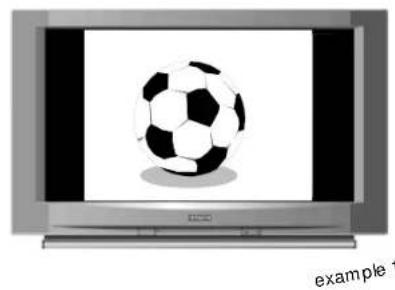
In example 1 (left) a 4:3 conventional picture format is shown, note the black bars to the sides of the screen, this is consistent with screen compression.
4:3 mode can also be manually selected if desired.

natural_image
Illustration of a soccer ball displayed on a flat-screen monitor (no text or symbols on the ball or background)Example 2 (left) illustrates a 16:9 Wide Screen picture format. This type of picture fills the entire TV screen. The 16:9 mode can also be manually selected if desired.
Hitachi recommend that AUTO is selected for the majority of TV viewing.
NOTES: The function of the AUTO mode is dependent on whether the Wide Screen Signalling (WSS) is transmitting, check with your local operator for availability.
When WSS is not active the picture mode will default to the Feature settings.
natural_image
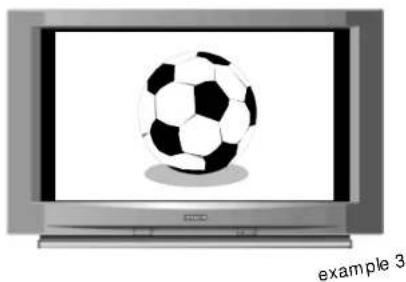
Illustration of a retro television displaying a soccer ball on a screen (no text or symbols on the ball or background)AUTO mode can also detect 14:9L ratio signals, when this mode has been selected thin black bars appear to the sides of the screen (example 3).
NOTE: Other screen formats may be transmitted by certain broadcasters, these are 14 x 9L True Wide Screen and 16 x 9L/14 x 9L with subtitles. Your TV is able to detect these formats and adjust the set automatically (subject to WSS transmitting).
Hitachi recommend that AUTO is selected for the majority of TV viewing.
NOTES: The function of the AUTO mode is dependent on whether the Wide Screen Signalling (WSS) is transmitting, check with your local operator for availability.
When WSS is not active the picture mode will default to the Feature settings.
natural_image
Illustration of a soccer ball on a flat-screen TV (no text or symbols on the ball or background)PANORAMIC
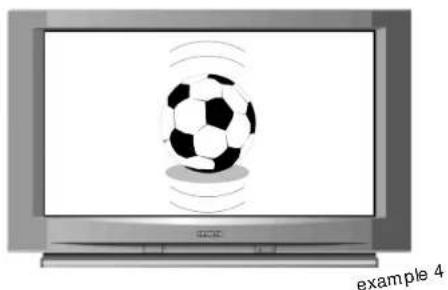
Panoramic mode emulates that of a Wide Screen broadcast for 4 x 3 transmissions. This is achieved by maintaining the proportions of the centre of the screen while extending the images on the top & bottom sides of the screen
(example 4). This mode is generally recommended if AUTO is not selected.
MANUAL SETTINGS
Some modes can also be manually selected if some pictures appear distorted or stretched, or subtitle information becomes lost. Follow the guide below to apply the correct setting.

natural_image
Illustration of a flat-screen TV displaying a soccer ball on its screen (no text or symbols visible)16 x 9 L
The 16:9 Letterbox mode is used to expand a 16:9 letterbox style picture so that it uses the full screen to display the picture. Letterbox type pictures are identifiable by the black bars that appear on the top and bottom of the screen and some objects appear stretched (see example 5). Once selected, the 16:9L mode displays the picture as example 2 on page 16.
natural_image
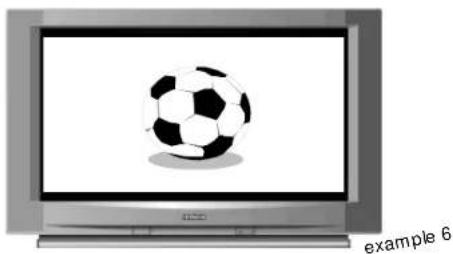
Illustration of a flat-screen TV displaying a soccer ball on its screen (no text or symbols visible)14 x 9 L
When viewing pictures in the 14:9L Letterbox mode (example 6) thin black bars appear at the top and bottom of the screen, and images become slightly elongated. By selecting 14:9L mode the user can expand the TV picture to display more of the screen (see example 3 above).
text_image
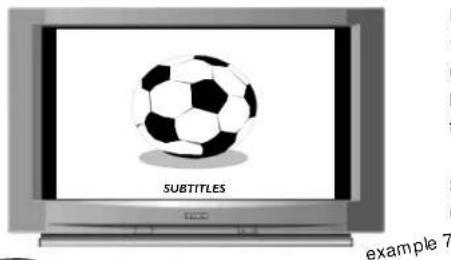
SUBTITLES example 7If viewing movies or programmes containing screen subtitles whilst in 16 x 9L or 14 x 9L modes, the subtitle may become lost to the bottom of the screen. To overcome this problem, simply press the SUBTITLE button once. The SUBTITLE feature compresses the bottom of the screen allowing the subtitles to be viewed, as in example 7.
If, however, you wish to view Teletext subtitles a further press of the SUBTITLE button is required, this will then restore the screen to it's original setting.

NOTE: Whatever Wide Screen mode was set before the TV is switched off will be the same condition when it is switched back on. The references to the Wide Screen modes are purely for guidance purposes only - your preferences may vary to those listed.
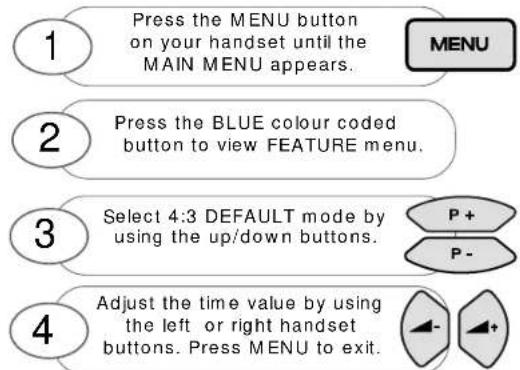
4:3 Default
The 4:3 default setting in the FEATURE Menu allows you to set which screen mode the TV defaults to when the AUTO function is selected but WSS (Wide Screen Signalling)
is not transmitting. This allows the user to select between the various wide screen modes as a default.
flowchart
graph TD
    A["1 Press the MENU button on your handset until the MAIN MENU appears."] --> B["2 Press the BLUE colour coded button to view FEATURE menu."]
    B --> C["3 Select 4:3 DEFAULT mode by using the up/down buttons."]
    C --> D["4 Adjust the time value by using the left or right handset buttons. Press MENU to exit."]

text_image
Feature Solid Background Scart2 Auto Mode Sleep Timer 25 4:3 Default 14:9L ✓ SAV ♦ = Select - Adjust Menu - Exit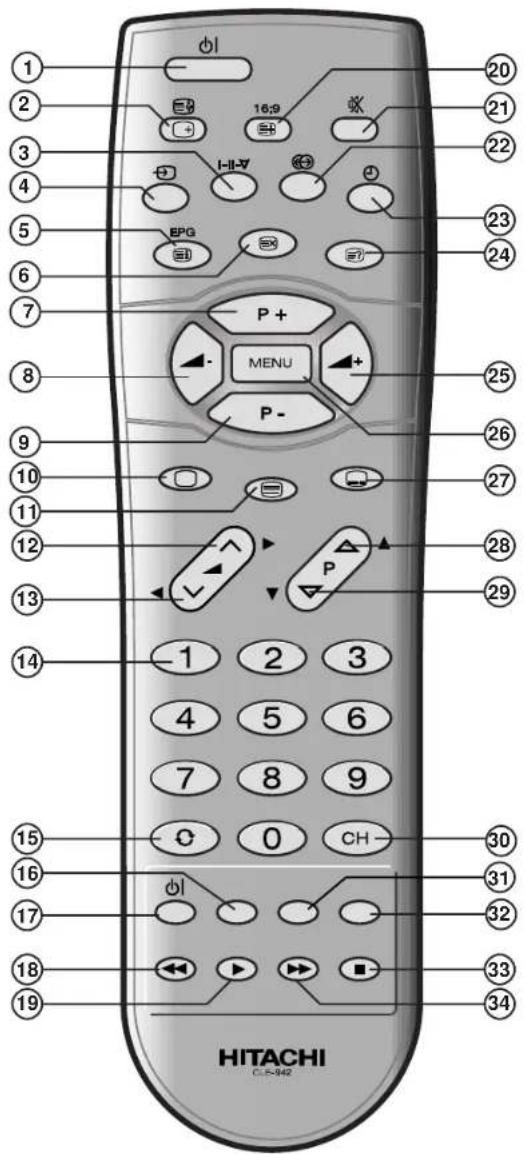
text_image
1 2 3 4 5 6 7 8 9 10 11 12 13 14 15 16 17 18 19 20 21 22 23 24 P+ MENU P- P 1 2 3 4 5 6 7 8 9 C 0 CH Øl HITACHI C:\5-942| TELETEXT FUNCTIONS ARE SHOWN IN BOLD ITALIC TYPE | ||
| 1 | Stand-by button | Used to switch the TV on and off for short periods of time. |
| 2 | Recall/Hold | Press Recall to view current TV status. Press Hold to freeze Teletext page. |
| 3 | Dual Language | This button allows the user to select a dual language function (subject to availability) and switches from Mono to Stereo reception, also has a colour coded teletext function and OSD† function |
| 4 | AV Input | The TV/AV button allows the user to select either a TV or external source signal i.e. a cam-corder etc.. This button also has a colour coded teletext function and OSD† function. |
| 5 | EPG/Index | The INDEX function is used whilst in Fastext mode and displays the magazine page on view. The EPG function is not available on this model. |
| 6 | Update | The Update button restores the TV screen whilst a Teletext page is searched. |
| 7 | P+/Cursor up | When in normal TV operation this button allows the user to step up programme numbers in sequence. In MENU mode this button is the cursor up key. |
| 8 | Vol-/Cursor left | When in normal TV operation this button allows the user to reduce the TV volume. In MENU mode this button is the cursor left key. |
| 9 | P-/Cursor Down | When in normal TV operation this button allows the user to step down programme numbers in sequence. In MENU mode this button is the cursor down key. |
| 10 | Television | This enables the viewer to return to normal TV operation. |
| 11 | Teletext | When pressed this button enables the Teletext service. |
| 12 | Volume up | When in normal TV operation this button allows the user to increase the TV volume. In MENU mode this button is the cursor right key. |
| 13 | Volume down | When in normal TV operation this button allows the user to decrease the TV volume. In MENU mode this button is the cursor left key. |
| 14 | Digits 0 to 9 | Used for direct programme selection (enter a second digit within 2 seconds for programme numbers above 10 i.e. to obtain programme number 29 enter 2 and then 9). Teletext 3 digit entry. |
| 15 | Swap | In TV mode swaps between previous and current programme numbers. In Teletext mode this feature allows the user to recall the last 4 Teletext pages. |
| 16 | No Function | |
| 17 | Video Stand-by Used to switch the VCR on and off for short periods of time. | |
| 18 | Rewind Press to re wind a VCR tape. | |
| 19 | Play Press to play a VCR tape. | |
| 20 | 16:9/Expand | Used to select between Wide Screen formats. Used to expand text pages. |
| 21 | Mute | This feature allows the user to mute the sound temporarily. |
| 22 | Stereo | Press to select between Stereo Normal and Stereo Wide modes, also has a colour coded teletext function and OSD† function. |
| 23 | Clock | This button allows the user to display the current time on-screen, also has a colour coded teletext function and OSD† function. |
| 24 | Reveal | Used whilst in Teletext mode to reveal hidden pages i.e. quiz pages tc. |
| 25 | Vol+/Cursor Right | When in normal TV operation this button allows the user to increase the TV volume. In MENU mode this button is the cursor right key. |
| 26 | Menu | The MENU button when pressed allows the user to access the TV's menu system. |
| 27 | Subtitles | Allows the user to access a subtitle service directly (subject to Subtitle service broadcasting). |
| 28 | Program up | When in normal TV operation this button allows the user to step up programme numbers in sequence. In MENU mode this button is the cursor up key. |
| 29 | Program Down | When in normal TV operation this button allows the user to step down programme numbers in sequence. In MENU mode this button is the cursor down key. |
| 30 | Frequency | Allows the user to directly input known broadcasting CH or frequency numbers. |
| 31 | No Function | |
| 32 | No Function | |
| 33 | Stop Press to stop the VCR tape. | |
| 34 | Forward | Press to fast forward a VCR tape. |
^ OSD (On Screen Display).
Connecting External AV Equipment
Your TV has various input sockets for external equipment such as Video Cassette Recorders, Satellite Receiver/Decoder, Camcorders, Computer Equipment etc.. Equipment that is connected temporarily i.e. Camcorders can be connected via the front control panel input sockets. However, equipment such as VCR's and Satellite IRD's, that are more or less permanently connected to your TV, are connected via the AV1 or AV2 scart sockets on the rear of the TV.
CAM CORDER CONNECTION: Connecting a camcorder to your TV is simple. Firstly, identify the type of camcorder and it's connecting plugs. If it is a standard 8mm type camera then it is likely to have 'RCA' type sockets. If, however,

text_image
you have S-VHS or Hi8 type camera then this may have a S-VHS/Hi8 plug, and this will have to be placed in the corresponding S-VHS/Hi8 socket on the TV. Open the front control panel door on the TV, and connect your equipment as shown in the illustration below. Switch your TV on, and repeatedly press the TV/AV button → on your handset until AV3 or SAV3 (for S-VHS equipment) is displayed on-screen. Now begin playback operation of your equipment. * S-VHS/Hi8 Plug Video In * 'RCA' Plug Audio In (Right) 'RCA' Plug * If your camcorder has both S-VHS/Hi8 and 'RCA' type plugs, then connect all plugs except the Video In 'RCA' plug.COMPUTER EQUIPMENT: If computer equipment is to be connected to this TV, use AV1 as the RGB input socket located on the rear of the TV and select RGB using the RED colour coded key on your handset.) PLEASE NOTE: Prolonged use of computer equipment or games on this TV may cause permanent damage to your picture tube. To avoid such damage, reduce the brightness and contrast to an acceptable minimum level and limit the duration of equipment operation.
SATELLITE CONNECTION: There are two basic methods of connecting a satellite system to your TV. Method 1 explains connection of satellite equipment directly to the TV, where as Method 2 refers to connection via a VCR.
METHOD 1

text_image
RF lead from Satellite to TV Aerial RF lead to Aerial Satellite LNB lead *Scart Lead to AV2 on TV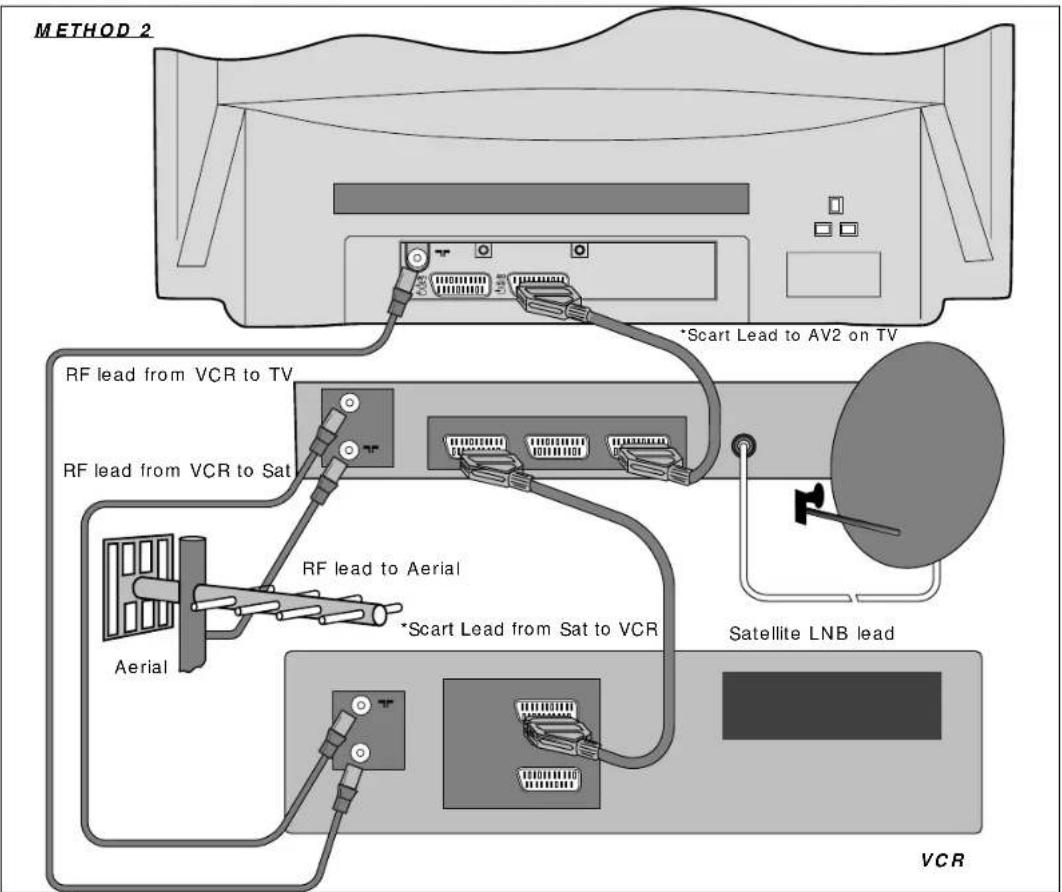
text_image
METHOD 2 *Scart Lead to AV2 on TV RF lead from VCR to TV RF lead from VCR to Sat Aerial RF lead to Aerial *Scart Lead from Sat to VCR Satellite LNB lead VCRNOTE: S-VHS video equipment should be connected to the AV2 Scart socket located on the rear of the TV. A dedicated program number may then be assigned to AV2, allowing easier access to view external equipment broadcasts. How to assign AV sockets to dedicated program numbers is explained on page 10. Alternatively, repeatedly press the TV/AV button on your handset until SAV2 is displayed on-screen. Now begin playback operation of your equipment.
HEADPHONE CONNECTION:
To use headphones with this TV, simply open the front control cover door and insert the headphone jack plug (3.5mm) into the corresponding socket marked .(The TV sound will then be switched to the headphones.
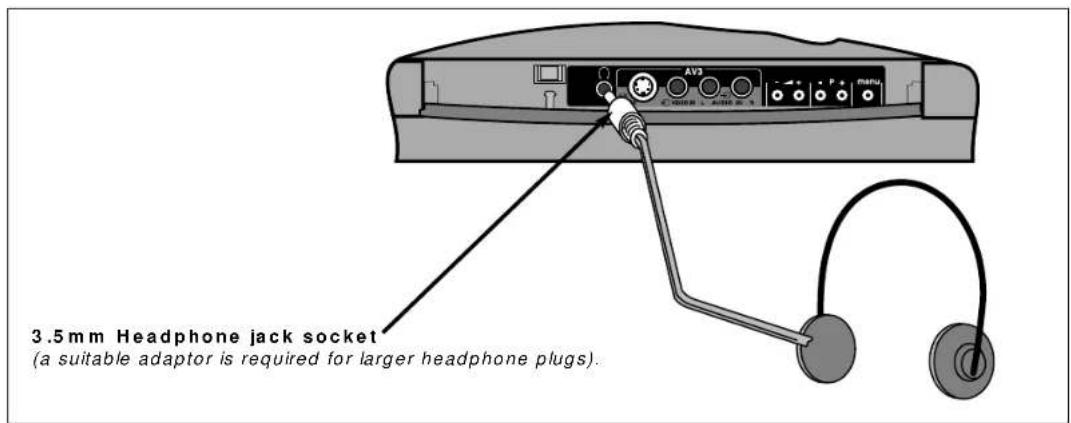
text_image
AV3 3.5 mm Headphone jack socket (a suitable adaptor is required for larger headphone plugs)Teletext Operation
Teletext operation is entered by pressing the TEXT button on your handset.
A page similar to the one shown on the right will appear. The main page contains numbered topics that are accessed by entering the corresponding three digit code on your handset.
In addition to the above system, at the bottom of the page there are four colour coded popular topics i.e. TV Guides, Weather, Sport etc., however, these may vary between each broadcasting station. To access these topics simply press the corresponding colour coded keys on your handset.
By pressing the P+ or P- keys you may step up or down a page respectively.
If a mistake occurs while entering a number then simply re-enter the desired number.
FAVOURITE PAGE OPTIONS
The TV is capable of storing up to 4 favourite pages. These pages could be your favourite sport or TV page etc., and are accessed by pressing one of the colour coded keys on your handset.

text_image
P100 CEEFAX 2 100 Wed 19 Mar 15:49/06 CEEFAX AT-A-GLANCE PRESS HOLO NEWS HEADLINES 101 LOTTERY 555 NEWS INDEX 102 BACKBERT 560 ELECTION 97 120 FREETIME 570 NEWS EXTRA 140 GARDENING 573 CITY BBC2 200 COOKBOOK 580 SPORT 300 ON THE BOX 590 WEATHER 400 TV GUIDE 600 TRAVEL 430 TV LINKS 615 CBBC INDEX 500 RADIO BBC1 640 SUB ZERO 501 EVOLUTION BBC2 630 NEWSROUND 510 READ HEA BBC2 640 SHOWTIME 520 COMMUNITY BBC2 650 SWITCHED ON 540 ARCING 660 >>> News EXTRA NEWS EXTRA NEWS EXTRA Home 191 World 192 Polatica 193 News Heads Sport TV/Radio WeatherThe 4 Fastext Topics are shown on the bottom of the screen
To enter a favourite page first access the TEXT mode by pressing the TEXT key on the handset. Now enter the favourite page mode by pressing the MENU button on your handset (the MENU button allows the user to toggle between
FASTEXT and FAVOURITE PAGE modes).
Enter the colour coded key you wish to use as the first favourite page..
Now enter the page number you wish to assign to the desired colour coded key using the 0-9 buttons on your handset. Once you have completed this step you must now store your selection in the TV's memory. Simply press and hold the selected colour coded key until the entire bottom fastext bar turns white. This is now stored.
If desired, another three favourite pages may be entered by following the above method, utilising the existing colour coded keys. To view a Favourite Page simply press the MENU key whilst in FASTEXT and press the desired stored page using the Colour Coded keys on the handset.
VCR Operation
text_image
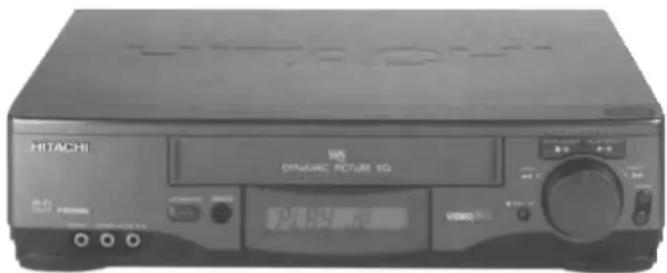
HITACHI DRUGUE RETURN TOYour handset incorporates controls for operation of HITACHI Video Cassette Recorders. These controls are STANDBY, PLAY, STOP, FAST FORWARD, REVERSE and RECORD and are located on the bottom of the handset.
To switch your VCR on or off simply press the VCR Standby button
To halt a cassette tape press the STOP button.
To rewind a cassette tape press REW button.
To begin playback of a cassette tape press the PLAY button.
To fast advance a cassette tape press F/FWD button.
To record onto a cassette tape press the RECORD button.
Trouble Shooting Guide
The guide below is intended to help the user to identify common problems which may be encountered during the setup of this TV. If a problem still exists after referring to this guide, please consult your dealer immediately. Under no circumstances remove the rear cover of this TV. There are no user serviceable parts inside and you will be exposed to high voltages, which could cause a severe or fatal electric shock.
Q) My TV fails to switch on.
A) Check that plug is connected to socket and switched on. Check fuse and make sure TV is not in Stand-by mode (see below).
Q) My remote control handset does not work.
A) Ensure there are no obstructions between the handset and the TV infra red lens, or the batteries may be exhausted - replace with new.
Q) The handset won't control my VCR.
A) The handset is only programmed to operate Hitachi VCR's.
| Problem Identification Possible Reason Remedy | ||
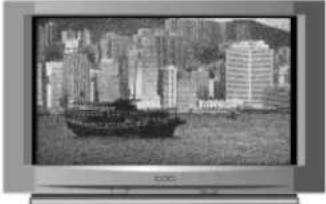 Snowy Picture - Poor Sound Snowy Picture - Poor Sound | Aerial has moved out of position Re-align aerial.Corroded or poor aerial connections. Make new connections or renew lead.Connection of RF lead to TV poor. Make new connection and/or change RF plug.Adverse weather conditions. None.Transmitter problems. Check with local Operator. | |
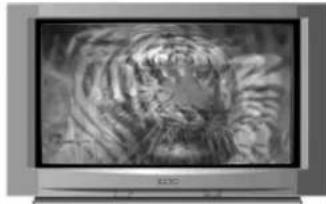 Multiple Images - Sound OK Multiple Images - Sound OK | Aerial has moved out of position. Re-align aerial.TV not tuned correctly. Re-tune or Fine tune TV.Adverse weather conditions. None.Transmitter problems. Check with local Operator. | |
 Intermittent Interference Intermittent Interference | Magnetic interference from electrical Check devices for shielding or mechanical motors, fluorescent and renew if necessary or lights, portable radios etc.. move further from TV. | |
 No Picture and/or No Sound No Picture and/or No Sound | TV may be in AV mode. Press AV/RED (key 1) buttonrepeatedly or 0-9 buttons to return to TV mode.TV in Stand-by.Picture/Sound controls set to minimum.Aerial plug removed from TV socket | Press 0-9 buttons.Check Picture/Sound controls (see Page 12/13).Re-plug aerial lead to socket. |
Guarantee
Thank You for purchasing this Hitachi Television.
In the unlikely event that this product should develop a fault, we undertake to repair or replace any part of the product which fails due to a manufacturing defect within 12 months of the date of purchase provided that...
-
the product has been installed and used only in accordance with the instructions supplied with the product.
-
the product has not been repaired, maintained, or modified by any person other than a Hitachi authorised dealer.
- this guarantee does not apply to a product acquired second hand or for commercial or communal use.
- this guarantee does not cover the replacement of exhausted batteries, the adjustment of user controls, or aerial alignment.
•any parts replaced under this guarantee shall become the property of Hitachi Home Electronics (Europe) Ltd,
- please note that evidence of the date of purchase will be required before any service under this guarantee is carried out
Use the boxes provided below to record your TV's Model and Serial Number - these are found on the rating plate located on the rear of the TV. Also, record where and when you purchased this T.V. This information will help any future queries you may have and should be used in all correspondence with Hitachi service centres.

flowchart
graph LR
    A[" "] --> B["SERIAL NUMBERMODEL DEALER/STORE DATE PURCHASED"]
    B --> C[" "]
    C --> D[" "]
This guarantee does not affect your statuary rights.
In all cases of difficulty please consult your Hitachi dealer.
Technical Specifications
TV Standard....625 line single standard
Channel Coverage.... UHF channels
Aerial Impedance....75 Ω unbalanced
Picture Tubes....66cm type
Mains Voltage....220 - 240V AC 50 Hz
Internal Speakers.... 6 x 12 cm type x 2
Power Consumption.... 98W approx.
(All Models Stand by <6W)
Weight.... 34,0kg approx
Dimensions (W x D x H) 790 x 525 x 515
Remote Control Batteries....2 x HITACHI SUM-3 /equivalent AA
Specifications are subject to change without notice. Weight and dimensions shown are approximate.
Software Notice
It is prohibited for the end user of this product to copy, reverse engineer or reverse compile the software included therein save to the extent permitted by law.
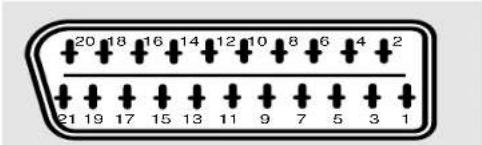
SCART SOCKET AV1 SCART SOCKET AV2
text_image
20 18 16 14 12 10 8 6 4 2 21 19 17 15 13 11 9 7 5 3 1PIN No. FUNCTION
| 1 | AUDIO OUT (RIGHT) |
| 2 | AUDIO INPUT (RIGHT) |
| 3 | AUDIO OUT (LEFT) |
| 4 | GROUND (AUDIO) |
| 5 | GROUND (BLUE) |
| 6 | AUDIO INPUT (LEFT) |
| 7 | BLUE INPUT |
| 8 | SWITCHING INPUT |
| 9 | GROUND (GREEN) |
| 10 | NOT USED |
| 11 | GREEN INPUT |
| 12 | NOT USED |
| 13 | GROUND (RED) |
| 14 | GROUND (BLANKING) |
| 15 | RED INPUT |
| 16 | STATUS (BLANKING) INPUT |
| 17 | GROUND (VIDEO) |
| 18 | GROUND (VIDEO) |
| 19 | COMPOSITE VIDEO OUTPUT |
| 20 | COMPOSITE VIDEO INPUT |
| 21 | GROUND |

text_image
20 18 16 14 12 10 8 6 4 2 21 19 17 15 13 11 9 7 5 3 1PIN No. FUNCTION
| 1 | AUDIO OUT (RIGHT) |
| 2 | AUDIO INPUT (RIGHT) |
| 3 | AUDIO OUT (LEFT) |
| 4 | GROUND (AUDIO) |
| 5 | NOT USED |
| 6 | AUDIO INPUT (LEFT) |
| 7 | NOT USED |
| 8 | SWITCHING INPUT |
| 9 | NOT USED |
| 10 | NOT USED |
| 11 | NOT USED |
| 12 | NOT USED |
| 13 | CHROMINANCE GROUND |
| 14 | NOT USED |
| 15 | CHROMINANCE INPUT S-VHS |
| 16 | NOT USED |
| 17 | GROUND (VIDEO) |
| 18 | GROUND (VIDEO) |
| 19 | COMPOSITE VIDEO OUTPUT |
| 20 | COMPOSITE VIDEO OR |
| COMPOSITE LUMINANCE S-VHS | |
| 21 | GROUND |
S-VHS SOCKET
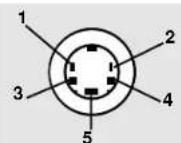
| PIN FUNCTION | |
| 1 Chrominance input2 Luminance input3 Chrominance ground4 Luminance ground5 Frame ground |
HITACHI
Environmental Notice
Hitachi are signatories to the commitment made by the consumer electronics industry on reducing energy consumption by televisions and video recorders on standby.
Even though your TV has a low power consumption, you can reduce waste to zero if you switch off the set at the mains after use. Your TV should certainly be switched off overnight or when you are away from home. Other factors should also be considered when operating your TV. Reducing volume settings to sensible levels can reduce power consumption as well as reducing noise pollution, and reducing contrast can provide a more pleasing picture as well as reducing power consumption.
Hitachi Home Electronics (Europe) Ltd. manufacturing site in Wales is a BSI Registered Company, and has been assessed to ISO 9001 Quality Management Standard, certificate FM32366. Your television has been manufactured under the Environmental Quality Management Standard ISO14001, certificate EMS 36168.
The paper used for this Users Guide has been produced from sustainable forests, part of Hitachi's on going commitment to the global environment.
Notes
HITACHI
Hitachi, Ltd. Tokyo, Japan
International Sales Division
THE HITACHI ATAGO BUILDING,
No. 15–12 Nishi Shinbashi, 2 – Chome,
Minato - Ku, Tokyo 105-8430, Japan.
Tel: 03 35022111
HITACHI EUROPE LTD,
Whitebrook Park
Lower Cookham Road
Maidenhead
Berkshire
SL6 8YA
UNITED KINGDOM
Tel: 01628 643000
Fax: 01628 643400
Email: consumer-service@hitachi-eu.com
HITACHI EUROPE S.A.
364 Kifissias Ave. & 1, Delfon Str.
152 33 Chalandri
Athens
GREECE
Tel: 1-6837200
Fax: 1-6835964
Email: service.hellas@hitachi-eu.com
HITACHI EUROPE GmbH
Munich Office
Dornacher Strasse 3
Email: HSE-DUS.service@hitachi-eu.com
HITACHI EUROPE S.A.
Gran Via Carlos III, 101-1
08028 Barcelona
SPAIN
Tel: 93 409 2550
Fax: 93 491 3513
Email: customerservice.italy@hitachi-eu.com
HITACHI Europe AB
Box 77 S-164 94 Kista
SWEDEN
Tel: +46 (0) 8 562 711 00
Fax: +46 (0) 8 562 711 13
Email: csgswe@hitachi-eu.com
HITACHI EUROPE S.A.S
Lyon Office
B.P. 45, 69671 BRON CEDEX
FRANCE
Tel: 04 72 14 29 70
Fax: 04 72 14 29 99
HITACHI EUROPE LTD (Norway) AB
STRANDVEIEN 18
1366 Lysaker
NORWAY
Tel: 67 5190 30
Fax: 67 5190 32
Email: csgnor@hitachi-eu.com
HITACH EUROPE AB
Egebækgård
Egebækvej 98
DK-2850 Nærum
DENMARK
Tel: +45 43 43 6050
Fax: +45 43 60 51
Email: csgnor@hitachi-eu.com
HITACHI EUROPE AB
Neopoli / Niemenkatu 73
FIN-15140 Lahti