USER MANUAL LOGOS 904T OLIVETTI
This manual may not be photocopied, translated into any language or reproduced in any form, in whole or in part, without the prior written consent of Olivetti S.p.A. The manufacturer reserves the right to make changes to the product described in this manual at any time and without any notice.
The compliance of this product to quality standards is certified by the CE mark affixed on the product itself.

Olivetti & Ambiente
Olivetti & the Environment
Olivetti has always been committed to making its own contribution to environmental protection, and in the effort to operate obtaining the right balance between innovation, technology and protection of the planet. By adding the environmental sustainability to its company mission, Olivetti shows its commitment to designing, producing and marketing products that take into consideration low energy consumption, recycling of materials and health safeguards, in conformance with current norms. For further information, refer to the site www.olivetti.com.
- is produced using recycled plastic that can be recycled again at the end of the product's lifetime;
- uses an antiseptic keyboard that is able to prevent the spreading of bacteria and micro-organisms damaging to the health;
- has low energy consumption, thanks to automatic switch-off of the display after 3 minutes of inactivity, allowing significant energy savings.
It is one of a range of products designed to take into account low energy consumption, waste disposal and material recycling as well as health safeguards.
CETTE CALCULATRICE PROFESSIONNELLE ECO-FRIENDLY QUI RESPECTE L'ENVIRONNEMENT ET PROTEGE LA SANTÉ :
RECYCLED

RECYCLABLE

ANTISEPTIC

SAVING
The calculator must not be covered when turned on, as this will cause it to overheat. Do not use organic solutions such as alcohol to clean the casing. Do not use or leave the calculator in direct sun light. Locations subject to quick temperature changes, high humidity and dirt should also be avoided. The electrical power socket-outlet shall be near the equipment and shall be easily accessible.
WARNING:
Hazard of electrical shock. No user serviceable parts are contained inside. All servicing must be done by qualified service person.
| 88 | GT | M | € | LOCAL | TAX + | TAX - | Δ% | RATE |
| + = |
| VOID CALL | 8'8'8'8'8'8'8'8'8'8'8'8'8'8'8. | x ÷ *◇ |
| GT | Totale generale | Grand total | Grand total | Endsumme | Total general | Total geral | Groottotaal |
| M | Dati presenti nella memoria | Data present in GT memory | Présence de donnees dans la mémoire | Vorhandene Daten im Speicher | Datas presents en la的记忆 | Dados presentes na的记忆 | Geveens in het geheugen |
| € | Valuta in Euro | Euro currency | Devise Euro | Währung in Euro | Divisa en Euro | Moeda Euro | Valuta in Euro |
| LOCAL | Valuta locale | Local currency | Devise locale | Landeswährung | Divisa local | Moeda local | Plaatselijke valuta |
| TAX + | Calcolo, tassa compresa | TAX plus calculation | Calcul avec taxa | Rechnung, einschließlich Steuer | Cáculo con tasación | Cáculo com taxa | Berekening, inclusief belasting |
| TAX - | Calcolo, tassa esclusa | TAX minus calculation | Calcul hors taxa | Rechnung, ohne Steuer | Cáculo sin tasación | Cáculo sem taxa | Berekening, exclusief belasting |
| RATE | Aliquota tasso e Tasso di cambio valuta | Tax rate and Currency exchange rate | Taux de taxe et Taux de change devise | Steuersatz und Wechselkurs | Cuota tasación y Tasación de cambio de divisa | Alíquota da taxa e Taxa de cambio moeda | Belastingtarief en Wisselkoers valuta |
| - | Meno (valor negativo) | Minus (Negative) | Moins (valeur négative) | Minus (Negativwert) | Menos (valor negativo) | Menos (valor negativo) | Min (negativewarede) |
| E | Superamento capacità o Errore | Overflow or Error | Dépassement de la capacité ou Erreur | Maschinenkapazität überstiegen oder Fehler | Desbordamente de la capacité o Error | Ultrapassagem da capacité ou Erro | Overflow of Fout |
Il display diventa rosso se il valore o il risultato è negativo - Display becomes red if the value or result is negative - L'afficheur devient rouge si la valeur ou le résultat est négatif - Display wird rot, wenn der Wert oder das Ergebnis negativ ist - El visor se transforma en rojo si el résultat es negativo - O visorica vermelho se o valor ou o risultado for negativo - Display wordt rood als de Waarde of het risultaat negatif is.
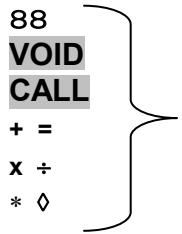
Used in Auto Call function only.
The display switches off automatically after 3 minutes of inactivity. To switch it on again, just press any key; if a calculation is in course it is displayed.
Remarque
Power on and Printing
The main ON-OFF switch is on the rear of the machine.
Printing is controlled by the selector switch at the top left of the keyboard (NP - P).
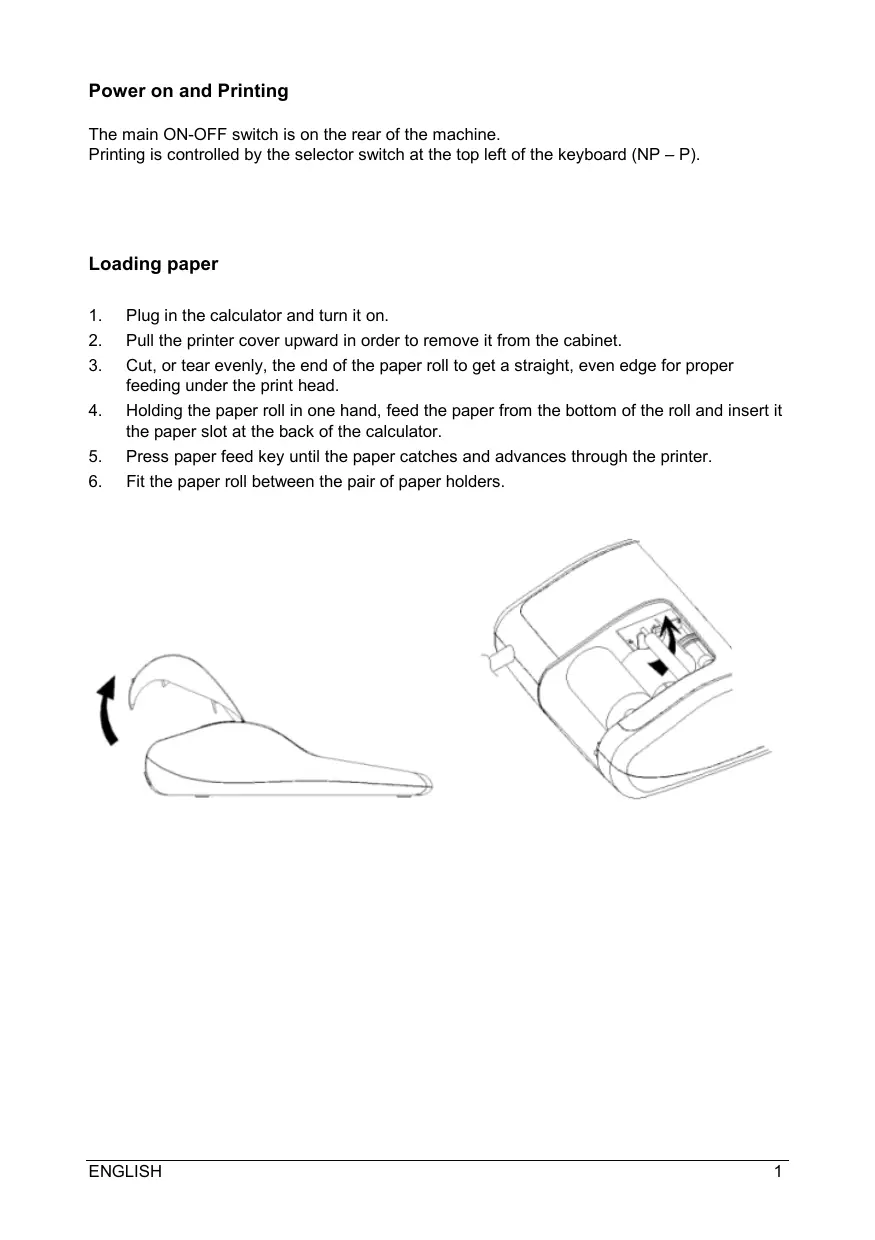
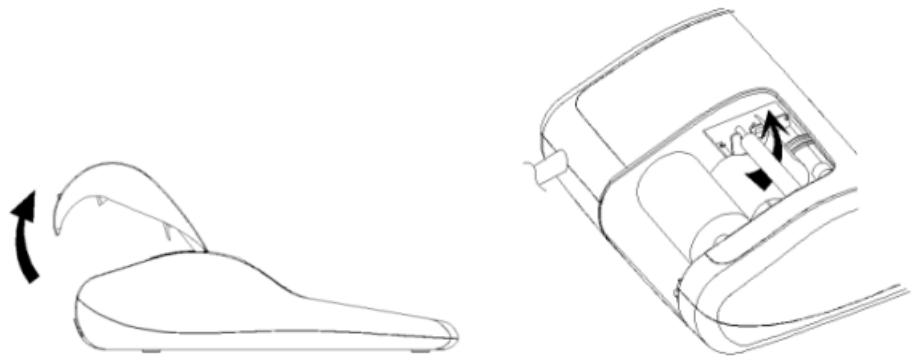
Loading paper
- Plug in the calculator and turn it on.
- Pull the printer cover upward in order to remove it from the cabinet.
- Cut, or tear evenly, the end of the paper roll to get a straight, even edge for proper feeding under the print head.
- Holding the paper roll in one hand, feed the paper from the bottom of the roll and insert it the paper slot at the back of the calculator.
- Press paper feed key until the paper catches and advances through the printer.
- Fit the paper roll between the pair of paper holders.
Keyboard Description
NP P Printer selection switch
NP Printer is activated only when [ ] or # /D] key is pressed.
P Printer is activated as long as calculator is turned on.
5/4 ↑ Rounding selector
↓ Absolute round down.
5/4 Final result is rounded up if the 1^st digit not to be printed is 5 or more and rounded down if the 1^st digit not to be printed is 4 or less.
Absolute round up.
A 0 2 3 4 F Decimal Point selector
A Add mode. The decimal point is automatically placed before the last two digits in addition and subtraction.
0,2,3,4 For multiplication and division, decimal point is set to the result of calculation.
For addition and subtraction, decimal point is set to all entries.
For all the results, number in the decimal place to the last decimal place designated will be rounded. For example, number at 3^rd decimal place is rounded at "2" position.
F Automatic floating point for decimally accurate computing. Decimal point is entered at desired position and the decimal point is automatically shifted to the right is under 14 digits of integer.
- ACC Grand Total switch
Calculation without Grand Total
ACC Any total made with [ ] or [M^] key is automatically accumulated to Grand Total wholesaler. The result of multiplication, division, the first result of percent calculations and deltas are stored in the GT wholesaler. The GT wholesaler can be recalled by pressing the [GT] follow by [ ] or [M^] key.
- IC Item Count switch
Calculation without Item Count
IC Item Count. Number of entries using keys [+] , [-] , [M± ] and [M ] . will be counted. The counter is added for [+] , [M± ] and subtracted for [-] , [M ] . Result is printed at left when [] , [] , [M ] or [M* ] key is used.
[↑] Paper feed key
Advances the paper roll.
[√]
Square root key
Calculates the square root of the contents of the display.
[CALL]
Call key
Checks each calculation step by step.
Continuous pressing performs quick replay.
[VOID]
Void key
Enables correction for each calculation step.
[TAX +]
Tax plus key
Calculates an amount including VAT with Tax rate preset by [RATE] key.
[TAX -]
Tax minus key
Calculates an amount excluding VAT with Tax rate preset by [RATE] key.
[RATE]
Rate key
Enters Tax rate or Currency Exchange rate.
[EURO]
Euro currency
Converts the displayed value to Euro currency.
[LOCAL]
Local currency
Converts the displayed value to Local currency.
[%]
Percentage key
Completes percent calculation when [x] or [÷] key is used.
[COST]
Cost key
Used to enter Cost factor in a Cross Profit Margin calculation.
[SELL]
Sell key
Used to enter Selling price in a Cross Profit Margin calculation.
[MARGIN]
Margin key
Used to enter desired Margin in a Cross Profit Margin calculation.
[Δ%]
Delta percent key
Automatically compares any two amounts and then calculates and prints the percent change.
[÷]
Division key
To divide, enter the number to be divided (dividend) and press the [÷] key; then enter the second number (divisor) and press [=] key to obtain result.
[X]
Multiplication key
To multiply, enter the first number (multiplicand) and press the [x] key; then enter the second number (multiplier) and press [=] key to obtain result.
[]
Equals key
Completes multiplication, division or delta percent.
| [C/CE] | Clear / Clear entry key
Pressed once, clears a live entry.
Pressed twice, clears the accumulator or the calculation status except for Memory and Grand Total. |
| [+/-] | Sign change key
Reverses the sign on the display. |
| [→] | Right shift key
Deletes right most character of a live entry. |
| [•] | Decimal point key
If the decimal point key is used more than once in a numeral, the first decimal point will be considered as effective. |
| [-][9], [00], [000], | Numeric keys
Any numeral over 14 digits will be ineffective and will cause an error to be indicated. |
| [-] | Minus key
Subtracts an amount from the accumulator.
To subtract the same amount more than once (repeat subtraction), enter the amount once and press this key as many times as necessary. |
| [+] | Plus key
Adds an amount to the accumulator.
To add the same amount more than once (repeat addition), enter the amount once and press this key as many times as necessary. |
| [#/D] | Non-add / Date key
Prints an entry, e.g. a date followed by “#”, on left hand side of paper roll, without changing the sequence of the calculation. |
| [GT] | Grand Total key
Prints and clears the Grand Total memory. |
| [◇] | Subtotal key
Gives immediate result of addition and subtraction.
Prints but does not clear the accumulator. |
| [*] | Total key
Gives total result of addition and subtraction.
Cleared the total accumulator.
If the GT switch is selected, automatically accumulates the result in the GT memory. |
| [M*] | Memory Total key
Prints and clears the memory. |
| [M◇] | Memory Subtotal key
Prints but does not clear the memory. |
[M≡] Memory Minus key
Subtracts an amount from memory.
If there is a live calculation pending, complete the calculation and subtracts the amount from memory.
[M±] Memory Plus key
Adds an amount to memory.
If there is a live calculation pending, complete the calculation and
accumulates the result to memory.
Technical Specifications
Type: Desktop Adding Machine/Calculator, Electronic Print/Display
Basic Operations: Addition/subtraction (with subtotal and total) and multiplication/division
Capacity: Input and result - 14 digits
Decimal System: Floating (F), Add mode (A), Fixed (0,2,3,4)
Functions: 4 rules, successive calculation, memory calculation, grand total calculation, constant calculation, tax calculation, currency exchange calculation, delta percent calculation, cost-sell-margin calculation.
Printer: Thermal printer
Paper width: Thermal paper: width 57.5 ± 0.5 ~mm × diameter 50 ~mm
Display: 14 digit Liquid Crystal Display
Operating Temperature: 0^ 40^
Dimensions: 320 × 205 × 87 ~mm
Weight: 1,3 Kg
[TAX -] Touche Calcul hors taxa
[RATE] Touche Taux taxa/change
[MARGIN] Touche Marge
[X] Touche Multiplication
[-] Touche Soustration
[GT] Touche Grand total
[?] Touche Sous-total
[M*] Touche Total mémoire
[M≡] Touche Soustraction mémoire
[M±] Touche Addition mémoire
[-] Taste Subtraction
[#/D] Taste Keine Addition /Datum
| | Print
P | Rounding
5/4 | Decimal
2 | ACC
● | IC
● |
| Calculation | Enter | Display | Paper |
| 2÷3=? | 2 [÷] | 2.00 | | 2.00 | [÷] |
| 3 [=] | 0.67 | | 3.00 | [=] |
| | | | 0.67 | * |
| | Print
P | Rounding
↓ | Decimal
2 | ACC
● | IC
● |
| Calculation | Enter | Display | Paper |
| 2÷3=? | 2 [÷] | 2.00 | | 2.00 | [÷] |
| 3 [=] | 0.66 | | 3.00 | [=] |
| | | | 0.66 | * |
RIPETERE CALCOLO - REPEAT CALCULATION - REPETITION DU CALCUL - BERECHNUNG WIEDERHOLEN - REPETIR CÁLCULO - REPETIR O CÁLCULO - BEREKENING HERHALEN
| | Print
P | Rounding
5/4 | Decimal
F | ACC
• | IC
• |
| Calculation | Enter | Display | Paper |
| 23 = 2 x 2 x 2 = ? | 2 | [X] | 2. | | 2. | x |
| | [X] | 4. | | 2. | x |
| | [=] | 8. | | 2. | = |
| | | | | 8. | * |
CALCOLO COSTANTE - CONSTANT CALCULATION - CALCUL CONSTANTE - KONSTANTENBERECHNUNG - CÁLCULO CONSTANTE - CÁLCULO CONSTANTE - CONSTANTE-BEREKENING
| | Print
P | Rounding
5/4 | Decimal
F | ACC
• | IC
• |
| Calculation | Enter | Display | Paper |
| 2 x 5 = ? | 2 | [X] | 2. | | 2. | x |
| 5 | [=] | 10. | | 5. | = |
| | | | 10. | * |
| 2 x 7 = ? | 7 | [=] | 14. | | 7. | = |
| | | | 14. | * |
COSTO-VENDITA-MARGINE - COST-SELL-MARGIN - COUT-VENTE-MARGE - PREIS-VERKAUF-SPANNE - COSTO-VENTA-MARGEN - CUSTO-VENDA-MARGEM - KOSTEN-VERKOOP-MARGE
| | Print P | Rounding 5/4 | Decimal 2 | ACC • | IC • |
| Calculation | Enter | Display | Paper |
| Cost = 100 | 100 | [COST] | 100.00 | | | |
| Margin = 5% | 5 | [MARGIN] | 105.26 | | | |
| Sell = ? | | | | | | |
| | | | | | |
| | | | | | |
| | | | | | |
| | | | | | |
| | | | | | |
| | | | | | |
| | | | | | |
| | | | | | |
| | | | | | |
| | | | | | |
| | | | | | |
| | | | | | |
PREIMPOSTAZIONE TASSO - SET TAX RATE - PROGRAMMATION DU TAUX - VOREINSTELLLUNG SATZ - SELECTION PREVIA PORCENTAJE - PREDEFINÇÃO DA TAXA - INSTELLING BTW-TARIEF
| Calculation | Enter | Display | Paper |
| Preset TAX = 18.6% | [C/CE] | (Blinking)RATE 0. | 0. CL |
| [RATE] |
| (Press & hold until display blinking) |
| 18.6 [TAX+] | 18.6 | 18.6 T % |
| Print TAX rate | [RATE] [TAX+] | 18.6 | 18.6 T % |
CALCOLO TASSO - TAX CALCULATION - CALCUL DU TAUX - SATZ-BERECHNUNG - CÁLCULO DE TASACION - CÁLCULO DA TAXA - BTW-BEREKENING
| | Print P | Rounding ↓ | Decimal 2 | ACC · | IC · |
| Calculation | Enter | Display | Paper |
| Price without tax = 300 | 300 | [TAX+] | TAX + | 355.80 | 300.00 | Tx+ |
| 18.6 | x % |
| Price with tax = ? | | | | | 55.80 | Δ |
| | | | 355.80 | T |
| Price with tax = 355.80 | | [TAX-] | TAX - | 300.00 | 355.80 | Tx- |
| | | | 18.6 | x % |
| Price without tax = ? | | | | | 55.80 | Δ |
| | | | 300.00 | T |
CALCOLO DELLA PERCENTUALE - PERCENTAGE CALCULATION - CALCUL DU POURCENTAGE - PROZENTSATZ-BERECHNUNG - CÁLCULO DEL PORCENTAJE - CÁLCULO DA PERCENTAGEM - PERCENTAGEBEREKENING
| | Print
P | Rounding
5/4 | Decimal
2 | ACC
• | IC
• |
| Calculation | Enter | Display | Paper |
| 1279 = 100% | 1279 | [X] | 1'279.00 | | | |
| ? = 12% | 12 | [%] | 153.48 | 1 | 279.00 | x |
| | | | 12.00 | % | |
| | | | 153.48 | * | |
CALCOLO DELL'ADDIZIONE E DELLO SCONTO - ADD-ON AND DISCOUNT CALCULATION - POURCENTAGE DE MAJORATION ET POURCENTAGE DE REMISE - ZUSCHLAG- UND RABATTBERECHNUNG - CÁLCULO DE LA ADICION Y DELDESCUENTO - CÁLCULO DA ADIÇÃO E DO DESCONTO - BEREKENING VAN TOESLAG EN KORTING
| | Print P | Rounding 5/4 | Decimal 2 | ACC • | IC • |
| Calculation | Enter | Display | Paper |
| 180 + 15% - 3% = ? | 180 [X] | 180.00 | | | |
| 15 [%] | 27.00 | | | |
| | [+] | 207.00 | | | |
| | [X] | 207.00 | | | |
| 3 [%] | 6.21 | | | |
| | [-] | 200.79 | | | |
| | | | | | |
| | | | | | |
| | | | | | |
| | | | | | |
| | | | | | |
PERCENTUALE DILLA COSTANTE - PERCENTAGE OF CONSTANT - POURCENTAGE DE CONSTANTE - KONSTANTENPROZENTSATZ - PERCENTAJE DE LA CONSTANTE - PERCENTAGEM DA CONSTANTE - PERCENTAGE VAN DE CONSTANTE
| | Print P | Rounding 5/4 | Decimal 2 | ACC • | IC • |
| Calculation | Enter | Display | Paper |
| 120 = 100% ? = 25% | 120 [X] 25 [%] | 120.00 30.00 | 120.00 [X] 25.00 % 30.00 * |
| ? = 33% | 33 [%] | 39.60 | 33.00 [%] 39.60 * |
TOTALE GENERALE DEL TOTALIZZATORE - GRAND TOTAL TOTALIZER - GRAND TOTAL DU TOTALISEUR - ENDSUMME TOTALISATOR - TOTAL GENERAL DEL TOTALIZADOR - TOTAL GERAL DO TOTALIZADOR - GROOTTOTAAL VAN DE TOTALISATOR
| | P | Print | Rounding | Decimal | ACC | IC |
| | P | 5/4 | 2 | 2 | ACC | IC |
| Calculation | Enter | Display | Paper |
| 13.20 9.558.30 7.36+ 2.95 18.3324.45 +35.24 =T? | [CE]13.2[+]8.3[+]2.95[+][]* | 0.13.221.5024.4524.45 | 0.13.221.508.302.95 |
| | GT | 003 |
| 9.55[+]GT7.36[+]18.33[+][]* | GT16.9135.2435.24 | 24.45TTL+9.557.3618.33003 |
| | GT | 35.24TTL+59.69 |
| [GT] | 59.69 | 002 |
CALCOLO DELLA PERCENTUALE DELTA - DELTA PERCENT CALCULATION - CALCUL DE LA VARIATION EN POURCENTAGE - BERECHNUNG DER DELTA-QUOTE - CALCULO DEL PORCENTAJE DELTA - CALCULO DA PERCENTAGEM DELTA - BEREKENING VAN PERCENTAGEVERSCHIL
| | Print P | Rounding 5/4 | Decimal 2 | ACC • | IC • |
| Calculation | Enter | Display | Paper |
| 2001 : 15987 | 11435 | [Δ%] | Δ% | 11'435.00 | | |
| 1999 : 11435 (=100%) | 15987 | [=] | | 39.81 | | |
| Δ% = ? | | | | | 11 435.00 | Δ |
| | | | | 15 987.00 | = |
| | | | | 4 552.00 | Δ* |
| | | | | 39.81 | Δ% |
CALCOLI CON MEMORIA - MEMORY CALCULATION - CALCULS AVEC MEMOIRE - RECHNUNGEN IM SPEICHER - CALCULO COM MEMORIA - CÁLCULOS COM MEMORIA - GEHEUGENBEREKENING
| | P | P | F | ACC | IC |
| Calculation | Enter | Display | Paper |
| | [C/CE] | 0. | | 0. | CL |
| 100 + 200 = ? | 100 | [+] | 100. | | 100. | + |
| 900 - 500 = ? | 200 | [+] | 300. | | 200. | + |
| 20 x 7 = ? | | [*] | 300. | | 300. | TL |
| 12 x 5 = ? | | | | | | |
| Total ? | | [M±] | M 300. | | 300. | M+ |
| 900 | [+] | M 900. | | 900. | + |
| 500 | [-] | M 400. | | 500. | - |
| | [*] | M 400. | | 400. | TL |
| | [M±] | M 400. | | 400. | M+ |
| 20 | [X] | M 20. | | 20. | x |
| 7 | [=] | M 140. | | 7. | = |
| | | | | 140. | * |
| | [M±] | M 140. | | 140. | M+ |
| 12 | [X] | M 12. | | 12. | x |
| 5 | [M±] | M 60. | | 5. | = |
| | [M0] | M 900. | | 60. | M+ |
| | [M*] | 900. | | 900. | MS |
| | | | | 900. | MT |
| | [C/CE] | 0. | | 0. | CL |
There are 13 Euro currency rates available in memory, the default values are preset to 1.
To select a position in which to set the rate you desire:
- Press and hold the [RATE] key until the "RATE" symbol blinks on the display.
- Press the [EURO] key, the display will show "r-01 1."
- Press the ([+] key to move on to the next rate.
- Press the [-] key to move back to previous rate.
-
Enter the required rate and press the [EURO] key. The current rate is now set.
-
If you want to return the Euro Currency and TAX rates to their default rate, switch OFF the machine, then holding down [C/CE] and [+] switch it ON again. "r-CC" will appear on the display and the default rate is set.
| | Print | Rounding | Decimal | ACC | IC |
| | P | 5/4 | 2 | ● | ● |
| Calculation | Enter | Display | Paper |
| Set Currency rate | | | | | | |
| 1.08 in r-02 | [RATE] | (Blinking)RATE | 0. | | | |
| (Press & hold 3 sec.) | | | | | |
| [EURO] | (Blinking)RATE | r-01 | 1. | | |
| [+] | (Blinking)RATE | r-02 | 1. | | |
| [EURO] | RATE | € | 1.08 | 1.08 | € |
| 2500+4000+1500= Total Euro currency? | 2500 | [+] | 2'500.00 | | 2 500.00 | + |
| 4000 | [+] | 6'500.00 | | 4 000.00 | + |
| 1500 | [+] | 8'000.00 | | 1 500.00 | + |
| | [*] | 8'000.00 | | 8 000.00 | TL |
| | [EURO] | € | 7'407.41 | 8 000.00 | + |
| | | | | 1.08 | €= |
| | | | | 7 407.41 | €* |
| 2500+4000+1500= Total Local currency? | | | | | | |
| 2500 | [+] | 2'500.00 | | 2 500.00 | + |
| 4000 | [+] | 6'500.00 | | 4 000.00 | + |
| 1500 | [+] | 8'000.00 | | 1 500.00 | + |
| | [*]* | 8'000.00 | | 8 000.00 | TL |
| | [LOCAL] | LOCAL | 8'640.00 | 8 000.00 | x |
| | | | | 1.08 | €= |
| | | | | 8 640.00 | * |
| | [C/CE] | 0. | | 0. | CL |
| | Print
P | Rounding
5/4 | Decimal
2 | ACC
• | IC
• |
| Calculation | Enter | Display | Paper |
| Set Currency rate
1.08 in r-02 | [RATE]
(Press & hold 3 sec.)
[EURO]
[+]
1.08 | (Blinking)RATE
(Blinking)RATE
(Blinking)RATE
(Blinking)RATE
(Blinking)RATE
(Blinking)RATE
(Blinking)RATE
(Blinking)RATE
(Blinking)RATE
(Blinking)RATE
(Blinking)RATE
(Blinking)RATE
(Blinking)RATE
(Blinking)RATE
(Blinking)RATE
(Blinking)RATE
(Blinking)RATE
(Blinking)
[EURO] | 0.
€
r-01 1.
€
r-02 1.
1.08 | 1.08 | € | |
| 2500+4000+1500
= Total Euro currency? | 2500
4000
1500 | [+] | 2'500.00 | 2500.00 | €
+ | |
| [+] | 6'500.00 | 4000.00 | €
+ | |
| [+] | 8'000.00 | 1500.00 | €
+ | |
| [+] | 8'000.00 | 8000.00 | TL | |
| [EURO] | € 7'407.41 | 8000.00 | €
+ | |
| 1.08 | €
= | |
| 7407.41 | €* | |
| 2500+4000+1500
= Total Local currency? | 2500
4000
1500 | [+] | 2'500.00 | 2500.00 | €
+ | |
| [+] | 6'500.00 | 4000.00 | €
+ | |
| [+] | 8'000.00 | 1500.00 | €
+ | TL |
| [+] | 8'000.00 | 8000.00 |
| [LOCAL] | LOCAL 8'640.00 | 8000.00 | €
x | |
| 1.08 | €
= | |
| 8640.00 | * | |
| [C/CE] | 0. | 0. | CL | |
DIRECTIVE 2002/96/CE ON THE TREATMENT, COLLECTION, RECYCLING AND DISPOSAL OF ELECTRIC AND ELECTRONIC DEVICES AND THEIR COMPONENTS
1. FOR COUNTRIES IN THE EUROPEAN UNION (EU)
The disposal of electric and electronic devices as solid urban waste is strictly prohibited: it must be collected separately. The dumping of these devices at unequipped and unauthorized places may have hazardous effects on health and the environment.
Offenders will be subjected to the penalties and measures laid down by the law.
TO DISPOSE OF OUR DEVICES CORRECTLY:
a) Contact the Local Authorities, who will give you the practical information you need and the instructions for handling the waste correctly, for example: location and times of the waste collection centres, etc.
b) When you purchase a new device of ours, give a used device similar to the one purchased to our dealer for disposal.

The crossed dustbin symbol on the device means that:
- When it to be disposed of, the device is to be taken to the equipped waste collection centres and is to be handled separately from urban waste;
- Olivetti guarantees the activation of the treatment, collection, recycling and disposal procedures in accordance with Directive 2002/96/CE (and subsequent amendments).
2. FOR OTHER COUNTRIES (NOT IN THE EU)
The treatment, collection, recycling and disposal of electric and electronic devices will be carried out in accordance with the laws in force in the country in question.
1. POUR LES PAYS DE L'UNION EUROPEENNE (UE)