
Solution 7 - Tablet Overmax - Free user manual and instructions
Find the device manual for free Solution 7 Overmax in PDF.


| Product Type | Tablet |
| Brand | Overmax |
| Model | Solution 7 |
| Display Size | 7 inches |
| Display Resolution | 1024 x 600 pixels |
| Operating System | Android (version may vary) |
| Processor | 1.3 GHz quad-core |
| RAM | 1 GB |
| Internal Storage | 8 GB |
| Expandable Storage | microSD up to 32 GB |
| Camera (Rear) | 2 MP |
| Camera (Front) | 0.3 MP |
| Connectivity | Wi-Fi 802.11 b/g/n, Bluetooth 4.0 |
| Battery Capacity | 3000 mAh |
| Battery Type | Lithium-Ion, non-removable |
| Charging Port | Micro USB |
| Audio Jack | 3.5 mm |
| Dimensions (W x H x D) | 190 x 115 x 10 mm |
| Weight | 350 g |
| Product Color | Black / White (varies) |
| Safety Warning | Do not expose to liquids or extreme temperatures. |
| Cleaning Instructions | Wipe with a soft, dry cloth. |
| Spare Parts Availability | Contact Overmax support for replacement parts. |
| Repairability | Not user-serviceable; consult a professional. |
Frequently Asked Questions - Solution 7 Overmax
User questions about Solution 7 Overmax
0 question about this device. Answer the ones you know or ask your own.
Ask a new question about this device
Download the instructions for your Tablet in PDF format for free! Find your manual Solution 7 - Overmax and take your electronic device back in hand. On this page are published all the documents necessary for the use of your device. Solution 7 by Overmax.
USER MANUAL Solution 7 Overmax
Your electronic world
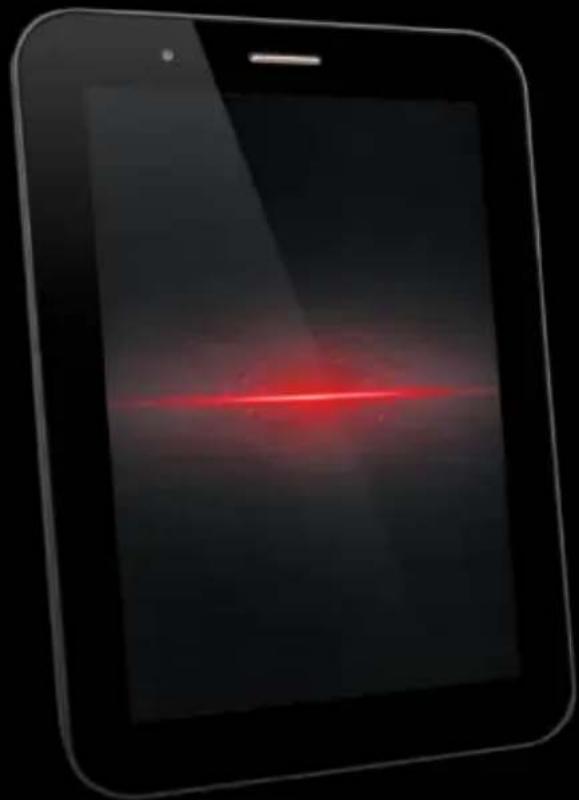
natural_image
Illustration of a tablet device displaying a red light beam against a dark background (no text or symbols)natural_image
Symbol of a trash bin with crossed lines and a solid black rectangle below (no text or labels)Uwaga: Shut down alarm is not supported.
Przeglądarka
➢ Warning: To reduce the risk of electric shock, do not remove the cover or back. There are no user-serviceable parts inside. Refer servicing to qualified personnel.
➢ Warning: To prevent re or electric shock hazard, do not expose the unit to rain or moisture.
Do not expose the Adaptor and MID to water (dripping or splashing) and no objects lled with liquids, such as vases, should be placed on the unit.
Keep the MID away from direct sunlight and heat source such as radiators or stoves.
Do not block the venlaon openings. Slots and openings on the unit are provided for venlaon. The openings should never be blocked by placing your MID on a cushion, sofa or other similar surface.
Do not place the MID on unstable cart, stand, tripod, bracket or table. The unit may fall, resulting in possible damage or injury.
➢ Never place heavy or sharp objects on the LCD panel or frame.
➢ Only use the AC adapter included with MID. Using any other adapter will void your warranty.
- Unplug the power from the outlet when the unit is not in use.
➢ Aenon should be drawn to the environmental aspects of baery disposal.
➢ WARNING: The baery (baery or baeries or baery pack) shall not be exposed to excessive heat such as sunshine, re or the like.
- WARNING: Excessive sound pressure from earphones or headphones can cause hearing loss.
➢ WARNING: Only use aachments/accessories specied provided by the manufacturer, the MID is supplied by AC adapter, the AC adapter is used as disconnect device, the disconnect device shall remain readily operable.
➢ WARNING: The excessive sound pressure from earphones and headphones can cause hearing loss. Cauon: Danger of explosion if baery is incorrectly replaced, replaced only with the same or equivalent type (Lithium baery)

CAUTION
RISK OF ELECTRIC SHOCK! DO NOT OPEN!


The symbol indicates that dangerous voltages constung a risk of electric shock are present within this unit.

The symbol indicates that there are important operang and maintenance instrucons in the literature accompanying this unit.
CAUTION:
When the apparatus was in electrostac circumstance, it may be malfuncon and need to reset by user.
The USB memory sick should be plug in the unit directly. USB extension cable should not be used to avoid failing of data transferring and interference caused.
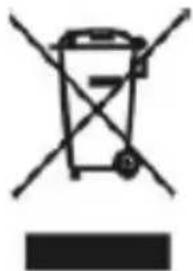
natural_image
Simple line drawing of a trash bin with crossed handle and no text or symbolsThis marking indicates that this product should not be disposed with other household wastes throughout the EU. To prevent possible harm to the environment or human health from uncontrolled waste disposal, recycle it responsibly to promote the sustainable reuse of material resources. To return your used device, please use the return
and collecon systems or contact the retailer where the product was purchased. They can take this product for environmental safe recycling.
Connectors
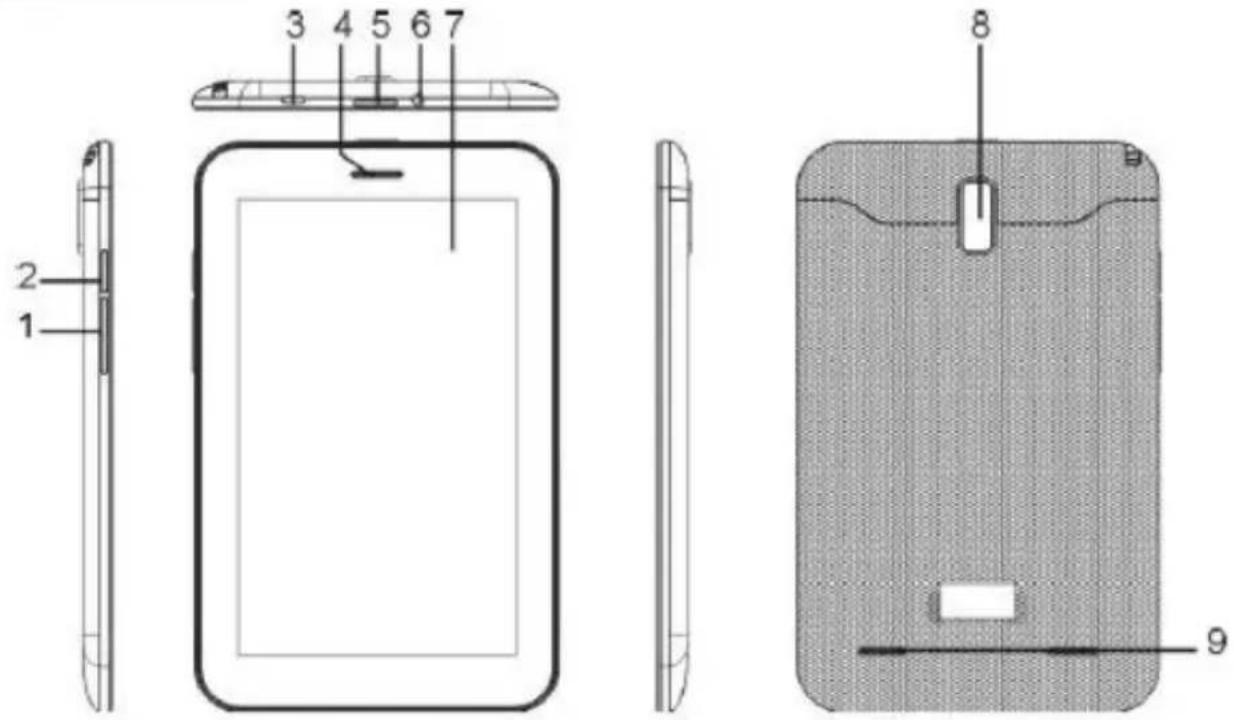
- Vol+ / Vol-
- Reset
- USB
- MIC
- Power
- Earphone
- LCD Display+Touch Panel
- Camera
- Loudspeaker
User Operaons
In order to use your tablet PC safely and eecively, please read the following informaon carefully before use.
Safe Boot
In the area(such as airplanes, hospitals) which wireless devices are forbidden, please comply with all posted warnings and authorized ocer's indicaon.
If need to use the non-network services of the device, you can switch to light mode. Hold the [ON/OFF] buon, and then select the light mode.
Waterproof
Keep the Tablet PC dry, ra^ humidity and all types of liquids may contain minerals that will corrode electronic circuits.
Interference
Mobile communicaon may be subject to the radio interference, which could aect performance.
Trac Safety
Do not use the tablet PC to call when driving, so as not to disturb the safe driving.
In the restricted area please shut down
Please comply with restricons or regulaons. On the plane or nearby the inammable substances, chemicals or medical equipment, Tablet PC should be shut down.
Tablet PC placement
Place the Tablet PC and its accessories out of children's reach.
Accessory and Baery
Please use the specied baery and charger.
Do not aempt to disassemble the Tablet PC and accessories, if need service, contact an authorized agency or professionals.
Install SIM or USIM card
When ordering mobile phone service, you will receive a Subscriber Identy
Module (SIM) card, which contains detailed informaon of your order, such as a personal idencaon number (PIN) and oponal services. To use UMTS or HSDPA services, you can purchase a Universal Subscriber Identity Module (USIM cards). Install the SIM or USIM card and baery:
If the Tablet PC is switched on, please hold the [ON/OFF] buon and select "Shut Down" to turn it o.
Remove the back cover. When you remove the back cover, please be careful not to hurt your nails.
Insert the SIM or USIM card.
To make the gold touch spot of the SIM or USIM card face down, and insert it into the Tablet PC.
If do not insert the SIM or USIM card, you can use wireless services.
Please do not insert the memory card into the SIM card slot.
Replace the back cover.
Baery charge
Before using the Tablet PC for the rst me, you must charge the baery.
You can use the provided travel charger or through the computer data cable to connect the Tablet PC and the computer to charge for the Table PC.
Only use the charger and the USB cable provided by our company is allowed. Unauthorized will cause the battery exploded or damage your Tablet PC.
When baery is low, the Tablet PC will issue a warning tone and show the informaon. If it's too low, the Table PC will shut down automacally. You need to recharge the baery to connue to use.
Travel charger charging
√ Insert the small end plug of the travel charger into the mulfuncon socket. If the travel charger is connected incorrectly, you may cause serious damage to the Tablet PC. Any damage due to misuse will not warranty.
- Insert the big end plug of the travel charger into power jack.
√ Using the Tablet PC when charging, this will extend the charging me;
√ When charging, the Tablet PC will be fever. The phenomenon is normal, and will not act the life or performance of the Table PC;
√ A If the Tablet PC is not charging properly, please take the Tablet PC and charger to our company's customer service center to have a check.
2. When the baery is fully charged (the baery icon is no longer scroll), disconnect the travel charger and the Tablet PC conncon, then pull out it from the power jack.
Use USB cable to charge
Before charging, please make sure that the Tablet PC has been turned on.
- Plug one end (micro USB) of the USB cable into the mulfuncon socket.
- According to the type of USB cable, connect the other end to the computer's USB port, you may need to wait for a moment to begin charging.
- When the baery is fully charged (the baery icon is no longer scroll), disconnect USB cable with the Tablet PC, then pull out it from the computer.
Insert memory card (oponal)
If you want to store other mulmedia les, you can use the SD card or insert the memory card. The Tablet PC can use micro SD™ or micro SDHC™. Micro SDHC™ memory card capacity up to 32GB.
√ The Table PC supports only the FAT le structure. If you insert the memory card with other structure, the Tablet PC will be asked to re-format the memory card.
√ Frequent wring and deleng the data will shorten the life of the memory card.
√ When you insert the memory card to the Table PC, The le catalog in the memory card will appear in the folder of the le management.
- Remove the back cover.
- Insert memory card and ensure the golden touch spot face down.
- Push the memory card into the card slot until it locks into place.
- Replace the back cover.
Take out the memory card
- Remove the back cover.
- Pull out memory card from the card slot.
- Remove the memory card.
- Replace the back cover.
Please do not remove the memory card when transferring or accessing informaon in the Tablet PC, Otherwise it may cause data loss or damage the Table PC and memory card.
Format SD card
- Formang the memory card on the computer may result in the memory card is not compatible with the Tablet PC, please formang the memory card on the Tablet PC only.
- In standby mode, select Applicaons ^ Sengs ^ Storage ^ Format SD card. Before formang, remember to backup all the important data stored in the Tablet PC. The manufacturer warranty services is not included the data loss due to wrong operaon.
Startup and Shutdown
If you want to turn on the Tablet PC, long press [ON/OFF].
If your want to turn o the Tablet PC, long press [ON/OFF], choose [shut down].
In the area(such as airplanes, hospitals) which wireless devices are forbidden, please comply with all posted warnings and authorized ocer's indicaon.
If need to use the non-network services of the devices, you can switch to light mode. Long press [ON/OFF] buon, then select the "ight mode".
Connect external USB storage seng
Use an external adapter cable which could be connected to the U disk and card readers and other external storage devices. Please insure the Tablet PC is turned on.
- Plug one end (mini USB) of the adapter cable into the mulfuncon socket.
- Plug the other end of the adapter cable into the USB port of U disk,
card readers and other external storage devices.
-
Aer a successful conncon into the le manager, will show "external USB memory". You can access the les in the memory: view pictures, play music, video.
-
Uninstall an external USB memory: sengs, storage, external USB memory, select "uninstall USB storage device", select "OK" to properly uninstall the USB storage.
Using touch screen
Using touch screen can be more easily to select items or perform funcons.
Learn basic operaon of the touch screen:
√ To avoid scratching the touch screen, do not use sharp tools.
√ Do not allow the touch screen to reach out to other electronic equipment. Electrostac discharge may cause the touch screen failure.
√ Do not allow the touch screen to touch the water. In humid environments or reach close to water, touch screen may malfuncon.
√ In order to achieve the best results, remove protecve lm before use the touch screen.
√ To control the touch screen as below:
√ Click: Click once to select or start menu opons or applicaons with your ngers.
√ Click and press: click and press for more than 2 seconds, opons list will pop-up.
√ scroll: Click, drag your nger up, down, le or right to move the item in the list.
√ Drop: with your nger to click and the press an item, and then drag your nger to move the item.
√ Double-click: when view photos or web pages, click twice quickly with your nger to zoom in or out.
√ If you do not use the Tablet PC for a specified length of me, the touch screen will be turned o. If want re-open, press [switch key].
√ You also could adjust the backlight me. In standby mode, open the applicaon list, and then select Sengs ^ Display ^ Sleep.
Lock or unlock the touch screen and buons
You can lock touch screen and buons, to prevent any accidental operaon. For lock, press [ON/OFF], unlock, press [ON/OFF], and then according to the prompts on the screen to manually unlock.
Move items on the standby screen
√ Click and press item you want to move.
√ Aer vibraon, drag it to the desired locaon.
Remove items from the standby screen
√ Click and press item you want to remove, aer vibraon and the applicaon area will show the Recycle Bin Icon, this shows that the applicaon area on the boom of the screen has changed to be Recycle Bin.
√ Drag the item to the Recycle Bin.
√ When the item be red, release it.
Use shortcuts panel
In standby mode or when using the applicaon, touch the indicator icons area on the top of the screen, then drag your nger down to open the shortcuts panel. You can start or cancel wireless connecvity and other features, access to the nocaoon list, such as informaon, call advies, or processing status. For hidden list, please drag up the boom border.
Sliding shortcut icon le or right in the panel, you can use the following opons:
√ Ambient light sensor: turn on or o ambient light sensor.
√ Standby: adjust delay me of screen
√ automacally turns o.
√ Automac rotate screen: turn on or o auto rotate screen funcon.
√ GPS: turn on or o GPS.
√ WLAN: turn on or o WLAN conncon feature. Long press the icon to enter the WLAN sengs interface.
√ Bluetooth: turn on or o bluetooth wireless conncon feature.
√ Flight mode: turn on or o the ight mode.
√ Sengs: enter the seng interface.
Access to applicaon
If you want to access applicaon
√ In standby mode, select start program to enter applicaons list.
√ Sliding shortcut icon le or right to other applicaon screen, yo u also can choose the boom point and move to the main menu screen directly.
√ Select Start program:
√ Click and press applicaon icon, add a shortcut of the applicaon from list, click. You can move the icon to the desired posion in the standby screen.
√ Click [Back] to return to the previous screen.
√ Tablet PC has a built-in moon sensor that can detect the direcon of the Tablet PC. Use certain features rotang Tablet PC, Tablet PC interface will automatically switch to a horizontal screen mode.
√ To set the interface does not change with the rotaon of the Tablet PC, at the top of the screen to open the shortcut A Panel, and then choose to automacally turn the screen. Or select Sengs – Display – Auto-rotate screen.
Widget
Click applicaon from standby interface, choose widget, select one and long press, drag to the interface.
Customize more features based on personal preferences.
Set the current me and date
√ In standby mode, open applicaon list, then select Sengs ^ Date and me.
√ Set me and date and change other opons.
Turn on or o the touch sound
In standby mode, open applicaon list, then select Sengs - Audio Proles - General - System - Select the touch sound.
Adjust ringtone volume
Press [+/-] to adjust the ringtone volume.
Change ringtone
In standby mode, open applicaon list, then select Sengs - Audio Proles - General – voice call ringtone or message ringtone.
√ Select a ringtone from the list, then select OK.
Select wallpaper
- In the standby mode, long press standby interface - Wallpaper - Select wallpaper sources.
- Select the image.
- Set it as wallpaper.
Choose wallpaper from :
√ Wallpaper: set background image.
√ Live wallpaper: You can set live wallpaper.
√ video Wallpaper: set the background video.
√ Album: You can select the pictures from album to be wallpaper
Adjust display brightness
In the setup menu to adjust screen brightness:
In standby mode, open the pull-up bar, then select Sengs - Display - Brightness.
- Clear check box before auto-adjust brightness.
- Drag the slider to adjust brightness level.
- Select OK.
Brightness level of the display will act the speed of the baery power to use up.
Set unlock paern
Set unlock paern to prevent unauthorized use.
- In standby mode, open applicaon list, then select Sengs - Security - Screen lock - Paern.
- Carefully watch the instrucons and paerns, select [Next] (if necessary).
- Drag your nger to connect at least four points to draw a paern.
- Choose [Connue].
- Re-drawn to conrm.
- Select OK.
A Aer seng unlock paern, every me start tablet PC will be asked to enter the unlock paern. If you want no longer be required, select Sengs - Security - Screen lock - draw the paern lock - No.
Note: If you select "No", screen will not be locked.
Target SIM card or USIM card
You can start PIN Code to lock Tablet PC.
- In standby mode, open applicaons list, then select Sengs ^Security^ SIM Card lock ^ Lock SIM card.
2.Input PIN code and press "yes"
If set PIN Code to lock, input PIN Code when turn on will be necessary every me.
If input wrong PIN Code three mes connuously, SIM or USIM card will be locked. In this case, you must input PUK to unlock the SIM card or USIM card.
If the SIM card or USIM card was locked due to wrong PUK, please take the card to service provider for help.
Communicaon
dialing
To know how to make a call, such as dial out or receive a call when you are in a call, or other funcons.
Records
To check call history classily selected
- Under standby mode, click "dial" to call history.
- In the interface of call history, to classify it in mobile or in source.
- Select the record you want to know for details.
Contacts
To know how to create and manage the contacts of personal or company stored in memory of tablet or in SIM/USIM card
Group
Seng Groups
Collect
Collect those contacts who are special or you contacted with them frequently, to make you manage them easily.
Note: This collect funcon is only for those contacts in tablet.
Contacts
Including all the contacts in tablet and SIM card.
Message.
To know how to create and send a SMS or MMS, look over and manage those messages sent out or received. It make cause extra cost when sending or receiving messages out of service area, for details, please consult with provider.
Emails
To send or receive emails by seng your personal or company email account.
Email seng
- Under standby mode, open the applicaons, and select "email"
- Select the account type, input your email address and password.
- Select next(for common accounts) or hand set(for other company account)
- Follow the instrucon, aer compleng the seng, it
- will be loaded on your tablet.
Calendar
To check the date, seng agenda or events.
Clock
Set clock
Note: Shut down alarm is not supported.
Browser
Visit web and add it into bookmark.
Browse web
Under standby mode, open applicaons, select browser to open the web you like.
If visit certain web, select URL, input the web address, then press enter and search the icon.
Files managing.
Open the images, videos, music, les or other documents in your tablet or SD card.
Note:
- Don't move or delete systems les except MP3, MP4, images in the SD card. We suggest to install APK aached in SD card, if any stuck or restart happen to your tablet due to installing APK by your side.
- If you want to change the card, please copy the materials to the other card you want change, otherwise it will cause that some entertainment in the tablet won't work.
Music
Play the music you like.
Music player can support to play formats as: aac, amr, ape, ac, imy, m4a, mid, mp2, mp3, ogg and wav.
Not support some formats, depend on the version of the soware in the device.
If the le exceeds the memory, it will occur mistakes when play it.
Play quality will dier from the type of the content.
Some les may not be played normally, depend on its way of coding.
√ Add music
Add les into device
A From download from wireless web A Copy by USB cable A Transfer through bluetooth Video
To watch, delete and order videos.
Camera
Under standby mode, go to camera through applicaons, to take photos, photograph, Take high quality photos, support connuous shoong, special eect, and high quality video.
Album
Check the photos and videos stored in your SD card and tablet.
Sengs
SIM Card managing
To close or open the SIM card, select the SIM card to make video call, select if open data connect or internaonal roaming. Check the SIM card applicaon.
WLAN
Set the status of WLAN, internet noce, add network, etc.
Bluetooth
Set Bluetooth status, search Bluetooth and modify the name of Bluetooth.
Flux status
Check the ux status of SIM card
More sengs
To set airplane mode, vpn, network share and portable hotspot, mobile network, GPRS priority.
Scene
Set rings and its volume of incoming calls, messages, meanwhile, set self-dened scene.
Display
Set funcons related to the display of tablet, such as scene change, screen lock style, brightness adjust, auto-rotate screen, screen meout, etc.
Store message
Check the status of the memory of the SD card and tablet, it is able to format the memory.
Baery
Show the status of charging and its percentage, life used of the baery, etc.
Apps
Modify the sengs of installed apps.
Accounts and Sync
Change or manage the account which need sync funcon.
Locaon
Check the locaon in Apps with wireless network
Security
Seng varies password to protect the tablet from stealing.
Noce: Generally the initial PIN code is 1234
Language and keyboard
Select language, set keyboard, select input
Reset
Factory data reset will clear all data in the tablet, please operate with aenon.
Date and me
Set date and me displayed in the tablet.
Shut down or turn on mely
According to the user's habit to start this funcon.
Auxiliary funcon
Turn on the funcon of power buon, then press the buon could end a call.
Developers opons
For developers to use.
About Tablet PC
Query informaon about tablet, check its state.
Calculator
Learn how to perform mathemacal calculaon, as normal hand-held or desktop calculator, horizontal screen when switching for science calculator.
FM
You can recording when listening to a radio program.
Radio
Help you quickly to preserve voice recording, you can set sound and record mode, and choose storage locaon arbitrarily.
Search
Search local applicaons and some specic informaon on internet.
Download
Manage contents download by browser.
Bluetooth Distance Sensor
Two devices both have bluetooth distance sensor funcon could connect each other, if distance is far or signal is weak, there's an alarm.
Wireless input device
You can connect to wireless keyboard.
Queson & Resoluon
In order to save your me and unnecessary costs, please contact professional services sta when you need services, and make the following examinaons:
Unable to start tablet PC
Check you've pressed [ON/OFF] more than 1 second.
Check the baery if is depleted, please recharge.
Start tablet, and message will alert
Input tablet lock password, choose automac lock funcon, before using you must input
Telephone password.
Input PIN Code, choose every me input PIN Code funcon when start up. Input PUK Code: if connuously input PIN Code three mes for error, SIM Card will be locked, you should input the PUK Code provided by operator.
SIM Card error
If SIM Card metal surface is dirty, please wipe with a clean cloth.
If SIM Card is not installed, install the SIM Card correctly according to the manual.
If SIM Card is damaged, contact your network service provider.
Unable to connect to network
If signal is weak, please move to a strong place and retry.
If it's beyond the network coverage area.
If SIM card is invalid, please contact your network provider.
Unable to call out
Please conrm whether press dial key.
Please conrm whether due to debt and was forbidden to call.
Please conrm whether SIM Card is eecve.
Please conrm whether seng call restricon funcon.
Please conrm whether seng xed dialing funcon.
Poor call quality
Please conrm whether volume adjustment is unsuited.
If using a tablet to make a conversaon in the poor reception area, such as around tall buildings or in the underground room, the radio wave can't be eecvely convey.
If using tablet to make a conversaon during the busy me, such as commuter me, may cause can't call out.
Unable to call in
Please conrm tablet has turned on, and connected to network.
Please conrm whether due to debt and be barred.
Please conrm whether SIM Card is eecve.
Please conrm whether seng call restricon funcon.
Contact
Please keep microphone close your mouth.
Standby me become short
Standby me is related with network system seng, if you stay in poor reception area, tablet will connue to launch in order to nd the base station when can't receive signal, a lot of baery power will consume, and standby me would be short. Please using in strong signal area or temporarily turn o it.
No power
Check if plug is connected.
If dirt is accumulaon, wiping tablet and baery conncon port with a so clean cloth.
Please change the charging environment when below 0^ C or above 45^ C.
Baery or charger need to be changed when damaged.
If the guide informaon couldn't help you to solve the problems, please record your Tablet PC's model and serial number, license or insurance policy informaon, and a clear descripon of the problem, then contact the local customer service.
Český
Návod k použi
natural_image
Simple line drawing of a trash bin with crossed lines and a horizontal bar below (no text or symbols)Nelze spust tablet PC
natural_image
Symbol of a trash bin with crossed lines and a solid black rectangle below (no text or labels)natural_image
Symbol of a recycling bin with crossed lines and a blank rectangular base (no text or numbers)Declaraon of Conformity
We, the undersigned:
Declare the following apparatus:
| Products name: | Tablet Soluon7 |
| Brand and Model name: | OV-Soluon7 |
Hereby we conrm above product compliance with the European direcve of CE :
| EMC : | 2004/108/EC |
| LVD : | 2006/95/EC |
| R&TTE : | 1999/5/EC |
| ROHS : | 2011/65/EU |
| WE : | 1275/2008 |
Below standards were tested and passed :
| EMC : | ETSI EN 301 489-1 V1.8.1 (2008-04)ETSI EN 301 489-17 V2.1.1 (2009-05) |
| LVD : | EN 60950-1:2006 + A11:2009 +A1:2010 + A12:2011 |
| R&TTE : | EN 300328 V1.7.1:2006EN 62311:2008 |
Release date: 21.09.2012
OVERMAX
Your electronic world
www.overmax.pl
- Przeglądarka
- CAUTION
- RISK OF ELECTRIC SHOCK! DO NOT OPEN!
- CAUTION:
- User Operaons
- Safe Boot
- Waterproof
- Interference
- Trac Safety
- In the restricted area please shut down
- Tablet PC placement
- Accessory and Baery
- Install SIM or USIM card
- Baery charge
- Travel charger charging
- Use USB cable to charge
- Insert memory card (oponal)
- Take out the memory card
- Format SD card
- Startup and Shutdown
- Connect external USB storage seng
- Using touch screen
- Lock or unlock the touch screen and buons
- Move items on the standby screen
- Remove items from the standby screen
- Use shortcuts panel
- Access to applicaon
- Widget
- Turn on or o the touch sound
- Adjust ringtone volume
- Change ringtone
- Select wallpaper
- Adjust display brightness
- Set unlock paern
- Communicaon
- dialing
- Records
- Contacts
- Group
- Collect
- Message.
- Emails
- Email seng
- Calendar
- Clock
- Browser
- Browse web
- Files managing.
- Note:
- Music
- √ Add music
- SIM Card managing
- WLAN
- Bluetooth
- Flux status
- More sengs
- Scene
- Display
- Store message
- Baery
- Apps
- Accounts and Sync
- Locaon
- Security
- Language and keyboard
- Reset
- Date and me
- Shut down or turn on mely
- Auxiliary funcon
- Developers opons
- About Tablet PC
- Calculator
- FM
- Radio
- Search
- Download
- Bluetooth Distance Sensor
- Wireless input device
- Queson & Resoluon
- Unable to start tablet PC
- Start tablet, and message will alert
- Telephone password.
- SIM Card error
- Unable to connect to network
- Unable to call out
- Poor call quality
- Unable to call in
- Contact
- Standby me become short
- No power
- Český
- Nelze spust tablet PC
- Declaraon of Conformity
- OVERMAX
Brand : Overmax
Model : Solution 7
Category : Tablet