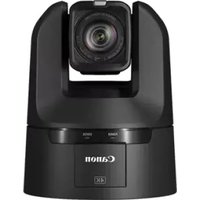
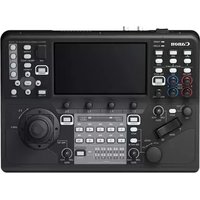
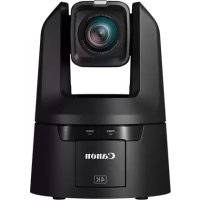
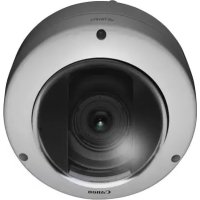
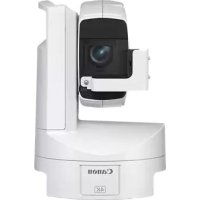
VB-C10 - Caméra de surveillance CANON - Notice d'utilisation et mode d'emploi gratuit
Retrouvez gratuitement la notice de l'appareil VB-C10 CANON au format PDF.


| Intitulé | Valeur / Description |
|---|---|
| Type de produit | Caméra de surveillance IP |
| Résolution maximale | 640 x 480 pixels |
| Capteur d'image | Capteur CMOS |
| Angle de vue | Panoramique de 90° |
| Compression vidéo | M-JPEG |
| Alimentation électrique | Adaptateur secteur 12V |
| Dimensions approximatives | 130 x 130 x 130 mm |
| Poids | 500 g |
| Connectivité | Ethernet 10/100 Mbps, Wi-Fi (optionnel) |
| Fonctions principales | Vision nocturne, détection de mouvement, enregistrement vidéo |
| Entretien et nettoyage | Nettoyage régulier de l'objectif avec un chiffon doux |
| Pièces détachées et réparabilité | Disponibilité limitée des pièces détachées |
| Sécurité | Chiffrement des données, mot de passe pour l'accès |
| Compatibilités | Compatible avec les systèmes d'exploitation Windows et Mac |
| Informations générales | Idéale pour la surveillance intérieure et extérieure |
FOIRE AUX QUESTIONS - VB-C10 CANON
Questions des utilisateurs sur VB-C10 CANON
0 question sur cet appareil. Repondez a celles que vous connaissez ou posez la votre.
Poser une nouvelle question sur cet appareil
Téléchargez la notice de votre Caméra de surveillance au format PDF gratuitement ! Retrouvez votre notice VB-C10 - CANON et reprennez votre appareil électronique en main. Sur cette page sont publiés tous les documents nécessaires à l'utilisation de votre appareil VB-C10 de la marque CANON.
MODE D'EMPLOI VB-C10 CANON
VC-C4 / VC-C4R Network Camera Specifications
| TOTAL NUMBER OF Pixels | 470,000 (440,000 effective) pixels |
| RESOLUTION | |
| HORIZONTAL | 460 TV lines |
| VERTICAL | 350 TV lines |
| ZOOM | 16 x |
| FOCUS | Auto / Manual |
| APERTURE | Auto iris servo system |
| PAN ANGLE RANGE | |
| VC-C4 | ± 100° |
| VC-C4R | ± 170° |
| TILT ANGLE RANGE | |
| VC-C4 | -30° to +90° |
| VC-C4R | -90° to +10° |
| PAN/TILT ROTATION SPEED | Pan: 1 to 90 deg/s, Tilt: 1 to 70 deg/s |
| VIDEO OUT | RCA pin jack |
| S VIDEO OUT | 1 mini-DIN 4-pin |
| RS-232C | mini-DIN 8-pin sockets |
| DC INPUT | dedicated AC adapter |
| CASCADE CONTROL | 9 cameras |
| DIMENSIONS | 100 (W) x 112 (D) x 89.5 (H) mm |
| WEIGHT | 375 g / 440 g |
VB101 Network Camera Server Specifications
| VIDEO INPUT | 4 (NTSC/PAL Auto Switch, BNC x 2, RCA x 2) |
| SERIAL | RS-232C x 2 (Camera control), RS-232C x 1 (Setting) |
| NETWORK | Ethernet x 1 (RJ45, 10/100 auto switch) |
| CARD SLOT | Card Slot x 2 (5V only) |
| EXTERNAL DEVICE IN/OUT | In x 2, Out x 2 |
| PROTOCOL | TCP/IP, HTTP, FTP, SMTP |
| VIDEO COMPRESSION METHOD | Motion-JPEG (video), JPEG (still images) |
| SERVER FUNCTION | HTTP, FTP, WebView |
| VIDEO TRANSMISSION RATE | 0.1~30 fps (variable) |
| DIMENSIONS | 248 (W) x 165 (D) x 52 (H) mm |
| WEIGHT | 1.3 kg (Main Unit Only) |
VB-C10 / VB-C10R Communication Camera Specifications
| ZOOM | 16 x |
| PAN ANGLE RANGE | |
| VB-C10 | 200° |
| VB-C10R | 340° |
| TILT ANGLE RANGE | |
| VB-C10 | 120° |
| VB-C10R | 100° |
| NETWORK | Ethernet 10M/100M (auto-negotiation) |
| EXTERNAL DEVICE IN/OUT | In x 1, Out x 1 |
| PROTOCOL | TCP/IP, HTTP, FTP, BOOTP, NTP |
| VIDEO COMPRESSION METHOD | Motion-JPEG (video), JPEG (still images) |
| SERVER FUNCTION | WWW, FTP, WebView |
| VIDEO TRANSMISSION RATE | 0.1-30 fps (variable) |
| RECORDING CAPACITY | Approx. 5 Mbyte (JPEG) |
| DIMENSIONS | 111.0 (H) x 106.0 (W) x 143.1 (D) mm |
| WEIGHT | |
| VB-10 | 645 g |
| VB-C10R | 730 g (Main Unit Only) |
WebView Livescope MV Ver. 2.0 System Requirements
| OS | Windows 9X/ME/NT4.0/2000/XP |
| WEB BROWSER | Internet Explorer 5.0 or later |
| RAM | 64MB or above |
| HARD DISK | Minimum 50MB of free space |
| DISPLAY | XGA (1024 x 768) or better |
Network Monitoring Solution
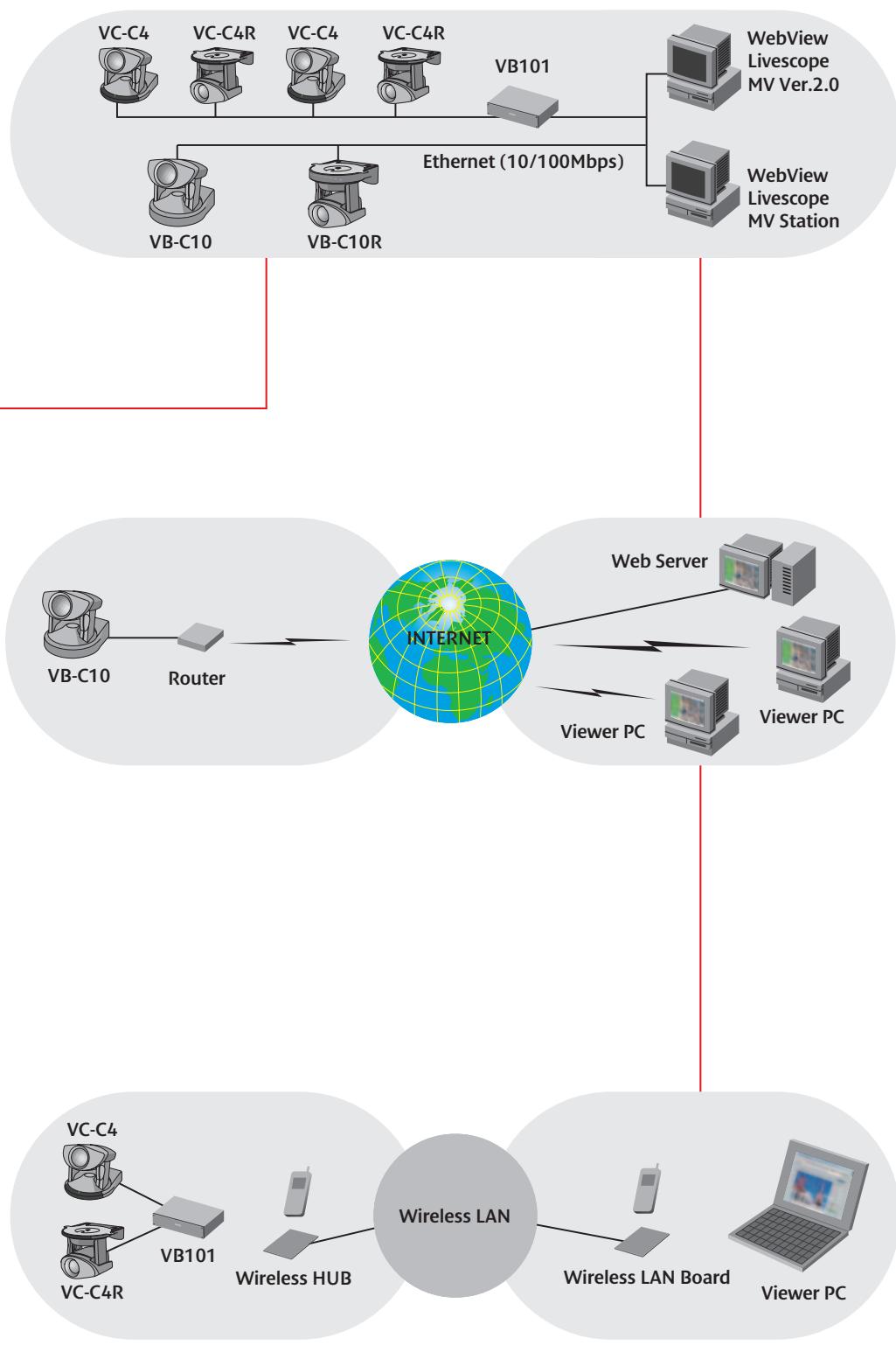
VB-C10/VB-C10R
VB101
VC-C4/VC-C4R
WebView Livescope MV 2.0
WebView Livescope MV 2.0 LE
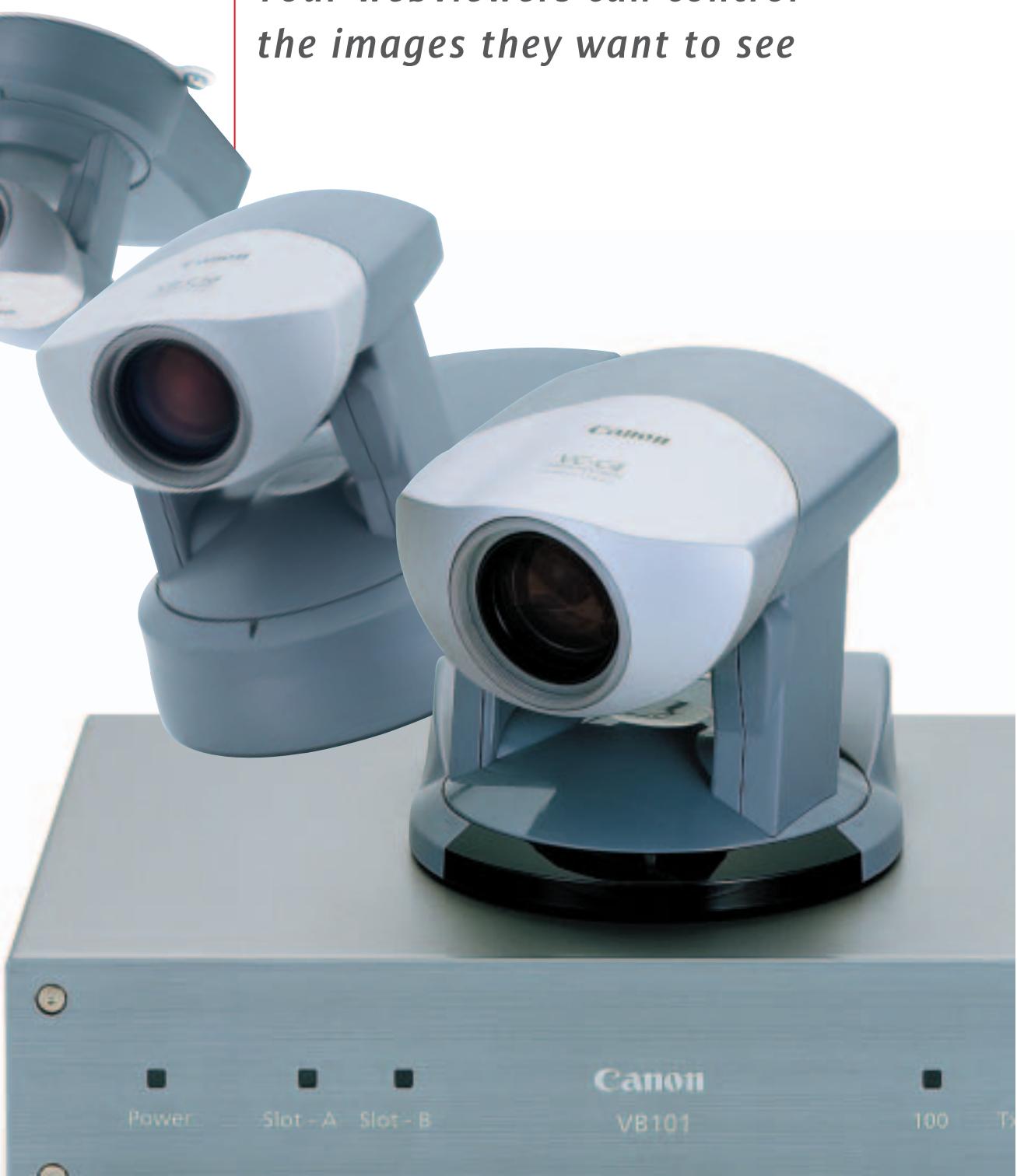
Your webviewers can control the images they want to see
Your webviewers can control the images they want to see
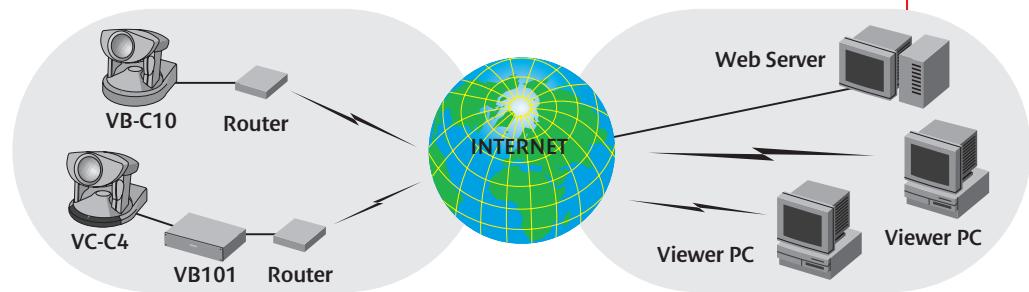
Link Canon’s Network Monitoring Solution to your company’s Internet or Intranet site and transform the live images into the ultimate interactive experience. Simple setup, precise control of connected cameras and innovative features make it the easiest way to add excitement to e-commerce applications and improve the effectiveness of real-time remote monitoring.
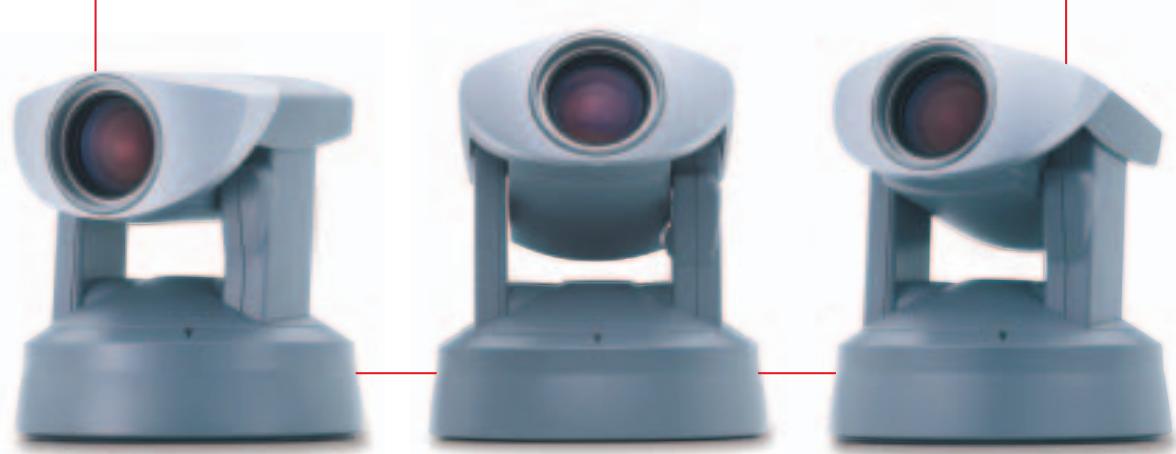
VB-C10 / VB-C10R Network Camera
HIGH IMAGE QUALITY
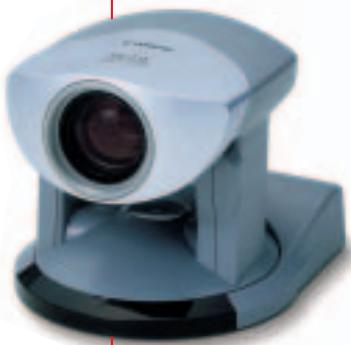
The VB-C10 and the VB-C10R feature a high-precision 16x optical zoom lens and sophisticated pan, tilt, and zoom controls. Live images can be transmitted smoothly at up to 30 frames per second. For added flexibility, three video image sizes and five quality settings are included.
EASY TO INSTALL
Get connected in just a few easy steps. Configuration is simple through your web browser. You have access to a variety of settings: camera restrictions, preset viewing angles, image capture schedules, and more.
VERSATILE FEATURES
Built-in web server and FTP server.
- Transmit video to up to 20 clients simultaneously.
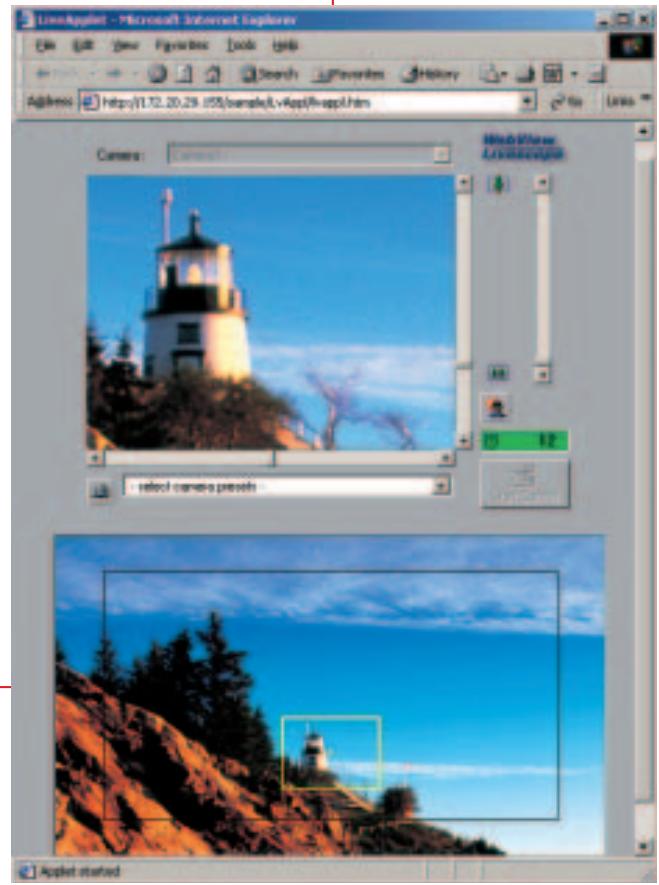
- Panorama creation tool and eight preset angles for quick camera control.
- Restrict zoom range and camera angles.
- Image capture and storage capabilities, either schedule-based or sensor-activated
- Automatically retrieve captured images stored in the VB-C10/VB-C10R with included software.
- Management tool with advanced controls.
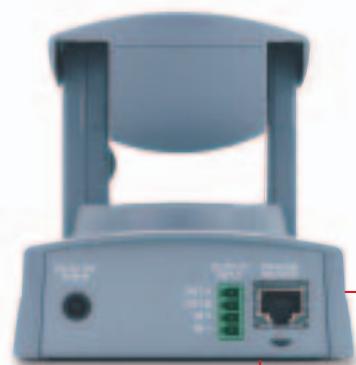

VC-C4 / VC-C4R
Communication Camera
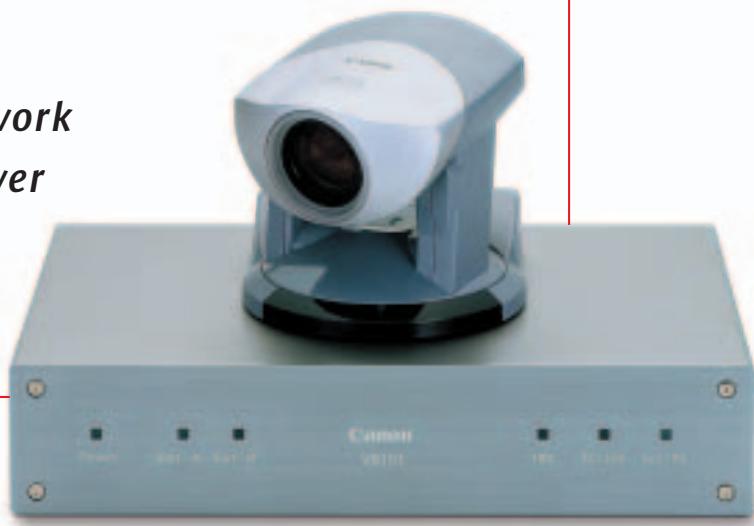
VB101 Network Camera Server
SUPER SMALL WITH SUPERIOR PERFORMANCE
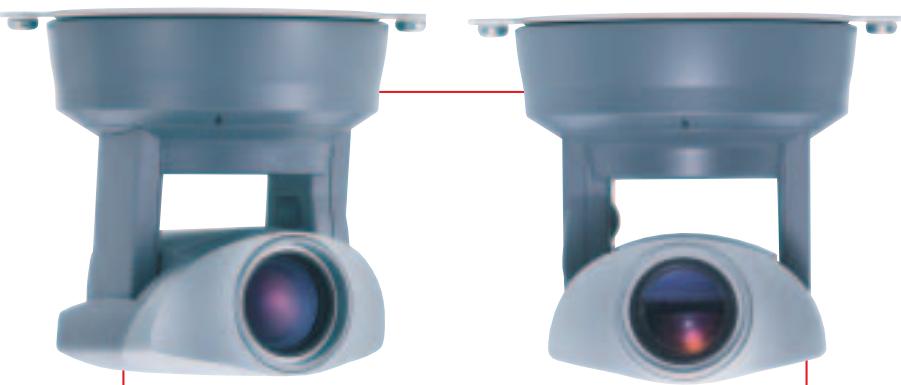
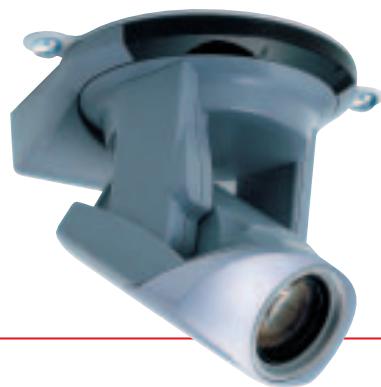
Communication Cameras — the VC-C4 and VC-C4R — mount easily and conveniently on the ceiling, provide outstanding performance for video conferencing, webcasting and monitoring via all networks. They deliver crisp, vivid video images with wide pan, tilt and zoom coverage, all in a compact, affordable, space-saving design.
EXCEPTIONAL QUALITY AND RANGE
Canon’s digital signal processing system reproduces rich, smooth video images and precise focal control. A high-performance 16x zoom allows a wider viewing angle, with a large-aperture f/1.4 lens for
optimum brightness. The VC-C4 camera pans to ± 100^ and tilts -30^ to +90^ , while the VC-C4R ceiling mount model pans to ± 170^ and tilts from +10^ to -90^ . Both cameras are positioned in the middle of the system, ensuring high-speed, stability and precise camera movement.
VERSATILITY AND EASE
Up to nine VC-C4/VC-C4R systems can be controlled simultaneously from one PC for use in a large conference room. The cameras can be ' cascade-connected' via the R-R232C cord and then programmed for individual control.
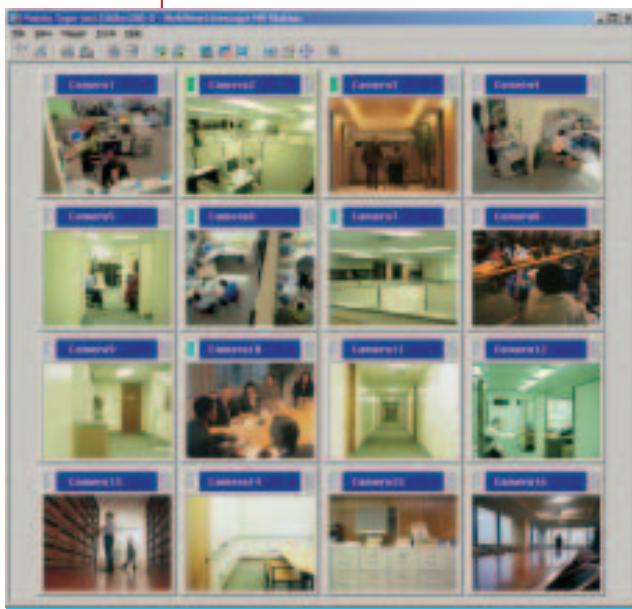
THE SMART MONITORING SOLUTION The MV Manager automatically creates monitoring screens and controls multiple camera servers. With the MV Station, the users can control cameras and the monitor in a variety of views for a pleasant monitoring environment.
MONITOR MULTIPLE LOCATIONS
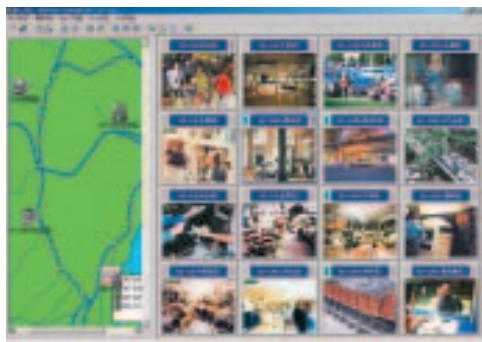
The Livescope views a maximum of 16 locations at the same time. A map function indicates the camera's location on a map image. Includes automatic switching of displayed images. An auto-run function shows the preset locations in sequential order, viewing the information and status of camera servers.
SEARCH AND VIEW STORED IMAGES Images stored on the VB-C10/VB101 flash memory card can be searched and displayed according to date and time, external device signal inputs, etc. The animation function displays images consecutively.
CONNECT UP TO FOUR CAMERAS
Connect up to four video cameras (two of which by remote control). Switching is possible from the viewer side.
BUILT-IN FTP SERVER / WEB SERVER
The VB101 can also function as a web server. By placing home page data in an optional flash memory card, you can broadcast information and images at the same time. You can also upload data remotely using FTP.
ARCHIVING STILL IMAGES
The VB101 can store still images captured at scheduled dates and times, or when it receives a signal from external devices. Search stored images using your Internet browser. It can also broadcast according to incoming signals or a set schedule.
EXPANDABILITY
Equipped with two card slots for optional modems, flash memory, etc. (Please use recommended PCMCIA cards.)
LOG FUNCTION
The log feature records information such as system malfunctions and access conditions and saves it to a file or sends it out by e-mail to any specified address.
WebView Livenesscope MV WebView Livenesscope LE
CREATE MULTIPLE MONITORING SCREENS
Users with no experience in designing home pages can easily create a monitoring screen using a wide variety of screen patterns, just by following the screen creation wizard.
MULTIPLE MONITORING
HTML screen data created with the MV Manager can be sent into a WWW or file server to provide the same monitoring screen on multiple MV stations, thereby centralizing the control.
Remote Network Monitoring
IN THE FACTORY
Monitor equipment or production line in your factory. Monitor multiple locations using the factory LAN. Check real-time
images and control the camera from your PC. Monitoring the situation in real-time helps you make quick decisions, increasing your productivity.
IN CHAIN STORES
- Check the situation in each store from the head office.
- Utilize the current network now used only for e-mail.
- Give accurate, timely instructions with the help of real-time monitoring.
- Save time, staff costs and travel expenses.
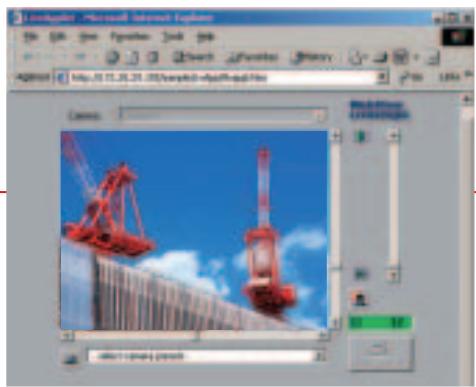
AT THE CONSTRUCTION SITE
- Monitoring processes from a remote location increases work efficiency.
- Camera control lets you view multiple directions to maintain safety at the site
- Periodic and sensor recording lets you check the status afterward.
Webcasting
Live images over the internet/intranet
TRAFFIC INFORMATION
- Broadcast traffic conditions of streets and highways on your home page.
- Choose the best kind of transportation by referring to traffic conditions.
- Check the situation whenever needed on the Internet.

EVENT/RADIO STATIONS
- Broadcast real-time images on your home page.
- Combine them with audio media such as radio.
- Monitor interactively using camera controls and zooming.
- Increase access and repeaters to the home page.
- Use the event organizer to check the situation remotely.
SIGHTSEEING SPOTS
- Broadcast live images of sightseeing spots on your home page.
- Control the angle and zoom from your browser.
- Preset the best angles for viewer switching
- Use the live images to attract visitors to locations and events.