A340 - Appareil photo numérique FUJIFILM - Notice d'utilisation et mode d'emploi gratuit
Retrouvez gratuitement la notice de l'appareil A340 FUJIFILM au format PDF.


| Intitulé | Description |
|---|---|
| Type de produit | Appareil photo numérique compact |
| Capteur | Capteur CCD de 4,1 mégapixels |
| Zoom optique | Zoom optique 3x |
| Écran | Écran LCD de 2,4 pouces |
| Résolution maximale | 2272 x 1704 pixels |
| Formats d'image | JPEG |
| Alimentation électrique | Batterie rechargeable NP-40 |
| Dimensions approximatives | 93 x 61 x 30 mm |
| Poids | Approx. 210 g (avec batterie et carte mémoire) |
| Compatibilités | Cartes mémoire xD-Picture Card |
| Type de batterie | Batterie lithium-ion |
| Tension | 3,7 V |
| Fonctions principales | Mode automatique, mode portrait, mode paysage, vidéo |
| Entretien et nettoyage | Nettoyer l'objectif avec un chiffon doux, éviter l'exposition à l'humidité |
| Pièces détachées et réparabilité | Disponibilité limitée des pièces détachées, réparation recommandée par un professionnel |
| Sécurité | Éviter les chocs, ne pas exposer à des températures extrêmes |
| Informations générales | Appareil idéal pour les débutants, léger et facile à transporter |
FOIRE AUX QUESTIONS - A340 FUJIFILM
Questions des utilisateurs sur A340 FUJIFILM
0 question sur cet appareil. Repondez a celles que vous connaissez ou posez la votre.
Poser une nouvelle question sur cet appareil
Téléchargez la notice de votre Appareil photo numérique au format PDF gratuitement ! Retrouvez votre notice A340 - FUJIFILM et reprennez votre appareil électronique en main. Sur cette page sont publiés tous les documents nécessaires à l'utilisation de votre appareil A340 de la marque FUJIFILM.
MODE D'EMPLOI A340 FUJIFILM




natural_image
3D rendering of a digital camera with lens and control buttons (no text or symbols visible)DIGITAL CAMERA
FinePix A330
DIGITAL CAMERA
FinePix A340
OWNER'S MANUAL
This manual will show you how to use your
FUJIFILM DIGITAL CAMERA FinePix A330/FinePix A340 correctly.
Please follow the instructions carefully.
1 Getting Ready
2 Using the Camera
3 Advanced Features
4 Settings
5 Software Installation
6 Viewing Images
To prevent fire or shock hazard, do not expose the unit to rain or moisture.
For customers in the U.S.A.
Tested To Comply
With FCC Standards
FOR HOME OR OFFICE USE
FCC Statement
This device complies with part 15 of the FCC Rules. Operation is subject to the following two conditions: (1) This device may not cause harmful interference, and (2) this device must accept any interference received, including interference that may cause undesired operation.
CAUTION
This equipment has been tested and found to comply with the limits for a Class B digital device, pursuant to Part 15 of the FCC Rules. These limits are designed to provide reasonable protection against harmful interference in a residential installation. This equipment generates, uses, and can radiate radio frequency energy and, if not installed and used in accordance with the instructions, may cause harmful interference to radio communications. However, there is no guarantee that interference will not occur in a particular installation. If this equipment does cause harmful interference to radio or television reception, which can be determined by turning the equipment off and on, the user is encouraged to try
to correct the interference by one or more of the following measures:
— Reorient or relocate the receiving antenna.
— Increase the separation between the equipment and receiver.
— Connect the equipment into an outlet on a circuit different from that to which the receiver is connected.
— Consult the dealer or an experienced radio/TV technician for help.
You are cautioned that any changes or modifications not expressly approved in this manual could void the user's authority to operate the equipment.
Notes on the Grant:
To comply with Part 15 of the FCC rules, this product must be used with a Fujifilm-specified ferrite-core A/V cable, USB cable and DC supply cord.
For customers in Canada
CAUTION
This Class B digital apparatus complies with Canadian ICES-003.
Please read the Safety Notes (→P.87) and make sure you understand them before using the camera.
IMPORTANT
Be sure to read this page before using the Software.
NOTICE
BEFORE OPENING THE PACKAGE OF CD-ROM PROVIDED BY FUJI PHOTO FILM CO., LTD., PLEASE READ THIS END USER LICENSE AGREEMENT CAREFULLY. ONLY IF YOU DO AGREE TO THIS AGREEMENT, YOU WILL BE ABLE TO USE THE SOFTWARE RECORDED ON THE CD-ROM. BY OPENING THE PACKAGE, YOU ACCEPT AND AGREE TO BE BOUND BY THIS AGREEMENT.
End User License Agreement
This End User License Agreement (“Agreement”) is an agreement between Fuji Photo Film Co., Ltd. (“FUJIFILM”) and you, which sets forth the terms and conditions of the license granted for you to use the software provided by FUJIFILM.
The CD-ROM contains third party software. In case a separate agreement is provided by a third party supplier for its software, the provisions of such separate agreement shall apply to the use of such third party software, prevailing over those of this Agreement.
- Definitions.
(a) "Media" means the CD-ROM titled "Software for FinePix AX" which is provided to you together with this Agreement.
(b) "Software" means the software which is recorded on Media.
(c) "Documentation" means the operation manuals of Software and other related written materials which are provided to you together with Media.
(d) "Product" means Media (including Software) and Documentation collectively.
- Use of Software.
FUJIFILM grants to you a nontransferable, nonexclusive license:
(a) to install one copy of Software onto one computer in binary machine executable form;
(b) to use Software on the computer onto which Software is installed; and
(c) to make one backup copy of Software.
- Restrictions.
3.1 You shall not distribute, rent, lease or otherwise transfer all or any part of Software, Media or Documentation to any third party without FUJIFILM's prior written consent. You also shall not sublicense, assign or otherwise transfer all or any part of the rights granted to you by FUJIFILM under this Agreement without FUJIFILM's prior written consent.
3.2 Except as expressly granted by FUJIFILM hereunder, you shall not copy or reproduce all or any part of Software or Documentation.
3.3 You shall not modify, adapt or translate Software or Documentation. You also shall not alter or remove copyright and other proprietary notices that appear on or in Software or Documentation.
3.4 You shall not, or shall not have any third party, reverse-engineer, decompile, or disassemble Software.
- Ownership.
All copyrights and other proprietary rights to Software and Documentation are owned and retained by FUJIFILM or the third party suppliers as indicated on or in Software or Documentation. Nothing contained herein shall be construed, expressly or implicitly, as transferring or granting any right, license, or title to you other than those explicitly granted under this Agreement.
- Limited Warranty.
FUJIFILM warrants to you that Media is free from any defect in material and workmanship under normal use for ninety (90) days from the date of your receipt of Media. Should Media not meet the foregoing warranty, FUJIFILM shall replace such defective Media with other Media bearing no defect. FUJIFILM's entire liability and your sole and exclusive remedy with regard to any defect in Media shall be expressly limited to such FUJIFILM's replacement of Media as provided herein
- DISCLAIMER OF WARRANTY.
EXCEPT AS PROVIDED IN SECTION 5 HEREIN, FUJIFILM PROVIDES PRODUCT "AS IS" AND WITHOUT WARRANTIES OF ANY KIND, EXPRESS OR IMPLIED. FUJIFILM SHALL MAKE NO WARRANTY, EXPRESS, IMPLIED OR STATUTORY, AS TO ANY OTHER MATTERS, INCLUDING, BUT NOT LIMITED TO NON-INFRINGEMENT OF ANY COPYRIGHT, PATENT, TRADE SECRET, OR ANY OTHER PROPRIETARY RIGHTS OF ANY THIRD PARTY, MERCHANTABILITY, OR FITNESS FOR ANY PARTICULAR PURPOSE.
- LIMITATION OF LIABILITY.
IN NO EVENT SHALL FUJIFILM HAVE ANY LIABILITY FOR ANY GENERAL, SPECIAL, DIRECT, INDIRECT, CONSEQUENTIAL, INCIDENTAL, OR OTHER DAMAGES (INCLUDING DAMAGES FOR LOSS OF PROFITS OR LOST SAVINGS) INCURRED FROM THE USE OF OR INABILITY TO USE PRODUCT EVEN IF FUJIFILM HAS BEEN ADVISED OF THE POSSIBILITY OF SUCH DAMAGES.
- No export.
You acknowledge that neither Software nor any part thereof, will be transferred, or exported to any country or used in any manner in violation of any export control laws and regulations to which Software is subject.
- Termination.
In case you breach any of the terms and conditions hereof, FUJIFILM may immediately terminate this Agreement without any notice.
- Term.
This Agreement is effective until the date when you cease to use Software, unless earlier terminated in accordance with Section 9 hereof.
- Obligation upon termination.
Upon termination or expiration of this Agreement, you shall, at your own responsibility and expense, delete or destroy immediately all Software (including its copies), Media and Documentation.
- Governing Law.
This Agreement shall be governed by and construed in accordance with laws of Japan.
EC Declaration of Conformity
We
Name: Fuji Photo Film (Europe) G.m.b.H.
Address: Heesenstrasse 31
40549 Dusseldorf, Germany
declare that the product
Product Name: FUJIFILM DIGITAL CAMERA FinePix A330/FinePix A340
Manufacture's Name: Fuji Photo Film Co., Ltd.
Manufacture's Address: 26-30, Nishiazabu 2-chome, Minato-ku,
Tokyo 106-8620, Japan
is in conformity with the following Standards
Safety: EN60065
EMC: EN55022: 1998 Classe B
EN55024: 1998
EN61000-3-2: 1995 + A1:1998 + A2:1998
following the provision of the EMC Directive (89/336/EEC, 92/31/EEC and 93/68/EEC) and Low Voltage Directive (73/23/EEC).
CE
Dusseldorf, Germany
Place
February 1, 2004
Date
Managide
Signature/Managing Director

Bij dit produkt zijn batterijen geleverd. Wanneer deze leeg zijn, moet u ze niet weggooien maar inleveren als KCA
Warning 2
IMPORTANT 2
EC Declaration of Conformity 3
Preface 6
Accessories included 7
Camera parts and features 8
Attaching the strap 9
Using the strap 9
Example of LCD Monitor text display 9
■ Still photography mode 9
■ Playback mode 9
1 Getting Ready
LOADING THE BATTERIES AND THE MEDIA 10
Compatible batteries 10
Checking the battery charge 11
TURNING ON AND OFF 12
SETTING THE DATE AND TIME 13
CORRECTING THE DATE AND TIME / CHANGING THE DATE ORDER 14
SELECTING THE LANGUAGE 15
2 Using the Camera
STILL PHOTOGRAPHY MODE
TAKING PICTURES (A AUTO MODE) 16
USING VIEWFINDER 18
VIEWFINDER LAMP DISPLAY 18
NUMBER OF AVAILABLE FRAMES 19
■ Standard number of frames per xD-Picture Card 19
USING AF/AE LOCK 20
USING THE ZOOM (OPTICAL ZOOM/DIGITAL ZOOM) 21
BEST FRAMING 21
PLAYBACK MODE
VIEWING YOUR IMAGES (PLAYBACK) 22
Single-frame playback/Fast-forwarding through the images/Multi-frame playback 22
Playback zoom 23
ERASING IMAGES (☑ ERASE FRAME) 24
3 Advanced Features
STILL PHOTOGRAPHY FUNCTIONS
TAKING PICTURES — SELECTING THE CAMERA SETTINGS 25
■ Photography Mode Specifications 25
MACRO (CLOSE-UP) 26
↓ FLASH 27
STILL PHOTOGRAPHY MENU
STILL PHOTOGRAPHY MENU OPERATION (Important. Please read.) 29
PHOTOGRAPHY MENU OPERATION 29
€: QUALITY SETTINGS IN STILL PHOTOGRAPHY MODE 29
SELF-TIMER PHOTOGRAPHY 30
SHOOTING MODE 31
EV (EXPOSURE COMPENSATION) 32
WB WHITE BALANCE (SELECTING THE LIGHT SOURCE) 32
PLAYBACK MENU
☑ ERASING SINGLE/ALL FRAMES 33
ALL FRAMES/FRAME/← BACK 33
DPOF SET FRAME 35
HOW TO SPECIFY PRINT OPTIONS (DPOF) 35
HOW TO SPECIFY PRINT OPTIONS (FRAME SET/RESET) 35
DPOF SET FRAME (RESET ALL) 37
On PROTECTING IMAGES:FRAME/SET ALL/RESET ALL 38
FRAME SET 38
FRAME RESET/SET ALL/RESET ALL 39
AUTO PLAY (AUTOMATIC PLAYBACK) 40
TRIMMING 41
MOVIE MODE
RECORDING MOVIES 43
QUALITY SETTINGS IN MOVIE MODE 45
PLAYBACK MODE
PLAYING BACK MOVIES 46
■ Playing Back Movies 46
4 Settings
ADJUSTING THE MONITOR BRIGHTNESS 47
SET-UP 48
SET USING THE SET-UP SCREEN 48
■ SET-UP menu options 49
POWER SAVE SETTING 50
FORMAT 50
TIME DIFFERENCE (TIME DIFFERENCE SETTING) 51
FRAME NO. 52
5 Software Installation
5.1 INSTALLATION ON A Windows PC 53
5.2 INSTALLATION ON A Mac OS 9.2 55
5.3 INSTALLATION ON A Mac OS X 58
6 Viewing Images
6.1 CAMERA CONNECTION 61
6.1.1 Using the optional AC Power adapter 61
6.1.2 Connecting to a TV 61
6.2 CONNECTING THE CAMERA DIRECTLY TO THE PRINTER FOR PRINTING IMAGES
(PictBridge FUNCTION) 62
6.2.1 Specifying images for printing on the camera 62
6.2.2 Specifying images for printing without using DPOF (single-frame printing) 63
6.3 CONNECTING TO A COMPUTER 65
6.3.1 Connecting to a Computer 65
6.3.2 Disconnecting the Camera 68
6.4 USING FinePixViewer 69
6.4.1 Mastering FinePixViewer 69
6.4.2 Uninstalling the Software 69
System Expansion Options 71 AC Power Adapter 75
Overview of the Optional Cradle 72 Procedure for discharging rechargeable
Accessories Guide 73 Ni-MH batteries 76
Using Your Camera Correctly 74 Notes on the xD-Picture Card™ 77
Power Supply and Batteries 74 Warning Displays 78
Applicable Batteries 74 Troubleshooting 80
Notes on the Batteries 74 Specifications (FinePix A330) 82
Using the AA-size Ni-MH Batteries and Specifications (FinePix A340) 84
the Rechargeable Battery NH-10 Correctly… 75 Explanation of Terms 86
Safety Notes 87
Preface
■ Test Shots Prior to Photography
For important photographs (such as weddings and overseas trips), always take a test shot and view the image to make sure that the camera is working normally.
- Fuji Photo Film Co., Ltd. cannot accept liability for any incidental losses (such as the costs of photography or the loss of income from photography) incurred as a result of faults with this product.
■ Notes on Copyright
Images recorded using your digital camera system cannot be used in ways that infringe copyright laws without the consent of the owner, unless intended only for personal use. Note that some restrictions apply to the photographing of stage performances, entertainments and exhibits, even when intended purely for personal use. Users are also asked to note that the transfer of xD-Picture Card containing images or data protected under copyright laws is only permissible within the restrictions imposed by those copyright laws.
■ Liquid Crystal
If the LCD monitor is damaged, take particular care with the liquid crystal in the monitor. If any of the following situations arise, take the urgent action indicated.
- If liquid crystal comes in contact with your skin Wipe the area with a cloth and then wash thoroughly with soap and running water.
- If liquid crystal gets into your eye Flush the affected eye with clean water for at least 15 minutes and then seek medical assistance.
- If liquid crystal is swallowed Flush your mouth thoroughly with water. Drink large quantities of water and induce vomiting. Then seek medical assistance.
■ Notes on Electrical Interference
If the camera is to be used in hospitals or aircrafts, please note that this camera may cause interference to other equipment in the hospital or aircraft. For details, please check with the applicable regulations.
■ Handling Your Digital Camera
This camera contains precision electronic components. To ensure that images are recorded correctly, do not subject the camera to impact or shock while an image is being recorded.
■ Trademark Information
- xD and xD-Picture Card™ are trademarks of Fuji Photo Film Co., Ltd.
- IBM PC/AT is a registered trademark of International Business Machines Corp. of the U.S.A.
● Macintosh, Power Macintosh, iMac, PowerBook, iBook and Mac OS are trademarks of Apple Computer, Inc., registered in the U.S. and other countries. - Adobe Acrobat® Reader® is a trademark of Adobe Systems Incorporated of the U.S.
- Microsoft, Windows, and the Windows logo are trademarks, or registered trademarks of Microsoft Corporation in the United States and/or other countries. Windows is an abbreviated term referring to the Microsoft® Windows® Operating System.
* The “Designed for Microsoft® Windows® XP” logo refers to the camera and the driver only. - Other company or product names are trademarks or registered trademarks of the respective companies.
■ Explanation of Color Television System
NTSC: National Television System Committee, color television telecasting specifications adopted mainly in the U.S.A., Canada and Japan.
PAL: Phase Alternation by Line, a color television system adopted mainly by European countries and China.
■ Exif Print (Exif ver. 2.2)
Exif Print Format is a newly revised digital camera file format that contains a variety of shooting information for optimal printing.
Accessories included
● 16 MB, xD-Picture Card™ (1) Included with: Anti-static case (1)
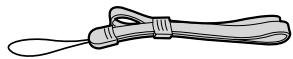
- Strap (1)
● Cradle adapter for FinePix A330/FinePix A340 (1)
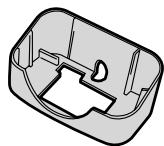
Use this adapter for setting camera to the optional PictureCradle CP-FXA10 (See P.73).
● LR6 AA-size alkaline Batteries (2)

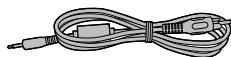
● Video cable (1) 2.5 mm dia. plug-to-pin plug Approx. 1.5 m (4.9 ft.)
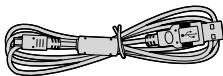
- USB cable with Noise Suppression core (1)
- CD-ROM: Software for FinePix AX (1)
- Owner's Manual (this manual) (1)
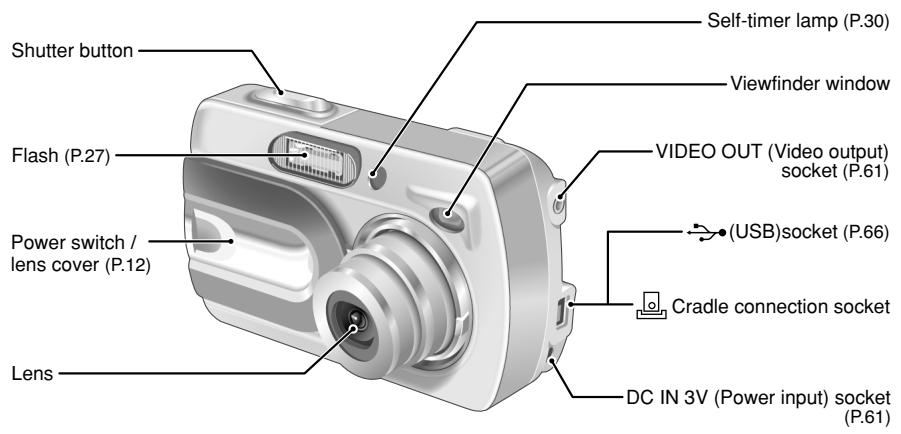
text_image
Shutter button Flash (P.27) Power switch / lens cover (P.12) Lens Self-timer lamp (P.30) Viewfinder window VIDEO OUT (Video output) socket (P.61) (USB)socket (P.66) Cradle connection socket DC IN 3V (Power input) socket (P.61)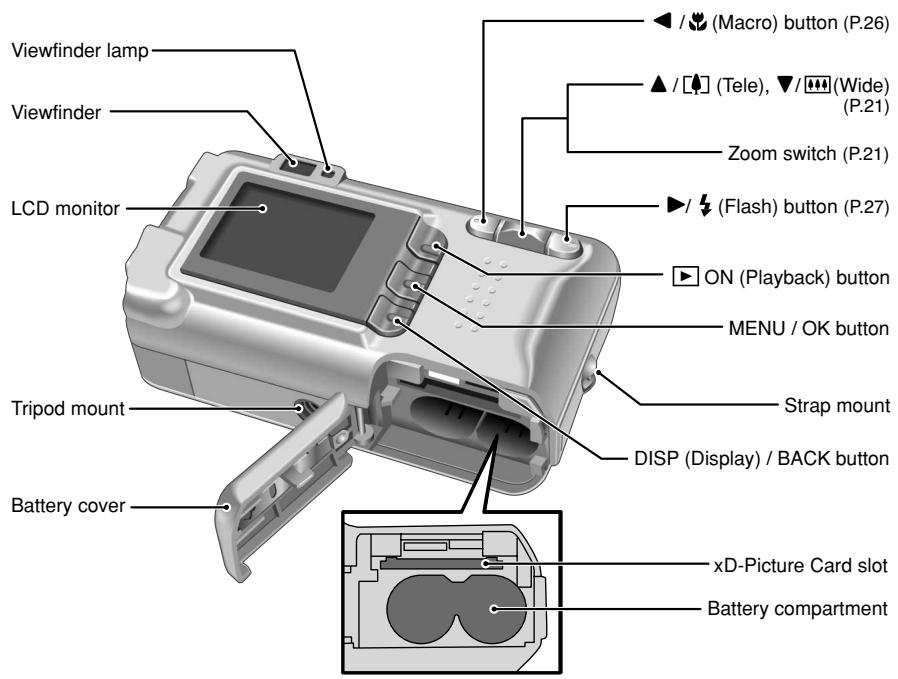
text_image
Viewfinder lamp Viewfinder LCD monitor Tripod mount Battery cover / (Macro) button (P.26) / (Tele), ▼/ (Wide) (P.21) Zoom switch (P.21) / (Flash) button (P.27) ON (Playback) button MENU / OK button Strap mount DISP (Display) / BACK button xD-Picture Card slot Battery compartmentAttaching the strap
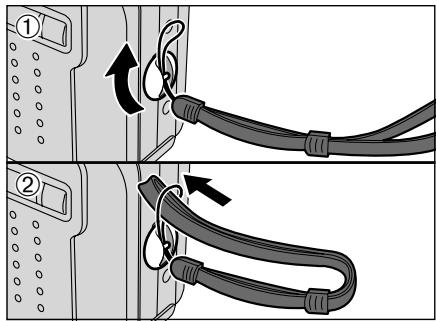
text_image
Diagram showing two mechanical setups with labeled parts and directional arrows indicating motion or assembly.Attach the strap as shown in ① and ②.
Using the strap
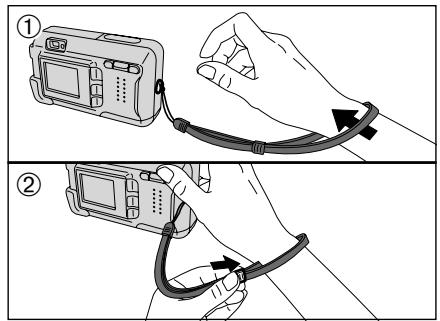
text_image
Diagram showing two steps of using a camera to connect and attach a cable, labeled with arrows indicating direction.① Loop the strap over your wrist.
② To avoid dropping the camera, secure the strap around your wrist by sliding the fastener to adjust the length.
Example of LCD Monitor text display
■ Still photography mode
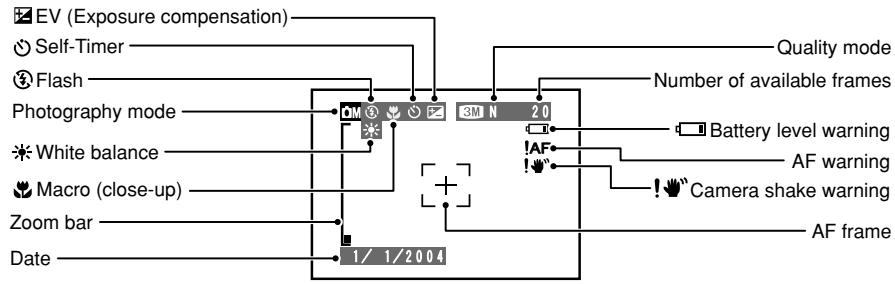
text_image
EV (Exposure compensation) Self-Timer Flash Photography mode White balance Macro (close-up) Zoom bar Date 1/ 1/2004 Quality mode Number of available frames Battery level warning AF warning Camera shake warning AF frame■ Playback mode
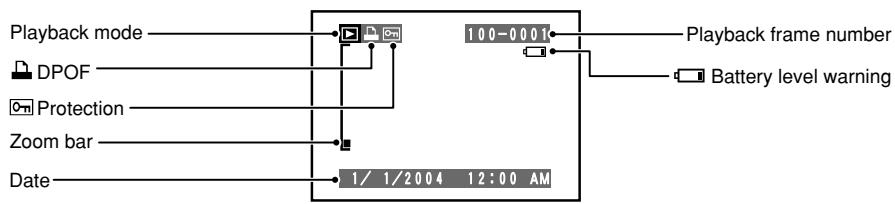
flowchart
graph TD
    A["Playback mode"] --> B["100-0001"]
    C["DPOF"] --> B
    D["Protection"] --> B
    E["Zoom bar"] --> B
    F["Date"] --> G["1/1/2004 12:00 AM"]
    H["Playback frame number"] --> I["Battery level warning"]
◆ Displaying the On-screen Help
Instructions for the next step in the procedure are displayed at the bottom of the LCD monitor. Press the button indicated.
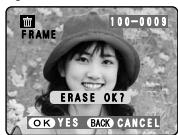
OK YES BACK CANCEL
Press the "MENU/OK" button to erase the displayed frame. To cancel erasing, press the "DISP/BACK" button.
1 Getting Ready
LOADING THE BATTERIES AND THE MEDIA
Compatible batteries
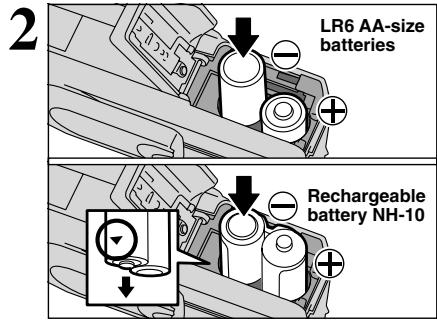
- AA-size alkaline batteries (2), Rechargeable Battery NH-10 (sold separately), or AA-size Ni-MH batteries (sold separately) (2).
! Please use the same brand and grade AA-size alkaline batteries as those supplied with the camera.
How to use the batteries
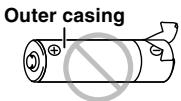
- Never use the following types of batteries, as this could cause serious problems such as batteries fluid leakage or overheating:
- Batteries with split or peeling outer casings
- Combinations of different types of batteries or new and used batteries together
- Do not use manganese or Ni-Cd batteries.
- Soil, such as fingermarks on the poles of the batteries can shorten time for which the batteries can be used.
- The time for which AA-size alkaline batteries (referred to hereafter simply as alkaline batteries) can be used varies depending on the brand, and some alkaline batteries may stop providing power more quickly than those supplied with the camera. Note also that due to their nature, the time for which alkaline batteries can be used decreases in cold conditions (0°C to +10°C/+32°F to +50°F). The use of AA-size Ni-MH batteries is better for this reason.
- Cradle can be used in combination with camera and to charge rechargeable Battery NH-10 (sold separately). Use Fujifilm Battery charger (sold separately) to charge AA-size Ni-MH batteries.
● See P.74, 75 for other notes on using batteries. - When first purchased or if left unused for a long period, the time for which AA-size Ni-MH batteries or rechargeable Battery NH-10 can be used may be shorter. See P.75 more information.
- When the surfaces of the Rechargeable Battery NH-10 terminals have become worn through repeated use or the battery has been taken out of the camera and left for a long period, the battery may stop supplying power or may become usable only for shorter periods.
To restore normal battery operation, open and close the battery cover several times to dislodge any soiling on the terminals.
text_image
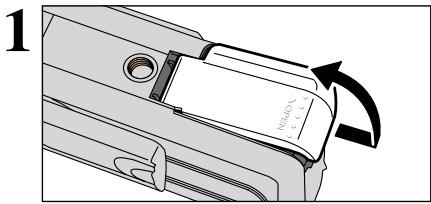
1 H32-M10 -5.7Check that the camera is turned off (viewfinder lamp is off) before opening the battery cover.
! Opening the battery cover while the camera is on, the camera is turned off.
! Do not apply force to the battery cover.
Do not open the battery cover while the camera is on. This could damage the xD-Picture Card or ruin the image files on the xD-Picture Card.
text_image
2 LR6 AA-size batteries Rechargeable battery NH-10Load the batteries correctly as indicated by the polarity icons.
text_image
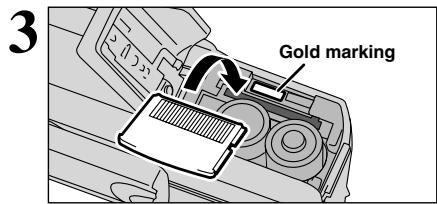
3 Gold markingAlign the gold marking on the xD-Picture Card slot with the gold contact area on the xD-Picture Card and push the card firmly all the way into the slot.
! If the xD-Picture Card is oriented incorrectly, it will not go all the way into the slot. Do not apply excessive force when inserting an xD-Picture Card.
text_image
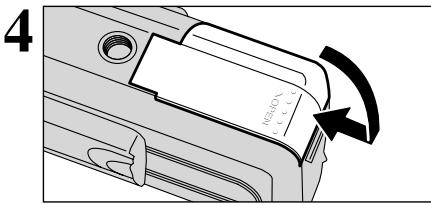
4 H100 1.5Close the battery cover.
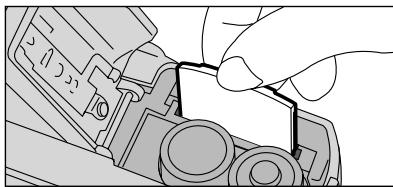
◆ How to replace the xD-Picture Card ◆
natural_image
Illustration of a hand holding a mechanical component with wires (no text or symbols visible)Pull out the xD-Picture Card, taking care that the batteries do not fall out.
! If the xD-Picture Card is difficult to remove, take out the batteries first.
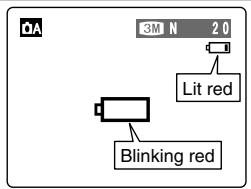
Checking the battery charge
Turn the camera on and check the battery charge.
① No icon
② Lit red
③ Blinking red
text_image
3M N 2.0 Lit red Blinking red① There is ample battery charge.
② There is insufficient charge left in the batteries. The batteries will soon run out. Have a new set of batteries ready.
③ The batteries are depleted. The display will shortly go blank and the camera will stop working. Replace or recharge the batteries.
“☐” appears as a small icon on the right-hand side of the LCD monitor. “☐” appears as a large icon on the LCD monitor.
The information above is a guide for photography mode. Depending on the camera mode and the type of batteries used, the transition from “☐” to “☐” may occur more quickly.
Due to the nature of the battery, the battery low warning may appear early when the camera is used in cold locations. This is normal. Try warming the batteries in your pocket or a similar location before use.
* Battery level warning
1) The camera's estimation of the remaining battery charge varies greatly depending on the camera operation mode. Consequently, even if "☐" or "☐" is not displayed in Playback mode, one of them may appear when you change to Photography mode.
2) Depending on the battery type and the level of charge in the batteries, the camera may run out of power without first displaying a battery level warning. This is particularly to happen when batteries that have run out of charge once are re-used.
In situation 2), immediately load new or fully charged replacement batteries.
Power save function
When this function is active, it turns off the LCD monitor to reduce power consumption if the camera is not used for 30 seconds ( P.50). If the camera is then left unused for 2 minutes or 5 minutes, the Power save function turns the camera off. To restore power to the camera to take pictures, briefly close and then re-open the lens cover completely so that it makes two successive clicks and will not move further. To play back images, close the lens cover until it stops and then hold down the “Playback” button for approx. 1 second.
TURNING ON AND OFF
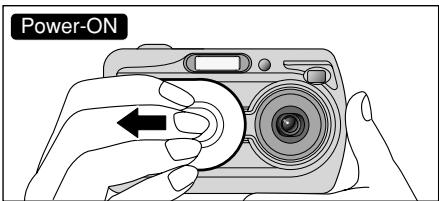
Turn the camera on in Photography mode
text_image
Power-ONOpen the lens cover completely so that it makes two successive clicks and will not move further. The camera is turned on in Photography mode.
text_image
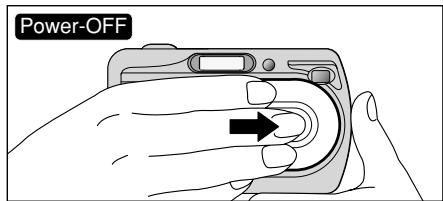
Power-OFFClose the lens cover until it stops. The camera is turned off in Photography mode.
Turn the camera on in Playback mode
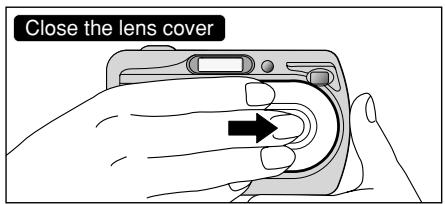
text_image
Close the lens coverLeave the lens cover closed.
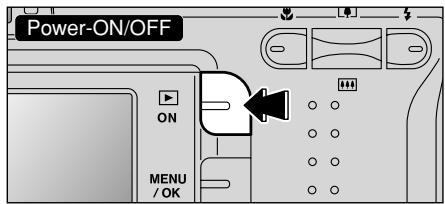
text_image
Power-ON/OFF ON MENU / OKPress the "Playback" button for approx. 1 second to turn the camera on in Playback mode. Press the "Playback" button during playback to turn the camera off.
Power save function
When this function is active, it turns off the LCD monitor to reduce power consumption if the camera is not used for 30 seconds ( P.50). If the camera is then left unused for 2 minutes or 5 minutes, the Power save function turns the camera off. To restore power to the camera to take pictures, briefly close and then re-open the lens cover completely so that it makes two successive clicks and will not move further. To play back images, close the lens cover until it stops and then hold down the “Playback” button for approx. 1 second.
Move to Photography mode or Playback mode
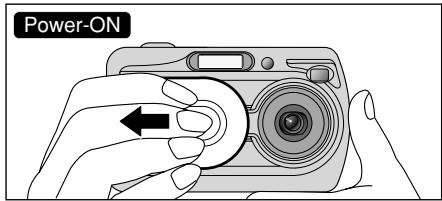
text_image
Power-ONOpen the lens cover to turn the camera on in Photography mode.
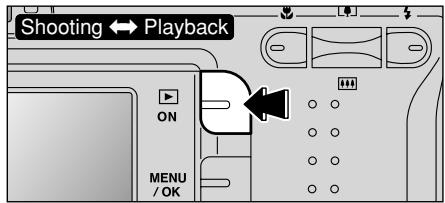
text_image
Shooting ↔ Playback ON MENU / OKPress the "Playback" button for approx. 1 second during shooting to change to Playback mode.
Press the "Playback" button for approx. 1 second again to return to Photography mode.
SETTING THE DATE AND TIME
1
text_image
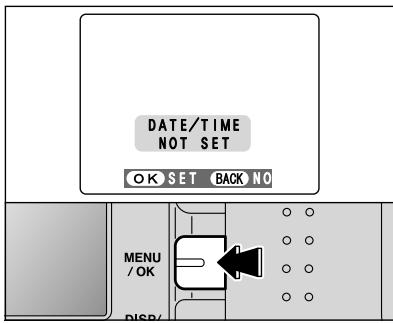
DATE/TIME NOT SET OK SET BACK NO MENU / OK DISP/After purchasing the camera, first time when you turn camera on, the date and time are cleared. Press the “MENU/OK” button to set the date and time.
To set the date and time later, press the "DISP/BACK" button. If you do not set the date and time, this message will appear each time you turn the camera on.
2
text_image
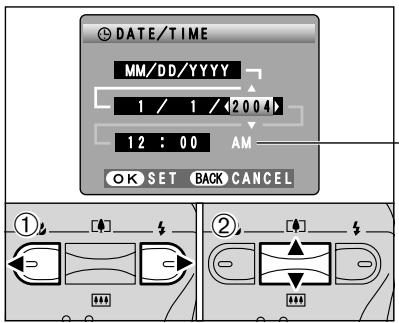
DATE/TIME MM/DD/YYYY 1 / 1 / 2004 12 : 00 AM OK SET BACK CANCEL ① ②① Press “◀” or “▶” to select Year, Month, Day, Hour or Minute. ② Press “▲” or “▼” to correct the setting.
- Holding down “▲” or “▼” changes the numbers continuously. - When the time displayed passes “12:00”, the AM/PM setting changes.
3
text_image
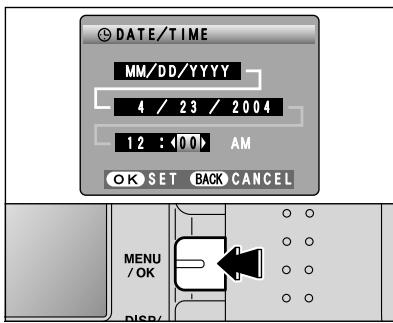
DATE/TIME MM/DD/YYYY 4 / 23 / 2004 12 : 00 AM OK SET BACK CANCEL MENU /OK DISP/Once you have set the date and time, press the "MENU/OK" button. Pressing the "MENU/OK" button changes the camera to Photography or Playback mode.
At the time of purchase and after you leave the camera for a long period with the batteries removed, settings such as the date and time are cleared. Once the AC power adapter has been connected or the batteries have been loaded for 30 minutes or more, the camera settings will be retained for roughly 3 hours even when the camera has no power (batteries removed and AC power adapter disconnected).
CORRECTING THE DATE AND TIME / CHANGING THE DATE ORDER
text_image
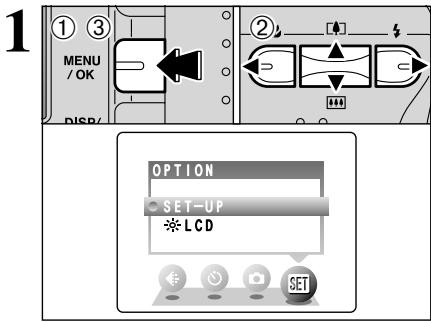
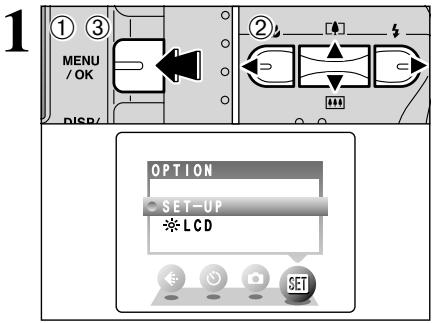
1 ① ③ MENU /OK DISP/ OPTION SET-UP ※LCD① Press the "MENU/OK" button.
② Press “◀” or “▶” to select “SET” OPTION and then press “▲” or “▼” to select “SET-UP”.
③ Press the "MENU/OK" button.
text_image
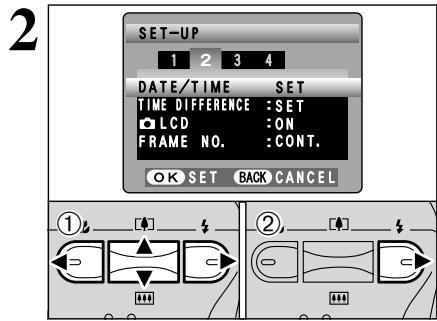
2 SET-UP 1 2 3 4 DATE/TIME SET TIME DIFFERENCE :SET LCD :ON FRAME NO. :CONT. OK SET BACK CANCEL ① ②① Press “◀” or “▶” to move to option 2 and then Press “▲” or “▼” to select “DATE/TIME”.
② Press “▶”.
text_image
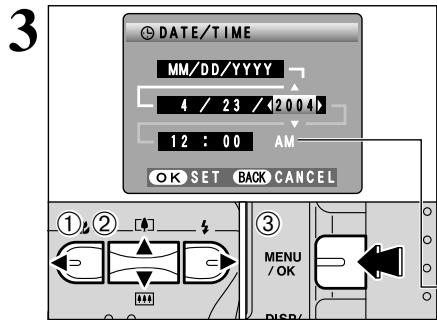
3 DATE/TIME MM/DD/YYYY 4 / 23 / 2004 12 : 00 AM OK SET BACK CANCEL ①② ③ MENU / OK DISPCorrecting the date and time
① Press “◀” or “▶” to select Year, Month, Day, Hour or Minute.
② Press “▲” or “▼” to correct the setting.
③ Always press the “MENU/OK” button to complete the settings.
text_image
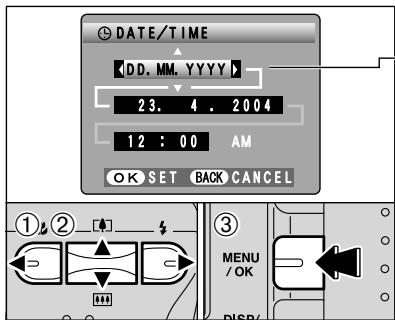
DATE/TIME DD. MM. YYYY 23. 4 . 2004 12 : 00 AM OK SET BACK CANCEL ①② MENU / OK DISP/! Holding down “▲” or “▼” changes the numbers continuously.
When the time displayed passes "12:00", the AM/PM setting changes.
Changing the date order
① Press “◀” or “▶” to select the date order.
② Press “▲” or “▼” to set the date order. Refer to the table below for details of the settings.
③ Always press the “MENU/OK” button to complete the settings.
| Date order | Explanation |
| YYYY.MM.DD | Displays the date in the “year.month. day” format. |
| MM/DD/YYYY | Displays the date in the “month/day/ year” format. |
| DD.MM.YYYY | Displays the date in the “day.month. year” format. |
SELECTING THE LANGUAGE
text_image
1 ① ③ MENU /OK DISP/ OPTION SET-UP *LCD SET① Press the “MENU/OK” button to display the menu on the LCD monitor.
② Press “▲”, “▼”, “◀” or “▶” to select “SET-UP” from the “SET” OPTION menu.
③ Press the "MENU/OK" button.
text_image
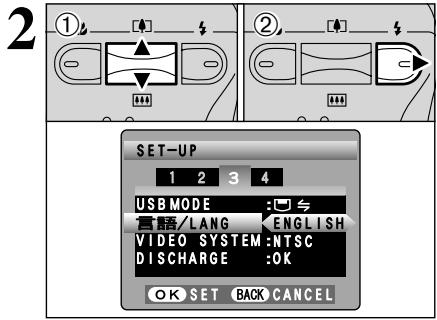
2 ① ② SET-UP 1 2 3 4 USB MODE : #语/LANG ENGLISH VIDEO SYSTEM:NTSC DISCHARGE:OK OK SET BACK CANCEL① The “SET-UP” screen appears. Press “▲” or “▼” to select “言語/LANG.”
② Press “▶” to select “日本語”, “ENGLISH”, “FRANCAIS”, “DEUTSCH”, “ESPAÑOL” or “中文”. Press “▶” to cycle through the language settings.
! The screens in this manual are shown in English.
! See P.49 for more information on the "SET" OPTION menu.
text_image
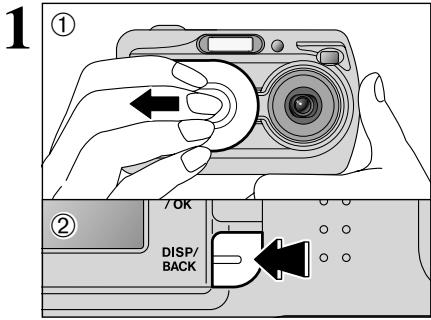
1 ① 7 OK DISP/ BACK① Open the lens cover.
② To take pictures using the viewfinder, press the "DISP/BACK" button to turn the LCD monitor off (turning the LCD monitor off conserves battery power).
● Focal range: Approx. 60 cm (2.0 ft.) to infinity
! Use Macro mode for subjects closer than 60 cm (2.0 ft.) (→P.26).
! The LCD monitor cannot be turned off in Macro mode.
! If “CARD ERROR”, “NO CARD”, “CARD FULL” or “CARD NOT INITIALIZED” appears, see P.78.
text_image
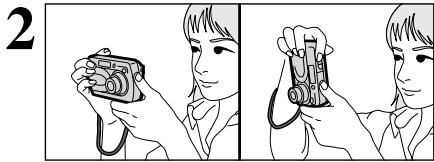
2Brace your elbows against your sides and hold the camera with both hands. Position your right thumb so that it is handy for using the zoom.
! Moving the camera while shooting gives a blurred picture (camera shake). Use a tripod to avoid camera shake, particularly for shots in the dark when the selected flash mode is Suppressed flash.
There may be some unevenness in the brightness at the lower edge of the LCD monitor. This is normal and does not affect the image.
natural_image
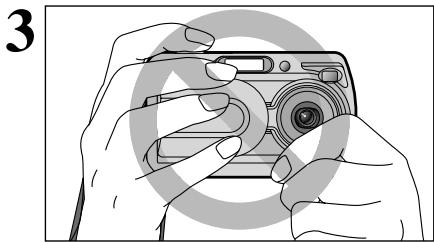
Illustration of hands holding a digital camera (no text or symbols visible)Hold the camera so that your fingers or the strap do not cover the lens or flash. If the lens or flash is obscured, the brightness (exposure) of your shot may be incorrect.
! Check that the lens is clean. If it is dirty, clean the lens as described on P.74.
! If the flash is used in very dusty conditions or when it is snowing, white dots may appear in the image due to flash reflecting off dust particles or snowflakes. Use Suppressed flash mode.
text_image
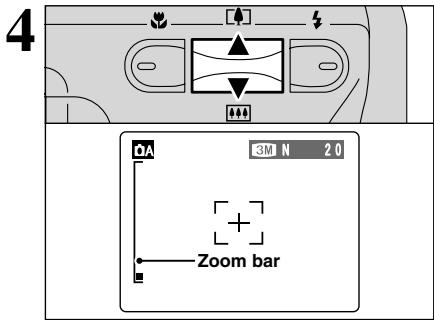
4 3M N 20 Zoom barTo zoom in on your subject, press Zoom switch “▲” (telephoto). To zoom out, press “▼” (wide-angle). A “zoom bar” appears on the LCD monitor.
● Optical zoom focal length (35 mm camera equivalent)
Approx. 38 mm-114 mm Maximum zoom scale: 3×
! Zooming stops briefly when the camera changes between optical zoom and digital zoom (→P.21). Press the same Zoom switch again to change zoom modes.
text_image
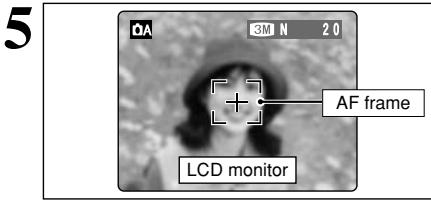
5 3M N 2.0 + AF frame LCD monitorUse the LCD monitor to frame the shot so that the subject fills the entire AF (Auto Focus) frame.
When the subject is not in the AF frame, use AF/AE lock to take the picture (→P.20).
! The image on the LCD monitor before the picture is taken may differ in brightness, color, etc. from the image actually recorded. Play back the recorded image to check it (→P.22).
text_image
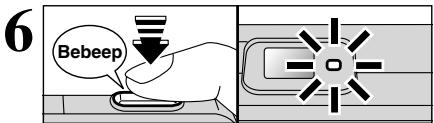
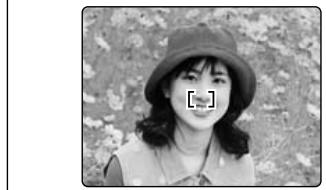
6 BebeepPress the Shutter button down halfway. The camera emits a short double-beep and focuses on your subject. The AF frame on the LCD monitor becomes smaller (the viewfinder lamp (green) stops blinking and remains lit).
natural_image
Black-and-white portrait of a smiling woman wearing a hat and collared shirt, outdoors with blurred foliage background (no text or symbols visible)! If the camera does not emit a short double-beep and “!AF” appears on the LCD monitor, the camera cannot focus.
! Pressing the Shutter button down halfway freezes the image on the LCD monitor briefly. This is not the recorded image.
! If “!AF” appears on the LCD monitor (e.g. the shot is too dark for the camera to focus), stand about 2 m (6.6 ft.) from your subject to take the picture.
text_image
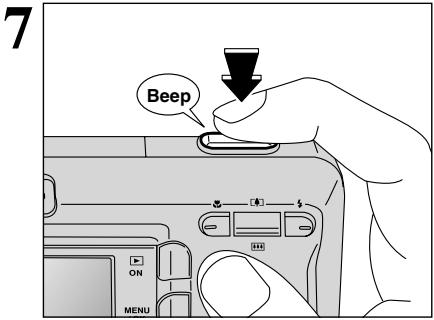
7 BeepTo take the picture, press the Shutter button down fully without lifting your finger off. The camera beeps and takes the picture. The data is then recorded.
! There is a slight delay between the Shutter button being pressed and the picture being taken. Playback the shot to check the image.
When pressing the Shutter button down fully in one motion, the camera takes the picture without the AF frame changing.
When the camera takes the picture, the viewfinder lamp lights orange (shooting disabled). The viewfinder lamp then turns green and the next picture can be taken.
! The viewfinder lamp blinks orange while the flash is charging. If the LCD monitor is turned on, the screen goes dark. This is normal.
! See P.78, 79 for information on the warning displays.
Subjects not suitable for autofocus
The FinePix A330/FinePix A340 uses a high-precision autofocusing mechanism. However, it may have difficulty focusing on the following:
● Very shiny subjects such as a mirror or car body
● Subjects photographed through glass
- Subjects that do not reflect well, such as hair or fur
- Subjects with no substance, such as smoke or flames
- Dark subjects
- Subjects with little or no contrast between the subject and the background (such as white walls or subjects dressed in the same color as
the background)
● Fast moving subjects
● Shots where another high-contrast object (not the subject) is close to the AF frame and is either closer or further away than your subject (such as a shot of someone against a background with strongly contrasting elements)
For such subjects, use AF/AE lock (→P.20).
USING VIEWFINDER
1
text_image
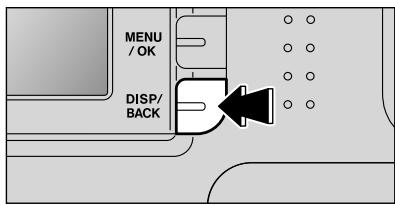
MENU / OK DISP/ BACKTo take pictures using the viewfinder, press the "DISP/BACK" button to turn the LCD monitor off (Turning the LCD monitor off conserves battery power).

The viewfinder cannot be used to take pictures in Macro mode.
2
natural_image
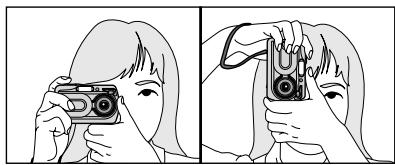
Illustration of a person holding a camera, showing two different hand gestures (no text or symbols present)Brace your elbows against your sides and hold the camera with both hands. Position of your right thumb so that it is handy for using the zoom.

Moving the camera while shooting gives a blurred picture (camera shake). Use a tripod to avoid camera shake, particularly for shots in the dark when the selected flash mode is Suppressed flash.
3
text_image
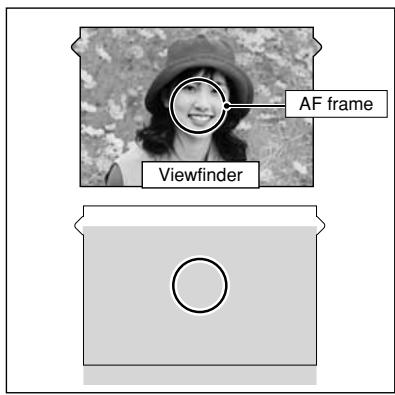
AF frame ViewfinderPosition the AF frame in the center of the viewfinder over the subject to set the focus.
If the subject is between 0.6 m and 1.5 m (2.0 ft. and 4.9 ft.) away, the area marked by “■” in the figure is photographed.

For more precise shot framing, use the LCD monitor to take the picture.
VIEWFINDER LAMP DISPLAY
| Display | Status |
| Lit green | Ready to shoot |
| Blinking green | AF/AE in progress, camera shake warning or AF warning (Ready to shoot) |
| Blinking green and orange alternately | Recording to xD-Picture Card (Ready to shoot) |
| Lit orange | Recording to xD-Picture Card (Not ready) |
| Blinking orange | Flash charging (Flash will not fire) |
| Blinking green(1-second intervals) | Camera in Power Save mode (→P.50) |
| Blinking red | ● xD-Picture Card WarningsNo card loaded, card not formatted, incorrect format, card full, xD-Picture Card error● Lens operation error |
* When the LCD monitor is switched on, more detailed warning messages are displayed (→P.78-79).
NUMBER OF AVAILABLE FRAMES
text_image
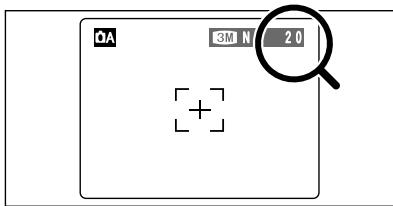
QA 3M N 2.0The number of available frames appears on the LCD monitor.
! See P.29 for information on changing the quality setting.
! The default quality “←” set at shipment is “3M N” (FinePix A330), “4M N” (FinePix A340).
■ Standard number of frames per xD-Picture Card
The table below shows the standard number of frames for a new xD-Picture Card formatted on the camera. The larger the xD-Picture Card capacity, the bigger the difference between the actual number of frames and the number shown here. Also, the size of an image file varies depending on the subject. So the number of remaining shots may decrease by 2 or may remain the same. For this reason, the number displayed may not show the actual number of frames.
FinePix A330
| Quality setting | 3M 3M | 2M 2M | 1M 1M | |
| Number of recorded pixels | 2016 × 1512 | 1600 × 1200 | 1280 × 960 | |
| FINE 1.5 MB | NORMAL 760 KB | |||
| DPC-16 (16 MB) | 10 | 20 | 25 | 33 |
| DPC-32 (32 MB) | 20 | 41 | 50 | 68 |
| DPC-64 (64 MB) | 42 | 82 | 101 | 137 |
| DPC-128 (128 MB) | 84 | 166 | 204 | 275 |
| DPC-256 (256 MB) | 169 | 332 | 409 | 550 |
| DPC-512 (512 MB) | 339 | 665 | 818 | 1101 |
FinePix A340
| Quality setting | 4M 4M | 2M 2M | 1M 1M | |
| Number of recorded pixels | 2272 × 1704 | 1600 × 1200 | 1280 × 960 | |
| FINE 1.9 MB | NORMAL 960 KB | |||
| DPC-16 (16 MB) | 8 | 16 | 25 | 33 |
| DPC-32 (32 MB) | 16 | 32 | 50 | 68 |
| DPC-64 (64 MB) | 33 | 66 | 101 | 137 |
| DPC-128 (128 MB) | 66 | 132 | 204 | 275 |
| DPC-256 (256 MB) | 134 | 266 | 409 | 550 |
| DPC-512 (512 MB) | 268 | 532 | 818 | 1101 |
USING AF/AE LOCK
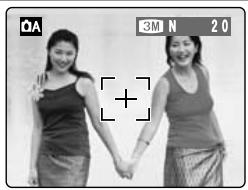
1
natural_image
Two women posing with hands in front of camera interface (no text or symbols on image)In this shot, the subjects (two people in this case) are not in the AF frame. Taking the picture at this point will result in the subjects being out of focus.
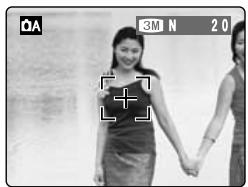
2
natural_image
Black-and-white photo of a woman holding hands with a camera icon overlay (no readable text or symbols)Move the camera slightly so that one of the subjects is in the AF frame.
3
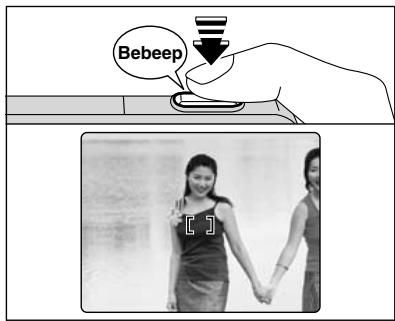
text_image
BebeepPress the Shutter button down halfway (AF/AE lock). Focusing is complete when the AF frame on the LCD monitor becomes smaller and the viewfinder lamp (green) stops blinking and remains lit.
4
natural_image
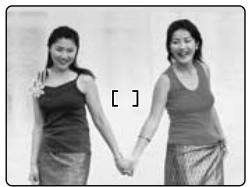
Two women holding hands in a line, smiling (no text or symbols visible)Continue to hold the Shutter button down halfway (AF/AE lock). Move the camera back to the original image and press the Shutter button fully.
text_image
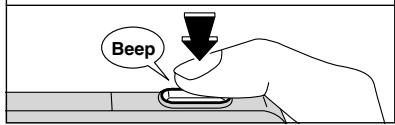
Beep! AF/AE lock can be applied repeatedly before the shutter is released.
! Use AF/AE lock in all photography modes to ensure excellent results.
◆ AF (Autofocus)/AE (Auto-exposure) lock ◆
On the FinePix A330/FinePix A340, pressing the Shutter button down half way locks the focus and exposure settings (AF/AE lock). To focus on a subject that is off to one side or to set the exposure before composing the final shot, locks the AF and AE settings. Then compose and take the picture to get the best results.
USING THE ZOOM (OPTICAL ZOOM/DIGITAL ZOOM)
text_image
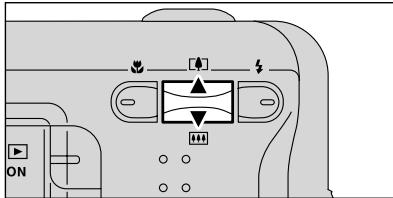
ON [+]Press the “▲ (☐)” or “▼ (☐)” switch to zoom in or out. The digital zoom can be used with the “2M” and “1M” quality mode setting.
When zooming changes between optical and digital, the “■” indicator stops. Press the same Zoom switch again to start the “■” indicator moving again.
! The digital zoom cannot be used with the “3M” (FinePix A330), “4M” (FinePix A340) setting.
! See P.29 for information on changing the quality mode. ! If the shot goes out of focus during zooming, hold the Shutter button down halfway to refocus the shot.
● Optical zoom focal length*
Approx. 38 mm-114 mm, max. zoom scale: 3×
- Digital zoom focal lengths*
FinePix A330
text_image
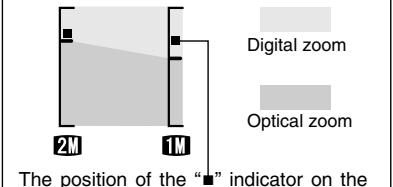
Digital zoom Optical zoom The position of the "■" indicator on theThe position of the “■” indicator on the zoom bar shows the zooming status.
The area to the above of the separator indicates digital zooming, while the area to the below indicates optical zooming.
* Screen for FinePix A330
| Digital zoom focal distance | Maximum zoom scale | |
| 3M | Cannot be used | |
| 2M | Equivalent to approx. 114 mm-148 mm | Approx. 1.3× |
| 1M | Equivalent to approx. 114 mm-182 mm | Approx. 1.6× |
FinePix A340
| Digital zoom focal distance | Maximum zoom scale | |
| 4M | Cannot be used | |
| 2M | Equivalent to approx. 114 mm-160 mm | Approx. 1.4× |
| 1M | Equivalent to approx. 114 mm-194 mm | Approx. 1.7× |
* 35 mm camera equivalents
BEST FRAMING
flowchart
graph TD
    A["Text displayed"] --> B["Framing guideline displayed"]
    B --> C["No text displayed"]
    C --> D["LCD monitor OFF"]
    style A fill:#f9f,stroke:#333
    style B fill:#ccf,stroke:#333
    style C fill:#cfc,stroke:#333
    style D fill:#fcc,stroke:#333
    subgraph Display
        direction TB
        A --> A1["ON"]
        B --> B2["ON"]
        C --> C1["ON"]
        D --> D1["ON"]
        E["MENU / OK"] --> F["DISP/BACK"]
        G["DC IN 5V"] --> H["DC IN 5V"]
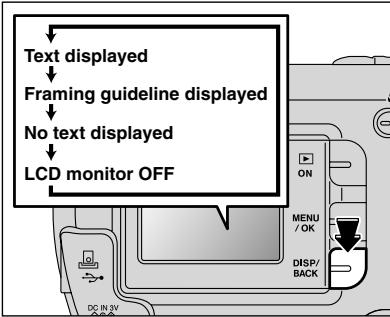
Select framing guideline function in Photography mode.
Pressing the "DISP/BACK" button changes the LCD monitor display. Press the "DISP/BACK" button until "Framing Guideline" appears.
Important
Always use AF/AE lock when composing a shot. The image may be out of focus if AF/AE lock is not used.
Scene
natural_image
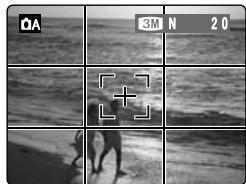
Black-and-white photo grid showing a person walking on a beach with a target overlay (no readable text or symbols)Position the main subject at the intersection of two lines in this frame or align one of the horizontal lines with the horizon. Use this frame as a guide to the subject's size and the balance of the shot while composing a shot.
! The framing guideline is not recorded on the image.
The lines in the scene frame divide the image into 3 roughly equal parts horizontally and vertically. The resulting printed image may be shifted slightly from the scene frame.
text_image
① ON MENU / OK ②Single-frame playback
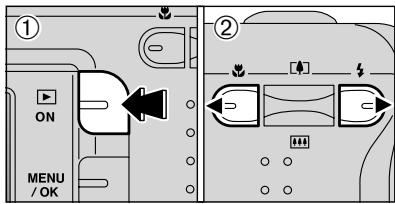
① Press the “Playback” button for approx. 1 second to change to Playback mode.
② Press “▶” to scan forward through your images and Press “◀” to scan backwards
When the camera is set to Playback mode, the last image shot appears on the LCD monitor.
! If the lens is extended during playback, the lens automatically retracts as a protective measure if the camera is not used for approx. 6 seconds.
When the Power save function turns the camera off, close the lens cover and then hold down the "Playback" button for approx. 1 second.
text_image
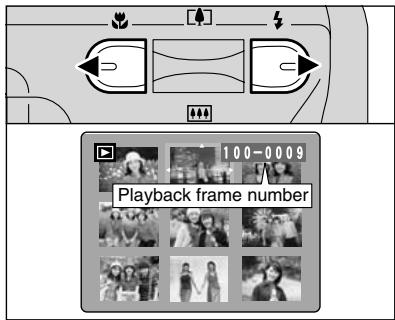
100-0009 Playback frame numberSelecting images
To select images on the thumbnail lists screen, hold down “◀” or “▶” for approx. 1 second during playback.
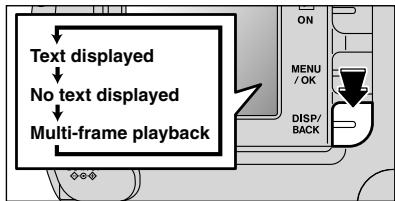
flowchart
graph TD
    A["Text displayed"] --> B["No text displayed"]
    B --> C["Multi-frame playback"]
    D["ON"] --> E["MENU / OK"]
    F["ON"] --> G["DISP/BACK"]
Multi-frame playback
In Playback mode, press the “DISP/BACK” button to change the display shown on the LCD monitor. Press the “DISP/BACK” button until the multi-frame playback screen (9 frames) appears.
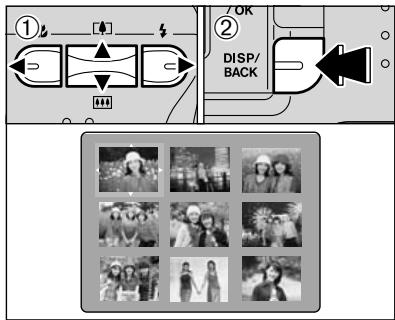
text_image
① ② DISP/ BACK OK① Press “▲”, “▼”, “◀” or “▶” to move the cursor (orange frame) to the frame you want to select. Press “▲” or “▼” repeatedly to jump to the next page.
② Press the “DISP/BACK” button again to view an enlarged version of the image.
! The LCD monitor text display disappears after 3 seconds.
! Playback zoom cannot be used with multi-frame playback.
◆ Still images viewable on the FinePix A330/FinePix A340
This camera will display still images recorded on the FinePix A330/FinePix A340 or still images (excluding some uncompressed images) recorded on any FUJIFILM digital camera that supports xD-Picture Cards.
text_image
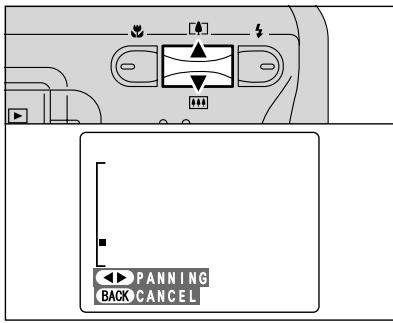
PANNING BACK CANCELPlayback zoom
Press the “▲ (☐)” or “▼ (☐)” switch during single-frame playback to zoom in (enlarges) or out on a still image. A zoom bar appears. Press the “DISP/BACK” button to return to single-frame playback.
■ Zoom scales
| Quality mode | Max. zoom scale |
| 4M (2272 × 1704)* FinePix A340 only | 14× |
| 3M (2016 × 1512)* FinePix A330 only | 13× |
| 2M (1600 × 1200) | 10× |
| 1M (1280 × 960) | 8× |
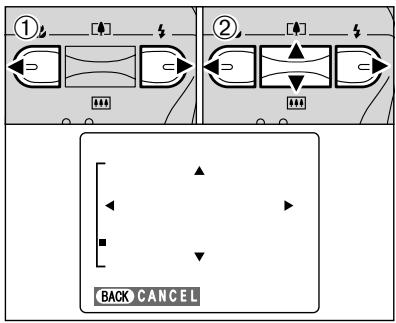
text_image
① ② BACK CANCEL① Press “◀” or “▶” to select to “PANNING”.
② Press “▲”, “▼”, “◀”, or “▶” to display another area.
Press the "DISP/BACK" button to return to playback zoom.
text_image
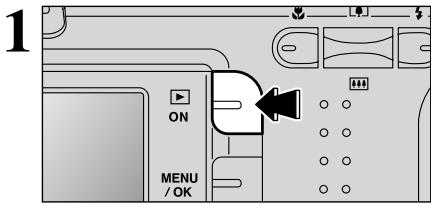
1 ON MENU / OKPress the "Playback" button for approx. 1 second to turn the camera on in Playback mode.
text_image
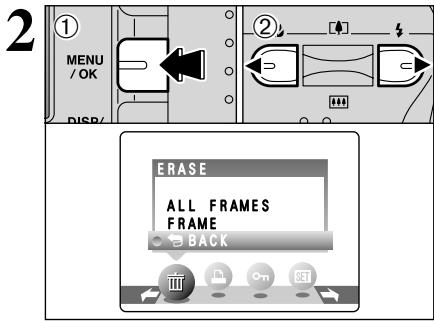
2 ① MENU / OK DISP/ ② ERASE ALL FRAMES FRAME BACK① Press the “MENU/OK” button during playback to display the menu.
② Press “◀” or “▶” to select “皿” ERASE.
Erased frames (files) cannot be recovered. Back up important frames (files) onto your computer or another media.
text_image
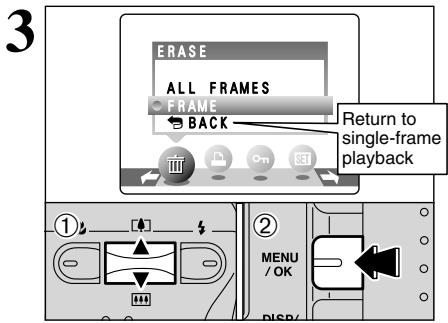
3 ERASE ALL FRAMES FRAME BACK Return to single-frame playback ① MENU / OK DISP/① Press “▲” or “▼” to select “FRAME”.
② Press the “MENU/OK” button to confirm the selection.
See P.33 for information on "ALL FRAMES".
text_image
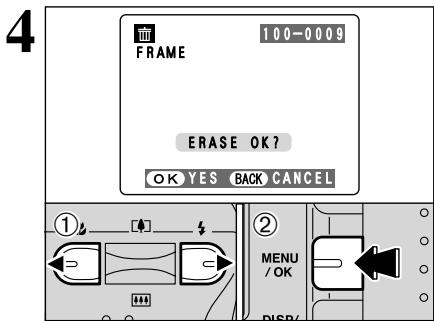
FRAME 100-0009 ERASE OK? OK YES BACK CANCEL ① ② MENU / OK DISP① Press “◀” or “▶” to select the frame (file) to be erased.
② Press the “MENU/OK” button to erase the displayed frame (file).
To erase another image, repeat steps ① and ②.
When image erasing is completed, press the "DISP/BACK" button.
! Press the "MENU/OK" button repeatedly to erase consecutive images. Take care not to erase important images.
Consider the scene you are photographing and the sort of image you want to achieve when you specify the camera settings. A general guide is given below.
1 Select the Photography mode (→P.31).
Auto Leaves the "EV" and "White balance" settings to the camera.
Manual Sets the "EV" and "White balance" to manual to easily control yourself.
Portrait Uses for photography getting beautiful skin tones and soft overall tone.
▲ Scene Uses for shooting scenery in daylight.
Sport Uses for shooting sporting events.
Night Uses for shooting evening and night scene.
2 Specify the photography settings (→P.26-30, 32).
Macro Uses for close-up shots.
Flash Uses for photography in dark locations or for backlit subjects, etc.
Quality Set the size of the recorded image when the picture is taken. The size set is matched to the intended use of the print size.
Self-timer Uses in situations such as group shots where the photographer is included in the shot.
EV (Exposure compensation) Uses the AE exposure as a reference value of 0, this function brightens (+) or darkens (−) the shot.
WB White balance Uses to fix the white balance to suit the photography conditions and lighting.
3 Take the pictures
■ Photography Mode Specifications
| Default Setting | A | M | R | ▲ | × | C | |||
| ◀ | MACRO | OFF | YES | YES | NO | NO | NO | NO | |
| ▶ | FLASH | AUTO Auto Flash | AUTO | YES | YES | YES | NO | YES | NO |
| ○ Red-Eye Reduction | YES | YES | YES | NO | NO | NO | |||
| ↳ Forced Flash | YES | YES | YES | NO | YES | NO | |||
| ◎ Suppressed Flash | YES | YES | YES | YES | YES | YES | |||
| $↳ Slow Synchro | NO | YES | YES | NO | NO | YES | |||
| ○ Slow Red-Eye + Slow | NO | YES | YES | NO | NO | YES | |||
| Menu | ◀ Quality | SM N (FinePix A330)4M N (FinePix A340) | YES | YES | YES | ||||
| ◎ Self-timer | OFF | YES | YES | YES | |||||
| ✔ EV (Exposure Compensation) | 0 | NO | YES | NO | |||||
| WB White balance | AUTO | NO | YES | NO | |||||
text_image
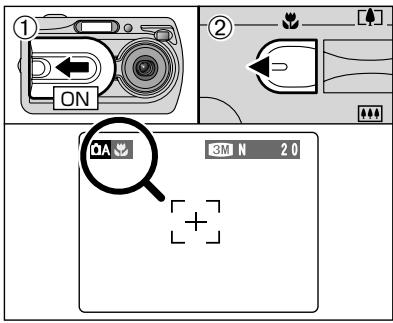
① ON ② OA 3M N 2.0When you use the viewfinder to take a picture in Macro mode, the field visible through the viewfinder does not match the field actually photographed because the viewfinder and lens are in different positions. Accordingly, you should use the LCD monitor to take pictures in Macro mode.
Select Macro mode to take close-up shots.
① Open the lens cover.
② Press the “◀” Macro button (◀). The “◀” appears on the LCD monitor indicating that you can take close-up shots.
To cancel Macro mode, press the “◀” Macro button (◀) again.
- Focus distance
Approx. 0.1 m to 0.8 m (3.9 in. to 2.6 ft.)
● Effective flash range
Approx. 0.3 m to 0.8 m (1.0 ft. to 2.6 ft.)
! Macro mode is cancelled in the following situations:
- When the SHOOTING MODE is changed
- When the camera is turned off
! Select the appropriate flash mode for the conditions.
! Use a tripod to avoid camera shake when shooting in the dark (when “!” appears).
! The lens is fixed at the wide-angle zoom setting and only the digital zoom can be used.
! Once the LCD monitor is turned ON and cannot be turned OFF.
! Canceling Macro mode, the LCD monitor remains on.
text_image
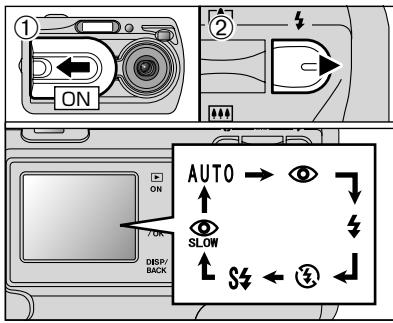
① ON ② AUTO → ↑ SLOW ↑ ↓ ← ③ ← ON 7 ON DISP/ BACKChoose from 6 flash modes according to the type of shot.
① Open the lens cover.
② The flash setting changes each time you press the “◀” Flash button (▶). The last flash mode displayed is selected.
● Effective flash range (for 📄A AUTO)
Wide-angle: Approx. 0.6 m to 3.5 m (2.0 ft. to 11.5 ft.)
Telephoto : Approx. 0.6 m to 3.0 m (2.0 ft. to 9.8 ft.)
If the flash is used in very dusty conditions of when it is snowing, white dots may appear in the image due to flash reflecting off dust particles or snowflakes. Use Suppressed flash mode.
! The flash charging time may increase when the batteries are low on charge.
When taking a picture using the flash, the image may disappear and the LCD monitor go dark as the flash charges. The viewfinder lamp then blinks orange.
! The available Flash modes are limited depending on the Photography menu selected (→P.25).
! The flash fires several times (pre-flashes and the main flash).
natural_image
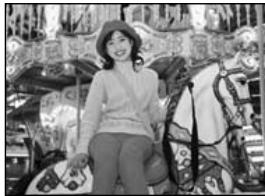
Black-and-white photo of a smiling woman standing beside a horse in a parade (no visible text or symbols)Auto Flash Mode (no icon)
Use this mode for ordinary photography. The flash fires as required by the shooting conditions.
! If pressing the Shutter button while the flash is charging, the picture will be taken without the flash.
Press the Shutter button down halfway. “⚡” appears in the LCD monitor when the flash is used.
natural_image
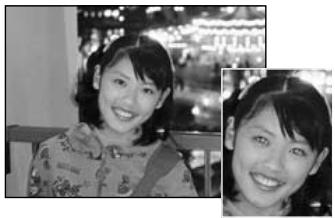
Black-and-white photo of two smiling young women in a casual indoor setting (no visible text or symbols)Red-eye reduction
Use this mode to make sure that the subject's eyes appear normal when taking pictures of people in low-light conditions. The flash fires a pre-flash just before the picture is taken and then fires again to take the actual picture. The flash fires as required by the shooting conditions.
! If pressing the Shutter button while the flash is charging, the picture will be taken without the flash.
◆ Red-eye effect ◆
When using the flash to taken a picture people in low-light conditions, their eyes sometimes appear red in the picture. This is caused by the light of the flash reflecting off the inside of the eye. Use Red-eye reduction flash to minimize the likelihood of the effect.
Take the following measures to make Red-eye reduction more effective:
- Get the subjects to look at the camera. - Get as close as possible to the subjects.
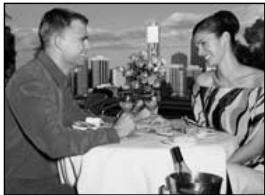
natural_image
Black-and-white photo of a man and woman seated at a dining table with city skyline in background (no visible text or symbols)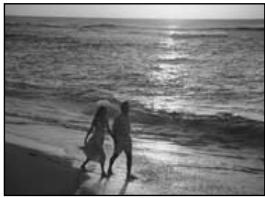
natural_image
Black-and-white photo of two people walking on a beach at sunset, waves rolling in the background (no text or symbols visible)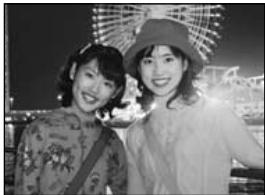
natural_image
Two women posing for a photo at night with illuminated buildings in the background (no visible text or symbols)Forced flash
Use this mode in backlit scenes, such as a subject against a window or in the shade of a tree, or to get the correct colors when taking a picture under bright lighting. In this mode, the flash fires in bright as well as dark conditions.
④ Suppressed flash
Use this mode for taking pictures using indoor lighting, for shots taken through glass, and for photography in places such as theaters or at indoor sporting events where the distance is too great for the flash to be effective. In this situation, use the specified white balance ( P.32) to take pictures that retain the atmosphere given by the ambient lighting.
! Use a tripod to avoid camera shake when shooting in Suppressed Flash mode in the dark condition.
! See P.78 for information on the camera shake warning.
S4 Slow synchro
This is a Flash mode that uses a slow shutter speed. This allows you to take pictures of people at night that clearly show both your subjects and the night time backdrop. To prevent camera shake, always use a tripod.
- Slowest shutter speed
“C+” Night: Up to 2 sec.
Red-eye reduction + Slow synchro
Use this mode for Slow synchro shots with Red-eye reduction.
! The image may be overexposed when shooting bright scenes.
To take a picture of a main subject at night with the background brightly lit, please use the SHOOTING MODE “C+” (Night) settings (→P.31).
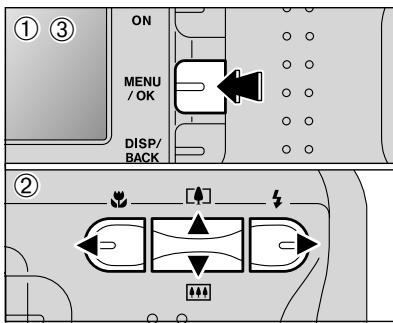
PHOTOGRAPHY MENU OPERATION
1
text_image
① ③ ON MENU / OK DISP/ BACK ②① Press the “MENU/OK” button to display the menu on the LCD monitor.
② Press “◀” or “▶” to select the menu item and “▲” or “▼” to change the setting.
③ Press the “MENU/OK” button to confirm the selection.
2
text_image
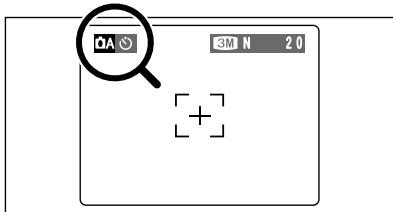
OA 3M N 2.0 +When you enable the setting, an icon appears in the top-left corner of the LCD monitor.

The settings available in the menu screen vary depending on the Still photography mode.

Quality
→P.29
Set the size of the recorded image when the picture is taken. The size set is matched to the intended use of the print size.

Self-timer
→P.30
Use this setting for taking pictures such as group shots where the photographer is included in the shot.

Shooting mode
→P.31, 43
Specify “☐A” Auto, “☐M” Manual, “☐” Portrait, “▲” Scene, “✗” Sports, “C+” Night or “✗” Movie.

EV
→P.32
Set when the correct exposure cannot be obtained.

White balance
→P.32
Change this setting to take a picture with the white balance fixed for the surroundings and lighting when the picture is taken.

QUALITY SETTINGS IN STILL PHOTOGRAPHY MODE
text_image
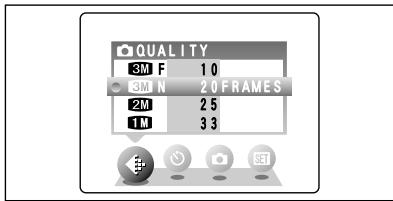
QUALITY 3M F 1.0 3M N 2.0 FRAMES 2M 2.5 1M 3.3Choose from 4 settings. Using the table below as a guide, select the setting that best suits the aims.
! The numbers to the right of each setting show the number of available frames.
When changing the quality setting, the number of available frames also changes (→P.19).
| Quality mode | Sample Uses |
| 4M F, 4M N (2272 × 1704)* FinePix A340 only | Printing at A4 or A5 size or printing part of the image cropped at A6 size.For better image quality, select “F”. |
| 8M F, 8M N (2016 × 1512)* FinePix A330 only | |
| 2M (1600 × 1200) | Printing at A5 or A6 size. |
| 1M (1280 × 960) | Printing at A6 size. |
SELF-TIMER PHOTOGRAPHY
text_image
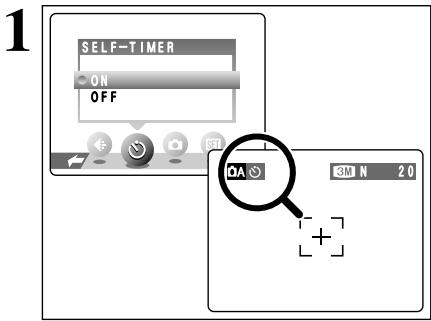
SELF-TIMER ON OFF OA 3M N 20The self-timer is used in situations where the photographer is included in the shot.
Setting the self-timer to "ON", "◎" appears on the LCD monitor.
In this mode, a timer runs for roughly 10 seconds before the shutter is released.
! The self-timer setting is cancelled in the following situations.
- When shooting ends
- When the camera is changed to "A" or "M" mode
- When the camera is set to Playback mode
- When the camera is turned off
text_image
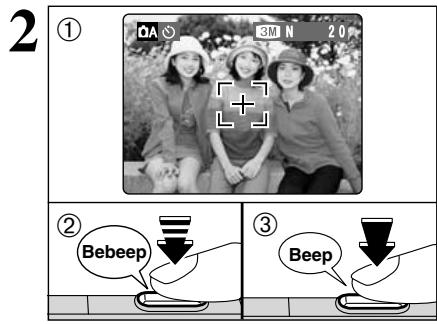
2 ① 3M N 20 ② Bebeep ③ Beep① Position the AF frame over the subject.
② Press the Shutter button down halfway to focus the shot.
③ Without releasing the Shutter button, press the button all the way down (fully pressed) to start the self-timer.
text_image
3! The AF/AE lock can be used (→P.20).
Take care not to stand in front of the lens when pressing the Shutter button. The image may not be in focus or get correct brightness (exposure).
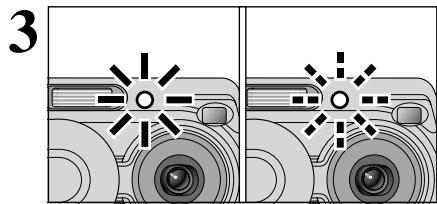
The self-timer lamp lights steadily for roughly 5 seconds and then blinks for another 5 seconds, after which the picture is taken.
! To stop the self-timer, once it has started running, press the "DISP/BACK" button.
text_image
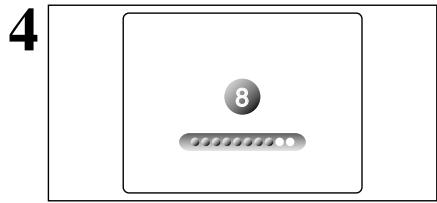
4 8A countdown appears on the LCD monitor indicating the time remaining until the picture is taken.
Self-timer mode is cancelled after each shot.
text_image
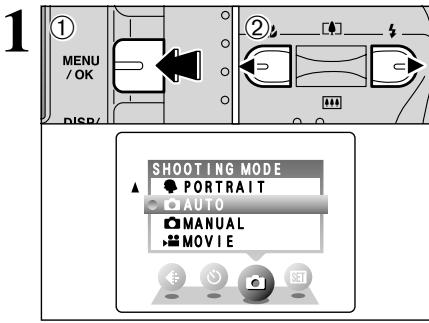
1 MENU /OK DISP/ SHOOTING MODE PORTRAIT AUTO MANUAL MOVIE① Press the "MENU/OK" button to display the menu on the LCD monitor.
② Press “◀” or “▶” to select “☐” SHOOTING MODE.
text_image
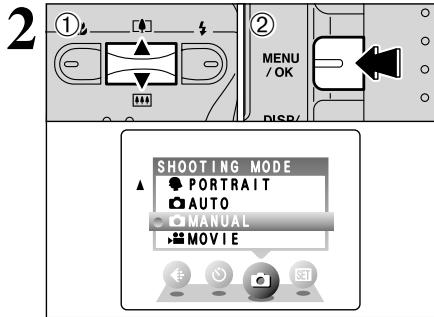
2 ① MENU /OK DISP/ SHOOTING MODE PORTRAIT AUTO MANUAL MOVIE① Press “▲” or “▼” to select “☐” SHOOTING MODE.
② Press the “MENU/OK” button to confirm the selection.
| Shooting mode | Explanation | Available flash modes |
| This is the mode for specifying “EV” (exposure compensation) (→P.32) and white balance (→P.32) settings. | AUTO / Ⓞ / ↘ / ⓣ / ₽ / Ⓥ/ SLOW | |
| This is the easiest mode for taking pictures and can be used in a wide range of conditions. | AUTO / Ⓞ / ↘ / Ⓝ | |
| This is the best mode for shooting portraits. Skin tones are shown beautifully and the overall tone is soft. | AUTO / Ⓞ / ↘ / Ⓝ / ₽ / Ⓥ/ SLOW | |
| This is the best mode for shooting scenery in daylight and provides crisp, clear shots of scenery such as buildings and mountains. | can not be used | |
| This is the best mode for shooting sporting events. This mode gives priority to faster shutter speeds. | AUTO / ↘ / Ⓝ | |
| This is the best mode for evening and night scenes. This mode allows you to take shots where priority is given to slow shutter speeds of up to 2 seconds. To prevent camera shake, always use a tripod. | ₽ / Ⓥ/ SLOW / Ⓝ |
* “¶”, “▲”, “♦” and “C+” can not be selected Macro mode.
EV (EXPOSURE COMPENSATION)
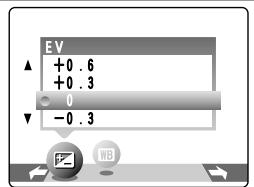
text_image
EV +0 .6 +0 .3 0 -0 .3Select EV in the “☐ MANUAL” photography mode. Use this function for shots to get the correct brightness (exposure), such as shots with extremely high contrast between the subject and the background.
● Compensation range
-2.1 EV to +1.5 EV (13 steps in 0.3 EV increments) See P.86 for more information on EV.

Exposure compensation is disabled in the following situations:
- When the flash is used in Auto or Red-eye reduction mode
- When dark scenes are shot in Forced flash mode
To obtain the optimum brightness
Adjust the exposure compensation according to the level of brightness or darkness in the image.
- When the subject appears too bright Try a negative (−) compensation setting. This will make the overall image darker.
- When the subject appears too dark Try a positive (+) compensation setting. This will make the overall image brighter.
■ Guide to compensation
- Backlit portraits: +0.6 EV to +1.5 EV
- Very bright scenes (such as snowfields) and highly reflective subjects: +0.9 EV
- Shots made up predominantly of sky: +0.9 EV
- Spotlit subjects, particularly against dark backgrounds: -0.6 EV
- Scenes with low reflectivity, such as shots of pine trees or dark foliage: -0.6 EV
WB WHITE BALANCE (SELECTING THE LIGHT SOURCE)
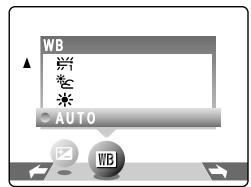
text_image
WB AUTO WBSelect white balance in the “☐ MANUAL” photography mode.
Change the white balance setting to take a picture with the white balance locked for the surroundings and lighting.
In AUTO mode, the correct white balance may not be got for subjects such as close-ups of people's faces and shots taken under a special light source.
Select the correct white balance for the light source. See P.86 for more information on the white balance.
AUTO : Automatic adjustment (shooting to show the ambience of the light source)
☀️ : Shooting outdoors in fine weather
: Shooting in shade

The color tones may vary depending on the shooting conditions (light source, etc.).
※i : Shooting under “Daylight” fluorescent lamps
2 : Shooting under "Warm White" fluorescent lamps
3 : Shooting under "Cool White" fluorescent lamps
☀️ : Shooting in incandescent light
* When the flash fires, the white balance setting for the flash is used. Consequently, to achieve a particular effect, the Flash mode should be set to Suppressed flash ( P.28).
text_image
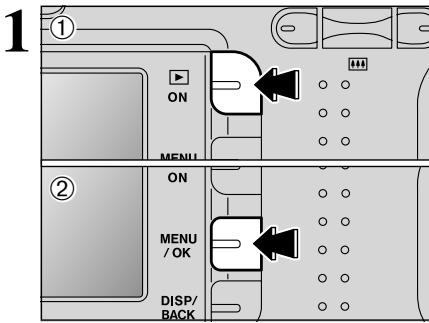
1 ① ON MENU ② ON MENU / OK DISP/BACK① Press the “Playback” button for approx. 1 second to turn the camera on in Playback mode.
② Press the “MENU/OK” button to display the menu on the LCD monitor.
Erased frames (files) cannot be recovered. Back up important frames (files) onto your computer or another media.
text_image
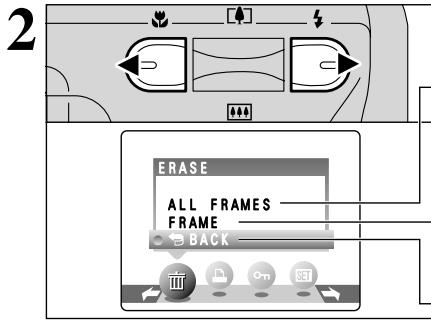
2 ERASE ALL FRAMES FRAME BACKPress “◀” or “▶” to select “☐” ERASE.
ALL FRAMES
Erase all unprotected frames (files). Back up important frames (files) onto your computer or another media.
FRAME
Erase only the selected frame (file).

BACK
Return to playback without erasing any frames (files).
text_image
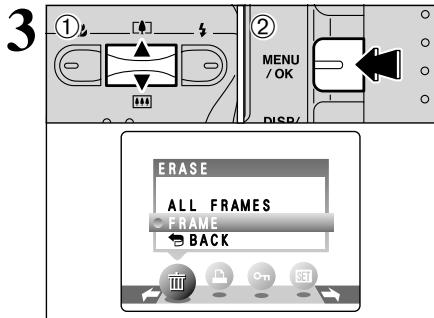
3 ① ② MENU /OK DISP/ ERASE ALL FRAMES FRAME BACK① Press “▲” or “▼” to select “ALL FRAMES” or “FRAME”.
② Press the "MENU/OK" button.
text_image
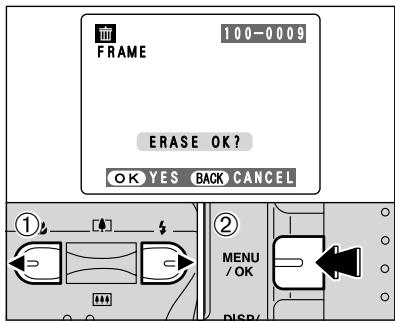
FRAME 100-0009 ERASE OK? OK YES BACK CANCEL ① ② MENU / OK DISP/FRAME
① Press “◀” or “▶” to select the frame (file) to be erased.
② Press the “MENU/OK” button to erase the currently displayed frame (file).
To erase another frame (file), repeat steps ① and ②. When you have finished erasing frames (files), press the "DISP/BACK" button.
text_image
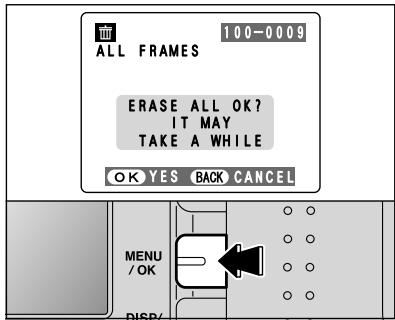
100-0009 ALL FRAMES ERASE ALL OK? IT MAY TAKE A WHILE OK YES BACK CANCEL MENU / OK DISP/! Pressing the “MENU/OK” button repeatedly erases consecutive frames (files). Take care not to erase an frame (file) by mistake.
! Protected frames (files) cannot be erased. Unprotect the frames (files) before erasing them (→P.38).
ALL FRAMES
Pressing the "MENU/OK" button erases all the frames (files).
To cancel the erasing of frames once it is in progress, press the "DISP/BACK" button. Even if you stop the procedure immediately, some frames (files) will be erased.
! Protected frames (files) cannot be erased. Unprotect the frames (files) before erasing them (→P.38).
If “DPOF SPECIFIED.” appears, press the “MENU/OK” button again to erase the frames (files).
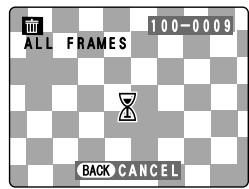
◆ To stop the procedure mid-way ◆
text_image
ALL FRAMES 100-0009 BACK CANCELTo cancel erasing of all the frames (files) while it is in progress, press the "DISP/BACK" button. Some unprotected frames (files) will be left unerased.
Even if you stop the procedure immediately, some frames (files) will be erased.
HOW TO SPECIFY PRINT OPTIONS (DPOF)

DPOF
DPOF stands for Digital Print Order Format and refers to a format that is used for recording printing specifications for images shot using a digital camera on media such as an xD-Picture Card. The recorded specifications include information on which frames are to be printed.
This section gives a detailed description of how to order your prints with the FinePix A330/FinePix A340.
On the FinePix A330/FinePix A340, you can specify only one print per image in the DPOF settings.
* Note that some printers do not support date and time imprinting or specification of the number of prints.
* Note that the warnings shown below may be displayed while you are specifying the prints.
DPOF SPECIFIED. ERASE OK?
DPOF SPECIFIED. ERASE ALL OK? (→P.34)
When you erase the image, the DPOF setting for that image is deleted at the same time.
RESET DPOF OK ? (→P.36)
When you insert an xD-Picture Card that contains images specified for printing on by another camera, those print specifications are all reset and replaced by the new print specifications.
DPOF FILE ERROR (→P.79)
Up to 999 images can be specified on the same xD-Picture Card.
HOW TO SPECIFY PRINT OPTIONS (FRAME SET/RESET)
1
text_image
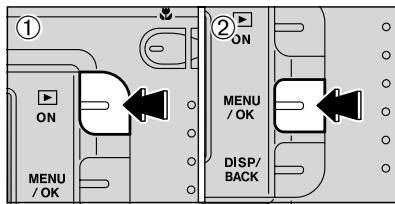
① ON MENU / OK ② ON MENU / OK DISP/ BACK① Press the “Playback” button for approx. 1 second to turn the camera on in Playback mode.
② Press the “MENU/OK” button to display the menu on the LCD monitor.
2
natural_image
Pure diagram of a vehicle or traffic light system without any text, numbers, or symbolsPress “◀” or “▶” to select “☐” DPOF.
text_image
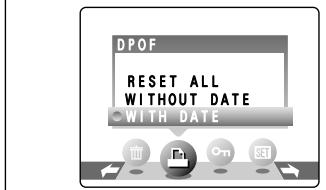
DPOF RESET ALL WITHOUT DATE WITH DATE
100-0009
During playback, check that “☐” appears for the DPOF settings that have been specified.
3
text_image
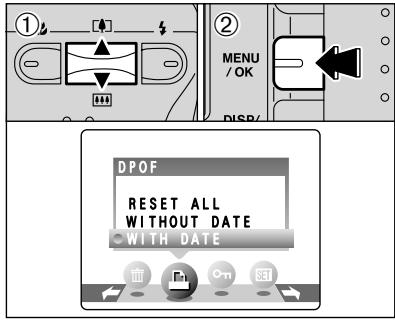
① ② MENU / OK DISP/ DPOF RESET ALL WITHOUT DATE WITH DATE① Press “▲” or “▼” to select “WITH DATE” or “WITHOUT DATE”. Selecting “WITH DATE” will cause the date to be imprinted on your prints.
② Press the "MENU/OK" button.
When selecting the "WITH DATE" setting, the date is imprinted on your shots using the Print Service or a DPOF-compatible printer (depending on the printer specifications, the date may not be printed in some cases).

When DPOF settings were specified on another camera ◆
text_image
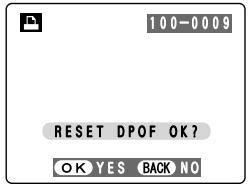
100-0009 RESET DPOF OK? OK YES BACK NOWhen the data includes a frame (file) with DPOF setting that were specified on another camera, "RESET DPOF OK?" appears.
Pressing the “MENU/OK” button erases all of the DPOF settings already specified for each frame (file). You must then specify the DPOF setting for each frame (file) again.
! Press the "DISP/BACK" button to leave the previous settings unchanged.
4
text_image
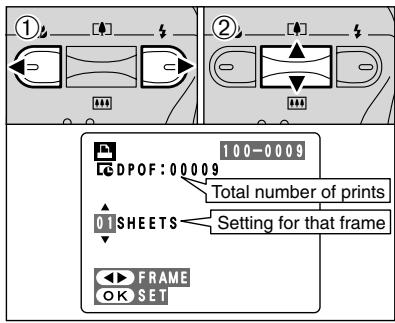
① ② 100-0009 CDPOF:00009 Total number of prints 01 SHEETS Setting for that frame FRAME OK SET① Press “◀” or “▶” to display the frame (file) for which you want to specify DPOF settings.
② Press “▲” or “▼” to set a value up to 99 as the number of copies of the frame (file) to be printed. For frames (files) that you do not want printed, set the number of prints to 0 (zero).
To specify more DPOF settings, repeat steps ① and ②.
! Prints of up to 999 image frames (files) can be ordered on the same xD-Picture Card.
! DPOF settings cannot be specified for movies.
Pressing the "DISP/BACK" button during the settings, all the new settings are cancelled. If there were previous DPOF settings, only the modifications are cancelled.
5
text_image
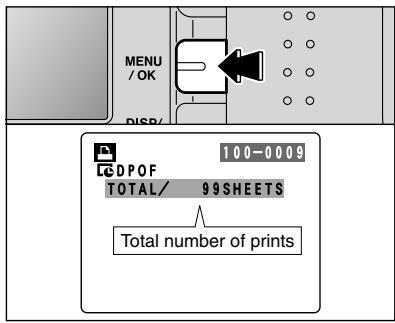
MENU / OK DISP/ 100-0009 DPOF TOTAL/ 99 SHEETS Total number of printsAlways press the "MENU/OK" button to complete the settings.
Pressing the "DISP/BACK" button, no DPOF settings are specified.

Canceling a frame
To cancel the DPOF setting for a frame you have specified (cancel frame), perform steps 1 to 3 and then:
①Press “◀” or “▶” to select the frame (file) with the DPOF setting you want to cancel.
② Set the number of prints to 0(zero).
To cancel the DPOF setting for another frame (file), repeat steps ① and ②.
Press the "MENU/OK" button to complete the settings.
1
text_image
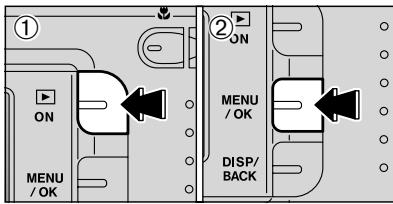
① ON MENU / OK ② ON MENU / OK DISP/BACK① Press the “Playback” button for approx. 1 second to turn the camera on in Playback mode.
② Press the “MENU/OK” button to display the menu on the LCD monitor.
2
natural_image
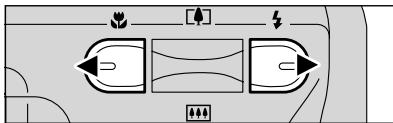
Pure diagram of a vehicle interior layout with no text, numbers, or symbolsPress “◀” or “▶” to select “☐” DPOF.
text_image
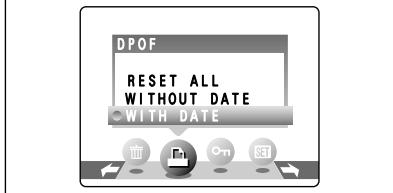
DPOF RESET ALL WITHOUT DATE WITH DATE3
text_image
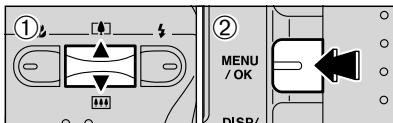
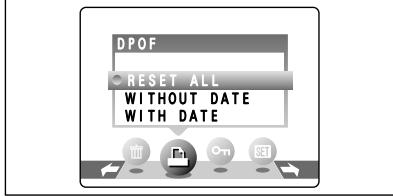
① ② MENU / OK DISP/① Press “▲” or “▼” to select “RESET ALL”.
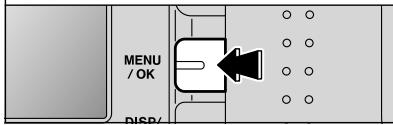
② Press the "MENU/OK" button.
text_image
DPOF RESET ALL WITHOUT DATE WITH DATE4
text_image
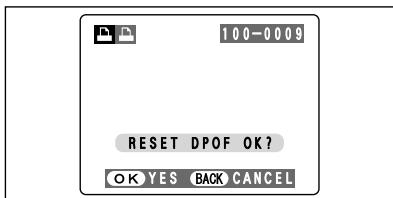
100-0009 RESET DPOF OK? OK YES BACK CANCELA message appears.
To reset all the DPOF settings, press the "MENU/OK" button.
text_image
MENU / OK DISP/1
text_image
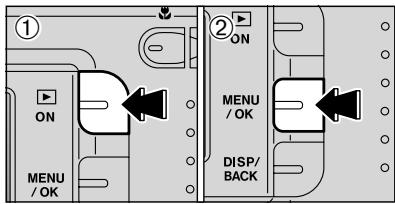
① ON MENU / OK ② ON MENU / OK DISP/ BACK① Press the “Playback” button for approx. 1 second to turn the camera on in Playback mode.
② Press the “MENU/OK” button to display the menu on the LCD monitor.
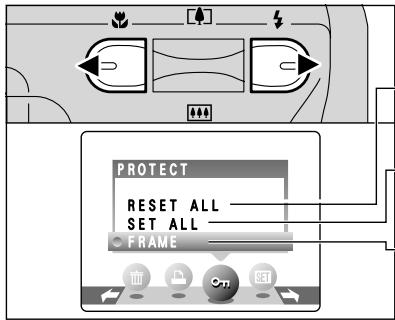
Protection is a setting that prevents frames (files) from being accidentally erased. However, the "FORMAT" function erases all the frames (files), including protected frames (files) ( P.50).
2
text_image
PROTECT RESET ALL SET ALL FRAMEPress “◀” or “▶” to select “On” PROTECT.
RESET ALL
Removes the protection from all the frames (files).
SET ALL
Protects all the frames (files).
FRAME
Protects or unprotects only the selected frame (file).
3
text_image
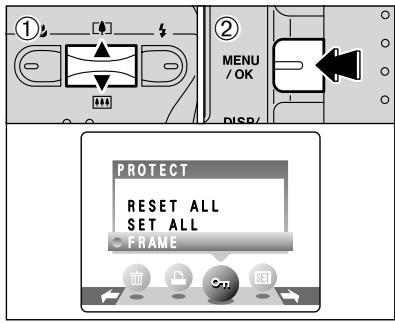
① ② MENU / OK DISP/ PROTECT RESET ALL SET ALL FRAME① Press “▲” or “▼” to select “FRAME”, “SET ALL” or “RESET ALL”.
② Press “MENU/OK” button to confirm your selection.
4
text_image
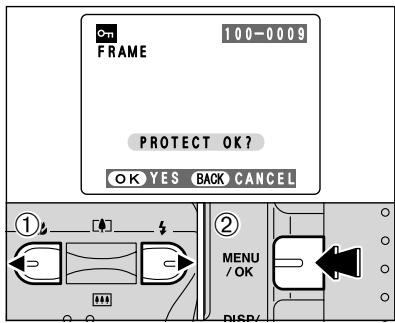
Frame 100-0009 PROTECT OK? OK YES BACK CANCEL ① ② MENU / OK DISP/FRAME SET
① Press “◀” or “▶” to select the frame (file) to be protected.
② Press the “MENU/OK” button to protect the frame (file) currently displayed.
To protect another frame (file), repeat steps ① and
②. To finish protecting frames (files), press the "DISP/BACK" button.
text_image
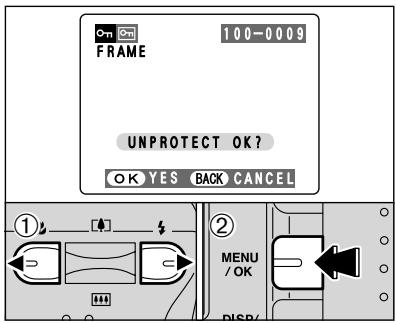
ON FRAME 100-0009 UNPROTECT OK? OK YES BACK CANCEL ① ② MENU / OK DISP/FRAME RESET
① Press “◀” or “▶” to select the protected frame (file).
② Press the “MENU/OK” button to unprotect the displayed frame (file).
text_image
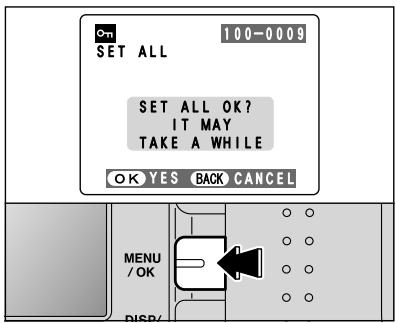
ON 100-0009 SET ALL SET ALL OK? IT MAY TAKE A WHILE OK YES BACK CANCEL MENU / OK DISP/SET ALL
Press the "MENU/OK" button to protect all the frames (files).
text_image
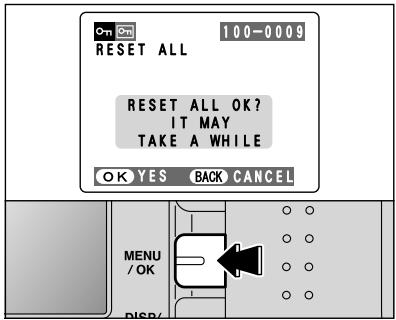
ON Ctrl 100-0009 RESET ALL RESET ALL OK? IT MAY TAKE A WHILE OK YES BACK CANCEL MENU / OK DISP/RESET ALL
Press the "MENU/OK" button to unprotect all the frames (files).

To stop the procedure mid-way
text_image
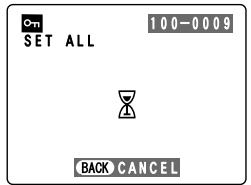
Cn 100-0009 SET ALL BACK CANCELIf the images are very large, protecting or unprotecting all the frames (files) may take some time.
If you want to take a picture or recording a movie during the procedure, press the "DISP/BACK" button. To then return to protecting or unprotecting all the frames (files), start the procedure on P.38 from step 1.
text_image
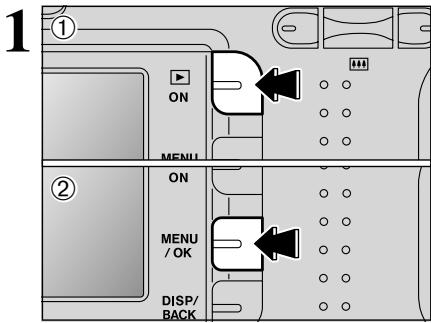
1 ① ON MENU ② ON MENU / OK DISP/BACK① Press the “Playback” button for approx. 1 second to turn the camera on in Playback mode.
② Press the “MENU/OK” button to display the menu on the LCD monitor.
text_image
2 PLAYBACK! The Power save function does not operate during playback. ! Movie starts automatically. When the preview movie or movie ends, playback moves on to the next frame.
text_image
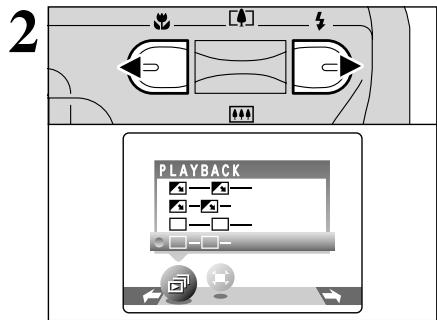
3 ① ② MENU / OK DISP/ PLAYBACKPress “◀” or “▶” to select “☐” PLAYBACK.
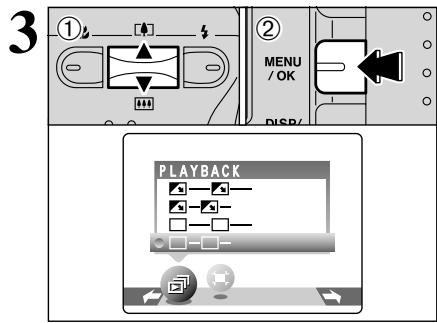
① Press “▲” or “▼” to select the playback interval and the type of image transition.
② Press the “MENU/OK” button. The image frames are advanced and played back.
To interrupt “☐” PLAYBACK, press “▲” (“MENU/OK” button).
! Pressing the "DISP/BACK" button once during playback causes the playback frame number to appear on the LCD monitor.
text_image
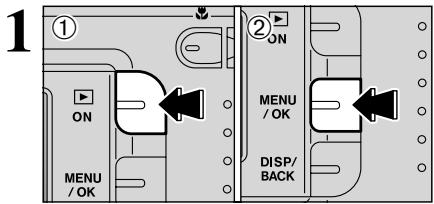
1 ① ON MENU /OK ② ON MENU /OK DISP/ BACK① Press the “Playback” button for approx. 1 second to turn the camera on in Playback mode.
② Press the “MENU/OK” button to display the menu on the LCD monitor.
text_image
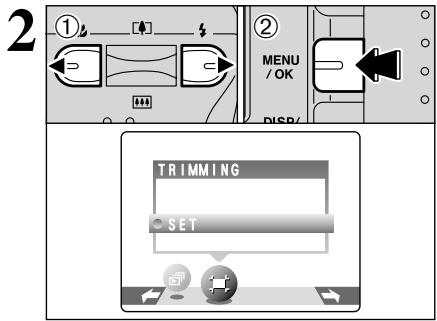
2 ① ② MENU /OK DISP/ TRIMMING SET① Press “◀” or “▶” to select “■” TRIMMING.
② Press the "MENU/OK" button.

text_image
3 ① ② TRIMMING Zoom bar PANNING OK YES BACK CANCEL① Pressing the “▲ (☐)” or “▼ (☐☐)” switch during single-frame playback zooms in (enlarges) or out on a still image. Using this function, a zoom bar appears.
② Press “◀” or “▶” to trim an image.
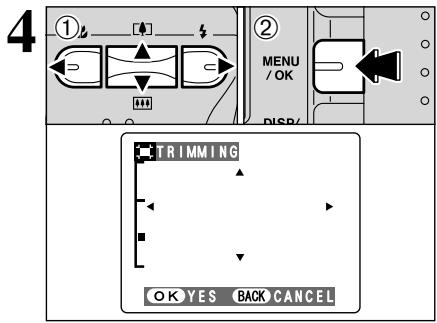
text_image
4 ① ② MENU / OK DISP/ TRIMMING OK YES BACK CANCEL! Press the "DISP/BACK" button to return to single-frame playback.
The size of saved image varies depending on the zoom ratio. Up to 1M can be saved.
① Press “▲”, “▼”, “◀”, or “▶” to display another area.
② Press the “MENU/OK” button to crop the image.
5
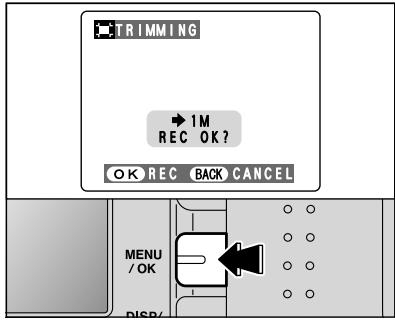
text_image
TRIMMING → 1M REC OK? OK REC BACK CANCEL MENU / OK DISP/Check the saved image size and press the "MENU/OK" button. The cropped image is added as a separate file in the final frame.
■ Image Sizes

Up to 60 seconds long (at the “820” setting) or 240 seconds long movie (at the “160” setting) can be recorded.
- Specifications
Motion JPEG without sound
● Quality selection method
320 (320 × 240 pixels)
160 (160 × 120 pixels)
● Frame rate: 10 frames per second See P.86 for information on the frame rate.
! See P.45. for information on changing the quality mode.
! The available recording time for a movie may decrease depending on the amount of free space on the xD-Picture Card.
! See P.83, 85 for the available recording time with xD-Picture Cards.
! You cannot turn the LCD monitor off in this mode.
It may not be possible to playback your movies on other cameras.
1
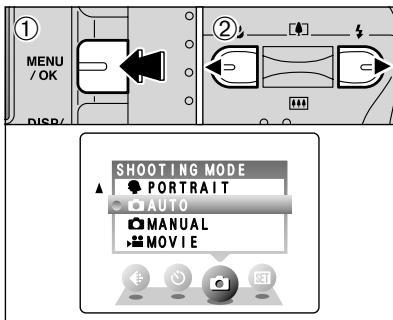
text_image
MENU / OK DISP/ SHOOTING MODE PORTRAIT AUTO MANUAL MOVIE① Press the "MENU/OK" button to display the menu on the LCD monitor.
② Press “◀” or “▶” to select “☐” SHOOTING MODE.
2
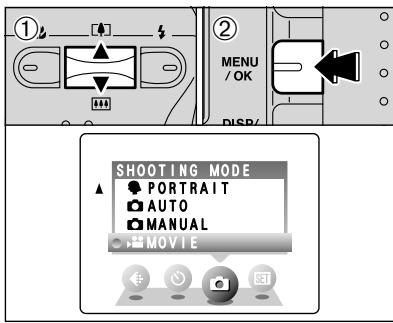
text_image
① ② MENU / OK SHOOTING MODE ▲ PORTRAIT AUTO MANUAL MOVIE① Press “▲” or “▼” to select “MOVIE”.
② Press the "MENU/OK" button.
3
text_image
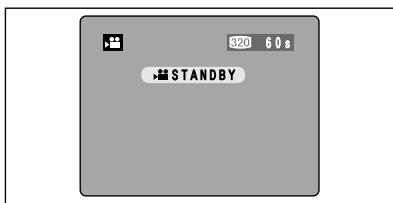
320 60 s STANDBYThe available recording time and “STANDBY” appears on the LCD monitor.
text_image
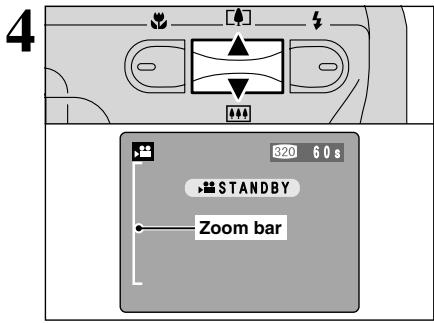
4 320 60 s STANDBY Zoom barDuring movie recording, the lens is fixed at the wide-angle zoom setting and only the digital zoom can be used.
Press the “▲ (□)” or “▼ (□□)” switch to zoom in and out. A zooming bar appears on the LCD monitor.
● Digital zoom focal length (35 mm camera equivalent)
| Model | Digital zoom focal length | Maximum zoom scale |
| FinePix A330 | Approx. 38 mm- 114 mm | 3 × |
| FinePix A340 | Approx. 38 mm-129 mm | 3.4 × |
- Focal range
Approx. 1 m (3.3 ft.) to infinity
Pictures taken with the digital zoom have slightly lower image quality. Choose the zoom mode that best suits the scene being shot.
text_image
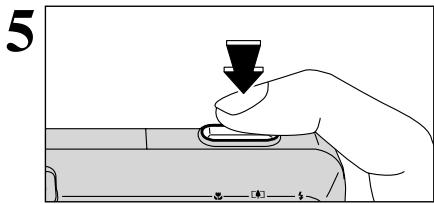
5Press the Shutter button down fully to start recording.
! The focus is fixed at about 1 m (3.3 ft.) to infinity.
! The brightness and color of the LCD monitor shown during movie recording may differ from those shown before recording begins.
! Do not need to hold down the Shutter button.
Pressing the Shutter button down fully locks the focus, but the exposure is adjusted for to the scene being shot.
text_image
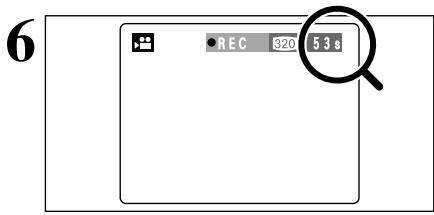
6 REC 820 53 s“●REC” appears in the top-right corner of the LCD monitor during recording shows the remaining time.
When the remaining time runs out, recording ends and the movie is saved onto the xD-Picture Card.
text_image
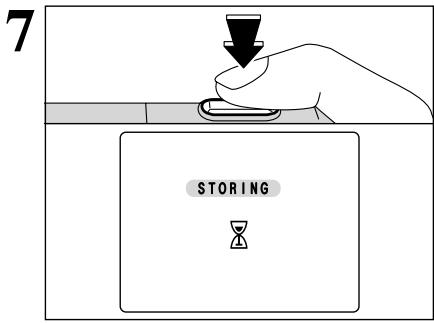
7 STORINGPress the Shutter button during recording, recording ends and the movie is stored on the xD-Picture Card.
! If recording is stopped immediately after it begins, 1 second of movie is recorded onto the xD-Picture Card.
QUALITY SETTINGS IN MOVIE MODE
1
text_image
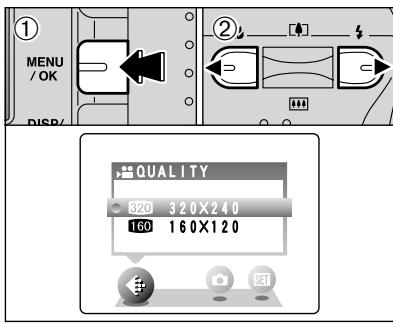
① MENU / OK DISP/ ② QUALITY 320 320X240 160 160X120① Press the “MENU/OK” button to display the menu on the LCD monitor.
② Press “◀” or “▶” to select “◀” QUALITY.
2
text_image
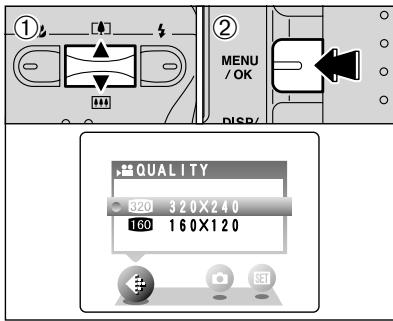
① MENU / OK DISP/ QUALITY 320 320X240 160 160X120① Press “▲” or “▼” to change the setting. 2 levels of quality can be selected. For better image quality, select “320”, and for longer photography time, select “160”.
■ Recording times per movie
| movie size | maximum shooting time | |
| 320 | 320 × 240 | 60 sec. |
| 160 | 160 × 120 | 240 sec. |
② Press the “MENU/OK” button to confirm the setting.