
H4V2 - Enregistreur audio portable ZOOM - Notice d'utilisation et mode d'emploi gratuit
Retrouvez gratuitement la notice de l'appareil H4V2 ZOOM au format PDF.


| Type de produit | Enregistreur audio portable |
| Marque | ZOOM |
| Modèle | H4V2 |
| Formats d'enregistrement | WAV, MP3 (48-320 kbps, VBR) |
| Support de stockage | Cartes SD et SDHC (jusqu'à 4 Go) |
| Modes d'enregistrement | Stéréo, 4 pistes |
| Microphones | Micros stéréo intégrés |
| Entrées externes | 2 entrées LINE/INPUT (jack 6,35 mm) |
| Sorties | Sortie casque/ligne (jack 3,5 mm) |
| Fonctions avancées | Enregistrement automatique, division de fichier, normalisation, conversion WAV en MP3, filtre coupe-bas (80-237 Hz), mixage mono |
| Alimentation | 2 piles AA (alcaline ou NiMH) ou adaptateur secteur (optionnel) |
| Indicateur de batterie | Affichage du niveau restant et du temps d'enregistrement disponible |
| Type de piles recommandé | Alcaline ou NiMH (réglable dans le menu) |
| Interface USB | Mode interface audio USB (coupure d'entrée possible) |
| Compatibilité des projets 4 pistes | Projets créés en v2.0 non reconnus par v1.40 ou antérieur (solution de compatibilité décrite) |
| Entretien et nettoyage | Essuyer avec un chiffon sec et non pelucheux |
| Sécurité | Ne pas exposer à l'humidité, utiliser piles adaptées, débrancher en cas de non-utilisation prolongée |
FOIRE AUX QUESTIONS - H4V2 ZOOM
Questions des utilisateurs sur H4V2 ZOOM
0 question sur cet appareil. Repondez a celles que vous connaissez ou posez la votre.
Poser une nouvelle question sur cet appareil
Téléchargez la notice de votre Enregistreur audio portable au format PDF gratuitement ! Retrouvez votre notice H4V2 - ZOOM et reprennez votre appareil électronique en main. Sur cette page sont publiés tous les documents nécessaires à l'utilisation de votre appareil H4V2 de la marque ZOOM.
MODE D'EMPLOI H4V2 ZOOM
H4 Version 2.0 Supplemental Manual
This document explains the functions that have been added or changed in the H4 Version 2.0.
Contents
Display font change 1
Support for SDHC cards 2
Battery capacity/recording time indication (stereo mode only) 2
Specifying the battery type (stereo mode only) 2
Recording a stereo signal in mono (stereo mode only) 3
Attenuating the low frequencies (stereo mode only) 4
Converting WAV files into MP3 files (stereo mode only) 5
Using the auto recording function (stereo mode only) 6
Dividing a file (stereo mode only) 9
Raising the overall file level (normalize function) 11
Cutting the input signal off in USB audio interface mode 12
Backwards compatibility of 4-track mode projects 12
200
© Zoom Corporation
Reproduction of this manual, in whole or in part, by any means, is prohibited.
Display font change
The size of the font used for the display has been increased. As a result, some effect type names and parameter names are now shown differently, as listed in the table below.
PRE AMP module effect type names
| Version 1.x | Version 2.0 |
| BG CRUNCH | BGcrunch |
| TS+FD_CMB | TS+FDcmb |
| SD+MS_STK | SD+MSstk |
| FZ+MS_STK | FZ+MSstk |
| SuperBass | SUP-BASS |
| VO MICPRE | VO MPRE |
| AG MICPRE | AG MPRE |
| FLAT MPRE | FlatMPRE |
EFX module effect type names
| Version 1.x | Version 2.0 |
| RACK COMP | RackComp |
| RVS DELAY | RvsDelay |
■ Effect parameter names
| Version 1.x | Version 2.0 |
| THRESHOLD | THRESHOLD |
| RESONANCE | RESONANC |
| FREQUENCY | FREQ |
| PRE DELAY | PRE DLY |
Support for SDHC cards
In addition to regular SD cards, the H4 now also supports the high-capacity SDHC cards, increasing the maximum capacity from 2 to 4 GB. For information on supported cards, please visit the ZOOM Corporation web site (http:// www.zoom.co.jp).
Due to this change, the available characters for file names and folder names are limited as follows:
(space)! # $ % & '() + , -
0123456789; = @
ABCDEFGHIJKLMNOPQRSTU
VWXYZ[]^
abcdefghijklmnopqrsuvwx
yz{}
Files or folders with names that contain characters other than those listed above cannot be accessed.
Battery capacity/recording time indication (stereo mode only)
The stereo mode top screen now shows the remaining battery capacity (during battery powered operation only) and the remaining recording time for the currently selected recording format.
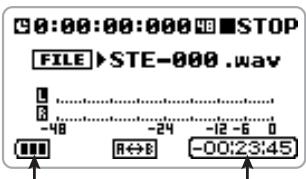
Battery status
Available recording time
Specifying the battery type (stereo mode only)
The main menu of the stereo mode now includes an item for specifying the battery type. In order to enable more accurate indication of remaining battery capacity, you should select the battery type, as described below.
1. At the stereo mode top screen, press the center of the [MENU] key.
The main menu which gives access to various H4 settings appears.
![ZOOM H4V2 - At the stereo mode top screen, press the center of the [MENU] key. - 1](/content/2025/01/152283/images/336246e939ae77d70d2b46ac374c5a3217ae50b746d318e2c6844a3a08c7f0bd.jpg)
2. Move the jog dial up/down to bring the cursor to "BATTERY". Then press the jog dial.
The BATTERY screen for specifying the battery type appears.
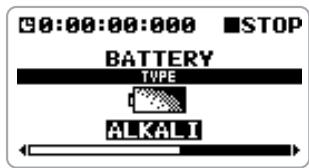
3. Move the jog dial up/down to bring the cursor to "ALKALI" (alkaline/ oxyride batteries) or "Ni-MH" (nickel-hydride batteries), depending on the inserted battery type.
The setting becomes effective immediately.
- When the setting is complete, press the center of the [MENU] key repeatedly to return to the stereo mode top screen.
Recording a stereo signal in mono (stereo mode only)
The H4 allows you to record a signal from the internal or external mics or from an external component in mono. This can be useful for narration or effect sounds, where handling the material in mono may be preferable.
1. At the stereo mode top screen, press the bottom (INPUT MENU) of the [MENU] key.
The INPUT menu for making various input related settings appears.
![ZOOM H4V2 - At the stereo mode top screen, press the bottom (INPUT MENU) of the [MENU] key. - 1](/content/2025/01/152283/images/f217b0f92f2dd79995b9e0a85e5cede92460e9f277d8d0323097b459518b691e.jpg)
2. Move the jog dial up/down to bring the cursor to "MONO MIX". Then press the jog dial.
The screen for switching the mono mix function
on or off appears.
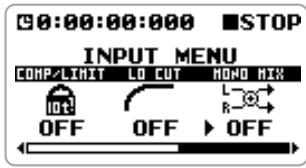
- Move the jog dial up/down to bring the cursor to "ON". Then press the jog dial.
The mono mix function is now activated.
- To return to the stereo mode top screen, press the center of the [MENU] key.
5. Perform the steps for recording.
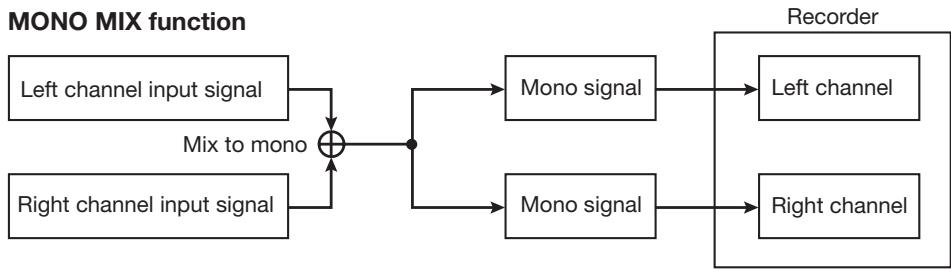
The stereo signal from the internal mics or a stereo signal from the [INPUT 1]/[INPUT 2] jacks is mixed and the result is recorded as a stereo file with identical signals in the L and R channels (see illustration below).
HINT
- Files created as described above will be named "MONO-xxx.wav" or "MONO-xxx.mp3" (where xxx is a number from 000 to 999) and stored in the stereo mode folder.
- The above setting is stored as part of the stereo mode settings.
Attenuating the low frequencies (stereo mode only)
The H4 now incorporates a low-cut filter that is effective in removing wind noise during outdoor recording or pop noise when recording a vocalist. To activate the filter, proceed as follows.
1. At the stereo mode top screen, press the bottom (INPUT MENU) of the [MENU] key.
The INPUT menu for making various input related settings appears.
2. Move the jog dial up/down to bring the cursor to "LO CUT". Then press the jog dial.
The screen for switching the low-cut function on or off appears.
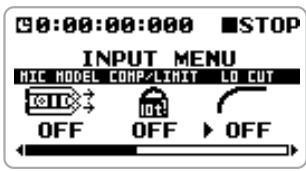
3. Move the jog dial up/down to select the cutoff frequency of the low-cut filter (1 - 10). Then press the jog dial.
The lower the number, the lower the cutoff frequency. The table shows the frequency settings corresponding to the numbers.
| Setting | Cutoff frequency |
| OFF | No filter |
| 1 | 80 Hz |
| 2 | 98 Hz |
| 3 | 115 Hz |
| 4 | 133 Hz |
| 5 | 150 Hz |
| 6 | 168 Hz |
| 7 | 185 Hz |
| 8 | 203 Hz |
| 9 | 220 Hz |
| 10 | 237 Hz |
4. To return to the stereo mode top screen, press the center of the [MENU] key.
HINT
The above setting is stored as part of the stereo mode settings.
Converting WAV files into MP3 files (stereo mode only)
You can convert a WAV file recorded in stereo mode into an MP3 file. Compared to a WAV file, the file size of an MP3 is much smaller, because the content is compressed. This is convenient for example to place recorded content on a web site or send it by e-mail.
NOTE
Depending on the type of card and the recording format, the conversion process may take about as long as the recording time of the source file. The unit should therefore be powered from the AC adapter during the conversion. Sufficient free space will also be needed on the card.
1. At the stereo mode top screen, press the center of the [MENU] key.
The main menu which gives access to various H4 settings appears.
![ZOOM H4V2 - At the stereo mode top screen, press the center of the [MENU] key. - 1](/content/2025/01/152283/images/1ed8fe7c0b57f393292b1149b4b528f276d1980194245e283b4837f193b7db1f.jpg)
2. Move the jog dial up/down to bring the cursor to "FILE". Then press the jog dial.
The FILE menu for selecting various operations for recorded files appears.
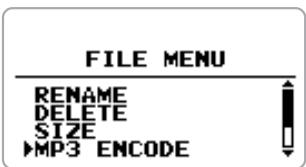
3. Move the jog dial up/down to bring the cursor to "MP3 ENCODE". Then press the jog dial.
The MP3 ENCODE screen for selecting the source WAV file appears.
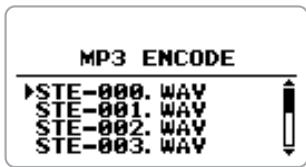
4. Move the jog dial up/down to select the WAV file to convert. Then press the jog dial.
A screen for specifying the bit rate (amount of information per second of the MP3 file) and the file name appears.
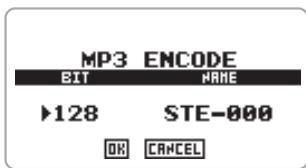
5. To change the bit rate setting, move the jog dial up/down to bring the cursor to "BIT". Then press the jog dial.
The bit rate setting can now be changed. Move the jog dial up/down to select one of the following settings, and then press the jog dial.
- Available bit rate settings
48, 56, 64, 80, 96, 112, 128, 160, 192, 224, 256, 320 (kbps), VBR
The higher the bit rate setting, the better the sound quality. The setting "VBR" stands for "Variable Bit Rate". With this setting, the bit rate adapts to the amount of information that is to be
encoded. This method makes it possible to achieve fairly small file sizes without excessive degradation of sound quality.
6. To change the file name, move the jog dial up/down to bring the cursor to "NAME". Then press the jog dial.
The cursor disappears and a character is underlined. This indicates that the character can be changed.
Specify the name, using the same procedure as described on page 47 of the H4 Operation Manual.
7. To carry out the MP3 file conversion, move the jog dial up/down to bring the cursor to "OK". Then press the jog dial.
The conversion process starts and the indication "Please Wait" appears. When the conversion is finished, the indication "Complete!" is shown, and the file selection screen of step 3 appears again.
NOTE
If a file with the same name already exists in the current project folder, the message "This file name already exists" appears. In this case, pressing the jog dial will cause the indication of step 6 to appear again. Change the file name and repeat the procedure.
8. To return to the stereo mode top screen, press the center of the [MENU] key repeatedly.
Using the auto recording function (stereo mode only)
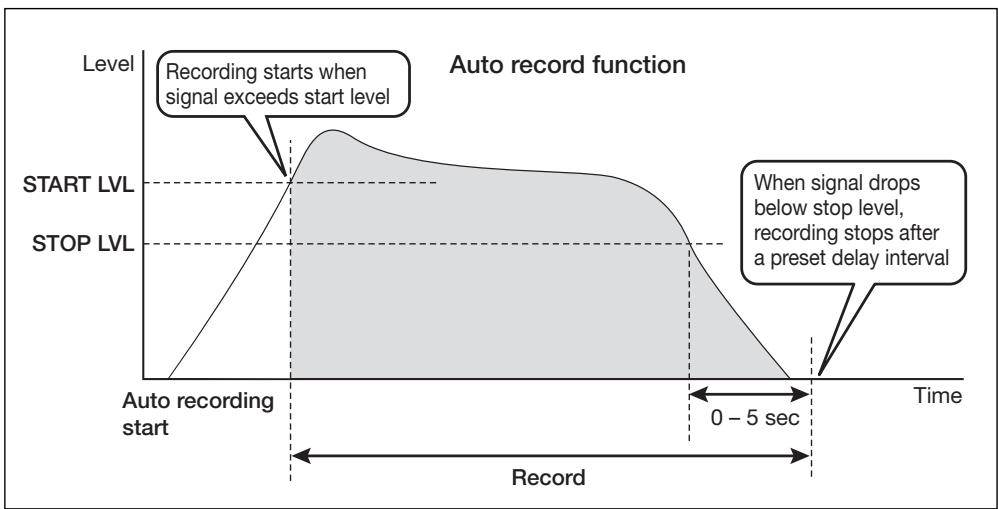
The auto record function makes it possible to have the H4 start and stop recording automatically, according to the input signal level. When the level exceeds a certain threshold, recording starts, and when it remains below the threshold for a given length of time, recording stops. This is convenient to record only spoken comments at a meeting or interview or similar.
To use the auto recording function, proceed as follows.
1. At the stereo mode top screen, press the center of the [MENU] key.
The main menu which gives access to various H4 settings appears.
![ZOOM H4V2 - At the stereo mode top screen, press the center of the [MENU] key. - 1](/content/2025/01/152283/images/f5e381a544f4af5d36a99285c0c19e51d3c1c2fb0685694bc0f414bc01403ecb.jpg)
2. Move the jog dial up/down to bring the cursor to "AUTO RECORDING". Then press the jog dial.
The AUTO RECORDING screen for making settings for the function appears.
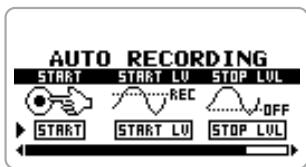
Settings available from this screen are as follows.
START
Turns the auto record function on.
- START LV (Start level)
Sets the threshold level for automatically starting to record.
STOP LVL (Stop level)
Sets the threshold level for automatically stopping to record.
- AUTO STP
Controls the auto stop on/off setting and the number of seconds until actual recording stops. When the signal drops below the specified stop level, recording will stop after the number of seconds set here.
3. To set the start level, move the jog dial up/down to bring the cursor to "START LV". Then press the jog dial.
A screen with an input signal level meter appears on the display. The currently selected start level is indicated with a symbol.
While this screen is shown, the input signal can be monitored via the [LINE OUTPUT]/[PHONES] jacks.
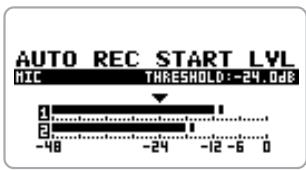
While watching the input signal level on the display, move the jog dial up/down to set the start level to a suitable point. When the setting is complete, press the jog dial. The AUTO RECORDING screen appears again.
4. To set the stop level, move the jog dial up/down to bring the cursor to "STOP LVL". Then press the jog dial.
A screen with an input signal level meter appears on the display. The currently selected stop level is indicated with a symbol.
While watching the input signal level on the display, move the jog dial up/down to set the stop level to a suitable point. When the setting is complete, press the jog dial. The AUTO RECORDING screen appears again.
5. To enable the auto stop function, move the jog dial up/down to bring the cursor to "AUTO STP". Then press the jog dial.
The AUTO STP setting can now be changed. Move the jog dial up/down to select one of the following settings. Then press the jog dial. The AUTO RECORDING screen appears again.
| 0FF | Auto stop function is disabled (Recording must be stopped manually.) |
| 0sec | Recording stops immediately when input signal level falls below stop level. |
| 1 – 5sec | Recording stops after 1 – 5 seconds when input signal level falls below stop level. |
6. To enable the auto recording function, move the jog dial up/down to bring the cursor to "START". Then press the jog dial.
The input signal level meter appears on the display, and the indication "Wait For Signal..." is shown. This means that the H4 is in the auto recording standby condition.
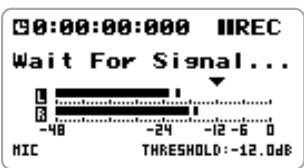
In this condition, recording will start when the input signal exceeds the start level, and the name of the file will appear on the display.
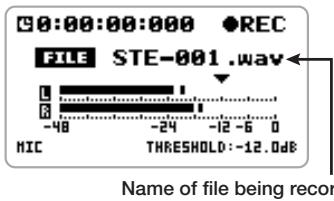
NOTE
While this screen is shown, all controls except for the [REC] key and [MENU] key are disabled.
If the auto stop function is enabled, recording will stop automatically after the signal below the stop level, either immediately or after the selected number of seconds have elapsed. The H4 then returns to the auto recording standby condition and the indication "Wait For Signal..." is shown again.
HINT
- Even when the auto record/auto stop functions are on, recording will start immediately if you press the [REC] key while the first screen of step 7 is shown. If you press the [REC] key once more during recording, recording will stop immediately.
-
If the signal again exceeds the start level while the H4 is in the auto recording standby condition, a new file will be opened and recording starts again.
-
To return to the stereo mode top screen, press the center of the [MENU] key repeatedly.
Dividing a file (stereo mode only)
In stereo mode, the H4 version 2.0 can split an existing file into two parts at any specified point. If you have recorded a live performance, this lets you create separate files for each song.
NOTE
Depending on the type of card and the recording format, the dividing process may take about as long as the recording time of the source file. The unit should therefore be powered from the AC adapter during the process. Sufficient free space will also be needed on the card.
1. At the stereo mode top screen, press the center of the [MENU] key.
The main menu which gives access to various H4 settings appears.
![ZOOM H4V2 - At the stereo mode top screen, press the center of the [MENU] key. - 1](/content/2025/01/152283/images/01bacb099a543c76172aa157387ae094697d842f77c228d24040f88a8643c496.jpg)
2. Move the jog dial up/down to bring the cursor to "FILE". Then press the jog dial.
The FILE menu for selecting various operations for recorded files appears.
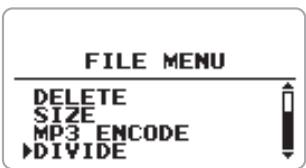
3. Move the jog dial up/down to bring the cursor to "DIVIDE". Then press the jog dial.
The screen for selecting the file to divide appears.
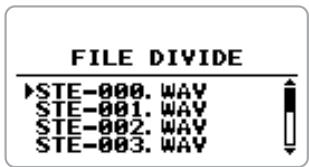
4. Move the jog dial up/down to bring the cursor to the source file. Then press the jog dial.
The screen for specifying the division point appears. In the lower part of the screen, a scissors icon indicates the approximate currently selected division point.
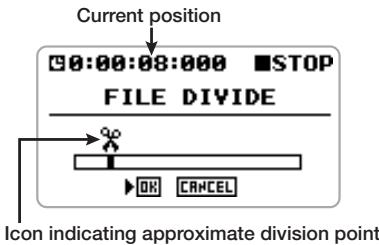
5. Use the [MENU] key to move the division point.
While the above screen is shown, you can use the [MENU] key to move the division point (current position), as follows.
Top (II) of [MENU] key
Start/stop playback
- Left part (▲) of [MENU] key
Shift position by 1 second towards beginning of file
Right part () of [MENU] key
Shift position by 1 second towards end of file
HINT
Alternatively, you can move the jog dial up/down as at the top screen to bring the cursor to the desired digit, and locate the position numerically.
6. When you have reached the intended file division point, move the jog dial up/down to bring the cursor to "OK". Then press the jog dial.
The message "Are You Sure?" appears for confirmation.
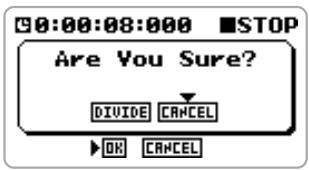
7. Move the jog dial up/down to bring the cursor to "DIVIDE". Then press the jog dial.
The division process starts and the indication "Please Wait" appears. When the division is finished, the indication "Complete!" is shown, and the file selection screen of step 3 appears again.
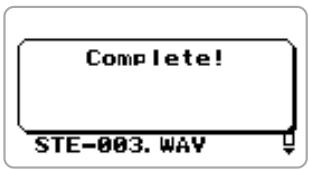
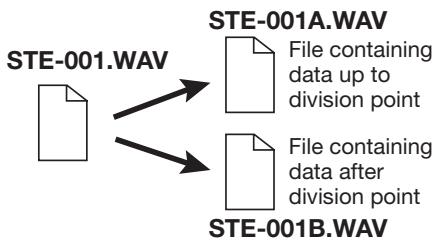
Two new files will be created in the stereo mode folder, with "A" (file containing data up to division point) and "B" (file containing data after division point) appended to the original file name.
If a file with the same name as would be created by the above procedure already exists in the folder, a file name change confirmation screen appears. Move the cursor to "OK" and press the jog dial to change the file name, or move the cursor to "CANCEL" and press the jog dial to cancel the file division process.
HINT
If you move the cursor to "CANCEL" and press the jog dial in step 6 or 7, the operation is canceled and the screen of the preceding step appears again.
8. To return to the stereo mode top screen, press the center of the [MENU] key repeatedly.
Raising the overall file level (normalize function)
Normalizing refers to an operation whereby the overall volume level of a file is raised so that the maximum level is 0 dB (maximum level possible without distortion). This is useful if you have finished a recording but find that the volume level is low.
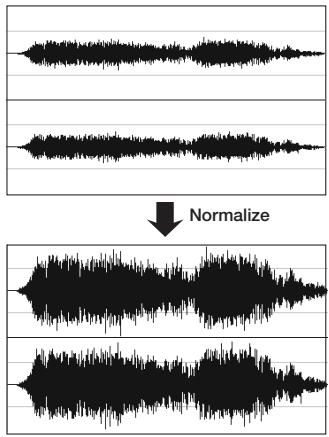
NOTE
Depending on the type of card and the recording format, the normalizing process may take about as long as the recording time of the source file. The unit should therefore be powered from the AC adapter during the process.
1. At the stereo mode top screen, press the center of the [MENU] key.
The main menu which gives access to various H4 settings appears.
![ZOOM H4V2 - At the stereo mode top screen, press the center of the [MENU] key. - 1](/content/2025/01/152283/images/54427c424aa185d56360a9970cbf5019503001ad3c57dd023d9fb220b43b2065.jpg)
2. Move the jog dial up/down to bring the cursor to "FILE". Then press the jog dial.
The FILE menu for selecting various operations for recorded files appears.
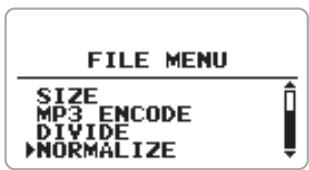
3. Move the jog dial up/down to bring the cursor to "NORMALIZE". Then press the jog dial.
The screen for selecting the file to normalize appears.
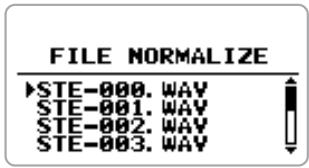
4. Move the jog dial up/down to bring the cursor to the target file. Then press the jog dial.
The message "Are You Sure?" appears for confirmation.
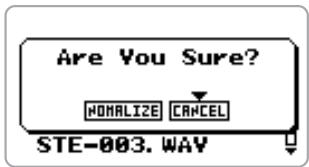
5. Move the jog dial up/down to bring the cursor to "NORMALIZE". Then press the jog dial.
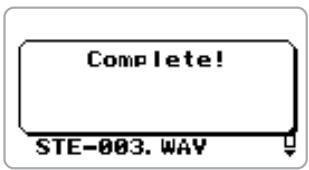
During the normalizing operation, the indication
"Please Wait" is shown. When the operation is finished, the indication "Complete!" is shown, and the file selection screen of step 3 appears again.
HINT
If you move the cursor to "CANCEL" instead of "NORMALIZE" and press the jog dial, the operation is canceled and the screen of the preceding step appears again.
8. To return to the stereo mode top screen, press the center of the [MENU] key repeatedly.
NOTE
Normalizing can only be performed for WAV files.
Cutting the input signal off in USB audio interface mode
When using the H4 as a USB audio interface, the input signal can now be cut off.
To do this, first have the H4 recognized by the computer as an audio interface. (For details, see pages 80 - 81 of the H4 Operation Manual.) Next, move the jog dial up/down to bring the cursor to "INPUT". Then press the jog dial.
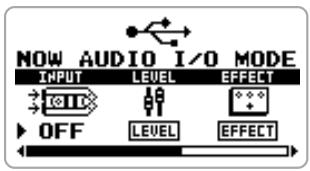
In this condition, you can select the input signal type. Move the jog dial up/down to bring the cursor to "OFF". Then press the jog dial.
NOTE
While "INPUT" is set to "OFF", the "LEVEL" and "TUNER" setup screens cannot be selected. To use these functions, set "INPUT" to a position other than "OFF" first.
Backwards compatibility of 4-track mode projects
4-track mode projects created with the H4 Version 2.0 or later will not be recognized properly by a H4 Version 1.40 or earlier.
To solve this problem, copy the project folders (PROJxxx) temporarily to a computer. Then delete the folders from the SD card. Finally, copy the folders from the computer back to the SD card.
- H4 Version 2.0 Supplemental Manual
- Contents
- 200
- © Zoom Corporation
- Display font change
- Support for SDHC cards
- Battery capacity/recording time indication (stereo mode only)
- Specifying the battery type (stereo mode only)
- At the stereo mode top screen, press the center of the [MENU] key.
- Move the jog dial up/down to bring the cursor to "BATTERY". Then press the jog dial.
- Move the jog dial up/down to bring the cursor to "ALKALI" (alkaline/ oxyride batteries) or "Ni-MH" (nickel-hydride batteries), depending on the inserted battery type.
- Recording a stereo signal in mono (stereo mode only)
- At the stereo mode top screen, press the bottom (INPUT MENU) of the [MENU] key.
- Move the jog dial up/down to bring the cursor to "MONO MIX". Then press the jog dial.
- Perform the steps for recording.
- HINT
- Attenuating the low frequencies (stereo mode only)
- Move the jog dial up/down to bring the cursor to "LO CUT". Then press the jog dial.
- Move the jog dial up/down to select the cutoff frequency of the low-cut filter (1 - 10). Then press the jog dial.
- To return to the stereo mode top screen, press the center of the [MENU] key.
- Converting WAV files into MP3 files (stereo mode only)
- NOTE
- Move the jog dial up/down to bring the cursor to "FILE". Then press the jog dial.
- Move the jog dial up/down to bring the cursor to "MP3 ENCODE". Then press the jog dial.
- Move the jog dial up/down to select the WAV file to convert. Then press the jog dial.
- To change the bit rate setting, move the jog dial up/down to bring the cursor to "BIT". Then press the jog dial.
- - Available bit rate settings
- To change the file name, move the jog dial up/down to bring the cursor to "NAME". Then press the jog dial.
- To carry out the MP3 file conversion, move the jog dial up/down to bring the cursor to "OK". Then press the jog dial.
- To return to the stereo mode top screen, press the center of the [MENU] key repeatedly.
- Using the auto recording function (stereo mode only)
- Move the jog dial up/down to bring the cursor to "AUTO RECORDING". Then press the jog dial.
- START
- - START LV (Start level)
- STOP LVL (Stop level)
- - AUTO STP
- To set the start level, move the jog dial up/down to bring the cursor to "START LV". Then press the jog dial.
- To set the stop level, move the jog dial up/down to bring the cursor to "STOP LVL". Then press the jog dial.
- To enable the auto stop function, move the jog dial up/down to bring the cursor to "AUTO STP". Then press the jog dial.
- To enable the auto recording function, move the jog dial up/down to bring the cursor to "START". Then press the jog dial.
- Dividing a file (stereo mode only)
- Move the jog dial up/down to bring the cursor to "DIVIDE". Then press the jog dial.
- Move the jog dial up/down to bring the cursor to the source file. Then press the jog dial.
- Use the [MENU] key to move the division point.
- Top (II) of [MENU] key
- - Left part (▲) of [MENU] key
- Right part () of [MENU] key
- When you have reached the intended file division point, move the jog dial up/down to bring the cursor to "OK". Then press the jog dial.
- Move the jog dial up/down to bring the cursor to "DIVIDE". Then press the jog dial.
- Raising the overall file level (normalize function)
- Move the jog dial up/down to bring the cursor to "NORMALIZE". Then press the jog dial.
- Move the jog dial up/down to bring the cursor to the target file. Then press the jog dial.
- Move the jog dial up/down to bring the cursor to "NORMALIZE". Then press the jog dial.
- Cutting the input signal off in USB audio interface mode
- Backwards compatibility of 4-track mode projects
Marque : ZOOM
Modèle : H4V2
Catégorie : Enregistreur audio portable