
506II - Enregistreur audio portable ZOOM - Notice d'utilisation et mode d'emploi gratuit
Retrouvez gratuitement la notice de l'appareil 506II ZOOM au format PDF.


| Intitulé | Description |
|---|---|
| Type de produit | Multi-effets pour guitare électrique |
| Caractéristiques techniques principales | 16 effets numériques, 8 types d'amplis, 3 types de haut-parleurs |
| Alimentation électrique | Adaptateur secteur 9V inclus ou 6 piles AA |
| Dimensions approximatives | 300 mm x 200 mm x 60 mm |
| Poids | 1,5 kg |
| Compatibilités | Compatible avec la plupart des guitares électriques et des amplificateurs |
| Type de batterie | Piles alcalines AA |
| Tension | 9V |
| Puissance | Non spécifiée |
| Fonctions principales | Effets de modulation, de délai, de réverbération, d'overdrive et de distorsion |
| Entretien et nettoyage | Essuyer avec un chiffon doux, éviter les produits chimiques agressifs |
| Pièces détachées et réparabilité | Réparabilité limitée, pièces disponibles auprès du fabricant |
| Sécurité | Utiliser uniquement l'adaptateur fourni, éviter l'humidité |
| Informations générales utiles | Idéal pour les guitaristes en quête de polyvalence sonore |
FOIRE AUX QUESTIONS - 506II ZOOM
Questions des utilisateurs sur 506II ZOOM
0 question sur cet appareil. Repondez a celles que vous connaissez ou posez la votre.
Poser une nouvelle question sur cet appareil
Téléchargez la notice de votre Enregistreur audio portable au format PDF gratuitement ! Retrouvez votre notice 506II - ZOOM et reprennez votre appareil électronique en main. Sur cette page sont publiés tous les documents nécessaires à l'utilisation de votre appareil 506II de la marque ZOOM.
MODE D'EMPLOI 506II ZOOM
ZOOM 506II BASS
Operation Manual
Introduction
Thank you for selecting the ZOOM 506 II (hereafter simply called the "506 II").
Please take the time to read this manual carefully so as to get the most out of the unit and to ensure optimum performance and reliability.
Retain this manual, the warranty card and all other documentation for future reference.
Contents
SAFETY PRECAUTIONS 2
Features 3
Terms Used in This Manual 4
Using the unit on batteries 5
Controls and Functions 6
Selecting Patches for Play 8
Using the Tuner Function 10
Editing a Patch 12
Storing/Copying Patches 14
Changing the "Patch Call" Method 16
Using the Optional Pedal 18
Restoring Factory Defaults 19
Linking Effects 20
Effect Types and Parameters 21
Specifications 31
Usage Precautions 31
Patch List
Troubleshooting
SAFETY PRECAUTIONS
In this manual, symbols are used to highlight warnings and cautions for you to read so that accidents can be prevented. The meanings of these symbols are as follows:

This symbol indicates explanations about extremely dangerous matters. If users ignore this symbol and handle the device the wrong way, serious injury or death could result.

This symbol indicates explanations about dangerous matters. If users ignore this symbol and handle the device the wrong way, bodily injury and damage to the equipment could result.
Please observe the following safety tips and precautions to ensure hazard-free use of the 506 II.

About power
- Since power consumption of this unit is fairly high, we recommend the use of an AC adapter whenever possible. When powering the unit from a battery, use only an alkaline type.
AC adapter operation
- Be sure to use only an AC adapter which supplies 9V DC, 300mA and is equipped with a "center minus" plug (Zoom AD-0006). The use of an adapter other than the specified type may damage the unit and pose a safety hazard.
- Connect the AC adapter only to an AC outlet that supplies the rated voltage required by the adapter.
- When disconnecting the AC adapter from the AC outlet, always grasp the adapter itself and do not pull at the cable.
- If the unit is not to be used for a long time, disconnect the AC adapter from the outlet.
Battery operation
Use four IEC R6 (size AA) 1.5V batteries (alkaline/manganese).
- The 506 II cannot be used for recharging. Pay close attention to the labelling of the battery to make sure you choose the correct type.
- If the 506 II is not to be used for an extended period of time, remove the battery from the unit.
- If battery leakage has occurred, wipe the battery compartment and the battery terminals carefully to remove all remnants of battery fluid.
While using the unit, the battery compartment cover should be closed.

Environment
Avoid using your 506 II in environments where it will be exposed to:
- Extreme temperature
High humidity or moisture - Excessive dust or sand
- Excessive vibration or shock

Handling
- The 506 II is a precision instrument. Except for the foot switches, do not push other parts with your feet or subject them to strong force.
Take care that no foreign objects (coins or pins etc.) or liquids can enter the unit. - Be sure to turn the power to all equipment off before making connections.
Before moving the unit, turn the power off, and disconnect all cables and the AC adapter.

Alterations
Never open the case of the 506 II or attempt to modify the product in any way since this can result in damage to the unit
Features
The 506 II is a sophisticated multi effect processor for bass guitar with the following features and functions:
Top level performance
While similar in price to a compact effect device, the 506 II incorporates a varied palette of 33 effects. Up to eight effects (including ZNR and amp simulator) can be combined in a patch. The memory of the unit holds 36 rewrites patches, providing no-holds-barred performance.
- Intuitive user interface
The user interface has been thoroughly redesigned. Large switches and keys and a rotary selector make the unit extremely simple to operate. Any desired effect can be called up swiftly and without fuss.
- Great bass effects
The 506 II includes a number of unique effects designed specially for bass players, such as the innovative bass synthesizer and the "cry" effect that simulates a talking modulator. This makes it a snap to create your own original sound.
Built-in auto-chromatic tuner
The integrated tuning function for bass lets you quickly and precisely tune your instrument on stage.
- Dual power supply enables operation anywhere
The dual power supply principle allows the unit to be powered either from an AC adapter or from four IEC R6 (size AA) batteries. Continuous operation time on batteries is 8 hours with manganese batteries and 28 hours with alkaline batteries.
- Compatible with foot switch and pedals
An optional foot switch (FS01) or expression pedal (FP01/FP02) can be connected to the CONTROL IN jack. The foot switch is useful for quickly switching patches, and the expression pedal can serve to adjust the volume or effect tone in real time.
Improved successor to 506
While inheriting the sound characteristics of the very successful ZOOM model 506, the 506 II is even more compact and carries a lower price tag. And what's more, it incorporates nine new effects, including bass distortion effects using sophisticated modeling techniques, practical stage-use and special effects.
Terms Used in This Manual
This section explains some important terms that are used throughout the 506 II documentation.
■Effect module
As shown in the illustration below, the 506 II can be thought of as a combination of several single effects. Each such effect is referred to as an effect module. In addition to modules comprising compressor effects (COMP) or distortion effects (DIST), the 506 II also provides a module for ZNR (ZOOM Noise Reduction) and an amp simulator. Parameters such as effect intensity can be adjusted for each module individually, and modules can be switched on and off as desired.

■Effect type
Within each effect module, there are several different effects which are referred to as effect types. For example, the modulation effect module (MOD) comprises chorus, flanger, pitch shifter, and other effect types. Only one of these can be selected at a time. An effect type is also often simply referred to as an effect.
■ Effect parameter
All effect modules have various parameters that can be adjusted. When likening an effect module to a compact effect device, the parameters can be thought of as the control knobs on the device. Changing the parameter settings will result in changes to items such as effect intensity and tonal characteristics.
Patch
In the 506 II, effect module combinations are stored and called up in units referred to as patches. A patch comprises information about the on/off status of each effect module, about the effect type used in each module, and about effect parameter settings. The memory of the 506 II can store up to 36 patches.
■Bank
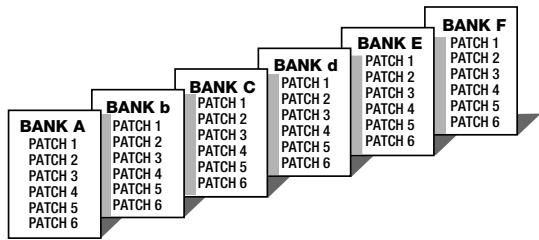
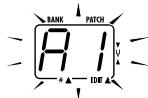
A group of six patches is called a bank. The 506 II manages a total of six banks, labelled A through F. The patches within each bank are numbered 1 through 6. To specify a patch, the 506 II uses the following format: "A1". This means that patch number 1 from bank A is selected. Therefore "b6" would refer to patch 6 from bank b.
■Play mode/edit mode
The internal status of the 506 II is referred to as the operation mode. The two major modes are play mode, in which you can select patches and use them for playing your instrument, and edit mode, in which you can modify the effects. The [PLAY/EDIT] selector serves for switching between the play mode and edit mode.
Using the unit on batteries
-
Turn the 506 II over and open the cover of the battery compartment on the bottom. Press the latch to release it and then raise the cover.
-
Insert four fresh IEC R6 (size AA) batteries into the battery compartment.
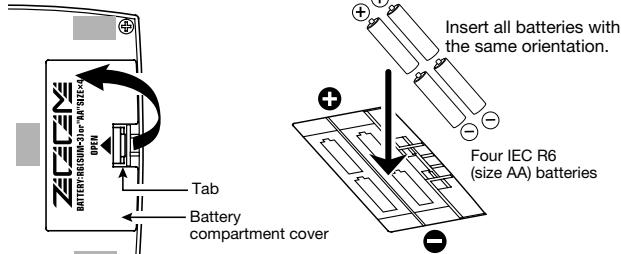
- Close the cover of the battery compartment. Rear of 506 II Close the cover of the battery compartment. Push the cover in until the latch audibly snaps into place.
Use four IEC R6 (size AA) batteries.
When the batteries are getting low, a dot (. ) in the bottom section of the display starts to flash.

While not using the 506 II, you should disconnect the cable plugged into the INPUT jack, to prevent draining the batteries.
Controls and Functions
Top Panel
[PLAY/EDIT] selector
This knob serves for switching between play mode (in which you use the patches for playing) and edit mode (where you can edit patches to your liking).
Display
Shows patch numbers, setting values, and other information required for operation of the 506 II.
[▼]/[▲] foot switches
These switches are used for selecting patches, controlling the tuner, and other functions.
![ZOOM 506II - [▼]/[▲] foot switches - 1](/content/2025/01/152184/images/9d0f0a7d19331e82d6c5f518dc0ede38af04d7a7e9a1554a4cca99dc816b20d8.jpg)
[+]/[-] keys
Serve for switching banks up and down, adjusting parameters, and other functions.
[STORE] key
Serves for storing edited patches, copying patches to another location, and other functions.
![ZOOM 506II - [STORE] key - 1](/content/2025/01/152184/images/69aed7c77413a32c0d61b605fac5847c590b8afcc8ef4aae43575cea110f6614.jpg)
Rear Panel / Connections
Selecting Patches for Play
To try out the 506 II, we recommend that you simply play your instrument while switching patches. This will let you quickly see what the 506 II can do.
Power-on
- When using the 506 II on batteries, plug a shielded cable with mono phone plug into the INPUT jack of the 506 II.
- When using the 506 II with the AC adapter, plug the adapter into the outlet and plug the cable from the adapter into the DC 9V jack on the 506 II.
- Turn on the bass guitar amplifier and adjust the volume to a suitable position.
Set 506 II to play mode
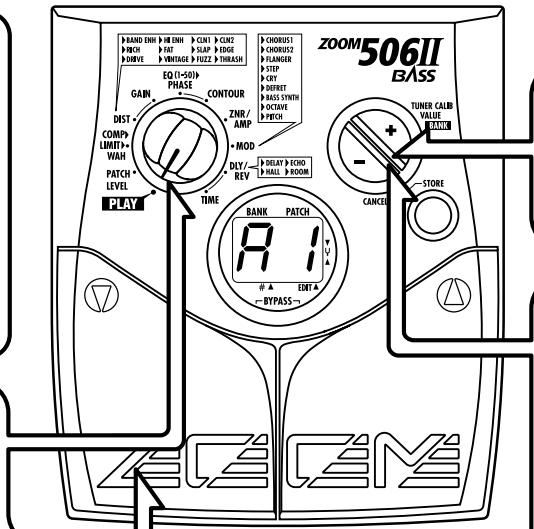
- When the [PLAY/EDIT] selector is set to a different position, set it to "PLAY".

Bank Patch number
The currently selected bank and patch number are shown on the display.

Immediately after turning on power to the 506 II, the unit will be in play mode also if the [PLAY/EDIT] selector is set to a different position.
Switch patches
- To switch patches in play mode, use the []/[] foot switches.
4 To directly switch the bank
- You can use the [+]/[-] keys to directly switch among the banks A - F.
To adjust the master volume
- Keep both [+]/[-] keys depressed for more than 1 second.

- While the master volume setting is shown, pressing the [+] or [-] key changes the setting. The setting range is 0 - 50. When the unit is turned off and on again, the setting will be reset to 40.

When using headphones, the master volume setting can be used to adjust the listening volume.
Using the Tuner Function
The 506 II incorporates an auto-chromatic tuner for bass guitars. To use the tuner function, the built-in effects must be bypassed (temporarily turned off) or muted (original sound and effect sound turned off).
Switch to bypass or mute
- Bypass:
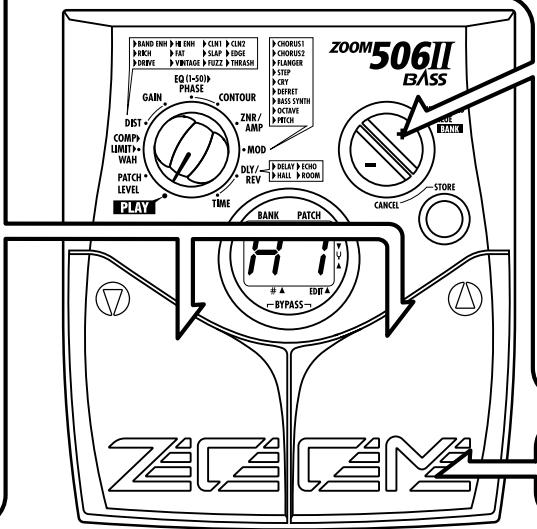
Press both [] / [] foot switches together briefly and release.

Mute:
Press both [] / [] foot switches together and hold for at least 1 second.


The bypass or mute condition cannot be activated when the unit is in the edit mode.
3
Adjusting the reference pitch of the tuner
The center A reference frequency of the built-in tuner can be fine-adjusted.
- Press one of the [+]/[-] keys.

Reference pitch
- While the reference pitch setting is shown, pressing the [+] or [-] key changes the setting.
The reference pitch range is 35 - 45 (center A = 435 Hz - 445 Hz).

When the unit is turned off and on again, the reference pitch setting is reset to 40 (440 Hz).
4
Return to play mode
- Press one of the [] / [] foot switches.
Tune the bass guitar
- Play the open string you want to tune, and watch the display.
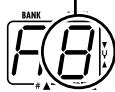
The left side of the display shows the note which is closest to the current pitch.
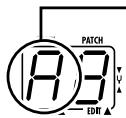
A = F D=G
A^# = , D^# = , G^# =
B E
C F
C^# = , F^# =
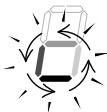
The right side of the display shows a symbol that indicates by how much the tuning is off.
- Tune the other strings in the same way.
Pitch is high

Pitch is correct
Pitch is low
Indication turns faster the more the pitch is off.

The patches of the 506 II can be freely edited by changing the effect parameter settings. Try editing the currently selected patch to create your own sound.
Select the effect parameter
- Use the [PLAY/EDIT] selector to select the effect you want to change.
The value of the currently selected parameter is shown on the display. (When the 506 II is in edit mode, a dot (. is shown in the bottom right section of the display.)
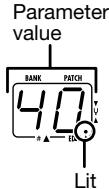
Modules and parameters that can be selected with the [PLAY/EDIT] selector
(1) Patch level
(2) Basic parameters of COMP module ()
(3) Basic parameters of DIST module ()
(4) Extended parameters of DIST module
(5) Basic parameters of EQ module (*)
(6) Extended parameters of EQ module

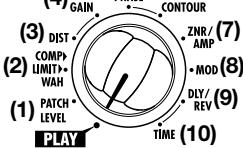
(4)
(7) Basic parameters of ZNR/AMP module ()
(8) Basic parameters of MOD module (^)
(9) Basic parameters of DLY/REV module (*)
(10) Extended parameters of DLY/REV module

Change the parameter value
- Use the [+] /[-] keys.
Holding down one of these keys will continuously change the value. Additionally pressing the opposite key will cause a faster change. Pressing both keys simultaneously skips to the first value of the next effect type in the same effect module.
Changing the module on/off condition
- Press both [] / [] foot switches together.
This is possible only if the basic parameter of that module (marked with an asterisk in the illustration 1) has been selected.

When an effect module has been switched off, the extended parameter of that module is not shown.
4 Terminate the edit mode
- To terminate the edit mode and return to the play mode, set the [PLAY/EDIT] selector to the "PLAY" position.

Unless you store the edited patch in memory, the settings you made will be lost when you select a different patch after returning to the play mode. Do not forget to store an edited patch that you wish to keep, as described on page 14.
Storing/Copying Patches
An edited patch can be stored at any desired location in the internal memory of the unit. It is also possible to copy an existing patch and store it at another location.
Press the STORE key in play mode or edit mode.
The bank and patch number on the display are flashing.
Use the [ ] / [] foot switches to select the target location in which to store the patch.
![ZOOM 506II - Use the [ ] / [] foot switches to select the target location in which to store the patch. - 1](/content/2025/01/152184/images/f4468186054978ff6e3b5fc97d815c2e9bb19253aac7d4f86bece9f6d289f5f3.jpg)
When storing or copying a patch, it is not possible to use the [+1] / [-] keys to switch only the bank number.
![ZOOM 506II - Use the [ ] / [] foot switches to select the target location in which to store the patch. - 2](/content/2025/01/152184/images/5d3b48337984c8d8e3d290019c6a654a0ecd99d55d1046002184d1db412f1e61.jpg)
![ZOOM 506II - Use the [ ] / [] foot switches to select the target location in which to store the patch. - 3](/content/2025/01/152184/images/50c58ff8a9c682105a8022d0b5059a4cc25b4d5ad2b99f60007917747e563cb2.jpg)
Press the STORE key once more.
When the store/copy process is completed, the unit reverts to the original mode, with the target patch being selected.


When the store/copy process is executed, the previous content of the store target is overwritten and cannot be restored if it was a user-created patch. You should therefore take care when selecting a target patch. However, the factory default settings of an individual patch or all patches can be restored, as described on page 19.
To cancel the store/copy process
- Press the [-] key instead of the STORE key. The store process is aborted and the unit reverts to the previous mode.

The store process is also canceled when [PLAY/EDIT] selector is operated instead of the [-] key.
Changing the "Patch Call" Method
In normal operation, the sound of the 506 II will change immediately if a patch is selected in play mode. This may be undesirable if a patch from a distant memory location is called and the sound of other unwanted patches in between is heard. If desired, you can change the "Patch call" method from direct selection to the pre-select method. In pre-select mode, you first specify the desired patch and then confirm the selection. The sound will only change after you have confirmed the operation.
Changing the "Patch call" method to pre-select
To change the "Patch call" method to preselect, you must turn the unit on while holding down the [ ] foot switch.
2 Specifying the desired patch
- Use the [] / [] foot switches to select the patch you want to use next.
You can also use the [+] /[-] keys to only switch the bank.

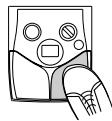
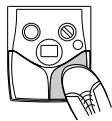
The bank and patch number of the patch to be used next will be shown on the display, but the sound does not yet change.
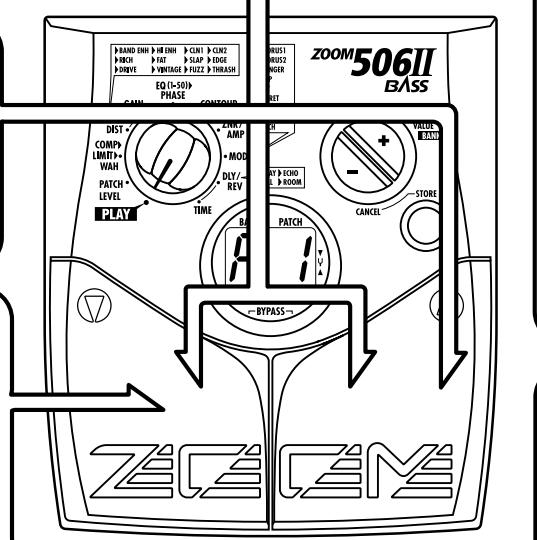
3 Confirm change
- When the desired patch is shown, press the []/[] foot switches together.

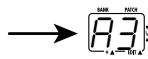
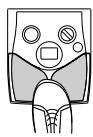
Confirm
The patch change is confirmed, the sound changes, and the display stops flashing and stays constantly lit.
4 Changing the "Patch call" method back to direct select
- To change the "Patch call" method back to normal direct select operation, simply turn the unit off and back on again.
This will return the patch select method to the default setting.
Using the Optional Pedal
The 506 II is equipped with a CONTROL IN jack designed for connection of an optional foot switch or expression pedal. This section explains how to use these accessories.
Using the foot switch (FS01)
Connecting the optional foot switch FS01 to the CONTROL IN jack allows changing banks with the foot switch while the unit is in play mode. (Operating the foot switch in play mode has the same effect as pressing the [+] key.)
- Plug the cable from the FS01 into the CONTROL IN jack, and then plug the appropriate cable into the INPUT jack (or DC 9V jack).
- Press the foot switch.
With each push of the foot switch, the bank is switched up.

Using the expression pedal (FP01/FP02)
Connecting an expression pedal (FP01/FP02) to the CONTROL IN jack allows adjusting the volume or an effect parameter in real time. For information on parameters that can be adjusted with the expression pedal, please refer to pages 22 - 29.
- Plug the cable from the expression pedal into the CONTROL IN jack, and then plug the appropriate cable into the INPUT jack (or DC 9V jack).
- Select the patch in play mode, and move the expression pedal back and forth.
Depending on the program content of the patch, the volume or effect parameter will change.

If the foot switch or expression pedal is connected to the 506 II while the unit is powered, malfunction may occur. Be sure to plug the foot switch or expression pedal into the CONTROL IN jack first and then plug the appropriate cable into the INPUT jack (or DC 9V jack).

The pedal is active also in edit mode.
Restoring Factory Defaults
The 506 II comes with 36 preprogrammed patches. These factory default patches can be restored also if they were overwritten by patches created by the user.
There are two ways of restoring factory defaults. "All Initialize" returns the entire set of patches to the original condition. "Factory Recall" restores a specific patch to the original condition.
1. While holding down the STORE key, plug the appropriate cable into the INPUT jack (or DC 9V jack).
The indication "AL" flashes on the display.
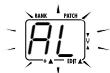
To perform All Initialize
2. Press the STORE key once more.
All patch settings are returned to the factory default condition, and the unit switches to play mode. To cancel All Initialize, press the [-] key.

All user-created patches will be lost when performing All Initialize.
Use this function with care.
To perform Factory Recall
2. Use the [] / [] foot switches to select the patch you want to return to the original condition.
The specified bank and patch number are flashing on the display.
![ZOOM 506II - Use the [] / [] foot switches to select the patch you want to return to the original condition. - 1](/content/2025/01/152184/images/68d2078d723b91c5b21edc44a9d4339abe44a368d298bc92afdebd4d640e62e6.jpg)
During Factory Recall, the [+]/[-] keys cannot be used to switch the bank only.
3. Press the STORE key once more.
The settings of the specified patch are returned to the factory default condition.
If desired, repeat steps 2 and 3 to restore other patches. To terminate the Factory Recall operation, press the [-] key. The unit will switch to the play mode at this point.
Linking Effects
The patches of the 506 II consist of seven serially linked effect modules, as shown in the illustration below. (The maximum number of effects that can be used simultaneously is 8.) You can use all effect modules or selectively set certain modules to on or off.
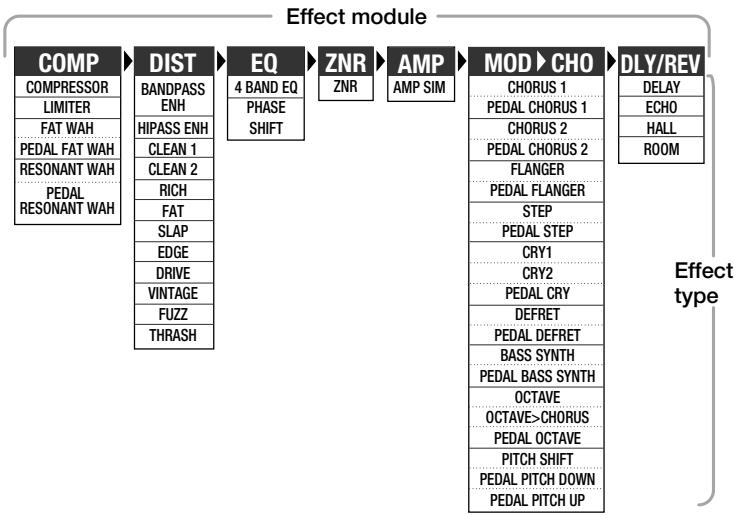
Within the effect modules, you can select an effect type from several possible choices. For example, the COMP module contains various compressor and limiter effect types, from which you can choose one. The MOD module allows you to choose two effect types simultaneously, such as OCTAVE > CHORUS.
Effect Types and Parameters
Starting on the next page, all effect types in all effect modules are listed, together with their parameters.
How to read the listing
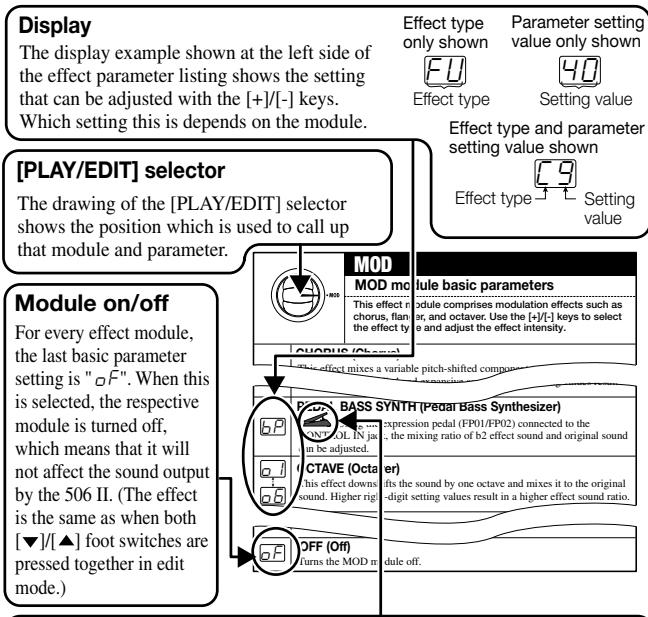
Expression pedal
A pedal icon ( ) in the listing indicates a parameter that can be controlled with the expression pedal (FP01/FP02).
When such a parameter is selected, the respective module can be controlled in real time with a connected expression pedal.

When a parameter marked with a pedal icon is selected, the sound will correspond to the representative setting of that effect.
If there is no parameter marked with a pedal icon selected in the entire patch, the expression pedal operates as a volume pedal.
| PATCH LEVEL | |
| PATCH LEVEL | |
| 1 | Adjusts the overall volume of the patch. A value of 25 corresponds to unity gain (input level and output level are equal). |
| 30 | |
| COMP>COMP>COMP COMP>COMP>COMP WAN | COMP>LIMIT>WAH | |
| COMP module basic parameters | ||
| This module comprises the compressor, limiter, auto wah, and other effect types. Use the [+]/[-] keys to select the effect type and adjust the effect intensity. | ||
| COMPRESSOR (Compressor) This effect type attenuates high-level signal components and boosts low-level signal components, thereby keeping the overall signal level within a certain range. The effect prolongs sustain and makes the sound more uniform. Higher setting values result in stronger compression. LEVEL Original sound TIME LEVEL Compressor TIME | ||
| LIMITER (Limiter) This effect type attenuates peak levels and prevents overload of the next module. Higher setting values result in stronger limiter action. LEVEL Original sound TIME LEVEL Compressor TIME | ||
| F1 F2 | FAT WAH (Fat Wah) This effect type applies auto wah which is dependent on playing intensity. It is characterized by a fat sound. Higher right-digit setting values result in higher input sensitivity for the auto wah effect. | |
| FP | PEDAL FAT WAH (Pedal Fat Wah) This effect type allows using an expression pedal (FP01/FP02) connected to the CONTROL IN jack for pedal wah. The expression pedal then controls the frequency that is emphasized by the fat wah effect. | |
| R1 R2 | RESONANT WAH (Resonant Wah) This effect type applies auto wah to a narrow frequency band, resulting in a special effect. Higher right-digit setting values result in higher input sensitivity for the auto wah effect. |
| R3 | PEDAL RESONANT WAH (Pedal Resonant Wah) This effect type allows using an expression pedal (FP01/FP02) connected to the CONTROL IN jack to control the frequency that is emphasized by the resonant wah effect. |
| Off | OFF (Off) Turns the COMP module off. |
| GAIN DIST | DIST | |
| DIST module basic parameters | ||
| In addition to five distortion type effects and five clean type effects, this module also comprises two enhancer effect types. Use the [+]/-] keys to select the effect type. | ||
| BE | BANDPASS ENH (Bandpass Enhancer)Enhancer using a bandpass filter. Makes the sound more distinct. | |
| HE | HIPASS ENH (High-Pass Enhancer)Enhancer using a high-pass filter, resulting in a different sonic character from the bandpass enhancer. | |
| C1 | CLEAN 1 (Clean 1: clean type effect)Clean sound with flat characteristics. | |
| C2 | CLEAN 2 (Clean 2: clean type effect)High-class clean sound with attenuated midrange. | |
| FL | RICH (Rich: clean type effect)Rich clean sound with emphasized bass range. | |
| FE | FAT (Fat: clean type effect)Clean sound with emphasized midrange. | |
| SL | SLAP (Slap: clean type effect)Clean sound suitable for the slap playing style. | |
| EL | EDGE (Edge: distortion effect)Treble-rich drive sound. | |
| dr | DRIVE (Drive: distortion effect) Overdrive sound with emphasized midrange. | |
| ut | VINTAGE (Vintage: distortion effect) Overdrive sound simulating a vintage amplifier. | |
| FU | FUZZ (Fuzz: distortion effect) Wild fuzz sound. | |
| TH | THRASH (Thrush: distortion effect) Distortion sound suitable for thrash metal. | |
| Off | OFF (Off) Turns the DIST module off. | |
| GAIN DIST | GAIN | |
| DIST module extended parameters | ||
| These parameters serve to adjust the sound outline or distortion depth for the effect type selected with the DIST module basic parameters. | ||
| 1 30 - - (Off indication) | GAIN (Gain)The function of this parameter depends on the effect type selected for the DIST module. ·When a clean type effect such as C1 or bE or an enhancer effect is selected Higher setting values emphasize the outline of the sound. ·When a distortion effect such as dr or FU is selected Higher setting values result in stronger distortion. | |
| Pd | PEDAL DIST (Pedal Distortion) Using the expression pedal connected to the CONTROL IN jack, the GAIN value (1 - 30) can be controlled. | |
| EQ(1+50)PHASE CONTOUR | EQ>PHASE | |
| EQ module basic parameters | ||
| This module comprises a 4-band equalizer and phaser. Use the [+]/[-] keys to select the effect type and adjust the effect intensity. | ||
| 1/50 | 4 BAND EQ (4-Band Equalizer) Allows boost or cut in the bass/middle/high/presence band. You can select one out of 50 patterns (01 - 50). •01 - 10: Lower values result in attenuated highs and emphasized lows. •11 - 20: Lower values result in lower emphasized frequency. •21 - 24: Lower values result in emphasized midrange. •25: Flat characteristics •26 - 30: Higher values result in emphasized highs. •31 - 40: Higher values result in higher emphasized frequency. •41 - 50: Higher values result in emphasized presence and lows. | |
| P1/50 | PHASE SHIFT (Phaser) This effect mixes a phase-shifted component to the original sound, resulting in a pulsating character. Higher setting values result in faster modulation. | Original sound Effect sound TIME |
| OF | OFF (Off) Turns the EQ module off. | |
| EQ(1-50)PHASE CONTOUR | CONTOUR | |
| EQ module extended parameters | ||
| These parameters serve to adjust the effect operation for the effect type selected with the EQ module basic parameters. | ||
| - - - - - - - - - - - - - - - - - - - - - - - - - - - - - - - - - - - - - - - - - - - - - - - - - - - - - - - - - - - - - - - - - - - - - - - - - - - - - - - - - - - - - - - - - - - - - - - - - - - - - | ||
| - - - - - - - - - - - - - - - - - - - - - - - - - - - - - - - - - - - - - - - - - - - - - - - - - - - - - - - - - - - - - - - - - - - - - - - - - - - - - - - - - - - - - - - - - - - - - - - - | ||
| - -- | CONTOUR (Contour) | |
| ↑↑ | - 4 BAND EQ is selected | |
| ↑↑ | Using the 0 value as a reference (flat setting), negative values cause an increasing boost in the low range and positive values cause an increasing boost in the high range. When the EQ module is On, this parameter is always active. Check this parameter if the 4-band EQ effect type setting does not seem to produce the desired results. | |
| ↑↑ | - PHASE SHIFT is selected | |
| - - - | Using the 0 value as a reference, changing the value towards negative or positive makes the phaser effect stronger. (Negative values result in reversed phase for the effect sound feedback.) | |
| ZNR/AMP | |
| ZNR/AMP module basic parameters | |
| Serves for making the ZNR module and AMP module settings. ZNR is a noise reduction circuit developed by ZOOM, allowing control over the noise threshold. The AMP module is a bass guitar amp simulator that can be switched on or off. | |
| ZNR ZNR (ZOOM Noise Reduction) serves for reducing noise during play pauses or silent passages. Higher setting values result in more efficient noise reduction. Set the value as high as possible without causing the sound to be cut off unnaturally. | |
| AMP (Amp Simulator) The amp simulator adds the character of a bass guitar amplifier to the output signal. When this setting is selected, the amp simulator is on and ZNR is off. | |
| ZNR+AMP (ZNR + Amp Simulator) ZNR and amp simulator are both on. Increasing the right-digit value results in more efficient noise reduction. Set the value as high as possible without causing the sound to be cut off unnaturally. | |
| OFF (Off) ZNR and amp simulator are both off. |
| MOD | |
| MOD module basic parameters | |
| This effect module comprises modulation effects such as chorus, flanger, and octave. Use the [+]/[-] keys to select the effect type and adjust the effect intensity. | |
| CHORUS (Chorus)This effect mixes a variable pitch-shifted component to the original signal, resulting in full-bodied and expansive sound. Higher setting values result in a more pronounced chorus effect. |
| CP | PEDAL CHORUS 1 (Pedal Chorus 1) Using the expression pedal (FP01/FP02) connected to the CONTROL IN jack, the chorus 1 intensity can be adjusted. |
| C1C9 | CHORUS 2 (Chorus 2) This is a bright sounding chorus effect with depth and spread. Higher right-digit setting values result in a more pronounced chorus effect. |
| CP | PEDAL CHORUS 2 (Pedal Chorus 2) Using the expression pedal (FP01/FP02) connected to the CONTROL IN jack, the chorus 2 intensity can be adjusted. |
| F1F9 | FLANGER (Flanger) This effect produces a unique, undulating sound by shifting the pitch up and down. Higher right-digit setting values result in faster modulation. |
| FP | PEDAL FLANGER (Pedal Flanger) Using the expression pedal (FP01/FP02) connected to the CONTROL IN jack, the flanger modulation rate can be adjusted. The adjustable range is larger than available with F1 - F9. |
| S1S9 | STEP (Step) This effect introduces a filter which changes randomly, resulting in an auto-arpeggio sound. Higher right-digit setting values give faster step sound change. |
| SP | PEDAL STEP (Pedal Step) Using the expression pedal (FP01/FP02) connected to the CONTROL IN jack, the step sound change rate can be adjusted. |
| R1R5 | CRY1 (Cry 1) This effect changes the sound in a similar way as a talking simulator. Higher right-digit setting values result in more pronounced sound change. |
| R6R9 | CRY2 (Cry 2) This is a cry effect with a different sound character. Higher right-digit setting values result in more pronounced sound change. |
| FP | PEDAL CRY (Pedal Cry) Using the expression pedal (FP01/FP02) connected to the CONTROL IN jack, the cry type sound change can be adjusted. |
| D1D9 | DEFRET (Defret) This effect makes the sound of a fretted bass resemble that of a fretless bass. It is especially suitable for playing single notes. Higher right-digit setting values result in a more pronounced defret effect. |
| PEDAL DEFRET (Pedal Defret) Using the expression pedal (FP01/FP02) connected to the CONTROL IN jack, the defret effect intensity can be adjusted. | |
| BASS SYNTH (Bass Synthesizer) This effect creates the sound of a bass synthesizer. It is best suited for playing single notes. You can select among nine patterns (b1 - b9) with preset sound character and mixing balance. • b1: Bass synthesizer with fat low end and multiple harmonics (only effect sound is output) • b2: Bass synthesizer with resonant filter (only effect sound is output) • b3: Bass synthesizer with soft sound and few harmonics (only effect sound is output) • b4: b1 effect sound with a slight amount of original sound mixed in • b5: b2 effect sound with a slight amount of original sound mixed in • b6: b3 effect sound with a slight amount of original sound mixed in • b7: b1 effect sound and original sound in 1:1 ratio • b8: b2 effect sound and original sound in 1:1 ratio • b9: b3 effect sound and original sound in 1:1 ratio | |
| PEDAL BASS SYNTH (Pedal Bass Synthesizer) Using the expression pedal (FP01/FP02) connected to the CONTROL IN jack, the mixing ratio of b2 effect sound and original sound can be adjusted. | |
| OCTAVE (Octaver) This effect downshifts the sound by one octave and mixes it to the original sound. Higher right-digit setting values result in a higher effect sound ratio. | |
| OCTAVE > CHORUS (Octaver > Chorus) This effect type is a serial connection of octaver and chorus. Higher right-digit setting values result in stronger octaver sound. (Chorus intensity is fixed.) | |
| PEDAL OCTAVE (Pedal Octaver) Using the expression pedal (FP01/FP02) connected to the CONTROL IN jack, the mixing ratio of octaver effect sound and original sound can be adjusted. |
| P1 P9 | PITCH SHIFT (Pitch Shift) This effect varies the pitch of the original sound. You can select one out of nine preset pitch shift patterns (P1 - P9). ·P1/P2: A component shifted by 1 octave down is mixed to the original sound. The mixing ratio differs for P1 and P2. ·P3/P4: A component shifted by a perfect fifth down is mixed to the original sound. The mixing ratio differs for P3 and P4. ·P5/P6: A component shifted by a perfect fourth up is mixed to the original sound. The mixing ratio differs for P5 and P6. ·P7/P8: A component shifted by 1 octave up is mixed to the original sound. The mixing ratio differs for P7 and P8. ·P9: A slightly pitch-shifted component is mixed to the original sound, resulting in a chorus with slight modulation. Pitch of effect sound vs. original sound Original sound Effect sound P1/P2: Original sound Effect sound P3/P4: Effect sound P5/P6: Effect sound P7/P8: Effect sound |
| P0 | PEDAL PITCH DOWN (Pedal Pitch Down) Using the expression pedal (FP01/FP02) connected to the CONTROL IN jack, the pitch of the effect sound can be shifted over the range of 0 to -1 octaves. |
| P1 | PEDAL PITCH UP (Pedal Pitch Up) Using the expression pedal (FP01/FP02) connected to the CONTROL IN jack, the pitch of the effect sound can be shifted over the range of 0 to +1 octave. |
| Off | OFF (Off) Turns the MOD module off. |
| TIME | DLY/REV |
| DLY/REV module basic parameters | |
| This module comprises delay, echo, reverb, and other effects. Use the [+] [-] keys to select the effect type and adjust the effect intensity. | |
| d1 d9 | DELAY (Delay) This is a conventional digital delay effect. By using the output in stereo, you can achieve a ping-pong delay where the delay sound alternates between the left and right channels. The right-digit setting values control the feedback (number of repetitions) and the mixing ratio between original sound and effect sound. |
| E1 E9 | ECHO (Echo) This is a delay effect with a warm sound similar to a tape echo. By using the output in stereo, you can achieve a ping-pong delay where the delay sound alternates between the left and right channels. The right-digit setting values control the feedback (number of repetitions) and the mixing ratio between original sound and effect sound. |
| H1 H9 | HALL (Hall) This is a reverber effect that produces a sound similar to the reverberation in a concert hall. Higher right-digit setting values result in stronger reverb. |
| F1 F9 | ROOM (Room) This is a reverber effect that simulates the reverberation in a room. Higher right-digit setting values result in stronger reverb. |
| QF | OFF (Off) Turns the DLY/REV module off. |
| TIME | |
| DLY/REV module extended parameters | |
| These parameters serve to adjust the effect operation for the effect type selected with the DLY/REV module basic parameters. | |
| DELAY TIME (Delay Time) (When DELAY or ECHO is selected as effect type) Sets the delay time in the range from 1 - 37. The actual delay time is the setting value x 10 (ms). (Example: A setting of "15" results in a delay time of 150 ms.) | |
| REVERB TIME (Reverb Time) (When HALL or ROOM is selected as effect type) Sets the reverb time in the range from 1 - 10. Higher right-digit setting values result in longer reverb time. |
Specifications
| Built-in effects | max. 8 simultaneous / 33 total |
| Effect modules | max. 7 simultaneous (5 modules + 1 block) |
| Banks and patches | 6 banks x 6 patches = 36 patches (rewritable, with memory store capability) |
| A/D converter | 16 bit, 64 times oversampling |
| D/A converter | 16 bit, 8 times oversampling |
| Sampling frequency | 31.25 kHz |
| Input | BASS GUITAR input: standard mono phone jack (rated input level -20 dBm输入 impedance 470 kilohms) |
| Output | Standard stereo phone jack (doubles as line and headphone jack)(maximum output level +5 dBm/output load impedance 10 kilohms or more) |
| Control input | For optional FP01 or FP02 / FS01 |
| Display | 2-digit 7-segment LED |
| Power requirements | Separately available AC adapter, 9 V DC, 300 mA (center minus plug) (ZOOM AD-0006)Four IEC R6 (size AA) batteriesBattery life: approx. 28 hours continuous operation (alkaline batteries) / approx. 8 hours continuous operation (manganese batteries) |
| Dimensions | 145 mm (D) x 125 mm (W) x 40 mm (H)Weight280 g (without batteries) |
- 0dBm = 0.775Vrms
- Design and specifications subject to change without notice.
Usage Precautions
- Electrical interference
For safety considerations, the 506 II has been designed to provide maximum protection against the emission of electromagnetic radiation from inside the device, and protection from external interference. However, equipment that is very susceptible to interference or that emits powerful electromagnetic waves should not be placed near the 506 II, as the possibility of interference cannot be ruled out entirely.
With any type of digital control device, the 506 II included, electromagnetic
interference can cause malfunctioning and can corrupt or destroy data. Care should be taken to minimize the risk of damage.
- Cleaning
Use a soft, dry cloth to clean the 506 II. If necessary, slightly moisten the cloth. Do not use abrasive cleanser, wax, or solvents (such as paint thinner or cleaning alcohol), since these may dull the finish or damage the surface.
Please keep this manual in a convenient place for future reference.
Patch List
| BANK | PATCH | PATCH NAME | COMMENT | PEDAL |
| A [DEMO] | 1 | SLAP SOLO | Orthodox slap sound with a touch of flanging. | Volume |
| 2 | VINTAGE | Vintage 70s UK hard rock sound. | Volume | |
| 3 | ROCK DRIVE | Exceptionally fat bass sound. | Gain | |
| 4 | FRETLESS | Fretless bass sound for lead playing. | Fretless | |
| 5 | P-FUNK LEAD | Gritty bass sound for P-funk style bass solo. | Volume | |
| 6 | CHORD CHORUS | Pedal-chorus sound for upper-register chord playing. | Chorus2 | |
| b [DEMO] | 1 | FUZZY DRIVE | Fuzz tone sound allows 1-octave bend-down with pedal. | Pitch |
| 2 | MILLER OF SLAP | Funky slap solo sound. | Volume | |
| 3 | EMOTIONAL TALK | "Talking lead" sound with pedal-gain controls. | Gain | |
| 4 | PHASE CHORUS | Funky edge with phase shift and pedal-chorus sound. | Chorus2 | |
| 5 | TAURUS | Fat vintage auto-wah bass sound. | Volume | |
| 6 | BASS SYNTH | Synth bass mixed with direct sound. | Volume | |
| C [REAL] | 1 | HIGH TONE AMP | High tone American bass amp sound. | Volume |
| 2 | BILLY'S DRIVE | For fast right hand playing with pedal-pitch effect. | Pitch | |
| 3 | GROUND FUNKY | Modern funk slap bass sound. | Volume | |
| 4 | SWEET BOTTOM | Clear, mellow bass sound good for picking style. | Volume | |
| 5 | PICKED CHORUS | Pedal-chorus sound good for picking style. | Chorus2 | |
| 6 | RETO SLAP | Retro slap sound for old funk style. | Volume | |
| d [COLOR] | 1 | ATTACK FUZZ | Pedal-fuzz tone with extra edge and attack. | Gain |
| 2 | UNITE | Wah & octave funk bass sound. | Volume | |
| 3 | PHASE SLAP | Percussive slap creates a dramatic effect. | Volume | |
| 4 | U.K.ROCK | Chorus + pedal-wah sound ideal for picking. | Fat wah | |
| 5 | NATURAL CLEAN | Practical, basic bass tone. | Volume | |
| 6 | OCTAVE CHORUS | Chorus tone with octave effect. | Volume | |
| E [ACTIVE] | 1 | CYCLONE | Lead synthesizer bass sound. | Gain |
| 2 | DROP | Unique "rain drop" bass sound. | Volume | |
| 3 | DRASTIC STEP | Extreme pedal-step solo sound. | Step | |
| 4 | JET BEAT | For eighth note play with pedal-flanger jet sound. | Flanger | |
| 5 | OCTAVE UP | Direct + one octave up pitch shift sound. | Volume | |
| 6 | WILD WAH | Combination of resonant-wah and drive sound. | Volume | |
| F [LINE] | 1 | T.M.SLAP | Dynamic slap bass sound. | Volume |
| 2 | NUANCE | Picking nuance changes the distortion intensity. | Volume | |
| 3 | CLASSICAL | Fretless bass sound for classical style playing. | Fretless | |
| 4 | ENHANCED | Clear and enhanced compressed bass sound. | Volume | |
| 5 | SOLOIST | Ideal for melodic solos and accompaniment. | Volume | |
| 6 | MULTI SYNTH | Synthesizer bass for any playing style. | Volume |
It is recommended to set the ZNR (Zoom Noise Reduction) value for each patch to match the bass guitar being used.
Troubleshooting
| No power | High level of noise |
| Refer to "1. Power-on" on page 8. | Is ZOOM AC adapter being used? Be sure to use only adapter for 9 V DC, 300 mA with center minus plug (ZOOM AD-0006). |
| Patch does not change | Battery life is short |
| Check whether patch call method is set to pre-select (see page 16). | Are manganese batteries being used? Continuous operation time is 28 hours with alkaline batteries but only 8 hours with manganese batteries. The use of alkaline batteries is recommended. |
- ZOOM 506II BASS
- Operation Manual
- Introduction
- Contents
- SAFETY PRECAUTIONS
- About power
- AC adapter operation
- Battery operation
- Environment
- Handling
- Alterations
- Features
- Top level performance
- - Intuitive user interface
- - Great bass effects
- Built-in auto-chromatic tuner
- - Dual power supply enables operation anywhere
- - Compatible with foot switch and pedals
- Improved successor to 506
- Terms Used in This Manual
- ■Effect module
- ■Effect type
- ■ Effect parameter
- Patch
- ■Bank
- ■Play mode/edit mode
- Using the unit on batteries
- Controls and Functions
- Top Panel
- [PLAY/EDIT] selector
- Display
- [▼]/[▲] foot switches
- [+]/[-] keys
- [STORE] key
- Selecting Patches for Play
- Power-on
- Set 506 II to play mode
- Switch patches
- To directly switch the bank
- To adjust the master volume
- Using the Tuner Function
- Switch to bypass or mute
- 3
- Adjusting the reference pitch of the tuner
- 4
- Return to play mode
- Tune the bass guitar
- Select the effect parameter
- Change the parameter value
- Changing the module on/off condition
- Terminate the edit mode
- Storing/Copying Patches
- Press the STORE key in play mode or edit mode.
- Use the [ ] / [] foot switches to select the target location in which to store the patch.
- Press the STORE key once more.
- To cancel the store/copy process
- Changing the "Patch Call" Method
- Changing the "Patch call" method to pre-select
- Specifying the desired patch
- Confirm change
- Changing the "Patch call" method back to direct select
- Using the Optional Pedal
- Using the foot switch (FS01)
- Using the expression pedal (FP01/FP02)
- Restoring Factory Defaults
- While holding down the STORE key, plug the appropriate cable into the INPUT jack (or DC 9V jack).
- To perform All Initialize
- Press the STORE key once more.
- To perform Factory Recall
- Use the [] / [] foot switches to select the patch you want to return to the original condition.
- Press the STORE key once more.
- Linking Effects
- Effect Types and Parameters
- How to read the listing
- Expression pedal
- Specifications
- Usage Precautions
- - Electrical interference
- - Cleaning
Marque : ZOOM
Modèle : 506II
Catégorie : Enregistreur audio portable