
BIZHUB 200 - Imprimante multifonction KONICA MINOLTA - Notice d'utilisation et mode d'emploi gratuit
Retrouvez gratuitement la notice de l'appareil BIZHUB 200 KONICA MINOLTA au format PDF.


| Type de produit | Imprimante multifonction monochrome laser |
| Fonctions principales | Copie, impression, numérisation, télécopie |
| Vitesse d'impression | 20 pages par minute (A4) |
| Résolution d'impression | 600 x 600 dpi |
| Capacité papier standard | 250 feuilles bac principal + 100 feuilles bac multifonction |
| Formats de papier supportés | A4, A3, A5, B4, B5, enveloppes |
| Recto-verso automatique | Oui (impression recto-verso standard) |
| Numérisation | Numérisation vers e-mail, dossier réseau, FTP |
| Fax | Super G3, mémoire 512 Mo |
| Cycle d'utilisation mensuel | Jusqu'à 20 000 pages |
| Processeur | PowerPC 750CX 350 MHz |
| Mémoire vive | 256 Mo (extensible à 512 Mo) |
| Connectivité | USB 2.0, Ethernet 10/100 Base-T |
| Dimensions (L x P x H) | 620 x 579 x 546 mm |
| Poids | Environ 32 kg |
| Alimentation électrique | 230 V, 50/60 Hz |
| Consommation énergétique | En fonctionnement : 800 W max, Veille : 10 W |
| Niveau sonore | En fonctionnement : 62 dB(A), Veille : 30 dB(A) |
| Entretien et nettoyage | Nettoyer régulièrement le chargeur, le tambour et les rouleaux avec un chiffon non pelucheux |
| Sécurité | Utiliser une prise de terre ; ne pas débrancher le cordon d'alimentation en fonctionnement |
| Pièces détachées et réparabilité | Pièces disponibles : tambour, révélateur, unité de fusion, courroie de transfert |
| Informations générales | Marque KONICA MINOLTA, modèle BIZHUB 200 |
FOIRE AUX QUESTIONS - BIZHUB 200 KONICA MINOLTA
Questions des utilisateurs sur BIZHUB 200 KONICA MINOLTA
0 question sur cet appareil. Repondez a celles que vous connaissez ou posez la votre.
Poser une nouvelle question sur cet appareil
Téléchargez la notice de votre Imprimante multifonction au format PDF gratuitement ! Retrouvez votre notice BIZHUB 200 - KONICA MINOLTA et reprennez votre appareil électronique en main. Sur cette page sont publiés tous les documents nécessaires à l'utilisation de votre appareil BIZHUB 200 de la marque KONICA MINOLTA.
MODE D'EMPLOI BIZHUB 200 KONICA MINOLTA
FTP Utility Ver.1.0
User's Guide
1 Foreword
1.1 About This Product
This software is a utility used for receiving data sent from compatible devices (multifunctional products) using the Scan to FTP operation.
When data is received from a multifunctional product, authenticates the user name and password, and saves the data in the specified receiving folder.
1.2 Trademarks and Registered Trademarks
KONICA MINOLTA and the KONICA MINOLTA logo are trademarks of KONICA MINOLTA HOLDINGS, INC.
Microsoft ^® and Windows ^® are either registered trademarks or trademarks of Microsoft Corporation in the United States and/or other countries.
All other product names are either trademarks or registered trademarks of their respective companies.
Dialog boxes
The dialog boxes shown in this manual are those that appear in Windows XP.

Note
The dialog boxes that appear in this document may differ from those that appear on your computer, depending on the installed devices and specified settings.

Note
Unauthorized reproduction, translation or duplication of this document whether in its entirety or in part, is strictly prohibited.
The content of this document is subject to change without notice.
Copyright © 2005 KONICA MINOLTA BUSINESS TECHNOLOGIES, INC. All rights reserved.
1.3 System Requirements
In order to use this software, the operating environment must meet the following specifications.
- Operating System
– Windows 98 (Service Pack 1 or later), 98 Second Edition, or Me - Windows NT Workstation (Service Pack 6a or later)
- Windows 2000 Professional (Service Pack 2 or later)
- Windows XP Home Edition/Professional Edition
- Windows Vista Home Basic/Home Premium/Business/Enterprise
- Computer
- PC/AT compatible machine (installed with a Pentium III or faster processor)
- Memory
- 128 MB or more
- 192 MB or more with Windows XP Home Edition/Professional Edition
- 512 MB or more with Windows Vista Home Basic
- 1GB or more with Windows Vista Home Premium/Business/Enterprise
• Available Hard Disk Space - 20 MB or more
- Compatible Devices
– Refer to the ReadMe file.
1.4 Manual Structure
This manual consists of the following sections.
• Installing FTP Utility
- This section provides the procedure for installing FTP Utility onto the computer.
- Uninstalling FTP Utility
- This section provides the procedure for removing FTP Utility from the computer.
- Using FTP Utility
- This section provides procedures for starting up FTP Utility and specifying settings for receiving data.
2 Installing FTP Utility
Installing the Software
The procedure for installing FTP Utility onto the computer is described below.
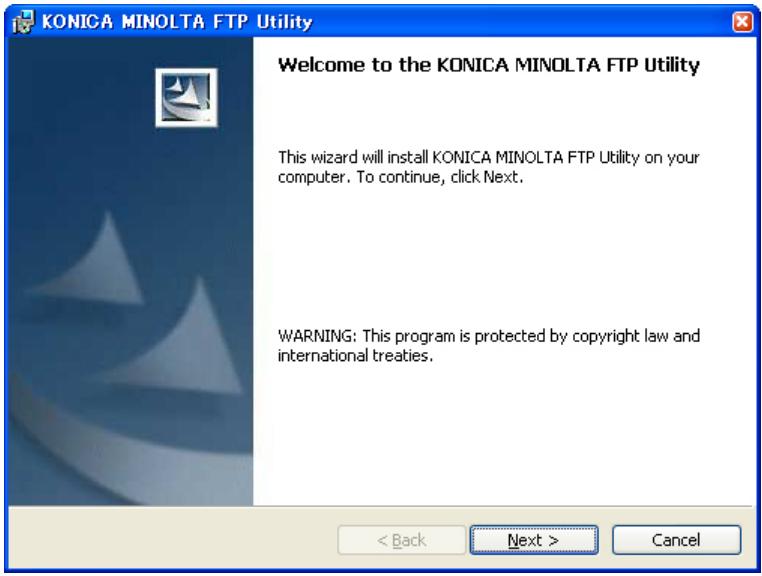
1 Double-click "Setup.exe".
A message indicating the beginning of the installation appears.
2 Click the [Next] button.
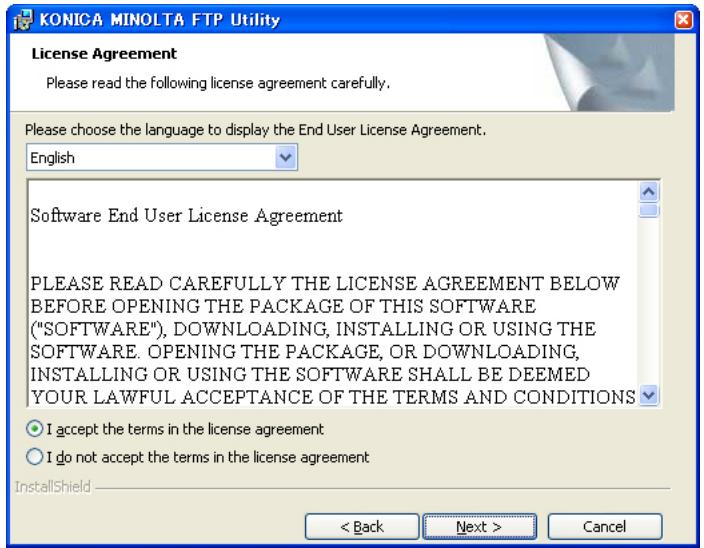
3 Select the [I accept the term in the license agreement], and then click the [Next] button.
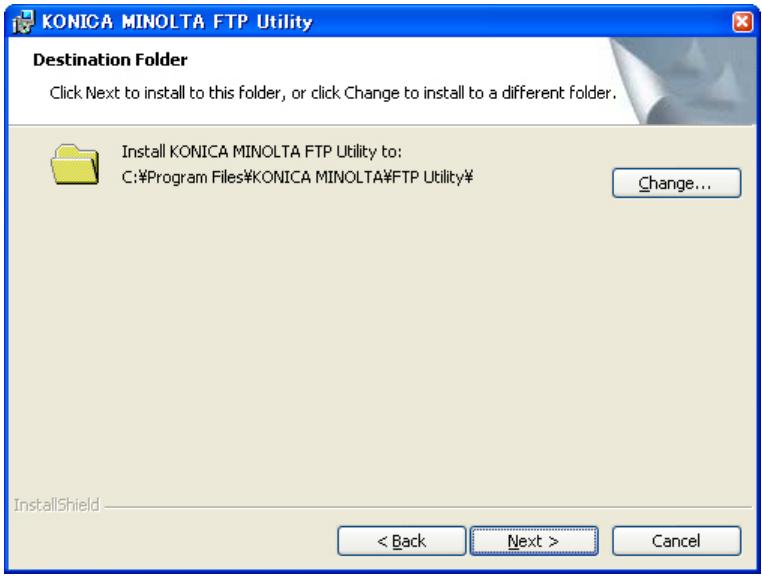
4 To change the installation location, click the [Change...] button, and then select the different installation location. To continue without changing the installation location, click the [Next] button.
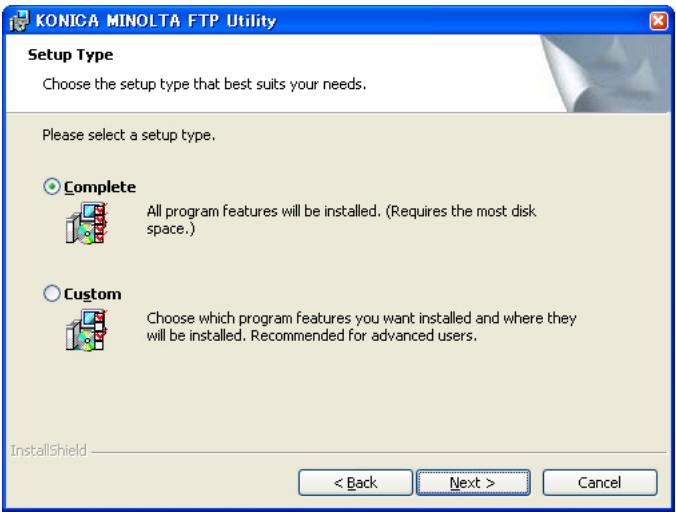
5 Select the [Complete], then click the [Next] button.
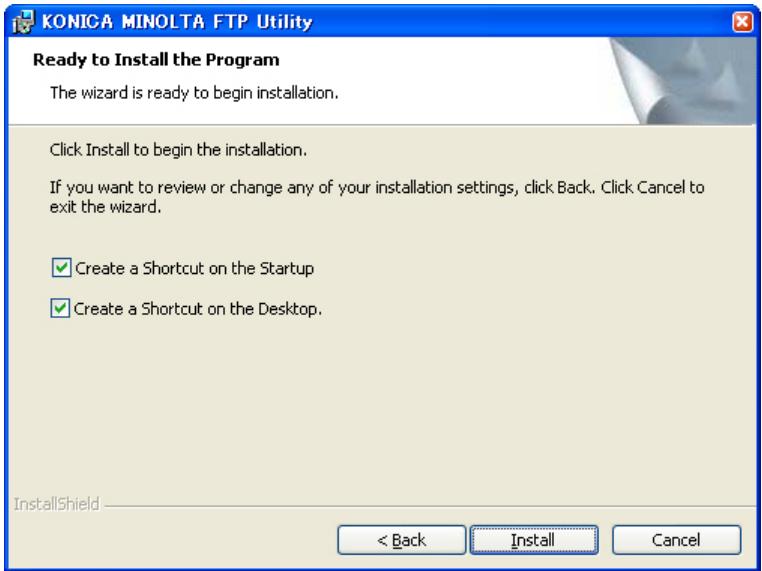
6 Select the check boxes for the shortcuts that you wish to register, and then click the [Install] button.
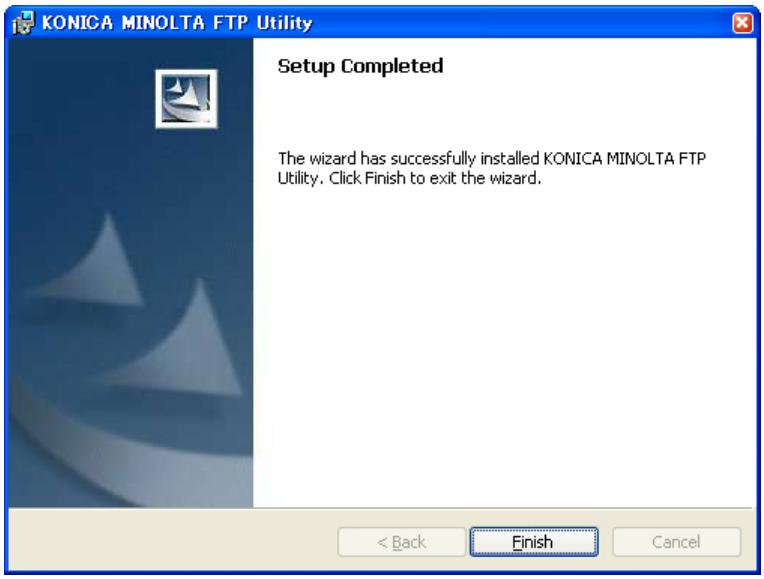
7 Click the [Finish] button.
The installation is complete.
3 Uninstalling FTP Utility
Uninstalling the Software
The procedure for removing FTP Utility from the computer is described below.
On Windows XP Home Edition/Professional Edition
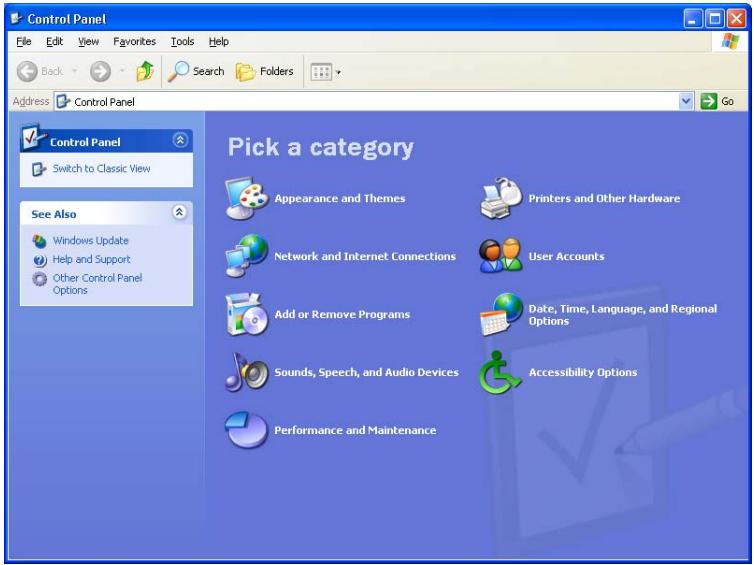
1 On the [Start] menu, click [Control Panel].
2 Click [Add or Remove Programs].
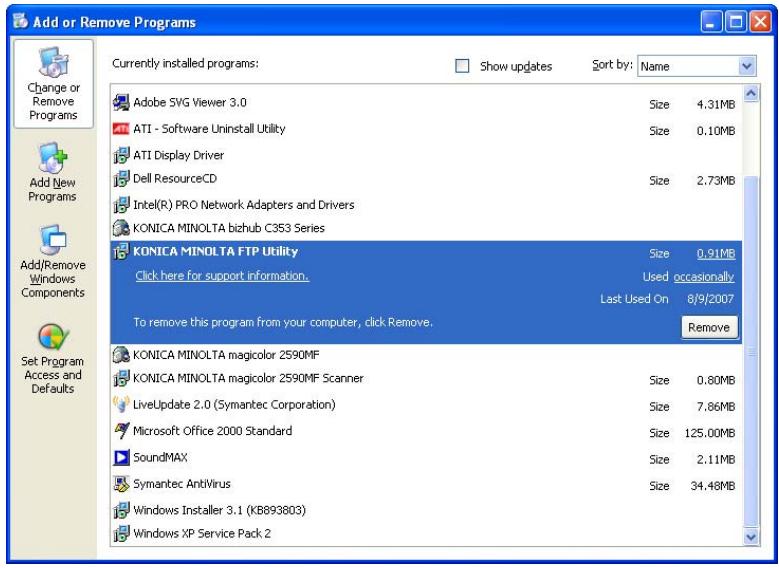
3 Click "KONICA MINOLTA FTP Utility", and then click the [Remove] button.
4 When the message requesting confirmation to delete the files appears, click the [OK] button.
FTP Utility is deleted.
4 Using FTP Utility
Starting Up FTP Utility
The procedures for starting up FTP Utility and specifying settings for receiving data are described below.
→ On the [Start] menu, point to [KONICA MINOLTA], then [FTP Utility], and then click [FTP Utility].
After FTP Utility has been started up, the FTP Utility icon appears in the taskbar, located at the lower-right end of the desktop.

10:28 AM

...
Note
When sending data using the Scan to FTP operation from a multifunctional product, FTP Utility must be started up on the computer receiving the data. Before sending the data, start up the software on the computer and specify the necessary settings, such as the folder where the data is to be saved.
FTP Utility Settings
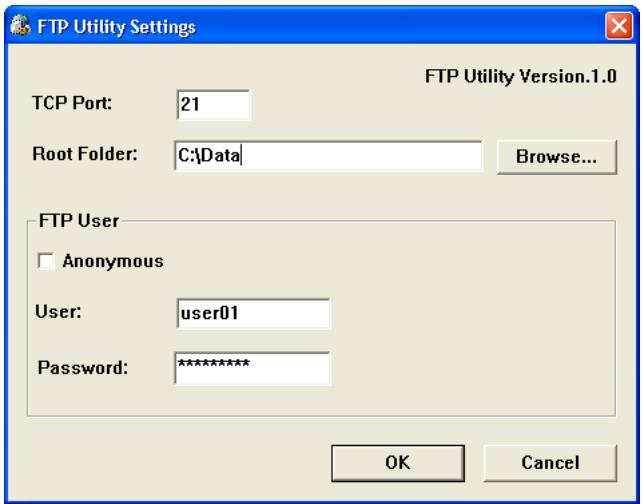
In the FTP Utility Settings dialog box, settings for the following parameters can be specified.
| Parameter | Description |
| TCP Port | Specify the port for receiving the data. Normally, this setting will not need to be changed. |
| Root Folder | Specify the folder for saving data received from a multifunctional product using the Scan to FTP operation. To change the folder, click the [Browse] button, and the select a different folder. |
| FTP User | In order to receive data, specify the user name and password. When data is sent from a multifunctional product, these same settings must also be specified. To receive data from an anonymous user, select the “Anonymous” check box. To authenticate the user name and password when receiving data, type the appropriate settings in the “User” and “Password” boxes. The limitations on the number of characters that can be entered in the “User” and “Password” boxes differ depending on the multifunctional product, and a specific user name and password may be required. For details, refer to the User’s Guide for the multifunctional product. |
Specifying FTP Utility Settings
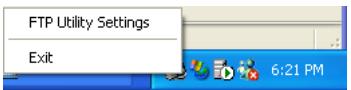
1 Click the FTP Utility icon in the taskbar (at the lower-right end of the desktop), and then select [FTP Utility Settings].
The FTP Utility Settings dialog box appears.
2 Specify the necessary settings, and then click the [OK] button.
Quitting FTP Utility
→ Click the FTP Utility icon in the taskbar (at the lower-right end of the desktop), and then select [Exit].
If Data Cannot Be Received Correctly
Check for the following.
- Has FTP Utility been started up?
- Have settings for the root folder (folder where received files are saved), user name, and password been correctly specified?

KONICA MINOLTA
http://konicaminolta.com
- FTP Utility Ver.1.0
- User's Guide
- Foreword
- About This Product
- Trademarks and Registered Trademarks
- Dialog boxes
- Note
- System Requirements
- Manual Structure
- Installing FTP Utility
- Installing the Software
- Click the [Finish] button.
- Uninstalling FTP Utility
- Uninstalling the Software
- Using FTP Utility
- Starting Up FTP Utility
- FTP Utility Settings
- Specifying FTP Utility Settings
- Quitting FTP Utility
- If Data Cannot Be Received Correctly
- KONICA MINOLTA
Marque : KONICA MINOLTA
Modèle : BIZHUB 200
Catégorie : Imprimante multifonction