
SF-5980 - Organiseur électronique CASIO - Notice d'utilisation et mode d'emploi gratuit
Retrouvez gratuitement la notice de l'appareil SF-5980 CASIO au format PDF.


| Type de produit | Organiseur électronique |
| Marque | CASIO |
| Modèle | SF-5980 |
| Dimensions (déplié) | 8,8 × 163 × 169 mm |
| Dimensions (plié) | 21,5 × 163 × 91,5 mm |
| Poids (avec piles) | 251 g |
| Alimentation principale | 2 piles alcalines AAA (LR03/AM4) |
| Alimentation de sauvegarde | 1 pile lithium CR2032 |
| Autonomie des piles principales | Environ 100 heures d'affichage continu, 70 heures en utilisation normale |
| Autonomie de la pile de sauvegarde | 5 ans si les piles principales sont remplacées rapidement |
| Capacité mémoire | 512 Ko |
| Affichage | LCD 26 colonnes × 8 lignes, rétroéclairage EL |
| Fonctions principales | Répertoire téléphonique, Mémo, Agenda, Liste de tâches, Gestionnaire de dépenses, Rappels, Calendrier, Heure mondiale, Calculatrice, Conversions, Jeux |
| Alarmes | Alarme quotidienne, alarme de rendez-vous, alarme de rappel |
| Communication de données | Via câble SB-62 (entre SF-5580/5780/5980 ou vers PC avec kit optionnel) |
| Protection par mot de passe | Oui, jusqu'à 6 caractères |
| Température de fonctionnement | 0 °C à 40 °C |
| Consommation électrique | 0,25 W |
| Arrêt automatique | Environ 3 minutes après la dernière opération |
| Composant principal | LSI (circuit intégré) |
| Entretien et nettoyage | Nettoyer avec un chiffon doux légèrement humidifié avec un détergent doux. Ne pas utiliser de solvants. |
| Pièces détachées et réparabilité | Les piles sont remplaçables par l'utilisateur. Pour toute autre réparation, contacter un revendeur CASIO agréé. |
| Sécurité | Ne pas exposer au feu, à l'humidité excessive ou aux chocs. Utiliser uniquement des piles alcalines. |
| Informations générales | Fabriqué par CASIO COMPUTER CO., LTD., Tokyo, Japon. Notice disponible en anglais, français, espagnol. |
FOIRE AUX QUESTIONS - SF-5980 CASIO
Questions des utilisateurs sur SF-5980 CASIO
0 question sur cet appareil. Repondez a celles que vous connaissez ou posez la votre.
Poser une nouvelle question sur cet appareil
Téléchargez la notice de votre Organiseur électronique au format PDF gratuitement ! Retrouvez votre notice SF-5980 - CASIO et reprennez votre appareil électronique en main. Sur cette page sont publiés tous les documents nécessaires à l'utilisation de votre appareil SF-5980 de la marque CASIO.
MODE D'EMPLOI SF-5980 CASIO
CASIO®
SF-5580
SF-5780
SF-5980
Manuel de l'utilisateur
DIRECTIVES ÉTABLIES PAR LES RÈGLES FCC POUR L'UTILISATION DE CET APPAREIL AUX ÉTATS-UNIS (non applicables dans d'autres régions).
AVIS
Cet équipement a été testé et déclaré conforme aux limites d'un appareil numérique de classe B, conformément à la partie 15 des règles FCC. Ces limites sont conçues pour fournir une protection raisonnable contre les interférences nuisibles dans une installation résidentielle. Cet équipement génère, utilise et peut émettre de l'énergie radiofréquence et, s'il n'est pas installé et utilisé conformément aux instructions, peut provoquer des interférences nuisibles aux communications radio. Cependant, il n'y a aucune garantie que des interférences ne se produiront pas dans une installation particulière. Si cet équipement provoque des interférences nuisibles à la réception radio ou télévision, ce qui peut être déterminé en éteignant puis en allumant l'équipement, l'utilisateur est encouragé à essayer de corriger les interférences par une ou plusieurs des mesures suivantes :
Réorienter ou déplacer l'antenne de réception. - Augmenter la distance entre l'équipement et le récepteur. - Connecter l'équipement à une prise sur un circuit différent de celui auquel le récepteur est connecté. - Consulter le revendeur ou un technicien radio/TV expérimenté pour obtenir de l'aide.
AVERTISSEMENT FCC
Des changements ou modifications non expressément approuvés par la partie responsable de la conformité pourraient annuler le droit de l'utilisateur à utiliser l'équipement. Des connecteurs appropriés doivent être utilisés pour la connexion à l'ordinateur hôte et/ou aux périphériques afin de respecter les limites d'émission FCC.
Connecteur SB-62 .... Unité SF à unité SF
- CASIO COMPUTER CO., LTD. décline toute responsabilité pour tout dommage ou perte résultant de l'utilisation de ce manuel.
- CASIO COMPUTER CO., LTD. décline toute responsabilité pour toute perte ou réclamation de tiers pouvant survenir en raison de l'utilisation du Carnet numérique.
- CASIO COMPUTER CO., LTD. décline toute responsabilité pour tout dommage ou perte causé par la suppression de données à la suite d'un dysfonctionnement, de réparations ou du remplacement des piles. Assurez-vous de sauvegarder toutes les données importantes sur d'autres supports pour les protéger contre leur perte.
Avant d'utiliser le Digital Diary pour la première fois...
Utilisez la procédure suivante pour charger les piles et réinitialiser l'appareil avant de l'utiliser pour la première fois.
- Retirez la vis qui maintient le couvercle du compartiment des piles principales en place et ouvrez le couvercle.
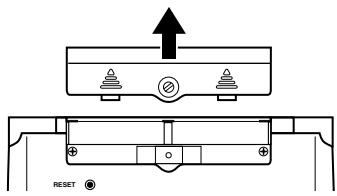
- Insérez deux piles neuves dans le compartiment à piles.
- Assurez-vous que les extrémités positive (+) et négative (-) sont orientées correctement.
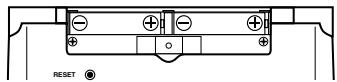
- Replacez le couvercle du compartiment à piles et fixez-le avec sa vis. Veillez à ne pas trop serrer la vis.
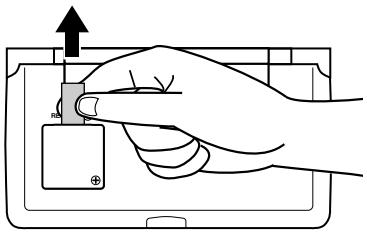
- Retirez le ruban isolant de la pile de secours en tirant dans la direction indiquée par la flèche imprimée sur le ruban.
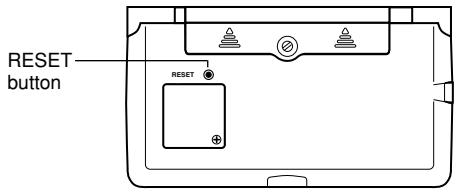
- Appuyez sur le bouton RESET à l'arrière du Digital Diary avec un objet fin et pointu.
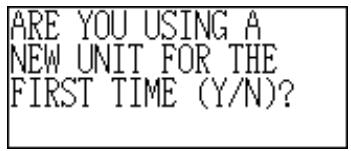
- Appuyez sur Y.
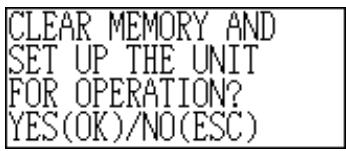
- Appuyez sur OK pour réinitialiser le Digital Diary ou sur ESC pour annuler.
- À ce moment, le message "SET TIME!" apparaît.
- Après environ deux secondes, l'écran de l'heure locale apparaît.
- Appuyez sur FUNC, sélectionnez "Réglage de l'heure", puis suivez la procédure de la page 18 pour régler l'heure locale.
- Si vous éteignez l'appareil sans avoir réglé l'heure locale, le message "RÉGLER L'HEURE !" apparaîtra la prochaine fois que vous l'allumerez. L'agenda électronique ne fonctionnera pas correctement tant que vous n'aurez pas réglé l'heure locale.
Important !
- Allumez l'appareil au moins une fois par mois pour vérifier l'état des piles.
Mise sous et hors tension
Appuyez sur ON/OFF pour allumer et éteindre l'appareil.
Important !
- Si rien ne s'affiche à l'écran lorsque vous allumez l'appareil, cela signifie que les piles principales sont faibles. Remplacez les piles (page 13) et appuyez sur le bouton RESET pour reprendre un fonctionnement normal.
- Assurez-vous d'appuyer sur le bouton RESET (page 2) après avoir inséré les piles principales pour la première fois ou si les piles précédentes sont mortes.
Sommaire
Avant d'utiliser l'agenda électronique pour la première fois... 1
Mise sous et hors tension 3
Avant d'utiliser l'agenda numérique. 8
Introduction 8
Notez les données importantes ailleurs ! 8
Précautions importantes 8
Pour commencer 9
Guide général 9
Affichage 10
Réinitialisation complète 11
Alimentation 12
Mise sous et hors tension 15
Menus de fonctions 16
Langue du système 16
Contraste de l'affichage 16
Son des touches 16
Retour arrière destructif 17
Accueil Mode Heure 18
Utilisation de l'alarme quotidienne 19
Mode Heure mondiale 21
Écran d'informations de zone 22
Opérations du carnet de données 24
Saisie de texte 24
Saisie de dates et heures 25
Formats d'affichage 26
Mode Annuaire téléphonique 27
Résumé des enregistrements 28
Mode Mémo 29
Résumé des enregistrements 29
Mode Calendrier 30
Navigation dans les calendriers 30
Rendez-vous Marqueurs 31
Mise en évidence des dates du calendrier 32
Compteur de jours ouvrables 33
Écran de l'agenda hebdomadaire 33
Gestionnaire d'agenda 34
Naviguer dans les dates du gestionnaire d'agenda 34
Alarmes de l'agenda 36
Tri des données du gestionnaire d'agenda 36
Étiquettes et icônes des types d'agenda 36
Écran de l'agenda quotidien 38
Mode rappel 39
Alarmes de rappel 40
Mode tâches 41
Résumé des enregistrements 42
Tri des données des tâches 43
Icônes de priorité 43
Mode gestionnaire de dépenses 44
Étiquettes et icônes des types de dépenses 45
Étiquettes des types de paiement 46
Taux de change 46
Rapport de dépenses périodique 47
Résumé des enregistrements 47
Recherche de données 48
Recherche par défilement 48
Recherche par caractère initial 48
Recherche par caractère générique 49
Recherche par date 49
Modification de données 50
Suppression de données 51
Suppression d'un élément de données unique 51
Suppression de tous les éléments de données dans un mode 51
Suppression des éléments de données marqués uniquement 52
Suppression de tous les éléments de données dans des modes spécifiques 53
Fonction secrète 54
Modes de conversion 56
Conversions métriques 57
Conversions de devises 57
Modes de jeu 59
Jeu de poker 59
Jeu de blackjack 61
Mode calculatrice 63
Communications de données 66
Configuration pour les communications de données 66
Envoi de données 68
Envoi de tous les éléments de données dans un mode 69
Annexe technique 71
Capacité mémoire 71
Comment l'agenda électronique trie les données 72
Messages d'erreur 73
Tableau des messages 73
Spécifications 74
Avant d'utiliser l'agenda électronique...
Introduction
Félicitations pour votre choix du nouveau SF-5580/SF-5780/SF-5980 de CASIO (désigné sous le nom d'agenda électronique dans ce manuel). Veuillez conserver ce manuel et toutes les informations à portée de main pour référence future.
Notez les données importantes quelque part !
La mémoire de votre agenda électronique ne conserve les informations que tant que l'alimentation est fournie par les piles. Notez toujours les données importantes quelque part.
Important !
- Installez les piles (page 1) et effectuez l'opération de réinitialisation complète décrite à la page 11 avant d'utiliser l'agenda électronique pour la première fois.
Précautions importantes
- N'exposez jamais l'agenda électronique au feu.
- Évitez les températures extrêmes. Ne placez pas le Carnet numérique en plein soleil, près d'une fenêtre, près d'un radiateur, etc.
- À très basse température, la réponse de l'écran peut ralentir ou cesser complètement. Cette condition est temporaire et le fonctionnement devrait reprendre à des températures normales.
- Évitez les zones soumises à une humidité, une saleté et une poussière excessives.
- Évitez de faire tomber le Carnet numérique et de le soumettre à des chocs violents.
- Ne pliez jamais et ne tordez jamais le Carnet numérique.
- N'essayez jamais de démonter le Carnet numérique.
- N'utilisez pas un stylo, un crayon ou tout autre objet pointu pour appuyer sur les touches.
- Pour nettoyer l'extérieur du Carnet numérique, essuyez-le avec un chiffon doux imbibé d'une solution faible de détergent neutre doux et d'eau. Assurez-vous d'essorer l'excès d'humidité du chiffon avant d'essuyer le Carnet numérique. N'utilisez jamais de benzène, de diluant ou tout autre agent volatil pour nettoyer l'appareil. Cela pourrait enlever les chiffres imprimés sur le boîtier ou endommager la finition du boîtier.
- Le contenu de ce manuel est sujet à modification sans préavis.
- CASIO COMPUTER CO., LTD. décline toute responsabilité pour toute perte ou réclamation de tiers pouvant découler de l'utilisation de ce produit. Notez qu'une fois le rétroéclairage allumé, il restera allumé tant que vous continuerez à utiliser la calculatrice.
Laisser le rétroéclairage allumé pendant de longues périodes réduit considérablement la durée de vie des piles !
Appuyez sur la touche LIGHT pour éteindre manuellement le rétroéclairage.
- Assurez-vous d'utiliser uniquement des piles alcalines pour alimenter ce Carnet numérique.
Pour commencer
Assurez-vous de lire cette partie du manuel.
Guide général
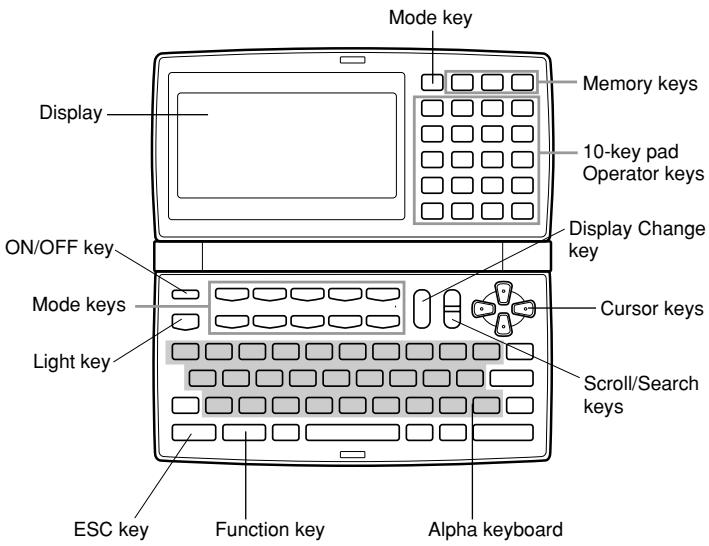
Affichage
Lorsque la lumière est faible, vous pouvez activer un rétroéclairage électroluminescent (EL) pour faciliter la lecture.
Pour activer le rétroéclairage EL
Appuyez sur la touche LIGHT pour allumer le rétroéclairage de l'écran. Si vous n'effectuez aucune opération pendant environ 15 secondes, le rétroéclairage s'éteint automatiquement. Cependant, notez qu'une fois le rétroéclairage allumé, il reste allumé tant que vous continuez à utiliser l'agenda numérique.
Laisser le rétroéclairage allumé pendant de longues périodes réduit considérablement la durée de vie des piles !
Appuyez à nouveau sur la touche LIGHT pour éteindre manuellement le rétroéclairage lorsque vous avez fini de l'utiliser.
Indicateurs d'affichage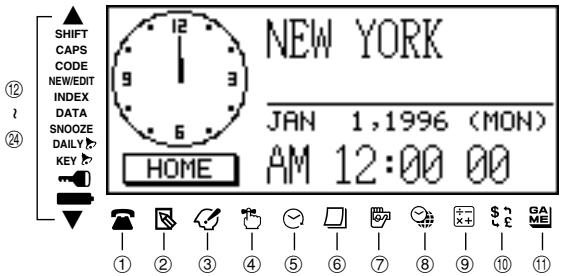
① Mode répertoire téléphonique ② Mode mémo ③ Mode tâches ④ Mode rappel ⑤ Mode agenda ⑥ Mode calendrier ⑦ Mode gestionnaire de dépenses ⑧ Mode heure locale/heure mondiale ⑨ Mode calculatrice ⑩ Modes de conversion ⑪ Modes jeu ⑫ Indique des données au-dessus
⑬ Opération de la touche SHIFT Saisie en majuscules Opération de la touche CODE ⑯ Écran NOUVEAU/ÉDITION ⑰ Affichage de l'index Affichage des données Fonction de répétition activée ⑳ Alarme quotidienne activée Son des touches activé ㉑ Mémoire verrouillée ㉒ Avertissement de batterie faible ㉓ Indique des données en dessous
Réinitialisation complète
Utilisez la procédure suivante pour réinitialiser l'appareil à ses paramètres d'origine.
Important !
- N'utilisez pas un crayon très pointu ou un autre objet pour appuyer sur le bouton RESET.
- Assurez-vous de réinitialiser l'appareil avant de l'utiliser pour la première fois.
- Effectuez l'opération de réinitialisation uniquement après avoir correctement installé les piles principales et la pile de secours.
- Assurez-vous d'appuyer sur le bouton RESET (page 2) après avoir chargé les piles principales pour la première fois ou si le jeu de piles précédent est devenu vide.
Pour démarrer l'opération de réinitialisation complète
- Éteignez l'appareil.
- Appuyez sur le bouton RESET situé à l'arrière de l'agenda numérique avec un objet fin et pointu.
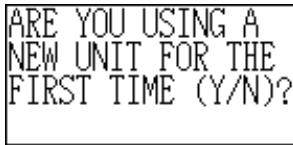
- Vous devez maintenant appuyer sur Y pour « oui » ou N pour « non » selon les conditions décrites ci-dessous.
Quand appuyer sur Y pour « oui »
- Lorsque c'est la première fois que vous utilisez l'appareil.
- Lorsque vous souhaitez réinitialiser l'appareil et effacer toutes les données et tous les réglages.
- Lorsque vous réinitialisez l'appareil après une erreur de données (page 73).
- Appuyez sur Y en réponse au message qui apparaît à l'écran lorsque vous démarrez l'opération de réinitialisation complète.
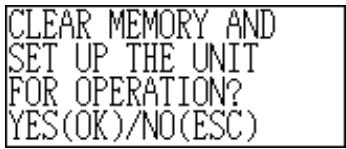
- Appuyez sur OK pour réinitialiser l'agenda numérique ou sur ESC pour annuler.
- À ce moment, le message « SET TIME! » apparaît.
- Après environ deux secondes, l'écran de l'heure de domicile apparaît.
- Appuyez sur FUNC, sélectionnez « Time set », puis utilisez la procédure de la page 18 pour régler l'heure de domicile.
- Si vous éteignez l'appareil sans régler l'heure de domicile, le message « SET TIME! » apparaîtra la prochaine fois que vous l'allumerez. L'agenda électronique ne fonctionnera pas correctement tant que vous n'aurez pas réglé l'heure de domicile.
Quand appuyer sur N pour « non »
- Après avoir remplacé les piles principales.
- Lorsque vous ne réinitialisez pas l'appareil pour effacer toutes les données et tous les réglages.
- Lorsque vous ne réinitialisez pas l'appareil après une erreur de données (page 73).
- Appuyez sur N en réponse au message qui apparaît à l'écran lorsque vous démarrez l'opération de réinitialisation complète.
- À ce moment, le message « RÉGLER L'HEURE ! » apparaît.
- Après environ deux secondes, l'écran de l'heure locale apparaît.
- Appuyez sur FUNC, sélectionnez « Réglage de l'heure », puis utilisez la procédure à la page 18 pour régler l'heure locale.
- Si vous éteignez l'appareil sans avoir réglé l'heure locale, le message « RÉGLER L'HEURE ! » apparaîtra la prochaine fois que vous l'allumerez. L'agenda électronique ne fonctionnera pas correctement tant que vous n'aurez pas réglé l'heure locale.
- Voici les réglages initiaux de l'appareil après avoir effectué la réinitialisation complète.
Heure locale : New York, 1er janvier 1996 (lundi) 12:00 AM, format 12 heures
Heure mondiale : Londres Alarme quotidienne : 12:00 AM Son : Alarme quotidienne - DÉSACTIVÉE Touche - ACTIVÉE
Messages : Anglais Saisie de caractères : MAJUSCULES DÉSACTIVÉES
Alimentation
Votre agenda électronique est alimenté par deux piles AAA, et sa mémoire est protégée par une pile au lithium CR2032.
Avertissement de batterie faible
Si rien ne s'affiche à l'écran après la mise sous tension, ou si le message de batterie faible "MAIN BATTERIES WEAK! REPLACE THEM! UNIT WILL NOT TURN ON AGAIN!" apparaît (suivi de l'extinction de l'écran après environ 10 secondes), cela indique généralement que la batterie principale est faible.
Notez toutefois que si vous appuyez sur le bouton RESET à l'arrière de l'appareil, puis effectuez les étapes 1 et 2 de la procédure décrite dans "Quand appuyer sur N pour 'non'" ci-dessus, le fonctionnement normal peut parfois être rétabli. Si le message de batterie faible apparaît même après avoir effectué ces étapes, cela signifie que vous devez remplacer les piles principales dès que possible.
Remarque
- Veillez à ne pas faire d'erreur et à ne pas effacer le contenu de la mémoire à ce moment-là.
Important !
- Ne remplacez les piles que lorsque la batterie est faible, ce qui est indiqué par le fait que l'agenda numérique ne s'allume pas lorsque vous appuyez sur la touche ON. Ne remplacez pas les piles tant que l'agenda numérique s'allume normalement lorsque vous appuyez sur la touche ON.
- Il n'y a pas d'avertissement de batterie faible pour la pile de secours. Assurez-vous de remplacer la pile de secours tous les 5 ans.
- Assurez-vous de conserver une copie séparée de toutes les données importantes que vous stockez dans l'agenda numérique.
Précautions concernant les piles
Une utilisation incorrecte des piles peut les faire éclater ou fuir, ce qui pourrait endommager l'intérieur de l'agenda numérique. Notez les précautions suivantes.
- Utilisez uniquement des piles alcalines pour alimenter cet agenda numérique.
- Assurez-vous que le côté positif (+) de chaque pile est orienté dans la bonne direction.
- Ne mélangez jamais des piles de types différents.
- Ne mélangez jamais des piles usagées et des piles neuves.
- N'exposez pas les piles à la chaleur directe, ne les court-circuitez pas et ne tentez pas de les démonter.
- Ne laissez jamais de piles usagées dans le compartiment à piles.
- Retirez les piles si vous ne prévoyez pas d'utiliser l'appareil pendant une longue période.
- Remplacez les piles au moins une fois tous les cinq ans, quelle que soit la fréquence d'utilisation de l'appareil pendant cette période.
- N'essayez jamais de recharger les piles fournies avec l'appareil.
- En cas de fuite d'une pile, nettoyez immédiatement le compartiment à piles de l'appareil, en veillant à éviter tout contact direct du liquide de la pile avec votre peau.
Gardez les piles hors de portée des jeunes enfants. En cas d'ingestion, consultez immédiatement un médecin.
Pour remplacer les piles principales
Important !
- Ne retirez pas les piles principales du Carnet numérique pendant que la pile de secours est retirée.
- Veillez à remplacer les deux piles par deux piles neuves. Ne mélangez pas une pile usagée avec une pile neuve.
- Veillez à appuyer sur le bouton RESET (page 2) après avoir inséré les piles principales pour la première fois ou si le jeu de piles précédent est mort.
- Remplacez les piles uniquement lorsque la faible puissance des piles est indiquée par l'incapacité du Carnet numérique à s'allumer lorsque vous appuyez sur la touche ON. Ne remplacez pas les piles tant que le Carnet numérique s'allume normalement lorsque vous appuyez sur la touche ON.
- Appuyez sur OFF pour éteindre l'appareil.
- Retirez la vis qui maintient le couvercle du compartiment à piles en place et ouvrez le couvercle.
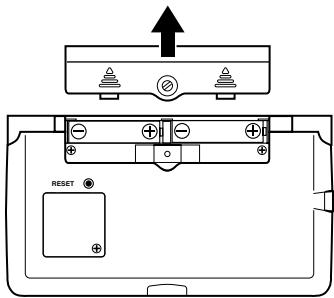
- Retirez les deux anciennes piles et remplacez-les par des neuves.
- Assurez-vous que les extrémités positive (+) et négative (-) sont orientées correctement.
- Replacez le couvercle du compartiment à piles et fixez-le avec sa vis. Veillez à ne pas trop serrer la vis.
- Appuyez sur le bouton RESET.
- Cela fait apparaître le message « UTILISEZ-VOUS UN NOUVEL APPAREIL POUR LA PREMIÈRE FOIS (O/N) ? ». Veillez à répondre N à ce message (appuyer sur O effacera toutes les données en mémoire). Ensuite, poursuivez avec les procédures de la section intitulée « Réinitialisation complète » à la page 11.
Pour remplacer la pile de secours
Important !
- Ne retirez pas la pile de secours du carnet électronique pendant que les piles principales sont retirées.
- Veillez à remplacer la pile de secours au moins une fois tous les 5 ans. Sinon, vous risquez de perdre les données stockées en mémoire.
- Appuyez sur OFF pour éteindre l'appareil.
- Retirez la vis qui maintient le couvercle du compartiment de la pile de secours en place et ouvrez le couvercle.
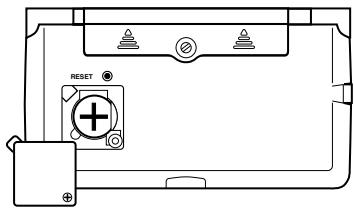
- Insérez un objet fin et pointu dans (A) et retirez l'ancienne pile.
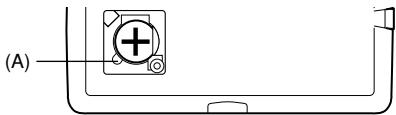
- Insérez une nouvelle pile dans le compartiment en veillant à ce que son côté positif soit orienté vers le haut (afin de pouvoir le voir).
- Replacez le couvercle du compartiment à piles et fixez-le avec sa vis.
Veillez à ne pas trop serrer la vis.
Mise sous tension et hors tension
Appuyez sur ON/OFF pour mettre l'appareil sous tension ou hors tension.
Important !
- Si rien ne s'affiche à l'écran lorsque vous mettez l'appareil sous tension, cela signifie que les piles principales sont faibles. Remplacez les piles (page 13) et appuyez sur le bouton RESET pour reprendre un fonctionnement normal.
Fonction d'arrêt automatique
L'appareil s'éteint automatiquement si vous n'appuyez sur aucune touche pendant environ trois minutes. Les alarmes que vous avez définies sonnent toujours, même si l'appareil est éteint.
Menus de fonctions
- Appuyer sur FUNC affiche un menu de fonctions, dont le contenu varie selon le mode.
- Appuyer sur SHIFT FUNC affiche un menu de fonctions des paramètres généraux du système (menu des fonctions système).
- Saisissez le numéro situé à gauche de la fonction que vous souhaitez utiliser pour la sélectionner.
- Pour quitter un menu de fonctions, appuyez sur ESC.
Langue du système
Votre agenda numérique peut afficher des messages dans l'une des trois langues suivantes : anglais, français, espagnol.
Pour sélectionner la langue du système
- Appuyez sur SHIFT FUNC puis sélectionnez « Langue ».
- Appuyez sur la touche numérique correspondant à la langue souhaitée.
Pour sélectionner l'anglais, appuyez sur 1. - La langue du système passe automatiquement à l'anglais lors d'une réinitialisation (page 11).
Remarque
- Dans ce manuel, tous les messages affichés sont en anglais.
Contraste de l'affichage
Utilisez la procédure suivante pour assombrir ou éclaircir les caractères à l'écran.
Pour régler le contraste de l'affichage
- Appuyez sur SHIFT FUNC puis sélectionnez « Contraste de l'affichage ».
- Utilisez et pour assombrir ou éclaircir l'affichage.
- Appuyez sur OK pour quitter.
Son de saisie des touches
Lorsque le son de saisie des touches est activé, votre agenda numérique émet un bip chaque fois que vous appuyez sur l'une de ses touches.
Pour activer ou désactiver le son de saisie des touches
- Appuyez sur SHIFT FUNC puis sélectionnez "Tonalité des touches".
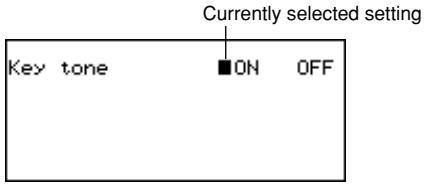
- Utilisez et pour activer ou désactiver le son de saisie des touches.
- L'indicateur de touche est affiché à l'écran lorsque le son de saisie des touches est activé.
- Appuyez sur OK pour quitter.
Retour arrière destructif
Lorsque le retour arrière destructif est activé, le caractère à la position du curseur est supprimé lorsque vous appuyez sur la touche BS.
Pour activer ou désactiver le retour arrière destructif
- Appuyez sur SHIFT FUNC puis sélectionnez "Retour arrière".
- Utilisez et pour activer ou désactiver le retour arrière destructif.
- Appuyez sur OK pour quitter.
Mode heure du domicile
Le temps conservé dans le mode Heure locale est utilisé pour le contrôle de diverses fonctions basées sur le temps.
Pour entrer dans le mode Heure locale
Appuyez une fois sur la touche HOME/WORLD.
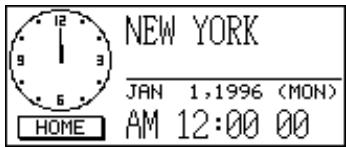
Pour régler votre fuseau horaire local
- Dans le mode Heure locale, appuyez sur FUNC puis sélectionnez "Changement de fuseau horaire".
- Utilisez et pour faire défiler les noms de villes. Voir page 23 pour une liste complète des fuseaux horaires.
- Lorsque la ville souhaitée est affichée, appuyez sur OK.
- Vous pouvez modifier votre fuseau horaire local plus tard si vous le souhaitez. Dans ce cas, seul le fuseau change, sans affecter le réglage de l'heure ou de la date.
Pour régler l'heure et la date
- Dans le mode Heure locale, appuyez sur FUNC puis sélectionnez "Réglage de l'heure".
Le réglage des heures clignote à l'écran. - Utilisez et pour déplacer la sélection clignotante sur l'écran.
- Saisissez les chiffres pour l'année, le mois, le jour, l'heure et les minutes.
- Saisissez l'année sur quatre chiffres dans la plage de 1901 à 2099.
- Utilisez le format 12 heures ou 24 heures selon le format de l'heure locale (page 19).
- Toute saisie illégale est ignorée.
- Avec le format 12 heures, appuyez sur A pour AM ou P pour PM.
- Appuyez sur OK pour quitter.
- Appuyer sur OK remet le compteur de secondes à "00".
Pour basculer entre l'heure standard et l'heure d'été
Dans le mode Heure locale, appuyez sur FUNC puis sélectionnez "Heure d'été".
- Cela bascule sur le réglage opposé et revient à l'écran du mode Heure locale. indique l'heure d'été.
Pour basculer entre le format 12 heures et 24 heures
Dans le mode Heure locale, appuyez sur FUNC puis sélectionnez "12/24 heures".
- Cela bascule sur le réglage opposé et revient à l'écran du mode Heure locale.
L'indicateur AM/PM indique le format 12 heures.
- Le format d'heure que vous sélectionnez est appliqué à tous les modes.
Pour sélectionner le format de date
- Dans le mode Heure principale, appuyez sur FUNC puis sélectionnez "Format de date".
- Sélectionnez le format de date que vous souhaitez utiliser.
Voici un exemple de chaque format :
[1] Mois/Jour/Année : JAN 1, 1996 (LUN) [2] Jour/Mois/Année : 1 JAN, 1996 (LUN) [3] Année/Mois/Jour : 1996/1/1 (LUN)
- Le format de date que vous sélectionnez est appliqué dans tous les modes.
Utilisation de l'alarme quotidienne
L'alarme quotidienne sonne à la même heure chaque jour pendant 20 secondes et l'écran de l'alarme quotidienne apparaît.
Pour modifier l'heure de l'alarme quotidienne
- Dans le mode Heure principale, appuyez sur FUNC puis sélectionnez "Réglage de l'alarme quotidienne".
Le réglage des heures clignote à l'écran. - Utilisez et pour déplacer le clignotement.
- Saisissez les chiffres pour les heures et les minutes.
- Toute saisie invalide est ignorée.
- Pour le format d'heure sur 12 heures, appuyez sur A pour AM ou P pour PM.
- Appuyez sur OK pour quitter.
- Appuyer sur OK active automatiquement l'alarme.
Pour activer et désactiver l'alarme quotidienne
- Dans le mode Heure actuelle, appuyez sur FUNC puis sélectionnez "Son de l'alarme quotidienne".
- Utilisez et pour activer ou désactiver l'alarme quotidienne.
- Appuyez sur OK.
Fonctionnement de l'alarme quotidienne
L'alarme quotidienne sonne à l'heure que vous avez définie. Une fonction de répétition fait sonner l'alarme plusieurs fois, pour vous éviter de trop dormir ou de manquer un rendez-vous.
À propos de la fonction de répétition
La fonction de répétition s'active (et l'indicateur SNOOZE apparaît à l'écran) si vous n'appuyez sur aucune touche ou si vous appuyez sur la touche ESPACE après que l'alarme quotidienne a commencé à sonner.
- Si vous n'appuyez sur aucune touche, l'alarme s'arrête après 20 secondes, puis sonne deux fois de plus toutes les 10 minutes. Dans ce cas (si vous n'appuyez sur aucune touche), l'alarme sonne trois fois au total puis s'arrête.
- Appuyer sur la touche ESPACE pendant que l'alarme sonne arrête l'alarme et réinitialise la fonction de répétition pour trois sonneries supplémentaires espacées de 10 minutes.
- Appuyer sur toute autre touche que la touche ESPACE pendant que l'alarme sonne arrête l'alarme et annule la fonction de répétition, de sorte que l'alarme ne sonne plus jusqu'à ce qu'une heure d'alarme soit atteinte.
Remarque
Tenez compte des points importants suivants lors de l'utilisation de l'alarme quotidienne.
- Si l'heure de l'alarme est atteinte pendant une communication de données, l'alarme ne sonne pas tant que vous n'avez pas terminé la procédure de communication.
- L'alarme peut ne pas sonner si la pile est trop faible.
Mode Heure mondiale
Avec l'heure mondiale, vous pouvez consulter l'heure actuelle dans les fuseaux horaires du monde entier.
Pour accéder au mode Heure mondiale
Appuyez deux fois sur la touche HOME/WORLD. Depuis le mode Heure locale, appuyez une seule fois sur HOME/WORLD.
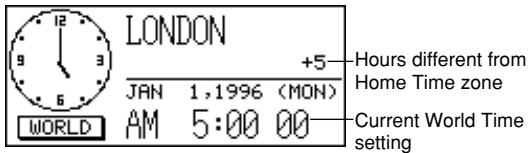
- Chaque pression sur HOME/WORLD fait basculer le journal numérique entre le mode Heure locale et le mode Heure mondiale.
Pour faire défiler les fuseaux horaires du mode Heure mondiale
Dans le mode Heure mondiale, utilisez et pour faire défiler les fuseaux un par un.
- Maintenez l'un ou l'autre bouton enfoncé pour faire défiler rapidement.
Pour modifier les réglages d'un fuseau horaire de l'heure mondiale
- Dans le mode Heure mondiale, affichez le fuseau souhaité.
- Appuyez sur FUNC.
- Basculez entre le format 12/24 heures (page 19), basculez entre l'heure standard et l'heure d'été (page 19), et réglez le format de la date (page 19).
- Les réglages du format de l'heure et du format de la date s'appliquent à tous les fuseaux de l'heure mondiale et au mode Heure locale.
- Le réglage heure standard/heure d'été s'applique uniquement au fuseau horaire actuellement sélectionné.
- Voir page 22 pour plus de détails sur l'utilisation de l'élément de menu Fonction de changement de zone.
Écran d'informations de zone
L'écran d'informations de zone affiche le nom d'une grande ville et le décalage horaire par rapport à votre heure locale pour chaque fuseau horaire mondial.
Pour afficher l'écran d'informations de zone
Dans le mode Heure mondiale ou le mode Heure locale, appuyez sur DISP CHNG pour passer à l'écran d'informations de zone pour la zone affichée.
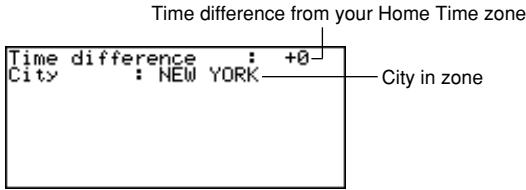
- Pour quitter l'écran d'informations de zone, appuyez sur DISP CHNG, ESC ou HOME/WORLD.
Pour modifier le contenu de l'écran d'informations de zone
Remarque
Si vous modifiez le nom de la ville sur l'écran d'informations de zone, le nom saisi apparaîtra également sur les écrans Heure locale et Heure mondiale.
- Dans le mode Heure mondiale, affichez la zone souhaitée.
- Appuyez sur FUNC et sélectionnez "Changement de zone".
- Modifiez le contenu de l'écran.
- Utilisez et pour déplacer le curseur.
- Vous pouvez saisir jusqu'à 13 caractères pour le nom de la ville.
- Après avoir effectué vos modifications, appuyez sur OK.
- À ce moment, le message « Êtes-vous sûr (O/N) ? » apparaît.
- Appuyez sur O pour enregistrer vos modifications ou sur N pour les annuler.
Liste des villes
| City Name | Time Differ-ence | Other Cities in Zone |
| Midway | -06 | |
| Honolulu | -05 | |
| Anchorage | -04 | |
| Los Angeles | -03 | San Francisco, Seattle, Las Vegas |
| Denver | -02 | El Paso |
| Chicago | -01 | Dallas, Mexico City, Houston |
| New York | +00 | Washington D.C., Boston, Montreal |
| Santiago | +01 | Caracas |
| R. de Janeiro | +02 | Sao Paulo, Buenos Aires |
| F. de Noronha | +03 | |
| Azores | +04 | |
| London | +05 | Greenwich Mean Time |
| Rome | +06 | Paris, Madrid, Amsterdam, Berlin |
| Jerusalem | +07 | Cairo, Athens, Helsinki, Beirut |
| Moscow | +08 | Jeddah, Kuwait, Nairobi |
| Abu Dhabi | +09 | Dubai |
| Karachi | +10 | |
| Dhaka | +11 | |
| Bangkok | +12 | Jakarta, Hanoi |
| Hong Kong | +13 | Beijing, Taipei, Singapore, Manila |
| Tokyo | +14 | Seoul, Pyongyang |
| Sydney | +15 | Guam |
| Noumea | +16 | Port Vila |
| Auckland | +17 | Wellington |
- Les valeurs de décalage horaire dans le tableau ci-dessus sont celles qui apparaissent lorsque New York est réglé comme heure de référence.
Opérations sur le carnet de données
Cette partie du manuel vous explique comment saisir et modifier du texte, et comment protéger vos données personnelles avec un mot de passe.
Saisie de texte
La saisie ou la correction s'effectue à l'emplacement actuel du curseur.
À propos des « éléments de données » et des « entrées »
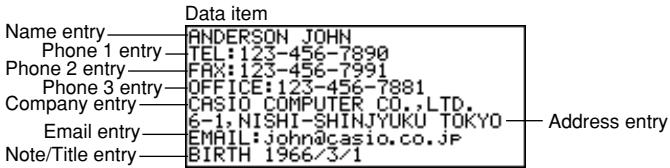
Ce qui précède montre un élément de données typique du répertoire téléphonique, composé de plusieurs entrées. Lorsque vous saisissez des données, des invites apparaissent à l'écran pour vous indiquer quelle entrée nécessite une saisie de texte.
Pour déplacer le curseur à l'écran
Utilisez , , et
Remarque
- Le nombre maximal de caractères que vous pouvez saisir pour chaque élément de données est de 255, y compris les symboles de nouvelle ligne et les marques de séparation (page 25).
Pour saisir des lettres et des chiffres
Appuyez sur la touche marquée de la lettre ou du chiffre.
Pour saisir des lettres majuscules
Appuyez sur CAPS pour basculer entre les lettres majuscules et minuscules. L'indicateur "CAPS" montre que le clavier est verrouillé en majuscules.
Pour décaler le clavier
Appuyez sur SHIFT pour décaler temporairement le clavier. L'indicateur "S" à l'écran montre que le clavier est décalé.
Si le clavier est réglé sur les lettres majuscules (par la touche CAPS), appuyer sur SHIFT change en minuscules. Dès que vous saisissez un caractère, le clavier revient à la normale.
Pour saisir des signes de ponctuation et d'autres symboles
Appuyez sur CODE puis sur toute touche marquée du signe de ponctuation ou du symbole que vous voulez saisir. L'indicateur "CODE" montre que la touche CODE a été enfoncée.
Pour saisir des caractères accentués
Exemple : Pour saisir é
CODE W e
Symboles de nouvelle ligne et marques de séparation
Chaque pression sur ← saisit un symbole de nouvelle ligne (←).
Ne confondez pas le symbole de nouvelle ligne avec la marque de séparation (\), qui est automatiquement ajoutée à la fin des données que vous saisissez lorsque vous appuyez sur OK pour passer à l'entrée suivante.
Les marques de séparation ne sont pas affichées lorsque vous rappelez des données.
Pour remplacer un caractère par un autre
- Déplacez le curseur sur le caractère à remplacer.
- Saisissez le caractère de remplacement.
Pour supprimer un caractère
- Déplacez le curseur sur le caractère à supprimer.
- Appuyez sur DEL.
Pour insérer des caractères
- Déplacez le curseur à l'emplacement de l'insertion.
- Appuyez sur INS.
Chaque pression sur INS ouvre un espace à la position du curseur.
- Saisissez les caractères souhaités dans l'espace.
Saisie des dates et heures
Généralités
- Utilisez les touches curseur pour déplacer le curseur.
Heures
- Utilisez le réglage du format 12 heures/24 heures de l'heure locale.
- Avec le format 12 heures, appuyez sur A pour AM ou P pour PM.
Dates
- Utilisez le format de date prédéfini (page 19). La plage de saisie des années est de 1901 à 2099.
- Vous pouvez saisir les années du 20e siècle en utilisant seulement deux chiffres (96 = 1996). Les années du 21e siècle doivent être saisies en quatre chiffres.
Formats d'affichage
Deux formats d'affichage (format d'affichage des données et format d'affichage de l'index) sont utilisés. Appuyez sur DISP CHNG pour basculer entre les formats d'affichage de l'index et des données.
Format d'affichage des données (répertoire téléphonique)
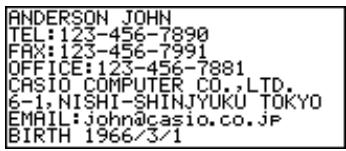
- Le format d'affichage des données affiche toutes les entrées.
- Utilisez et pour faire défiler ligne par ligne.
Format d'affichage de l'index (répertoire téléphonique)
Entrée principale
Élément actuellement sélectionné
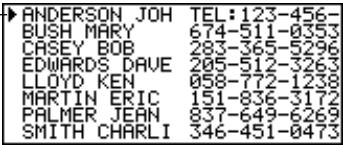
- Le format d'affichage de l'index ne montre qu'une ou deux entrées.
- L'élément sur la ligne du haut est celui qui est actuellement sélectionné.
- Utilisez et pour faire défiler vers le haut et vers le bas.
Mode répertoire téléphonique
Les données du répertoire téléphonique sont automatiquement triées selon les entrées de noms.
Pour entrer dans le mode répertoire téléphonique
- Appuyez sur TEL pour afficher l'écran initial du mode répertoire téléphonique.
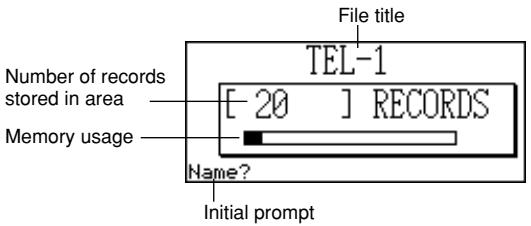
- Appuyez à nouveau sur TEL pour passer à un autre fichier téléphonique.
Chaque pression sur TEL change le fichier dans l'ordre suivant.

Pour saisir des données dans le répertoire téléphonique
- Utilisez TEL pour afficher l'écran initial d'un fichier du répertoire téléphonique.
- Saisissez le nom, le nom de famille en premier, puis appuyez sur OK.
- Saisissez les numéros de téléphone, le nom de l'entreprise, l'adresse, l'adresse e-mail et la note ou le titre, en appuyant sur OK après chacun.
- Des invites s'affichent à l'écran pour vous indiquer quoi saisir.
- Après la dernière saisie, appuyez sur OK pour enregistrer les données et revenir à l'affichage de l'index (page 26).
- Les données sont automatiquement triées par ordre alphabétique selon la saisie du nom.
Remarque
- Vous devez saisir un nom. Ensuite, vous pouvez ignorer toute saisie en appuyant sur OK sans rien entrer.
Pour modifier un titre de fichier
- Utilisez TEL pour afficher l'écran initial d'un fichier de répertoire téléphonique.
- Appuyez sur FUNC puis sélectionnez "Titre du fichier".
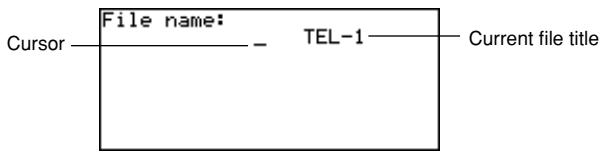
- Saisissez jusqu'à 13 caractères pour le titre. Voir page 24 pour plus de détails sur la saisie des caractères.
- Appuyez sur OK pour quitter.
Pour spécifier le contenu de l'affichage de l'index du mode répertoire téléphonique
- Appuyez sur TEL pour afficher l'écran initial du mode répertoire téléphonique, puis appuyez sur , , , ou pour passer à l'affichage de l'index.
- Appuyez sur FUNC puis sélectionnez "Type de liste".

- Appuyez sur la touche numérique correspondant à l'entrée que vous souhaitez voir apparaître sur l'affichage de l'index.
- L'appareil revient à l'affichage de l'index montrant les données que vous avez spécifiées.
Résumé de l'enregistrement
Le résumé de l'enregistrement fournit une vue d'ensemble de chaque fichier du répertoire téléphonique.
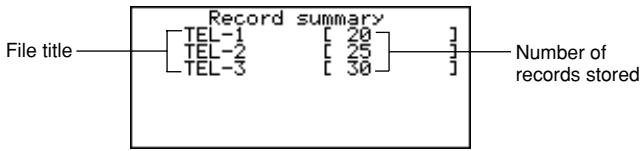
Pour afficher le résumé de l'enregistrement
En mode répertoire téléphonique, appuyez sur FUNC puis sélectionnez "Résumé de l'enregistrement". Appuyez sur ESC pour revenir à l'affichage initial du mode répertoire téléphonique.
Mode Mémo
Les données du mémo sont stockées dans l'ordre où elles sont saisies, sans tri.
Pour entrer dans le mode Mémo
- Appuyez sur MEMO pour afficher l'écran initial du mode Mémo.
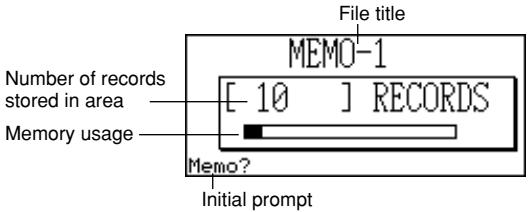
- Appuyez à nouveau sur MEMO pour passer à un autre fichier du mode Mémo.
Chaque pression sur MEMO change de fichier dans l'ordre suivant.

Pour saisir des données en mode Mémo
- Utilisez MEMO pour afficher l'écran initial d'un fichier du mode Mémo.
- Saisissez la première ligne et appuyez sur ←
- Un symbole de nouvelle ligne est inséré et le curseur descend à la ligne suivante.
- Saisissez le reste de votre mémo.
- Appuyez sur OK pour quitter et revenir à l'affichage de l'index (page 26).
Pour modifier un titre de fichier
Utilisez la même procédure que celle décrite pour modifier un titre de fichier du répertoire téléphonique à la page 27.
Résumé de l'enregistrement
Le résumé de l'enregistrement fournit une vue d'ensemble de chaque fichier du mode Mémo.
Pour afficher le résumé de l'enregistrement
Dans le mode Mémo, appuyez sur FUNC puis sélectionnez "Résumé de l'enregistrement". Appuyez sur ESC pour revenir à l'affichage original du mode Mémo.
Mode Calendrier
Le calendrier affiche les calendriers de janvier 1901 à décembre 2099.
- Appuyer sur SCHEDULE dans le mode Calendrier entre dans le mode Agenda pour la date sélectionnée sur l'écran du mode Calendrier.
- Si le curseur de date est positionné sur une date qui contient des données du mode Rappel, appuyer sur REMINDER entre dans le mode Rappel pour cette date.
Pour entrer dans le mode Calendrier
PressCALENDAR.
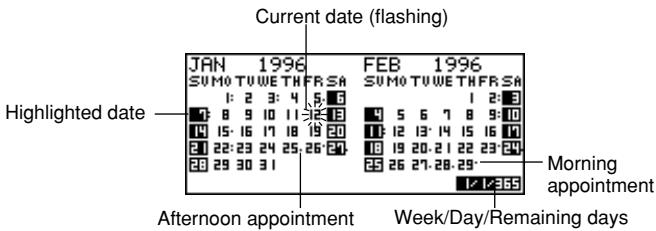
- La date actuelle (selon le réglage de l'heure de domicile) est sélectionnée par le curseur de date.
■ Se déplacer dans les calendriers
Voici les opérations de base pour se déplacer dans les calendriers.
- Utilisez , , et pour déplacer le curseur de date. Maintenir enfoncée l'une de ces touches déplace le curseur de date à grande vitesse.
- Appuyez sur pour déplacer le curseur de date au premier jour du mois précédent, et sur pour passer au premier jour du mois suivant.
Pour accéder à une date spécifique
- Dans le mode Calendrier, appuyez sur FUNC puis sélectionnez "Recherche de date".
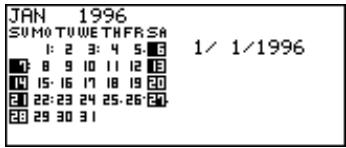
- Saisissez le mois, le jour et l'année, puis appuyez sur OK.
Pour avancer ou reculer d'un nombre de jours précis
- Dans le mode Calendrier, placez le curseur de date sur la date de départ.
- Appuyez sur + (avant) ou - (arrière).
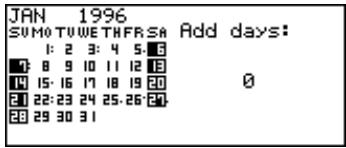
- Saisissez le nombre de jours à parcourir, puis appuyez sur OK.
- Vous pouvez saisir une valeur comprise entre 0 et 999.
- Appuyez sur Y pour inclure les jours fériés ou sur N pour les exclure.
- Un jour férié est toute date mise en surbrillance.
À propos du calendrier « actif »
Le calendrier sur le côté gauche de l'écran est le calendrier « actif ». Toutes les opérations du mode Calendrier sont effectuées sur le calendrier actif.
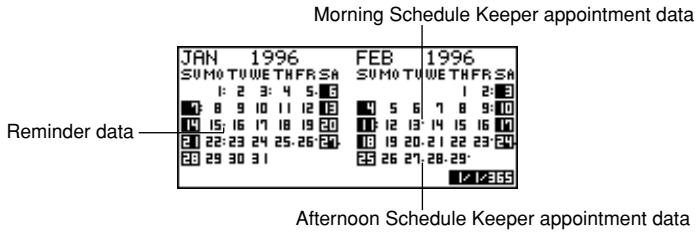
■ Marqueurs de rendez-vous
Les marqueurs de rendez-vous apparaissent à côté de chaque date qui contient des données dans le mode Agenda ou mode Rappel.
Mise en surbrillance des dates du calendrier
Vous pouvez mettre en surbrillance des dates du calendrier pour indiquer des jours fériés ou d'autres événements spéciaux à retenir.
Pour mettre en surbrillance ou désactiver la surbrillance de dates individuelles
- Déplacez le curseur de date sur la date.
- Appuyez sur ESPACE pour mettre en surbrillance ou désactiver la surbrillance de la date.
Pour mettre en surbrillance des jours de la semaine sur plusieurs semaines
Exemple : Pour mettre en surbrillance tous les dimanches de juillet 1996 à décembre 1997.
- Dans le mode Calendrier, appuyez sur FUNC puis sélectionnez « Réglage hebdomadaire des jours fériés ».
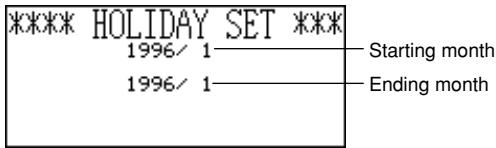
- Saisissez le mois de début (7) et l'année (96), puis le mois de fin (12) et l'année (97).
- Appuyez sur OK.
- SUN clignote car il est sélectionné.
- Utilisez ◁ et ▷ pour déplacer le clignotement. Appuyez sur ESPACE pour mettre en surbrillance ou désactiver la surbrillance d'un jour de la semaine.
- Vous pouvez spécifier (mettre en surbrillance) autant de jours de la semaine que vous le souhaitez.
- Après avoir sélectionné les jours souhaités, appuyez sur OK.
- Vous pouvez désactiver la surbrillance d'une date en la sélectionnant avec le curseur de date et en appuyant sur ESPACE.
Pour effacer les jours de la semaine sur plusieurs semaines
- En mode Calendrier, appuyez sur FUNC puis sélectionnez "Effacer jours fériés hebdomadaires".
- Saisissez le mois et l'année de début, ainsi que le mois et l'année de fin, puis appuyez sur OK.
- À ce moment, le message "Êtes-vous sûr (O/N) ?" apparaît.
- Appuyez sur O pour désactiver la surbrillance, ou sur N pour annuler.
Comptage des jours ouvrables
Utilisez les procédures suivantes pour compter le nombre de jours ouvrables.
Pour compter les jours ouvrés
- Déplacez le curseur de date sur le jour de début.
- Appuyez sur FUNC puis sélectionnez "Comptage des jours ouvrés".
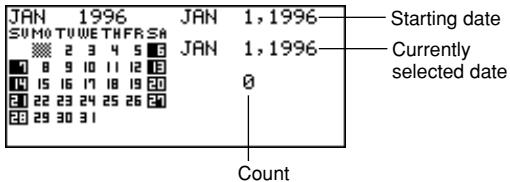
- Utilisez les touches , , et pour déplacer le curseur de date.
- Le compteur change à chaque déplacement du curseur de date.
- Le curseur de date ne s'arrête pas sur les dates en surbrillance, et les dates en surbrillance ne sont jamais comptées.
- Si vous déplacez le curseur de date sur une date antérieure à la date de début, le nombre de jours ouvrés est négatif.
Écran de l'agenda hebdomadaire
Un écran d'agenda hebdomadaire qui permet de voir tout une semaine d'un coup d'œil.
Partie d'un agenda sur plusieurs jours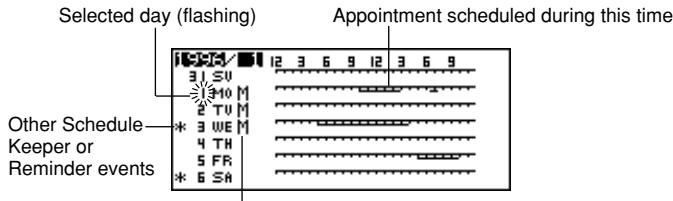
Pour afficher l'écran de l'agenda hebdomadaire
- Dans le mode Calendrier, déplacez le curseur de date sur la semaine que vous souhaitez voir.
- Appuyez sur DISP CHNG.
- Utilisez et pour déplacer le curseur de date jour par jour, ou et pour sauter semaine par semaine.
- Appuyez sur ESC pour revenir à l'écran du calendrier.
Gestionnaire de rendez-vous
Le gestionnaire de rendez-vous vous permet de saisir l'heure et une description de votre rendez-vous et de régler des alarmes de rendez-vous.
- Appuyer sur REMINDER dans le mode Gestionnaire de rendez-vous entre dans le mode Rappel pour la date actuellement sélectionnée dans le mode Gestionnaire de rendez-vous. Appuyer sur CALENDAR affiche le mois avec le curseur de date positionné sur la date du gestionnaire de rendez-vous.
Pour entrer dans le mode Gestionnaire de rendez-vous
Appuyez sur SCHEDULE pour afficher l'écran initial du mode Gestionnaire de rendez-vous.
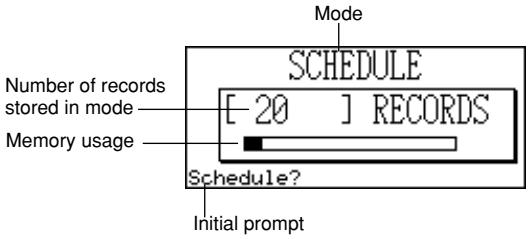
- Appuyer sur SCHEDULE dans le mode Calendrier affiche le gestionnaire de rendez-vous pour la date où se trouve le curseur de date dans l'écran du calendrier ou de l'agenda hebdomadaire.
■ Se déplacer dans les dates du gestionnaire de rendez-vous
Voici les opérations de base pour sélectionner une date afin de saisir des données dans le gestionnaire de rendez-vous.
Pour aller à une date spécifique
- Dans le mode Agenda, appuyez sur FUNC puis sélectionnez "Recherche de date".
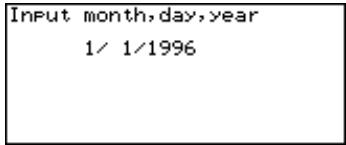
- Notez que cette procédure ne peut pas être lancée depuis l'écran de l'agenda quotidien.
- Saisissez le mois, le jour et l'année, puis appuyez sur OK.
Pour faire défiler d'une date à une autre
Lorsque l'écran de l'agenda pour une date est déjà affiché, appuyez sur ou pour revenir à la date précédente. Appuyer sur ou fait défiler jusqu'à la date suivante.
- Si la date affichée contient plus d'une entrée de données de l'agenda, les touches ci-dessus font défiler les données une par une. Les opérations de touches ci-dessus ne changent la date que lorsque le premier (en haut) ou le dernier (en bas) élément de données est affiché.
Pour saisir des données dans l'agenda
- Affichez l'écran de l'agenda pour la date où vous souhaitez saisir des données.
- Saisissez la description du rendez-vous.
- Même si des données d'agenda sont déjà affichées, commencez simplement à saisir la description et les données précédentes disparaîtront.
- Appuyez sur et la spécification du type d'agenda commence à clignoter.
- N'appuyez pas sur ou . Cela lancerait une recherche utilisant le texte saisi (page 48).
- Appuyez sur ou pour afficher le menu de sélection du type de programme.
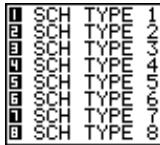
- Si vous ne souhaitez pas modifier le réglage par défaut du type de programme 1, appuyez à nouveau sur sans appuyer sur ou .
- Saisissez une valeur de 1 à 8 pour spécifier un type de programme et revenir à l'affichage du gestionnaire de programmes.
- Appuyez sur et la spécification de l'heure de début commence à clignoter.
- Saisissez l'heure de début et l'heure de fin du rendez-vous.
- Utilisez le format 12 heures/24 heures de l'heure locale (page 19).
- Si vous souhaitez saisir uniquement une heure de début, ne saisissez rien pour l'heure de fin (laissez-la identique à l'heure de début).
- Après avoir saisi l'heure de début et de fin, appuyez sur pour passer à l'heure de l'alarme. Utilisez et pour sélectionner le type d'heure de l'alarme et saisir une heure d'alarme, si nécessaire.
- Lorsque l'heure de l'alarme est sélectionnée, appuyer sur et permet de sélectionner l'un des trois types d'alarme.
Alarme le jour même. Ce type d'alarme est indiqué lorsque la première heure d'alarme qui apparaît est la même que l'heure de début du rendez-vous que vous avez saisie à l'étape 7. C'est le seul type d'alarme qui vous permet de régler une heure.
Alarme la veille. Ce type d'alarme est indiqué lorsque la première heure d'alarme qui apparaît est "24:00". Ce type d'alarme sonne 24 heures avant l'heure de début du rendez-vous que vous avez saisie à l'étape 7.
Aucune alarme. Lorsqu'aucune heure n'est affichée pour l'heure d'alarme, cela signifie qu'aucune alarme n'est réglée.
- Après avoir réglé l'heure d'alarme souhaitée, appuyez sur OK pour revenir au type de programme.
- Lorsque le curseur se trouve dans le texte de description, appuyez sur OK pour enregistrer toutes les données.
Remarque
- Vous devez saisir une description. Ensuite, vous pouvez passer toute saisie en appuyant sur OK sans rien saisir.
Alarmes de programme
Une alarme sonne pendant 20 secondes et les données correspondantes du Schedule Keeper apparaissent à l'écran. Notez les points importants suivants lorsque vous utilisez une alarme de programme.
- La fonction de répétition s'applique également à l'alarme du jour même, tout comme pour l'alarme quotidienne. Voir "À propos de la fonction de répétition" à la page 20 pour plus de détails.
- L'indicateur d'alarme et l'heure sont automatiquement effacés après que l'heure de l'alarme est atteinte.
- Si l'heure de l'alarme est atteinte pendant une communication de données, l'alarme ne sonne pas tant que vous n'avez pas terminé la procédure de communication.
- L'alarme peut ne pas sonner si la charge de la pile est trop faible.
Comment les données du Schedule Keeper sont triées
Ce qui suit montre comment les données du Schedule Keeper sont triées dans chaque date.
- Par date
- Par heure dans la même date (les données sans heure viennent en premier)
Étiquettes et icônes des types de planning
Les données du mode Gestionnaire de planning incluent une icône et une étiquette de type de planning. Initialement, les types de planning sont étiquetés « TYPE PLANNING 1 » à « TYPE PLANNING 8 », et l'icône de type de planning par défaut initiale est
Pour modifier les étiquettes et les icônes des types de planning
- Appuyez sur PLANNING pour afficher l'écran initial du mode Gestionnaire de planning.
- Appuyez sur FONCTION puis sélectionnez « Définir le type ».
- Utilisez et pour déplacer le pointeur sur le type de planning que vous souhaitez modifier.
- Saisissez jusqu'à 13 caractères pour la nouvelle étiquette que vous souhaitez utiliser.
- Ignorez cette étape si vous ne souhaitez pas modifier l'étiquette ou si vous préférez attendre d'avoir modifié l'icône du type de planning.
- Appuyez sur AFF CHNG pour afficher le menu des icônes de types de planning.
- Si vous ne souhaitez pas modifier l'icône attribuée à ce type de planning, ignorez les étapes 5 à 7.
- Utilisez , , et pour déplacer le curseur sur l'icône que vous souhaitez utiliser. Utilisez et pour naviguer entre les écrans de menu.
- Lorsque l'icône souhaitée est sélectionnée, appuyez sur OK pour l'enregistrer et revenir au menu du type d'horaire.
- Appuyez sur OK pour enregistrer toutes vos modifications et revenir à l'affichage initial du mode Schedule Keeper.
- Vous pouvez modifier le libellé du type d'horaire avant d'appuyer sur OK à l'étape 8 si vous ne l'avez pas déjà fait.
Pour spécifier le contenu de l'affichage de l'index du mode Schedule Keeper
- Appuyez sur SCHEDULE pour afficher l'écran initial du mode Schedule Keeper, puis appuyez sur , , ou pour passer à l'affichage de l'index.
- Appuyez sur FUNC puis sélectionnez "Type de liste".
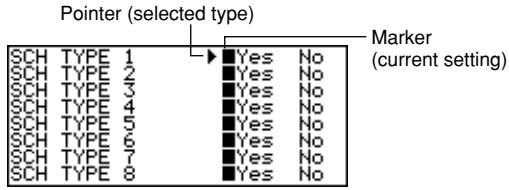
- Utilisez et pour déplacer le pointeur à côté du type d'horaire que vous souhaitez modifier, puis utilisez et pour changer le réglage.
- Les types d'horaire définis sur "Oui" apparaissent dans l'affichage de l'index, tandis que ceux définis sur "Non" n'y apparaissent pas.
- Appuyez sur OK pour quitter et revenir à l'affichage de l'index.
Écran de l'horaire quotidien
L'écran de l'horaire quotidien fournit un aperçu rapide des rendez-vous prévus pour la journée.
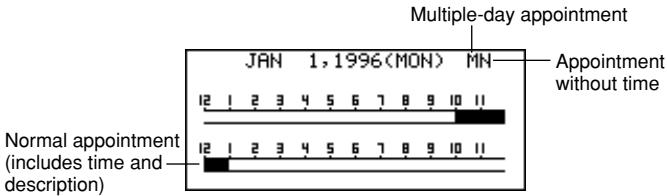
Vous devez utiliser l'écran de l'horaire quotidien pour saisir des rendez-vous sur plusieurs jours.
Pour afficher l'écran de l'horaire quotidien
- Dans le mode Schedule Keeper, affichez l'écran de la date dont vous souhaitez consulter l'horaire.
- Appuyez sur DISP CHNG pour passer à l'écran de l'agenda quotidien.
- Vous pouvez utiliser , , et pour faire défiler un autre jour.
- Appuyez sur DISP CHNG pour revenir à l'écran des données de l'agenda.
Pour saisir des données d'agenda sur plusieurs jours
- Affichez l'écran de l'agenda quotidien en mode Agenda.
- Appuyez sur FUNC puis sélectionnez "Définir un agenda multi-jours".
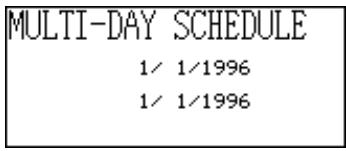
- Saisissez la date de début et la date de fin, puis appuyez sur OK.
- Saisissez la description du rendez-vous (page 35) et précisez le type d'agenda (page 36).
- Notez que vous ne pouvez pas spécifier l'heure de début, l'heure de fin ou l'heure de l'alarme pour les données d'agenda multi-jours.
Mode Rappel
Le mode Rappel vous aide à suivre les anniversaires, les dates de naissance et d'autres événements importants.
Pour accéder au mode Rappel
Appuyez sur RAPPEL pour afficher l'écran initial du mode Rappel.
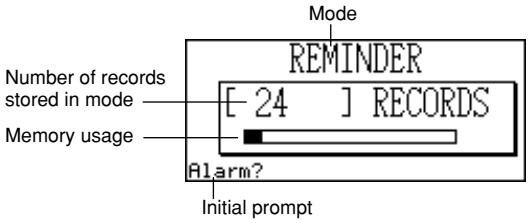
- Appuyer sur RAPPEL dans le mode Calendrier ou le mode Agenda affiche le mode Rappel pour la date sélectionnée dans le mode Calendrier ou le mode Agenda.
Pour saisir des données de rappel
- Appuyez sur RAPPEL pour afficher l'écran initial du mode Rappel.
- Appuyez sur n'importe quelle touche alphabétique pour passer à l'écran de saisie des données.
- Utilisez et pour sélectionner le type d'heure d'alarme et saisir une heure d'alarme, si nécessaire.
- Les types d'alarme sont les mêmes que ceux du mode Agenda. Voir page 36 pour plus de détails.
- Si vous sélectionnez une alarme du jour précédent (réglage d'alarme de -24:00), l'alarme sonne à midi le jour précédant la date spécifiée pour l'élément de données du mode Rappel.
- Après avoir réglé l'alarme, appuyez sur OK pour passer à la saisie de l'icône.
- À ce moment, l'icône en haut à droite de l'écran commence à clignoter.
- Appuyez sur ◀ ou ▶ pour afficher le menu des icônes.
- Si vous ne souhaitez pas changer d'icône, ignorez les étapes 6 et 7.
- Utilisez ▲, ▼, ◀ et ▶ pour déplacer le curseur clignotant sur l'icône que vous souhaitez utiliser. Utilisez ▲ et ▼ pour naviguer entre les écrans de menu.
- Lorsque l'icône souhaitée est sélectionnée, appuyez sur OK pour l'enregistrer et revenir à l'écran de saisie du rappel.
- Saisissez une description du rappel.
- Pendant que le curseur se trouve dans la zone de description, appuyez sur OK pour enregistrer toutes les données.
Remarque
- Vous devez saisir une description. Ensuite, vous pouvez ignorer toute saisie en appuyant sur OK sans rien saisir.
■ Alarmes de rappel
Lorsque l'heure d'une alarme de rappel est atteinte, une alarme retentit pendant 20 secondes et les données du rappel correspondant s'affichent à l'écran. Appuyez sur n'importe quelle touche pour arrêter l'alarme et revenir à l'écran affiché avant le début de l'alarme. Notez les points importants suivants lorsque vous utilisez une alarme de rappel.
- La fonction de répétition s'applique également à l'alarme du jour même, tout comme pour l'alarme quotidienne. Voir « À propos de la fonction de répétition » à la page 20 pour plus de détails.
- Si l'heure de l'alarme est atteinte pendant une communication de données, l'alarme ne retentit pas tant que vous n'avez pas terminé la procédure de communication.
- L'alarme peut ne pas sonner si la pile est trop faible.
Mode À faire
Vous pouvez classer les éléments par priorité, et même saisir un message et une icône À faire.
Pour entrer dans le mode À faire
- Appuyez sur TO DO pour afficher l'écran initial du mode À faire.
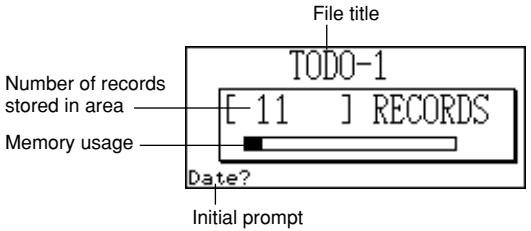
- Appuyez à nouveau sur TO DO pour passer à un autre fichier À faire.
Chaque pression sur TO DO change le fichier dans l'ordre suivant.

Pour saisir des données À faire
- Utilisez TO DO pour afficher l'écran initial d'un fichier À faire.
- Saisissez la date de l'élément, puis appuyez sur OK pour passer à la priorité.
- Appuyez sur ou pour afficher un menu des niveaux de priorité.
- Saisissez un nombre de 1 à 8 pour attribuer une priorité.
- Appuyez sur OK pour passer à la description, puis saisissez le texte.
- Lorsque le curseur se trouve dans la zone de description, appuyez sur OK pour enregistrer toutes les données.
Remarque
- Vous devez saisir une description. Vous pouvez ignorer toute saisie en appuyant sur OK sans rien saisir.
Pour changer le titre d'un fichier
- Utilisez TO DO pour afficher l'écran initial du fichier du mode To Do dont vous voulez changer le titre.
- Appuyez sur FUNC puis sélectionnez "Titre du fichier".
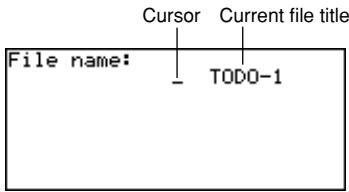
- Saisissez jusqu'à 13 caractères pour le titre.
- Après avoir terminé, appuyez sur OK.
Pour spécifier le contenu de l'affichage de l'index du mode To Do
- Appuyez sur TO DO pour afficher l'écran initial du mode To Do, puis appuyez sur , , ou pour changer l'affichage de l'index.
- Appuyez sur FUNC puis sélectionnez "Type de liste".
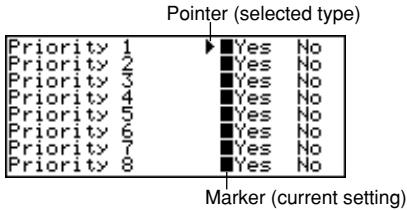
- Utilisez et pour déplacer le pointeur à côté de la priorité que vous voulez changer, puis utilisez et pour modifier le réglage.
- Les entrées du mode To Do dont la priorité est réglée sur "Oui" apparaissent dans l'affichage de l'index, tandis que celles dont la priorité est réglée sur "Non" n'y apparaissent pas.
- Appuyez sur OK pour quitter et revenir à l'affichage de l'index.
Résumé de l'enregistrement
Le résumé des enregistrements offre une vue rapide du nombre d'éléments de données stockés dans chaque fichier du mode To Do.
Pour afficher le résumé des enregistrements
Dans le mode To Do, appuyez sur FUNC puis sélectionnez "Résumé des enregistrements".
Appuyez sur ESC pour revenir à l'affichage initial du mode To Do.
Tri des données To Do
Les données To Do sont triées par ordre chronologique lors de leur stockage en mémoire.
Icônes de priorité
Des icônes sont attribuées aux priorités du mode To Do et apparaissent à l'écran chaque fois que vous attribuez une priorité.
Pour modifier les icônes de priorité
- Appuyez sur TO DO pour afficher l'écran initial du mode To Do.
- Appuyez sur FUNC puis sélectionnez "Définir le type".
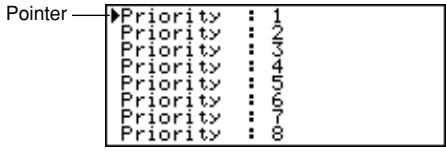
- Utilisez et pour déplacer le pointeur sur la priorité dont vous souhaitez modifier l'icône.
- Appuyez sur DISP CHNG pour afficher le menu des icônes de priorité.
- Utilisez , , et pour déplacer le curseur sur l'icône souhaitée. Utilisez et pour naviguer entre les écrans du menu.
- Lorsque l'icône souhaitée est sélectionnée, appuyez sur OK pour l'enregistrer et revenir au menu des priorités.
- Appuyez sur OK pour revenir à l'écran initial du mode To Do.
Pour cocher ou décocher un élément To Do
- Affichez l'écran initial du mode To Do et appuyez sur ou pour afficher l'affichage des index.
- Déplacez l'élément que vous souhaitez cocher ou décocher sur la première ligne de l'affichage.
- Appuyez sur OK pour cocher ou décocher l'élément.
- Vous pouvez également effectuer l'opération ci-dessus à l'aide de l'affichage des données. Affichez l'affichage des données de l'élément que vous souhaitez cocher ou décocher, puis appuyez sur OK.
- Vous pouvez supprimer tous les éléments cochés en effectuant la procédure décrite dans « Pour supprimer tous les éléments de données marqués » (page 53) tout en étant en mode To Do.
Mode Gestionnaire de dépenses
Avec le Gestionnaire de dépenses, vous pouvez stocker des données de dépenses et produire un rapport qui affiche les totaux pour une période spécifique.
Pour entrer dans le mode Gestionnaire de dépenses
- Appuyez sur EXPENSE pour afficher l'écran initial du mode Gestionnaire de dépenses.
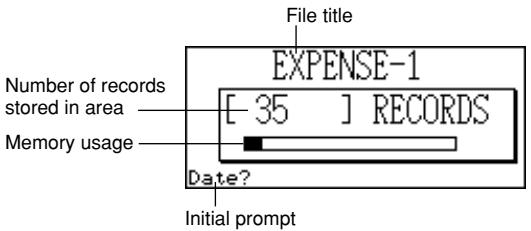
- Appuyez à nouveau sur EXPENSE pour passer à un autre fichier du Gestionnaire de dépenses.
Chaque pression sur EXPENSE change le fichier dans l'ordre suivant.

Pour saisir des données dans le gestionnaire de dépenses
- Utilisez EXPENSE pour afficher l'écran initial d'un fichier du gestionnaire de dépenses.
- Saisissez la date de la dépense et appuyez sur OK pour passer au type de dépense.
- Vous pouvez également démarrer la saisie des données alors que l'affichage de l'index du gestionnaire de dépenses ou l'affichage des données est à l'écran en appuyant sur FUNC puis en sélectionnant "Dépense quotidienne".
- Appuyez sur ◀ ou ▶ pour afficher un menu des types de dépenses.
- Sélectionnez un type de dépense puis appuyez sur OK pour passer au montant.
- L'icône attribuée au type de dépense que vous sélectionnez apparaît à l'écran.
- Saisissez le montant de la dépense et appuyez sur OK pour passer au type de paiement.
- Appuyez sur ◀ ou ▶ pour afficher un menu des types de paiement.
- Sélectionnez le type de paiement puis appuyez sur OK pour passer à l'indication de reçu.
- Appuyez sur ◀ ou ▶ pour basculer entre "Oui" et "Non", puis appuyez sur OK pour passer à la zone de note.
- Saisissez le texte que vous voulez comme mémo.
- Lorsque le curseur se trouve dans la zone de note, appuyez sur OK pour enregistrer toutes les données.
Pour modifier un titre de fichier
- Utilisez EXPENSE pour afficher l'écran initial d'un fichier du gestionnaire de dépenses.
- Appuyez sur FUNC puis sélectionnez "Titre du fichier".
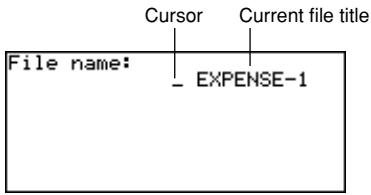
- Saisissez jusqu'à 13 caractères pour le titre.
- Appuyez sur OK pour quitter.
Étiquettes et icônes des types de dépenses
Les données de type de dépense comprennent une icône et une étiquette.
Pour modifier les étiquettes et les icônes des types de dépenses
- Appuyez sur EXPENSE pour afficher l'écran initial du mode Gestionnaire de dépenses.
- Appuyez sur FUNC puis sélectionnez "Types de dépenses".
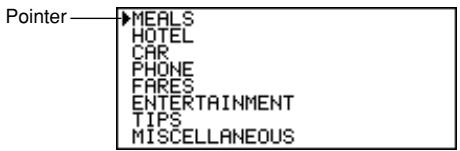
- Utilisez et pour déplacer le pointeur sur le type de dépense souhaité.
- Saisissez jusqu'à 13 caractères pour l'étiquette.
- Ignorez cette étape si vous ne souhaitez pas modifier l'étiquette du type de dépense ou si vous préférez attendre d'avoir modifié l'icône de dépense.
- Appuyez sur DISP CHNG pour afficher le menu des icônes de dépense.
- Si vous ne souhaitez pas modifier l'icône attribuée à ce type de dépense, ignorez les étapes 5 à 7.
- Utilisez , , et pour déplacer le curseur clignotant sur l'icône souhaitée. Utilisez et pour naviguer entre les écrans du menu.
- Lorsque l'icône souhaitée est sélectionnée, appuyez sur OK pour l'enregistrer et revenir au menu des types de dépense.
- Appuyez sur OK pour enregistrer toutes vos modifications et revenir à l'écran initial du mode Gestionnaire de dépenses.
- Vous pouvez modifier le libellé du type de dépense avant d'appuyer sur OK à l'étape 8 si vous ne l'avez pas déjà fait.
Pour spécifier le contenu de l'affichage de l'index du mode Gestionnaire de dépenses
- Appuyez sur EXPENSE pour afficher l'écran initial du Gestionnaire de dépenses, puis appuyez sur , , ou pour passer à l'affichage de l'index.
- Appuyez sur FUNC puis sélectionnez "Liste des types de dépense".
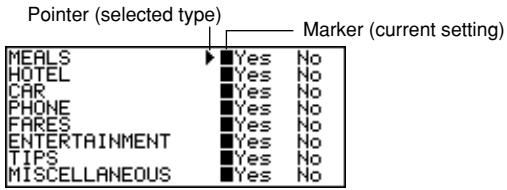
- Utilisez et pour déplacer le pointeur sur le type de dépense à modifier, puis utilisez et pour changer le réglage.
- Les types de dépense définis sur "Oui" apparaissent dans l'affichage de l'index, tandis que ceux définis sur "Non" n'y apparaissent pas.
- Une fois terminé, appuyez sur OK pour revenir à l'affichage de l'index.
■ Libellés des types de paiement
Les données de type de paiement incluent un libellé qui apparaît à l'écran chaque fois que vous affichez les données de dépenses.
Pour modifier ces libellés, utilisez la procédure décrite sous « Pour modifier les libellés et icônes des types de dépenses » à la page 45. La seule différence est que vous sélectionnez « Types de paiement » à l'étape 2 et que vous sautez les étapes 5 à 7 (car il n'y a pas d'icônes pour les types de paiement).
Taux de change
Le total des dépenses dans le rapport périodique est multiplié par la valeur du taux de change pour produire le montant « Converti » de l'article.
Pour définir le taux de change
- Appuyez sur DÉPENSES pour afficher l'écran initial du mode Gestionnaire de dépenses.
- Appuyez sur FONC puis sélectionnez « Taux de change ».
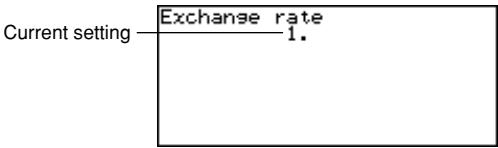
- Saisissez un taux de change.
- Le taux de change peut avoir une partie entière allant jusqu'à 12 chiffres et une partie décimale allant jusqu'à 12 chiffres.
- Appuyez sur OK pour quitter.
Rapport périodique des dépenses
La procédure suivante produit un rapport à l'écran de toutes vos dépenses.
Pour produire un rapport périodique des dépenses
- Appuyez sur EXPENSE pour afficher l'écran initial du gestionnaire de dépenses, puis appuyez sur , , ou pour passer à l'affichage de l'index.
- Appuyez sur FUNC puis sélectionnez "Rapport".
- Saisissez la date de début et la date de fin, puis appuyez sur OK.
- Appuyer sur OK produit un rapport de dépenses comme celui illustré ci-dessous.
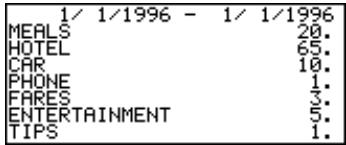
- Utilisez et pour changer d'écran et afficher d'autres informations.
- Appuyez sur ESC pour revenir à l'écran initial du mode Gestionnaire de dépenses.
■ Résumé des enregistrements
Le résumé des enregistrements fournit une vue rapide du nombre d'éléments de données stockés dans chaque fichier du Gestionnaire de dépenses.
Pour afficher le résumé des enregistrements
Dans le mode Gestionnaire de dépenses, appuyez sur FUNC puis sélectionnez "Résumé des enregistrements". Appuyez sur ESC pour revenir à l'affichage initial du mode Gestionnaire de dépenses.
Recherche de données
Cette section explique tout ce que vous devez savoir sur la recherche et le rappel de données.
■ Recherche par défilement
La recherche par défilement peut être utilisée dans les modes Répertoire téléphonique, Mémos, Agenda, Rappels, Tâches et Gestionnaire de dépenses.
Pour rappeler des données à l'aide de la recherche par défilement
- Affichez l'écran initial du mode dans lequel vous souhaitez effectuer une recherche.
- Appuyez sur ou pour passer à l'affichage de l'index (page 26).
- Utilisez et pour faire défiler ligne par ligne. Utilisez et pour faire défiler écran par écran.
- Lorsque l'élément souhaité se trouve sur la première ligne de l'affichage de l'index, appuyez sur DISP CHNG pour passer à l'affichage des données (page 26).
- Utilisez , , et pour faire défiler les données affichées.
Recherche par caractère initial
La recherche par caractère initial peut être utilisée dans les modes Répertoire téléphonique, Mémos, Agenda, Rappels, Gestionnaire de dépenses et À faire.
Pour rappeler des données à l'aide de la recherche par caractère initial
- Entrez dans le mode où vous souhaitez rechercher des données.
- La recherche par caractère initial peut être lancée à partir de l'écran initial, de l'affichage de l'index ou de l'affichage des données.
- Saisissez les premiers caractères de l'entrée de texte que vous souhaitez trouver, puis appuyez sur ou .
- Lorsque vous appuyez sur ou , l'agenda électronique affiche l'écran de données du premier élément dont les caractères initiaux (nom, description, etc.) correspondent à vos caractères saisis. Par exemple, si vous saisissez "J" dans le mode Répertoire téléphonique, vous rappellerez des noms tels que Jones, Jackson, Johnson, etc.
- Utilisez et pour faire défiler les éléments correspondants lorsqu'il y a plus d'une correspondance.
■ Recherche par caractère générique
La recherche par caractère générique peut être utilisée dans les modes Répertoire téléphonique, Mémos, Agenda, Rappels et À faire.
Pour rappeler des données à l'aide de la recherche par caractères génériques
- Entrez dans le mode où vous souhaitez rechercher des données.
- La recherche par caractères génériques peut être lancée à partir de l'écran initial, de l'affichage de l'index ou de l'affichage des données.
- Appuyez sur FUNC puis sélectionnez "Recherche par caractères génériques".
- Saisissez quelques caractères et appuyez sur OK.
- Lorsque vous appuyez sur OK, l'agenda numérique affiche la première donnée qui correspond à vos caractères, où qu'ils se trouvent. Par exemple, si vous saisissez "E" dans le mode Répertoire téléphonique, vous rappellerez des noms tels que Evens, Emily, Pete, Smythe, etc.
- Utilisez ◁ et ▷ pour faire défiler les données correspondantes lorsqu'il y a plus d'une correspondance.
Recherche par date
La recherche par date peut être utilisée dans les modes Planificateur et Rappel.
Pour rappeler des données à l'aide de la recherche par date
- Entrez dans le mode où vous souhaitez rechercher des données.
- La recherche par date peut être lancée à partir de l'écran initial, de l'affichage de l'index ou de l'affichage des données.
- Appuyez sur FUNC pour afficher le menu des fonctions, puis sélectionnez "Recherche par date".
- Saisissez la date et appuyez sur OK.
- Lorsque vous appuyez sur OK, l'agenda numérique affiche la date que vous avez spécifiée.
- En mode Rappel, la date n'est affichée que si elle contient des données. Si la date spécifiée ne contient aucune donnée, le message "NOT FOUND! PRESS ESC TO QUIT." s'affiche à l'écran.
- En mode Planificateur, l'écran de la date spécifiée apparaît, qu'elle contienne ou non des données.
Modification des données
Les procédures décrites ici peuvent être utilisées dans les modes Répertoire téléphonique, Mémorandum, Agenda, Rappel, À faire et Gestionnaire de dépenses.
Pour modifier des données
- Entrez dans le mode qui contient les données à modifier, puis rappelez les données (page 48).
- Passez à l'affichage des données.
- Appuyez sur FUNC puis sélectionnez "Modifier l'enregistrement".
- Effectuez les modifications souhaitées dans les données.
- Appuyez sur OK pour quitter.
Remarques
- Avec les données de Schedule Keeper, vous ne pouvez pas utiliser la procédure ci-dessus pour ajouter des heures de début, de fin et d'alarme aux éléments de données existants. Vous pouvez toutefois modifier les heures de début, de fin et d'alarme existantes.
- Avec les données de Reminder, vous pouvez utiliser la procédure ci-dessus pour ajouter une heure d'alarme.
Suppression de données
Utilisez ces procédures pour supprimer des données.
- Suppression d'un seul élément de données
Cette procédure peut être utilisée dans les modes Répertoire téléphonique, Mémo, Agenda, Rappel, Tâches et Gestionnaire de dépenses.
Pour supprimer un seul élément de données
- Entrez dans le mode qui contient les données à supprimer, puis rappelez les données (page 48).
- Si vous utilisez l'affichage index (page 26), déplacez l'élément de données sur la première ligne de l'affichage index.
- Si vous utilisez l'affichage des données (page 26), affichez simplement l'élément.
- Appuyez sur DEL et le message "DELETE RECORD (Y/N)?" apparaît à l'écran.
- Au lieu d'appuyer sur DEL, vous pouvez appuyer sur FUNC puis saisir le numéro correspondant pour sélectionner "Supprimer l'enregistrement" ("Supprimer l'enregistrement sélectionné" dans le mode Gestionnaire de dépenses).
- Appuyez sur Y pour supprimer, ou sur N pour annuler.
- Suppression de toutes les données d'un mode
La procédure à utiliser dépend du fait que le mode dont vous supprimez les données possède plusieurs fichiers (Répertoire téléphonique, Mémos, Tâches, Gestionnaire de dépenses) ou non (Agenda, Rappel).
Pour supprimer toutes les données d'un mode à fichiers multiples (Répertoire téléphonique, Mémos, Tâches, Gestionnaire de dépenses)
- Affichez l'écran initial du mode contenant les données que vous souhaitez supprimer.
- Vous pouvez afficher l'écran initial de n'importe quel fichier.
- Appuyez sur FUNC puis sélectionnez "Supprimer tous les fichiers".
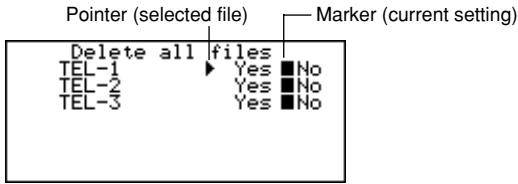
- Utilisez et pour déplacer le pointeur sur le fichier dont vous voulez modifier le paramètre, puis utilisez et pour modifier le paramètre.
- Les fichiers définis sur "Oui" seront supprimés, tandis que ceux définis sur "Non" ne le seront pas.
- Appuyez sur OK.
- À ce moment, le message "Êtes-vous sûr (O/N) ?" apparaît.
- Appuyez sur O pour supprimer ou sur N pour annuler.
Pour supprimer toutes les données d'un mode de fichier unique (Agenda, Rappel)
- Affichez l'écran initial du mode contenant les données que vous souhaitez supprimer.
- Appuyez sur FUNC puis sélectionnez "Supprimer tous les enregistrements".
- À ce moment, le message "ÊTES-VOUS SÛR (O/N) ?" apparaît.
- Appuyez sur O pour supprimer ou sur N pour annuler.
Pour supprimer tous les enregistrements listés (Agenda)
- Spécifiez les types d'agenda que vous souhaitez afficher sur l'écran d'index du mode Agenda.
- Voir "Pour spécifier le contenu de l'affichage de l'index du mode Agenda" à la page 37.
- Lorsque l'écran d'affichage de l'index du mode Schedule Keeper est affiché, appuyez sur FUNC puis sélectionnez "Supprimer les enregistrements listés".
- À ce moment, le message "SUPPRIMER LES ENREGISTREMENTS LISTÉS (O/N) ?" apparaît.
- Appuyez sur O pour supprimer ou sur N pour annuler.
- Appuyer sur O ne supprime que les enregistrements dont les types de calendrier ont été spécifiés à l'étape 1 pour l'affichage de l'index.
Important !
- Assurez-vous de spécifier d'abord le contenu de l'affichage de l'index du mode Schedule à l'étape 1. Sinon, l'opération ci-dessus supprime tout le contenu du mode Schedule Keeper.
- Suppression des éléments de données marqués uniquement
Les modes To Do et Expense Manager vous permettent de marquer des éléments de données spécifiques pour suppression.
Pour marquer des éléments de données à supprimer
- Affichez l'écran initial du mode To Do ou Expense Manager et appuyez sur ou pour afficher l'index.
- Déplacez l'élément que vous souhaitez marquer sur la première ligne de l'affichage.
- Appuyez sur OK pour marquer ou démarquer l'élément.
- Vous pouvez également effectuer l'opération ci-dessus à l'aide de l'affichage des données. Affichez l'affichage des données de l'élément que vous souhaitez marquer ou démarker, puis appuyez sur OK.
Pour supprimer tous les éléments de données marqués
- Lorsque l'affichage de l'index du mode Agenda ou Gestionnaire de dépenses est à l'écran, appuyez sur FUNC puis sélectionnez "Supprimer les enregistrements marqués".
- À ce moment, le message "SUPPRIMER LES ENREGISTREMENTS MARQUÉS (O/N) ?" apparaît.
- Appuyez sur O pour supprimer ou sur N pour annuler.
- Suppression de tous les éléments de données dans des modes spécifiques
Utilisez cette procédure pour supprimer tous les éléments de données dans les modes sélectionnés.
Pour supprimer tous les éléments de données dans des modes spécifiques
- Depuis n'importe quel écran, appuyez sur SHIFT FUNC puis sélectionnez "Tout supprimer".
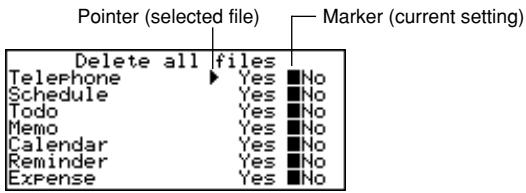
- Utilisez et pour déplacer le pointeur à côté du mode dont vous voulez modifier le réglage, puis utilisez et pour modifier le réglage.
- Les fichiers dans les modes réglés sur "Oui" seront supprimés, tandis que ceux réglés sur "Non" ne le seront pas.
- Si tous les modes sont réglés sur "Oui", cette procédure supprime toutes les données de tous les modes.
- Après avoir terminé les réglages souhaités, appuyez sur OK.
- À ce moment, le message « Êtes-vous sûr (O/N) ? » apparaît.
- Appuyez sur O pour supprimer ou sur N pour annuler.
SUPPRESSION EN COURS, VEUILLEZ ATTENDRE.
Fonction secrète
Votre agenda numérique vous permet de protéger les données stockées dans les modes Répertoire téléphonique, Mémorandum, Agenda, Rappel, Tâches et Gestionnaire de dépenses (modes protégés) avec un mot de passe.
Pour enregistrer un mot de passe
- Appuyez sur SHIFT FUNC puis sélectionnez « Mot de passe ».
- À ce moment, « ENTRER LE MOT DE PASSE » apparaît à l'écran.
- Saisissez le mot de passe et appuyez sur OK pour l'enregistrer.
- Un mot de passe peut comporter jusqu'à 6 caractères. Vous pouvez utiliser des caractères alphabétiques, des chiffres, /, @ ou des espaces dans un mot de passe. Vous ne pouvez pas utiliser de caractères produits avec la touche CODE.
- Après avoir enregistré un mot de passe, l'écran de saisie du mot de passe s'efface et vous revenez à l'écran d'où vous êtes parti à l'étape 1. La prochaine fois que vous allumerez le Carnet numérique et tenterez d'accéder à un mode protégé, l'écran de saisie du mot de passe apparaîtra et vous devrez saisir le mot de passe enregistré avant de pouvoir accéder à ces modes.
Pour accéder aux modes protégés
- Allumez le Carnet numérique.
- Appuyez sur la touche de mode pour l'un des modes protégés.
- "SAISIR MOT DE PASSE" s'affiche à l'écran.
- Si vous étiez dans un mode protégé la dernière fois que vous avez éteint l'appareil, "SAISIR MOT DE PASSE" apparaît dès que vous allumez le Carnet numérique.
- Saisissez le mot de passe correct et appuyez sur OK.
- Si vous saisissez un mot de passe incorrect, l'écran de saisie du mot de passe reste affiché.
- Une fois que vous avez saisi votre mot de passe, vous n'aurez pas à le saisir à nouveau, même si vous quittez un mode protégé puis y revenez plus tard. Votre saisie de mot de passe reste valide jusqu'à ce que vous éteigniez l'agenda numérique ou que vous verrouilliez manuellement la mémoire (page 55).
Pour modifier le mot de passe
- Allumez l'agenda numérique.
- "SAISIR MOT DE PASSE" s'affiche à l'écran.
- Saisissez le mot de passe correct et appuyez sur OK.
- Appuyez sur SHIFT FUNC puis sélectionnez "Mot de passe".
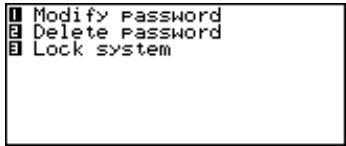
- Sélectionnez "Modifier le mot de passe", ce qui affiche le mot de passe actuellement enregistré.
- Apportez les modifications souhaitées au mot de passe, puis appuyez sur OK pour enregistrer le nouveau mot de passe.
Pour supprimer le mot de passe
- Allumez l'agenda électronique.
- "SAISIR MOT DE PASSE" s'affiche à l'écran.
- Saisissez le mot de passe correct et appuyez sur OK.
- Appuyez sur SHIFT FUNC puis sélectionnez "Mot de passe".
- Sélectionnez "Supprimer le mot de passe", ce qui affiche un message de confirmation demandant si vous voulez vraiment supprimer votre mot de passe.
- Appuyez sur Y pour supprimer ou sur N pour annuler.
- Après avoir supprimé le mot de passe, les modes protégés peuvent être consultés par n'importe qui.
Pour verrouiller la mémoire sans éteindre l'appareil
- Pendant l'utilisation de l'agenda électronique, après avoir saisi votre mot de passe, appuyez sur SHIFT FUNC puis sélectionnez "Mot de passe".
- Appuyez sur 3 pour sélectionner "Verrouiller le système".
- Désormais, lorsque vous essayez d'entrer dans un autre mode protégé, l'écran de saisie du mot de passe apparaît et vous devrez saisir à nouveau votre mot de passe.
Modes de conversion
Votre agenda numérique vous offre en réalité deux modes de conversion : un pour la conversion métrique et un pour la conversion de devises.
Pour accéder aux modes de conversion
- Appuyez sur CONV pour afficher l'écran initial du mode de conversion d'unités.
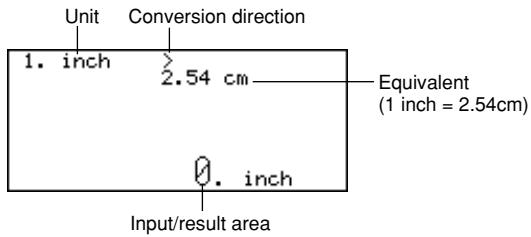
- Appuyez à nouveau sur CONV pour passer au mode de conversion de devises (page 57) et afficher l'écran initial du mode de conversion de devises.
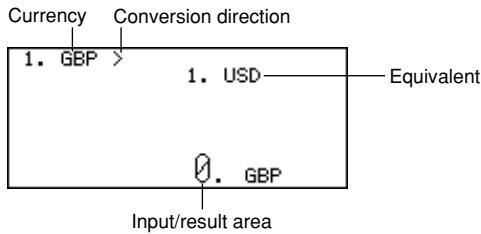
Conversions métriques
Toutes les valeurs de conversion dans ce mode sont prédéfinies et ne peuvent pas être modifiées.
| inches — centimeters |
| miles — kilometers |
| knots — kilometers/h |
| US tons — kilograms |
| ounces — grams |
| UK gallons — liters |
| calories — joules |
| Fahrenheit — Celsius |
| yards — meters |
| feet — yards |
| UK tons — kilograms |
| pounds — kilograms |
| carats — grams |
| US gallons — liters |
| horsepower — kilowatts |
Pour effectuer une conversion métrique
- Entrez dans le mode de conversion d'unités.
- Utilisez et pour trouver celle que vous souhaitez utiliser.
- Utilisez et pour changer le sens de la conversion.
- Saisissez la valeur à convertir et appuyez sur OK pour afficher le résultat de la conversion.
- Si vous souhaitez revoir votre valeur d'origine, appuyez à nouveau sur OK.
■ Conversions de devises
Utilisez le mode Conversion de devises pour convertir entre différentes monnaies. Voici les noms de devises par défaut utilisés par l'appareil. Vous pouvez modifier ces noms par défaut si vous le souhaitez.
| USD — U.S. Dollar |
| GBP — British Pound |
| FFR — French Franc |
| DM | Deutsche Mark |
| ITL | Italian Lira |
| YEN | Japanese Yen |
Important !
- Assurez-vous de saisir les taux de conversion que vous souhaitez utiliser avant d'effectuer une conversion de devises. L'agenda électronique ne convertira pas d'une devise à une autre tant que vous ne l'aurez pas fait.
Pour modifier les libellés et les taux des devises
- Entrez dans le mode Conversion de devises.
- Utilisez et pour trouver la paire de conversion que vous souhaitez modifier.
- Appuyez sur FUNC pour passer à l'écran de modification.
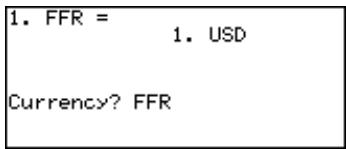
- Saisissez jusqu'à cinq caractères pour le nom de la première devise, puis appuyez sur OK.
- Saisissez jusqu'à cinq caractères pour le nom de la deuxième devise, puis appuyez sur OK.
- Saisissez jusqu'à 12 chiffres pour la partie entière et 12 chiffres pour la partie décimale du taux de la première devise, puis appuyez sur OK.
- Saisissez jusqu'à 12 chiffres pour la partie entière et 12 chiffres pour la partie décimale du taux de la deuxième devise, puis appuyez sur OK pour terminer la procédure.
- Notez que l'un des taux de change est normalement fixé à 1. Pour configurer une paire de conversion où 1 unité de devise A équivaut à 100 unités de devise B, vous pouvez utiliser l'une des méthodes suivantes.
Taux de la devise A = 1 / Taux de la devise B = 100
Taux de la devise A = 0,01 / Taux de la devise B = 1
- Pour laisser le nom ou le taux d'une devise inchangé dans la procédure ci-dessus, appuyez simplement sur OK sans rien saisir.
Pour effectuer une conversion de devises
- Entrez dans le mode Conversion de devises.
- Utilisez et pour trouver celle que vous souhaitez utiliser.
- Utilisez et pour changer le sens de la conversion.
- Saisissez la valeur à convertir et appuyez sur OK pour afficher le résultat de la conversion.
- Si vous souhaitez revoir votre valeur saisie d'origine, appuyez à nouveau sur OK.
Modes de jeu
Les modes de jeu vous offrent le choix entre le poker et le blackjack.
Pour accéder aux modes de jeu
- Appuyez sur GAME pour afficher l'écran initial du mode Poker.
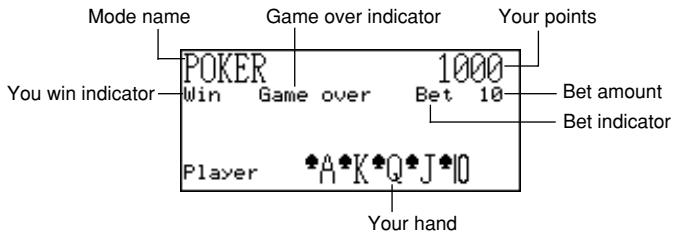
- Appuyez sur M pour passer au mode Blackjack (page 61) et afficher l'écran initial du Blackjack.
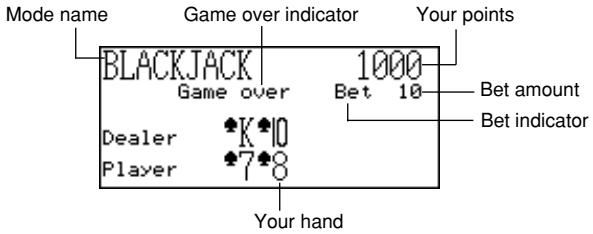
■ Jeu de Poker
Les règles et procédures suivantes décrivent le jeu de poker.
Règles du jeu de Poker
Le jeu est un tirage à 5 cartes. - Contrairement au poker standard, vous ne jouez pas contre d'autres joueurs. Au lieu de cela, vous essayez d'accumuler des points. Le tableau suivant indique le nombre de points attribués pour chaque type de main.
| Type of Hand | Bet 10 | Bet 20 | Bet 30 | Bet 40 | Bet 50 |
| Royal Flush | 2500 | 5000 | 7500 | 10000 | 12500 |
| Straight Flush | 500 | 1000 | 1500 | 2000 | 2500 |
| Four of a Kind | 250 | 500 | 750 | 1000 | 1250 |
| Full House | 80 | 160 | 240 | 320 | 400 |
| Flush | 50 | 100 | 150 | 200 | 250 |
| Straight | 40 | 80 | 120 | 160 | 200 |
| Three of a Kind | 30 | 60 | 90 | 120 | 150 |
| Two Pair | 20 | 40 | 60 | 80 | 100 |
| One Pair (Jacks or better) | 10 | 20 | 30 | 40 | 50 |
Notez qu'aucun point n'est attribué pour une main inférieure à une paire de valets.
- La valeur relative des cartes n'a pas d'importance. Deux paires marquent toujours le même nombre de points, quelles que soient les cartes qui composent les deux paires.
- Avant que les cartes ne soient distribuées pour commencer chaque main, vous pouvez modifier le montant de la mise à 10, 20, 30, 40, 50. Le montant de la mise ne peut pas être modifié une fois qu'une main est distribuée. Le montant de la mise est automatiquement déduit de votre total de points à chaque distribution.
- Vous commencez avec 1 000 points, et le nombre maximum de points que vous pouvez accumuler est de 999 999. La partie se termine lorsque vos points atteignent zéro ou 999 999.
Pour jouer au jeu de poker
- Entrez dans le mode Poker.
- Utilisez B pour déclarer le montant de la mise si vous le souhaitez.
- Appuyez sur H pour commencer la partie.
Les cinq premières cartes sont distribuées.
- Utilisez les touches numériques 1 à 5 pour sélectionner les cartes que vous voulez conserver (de 1 à 5, de gauche à droite).
- Appuyer sur une touche numérique fait apparaître la lettre « H » (pour « Hold ») au-dessus de la carte correspondante. Pour désélectionner une carte, appuyez à nouveau sur son bouton numérique pour que le « H » disparaisse.
- Vous pouvez marquer de zéro à toutes vos cartes.
- Après avoir sélectionné les cartes que vous voulez conserver, appuyez sur H.
- Les cartes non marquées disparaissent et sont remplacées par de nouvelles cartes, et la main se termine.
- Si vous gagnez, l'indicateur « Win » apparaît et le nombre de points basé sur votre main et le montant misé est ajouté à votre total de points (voir le tableau).
- Si vous perdez, l'indicateur « Win » n'apparaît pas et votre total de points reste inchangé.
- Pour jouer la main suivante, reprenez à l'étape 2 ci-dessus.
- Répétez la procédure ci-dessus jusqu'à ce que vous n'ayez plus de points ou que vous atteigniez 999 999 points.
■ Jeu de Blackjack
Les règles et procédures suivantes décrivent le jeu de blackjack.
Règles du jeu de Blackjack
- Le jeu est un blackjack standard où vous jouez contre les cartes du croupier. L'agenda numérique est toujours le croupier.
- Avant que les cartes ne soient distribuées pour commencer chaque main, vous pouvez modifier le montant de la mise à 10, 20, 30, 40, 50. Le montant de la mise ne peut pas être modifié une fois qu'une main est distribuée. Le montant de la mise est automatiquement déduit de votre total de points lorsque chaque main est distribuée.
- Vous commencez avec 1 000 points, et le nombre maximum de points que vous pouvez accumuler est de 999 999. Le jeu se termine lorsque vos points atteignent zéro ou 999 999.
- Vous avez la possibilité de vous assurer (par le message « Assurer » apparaissant à l'écran) lorsque la première carte du croupier est un as. Appuyez sur I pour vous assurer lorsque l'offre est faite. L'assurance vous coûte la moitié de votre mise initiale. Si le croupier obtient finalement un blackjack, votre assurance gagne et votre mise initiale est perdue (une égalité). Si le croupier n'obtient pas de blackjack, l'assurance est perdue et vous continuez à jouer votre main.
- Vous avez la possibilité de doubler la mise (par le message « Double » apparaissant à l'écran) lorsque vos deux premières cartes totalisent 10 ou 11. Appuyez sur D pour doubler la mise lorsque l'offre est faite. Doubler la mise double votre mise et vous oblige à rester automatiquement après avoir reçu une carte supplémentaire.
- Vous pouvez abandonner votre main en appuyant sur Q à tout moment avant de recevoir des cartes après vos deux premières. Abandonner met immédiatement fin à la main et vous perdez la moitié du montant que vous avez misé.
- Vous pouvez continuer à tirer des cartes tant que le total des cartes que vous avez déjà est inférieur à 21.
- Le croupier prendra toujours une carte lorsque le total de ses cartes est inférieur à 17, sauf si vous avez déjà dépassé 21. Le croupier reste toujours debout lorsque vous avez dépassé 21.
- À la fin d'une main, le joueur avec le plus de points sans dépasser 21 gagne.
- Le tableau suivant indique le nombre de points que vous pouvez gagner avec chaque type de main.
| Type of Hand | Bet 10 | Bet 20 | Bet 30 | Bet 40 | Bet 50 |
| Double Down | 40 | 80 | 120 | 160 | 200 |
| Blackjack | 25 | 50 | 75 | 100 | 125 |
| Win | 20 | 40 | 60 | 80 | 100 |
| Insurance | 15 | 30 | 45 | 60 | 75 |
| Surrender (Fold) | 5 | 10 | 15 | 20 | 25 |
Pour jouer au blackjack
- Entrez en mode Blackjack.
- Utilisez B pour déclarer le montant de la mise si vous le souhaitez.
- Appuyez sur H pour commencer la partie.
- Deux cartes sont distribuées au joueur et une au croupier.
- Les indicateurs « Hit », « Stand » et « Fold » clignotent à l'écran, en attente de la réponse du joueur. Dans certains cas, les messages « Insure » ou « Double » peuvent également apparaître.
- Appuyez sur la touche de lettre correspondant à l'opération que vous souhaitez effectuer.
H : hit
S : stand
I : assurer, D : doubler, Q : se coucher (abandonner)
- Si vous tirez une carte et que le total de vos cartes est toujours inférieur à 21, répétez l'étape 3.
- Lorsque vous ne voulez plus de cartes, appuyez sur S pour indiquer au croupier que vous voulez rester.
- À ce moment, la main du croupier est complétée et le gagnant est déterminé.
- Si vous gagnez, l'indicateur « Win » apparaît et le nombre de points basé sur votre main et le montant de votre mise est ajouté à votre total de points (voir le tableau).
- Si vous perdez, l'indicateur « Win » n'apparaît pas et votre total de points reste inchangé.
- Pour jouer la main suivante, reprenez à l'étape 2 ci-dessus.
- Répétez la procédure ci-dessus jusqu'à ce que vous n'ayez plus de points ou que vous atteigniez 999 999 points.
Mode Calculatrice
Le mode Calculatrice vous fournit tous les outils nécessaires pour effectuer divers calculs tout au long de la journée. Il comprend également une fonction d'édition des calculs qui vous permet de rappeler les étapes d'un calcul et d'y apporter des modifications.
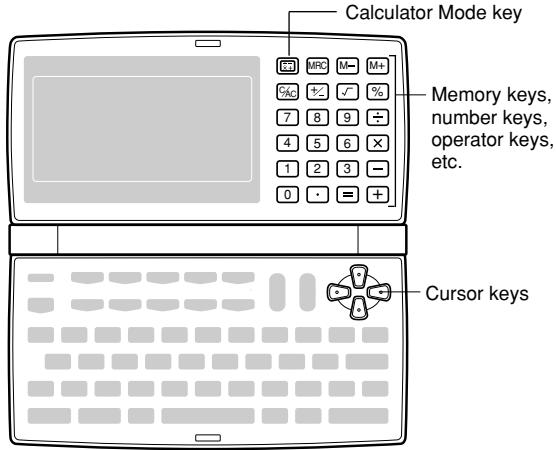
C/AC - efface la dernière valeur saisie. Appuyez deux fois pour effacer un calcul à l'écran et en commencer un nouveau. - Utilisez les touches numériques (0 à 9) pour saisir des valeurs. Appuyez sur • pour saisir un point décimal. - Utilisez +, -, × et ÷ pour spécifier l'opération arithmétique indiquée sur chaque touche. - = — exécute un calcul et affiche son résultat. - Utilisez MRC, M- et M+ pour les opérations de mémoire de la calculatrice.
MRC — rappelle le contenu de la mémoire et l'efface lorsqu'on appuie deux fois de suite.
M- - soustrait la valeur actuellement affichée du contenu actuel de la mémoire.
M+ - ajoute la valeur actuellement affichée au contenu actuel de la mémoire.
- Utilisez % pour les calculs de pourcentage.
- Utilisez √ pour les calculs de racine carrée.
- + / - — change le signe d'une valeur entre positif et négatif.
Pour corriger des erreurs dans les calculs
Si vous entrez une mauvaise valeur, appuyez une fois sur C/AC puis entrez la valeur correcte. Si vous appuyez sur la mauvaise touche d'opérateur arithmétique (+, -, x, ÷), appuyez simplement sur la touche correcte avant de saisir autre chose.
À propos des erreurs de calcul...
Chaque fois qu'une erreur se produit, l'indicateur "ERROR" apparaît à l'écran.
- Lorsque le nombre de chiffres de la mantisse d'un résultat intermédiaire ou final dépasse 12 chiffres.
- Lorsque le nombre de chiffres de la mantisse d'une valeur stockée en mémoire dépasse 12 chiffres. Dans ce cas, le Digital Diary conserve automatiquement la dernière valeur stockée qui ne dépassait pas 12 chiffres.
- Division par zéro.
Pour effacer les erreurs
Appuyez sur C/AC une fois pour continuer avec le même calcul. Si vous voulez effacer le calcul et recommencer, appuyez sur C/AC deux fois.
Pour entrer dans le mode Calcul
Appuyez sur + pour afficher l'écran initial du mode Calcul.
Exemple 1 : 21 + 3 = 24
Exemple 2 : 11 + 10% = 12.1
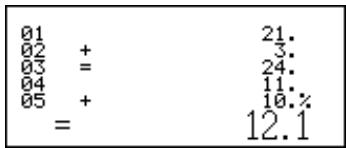
Pour utiliser la fonction d'édition de calcul
- Après avoir saisi un calcul, appuyez sur DISP CHNG pour passer à l'écran d'édition du calcul.
- Vous pouvez également afficher l'écran d'édition du calcul en appuyant sur FUNC puis en sélectionnant "Éditer le calcul".
- Utilisez et pour faire défiler les étapes du calcul.
- Le Digital Diary stocke jusqu'à 99 lignes d'un calcul pour l'édition.
- Lorsque l'étape que vous souhaitez modifier est à l'écran, effectuez les modifications souhaitées.
- Après avoir terminé la modification du calcul, appuyez sur = ou OK pour recalculer.
Pour effacer un calcul
Appuyez deux fois sur DEL pour effacer un calcul. Vous pouvez également effacer un calcul en appuyant sur FUNC puis en sélectionnant "Effacer toutes les étapes".
Exemples de calculs
| C/AC | C/AC | 0. | |
| 53 + 123 - 63 = | 53+123-63= | 113. | |
| 963 × (23 - 56) = | 23-56x963= | -31779. | |
| (56 × 3 - 89) ÷ 5.2 + 63 = | 56x3-89÷5.2+63= | 78.1923076923 | |
| 123456 × 741852 = | 123456x741852= | 91586080512. | |
| √3 × 5 = | 3√x5= | 8.66025403784 | |
| 12% of 1500 | 1500x12%= | 180. | |
| Percentage of 660 | 660÷880%= | 75. | |
| against 880 | |||
| 80 × 9 = 720 | MRC MRC C/AC C/AC | 80x9= | M+ - M- 720. |
| -) 50 × 6 = 300 | 50x6= | M- - M- 300. | |
| 20 × 3 = 60 | 20x3= | M+ - M- 60. | |
| 480 | MRC | - M- 480. |
Communications de données
Vous pouvez transférer des données entre deux unités CASIO SF-5580, SF-5780 ou SF-5980, ou entre votre Digital Diary et un ordinateur personnel uniquement. Vous ne pouvez pas échanger de données avec tout autre modèle de Digital Diary CASIO. Les communications de données peuvent être effectuées dans les modes Répertoire téléphonique, Mémo, Agenda, Calendrier, Tâches, Rappel ou Gestionnaire de dépenses.
Configuration pour les communications de données
Ce qui suit décrit ce que vous devez faire pour configurer les communications de données entre deux unités Digital Diary ou entre une unité Digital Diary et un ordinateur personnel.
Pour connecter à une autre unité Digital Diary
- Assurez-vous que l'alimentation des deux unités est coupée.
- Retirez les capots des prises de communication de données des deux unités Digital Diary.
- Connectez les deux unités à l'aide du câble SB-62.
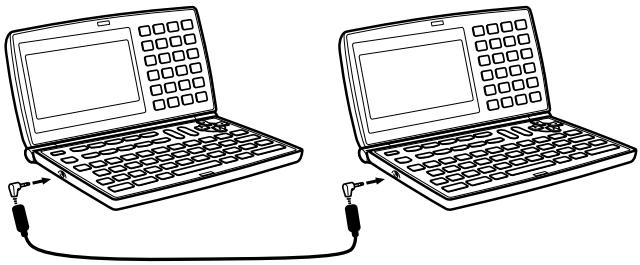
Important !
- Assurez-vous de remettre les capots de connecteur sur les unités Digital Diary lorsque vous n'effectuez pas de communications de données.
Communication de données entre un agenda électronique et un ordinateur personnel
Vous devez acheter un pack optionnel de communication de données CASIO pour effectuer la communication de données entre votre agenda électronique et un ordinateur personnel. Veuillez noter qu'il existe plusieurs packs de communication de données CASIO adaptés à différents ordinateurs et types d'agendas électroniques. Pour cette raison, vous devez noter les points importants suivants lors de l'achat d'un pack de communication de données. Si vous avez des questions sur le pack dont vous avez besoin, consultez votre revendeur.
- Assurez-vous que le pack de communication de données est conçu pour vous avec votre modèle particulier d'ordinateur personnel.
- Si le pack de communication de données approprié n'est pas encore disponible dans votre région, consultez votre revendeur pour savoir quand il est prévu de le mettre en vente.
- Pour des informations sur la façon de connecter l'agenda électronique à un ordinateur personnel, consultez le manuel d'utilisation fourni avec le pack de communication de données.
Pour configurer l'agenda électronique afin de recevoir des données
- Sur n'importe quel écran, appuyez sur FUNC (ou SHIFT FUNC) puis sélectionnez "Recevoir des données".
- Vous pouvez effectuer l'opération ci-dessus dans les modes Répertoire téléphonique, Mémos, Gestionnaire d'agenda, Calendrier, Tâches, Rappels ou Gestionnaire de dépenses.
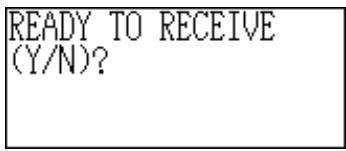
- Appuyez sur Y.
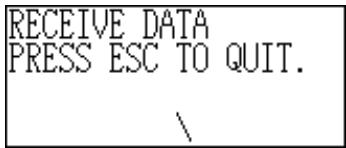
- Ce message indique que l'appareil est en attente de réception de données.
- Pour interrompre l'opération de réception, appuyez sur ESC.
- Cette procédure est la même que les données soient reçues d'un autre agenda électronique ou d'un ordinateur personnel.
Envoi de données
Cette section vous explique comment utiliser l'agenda numérique pour envoyer des données vers un autre appareil ou vers un ordinateur personnel.
À propos des types de transfert de données...
Il existe plusieurs façons de transférer des données.
Tous les éléments de données
Avec cette méthode, vous pouvez envoyer tous les éléments de données stockés dans les modes Répertoire téléphonique, Mémorandum, Agenda, Calendrier, Tâches, Rappel ou Gestionnaire de dépenses.
Éléments de données par mode
Avec cette méthode, vous pouvez envoyer tous les éléments de données stockés dans des modes spécifiques (Répertoire téléphonique, Mémorandum, Agenda, Calendrier, Tâches, Rappel, Gestionnaire de dépenses).
Dans le mode Agenda, vous pouvez envoyer les éléments qui apparaissent sur l'affichage de l'index (que vous avez spécifiés à l'aide de l'élément Type de liste du menu de fonctions décrit à la page 37).
Un élément de données
Avec cette méthode, vous pouvez envoyer un élément de données stocké dans les modes Répertoire téléphonique, Mémorandum, Agenda, Tâches, Rappel ou Gestionnaire de dépenses.
Remarque
- Pour les données du mode Calendrier, vous pouvez envoyer les données de surbrillance.
- Si une alarme (alarme quotidienne, alarme d'agenda ou alarme de rappel) est déclenchée pendant l'envoi de données, l'alarme ne sonne pas tant que l'opération d'envoi n'est pas terminée.
Pour envoyer un élément de données
- Affichez l'écran de données (page 26) de l'élément que vous souhaitez envoyer.
- Appuyez sur FUNC puis sélectionnez "Envoyer l'enregistrement".
- Un message apparaît demandant si vous êtes prêt à envoyer.
- Appuyez sur Y pour démarrer l'envoi, ou sur N pour annuler.
- Pour interrompre l'envoi à tout moment, appuyez sur ESC.
- Une fois l'envoi terminé, l'écran revient à celui qui était affiché avant le début de l'envoi. Vous pouvez alors répéter la procédure ci-dessus pour envoyer un autre élément.
Pour envoyer toutes les données dans des modes spécifiques
- Appuyez sur SHIFT FUNC puis sélectionnez "Tout envoyer".
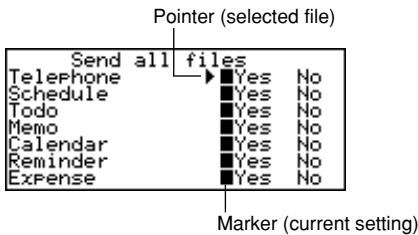
- Utilisez ◀ et ▼ pour déplacer le pointeur sur le mode dont vous voulez envoyer les données, puis utilisez ◀ et ▶ pour modifier le réglage.
- Les données des modes réglés sur "Oui" seront envoyées, tandis que celles des modes réglés sur "Non" ne le seront pas.
- Appuyez sur OK.
- Un message apparaît demandant si vous êtes prêt à envoyer.
- Appuyez sur Y pour démarrer l'opération d'envoi, ou sur N pour l'annuler.
- Pour interrompre l'opération d'envoi à tout moment, appuyez sur ESC.
- Une fois l'opération d'envoi terminée, l'écran revient à celui qui était affiché avant de commencer l'opération d'envoi.
Pour envoyer les données du calendrier (points saillants)
- En mode Calendrier, appuyez sur FUNC puis sélectionnez "Envoyer (Jours fériés)".
- Un message apparaît demandant si vous êtes prêt à envoyer.
- Appuyez sur Y pour démarrer l'opération d'envoi, ou sur N pour l'annuler.
- Pour interrompre l'opération d'envoi à tout moment, appuyez sur ESC.
- Une fois l'opération d'envoi terminée, l'écran revient à celui qui était affiché avant de commencer l'opération d'envoi. Vous pouvez ensuite répéter la procédure ci-dessus pour envoyer un autre élément.
Envoi de tous les éléments de données dans un mode
La procédure à utiliser dépend du fait que le fichier dont vous envoyez les éléments de données contient plusieurs fichiers (Répertoire téléphonique, Mémos, Tâches, Gestionnaire de dépenses) ou non (Agenda, Rappel).
Pour envoyer toutes les données d'un mode à fichiers multiples (Répertoire téléphonique, Mémos, Tâches, Gestionnaire de dépenses)
- Affichez l'écran initial du mode contenant les données que vous souhaitez envoyer.
- Vous pouvez afficher l'écran initial de n'importe quel fichier.
- Appuyez sur FUNC puis sélectionnez "Envoyer tous les fichiers".
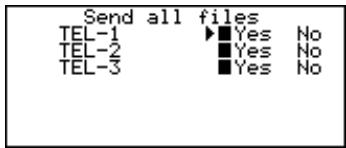
- Utilisez et pour déplacer le pointeur sur le fichier dont vous voulez envoyer les données, puis utilisez et pour modifier le réglage.
- Les fichiers réglés sur "Oui" seront envoyés, tandis que ceux réglés sur "Non" ne le seront pas.
- Appuyez sur OK.
- À ce moment, le message "PRÊT À ENVOYER (O/N) ?" apparaît.
- Appuyez sur O pour envoyer ou sur N pour annuler.
- Dans les modes Répertoire téléphonique, Mémos et Tâches, vous pouvez également utiliser une autre méthode pour envoyer toutes les données. Pendant que l'affichage de l'index ou des données est à l'écran, appuyez sur FUNC puis sélectionnez "Envoyer tous les enregistrements". Cela fait apparaître le message "PRÊT À ENVOYER (O/N) ?", alors appuyez sur O pour envoyer ou sur N pour annuler.
Pour envoyer toutes les données d'un mode à fichier unique (Agenda, Rappels)
- Affichez l'écran initial du mode contenant les données que vous souhaitez envoyer.
- Appuyez sur FUNC puis sélectionnez "Envoyer tous les enregistrements".
- À ce moment, le message "PRÊT À ENVOYER (O/N) ?" apparaît.
- Appuyez sur O pour envoyer ou sur N pour annuler.
Pour envoyer les enregistrements listés dans le mode Agenda
- Entrez dans le mode Agenda et spécifiez les éléments que vous souhaitez envoyer dans le contenu de l'affichage de l'index.
- Voir « Pour spécifier le contenu de l'affichage de l'index du mode Agenda » à la page 37.
- Pendant que l'affichage de l'index du mode Agenda est à l'écran, appuyez sur FUNC puis sélectionnez « Envoyer les enregistrements listés ».
- À ce moment, le message « PRÊT À ENVOYER (O/N) ? » s'affiche.
- Appuyez sur O pour envoyer ou sur N pour annuler.
Annexe technique
Capacité mémoire
La capacité mémoire varie selon le modèle.
Modèle Mémoire
SF-5580 : 128 Ko
SF-5780 : 256 Ko
SF-5980 : 512 Ko
Le tableau suivant indique le nombre d'éléments pouvant être stockés dans chaque modèle.
Répertoire téléphonique
Nom de 8 caractères, numéro de téléphone 1 de 10 caractères
SF-5580/SF-5780/SF-5980 : 4 000/9 000/19 000
Nom de 8 caractères, numéro de téléphone 1 de 10 caractères, adresse de 20 caractères
SF-5580/SF-5780/SF-5980 : 2 000/4 500/9 500
Mémo
Mémo de 20 caractères
SF-5580/SF-5780/SF-5980 : 3 400/7 700/16 000
À faire
Description sur 20 caractères
SF-5580/SF-5780/SF-5980 : 3 200 / 7 200 / 15 200
Planificateur
Description sur 20 caractères, réglage de l'heure de l'alarme
SF-5580 / SF-5780 / SF-5980 : 2 900 / 6 500 / 13 500
Rappel
Description sur 10 caractères
SF-5580 / SF-5780 / SF-5980 : 5 000 / 11 250 / 23 800
Gestionnaire de dépenses
Description sur 10 caractères
SF-5580 / SF-5780 / SF-5980 : 3 500 / 7 900 / 18 600
Comment l'agenda numérique trie les données
Ordre de tri
Le tableau suivant indique l'ordre utilisé pour trier les données dans le mode Téléphone.
| 1 | (space) | 31 | > | 61 | b | 91 | ä | 121 | x |
| 2 | ! | 32 | ? | 62 | c | 92 | à | 122 | ÷ |
| 3 | ” | 33 | @ | 63 | d | 93 | á | 123 | ± |
| 4 | # | 34 | A | 64 | e | 94 | ç | 124 | √ |
| 5 | $ | 35 | B | 65 | f | 95 | é | 125 | Á |
| 6 | % | 36 | C | 66 | g | 96 | ë | 126 | í |
| 7 | & | 37 | D | 67 | h | 97 | è | 127 | Ó |
| 8 | , | 38 | E | 68 | i | 98 | í | 128 | Ü |
| 9 | ( | 39 | F | 69 | j | 99 | í | 129 | À |
| 10 | ) | 40 | G | 70 | k | 100 | ì | 130 | Ê |
| 11 | * | 41 | H | 71 | l | 101 | Ä | 131 | ì |
| 12 | + | 42 | I | 72 | m | 102 | À | 132 | Ó |
| 13 | , | 43 | J | 73 | n | 103 | É | 133 | Ü |
| 14 | — | 44 | K | 74 | o | 104 | æ | 134 | Ê |
| 15 | . | 45 | L | 75 | p | 105 | Æ | 135 | ì |
| 16 | / | 46 | M | 76 | q | 106 | ó | 136 | Á |
| 17 | 0 | 47 | N | 77 | r | 107 | ö | 137 | Ê |
| 18 | 1 | 48 | O | 78 | s | 108 | ò | 138 | ì |
| 19 | 2 | 49 | P | 79 | t | 109 | ú | 139 | Ó |
| 20 | 3 | 50 | Q | 80 | u | 110 | ú | 140 | Ü |
| 21 | 4 | 51 | R | 81 | v | 111 | Ö | 141 | Å |
| 22 | 5 | 52 | S | 82 | w | 112 | Ü | 142 | ā |
| 23 | 6 | 53 | T | 83 | x | 113 | ¢ | 143 | Ó |
| 24 | 7 | 54 | U | 84 | y | 114 | £ | 144 | ō |
| 25 | 8 | 55 | V | 85 | z | 115 | á | 145 | μ |
| 26 | 9 | 56 | W | 86 | ~ | 116 | í | 146 | ć |
| 27 | : | 57 | X | 87 | ç | 117 | ó | 147 | n |
| 28 | ; | 58 | Y | 88 | ü | 118 | ú | 148 | s |
| 29 | < | 59 | Z | 89 | é | 119 | ñ | 149 | ź |
| 30 | = | 60 | a | 90 | añ | 120 | Ñ | 150 | β |
■ Messages d'erreur
Message d'erreur de données
Le message d'erreur de données apparaît lorsque le contrôle interne du Journal numérique détecte un problème avec les données stockées en mémoire.
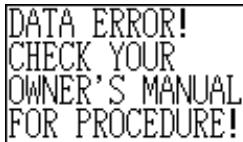
L'apparition du message d'erreur de données indique que vous devez effectuer la procédure de réinitialisation complète pour corriger le problème. Commencez par la procédure sous "Pour démarrer l'opération de réinitialisation complète" à la page 11, puis continuez avec la procédure sous "Quand appuyer sur Y pour "oui"" à la page 11.
Important !
- Même si vous n'utilisez pas l'appareil pour la première fois, vous devez appuyer sur Y (pour "Oui") lorsque l'appareil demande "UTILISEZ-VOUS UN NOUVEL APPAREIL POUR LA PREMIÈRE FOIS (O/N) ?" afin de réinitialiser l'appareil après une erreur de données.
Si vous rencontrez toujours des problèmes après avoir essayé l'opération de réinitialisation, il se peut que vous ayez un problème matériel. Dans ce cas, consultez votre revendeur CASIO le plus proche.
■ Tableau des messages
| Message | Meaning | Action |
| NOT FOUND! PRESS ESC TO QUIT. | Data specified in search operation does not exist in memory. | Change specification or cancel search. |
| MEMORY FULL, PRESS ANY KEY. | No more room in memory for storage of data. | Delete unnecessary data items from memory. |
| ALARM TIME COINCI-DENT! | Attempt to set an alarm that is already used for another entry. | Set a different alarm time or change the existing alarm time. |
| ALARM TIME ALREADY PASSED! | Attempt to set an alarm for a time or date that is already passed. | Set a different alarm time. |
| DATA COMM. ERROR, PRESS ANY KEY. | Error during data communications. | Cancel the operation and try again. |
| ARE YOU USING A NEW UNIT FOR THE FIRST TIME (Y/N)? | The reset procedure has started. | See page 11. |
| CLEAR MEMORY AND SET UP THE UNIT FOR OPERATION? YES (OK)/NO (ESC) | The reset procedure is in progress. | See page 11. |
| DATA ERROR! CHECK YOUR OWNER'S MANUAL FOR PROCEDURE! | Data corrupted by strong impact, electrostatic charge, etc.. | See page 73. |
| MAIN BATTERIES WEAK! REPLACE THEM! UNIT WILL NOT TURN ON AGAIN! | The main batteries are getting weak. | Replace main batteries immediately (page 12). |
Spécifications
Modèle : SF-5580/SF-5780/SF-5980
Modes principaux :
Répertoire téléphonique, Mémorandum, Agenda, À faire, Gestionnaire de dépenses, Rappel, Calendrier, Heure locale, Heure mondiale, Calculatrice, Conversion (métrique/monnaie) et Jeu (Poker/Blackjack)
Stockage des données :
Stockage et rappel des données de téléphone, mémorandum, agenda, à faire, dépenses, rappels ; affichage du calendrier ; édition ; affichage de l'état de la mémoire
Horloge :
Heure mondiale ; alarme de rappel ; alarme d'agenda ; alarme quotidienne ; précision à température normale : ± 3 secondes en moyenne
Calcul :
Calculs arithmétiques à 12 chiffres ; mémoire indépendante ; pourcentages ; racines carrées ; autres calculs mixtes
Généralités :
Élément d'affichage : écran LCD à cristaux liquides de 26 colonnes × 8 lignes
Capacité mémoire : SF-5580 : 128 Ko
SF-5780 : 256 Ko
SF-5980 : 512 Ko
Composant principal : LSI
Alimentation :
Principale : deux piles alcalines AAA (type LR03 (AM4))
De secours : une pile au lithium CR2032
Durée de vie des piles :
Principale : en mode téléphone, environ 100 heures d'affichage continu ; environ 70 heures avec 5 minutes de fonctionnement et 55 minutes d'affichage continu par heure ; environ 60 heures avec 5 minutes de fonctionnement, 52 minutes d'affichage continu et 3 minutes de rétroéclairage par heure
De secours : 5 ans si les piles principales sont remplacées dès qu'elles sont faibles. 6 mois si les piles principales déchargées sont laissées dans l'appareil.
Consommation électrique : 0,25 W
Extinction automatique : environ 3 minutes après la dernière opération sur les touches.
Température de fonctionnement : 0°C 40°C ( 32°F 104°F )
Dimensions :
Déplié : 8.8H × 163W × 169D mm (3/ 8"H × 67/ 16"W × 65/8"D)
Replié : 21.5H × 163W × 91.5D mm (7/8) H × 6 / 16W × 3 / 8D)
Poids : 251g (8,9 oz) piles incluses
C E
CASIO ELECTRONICS CO., LTD. Unit 6, 1000 North Circular Road London NW2 7JD, Royaume-Uni


Ne pas jeter la batterie,
mais la déposer
KCA
CASIO
CASIO COMPUTER CO., LTD.
6-1, Nishi-Shinjuku 2-chome
Shinjuku-ku, Tokyo 163-02, Japon
- CASIO®
- DIRECTIVES ÉTABLIES PAR LES RÈGLES FCC POUR L'UTILISATION DE CET APPAREIL AUX ÉTATS-UNIS (NON APPLICABLES DANS D'AUTRES RÉGIONS)
- AVIS
- AVERTISSEMENT FCC
- AVANT D'UTILISER LE DIGITAL DIARY POUR LA PREMIÈRE FOIS
- IMPORTANT
- MISE SOUS ET HORS TENSION
- SOMMAIRE
- MODE ANNUAIRE TÉLÉPHONIQUE
- MODE MÉMO
- MODE CALENDRIER
- GESTIONNAIRE D'AGENDA
- MODE RAPPEL
- MODE TÂCHES
- MODE GESTIONNAIRE DE DÉPENSES
- RECHERCHE DE DONNÉES
- MODIFICATION DE DONNÉES
- SUPPRESSION DE DONNÉES
- FONCTION SECRÈTE
- MODES DE CONVERSION
- MODES DE JEU
- MODE CALCULATRICE
- COMMUNICATIONS DE DONNÉES
- ANNEXE TECHNIQUE
- AVANT D'UTILISER L'AGENDA ÉLECTRONIQUE
- INTRODUCTION
- NOTEZ LES DONNÉES IMPORTANTES QUELQUE PART
- PRÉCAUTIONS IMPORTANTES
- POUR COMMENCER
- GUIDE GÉNÉRAL
- AFFICHAGE
- POUR ACTIVER LE RÉTROÉCLAIRAGE EL
- RÉINITIALISATION COMPLÈTE
- POUR DÉMARRER L'OPÉRATION DE RÉINITIALISATION COMPLÈTE
- QUAND APPUYER SUR Y POUR « OUI
- QUAND APPUYER SUR N POUR « NON
- ALIMENTATION
- AVERTISSEMENT DE BATTERIE FAIBLE
- REMARQUE
- PRÉCAUTIONS CONCERNANT LES PILES
- POUR REMPLACER LES PILES PRINCIPALES
- POUR REMPLACER LA PILE DE SECOURS
- MISE SOUS TENSION ET HORS TENSION
- FONCTION D'ARRÊT AUTOMATIQUE
- MENUS DE FONCTIONS
- LANGUE DU SYSTÈME
- POUR SÉLECTIONNER LA LANGUE DU SYSTÈME
- CONTRASTE DE L'AFFICHAGE
- POUR RÉGLER LE CONTRASTE DE L'AFFICHAGE
- SON DE SAISIE DES TOUCHES
- POUR ACTIVER OU DÉSACTIVER LE SON DE SAISIE DES TOUCHES
- RETOUR ARRIÈRE DESTRUCTIF
- POUR ACTIVER OU DÉSACTIVER LE RETOUR ARRIÈRE DESTRUCTIF
- MODE HEURE DU DOMICILE
- POUR ENTRER DANS LE MODE HEURE LOCALE
- POUR RÉGLER VOTRE FUSEAU HORAIRE LOCAL
- POUR RÉGLER L'HEURE ET LA DATE
- POUR BASCULER ENTRE L'HEURE STANDARD ET L'HEURE D'ÉTÉ
- POUR BASCULER ENTRE LE FORMAT 12 HEURES ET 24 HEURES
- POUR SÉLECTIONNER LE FORMAT DE DATE
- UTILISATION DE L'ALARME QUOTIDIENNE
- POUR MODIFIER L'HEURE DE L'ALARME QUOTIDIENNE
- POUR ACTIVER ET DÉSACTIVER L'ALARME QUOTIDIENNE
- FONCTIONNEMENT DE L'ALARME QUOTIDIENNE
- À PROPOS DE LA FONCTION DE RÉPÉTITION
- MODE HEURE MONDIALE
- POUR ACCÉDER AU MODE HEURE MONDIALE
- POUR FAIRE DÉFILER LES FUSEAUX HORAIRES DU MODE HEURE MONDIALE
- POUR MODIFIER LES RÉGLAGES D'UN FUSEAU HORAIRE DE L'HEURE MONDIALE
- ÉCRAN D'INFORMATIONS DE ZONE
- POUR AFFICHER L'ÉCRAN D'INFORMATIONS DE ZONE
- POUR MODIFIER LE CONTENU DE L'ÉCRAN D'INFORMATIONS DE ZONE
- LISTE DES VILLES
- OPÉRATIONS SUR LE CARNET DE DONNÉES
- SAISIE DE TEXTE
- À PROPOS DES « ÉLÉMENTS DE DONNÉES » ET DES « ENTRÉES
- POUR DÉPLACER LE CURSEUR À L'ÉCRAN
- POUR SAISIR DES LETTRES ET DES CHIFFRES
- POUR SAISIR DES LETTRES MAJUSCULES
- POUR DÉCALER LE CLAVIER
- POUR SAISIR DES SIGNES DE PONCTUATION ET D'AUTRES SYMBOLES
- POUR SAISIR DES CARACTÈRES ACCENTUÉS
- SYMBOLES DE NOUVELLE LIGNE ET MARQUES DE SÉPARATION
- POUR REMPLACER UN CARACTÈRE PAR UN AUTRE
- POUR SUPPRIMER UN CARACTÈRE
- POUR INSÉRER DES CARACTÈRES
- SAISIE DES DATES ET HEURES
- GÉNÉRALITÉS
- HEURES
- DATES
- FORMATS D'AFFICHAGE
- FORMAT D'AFFICHAGE DES DONNÉES (RÉPERTOIRE TÉLÉPHONIQUE)
- FORMAT D'AFFICHAGE DE L'INDEX (RÉPERTOIRE TÉLÉPHONIQUE)
- MODE RÉPERTOIRE TÉLÉPHONIQUE
- POUR ENTRER DANS LE MODE RÉPERTOIRE TÉLÉPHONIQUE
- POUR SAISIR DES DONNÉES DANS LE RÉPERTOIRE TÉLÉPHONIQUE
- POUR MODIFIER UN TITRE DE FICHIER
- POUR SPÉCIFIER LE CONTENU DE L'AFFICHAGE DE L'INDEX DU MODE RÉPERTOIRE TÉLÉPHONIQUE
- RÉSUMÉ DE L'ENREGISTREMENT
- POUR AFFICHER LE RÉSUMÉ DE L'ENREGISTREMENT
- POUR ENTRER DANS LE MODE MÉMO
- POUR SAISIR DES DONNÉES EN MODE MÉMO
- POUR ENTRER DANS LE MODE CALENDRIER
- SE DÉPLACER DANS LES CALENDRIERS
- POUR ACCÉDER À UNE DATE SPÉCIFIQUE
- POUR AVANCER OU RECULER D'UN NOMBRE DE JOURS PRÉCIS
- À PROPOS DU CALENDRIER « ACTIF
- MARQUEURS DE RENDEZ-VOUS
- MISE EN SURBRILLANCE DES DATES DU CALENDRIER
- POUR METTRE EN SURBRILLANCE OU DÉSACTIVER LA SURBRILLANCE DE DATES INDIVIDUELLES
- POUR METTRE EN SURBRILLANCE DES JOURS DE LA SEMAINE SUR PLUSIEURS SEMAINES
- POUR EFFACER LES JOURS DE LA SEMAINE SUR PLUSIEURS SEMAINES
- COMPTAGE DES JOURS OUVRABLES
- POUR COMPTER LES JOURS OUVRÉS
- ÉCRAN DE L'AGENDA HEBDOMADAIRE
- POUR AFFICHER L'ÉCRAN DE L'AGENDA HEBDOMADAIRE
- GESTIONNAIRE DE RENDEZ-VOUS
- POUR ENTRER DANS LE MODE GESTIONNAIRE DE RENDEZ-VOUS
- SE DÉPLACER DANS LES DATES DU GESTIONNAIRE DE RENDEZ-VOUS
- POUR ALLER À UNE DATE SPÉCIFIQUE
- POUR FAIRE DÉFILER D'UNE DATE À UNE AUTRE
- POUR SAISIR DES DONNÉES DANS L'AGENDA
- ALARMES DE PROGRAMME
- COMMENT LES DONNÉES DU SCHEDULE KEEPER SONT TRIÉES
- ÉTIQUETTES ET ICÔNES DES TYPES DE PLANNING
- POUR MODIFIER LES ÉTIQUETTES ET LES ICÔNES DES TYPES DE PLANNING
- POUR SPÉCIFIER LE CONTENU DE L'AFFICHAGE DE L'INDEX DU MODE SCHEDULE KEEPER
- ÉCRAN DE L'HORAIRE QUOTIDIEN
- POUR AFFICHER L'ÉCRAN DE L'HORAIRE QUOTIDIEN
- POUR SAISIR DES DONNÉES D'AGENDA SUR PLUSIEURS JOURS
- POUR ACCÉDER AU MODE RAPPEL
- POUR SAISIR DES DONNÉES DE RAPPEL
- ALARMES DE RAPPEL
- MODE À FAIRE
- POUR ENTRER DANS LE MODE À FAIRE
- POUR SAISIR DES DONNÉES À FAIRE
- POUR CHANGER LE TITRE D'UN FICHIER
- POUR SPÉCIFIER LE CONTENU DE L'AFFICHAGE DE L'INDEX DU MODE TO DO
- POUR AFFICHER LE RÉSUMÉ DES ENREGISTREMENTS
- TRI DES DONNÉES TO DO
- ICÔNES DE PRIORITÉ
- POUR MODIFIER LES ICÔNES DE PRIORITÉ
- POUR COCHER OU DÉCOCHER UN ÉLÉMENT TO DO
- POUR ENTRER DANS LE MODE GESTIONNAIRE DE DÉPENSES
- POUR SAISIR DES DONNÉES DANS LE GESTIONNAIRE DE DÉPENSES
- ÉTIQUETTES ET ICÔNES DES TYPES DE DÉPENSES
- POUR MODIFIER LES ÉTIQUETTES ET LES ICÔNES DES TYPES DE DÉPENSES
- POUR SPÉCIFIER LE CONTENU DE L'AFFICHAGE DE L'INDEX DU MODE GESTIONNAIRE DE DÉPENSES
- LIBELLÉS DES TYPES DE PAIEMENT
- TAUX DE CHANGE
- POUR DÉFINIR LE TAUX DE CHANGE
- RAPPORT PÉRIODIQUE DES DÉPENSES
- POUR PRODUIRE UN RAPPORT PÉRIODIQUE DES DÉPENSES
- RÉSUMÉ DES ENREGISTREMENTS
- RECHERCHE PAR DÉFILEMENT
- POUR RAPPELER DES DONNÉES À L'AIDE DE LA RECHERCHE PAR DÉFILEMENT
- RECHERCHE PAR CARACTÈRE INITIAL
- POUR RAPPELER DES DONNÉES À L'AIDE DE LA RECHERCHE PAR CARACTÈRE INITIAL
- RECHERCHE PAR CARACTÈRE GÉNÉRIQUE
- POUR RAPPELER DES DONNÉES À L'AIDE DE LA RECHERCHE PAR CARACTÈRES GÉNÉRIQUES
- RECHERCHE PAR DATE
- POUR RAPPELER DES DONNÉES À L'AIDE DE LA RECHERCHE PAR DATE
- MODIFICATION DES DONNÉES
- POUR MODIFIER DES DONNÉES
- REMARQUES
- SUPPRESSION D'UN SEUL ÉLÉMENT DE DONNÉES
- POUR SUPPRIMER UN SEUL ÉLÉMENT DE DONNÉES
- SUPPRESSION DE TOUTES LES DONNÉES D'UN MODE
- POUR SUPPRIMER TOUTES LES DONNÉES D'UN MODE À FICHIERS MULTIPLES (RÉPERTOIRE TÉLÉPHONIQUE, MÉMOS, TÂCHES, GESTIONNAIRE DE DÉPENSES)
- POUR SUPPRIMER TOUTES LES DONNÉES D'UN MODE DE FICHIER UNIQUE (AGENDA, RAPPEL)
- POUR SUPPRIMER TOUS LES ENREGISTREMENTS LISTÉS (AGENDA)
- SUPPRESSION DES ÉLÉMENTS DE DONNÉES MARQUÉS UNIQUEMENT
- POUR MARQUER DES ÉLÉMENTS DE DONNÉES À SUPPRIMER
- POUR SUPPRIMER TOUS LES ÉLÉMENTS DE DONNÉES MARQUÉS
- SUPPRESSION DE TOUS LES ÉLÉMENTS DE DONNÉES DANS DES MODES SPÉCIFIQUES
- POUR SUPPRIMER TOUS LES ÉLÉMENTS DE DONNÉES DANS DES MODES SPÉCIFIQUES
- POUR ENREGISTRER UN MOT DE PASSE
- POUR ACCÉDER AUX MODES PROTÉGÉS
- POUR MODIFIER LE MOT DE PASSE
- POUR SUPPRIMER LE MOT DE PASSE
- POUR VERROUILLER LA MÉMOIRE SANS ÉTEINDRE L'APPAREIL
- POUR ACCÉDER AUX MODES DE CONVERSION
- CONVERSIONS MÉTRIQUES
- POUR EFFECTUER UNE CONVERSION MÉTRIQUE
- CONVERSIONS DE DEVISES
- POUR MODIFIER LES LIBELLÉS ET LES TAUX DES DEVISES
- POUR EFFECTUER UNE CONVERSION DE DEVISES
- POUR ACCÉDER AUX MODES DE JEU
- JEU DE POKER
- RÈGLES DU JEU DE POKER
- POUR JOUER AU JEU DE POKER
- JEU DE BLACKJACK
- RÈGLES DU JEU DE BLACKJACK
- POUR JOUER AU BLACKJACK
- POUR CORRIGER DES ERREURS DANS LES CALCULS
- À PROPOS DES ERREURS DE CALCUL
- POUR EFFACER LES ERREURS
- POUR ENTRER DANS LE MODE CALCUL
- POUR UTILISER LA FONCTION D'ÉDITION DE CALCUL
- POUR EFFACER UN CALCUL
- EXEMPLES DE CALCULS
- CONFIGURATION POUR LES COMMUNICATIONS DE DONNÉES
- POUR CONNECTER À UNE AUTRE UNITÉ DIGITAL DIARY
- COMMUNICATION DE DONNÉES ENTRE UN AGENDA ÉLECTRONIQUE ET UN ORDINATEUR PERSONNEL
- POUR CONFIGURER L'AGENDA ÉLECTRONIQUE AFIN DE RECEVOIR DES DONNÉES
- ENVOI DE DONNÉES
- À PROPOS DES TYPES DE TRANSFERT DE DONNÉES
- TOUS LES ÉLÉMENTS DE DONNÉES
- ÉLÉMENTS DE DONNÉES PAR MODE
- UN ÉLÉMENT DE DONNÉES
- POUR ENVOYER UN ÉLÉMENT DE DONNÉES
- POUR ENVOYER TOUTES LES DONNÉES DANS DES MODES SPÉCIFIQUES
- POUR ENVOYER LES DONNÉES DU CALENDRIER (POINTS SAILLANTS)
- ENVOI DE TOUS LES ÉLÉMENTS DE DONNÉES DANS UN MODE
- POUR ENVOYER TOUTES LES DONNÉES D'UN MODE À FICHIERS MULTIPLES (RÉPERTOIRE TÉLÉPHONIQUE, MÉMOS, TÂCHES, GESTIONNAIRE DE DÉPENSES)
- POUR ENVOYER TOUTES LES DONNÉES D'UN MODE À FICHIER UNIQUE (AGENDA, RAPPELS)
- POUR ENVOYER LES ENREGISTREMENTS LISTÉS DANS LE MODE AGENDA
- CAPACITÉ MÉMOIRE
- RÉPERTOIRE TÉLÉPHONIQUE
- MÉMO
- À FAIRE
- PLANIFICATEUR
- RAPPEL
- GESTIONNAIRE DE DÉPENSES
- COMMENT L'AGENDA NUMÉRIQUE TRIE LES DONNÉES
- ORDRE DE TRI
- MESSAGES D'ERREUR
- MESSAGE D'ERREUR DE DONNÉES
- TABLEAU DES MESSAGES
- SPÉCIFICATIONS
- MODES PRINCIPAUX
- STOCKAGE DES DONNÉES
- HORLOGE
- CALCUL
- DURÉE DE VIE DES PILES
- DIMENSIONS
- C E
- CASIO
Marque : CASIO
Modèle : SF-5980
Catégorie : Organiseur électronique