
CZ309E - Car radio CLARION - Free user manual and instructions
Find the device manual for free CZ309E CLARION in PDF.



| Product Type | Car Stereo |
| Brand | CLARION |
| Model | CZ309E |
| Main Unit Dimensions | 188 mm (width) × 58 mm (height) × 190 mm (depth) |
| Main Unit Weight | 1.42 kg |
| Remote Control Dimensions | 52.5 mm × 7.8 mm × 115.5 mm |
| Remote Control Weight | 36 g (battery included) |
| Power Supply | 14.4 V DC (10.8-15.6 V), negative ground |
| Maximum Power Output | 160 W (40 W × 4) |
| Rated Power Output | 4 × 22 W (DIN 45324, +B = 14.4 V) |
| Speaker Impedance | 4 Ω (4-8 Ω allowed) |
| FM Frequency Range | 87.5-108.0 MHz |
| AM Frequency Range | 531-1602 kHz |
| Supported Audio Formats | CD, CD-R/RW, MP3, WMA (USB and SD), Bluetooth A2DP |
| Main Functions | RDS Radio, CD/MP3/WMA, USB, SD, AUX, Bluetooth (hands-free and audio streaming), remote control |
| Bluetooth Version | Ver. 2.0, profiles HFP, OPP, A2DP |
| Detachable Front Panel (DCP) | Yes, with storage case |
| AUX Input | 3.5 mm jack on front panel |
| Pre-amp Outputs | 2-way RCA |
| Maintenance and Cleaning | Wipe with a soft, dry cloth; for stains, use a diluted neutral detergent. Do not use benzene, thinner, or alcohol. |
| Safety | Do not open the case, do not use while driving, keep volume moderate to hear external sounds. |
| Spare Parts and Repairability | Consult a Clarion authorized dealer or repair center. |
Frequently Asked Questions - CZ309E CLARION
User questions about CZ309E CLARION
0 question about this device. Answer the ones you know or ask your own.
Ask a new question about this device
Download the instructions for your Car radio in PDF format for free! Find your manual CZ309E - CLARION and take your electronic device back in hand. On this page are published all the documents necessary for the use of your device. CZ309E by CLARION.
USER MANUAL CZ309E CLARION
Front Panel / General 5
Removing the DCP 6
Re-attaching the DCP 6
Storing the DCP in the DCP Case. 6
3.CONTROLS. 7
Operation Panel 7
Names of Buttons 7
Remote Control. 8
Notes on Using the Remote Control 8
- CAUTIONS ON HANDLING 9
Handling Discs. 9
- OPERATIONS 10
Basic Operations 10
Radio Operations 11
Radio Data System Operations 12
CD/MP3/WMA Operations 14
USB Operations 17
SD Card Operations 17
AUX Operations 17
Bluetooth Operations 18
Audio Setup 20
System Setup 20
6.TROUBLESHOOTING 21
7. SPECIFICATIONS 23
8. INSTALLATION / WIRE CONNECTION GUIDE 24
1. FEATURES
- Built in Bluetooth handsfree (HFP) and audio streaming (A2DP & AVRCP)
- Front USB and SD card reader
- IR remote controller included




Bluetooth


System Expansion
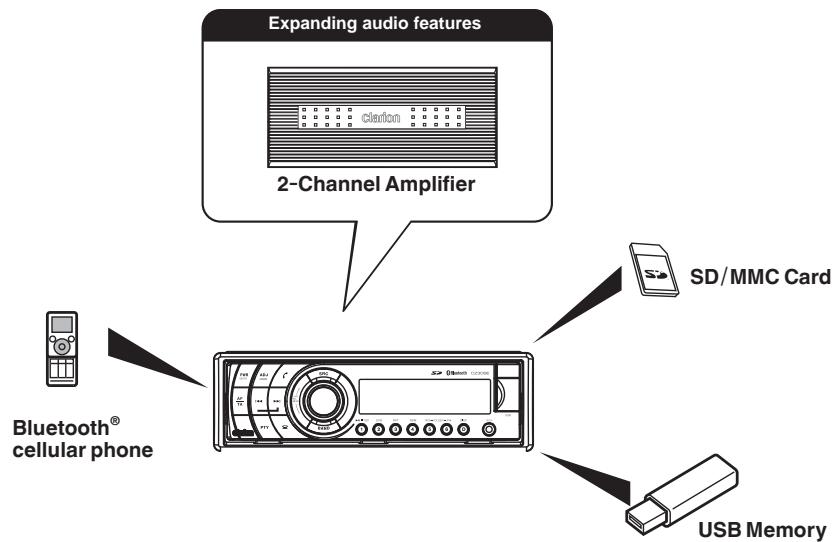
Note: The accessories listed above are optional extras that are sold separately.
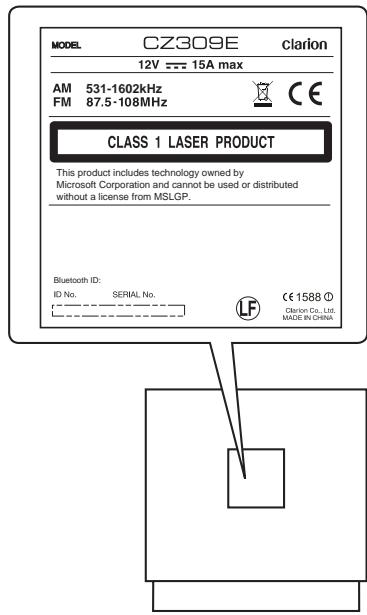
2. PRECAUTIONS

WARNING
For your safety, the driver must not operate the controls while driving.
Also, while driving, keep the volume to a level at which external sounds can be heard.
- When the inside of the car is very cold and the player is used soon after switching on the heater, moisture may form on the disc or the optical parts of the player and proper playback may not be possible. If moisture forms on the disc, wipe it off with a soft cloth. If moisture forms on the optical parts of the player, do not use the player for about one hour. The condensation will disappear naturally allowing normal operation.
- Driving on extremely bumpy roads which cause severe vibration may cause the sound to skip.
- This unit uses a precision mechanism. Even in the event that trouble arises, never open the case, disassemble the unit, or lubricate the rotating parts.
Front Panel / General
For a longer service life, be sure to read the following cautions.
- Do not allow any liquids on the set from drinks, umbrellas, etc. as this may damage the internal circuitry.
- Do not disassemble or modify the set in any way. Doing so may result in damage.
- Do not let cigarettes burn the display. Doing so may damage or deform the display.
- If a problem should occur, have the set inspected at your store of purchase.
- The remote control unit may not work if the remote control sensor is exposed to direct sunlight.
Cleaning the body
Use a soft, dry cloth and gently wipe off any dirt.
For tough dirt, apply some neutral detergent diluted in water to a soft cloth, wipe off the dirt gently, then wipe again with a dry cloth.
Do not use benzene, thinner, car cleaner, etc., as these substances may damage the body or cause the paint to peel. Also, leaving rubber or plastic products in contact with the body for long periods of time may cause stains.
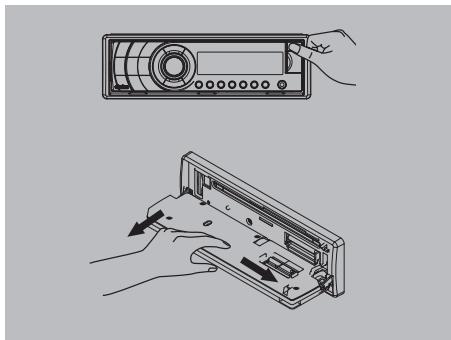
The control panel can be detached to prevent theft. When detaching the control panel, store it in the DCP (Detachable Control Panel) case to prevent scratches.
We recommend taking the DCP with you when leaving the car.
- Press the [PWR] button (1 sec.) to turn off the power.
- Deeply push in the [OPEN] button to unlock the flip-down panel.
If the flip-down panel does not open fully, gently open it with your hand.
3. Hold one side of the DCP. Push it slightly to the other side slightly, release one end, and then take off the DCP.
Re-attaching the DCP
- Hold the DCP and ensure that the panel faces downwards. Set one side of the DCP into the DCP bracket. Press the other side of the DCP until it locks.
- Turn the DCP up and press it until it clicks.
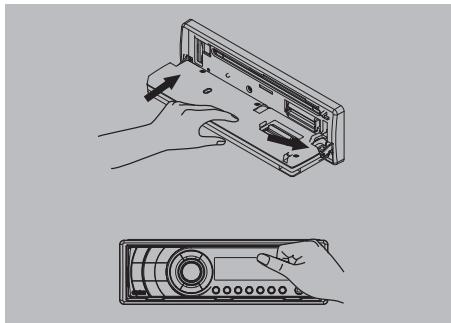
Storing the DCP in the DCP Case
Hold the DCP, in the orientation as shown in the figure below, and put it into the supplied DCP case. (Ensure the DCP is in the correct orientation.)
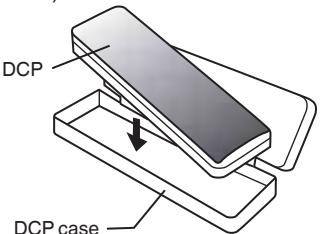
Note:
If the DCP is dirty, wipe off the dirt with a soft, dry cloth only.
CAUTION
- The DCP can easily be damaged by shocks. After removing it, be careful not to drop it or subject it to strong shocks.
- If the FLIP-DOWN PANEL is kept open, the DCP may drop due to vibration of the car. This could damage the DCP. So close the FLIP DOWN PANEL or remove the DCP and store it in the DCP case.
- The connector connecting the source unit and the DCP is an extremely important part. Be careful not to damage it by pressing on it with fingernails, screwdrivers, etc.
3.CONTROLS
Operation Panel
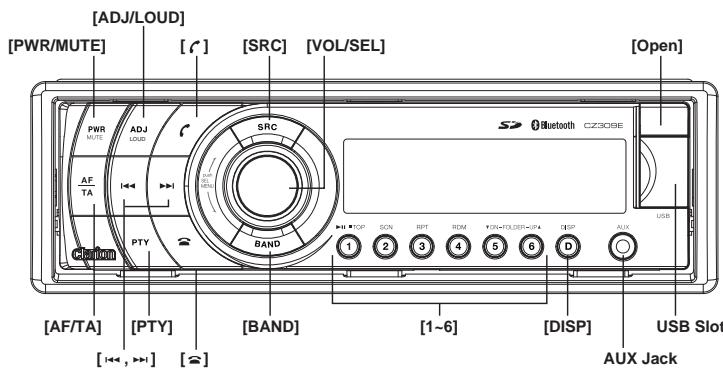
Names of Buttons
[PWR/MUTE] Key
Power / Mute
[AF/TA] Key
Alternative Frequency / Traffic Announcement
[ADJ/LOUD] Key
- System menu / Loudness
[1←,▶]Key
Previous (Next) / Search [PTY]
- Program type / REG
[ ] Key - Dial / Answer
[ ]Key
- Terminate call
[SRC] Key - Toggle the audio source
[VOL/SEL] Key - Adjust volume level / Audio setting / Confirm
[BAND] Key - Select tuner band / Auto memory store / MP3 search
[1~6] Key
[1] Key: Play / Pause / Preset station 1.
[2] Key: Intro play / Preset station 2.
[3] Key: Repeat play / Preset station 3.
[4] Key: Shuffle play / Preset station 4.
- [5] Key: Previous folder / Preset station 5. 10 tracks down (long press)
[6] Key: Next folder / Preset station 6. 10 tracks up (long press)
[DISP]Key
- Display switch
AUX Jack - External devices can be connected here.
[Open] Key
- Unlock and flip down the front panel.
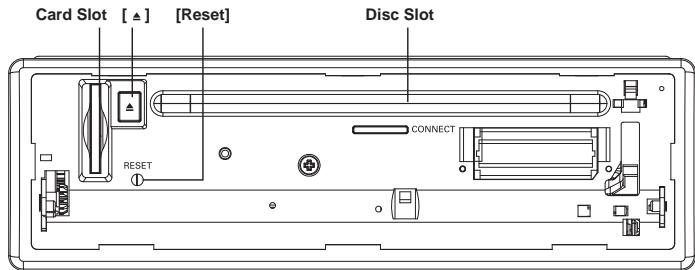
[△]Key
- Eject the disc in the unit.
Remote Control
[i←,→]Key
Previous (Next) / Search
[MENU] Key
- System menu
[AUDIO] Key
Audio setting
[0-9] Key
- Numeric keys
[ ]Key
- Dial / Answer
[SEL] Key
Confirm
[▲,▼]Key
Tune / MP3/WMA search
[BAND] Key
Select tuner band
[SRC] Key
- Toggle the audio source
[VOL] Key
- Adjust volume
[EQ] Key
- Select sound effect
[LOUD] Key
Loudness
[SEARCH] Key
- Radio auto memory store / MP3/WMA search
[DISP] Key
- Display switch / System menu
[ ]Key
- Terminate call
![CLARION CZ309E - [ ]Key - 1](/content/2019/11/96000/images/64e0586c6b8e0bae7d0fb5b14fba8ad3d204ff47399c604f06a31b6c6c31504b.jpg)
Notes on Using the Remote Control
- Aim the remote control at the remote sensor on the unit.
- Remove the battery from the remote control or insert a battery insulator if the remote control will not be used for a month or longer.
- DO NOT store the remote control under direct sunlight or in high temperatures, or it may not function properly.
- The battery can work for 6 months under normal condition. If the remote control does not work please change the battery.
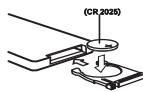
- Use a "button-type" lithium battery "CR2025" (3V) only.
- DO NOT recharge, disassemble, heat or expose the battery in fire.
-
Insert the battery in the proper direction according to the (+) and (-) poles.
-
To avoid the risk of accidents, store the battery out of reach of children.
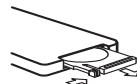
Uninstall the Battery
Pull out the battery holder while pressing the stopper.
Install the Battery
Insert the button-type battery with the stamped (+) mark facing upward.
Insert the battery holder into the remote control.
4. CAUTIONS ON HANDLING
Handling Discs
Handling
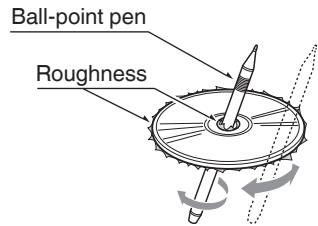
- New discs may have some roughness around the edges. If such discs are used, the player may not work or the sound may skip. Use a ball-point pen or the like to remove any roughness from the edge of the disc.
- Never stick labels on the surface of the disc or mark the surface with a pencil or pen.
- Never play a disc with any cellophane tape or other glue on it or with peeling off marks. If you try to play such a disc, you may not be able to get it back out of the player or it may damage the player.
- Do not use discs that have large scratches, are misshapen, cracked, etc. Use of such discs may cause misoperation or damage.
- To remove a disc from its storage case, press down on the center of the case and lift the disc out, holding it carefully by the edges.
- Do not use commercially available disc protection sheets or discs equipped with stabilizers, etc. These may damage the disc or cause breakdown of the internal mechanism.
Storage
- Do not expose discs to direct sunlight or any heat source.
- Do not expose discs to excess humidity or dust.
- Do not expose discs to direct heat from heaters.
Cleaning
- To remove fingerprints and dust, use a soft cloth and wipe in a straight line from the center of the disc to the circumference.
- Do not use any solvents, such as commercially available cleaners, anti-static spray, or thinner to clean discs.
After using special disc cleaner, let the disc dry completely before playing it.
On Discs
Exercise precaution when loading a disc. The operation panel will close automatically when left open for a while.
- Never turn off the power and remove the unit from the car with a disc loaded.
CAUTION
For your safety, the driver must not insert or eject discs nor open the operation panel while driving.
5. OPERATIONS
Basic Operations
Note:
- Be sure to read this chapter referring to the chapter "3.CONTROLS"
CAUTION
When the unit is turned on, starting and stopping the engine with the volume raised to the maximum level may harm your hearings.
Be careful when adjusting the volume.
Power on / off
Notes:
- Start the engine before using this unit.
- Be careful about using this unit for a long time without running the engine. This could completely drain the car battery, and you may not be able to start the engine. Additionally, this will reduce the service life of the car battery.
- Start the engine. The power button / knob illumination on the unit will light up.

Engine ON position
- Press the [PWR] key on the front panel or the [0] key on the remote control to turn on the power off standby mode. The unit goes back to the last status after power on.
- Press and hold the [PWR] key on the front panel or press the [O] key on the remote control to turn off the power during operation.
CT (Clock Time) display
- The displayed clock data is based on the CT (Clock Time) data in the RDS signal.
Mute
Press the [MUTE] key on the front panel or remote control to mute the volume.
Note:
To restore the sound, repeat the operation above again or adjust the volume manually.
Volume adjustment
Turn the volume knob on the front panel or press the [VOL] key on the remote control. The adjustable range of volume is 0 to 47.
CAUTION
While driving, keep the volume level at which external sounds can be heard.
Source selection
Press the [SRC] key on the front panel or remote control repeatedly to choose the desired playing source.
Notes:
- Source selection refers to selecting the operating mode, such as DISC mode, Radio mode, Aux mode, etc.
- When some devices are not ready, they cannot be selected.
Display system time
Press the [DISP] key on the front panel or remote control to switch the display information between system time and playing source.
Radio Operations
Select tuner as playing source
Press the [SRC] button once or more to enter the radio mode.
Select a radio band
Press the [BAND] key on the panel or remote control to select a radio band among FM1, FM2, FM3, MW1 and MW2.
Manual tuning
During manual tuning, the frequency will be changed in steps.
Press the [▶▶I]/[I▶] key on the panel or remote control to tune in a higher / lower station.
Auto tuning
Press and hold the [▶▶I]/[I▲] key on the panel or remote control to seek a higher / lower station.
To stop searching, repeat the operation above or press any other key with a radio function.
Note:
When a station is received, searching stops and the station is played. If the unit receives a stereo broadcast, the stereo 'ST' indicator light on the LCD display lights.
Auto save
Only stations with sufficient signal strength will be detected and stored in the memory. Press and hold the [BAND] key (2 sec.) to start automatic station search.
To stop auto save, any other key with a radio function.
Notes:
- After auto save, the previously saved stations will be overwritten.
- The unit has 5 bands: FM1, FM2, FM3, AM1, AM2. Each band can store 6 stations; hence the CZ309E can store 30 stations in total.
- During automatic station search, the detected 6 stations will be stored only on the FM3 band.
Manual save
When one expected radio station has been detected, press and hold number key 1~6 to save it in the memory.
Recall the stored stations
Press a numeric key from 1 to 6 on the panel or on the remote control to select the corresponding stored station.
Local seek
When LOCAL seek is on, only radio stations with a strong radio signal can be received. To switch the LOCAL function on/off, press the [ADJ] key on the front panel, then press [ADJ] repeatedly until LOCAL or DX id displayed, and turn the knob to select Local or Distant mode.
Notes:
The number of radio stations that can be received will decrease when Local seek mode is on.
RDS (Radio Data System)
This unit has a built-in RDS decoder that supports broadcast stations transmitting "Radio Data System" data.
When using the "Radio Data System" function, always set the radio to FM mode.
AF function
The AF function switches to a different frequency on the same network in order to maintain optimum reception.
* The factory default setting is "ON".
1. Press the [H] or [▶H] button to select "AF".
2. Press AF/TA button to select "AF ON" or "AF OFF".
- AF ON:
"AF" in the display lights and the AF function turns on.
- AF OFF:
"AF" in the display goes off and the AF function turns off.
REG (Regional Programme) function
When the REG function is ON, the optimum regional station can be received. When this function is OFF, if the regional station area switches as you drive, a regional station for that region is received.
- The factory default setting is "ON".
Notes:
- This function is disabled when a national station such as BBC R2 is being received.
- The REG function ON/OFF setting is valid when the AF function is ON.
- Press and hold PTY button to select "REG ON".
Manually tuning a regional station in the same network
- This function is valid when the AF function is ON and the REG function is OFF.
Note:
This function can be used when a regional broadcast of the same network is received.
TA (Traffic Announcement)
In the TA standby mode, when a traffic announcement broadcast starts, the traffic announcement broadcast is received as top priority regardless of the selected function mode so you can listen to it. Traffic programme (TP) automatic tuning is also possible.
- This function can only be used when "TP" is lit in the display. When "TP" is lit, this means that the RDS station being received broadcasts traffic announcement programmes.
Setting the TA standby mode
If you press and hold the [AF/TA] button when only "TP" is lit in the display, "TP" and "TA" light in the display and the unit is set to the TA standby mode until a traffic announcement is broadcast. When a traffic announcement broadcast starts, "TRA INFO" appears in the display. If you press and hold the [AF/TA] button while a traffic announcement broadcast is being received, the traffic announcement broadcast reception is cancelled and the unit goes into the TA standby mode.
Cancelling the TA standby mode
When "TP" and "TA" are lit in the display, press and hold the [AF/TA] button. "TA" in the display goes off and the TA standby mode is cancelled.
- If "TP" is not lit, pressing and holding the [AF/TA] button causes searching for a TP station.
Searching for a TP station
When "TP" is not lit, if you press and hold the [AF/TA] button, "TA" lights in the display and the unit automatically receives a TP station.
Auto store function for TP stations
You can automatically store up to 6 TP stations into preset memory. If the number of TP stations that can be received is less than 6, the remaining broadcast stations already stored in memory are left as are without being overwritten.
When "TA" is lit in the display, press and hold the [BAND] button (2 sec.). TP stations with a sufficiently strong signal are stored in the preset memory.
- Even if you select FM1 or FM2, TP stations are stored in the memory for FM3.
PTY (Programme Type)
This function enables you to listen to a broadcast of the selected programme type even if another source mode than radio has been selected.
- Some countries do not yet have PTY broadcast.
- In the TA standby mode, a TP station has priority over a PTY broadcast station.
- The factory default setting is "OFF". Press the [PTY] button to select "ON" or "OFF".
ON:
"PTY" lights in the display and the PTY standby mode is turned on. When the selected PTY broadcast starts, the PTY item name appears in the display.
OFF:
"PTY" in the display goes off and the PTY standby mode is cancelled.
Cancelling a PTY interrupt broadcast
Performing any tuning operation during a PTY interrupt broadcast will cancel PTY reception and return the unit to the PTY standby mode.
Selecting PTY
Press the PTY button, then use a number button [1] - [6] to select PTY type. The unit begins searching after the programme type has been selected.
TA volume setting
The volume for Traffic Announcements can be preset.
- Press the ADJ button repeatedly until TAVOL appears in the display, then turn the [VOL/SEL] knob to adjust the TA volume level.
- When the TA interrupt ends, the volume returns to the level that was set before the interrupt.
CD/MP3/WMA Operations
This unit can play back MP3/WMA files

Notes:
- This unit does not support DRM
- If you play a file with DRM (Digital Rights Management) while WMA remains ON, no audio is output (The WMA indicator blinks).
- Windows Media™, and the Windows® logo are trademarks, or registered trademarks of Microsoft Corporation in the United States and/or other countries.
To disable DRM protected files
synchronisation from WMP (Digital Rights Management)
When using Windows Media Player 9/10/11, click on the TOOL OPTIONS MUSIC RECORD tab, then under Recording settings, unclick the Check box for RECORD PROTECTED MUSIC. Then, reconstruct files.
Personally constructed WMA files are used at your own responsibility.
Precautions when creating MP3/WMA files
Usable sampling rates and bit rates
- MP3: Sampling rate 8 kHz-48 kHz, Bit rate 8 kbps-320 kbps/VBR
- WMA: Bit rate 8 kbps-320 kbps
File extensions
- Always add a file extension“.MP3”,“.WMA” or“.M4A” to MP3, WMA files by using single byte letters. If you add a file extension other than specified or forget to add the file extension, the file cannot be played.
-
Files without MP3/WMA data will not play. The files will be played soundlessly if you attempt to play files without MP3/WMA data.
-
When VBR files are played, the play time display may differ from the play location.
- When MP3/WMA files are played, a slight silence will be noticed between tunes.
Logical format (File system)
- When writing MP3/WMA files on a CD-R disc or CD-RW disc, please select "ISO9660 level 1, 2 or JOLIET or Romeo" or APPLE ISO as the writing software format. Normal play may not be possible if the disc is re
corded in another format.
- The folder name and file name can be displayed as the title during MP3/WMA play but the title must be within 64 single-byte alphabetical letters and numerals (including the extension).
- Do not affix a name to a file inside a folder having the same name.
Folder structure
Discs with a folder having more than 8 hierarchical levels cannot be played.
Number of files or folders
- Up to 999 files can be recognized per folder. Up to 65535 files can be played.
- Tracks are played in the order that they were recorded onto the disc. (Tracks might not always be played in the order displayed on the PC.)
- Some noise may occur depending on the type of encoder software used while recording.
Set the type of file to be played (multi-session function)
- Default setting is "OFF".
- When playing mixed CDs, and one session CDs, select OFF.
- When playing mixed, extra, multi-session CDs, set to ON.
Press the [ADJ] button repeatedly until MULT appears on the display. Then turn the [VOL/SEL] knob to select ON or OFF.
Backup Eject function
Just pressing the [ ] button ejects the disc even if the power to the unit is off.
- Press the [OPEN] button to open the FLIP-DOWN PANEL.
Note:
-
If the FLIP-DOWN PANEL will not open far enough, gently open it with your hand.
-
Press the [▲] button. Remove the disc after it is ejected.
- Close the FLIP-DOWN PANEL.
- Press the center of the DCP to close.
Notes:
Always close the FLIP-DOWN PANEL once
CD/MP3/WMA Operations
you take out the disc.
- If you force a CD into the loading slot before auto reloading starts, this can damage the CD.
- If a CD (12 cm) is left in the ejected position for 15 seconds, the CD is automatically reloaded (Auto reload).
Listening to a disc already loaded in the unit
Press the [SRC] button to select the CD/MP3/WMA mode.
When the unit enters the CD/MP3/WMA mode, play starts automatically.
If there is no disc loaded, the indication "NO DISC" appears in the title display.
Loading a CD
- Press the [OPEN] button to access the CD SLOT behind the FLIP-DOWN PANEL.
- Insert a CD into the center of the CD SLOT with the labeled side facing up. The CD plays automatically after loading.
Notes:
- Never insert foreign objects into the CD SLOT.
- If the CD is not inserted easily, there may be another CD in the mechanism or the unit may require service.
Discs not bearing the 01508 or 0158 mark and CD-ROMs cannot be played by this unit. - Some CDs recorded in CD-R/CD-RW mode may not be usable.
-
Close the FLIP-DOWN PANEL.
-
Press the center of the DCP to close.
CAUTION
Be careful not to catch your hand or fingers while closing the FLIP-DOWN PANEL.
Notes:
- If the FLIP-DOWN PANEL does not open fully, gently open it with your hand.
After loading a CD, always close the FLIP-DOWN PANEL.
Pausing play
- Press the [1 / 口 ] button to pause play. "PAUSE" appears in the display.
- To resume CD play, press the [1/▶II] button again.
Displaying CD titles
This unit can display title data for CD-text/ MP3/WMA discs and user titles input with this unit.
The display changes in the following order each time you press the [DISP] button to change the title display.
CD-TEXT disc
User > Track > Disc/Artist > User...
MP3/WMA disc
Track > Folder > Title/Album > Artist > Track ...
Notes:
- If the CD playing is not a CD-text CD or no user title has been input, "NO TITLE" appears in the display.
- If a MP3/WMA disc does not have a TAG, "NO TITLE" appears in the display.
- Only ASCII characters can be displayed for Tags.
Selecting a track
Track up
- Press the [▶] button to move ahead to the beginning of the next track.
- Each time you press the [▶] button, the track advances the beginning of the next track.
- Press and hold the [6] button to move ahead by +10 tracks.
Track down
- Press the [ ] button to move back to the beginning of the current track.
- Press the [ ] button twice to move back to the beginning of the previous track.
- Press and hold the [5] button to move back by -10 tracks.
Fast-forward/Fast-reverse
Fast-forward
Press and hold the [▶] button.
CD/MP3/WMA Operations
Fast-reverse
Press and hold the [ ] button.
- For MP3/WMA discs, it takes some time until the start of searching begins and between tracks. In addition, the playing time may have a margin of error.
Folder select
This function allows you to select a folder containing MP3/WMA files and start playing from the first track in the folder.
- Press the [5] or [6] button.
Press the [6] button to move to the next folder. Press the [5] button to move to the previous folder.
- To select a track, press the [K] or [▶] button.
Top function
The top function resets the CD player to the first track of the disc. Press and hold the [1] button (2 sec.) to play the first track (track No. 1) on the disc.
- In case of MP3/WMA, the first track of the current folder being played will be selected.
Other various play functions
Scan play
This function allows you to locate and play the first 10 seconds of all the tracks recorded on a disc.
Press the [SCN] button to perform scan play.
Repeat play
This function allows you to play the current track repeatedly or play a track currently being played in the MP3/WMA folder repeatedly.
- Press the [RPT] button once or more until [RPT TRK] appears on the display to perform repeat play.
- Press [RPT] button repeatedly until [RPT FOLD] appears on the display for folder repeat play.
- Press [RPT] button repeatedly until [RPT OFF] appears on the display to cancel repeat playback.
Random play
This function allows you to play all tracks recorded on a disc in random order.
Press the [RDM] button to perform random play.
USB Operations
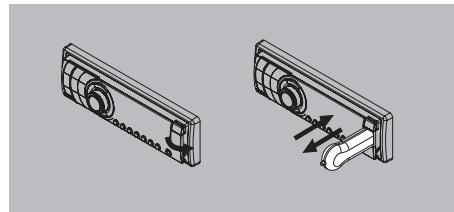
- Open the cap of USB connector, and insert a USB device into the USB connector. When connecting a USB device, the unit will read the files automatically.
- To remove the USB device, you should first select another source, in order to avoid damaging the USB device. Then remove the device, and close the USB device, and close the cap.
SD Card Operations
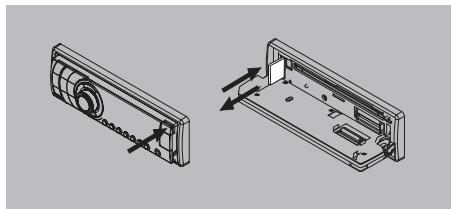
- Press top right of the panel to flip down the panel, and insert an SD/MMC card into the corresponding slot. The unit will read the files automatically.
- To remove the card, you should first select another source, in order to avoid damaging the card, then press the card slightly, and remove the card after it pops out.
Notes:
USB functions (flash memory type) for MP3 music playback
1. Supported SD/MMC cards
There might be some SD/MMC cards which are not compatible to CZ309E
2. USB flash memory 2 in 1 (SD/MMC) supported
3. USB storage devices formatted with FAT12/16/32 are supported by this player. There is no support for the NTFS format.
4. File name / Directory name / Tag name: 32 bytes
5. Tag (ID3 tag ver 2.0)
- Title / Artist / Album: 32 bytes supported
6. Multi-card readers are not supported
7. USB 1.1 supported
USB 2.0 supported
(USB 2.0 devices are supported with the same speed as USB 1.1 devices)
There might be some USB devices which are not compatible with the CZ309E.
8. USB/SD operation is generally the same as CD/MP3/WMA operation.
AUX Operations
Press the SRC button on the panel or remote control to select AUX.
AUX is used to connect an external audio player with a 3.5 mm plug to the audio in jack on the front panel.
Bluetooth Operations
Bluetooth allows you to utilize your car's built-in audio system for hands-free, wireless mobile phone usage or music playback. Some Bluetooth mobile phones feature audio playback, while some portable audio players support Bluetooth. This system can play audio data stored in a Bluetooth audio device. Thanks to the Bluetooth feature, this unit can retrieve phonebook contacts, receive calls, dial calls, display missed calls, incoming calls, outgoing calls and play back music.
Notes:
- Do not leave the Bluetooth hands-free microphone close to ventilators, air condition outlets, etc. This may cause a malfunction.
- If left exposed to direct sunlight, high temperature can cause distortion and discoloration which may result in a malfunction.
- This system will not operate or may operate improperly with some Bluetooth audio players.
- Clarion does not guarantee compatibility with all mobile phones together with the CZ309E.
Audio playback will be set to the same volume level as set for telephone calls.. This might cause problems, if extreme volume level is used for telephone calls.
Handsfree Operations
Pairing
- Turn on the Bluetooth function of your mobile phone.
- Call up the mobile phone's Bluetooth setup menu.
- Search for new Bluetooth devices.
- Select CZ309E from the pairing list on the mobile phone.
- Enter "0000" as the password.
Disconnecting
If you want to disconnect the Bluetooth from the phone, press [SRC] for more than 2 seconds.
Reconnecting
Press the [SRC] button for more than 2 seconds to reconnect manually.
Making a call
Direct Number Call
Press the [c] button to select DIAL NUM.
-
Use the number buttons on the remote control or turn and press the [VOL/SEL] knob to select phone number.
-
Press [▶] to change the digit position.
-
Press the [ ] button to reset the entered number.
-
Press [c] to dial out.
Operation from Bluetooth menu
Press the [SRC] button to switch the source to "BT MUSIC".
There are 4 ways to make an outgoing call:
Dialling a number
Same operation as "Direct Number Call".
- Calling from Phonebook
You can can search for a contact name in the phonebook and make call.
- Press the [ ] button to select "TEL PBK" (phonebook of mobile phone) or "SIM PBK" (phonebook of SIM card).
- Press the [VOL/SEL] knob to enter the selected phonebook.
- Use the []/[] buttons on the remote control or turn the [VOL/SEL] knob to scroll through the contacts.
- When the contact name is displayed, press the [C] button to call the mobile phone number of that contact.
- Press the [ ] button to end the call.
- Answering a call
- You can answer an incoming call by pressing the [C] button.
- Press the [ ] button to reject an incoming call.
Dialled/Missed/ Received Call History
You can search for a call in the Dialled/ Missed/Received Call History.
- Press the [C] button to select "DIALLED", "MISSED" or "RECEIVED".
- Press the [VOL/SEL] knob to enter the selected call history.
- Use the [ ] / [] buttons on the remote control or turn the [VOL/SEL] knob to scroll through the contacts.
Bluetooth Operations
- When the contact name or mobile phone number is displayed, press the [C] button to call the mobile phone number of that contact.
- Press the [ ] button to end the call.
Audio Streaming Operations
What is audio streaming?
Audio streaming is a technique for transferring audio data as a steady and continuous stream. Users can stream music from their external audio player to their car stereo wirelessly and listen to the tracks through the car's speakers. Please consult your nearest Clarion dealer for more information on the product of wireless audio streaming transmitter offered.
CAUTION
Please avoid operating your connected mobile phone during audio streaming as this may cause noise or sound interruptions during music playback.
Depending on the mobile phone, audio streaming may or may not resume after a telephone interrupt.
The system will always return to the Radio mode when audio streaming is disconnected.
Note:
Be sure to read the chapter "Pairing" before proceeding.
Play / Pause a track
- Press the [1/II] button to pause audio playback.
- To resume audio playback, press the [1/ ] button again.
Selecting a track
Track up
- Press the [▶] button to move to the beginning of the next track.
- Each time the [▶] button is pressed, playback proceeds to the next track in the forward direction.
Track down
-
Press the [ ] button to move the to beginning of the previous track.
-
Each time the [ ] button is pressed, playback proceeds tto the previous track in the reverse direction.
Note:
The playback order depends on the Bluetooth® audio player. When the [▶] button is pressed, some A2DP devices will restart from the current track depending on the duration of playback.
During music streaming playback, "A2DP" will be shown on the display. Information about tracks (e.g. the elapsed play time, song title, etc.) cannot be displayed on this unit. When the A2DP device is disconnected, "BT DISCONNECT" will be shown on the display, and the previously selected audio source will be chosen. Some Bluetooth® audio players may not have play/pause synchronized with this unit. Please make sure both the external device and the main unit have the same play/ pause status in the BT MUSIC mode.
Audio Setup
Press the [VOL/SEL] knob for more than 2 seconds to select the available EQ presets. The first Press shows the current EQ. Further long pressing changes EQ presets in this order:
USER->DSP OFF->FLAT->POP->ROCK->CLASSIC
Press the [VOL/SEL] knob to enter the audio setting menu and select USER presets including:
BAS(bass) ->MID(middle) ->TRE(treble) ->BAL(balance) ->FAD(fader) ->BASS Q->LPF(low pass filter) ->MID Q->MPF(mid pass filter) ->HPF(high pass filter), turn the [VOL/SEL] knob to select a value, and press to confirm.
System Setup
Press the [ADJ] button to enter the system MENU. Turn the [VOL/SEL] knob to adjust, then press the [ADJ] button to confirm the selection and switch to the next item in menu.
TA VOL
Rotate the knob to adjust TA volume.
Clock Setting
When thee time is displayed, press [1] to enter the hour setting mode, press [▶] to enter the minute setting mode, then turn the knob to adjust.
ESP: 12/45
Electronic shock protection timing: 12 sec. or 45 sec. for CD/MP3.
ESP 12s: Selected as CD-ESP time 12 seconds, MP3-ESP time >100 seconds.
ESP 45s: Selected as CD-ESP time 45 seconds, MP3-ESP time >100 seconds.
The ESP 12 mode provides higher audio quality.
LOCAL/DX
Rotate the knob to choose the local or distant radio reception mode.
LOCAL: Only stations with a strong signal are received.
DX: All stations, including those with weak signals, are received.
BEEP ON/OFF
Turn the knob to turn the button beep sound on or off.
STEREO/MONO
Turn the knob to choose FM stereo or mono reception.
AUTO:ON/OFF
AUTO ON: The unit connects to the last bluetooth device automatically.
AUTO OFF: The unit does not connect automatically.
ROLL: ON/OFF
For track information that is longer than the display panel:
When ROLL is ON, the LCD will display ID3 TAG information in cycles, e.g: TRACK->FOLDER->FILE->ALBUM->TITLE->ARTIST->TRACK->...
When ROLL is OFF, the LCD will display specific ID3 TAG information. The default is TRACK, but you can change it to another ID3 TAG by pressing DISP.
MULT ON/OFF
Multi Session on/off (Multi session off: mixed CD, ONE session CD; Multi session on: Mixed, Extra, multi session CD)
6. TROUBLESHOOTING
GENERAL
| Problem | Cause | Measure |
| Unit can not power on | Unit fuse blown. | Install new fuse with correct rating. |
| Car batterz fuse blown. | Install new fuse with correct rating. | |
| Unit can not power on Nothing happens when buttons are pressed. | Illegal operation. | Turn off thr power and open the operation panel. Pres the reset button with a thin rod. |
| Note:When the Reset button is pressed, turn off the ACC powet.* | ||
| Display is not accurate. | * When the Reset button is pressed, frequencies of radio stations, titles, etc. stored in memory are cleared. | |
| Remote control does not work | Battery depleted. | Change the battery. |
| Battery installed incorrectly. | Install the battery correctly. | |
| No/low audio output | Improper audio output connection. | Check wiring and correct. |
| Volume set too low. | Increase volume level. | |
| Speakers damaged. | Replace speakers. | |
| Heavily biased volume balance. | Adjust the channel balance to center position. | |
| Speaker wiring is in contact with metal part of car. | Insulate all speaker wiring connections. | |
| Poor soun quality or distortion | Non-standard disc used. | Use a standard disc. |
| Speake power rating does not match unit. | Replace speakers. | |
| Wrong connections. | Check wiring and correct. | |
| Speaker is shorted. | Check wiring and correct. | |
| Tel-Mute malfunction | MUTE wire is grounded. | Check the “MUTE” wiring and correct. |
| Unit resets itself when engine is off | Incorrect connection between ACC and BATT. | Check wiring and correct. |
USB Devices
| Problem | Cause | Measure |
| USB device cannot be inserted. | The USB device has been inserted with wrong direction. | Reversing the connection direction of the USB device, try it again. |
| The USB connector is broken. | Replace with a new USB device. | |
| USB device is not recognized. | The USB device is damaged. | Disconnect the USB device and reconnect. If the device is still not recognized, try replacing with a different USB device. |
| Connectors are loose. | ||
| No sound heard with the display “No File” shown. | No MP3/WMA file is stored in the USB device. | Store these files properly in the USB device. |
| Sound skips or is noisy. | MP3/WMA files are not encoded properly. | Use MP3/WMA files encoded properly. |
7. SPECIFICATIONS
FM Tuner
Frequency range: 87.5-108.0 MHz (Europe)
Usable sensitivity: 8dB
Frequency response: 30 Hz-15 kHz
Stereo separation: 30 dB (1kHz)
Signal/noise ratio: >55 dB
AM Tuner
Frequency range: 531-1602 kHz
Usable sensitivity (S / N = 20dB) .. 30dB
CD
System: Digital Compact Disc audio system
Frequency response: 20Hz - 20kHz
Signal/noise ratio: >75 dB
Total harmonic distortion: Less than 0.1% (1 kHz)
Channel separation: >60 dB
MP3/WMA mode
MP3 sampling rate: 8 kHz to 48 kHz
MP3 bit rate: 8 kbps to 320 kbps / VBR
WMA bit rate: 8 kbps to 320 kbps
Logical format: ISO9660 level 1,2
Joliet or Romeo file system
USB
Specification: USB 1.0/2.0
Playable audio format:
MP3(.mp3): MPEG 1/2/Audio Layer-3
WMA(wma):Ver 7/8/9.1/9.2
Bluetooth
Specification: Bluetooth Ver. 2.0
Profile: HFP (Hands-Free Profile)
OPP (Object Push Profile)
A2DP (Advanced Audio Distribution Profile)
Send/Receive Sensitivity: Class 2
Audio Amplifier
Maximum power output:
160 W (40 W × 4)
Output Power:
4× 22W (DIN 45324, +B = 14.4V)
Speaker impedance: 4 (4 to 8 allowable)
Input
Audio input sensitivity:
High: 0.65 V (at 2 V output)
Mid: 1.3 V (at 2 V output)
Low: 2.0 V (at 2 V output)
(input impedance 10k or greater)
Aux-in level: ≥slant 500mV
General
Power supply voltage:
14.4 VDC (10.8 to 15.6 V allowable), negative ground
Pre-Amp output voltage:
2.0 V (CD play mode: 1 kHz, 0 dB, 10 kΩ load)
Fuse:15A
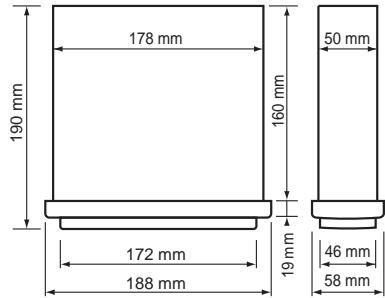
Dimensions of Main Unit:
188 mm Width × 58 mm Height × 190 mm Depth
Weight of Main Unit: 1.42kg
Dimensions of Remote Control unit:
52.5 mm Width × 7.8 mm Height × 115.5 mm Depth
Weight of Remote Control Unit:
36 g (including battery)
Notes:
- Specifications comply with JEITA Standards.
- Specifications and design are subject to change without notice for further improvement.
8. INSTALLATION / WIRE CONNECTION GUIDE
CONTENTS
1) BEFORE STARTING 24
2) PACKAGE CONTENTS 24
3) GENERAL CAUTIONS 24
4) CAUTIONS ON INSTALLATION 25
5) INSTALLING THE SOURCE UNIT 25
6) REMOVING THE SOURCE UNIT 27
7) WIRING AND CONNECTIONS 28
8) CONNECTING THE ACCESSORIES 29
1) Before Starting
- This set is exclusively for use in cars with a negative ground 12 V power supply.
- Read these instructions carefully.
- Be sure to disconnect the battery “-” terminal before starting. This is to prevent short circuiting during installation. (Figure 1)
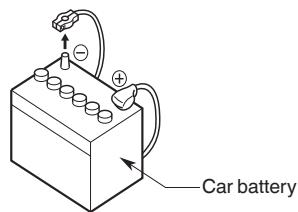
Figure 1
2) Package Contents
Source unit. 1
Front panel. 1
Trim plate 1
Owner's manual. 1
Screws M5 x 6 mm 4
L-key 2
Rubber cushion. 1
Wire connector 1
Remote control unit (with battery) 1
DCP case. 1
Microphone 1
3) General Cautions
-
Do not open the main unit body. There are no user-serviceable parts inside. If you drop anything into the unit during installation, consult your dealer or an authorized Clarion service center.
-
Use a soft, dry cloth to clean the case. Never use a rough cloth, thinner, benzine, alcohol, etc. For tough dirt, apply a little cold or warm water to a soft cloth and wipe off the dirt gently.
4) Cautions on Installation
- Prepare all articles necessary for installing the source unit before starting.
- Install the unit within 30^ of the horizontal plane. (Figure 2)
- If you have to do any work on the car body, such as drilling holes, consult your car dealer beforehand.
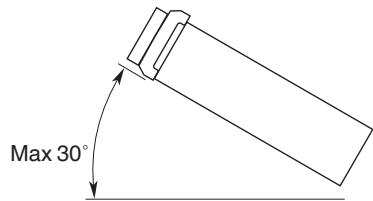
Figure 2
- Use the enclosed screws for installation.
Using other screws can cause damage.
(Figure 3)
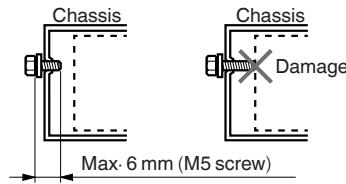
Figure 3
5) Installing the Source Unit
- Place the mounting bracket into the instrument panel, use a screwdriver to bend each stopper of the universal mounting bracket inward, then secure the stopper.
- Wire as shown in Section 7.
- Insert the source unit into the mounting bracket until it locks.
- Take care of the top and bottom of the outer escutcheon and mount it so that all the hooks are locked.
Notes:
- Some car models require special mounting kits for proper installation. Consult your Clarion dealer for details.
- Fasten the front stopper securely to prevent the source unit from coming loose.
- Console opening dimensions
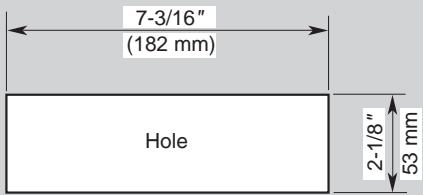
Notes on installation
- Before installation, please make sure proper connections are conducted and the unit operates normally. Improper connection may result in damage to the unit.
- Use only accessories designed and manufactured for this unit. Other unauthorized accessories may result in damage to the unit.
- Before installation, please fasten all power cables.
- DO NOT install the unit in close to hot areas to prevent damage to electrical components, such as the laser head.
- Install the unit horizontally. Installing the unit more than 30 degrees from the horizontal plane may result in reduced performance.
-
To prevent electric sparks, connect the positive pole first and then the negative pole.
-
DO NOT block the ventilation opening in the unit housing since this will prevent proper heat dissipation and may result in damage to the unit.
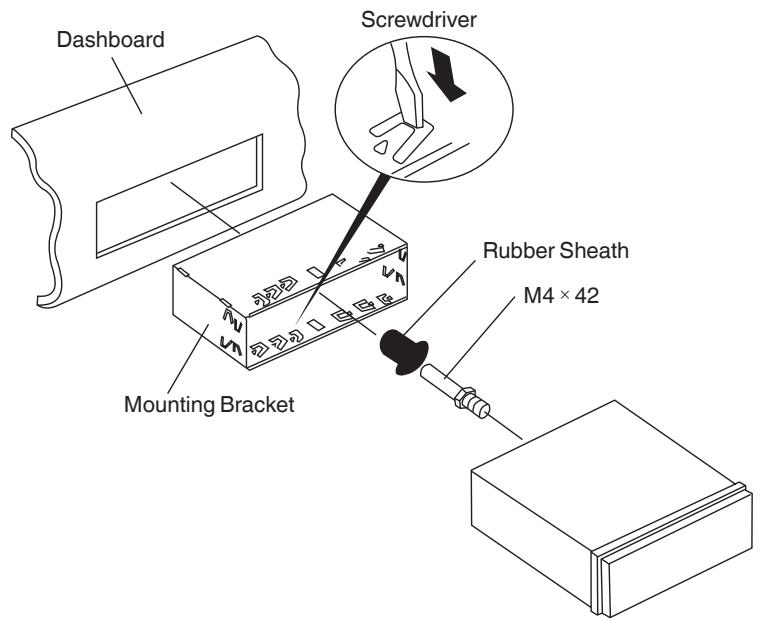
Unit Installation Method A
- Insert the mounting bracket into the dashboard, choose the appropriate mounting tabs according to the gap width, and bend the mounting tabs outwards with a screwdriver to fix the mounting bracket in place.
- Screw in the M4 × 42 stopper in the hole on the back of the unit and put a rubber sheath over the screw. (see picture below)
- Slide the unit into the bracket until you hear a click sound.
Method B
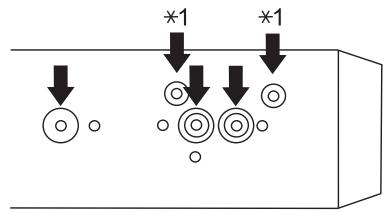
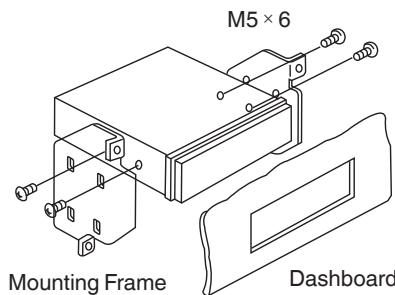
- Insert this unit directly to the opening of the dashboard.
- Insert M5 × 6 cylindrical screws through the holes in the mounting frame into the holes of the source unit and tighten on both sides.
Trim Ring installation
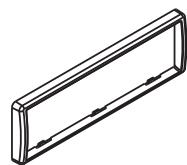
Attach the trim ring around the front panel.
6) Removing the Source Unit
Disassemble the trim ring
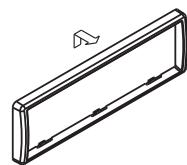
- Push the trim ring upward and pull out the upper part.
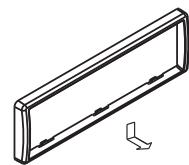
- Push the trim ring downward and pull out the lower part.
Disassemble the unit
- Switch off the power.
- Remove the panel.
- Remove the trim ring.
- Insert the removal keys until they lock, then pull the unit out.
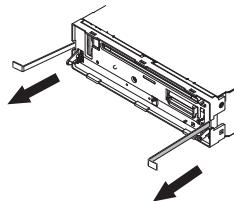
- Disconnect all the wires.
7) Wiring and Connectors
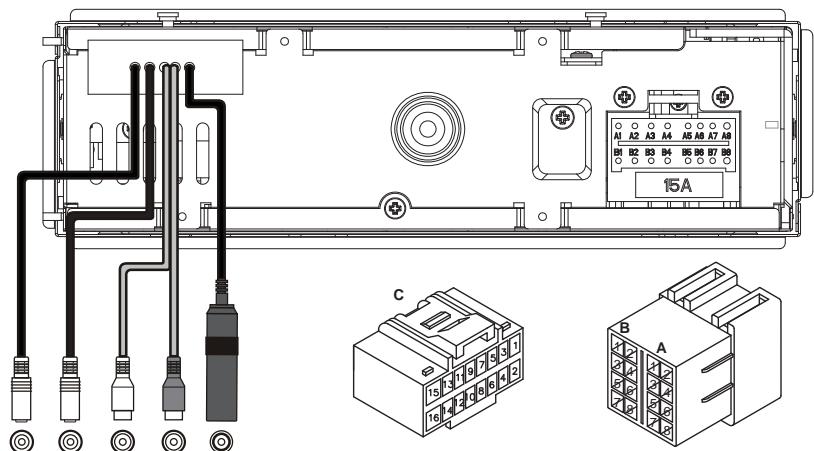
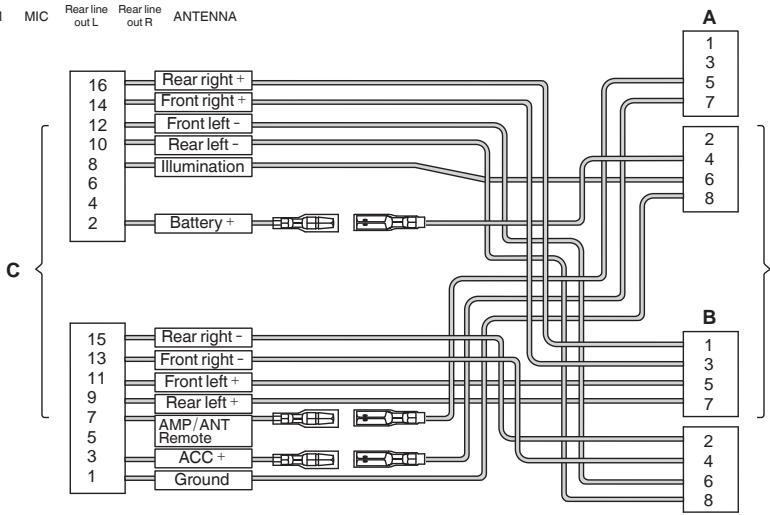
| Location | Function | |
| Connector A | Connector B | |
| 1 | Rear right (+) / Purple | |
| 2 | Rear right (-) / Purple with Black Stripe | |
| 3 | Front right (+) / Gray | |
| 4 | Battery 12V(+) / Yellow | Front right (-) / Gray with Black Stripe |
| 5 | ANT/AMP control / Blue | Front left (+) / White |
| 6 | Illumination/Orange with White Stripe | Front left (-) / White with Black Stripe |
| 7 | ACC+ / Red | Rear left (+) / Green |
| 8 | Ground / Black | Rear left (-) / Green with Black Stripe |
8) Connecting the accessories
- Connecting to an external amplifier
An external amplifier can be connected via the 2-channel RCA output connectors. Ensure that the connectors are not grounded or shorted to prevent damage to the unit.
Table des matieres
- FONCTIONS 2
- PRECAUTIONS 3
2.0 V (mode de lecture CD : 1 kHz, 0 dB, charge
de 10k
Fusible : 15 A
Profile:HFP (Freihandprofil) OPP
A2DP (Advanced Audio Distribution Profile)
- HANTERINGSWAARSCHUWINGEN 8
2. VOORZORGSGMAATREGELEN
WAARSCHUWING
4. HANTERINGSWAARSCHUWINGEN
TA (Traffic Announcement)
Track > Folder > Title/Album > Artist > Track ...
Opmerkingen:
Wat is audio streaming?
6. PROBLEEMOPLOSSING
ALGEMEEN
A2DP (Advanced Audio Distribution Profile)
Tryck paoch hall in [▶-knappen.
Snabbspola bakat
Pairing (ihopkoppling)
- Slå på Bluetooth-funktionen på din mobiltelefon.
- Ga in i mobiltelefonens instalningsmeny for Bluetooth.
- Sök after nya Bluetooth-enheter.
- Välj CZ309E frán pairing-listan på mobilitelefonen.
- Ange "0000" som losenord.
Koppla ifrän
Om du vill koppla bort Bluetooth fran Telefonen,tryck pa [SRC] i mer aan 2 sekunder.
Ateranslutting
USER->DSP OFF->FLAT->POP->ROCK
->CLASSIC
Total harmonisk distortion: Mindre an 0,1% (1 kHz)
Kanalseparation: >60 dB
MP3/WMA-läge
MP3 sampling rate: 8 kHz till 48 kHz
MP3 bit rate: 8 kbps till 320 kbps/VBR
WMA bit rate: 8 kbps till 320 kbps
Specification: USB 1.0/2.0
Spelbara Ijudformat:
MP3 (.mp3): MPEG 1/2/Audio Layer-3
WMA (.wma): Ver 7/8/9.1/9.2
Bluetooth
Specification: Bluetooth Ver. 2.0
Profil:HFP (Hands-Free Profile)
OPP (Object Push Profile)
A2DP (Advanced Audio Distribution Profile)
- Niéoté to kouπi [5] n to [6].
Piote to koupi [6] ia va eataite oToevoaeko. Iote to koupi [5] ia va uTaee tOTo npoyouevo akeo.
Ipaaymuatoonoion klaonc
Aeon kIohn apiOou
PpOoiaypaΦεC:Bluetooth'Ekδ.2.0
: HFP (Pnophi Hands-Free)
Declaration of conformity
We Clarion declare that this model CZ309E is following the provision of Directive 1999/5/EC with the essential requirements and the other relevant regulations.
Français:
All Rights Reserved. Copyright © 2009: Clarion Co., Ltd.
Printed in China / Imprimé en Chine / Gedruckt in China
Stampato in Cina / Gedrukt in China / Impreso en China
Tryckt i Kina / Wydrukowano w Chinach / Ektupωθηke stny Kiva
- FEATURES
- System Expansion
- PRECAUTIONS
- WARNING
- Front Panel / General
- Cleaning the body
- Re-attaching the DCP
- Storing the DCP in the DCP Case
- Note:
- CAUTION
- 3.CONTROLS
- Operation Panel
- Names of Buttons
- [PWR/MUTE] Key
- [ADJ/LOUD] Key
- [1~6] Key
- [DISP]Key
- Remote Control
- [i←,→]Key
- [MENU] Key
- [AUDIO] Key
- [0-9] Key
- [ ]Key
- [SEL] Key
- [▲,▼]Key
- [BAND] Key
- [SRC] Key
- [VOL] Key
- [EQ] Key
- [LOUD] Key
- [SEARCH] Key
- [DISP] Key
- Notes on Using the Remote Control
- Uninstall the Battery
- Install the Battery
- CAUTIONS ON HANDLING
- Handling Discs
- Handling
- Storage
- Cleaning
- On Discs
- OPERATIONS
- Basic Operations
- Power on / off
- Notes:
- CT (Clock Time) display
- Mute
- Volume adjustment
- Source selection
- Display system time
- Radio Operations
- Select tuner as playing source
- Select a radio band
- Manual tuning
- Auto tuning
- Auto save
- Manual save
- Recall the stored stations
- Local seek
- RDS (Radio Data System)
- AF function
- REG (Regional Programme) function
- Manually tuning a regional station in the same network
- TA (Traffic Announcement)
- Setting the TA standby mode
- Cancelling the TA standby mode
- Searching for a TP station
- Auto store function for TP stations
- PTY (Programme Type)
- ON:
- OFF:
- Cancelling a PTY interrupt broadcast
- Selecting PTY
- TA volume setting
- CD/MP3/WMA Operations
- This unit can play back MP3/WMA files
- To disable DRM protected files
- synchronisation from WMP (Digital Rights Management)
- Precautions when creating MP3/WMA files
- Usable sampling rates and bit rates
- File extensions
- Logical format (File system)
- Folder structure
- Number of files or folders
- Set the type of file to be played (multi-session function)
- Backup Eject function
- Listening to a disc already loaded in the unit
- Loading a CD
- Pausing play
- Displaying CD titles
- CD-TEXT disc
- MP3/WMA disc
- Selecting a track
- Track up
- Track down
- Fast-forward/Fast-reverse
- Fast-forward
- Fast-reverse
- Folder select
- Top function
- Other various play functions
- Scan play
- Repeat play
- Random play
- USB Operations
- SD Card Operations
- AUX Operations
- Bluetooth Operations
- Handsfree Operations
- Pairing
- Disconnecting
- Reconnecting
- Making a call
- Direct Number Call
- Operation from Bluetooth menu
- Dialling a number
- - Calling from Phonebook
- - Answering a call
- Dialled/Missed/ Received Call History
- Audio Streaming Operations
- What is audio streaming?
- Play / Pause a track
- Audio Setup
- System Setup
- TA VOL
- Clock Setting
- ESP: 12/45
- LOCAL/DX
- BEEP ON/OFF
- STEREO/MONO
- AUTO:ON/OFF
- ROLL: ON/OFF
- MULT ON/OFF
- TROUBLESHOOTING
- SPECIFICATIONS
- FM Tuner
- AM Tuner
- CD
- MP3/WMA mode
- USB
- Bluetooth
- Audio Amplifier
- Input
- General
- INSTALLATION / WIRE CONNECTION GUIDE
- CONTENTS
- 1) Before Starting
- 2) Package Contents
- 3) General Cautions
- 4) Cautions on Installation
- 5) Installing the Source Unit
- - Console opening dimensions
- Notes on installation
- Unit Installation Method A
- Method B
- Trim Ring installation
- 6) Removing the Source Unit
- Disassemble the trim ring
- Disassemble the unit
- 7) Wiring and Connectors
- 8) Connecting the accessories
- - Connecting to an external amplifier
- Table des matieres
- VOORZORGSGMAATREGELEN
- WAARSCHUWING
- HANTERINGSWAARSCHUWINGEN
- Opmerkingen:
- Wat is audio streaming?
- PROBLEEMOPLOSSING
- Snabbspola bakat
- Pairing (ihopkoppling)
- Koppla ifrän
- Ateranslutting
- MP3/WMA-läge
- Ipaaymuatoonoion klaonc
- Aeon kIohn apiOou
Brand : CLARION
Model : CZ309E
Category : Car radio