
MP-AV20 - Media player MPMAN - Free user manual and instructions
Find the device manual for free MP-AV20 MPMAN in PDF.

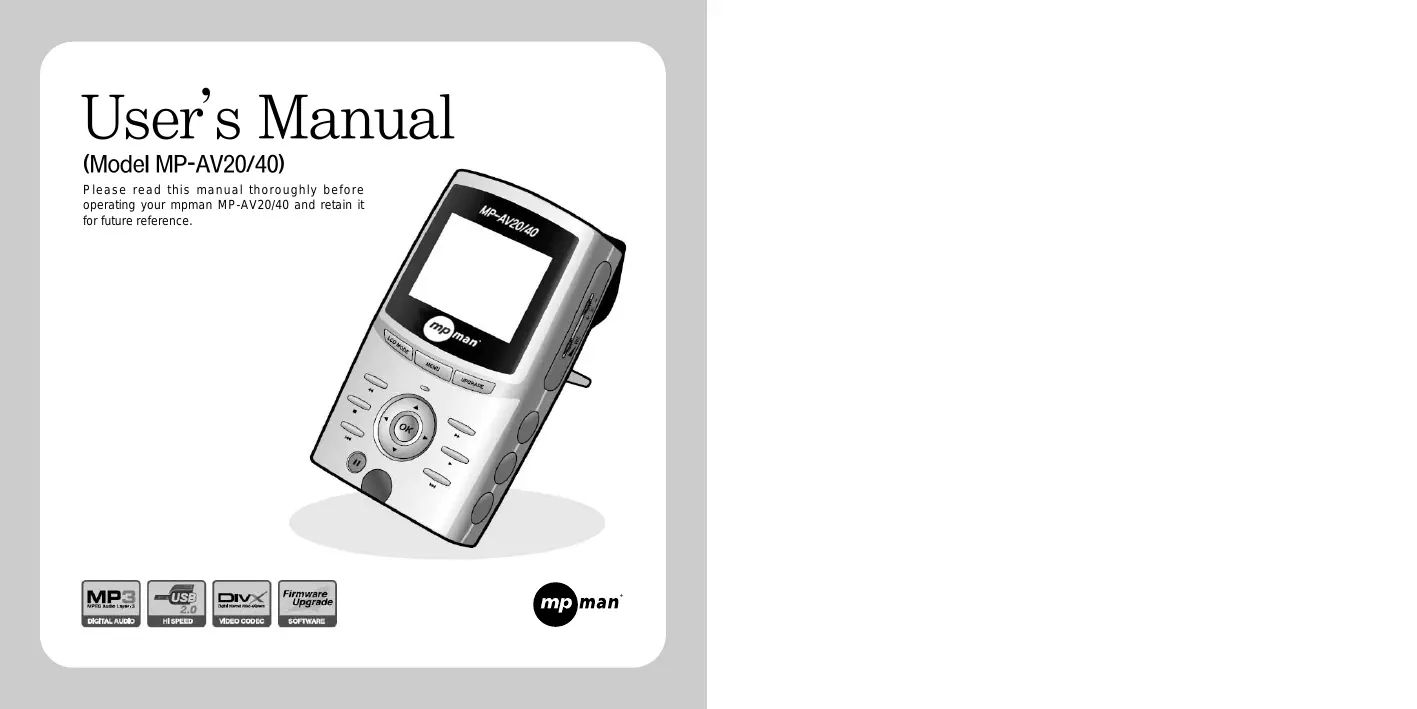


| Product type | Portable media player |
| Brand | MPMAN |
| Model | MP-AV20 |
| Storage capacity | 20 GB (internal hard drive) |
| Display | 2.5-inch TFT LCD |
| Supported audio formats | MP3, WMA |
| Supported video formats | DivX 4/5, MPEG-1, MPEG-2, MPEG-4 (AVI) |
| Supported image formats | JPEG (up to 1920 × 1080 pixels) |
| Interface | USB 2.0 (compatible USB 1.1) |
| Video output | Composite (NTSC/PAL) |
| Battery | Lithium-Ion 7.2 V, 2200 mAh, rechargeable and removable |
| Video battery life | Approximately 2 h 30 min |
| Power supply | AC adapter 9 V, 2 A |
| Remote control | Infrared (included) |
| Dimensions | 142 × 85 × 40 mm |
| Included accessories | Earphones, AC adapter, A/V cable, USB cable, remote control, protective case |
| Maintenance | Clean with a soft, dry cloth; avoid water and chemicals |
| Safety | Do not disassemble the device; use only the supplied adapter; avoid shocks and moisture |
| Spare parts and repairability | Battery replaceable; hard drive not interchangeable; repair by after-sales service only |
| General information | Brand: MPMAN; Model: MP-AV20; User manual available in French |
Frequently Asked Questions - MP-AV20 MPMAN
User questions about MP-AV20 MPMAN
0 question about this device. Answer the ones you know or ask your own.
Ask a new question about this device
Download the instructions for your Media player in PDF format for free! Find your manual MP-AV20 - MPMAN and take your electronic device back in hand. On this page are published all the documents necessary for the use of your device. MP-AV20 by MPMAN.
USER MANUAL MP-AV20 MPMAN
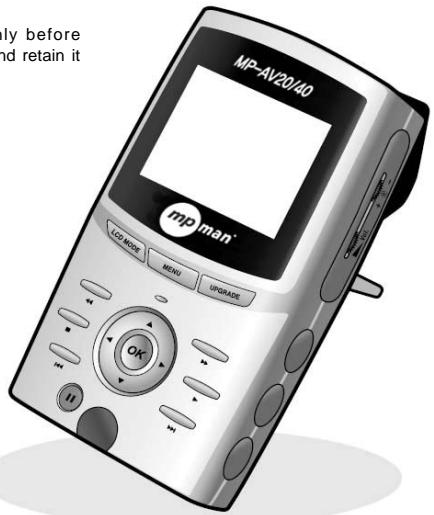
Please read this manual thoroughly before operating your mpman MP-AV20/40 and retain it for future reference.



mp man
Introduction related to Home Page
Web Address 念 http://www.mpman.com
- Confirm items related to our company and our products, and reply to customers' questions.
- Possible to improve continuously the function and the various kinds of setup of machine through our homepage.(Upgrade of firmware)
- The contents that is mentioned in this operating instruction subject to change without previous notice by an improvement of function or a change of specification.
Table of contents
I. Feature 4
II.Do's and Dont's- 6
III.Unpacking the box
- Checking all items 10
- Checking the Names 11
- Checking the Specifications - - - - - 14
V.Operating Manual
1.Hearing Music 21
2.Watching Moving Picture 23
3.Seeing Images 24
VI. Additional Information
1.Upgrading Firmware 25
2.Trouble Shooting 27
3.Q/A 30
IV. After checking all items
- Charging a storage battery with electricity 15
- Connecting with computer 17
3.Downloading files from computer--18 - Connecting with other equipments -- 19
Feature
-mpman MP-AV20/40
mpman MP-AV20/40 is the portable moving picture player that you use MPEG files and can enjoy music, lectures with the moving picture, movies, music videos, saving pictures, etc.
Feature
- Equipped with 20/40GB HDD
- You can use mpman MP-AV20/40 as a portable storage equipment saving the capacity of 25/50 700MB CDs by connecting to a computer.
- Storing the files of moving picture
- Possibility of storing up to 50/100 titles based on 1 hour 30 minutes movie of 320MB.
- Listening to MP3 music
- MP3 music should be 4~5 MB in a title, so you can save the music till about 4,500/9,000 titles of music that you want, and can freely listen to them.
- Ultra-high speed by USB 2.0 interface
- USB 2.0 transmits data with a speed of 480Mbps that is 40 times faster than USB1.1
- Supports DivX, MPEG1, MPEG2 and MPEG4
-
You can enjoy super high-density and natural dynamic sounds.
-
Back-up Storage for image files
-
You can see a picture per each, or you can make electronic albums that agree with your taste.
-
Color 2.5" TFT-LCD
-
TFT-LCD screen can display the optimum image quality, so can realize vivid, natural colors.
-
Output to TV or Beam Projector with large screen
-
You can watch the mpman MP-AV20/40 screen with remote control that is given as a bundle at long distance.
-
Large-capacity rechargeable battery
-
You can continuously watch a movie for an average of 2.5 hours.
-
Upgrading Firmwares
-
It can become the continuous improvement of the function and the various setting up this product through up-grade of firmware.
Copyright contents such as software, sound source and media culture are protected by regulation concerned to the Copyright Act. In case of illegal copying and distribution of the copyright contents by use of this product, the user of this product assumes legal responsibility.
Do's and Dont's

-
Do not use multi-outlet for plug.
-
Do not put this machine at moist or dusty place.
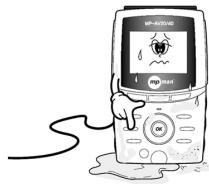

- Do not spray water on product while cleaning up.
Rub product with piece of soft cloth or cotton. Do not use any chemical on washing powder because of affected surface and decolorization of product.
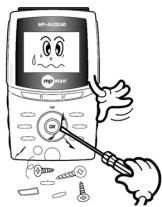
- Prohibit decomposition, repair and modification of product.
-
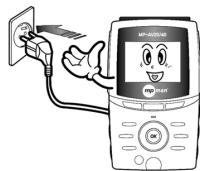
Please correctly insert the plug fully into the outlet. It might be the cause of fire if not.
-
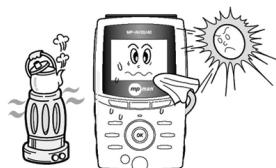
Please keep away from heat resources such as radiators or air ducts, or a place subject to direct sunlight, excessive dust. Also, do not leave this machine in a place subject to too high-temperature, too low-temperature, or so humidity.
-
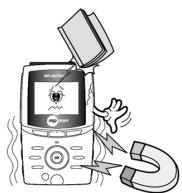
Please do not fall objects into this product. Please keep away from a place subject to mechanical vibration or shock, equipments with strong magnets.
-
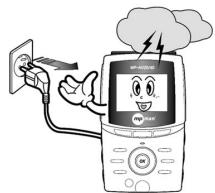
Unplug the unit from the wall outlet if there is a natural disaster like thunder, lightning, or flood.
-
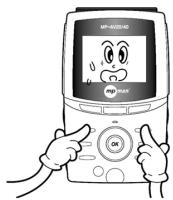
Do not press more than one of buttons at the same time.
-
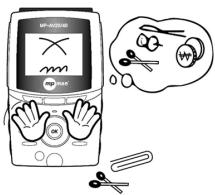
Do not put metal materials like nail, hair pin, etc. into the inside of this product.
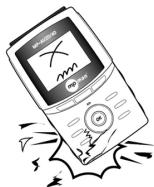
- Do not drop this machine to the floor. It might be a cause of a mechanical trouble.
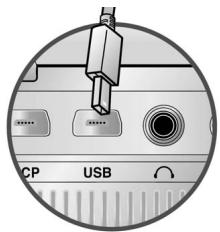
- Do not connect USB cable to MCP port. It might be a cause of a mechanical trouble.
Unpacking the box
1. Checking all items
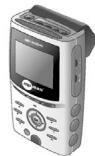
Mainbody
Earphone

User's Manual
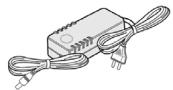
AC Adaptor
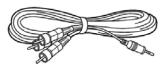
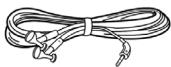
A/V cable
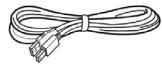
USB cable
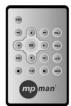
Remote Control
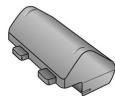
Lithium-Ion Rechargeable Battery(2200mA)

Carrying case
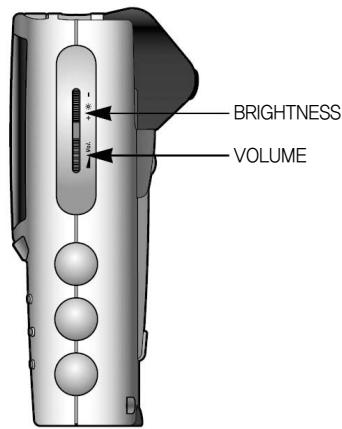
2. Checking the names
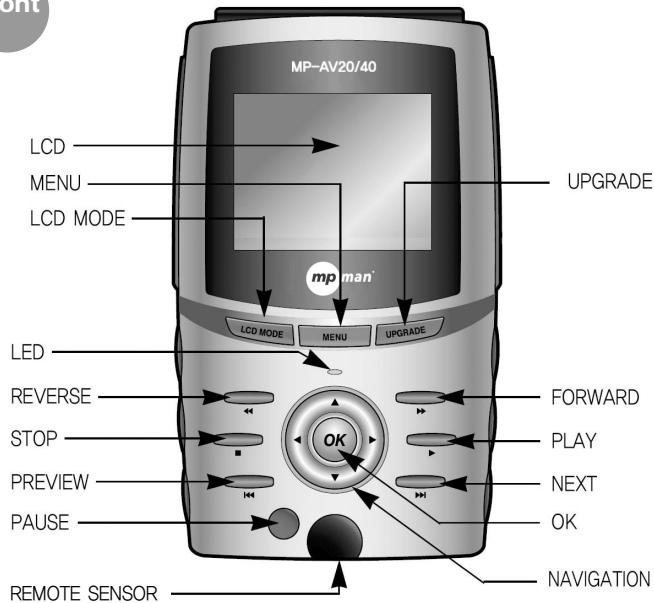
Front
Right
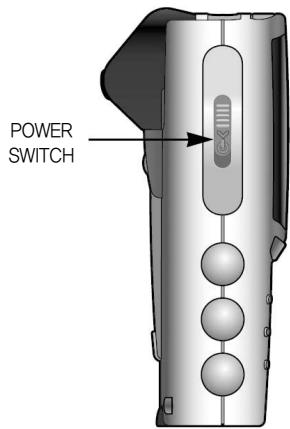
Left
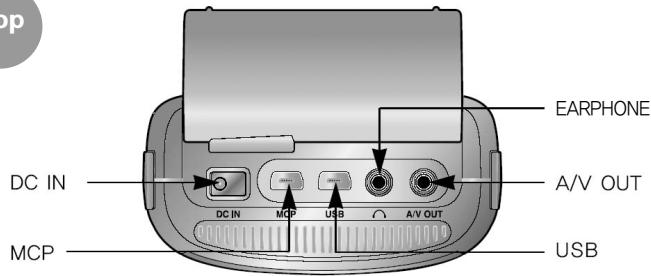
Top
Back
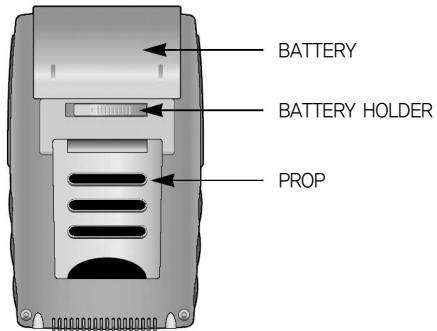
3. Checking the Specifications
| GENERAL | |
| Adaptor | DC +9V +/- 5%, 2A |
| Current consumption | 850mA~1500mA(basic:850mA, Continuous playing of Moving Picture) |
| Power Supply | Lithium ion 7.2V 2200mAh(rechargeable, discrete type) |
| AUDIO | |
| Decoding | MPEG-1,2, MP3, WMA |
| Audio Sampling rates | 32KHz, 44.1KHz, 48KHz, 88.2KHz, 96KHz |
| Voice output | 1.2V(RMS)/ 1K 0.5W, 3.5mm earphone jack |
| Bandwidth of output frequency | 20Hz ~ 20KHz |
| S/N rate | >90dB |
| VIDEO | |
| Video Decoding | MPEG-1, MPEG-2, MPEG-4, AVI files: DivX files, Xvid JPEG image files: resolution 1920X 1080 max. |
| Video output | NTSC/PAL Composite video output 75 Ohm/1.0Vpp |
| OTHERS | |
| Monitor | 2.5" TFT-LCD |
| USB | USB 2.0(compatible with USB1.1) |
| Remote controller | Infrared type |
| Volume of Hard disk | 20/40GB |
| Dimensions | 142(L) X 85(W) X 40 (H) mm |
*This specification should be subjected to change.
IV After checking all items
1. Charging a storage battery with electricity
A. In the case of charging a battery from the mpman MP-AV20/40
First, switch off, and fasten the battery to mpman MP-AV20/40. Next, insert the battery jack to DC IN of mpman MP-AV20/40, and insert the plug of the adaptor into outlet. Then, it should be charged the battery with electricity automatically.
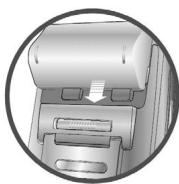
①Fasten the battery
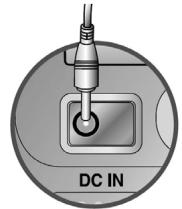
②Insert the battery jack to DC IN
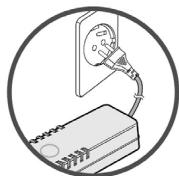
③ Insert the plug of the adaptor into outlet
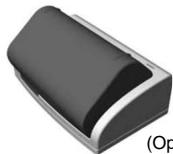
B. In the case of charging a battery from a charger (option)
Fasten the battery to the portable charger. The indicator lamp should be changed to green color if the battery is full.(Charging time: about 3 hours (at the situation of fully discharge of electricity)

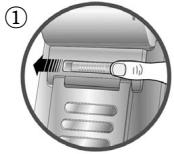
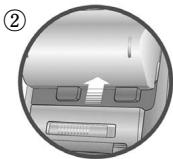
Removing the battery from mpman MP-AV20/40
Move the battery holder of the back side until the left end, and push the battery up with continuing situation, and then, the battery should easily be removed from mpman MP-AV20/40.

CAUTION
(1) About the battery
- Use certainly the right battery.
- Do not short, disassemble, or heat or put it into the fire.
- Do not leave the battery at the place of getting sun.
- The disassembled battery is kept out of reach of children.
- Do not rub by hand, wash the part with clean water, and immediately give medical treatment when your body is stained with the electrolytic solution.
- Immediately charge the battery with electricity if the capacity of the battery is short. There are the risk that data may be lost if you did not deal with the short of the battery.
- Clean up the terminals with tissue or fabric as it may be given the connecting deficit between the terminals and battery due to pollutants.
- Remove battery in case of not using for a long time.
(2) About the adapter
- Certainly use the adapter attached for safety. It may be given a serious damage to mpman MP-AV20/40 in case of using other adaptor.
- This adaptor is for a 220 volt, 60Hz only however we will support the different adapter that is agreed with the electric environment for each country.
- It should be caused of receiving an electric shock if you insert the plug into the outlet with the wet hand.
- Use at the place where is well ventilated when you supply the electricity to mpman MPAV20/40.
- Do not cover mpman MP-AV20/40 with a cushion or blanket. It may be caused of fire or other disasters due to overheating, battery liquid, etc.
- Do not put heavy materials on near adaptor code, or cut the code. An electric danger should be caused by.
2. Connecting with computer
A. Push switch on right side of the machine if the machine is off.
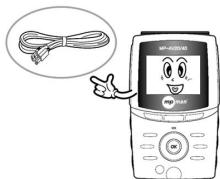
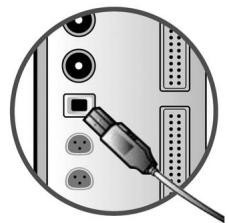
B. USB port is on the upper side of the machine. The small port of the cable will be connected with mpman MP-AV20/40 and the bigger one will be for computer as the following drawings.

CAUTION
- The power of this machine must be turned on before you connect to computer.
- Although this machine has USB 2.0 interface, the transmit speed should be the same as USB 1.1 if customer's computer has USB 1.1 interface. The customer has to install USB 2.0 card in the computer if the customer wants to transmit files by USB 2.0.
- You may regard this machine connected with computer as use of additional portable hard disk.
3. Downloading files from computer
A. Connect between PC and mpman MP-AV20/40 with USB cable.
B. Then, a new hard drive will be created in the computer, and it will be named one of the D, E, F, G according to user's environment.
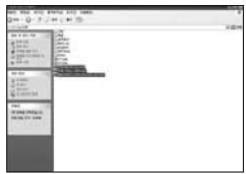
C. Choose the files or fold that you want by using EXPLORER, copy, and save them to the drive added by mpman MP-AV20/40.
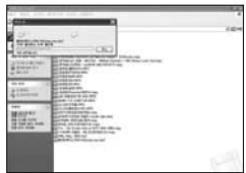
D. Processing download
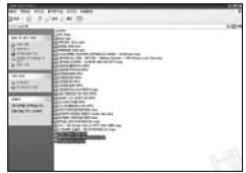
E.Complete the download into mpman MPAV20/40.

Please use the adaptor if you have to connect mpman MP-AV20/40 with computer for a long time. It may not complete the transmission if the battery volume is not enough during transmitting data.
4. Connecting with apparatus
A. Output to TV
The contents displayed on the LCD screen of mpman MP-AV20/40 will be output through TV by connecting A/V cable between mpman MP-AV20/40 and TV.
a. Insert the right side of A/V cable into A/V OUT of mpman MP-AV20/40.
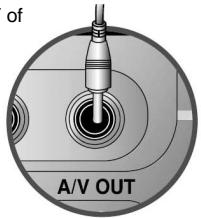
b. Insert 3 out jack of A/V cable into IN jack of TV correctly.
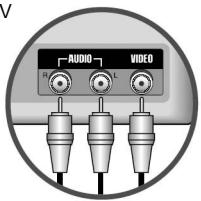

The power consumption of battery will be reduced if you press the LCD MODE button and switch off the screen of mpmman MP-AV 20/40 during displaying through TV.
It is possible to connect to other apparatus like a beam projector with the same method as TV.
V Operating Manual
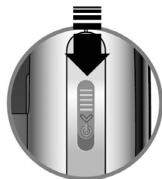
- Pull down the power switch on the left side of the machine. Then, the LED with green color is on and the machine should be worked.
- The initial loading time will be required about 5 seconds. The initial screen of mpman MP-AV20/40 will be appeared as follow.
Booting screen

After 5 seconds
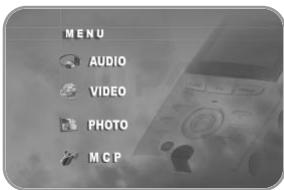
Initial screen


LCD MODE on/off of LCD screen
MENUReturn to the initial screen


UPGRADE Upgrade of firmware
NAVIGATION Search files
OK Choose the executable file
PLAY The execution of file
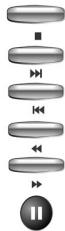
STOP Stop to act the file
NEXT Execute the next file
PREVIEW Execute the previous file
REW Rewind
FF Fast Forward
PAUSE Pause
1. Hearing Music
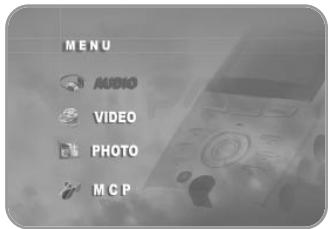
A. Choose AUDIO with the navigation button, next press OK button, and then the titles of music will be listed.
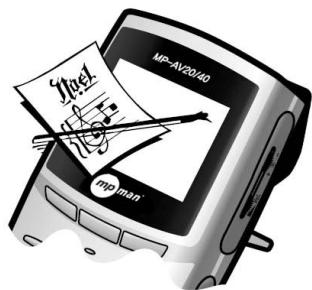
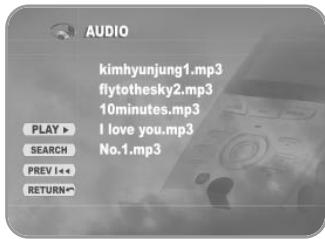

This picture may be different from the real screen because the upper picture is made temporarily.

1. When you hope to manage the music files with the fold
A. Connect PC and mpman MP-AV20/40 with USB cable.
B. Make a new fold in the new drive of the computer.
C. Input a new fold's name for the new drive.
D. Select the titles wanted, and save them into the new fold of the new drive.
E. Separate mpman MP-AV20/40 from PC, and switch off the machine, after then, switch on it.
F. Select AUDIO with Navigation button, and press OK button.
G. Confirm the music titles saved into the new fold.

a. The files saved to mpman MP-AV20/40 is automatically listed each folds. The files for moving picture like ".avi" are saved to "Video," the JPEG files are saved to "Photo" with the same method as upper.
b. The file for photo can be saved JPEG type only.

2. the continuous playing back method of files
A. Select the fold wanted, next, press OK, and then, the files' list will be appeared.
B. Press of navigation button, move to left for PLAY
C. Press OK button or Play button () of the right side, then, the files in the fold will play back from the first continuously

- mpman MP-AV20/40 will sort the files automatically and let show the files that is appropriated to each menu if the files of music, moving pic in the same fold.

PLAY Constant playback of file
SEARCH Search file
PREVSelect previous file
(NEXT▶I) Select next file
RETURN Move to initial screen
2. Watching Moving Pictures
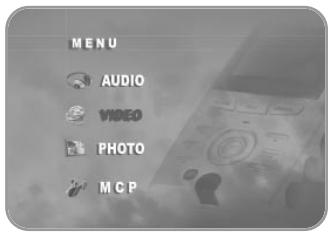
A. Choose Video with the navigation button, next press OK button, and then the files for moving picture will be listed.
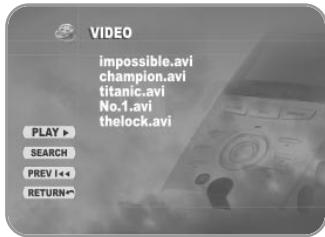
B. Select the title wanted with navigation button, next press OK button, and then, the files will be played back.
C. Press OSD button on the left side of the top of the remote control in order to confirm the information about the file on playing.
D. Press OSD once more in order to remove the file's information on the screen.
3. Seeing the Image
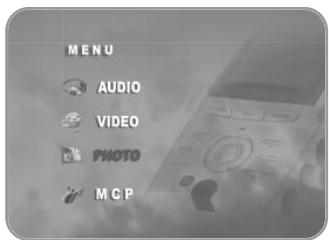
A. Choose PHOTO with the navigation button, next press OK button, and then the image files will be listed.
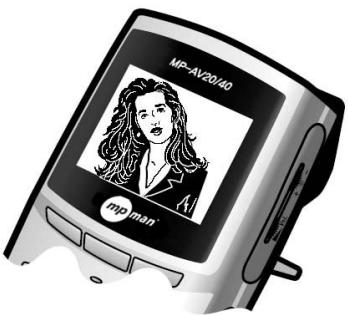
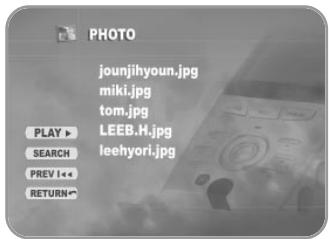
B. Select the image wanted with navigation button, next press OK button, and then, you can enjoy the pictures.
C. Press OSD button on the left side of the top of the remote control in order to confirm the information about the image file on seeing.
D. Press OSD once more in order to remove the file's information on the screen.
VI Additional Information
1. Upgrading Firmware

CAUTION
Must upgrade firmware after connecting Adaptor.
Must turn on the switch at the state of pressing "upgrade" button of mpgman MP-AV20/40 if you want to use the function downloaded.
A. Connect PC to mpman MP-AV20/40 with USB cable.(refer page 17)
B. Make "romfs" fold on new hard drive.

CAUTION
Use small letters only for the fold name, "romfs."
C. Download the firmware files from a resource center, save them into "romfs", and turn off the switch.
D. Turn on mpman MP-AV20/40 on the state of pressing "UPGRADE" button.
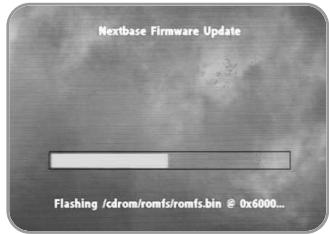
E. Wait for a while until appearing the screen of 'firmware upgrade"
F. Press "Play" button if you want to progress, but press "Stop" button if you want to stop. The firmware upgrade should be processing if you press "Play" button following messages.
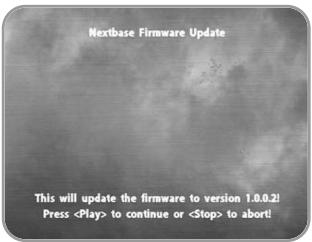
G. It is preparing to upgrade the firmware.
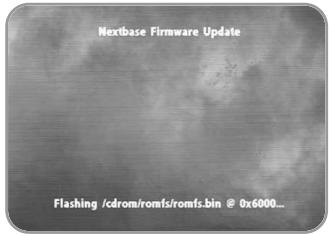
H. The upgrade of firmware is in preparing.
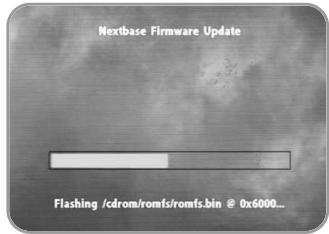

CAUTION
Do not turn off mpman MP-AV20/40, or do not separate an adaptor from mpman MP-AV20/40 until finishing the upgrade job.
- The screen of right will be appeared when the upgrade is completed.

The upgrade of firmware is completed although the message is "Update (partly) failed".
J. Turn off, and turn on, then you can use the function upgraded.
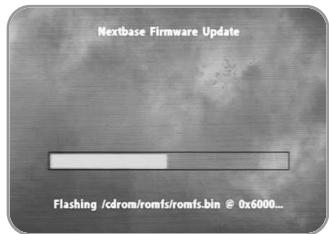

Must Turn off the switch, and turn on when the upgrade is completed.
2. Trouble Shooting
- Please check the following items if you think mpman MP-AV20/40 may have any trouble.
Remote control is not working.
- Please confirm that the battery is inserted in the case with correct polarity.
- Please check any obstacle between the main body and the remote control.
The screen is not clean.
- Are not you operating mpman MP-AV under the direct ray of light? Please avoid the direct ray of light, and confirm the bright control.
- Confirm the connection of battery is right, and try to play after recharging the battery with electricity. The power supply may not be abundant because of the discharge of electricity.
The screen is stopped, or the button is not working.
- First of all, confirm the operated time of main body. (Generally, the continuous working time for Moving Picture should be 2.5 hours when the battery is charged fully.
- Please connect with the adaptor, and this machine work, and then, charge the battery with electricity. Contact A/S center if the machine is not working although it is connected with the adaptor.
The sound is not heard.
- Please try to turn up the volume. If the sound is not heard, try to execute other files because the file may not support any sound.
It needs Windows 98 C/D or does not recognize the hardware at the time of connecting mpman MP-AV20/40 with a computer.
- It will be happened because Windows 98 set up in the computer is a duplicate, or do not support USB. Set it up following the messages after inserting the C/D of Windows 98.
Files are not downloaded.
- Would you check the on/off switch?
- Confirm to link the USB port of the main body up the cable if the switch is on. Link the cable up USB port if the cable is coupled into MCP. Please confirm two ports of upper side. One is USB port, and the other is MCP.
Sounds noisy, or only one side is heard.
- May you connect a earphone to A/V port?
- The noises may come from the file-self if noises are still come in spite of connecting with the earphone port. You may try to execute other files.
- If there are some alien substances in the earphone port, please remove them. The alien substances may be the cause of noises. Use only dry fabric to remove the alien substances, and never use water.
The screen is too bright or too dark.
- Please control brightness. If still uncontrolled, the file-self is too bright or dark. You may try to execute other files.

CAUTION
in following cases, the charge should be paid even for after service period.
- The consumer intentionally decomposes product
ex) decomposition of product for the purpose of expanding hard-disc sound volume.(This product has security device for preventing file copy, so common hard-disc does not work.)
- Problem caused by the users fault
We use Thoshiba-supporting detector for most-advanced hard-disc. This detector easily find out the cause of disturbed operation of product when dropped or thrown.
3. Q/A
A. Is the function of CCFE offered?
- Sorry, the function of CCFE is not available.

CCFE is the foreign language education dedicated program with various functions designed to do language study by movies or animations.
B. Can I play games in mpman MP-AV20/40?
- The function of game is not supported.
C. Can I watch TV or hear radio on mpman MP-AV20/40?
- The function of watching TV and hearing radio is not supported.
D. Is PVR(Personal Video Recording) possible?
- The function of PVR is not supported.
E. What is DivX file?
- DivX stands for Digital Video Express, and is a kind of Codec. It means the compression technology with the basis of MPEG-4 that maintains the high quality of digital video at the same time that compresses the files with big volume into very small one that we can send them by internet. You may understand easily if you think that DivX copy DVD. DVD has the excellent image quality and the high-sound power, but it is an obstacle to people who want to share the title because the volume of DVD is so huge. The format type of Divx codec is avi, and DivX codec must be installed in order to play DivX Video.
F. What is Dr. DivX?
- Dr. Divx is one of the encoding programs and it can make general moving picture files, compressed one or live one transfer to higher compression rate or other format for moving picture like MPEG, MPG, AVI, WMV, etc. We can use it only for 15 days as Dr. Divx is shareware, and can download Dr. Divx from a resource center or the homepage of Dr. Divx. The homepage address is http://www.divx.com/
Why do the differences of image quality between the DivX files come out? Official DivX means to be of DVD origin. It is called DVD-Rip DivX. However, it is called VCD-rip PDivx that is of VCD and makes it as DivX compressed type. It has lower image quality than VCD. There are converted camcorder version that is called Screener's version, and spectators take a picture of a movie in the theater directly into the compression of DivX type. It has much lower image quality. Therefore, we can say DVD-rip DivX that the image quality is almost similar to DVD is the only official DivX.
MPMan.com, Inc
Mode d'utilisation
(Model MP-AV20/40)
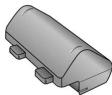
Lithium-Ion Rechargeable Battery(2200mA)
B. In the case of charging a battery from a charger (option)
UPGRADE Firmware upgrades

1. Firmware upgraden

ACHTUNG
UPGRADE Firmwareupgrade
H. De firmwareupgrade is aan degang.

CAUTION
This warranty protects the original consumer owner of this mpman MP-AV product and is non-transferable.
What is Covered and How Long
This warranty covers the cost of replacing internal operating parts and service/labor to repair or replace those parts. Each mpman MP-AV product is covered for 90 days labor and 90 days parts, from the date of purchase, defined as follows:
1) Original Consumer Retail Purchase,
2) first Rental Purchase Agreement, or
3) First Lease Purchase Agreement (the "Warranty Period").
Labor and replacement parts supplied during the Warranty Period are covered only for the remaining portion of the original Warranty Period.
The MPMan.com, Inc. Warranty Administrator and its mpman MP-AV distributors shall have no liability for service under this warranty if non-OEM (Original Equipment Manufacturer) replacement parts are used in the repair of your mpman MP-AV product.
Other Warranty Coverage
Commercial, Industrial or Educational use has the same warranty coverage as stated in this warranty.
What are the Exceptions
This warranty does not cover:
1) damage from misuse, abuse neglect or accident, natural disasters, or Acts of God;
2) cabinetry, decorative parts, knobs, or buttons;
3) an mpman MP-AV product which has been electronically or mechanically modified in any way or incorporated into other products;
4) installation and set-up service adjustments; or
5) owner instruction. Your Owner's Guide provides information regarding operating instructions and user controls. For additional information, contact your authorized mpman MP-AV dealer.
This Exclusive Limited Warranty excludes all incidental and consequential damages. Some states do not allow the exclusion of incidental and consequential damages, so the above exclusion may not apply to you.
ALL IMPLIED WARRANTYES, INCLUDING IMPLIED WARRANTYES OF MERCHANTABILITY AND FITNESS FOR A PARTICULAR PURPOSE ARE LIMITED IN DURATION TO THE DURATION OF THIS WARRANTY PERIOD.
Some states do not allow limitations on how long an implied warranty lasts, so the above limitation may not apply to you. This Exclusive Limited Warranty gives you specific legal right and you may also have other rights which vary from state to state.