TK240 - Media player MPMAN - Free user manual and instructions
Find the device manual for free TK240 MPMAN in PDF.


User questions about TK240 MPMAN
0 question about this device. Answer the ones you know or ask your own.
Ask a new question about this device
Download the instructions for your Media player in PDF format for free! Find your manual TK240 - MPMAN and take your electronic device back in hand. On this page are published all the documents necessary for the use of your device. TK240 by MPMAN.
USER MANUAL TK240 MPMAN
- Please don't open or transform this product by yourself.
- While cleaning this product, forbid sprinkling water or pouring water.
- Avoid using this product in the following environments: High temperature, low temperature, moist, much dust and exposed to the strong sunshine for a long time.
- Avoid the external force of falling, colliding etc. is struck.
2, main function
320X240 dots full-color TFT display screen
Support MP3, WMA
Support MPEG-4 (avi) after conversion using MPMANAGER
Support JPEG jpg) after conversion
Built-in microphone
Multilingual
High speed USB2.0
E-book
Game
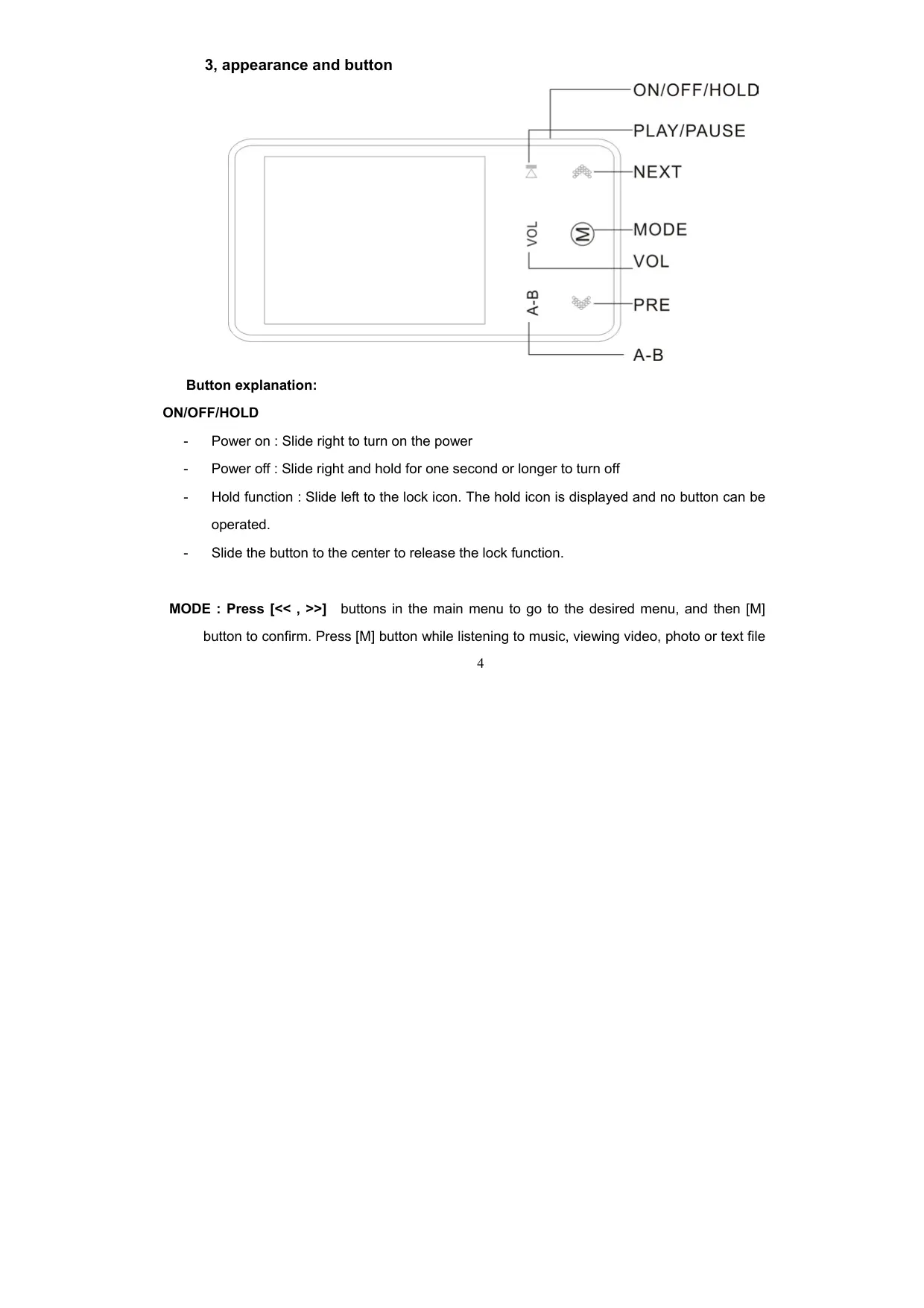
3, appearance and button
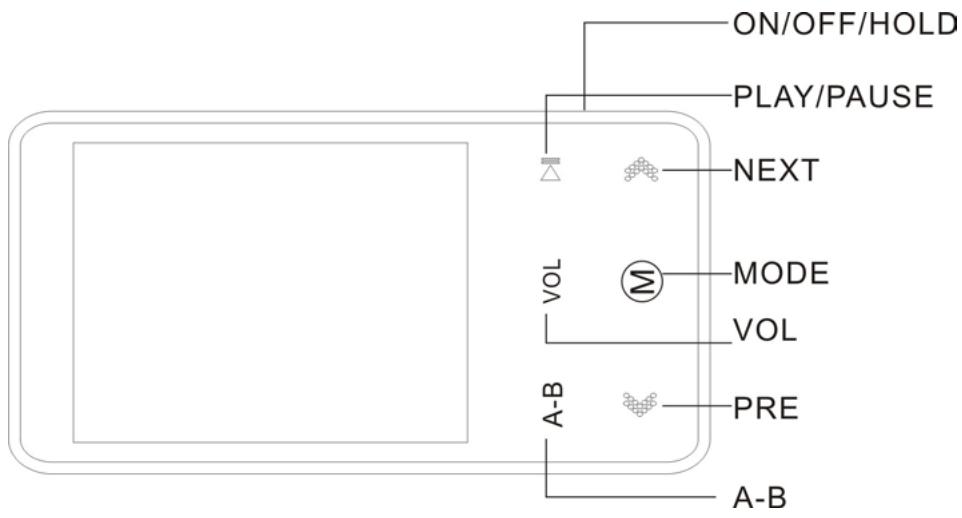
Button explanation:
ON/OFF/HOLD
- Power on : Slide right to turn on the power
- Power off : Slide right and hold for one second or longer to turn off
- Hold function : Slide left to the lock icon. The hold icon is displayed and no button can be operated.
- Slide the button to the center to release the lock function.
MODE: Press [<, >>] buttons in the main menu to go to the desired menu, and then [M] button to confirm. Press [M] button while listening to music, viewing video, photo or text file
to move by the order of [File search] – [Current menu]. However, pressing the [M] button for a long time will make you go back to the main menu.
A-B (AB replies and reads) : In music play mode, press this key to define the starting point A, press this key again to define the destination B. Music will be played between A and B points repeatedly. If you want to cancel AB repeat press this key again.
PRE/NEXT:
Fast forward/Rewind
When you press and hold [<<,>>] button while music is playing, the status icon
changeS and it quickly moves to the beginning/end of the music.
(Normally resumed at the point where the button is released).
Moving to the previous/next music.
Pressing the [<<,>>] buttons will make you move to the pre/next music.
4, Connecting to PC
Connecting the player to PC will allow you to charge it (please put it on the ON position) and will allow you also to use your player as a USB external disk to copy any kind of document.
Function introduction
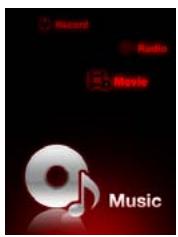
music
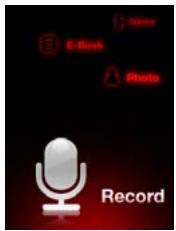
Record
Game
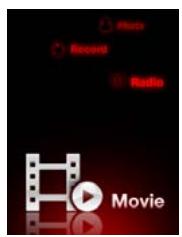
Movie
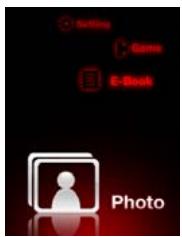
Photo
Setting
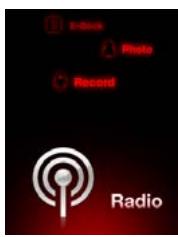
Radio
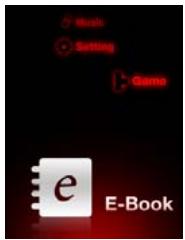
E-book

Music

Choose " Music " in the main menu, press [M] key to confirm.
- Press [>II] button while playing music to pause
Press [>II] button again to play music.
Press [>II] button one more time for 1.5 second and the music would stop immediately.
- Press VOL key and enter 'Volume menu' to regulate the volume and press "<<" or ">>" to make sound reduce or increase. ('VOL' would only work in playing mode)
-
Pressing the [M] button for a long time will make you go back to the main menu.
-
While you're in music mode, pressing [M] would make you see the Mp3 file list.
After choosing the Mp3 file you want, press the [>II] button to play.
Movie
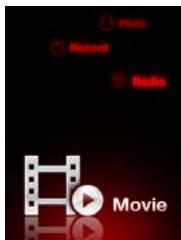
Choose " Movie " in the main menu, press [M] key to confirm.
- Press [>II] button while playing movie to pause
Press [>II] button again to play movie.
Press [>ll] button one more time for 1.5 second and the movie would stop immediately.
- Press VOL key and enter 'Volume menu' to regulate the volume and press "<<" or ">>" to make sound reduce or increase. ('VOL' would only work in playing mode)
- Pressing the [M] button for a long time will make you go back to the main menu.
- While you're in movie mode, pressing [M] would make you see the movie file list.
After choosing movie file you want, press the [>11] button to play.
Note : To convert movies please use MPMANAGER software included in your player and CDROM.
Radio
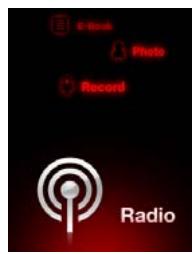
Choose " Radio " in the main menu, press [M] key to confirm.
- Pressing [<<, >>] keys would make 0.05 MHZ change, go up and down.
- Pressing [<<,>>] keys for a long time would make it find broadcast itself and stop when it finds one.
- If you press [M] keys, it will turn into PRESET to SCAN. While you are in preset mode, if you press [>>I] key, automatically Preset Memory would be loading.
- Pressing [A-B] key will record the loading broadcast and one more press would make in pause recording. Pressing [M] key will save and finish the recording.
- Pressing [M] key for 1 or more second will make you go back to main menu.
Record
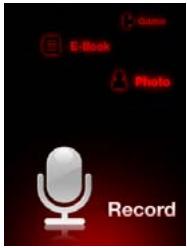
Choose " Record " in the main menu, press [M] key to confirm.
- In recording mode, you should press [A-B] key to begin recording. If you press the [A-B] key again, recording would pause. It will begin to record again after you press [A-B] key one more time.
- Either you were recording or pausing, pressing [A-B] key for 1 or more second will save the loading file. After saving, recording will restart, however this time, you don't need to repress [A-B] key to start.
- Pressing [M] key for 1 or more second will save the loading file. After saving, you will go back to main menu.
- If you want to listen to the voice you just saved, you should go in to the 'Music' in the main menu. Play the file which is inside the 'VOICE' folder.
Photo
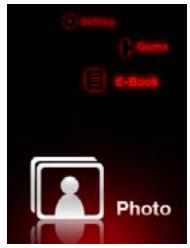
Choose " Photo " in the main menu, , press [M] key to confirm.
- In the "PICTURE" list, choose any picture file by pressing [<<,>>] keys.
- Press [>ll] key to see the selected picture file,
Pressing [<<,>>] keys will make you see pre/next pictures.
- Pressing [M] key for 1 or more second will make you go back to main menu.
E-book
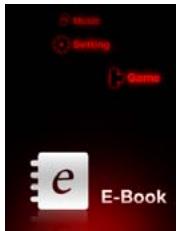
Choose "E-Book" in the main menu, press [M] key to confirm.
-
In the "TEXT" list, choose any text file by pressing [<<, >>] keys.
-
Press [>II] key to see the selected text file, Pressing [<<,>>] keys will make you see pre/next page.
- Pressing [M] key for 1 or more second will make you go back to main menu.
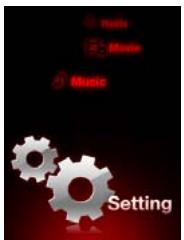
Setting
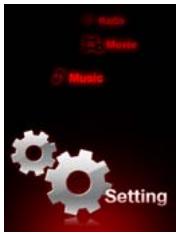
Choose "Setting" in the main menu, then press [M] key to confirm.
In the Setting menu, you can find " SOUND, PLAY MODE, DISPLAY, TIME, SYSTEM"
Press [<<,>>] buttons to choose one of the sub menus and press [M] key to confirm.
1,Sound
There are 7 sound modes " Flat, Rock, Pops, Jazz, Classic, Live, Dance " available.
Press [<<,>>] buttons to choose and press [M] key to confirm.
2,Play
There are 3 play modes "Play Set, Play Speed, Auto Play" available,
Press [ < , ] buttons to choose and press [M] key to confirm
(1) Play Set
There are 5 play set modes "Normal,Repeat_1, Repeat_Folder, Repeat_All, Shuffle_Folder"
Press [<<, >>] buttons to choose press [M] key to confirm.
(2) Play Speed
There are 7 play speed mode "70%, 80%, 90%, 100%, 110%, 120%"
Press [<<,>>] buttons to choose and Press [M] key to confirm.
Choose 100% in order to Play Speed normally.
(3) Auto Play
Press [<<,>>] buttons to choose ON or OFF and press [M] key to confirm.
3, DISPLAY
There are 5 display modes "Play Time, Song Tiltle, Scroll Speed, Language, Backlight "
Press [<<,>>] buttons to choose and press [M] key to confirm.
(1) Play Time
Press [<<,>>] buttons to choose and press [M] key to confirm.
- Elapse: display the time that has been already played.
- Remain: display the remaining time.
(2) Song Tittle
There are 3 song title modes "File Name, ID3, LYRIC".
Press [<<,>>] buttons to choose and press [M] key to confirm.
(3) Scroll Speed
There are 5 scroll speed modes "X1, X2, X3, X4, X5".
Press [<<,>>] buttons to choose and press [M] key to confirm.
(4) Language
There are different languages available,
Press [<<,>>] buttons to choose and press [M] key to confirm.
(5) Backlight
There are 5 backlight modes "Always On, 5 Second, 10 Second, 30 Second, 60 Second"
Press [<<,>>] buttons to choose and press [M] key to confirm.
4,Time
There are 2 time modes "Sleep Off, Auto Off"
Press [<<,>>] buttons to choose and press [M] key to confirm.
(1) Sleep Off
There are 5 sleep of modes"Off, 30 Minute, 1 Hour, 2 Hour, 3 Hour
After the amount of time you chused, the player will switch off.
(2) Auto Off
There are 5 auto off modes "Off, 30 Second, 45 Second, 60 Second, 90 Second"
When it's not in playing mode, after the amount of time you chused, the player will switch off
5,System
There are 5 system modes " Recording, FM Radio, Information, Upgrade, Format "
Press [<<, >>] buttons and press [M] key to confirm.
(1) Recording
There are 2 recording modes "Quality, VOR".
Press [<<,>>] buttons to choose and press [M] key to confirm.
-
Quality: You can choose" Low, Middle, High "
-
VOR: There are "On, Off" under the VOR menu. VOR means that recording will start automatically with the voice.
(2)FM Radio
There are 3 FM radio modes "Region, Stereo /Mono, Quality".
Press [<<,>>] buttons to choose and press [M] key to confirm.
(3)Information
Press [M] key to see software version, used memory, total memory, etc..
(5) Format
Pressing [M] key, you would see "FORMAT", "Are you sure?". After choosing YES or NO, press M key to confirm.
This function is used for formatting the internal flashing memory. Be careful that ALL DATA inside the player will be deleted.
Treatment of the Q&A
1, The player can't start.
Check whether the battery has been charged
Connect the player to PC to start charge
2, No output in headphone:
Please check if volume is not at zero.
Please check if earphones are well connected
3, Serious noise
Please check whether the plug of the arophone is clean.
Check whether the music file is damaged. Try another music file to see if it fixes.
4,Can't download the file
Confirm whether it is among computer and player or not and join correctly
Please check if there is enough space in the memory
Please check if the USB cable is OK
Technical specification
| Display screen | 2.4 inches TFT (320*240) | |
| PC link | USB2.0 High speed | |
| Power | Lithium-polymer battery | |
| Recording | Sampling rate | 44.1 KHz |
| Format | MP3(32Kbps/64Kbps/128Kbps) | |
| MP3, WMA | Max output | (L) 10mW+ (R) 10mW(16Ohm) |
| MP3 bit rate | 32K bps - 320K bps | |
| WMA bit rate | 32K bps - 384K bps | |
| Frequency response | From 20Hz to 20KHz | |
| Noise ratio | 85dB | |
| Distortion | 0.06% | |
| Music format | MP3, WMA, ASF | |
| temperature | -5 to 40° | |
| language | Many kinds of languages | |
| Operating systems supported | WindowsSE/ME/2K/XP/VISTA | |
For more information, please visit our website
www.mpmaneurope.com
In case you would like to change your earphones, please use same model (or with equivalent specs) as the one supplied with this player in order to guaranty the respect of the maximal sound power. You can use MPMAN MP-IR5 model