
SWV 733 A1 - Wi-Fi repeater SILVERCREST - Free user manual and instructions
Find the device manual for free SWV 733 A1 SILVERCREST in PDF.


| Product type | Dual-band WLAN repeater |
| Brand | SilverCrest |
| Model | SWV 733 A1 |
| Dimensions (L x H x D) | Approx. 53 x 76 x 79 mm |
| Weight | Approx. 80 g |
| Power supply | 100-240 V~, 50/60 Hz, max. 7.5 W |
| WLAN standards | 802.11 b/g/n/ac |
| Frequency bands | 2.4 GHz and 5 GHz |
| Max. data rate | Up to 300 Mbit/s (2.4 GHz n) / 433 Mbit/s (5 GHz ac) |
| Operating modes | Repeater, Client, Access Point (Router) |
| Easy configuration | WPS (button) and web assistant (http://repeater.setup) |
| Wireless security | WPA, WPA2, WEP (128/64 bits) |
| Ports | 1 x WAN/LAN (RJ-45), 1 x LAN (RJ-45) |
| LED indicators | Power/WPS, WAN/LAN, LAN, signal strength (4 bars) |
| Operating temperature | 5 °C to 35 °C, humidity max. 85% |
| Storage temperature | -20 °C to 60 °C, humidity max. 90% |
| Box contents | Repeater, 2 network cables, instruction manual |
| Cleaning | Clean, dry cloth, do not use corrosive liquids |
| Safety | Do not open the housing, use only indoors, min. distance 20 cm from body |
| Warranty | 3 years (except consumables) |
| Repairability | Contact authorized service, no user-repairable parts |
Frequently Asked Questions - SWV 733 A1 SILVERCREST
User questions about SWV 733 A1 SILVERCREST
0 question about this device. Answer the ones you know or ask your own.
Ask a new question about this device
Download the instructions for your Wi-Fi repeater in PDF format for free! Find your manual SWV 733 A1 - SILVERCREST and take your electronic device back in hand. On this page are published all the documents necessary for the use of your device. SWV 733 A1 by SILVERCREST.
USER MANUAL SWV 733 A1 SILVERCREST
User manual and service information
IAN 274206
IAN 274206

AT CH
Deutsch......2
Français....83
Italiano....166
English 247
Inhalt
Einleitung....5
natural_image
Two white cables with attached connectors, labeled 'B' in the top-left corner (no text or symbols on cables)
natural_image
Simple line drawing of an open book with a letter C beside it (no text or symbols on the book itself)A SilverCrest SWV 733 A1 Dualband-WLAN-Verstärker
B 2 x Netzwerkkabel
flowchart
graph TD
    A["House"] --> B["Top Roof"]
    A --> C["Front Roof"]
    A --> D["Back Window"]
    A --> E["Printer Icon"]
    A --> F["Printer with Charts"]
natural_image
Exterior view of a silver Crest air conditioner unit (no visible text or symbols on the device body)natural_image
Illustration of a wireless router with WiFi and ports, showing a hand cursor pointing to the button (no text or symbols on the device itself)natural_image
Illustration of a TV displaying and connected to a silver Crest-branded device with wireless signal icon (no text or symbols on device)natural_image
Exterior view of a silver Crest air conditioner unit (no visible text or symbols on the device body)natural_image
Illustration of a wireless router with WiFi and wireless antennas, showing ports and a finger pointing to the right (no text or symbols on the device itself)natural_image
Exterior view of a silver Crest air conditioner unit (no visible text or symbols on the device body)natural_image
Symbol of a trash bin crossed with a diagonal line and a horizontal bar below (no text or labels)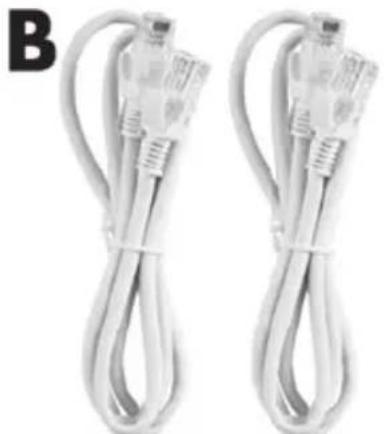
natural_image
Two white cables with attached connectors, labeled 'B' in the top-left corner (no text or symbols on cables)
natural_image
Simple line drawing of an open book with a letter 'C' on the left (no text or symbols on the book itself)natural_image
Exterior view of a silver Crest air conditioner unit (no visible text or symbols on the device body)natural_image
Illustration of a wireless router with WiFi and wireless antennas, showing ports and a finger pointing to the control panel (no text or symbols on the device itself)natural_image
Illustration of a TV connected to a silver Crest-branded device with wireless signal icons (no text or symbols on device)natural_image
Exterior view of a silver Crest air conditioner unit (no visible text or symbols on the device body)natural_image
Diagram of a wireless router with WiFi and ports, showing a hand cursor pointing to the switch (no text or symbols present)natural_image
Exterior view of a silver Crest air conditioner unit (no visible text or symbols on the device body)natural_image
Symbol of a trash bin crossed with no visible text or labels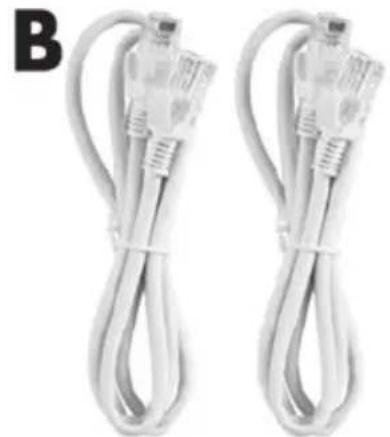
natural_image
Two white cables with connectors, no visible text or symbols
natural_image
Simple line drawing of an open book with a letter C on the left (no text or symbols on the pages)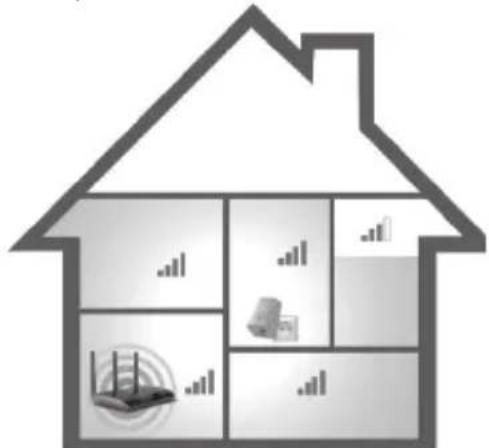
natural_image
Exterior view of a silver Crest air conditioner unit (no visible text or symbols on the device body)natural_image
Illustration of a wireless router with WiFi antennas and a hand cursor pointing to the button (no text or symbols on the device itself)natural_image
Illustration of a TV connected to a silver Crest wireless device with signal waves (no text or symbols on device)natural_image
Exterior view of a silver Crest air conditioner unit (no visible text or symbols on the device body)natural_image
Illustration of a wireless router with WiFi and wireless antennas, showing ports and a finger pointing to the right (no text or symbols on the device itself)natural_image
Exterior view of a silver Crest air conditioner unit (no visible text or symbols on the device body)natural_image
Symbol of a trash bin crossed with no visible text or labelsSafety instructions 256
Storage when not in use 263
Copyright 263
Prior to use....264
Initial use....265
SilverCrest SWV 733 A1
Setting mode....265
Repeater mode....266
WPS - The easiest type of configuration....268
Manual configuration 270
Client mode 277
WPS - The easiest type of configuration....279
Manual configuration 281
Access Point (AP) mode (Router mode)....288
WPS - Connect to the AP (Router mode)....298
Manual connection to the AP....299
Configuration menu of the dual-band wifi range extender....300
Wizard....303
State 303
Wifi (Wireless) 305
248 - English
SilverCrest SWV 733 A1
WAN settings 310
LAN settings....311
Management....313
State 321
Environmental and disposal information 322
Conformity information 323
Troubleshooting 323
Warranty and servicing advice.... 326
Introduction
Thank you for purchasing a SilverCrest product.
The SilverCrest Dual-Band Wifi Range Extender SWV 733 A1, hereinafter referred to as dual-band wifi range extender, increases the range of an existing wireless network. The built-in WPS function enables it to be easily connected to a secure wireless network.
Read these operating instructions carefully before first using the device as they contain important information on installation, usage, storage and disposal of the dual-band wifi range extender. Store these operating instructions in a safe place for future reference. If you pass on the dual-band wifi range extender to someone else, be sure to always include these instructions and all documents as they are an integral part of the device. If you pass on the dual-band wifi range extender, the factory settings must be loaded, and please also refer to the section "Save/reload settings" on page 317.
Intended use
This dual-band wifi range extender is an information technology device. It increases the range of an existing wireless network. The dual-band wifi range extender can also be used as an access point (AP), for example, to use a router without its own wireless network as a "wireless router". In addition, the dual-band wifi range extender can be connected as a client to end devices with a LAN interface (for example, computer, notebook or TV set), which do not have their own wireless network. It is only designed for private use and not for industrial or commercial purposes. Furthermore, the dual-band wifi range extender may not be used outdoors or in tropical climates. Any other use is not as intended. This device complies with all standards and directives specified in the Declaration of Conformity. In the event of any modification to the dual-band wifi range extender that was not approved by the manufacturer, compliance with these standards is no longer guaranteed. The manufacturer does not accept any liability for any resulting damage or faults in such cases. Please observe the regulations and laws in the country of use.
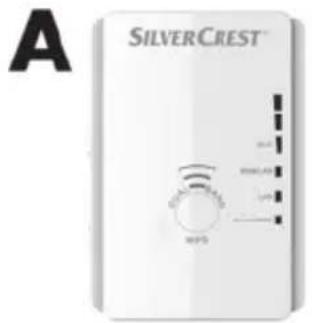
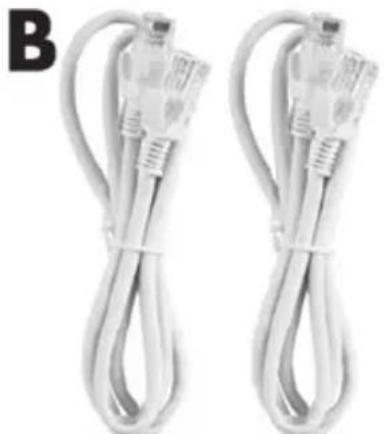
Supplied items
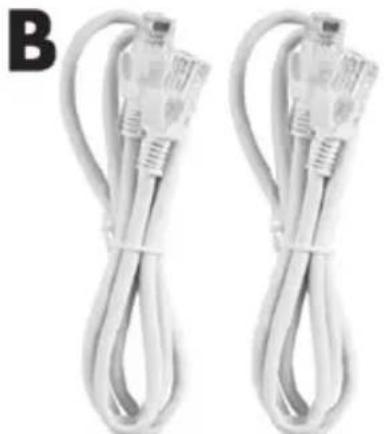
Take the dual-band wifi range extender and the accessories out of the packaging and remove all packaging material completely. Check the contents to ensure they are complete. You must notify our Customer Service immediately if parts are missing.
natural_image
Two white cables with attached connectors, labeled 'B' in the top-left corner (no text or symbols on cables)
natural_image
Simple line drawing of an open book with a letter 'C' on the left (no text or symbols on the book itself)A SilverCrest Dual-Band Wifi Range Extender SWV 733 A1
B 2 network cables
C These operating instructions (symbolic representation)

A separate flyer relating to the "GNU General Public License" is enclosed with this dual-band wifi range extender. This flyer can also be downloaded at www.lidl-service.com.
252 - English
Overview
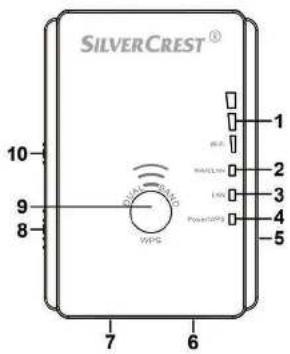
These operating instructions have a fold-out cover. The dual-band wifi range extender is illustrated with numbers on the inside cover. The numbers indicate the following:
1 Field strength indicator
2 WAN/LAN LED
3 LAN LED
4 Power/WPS LED
5 Reset button
6 WAN/LAN socket (network socket, RJ-45)
7 LAN socket (network socket, RJ-45)
8 Mode selector
9 WPS button
10 Main switch
LED indicators
| LED Status Meaning | ||
| Field strength indicator (1) | lights up The more | bars that light up, the better the reception(all bars light up in AP mode) |
| flashes | No reception | |
| WAN/LAN (2) lights up | hts up Connection is established | |
| off Connection is not established | ||
| flashes Data is being transferred | ||
| LAN (3) lights up | Connection is established | |
| off Connection is not established | ||
| flashes Data is being transferred | ||
| Power/WPS (4) Fl | flashes rapidly WPS connection is being established or WPS signal of another device is expected | |
| lights up The dual-band wifi range extender is switched on | ||
| off The dual-band wifi range extender is switched off | ||
Technical data
| Input voltage | 100-240V~, 50/60Hz |
| Power consumption max. 7.5W | |
| WLAN standards 802.11b, 802.11g, 802.11n, 802.11ac | |
| Frequency band 2.4GHz / 5GHz | |
| Data transfer rate | up to 300Mbit/s in the n standard / up to 433Mbit/s in the ac standard |
| Encryption WPA, WPA2, WEP (128/64) * | |
| Dimensions (W x H x D) approx. 53 x 76 x 79mm | |
| Weight approx. 80g | |
| Operating temperature, air humidity 5 to 35°C; max. 85% rel. humidity | |
| Storage temperature, air humidity -20 to 60°C; max. 90% rel. humidity | |
* WEP (128/64) encryption only with 802.11b/g.
The technical data and design may be changed without notification.
Safety instructions
Before using the device for the first time, please read the following instructions carefully even if you are familiar with using electronic devices. Store these operating instructions in a safe place for future reference.

DANGER! This symbol in conjunction with the "danger" note indicates an imminent dangerous situation which, if not prevented, could result in serious injury or even death.

WARNING! This symbol in conjunction with the "warning" note indicates important information for safe operation of the device and the safety of the user.

This symbol indicates other important information on the topic.
Operating environment
This dual-band wifi range extender must be used indoors only. The dual-band wifi range extender is not designed for use in environments with a high temperature or humidity (e.g. bathrooms), and must be kept free from dust. Operating temperatures and operating air humidity: 5°C to 35°C, max. 85% rel. humidity.
Please always maintain the dual-band wifi range extender at a minimum distance of 20cm from the body to avoid exposure to radio radiation.

DANGER! Ensure that
- no direct heat sources (e.g. heating) can affect the device
- no direct sunlight or bright artificial light reaches the device
- the device is not in the immediate vicinity of magnetic fields (e.g. speakers)
- no fire sources (e.g. burning candles) are placed on or near the device
-
no foreign objects penetrate the device
-
contact with sprayed and dripping water and corrosive liquids is avoided and the device is never operated near water; in particular it should never be immersed (do not place any objects filled with liquids, for example, vases or drinks, on or near the device)
- the device is not subjected to any extreme temperature fluctuations as this could result in condensation and electrical short circuits. If the device was subjected to extreme temperature fluctuations, however, wait (approx. 2 hours) until the device has reached ambient temperature before use
- the device is never subjected to excessive shocks and vibrations
- the device is never touched with wet hands as there is a risk of an electric shock
- the housing openings, which ventilate the dual-band wifi range extender, are never covered or enclosed as there is a risk of fire
If the aforementioned instructions are not observed, it poses a risk to your health or the device could be damaged.

DANGER! Operational safety
- Only connect the dual-band wifi range extender to a freely accessible socket so that it can be quickly disconnected from the mains in the event of danger (smoke, fumes or smell of burning). The socket must always be easily accessible during operation also.
- The main switch (10) of this device does not fully disconnect the device from the mains. Even if the device is not being used, it consumes minimal power. Disconnect the dual-band wifi range extender from the mains if the device will not be used for a prolonged period (e.g. during holidays). This minimises the risk of fire or smouldering, which always exists when an electrical device is connected to the mains power supply. To disconnect the dual-band wifi range extender completely from the power supply, you must remove its mains plug from the socket.
- Always disconnect the dual-band wifi range extender from the mains power supply before a storm or thunderstorm if there is the risk of lightning as the dual-band wifi range extender can be irreparably damaged by high voltage surges if lightning strikes.
- Never use any adapter plugs or extension cables which are damaged or which do not comply with valid safety standards.
- Never open the housing of the device as there is a risk of a fatal electric shock when the housing is open.

DANGER! Children and persons with disabilities
Electrical devices do not belong in the hands of children. Persons with physical, mental or sensory disabilities should also only use electrical devices within the scope of their abilities. Never allow children
or persons with disabilities to use electrical devices unsupervised, unless they have been instructed accordingly or are supervised by a person responsible for their safety. Children should always be supervised to ensure that they do not play with this device. Small parts can be fatal if swallowed. Always keep plastic packaging out of reach.

DANGER! It poses a suffocation risk.

DANGER! Radio interface
Do not use the device on aircraft, in hospitals, operating rooms or in the vicinity of medical electronic systems. The transmitted radio waves can impair the functionality of sensitive devices. Keep the device at least 20cm away from any pacemakers or implantable cardioverter defibrillators because the proper functioning of the pacemaker or implantable cardioverter defibrillator can be impaired by radio waves. The transmitted radio waves can cause interference in hearing aids. Do not place the device in the vicinity of flammable gases or in a potentially explosive environment (e.g. paint shop) when the radio components are switched on because the transmitted radio waves can cause an explosion or a fire. The range of the radio waves is dependent on conditions in the surrounding environment. In the event of
data traffic via a wireless connection, it is also possible for unauthorised third parties to receive data. Targa GmbH is not responsible for radio or television interference caused by unauthorised changes to this device. In addition, Targa assumes no responsibility for the replacement or exchange of connecting lines and devices not indicated by Targa GmbH. The user is solely responsible for the elimination of interference caused by such unauthorised changes and for the replacement or exchange of the devices.

WARNING! Cables
Always handle the cables by the plug and do not pull on the cables themselves. Never place furniture or other heavy objects on the cable and take care that the cable is not kinked, especially near the plug and connection sockets. Never tie a knot in a cable and do not tie cables together. Ensure that all cables are placed so that no one can trip over them and they do not cause an obstruction.

WARNING! Maintenance / cleaning
It is necessary to repair the device if it has been damaged in any way, for example, if the housing is damaged, if liquid or objects have penetrated the device or if the product has been exposed to rain or moisture. Repair work is also required if the device is not working properly or has been dropped. If smoke is produced, or there are any unusual sounds or smells, the device must be switched off immediately and its mains plug must be removed from the socket. In such cases, the device should not be used until it has been inspected by authorised service personnel. Only have the device repaired by qualified personnel. Never open the housing of the device. Only use a clean, dry cloth for cleaning and never use any corrosive liquids. Never try to open the housing of the device. This would void your warranty.
Storage when not in use
If the device will not be used for a long period of time, disconnect the dual-band wifi range extender from the mains power supply. Ensure that the storage temperature remains between -20^ and 60^ . The air humidity should not exceed 90% rel. humidity.
Note: the temperature range and relative air humidity for storage and use are quite different; thus observe the information in the "Operating environment" section on page 257.
Copyright
All information contained in these instructions is subject to copyright and is provided for information purposes only.
It is only permitted to copy or duplicate data and information with the express and written consent of the author. This also includes commercial use of the content and data.
The text and illustrations are based on the state of the art at the time of printing.
Prior to use
Check the dual-band wifi range extender for signs of damage. The dual-band wifi range extender must not be used if it is damaged.
The dual-band wifi range extender increases the range of your wireless network. The dual-band wifi range extender supports the following three modes:
Repeater
The range of your wireless network (WLAN) is extended. Thus wireless devices, which are outside the range of your wireless network, can be connected to the network via the dual-band wifi range extender.
Client
You can connect an end device with a LAN interface (for example, computer, notebook or TV set), which has no own wireless network, to the dual-band wifi range extender via the LAN cable (network cable). The dual-band wifi range extender can now connect your end device wirelessly to an existing wireless router.
As we cannot guarantee compatibility with all devices, please read the operating instructions for your device.
Access Point (AP)
This mode can be used, for example, to provide a router without its own wireless network as a "wireless router". The router must be connected to the dual-band wifi range extender via the LAN cable (network cable, see "Supplied items").
Initial use
Setting mode
Select the desired mode using the mode selector (8). To do so, move the mode selector (8) to the desired position (Access Point, Repeater or Client).

If you are opening the configuration menu of the dual-band wifi range extender for the first time, you will be prompted to change the password. To do so, click on the OK button.
Repeater mode
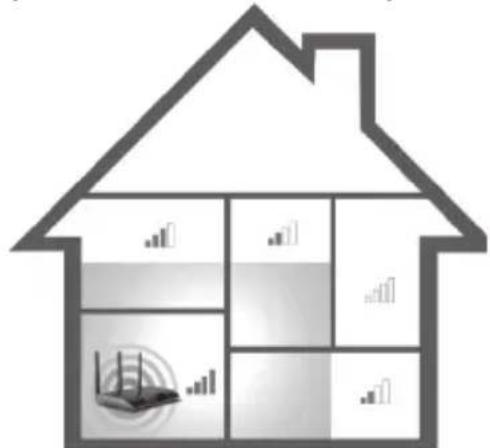
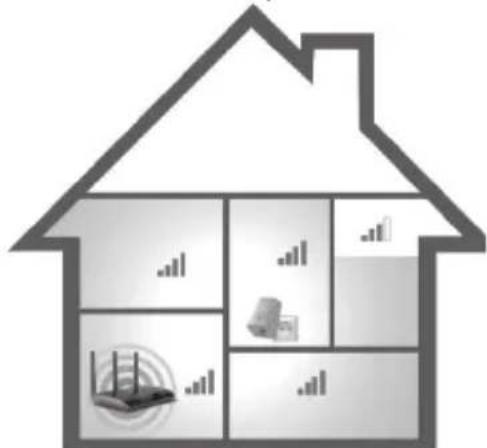
Repeater mode is used to extend the range of your wireless network. Wirele outside the range of your wireless network, can be connected to the network via the dual-band wifi range extender.
Range without dual-band wifi range extender Range with dual-band wifi range extender
flowchart
graph TD
    A["Top Roof"] --> B["Grid"]
    B --> C["A router Icon"]
    C --> D["Bar Chart with Icon"]
    D --> E["Bottom Panel"]
    E --> F["Top Panel"]
The mode selector (8) must be set to the "Repeater" position for Repeater mode.

The dual-band wifi range extender should be placed near (approx. 2-3 metres) the wireless router the first time it is used.
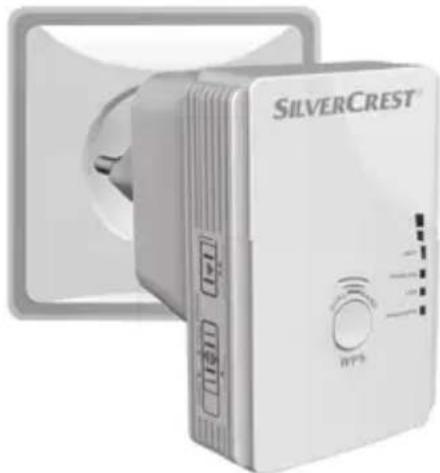
Insert the dual-band wifi range extender into a socket that is always easily accessible.
natural_image
Exterior view of a silver Crest air conditioner unit (no visible text or symbols on the device body)Then switch on the dual-band wifi range extender by turning the main switch (10) to the "ON" position. The dual-band wifi range extender requires a certain amount of time (boot time) after it is switched on before it is ready to use. After switching the device on, wait for approximately 30 seconds before using the dual-band wifi range extender.
There are two different ways to configure the dual-band wifi range extender. If your wireless router supports WPS, you can use this simple function to easily set up the wifi range extender. If you would like to use a wireless router without WPS, you must connect the dual-band wifi range extender via network cable or wireless network to your computer and configure it.
WPS - The easiest type of configuration
This is the easiest way to configure the dual-band wifi range extender. First, check whether your wireless router supports WPS. For further details, please read the operating instructions for your wireless router.
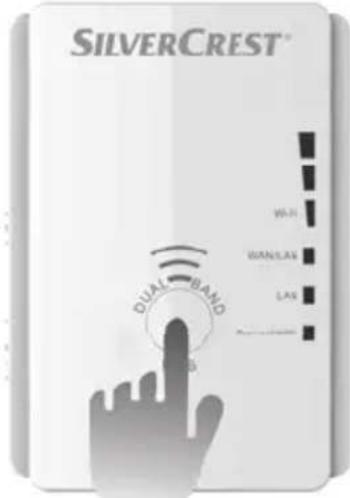
- Press the WPS button (9) on the dual-band wifi range extender for at least 5 seconds. After you have released the WPS button (9), the Power/WPS LED (4) will flash rapidly for approx. 2 minutes.
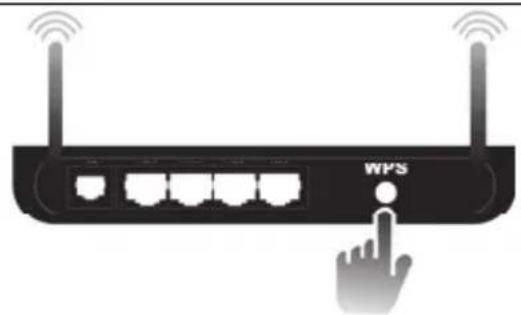
- Within these 2 minutes, please press the connection button (WPS) on your wireless router. For further details, please read the operating instructions for your wireless router.
natural_image
Illustration of a wireless router with WiFi and wireless antennas, showing ports and a finger pointing to the right (no text or symbols on the device itself)(Symbolic representation, connection button (WPS) can be differently arranged and referred to depending on the router model.)
The dual-band wifi range extender then automatically connects to your wireless router and copies all of the settings. Once the connection has been successfully established, the field strength indicator (1) displays the signal strength. The dual-band wifi range extender can then be used. The dual-band wifi range extender can now be accessed via the SSID (wireless name) and the network key of your wireless router.
You can then use the dual-band wifi range extender where the wireless signal is to be extended. The optimal location for the dual-band wifi range extender is exactly in the middle between your wireless router and the wireless devices which are to be connected to the network using the dual-band wifi range extender. Test other locations if the dual-band wifi range extender does not work there. Insert the dual-band wifi range extender only into a socket that is always easily accessible.

It is possible to configure multiple dual-band wifi range extenders. These should be configured one after the other.
If your wireless router does not support WPS or the connection fails for some other reason, you must manually configure the dual-band wifi range extender.
Manual configuration
There are two different ways to configure the dual-band wifi range extender.

If you are not using the network default settings on your computer and have manually set an IP address, you must restore the network settings to Automatically obtain an IP address. For further details, please read the operating instructions for your computer.
-
You can then configure the dual-band wifi range extender via the network cable. If you want to configure the dual-band wifi range extender via the network cable, you must connect the dual-band wifi range extender to your computer. Use the network cable included with the device for this purpose. Insert one end of the network cable into the WAN/LAN socket (6) or the LAN socket (7) of the dual-band wifi range extender and the other end into the LAN socket of your computer.
-
Alternatively, you can perform the configuration via a wireless network. To do so, start the search for available wireless networks on your computer. The network SWV 733 A1 2.4G or SWV 733 A1 5G is displayed in the list of available wireless networks. Select the network SWV 733 A1 2.4G or SWV 733 A1 5G and click on the Connect button to connect wirelessly with the dual-band wifi range extender. After having pressed the Connect button, you may have to click the option Connect without configuring the network.
Open the Internet browser on your computer. Enter http://repeater.setup in the address line of the Internet browser and confirm the entry with the Enter button.
The login window of the dual-band wifi range extender opens. Select the desired language and enter admin as the user name and password. Then click on the Login button. The configuration menu of the dual-band wifi range extender now opens.
Perform the configuration using the wizard. To do so, click on the Repeater wizard button.
Repeater Wizard
From the list, select a wireless network whose range you want to extend by choosing the corresponding network in the "Select" field. Click on the Refresh button to update the list.
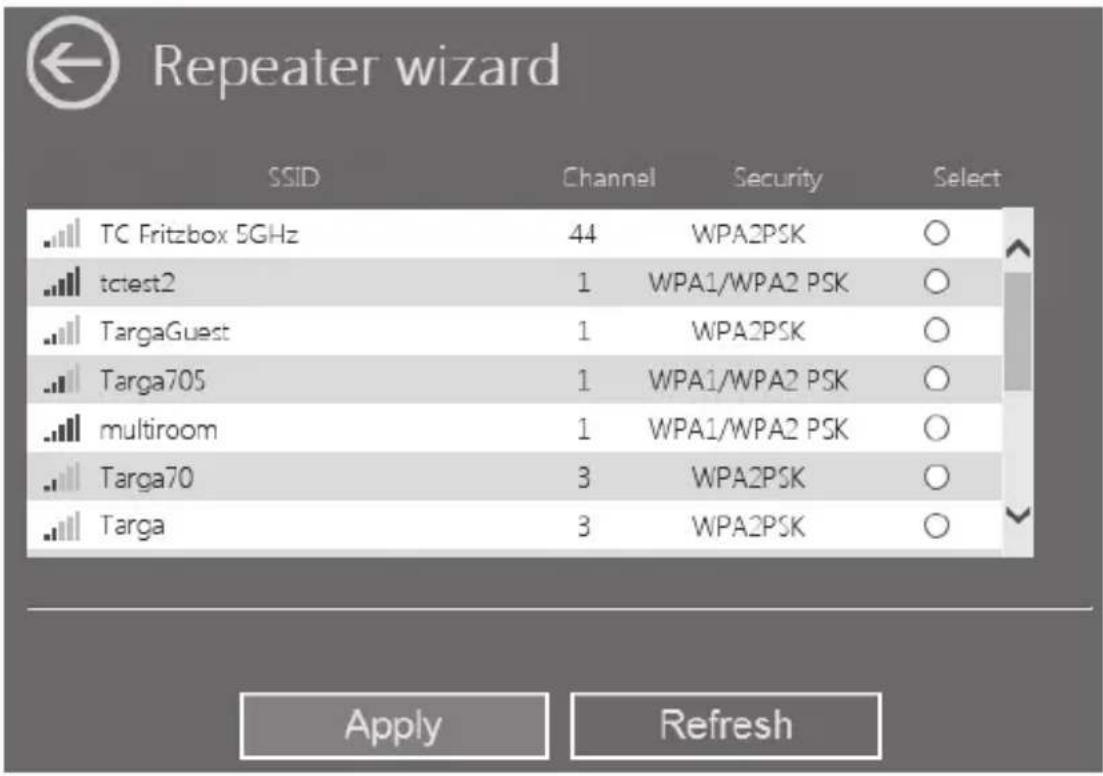
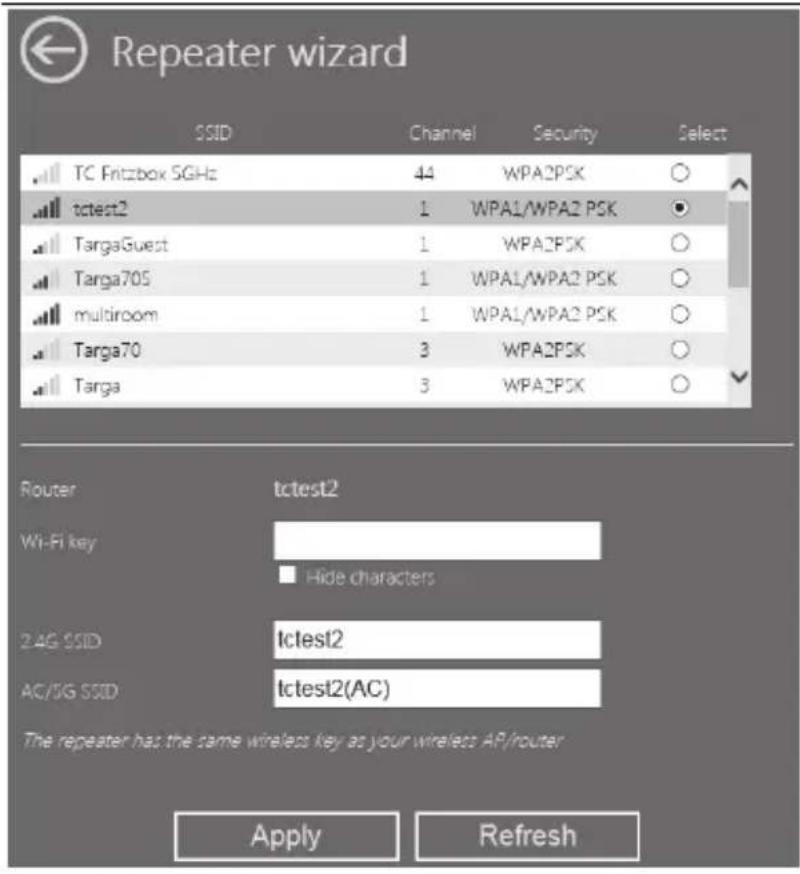
After having selected a wireless network, you can then specify any SSID for the dual-band wifi range extender for 2.4G SSID and AC/5G SSID. Enter the network key of your wireless router for Wifi key. Set the check mark for Hide characters to hide the registered security key. After completing the entry, click on the Apply button.
SilverCrest SWV 733 A1
This will reboot the dual-band wifi range extender. Wait until the progress bar is complete before making any further entries.
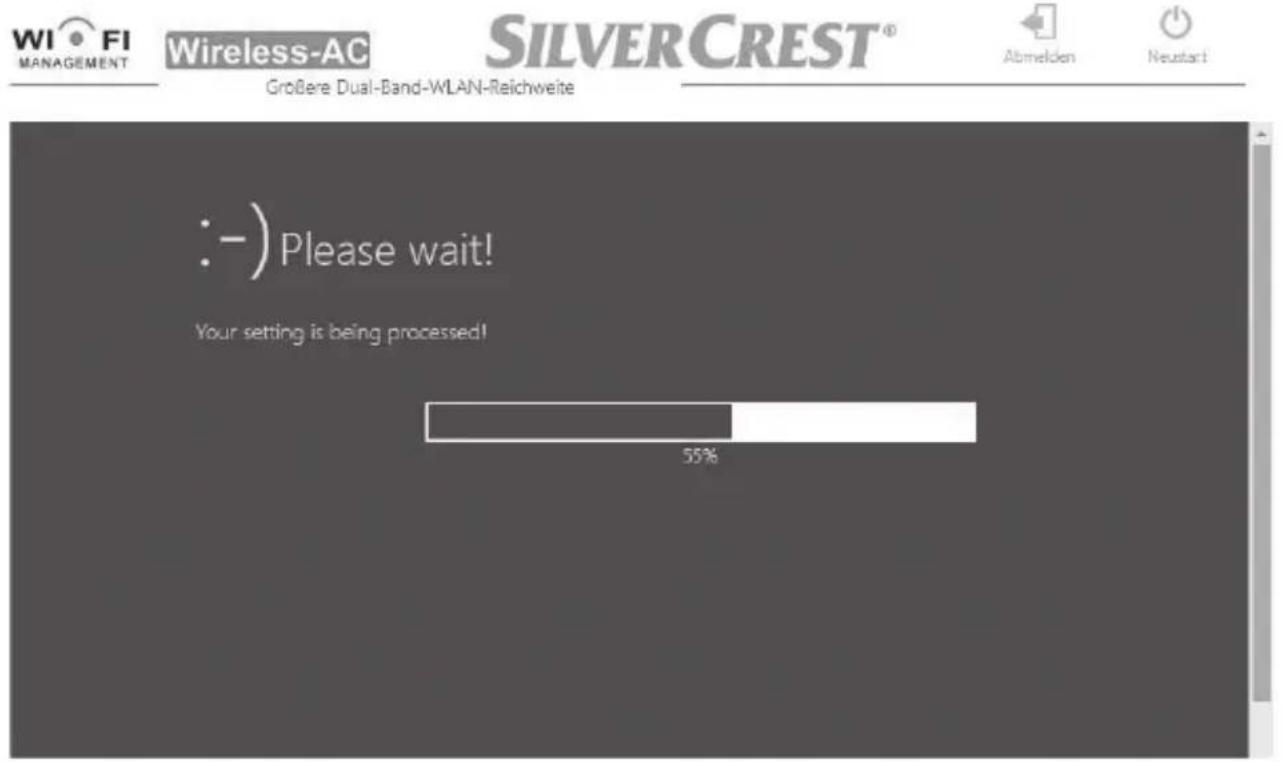
274 - English
Once the progress bar is complete, the device displays the following information requesting compliance:

Wireless-AC
SILVERCREST®


- Please note that after applying all network settings your device must have a valid network connection with the wifi repeater.
- If you are using Wi-Fi, please reconnect with the new SSID and the new password.
- If you are connected through a LAN cable, please disconnect the cable and reconnect it after 10 seconds.
- Once your device has a valid network connection to the wifi repeater again, you can access the GUI via http://repeater.setup.
2.4G SSID : TC Fritzbox 2.4GHz
AC/5G SSID: TC Fritzbox 2.4GHz(AC)
After the reboot has been completed, the dual-band wifi range extender is accessible under the SSID and the network key of your wireless router.
If you would like to return to the configuration menu, you can enter repeater.setup in the address line of the Internet browser. Note that a connection must be established with the dual-band wifi range extender for this purpose. To do so, connect the dual-band wifi range extender if necessary to your computer via a network cable.
Once the connection has been successfully established, the field strength indicator (1) displays the signal strength. The dual-band wifi range extender can then be used. The dual-band wifi range extender can now be accessed via the previously specified SSID (wireless name) and the network key of your wireless router.
You can then use the dual-band wifi range extender where the wireless signal is to be extended. The optimal location for the dual-band wifi range extender is exactly in the middle between your wireless router and the wireless devices which are to be connected to the network using the dual-band wifi range extender. Test other locations if the dual-band wifi range extender does not work there. Insert the dual-band wifi range extender only into a socket that is always easily accessible.
If you would like to open the configuration menu, you must ensure that there is a valid connection to the dual-band wifi range extender. To do so, connect the dual-band wifi range extender if necessary to your computer via a network cable.
Client mode
Client mode enables end devices with a LAN interface (for example, computer, notebook or TV set), which have no own wireless network, to connect wirelessly to an existing wireless router.
Example of use:
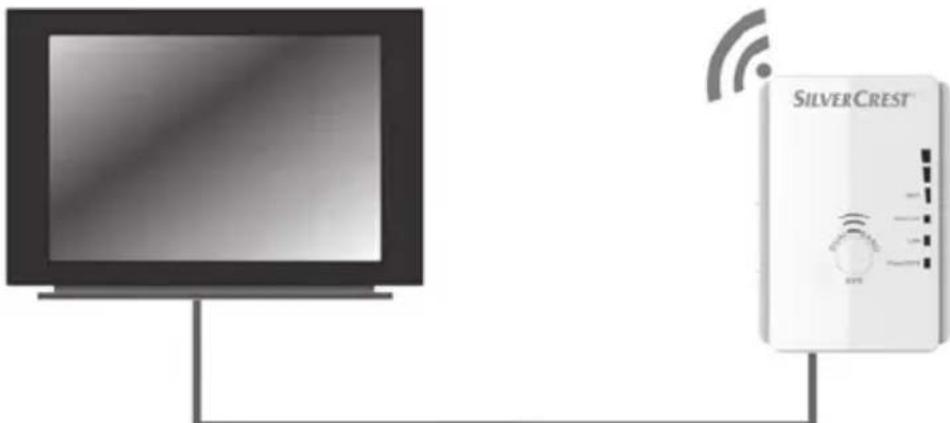
natural_image
Illustration of a TV displaying and connected to a silver Crest-branded device with wireless signal icon (no text or symbols on device)The mode selector (8) must be set to the "Client" position for Client mode.

The dual-band wifi range extender should be placed near (approx. 2-3 metres) the wireless router the first time it is used.
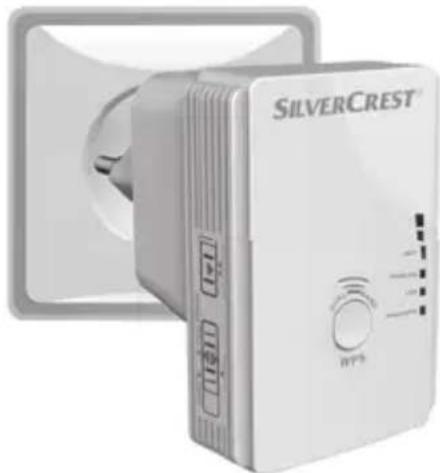
Insert the dual-band wifi range extender into a socket that is always easily accessible.
natural_image
Exterior view of a silver Crest air conditioner unit (no visible text or symbols on the device body)Then switch on the dual-band wifi range extender by turning the main switch (10) to the "ON" position. The dual-band wifi range extender requires a certain amount of time (boot time) after it is switched on before it is ready to use. After switching the device on, wait for approximately 30 seconds before using the dual-band wifi range extender.
There are two different ways to configure the dual-band wifi range extender. If your wireless router supports WPS, you can use this simple function to easily set up the wifi range extender. If you would like to use a wireless router without WPS, you must connect the dual-band wifi range extender to your computer via a network cable and configure it.
WPS - The easiest type of configuration
This is the easiest way to configure the dual-band wifi range extender. First, check whether your wireless router supports WPS. For further details, please read the operating instructions for your wireless router.
- Press the WPS button (9) on the dual-band wifi range extender for at least 5 seconds. After you have released the WPS button (9), the Power/WPS LED (4) will flash rapidly for approx. 2 minutes.
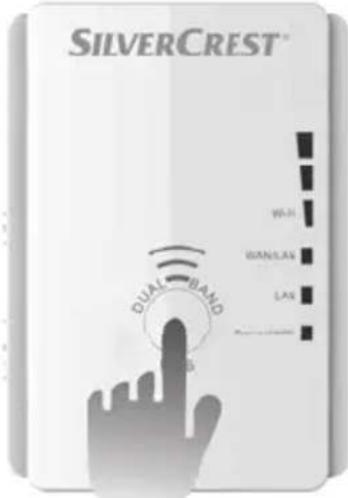
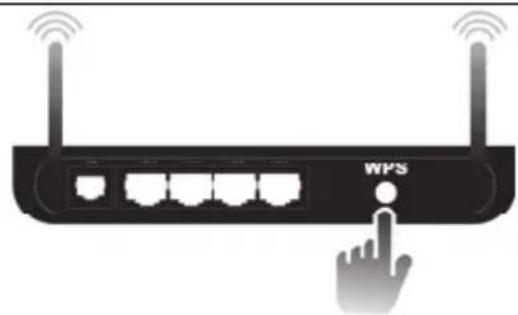
- Within these 2 minutes, please press the connection button (WPS) on your wireless router. For further details, please read the operating instructions for your wireless router.
natural_image
Illustration of a wireless router with WiFi antennas and a hand cursor pointing to the button (no text or symbols on the device itself)(Symbolic representation, connection button (WPS) can be differently arranged and referred to depending on the router model.)
The dual-band wifi range extender then automatically connects to your wireless router and copies all of the settings. Once the connection has been successfully established, the field strength indicator (1) displays the signal strength. You can then use the dual-band wifi range extender where your end device is to be connected wirelessly with your router.
Connect the dual-band wifi range extender to your end device. Use the network cable included with the device for this purpose. Insert one end of the network cable into the WAN/LAN socket (6) or the LAN socket (7) of the dual-band wifi range extender and the other end into the LAN socket of your end device. Insert the dual-band wifi range extender only into a socket that is always easily accessible.
If your wireless router does not support WPS or the connection fails for some other reason, you must manually configure the dual-band wifi range extender.
Manual configuration

If you are not using the network default settings on your computer and have manually set an IP address, you must restore the network settings to Automatically obtain an IP address. For further details, please read the operating instructions for your computer.
You must configure the dual-band wifi range extender via the network cable. To do so, you have to connect the dual-band wifi range extender to your computer. Use the network cable included with the device. Insert one end of the network cable into the WAN/LAN socket (6) or the LAN socket (7) of the dual-band wifi range extender and the other end into the LAN socket of your computer.
Open the Internet browser on your computer. Enter http://repeater.setup in the address line of the Internet browser and confirm the entry with the Enter button.
The login window of the dual-band wifi range extender opens. Select the desired language and enter admin as the user name and password. Then click on the Login button. The configuration menu of the dual-band wifi range extender now opens.
SilverCrest SWV 733 A1
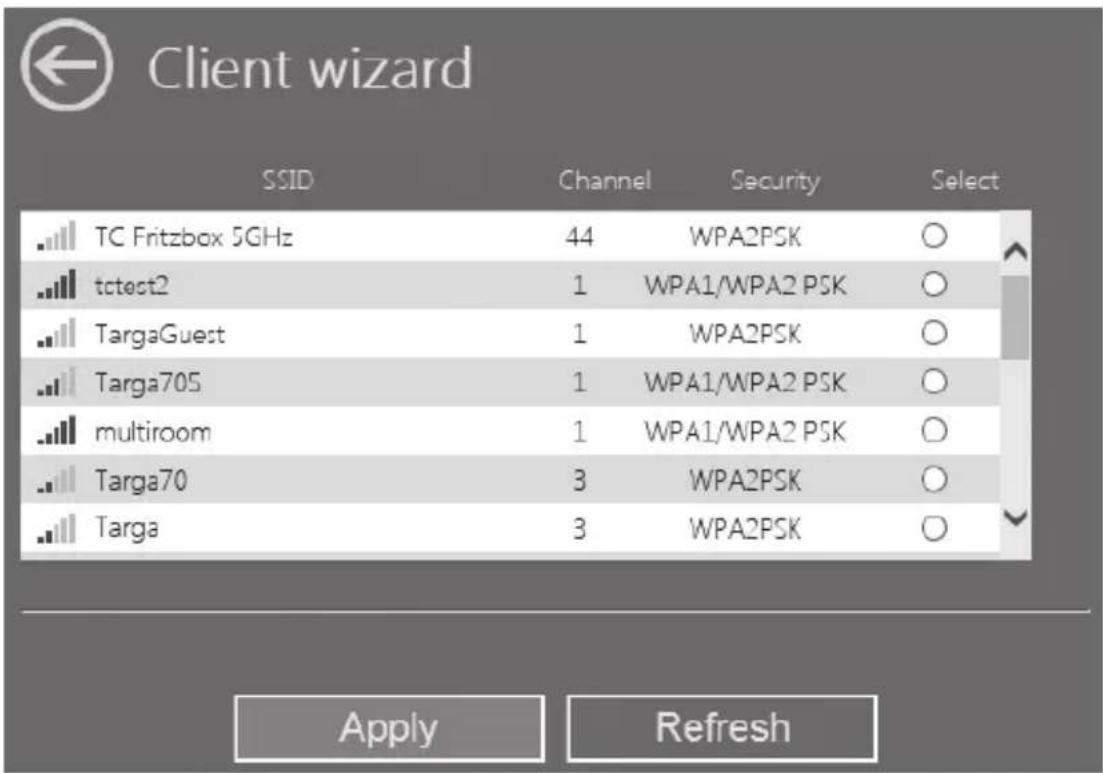
Perform the configuration using the wizard. To do so, click on the Client wizard button.
Client Wizard
From the list, select a wireless network with which you want to connect the dual-band wifi range extender by choosing the corresponding network in the "Select" field. Click on the Refresh button to update the list.
SilverCrest SWV 733 A1
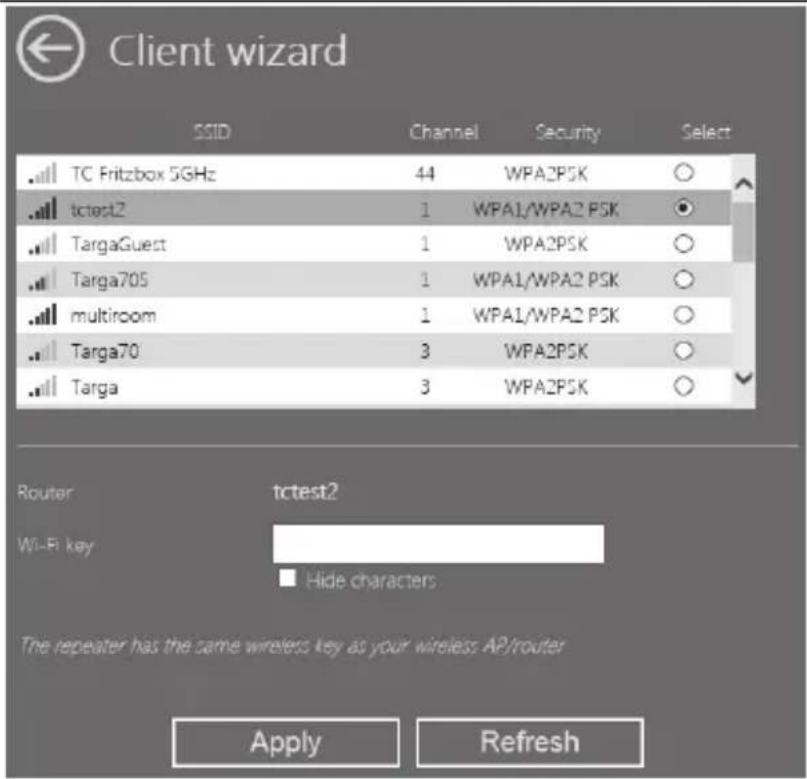
After having selected a wireless network, you must then specify the network key of your wireless router for Wifi key. Set the check mark for Hide characters to hide the registered security key.
After completing the entry, click on the Apply button.
This will reboot the dual-band wifi range extender. Wait until the progress bar is complete before making any further entries.
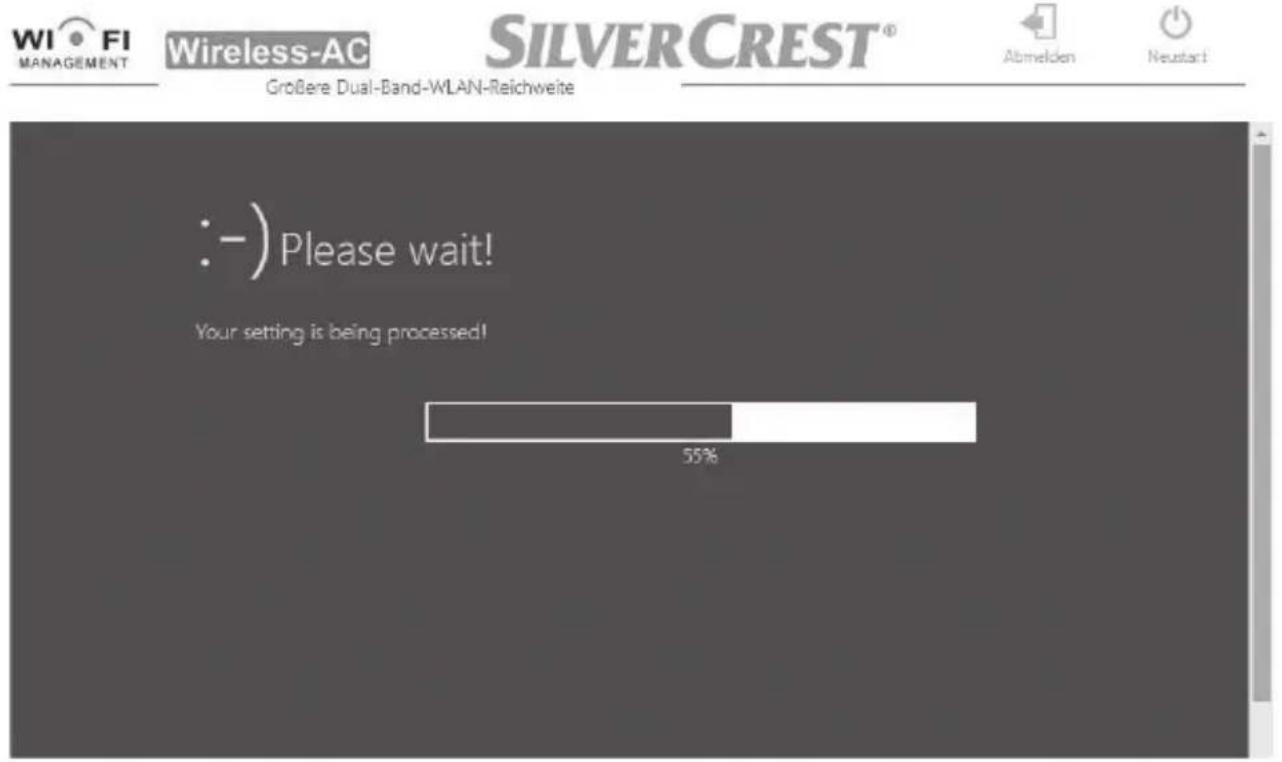
Once the progress bar is complete, the device displays the following information requesting compliance:

Wireless-AC
SILVERCREST®


- Please note that after applying all network settings your device must have a valid network connection with the wifi repeater.
- If you are using Wi-Fi, please reconnect with the new SSID and the new password.
- If you are connected through a LAN cable, please disconnect the cable and reconnect it after 10 seconds.
- Once your device has a valid network connection to the wifi repeater again, you can access the GUI via http://repeater.setup.
2.4G SSID : TC Fritzbox 2.4GHz
AC/5G SSID: TC Fritzbox 2.4GHz(AC)
If you would like to return to the configuration menu, you can enter repeater.setup in the address line of the Internet browser. Note that a connection must be established with the dual-band wifi range extender for this purpose. To do so, connect the dual-band wifi range extender if necessary to your computer via a network cable.
After the reboot has been completed, you can connect the dual-band wifi range extender to your end device (for example, computer, notebook or TV set) via the network cable. Use the network cable included with the device for this purpose. Insert one end of the network cable into the WAN/LAN socket (6) or the LAN socket (7) of the dual-band wifi range extender and the other end into the LAN socket of your end device. Insert the dual-band wifi range extender only into a socket that is always easily accessible.
Access Point (AP) mode (Router mode)
Use the AP mode to obtain a "wireless access point". The wireless end devices will connect to the dual-band wifi range extender in this mode. You can also use this mode, for example, to make a formerly non-wireless-enabled router wireless-enabled.
Example of use:
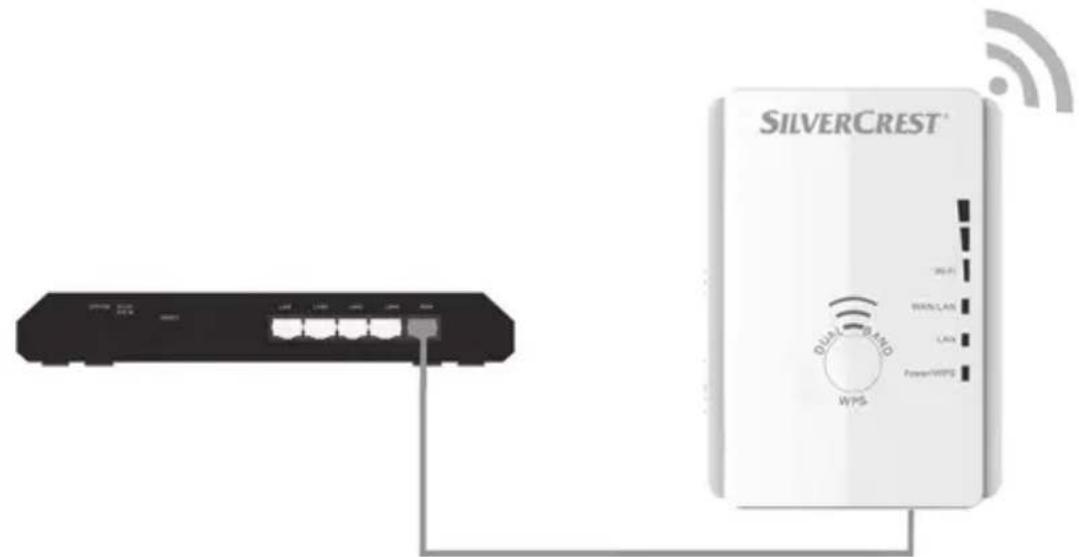
The mode selector (8) must be set to the "Access Point" position for AP mode.
Insert the dual-band wifi range extender into a socket that is always easily accessible.
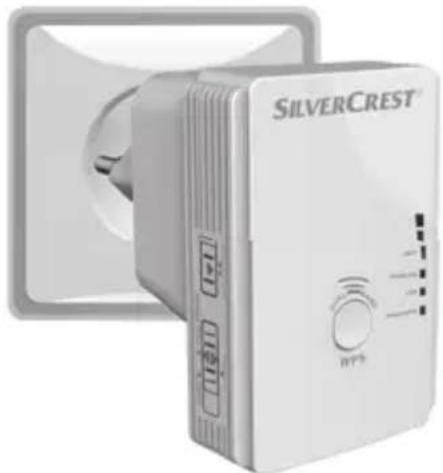
natural_image
Exterior view of a silver Crest air conditioner unit (no visible text or symbols on the device body)Then switch on the dual-band wifi range extender by turning the main switch (10) to the "ON" position. The dual-band wifi range extender requires a certain amount of time (boot time) after it is switched on before it is ready to use. After switching the device on, wait for approximately 30 seconds before using the dual-band wifi range extender.
There are two different ways to configure the dual-band wifi range extender.

If you are not using the network default settings on your computer and have manually set an IP address, you must restore the network settings to Automatically obtain an IP address. For further details, please read the operating instructions for your computer.
- You can then configure the dual-band wifi range extender via the network cable. If you want to configure the dual-band wifi range extender via the network cable, you must connect the dual-band wifi range extender to your computer. Use the network cable included with the device for this purpose. Insert one end of the network cable into the WAN/LAN socket (6) or the LAN socket (7) of the dual-band wifi range extender and the other end into the LAN socket of your computer.
- Alternatively, you can perform the configuration via a wireless network. To do so, start the search for available wireless networks on your computer. The network SWV 733 A1 2.4G or SWV 733 A1 5G is displayed in the list of available wireless networks. Select the network SWV 733 A1 2.4G or SWV 733 A1 5G and click on the Connect button to connect wirelessly with the dual-band wifi range extender. After having pressed the Connect button, you may have to click the option Connect without configuring the network.
Open the Internet browser on your computer. Enter http://repeater.setup in the address line of the Internet browser and confirm the entry with the Enter button.
The login window of the dual-band wifi range extender opens. Select the desired language and enter admin as the user name and password. Then click on the Login button. The configuration menu of the dual-band wifi range extender now opens.
Perform the configuration using the wizard. To do so, click on the AP wizard button to configure the dual-band wifi range extender as an access point.
To configure the dual-band wifi range extender as a router, click on the Router wizard button. In this mode, for example, you can use a DSL modem as a wireless router if it is connected to the dual-band wifi range extender. As a result, your end devices can connect wirelessly to the dual-band wifi range extender and use the Internet connection via your DSL modem and Internet service provider.
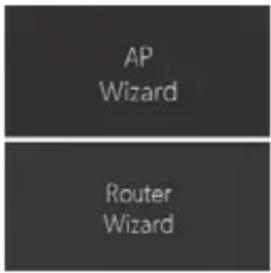
If you have selected Router mode, you then have to select the type of Internet access. options can be selected:
- Static IP (Internet service providers offer a fixed IP address) – the IP address must be fixed with this option. Contact your Internet service provider for the IP address.
- Dynamic IP (automatically get an IP address) – the IP address is assigned automatically by the Internet service provider with this option. No further entries are required here.
- PPPoE (DSL/cable modem dial-up) – you must specify the user name and password for your Internet service provider with this option. Contact your Internet service provider for the user name and password.

Please contact your Internet service provider if you are unsure as to which option is right for you.
You can then specify any SSID for the dual-band wifi range extender for 2.4G SSID and AC/5G SSID. Select an encryption for Encryption type to protect your network against unauthorised access. You can also set up the network as unsecured by selecting the Disable option. However, we would recommend that you set up an encryption to prevent unauthorised access.
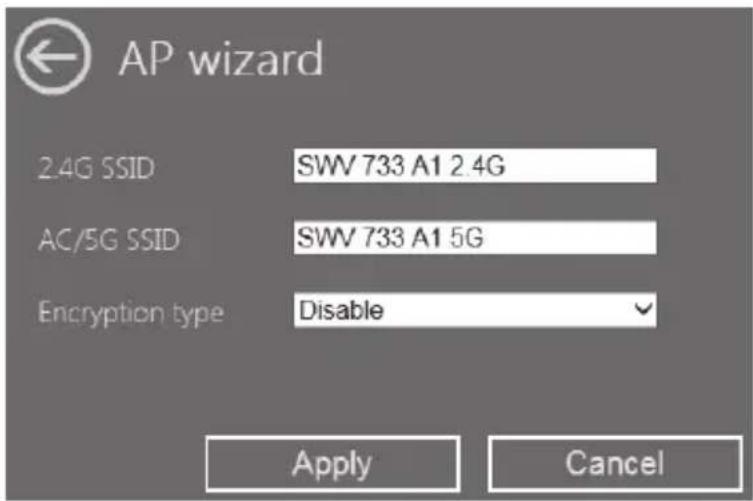

We recommend that you use WPA/WPA2 encryption because it provides maximum security. If your wireless devices do not support WPA/WPA2 encryption, you have to use other encryption. You must use a secure password with at least eight characters, including numeric and alphanumeric characters combined with special characters also.
SilverCrest SWV 733 A1
After having selected an encryption, you must then specify a network key for Wifi key. Set the check mark for Hide characters to hide the registered network key. Take particular note of the network key or keep it in a safe place.
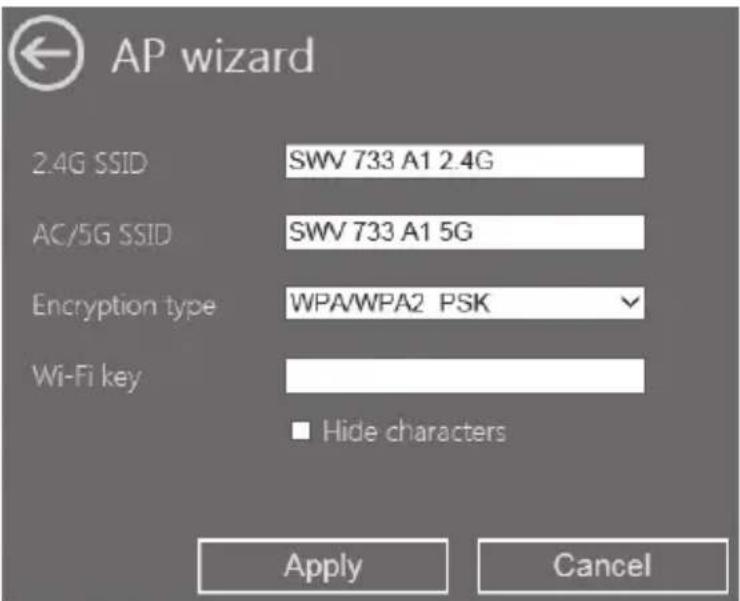
After completing the entry, click on the Apply button.
This will reboot the dual-band wifi range extender. Wait until the progress bar is complete before making any further entries.
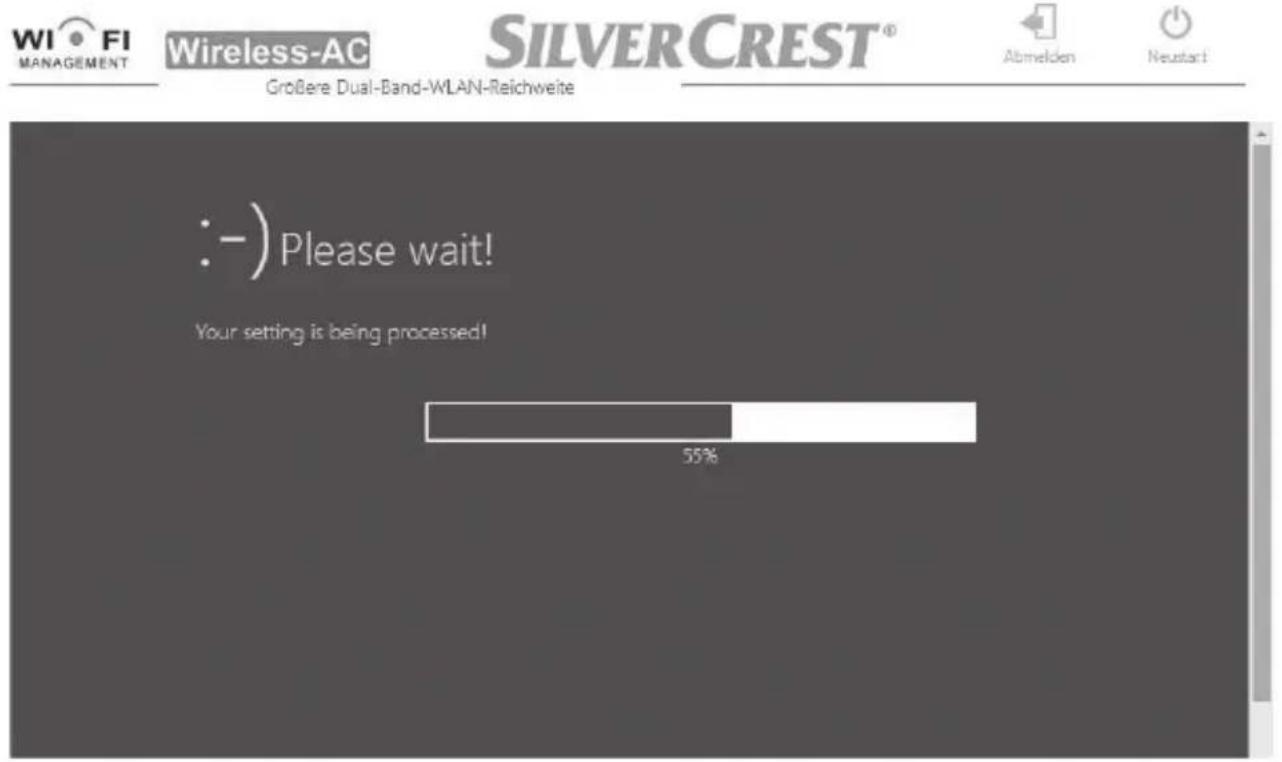
Once the progress bar is complete, the device displays the following information requesting compliance:

Wireless-AC
SILVERCREST®


- Please note that after applying all network settings your device must have a valid network connection with the wifi repeater.
- If you are using Wi-Fi, please reconnect with the new SSID and the new password.
- If you are connected through a LAN cable, please disconnect the cable and reconnect it after 10 seconds.
- Once your device has a valid network connection to the wifi repeater again, you can access the GUI via http://repeater.setup.
2.4G SSID : TC Fritzbox 2.4GHz
AC/5G SSID: TC Fritzbox 2.4GHz(AC)
If you would like to return to the configuration menu, you can enter repeater.setup in the address line of the Internet browser. Note that a connection must be established with the dual-band wifi range extender for this purpose. To do so, connect the dual-band wifi range extender if necessary to your computer via a network cable.
After the reboot has been completed, the dual-band wifi range extender will be accessible under the SSID and the network key.
WPS - Connect to the AP (Router mode)
This is the easiest way to establish a connection to the AP. First, check whether your end device supports WPS. For further details, please read the operating instructions for your end device.
- Press the WPS button (9) on the dual-band wifi range extender for at least 2 seconds. After you have released the WPS button (9), the Power/WPS LED (4) will flash rapidly for approx. 2 minutes.
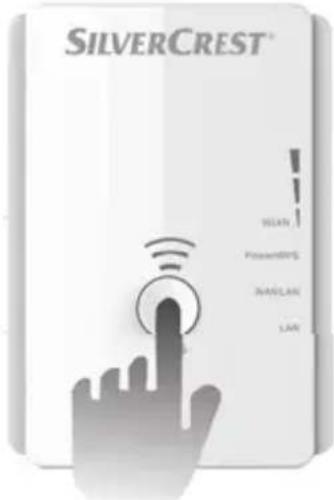
- Within these 2 minutes, please press the connection button (WPS) on your end device. For further details, please read the operating instructions for your end device.
Your end device then automatically connects to your dual-band wifi range extender (AP) and applies all of the settings. You can then access the dual-band wifi range extender (AP) wirelessly.
If your end device does not support WPS, you can also manually establish the connection to the dual-band wifi range extender (AP).
Manual connection to the AP
For a manual connection to the dual-band wifi range extender (AP), you must find available wireless networks on your end device. The dual-band wifi range extender (AP) is displayed under the specified SSID (wireless name) in the list of available wireless networks. Then select the corresponding SSID (wireless name) to connect your end device wirelessly with the dual-band wifi range extender (AP). Then enter the network key you assigned. For further details, please read the operating instructions for your end device.
Configuration menu of the dual-band wifi range extender
You can open the configuration menu of the dual-band wifi range extender on your computer with an Internet browser. In this configuration menu, you can make advanced settings of the dual-band wifi range extender, display information or install a new firmware version.
There are two different ways to configure the dual-band wifi range extender.

If you are not using the network default settings on your computer and have manually set an IP address, you must restore the network settings to Automatically obtain an IP address. For further details, please read the operating instructions for your computer.
- You can then configure the dual-band wifi range extender via the network cable. If you want to configure the dual-band wifi range extender via the network cable, you must connect the dual-band wifi range extender to your computer. Use the network cable included with the device for this purpose. Insert one end of the network cable into the WAN/LAN socket (6) or the LAN socket (7) of the dual-band wifi range extender and the other end into the LAN socket of your computer.
- Alternatively, you can perform the configuration via a wireless network. To do so, start the search for available wireless networks on your computer. The network SWV 733 A1 2.4G or SWV 733 A1 5G is displayed in the list of available wireless networks. Select the network SWV 733 A1 2.4G or SWV 733 A1 5G and click on the Connect button to connect wirelessly with the
dual-band wifi range extender. After having pressed the Connect button, you may have to click the option Connect without configuring the network.

If you use the dual-band wifi range extender in Client mode (mode selector is at "Client"), the configuration is possible only via the network cable.
After you have established the connection as previously described, open the Internet browser on your computer. Enter http://repeater.setup in the address line of the Internet browser and confirm the entry with the Enter button.
The login window of the dual-band wifi range extender opens. Select the desired language and enter admin as the user name and password. Then click on the Login button.
The configuration menu of the dual-band wifi range extender now opens.
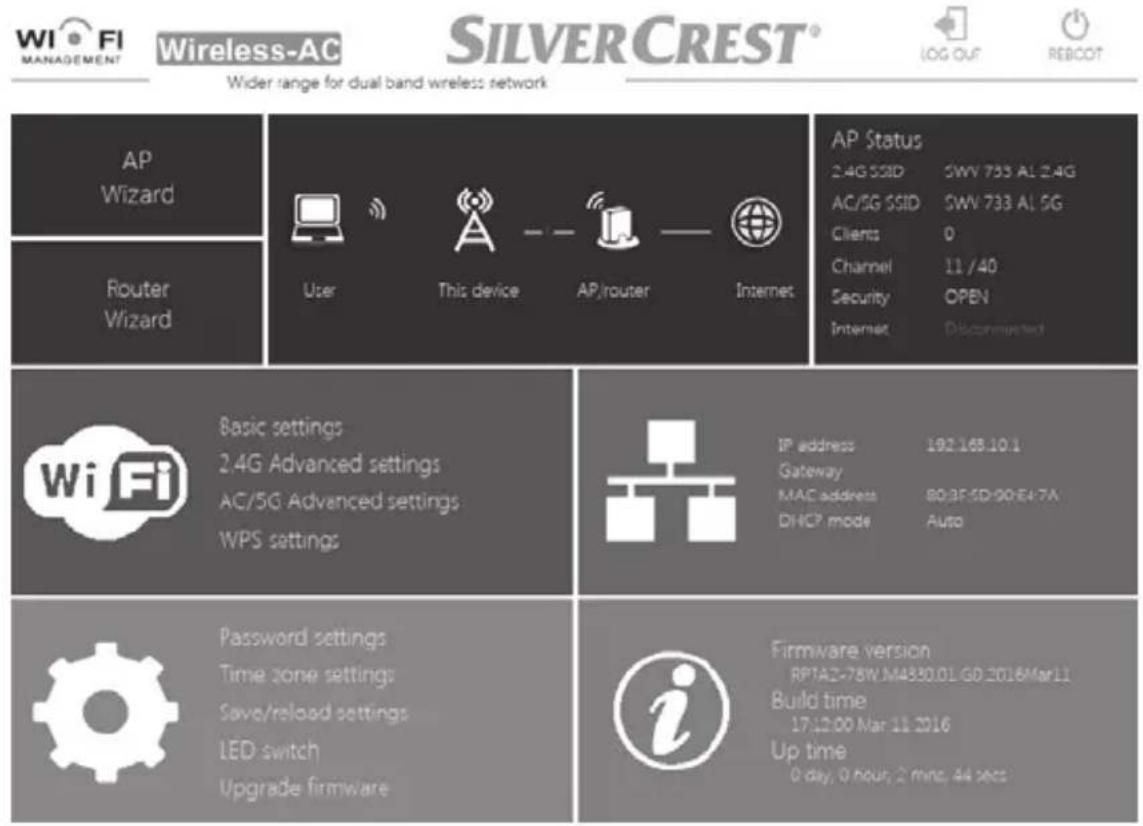
You can close the configuration menu by clicking on the LOG OUT button on the top right of the display. You can reboot the dual-band wifi range extender via the REBOOT button.
302 - English
The configuration menu is divided into the following headings:
Wizard
This Wizard enables the easy configuration of your dual-band wifi range extender. The currently set mode (Repeater, Client or AP) is displayed here. To start the Wizard, click on the Repeater, Client, AP or Router wizard button. Follow the on-screen instructions of the Wizard.
State
Information about the wireless network of the dual-band wifi range extender is displayed here. Note that, depending on the selected mode (Repeater, Client or AP) of the dual-band wifi range extender, it is possible that not all options are displayed.
State
The current state of the dual-band wifi range extender is displayed here.
2.4G SSID
The SSID of the dual-band wifi range extender is displayed here for the 2.4GHz network.
AC/5G SSID
The SSID of the dual-band wifi range extender is displayed here for the 5GHz network.
Router
This displays which router is connected to the dual-band wifi range extender.
Channel
The channel which is used by the dual-band wifi range extender for the 2.4GHz and 5GHz networks is displayed here.
Security
This displays the encryption which is used by the dual-band wifi range extender.
Clients
This displays the number of clients (end devices) with which the dual-band wifi range extender is connected.
IP address
The IP address that is currently used for the dual-band wifi range extender is displayed here.
Internet
The current status of the Internet connection is displayed here.
Wifi (Wireless)
You can make additional settings for the wireless network here. To do so, click on the desired option.
Basic settings
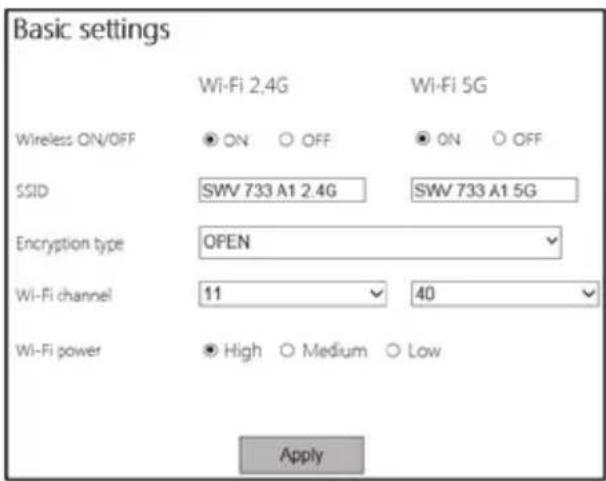
Wireless ON/OFF
You can enable or disable the wireless network for the 2.4GHz and 5GHz networks here. To do so, click on the ON or OFF button. Please note that wireless access to the dual-band wifi range extender is no longer possible if it is disabled. Connect the dual-band wifi range extender via a network cable to your computer in order to regain access to the dual-band wifi range extender.
SSID
You can change the SSID (wireless name) of the dual-band wifi range extender for the 2.4GHz and 5GHz networks here. The SSID of the router is specified here in Repeater mode.
Encryption type
Set an encryption for the 2.4GHz and 5GHz networks here.

We recommend that you use WPA/WPA2 encryption because it provides maximum security. If your wireless devices do not support WPA/WPA2 encryption, you have to use other encryption. You must use a secure password with at least eight characters, including numeric and alphanumeric characters combined with special characters also.
Wifi channel
Set a channel number or choose the Auto option to enable the automatic assignment of a channel number.
Wifi power
You can adjust the wifi power here. To do so, select High, Medium or Low. If the wifi reception is poor, select High.
Click on the Apply button to confirm changed settings. This will reboot the dual-band wifi range extender. Wait approximately 30 seconds before making any further entries.
306 - English
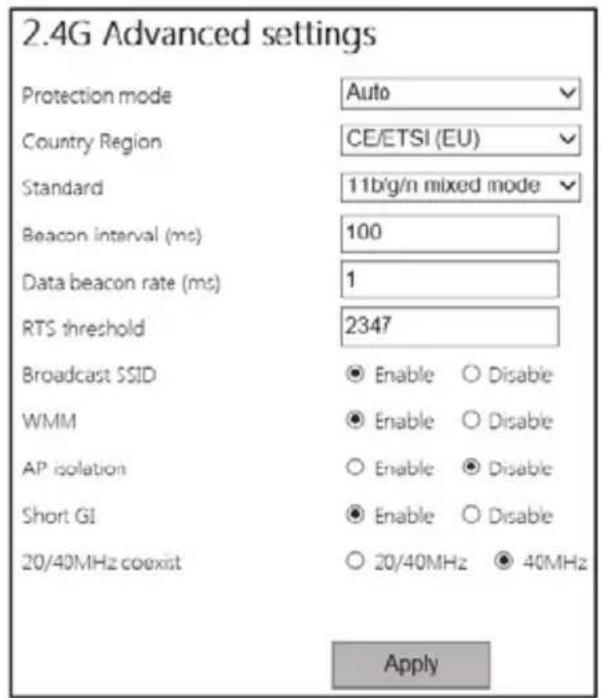
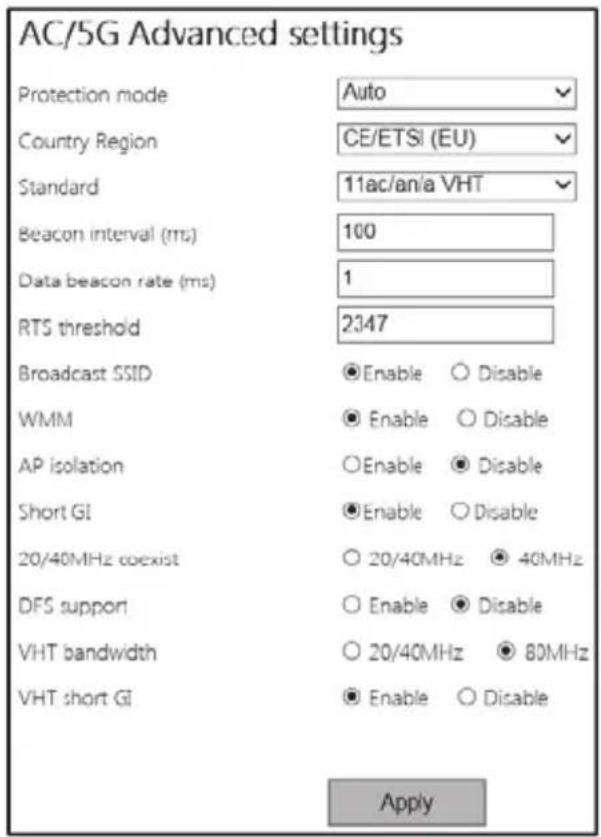
2.4G and AC/5G Advanced settings
SilverCrest SWV 733 A1
This option should only be used by experienced users. Network settings can be made here. As the settings have to be customised to your network, they will not be discussed further here. You can obtain more information via our service hotline (see page 327).
Click on the Apply button to confirm changed settings.
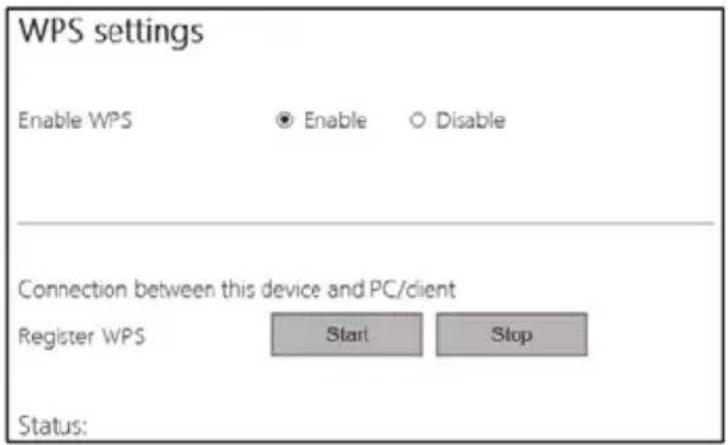
WPS settings
Enable WPS
WPS is enabled in the original condition of the device. You can enable or disable WPS here. To do so, click on the Enable or Disable button. Please note that when WPS is disabled, there can be no connection to the wireless device via WPS. The WPS button (9) on the dual-band wifi range extender does not work also.
308 - English
Register WPS
Here, you can connect the dual-band wifi range extender to a WPS-enabled end device. Click on the Start button to start WPS. The Power/WPS LED (4) of the dual-band wifi range extender now flashes rapidly for approx. 2 minutes. Within these 2 minutes, please press the connection button (WPS) on your end device. For further details, please read the operating instructions for your end device. The dual-band wifi range extender then automatically connects to your end device. Once the connection has been successfully established, the field strength indicator (1) lights up. The dual-band wifi range extender can then be used. You can stop WPS by clicking on the Stop button.
Status
The current WPS status of the dual-band wifi range extender is displayed here. The following indicators are possible: Setting – the WPS scan is prepared, Starting – the WPS scan was started, Stopped – the WPS scan was stopped, Successful – the WPS connection has been successfully established and Failed – the WPS connection failed.
WAN settings

WAN settings
• Static IP (Internet service providers offer a fixed IP address)
- Dynamic IP (automatically get an IP address)
- PPPoE (DSL/cable modem dial-up)
Apply
Cancel
The WAN settings are displayed only if the dual-band wifi range extender was configured in Router mode. The following options can be selected:
- Static IP (Internet service providers offer a fixed IP address) – the IP address must be fixed with this option. Contact your Internet service provider for the IP address.
- Dynamic IP (automatically get an IP address) – the IP address is assigned automatically by the Internet service provider with this option. No further entries are required here.
- PPPoE (DSL/cable modem dial-up) – you must specify the user name and password for your Internet service provider with this option. Contact your Internet service provider for the user name and password.

Please contact your Internet service provider if you are unsure as to which option is right for you.
LAN settings
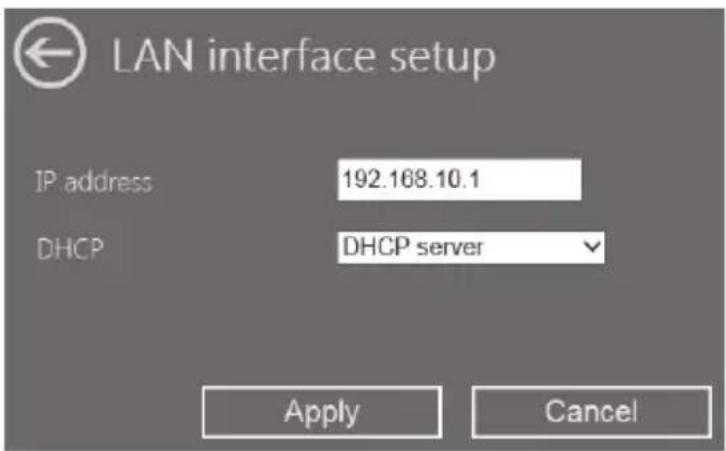
The IP address used, the gateway, the MAC address and the set DHCP mode of the dual-band wifi range extender are displayed directly here. Note that, depending on the selected mode of the dual-band wifi range extender, it is possible that not all options are displayed.
The network settings can be changed only if the dual-band wifi range extender was configured in Router mode. To do so, click on the "LAN settings" button.
English - 311
IP address
You can change the IP address of the dual-band wifi range extender here.
DHCP
You can set the DHCP mode here. The following options can be selected: Disable, DHCP server and Auto The Auto option is enabled in the original condition of the device. With the Auto option, IP addresses are assigned automatically. The assignments are permanent here and are not removed. The advantage here is that an end device always has the same IP address. The disadvantage is that new end devices do not receive an IP address if the address range is completely assigned, even if IP addresses are no longer actively used. This is in contrast to the DHCP server option where IP addresses are assigned automatically and recorded in a table. The assignment is not permanent here, however, and end devices may be assigned another IP address.
Click on the Apply button to confirm changed settings or on Cancel to discard the changed settings.
Management
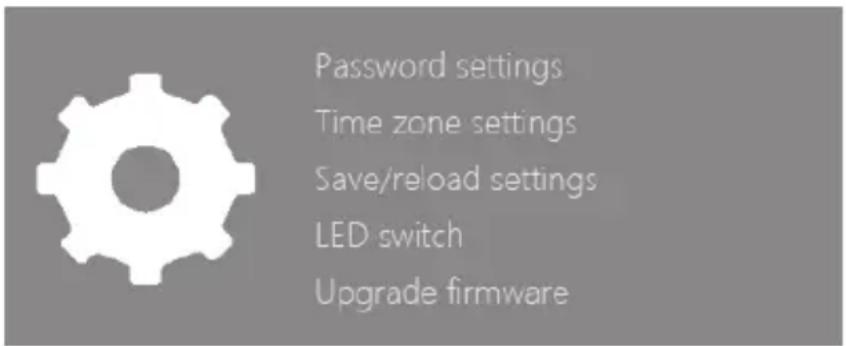
Here, you can make additional settings or install a new firmware version. To do so, click on the desired option.
Password settings
Here, you can change the preset password (admin) for the login to the dual-band wifi range extender. To do so, enter a user name and then enter the new password twice.

If you are opening the configuration menu for the first time, you will be prompted to change the password. After clicking on the OK button, the following window will open.
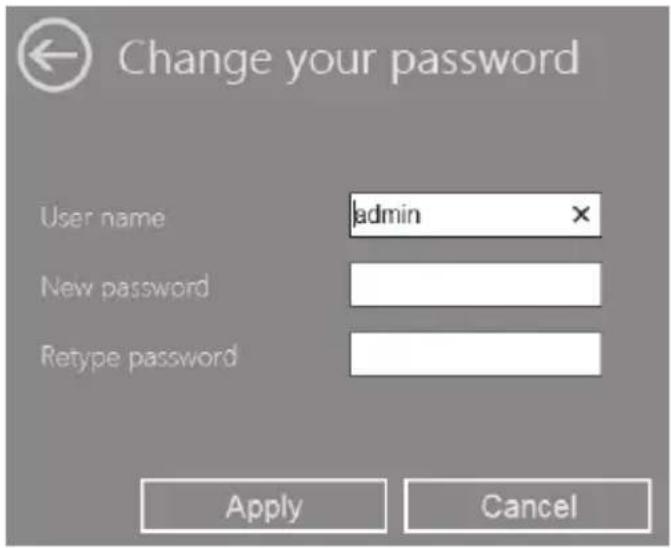
To confirm the changed password, click on the Apply button or on Cancel to cancel it.
Take particular note of the user name and password or keep it in a safe place!
Time zone settings
You can set the date and time here. To do so, enter the date and time in the relevant fields.
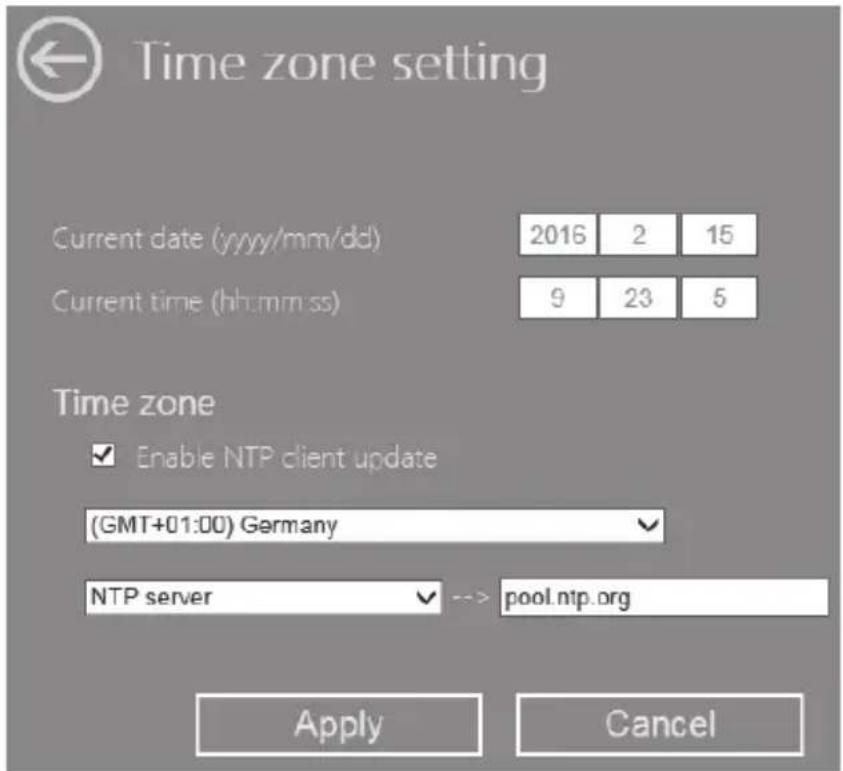
For Time zone, enter the relevant time zone in which you are located.
SilverCrest SWV 733 A1
A check mark is set for Enable NTP client update to synchronize the time via an NTP server (Network Time Protocol). The time and date are synchronized here with a server via the Internet.
Select a specified NTP server in the NTP server field.
To confirm the changed settings, click on the Apply button or on Cancel to cancel them.
Save/reload settings
You can save, load and reset the configuration of the dual-band wifi range extender here.
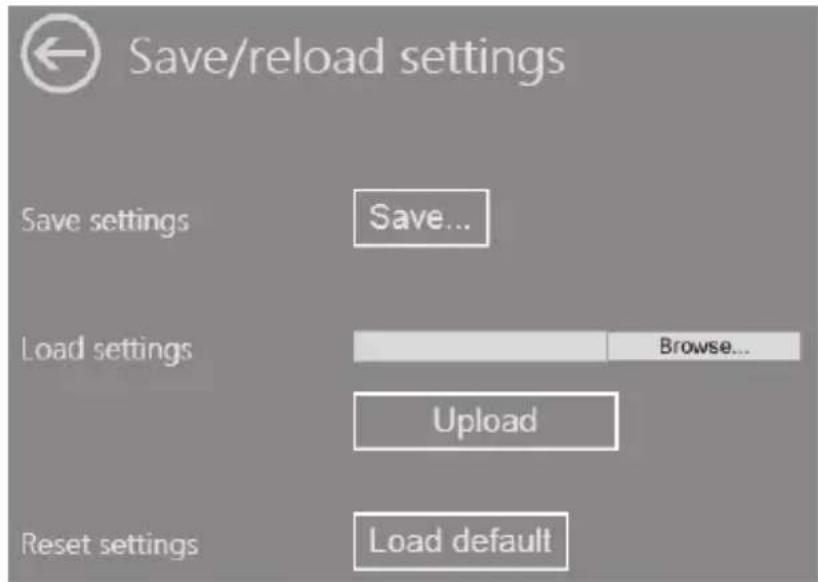
Click on the Save... button to save the configuration of the dual-band wifi range extender to a file on your computer.
To select a backed-up configuration, click on the Browse... button and then select the desired configuration file on your computer. Now click on the Upload button to load the previously selected configuration file.
For "Reset settings", click on the Load default button to reset the dual-band wifi range extender to the factory settings. Confirm the following confirmation prompt with OK to finally load the factory settings or click Cancel to cancel the process.

Note that all previously changed settings are lost when resetting to the factory settings.

Load the factory settings before you pass on the dual-band wifi range extender to ensure that third parties do not obtain your data!
LED switch
The LEDs of the dual-band wifi range extender can be switched on or off here. However, this has no effect on the Power/WPS LED (4) as it cannot be switched off.
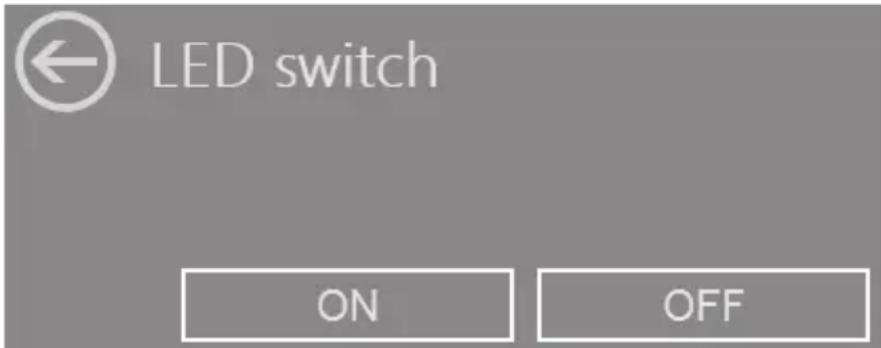
Click on the OFF button to switch off the LEDs. To switch on the LEDs again, you must click on the ON button.
Upgrade firmware
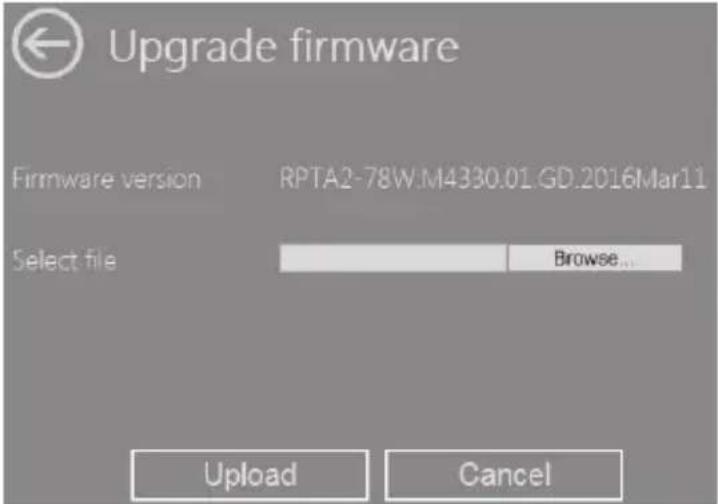
If you have received a new firmware version, you can install it. To do so, click on the Browse... button and then select the new firmware version on your computer. Then click on the Upload button to install the firmware version.

Note that when upgrading the firmware, the dual-band wifi range extender is reset to the factory settings and all previously changed settings are lost.
State
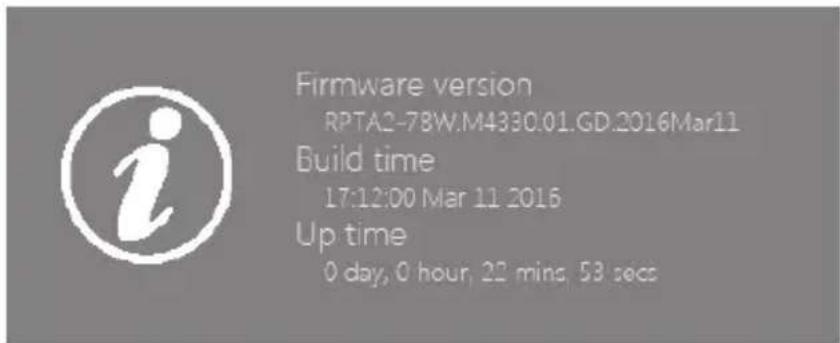
The firmware version used, the creation date (build time) of the installed firmware version and the operating time (up time) since the dual-band wifi range extender was last switched on are displayed here. Click on the "State" icon to display additional information. Detailed information on the system, network and wireless network is then displayed.
Environmental and disposal information

natural_image
Symbol of a trash bin crossed with no text or numbers, representing waste sorting or disposal (no text present)When this symbol appears on a product, this indicates that the product is subject to the European Directive 2012/19/EU. All electrical and electronic devices must be disposed of separately from household waste at designated disposal points. Disposal of old devices in this manner will prevent harm to the environment and human health hazards. For further information regarding disposal of old devices in accordance with the directive, contact your local authorities, waste disposal office or the shop where you bought the device.
Dispose of the packaging in an environmentally compatible manner. Cardboard can be put out for municipal paper collections or brought to public collection points for recycling. Films and plastic used for packaging the device are collected by your local disposal services and disposed of in an environmentally compatible manner.
Conformity information

This device meets the basic requirements and other relevant regulations of the R&TTE Directive 1999/5/EC, the ErP Directive 2009/125/EC as well as the RoHS Directive 2011/65/EU. To obtain a complete EU Declaration of Conformity, send an e-mail to the following e-mail address: ce@targa.de
Troubleshooting
You can solve most problems yourself using the following table. If the problem still persists after you have worked through these approaches, contact our service hotline (see page 327). Do not perform any repairs personally!
The Power/WPS LED (4) does not light up.
- Check whether the main switch (10) is in the "ON" position.
- Socket defective or fuse tripped; use another device to check the socket.
No wireless connection to the wireless router
- The distance to the wireless router is too great, thus reduce it.
- The router's wireless function is disabled; enable the wireless function.
No LAN connection
- Check whether the network cable is inserted correctly into the WAN/LAN socket (6) or LAN socket (7) of the dual-band wifi range extender and into the LAN socket of your end device.
Connection with the WPS button fails
- Establish the connection with the WPS button again.
- Reset the dual-band wifi range extender to its original condition. To do so, press the Reset button (5) for approximately 3 seconds with a sharp object and then release it again. The LEDs then briefly go out and this will reboot the dual-band wifi range extender. The dual-band wifi range extender requires a certain amount of time (boot time) before it is ready to use. Wait for approximately before using the dual-band wifi range extender. Then establish the connection with the WPS button again.
- Eliminate sources of interference between the dual-band wifi range extender and the wireless router.
- The distance between the dual-band wifi range extender and the wireless router is too great, thus reduce it.
The configuration menu of the dual-band wifi range extender is not shown.
- The address http://repeater.setup was entered into the address line of the Internet browser incorrectly; check and correct the entry.
- The configuration of the dual-band wifi range extender is incorrect. Reset the dual-band wifi range extender to its original condition. To do so, press the Reset button (5) for approximately 3 seconds with a sharp object and then release it again. The LEDs then briefly go out and this will reboot the dual-band wifi range extender. The dual-band wifi range extender requires a certain amount of time (boot time) before it is ready to use. Wait for approximately 30 seconds before using the dual-band wifi range extender.
- Please check whether the network connection between the end device and the dual-band wifi range extender is established correctly. Note that the network is disconnected after the configuration in the menu. Your system requires a brief period to restore the network connection.
Warranty and servicing advice
Warranty of TARGA GmbH
This device is sold with three years warranty from the date of purchase. Please keep the original receipt in a safe place as proof of purchase. Before using your product for the first time, please read the enclosed documentation. Should any problems arise which cannot be solved in this way, please call our hotline. Please have the article number and, if available, the serial number to hand for all enquiries. If it is not possible to solve the problem on the phone, our hotline support staff will initiate further servicing procedures depending on the fault. Within the warranty period the product will be repaired or replaced free of charge as we deem appropriate. No new warranty period commences if the product is repaired or replaced. Consumables such as batteries, rechargeable batteries and lamps are not covered by the warranty.
Your statutory rights towards the seller are not affected or restricted by this warranty.

Service

Phone: 020 - 70 49 04 03
E-Mail: service.GB@targa-online.com

Phone: 01-4370121
E-Mail: service.IE@targa-online.com

Phone: 027 78 11 03
E-Mail: service.MT@targa-online.com

Phone: 02 - 20 09 025
E-Mail: service.CY@targa-online.com
IAN: 274206

Manufacturer
TARGA GmbH
Coesterweg 45
59494 SOEST
GERMANY
- Inhalt
- SilverCrest SWV 733 A1
- - English
- Introduction
- Intended use
- Supplied items
- Overview
- Safety instructions
- Operating environment
- DANGER! Ensure that
- DANGER! Operational safety
- DANGER! Children and persons with disabilities
- DANGER! It poses a suffocation risk.
- DANGER! Radio interface
- WARNING! Cables
- WARNING! Maintenance / cleaning
- Storage when not in use
- Copyright
- Prior to use
- Repeater
- Client
- Access Point (AP)
- Initial use
- Setting mode
- Repeater mode
- WPS - The easiest type of configuration
- Manual configuration
- Client mode
- Access Point (AP) mode (Router mode)
- WPS - Connect to the AP (Router mode)
- Manual connection to the AP
- Configuration menu of the dual-band wifi range extender
- Wizard
- State
- 2.4G SSID
- AC/5G SSID
- Router
- Channel
- Security
- Clients
- IP address
- Internet
- Wifi (Wireless)
- Basic settings
- Wireless ON/OFF
- SSID
- Encryption type
- Wifi channel
- Wifi power
- 2.4G and AC/5G Advanced settings
- WPS settings
- Enable WPS
- Register WPS
- Status
- WAN settings
- Apply
- Cancel
- LAN settings
- DHCP
- Management
- Password settings
- Time zone settings
- Save/reload settings
- LED switch
- Upgrade firmware
- Environmental and disposal information
- Conformity information
- Troubleshooting
- The Power/WPS LED (4) does not light up.
- No wireless connection to the wireless router
- No LAN connection
- Connection with the WPS button fails
- The configuration menu of the dual-band wifi range extender is not shown.
- Warranty and servicing advice
- Warranty of TARGA GmbH
- Service
- IAN: 274206
- Manufacturer
Brand : SILVERCREST
Model : SWV 733 A1
Category : Wi-Fi repeater