
SWR 300 A1 - Wi-Fi repeater SILVERCREST - Free user manual and instructions
Find the device manual for free SWR 300 A1 SILVERCREST in PDF.


| Product Type | Wi-Fi Range Extender / Repeater |
| Brand | SilverCrest |
| Model | SWR 300 A1 |
| Frequency Band | 2.4 GHz |
| Wireless Standard | IEEE 802.11 b/g/n |
| Max Transfer Rate | 300 Mbps |
| Security Encryption | WEP, WPA, WPA2 |
| Interface | 1 x 10/100 Mbps Ethernet (LAN) port |
| Antennas | 2 x external fixed antennas |
| Power Supply | 5 V DC, 1 A (via micro USB) |
| Dimensions (W x H x D) | 78 x 110 x 42 mm |
| Weight | Approx. 120 g |
| Operating Temperature Range | 0 °C to 40 °C |
| LED Indicators | Power, LAN, WLAN, WPS |
| Buttons | WPS button, Reset button |
| Maintenance & Cleaning | Use a soft dry cloth; do not use liquids or cleaning agents |
| Safety Precautions | Do not expose to water or moisture; use only the supplied power adapter |
| Spare Parts & Repairability | No user-serviceable parts; contact qualified service for repairs |
| General Information | Designed for home and office use to extend Wi-Fi coverage |
Frequently Asked Questions - SWR 300 A1 SILVERCREST
User questions about SWR 300 A1 SILVERCREST
0 question about this device. Answer the ones you know or ask your own.
Ask a new question about this device
Download the instructions for your Wi-Fi repeater in PDF format for free! Find your manual SWR 300 A1 - SILVERCREST and take your electronic device back in hand. On this page are published all the documents necessary for the use of your device. SWR 300 A1 by SILVERCREST.
USER MANUAL SWR 300 A1 SILVERCREST
User manual and service information
PT
Repetidor WLAN
Safety instructions 56
Operating environment 56
Operational safety....57
Cables 57
Children and persons with disabilities....58
Radio interface....58
Storage when not in use....59
Overview 59
First use 59
Configuring the wireless repeater with the WPS function 60
Configuring the wireless repeater manually using a LAN connection 60
Opening the configuration menu....61
Setting the menu language 61
Configuring Wireless Repeater Mode 64
Meaning of the LEDs 65
Advanced Settings 66
Home 66
Network....68
Wireless....69
Management....72
Status 74
Troubleshooting....76
Cleaning / maintenance....77
Environmental and disposal information 78
Conformity remarks 78
Warranty and servicing advice....79
Introduction
Thank you for purchasing the SilverCrest SWR 300 A1 wireless repeater. The SilverCrest SWR 300 A1 increases the range of an existing wireless network. The integrated WPS function enables it to be easily connected to a secured wireless network.
Intended use
This is an information technology device. It increases the range of an existing wireless network. It is only designed for private use and not for industrial or commercial purposes. Furthermore, the device may not be used outdoors or in tropical climates. This device meets all relevant norms and standards in conjunction with CE conformity. In the event of any modification to the device that was not approved by the manufacturer, compliance with these standards is no longer guaranteed. The manufacturer does not accept any liability for any resulting damage or faults in such cases. Since a standby mode would affect the intended operation, this function was not implemented. Please observe the regulations and laws in the country of use.
Supplied items
• SilverCrest SWR 300 A1 wireless repeater
- Network cable
• This instruction manual
Technical data
| Input voltage 100-240 V | ~, 50/60 Hz |
| Rated input current 50 mA | |
| WLAN standards 802.11 b, 802.11 g, 802.11 n | |
| Frequency 2.4 GHz | |
| Encryption WPA, WPA2, WEP (128/64) | |
| Dimensions (W x H x D) approx. 8 x 5.2 x 9.5 cm | |
| Weight 106 g | |
| Temperature, air humidity 5 to 35 °C; max. 85% rel. humidity | |
Safety instructions
Before using the device for the first time, please read the following instructions carefully even if you are familiar with using electronic devices. Store these instructions in a safe place for future reference. If you pass on the device to someone else, be sure to always include these instructions.

This symbol indicates important information for safe operation of the device and the safety of the user.

This symbol indicates other important information on the topic.
Operating environment
The device is not designed for use in environments with a high temperature or humidity (e.g. bathrooms) or in extremely dusty conditions. Operating temperatures and operating air humidity: 5 °C to 35 °C, max. 85% rel. air humidity.
Please always maintain the device at a minimum distance of 20cm from the body to avoid exposure to radio radiation.

Ensure that
- no direct heat sources (e.g. heating) can affect the device;
- no direct sunlight or bright artificial light reaches the device;
- the device is not in the immediate vicinity of magnetic fields (e.g. speakers);
- no fire sources (e.g. burning candles) are placed on or near the device;
- no foreign objects penetrate the device;
- contact with sprayed and dripping water and corrosive liquids is prevented and the device is never operated near water; in particular it should never be immersed (do not place any objects filled with liquids such as vases or drinks on or near the device);
- the device is not subjected to any extreme temperature fluctuations, as this may result in moisture caused by condensation and therefore a short circuit;
- the device is never subjected to excessive shocks and vibrations;

Operational safety
- Only connect the wireless repeater to a freely accessible mains socket so that it can be quickly disconnected from the mains in the event of danger (smoke, fumes or smell of burning).
- Disconnect the wireless repeater from the mains if the device will not be used for a prolonged period (e.g. during holidays). Even if the device is not being used, it consumes electricity. This minimises the risk of fire or smouldering which always exists when an electrical device is connected to the mains power supply.
- Always disconnect the wireless repeater from the mains power supply before a storm or thunderstorm if there is the risk of lightning, as the wireless repeater can be irreparably damaged by high voltage surges if lightning strikes.
- Never use any adapter plugs or extension cables which are damaged or which do not comply with valid safety standards.

Cables
Always handle the cables by the connector and do not pull on the cables themselves. Never place furniture or other heavy objects on the cable and take care that the cable is not kinked, especially near the plug and connection sockets. Never make knots in any of the cables or tie them together
with other cables. Ensure that all cables are placed so that no one can trip over them and they do not cause an obstruction.

Children and persons with disabilities
Electrical devices do not belong in the hands of children. Persons with disabilities should also only use electrical devices appropriately. Never allow children or persons with disabilities to use electrical devices unsupervised. They may not recognise potential risks. Small parts can be fatal if swallowed. Also always keep plastic packaging out of reach as it poses a suffocation risk.

Radio interface
Do not use the device on aircraft, in hospitals, operating rooms or in the vicinity of medical electronic systems. The transmitted radio waves can impair the functionality of sensitive devices. Keep the device at least 20cm away from any pacemakers since the proper functioning of the pacemaker can be impaired by radio waves. The transmitted radio waves can cause interference in hearing aids. Do not place the device in the vicinity of flammable gases or in an explosion-hazard environment (e.g. paint shop) when the radio components are switched on since the transmitted radio waves can cause an explosion or a fire. The range of the radio waves is dependent on conditions in the surrounding environment. In case of data traffic via a wireless connection, it is also possible for unauthorised third parties to receive data. Targa GmbH is not responsible for radio or television interference caused by unauthorised changes to this device. In addition, Targa assumes no responsibility for the replacement or exchange of connecting lines and devices not indicated by Targa GmbH. Only the user himself is responsible for the elimination of interference caused by such unauthorised changes and for the replacement or exchange of the devices.
Storage when not in use
If the device will not be used for a long period of time, disconnect the wireless repeater from the mains power supply. Ensure that the storage temperature remains between -20 °C and 60 °C. The humidity should not exceed 90% rel. air humidity.
Please note: the temperature range and relative air humidity for storage and use are quite different; please see the information in the "Operating environment" section.
Overview

1 Power LED
2 WLAN LED
3 WPS LED
4 L A N L E D
5 WPS button
6 L A N s o c k e t
7 Reset button
First use
Plug the wireless repeater into a properly installed power socket. The optimal position for the wireless repeater is exactly in the middle between your router and the wireless devices which are to be connected to the network using the wireless repeater. Test other locations if the wireless repeater does not work there. There are two different ways to configure the wireless repeater. If your router supports WPS, you can use this simple function to easily install the wireless repeater. If you wish to use a router without a WPS function, you can connect the wireless repeater to your computer and configure it using a LAN connection.
Configuring the wireless repeater with the WPS function
This is the simplest way to configure the wireless repeater. First check if your router supports WPS. For further details, please read your router's user manual. Then simply press the WPS button (5) on the wireless repeater. The WPS LED (3) will now flash for approx. 2 minutes. During this period, please activate the WPS function on your router. The wireless repeater will automatically connect to your router and carry out the complete set-up. The wireless repeater can then be used. The wireless repeater can now be accessed using the SSID and password of your router.

By using WPS, WDS (Wireless Distribution System) is activated as standard as long as this is supported by your router.
Multiple Wireless Access Points can be connected together using WDS (Wireless Distribution System) in order to achieve larger network coverage.

It is possible to configure multiple repeaters. These should be configured one after the other.
If your router does not support WPS, you can also configure the wireless repeater manually.
Configuring the wireless repeater manually using a LAN connection
You can also configure the wireless repeater using a network cable. Connect the network cable to the LAN socket (6) of the wireless repeater. Insert the other end of the network cable into a free LAN socket on your computer.
The following describes the set-up in Windows ^® 7. The settings in other operating systems may differ. To be able to establish a connection to the wireless repeater, your computer must automatically obtain the IP address. Proceed as follows:
- Turn on your computer.
- Click on Start | Control Panel | View network status and tasks | LAN connection | Properties | Internet Protocol Version 4 (TCP/IPv4) | Properties.
- Select Obtain an IP address automatically and click on OK.
- Then close all opened windows.
Opening the configuration menu
The following describes the set-up in Windows ^® 7. The settings in other operating systems may differ. Open the Internet browser on your computer. Enter http://192.168.10.1 in the address line of the Internet browser and confirm the entry with the Enter button.
The following window will open. Enter admin as user name and password and then click on OK. The configuration menu of the wireless repeater will then open.


If the user name and password window does not open hold down the reset button (7) for at least 10 seconds and repeat the procedure described above.
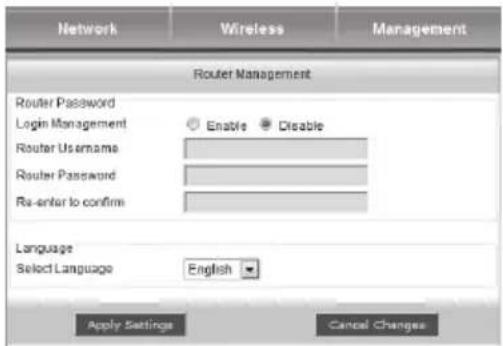
Setting the menu language
The default menu language is English. Proceed as follows to change the menu language:
Select the Management tab. Select the desired language under Select Language. Finally click on Apply Settings to confirm the settings.
Configuring WAP mode
WAP mode (Wireless Application Protocol) is used to extend your network or to make your network available in another location.
Set up WAP mode as follows:
- Plug the wireless repeater into a suitable power socket.
- Connect a network cable to the LAN socket (6) of the wireless repeater. Insert the other end of the network cable into a free LAN socket on your computer.
- Click on Wizard on the Home page of the wireless repeater's configuration menu and select WAP mode. Then click on Next.

- Here you can determine the SSID (network name) and the Security mode. In Security mode, select the desired form of encryption (WPA, WPA2 or WPA/WPA2 mixed). If the encryption is activated, the password must be entered.


You can specify the SSID of the router and thereby extend the network or set-up an independent Access Point. When entering the router's SSID, ensure that this corresponds to the encryption of the router.
- Click on Save to save the settings entered.
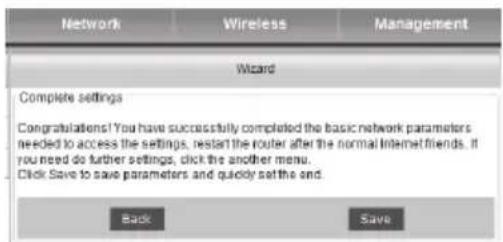
- The wireless repeater will then restart. Wait approx. 30 seconds, then the wireless repeater will be ready to use.
- Disconnect the network cable from your computer and connect it to a free LAN port on your router.
- The wireless repeater is now accessible using the assigned SSID.
Configuring Wireless Repeater Mode
Wireless Repeater Mode is used to extend the range of your wireless network. Set up Wireless Repeater Mode as follows:
- Plug the wireless repeater into a suitable power socket.
- Connect a network cable to the LAN socket (6) of the wireless repeater. Insert the other end of the network cable into a free LAN socket on your computer.
- Click on Wizard on the Home page of the wireless repeater's configuration menu and select Wireless Repeater Mode. Then click on Next.
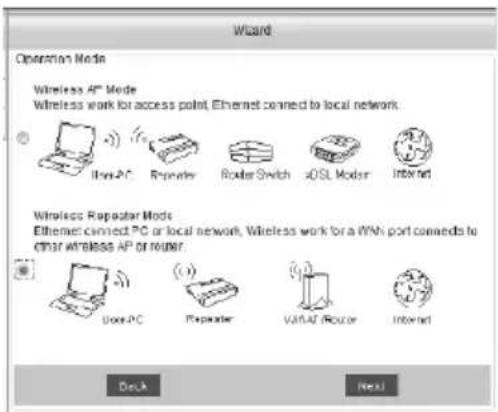
- A window with all available wireless networks will then open. Select the network whose range you wish to extend in the Select column and enter the password of the selected network in the Key column. Then click on Next.
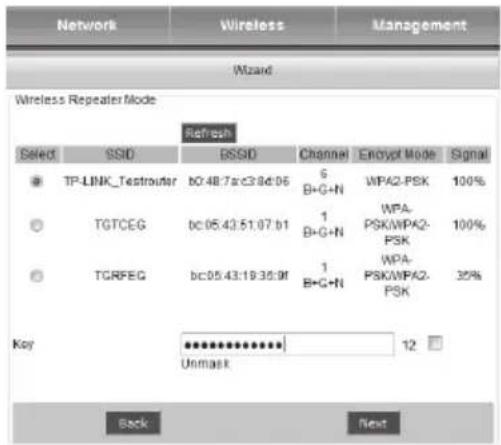
- Click on Next in the new window.
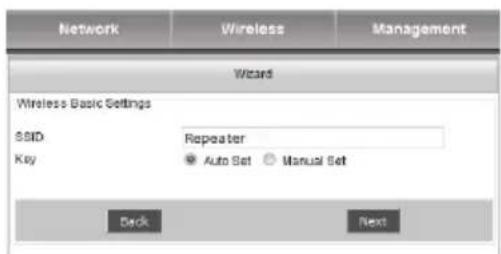
- Click on Save to save the settings entered.
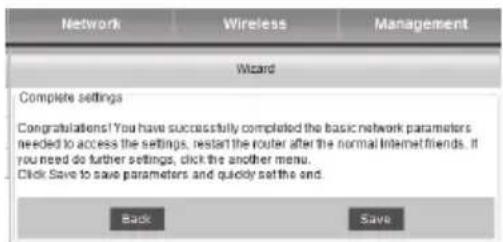
- The wireless repeater will then restart. Wait approx. 30 seconds, then the wireless repeater will be ready to use. If you carried out the configuration using a network cable, this can now be removed.
- The wireless repeater is now accessible using the selected SSID.
Meaning of the LEDs
Power LED (1) This LED will light up if the device is drawing power.
WLAN LED (2) This LED will permanently light up if there is a connection; the LED will flash on data transfer.
WPS LED (3) If the WPS button (5) is pressed, this LED will flash for the period when a connection is sought (approx. 2 minutes).
LAN LED (4) This LED will permanently light up if there is a LAN connection; the LED will flash on data transfer.
Advanced Settings

Please note that the following advanced settings in this chapter should only be used by experienced users.
Open the configuration menu to navigate to the advanced settings. Pay special attention to the "Opening the configuration menu" section.
Home
Status
Here you can display the status of the LAN, wireless network and Repeater AP SSID.
| Home | Network | Wireless | Management | Status |
| Home | Status | Help | ||
| Status | LAN Status | |||
| IP Address | 192.168.10.1 | |||
| Wizard | Subnet Mask | 255.255.255.0 | ||
| Gateway | 192.168.10.1 | |||
| Lougout | MAC Address | 00:23:13:01:8a.92 | ||
| ← | Wireless Network[ Repeater ] | |||
| SSID | Repeater | |||
| MAC Address | 00:00:00:00:00:00 | |||
| Wireless Network | Enabled | |||
| Wireless Mode | Infrastructure Client | |||
| Network Mode | 2.4 GHz (B+G+N) | |||
| Channel | 5 | |||
| Security Mode | Disabled | |||
| PIN | 01010107 | |||
| Status | Scanning... | |||
| Repeater AP SSID[ RepeaterAP ] | ||||
| SSID | RepeaterAP | |||
| MAC Address | 00:00:00:00:00:00 | |||
| Security Mode | Disabled | |||
| Status | Disabled | |||
Wizard
We recommend that you use the wizard for the set-up. Click on Next to start the wizard. Further information can be found in the sections "Configuring WAP mode" and "Configuring Wireless Repeater Mode".

Help information relevant to the topic is usually displayed in the "Help" column on the right-hand side.
| Home | Network | Wireless | Management | Status |
| Home | Wizard | Help | ||
| Status | Welcome!Thank you for using 11N Wireless Broadband Router.If you have knowledge or routers on the network are not familiar, you can easily follow the prompts to complete the setup. If you are an expert, you can also go directly to the menu item, select the network you need to modify the parameters set.This wizard helps you quickly set the router's operating mode and the basic parameters. Next | |||
| Wizard | ||||
| Lougout | ||||
Logout
Click on Logout to exit the configuration menu.
| Home | Network | Wireless | Management | Status |
| Home | Lougout | Help | ||
| Status | LougoutDo you want to logout ? | |||
| Wizard | ||||
| Lougout | Logout | |||
Network
LAN settings
In the LAN settings, you can enter or change the IP address, the subnet mask, the gateway and the DHCP settings. To save the settings, click on Apply Settings. If the settings are not to be applied, click on Discard Changes.
| Home | Network | Wireless | Management | Status |
| Network | LAN Settings | Help | ||
| LAN Settings | Router IP Local IP address 192.168.10.1 Local IP address The router's IP address on the LAN. Subnet Mask 255.255.255.0 Gateway 192.168.10.1 | Local IP address: The router's IP address on the LAN. Subnet Mask : The router's subnet mask, default is 256.266.266.0. Note: If you change the Local IP address, then you must use the new IP address to log in the router WEB. | ||
| Network Address Server Settings (DHCP) DHCP Type DHCP Server Start IP Address 192.168.10.100 End IP Address 192.168.10.200 Lease time 480 Minutes | ||||
| Apply Settings Cancel Changes | ||||
Wireless
Basic Settings
The basic settings for the wireless can be configured here. To save the settings, click on Apply Settings. If the settings are not to be applied, click on Discard Changes.
| Home | Network | Wireless | Management | Status | |||||||
| Wireless | Basic Settings | Help | |||||||||
| Basic Settings | Wireless Basic Settings | \SID: Wireless LAN login name for authentication, only authenticated users can access the wireless network. Channel: Wireless data transmission channel. If you select Automatic, AP will automatically select the best channel! Broadcast \ SID: If enabled the wireless router will broadcast the SSID. Repeater AP \$ SID: Enable Repeater function, You can connect other wireless AP access the Internet. Apply Settings Cancel Changes | |||||||||
| Wireless Security | Enable Wireless Enable Disable Network Mode 2.4 GHz (B+G+N) | ||||||||||
| MAC Filter | Wireless Mode Client | ||||||||||
| Advanced Settings | Client SSID Repeater | ||||||||||
| WDS | Scan | Close | |||||||||
| WPS | Select SSID BSSID Channel Encrypt Mode Signal Channel Width 40MHz Control Sideband Upper Channel Auto Broadcast SSID Enable WMM Enable Rate Auto Repeater AP SSID RepeaterAP | ||||||||||
Wireless Security
You can configure the settings for the wireless security in this menu. To save the settings, click on Apply Settings. If the settings are not to be applied, click on Discard Changes.
| Home | Network | Wireless | Management | Status |
| Wireless | Wireless Security | Help | ||
| Basic Settings | Wireless network security settings | Security Mode: You may choose from Disable, WEP, WPA Personal, WPA2 Personal. All devices on your network must use the same security mode. | ||
| Wireless Security | SSID [Client] - Repeater | |||
| Security Mode | Disable | |||
| MAC Fitter | ||||
| Advanced Settings | Apply Settings | Cancel Changes | Key: WEP:5/13 bits (0~0 / a~z) or 10/28 bits (0~9 / a~f) PSK Key:Must be 8 to 63 characters (0 ~ 9 / a ~ z) or 64-bit characters (0 ~ 9 / a ~ f). | |
| WDS | ||||
| WPS | ||||
MAC Filter
To increase the security of your network, you can activate the Access Control here. When Access Control is activated, only clients whose wireless MAC addresses are entered in the Access Control list can connect to your access point. To save the settings, click on Apply Settings. If the settings are not to be applied, click on Discard Changes.
| Home | Network | Wireless | Management | Status |
| Wireless | MAC Filter | Help | ||
| Basic Settings | Wireless Access Control SettingsEnable Access Control ☐ Enable ☑ Disable | Wireless Access Control:If you choose Allowed Listed, onlythose clients whose wireless MACaddresses are in the access controllist will be able to connect to yourAccess PointWhen Deny Listed is selected,these wireless clients on the list willnot be able to connect the AccessPoint. | ||
| Wireless Security | ||||
| MAC Filter | Apply Settings | Cancel Changes | ||
| Advanced Settings | ||||
| WDS | ||||
| WPS | ||||
Advanced Settings
You can configure advanced settings for the wireless here. To save the settings, click on Apply Settings. If the settings are not to be applied, click on Discard Changes.
| Home | Network | Wireless | Management | Status | |
| Wireless | Advanced Settings | Help | |||
| Basic Settings | Advanced SettingsFragment Threshold | 2346(256-2346)RTS Threshold | 2347(0-2347)Beacon Interval100(20-1024 Millisecond)Preamble TypeLongShortIAPPEnableDisableProtectionEnableDisableAggregationEnableDisableShort GIEnableDisableWLAN PartitionEnableDisableSTBCEnableDisable20/40MHz CoexistEnableDisableRF Output Power120%100%50% | RTS Threshold:Specified for the data packet RTS threshold, when RTS packet length exceeds the threshold. the router will send a RTS to the destination site for consultation.Beacon Interval:Beacon frame transmission interval.Short GI:Enable Short GI, can make the router has a higher data transfer rate.RF Output Power:Set the wireless transmission power. | |
| Wireless Security | |||||
| MAC Filter | |||||
| Advanced Settings | |||||
| WDS | |||||
| WPS | |||||
WDS
Multiple Wireless Access Points can be connected together using WDS (Wireless Distribution System) in order to achieve larger network coverage. To save the settings, click on Apply Settings. If the settings are not to be applied, click on Discard Changes.
| Home | Network | Wireless | Management | Status |
| Wireless | WDS | Help | ||
| Basic Settings | WDS SettingsEnable WDS ☐ Enable ☑ Disable | |||
| Wireless Security | ||||
| MAC Filler | Apply Settings Cancel Changes | |||
| Advanced Settings | ||||
| WDS | ||||
| WPS | ||||
WPS
The configuration via WPS, using the WPS button on the device, is described in the section "Configuring the wireless repeater with the WPS function". Here you can see the settings and configure them via the menu. To save the settings, click on Apply Settings. If the settings are not to be applied, click on Discard Changes.
| Home | Network | Wireless | Management | Status |
| Wireless | WPS | Help | ||
| Basic Settings | Wi-Fi Protected SetupEnable WPS Enable Disable | Wi-Fi Protected Setup:You can choose PBC to connection. If there are any problems in connecting, you can press Reset to UnConfigured button to clear the configuration and then try to connect. | ||
| Wireless Security | ||||
| MAC Filter | Client Wi-Fi Protected SetupPBC Push Button Configuration(PBC)PIN 01010107Start PIN | |||
| Advanced Settings | ||||
| WDS | ||||
| WPS | AP Wi-Fi Protected SetupReset to UnConfiguredPBC AP Push Button Configuration(PBC)Client PIN Number Start PIN | |||
| WPS statusStatus WPS not startedStop Wps | ||||
| Apply Settings Cancel Changes | ||||
Management
Router Management
Here you can configure the access to the Web server of the wireless repeater. If no user name or password is entered, the access is deactivated as a security precaution.
You can also change the language of the configuration menu. To do so, select the desired language.
To save the settings, click on Apply Settings. If the settings are not to be applied, click on Discard Changes.
| Home | Network | Wireless | Management | Status |
| Management | Router Management | Help | ||
| Router Management | Router Password Login Management | Enable Disable | Router Password: Set security password for access the router web server. If user name and password is empty then will turn off access to safe landing. | |
| Factory Defaults | ||||
| Firmware Upgrade | Router Username | |||
| Backup/Restore | Router Password | |||
| Re-enter to confirm | ||||
| Raboot | Language Select Language English | |||
| Apply Settings Cancel Changes | ||||
Factory settings
This function restores the wireless repeater to its original condition. To reset the settings, you must set the item "Restore factory defaults" to Yes and save this setting by clicking on Apply Settings.
| Home | Network | Wireless | Management | Status |
| Management | Factory Defaults | Help | ||
| Router Management | Reset router settings Restore Factory Defaults Yes No | |||
| Factory Defaults | ||||
| Firmware Upgrade | Apply Settings | Cancel Changes | ||
| Backup/Restore | ||||
| Reboot | ||||
Firmware Upgrade
To carry out a firmware upgrade, first click on Browse... to select a firmware file which is to be copied to the wireless repeater. Click on Upgrade to start the firmware upgrade.
| Home | Network | Wireless | Management | Status |
| Management | Firmware Upgrade | Help | ||
| Router Management | Firmware ManagementFirmware VersionPlease select a tile to upgrade | Silvercrest.v2.0907 | Browse... | Firmware Management:Click on the Browse... button to select the firmware file to be upcaded to the router.Click the Upgrade button to begin the upgrade process. Upgrade must not be interrupted. |
| Factory Defaults | ||||
| Firmware Upgrade | ||||
| Backup/Restore | Upgrade | |||
| Reboot | ||||
Backup/Restore
With this function, you can back up the current configuration of the wireless repeater or restore a saved configuration. The procedure is described in detail in the "Help" column.
| Home | Network | Wireless | Management | Status |
| Management | Backup/Restore | Help | ||
| Router Management | Backup SettingsClick the Backup button to download the configuration backup file to your computer. | Backup Settings:You may backup your current configuration in case you need to reset the router back to its factory default settings.Click the Backup button to backup your current configuration. | ||
| Factory Defaults | ||||
| Firmware Upgrade | Backup | |||
| Backup/Restore | Restore ConfigurationPlease select a file to restoreBrowse...Restore | Restore Configuration:Click the Browse... button to browse for a configuration file that is currently saved on your PC.Click the Restore button to overwrite all current configurations with the ones in the configuration file. | ||
| Robot | ||||
Reboot
There are two ways to reboot the wireless repeater.
Click on Reboot so that the entire configuration is first saved before rebooting the wireless repeater with the saved configuration.
If you click on Reboot Router, the wireless repeater is rebooted without first saving the configuration. The settings that were saved last are loaded.
| Home | Network | Wireless | Management | Status |
| Management | Reboot | Help | ||
| Router Management | Application RestartClick Reboot button, The router will save all the configuration, and takes effect. | |||
| Factory Defaults | ||||
| Firmware Upgrade | Reboot | |||
| Backup/Restore | ||||
| Reboot | Router RebootClick Reboot Router button, the router will restart. | |||
| Reboot Router | ||||
Status
System
Here you can display the system status.
| Home | Network | Wireless | Management | Status |
| Status | System | Help | ||
| System | System | |||
| Router Model | Silvercrest SWR 300 A1 | |||
| LAN | Firmware Version | Silvercrest.v2.0907 | ||
| Wireless | Version Time | Fri Sep 7 17:57:51 CST 2012 | ||
| Current Time | Thu Oct 18 02:44:15 PDT 2012 | |||
| Uptime | 0day:2h:49m:44s | |||
| CPU | ||||
| CPU Model | RealTek | |||
| CPU Clock | 400MHz | |||
| Memory | ||||
| Total Available | 16000 KB | |||
| Free | 3512 KB | |||
| Used | 12488 KB | |||
| Buffers | 584 KB | |||
| Cached | 3128 KB | |||
| Active | 2152 KB | |||
| Inactive | 2468 KB | |||
LAN
Under LAN Status, information about the LAN settings is displayed as well as the received or sent packets.
| Home | Network | Wireless | Management | Status |
| Status | LAN | Help | ||
| System | LAN Status | |||
| MAC Address | 00.23.13.01.8a.92 | |||
| LAN | IP Address | 192.168.10.1 | ||
| Wireless | Subnet Mask | 255.255.255.0 | ||
| Gateway | 192.168.10.1 | |||
| Received Packets | 2104 OK | |||
| Sent Packets | 1608 OK | |||
| DHCP Status | ||||
| DHCP Server | Enabled | |||
| IP Address | MAC Address | Release Time | ||
| — | — | — | ||
Wireless
The wireless status is displayed in this view.
| Home | Network | Wireless | Management | Status |
| Status | Wireless | Help | ||
| System | Wireless Network[ Repeater ] | |||
| SSID | Repeater | |||
| LAN | MAC Address | 00:00:00:00:00:00 | ||
| Wireless Network | Enabled | |||
| Wireless | Wireless Mode | Infrastructure Client | ||
| Network Mode | 2.4 GHz (B+G+N) | |||
| Channel | 12 | |||
| Security Mode | Disabled | |||
| Status | Scanning... | |||
| Received Packets | 116706 OK | |||
| Sent Packets | 204127 OK | |||
| Repeater AP SSID[ RepeaterAP ] | ||||
| SSID | RepeaterAP | |||
| MAC Address | 00:00:00:00:00:00 | |||
| Security Mode | Disabled | |||
| Status | Disabled | |||
| Received Packets | 0 OK | |||
| Sent Packets | 0 OK | |||
Troubleshooting
The Power LED (1) does not light up.
- Socket defective or fuse tripped; check the socket with another device.
The configuration menu of the wireless repeater is not shown.
- The IP address http://192.168.10.1 was entered into the address line of the Internet browser incorrectly; check and correct the entry.
-
The wireless repeater has already been configured and is using another IP address. To be able to establish a connection to the wireless repeater, the IP address of your computer must be changed. Proceed as follows:
-
Turn on your computer.
- Click on Start | Control Panel | View network status and tasks | LAN connection | Properties | Internet Protocol Version 4 (TCP/IPv4) | Properties.
- Now select Use the following IP
address and enter an IP address between 192.168.10.100 and
192.168.10.200 (for example,
192.168.10.101). Now enter the IP
address 255.255.255.0 under
Subnet Mask and click on OK.

- Then close all opened windows.
- The wireless repeater has already been configured and is using another IP address. Reset the wireless repeater to the factory default settings. Hold down the reset button (7) for at least 10 seconds until the LEDs briefly go out and then come on again.
There is no wireless connection established between the router and the wireless repeater.
- The wireless repeater is too far away from the router; reduce the distance.
- The router's wireless function is deactivated; activate the wireless function.
- The wireless repeater's configuration is incorrect; reconfigure the wireless repeater, preferably with the WPS function.
No wireless connection can be established between the computer and the wireless repeater.
- The computer is too far away from the wireless repeater; reduce the distance.
- The computer's wireless function is deactivated; activate the wireless function.
Cleaning / maintenance
It is necessary to service the device if it has been damaged in any way, for example, if the housing is damaged, if liquid or objects have penetrated the device or if the product has been exposed to rain or moisture. Maintenance work is also necessary if the device is not working correctly or has been dropped. If smoke is produced, or there are any unusual sounds or smells, disconnect the device from the mains immediately. In such cases, the device should not be used until it has been inspected by authorised service personnel. Only let qualified personnel carry out the maintenance work on the device. Never open the housing of the device. There is the risk of a fatal electric shock when the housing is open. Only use a clean, dry cloth for cleaning and never use any corrosive liquids.
Environmental and disposal information

When the crossed out wheelie bin symbol appears on a product, this indicates that the product is subject to the European Directive 2002/96/EC.
All old electrical and electronic devices must be separated from normal household waste and disposed of at designated state facilities. The correct disposal of old devices in this manner will prevent environmental pollution and human health hazards.
For further information about proper disposal, contact your local authorities, waste disposal office or the shop where you bought the device.
Dispose of the packaging in an environmentally compatible manner. Cardboard can be put out for municipal paper collections or brought to public collection points for recycling. Films and plastic used for packaging the device are collected by your local disposal services and disposed of in an environmentally compatible manner.
Conformity remarks

This device meets the basic requirements and other relevant regulations of the R&TTE Directive 1999/5/EC and the ErP Directive 2009/125/EC as well as the RoHS Directive 2011/65/EU. The complete Declaration of Conformity is available on request.
Warranty and servicing advice
Warranty of Targa GmbH
This device is sold with three years warranty from the date of purchase. Please keep the original receipt in a safe place as proof of purchase. Before using your product for the first time, please read the enclosed documentation or online help. Should any problems arise which cannot be solved in this way, please call our hotline. Please have the article number and, if available, the serial number to hand for all enquiries. If it is not possible to solve the problem on the phone, our hotline support staff will initiate further servicing procedures depending on the fault. Within the warranty period the product will be repaired or replaced free of charge as we deem appropriate. No new warranty period commences if the product is repaired or replaced. Consumables such as batteries, rechargeable batteries and lamps are not covered by the warranty.
Your statutory rights towards the seller are not affected or restricted by this warranty.

Service

Phone: 0207-36 50 744
E-Mail: service.GB@targa-online.com

Phone: 01 - 242 15 83
E-Mail: service.IE@targa-online.com

Phone: 800 - 62 175
E-Mail: service.MT@targa-online.com

Phone: 800 - 92 496
E-Mail: service.CY@targa-online.com
IAN: 73766

Manufacturer
TARGA GmbH
Postfach 22 44
D-59482 Soest
www.targa.de
Inhaltsverzeichnis
Einleitung....81
Version 2, June 1991
Copyright (C) 1989, 1991 Free Software Foundation, Inc.
51 Franklin Street, Fifth Floor, Boston, MA 02110-1301, USA
Everyone is permitted to copy and distribute verbatim copies
of this license document, but changing it is not allowed.
Preamble
The licenses for most software are designed to take away your freedom to share and change it. By contrast, the GNU General Public License is intended to guarantee your freedom to share and change free software—to make sure the software is free for all its users. This General Public License applies to most of the Free Software Foundation's software and to any other program whose authors commit to using it. (Some other Free Software Foundation software is covered by the GNU Lesser General Public License instead.) You can apply it to your programs, too.
When we speak of free software, we are referring to freedom, not price. Our General Public Licenses are designed to make sure that you have the freedom to distribute copies of free software (and charge for this service if you wish), that you receive source code or can get it if you want it, that you can change the software or use pieces of it in new free programs; and that you know you can do these things.
To protect your rights, we need to make restrictions that forbid anyone to deny you these rights or to ask you to surrender the rights. These restrictions translate to certain responsibilities for you if you distribute copies of the software, or if you modify it.
For example, if you distribute copies of such a program, whether gratis or for a fee, you must give the recipients all the rights that you have. You must make sure that they, too, receive or can get the source code. And you must show them these terms so they know their rights.
We protect your rights with two steps: (1) copyright the software, and (2) offer you this license which gives you legal permission to copy, distribute and/or modify the software.
Also, for each author's protection and ours, we want to make certain that everyone understands that there is no warranty for this free software. If the software is modified by someone else and passed on, we want its recipients to know that what they have is not the original, so that any problems introduced by others will not reflect on the original authors' reputations.
Finally, any free program is threatened constantly by software patents. We wish to avoid the danger that redistributors of a free program will individually obtain patent licenses, in effect making
the program proprietary. To prevent this, we have made it clear that any patent must be licensed for everyone's free use or not licensed at all.
The precise terms and conditions for copying, distribution and modification follow.
TERMS AND CONDITIONS FOR COPYING, DISTRIBUTION AND MODIFICATION
- This License applies to any program or other work which contains a notice placed by the copyright holder saying it may be distributed under the terms of this General Public License. The "Program", below, refers to any such program or work, and a "work based on the Program" means either the Program or any derivative work under copyright law: that is to say, a work containing the Program or a portion of it, either verbatim or with modifications and/or translated into another language. (Hereinafter, translation is included without limitation in the term "modification".) Each licensee is addressed as "you".
Activities other than copying, distribution and modification are not covered by this License; they are outside its scope. The act of running the Program is not restricted, and the output from the Program is covered only if its contents constitute a work based on the Program (independent of having been made by running the Program). Whether that is true depends on what the Program does.
- You may copy and distribute verbatim copies of the Program's source code as you receive it, in any medium, provided that you conspicuously and appropriately publish on each copy an appropriate copyright notice and disclaimer of warranty; keep intact all the notices that refer to this License and to the absence of any warranty; and give any other recipients of the Program a copy of this License along with the Program.
You may charge a fee for the physical act of transferring a copy, and you may at your option offer warranty protection in exchange for a fee.
- You may modify your copy or copies of the Program or any portion of it, thus forming a work based on the Program, and copy and distribute such modifications or work under the terms of Section 1 above, provided that you also meet all of these conditions:
a) You must cause the modified files to carry prominent notices stating that you changed the files and the date of any change.
b) You must cause any work that you distribute or publish, that in whole or in part contains or is derived from the Program or any part thereof, to be licensed as a whole at no charge to all third parties under the terms of this License.
c) If the modified program normally reads commands interactively when run, you must cause it, when started running for such interactive use in the most ordinary way, to print or display an announcement including an appropriate copyright notice and a notice that there is no warranty (or else, saying that you provide a warranty) and that users may redistribute the program under these conditions, and telling the user how to view a copy of this License. (Exception: if the Program itself is interactive but does not normally print such an
announcement, your work based on the Program is not required to print an announcement.)
These requirements apply to the modified work as a whole. If identifiable sections of that work are not derived from the Program, and can be reasonably considered independent and separate works in themselves, then this License, and its terms, do not apply to those sections when you distribute them as separate works. But when you distribute the same sections as part of a whole which is a work based on the Program, the distribution of the whole must be on the terms of this License, whose permissions for other licensees extend to the entire whole, and thus to each and every part regardless of who wrote it.
Thus, it is not the intent of this section to claim rights or contest your rights to work written entirely by you; rather, the intent is to exercise the right to control the distribution of derivative or collective works based on the Program.
In addition, mere aggregation of another work not based on the Program with the Program (or with a work based on the Program) on a volume of a storage or distribution medium does not bring the other work under the scope of this License.
- You may copy and distribute the Program (or a work based on it, under Section 2) in object code or executable form under the terms of Sections 1 and 2 above provided that you also do one of the following:
a) Accompany it with the complete corresponding machine-readable source code, which must be distributed under the terms of Sections 1 and 2 above on a medium customarily used for software interchange; or,
b) Accompany it with a written offer, valid for at least three years, to give any third party, for a charge no more than your cost of physically performing source distribution, a complete machine-readable copy of the corresponding source code, to be distributed under the terms of Sections 1 and 2 above on a medium customarily used for software interchange; or,
c) Accompany it with the information you received as to the offer to distribute corresponding source code. (This alternative is allowed only for noncommercial distribution and only if you received the program in object code or executable form with such an offer, in accord with Subsection b above.)
The source code for a work means the preferred form of the work for making modifications to it. For an executable work, complete source code means all the source code for all modules it contains, plus any associated interface definition files, plus the scripts used to control compilation and installation of the executable. However, as a special exception, the source code distributed need not include anything that is normally distributed (in either source or binary form) with the major components (compiler, kernel, and so on) of the operating system on which the executable runs, unless that component itself accompanies the executable.
If distribution of executable or object code is made by offering access to copy from a designated place, then offering equivalent access to copy the source code from the same place counts as
distribution of the source code, even though third parties are not compelled to copy the source along with the object code.
-
You may not copy, modify, sublicense, or distribute the Program except as expressly provided under this License. Any attempt otherwise to copy, modify, sublicense or distribute the Program is void, and will automatically terminate your rights under this License. However, parties who have received copies, or rights, from you under this License will not have their licenses terminated so long as such parties remain in full compliance.
-
You are not required to accept this License, since you have not signed it. However, nothing else grants you permission to modify or distribute the Program or its derivative works. These actions are prohibited by law if you do not accept this License. Therefore, by modifying or distributing the Program (or any work based on the Program), you indicate your acceptance of this License to do so, and all its terms and conditions for copying, distributing or modifying the Program or works based on it.
-
Each time you redistribute the Program (or any work based on the Program), the recipient automatically receives a license from the original licensor to copy, distribute or modify the Program subject to these terms and conditions. You may not impose any further restrictions on the recipients' exercise of the rights granted herein. You are not responsible for enforcing compliance by third parties to this License.
-
If, as a consequence of a court judgment or allegation of patent infringement or for any other reason (not limited to patent issues), conditions are imposed on you (whether by court order, agreement or otherwise) that contradict the conditions of this License, they do not excuse you from the conditions of this License. If you cannot distribute so as to satisfy simultaneously your obligations under this License and any other pertinent obligations, then as a consequence you may not distribute the Program at all. For example, if a patent license would not permit royalty-free redistribution of the Program by all those who receive copies directly or indirectly through you, then the only way you could satisfy both it and this License would be to refrain entirely from distribution of the Program.
If any portion of this section is held invalid or unenforceable under any particular circumstance, the balance of the section is intended to apply and the section as a whole is intended to apply in other circumstances.
It is not the purpose of this section to induce you to infringe any patents or other property right claims or to contest validity of any such claims; this section has the sole purpose of protecting the integrity of the free software distribution system, which is implemented by public license practices. Many people have made generous contributions to the wide range of software distributed through that system in reliance on consistent application of that system; it is up to the author/donor to decide if he or she is willing to distribute software through any other system and a licensee cannot impose that choice.
This section is intended to make thoroughly clear what is believed to be a consequence of the rest of this License.
- If the distribution and/or use of the Program is restricted in certain countries either by patents or by copyrighted interfaces, the original copyright holder who places the Program under this License may add an explicit geographical distribution limitation excluding those countries, so that distribution is permitted only in or among countries not thus excluded. In such case, this License incorporates the limitation as if written in the body of this License.
- The Free Software Foundation may publish revised and/or new versions of the General Public License from time to time. Such new versions will be similar in spirit to the present version, but may differ in detail to address new problems or concerns.
Each version is given a distinguishing version number. If the Program specifies a version number of this License which applies to it and "any later version", you have the option of following the terms and conditions either of that version or of any later version published by the Free Software Foundation. If the Program does not specify a version number of this License, you may choose any version ever published by the Free Software Foundation.
- If you wish to incorporate parts of the Program into other free programs whose distribution conditions are different, write to the author to ask for permission. For software which is copyrighted by the Free Software Foundation, write to the Free Software Foundation; we sometimes make exceptions for this. Our decision will be guided by the two goals of preserving the free status of all derivatives of our free software and of promoting the sharing and reuse of software generally.
NO WARRANTY
-
BECAUSE THE PROGRAM IS LICENSED FREE OF CHARGE, THERE IS NO WARRANTY FOR THE PROGRAM, TO THE EXTENT PERMITTED BY APPLICABLE LAW. EXCEPT WHEN OTHERWISE STATED IN WRITING THE COPYRIGHT HOLDERS AND/OR OTHER PARTIES PROVIDE THE PROGRAM "AS IS" WITHOUT WARRANTY OF ANY KIND, EITHER EXPRESSED OR IMPLIED, INCLUDING, BUT NOT LIMITED TO, THE IMPLIED WARRANTIES OF MERCHANTABILITY AND FITNESS FOR A PARTICULAR PURPOSE. THE ENTIRE RISK AS TO THE QUALITY AND PERFORMANCE OF THE PROGRAM IS WITH YOU. SHOULD THE PROGRAM PROVE DEFECTIVE, YOU ASSUME THE COST OF ALL NECESSARY SERVICING, REPAIR OR CORRECTION.
-
IN NO EVENT UNLESS REQUIRED BY APPLICABLE LAW OR AGREED TO IN WRITING WILL ANY COPYRIGHT HOLDER, OR ANY OTHER PARTY WHO MAY MODIFY AND/OR REDISTRIBUTE THE PROGRAM AS PERMITTED ABOVE, BE LIABLE TO YOU FOR DAMAGES, INCLUDING ANY GENERAL, SPECIAL, INCIDENTAL OR CONSEQUENTIAL DAMAGES ARISING OUT OF THE USE OR INABILITY TO USE THE PROGRAM (INCLUDING BUT NOT LIMITED TO LOSS OF DATA OR DATA BEING RENDERED INACCURATE OR LOSSES SUSTAINED BY YOU OR THIRD PARTIES OR A FAILURE OF THE PROGRAM TO OPERATE WITH ANY OTHER PROGRAMS), EVEN IF SUCH HOLDER OR OTHER PARTY HAS BEEN ADVISED OF THE POSSIBILITY OF SUCH DAMAGES.
END OF TERMS AND CONDITIONS



- Introduction
- Intended use
- Supplied items
- Technical data
- Safety instructions
- Operating environment
- Ensure that
- Operational safety
- Cables
- Children and persons with disabilities
- Radio interface
- Storage when not in use
- Overview
- First use
- Configuring the wireless repeater with the WPS function
- Configuring the wireless repeater manually using a LAN connection
- Opening the configuration menu
- Setting the menu language
- Configuring WAP mode
- Configuring Wireless Repeater Mode
- Meaning of the LEDs
- Advanced Settings
- Home
- Status
- Wizard
- Logout
- Network
- LAN settings
- Wireless
- Basic Settings
- Wireless Security
- MAC Filter
- WDS
- WPS
- Management
- Router Management
- Factory settings
- Firmware Upgrade
- Backup/Restore
- Reboot
- System
- LAN
- Troubleshooting
- The Power LED (1) does not light up.
- The configuration menu of the wireless repeater is not shown.
- There is no wireless connection established between the router and the wireless repeater.
- No wireless connection can be established between the computer and the wireless repeater.
- Cleaning / maintenance
- Environmental and disposal information
- Conformity remarks
- Warranty and servicing advice
- Warranty of Targa GmbH
- Service
- Manufacturer
- Inhaltsverzeichnis
- Einleitung....81
- Preamble
- TERMS AND CONDITIONS FOR COPYING, DISTRIBUTION AND MODIFICATION
- NO WARRANTY
- END OF TERMS AND CONDITIONS
Brand : SILVERCREST
Model : SWR 300 A1
Category : Wi-Fi repeater