
SDQ-55034L - Smartphone DENVER - Free user manual and instructions
Find the device manual for free SDQ-55034L DENVER in PDF.


| Product Type | Smartphone |
| Brand | Denver |
| Model | SDQ-55034L |
| Dimensions (approx.) | 146 x 72 x 8 mm |
| Weight (approx.) | 150 g |
| Screen | Capacitive touch screen, size not specified |
| Battery | Rechargeable lithium-ion, typical capacity 2000-3000 mAh |
| Power | Charging via micro USB or USB-C port (adapter provided) |
| Rear camera | Resolution not specified, for photo and video |
| Front camera | For video chat and selfies |
| Connectivity | Wi-Fi, Bluetooth, GPS, 4G (depending on SIM card) |
| Sensors | Accelerometer, proximity (unconfirmed) |
| Storage | Internal not specified, expandable via microSD card |
| RAM memory | Not specified, estimated 1-2 GB |
| Operating system | Android (version not specified) |
| Main functions | Calls, SMS, web browsing, apps, GPS, camera, Bluetooth, Wi-Fi, media player |
| Maintenance and cleaning | Clean with a soft, dry cloth. Avoid water and abrasive products. |
| Safety | Do not expose to moisture or excessive heat. Use only compatible chargers. |
| Spare parts and repairability | Battery replaceable by a professional. Other parts not specified. |
| General information | Compliant with directive 2014/53/EU. Manufacturer: Denver Electronics A/S, Denmark. |
Frequently Asked Questions - SDQ-55034L DENVER
User questions about SDQ-55034L DENVER
0 question about this device. Answer the ones you know or ask your own.
Ask a new question about this device
Download the instructions for your Smartphone in PDF format for free! Find your manual SDQ-55034L - DENVER and take your electronic device back in hand. On this page are published all the documents necessary for the use of your device. SDQ-55034L by DENVER.
USER MANUAL SDQ-55034L DENVER
natural_image
Front view of a smartphone with a colorful abstract wallpaper on screen (no text or symbols visible)User Manual
German 1-3
English 4-6
Spanish 7-9
Finnish 10-12
French 13-15
Croatian 16-18
Italian....19-21
Dutch 22-24
Norwegian 25-27
Polish 28-30
Portuguese 31-33
Swedish 34-36
Danish 37-39
DENVER SDQ-55034L
natural_image
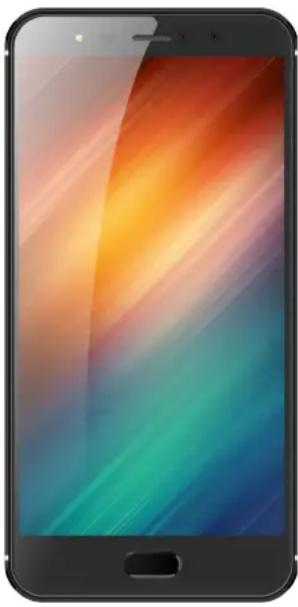
Front view of a smartphone with a colorful abstract wallpaper on screen (no text or symbols visible)Dear customer. Congratulations with your new smartphone. We suggest you look at this quick start guide to get started properly with the phone. Most of the functions on the phone are explained directly on the screen, so you can easily get started using it just by looking on the instructions there.
natural_image
Front view of a smartphone with a colorful abstract wallpaper on its screen (no text or symbols visible)POWER KEY (on side):
To turn on the phone, push and hold power key until screen lights up. Short push on this key will wake up phone from standby and set it in standby if it is active.
VOLUME KEYS (on side):
Push these to turn up or down volume.
MENU KEY (on front):
Shows options of current menu
HOME KEY (on front):
At any status, push this to return to home screen
RETURN KEY (on front):
Push this to return to previous menu or function.
Inserting SIM card & memory card:
Turn off the phone, remove the battery and then insert the SIM card into the SIM holder as shown in the phone. After this reassemble the phone and turn it on by push and hold power button. You will typically be asked to insert a pin code; this is the code you have from the teleprovider for the simcard. Please follow on screen instructions.
Settings:
The settings menu of the smartphone is where you do all settings like Language, Wi-Fi, Bluetooth, different type of keyboards etc. We recommend you look through the settings menu and that way learn how to easily change settings.
Wi-Fi settings:
It is recommendable to use Wi-Fi when possible to avoid data cost on your telesubscription. To do this, enter settings on the smartphone, go to Wi-Fi settings and then turn this on. Find your Wi-Fi network on the list and push it. Enter your password you have made, or have from your internet provider and connect.
Now it will connect to this Wi-Fi network every time you are near it and that way save your data cost on the simcard. Also Wi-Fi will often be a lot faster.
Bluetooth:
If you have a Bluetooth headset or speaker, you can use it with the smartphone. This is also controlled from the settings menu. Just go to Bluetooth and turn this on. Then find the equipment on the list and connect and you are ready to use it. (some Bluetooth headsets and speakers need a password, but this will be written in their user manuals)
GPS function:
Your smartphone has hardware GPS function. This can be used for navigation and to give you proper results when using Google search etc.
To enable this, go to Settings and to locations menu, and make sure that location services are set to both hardware and software. Now you can use your smartphone for navigation or to run with using various fitness apps.
Camera:
Your smartphone has two cameras. One on the back and one on the front. Back camera are super to use for photographing and video, while front camera are great for video chat and funny photo/messaging apps.
Notification menu:
To get your notification menu shown pull down from top of smartphone. First you will see your notifications, and if you pull down one more, you will get the main interface where you can quickly turn off Wi-Fi, Bluetooth, GPS, put the phone in airplane mode etc.
PC connection:
You can connect your smartphone with your PC for file transferring etc. To do this, connect it with the included USB cable, and then pull down from top of phone. Now you can choose which mode the phone shall appear in. e.g. for file transfer choose this. For charging you don't have to choose anything. (all is explained on the screen)
You can find a longer user manual on our website: www.denver-electronics.com and you can find general Android tips here: https://www.android.com/phones/tips/#featured
ALL RIGHTS RESERVED, COPYRIGHT DENVER ELECTRONICS A/S
DENVER®
www.denver-electronics.com



Electric and electronic equipment and included batteries contains materials, components and substances that can be hazardous to your health and the environment, if the waste material (discarded electric and electronic equipment and batteries) is not handled correctly.
Electric and electronic equipment and batteries is marked with the crossed out trash can symbol, seen below. This symbol signifies that electric and electronic equipment and batteries should not be disposed of with other household waste, but should be disposed of separately.
As the end user it is important that you submit your used batteries to the appropriate and designated facility. In this manner you make sure that the batteries are recycled in accordance with legislature and will not harm the environment.
All cities have established collection points, where electric and electronic equipment and batteries can either be submitted free of charge at recycling stations and other collection sites, or be collected from the households. Additional information is available at the technical department of your city.
Hereby, Inter Sales A/S declares that the radio equipment type SDQ-55034L is in compliance with Directive 2014/53/EU. The full text of the EU declaration of conformity is available at the following internet address: http://www.denver-electronics.com/denver-SDQ-55034L black/Operating Frequency Range: 1.3GHZ
Max Output Power: 3.6W
Imported by:
DENVER ELECTRONICS A/S
Omega 5A, Soeften
DK-8382 Hinnerup
Denmark
www.facebook.com/denverelectronics
DENVER SDQ-55034L
natural_image
Front view of a smartphone with a colorful abstract wallpaper on screen (no text or symbols visible)natural_image
Front view of a smartphone with a colorful abstract wallpaper on screen (no text or symbols visible)natural_image
Front view of a smartphone with a colorful abstract wallpaper on screen (no text or symbols visible)natural_image
Front view of a smartphone with a colorful abstract wallpaper on screen (no text or symbols visible)TIPKA ZA UKLJUČIVANJE/ISKLJUČIVANJE (bočno):
Kako biste uključili telefon, pritisnite i tako držite tipku za uključivanje/isključivanje, sve dok zaslon ne zasvijetli. Kratak pritisak na ovu tipku budi telefon iz stanja mirovanja te ga postavlja u stanje mirovanja, ukoliko je telefon aktivan.
TIPKE ZA JAČINU ZVUKA (bočno):
natural_image
Front view of a smartphone with a colorful abstract wallpaper on screen (no text or symbols visible)natural_image
Front view of a smartphone with a colorful abstract background (no text or symbols visible)natural_image
Front view of a smartphone with a colorful abstract wallpaper on screen (no text or symbols visible)TILBAKEKNAPP (foran):
natural_image
Front view of a smartphone with a colorful abstract wallpaper on screen (no text or symbols visible)WŁĄCZNIK (z boku):
https://www.android.com/phones/tips/#featured
WSZYSTKIE PRAWA ZASTRZEŻONE, PRAWA AUTORSKIE DENVER ELECTRONICS A/S
DENVER®
www.denver-electronics.com



natural_image
Front view of a smartphone with a colorful abstract background (no text or symbols visible)https://www.android.com/phones/tips/#featured
TODOS OS DIREITOS RESERVADOS, COPYRIGHT DENVER ELECTRONICS A/S
DENVER®
www.denver-electronics.com



natural_image
Front view of a smartphone with a colorful abstract background (no text or symbols visible)natural_image
Front view of a smartphone with a colorful abstract background (no text or symbols visible)TÆND/SLUKKNAP (på siden):
- User Manual
- DENVER SDQ-55034L
- POWER KEY (on side):
- VOLUME KEYS (on side):
- MENU KEY (on front):
- HOME KEY (on front):
- RETURN KEY (on front):
- Inserting SIM card & memory card:
- Settings:
- Wi-Fi settings:
- Bluetooth:
- GPS function:
- Camera:
- Notification menu:
- PC connection:
- DENVER®
- TIPKA ZA UKLJUČIVANJE/ISKLJUČIVANJE (bočno):
- TIPKE ZA JAČINU ZVUKA (bočno):
- TILBAKEKNAPP (foran):
- WŁĄCZNIK (z boku):
- TÆND/SLUKKNAP (på siden):
Brand : DENVER
Model : SDQ-55034L
Category : Smartphone