
GSP-130RED - Smartphone DENVER - Free user manual and instructions
Find the device manual for free GSP-130RED DENVER in PDF.


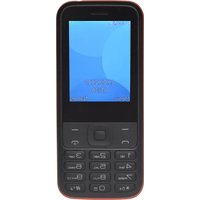
| Product type | Smartphone |
| Brand | Denver |
| Model | GSP-130RED |
| Dimensions (HxLxP) | 145 x 72 x 9 mm |
| Weight | 150 g |
| Display | 4.5 inches, resolution 854 x 480 pixels |
| Battery | Lithium-ion battery 2000 mAh (removable) |
| Operating system | Android 10 Go Edition |
| Processor | Quad-core 1.3 GHz |
| RAM memory | 1 GB |
| Internal storage | 8 GB, expandable via microSD up to 32 GB |
| Rear camera | 5 megapixels with LED flash |
| Front camera | 2 megapixels |
| Connectivity | 3G, Wi-Fi 802.11 b/g/n, Bluetooth 4.0, GPS |
| Sensors | Accelerometer, proximity |
| Audio | 3.5 mm jack, built-in speaker |
| SIM | Dual SIM (mini-SIM) |
| Care and cleaning | Clean with a soft dry cloth. Avoid moisture and abrasive products. |
| Safety | Do not expose to extreme temperatures. Use only the original charger. |
| Spare parts and repairability | Battery and screen available from Denver authorized repairers. |
| General information | Made in China. Red color. 2-year warranty. |
Frequently Asked Questions - GSP-130RED DENVER
User questions about GSP-130RED DENVER
0 question about this device. Answer the ones you know or ask your own.
Ask a new question about this device
Download the instructions for your Smartphone in PDF format for free! Find your manual GSP-130RED - DENVER and take your electronic device back in hand. On this page are published all the documents necessary for the use of your device. GSP-130RED by DENVER.
USER MANUAL GSP-130RED DENVER
ENG-1
Insert the SIM card: The SIM card contains your phone number, PIN code, links to operator services, contacts and SMS messages. To access the compartment containing the SIM slot, turn off the phone and lift up the cover starting from the slit on the bottom right corner. Remove the battery. Insert the SIM card into the slot with the gold contacts facing down.

Inserting a memory card: in order to use camera and media player functions, a micro-SD memory card is required (not
ENG-2
included in the package): the card must be placed into the rear of the phone to the left of the SIM slot. Insert the micro-SD card as shown, with the gold contacts facing downwards: open the metal shutter by pushing it towards "open" and lock it again after inserting the card by pushing it in the opposite direction ("close").
Turn ON, Turn OFF and keypad lock: to turn on and turn off the phone, press and hold the red end call key. The keypad locks by closing the flip.
Connecting to a PC: use the USB cable to connect GSP-130 to a computer. Select USB Storage on your phone. You can save songs to play with the music player in "My Music" folder, on SD card.
Inserting the Battery: your device is provided with a lithium-ion battery and is designed to be used exclusively with original batteries and chargers. The battery must be inserted into the rear of the phone. Insert the battery into the battery compartment with the contacts facing up corresponding to those of the phone. When done, put the rear cover back into position as shown in the following illustrations.

natural_image
Technical line drawing showing a device with an open lid and its internal panel, both with arrows indicating movement (no text or symbols present)Charging the battery: charge the battery before starting to use the device. Connect the charger to a mains wall socket, and then plug the jack into the charging base (wait for a moment until an audio feedback notifies the charging start) or put it directly into the micro USB port on the right side of the phone. When charging has been completed/is complete, a second audio feedback will be heard
Attention: To preserve the functionality of the product and the integrity of the warranty, we recommend the use of original chargers. Please charge the battery indoors, in a dry and favorable environment. It's normal for the battery to get slightly
ENG-4
warm during the charging process. The battery will reach its full capacity only after several complete charging cycles.

ENG-5

FM radio: GSP-130 has an internal radio antenna so that no headset is needed to listen to the radio. To power ON/OFF the Radio, access FM Radio from the main menu. By selecting Options you have access to the following functions:
-Automatic Search: to automatically search for radio stations
-Channel list to manually browse saved channels
-Save: to save searched stations
-Manual search: for the manual search of radio channels
-Speaker: reproduces the radio with the speaker instead of the headphones
-Background: keeps playing in background even after exiting from the radio app screen
ENG-6
- FM Record: to record the current radio channel
- File list: List of recorded files
Use the UP and DOWN selection keys for volume, M1 and M2 for searching the stations and the OK button to turn ON and OFF the radio.
Camera: to activate the camera from the main menu press the OK key. Take a photo by pressing the same key. By using Options you can access various camera settings and you can switch to Recorder.
Torch: to turn the torch on and off, use the torch key on the right side of the phone.
Shortcuts: Menu > Settings > Phone Setting > Shortcut setting. UP and DOWN selection keys can open some shortcuts; by default, the UP selection key directly enters the Music Player, while the DOWN selection key opens the alarm list.
Main menu: To access the Main Menu on your phone, press the selection key on the top left

ENG-7
- Messaging: to write and read SMS text messages
- Contacts: to manage and save contacts
- Calls Log: Missed Calls, dialled calls...
- Multimedia: camera, radio, gallery...
- FM Radio: to turn on and off the radio
- Settings: to customize your phone
-Tools: with Calendar, Bluetooth, Calculator, Alarms... - SOS: to enable and customize the SOS function
Answer an incoming call: respond to an incoming call simply by opening the flip. To set up the answer mode select Settings > Call settings > Answer mode
Making a call: to make a call from the Home screen, select the desired number by using the
keypad and then press the green call button. To end the call, press the red end call key.
Call a number from the contacts: from the main screen, press the upper right selection key; this will automatically open the Contacts. Scroll through contacts with the UP/DOWN keys and press the green call button to call the desired contact.
Call anumber from the call log: from the main screen, press the green call key, the missed, received, and outgoing calls will be automatically displayed.
Scroll with UP/Down keys and press the green call button when you find the number you want to call.
Add contacts to the Contacts: Select Menu > Contacts > Options > New, and choose to save the number on the SIM or the Phone. Enter the name and the new number, then press Save.
Speed dial: in Menu > Contacts > Options > More > Speed Dial > Options > Edit, you can assign to keys 2-9 certain numbers that will be called automatically if you press and hold the related button. The device has two other additional quick dial keys M1 and M2, to which you can associate as many numbers in the same menu. These keys, placed to the left and to the right of OK button, are activated/activate activated with a simple press.
Memory status: this feature within the contacts settings allows you to see how much free storage there is on the phone and SIM card.
Speech Dial: GSP-130 Start speaks out loud each number you press. To activate this function, select Menu > Settings > Profiles > General > Options > More tones > Dialpad > Speech Dial
Send and read SMS
Send SMS: from the main screen, choose Menu >Messaging > Write message and write your message. Press Options > Send to > Number and enter the number using the numeric
keypad or Add from contacts to select from the Contacts the contact you want to text.
Read SMS: when you receive a new text message, the phone displays an envelope icon on the top bar(until the message is read/for as long as the message is unread) and a notification pop up appears on the main screen. Press the upper left selection key to enter the Inbox or access it fromthe main screen by selecting Menu >Messages >Inbox.
Notification Led: The flash below the Camera can notify incoming or missed calls and messages, when flip is closed. You can enable or disable this function whenever you want for each event to notify in Settings > Notification LED
Bluetooth: In Settings > Connectivity > Bluetooth >Power on you can turn on Bluetooth and search for other devices (headsets, phones...). Select the device you would like to associate with and confirm it on both devices.
S.O.S. Function: GSP-130 is equipped with a dedicated button for fast forwarding emergency calls (*). This feature can be turned on and off by selecting Menu> SOS > Status. SOS button is placed on the rear of the phone In case of emergency, use this function to ask for help from up to five phone numbers, previously set in Menu> SOS > SOS numbers; press and hold the SOS button for 2-3 seconds. As soon as the SOS function is activated, the phone will send out a high volume alarm (that can be turned on and off in SOS > SOS alarm On/Off). Then,
it will send a customizable SOS message to the chosen SOS numbers. Afterwards, the phone will call the 5 SOS numbers, for about 25 seconds each. If there is no answer, there will be a second cycle of calls. This procedure will be repeated for 5 times. If one of the called numbers answers, the cycle will be interrupted and the call will automatically switch to speaker phone (handsfree).
Attention: The S.O.S. calls cycle will be interrupted if the answering machine or voicemail of one of the called SOS numbers takes the call.
Set Ringtones: select Menu > Settings > Profiles > General > Options > Ringtone. Select Call Ringtone and set the desired tone from those available.
Quickly turn on/off vibration mode To quickly turn off incoming calls ringtone and messages tone, and activate vibration, press and hold #. By pressing # again, the phone will enter in General mode.
Phone Settings: from Menu > Settings > Phone, you have/will have access to various settings such as Date and Time, Language, and Display. Select Restore to reset the factory settings of GSP-130: enter the phone password 1234 to confirm the restoring.
Radio frequency (RF) exposure and SAR THIS DEVICE
ENG-11
MEETS INTERNATIONAL GUIDELINES FOR EXPOSURE TO RADIO WAVES
Your mobile device is a radio transmitter and receiver. It is designed and manufactured not to exceed the limits for exposure to radio frequency (RF) recommended by international guidelines (ICNIRP). These limits are part of comprehensive guidelines and establish permitted levels of RF energy for the general population. The guidelines were developed by independent scientific organizations through periodic and thorough evaluation of scientific studies. The guidelines include a substantial safety margin designed to assure the safety of all persons, regardless of age and health.
The exposure standard for mobile devices employs a unit of measurement known as the Specific Absorption Rate, or SAR. The SAR limit stated in the international guidelines is 2.0 watts/kilogram (W/kg)*. Tests for SAR are conducted using standard operating positions with the device transmitting at its highest certified well below the maximum value. This is because the device is designed to operate at multiple power levels so as to use only the power required to reach the network. In general, the closer you are to a base station, the lower the power output of the device. power level in all tested frequency bands.
Although the SAR is determined at the highest certified power
ENG-12
level, the actual SAR of the device while operating can be well below the maximum value. This is because the device is designed to operate at multiple power levels so as to use only the power required to reach the network. In general, the closer you are to a base station, the lower the power output of the device.
SAR values may vary depending on national reporting and testing requirements and the network band. Use of device accessories and enhancements may result in different SAR values.
The SAR limit for mobile devices used by the public is 2.0 W/kg averaged over 10 grams of body tissue. The guidelines incorporate a substantial margin of safety to give additional protection for the public and to account for any variations in measurements. SAR values may vary depending on national reporting requirements and the network band.
The highest SAR value for this model phone tested for use is 0.743 mW/g
Warning
• Lithium battery inside!
- Do not try to open the product!
- Do not expose to heat, water, moisture, direct sunlight!

ALL RIGHTS RESERVED DENVER ELECTRONICS A/S
DENVER®
www.denver-electronics.com
C€1313
ENG-14

Electric and electronic equipment and included batteries contains materials, components and substances that can be hazardous to your health and the environment, if the waste material (discarded electric and electronic equipment and batteries) is not handled correctly.
Electric and electronic equipment and batteries is marked with the crossed out trash can symbol, seen below. This symbol signifies that electric and electronic equipment and batteries should not be disposed of with other household waste, but should be disposed of separately.
As the end user it is important that you submit your used batteries to the appropriate and designated facility. In this manner you make sure that the batteries are recycled in accordance with legislature and will not harm the environment.
All cities have established collection points, where electric and electronic equipment and batteries can either be submitted free of charge at recycling stations and other collection sites, or be collected from the households. Additional information is
ENG-15
available at the technical department of your city.
Hereby, Inter Sales A/S, declares that this senior mobile phone DENVER GSP-130 is in compliance with the essential requirements and other relevant provisions of Directive 1999/5/EC. A copy of the Declaration of Conformity may be obtained at Inter Sales A/S, Stavneagervej 22, DK-8250 Egaa, Danmark
Code for factory default:1234
Code for security password:1234
Importer:
DENVER ELECTRONICS A/S
Stavneagervej 22
DK-8250 EGAA
DENMARK
www.facebook.com/denverelectronics
DENVER®
Senior Telefon
GSP-130
www.facebook.com/denverelectronics

natural_image
Diagram showing a device's internal structure with an arrow indicating the pad or switch, alongside its open rear panel (no text or symbols present)natural_image
Technical line drawing showing a device with a close-up view of its internal structure (no text or symbols)natural_image
Diagram showing two views of a mobile phone case with an arrow indicating the interior portion (no text or symbols present)KAIKKI OIKEUDET PIDÄTETÄÄN, TEKIJÄNOIKEUS: DENVER ELECTRONICS A/S
DENVER®
www.denver-electronics.com
C€1313

natural_image
Diagram showing two views of a mobile phone casing with an arrow indicating the interior panel (no text or symbols present)natural_image
Technical line drawing of a mobile phone casing showing internal components and an external casing with an upward arrow (no text or symbols)natural_image
Diagram showing a device with an open lid and its internal panel, highlighting a key component (no text or symbols present)natural_image
Diagram showing a device with a close-up view of its internal structure, highlighting a key component (no text or symbols present)natural_image
Diagram showing a device with a close-up view of its internal structure, highlighting a key component (no text or symbols present)natural_image
Diagram showing a device's internal structure with an arrow indicating the pad switch (no text or symbols present)POR-2
natural_image
Diagram showing a device with a close-up view of its internal structure, highlighting a key component (no text or symbols present)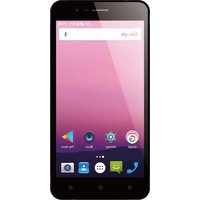



Brand : DENVER
Model : GSP-130RED
Category : Smartphone