
DIAMOND PLUS - Smartphone ARCHOS - Free user manual and instructions
Find the device manual for free DIAMOND PLUS ARCHOS in PDF.



| Product type | Smartphone |
| Brand | ARCHOS |
| Model | DIAMOND PLUS |
| Dimensions (approx.) | 150 × 70 × 8 mm |
| Weight (approx.) | 160 g |
| Power supply | Rechargeable battery, USB charger, micro-USB port |
| Screen | Capacitive touchscreen |
| Rear camera | Camera with LED flash |
| Front camera | Front camera |
| Connectivity | 4G/3G/2G, WiFi, Bluetooth, GPS |
| SIM cards | Dual SIM (nano-SIM) + micro-SD card |
| Operating system | Android |
| Sensors | Ambient light sensor, proximity sensor |
| Care and cleaning | Clean with a soft dry cloth. Do not use abrasive products. |
| Security | Screen lock (pattern, PIN code), built-in anti-theft |
| Accessories included | Hands-free kit, USB cable, charger, quick start guide |
Frequently Asked Questions - DIAMOND PLUS ARCHOS
User questions about DIAMOND PLUS ARCHOS
0 question about this device. Answer the ones you know or ask your own.
Ask a new question about this device
Download the instructions for your Smartphone in PDF format for free! Find your manual DIAMOND PLUS - ARCHOS and take your electronic device back in hand. On this page are published all the documents necessary for the use of your device. DIAMOND PLUS by ARCHOS.
USER MANUAL DIAMOND PLUS ARCHOS
Congratulations for the purchase of an ARCHOS device!
This quick start guide helps you to start using your device properly.
If you have more questions concerning the use of your device,
- You can consult the frequently asked questions on our website: go to http://faq.archos.com/
- You can send us a message on Facebook:
go to www.facebook.com/ARCHOS
- You can contact our After-sales department:
go to www.archos.com, click Support > After-sales support >
- You can consult the declaration of conformity:
go to www.archos.com, click Support > Downloads >
As we are often updating and improving our products, your device's software may have a slightly different appearance or modified functionality than presented in this Quick Start Guide.
Package Contents
Check your product box for the following items:
- ARCHOS Diamond Plus
- Headset
- USB cable
- Charger
- Quick start guide
- Warranty Legal & Safety notices
The items supplied with your device and available accessories may vary depending on your region or service provider. The supplied items are designed only for your device and may not be compatible with other devices. Unapproved accessories may cause your device to malfunction.
Description of the phone
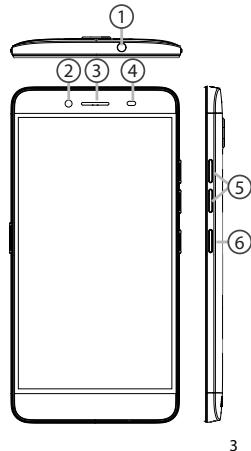
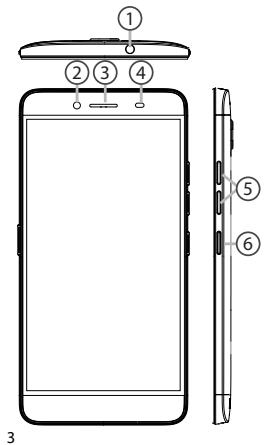
① Headset jack ② Front camera ③ Phone speaker Light sensor ⑤ Volume buttons ⑥ ON/OFF button
Description of the phone
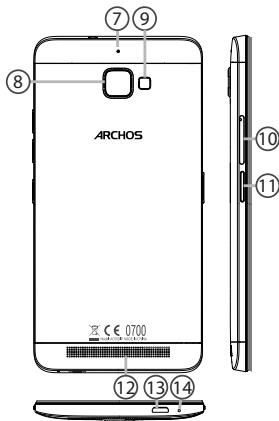
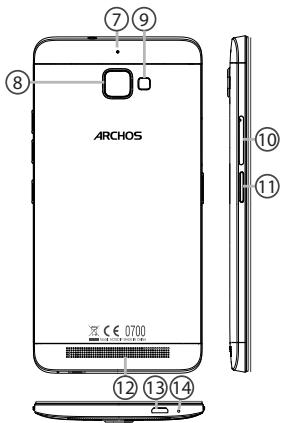
⑦ Noise reduction ⑧ Camera ⑨ Flash light SIM card|Micro-SD tray 11 Camera button ⑫ Loudspeaker ⑬ Micro-USB port 14 Microphone
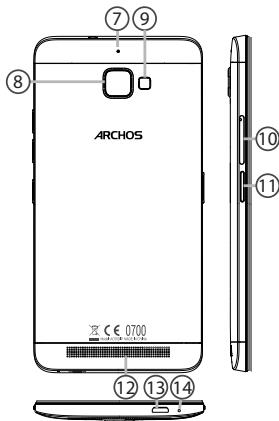

ON/OFF: when the device is off, long press to turn on. When the device is on, short press to turn off the screen and long press to display options.

Volume +/-: press +/- to adjust the volume. When you press the button, notification options are displayed. You can select the most appropriate one.

Back: press to go back to the previous screen.

Home: short press to return to the homescreen, long press to access Google Now.

Recent apps: press to display recent apps.

Micro-USB port: plug the provided cable to charge the device or to connect it to a computer.

Headphone jack: connect the provided earphones to make hands-free calls.

Camera & Flash: take pictures or make movies. To extend movie duration, insert a micro-SD card. Activate the flash option in a dark environment and use it as a torch through the quick settings.

Light sensor: it turns off the screen when the device is close to your ear during a call.
Getting started
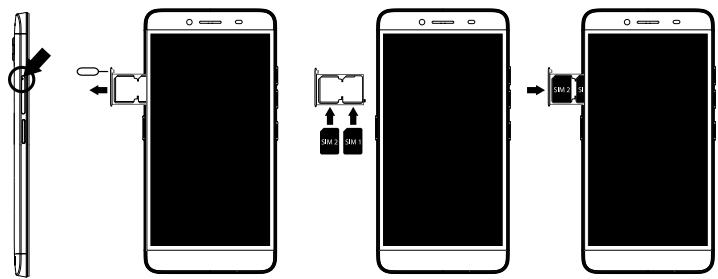
Inserting SIM & Micro-SD cards
After you have unpacked your mobile phone box:
- Remove the cover by using the provided tool that you insert in the cover hole.
- Place the card into the tray according to the direction shown.
- Replace the tray in the right position and push it inside to close.
4G/3G/2G
slot 1
When inserting your SIM card or micro-SD card, make sure to follow the illustration, otherwise you may damage the slot or the card.
4G/3G/2G
slot 2
Micro-SD card
slot 2
Getting started
Turning on
- Plug the charging cable into the Micro-USB port and connect it to its charger. Before using your device for the first time, charge its battery completely.
- Press and hold the ON/OFF button to turn on the device.
The first time you start up your ARCHOS, the installation wizard will help you set up your device. 3. Follow the instructions.
If you have inserted a SIM card, you may need to enter a PIN code.
Beware of typing a wrong PIN code.
Tip:
Your device goes into standby mode when you do not use it for a specific period of time. To wake up your device, press the ON/OFF button. To set the duration, go to Settings > Display > Sleep.
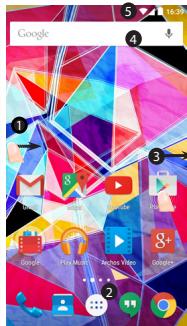
On your homescreen
- Swipe right
- Press 3. Hold your finger on an app 4. Say "Ok Google"
to access Google Now, to access all your apps, to move it right and create a new homescreen, to launch the search page.
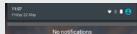
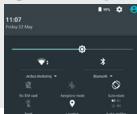
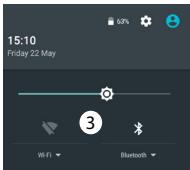
- Touch and pull down the status bar to display it. Touch again the bar to reveal the quick settings.

Mobile Data & WiFi connection
Mobile data connection
If your mobile phone subscription includes a mobile data option, you should be connected to the Internet without any further setup. The ARCHOS will only have signal if you are in an area covered by your provider's 4G or 3G network.
Activating/Deactivating the mobile data
- Touch and pull down the status bar to display it.
- Touch again the bar to reveal the quick settings.
- Select the Settings icon.
- In Wireless & networks, select Data usage, then the SIM card tab.
- Slide the Mobile data switch to turn on/off.
Wireless & networks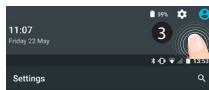

Data usage

Mobile data


WiFi connection
WARNING: Make sure that you are in a WiFi zone. You can access the WiFi settings quickly from the status bar.
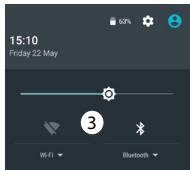
- Touch and pull down the status bar to display it.
- Touch the bar again to reveal the quick settings.
- Select the WiFi icon to activate the WiFi connection.
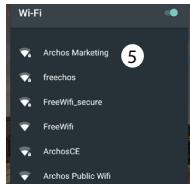
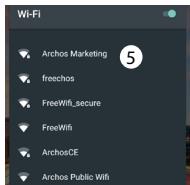
- Select "WiFi" below the WiFi icon.
- Touch the name of the network you want to connect to. Private networks are shown with a lock icon and will require you to enter your password.
Google & Contacts
Adding a Google account
A Google account lets you take full advantage of any Google apps and services that you may want to use.
- Go to "Settings" > "Accounts" > "Add account".
- Select the account type "Google" to add.
- Follow the onscreen instructions to enter information about the account.
Once the account is created, you can access Play Store, Gmail, Hangouts, Maps and many other apps.
Synchronizing info
Information must be synced to be saved. Your data is backed up on Google servers.
- Go to "Settings" > "Accounts" > "Google".
- Select your account.
The list of information that can be synced is displayed.
Automatic sync should be activated. To launch the sync, press the Menu button then Sync now. You can get them back in case of loss of your device or SIM card. When your Google account is added to a new device, all your saved information is transferred.
Saving your contacts
When your contacts are saved, they are always available on the web and can be synced to any Android phone that's set up with your Google account.
- Install the SIM card with your contacts in your phone.
- From the Home screen or the All Apps screen, select the Contacts app
- Touch the Menu button > "Import/Export".
- In Import/export contacts, select "Import from SIM card".
- Select your Google account.
- Check contacts to be imported
and validate.
- Once the contacts are imported in the Google account, go to "Settings" > "Accounts" > "Google".
- Select your Google account.
- Select the Menu button, then "Sync now".
Your contacts are saved to your Google account.
Hints & tips for AndroidTM
Moving a home screen item:
Touch and hold your finger onto it, then slide it to the desired location, and release your finger.
Removing a home screen item:
Touch and hold it, slide your finger towards the top of the screen and drop it over the "Remove" icon.
Uninstalling an item:
From the "All apps" screens, touch and hold it, slide your finger towards the top of the screen and drop it over "Uninstall" bin.
Creating application folders:
Drop one app icon over another on a home screen and the two icons will be combined.
Widgets:
Hold your finger on a homescreen at an empty location. Touch "Widgets".
Changing your wallpaper:
Hold your finger on a home screen at an empty location.
Touch "Wallpapers".
Locking the touchscreen:
Select the "Settings" app, then scroll down and touch "Security". Touch "Screen lock". Touch the type of lock you would like to use. After you set a lock, a lock screen is displayed whenever your screen wakes up, requesting the pattern, PIN, or other specified key.
Mobile anti-theft:
- Insert a SIM card in the device.
- Go to Settings > Security and select Mobile anti-theft.
- Follow the onscreen instructions.
Troubleshooting
My phone is frozen or cannot switch on
1. Remove and replace the battery. 2. Charge your device.
My phone cannot connect to a network or "No service" is displayed
Try connecting in another location. Verify the network coverage with your operator.
Unable to make outgoing calls
Make sure your phone is connected to a network, and the network is not overloaded or unavailable.
Unable to receive incoming calls
Make sure your phone is switched on and connected to a network (check for overloaded or unavailable network).
SIM card PIN locked
Contact your network operator to obtain the PUK code (Personal Unblocking Key).
To configure a new 4G network:
On your device, tap Settings.
- Select Wireless & networks > More... > Mobile networks.
- In Mobile network settings, select your operator in Network operators.
- In Mobile network settings, select Access point names, then select to add new parameters and enter the exact connection parameters provided by your 4G provider.
Welcome
Congratulations, you have just purchased an ARCHOS device!
"Accounts" > "Add account"
("Settings" > "Accounts &
go to www.archos.com, click Support > After-sales support >
go to www.archos.com, click Support > Downloads >
Try to install the SIM card again. Check if it is inserted correctly. Check if your SIM card is working. Try to select the network manually. Try to install the SIM card again, or contact your operator.
To make calls, make sure the phone is turned on and connected to the network, and that the network is available and not overloaded.
To receive incoming calls, make sure the phone is connected to the network (check that the network is available and not overloaded).
SIM card PIN blocked
Contact your mobile operator to obtain the PUK code (Personal Unblocking Key - personal unlock code).
Setting up a new 4G network:
On the device screen, tap Settings.
- Select Wireless & networks > More... > Mobile networks.
- In the mobile network settings, select the operator in the Network operators list. 3. In the mobile network settings, select the operator.
Select the option to add new parameters or the parameters provided by the 4G service provider.
Welcome
Congratulations on purchasing your ARCHOS device!
Thank you for choosing an Archos product!
This user guide will help you easily use your phone.
If you have any questions or concerns about the product,
- You can refer to the frequently asked questions on our website:
http://faq.archos.com/
You can also ask questions on Facebook:
www.facebook.com/ARCHOS
You can contact our customer care department:
www.archos.com, select Support > After-sales support
You can refer to the appropriate specifications:
www.archos.com, select Support > Downloads
Because we constantly upgrade and improve our products, the software of your device may differ slightly in display or functionality from the information in this user guide.
BOX CONTENTS!
The box includes the following components:
- ARCHOS Diamond Plus phone - Earphones
- USB cable
- Charger
- User guide
- Safety and warranty information
The components mentioned above may vary depending on the region or supplier. The components mentioned above are designed specifically for your device and may not be compatible with other devices. Components of a different type may damage your device.
DEVICE DESCRIPTION
① Headphone jack ② Front camera ③ Earpiece ④ Light sensor ⑤ Volume keys ⑥ Power key (ON/OFF)
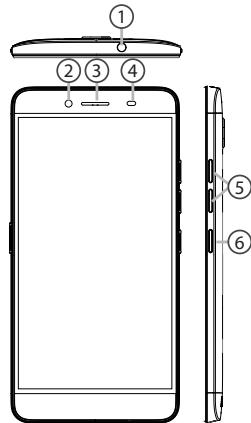
DEVICE DESCRIPTION
⑦ Noise reduction microphone ⑧ Camera ⑨ Flash ⑩ Camera key ⑪ SIM card / Micro-SD card slot ⑫ Speaker ⑬ Micro USB port ⑭ Microphone

ON/OFF: When the device is off, press and hold to turn it on. When the device is on, press to turn off the screen, or press and hold to access the screen options.

Volume keys: Press +/- to increase or decrease the volume.

Back key: Press to return to the previous screen.

Home key: Press to return to the home screen, or press and hold to access Google Now.

Recent apps key: Press to view the running applications.

Micro USB port: Connect the charger or USB cable to the computer.

Headphone jack: Plug in the headphones.

Camera/Flash: Used to take photos and record videos. To have more storage, please insert a memory card.
You can use the flash to take photos in the dark or use it as a flashlight.

Light sensor: has the function of turning off the screen when the phone is brought to the ear.
∴ | x | = 1/| x| · | r 12 + r 22 + r32| ≤ 3/4| x| 2

1. Insert the SIM card and the Micro-SD card into the corresponding slots.

Power on the device.


Battery level indicator: 4 bars.

Charging port: Micro-USB.

Connect the device to a computer using the USB cable.
Press and hold the power button.
The device will turn on.
105 ⑧
W
SIM | Micro-SD card slot 10
1j0kjj ①
a>alall aclawll ⑫
Micro-USB ①
ARCHOS Diamond Plus
USB
ARCHOS
http://faq.archos.com/
Find us on Facebook
www.facebook.com/ARCHOS
OJAL
yL1i: 11111111111111111111111111111111111111111
0
UJILIgUjUjUjUjUjUjUjUjUjUjUjUjUjUjUjUjUjUjUjUjUjUjUjUjUjUjUjUjUjUjUjUjUjUjUjUjUjUjUjUjUjUjUjUjUjUjUjUjUjUjU
a
aaii aai i 1000000000000000000000000000000000000000000000000000
a

aollljgoooioo oagnooollw19:ogonoi
aLog-0Jl
JU 10:
Entertainment your way
U
...
wJg o a JI 9
Uni-Group


Open Source Software Offer
The software bundled with this product includes software files subject to certain open source license requirements. Such open source software files are subject solely to the terms of the relevant open source software license. Such open source software is provided on an "AS IS" basis to the maximum extent permitted by applicable law.
For the open source files contained herein, please access "Open source license" section located at: Settings\About phone\Legal information on the device for the relevant copyright and licensing terms. You may obtain a copy of Apache License, Version 2.0 at http://www.apache.org/licenses/License-2.0. You may also obtain a copy of GNU General Public License, Version 2 at the Free Software Foundation, INC, 51 Franklin Street, Fifth Floor, Boston, MA 02110-1301, USA.
Until the date that is three years after our last shipment of this product, you may obtain a copy of the source code corresponding to the binaries for any GPL-Licensed file by contacting ARCHOS customer service at http://www.archos.com and ARCHOS will send you a link to such source code or will provide instructions to get the source on a physical medium.
This offer is valid to anyone in receipt of this information.
National restrictions
This device is intended for home and office use in all EU countries (and other countries following the EU directive 1999/5/EC) without any limitation except for the countries mentioned below:
| Country | Restriction | Reason/remark |
| Bulgaria | None | General authorization required for outdoor use and public service |
| France | Outdoor use limited to 10 mW e.i.r.p. within the band 2454-2483.5 MHz | Military Radiolocation use. Refarming of the 2.4 GHz band has been ongoing in recent years to allow current relaxed regulation. Full implementation planned 2012 |
| Italy | None | If used outside of own premises, general authorization is required. |
| Luxembourg | None | General authorization required for network and service supply (not for spectrum) |
| Norway | Implemented | This subsection does not apply for the geographical aera within a radius of 20 km from the centre of Ny-Alesund |
Russian Federation: Only for indoor applications
Note: Frequency 2454-2483.5 MHz is restricted to indoor use in France.
Consult the declaration of conformity at http://www.archos.com/products/declaration_conformity.html
SAR
After laboratory measurement, this mobile phone's SAR value is:
- Head Max: 0.363 W/Kg (10g)
- Body Max: 1.200 W/Kg (10g)
Archos company declares that this device complies with the essential requirements and other relevant provisions of Directive 1999/5/EC: http://www.archos.com/support/download/conformity/CE_DOC_AC55DIP.pdf


- PACKAGE CONTENTS
- DESCRIPTION OF THE PHONE
- GETTING STARTED
- INSERTING SIM & MICRO-SD CARDS
- TURNING ON
- TIP
- ON YOUR HOMESCREEN
- MOBILE DATA & WIFI CONNECTION
- MOBILE DATA CONNECTION
- ACTIVATING/DEACTIVATING THE MOBILE DATA
- WIFI CONNECTION
- GOOGLE & CONTACTS
- ADDING A GOOGLE ACCOUNT
- SYNCHRONIZING INFO
- SAVING YOUR CONTACTS
- HINTS & TIPS FOR ANDROIDTM
- MOVING A HOME SCREEN ITEM
- REMOVING A HOME SCREEN ITEM
- UNINSTALLING AN ITEM
- CREATING APPLICATION FOLDERS
- WIDGETS
- CHANGING YOUR WALLPAPER
- LOCKING THE TOUCHSCREEN
- MOBILE ANTI-THEFT
- TROUBLESHOOTING
- MY PHONE IS FROZEN OR CANNOT SWITCH ON
- MY PHONE CANNOT CONNECT TO A NETWORK OR "NO SERVICE" IS DISPLAYED
- UNABLE TO MAKE OUTGOING CALLS
- UNABLE TO RECEIVE INCOMING CALLS
- SIM CARD PIN LOCKED
- TO CONFIGURE A NEW 4G NETWORK
- WELCOME
- TO MAKE CALLS, MAKE SURE THE PHONE IS TURNED ON AND CONNECTED TO THE NETWORK, AND THAT THE NETWORK IS AVAILABLE AND NOT OVERLOADED
- SIM CARD PIN BLOCKED
- SETTING UP A NEW 4G NETWORK
- BOX CONTENTS
- DEVICE DESCRIPTION
- PRESS AND HOLD THE POWER BUTTON
- OPEN SOURCE SOFTWARE OFFER
- NATIONAL RESTRICTIONS
- SAR
Brand : ARCHOS
Model : DIAMOND PLUS
Category : Smartphone