
40 CESIUM - Smartphone ARCHOS - Free user manual and instructions
Find the device manual for free 40 CESIUM ARCHOS in PDF.



| Product Type | Smartphone |
| Brand | ARCHOS |
| Model | 40 CESIUM |
| Screen | 4 inches, 480 x 800 pixels resolution |
| Processor | Dual-core 1.2 GHz |
| RAM | 512 MB |
| Internal Storage | 4 GB (expandable via microSD) |
| Battery | Lithium-ion 1400 mAh, removable |
| Connectivity | 3G, Wi-Fi 802.11 b/g/n, Bluetooth 4.0 |
| Rear Camera | 2 megapixels with LED flash |
| Front Camera | VGA webcam |
| Operating System | Android 4.4 KitKat |
| Dimensions | 125 x 65 x 10 mm |
| Weight | 120 g |
| Box Content | Phone, battery, headset, micro SIM adapter, USB cable, charger, quick guide |
| Care and Cleaning | Clean with a soft, dry cloth. Do not use abrasive products. |
| Safety | Do not expose to moisture. Use only approved accessories. |
| Spare Parts and Repairability | Removable battery. For other repairs, contact customer service. |
| General Information | Warranty: refer to the provided warranty guide. Declaration of conformity at www.archos.com. |
Frequently Asked Questions - 40 CESIUM ARCHOS
User questions about 40 CESIUM ARCHOS
0 question about this device. Answer the ones you know or ask your own.
Ask a new question about this device
Download the instructions for your Smartphone in PDF format for free! Find your manual 40 CESIUM - ARCHOS and take your electronic device back in hand. On this page are published all the documents necessary for the use of your device. 40 CESIUM by ARCHOS.
USER MANUAL 40 CESIUM ARCHOS
Description of the phone. 3
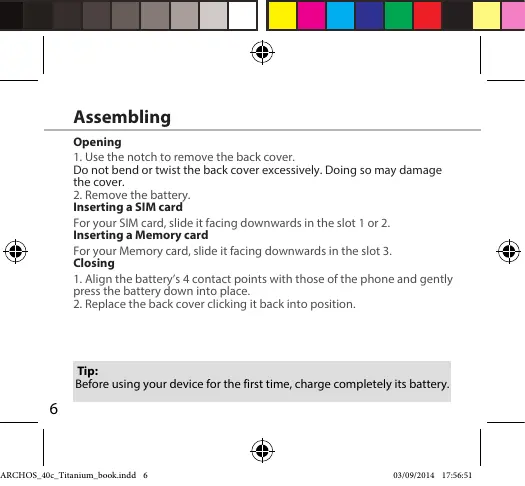
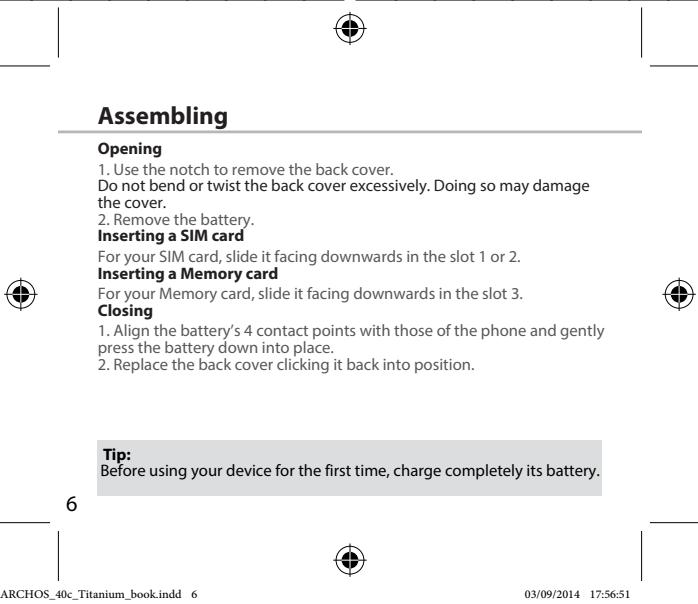
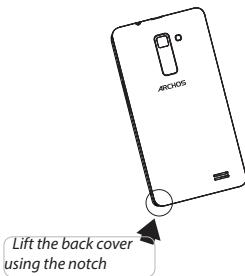
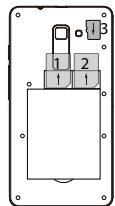
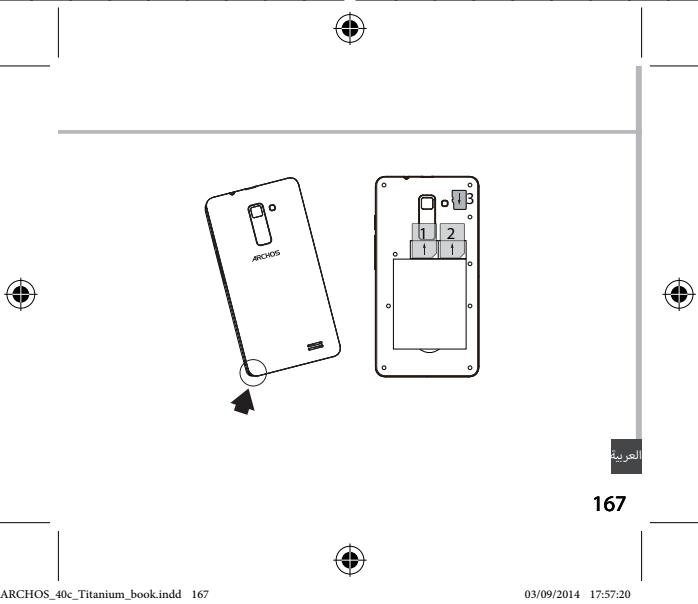
Assembling. 6
Getting started. 8
3G & WiFi connection. 10
Google account & Contacts. 12
Hints & tips for AndroidTM 14
Troubleshooting. 16
For more information, please consult the FAQs on www.archos.com. Make sure to read them before considering any product return. As we are often updating and improving our products, your device's software may have a slightly different appearance or modified functionality than presented in this Quick Start Guide.
Consult the declaration of conformity on http://www.archos.com/products/declaration_conformity.html
Package Contents
Check your product box for the following items:
- ARCHOS 40c Titanium
- Battery
- Headset
- Micro SIM adaptor
- USB cable
- Charger
- Quick start guide
Warranty Legal & Safety notices
The items supplied with your device and available accessories may vary depending on your region or service provider.
The supplied items are designed only for your device and may not be compatible with other devices.
Unapproved accessories may cause your device to malfunction.
2

EN
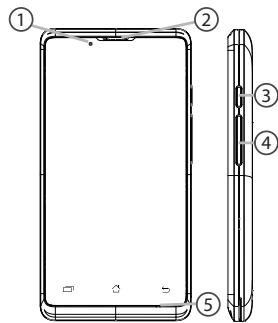
Description of the phone
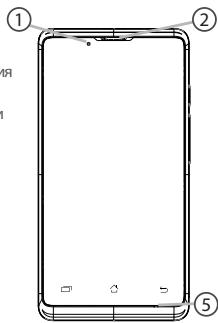
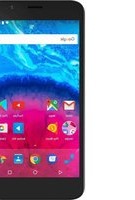
① Loudspeaker
② Webcam
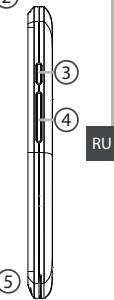
③ ON/OFF button
Volume buttons
⑤ Microphone
3
Description of the phone
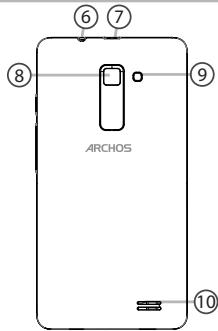
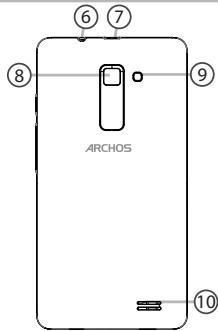
⑥ Headset jack
⑦ Micro-USB port
Camera
⑨ Flash
10 Loudspeaker
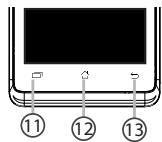
① Multi-task
12 Home/Recent apps/Google NOW
13 Back
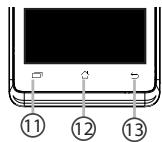
Multi-task: open the list of recent applications;
Home/Google NOW: short press to return to the Home screen; long press to access Google Now.
Back: return to the previous screen.

EN

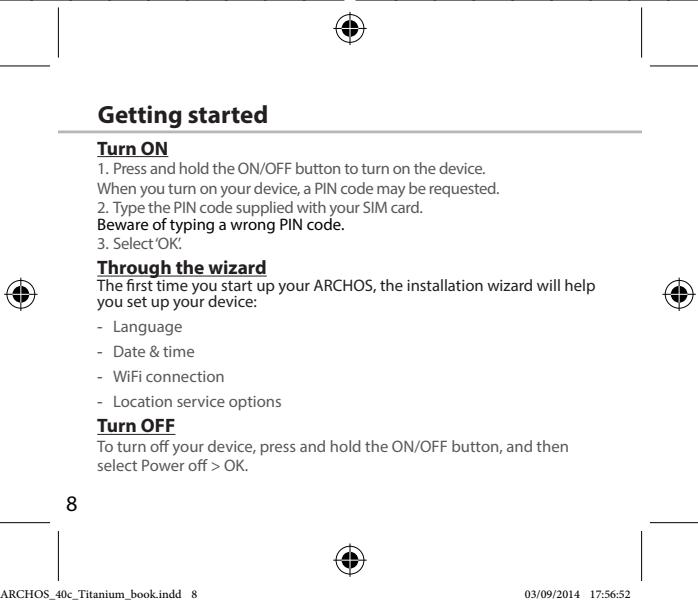
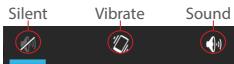
Sound & Notification profiles
- When the device is turned on, press and hold the ON/OFF button.
- Select an option.
Touch screen actions:
Tap: touch once to select or launch a menu, option, or application.
Tap and hold: tap an item and hold it for more than 2 seconds.
Drag: tap an item and move it to a new location.
Double-tap: tap an item twice quickly.
Flick: briskly scroll up, down, left, or right to move through lists or screens.
Pinch in/out: place two of your fingers far apart, and then pinch them together.
Tip:
Your device goes in standby mode when you do not use it for a specified period of time. To wake up your device, press the ON/OFF button. To set the duration, go to Settings > Display > Sleep.


3G & WiFi connection
3G connection
With your SIM card, you should be connected to the Internet without any further setup. The ARCHOS will only have signal if you are in an area covered by your provider's 3G network. When connected to the 3G network, the 3G icon is displayed in the status bar.
Activating the mobile data
To be able to access Internet, the mobile data icon must be activated.
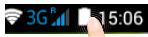
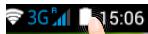
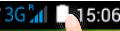
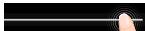
- Touch and hold the time & battery icons to reveal the status bar.
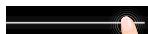
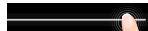
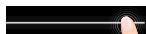
- Pull the white line down to display the status dashboard.

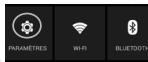
- Touch the status dashboard icon
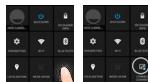
- Touch the mobile data icon to activate it.
Tip:
If you encounter connection problem's, see the FAQs on www.archos.com or contact your 3G network connection provider.
WiFi connection
WARNING: Make sure that you are in a WiFi zone. You can access the WiFi settings quickly from the status bar.
- Touch and hold the time & battery icons to reveal the status bar.
2.Pull the blue line down to display the status dashboard. - Touch the status dashboard icon
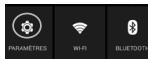
- Touch the "Settings" icon to open the settings menu.
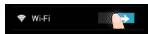
- In the "Wireless & networks" section, if the WiFi is off, slide the WiFi switch to the "ON" position. Once the WiFi is on, the ARCHOS will scan for WiFi networks in range.
- Touch "WiFi" to display available networks.
- Touch the name of network you want to connect to.
Private networks are shown with a lock icon and will require you to enter your password.



Google & Contacts
Adding a Google account
A Google account lets you take full advantage of any Google apps and services that you may want to use.
- Go to "Settings" > "Accounts" > "Add account".
- Select the account type "Google" to add.
- Follow the onscreen instructions to enter information about the account. Once the account is created, you can access Play Store, Gmail, Hangouts, Maps and many other apps.
Synchronizing info
Information must be sync to be saved. Your data is backed up on Google servers.
- Go to "Settings" > "Accounts" > "Google".
- Select your account.
The list of information that can be sync are displayed.
Automatic sync should be activated. To launch the sync, press the Menu button, then Sync now. You can get them back in case of loss of your device or SIM card. When your Google account is added to a new device, all your saved information is transferred.
12


Saving your contacts
When your contacts are saved, they are always available on the web and can be syncsed to any Android phone that's set up with your Google account.
- Install the SIM card with your contacts in your phone.
- From a Home or All Apps screen, select the People app
- Touch the Menu button > "Import/Export".
- In Import/export contacts, select "Import from SIM card".
- Select your Google account.
- Check contacts to be imported and validate.
- Once the contacts are imported in the Google account, go to "Settings" > "Accounts"> "Google".
- Select you Google account.
- Select the Menu button, then "Sync now".
Your contacts are saved to via your Google account.




Troubleshooting
My phone is frozen or cannot switch on
Check the battery contacts, remove and reinstall your battery, then turn your phone on. Check the battery power level, charge for at least 20 minutes.
My phone cannot connect to a network or "No service" is displayed
Try connecting in another location. Verify the network coverage with your operator.
Unable to make outgoing calls
Make sure your phone is connected to a network, and the network is not overloaded or unavailable.
Unable to receive incoming calls
Make sure your phone is switched on and connected to a network (check for overloaded or unavailable network).
SIM card PIN locked
Contact your network operator to obtain the PUK code (Personal Unblocking Key).
To configure a new 3G network:
On your device, tap Settings.
Select Wireless & networks > More... > Mobile networks.
Select Network settings. In Network operators, select your operator.
In Access Point Names, select the correct access point name and enter the exact connection parameters provided by your 3G provider.
Table des matieres
- ARCHOS 40c Titanium
-AkkymyTOp - RapHnType
- Micro SIM aqantrep
-
Ka6eIb USB
-3apndnoe yctpOCTBO
-KpataKoe pykoBOCTBO -
TapaHTnN INHCTpyKUnn PO6e3OnaCHOCTN
KOMHOENHTb, BxOaHnue M KOMNKeT NOCTABY UCTPOYCTBA, n OCTyNUHb AKECCCyab MyOTy PA3NIMATBc B 3ABVCINMOCTN OT perNoHa INI NocSTAunka yCUTy. KOMHOENHTb, BxOaHnue M KOMNKeT, pIeNaHdAneHbI IINCnloB3oAHnRA TOnbKO C dAnhbl IM YCTPOYCTBOM m MOrYT b6Tb HecOBMeCTMlbIMn DcTyrIMy YCTPOYCTBAMn. IVcIONb3OBAHnE AkCEccyApOB, KOtOpYe He bbln pa3peHBe K npVIMHeuO C daNNbIM UCTPOYCTBOM, MOKet PnIBeCTN K eTO HEnCpABHOCTN.
114


Onncnne yctpoictBa
①rpoMkoRoboprrnbl
② Be6-kamepa
③KHONKA BIKIIOHEHIMB/ByBIKIIOHEHIM
KHOKNIpeyIpOBOKBINpOMKOCTN
⑤ Minkpofoh
115
Oncanhe yctpoictBa
⑥TheoDnIrahpHmIpybI
⑦ Iotp micro-USB
Kamepa
9ΦoHaPnK
10rpoMkoROBopWntb


① MHoro3aδaHocb
12 TnaBnbl 3KpaH/Google Now
13 Hataa
Mhoro3aJauHocTb:IJIgOTKpbTINCINCKAIIIOeJIHNIXIIpNIIOKeHH.
He ydaetcBbInonHrTbNcXoJaUne Bbl30Bbl
Y6eTeTcB, YTO TeneoH NOdklouen K Cetn, N YTO cTeB DOCTynHa HnepeperpykeHa.
He ydaetc npHHMaTb BXOJaIe Bbl3OBbl
6YbIeTcB,TO TELOEFOH KIOHOEN I NOKIOHOEN K cTeN (IOPOeBbte, NO tC bTocDcOyTHa H ne pepeyRzbc.
3a6loKoPobAH PIN-KoD SIM-KapTbI
ObtpatirebcxK onopatry MOBnHb CBNH 4nnoyennu PUK-Koda (Personal Unblocking Key — nepocharbnbpaRokpouyooukod).
Дянстpoи HOBOI cTeN 3G
Ha 3kpAne yctpoiCTBA KocHntecb nyHKta Settings (HaCtpoKn).
BvBepeRte WiLlEs & networks (BecPPOBDAHcBaHn cTeH) > More... (BoIbue...) > Mobile networks (MoBIInHbE cTeH).
Bbuepeite ynKTH Network Settings (Cetebe NactoNkr) B paezide Network Operators (Onepatbotc cn) Bbuepeite cBoero noctabuika ycnyr B paezide Access Point Names (Imha Toekoct Dcytua) npaBnHbO BveDte IMA ToKIN doCTUy nToHue NapamTpy CoeINHnHn, ppeOCTABENHe bne octabuinkyo uyI syet C3G.





jbliall glll go aalb alal alal lalal kall jlll bllg
.
aalalalalalalalalalalalalalal
∴ ab > 10
. 1



glggygall
Juswul jiao 100000000000000000000000000000
.2
:maalw alw plss
.
a 2 a 2 a 2 a 2 a 2 a 2 a 2 a 2 a 2 a 2 a 2 a 2 a 2 a 2 a 2 a 2 a 2 a 2 a 2 a 2 a 2 a 2 a 2 a 2 a 2 a 2 a 2 a 2 a 2 a 2 a 2 a 2 a 2 a 2 a
jol jolal aayjol baoi gao joi
aegjoo
. 1111111111111111111111111111111111111
aaii jia jia jia jia jia jia jia jia jia 4



∴ 4b > 3a
www.archos.com cuiyjgogjgl aaiiwlalwlqy jy, jayl yd g
. aai jia jui yiy gl,




aSLwUJ aS.JI & 3G aS.
aLwUd
1 11111111111111111111111111
aJbJ 10
.1

10 2
aJyall aagai baal .3
. clllal ydi jil gai 11111111111111111111

aSLWUdJg, aSLWUdJgJgJgJgJgJgJg
.
. aIaI 1000000000000000000000000000000000000
Gmail, jzall aluwrj kow, gll Google wuw cuiy eliy dwl lalai y 3
. 1

lagoljolji
Google aoucuiuocucll bao, lqboollogaoll joiy
.1wJi 2
LgocjSsGdcloglallao jy a
.ajolj lac aai wll clogall no Stily
jGGoogle 1a> aIb> ,cull oia slaalusssllsagall gl aill
.


clawyI &Google
∴ A = BP/PC = √3/5
JcI Jolj Joc Suy g,Google yuGouJouJusOgUoJou
· j4.s1
.1
a aalal al

slawl dgiol juiu 2
.(aJwI&JwJ)aJwIJIgtae bawol .3
.4sljJoo pJwJ j1 4
. Google 山 ω → 山 .5
.6
.1awll 1g9 ju 5u,Google JuaJusy .8
"jolj"baolaiaiaiaea.9
. Google aoucuiueo Jc slawll baay

173




aaijll aai jy
jgl jall aai jll alal lal jy jai jssaal say
:aaai jaiai jia
.4auiyjllolil jdoagai oJg Jb
.1golusul j0jll 0jll aal l jll gssl gdo
aikly jllgl jall gubill yai
:aijll aai jaoic Jai
g j 10000000000000000000000000000000000000000000000
. cleowl
aaiyll aalw jaoaic
a"ddal lall kall gdo yd a calixg uy daiy
.
:ae c
4000000000000000000000000000000000000000000000
J 1


Jusyll
:
a 100g abdfo 3 loo aabull oao w g yol gubdi agal lc gubdi agal gogy
: widgetsjolic
. widgets ralic jlll g nnll aill l y , "clalll J" aill Ugul
:laIJI
aaiall no jai, aaiyll aaii 10k
:a

j<allll jy jy jy jy jy jy jy jy jy jy jy jy jy jy jy jy jy jy jy jy jy jy jy jy jy jy jy jy jy jy jy jy jy jy jy
joll lalw galea glgao g aalw gale j, aalw alal jgs jsl aal
. j, PIN jəj, "JaaU 3gω" jk alg aJaaU Jaa


[ \Leftrightarrow \frac{y}{x} = \frac{1}{2}\left( {\frac{1 - k}{k} + \frac{1 - k}{k}}\right) ]
ailll jzj zj 10
jy,aiilll jdyddyddyds ydo ydo ydo ydo ydo ydo ydo ydo ydo ydo ydo
.42220jLaiyolJxwlly,aJblljxwSgws
a a y g l a jy Jy
a aaaa aaaa 2g> g no slll >y, y| kla (s) > o y glaaal >
aJlKcJrJgJd
. aio g jao ai wll 9, ai wly ilal lail no sll u
alkkjlaaoljdo
.(aio g Jai aJg), aJU Jia g Jao ai jn nn ssll y
aIPIN jao
.PUK joo Jgaww Aww Jaa Jy
3G
jol, jogaoal dlgl lckw < wjoll < cksll & slswl 4kwl jol , cldscyl jgds
aagall cloglaal g aasall jgssll abaaawjai a, aai jaaa jiai a, aai ci
.3GdoJjaoJlJoJluu
y jg jll 8 gaiall qilqllj y jy jy jy jy jy jy jy jy jy jy jy jy jy jy jy jy jy jy jy jy jy jy jy jy jy jy jy jy jy jy jy jy jy jy jy jy jy
.
![ARCHOS 40 CESIUM - [ \Leftrightarrow \frac{y}{x} = \frac{1}{2}\left( {\frac{1 - k}{k} + \frac{1 - k}{k}}\right) ] - 1](/content/2025/01/87034/images/9f00f30e18f154c64dd394400bb73a6ef87ec054bb8cb1989c20f0c3dd3344aa.jpg)
![ARCHOS 40 CESIUM - [ \Leftrightarrow \frac{y}{x} = \frac{1}{2}\left( {\frac{1 - k}{k} + \frac{1 - k}{k}}\right) ] - 2](/content/2025/01/87034/images/b95635e2a504c26fef579693903bfd61f1d4aca541cf10ed560ede3cab42bf29.jpg)
![ARCHOS 40 CESIUM - [ \Leftrightarrow \frac{y}{x} = \frac{1}{2}\left( {\frac{1 - k}{k} + \frac{1 - k}{k}}\right) ] - 3](/content/2025/01/87034/images/189c6000f244b9d08b02b8db852d2b164e1110bed64a79783f24da2a95ab4286.jpg)
![ARCHOS 40 CESIUM - [ \Leftrightarrow \frac{y}{x} = \frac{1}{2}\left( {\frac{1 - k}{k} + \frac{1 - k}{k}}\right) ] - 4](/content/2025/01/87034/images/ae750fe98e28acc0947affc7d2d0f80bb6e5fc85da006192f25e6f0abbdbf99c.jpg)
![ARCHOS 40 CESIUM - [ \Leftrightarrow \frac{y}{x} = \frac{1}{2}\left( {\frac{1 - k}{k} + \frac{1 - k}{k}}\right) ] - 5](/content/2025/01/87034/images/15db70cf100b5d19b4ef6d1a796b43cdc08a630146e25db780bd10af3458d836.jpg)
![ARCHOS 40 CESIUM - [ \Leftrightarrow \frac{y}{x} = \frac{1}{2}\left( {\frac{1 - k}{k} + \frac{1 - k}{k}}\right) ] - 6](/content/2025/01/87034/images/49e395989558f0811deb20f3fce2dad6e94f649f7ed10ab620bc1ff6aa6af33f.jpg)
![ARCHOS 40 CESIUM - [ \Leftrightarrow \frac{y}{x} = \frac{1}{2}\left( {\frac{1 - k}{k} + \frac{1 - k}{k}}\right) ] - 7](/content/2025/01/87034/images/b7888c6f13dddcacf5659fe0315b64aeec7a0a1bddb80f8a417ae3d991eacaf5.jpg)
![ARCHOS 40 CESIUM - [ \Leftrightarrow \frac{y}{x} = \frac{1}{2}\left( {\frac{1 - k}{k} + \frac{1 - k}{k}}\right) ] - 8](/content/2025/01/87034/images/d2d261a3f0752379020df090456deb929e92e01b167668aad80a685f9218ca9a.jpg)
![ARCHOS 40 CESIUM - [ \Leftrightarrow \frac{y}{x} = \frac{1}{2}\left( {\frac{1 - k}{k} + \frac{1 - k}{k}}\right) ] - 9](/content/2025/01/87034/images/f4337c4437751951028dafe1ab2decad62ad1dae21b253bef0bd954671fec14f.jpg)
raofoaalaaabuueeogallwuuolaoaouu
jul
Uguloguoljio jglagayurall.1uulogilalalll
jau aoo ool ool ayu o aayu ol uog uau
Jg
:JQUJUaUuUauGooUgouuUoguyuOguyu:Jq
auiuuiu uo 2uugogolugaguljao jguyuallnauai
julil juii ruiu oio g l bao jai iui uui uui uui auiu
100000000000000000000000000000000000000
00000000000000000000000000000000000000
.
Jooo joojoo ooo ooo
aIullUolIOJUoS1EoUoUOgUOgUOuO(aUdUO)
Jg j 1000
UuuaaUac
J 1
gogj ju juiy u yu
aaii jiljagicgloogooogoo
info@ntra.gov.eg 10000000000000000000000000000000000000000000000000000
:JjwJyawLw:Lj
uWwEo)Uolqalgulbuaucuugulgljullllgljyjuluuccgag
oog 15 (a)
jaiao jaiyiwqaioiuouo jia jiaojiaoiuiuyiui
auiugaiuioi jyauoJIjuaJbuiuiaIaioo
auiuuljoljoljolqg




Open Source Software Offer
The software bundled with this product includes software files subject to certain open source license requirements. Such open source software files are subject solely to the terms of the relevant open source software license. Such open source software is provided on an "AS IS" basis to the maximum extent permitted by applicable law.
For the open source files contained herein, please access "Open source license" section located at: Settings\About phone\Legal information on the device for the relevant copyright and licensing terms. You may obtain a copy of Apache License, Version 2.0 at http://www.apache.org/licenses/License-2.0. You may also obtain a copy of GNU General Public License, Version 2 at the Free Software Foundation, INC, 51 Franklin Street, Fifth Floor, Boston, MA 02110-1301, USA.
Until the date that is three years after our last shipment of this product, you may obtain a copy of the source code corresponding to the binaries for any GPL-Licensed file by contacting ARCHOS customer service at http://www.archos.com and ARCHOS will send you a link to such source code or will provide instructions to get the source on a physical medium.
This offer is valid to anyone in receipt of this information.
National restrictions
This device is intended for home and office use in all EU countries (and other countries following the EU directive 1999/5/EC) without any limitation except for the countries mentioned below:
Country
Restriction
ReasonRemark
Bulgaria
None
General authorization required for outdoor use and public service
France
Outdoor use limited to 10 mW e.i.r.p. within the band 2454-2483.5 MHz
Military Radiolocation use. Reforming of the 2.4 GHz band has been ongoing in recent years to allow current relaxed regulation. Full implementation planned 2012

Italy
None
If used outside of own premises, general authorization is required.
Luxembourg
None
General authorization required for network and service supply (not for spectrum)

Norway Implemented This subsection does not apply for the geographical aera within a radius of 20km from the centre of Ny-Alesund
Russian None Only for indoor applications Federation
Note: Frequency 2454-2483.5MHZ are restricted to indoor use in France.
Consult the declaration of conformity on http://www.archos.com/products/ declaration_conformity.html
SAR
After the laboratory measurement, this mobile phone SAR value is:
Archos company declares that this device is in compliance with the essential requirements and other relevant provisions of Directive 1999/5/EC
€0700


- PACKAGE CONTENTS
- DESCRIPTION OF THE PHONE
- SOUND & NOTIFICATION PROFILES
- TOUCH SCREEN ACTIONS
- TIP
- G & WIFI CONNECTION
- G CONNECTION
- ACTIVATING THE MOBILE DATA
- WIFI CONNECTION
- GOOGLE & CONTACTS
- ADDING A GOOGLE ACCOUNT
- SYNCHRONIZING INFO
- SAVING YOUR CONTACTS
- TROUBLESHOOTING
- MY PHONE IS FROZEN OR CANNOT SWITCH ON
- MY PHONE CANNOT CONNECT TO A NETWORK OR "NO SERVICE" IS DISPLAYED
- UNABLE TO MAKE OUTGOING CALLS
- UNABLE TO RECEIVE INCOMING CALLS
- SIM CARD PIN LOCKED
- TO CONFIGURE A NEW 3G NETWORK
- TABLE DES MATIERES
- ONNCNNE YCTPOICTBA
- ONCANHE YCTPOICTBA
- HE YDAETCBBINONHRTBNCXOJAUNE BBL30BBL
- HE YDAETC NPHHMATB BXOJAIE BBL3OBBL
- A6LOKOPOBAH PIN-KOD SIM-KAPTBI
- ДЯНСТPOИ HOBOI CTEN 3G
- ASLWUJ AS.JI & 3G AS
- LAGOLJOLJI
- JUSYLL
- [ \LEFTRIGHTARROW \FRAC{Y}{X} = \FRAC{1}{2}\LEFT( {\FRAC{1 - K}{K} + \FRAC{1 - K}{K}}\RIGHT) ]
- JG
- OPEN SOURCE SOFTWARE OFFER
- NATIONAL RESTRICTIONS
- SAR
- €
Brand : ARCHOS
Model : 40 CESIUM
Category : Smartphone