45 HELIUM - Smartphone ARCHOS - Free user manual and instructions
Find the device manual for free 45 HELIUM ARCHOS in PDF.


| Product Type | Smartphone |
| Brand | ARCHOS |
| Model | 45 Helium |
| Dimensions (approximate) | 134 x 67 x 10 mm |
| Weight (approximate) | 130 g |
| Display | 4.5 inches, capacitive touch |
| Network | 4G/3G/EDGE |
| Connectivity | Wi-Fi, Bluetooth, Micro-USB |
| Rear camera | Sensor with LED flash |
| Front camera | Webcam |
| Battery | Removable lithium-ion |
| Power supply | 5V mains charger via Micro-USB |
| Operating system | Android |
| Storage | Expandable via microSD card |
| SIM cards | 1 SIM slot |
| Box contents | Phone, battery, headset, USB cable, charger, quick start guide |
| Maintenance and cleaning | Use a soft, dry cloth. Do not use solvents. |
| Security | Pattern, PIN or password lock |
| Spare parts and repairability | Removable battery, accessible SIM and microSD card |
Frequently Asked Questions - 45 HELIUM ARCHOS
User questions about 45 HELIUM ARCHOS
0 question about this device. Answer the ones you know or ask your own.
Ask a new question about this device
Download the instructions for your Smartphone in PDF format for free! Find your manual 45 HELIUM - ARCHOS and take your electronic device back in hand. On this page are published all the documents necessary for the use of your device. 45 HELIUM by ARCHOS.
USER MANUAL 45 HELIUM ARCHOS
Package contents. 2
Description of the phone. 3
Assembling. 6
Getting started. 8
4G & WiFi connection. 10
Google account & Contacts. 12
Hints & tips with AndroidTM 14
Troubleshooting. 16
For more information, please consult the FAQs on www.archos.com. Make sure to read them before considering any product return. As we are often updating and improving our products, your device's software may have a slightly different appearance or modified functionality than presented in this Quick Start Guide.
Package Contents
Check your product box for the following items:
- ARCHOS 45 Helium
- Battery
- Headset
- USB cable
- Charger
- Quick start guide
Warranty Legal & Safety notices
The items supplied with your device and available accessories may vary depending on your region or service provider.
The supplied items are designed only for your device and may not be compatible with other devices.
Unapproved accessories may cause your device to malfunction.
Description of the phone
① Headset jack
② Phone speaker
③ Camera
Volume buttons
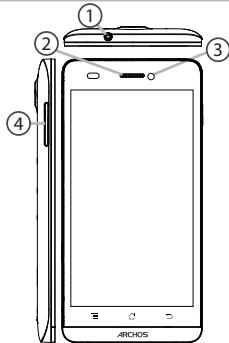
Description of the phone
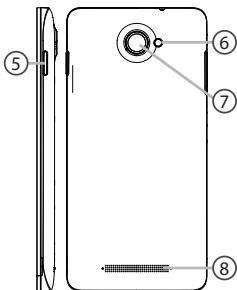
ON/OFF button
⑥ Flash light
⑦ Camera
⑧ Loudspeaker
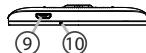
⑨ Micro-USB port
10 Microphone
10Menu
11 Home/Recent apps/Google NOW
12 Back
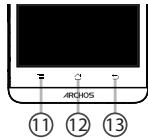
Menu: open the list of options available on the current screen.
Home/Recent apps/Google NOW: short press to return to the Home screen; double press to open the list of recent applications; long press to access Google Now.
Back: return to the previous screen.
Assembling
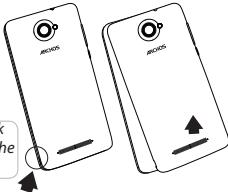
Opening
- Use the notch to remove the back cover.
Do not bend or twist the back cover excessively. Doing so may damage the cover. - Remove the battery.
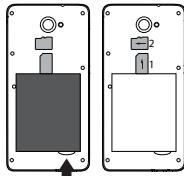
Inserting a SIM card
For your SIM card, slide it facing downwards in the slot 1.
Inserting a Memory card
For your Memory card, slide it facing downwards in the slot 2.
Closing
- Align the battery's 4 contact points with those of the phone and gently press the battery down into place.
- Replace the back cover clicking it back into position.
Tip:
Before using your device for the first time, charge completely its battery.
" Lift the backcover using the notch
Getting started
Turn ON
- Press and hold the ON/OFF button to turn on the device. When you turn on your device, a PIN code may be requested
- Type the PIN code supplied with your SIM card.
Beware of typing a wrong PIN code.
- Select'OK'.
Through the wizard
The first time you start up your ARCHOS, the installation wizard will help you set up your device:
- Language
- Date & time
- WiFi connection
- Location service options
Turn OFF
To turn off your device, press and hold the ON/OFF button, and then select Power off > OK.
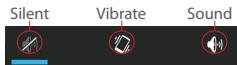
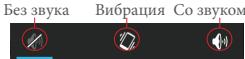
Sound & Notification profiles
- When the device is turned on, press and hold the ON/OFF button.
- Select an option.
Touch screen actions:
Tap: touch once to select or launch a menu, option, or application.
Tap and hold: tap an item and hold it for more than 2 seconds.
Drag: tap an item and move it to a new location.
Double-tap: tap an item twice quickly.
Flick: briskly scroll up, down, left, or right to move through lists or screens.
Pinch: place two of your fingers far apart, and then pinch them together.
Tip:
Your device goes in standby mode when you do not use it for a specified period of time. To wake up your device, press the ON/OFF button.
To set the duration, go to Settings > Display > Sleep.
4G & WiFi connection
4G & 3G connection
With your SIM card, you should be connected to the Internet without any further setup. The ARCHOS will only have signal if you are in an area covered by your provider's 4G or 3G network. When connected to the 4G network, the 4G icon is displayed in the status bar.
Activating the mobile data
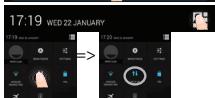
To be able to access Internet, the mobile data icon must be activated.
- Touch and hold the time & battery icons to reveal the status bar.
2.Pull the blue line down to display the status dashboard. - Touch the status dashboard icon
- Touch the mobile data icon to activate it.
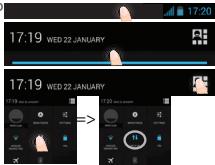
Tip:
When you encounter connection problem's, see the FAQs on www. archos.com or contact your 4G network connection provider.
WiFi connection
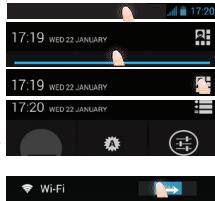
WARNING: Make sure that you are in a WiFi zone. You can access the WiFi settings quickly from the status bar.
- Touch and hold the time & battery icons to reveal the status bar.
2.Pull the blue line down to display the status dashboard. - Touch the status dashboard icon
- Touch the "Settings" icon to open the settings menu.
- In the "Wireless & networks" section, if the WiFi is off, slide the WiFi switch to the "ON" position. Once the WiFi is on, the ARCHOS will scan for WiFi networks in range.
- Touch "WiFi" to display available networks.
- Touch the name of network you want to connect to.
Private networks are shown with a lock icon and will require you to enter your password.
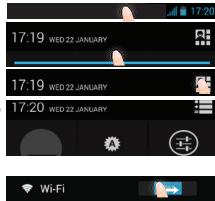
Google & Contacts
Adding a Google account
A Google account lets you take full advantage of any Google apps and services that you may want to use.
- Go to "Settings" > "Accounts" > "Add account".
- Select the account type "Google" to add.
- Follow the onscreen instructions to enter information about the account. Once the account is created, you can access Play Store, Gmail, Hangouts, Maps and many other apps.
Synchronizing info
Information must be sync to be saved. Your data are backed up on Google servers.
- Go to "Settings" > "Accounts" > "Google".
- Select your account.
The list of information that can be sync are displayed.
Automatic sync should be activated. To launch the sync, press the Menu button, then Sync now. You can get them back in case of loss of your device or SIM card. When your Google account is added to a new device, all your saved information are collected.
Saving your contacts
When your contacts are saved, they are always available on the web and can be synced to any Android phone that's set up with your Google account.
- Install the SIM card with your contacts in your phone.
- From a Home or All Apps screen, select the People app
- Touch the Menu button > "Import/Export".
- In Import/export contacts, select "Import from SIM card".
- Select your Google account.
- Check contacts to be imported and validate.
- Once the contacts are imported in the Google account, go to "Settings" > "Accounts" > "Google".
- Select you Google account.
- Select the Menu button, then "Sync now".
Your contacts are saved to via your Google account.
Hints & tips with Android™
The extended home screen:
Navigate between different home screen panels by swiping left and right.
Home button
Short press the Home button to go back to the main screen.
Double press the Home button to display all the apps you have opened.
Swipe any app left or right to close it.
Moving a home screen item:
Touch and hold your finger onto it until the positioning gridlines appear, then slide it to the desired location, and release your finger.
Removing a home screen item:
Touch and hold it, slide your finger towards the top of the screen and drop it over the "Remove" icon.
Uninstalling an item:
From the "All apps" screens, touch and hold it, slide your finger towards the top of the screen and drop it over "Uninstall" bin.
Creating application folders:
Drop one app icon over another on a home screen and the two icons will be combined.
Widgets:
Touch the "All Apps" icon on your home screen. Touch "Widgets" at the top of the screen. From the main Widget screen, you can move around widgets just as you do for app icons.
Changing your wallpaper:
Hold your finger on a home screen at an empty location, then choose from the list.
Locking the touchscreen:
From the quick settings dashboard in the status bar, touch "Settings". In "Settings", scroll down and touch "Security". Touch "Screen lock". Touch the type of lock you would like to use. After you set a lock, a lock screen is displayed whenever your screen wakes up, requesting the pattern, pin or other specified key.
Troubleshooting
My phone is frozen or cannot switch on
Check the battery contacts, remove and reinstall your battery, then turn your phone on. Check the battery power level, charge for at least 20 minutes.
My phone cannot connect to a network or "No service" is displayed
Try connecting in another location. Verify the network coverage with your operator.
Unable to make outgoing calls
Make sure your phone is connected to a network, and the network is not overloaded or unavailable.
Unable to receive incoming calls
Make sure your phone is switched on and connected to a network (check for overloaded or unavailable network).
SIM card PIN locked
Contact your network operator to obtain the PUK code (Personal Unblocking Key).
To configure a new 4G network:
On your device, tap Settings.
Select Wireless & networks > More... > Mobile networks.
Select Network settings. In Network operators, select your operator. In Access Point Names, select the correct access point name and enter the exact connection parameters provided by your 4G provider.
Table des matieres
FR
PpOuHn3ByKOB uYbeomJeHn
- KOrJa yCTpoiCTBO BKJIIOUeHO, HαKMnTe N yIePKNBaIte KHOIIKy
BKIOUeHn/BBIKIOUeHn.
- Bb6epnte OINH n3 BapnaHTOB.
ДиCTBЯHa ceHcOphOM 3KpaHe
Kacahne: KocHTecb OIN pa3 dIa
BvBopa MInI 3aYcKa MeNo, yHKnUm Nn pRnOKeynu.
Kacaneu yudpkhanee: KocHTeCb 3JIeMeHtA nYdepkBaIte erOHe MeHee 2 SekyHd.
NepetackKbAHne: KCHNTECb 3JIeMENTa I NpeMeCTITE erO B HOBOE MECTO.
Двоьhoe kacahne: bbyICtpo DBaXkDbl KOCHNTcB элMeHTa.
PbOeDHeM: BbCTPO PbOBeMtIte NO K3aYbN aHaJIb MEBEeX, BHN3, BNEo HIN bPABNO, Tc0bIb NpKpyTNbCnICOK INu COnDEPKMIOE k3paHa.
CzheMa:Pa3eBnTe Dba nlaBla, a 3aTeM CBeNite Ix UNIKOBbIM DnJXENHEM.
Nodcka3Ku. EcnI yCTPOBTO HE NcIOb3yETCA B TceHHe NOpdeneHNOHO BPemHc, CenCOPbH 3KpAH BbIKIOHaTcA. Tc0b6 BkIOHbT bKpAH, HAKMITE KHNKy BKIOHNe I BkIKIOHEn. Tc0b6 3a4bTaIINbIbOCTb, nepMeJITe K MeHIO Settings Display Sleep (HaTcPOHnI IcINsJe PekHM cHa).
RU
Поdklioуне 4G & Wi-Fi
IopKluoyehne KceTAM 4G u 3G
Pocne lctyAHOBKn SIM-KapTbI IaI NOKIIIOUeHN K INTEpHety DaJIbHNeiAa HactPOrN ToHpeSyTeB. UCTPOcTHBO ARCHOS YCTaHANBAJIteCoEoCIMHeHNE ToIbKO pIh HaxokdHm B 3OHe NOKpbltna cTeH 4G mN 3G bVb6paHnro ToNtABuWkca yCITM MOJbIbHOB CbRn.Ipn NOKIIIOUeHN K cTeH 4G B cTPOke CoCTOHAn OTObpakaeTcHaQK 4G.
AKTNBaunMo6nIbHbIX daHHbIX
UTo6bIMeTb BO3MOxHOCtB DoCTyna K IVHTepHety, Heo6xoDIMO
AKTMBIOBtI PIKTOrgaMMy MOOJIbHIX DAHbIX.
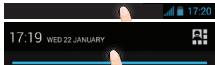
1.KochntteB uJeDPKnBAITE 3aHcN BpemEnu AkymyIaTOpA, YTObI OTKpbIb CTPOK COTOHNIA.
2.ПOTЯНТЕСHIQUЛМИЗЮВИЗ,ЧТОБь OTOБРАДТЯнIELMOHOTOPMHRGA COCTOHNO
3.BbI6epnte3HaQOK
4. Дд ддддддддддддддддддддддддддддддддддддддддддддддддддддддддддддддддддддддддддддддддддддддддддддддддддддд
MOBUNBHIX DAHBJX
Cobert:
EcnB03NkhKHyT pnp6nEmbI c cooeiHHeHem, Cm, qacto 3adabaebMbe BOpncbI nOBtebl H na Hx Hn Be6-caTe wW.archos.com nn CBXJteC b CoCBm NocstabuNKOM yCJyT CETn 3G.
Wi-Fi
Y6bOJIeTtB, cTO b HAOJIOCTB B 3OHeWi- Fi. BiCTpy IOCTyI K HAcTOHAM Wi- Fi oUcTeBHTeRA I3 cTPOKCI COCTOHNIA
1.Kocnntecb u ydepknBaIte 3NaKu BpeMeHn aKKymyIaTopa,TO6bl
OTKpbITCTPOKY COCTOHNIA.
2.ПOTЯNTHE CYNHIO LIMNHO BHN3,чTO6bI OTO6pa3nTb NaHel MOHITOPMHra COCTOHINIA
3.BbI6epnte3NaOH
4. Hakmmtte Ha 3aHocK TactpoiKn DЯJ Doctyna K TactpoikKn.
5. EcNI mOuYI-Wi BiBIOJUeOH, B pa3JeD WiReless & networks (EbcnpoBQaHcBa3b n cTeH) nepeMeCTITE nepeKIOuAtenB Wi-Fi B tonOJIeNH ON (BCJH).TocLe BKIOJIeNHMI-Wi CYtPOsRTOB ARCHOS
BbINOHHT O6hApxKeHne cTei Wi-Fi B dnaIa3OHe npnema.
6. BbIbepnte Wi-Fi.
7. Bb6epiTe TY cTb, K KOtOpO XOTIte NOKIIIOHTbC. YaCThIbe CETn. OTObpaKaIOcTc B VBe 3HaKa c ZAMKOM, IN DnI HNX NOTpeyTCB VBeCTN napOnL.
RU
yuetha 3anncb Google n KOHTaKtbl
Dobablenhe yuetno 3anncn Google
YuThaHa 3aunbc Google nOBoHnert nonoBatbIe npReMnyeCTBaMri IIO6bxPnpioXenHHuNcYrGoogleKOTOBBe yBuXaTOHTe NcIOBtOBAtB.
- Пекудату к разду Settings > Accounts > Add account (Hactrpoи >Учтуные заимп >Добавиту учтую заимь).
- BbI6epnte TnDIOabBnEmo yUeTHo3aHcN GoOgle.
- BlynohneHTNCTpyKUHN HA KcpeHne DnBBOda INFOPMaUNo 6b yehTHOI 3aNCsIK. Kaq ToLboyueTHA ZaMBC 6bTeCtOdha, Bbl 6yDteMeMTB doCTYK Play Store, Gmli, Hangouts, Maps n MOrHM prpymnpinoJOKENHAM.
CnHxpoHn3auny HhOpMaun
IoxocharpeHHN HMOFmuAMn CINHNOHNpYyte ee. PeRbHOe KONPBOAHME BauNX dAnhBx BInONHrTcHa TcepeBp Google
-
Пекудату к радун Settings > Accounts > Google (Hастroyи > Учтные заимп > Google).
-
Bb6ePtey ueyTHyo 3aNbcL. OTo6pbaKeTc CnKoC bCbeDHN, KOtOpBle MOHKO cNHXPOHNI3POBAtB. CneJyET BKNIOHTb yFNKUIO ABTOMaTHHeCKOIN CNHXPOHNA3ZuIN. IJr 3aYcKa CnHXPOHNA3ZuIN HAKMITE KHOJIky Menu (MeHO) n 3aTeM BB6ePtey PnyKTn Sync now (CNHXPOHNI3POBAt CeHAc). C NMOIooBy FynHKUIN CNHXPOHNA3ZuIN MOKHO BOCCTAHOBITb DAHNBE B CNYae Uteyr npvctOCTBa IN SIM-Kaptb. Ipn perInctpaun Baewi ueyTHno 3aNHC GoogHe Na HOBOM uCTpoCTBe BVInOLNHETc CBOP BcE coxpanenHHo HA HEM HnFOPAmau.
CoxpaHeHne KOHTAKTOB
Bce Baunu KOnTakbl B IIO6OIMOMeHTIocTyHbI B cETn IMoYr 6bItb CmHXPOHN3INpOBaHbI CIObM TeIeΦoHOM Android, HAcToeHNbIM Ha Ty yeJcTHyO 3anbc Google.
1.YctaHOBInBe TBeIefoH SIM-KapTy,Ha KOTOpO 3aINcAhl KOHTaKTbl.
2. Na IhaBOM 3KpaHEI mIKPAHEA All AppS (Bce npINOXeHn) Bb6epire npINOXeHne People (KoHTAKb)
3. KocnTecb KhonKu «MeHIO» > Import/Export (IMnopt/3Kcnpot).
4. B pāzādène l M M N O P T A / kēk n opta K Κ H a t k T O B v b i e p r i n e I mport from SIM card (l M n o p r c S C I K a p t b).
5. BbIepePte BaWy yUeTHyO 3aNNscB Google.
6. ÖMTBÄTE KOHAKTBi, KOTOPBE HEO6XDMIMO IMNOPTIPOBAtb, INIOPTBERDITBe BYbOOp.
7. Посце заBERSEПЕНИ PMNOPTA KONTAKTOB B YUETHNY ZaINcB Google nepeiDITE B MENI Settings > Accounts > Google (HaCTpOIKN > YUETHbE ZaINcS >Google).
8. BbIepeNTE BaUy yUeTHyIO 3aIncb Google.
9. Haxmite KhoNky «Meho», 3atEm Bb6epnite Sync now (CINxhpOnnHnIpoBaTb ceyuac). KOtAcbTy bdyT coXpaHEnbB BaWey uHTHO 3aIcNc Google.
RU
3HaKOMCTBO C AndroidTM
PacunpeHHbI DomaHn3KpaH:
BbIOnnHJIe nepeXOblMxMeKdy pa3NHyMbIM naHeJIbIMNoDMaHrE OekpHa, CmEsaun Ix NBeLo and BnPaBo.
Khonka Home:
HakmteI pyra Bo3pata K rAbaHOy 3kApHy, DboiHOe KacaneIne IOTbPITn CINCKA NOcIeDHIX PrIOLOXKeHH.
IpepeeHne 3nemHaT aomawHero kpaHa:
TeneoH He pearnpyet Ha deIcTBn Wn He BkIOuayeTCA
IIOBepoei KOTAKHTA kAYM/ITROPA, hAENKIEV N HOBTOPIE KYAOMYRITOP, 3ATEM CHOI ABOO. IIOBEPoei POyEBeHbApzA kAYM/ITROPA, BUNHOYNE ZAPyBv T E WENHE Y MEOBE 2024
He yadetca noqknoutb tepeoh He moket K cetn, mH oTo6paKaetc coo6eHne No service (Het cetr)
Ponitaiytebct y tchatohobt coeDneneB Hpyrom Mecte. PnpoIpebte y onepatopataHmnaWneKpOTHc tetn. PnpoIpebte y onepatopata, deMeCTBnErlBaM Nbaa SIM-Kapra. PnpoItebte BbOpabT doCyTuHyto bct (cetni) bpyuhyo. PnpoItebte YtchAOthobt coeDneneHn03e, ccni cteNpepykHa.
He ydaeTcBbINONHHTb NcXoJaIue BbI3OBbl
Y6eHITcB,HTO TeneoH NOJKNIOUeH K CTeN, HTO CeTb DOCTynHa HnepeperpykeHa.
He ydaetc npHHMaTb BXOJaune Bbl30Bbl
Y68TcBc,TO TEPOEON KIOHNOEN N NOKIOHNOK C cTeN (PiOeBbte, NO cTe bOCTyTHa Hne peRyKePcB.
3a6JIOKIpOBaH PIN-KoD SIM-KapTbI
06Pubertéctb k onopatry mobiynbou cbraa for nonyuena PUK-ka; (Personal Unblocking Key — nepocharbnb yabaojnpkuyouko ka).
HnHaCTpOKnHOBOIceTn3Gnn4G
Ha ekpahe yctpoCTBa KOCHNTecb nyHKta Settings (HactpoiKn).
BvBePrrte Wireless & networks (Becpnoobuaa cBaA u cTei) > More... (BoIbue...) > Mobile networks (MoBnHBe cTei).
Bubepirey nkytNorkow Settings (CetteBn HactoPoiK). B paezade Nenew operators (OnepatoBc) buepeirey cboe noortabuizyu cyeB. y 8abeae Access Point Names (Imha Toekoct Dctya) rpahlnlBOBvEme IMTO KINOTDCTYNA u TOHcye napametpy CoedmHeNn, pepeOCTABNHe lybocntabuizyu oCyTc c4G.
Spis tresci
Open Source Software Offer
The software bundled with this product includes software files subject to certain open source license requirements. Such open source software files are subject solely to the terms of the relevant open source software license. Such open source software is provided on an "AS IS" basis to the maximum extent permitted by applicable law.
For the open source files contained herein, please access "Open source license" section located at: Settings\About phone\Legal information on the device for the relevant copyright and licensing terms. You may obtain a copy of Apache License, Version 2.0 at http://www.apache.org/licenses/License-2.0. You may also obtain a copy of GNU General Public License, Version 2 at the Free Software Foundation, INC, 51 Franklin Street, Fifth Floor, Boston, MA 02110-1301, USA.
Until the date that is three years after our last shipment of this product, you may obtain a copy of the source code corresponding to the binaries for any GPL-Licensed file by contacting ARCHOS customer service at http://www.archos.com and ARCHOS will send you a link to such source code or will provide instructions to get the source on a physical medium.
This offer is valid to anyone in receipt of this information.
National restrictions
This device is intended for home and office use in all EU countries (and other countries following the EU directive 1999/5/EC) without any limitation except for the countries mentioned below:
| Country | Restriction | Reason/remark |
| Bulgaria | None | General authorization required for outdoor use and public service |
| France | Outdoor use limited to 10 mW e.i.r.p. within the band 2454-2483.5 MHz | Military Radiolocation use. Refarming of the 2.4 GHz band has been ongoing in recent years to allow current relaxed regulation. Full implementation planned 2012 |
| Italy | None | If used outside of own premises, general authorization is required. |
| Luxembourg | None | General authorization required for network and service supply (not for spectrum) |
| Norway | Implemented | This subsection does not apply for the geographical aera within a radius of 20 km from the centre of Ny-Alesund |
| Russian Federation | None | Only for indoor applications |
Note: Frequency 2454-2483.5MHZ are restricted to indoor use in France.
Consult the declaration of conformity on http://www.archos.com/products/ declaration_conformity.html
CE 0890
SAR
After the laboratory measurement, this mobile phone SAR value is: