D-40ZOOM - Digital Camera OLYMPUS - Free user manual and instructions
Find the device manual for free D-40ZOOM OLYMPUS in PDF.



| Product type | Digital camera |
| Brand | OLYMPUS |
| Model | D-40ZOOM |
| Dimensions (W x H x D) | 87 mm x 68.5 mm x 43.5 mm |
| Weight (without batteries or card) | 190 g |
| Power supply | CR-V3 lithium battery or 2 AA batteries (NiMH, NiCd, alkaline, or lithium) |
| Sensor | CCD 1/1.8", 4.13 million pixels (gross) |
| Lens | Olympus 7.25-20.3 mm (equiv. 35-98 mm in 35 mm), f2.8-f4.8 |
| Image resolutions | Up to 2288 x 1712 (SHQ) and 2272 x 1704 (HQ) |
| Viewfinder | Optical real-image |
| LCD monitor | TFT 1.5", 114,000 pixels |
| Autofocus | TTL, spot, contrast detection |
| Exposure metering | Digital ESP, spot metering |
| Built-in flash | Modes: auto, red-eye reduction, fill-in, off, slow sync |
| Shooting modes | Auto, Portrait, Landscape, Night scene, Self-portrait, Program, Aperture/shutter priority, Manual, My mode, Movie |
| Storage media | SmartMedia 3V card (4 MB to 128 MB) |
| Connectors | USB 1.0, A/V output, DC-IN jack |
| Operating temperature | 0°C to 40°C |
| Care and cleaning | Clean the lens with a soft, dry cloth. Avoid moisture and dust. |
| Safety | Do not look directly at the flash. Use only recommended batteries. |
| General information | 180-page manual available for download. |
Frequently Asked Questions - D-40ZOOM OLYMPUS
User questions about D-40ZOOM OLYMPUS
0 question about this device. Answer the ones you know or ask your own.
Ask a new question about this device
Download the instructions for your Digital Camera in PDF format for free! Find your manual D-40ZOOM - OLYMPUS and take your electronic device back in hand. On this page are published all the documents necessary for the use of your device. D-40ZOOM by OLYMPUS.
USER MANUAL D-40ZOOM OLYMPUS
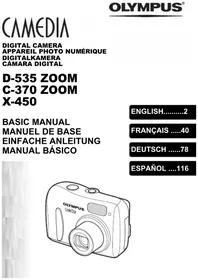
DIGITAL CAMERA/APPAREIL PHOTO NUMÉRIQUE DIGITALKAMERA/CÁMARA DIGITAL
C-40ZOOM/D-40ZOOM
BASIC MANUAL
■ Before using your camera, read this manual carefully to ensure correct use.
■ We recommend that you take test shots to get accustomed to your camera before taking important photographs.
■ These instructions are only for quick reference. For more details on the functions described here, refer to the software CD's instructions on CD-ROM.
MANUEL DE BASE
Thank you for purchasing an Olympus digital camera. Before you start to use your new camera, please read these instructions carefully to enjoy optimum performance and a longer service life. Keep this manual in a safe place for future reference.
For customers in Europe

“CE” mark indicates that this product complies with the European requirements for safety, health, environment and customer protection. “CE” mark cameras are intended for sales in Europe.
For customers in North and South America
For customers in USA
Declaration of Conformity
Model Number : C-40ZOOM/D-40ZOOM
Trade Name : OLYMPUS
Responsible Party : Olympus America Inc.
Address : 2 Corporate Center Drive, Melville, New York 11747-3157 U.S.A.
Telephone Number : 631-844-5000
Tested To Comply With FCC Standards
FOR HOME OR OFFICE USE
This device complies with Part 15 of the FCC rules. Operation is subject to the following two conditions:
(1) This device may not cause harmful interference.
(2) This device must accept any interference received, including interference that may cause undesired operation.
For customers in Canada
This Class B digital apparatus meets all requirements of the Canadian Interference-Causing Equipment Regulations.
Trademarks
• IBM is a registered trademark of International Business Machines Corporation.
- Microsoft and Windows are registered trademarks of Microsoft Corporation.
•Macintosh is a trademark of Apple Computer Inc.
- All other company and product names are registered trademarks and/or trademarks of their respective owners.
- The standards for camera file systems referred to in this manual are the “Design Rule for Camera File System/DCF” standards stipulated by the Japan Electronics and Information Technology Industries Association (JEITA).
CONTENTS/TABLE DES MATIÉ/INHALT/CONTENIDO
ENGLISH....2
FRANÇAIS 46
DEUTSCH 90
ESPAÑOL 134
CONTENTS
NAMES OF PARTS 4
HOW TO USE THIS MANUAL 15
GETTING STARTED 16
SHOOTING BASICS 19
ADVANCED SHOOTING 32
PLAYBACK 34
PRINT SETTINGS 38
TRANSFERRING PICTURES TO A COMPUTER 40
OPTIONAL ACCESSORIES 41
ERROR CODES 42
SPECIFICATIONS 44
These instructions are only for quick reference. For more details on the functions described here, refer to the software CD's instructions on CD-ROM.
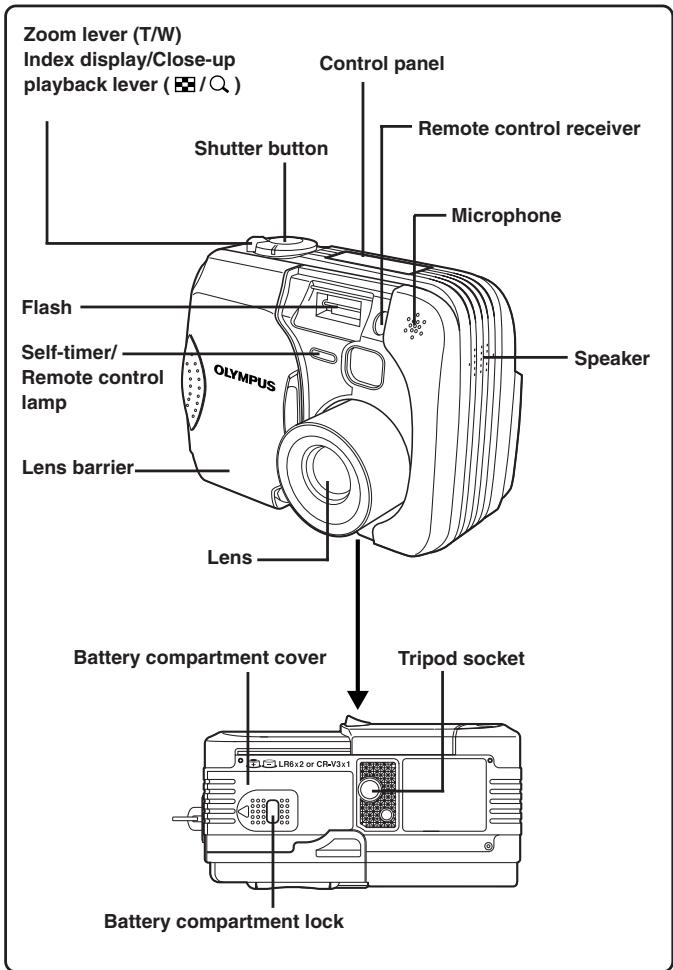
NAMES OF PARTS
Camera
Macro/Spot button ( 📊/□ )
Protect button (ON)
Rotation button
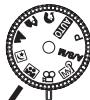
Mode dial
(AUTO, 📷, 📤, 🐘, 🌐, 📞)
,My,A/S/M,P)
![Remote control receiver Flash mode button (⚡) Erase button (💡) Viewfinder Monitor Monitor button ( [IMAGE] ) Card access lamp Card cover OK/Menu button Manual focus button ( [💡] ) Arrow pad (△▽◀◀) Strap eyelet (refer to the "Quick-start guide" included in the package.)](/content/2019/11/84656/images/44d5f5833ae1a9c1281a24920e9a32cc9f733281cad42dad9ceb23517ff97ef5.jpg)
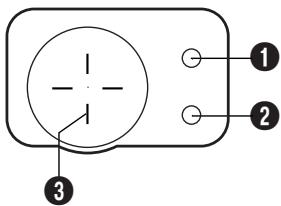
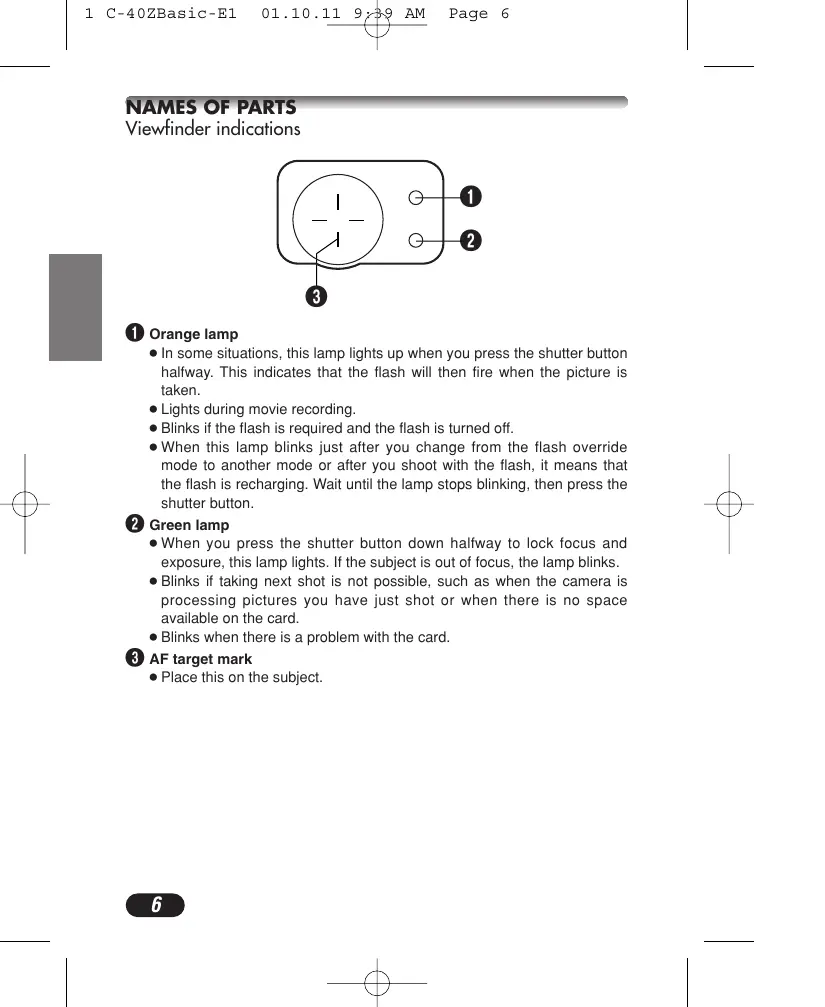
① Orange lamp
- In some situations, this lamp lights up when you press the shutter button halfway. This indicates that the flash will then fire when the picture is taken.
● Lights during movie recording. - Blinks if the flash is required and the flash is turned off.
- When this lamp blinks just after you change from the flash override mode to another mode or after you shoot with the flash, it means that the flash is recharging. Wait until the lamp stops blinking, then press the shutter button.
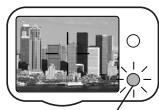
2 Green lamp
- When you press the shutter button down halfway to lock focus and exposure, this lamp lights. If the subject is out of focus, the lamp blinks.
- Blinks if taking next shot is not possible, such as when the camera is processing pictures you have just shot or when there is no space available on the card.
- Blinks when there is a problem with the card.
③ AF target mark
- Place this on the subject.
Control panel indications
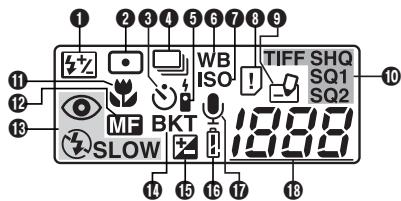
1 Flash intensity control
- Displayed when the amount of the light emitted by the flash is adjusted.
② Spot metering mode
- Displayed when the Spot metering mode is set.
3 Self-timer
- Displayed when the self-timer is activated.
4 Sequential shooting
- Displayed when the drive mode is set to Sequential shooting or AF Sequential shooting.
5 Remote control
- Displayed when remote control shooting is activated.
6 White balance
- Displayed when the White balance is set to any mode except AUTO.
7 ISO
- Displayed when the ISO is set to any mode except AUTO.
8 Card error
- When the power is turned on, the camera checks the card. If there is a problem with the card, this indication appears.
9 Card writing
- Displayed when recorded pictures are being written to a card.
10 Record mode (TIFF, SHQ, HQ, SQ1, SQ2)
- Displays the record mode. If SHQ or HQ is set to ENLARGE SIZE, the corresponding indication blinks.
11 Macro mode
- Displayed when the macro mode is engaged.
12 Manual Focus
- Displayed when locking focus using the Manual focus function.
NAMES OF PARTS
Control panel indications (Cont.)
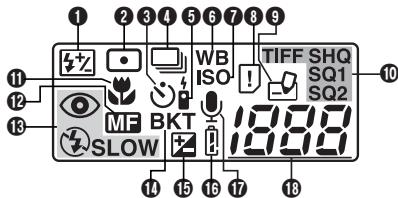
13 Flash mode
- Displayed when the flash mode is selected by pressing the ↗ (flash mode) button.
No indication: Auto-flash
● : Red-eye reduction flash
↓ : Fill-in flash
SLOW: Slow synchronization flash
④ : Off (flash override)
14 Auto-bracket
- Displayed when the drive mode is set to the Auto-bracket mode.
15 Exposure compensation
- Displayed when exposure compensation is set to any value except 0.
16 Battery check
- When remaining battery power is low, the battery check indication changes as follows:

flowchart
graph LR
    A[" "] --> B[" "]
    B --> C[" "]
Fully charged
Low power
Blinks, then turns off.
No power
- Be aware that the time when the battery check indication appears varies depending on the type of batteries used.
17 Sound record
- Displayed when the sound record mode is set to "ON".
18 Number of storable still pictures
- Displays the number of still pictures you can shoot.
Seconds remaining (mode only)
- Displays available movie recording time.
Card error
- Displayed if there is a problem with the card. See "Error codes".
Monitor indications — Shooting information
The indications vary depending on the shooting mode.
If you shoot using the monitor for a long time, noise may appear on pictures.
The information below is always displayed in the shooting mode.
The information below is displayed for about 3 seconds after operating the buttons/mode dial or closing the menus.
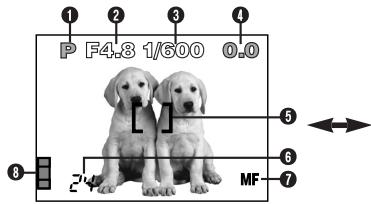
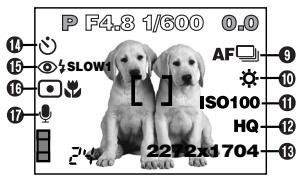
*The illustrations show examples of indications displayed when the mode dial is set to P.
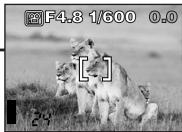
1 Shooting mode
- Displays the shooting mode.
AUTO : Full-auto mode, 📋 : Portrait mode, 🔒 : Landscape-Portrait mode, ▲ : Landscape-Scene mode, ☑ : Night Scene mode, ✉️ : Self-Portrait mode, P: Program mode, A: Aperture priority mode, S: Shutter priority mode, M: Manual mode, 📂️ : My Mode, ✉️ : Movie mode
② Aperture value
- Displays the current aperture value.
③ Shutter speed
- Displays the current shutter speed.
4 Exposure compensation
- Displays the current exposure (brightness) compensation value.
Exposure differential (M mode only)
- Displays the difference between the exposure determined by the currently selected aperture and shutter speed compared to the exposure level considered optimal by the camera.
5 AF target mark
- Place this on the subject.
NAMES OF PARTS
Monitor indications — Shooting information (Cont.)
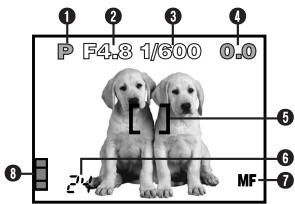
6 Number of storable still pictures
- Displays the number of still pictures you can shoot.
Seconds remaining (mode only)
- Displays available movie recording time.
7 Manual Focus
- Displayed when locking focus using the Manual focus function.
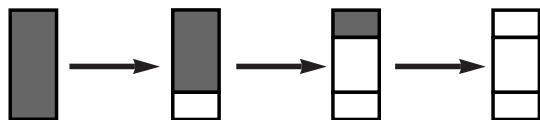
8 Memory gauge
- Displays the amount of space used by the pictures stored in the built-in memory. If you take pictures continuously, the indication changes as shown below.
flowchart
graph LR
    A["Rectangular Block"] --> B["Rectangular Block"]
    B --> C["Rectangular Block"]
    C --> D["Rectangular Block"]
The memory gauge changes depending on the number of storable pictures or seconds remaining.
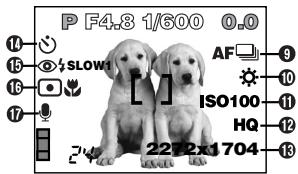
9 Drive mode
- Displayed when the drive mode is set on the menus.
□ : Single-frame shooting
☐ : Sequential shooting
AF : AF Sequential shooting
BKT : Auto-bracket
10 White balance
- Displayed when WB is set on the menus.
No indication: AUTO
☀️ : Daylight
: Overcast
☀️ : Tungsten light
: Fluorescent
☐ : One touch white balance
11 ISO
- Displays the ISO (AUTO, 100, 200 or 400) selected on the menus. When set to AUTO, the ISO changes to 100 when the mode dial is set to A/S/M. When AUTO is selected, the ISO is automatically increased in low-light situations when the flash is not used. This is to prevent blurring from camera movement.
12 Record mode TIFF/SHQ/HQ/SQ1/SQ2
- Displays the record mode selected on the menus.
13 Number of pixels
- Displays the number of pixels used for the resolution setting that is currently selected.
14 Self-timer/remote control
- Displayed when self-timer/remote control shooting is activated.
😊 : Self-timer shooting
: Remote control shooting
NAMES OF PARTS
Monitor indications — Shooting information (Cont.)
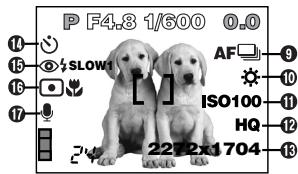
15 Flash mode
- Displayed when the flash mode is selected by pressing the ↗ (flash mode) button.
No indication: Auto-flash ☐ : Red-eye reduction flash
↓ : Fill-in flash
SLOW1/ SLOW2/ SLOW1: Slow synchronization flash
④ : Off (flash override)
16 Spot metering/Macro mode
- Displayed when the Spot metering/Macro mode is selected by pressing the 🎨/☐ (Macro/Spot) button.
No indication: Digital ESP
- Displayed when ⏻ is set on the menus.
Monitor indications — Playback information
INFO setting on the Menu allows you to select how much information to display.
Still picture playback information
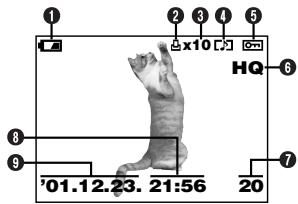
When INFO is set to OFF
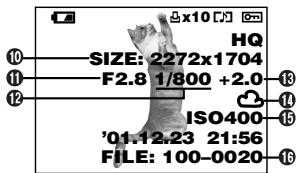
When INFO is set to ON
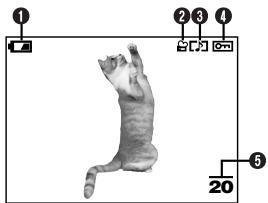
① Battery check
- The battery check indication changes as follows:
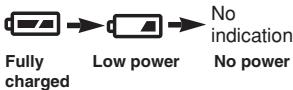
- Be aware that the time when the battery check indication appears varies depending on the type of batteries used.
2 Print reserve
- Displayed when the Print reserve is set.
3 Number of prints
- Displays the number of prints.
4 Sound record
- Displayed when sound is recorded.
5 Protect
- Displayed when the picture is protected.
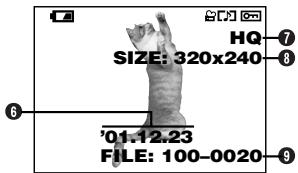
6 Record mode
7 Frame number
8 Time
9 Date
● The year 2001 is displayed as 01.
10 Number of pixels (resolution setting)
11 Aperture value
⑫ Shutter speed
13 Exposure compensation
14 White balance
15 ISO
16 File number
NAMES OF PARTS
Monitor indications — Playback information (Cont.)
Movie playback information
natural_image
Illustration of a cat in a jumping pose with numbered labels (1, 2, 3, 4, 5) and number 20 at the bottom, no text or symbols on the image itself.When INFO is set to OFF
When INFO is set to ON
① Battery check
2 Movie mark
3 Sound record
- Displayed when sound is recorded.
4 Protect
- Displayed when the picture is protected.
5 Frame number
6 Date
● The year 2001 is displayed as 01.
7 Record mode
8 Number of pixels
9 File number
● During movie playback, the recording time appears as follows:

flowchart
graph LR
    A["Playing time"] --> B["0"/15""]
    B --> C["Total recording time"]
Note:
- The indications that appear on a movie picture that has been selected and displayed from the thumbnail display are different from those that appear when the movie picture is displayed using the Movie play function.
HOW TO USE THIS MANUAL
The instructions in this manual use a series of numbers for each operating procedure and button/dial illustration. Follow these numbers in order when operating the camera.
Before using the following function, set the mode dial to any of the positions shown.

Means "Press this button".
If a button is shown in black, press it as part of the step.

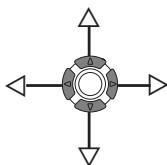
, , and used in instructions correspond to the buttons on the arrow pad as shown.
natural_image
Symmetrical diagram with four directional arrows pointing outward around a central circular component (no text or symbols)Set the functions in the menus in the order of these arrows. Before using the menus, read "Using the Menus", for details.
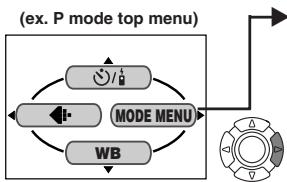
In the top menu, select MODE MENU → CAMERA → A/S/M → M.
Loading the batteries
This camera uses a CR-V3 lithium battery pack or 2 AA (R6) NiMH batteries, NiCd batteries, alkaline batteries or lithium batteries.
! Important:
- CR-V3 lithium battery packs cannot be charged.
- Do not peel the label on a CR-V3 lithium battery pack. If an insulating sheet covers the terminals, peel it off ONLY from the terminals.
1 Make sure the camera is turned off (i.e. the lens barrier is closed and the monitor if turned off).
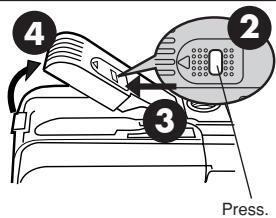
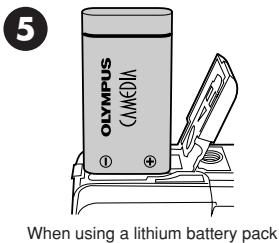
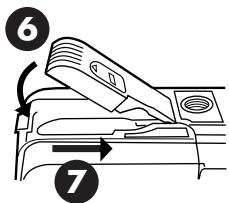
● Using the AC power adapter (optional)
Use an AC adapter designed for the area where the camera is used. Consult your nearest Olympus dealer or Service center for details.
Inserting/ejecting the card
Be sure to use a 3V (3.3 V) card. Non-Olympus 3 V (3.3 V) cards must be formatted with the camera. Do not use a 5 V card or a 2 MB card.
1 Make sure the camera is turned off (i.e. the lens barrier is closed and the monitor if turned off).
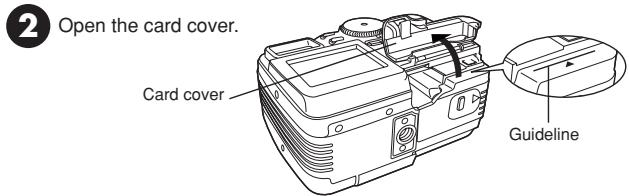
3 Inserting the card
Insert the card all the way with the contact area facing towards the lens side so that the label's edge is aligned with the guideline (◀) printed on the camera.
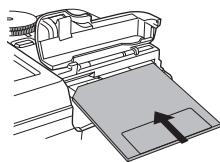
natural_image
Diagram of a mechanical device with a tray and internal components, no visible text or symbols- Insert the card while keeping it straight. Be sure not to insert it an angle.
- Note the orientation of the card. If it is inserted incorrectly, it may become jammed.
- If the card is not inserted fully, the card cover will not close. Closing the card cover forcibly will damage the card cover.
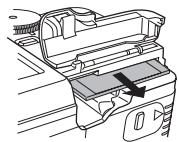
natural_image
Diagram of a car interior showing dashboard and steering wheel (no text or symbols)3 Ejecting the card
Grasp the card and pull in straight out.
4 Close the cover tightly.
Power on/off
Shooting mode
① Set the mode dial to the desired position.
② Open the lens barrier.
●The camera turns on and the lens extends.
- Startup image is displayed on the monitor.
- If the lens does not extend, the lens barrier is not fully open.
③ Partially close the lens barrier to turn the camera off (about halfway to the lens). Wait until the lens is retracted completely.
- Do not push the lens barrier against the lens.
4 Close the lens barrier all the way.
●The power turns off.
- Shutdown image is displayed on the monitor.
Playback mode
① Press the 📄 (monitor) button.
●The monitor turns on and startup image is displayed.
- If the lens barrier is open, press ☐ twice quickly to enter the playback mode.
② Press the 📄 button again.
- Shutdown image is displayed on the monitor, then the monitor turns off.
Date/time setting
① Open the lens barrier to turn on the camera and enter the shooting mode.
② Press OK to display Menu.
3 Press ▷ on the arrow pad to select MODE MENU.
4 Press ▽ to select SETUP, then press ▷.
5 Press △▽ to select ⏱, then press ▷.
6 When is selected in green on the screen, press to select the date format.
- Select any one of the following formats:
DMY (Day/Month/Year)
MDY (Month/Day/Year)
YMD (Year/Month/Day)
- This step and the following steps show the procedure used when the date and time settings are set to Y-M-D.
⑦ Press ▷ to move to the year (Y) setting.
8 Press to set the year. When the year is set, press to move to the month (M) setting.
- Repeat this procedure until the date and time are completely set.
- To move back to the previous setting, press ◀.
9 Press OK.
●The camera returns to the menu screen.
Note:
- The current settings stay the same even when the power is turned off, unless they are readjusted.
- The date setting will be canceled if the camera is left with no batteries for 2 – 3 days. If this happens, set the date again.
SHOOTING BASICS
Shooting mode setting — Mode dial

Full-auto shooting
Allows you to take still pictures using NO special functions or manual adjustments. The camera sets optimal focusing and exposure. Suitable for simple shooting.

Portrait shooting
Suitable for shooting a portrait-style shot of a person. This mode features an in-focus subject against a blurred background. The camera automatically sets the optimal shooting conditions.

Landscape-Portrait shooting
For example, if you want to take a picture with a beautiful background, you will want to have both your subject and the background in focus. The camera automatically sets the optimal shooting conditions.

Landscape-Scene shooting
Suitable for taking pictures of landscapes and other outdoor scenes landscape. The camera focuses on a distant subject (tree, mountain, etc.) and the picture comes out clear. Since blues and greens are reproduced vividly in this mode, the Landscape-Scene mode is excellent for shooting natural scenery. The camera automatically sets the optimal shooting conditions.
SHOOTING BASICS (Cont.)

Night Scene shooting
Suitable for shooting pictures in the evening or at night. The camera sets a slower shutter speed than is used in normal shooting. For example, if you take a picture of a street at night in the AUTO mode, the lack of brightness will result in a dark picture with only the sparkle of lights such as street lamps appearing. In the Night Scene shooting mode, the true appearance of the street can be captured. The camera automatically selects the optimal settings for this type of shooting condition.

Self-Portrait shooting
Enables you to take a picture of yourself while holding the camera. Point the lens towards you and take a shot. The focus is locked on you (shooter). The camera automatically selects the optimal settings for this type of shooting condition. Zooming is not possible.

Program shooting
Allows you to take still pictures. The camera sets aperture and shutter speed. Other functions, such as flash modes and drive modes, can be adjusted manually.

Aperture priority/Shutter priority/Manual shooting
Allows you to set aperture and/or shutter speed manually. When the mode dial is set to A/S/M, the following items can be set with the menus:
A (Aperture priority shooting)
You set the aperture and the camera sets the shutter speed.
S (Shutter priority shooting)
You set the shutter speed and the camera sets the aperture.
M (Manual shooting)
You set both the aperture and shutter speed.

My Mode
Allows you to take still pictures. Your favorite settings can be saved in MY MODE SETUP (in the menu's SETUP). Customized settings are activated when the power is turned on in the Ⓜ mode. The shortcut menu can also include different items than the shortcut menus in the P or A/S/M mode.

Movie record
Allows you to record movies. The camera sets the aperture and shutter speed automatically. Even if the subject moves during recording or the distance to the subject changes, correct focusing and exposure are maintained continuously.
Using the menu
When displaying menus, the first screen that appears on the monitor is called the top menu. The contents of this menu change depending on the mode. On the top menu, two types of menus are available: MODE MENU and the other menus (shortcut menus).
Shortcut menu
The shortcut menu consists of the items other than MODE MENU on the Top menu. These can be replaced with your favorite items, but only when the mode dial is set to P, A/S/M or ☐. Just pressing the arrow pad buttons according to the marks shown next to each item will lead you directly to their screens.
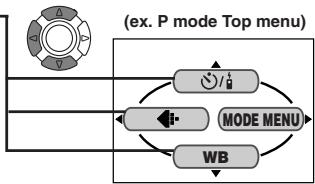
flowchart
graph TD
    A["Ex. P mode Top menu"] --> B["MODE MENU"]
    B --> C["WB"]
    C --> D["Directional Arrow"]
    D --> E["Circle Icon"]
    E --> F["Arrow to Left"]
    F --> G["Arrow to Right"]
flowchart
graph TD
    A["MODE MENU"] --> B["WB"]
    B --> C["(ex. P mode top menu)"]
    C --> D["->"]
    D --> E["->"]
    E --> F["->"]
    F --> G["->"]
    G --> H["->"]
Mode menu
MODE MENU (displayed on the top menu) contains all the functions that are available and is divided into four tabs: CAMERA, PICTURE, CARD, and SETUP. These can be selected with the tabs on the left of the screen by using .
How to Set a Function in MODE MENU
① On the top menu, enter MODE MENU.
② Select a tab (CAMERA, PICTURE, CARD, or SETUP) by using △▽. Press ▷.
③ Select the function you want by using △▽. Press ▷.
4 Select your settings by using △▽. Press OK.
Menu functions (Shooting)
For more details on the functions described here, refer to the reference manual that is included with the software CD-ROM instructions on CD-ROM.
Some function settings may not be available depending on the mode.
Factory default settings of some functions vary depending on the mode.
CAMERA
| Display | Function | Setting |
| Sets self-timer shooting or remote control shooting. | ||
| DRIVE | Changes the drive modes, or sets autobracketing. | , ,AF ,BKT(± 0.5,± 1.0,x3,x5) |
| ISO | Adjusts the ISO sensitivity. | AUTO, 100, 200, 400 |
| P/A/S/M | When the mode dial is set to A/S/M: Exposure mode can be selected from A (Aperture priority auto), S (Shutter priority auto), or M (Manual mode). When the mode dial is set to W^ : Exposure mode can be selected from P, A, S or M. | P, A, S, M |
| Controls the flash intensity. | -2EV to +2EV | |
| Allows you to take pictures of night scenes. | SLOW1,OSLOW,SLOW2 | |
| NOISE REDUCTION | Reduces the electrical noise on images during long exposures. | OFF, ON |
| DIGITAL ZOOM | Zooming is possible to a maximum of approx. 7x using digital image processing. | OFF, ON |
| FULLTIME AF | Continuously focuses without pressing the Shutter button halfway. | OFF, ON |
| Adds sound after shooting. | OFF, ON | |
| PANORAMA | Makes a panoramic image. | — |
| FUNCTION | Changes the picture color. | OFF, BLACK&WHITE, SEPIA,WHITE BOARD,BLACK BOARD |
PICTURE (not available in the 📄, 🔊, ▲, ⚙, 🌐 or 🌒 mode)
| Display | Function | Setting |
| Sets the record mode resolution. | TIFF, SHQ*, HQ*, SQ1, SQ2 | |
| WB | Adjusts the white balance according to the light source. | AUTO, PRESET (☀️, ⚙️, ⚙️, ⚙️), 📄 |
| WB% | Makes the color bluer/redder. | — |
| SHARPNESS | Sets the level of picture sharpness. | — |
| CONTRAST | Sets the picture contrast. | — |
| SATURATION | Adjusts the level of color depth without changing tint. | — |
*For clearer large-sized prints, Enlarge Size is available in these modes.
CARD
| Display | Function | Setting |
| CARD SETUP | Formats the card. | — |
SETUP
| Display | Function | Setting |
| ALL RESET | Determines whether or not current camera settings are stored. | OFF, ON, |
| ■) | Sets the beep sound used for warnings, etc. | OFF, LOW, HIGH |
| SHUTTER SOUND | Sets the type of shutter sound effect and the volume. | OFF, 1/2, (LOW, HIGH) |
| PW ON SETUP | Sets the picture displayed on the monitor and the sound output when the power is turned on. | SCREEN/SOUND (OFF, 1, 2) |
| PW OFF SETUP | Sets the picture displayed on the monitor and the sound output when the power is turned off. | SCREEN/SOUND (OFF, 1, 2) |
SHOOTING BASICS (Cont.)
SETUP
| Display | Function | Setting |
| REC VIEW | Sets whether or not the picture being recorded is displayed immediately after shooting. | OFF, ON |
| MY MODE SETUP | Customizes settings, which are activated in the ☑ mode. | PRESENT, RESET, CUSTOM |
| SLEEP | Sets the sleep timer. | 30SEC, 1MIN, 3MIN, 5MIN, 10MIN |
| FILE NAME | Specifies how to record file names on the card. | RESET, AUTO |
| PIXEL MAPPING | Checks the CCD and image processing circuit for errors. | — |
| Adjusts the brightness of the monitor. | — | |
| Sets the date/time. | — | |
| m/ft | Sets the measurement units during manual focus. | m, ft |
| SHORT CUT | Replaces any of the 3 functions except MODE MENU on the top menu with other menu selections. | All functions included in the CAMERA & PICTURE menus |
The following functions are not in the MODE MENU. They are located in the shortcut menu. The functions available depend on the shooting mode.
| Function | Shooting mode |
| AUTO | |
| AUTO AUTO AUTO AUTO AUTO AUTO AUTO AUTO AUTO AUTO AUTO AUTO AUTO AUTO AUTO AUTO AUTO AUTO AUTO AUTO AUTO AUTO AUTO AUTO AUTO AUTO AUTO AUTO AUTO AUTO AUTO AUTO AUTO AUTO AUTO AUTO AUTO AUTO AUTO AUTO AUTO AUTO AUTO AUTO AUTO AUTO AUTO AUTO AUTO AUTO AUTO AUTO AUTO AUTO AUTO AUTO AUTO AUTO AUTO AUTO AUTO AUTO AUTO AUTO AUTO AUTO AUTO AUTO AUTO AUTO AUTO AUTO AUTO AUTO AUTO AUTO AUTO AUTO AUTO AUTO AUTO AUTO AUTO AUTO AUTO AUTO AUTO AUTO AUTO AUTO AUTO AUTO AUTO AUTO AUTO AUTO AUTO AUTO AUTO AUTO AUTO | |
| DIGITAL ZOOM | |
| WB | |
* Records sound during movie recording.
Menu functions (Playback)
Setting methods on the playback menu are similar to the shooting menu.
| Display | Function | Setting | |
| Displays all stored pictures automatically (Slide-show). | — | ||
| INFO | Changes the amount of picture information displayed. | ON, OFF | |
| Stores printing information required for DPOF printers. | — | ||
| MOVIE PLAY*2 | Plays back movies, edits movies or saves movies as indexed still pictures. | MOVIE PLAYBACK, EDIT, INDEX | |
| MODE MENU | PLAY*1 | Adds sound to recorded pictures. | — |
| CARD CARD SETUP | Erases all pictures and formats the card. | ALL ERASE, FORMAT | |
| SETUP | Changes camera settings. → SETUP menu | ||
*1 Available only during still picture playback.
*2 Available only during movie playback.
SHOOTING BASICS (Cont.)
SETUP
| Display | Function | Setting |
| ALL RESET | Determines whether or not current camera settings are stored. | ON, OFF |
| VOLUME | Sets playback sound volume, as well as the volume of the sound selected in PW ON SETUP and PW OFF SETUP. | — |
| Sets the beep sound used for warnings, etc. | ON, OFF | |
| PW ON SETUP | Sets the picture displayed on the monitor and the sound output when the power is turned on | SCREEN/SOUND (OFF, 1, 2) |
| PW OFF SETUP | Sets the picture displayed on the monitor and the sound output when the power is turned off. | SCREEN/SOUND (OFF, 1, 2) |
| SCREEN SETUP | Registers a stored picture so that you can select it in PW ON SETUP and/or PW OFF SETUP. | — |
| Adjusts the brightness of the monitor. | — | |
| Sets the date/time. | — | |
| Sets the number of pictures displayed at one time during playback. | 4, 9, 16 |
Aperture setting — Aperture priority shooting

In the top menu, select MODE MENU → CAMERA → P/A/S/M → A.
2 To increase the aperture value (F value), press .

To decrease the aperture value (F value), press .
Shutter speed setting — Shutter priority shooting

In the top menu, select MODE MENU → CAMERA → P/A/S/M → S.
2 To set the shutter speed faster, press .

To set the shutter speed slower, press .
Aperture & Shutter speed setting — Manual shooting

In the top menu, select MODE MENU → CAMERA → P/A/S/M → M.
2 To set the shutter speed faster, press .
To increase the aperture value (F value), press ◀.

To decrease the aperture value (F value), press ▷.
To set the shutter speed slower, press .
Using My Mode

In the top menu, select MODE MENU → CAMERA → P/A/S/M → Select a mode.
Taking still pictures

1 Set the mode dial to any of the following positions and open the lens barrier.
Shooting mode: AUTO, 📋, 🔊, ▲, 📋, 📋, P, A/S/M, 📁
2 Point the camera towards a subject while viewing through the viewfinder.
natural_image
Black-and-white cityscape featuring modern skyscrapers and a waterfront (no visible text or signage)Card access lamp
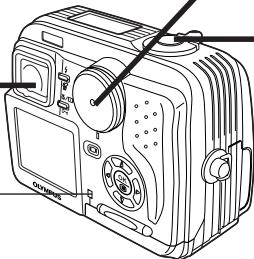
natural_image
Line drawing of a digital camera with buttons and dials (no text or symbols)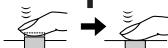
3 To focus on the subject, press the shutter button halfway, slowly and gently.
- When the subject is in focus, the green lamp lights up.
natural_image
Black-and-white cityscape photo with a light source icon overlay (no text or symbols)Green lamp
4 To start shooting, press the shutter button gently all the way (fully).
- The green lamp and card access lamp blink and the camera begins storing pictures on the card.
Note:
- NEVER open the card cover, eject the card, remove the batteries, or pull the plug of an optional AC adapter when the card access lamp is blinking. Doing so could destroy stored pictures and prevent storage of pictures you have just taken.
Recording movies

Viewfinder
2 Point the camera towards the subject and compose the picture while viewing through the monitor.
natural_image
Black-and-white photo of three lions in a grassy field, no visible text or symbols1 Set the mode dial to ⚙ and open the lens barrier.
● The monitor turns on.
Card access lamp
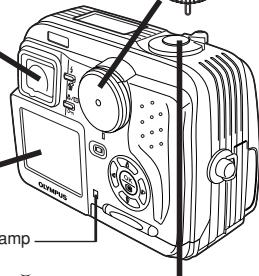

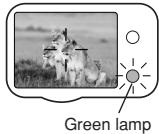
3 Press the shutter button halfway.
- The green lamp on the viewfinder lights up.
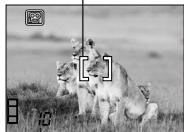
4 Press the shutter button all the way to start recording.
- The orange lamp lights up during movie recording.
- During movie recording, correct focus is maintained.
- When the sound recording mode is set to ON, sound can be recorded with movies.
AF target mark
natural_image
Black-and-white photo of three lions in a grassy field, no visible text or symbolsSeconds remaining
5 Press the shutter button all the way again to stop recording.
- The card access lamp blinks and the camera starts writing the movie to the card.
- If you use all the displayed seconds remaining, shooting finishes automatically and the camera starts writing the movie to the card.
SHOOTING BASICS (Cont.)
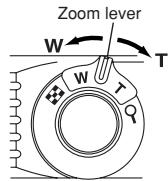
■ To zoom in on a subject, press the zoom lever towards T. To shoot a wider picture, press the zoom lever towards W.
■ Telephoto/Wide-angle shooting is possible at up to 2.8x magnification (optical zoom limit). By combining the digital zoom with the 2.8x optical zoom, zoom magnification up to 7x (equivalent to 35 mm–245 mm on a 35 mm camera) is possible.
■ How to shoot using the monitor
→Press the ☐ (monitor) button and then follow steps 3 and 4 in “Taking still pictures”.
■ Focus lock AUTO AUTO AUTO AUTO AUTO AUTO AUTO AUTO AUTO AUTO AUTO AUTO AUTO AUTO AUTO AUTO AUTO AUTO AUTO AUTO AUTO AUTO AUTO AUTO AUTO AUTO AUTO AUTO AUTO AUTO AUTO AUTO AUTO AUTO AUTO AUTO AUTO AUTO AUTO AUTO AUTO AUTO AUTO AUTO AUTO AUTO AUTO AUTO AUTO AUTO AUTO AUTO AUTO AUTO AUTO AUTO AUTO AUTO AUTO AUTO AUTO AUTO AUTO AUTO AUTO AUTO AUTO AUTO AUTO AUTO AUTO AUTO AUTO AUTO AUTO AUTO AUTO AUTO AUTO AUTO AUTO AUTO AUTO AUTO AUTO AUTO AUTO AUTO AUTO AUTO AUTO AUTO AUTO AUTO AUTO AUTO AUTO AUTO AUTO AUTO
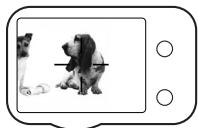
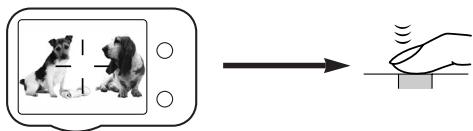
If the subject of your composition is not within the AF target mark and focusing is not possible, try the following:
1 Position the AF target mark over the subject. Press the shutter button halfway to lock the focus.
natural_image
Illustration of a dog and a dog sitting together with a dog lying on the ground (no text or symbols)2 Compose your picture (point the camera towards the subject) while keeping the shutter button pressed halfway.
■ Manual focus ★P A/S/M My
If Auto focus is unable to lock, use manual focus.
1 Hold down Ⓞ for more than 1 second.
When the focus distance selection screen appears on the monitor, press ▷ to select MF.
2 Press to select the focus distance.
3 Hold down OK for more than 1 second to save the setting.
4 Shoot.
5 To cancel the saved MF setting, hold down Ⓧ again for more than 1 second to display the focus distance selection screen.
6 To return to the AF mode, press ◀ to select AF, then press OK.
■ Using the flash AUTO A/S/M
Auto-flash (No display (factory default setting)) :
Automatically fires in low-light and backlight conditions.
Red-eye reduction flash Ⓞ :
Significantly reduces the phenomenon of “red-eye” (subject’s eyes appearing red).
Fill-in flash ↓ :
Always fires regardless of the lighting conditions.
Flash off ⓤ :
For situations where flash is prohibited, or when not using the flash.
Slow Synchronization ↓ SLOW1 ↓ SLOW2 Ⓞ ↓ SLOW:
Adjusts the flash for slow shutter speeds. In the top menu, select MODE MENU → CAMERA → ↘ SLOW → ↘ SLOW1, ↘ SLOW2 or Ⓞ ↘ SLOW.
Press the (flash mode) button repeatedly until the desired flash mode indication appears.
ADVANCED SHOOTING
Drive mode
Single-frame shooting ☐ : Shoots 1 frame at a time when the shutter button is pressed all the way. (normal shooting)
Sequential shooting ☐ : Shoots pictures sequentially. Focus, exposure and white balance are locked at the first frame.
AF Sequential shooting AF: Shoots pictures sequentially. Focus is adjusted for each frame automatically. The AF Sequential shooting speed is lower than normal sequential shooting.
Auto bracketing BKT : Shoots multiple frames of the same picture, each with a different exposure value. Focus and white balance are locked at the first frame.
In the top menu, select MODE MENU → CAMERA → DRIVE→ select a mode.
Spot metering P A/S/M My
There are 2 metering methods: Digital ESP metering and spot metering.
Digital ESP metering: Meters the center of the subject and the area around it.
Spot metering: Exposure is determined by metering within the AF target mark. In this mode, a subject can be shot with optimal exposure regardless of the background light. In the working range of the macro mode, spot metering is also available (spot metering+macro mode).
Press the 🎨/☐ button repeatedly until ☐ (Spot metering) or ☐ (Spot metering+Macro mode) appears on the control panel.
■ Macro mode shooting
Usually focusing is slow when you get as close as 0.1 m - 0.8 m (0.3 ft - 2.6 ft) to the subject. However, in the ⚪ mode focusing is performed quickly. The ⚪ (macro) mode allows you to shoot close to the subject (within 0.1 m - 0.8 m (0.3 ft - 2.6 ft)). With the zoom lever is pressed to the maximum W position, you can fill the entire frame with your subject.
If you are close to a subject, the picture area in the viewfinder is different from the picture that the camera actually records. For macro mode shooting, we recommend using the monitor.
Press the 🎨/☐ button repeatedly until ⚪ (Macro mode) or ☐ (Spot metering+Macro mode) appears on the control panel.
■ Exposure Compensation

This function allows you to make fine changes to the present exposure setting. In some situations, you may get better results when the exposure that the camera sets is compensated (adjusted) manually. You can adjust between +/-2.0 in 1/2 steps.

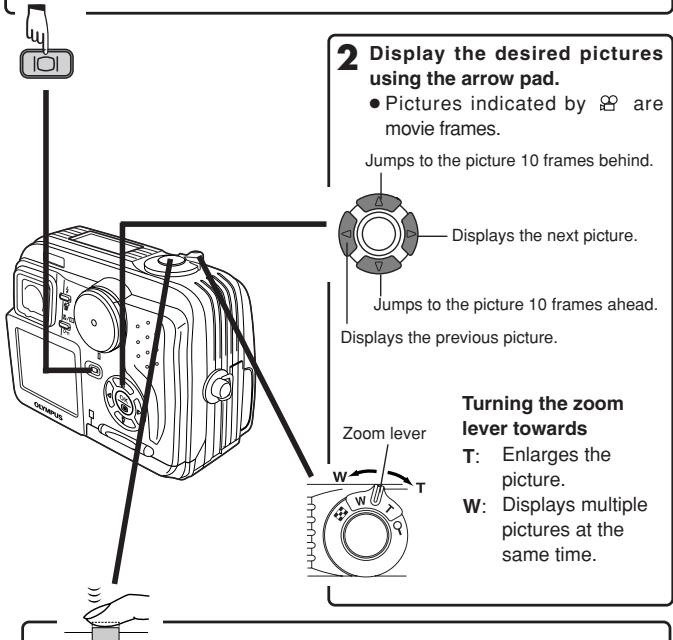
Viewing still pictures
1 Press the 📄 (monitor) button with the lens barrier closed. OR
Press ☐ (monitor button) twice quickly while in the shooting mode (Quick View).
- The monitor turns on and the recorded picture appears.
3 To return to the shooting mode quickly (available only when the camera entered playback mode using Quick View), press the shutter button halfway.
- The monitor turns off. Shoot pictures using the viewfinder.
Playing back movies
1 Display the movie frame (picture with 📋) you want to play back. → See steps 1 and 2 in “Viewing still pictures”.
2 Press OK to display menu.
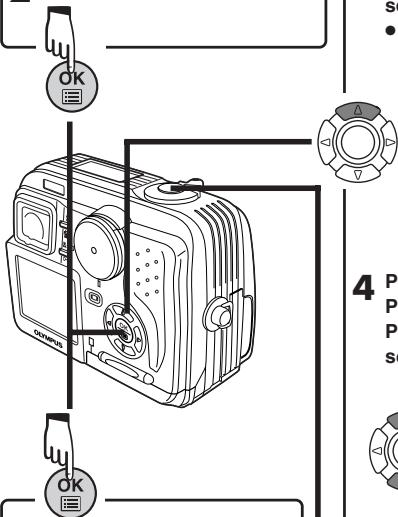
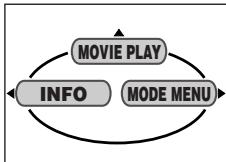
3 Press △ on the arrow pad to select MOVIE PLAY.
- The card access lamp blinks while movie data is accessed.
flowchart
graph TD
    A["MOVIE PLAY"] --> B["INFO"]
    B --> C["MODE MENU"]
    C --> A
4 Press △▽ to select MOVIE PLAYBACK on the MOVIE PLAY screen. To exit this screen, press ◀.
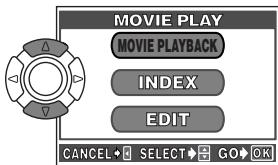
5 Press OK to start Playback.
- When playback finishes, the screen returns to the beginning of the movie.
- If OK is pressed again when the movie playback is finished, the MOVIE PLAYBACK screen appears. To exit the movie playback mode, press to select EXIT, then press OK.

6 To return to the shooting mode quickly (available only when the camera entered playback mode using Quick View), press the shutter button halfway.
PLAYBACK (Cont.)
■ Protect (Protecting Images Against Accidental Erasure)
1 Display the picture you want to protect by using the arrow pad.
2 Press ON. The picture is now protected.
- To cancel protection, press ON again.
■ Single-Frame Erase
1 Select a picture you wish to erase by using the arrow pad.
- If the picture is protected, cancel the protection.
2 Press the ⏻ (erase) button. The ⏻ ERASE screen is displayed.
3 Press △ to select YES.
4 Press OK to erase the picture.
- To cancel erasing, select NO in step 3 and press ⏻, or press the ⏻ button again.
All-Frame Erase
This function erases all still pictures and movies in the card, except protected ones.
In the top menu, select MODE MENU → CARD → CARD SETUP → ⏻ ALL ERASE.
2 Press OK. The ⏻ ALL ERASE screen is displayed.
3 Press △ to select YES.
4 Press OK to start erasing.
● A bar is displayed to show the progress of erasing.
- To cancel erasing, select NO in step 3 and press OK.
Note:
- It is not possible to erase protected pictures or pictures stored on a card that has a write-protect seal.
- Once erased, pictures cannot be restored.
1 Make sure that the TV and camera power are off.
2
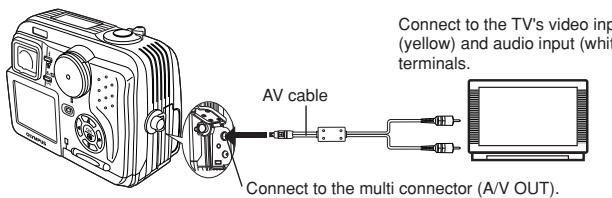
3 Press the ☐ (monitor) button to turn on the camera and turn on the TV. Switch the TV to video input.
- For details on switching to video input, refer to your TV's instruction manual.
4 Select an image by using the arrow pad.
- The selected image will be displayed on the TV.
Pictures can be rotated only when they are played back on a TV. With picture rotation, you can turn them horizontally, 90 degrees clockwise, or counter-clockwise.
Press.

Note:
- Video signal is either NTSC or PAL compatible depending on the standard in the intended area of distribution.
Selected images can be reserved in a card for printing on a printer or at a photo lab that supports the DPOF (Digital Print Order Format) system.
- Print reserve cannot be performed for a picture displayed with 🔗.
Single-frame print reserve
1 Play back a still picture. Press OK to display the top menu.
2 Press ▽ to select PRINT ORDER in the top menu. The PRINT ORDER screen appears. Press △▽ on the arrow pad to select □, then press ⏻.
3 Select a frame you want to print using single-frame playback or index display. Press Ⓧ. The menu appears.
4 Select an appropriate Print reserve setting (see below) using the arrow pad.
MORE: Sets the number of prints, date/time and trim size. → Go to Step 5.
SINGLE PRINT: Sets single-frame print and the date. Trimming setting is not available. → Go to Step 6.
CANCEL: Cancels the Print reserve. → Go to Step 6.
END: Completes the Print reserve. → Go to Step 7.
5 In the □ screen, set □ x (number of prints), Ⓧ (date/time) and ⏻ (trimming). When setting is complete, press Ⓧ. A picture is played back.
6 Press ⬇ to display the top menu again (as in Step 4). Press ◀ to select END. The PRINT ORDER screen appears. To perform Print Reserve for more pictures, repeat steps 3 – 6.
7 Press ◀ repeatedly until the PRINT ORDER screen disappears. The top menu appears.
8 Press ☺ to exit the top menu. Make sure that the Print Reserve mark, number of prints and date/time are displayed on the selected images.
All-frame print reserve
Allows you to store print data for all the pictures on the card, as well as allowing you to choose how many prints you want.
Trimming print reserve
You can print an enlarged part of a recorded picture.
Resetting print reserve
Allows you to reset all Print Reserve settings for pictures stored on a card.
1 Play back a still picture. Press OK to display the top menu.
2 Select PRINT ORDER in the top menu to display the PRINT ORDER SETTING screen by pressing ▽. If Print Reserve data is NOT stored on the card, the PRINT ORDER SETTING screen does not appear.
3 Press △▽ to select RESET, then press OK.
4 Press ◀ to return to the top menu. Press ⏻ to exit from the top menu.
- To remove the selected image only, select KEEP, then set the number of prints in single-frame print reserve to 0.
- To perform print reserve for additional pictures, select KEEP. Print reserve can be added to the print reserve data already stored on the card.
Note:
- This camera cannot be directly connected to printers.
- If a card contains DPOF reservations set by another device, entering reservations using this camera may overwrite the previous reservations. Be sure to use this camera for reservations.
TRANSFERRING PICTURES TO A COMPUTER
By connecting the camera to a computer with the provided USB cable, images on a card can be transferred to the computer. Some OS's (operating systems) may need a special setup when connecting to the camera for the first time. Follow the chart below.
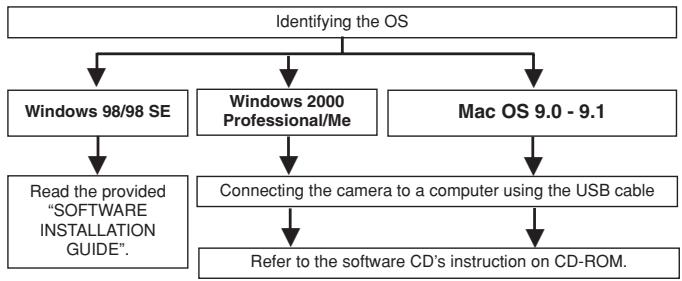
flowchart
graph TD
    A["Identifying the OS"] --> B["Windows 98/98 SE"]
    A --> C["Windows 2000 Professional/Me"]
    A --> D["Mac OS 9.0 - 9.1"]
    B --> E["Read the provided "SOFTWARE INSTALLATION GUIDE"."]
    C --> F["Connecting the camera to a computer using the USB cable"]
    D --> G["Refer to the software CD's instruction on CD-ROM."]
Even if your computer has a USB connector, data transfer may not function correctly if you are using one of the operating systems listed below or if you have an add-on USB connector (extension card, etc.).
● Windows 95/NT 4.0
● Windows 98 upgrade from Windows 95
- Mac OS 8.6 or lower (except Mac OS 8.6 equipped with USB MASS Storage support 1.3.5 installed at the factory)
● Data transfer is not guaranteed on a homemade PC system.
Note on using CAMEDIA Master 2.5 software
- When using CAMEDIA Master 2.5, click on “Removable Disk”, not “My Camera”. Under Mac OS, the disk drive will be labeled “Untitled”.
- To use CAMEDIA Master software, read its instructions.
Saving directly from a card
Card adapters enable you to save images on your personal computer without having to connect your camera directly to your computer.
For the latest information on available adapters, consult our Customer Support Center.
| Computer operating environment | Required devices |
| Personal computer equipped with 3.5" floppy disk-drive | Floppy disk adapter |
| Personal computer equipped with a PC card slot (PCMCIA) or an external PC card reader/writer | PC card adapter |
| Personal computer equipped with a USB port | Olympus-brand removable media reader/writer |
For more details, refer to the software CD's instructions on CD-ROM.
OPTIONAL ACCESSORIES
As of August 2001
- Camera case
● Photo printers for Olympus digital cameras
● AC adapter
● Standard SmartMedia card (8/16/32/64/128MB) - Floppy disk adapter
● PC card adapter
● Olympus-brand removable media reader/writer
NiMH battery
● NiMH battery charger
Visit the Olympus home page for the latest information on optional items. http://www.olympus.com/
If there is a problem with your camera, a blinking error code will appear.
| Control panel | Monitor | Possible causes | Corrective action |
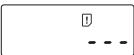 | 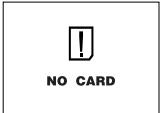 | The card is not inserted, or it cannot be recognized. | Insert the card correctly.Insert a different card. |
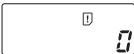 | 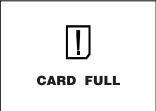 | No more pictures can be taken. | Replace the card or erase unneeded pictures. |
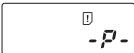 | 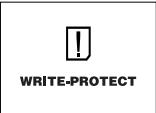 | Writing to the card is prohibited. | If you are taking pictures, remove the write-protect adhesive seal. |
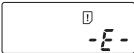 | 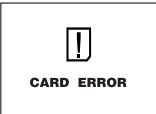 | Cannot record, play back or erase pictures in this card. | If the card is dirty, wipe the gold contacts with a clean tissue and insert it again. If the problem is still not corrected, this card cannot be used. |
| Empty screen | [DDST]PICTURE ERROR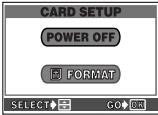 | The recorded image cannot be played back with this camera.The card is not formatted. | Download the image to a personal computer and use image processing software to view it. If that cannot be done, the image file is partially damaged.Format the card. |
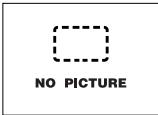 | There are no pictures in the card, so there is nothing to play back. | Insert a card which contains images. | |
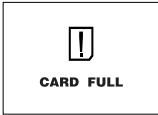 | There is no empty space in the card, so it cannot record new information such as print data and sound. | Replace the card or erase unneeded pictures. | |
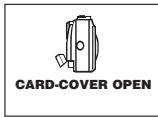 | The card cover is open. | Close the card cover. | |
| Empty screen | The temperature inside the camera is too high. | Remove the battery and wait until the camera cools down. | |
| Other indications | Consult your nearest Olympus dealer or customer support department (see back cover). | ||
PICTURE ERROR
SPECIFICATIONS
| Product type | Digital camera (for shooting and displaying) |
| Recording System Still | Digital recording, JPEG (in accordance with Design rule for Camera File system (DCF)), TIFF (non-compression), Digital Print Order Format (DPOF) |
| Sound with still images Movie | Wave format QuickTime Motion JPEG support |
| Memory | 3V (3.3V) SmartMedia, 4 MB - 128 MB (all cards except 2 MB) |
| No. of storable pictures (When a 16 MB card is used) | Record without sound1 frame (TIFF: 2272 x 1704)Approx. 5 frames (SHQ: 2288 x 1712)Approx. 16 frames (HQ: 2272 x 1704)Approx. 49 frames (SQ1: 1280 x 960 NORMAL)Approx. 165 frames (SQ2: 640 x 480 NORMAL) |
| No. of effective pixels | 3,950,000 pixels |
| Image pickup device | 1/1.8" CCD solid-state image pickup4,130,000 (gross) |
| Recording image resolutions | 2272 x 1704 pixels (TIFF/HQ)2288 x 1712 pixels (SHQ)2048 x 1536 pixels (TIFF/SQ1)1600 x 1200 pixels (TIFF/SQ1)1280 x 960 pixels (TIFF/SQ1)1024 x 768 pixels (TIFF/SQ2)640 x 480 pixels (TIFF/SQ2)3200 x 2400 pixels (SHQ/HQ)2816 x 2112 pixels (SHQ/HQ)2560 x 1920 pixels (SHQ/HQ) |
| Lens | Olympus lens 7.25 mm to 20.3 mm, f 2.8 to f 4.8, 7 elements in 5 groups (equivalent to 35 mm to 98 mm lens on 35 mm camera), aspherical glass |
| Photometric system | Digital ESP metering, Spot metering system |
| Aperture | W : f 2.8, f 3.4, f 4.0, f 4.8, f 5.6, f 8.0T : f 4.8, f 5.6, f 8.0 |
| Shutter speedStillMovie | Used with mechanical shutter1/2 to 1/1000 sec. (M mode: 16 to 1/1000 sec.; when slow synchronization is used: 4 to 1/1000 sec.)1/30 to 1/10000 sec. |
| Viewfinder | Optical real image viewfinder |
| Monitor | 1.5" TFT color LCD display,approx. 114,000 pixels |
| Battery charging time for flash | Approx. 6 sec. (at normal temperature with new batteries) |
| Autofocus | TTL system autofocus, Contrast detection system,Focusing range: 0.1 m to (0.3 ft to ) |
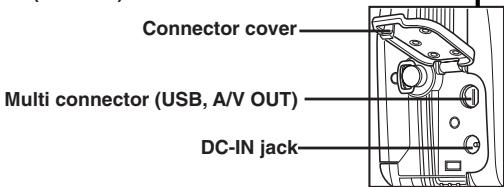
| Outer connector | DC-IN jack, Multi connector (USB 1.0 compatible, A/V OUT) |
| Automatic calendar system | Up to 2031 |
| Operating environmentTemperatureHumidity | 0°C to 40°C (32°F to104°F) (operation)-20°C to 60°C (-4°F to 140°F) (storage)30% to 90% (operation)10% to 90% (storage) |
| Power supply | For batteries, use a CR-V3 lithium battery pack, or 2 AA (R6) NiMH batteries, NiCd batteries, Alkaline batteries or lithium batteries.AC adapter (optional)Manganese (zinc-carbon) batteries cannot be used. |
| Dimensions(W) X (H) X (D) | 87 mm x 68.5 mm x 43.5 mm(3.4" x 2.6" x 1.7") |
| Weight | 190 g (0.4 lb) (without batteries/card) |
SPECIFICATIONS ARE SUBJECT TO CHANGE WITHOUT ANY NOTICE OR OBLIGATION ON THE PART OF THE MANUFACTURER.
Partie responsible : Olympus America Inc.
Adresse : 2 Corporate Center Drive, Melville, New York 11747-3157 U.S.A.
flowchart
graph LR
    A[" "] --> B[" "]
    B --> C[" "]
Secondes restantes (mode 🔒 uniquement)
Secondes restantes (mode 🔒 uniquement)
flowchart
graph LR
    A[" "] --> B[" "]
    B --> C[" "]
    C --> D[" "]
natural_image
Illustration of a cat in a jumping pose with numbered labels (1-6) and numbers 20 and 21, no readable text or symbols beyond labels.natural_image
Symmetrical diagram with four directional arrows pointing outward around a central circular component (no text or symbols)natural_image
Diagram of a mechanical device with an open lid and internal components (no text or symbols)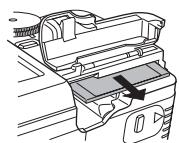
natural_image
Diagram of a car interior showing dashboard and steering wheel (no text or symbols)natural_image
Line drawing of a digital camera with buttons and dials (no text or symbols)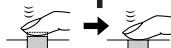
natural_image
Black-and-white cityscape photo with a sun icon overlay (no text or symbols)Voyant vert
natural_image
Black-and-white photo of three lions in a grassy field, no visible text or symbolsnatural_image
Black-and-white photo of two lions in a grassy field, no visible text or symbolsSecondes restantes
PRISE DE VUE DE BASE (Suite)
natural_image
Illustration of a dog sitting on a dog's side with a white cat nearby, next to a rounded rectangle containing three circles (no text or symbols)■ Mise au point manuelle 📂 P A/S/M 🅜
natural_image
Circular mechanical component with four blades and a triangular pointer, no text or symbols presentflowchart
graph TD
    A["INFO"] --> B["MODE MENU"]
    B --> C["MOVIE PLAY"]
    C --> A
natural_image
Technical line drawing of a mechanical clamp or bracket assembly (no text or symbols)flowchart
graph LR
    A[" "] --> B[" "]
    B --> C[" "]
flowchart
graph LR
    A[" "] --> B[" "]
    B --> C[" "]
    C --> D[" "]
natural_image
Black-and-white photo of a cat jumping, with numbered labels 1 to 5 and numbers 20 and 2 on the frame (no text or symbols on the cat or background)natural_image
Symmetrical diagram with four directional arrows pointing outward around a central circular shape (no text or symbols)natural_image
Technical line drawing of a mechanical device with an open lid and internal components (no text or symbols)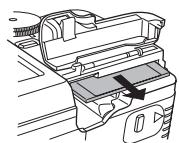
natural_image
Diagram of a car interior showing dashboard and steering wheel (no text or symbols)
flowchart
graph TD
    A["MODE MENU"] --> B["WB"]
    B --> C["Device"]
    C --> D["User Interface"]
    D --> E["User Interface"]
    E --> F["User Interface"]
    F --> G["User Interface"]
    G --> H["User Interface"]
    H --> I["User Interface"]
    I --> J["User Interface"]
    J --> K["User Interface"]
    K --> L["User Interface"]
    L --> M["User Interface"]
    M --> N["User Interface"]
    N --> O["User Interface"]
    O --> P["User Interface"]
    P --> Q["User Interface"]
    Q --> R["User Interface"]
    R --> S["User Interface"]
    S --> T["User Interface"]
    T --> U["User Interface"]
    U --> V["User Interface"]
    V --> W["User Interface"]
    W --> X["User Interface"]
    X --> Y["User Interface"]
    Y --> Z["User Interface"]
    Z --> A
MODE MENU
natural_image
Circular mechanical component with four symmetrical slots and central hub (no text or symbols)natural_image
Line drawing of a vintage camera with buttons and dials (no text or symbols)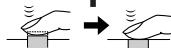
natural_image
Black-and-white cityscape photo with a sun icon overlay (no text or symbols)Grüne Sucher-LED
natural_image
Black-and-white photo of a group of animals in a grassy field, with no visible text or symbols.Grüne Sucher-LED
natural_image
Black-and-white photo of three lions in a grassy field, no visible text or symbolsSchreibanzeige

natural_image
Black-and-white photo of a group of lions in a grassy field, no visible text or symbolsnatural_image
Illustration of two dogs interacting with a dog, no text or symbols presentSpotmessung P A/S/M My
natural_image
Line drawing of a DSLR camera with attached cable and adjustment wires (no text or symbols)natural_image
Circular mechanical component with four symmetrical slots and a central hub (no text or symbols)flowchart
graph TD
    A["MOVIE PLAY"] --> B["INFO"]
    B --> C["MODE MENU"]
    C --> A
Responsible : Olympus America Inc.
Dirección : 2 Corporate Center Drive, Melville, New York 11747-3157 U.S.A.
natural_image
Technical line drawing of a mechanical clamp or bracket assembly (no text or symbols)flowchart
graph LR
    A[" "] --> B[" "]
    B --> C[" "]
flowchart
graph LR
    A[" "] --> B[" "]
    B --> C[" "]
    C --> D[" "]
natural_image
Illustration of a cat in a jumping pose with numbered labels (1-6) and numbers 20 and 21, no readable text or symbols beyond labels.CÓMO USAR ESTE MANUAL
Significa "Presionar este botón".
natural_image
Symmetrical diagram with four directional arrows pointing outward around a central circular shape (no text or symbols)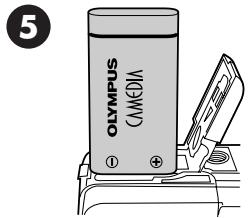
natural_image
Technical line drawing of a mechanical device with an arrow indicating direction (no text or symbols)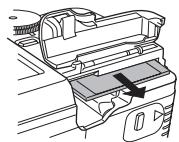
natural_image
Diagram of a car interior showing dashboard and steering wheel (no text or symbols)flowchart
graph TD
    A["MODE MENU"] --> B["WB"]
    B --> C["Directional Control Icon"]
    C --> D["Data Bus Icon"]
    D --> A
Menú de modo
natural_image
Black-and-white cityscape photo of a modern skyline with skyscrapers and waterfront (no visible text or signage)natural_image
Black-and-white cityscape photo with a camera lens icon overlay (no text or symbols)Lámpara verde
natural_image
Black and white photo of a wolf in a grassy field with a sun icon overlay (no text or symbols)Lámpara verde
natural_image
Black-and-white photo of three lions in a grassy field, no visible text or symbols
natural_image
Black-and-white photo of three lions in a grassy field, no visible text or symbolsSeconds remaining
natural_image
Illustration of a dog and a dog sitting together, with no visible text or symbolsEnfoque manual P A/S/M
flowchart
graph TD
    A["MOVIE PLAY"] --> B["INFO"]
    B --> C["MODE MENU"]
    C --> A
San-Ei Building, 22-2, Nishi Shinjuku 1-chome, Shinjuku-ku, Tokyo, Japan Customer support (Japanese language only): Tel. 0426-42-7499 Tokyo
OLYMPUS AMERICA INC.
Two Corporate Center Drive, Melville, NY 11747-3157, U.S.A. Tel. 631-844-5000
Technical Support (USA)
24/7 online automated help: http://support.olympusamerica.com/
Phone customer support: Tel. 1-888-553-4448 (Toll-free)
Our phone customer support is available from 8 am to 10 pm
(Monday to Friday) ET
E-Mail: distec@olympus.com
Olympus software updates can be obtained at: http://olympus.com/digital/
Adobe [Photoshop] Support
Adobe software updates and technical information can be obtained at:
http://www.adobe.com/support/
OLYMPUS OPTICAL CO. (EUROPA) GMBH.
Premises/Goods delivery: Wendenstrasse 14-18, 20097 Hamburg, Germany Tel. 040-237730
Letters: Postfach 10 49 08, 20034 Hamburg, Germany
Hotline Numbers for customers in Europe:
Tel. 01805-67 10 83
for Germany
Tel. 00800-67 10 83 00
for Austria, Belgium, Denmark, France,
Netherlands, Norway, Sweden, Switzerland, United Kingdom
Tel. +49 180 5-67 10 83
for Finland, Italy, Luxembourg, Portugal,
Spain, Czech Republic
Tel. +49 40-237 73 899
for Greece, Croatia, Hungary, and the rest of
Europe
Our Hotline is available from 9 am to 6 pm (Monday to Friday)
E-Mail: di.support@olympus-europa.com
© 2001 OLYMPUS OPTICAL CO., LTD.