
XtraCam W3 - Dash Cam Evolveo - Free user manual and instructions
Find the device manual for free XtraCam W3 Evolveo in PDF.


| Product Type | Dash Camera |
| Brand | Evolveo |
| Model | XtraCam W3 |
| Dimensions | Approx. 9.5 x 5.5 x 3.5 cm |
| Weight | Approx. 100 g |
| Power Supply | 12V/24V vehicle power via cigarette lighter adapter |
| Battery | Built-in rechargeable Li-ion battery (200 mAh) |
| Resolution | Full HD 1920x1080p at 30fps |
| Viewing Angle | 140° wide angle |
| Display | 2.3 inch TFT LCD |
| Storage Support | MicroSD card up to 128GB (Class 10 required) |
| Recording Modes | Loop recording, G-sensor emergency lock, motion detection |
| Night Vision | Yes, with IR LED |
| GPS | Built-in GPS for speed and location tracking |
| Audio Recording | Built-in microphone and speaker |
| Maintenance & Cleaning | Clean lens with soft microfiber cloth; avoid solvents |
| Safety Features | Emergency file protection (G-sensor), lane departure warning |
| Compatibility | Windows, Mac for playback; mobile app support |
| Spare Parts & Repairability | Mount and power adapter available; not user-serviceable internally |
Frequently Asked Questions - XtraCam W3 Evolveo
User questions about XtraCam W3 Evolveo
0 question about this device. Answer the ones you know or ask your own.
Ask a new question about this device
Download the instructions for your Dash Cam in PDF format for free! Find your manual XtraCam W3 - Evolveo and take your electronic device back in hand. On this page are published all the documents necessary for the use of your device. XtraCam W3 by Evolveo.
USER MANUAL XtraCam W3 Evolveo
natural_image
Black and white digital camera with lens and control buttons (no visible text or symbols)natural_image
Close-up of a digital camera with lens and control panel (no text or symbols visible). Μικρόφωνο
Υποδοχή για την
káρτα micro SD
natural_image
Grayscale navigation screen displaying a road ahead with sky and clouds, captured on a device interface (no readable text or symbols)(1)
【Local】
Ρύθμιση iOS
natural_image
Smart camera interface displaying a scenic road scene with sky and clouds, no readable text or symbols on the image itself.
natural_image
Close-up of a black digital camera with a circular lens and square frame (no visible text or symbols)Úvodná informácia
Đakujeme za zakúpenie kamery EVOLVEO XtraCam W3.
natural_image
Close-up of a modern digital camera with lens and control panel (no visible text or symbols)Mikrofón
Slot pre kartu micro SD
Používanie kamery
Režim automobil:
natural_image
Grayscale navigation camera interface showing a road ahead with sky and clouds, displayed on a rounded square frame (no readable text or symbols)4 Slovensky
Ovládanie kamery
Pre vstup do menu stlačte tlačidlo

Nastavenie iOS
Nastavenie G-Senzoru
Hlavná stránka funkcie 【Internet】
Riešenie problémov
natural_image
Close-up of a black digital camera with lens and control buttons (no visible text or symbols)Úvodní informace
natural_image
Close-up of a modern digital camera with lens and control panel (no visible text or symbols)Mikrofon
Slot pro kartu micro SD
Nabíjení
natural_image
Grayscale navigation screen displaying a road scene with sky and clouds, no readable text or symbols on the image itself.- Přehrávání:
(1) Local 【Local】
Nastavení iOS
Nastavení G-Senzoru
natural_image
Digital navigation screen displaying a scenic road scene with sky and clouds, no readable text or symbols on the screen.
Funkce【Internet】
natural_image
Close-up of a black digital camera with lens and control buttons (no visible text or symbols)Introduction
Thank you for purchasing the EVOLVEO XtraCam W3 camcorder. It is a universal WiFi car camera intended for the traffic situation record and possible accident documentation.
You can also use the camera as a standard camcorder and record your family videos or outdoor and extreme activities. You can also control the camera with the application for Android and iOS phones.
Please, read this user manual carefully and follow the set instructions.
Safety instructions
• The camera must be mounted on a windscreen so as not to obstruct the safe view from the car.
- It is forbidden to handle with the camera, set it to or watch videos while driving.
• Handle with or set the camera only in a stationary car.
- Check regularly the quality of attachment to the windscreen. Vibration can cause detachment of the camera mount from the windscreen and damage the device or cause an accident.
• Neither the producer not the distributor is liable for the camera damage due to an accident or improper use.
• The camera operating temperature range is between -10 °C and 50 °C.
- Do not leave the camera in direct sunlight in a parked car. It could be damaged due to extremely high temperatures.
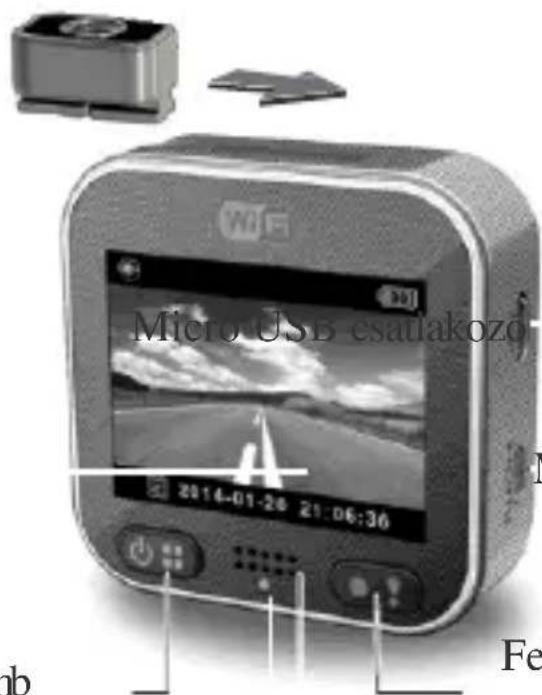
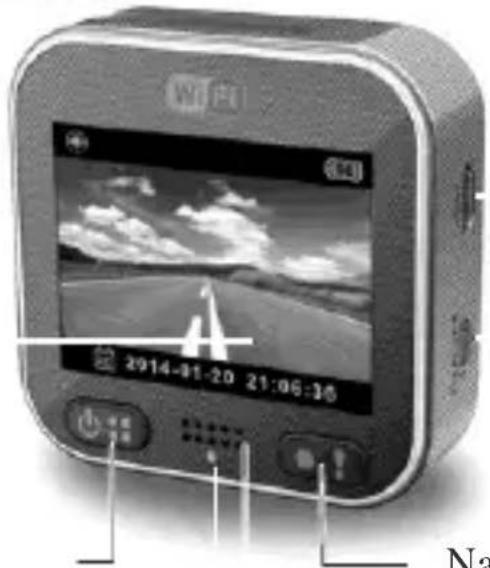
Names of Parts
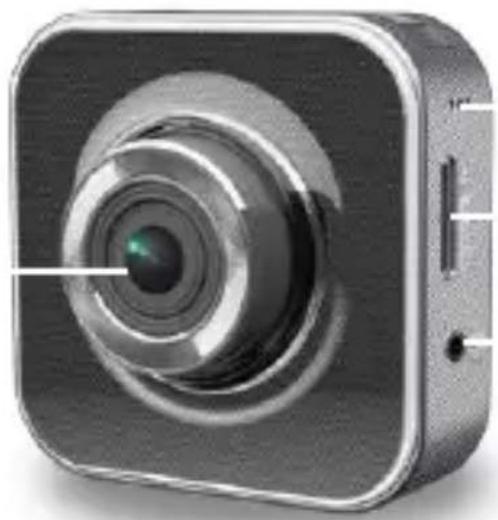
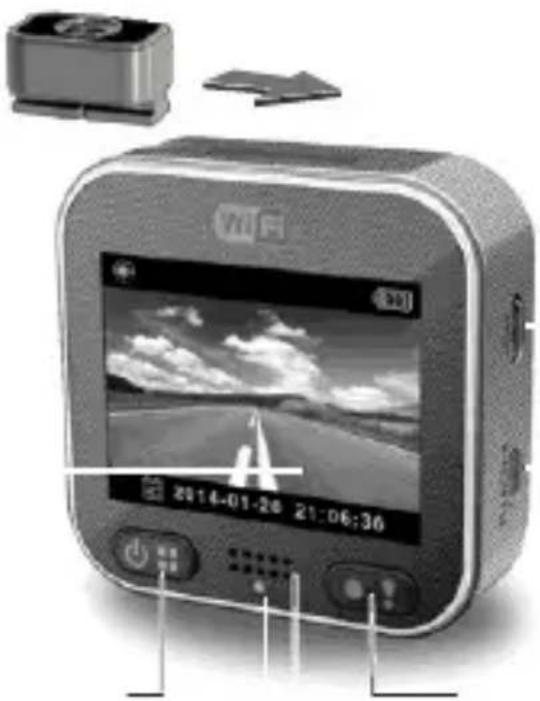
Lens
natural_image
Close-up of a digital camera with lens and control buttons (no text or symbols visible)Mic
Micro SD card slot
GPS Receiver slot
Tripod mount
natural_image
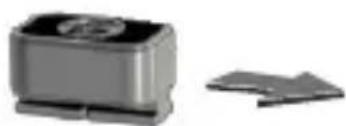
Two electronic components: a rectangular package and a separate flat sheet (no visible text or symbols)LCD Panel
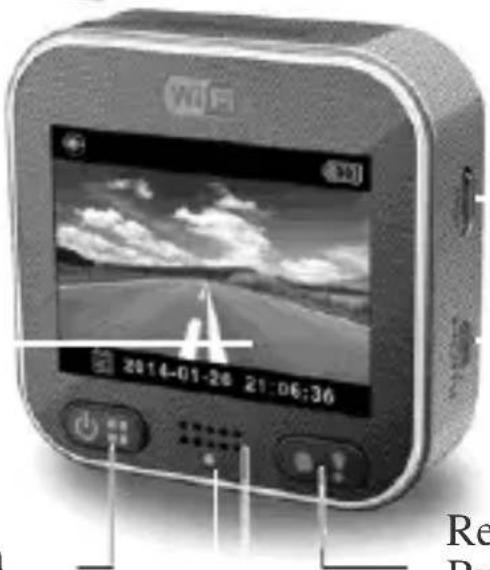
Micro USB port
Micro HDMI port
Power/Menu Button
Status Indicator
Record / Emergency Button
Speaker
2 | English
Getting started
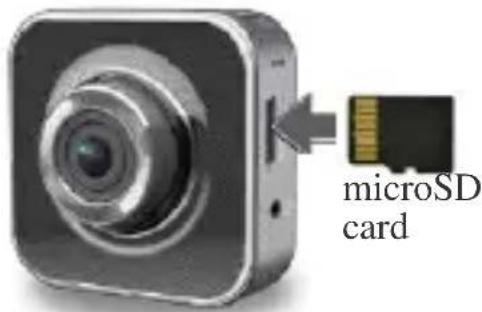
Inserting a microSD Card
Before initial use, insert a microSD card. (recommended at least 4GB, up to 64GB, min. class 6)
Charging the Unit
Fully charge camcorder for initial use by:
- Car charger
- PC USB port
• USB adapter (not included)
During charging, screen shows battery icon or status indicator flashes in orange. When camcorder is fully charged, the indicator turns off.
Using the camera
Dash Cam mode:
- If the camcorder is in the Dash Cam mode and the G-sensor monitoring the car movement is activated, in the case of impact, the camcorder saves the recorded video into a separate "Emergency" folder so that it cannot be deleted.
- You can also save the recorded video into the "Emergency" folder by pressing the Record button.
- The loop recording is activated and the oldest video is overwritten by the later one. Videos stored in the "Emergency" folder are not deleted.
Action Cam mode:
- In the Action Cam mode, the videos are recorded separately in order to avoid overwriting files recorded in the Dash Cam mode.
- Loop recording is deactivated and it is not possible to continue recording if the memory card is full.
• Possibility ti purchase a waterproof protective case.
The space of the memory card for video files is divided in half for the Dash Cam and Action Cam modes (the ratio of these modes can be set in the mobile application).
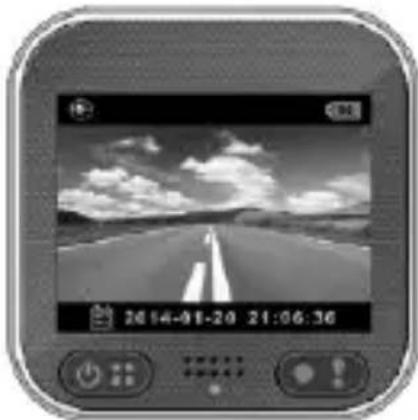
Shooting Video
- Power on:
Press ⏻ to turn the camcorder on.
- Record:
Press Ⓐ to start recording.
Press ⏻ and then ⚠ to stop.
natural_image
Grayscale navigation screen displaying a road scene with sky and clouds, no readable text or symbols on the image itself.- Playback:
Press ⏻ to enter menu settings.
Select [Playback ]
Press [Play ▶] to play the video and press [Stop] to stop.
- Return to preview:
Switch to [←] to return.
- Power off:
Press and hold ⏻ for 2 seconds.
4 | English
Camcorder Operation
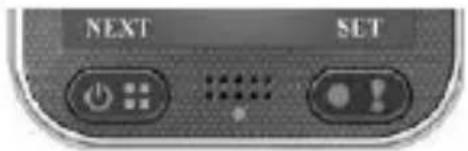
In preview press ⏻ to enter menu settings.
Button functions indicated above
! . Use these buttons to navigate menu settings.
Menu Settings
Camcorder has eight menu settings. Advanced settings can be set up via mobile APP.
| Menu Settings | Description | |
 | Playback | Play recorded images |
 | Action Cam | Switch between Action Cam and Dash Cam. |
 | Dash Cam | |
 | WiFi - Local | Enable/Disable WiFi for wireless connection |
 | WiFi - Cloud | Enable/Disable internet cloud connection |
 | Voice Record | Enable/Disable voice recording (Dash Cam only) |
 | Auto Record | Enable/Disable auto recording when car engine starts (Dash Cam only) |
 | Screen Auto Off | Screen turns off after 60 seconds of non-operation (Dash Cam only) |
 | Settings | Reset to factory default settings or format SD card. |
Note: After 10 seconds of non-operation in menu settings, screen returns to preview.
Record Modes
Camcorder has two recording modes for different

applications: Action Cam: Shoot normal videos.

Dash Cam: Shoot loop and emergency videos.
Comparison between modes:
| Mode | Action Cam | Dash Cam | |
| Record type | Normal | Loop | Emergency |
| Record trigger | Press  | • Car impact• Press  loop recording loop recording | |
| Record duration | Unlimited | Three min. sections | One min. section (30 seconds before and after the event) |
| Display info | 00:06:36SD card remaining time | 2014/01/01 21:06:36Current date & time | |
Note: 1. During loop recording, oldest files are overwritten if microSD card is full.
2. During loop recording, press ⏻ to enable/disable mute function.
Transfer Files to PC:
- Connect camcorder to PC via Micro USB cable.
- Find video at "My computer\Removable Disk".
- Copy, move, delete, and playback videos on PC.
View Camcorder Screen on TV:
- Connect camcorder to TV via Micro HDMI cable (not included).
- Turn on camcorder.
- Camcorder screen displays on TV simultaneously.
Wireless & APP Operation
Before initial using wireless connections, download and install APP [Unieye Drive] from Google Play Store and Apple Store.
[Unieye Drive] has two functions:
(1) Local - Direct control (2) Internet - Internet live view
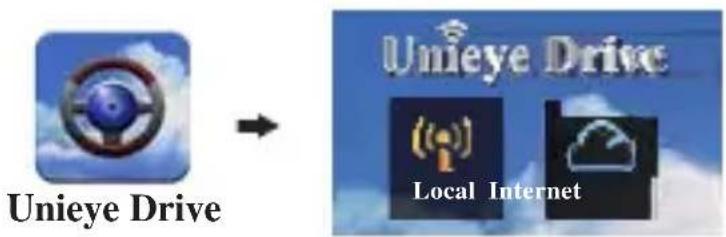
(1) Local 【Local】
Mobile connects to camcorder directly via WiFi for remote control, live view, album management and camcorder setup.
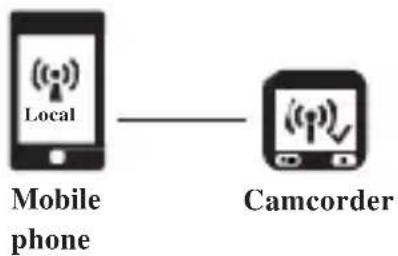
flowchart
graph LR
    A["Mobile phone"] -->|Wireless Signal| B["Camcorder"]
Mobile connects to cloud server to view live videos uploaded from internet remote camcorder.
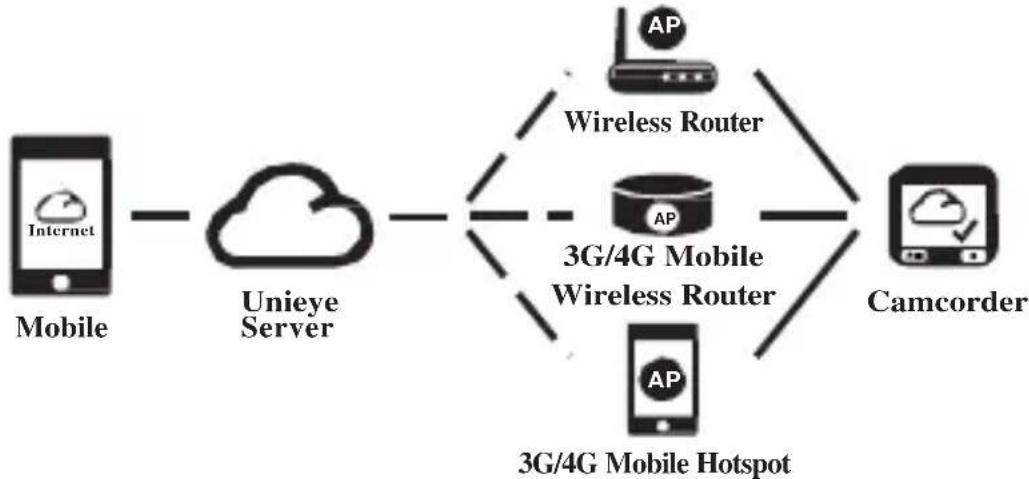
flowchart
graph LR
    A["Mobile"] --> B["Unieye Server"]
    B --> C["3G/4G Mobile Wireless Router"]
    C --> D["Camcorder"]
    C --> E["AP"]
    C --> F["AP"]
    C --> G["AP"]
    style A fill:#f9f,stroke:#333
    style B fill:#ccf,stroke:#333
    style C fill:#cfc,stroke:#333
    style D fill:#fcc,stroke:#333
    style E fill:#cff,stroke:#333
    style F fill:#ffc,stroke:#333
    style G fill:#cfc,stroke:#333
【Local】Function
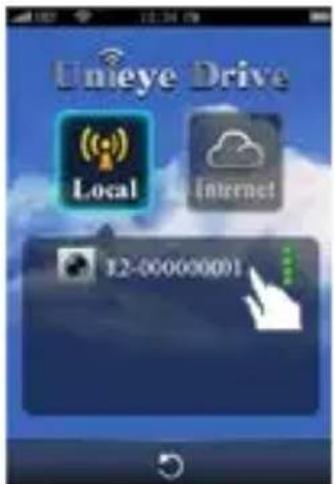
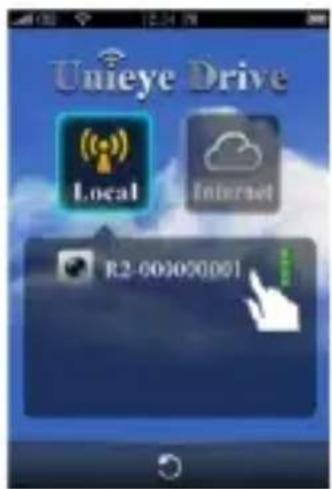
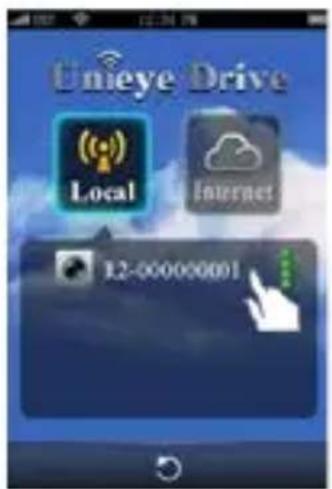
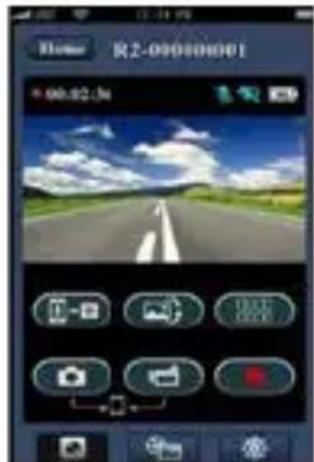
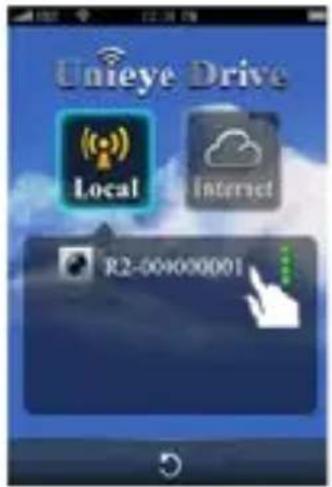
Before using mobile APP's 【Local】 function, ensure camcorder WiFi is on and camcorder Cloud setting is off. Once WiFi is ready, preview shows camcorder name (R2-xxxxxxxx) for few seconds.
Mobile Connects to Camcorder
- For Android: Turn on [Wi-Fi].
For iOS:
Go to [Settings]→ [Wi-Fi].
Turn on [Wi-Fi] and select the camcorder name.
-
Run [Unieye Drive].
-
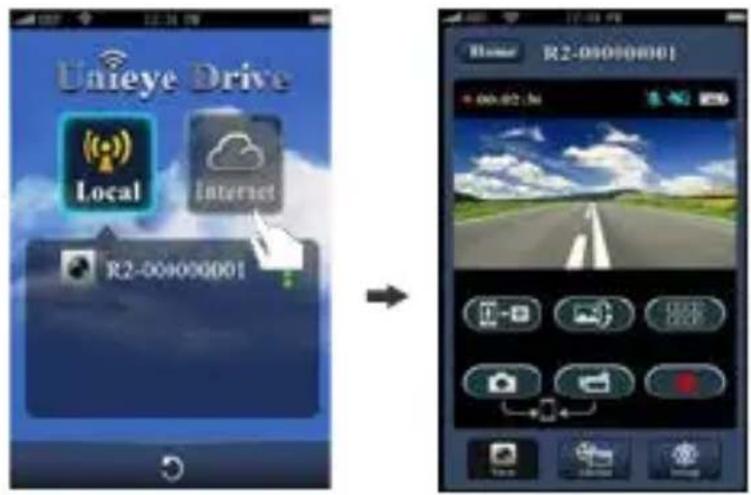
Tap【Local】and select the camcorder to enter【Local】View Page. Tap [→] to scan again if camcorder is not found.
Note:
- Mobile cannot connect to camcorder while camcorder is recording.
- For first use, password is not required. User can set camcorder password in Setup Page.
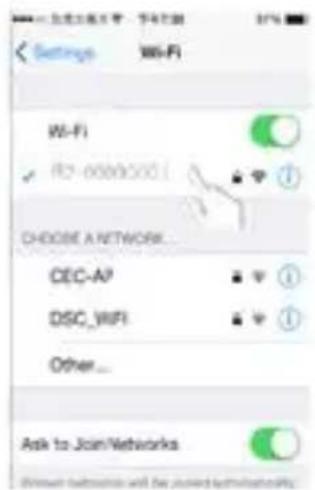
iOS Settings
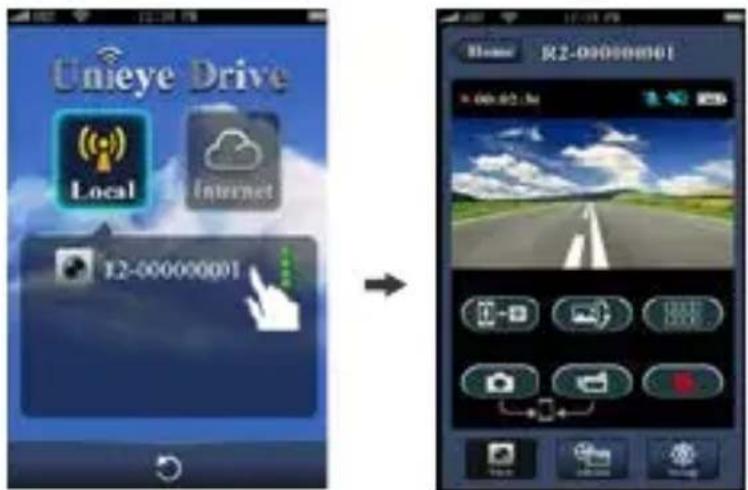
Local Main Page Local View Page
- 【Local】 function has three function pages: View, Album and Setup.

View Page
| Items | Description |
 | Shoot videos and files are saved into camcorder microSD card |
 | Shoot videos or Take photos and files are saved into mobile "Album\Unieye Drive" |
 | |
 | For multiple camcorders user:Enable Quad-View for multiple live view on mobile.In Quad-View, select a window for single view. |
 | Upside down image |
 | Talk to camcorder from mobile |

Album Page (for camcorder)
| Folders Description | |
 | View or delete video files recorded in action cam |
 | View or delete video files recorded in dash cam |

Setup Page (for camcorder)
| Groups | Description |
| Camcorder Settings | Edit name, password, format SD card, resolution etc. |
| Internet Settings | Edit Email and AP and save in camcorder. (For internet cloud server connection) |
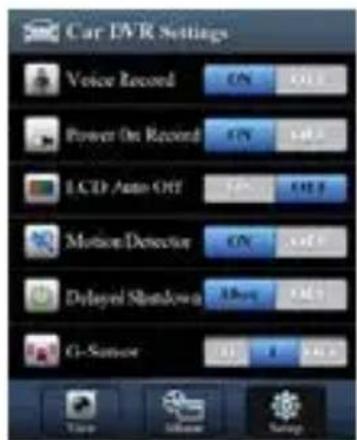
| Car DVR Settings | Set motion detector, impact sensor, etc. |
Note:
1. In Setup Page, tap [Save] to complete settings to camcorder.
2.Mobile media player may not support SuperHD video.
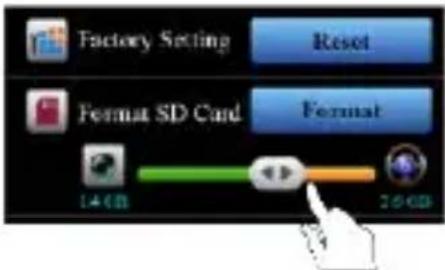
Camcorder SD Card Setup
When SD card is first-time use or reformatted in camcorder, user should allocate memory for Action Cam and Dash Cam.
Go to [Setup] [Camcorder Settings]
Adjust slide bar and press [Format] button to complete SD card setup.
Camcorder Internet Setup
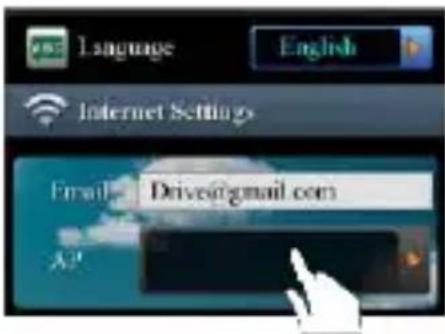
Before using internet cloud service, Email and AP must be properly set up.
-
Go to [Setup] [Internet Settings] → Edit Email and AP
-
Tap [Save] to complete Email & AP settings.
Note: AP(Access Point) can be
- Wireless Router or
• 3G/4G Mobile Wireless Router or
• 3G/4G Mobile Hotspot

Wireless Router 3G/4G Mobile
Wireless Router

3G/4G Mobile
Hotspot
10 | English
Motion Detector Setup
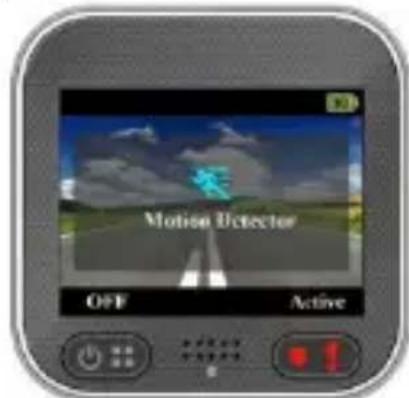
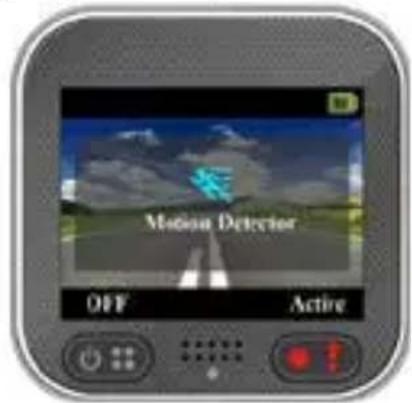
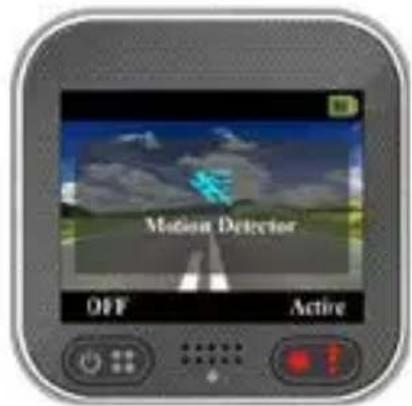
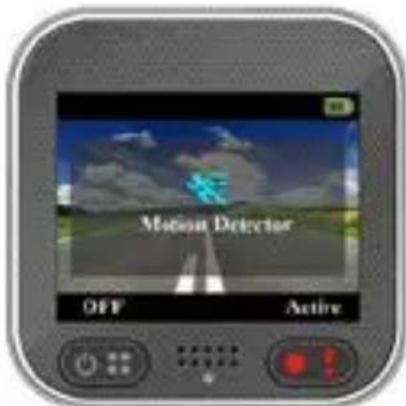
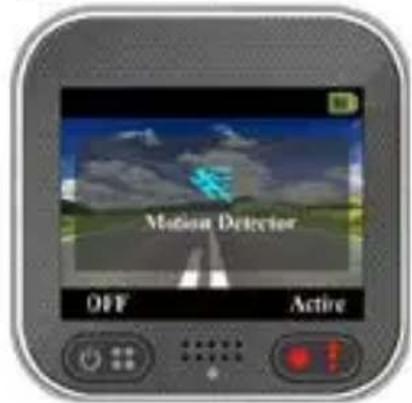
When car's engine stops and motion is detected, camcorder automatically records videos till no motion is detected.
- Set Camcorder to dash cam mode.
- Go to APP → [Setup] → [Car DVR Settings] → Turn on [Motion Detector] → Tap [Save].
- Camcorder shows 📋 on screen.
G-Sensor Setup
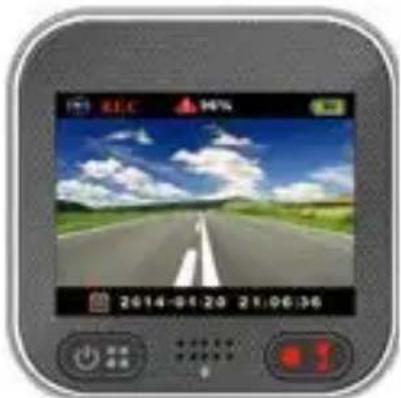
When camcorder is recording and any impacts happen, camcorder automatically records emergency events if G-Sensor is set.
Go to APP → [Setup] → [Car DVR Settings] → Select [G-Sensor], [H]/[L] → Tap [Save].
Note : [H] High sensitivity. [L] Low sensitivity.
natural_image
Smartphone display showing a scenic road with sky and clouds, no readable text or symbols on the image itself.
【Internet】Function
Before using APP's 【Internet】 function, ensure camcorder internet setup has been completed.
Camcorder Connects to Cloud Server
Enable [Cloud ] in camcorder to upload video streaming to cloud server. Connecting status will be shown on screen.
| Stav | Description |
 | Connection successful. Preview shows [ ] and camcorder ID. |
 | Login fail:Invalid AP name or passwordWeak WiFi signal or not in WiFi coverage |
 | Connection fail:No internet or cloud server is not accessibleBlocked by some firewall |
Remote Internet Live View
- Connect mobile to internet (via WiFi, 3G/4G).
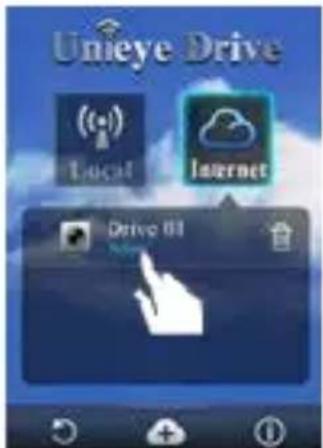
- Run [Unieye Drive] and tap 【Internet】.
- For adding camcorder or using another mobile, tap [ ] Enter the camcorder ID and password.
- Tap camcorder ID/name to view internet live videos.
| Situation | Cause/Solution |
| Camcorder cannot turn on | Power is low. Recharge battery |
| Camcorder is frozen | Press and hold button for 5 seconds to force shutdown; press again to turn on |
| Camcorder cannot record | No microSD card or microSD card is fullmicroSD card cannot be recognizedFormat microSD card or replace microSD card |
| Camcorder cannot connect to AP or could server | Invalid AP name or passwordWeak WiFi signal or not in WiFi coverageNo internet or cloud server is not accessibleBlocked by some firewall |
| Mobile cannot find camcorder【Local】. | Camcorder WiFi is disabled or not in WiFi coverageMobile WiFi is disablediOS user does not choose camcorder name in Wi-Fi SettingsTap [Refresh] button on [Unieye Drive] |
| Mobile cannot watch live view【Local】. | Weak WiFi signalCamcorder is recordingCamcorder is occupied by other mobile |
| Mobile cannot connect to cloud server【Internet】. | Check mobile 3G/4G or WiFi internet connection |
| Mobile cannot watch live view【Internet】. | The internet bandwidth is insufficient for camcorder upload or mobile download |
| Forget camcorder | Enter camcorder menu settings and select[Settings] → [Factory Reset] to set to default. |
Maintenance instruction
- Do not wash the camcorder with water or detergents.
• Clean only with dry clean cloth. - A dirty lens can be cleaned with cleaning means for optics and a microfiber cloth.
Product retirement and disposal
Do not use the camera if the power cord is damaged. It may cause fire, destroy camcorder or car electronics.
If the camera is damaged or not works properly, contact your dealer or technical support at www.evolveo.eu
The symbol of crossed out wheelie bin on the product, within the literature or on the packaging reminds you that in the European Union, all electric and electronic products, batteries and accumulators must be stored as assorted waste after the end of their service life. Do not throw these products into the unsorted municipal waste.
Technical specification
• Sensor: 1/3" 3MP CMOS
• Chipset: Ambrella A7L
- Lens: 160^ F2,4
• LCD: 2" 480x234px
• Video: FullHD 1920x1080@30fps
• Photo: JPG 3MP
• Memory: microSD up to 64GB
• Power supply: microUSB 5V/1,1A
• Battery: Li-lon 700mAh
• Recording time: 60 minutes
• Integrated microphone and speaker
• Dimensions: 55 x 55 x 29 mm
• Weight: 67 g
• Temperature range: -10°C až 50°C
DECLARATION OF CONFORMITY
The ABACUS Electric spol. s r.o. company hereby declares that the model EVOLVEO XtraCam W3 (EAN: 8594161336143) is in compliance with the requirements of the standards and regulations relevant for the given type of device. Find the complete text of Declaration of conformity at ftp://ftp.evolveo.eu/ce
Copyright © 2014 ABACUS Electric spol. s r.o.
www.evolveo.eu
All rights reserved. Design and specification can be changed without prior notice.
Printing errors reserved.
EVOLVEO
XtraCam W3
WiFi Autó DVR
natural_image
Close-up of a black digital camera with a circular lens and textured body (no visible text or symbols)Bevezetés
natural_image
Close-up of a modern digital camera with lens and control buttons (no text or symbols visible)Mikrofon
Micro SD
kártya
csatlakozó
GPS vevő csatlakozó
Állvány csatlakozó
natural_image
Grayscale navigation screen displaying a scenic road under cloudy sky (no text or symbols on the image itself)felvétel
- Visszajátszás:
Helyi föoldal

natural_image
Digital navigation interface showing a scenic road scene with sky and clouds, displayed in a rounded square frame (no readable text or symbols)
【Internet】 Funkció
【Internet】
Fö old
Hibaelhárítás
natural_image
Close-up of a black square digital camera with a circular lens and control panel (no visible text or symbols)Wstep
natural_image
Close-up of a digital camera with lens and control buttons (no text or symbols visible)Mikrofon
Slot do karty micro SD
natural_image
Close-up of a metallic electronic component with a circular top and two separate gray arrows pointing to it (no text or symbols visible)Panel LCD
port Micro USB
port Micro HDMI
4 |Polski
natural_image
Grayscale navigation screen displaying a road ahead with sky and clouds, no visible text or symbols on the image itself.- Odtwarzanie:
(1) Local 【Local】
Ustawienia iOS
natural_image
Smartphone interface displaying a scenic road scene with sky and clouds, no readable text or symbols on the main screen.
Funkcje【Internet】
natural_image
Close-up of a modern digital camera with lens and control panel (no visible text or symbols)Вступление
natural_image
Close-up of a digital camera with lens and control buttons (no text or symbols visible)Микрофон
Слот для
карт
ПЯМЯТИ
Micro SD
Слот GPS приемника
Гнезд
О ДЛЯ
штати
ba
Порт Micro USB
Порт Micro HDMI
LCD Экран
natural_image
Grayscale navigation screen displaying a scenic road scene with sky and clouds, no readable text or symbols on the image itself.- Запись
:


iOS Настройки
Настройки G-сенсора
natural_image
Digital camera interface displaying a scenic road scene with sky and clouds, no readable text or symbols in the main image area.19| Русский
【Internet】
Главная страница
All rights reserved. Design and specification can be changed without prior notice.
Printing errors reserved.
- 【Local】
- Úvodná informácia
- Používanie kamery
- Režim automobil:
- Slovensky
- Ovládanie kamery
- Nastavenie G-Senzoru
- Úvodní informace
- Nabíjení
- Nastavení G-Senzoru
- Funkce【Internet】
- Introduction
- Safety instructions
- Names of Parts
- | English
- Getting started
- Inserting a microSD Card
- Charging the Unit
- Using the camera
- Shooting Video
- | English
- Camcorder Operation
- Menu Settings
- Record Modes
- Transfer Files to PC:
- View Camcorder Screen on TV:
- Wireless & APP Operation
- 【Local】Function
- Mobile Connects to Camcorder
- Note:
- Camcorder SD Card Setup
- Camcorder Internet Setup
- | English
- Motion Detector Setup
- G-Sensor Setup
- 【Internet】Function
- Camcorder Connects to Cloud Server
- Remote Internet Live View
- Maintenance instruction
- Product retirement and disposal
- Technical specification
- DECLARATION OF CONFORMITY
- EVOLVEO
- XtraCam W3
- WiFi Autó DVR
- Bevezetés
- 【Internet】 Funkció
- Wstep
- |Polski
- Local 【Local】
- Funkcje【Internet】
- Вступление
- Настройки G-сенсора
Brand : Evolveo
Model : XtraCam W3
Category : Dash Cam