
Basic Tab 2 - Tablet Overmax - Free user manual and instructions
Find the device manual for free Basic Tab 2 Overmax in PDF.


| Product Type | Tablet |
| Brand | Overmax |
| Model | Basic Tab 2 (OV-BasicTabII) |
| Operating System | Android 4.1 |
| Display Size | 7.0 inches |
| Display Type | TFT LCD, Capacitive Multi Touch (5 point) |
| Resolution | 800 × 480 pixels |
| Processor | Cortex A9, 1.0 GHz |
| RAM | 512 MB DDR3 |
| Internal Storage | 4 GB |
| Expandable Storage | MicroSD card up to 32 GB |
| Wi-Fi | 802.11 b/g/n |
| 3G Support | External USB 3G dongle |
| Camera | Front camera for video chat and recording |
| Audio Output | 3.5 mm headphone jack |
| Microphone | Built-in |
| Battery | Rechargeable Li-Po 2400 mAh |
| Power Adapter | DC 5V, 2A |
| Sensors | G-Sensor (360° gravity induction) |
| PC Interface | Micro USB 2.0 |
| Supported Audio Formats | MP3, WMA, WAV, OGG, FLAC, APE, AAC, AC3 |
| Supported Video Formats | RMVB, WMA, ASF, MP4, 3GP, AVI, MKV, DIVX, MPEG-2 |
| Supported Image Formats | JPEG, BMP, GIF, PNG |
| E-book Formats | ANSI/UNICODE TXT, PSD, PDF |
| Flash Support | Flash Player 11.0 and above |
Frequently Asked Questions - Basic Tab 2 Overmax
User questions about Basic Tab 2 Overmax
0 question about this device. Answer the ones you know or ask your own.
Ask a new question about this device
Download the instructions for your Tablet in PDF format for free! Find your manual Basic Tab 2 - Overmax and take your electronic device back in hand. On this page are published all the documents necessary for the use of your device. Basic Tab 2 by Overmax.
USER MANUAL Basic Tab 2 Overmax
Your electronic world
natural_image
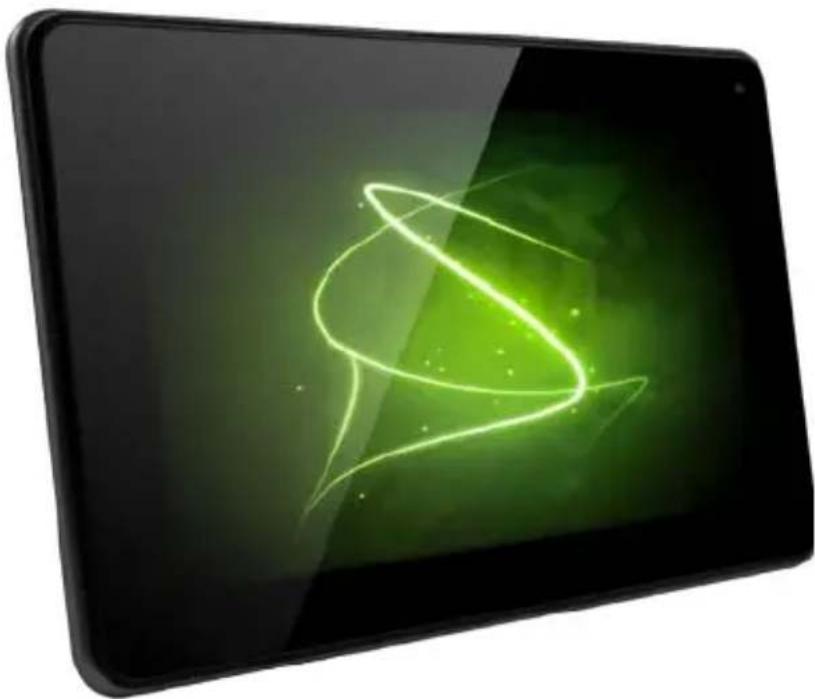
Black tablet with glowing green abstract swirl design (no text or symbols)Instrukcja obsługi
User Manual
PL / EN / CZ / SK / RO / HU / EE
OV-BasicTabII
Przedmowa
1. Uwagi
SKLEP Z APLIKACJAMI (PLAY STORE)
KALENDARZ
- Please keep Device dry. Do not let equipment, battery charger contact water and vapor, or use wet hand to operate equipment or charger, Lest cause short-circuit, corrosion caused by equipment failure, and personnel.
- Don't make equipment, battery and charger strongly impact or vibration. Lest cause equipment, battery and charger fault, fire or explosion.
- Don't put this equipment, battery and charger in the too high or too low temperature region. Otherwise you may cause equipment, battery and charger fault, fire or explosion.
- Don't hit, throw, acupuncture the Device, and avoid drop, extrusion, bending Device.
- Don't unauthorized equipment and accessories, otherwise the equipment and accessories will not in the company's warranty scope.
2. Safety Tips
Before using Touchmate Internet Tablet, please read this section information, and let your child know this information. For detailed information, please refer to the Safety guidelines and note:
- Do not use Device in driving, in order to prevent the safe driving.
- In medical sites, please comply with relevant provisions or regulations. Please close Device near the medical equipment area.
- Please close Device or open planes mode when you are boarding, to avoid wireless signals jamming aircraft control signal.
- Please close Device near the use of high precision electronic equipment; otherwise it may lead to electronic equipment disabled.
- Do not unauthorized to remove Device and accessories. Only authorized institutions can repair this Device.
- Please put Device away from magnetic equipment. The radiation of Device will erase information which is on magnetic storage device.
- Please don't use Device in the high temperature and flammable areas (such as near gas station).
- Please don't put Device and accessories in this place which children can touch it, please do not let the child use Device in unsupervised.
- Please abide by the relevant laws and regulations when you use the Device, and respect others lawful rights and privacy.
- Please strictly abide by relevant specification of this manual when you use USB cable. Otherwise it might damage your Device or personal computer.
- Please don't use Device in the damp environment such as bathroom etc. And avoid the Device soaked or flushed by the liquid.
Specification
| Operating System Android 4.1 | |
| Memory | 4GB (4GB Built-In) |
| Memory Expansion | MicroSD Card Slot (Max.32GB Supported) |
| Display | 7.0" Touchscreen TFT LCD |
| Resolution | 800 × 480 |
| Processor | Cortex A9 (1.0GHz) Speed CPU |
| RAM Memory 512 | MB DDR3 Built-In |
| Screen | Capacitive Multi Touch (5 point) |
| Internet Network | Wireless 802.11 b/g/n (Wi-Fi) |
| G-Sensor | 360°Gravity Induction For All Side Easy View |
| 3G | Support by External USB 3G Dongle |
| Audio Output Jack | 3.5mm Headphone Jack |
| Camera Digital | Camera For Video Chat & Video Rec |
| Microphone | Built-In Mic |
| PC Interface | Micro USB Hi Speed Port 2.0 |
| Flash Player | Support Flash Player 11.0 & Above |
| Power Adaptor | Power Adaptor (DC 5V, 2A) |
| Battery | Rechargeable Li-On Poly Battery 2400 mAh |
| Audio Files | MP3, WMA, WAV, OGG, FLAC, APE, AAC, AC3 |
| Video Files | RMVB,WMA, ASF, MP4, 3GP, AVI, MKV, DIVX, MPEG-2 |
| Photo Files JPEG | BMP, GIF, PNG |
| E-book Reader | ANSI/UNICODE TXT, PSD, PDF |
Appearance and Buttons
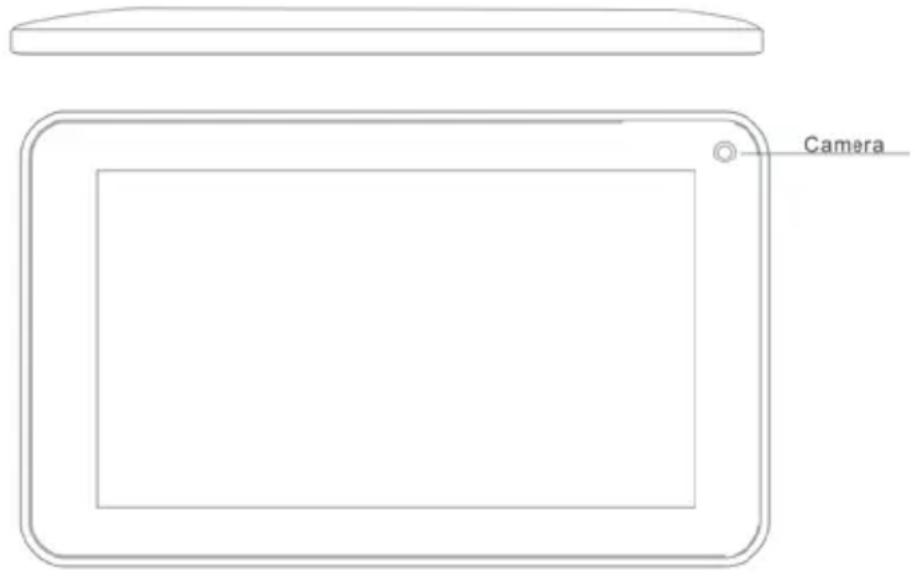
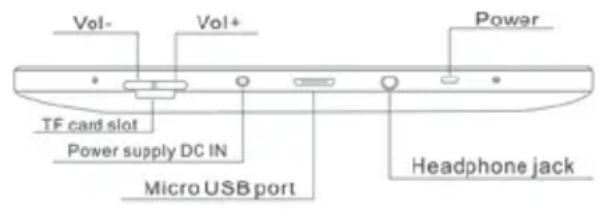
- Vol+: Press to increase the volume of headphones or speakers.
- Vol-: Press to reduce the volume of headphones or speakers.
- Power: If turned off, press two seconds to start the system. If turn on, short press can lock and unlock the screen, long press two seconds there will be "Power Off" selection.
【NOTE】In the case of software crashes, long press “Power” for 8 seconds, the device will be forced to shut down. This function is suggested only in system halted. Otherwise it’s not recommended, or it will easily damage the system.
- Camera: Front camera can be used for video chat and taking pictures.
- Headphone jack: External 3.5mm high fidelity headphones can listen to music.
- USB interface: Micro 5pin USB interface, through the USB cable or OTG cable to connect the computer copy data or install applications through USB disk
- DC charging interface: Can connect adapter to charge.
- Micro SD slot: External Micro SD card, up to 32GB.
- Speaker: By default is turned on, it will be turned off when insert the
First Use
Battery Management and Charging
- Please make sure that the device battery is fully charged on first usage.
- Just plug the charger into DC interface for charging.
- Keep the first two charging time about 6 hours. And around 4 hours next time.
【NOTE】This item was featured with built-in polymer battery, the charger should be comply with the specification of Input: AC100-240V, 50/60Hz, Max: 0.3A. Output: DC5V/2A.
- The battery icon will scroll during charging.
- Screen battery icon will turn green and stop scrolling when charging completed.
- To extend the battery life, suggest run out of the power in the first two times.
【NOTE】If the device is not used for a long time, make sure the machine will be charged one time within one month, to avoid excessive consumption.
- On lower power shutdown, plug the charger, the machine tips "lower power" and "charging", the device will enter to the menu if there is enough power.
- It's better to charge in standby, otherwise the changing time will be longer, as the screen consume battery during charging.
Desktop - First Appearance
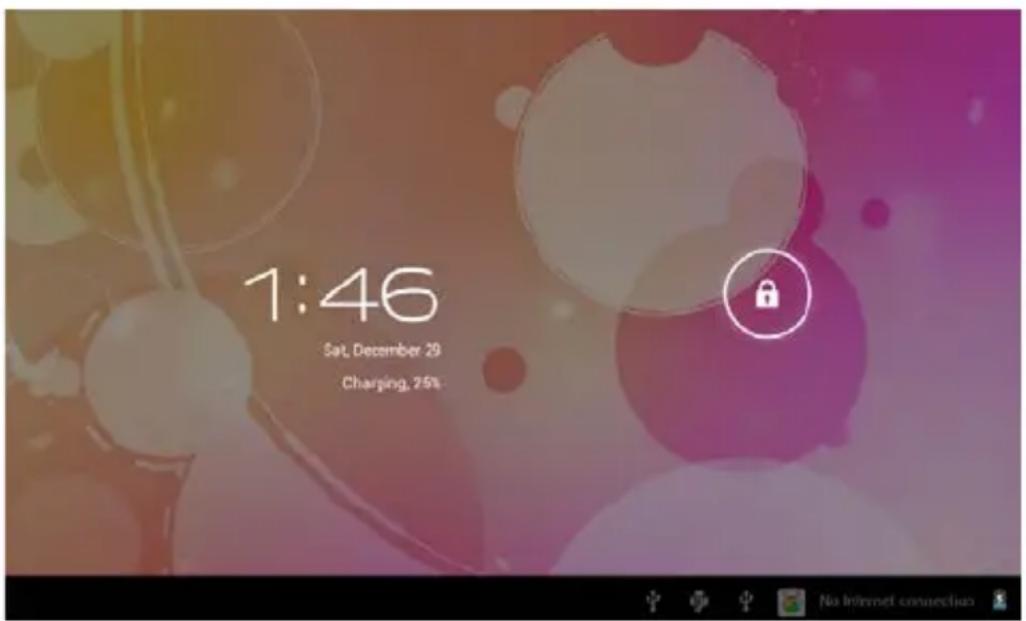
Press the Power button, after ten seconds will enter the interface of unlock the screen. Hold

slide to right, the icon will turn to 📋 and the screen will unlocked.
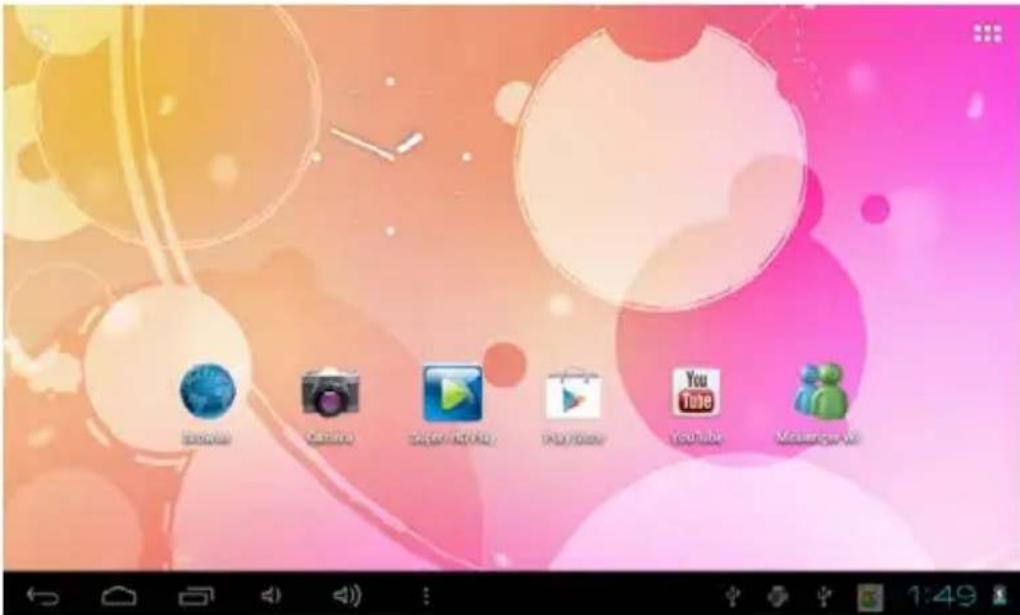
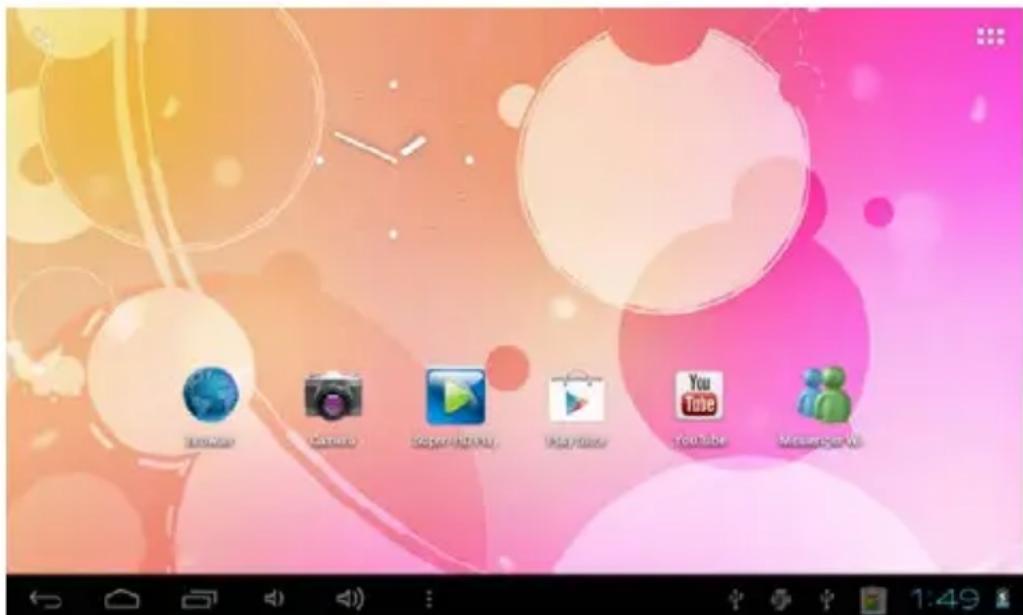
After the system is started up, you can see Android system desktop (refer to the picture below), the default system desktop: status bar, instant search button, main menu icon and shortcut icon.
| Icon Name Description | ||
 | Back | Opens the previous screen you were working in, even if it was in a different app. Once you back up to the Home screen, you can't go back any further in your history. |
 | Home | Opens Home. If you're viewing a left or right Home screen, opens the central Home screen. |
 | Recent apps | Opens a list of thumbnail images of apps you've worked with recently. To open an app, touch it. To remove a thumbnail from the list, swipe it left or right. |
 | Others | You can choose a picture to set wallpaper, enter the interfaces of Manage apps and system settings. |
 | Apps | Opens the list of apps, the main menu will be from right to left. |
 | Search | Quick search icon for web search by typing key words. |
 | Status | The status bar to display the current system of network status, battery, time information. |
Main Menu Operations
In the main menu, you can set up system, run the available application program, install new application program and start music playing, video playing, website browsing, playing games etc.
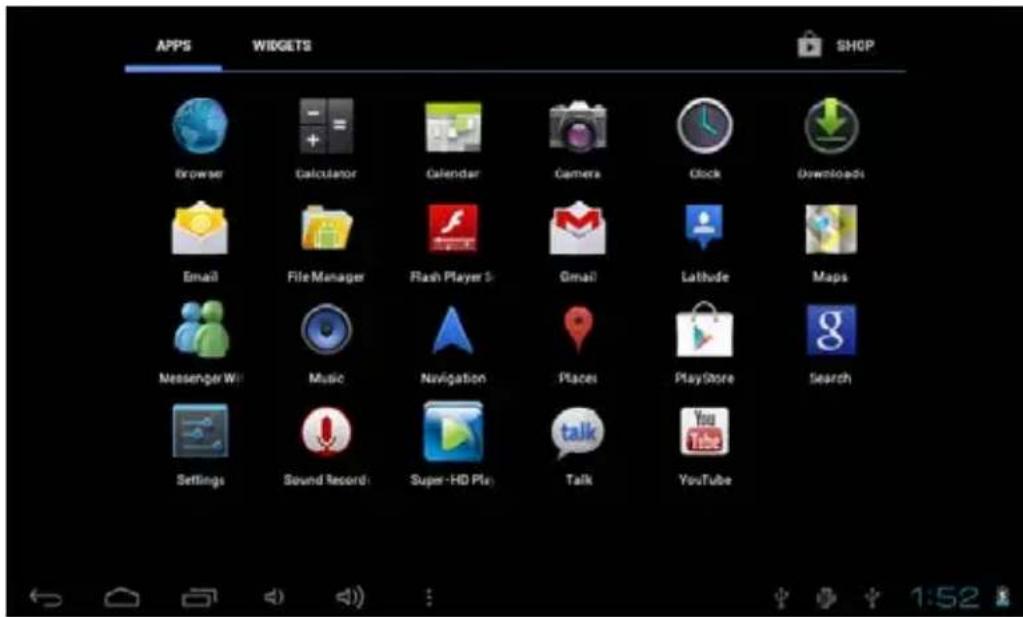
- To move an icon to the Desktop screen, touch & hold on the icon, then release it when it appears on the Desktop screen.
- Touch, hold the icon for 3 seconds, press Remove, then will delete it from the Desktop.
Application Management
Install Android Applications
- There are many interesting and free Android applications that can be found on the web. Just launch your web browser and do search for Android apps.
Purchased or free Android applications that you have downloaded to your computer can be installed quickly and easily on your Tablet using the File Manager application.
- Copy the .apk files that you want to install onto a SD card or USB device, insert or connect to your device.
- Tap the File Manager application icon, and find out the .apk file, tap on it and select Install. The application is installed and the application icon is added to the Applications screen.
Uninstall Android Applications
- You can also quickly and easily uninstall the Android applications that you have installed.
- Tap Settings → Applications → Manage applications.
- Tap the application you want to uninstall → Uninstall.
- Tap OK to confirm the install.
CLOCK
- Tap the Clock application icon. You can use your device as an alarm clock by setting multiple alarms.
- Tap Set Alarm → Add Alarm, set up your alarm as desired.
【NOTE】If you don't select a repeat, the alarm is automatically deleted after it is activated.
- Tap Turn On Alarm → OK → Done.
- When a scheduled alarm is activated, a pop-up window with the alarm title appears. Tap Snooze if you want to be reminded again in 10 minutes. Tap Dismiss to cancel the alert.

PLAY STORE
- The Play Store has many applications that you can quickly and easily download to your Tablet.
- Tap the Play Store application icon.
The first time, you are prompted for your Play Store login information. If you have not yet registered an account, tap Register. Otherwise, tap Login and enter your login information and then tap login again.
-
You can select applications from the default Featured group, by Categories, Top (latest, hottest, random), or search by name.
-
Tap on an application, → Download.
-
After the app is downloaded, tap Install.
-
Tap Open to launch now, or Done to return to the Play Store screen.
After downloading apps, tap on History to manage the installed applications. You can add and/or view comments from other users, launch apps, and uninstall them.

BROWSER
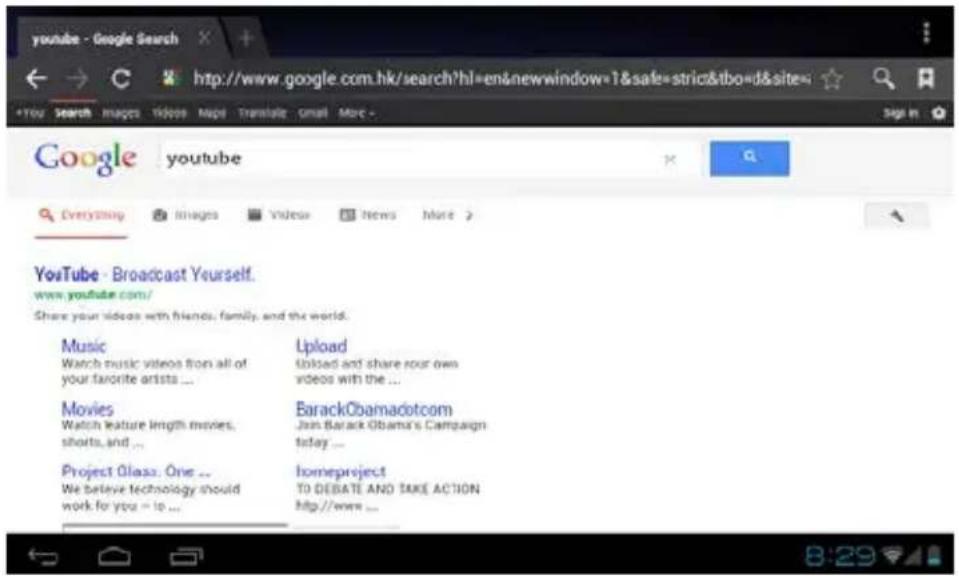
- Users can connect to the Internet through a browser.
- Click the Browser icon, and then you can open the Web browser.
CALENDAR
- For the first time to using the Calendar, you need to add an Exchange account. Enter account email address and password. Click Next and follow the prompts to complete the account configuration. Then you can use the Calendar.
Add Event
- On the Calendar screen, tap on the date to which you want to add an event.
- Tap on the event time, tap in each entry field to enter the desired event information.
- Tap Done.
【NOTE】Dates with green bars indicate scheduled events.
CAMERA
1. Take Pictures
In Camera, is the status of taking pictures, tap to take the picture. The picture will be saved.
2. Take Video
Tap

Tap

switch to video, and you can take videos.
to begin and tap

top. The video will be saved.
CALCULATOR
- Tap the Calculator application icon.
- Tap the numbers and sign of operation to do the calculation.
- Tap CLR to clear the result.

POP3 and SMTP accounts are supported.
- You can enter one or more personal email address that you would like to access through your Tablet.
- Tap the Email application icon.
- Tap in the Email address entry field, enter your email address.
-
Tap in the Password entry field, enter your email password.
-
Tap Done.
-
Manual Setup (Optional): The server settings are automatically populated based on your email account provider (i.e., gmail.com, etc.). However, if you need to change the server settings tap Manual Setup and make necessary changes.
MUSIC
Audio file formats supported: MP2, MP3, WAV, AAC, WMA, etc.
- Tap the Music application icon.
- Select an audio file from Artists/Albums/Songs/Playlists to play it.

HD PLAYER
Video file formats supported: MPEG1/2/4, MJPG, H264, etc.
- Tap the HD Player application icon.
- Select a video file to play.
- Tap on the screen to display video controls (adjust volume, pause/play, previous/next, adjust brightness).
SETTINGS
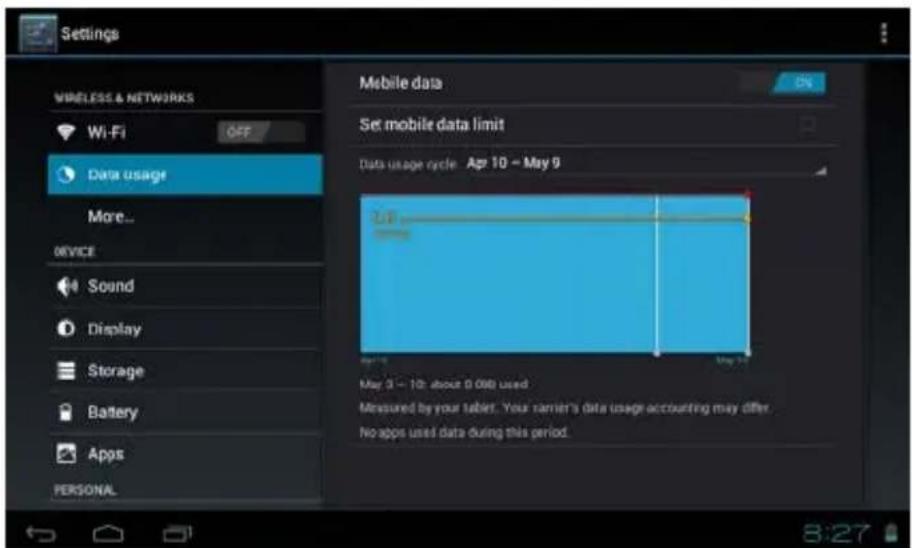
| Wireless & Networks | Wi-Fi | Turn on Wi-Fi |
| Data usage | Mobile data/Set mobile data limit/Data usage cycle | |
| More | Airplane mode/Ethernet/VPN/Mobile networks | |
| Sound | Volumes | To adjust the Media volume, Alarm volume and Notification volume. |
| Default Notification | Select desired ringtone sound. | |
| Vibrate and ring | Select vibrate and ring | |
| Display | Brightness | Tap & slide to adjust the screen brightness as desired, and then tap OK. |
| Wallpaper | HD Player/Live wallpapers/Wallpapers | |
| Auto-rotate screen | When selected, the orientation of the screen switches between Portrait and Landscape automatically when you rotate the device. | |
| Sleep | Adjust the delay time before the screen automatically turns off. | |
| Font size | Adjust the size of font. | |
| Accelerometer coordinate system | Accelerometer uses the default coordinate system. | |
| Screen adaption | Used to adjust size of some games display screen. | |
| Storage | Internal Storage | Total space/Apps space/Available space |
| Erase SD card | Erases all data on the SD card, such as music and photos. | |
| Ext SD | Enable media scanning on ext SD. | |
| USBhost1 | Mount USB Disk, enable media scanning on usbhots1. | |
| Battery | Battery usage data | |
| Apps | Downloaded/ On SD card/ Running/ All | |
| Accounts & sync | Sync on the account information. | |
| Location Services | Google's location service | Let apps use data from sources such as Wi-Fi and mobile networks to determine your approximate location. |
| Location & Google search | Let Google use your location to improve search results and other services. | |
| Security | Screen Security Screen lock/Owner info | |
| Encryption | Encrypt tablet | |
| Passwords Make passwords visible | ||
| Device Administration | Device administrators/Unknown sources | |
| Credential Storage | Trusted credentials/Install from SD card/Clear credentials. | |
| Language & Input | Language | Select the language and region according to your location./Spelling correction/Personal dictionary. |
| Keyboard & Input methods | Default/ Android keyboard | |
| Speech | Text-to –speech output | |
| Mouse/ Track pad | Pointer Speed | |
| Backup & Reset | Backup & Reset | Back up my data/Backup account/Automatic restore |
| Personal Data | Factory data reset | |
| Date & time | Automatic date & time | Use network-provided time |
| Automatic time zone | Use network-provided time zone | |
| Set date | Set the date | |
| Set time | Set the time | |
| Date & time | Select time zone | Select the time zone |
| Date & time | Use 24-hour format | You can choose to use 24-hour format or 12-hour format. |
| Select date format | You can select the date format. | |
| Accessibility | Services | Choose the services you have installed. |
| System | Large text/Auto-rotate screen/Speak passwords/Touch & hold delay/Install web scripts. | |
| Developer options | USB debugging/Development device ID/Stay awake/Allow mock locations/HDCP checking/Desktop backup password | |
| User Interface | Strict mode enabled/Pointer location/Show touches/Show screen updates/Show CPU usage/Force GPU rendering/Window animation scale/Transition animation scale | |
| Apps | Don't keep activities/Background process limit/Show all ANRs | |
| About tablet | System updates/Status/Legal information/Model number/Android version/Baseband version/Kernel version/Build number | |
Connection with PC
USB Connect
Use USB cable to connect device to PC, device will pop up the USB connection window, click Turn on USB storage to connect to PC.
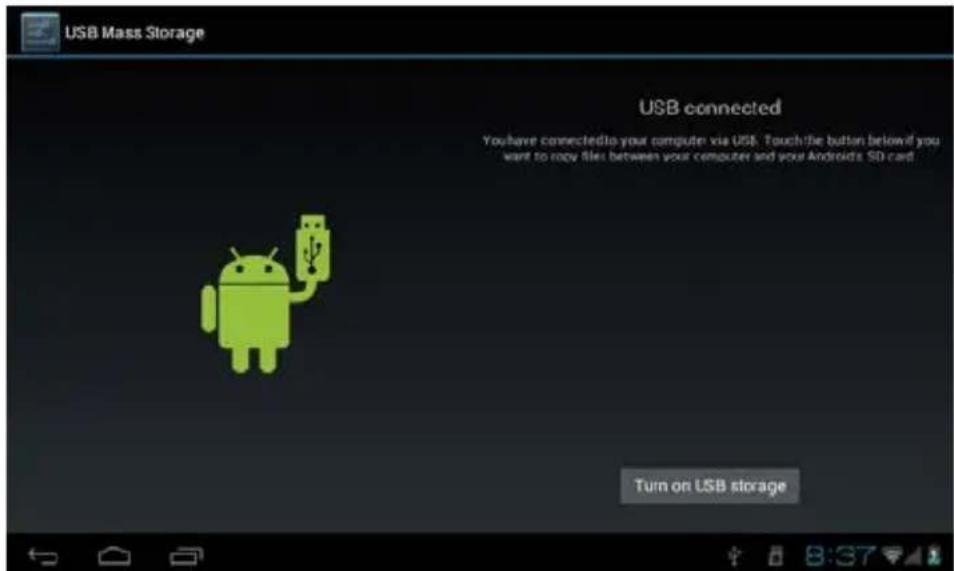
Into the load mode, you can copy, delete the file on the device and the file on the memory card.
OTG Using
●Support FAT32 format mobile memory devices, such as USB disk.
●The way for Plug and play.
- Use OTG cable to connect MID USB OTG PORT with other devices.
Trouble Shooting
●Device fails to turn on.
* Check battery volume.
* Connect to adaptor, and double check.
* If device fail to start up after charging, please contact distributors.
- Twinkling screen after turn-on or sudden shut off after starting up.
* Battery low, please charge the device.
- No sound via earphone.
* Check if volume is set at the lowest.
* Check if audio file is damaged. Play other audio to reconfirm. Damaged file may result in noise or staccato only.
- Copy function is not working, fail to play music.
* Check if PC and device is proper corrected.
* Confirm whether storage space is full.
* Confirm whether USB cable is damaged.
* Confirm whether USB is out of connection.
User Manual
CZ
OV-BasicTabII
Úvodem
1. Oznámení
Údržba
KALENDÁŘ
KALENDÁR
Interfata si Butoane
0.3A. Output: DC 5V/2A
-Icoana bateriei se va schimba in timpul incarcarii
-Icoana bateriei se va face verde si nu se va mai schimba cand incarcarea este completa
-Pentru a prelungii viata bateriei, recomandam sa se descarce complet dupa primele 2 incarcari
natural_image
Desktop screenshot with colorful abstract background and six app icons (no readable text or symbols)- Alegeti Turn On Alarm > OK > Done
CALENDAR
NAPTÁR
KALENDER
Your electronic world
Declaration of Conformity
We, the undersigned:
Declare the following apparatus:
| Products name: Tablet 7” 8GB | |
| Brand and Model name: | OV-basicTabII |
Hereby we confirm above product compliance with the European directive of CE :
| EMC: 2004/108/EC | |
| LVD: 2006/95/EC | |
| R&TTE: 1999/5/EC | |
| ROHS: 2011/65/EU | |
| WE: 1275/2008 |
Below standards were tested and passed :
| EMC : | ETSI EN 301 489-1 V1.8.1 (2008-04)ETSI EN 301 489-17 V2.1.1 (2009-05) |
| LVD : | EN 60950-1:2006 + A11:2009 + A1:2010 +A12:2011 |
| R&TTE : | EN 300328 V1.7.1:2006EN 62311:2008 |
Release date: 21.09.2012
OVERMAX
Your electronic world
OV-BasicTabII

- Instrukcja obsługi
- Przedmowa
- Uwagi
- SKLEP Z APLIKACJAMI (PLAY STORE)
- KALENDARZ
- Safety Tips
- Specification
- Appearance and Buttons
- First Use
- Battery Management and Charging
- Desktop - First Appearance
- Main Menu Operations
- Application Management
- Install Android Applications
- Uninstall Android Applications
- CLOCK
- PLAY STORE
- BROWSER
- CALENDAR
- Add Event
- CAMERA
- Take Pictures
- Take Video
- CALCULATOR
- MUSIC
- HD PLAYER
- SETTINGS
- Connection with PC
- USB Connect
- OTG Using
- Trouble Shooting
- ●Device fails to turn on.
- - Twinkling screen after turn-on or sudden shut off after starting up.
- - No sound via earphone.
- - Copy function is not working, fail to play music.
- User Manual
- CZ
- OV-BasicTabII
- Úvodem
- Oznámení
- Údržba
- KALENDÁŘ
- KALENDÁR
- Interfata si Butoane
- NAPTÁR
- KALENDER
- Your electronic world
- Declaration of Conformity
- OVERMAX
Brand : Overmax
Model : Basic Tab 2
Category : Tablet