C-720 ULTRA ZOOM - Digital Camera OLYMPUS - Free user manual and instructions
Find the device manual for free C-720 ULTRA ZOOM OLYMPUS in PDF.



User questions about C-720 ULTRA ZOOM OLYMPUS
0 question about this device. Answer the ones you know or ask your own.
Ask a new question about this device
Download the instructions for your Digital Camera in PDF format for free! Find your manual C-720 ULTRA ZOOM - OLYMPUS and take your electronic device back in hand. On this page are published all the documents necessary for the use of your device. C-720 ULTRA ZOOM by OLYMPUS.
USER MANUAL C-720 ULTRA ZOOM OLYMPUS
Thank you for purchasing an Olympus digital camera. Before you start to use your new camera, please read these instructions carefully to enjoy optimum performance and a longer service life. Keep this manual in a safe place for future reference.
CONTENTS/TABLE DES MATIÉ/INHALT/CONTENIDO
ENGLISH....2
FRANÇAIS 44
DEUTSCH 86
ESPAÑOL 128
CONTENTS
NAMES OF PARTS 4
HOW TO USE THIS MANUAL 11
GETTING STARTED 12
USING THE MENU 16
SHOOTING BASICS 21
ADVANCED SHOOTING 28
PLAYBACK 30
PRINT SETTINGS 35
TRANSFERRING PICTURES TO A COMPUTER 36
OPTIONAL ACCESSORIES 39
ERROR CODES 40
SPECIFICATIONS 42
These instructions are only for quick reference. For more details on the camera functions described in this manual, refer to the camera Reference Manual on the CD-ROM enclosed in the camera package.
For customers in Europe

“CE” mark indicates that this product complies with the European requirements for safety, health, environment and customer protection. “CE” mark cameras are intended for sales in Europe.
For customers in North and South America
For customers in USA
Declaration of Conformity
Model Number : C-720 Ultra Zoom
Trade Name : OLYMPUS
Responsible Party : Olympus America Inc.
Address : 2 Corporate Center Drive, Melville, New York 11747-3157 U.S.A.
Telephone Number : 1-631-844-5000
Tested To Comply With FCC Standards
FOR HOME OR OFFICE USE
This device complies with Part 15 of the FCC rules. Operation is subject to the following two conditions:
(1) This device may not cause harmful interference.
(2) This device must accept any interference received, including interference that may cause undesired operation.
For customers in Canada
This Class B digital apparatus meets all requirements of the Canadian Interference-Causing Equipment Regulations.
Trademarks
- IBM is a registered trademark of International Business Machines Corporation.
- Microsoft and Windows are registered trademarks of Microsoft Corporation.
•Macintosh is a trademark of Apple Computer Inc. - All other company and product names are registered trademarks and/or trademarks of their respective owners.
- The standards for camera file systems referred to in this manual are the “Design Rule for Camera File System/DCF” standards stipulated by the Japan Electronics and Information Technology Industries Association (JEITA).
NAMES OF PARTS
Camera
En
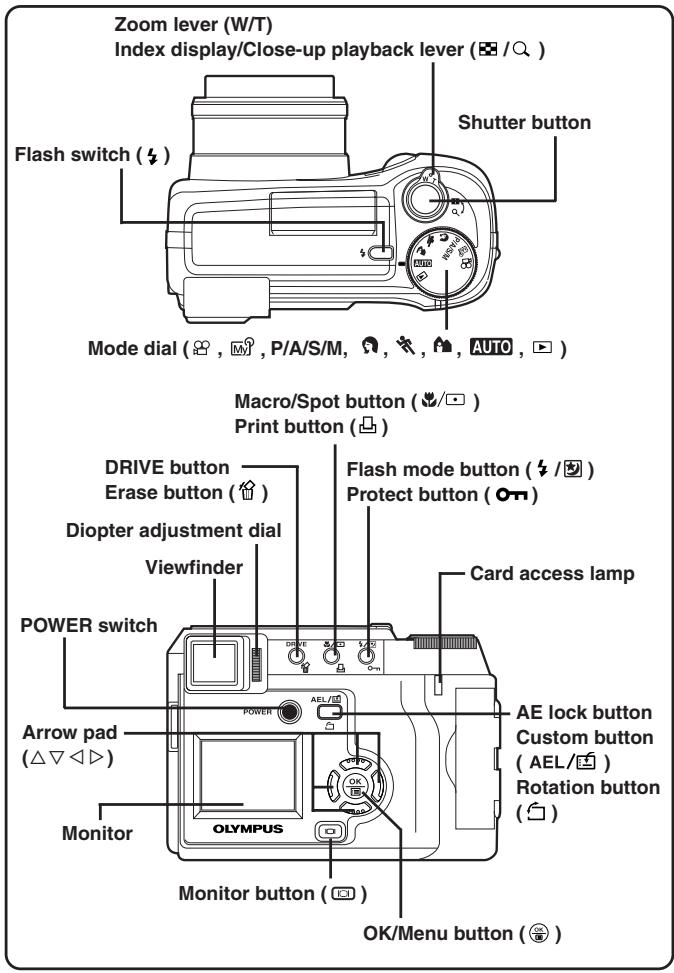
text_image
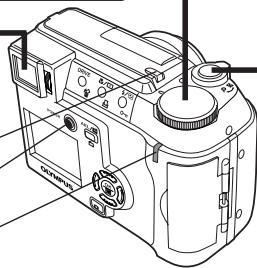
Zoom lever (W/T) Index display/Close-up playback lever (~/Q ) Flash switch ( Shutter button Mode dial ( , M , P/A/S/M, , , , , , AUTO , ▶ ) Macro/Spot button ( /□ ) Print button ( DRIVE button Erase button ( Diopter adjustment dial Viewfinder Card access lamp POWER switch Arrow pad (△▽◀◀) Power AEL/EA AE lock button Custom button (AEL/EA) Rotation button Monitor Monitor button ( OK/Menu button ()En
text_image
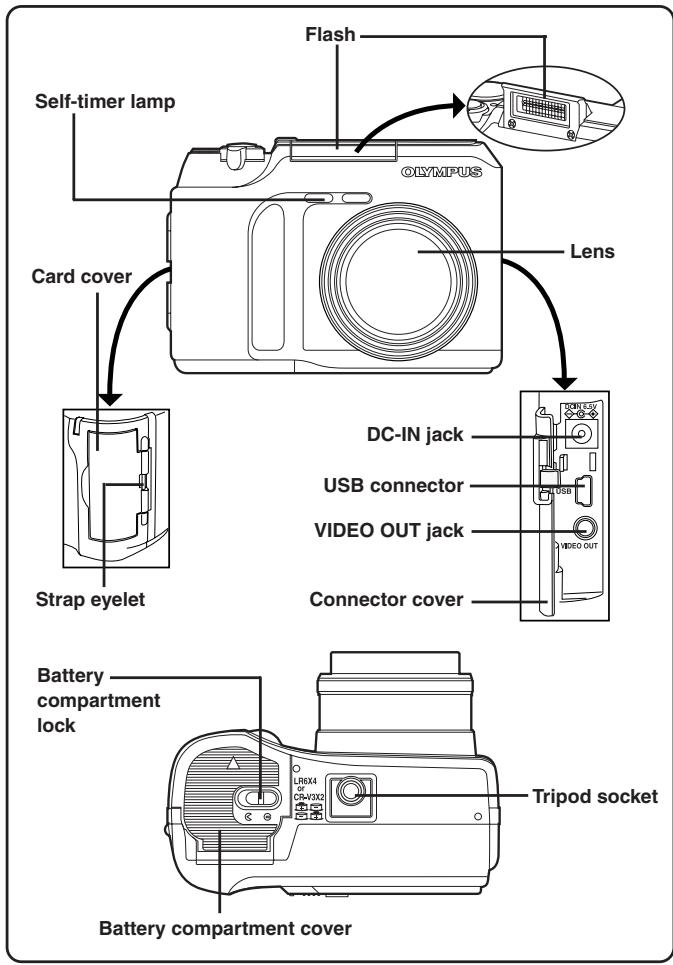
Flash Self-timer lamp Olympus Lens Card cover DC-IN jack USB connector VIDEO OUT jack Connector cover Strap eyelet Battery compartment lock Tripod socket Battery compartment coverEn
NAMES OF PARTS
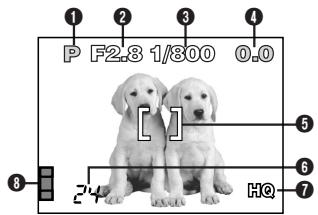
Viewfinder/Monitor indications — Shooting information
The INFO setting on the menu allows you to select how much information to display.
The indications vary depending on the shooting mode.*
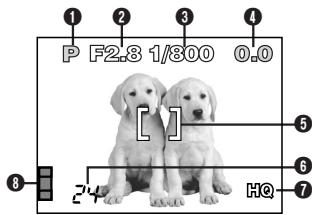
When INFO is set to OFF: The information below is displayed constantly in the shooting mode. (After closing the menu, the information which appears in the ON mode (illustrated to the right) is displayed for approx. 3 seconds, then disappears.)
When INFO is set to ON: The information below is displayed constantly in the shooting mode.
text_image
P F2.8 1/300 0.0 24 HQ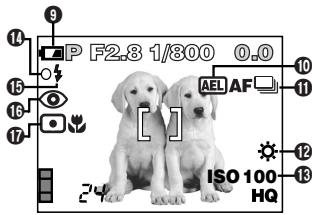
text_image
P F2.8 1/300 0.0 AEL AF ISO 100 HQ*The illustrations show examples of indications displayed in the P mode.
| Items | Indications |
| 1 Shooting mode | AUTO, P, A, S, M, 📋, 📄, 📃, 📞, 📊 |
| 2 Aperture value | F2.8 – F7.1 |
| 3 Shutter speed | 8 – 1/1000 |
| 4 ExposurecompensationExposure differential | -2.0 – +2.0-3.0 – +3.0 |
| 5 AF target mark | – |
| 6 Number of storable still picturesSeconds remaining | 24/24" |
text_image
P F2.8 1/300 0.0 [ ] HQ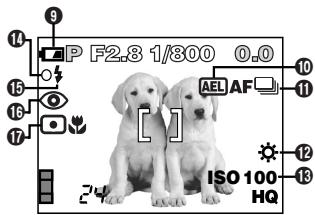
text_image
P F2.8 1/300 0.0 AEL AF ISO 100 HQ| Items | Indications |
| 7 Record mode | TIFF/SHQ/HQ/SQ1/SQ2 |
| 8 Memory gauge | 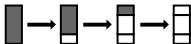 |
| 9 Battery check |  |
| 10 AE lock |  |
| 11 Drive mode |  |
| 12 White balance |  |
| 13 ISO |  |
| 14 Green lamp | O |
| 15 Flash stand-byCamera movement warningFlash charge | ‘  ‘ ‘  ‘ ‘  |
| 16 Flash mode |  |
| 17 Spot metering/Macro mode |  |
En
NAMES OF PARTS
Viewfinder/Monitor indications — Playback information
INFO setting on the menu allows you to select how much information to display.
Still picture playback information
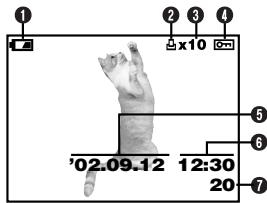
text_image
① ② ③ ④ x10 '02.09.12 12:30 20 ⑤ ⑥ ⑦When INFO is set to OFF
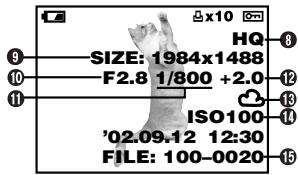
text_image
3 SIZE: 1984x1488 F2.8 1/800 +2.0 ISO100 '02.09.12 12:30 FILE: 100-0020When INFO is set to ON
| Items | Indications |
| 1 Battery check | |
| 2 Print reserve | |
| 3 Number of prints | x2 – x10 |
| 4 Protect | |
| 5 Date | '02. 09. 12 |
| 6 Time | 12:30 |
| 7 Frame number | 20 |
| 8 Record mode | TIFF, SHQ, HQ, SQ1, SQ2 |
| 9 Number of pixels (resolution setting) | 1984x1488, 1600x1200, 1280x960, 1024x768, 640x480 |
| 10 Aperture value | F2.8 – F7.1 |
| 11 Shutter speed | 8 – 1/1000 |
| 12 Exposure compensation | -2.0 – +2.0 |
| 13 White balance | |
| 14 ISO | ISO100, ISO200, ISO400 |
| 15 File number | 100 – 0020 |
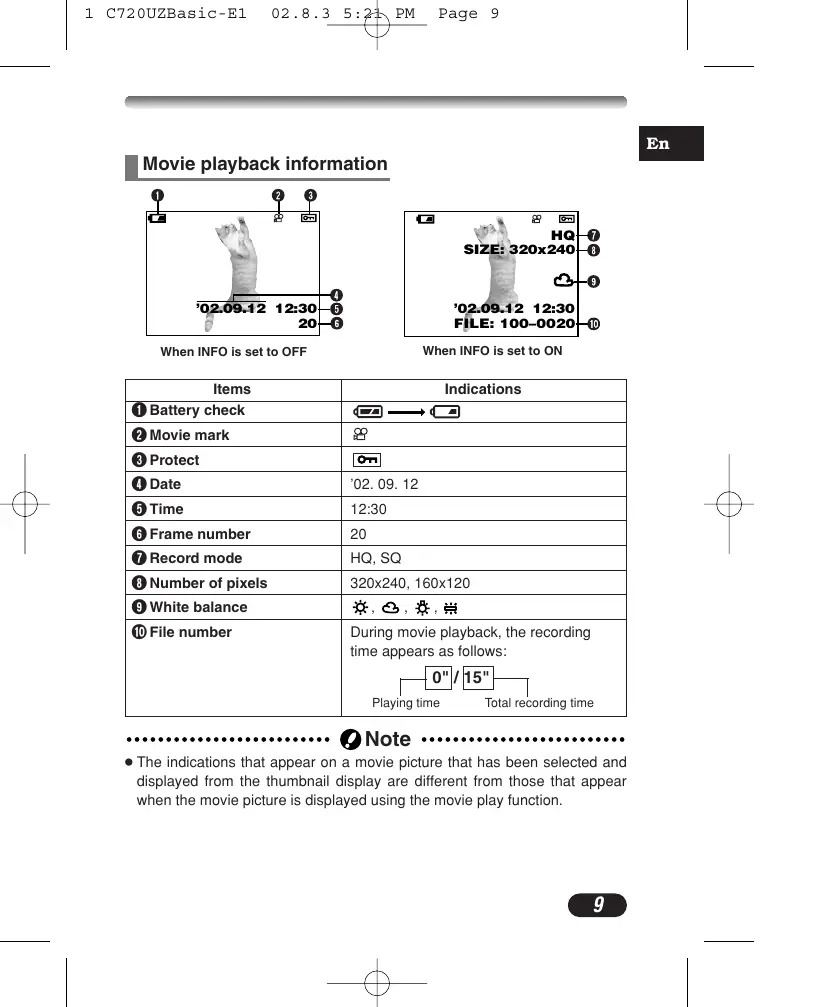
Movie playback information
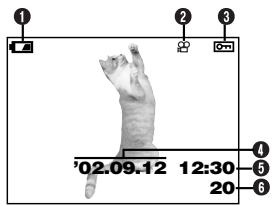
text_image
① ② ③ '02.09.12 12:30 20When INFO is set to OFF
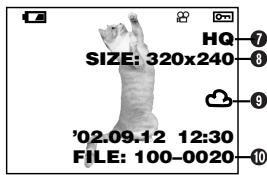
text_image
HQ SIZE: 320x240 '02.09.12 12:30 FILE: 100-0020When INFO is set to ON
| Items | Indications |
| 1 Battery check | |
| 2 Movie mark | |
| 3 Protect | |
| 4 Date | '02. 09. 12 |
| 5 Time | 12:30 |
| 6 Frame number | 20 |
| 7 Record mode | HQ, SQ |
| 8 Number of pixels | 320x240, 160x120 |
| 9 White balance | |
| 10 File number | During movie playback, the recording time appears as follows:Playing time Total recording time |
Note
- The indications that appear on a movie picture that has been selected and displayed from the thumbnail display are different from those that appear when the movie picture is displayed using the movie play function.
En
NAMES OF PARTS
Viewfinder/Monitor indications — Memory gauge & battery check
Memory gauge
The memory gauge lights when you take a picture. When the gauge is lit, the camera is storing a picture on the SmartMedia card. The memory gauge indication changes as shown below depending on the shooting status. When the memory gauge is full, wait until the light goes out before you take any more shots.
When taking still pictures
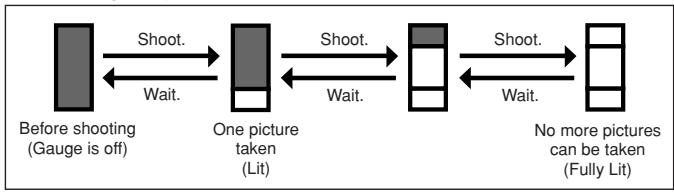
flowchart
graph LR
    A["Before shooting\n(Gauge is off)"] -->|Shoot.| B["One picture\n(taken)\n(Lit)"]
    B -->|Shoot.| C["No more pictures\n(can be taken\n(Fully Lit)"]
    C -->|Shoot.| B
    B -->|Wait.| A
When recording movies
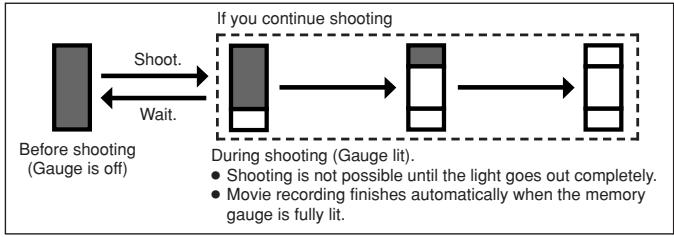
flowchart
graph LR
    A["Before shooting (Gauge is off)"] -->|Shoot.| B["After shooting"]
    B -->|Wait.| A
    C["If you continue shooting"] --> D["During shooting (Gauge lit)."]
    D --> E["After shooting"]
    E --> F["After shooting"]
    style A fill:#f9f,stroke:#333
    style B fill:#ccf,stroke:#333
    style C fill:#cfc,stroke:#333
    style D fill:#fcc,stroke:#333
    style E fill:#cff,stroke:#333
    style F fill:#ffc,stroke:#333
Battery check
If the remaining battery power is low, the battery check indication changes as follows when the camera is turned on or while the camera is in use.

Lights. (green)
Remaining power level: high



No indication
Lights. (red)
Remaining power level: low. Replace with a new battery.
Remaining power level: exhausted. BATTERY EMPTY is displayed. Replace with a new batt
HOW TO USE THIS MANUAL
The instructions in this manual use a series of numbers for each operating procedure and button/dial illustration. Follow these numbers in order when operating the camera.
Before using the following function, set the mode dial to any of the positions shown.


Means "Press this button".

If a button is shown in black, press it as part of the step.

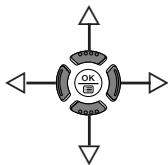
, , and used in instructions correspond to the buttons on the arrow pad as shown.
flowchart
graph TD
    A["Start"] --> B["OK"]
    B --> C["Arrow Right"]
    B --> D["Arrow Left"]
    B --> E["Arrow Down"]
    B --> F["Arrow Up"]
Set the functions in the menus in the order of these arrows. Before using the menus, read "Using the Menus", for details.
In the top menu, select MODE MENU → CAMERA → P/A/S/M → M.
GETTING STARTED
En
Attaching the strap
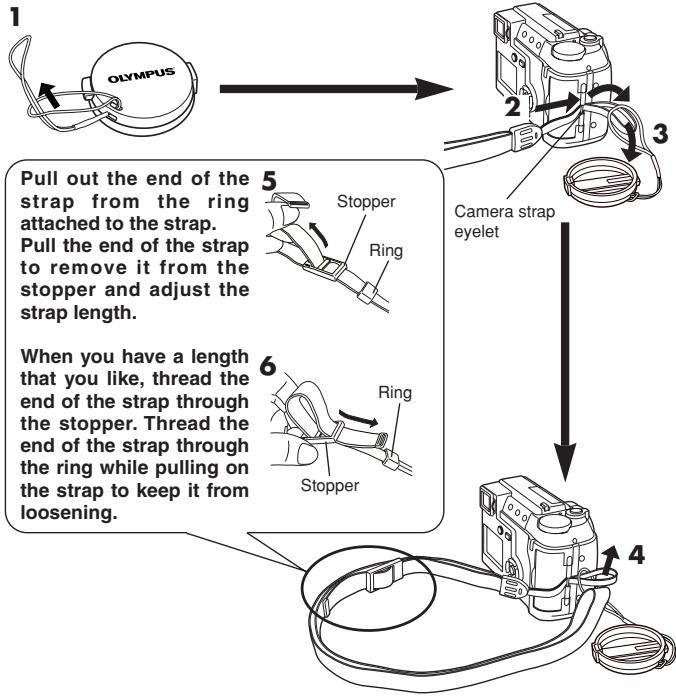
flowchart
graph TD
    A["1: OLYMPUS"] --> B["2: Camera strap eyelet"]
    B --> C["3: Stopper"]
    C --> D["4: Ring"]
    D --> E["5: Stopper attached to ring from strap"]
    E --> F["6: Ring from stopper to fold the end of strap through the ring"]
Note
- Be careful with the strap when you carry the camera, as the strap can easily catch on stray objects, causing serious damage.
- Attach the strap correctly as shown so that the camera does not fall off. If the strap is attached incorrectly and the camera falls off the strap, Olympus is not responsible for any damages.
Loading the batteries
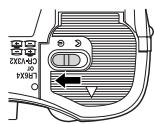
This camera uses 2 CR-V3 lithium battery packs or 4 AA (R6) NiMH batteries, NiCd batteries, alkaline batteries or lithium batteries.
! Important:
- CR-V3 lithium battery packs cannot be re-charged.
- Do not peel the label on a CR-V3 lithium battery pack.
1 Make sure the camera is turned off;
- The monitor is off.
- The viewfinder is off.
● The lens is not extended.
2
text_image
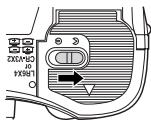
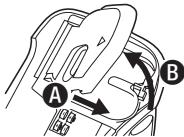
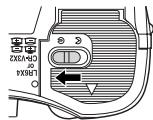
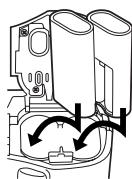
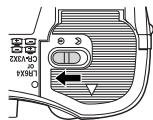
LRS4 or CR-V3X23 Slide the battery compartment cover in the direction of the arrow (A) with your fingertip and open it (B).
- Do not use your fingernail, as this could result in injury.
text_image
A B4
natural_image
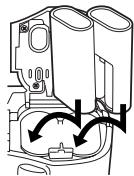
Diagram of a mechanical device with internal components and directional arrows indicating motion (no text or symbols)When using CR-V3 lithium battery packs
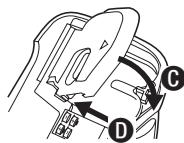
5 Close the battery compartment cover, then press it down (C) and slide it in the opposite direction of the arrow printed on it (D).
- When pressing the battery compartment cover shut, be sure to press the center of the cover, as it may be difficult to close properly by pressing the edge.
- Make sure the cover is completely closed.
text_image
Diagram showing mechanical assembly with labeled parts D and C, likely illustrating a turning or disassembly process.6
text_image
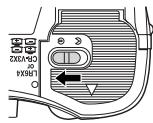
L86x4 or C#VX2 K● Using an AC power adapter (optional)
Use an AC adapter designed for the area where the camera is used. Consult your nearest Olympus dealer or Service center for details.
GETTING STARTED (Cont.)
En
Inserting/Removing the memory card (SmartMedia)
This camera uses SmartMedia card to record pictures. This manual uses the term “card” when referring to SmartMedia.
Be sure to use a 3 V (3.3 V) card. Non-Olympus 3 V (3.3 V) cards must be formatted with the camera. Do not use a 5 V card or a 2 MB card.
1 Make sure the camera is turned off;
- The monitor is off.
● The viewfinder is off. - The lens is not extended.
2 Open the card cover.
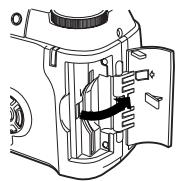
natural_image
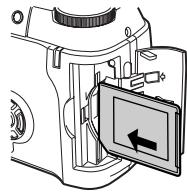
Technical line drawing of a mechanical device with internal components (no text or symbols)3 ■ Inserting the card Insert the card as far as it will go in the direction shown in the illustration.
- There is an arrow inside the card cover, indicating the direction in which the card should be inserted.
- Hold the card in a straight orientation to the card slot. Do not attempt to insert the card at an angle.
- Note the orientation of the card. If it is inserted incorrectly, it may become jammed.
natural_image
Diagram of a camera module with an open panel showing a left-side arrow (no text or symbols present)■ Removing the card Hold the card with your fingertips and pull it out in the direction of the arrow.
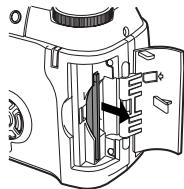
natural_image
Technical line drawing of a mechanical device with internal components (no text or symbols)4 Close the card cover securely until it clicks.
Power on/off
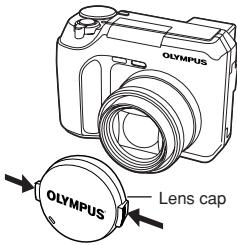
① Before turning the camera on, press the tabs on the lens cap to remove it.
② Press the power switch to turn the camera on.
- The lens moves out when the mode dial is not set to ▶.
- The viewfinder turns on.
- To turn the camera off, press the power switch again.
- If the date/time has been returned to the factory default setting, "Y/M/D" appears on the monitor.
text_image
OLYMPUS Olympus Lens capDate/time setting
1 Set the mode dial to AUTO, then press the POWER switch to turn on the camera.
2 Press OK.
- The monitor turns on automatically and the top menu appears.
3 Press △ on the arrow pad to select ⏻.
4 When is selected on the screen, press to select the date format.
- Select any one of the following formats:
D-M-Y (Day/Month/Year)
M-D-Y (Month/Day/Year)
Y-M-D (Year/Month/Day)
- This step and the following steps show the procedure used when the date and time settings are set to Y-M-D.
5 Press ▷ to move to the year (Y) setting.
6 Press to set the year. When the year is set, press to move to the month (M) setting.
- Repeat this procedure until the date and time are completely set.
- To move back to the previous setting, press ◀.
● The first two digits of the year cannot be changed.
7 Press OK.
- For a more accurate setting, don't press OK until the clock hits 00 seconds.
The clock starts when you press the button.
8 To turn the camera off, press the POWER switch.
- The lens retracts.
GETTING STARTED (Cont.)
En
Note
- The current settings stay the same even when the power is turned off, unless they are readjusted.
- The date setting will be canceled if the camera is left with no batteries for approximately 1 hour. If this happens, you will need to set the date again.
- The date/time setting may be canceled if the camera has stopped operating because of a dead battery, etc.
USING THE MENU
When displaying menus, the first screen that appears on the monitor is called the top menu. The contents of this menu change depending on the mode. On the top menu, two types of menus are available: MODE MENU and the other menus (shortcut menus).
Shortcut menu
The shortcut menu consists of the items other than MODE MENU on the Top menu. These can be replaced with your favorite items, but only when the mode dial is set to P/A/S/M or ☑. Just pressing the arrow pad buttons according to the marks shown next to each item will lead you directly to their screens.
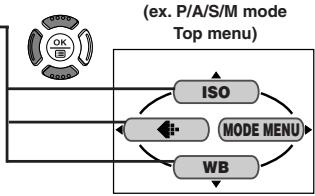
flowchart
graph TD
    A["Top Menu Mode"] --> B["ISO"]
    A --> C["MODE MENU"]
    A --> D["WB"]
    B --> C
    C --> D
    style A fill:#f9f,stroke:#333
    style B fill:#ccf,stroke:#333
    style C fill:#cfc,stroke:#333
    style D fill:#fcc,stroke:#333
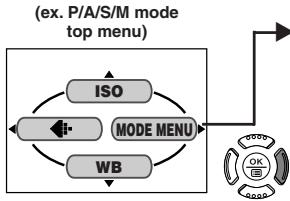
flowchart
graph TD
    A["ISO"] --> B["MODE MENU"]
    B --> C["WB"]
    C --> D["(ex. P/A/S/M mode top menu)"]
    D --> E["OK"]
    D --> F["B"]
    D --> G["SB"]
Mode menu
MODE MENU (displayed on the top menu) contains all the functions that are available and is divided into four tabs: CAMERA, PICTURE, CARD, and SETUP. These can be selected with the tabs on the left of the screen by using .
How to Set a Function in MODE MENU
① On the top menu, enter MODE MENU.
② Select a tab (CAMERA, PICTURE, CARD, or SETUP) by using △▽. Press ▷.
3 Select the function you want by using △▽. Press ▷.
4 Select your settings by using △▽. Press OK
For more details on the camera functions described in this manual, refer to the camera Reference Manual on the CD-ROM enclosed in the camera package. Some function settings may not be available depending on the mode. Factory default settings of some functions vary depending on the mode.
Modes & Shortcut Menus
AUTO top menu
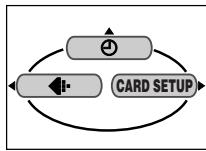
flowchart
graph TD
    A["Card Setup"] --> B["Arrow Left"]
    B --> C["Arrow Right"]
    C --> D["Arrow Down"]
    D --> A
| Display | Function | Setting |
| Sets the date and time. | - | |
| DIGITAL ZOOM | The optical zoom can be extended to a maximum of approx. 24x. | OFF, ON |
| ISO | Selects ISO sensitivity (based on normal camera film). | AUTO, 100, 200, 400 |
| Sets the record mode. | TIFF, SHQ, HQ, SQ1, SQ2 | |
| CARD SETUP | Formats the card. | - |
| WB | Sets the appropriate white balance according to the light source. | AUTO, ⚙ , ⚙ , ⚙ , ⚙ |
| Runs through all saved pictures one after another. | - | |
| MOVIE PLAY | Plays back movies. You can also make indexes of still-shots from movies. | MOVIE PLAYBACK, INDEX |
| INFO | Changes the amount of shooting information displayed on the viewfinder/monitor. | OFF, ON |
USING THE MENU (Cont.)
En
Tabs & MODE MENU functions (shooting)
In the shooting mode, the MODE MENU has 4 tabs. Press to select a tab and display the associated menu items.
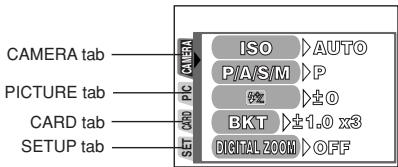
text_image
CAMERA tab PICTURE tab CARD tab SETUP tab ISO >AUTO P/A/S/M >P Ø ≥1.0 BKT ≥±1.0 x3 DIGITAL ZOOM >OFFCAMERA tab
| Display | Function | Setting |
| ISO | Selects ISO sensitivity (based on normal camera film) from AUTO/100/200/400. | AUTO, 100, 200, 400 |
| P/A/S/M | Exposure mode can be selected from P ( Program auto), A (Aperture priority auto), S (Shutter priority auto), or M (Manual mode). | P, A, S, M |
| F V | Adjusts the flash intensity for different shooting conditions. | -2EV to +2EV |
| BKT | Sets the conditions for Auto bracketing. | ± 0.3/± 0.7/± 1.0 , x3/x5 |
| DIGITAL ZOOM | The maximum optical zoom (8x) can be extended even more by the 3x digital zoom, making possible up to approx. 24x zoom. | OFF, ON |
| PANORAMA | Allows panorama pictures to be taken with Olympus CAMEDIA-brand card. | - |
| 2 in 1 | Combines two pictures taken in succession and stores them as a single picture. | - |
PICTURE tab (not available in the AUTO, 🔊, 🔒, or 🌐 mode)
| Display | Function | Setting |
| Sets the record mode resolution. | TIFF, SHQ, HQ, SQ1, SQ2 | |
| WB | Sets the appropriate white balance according to the light source. | AUTO, ⚙️, ⚙️, ⚙️, ⚙️ |
| SHARPNESS | Adjusts the sharpness of images. | - |
| CONTRAST | Adjusts the contrast of images. | - |
CARD tab
| Display | Function | Setting |
| CARD SETUP | Formats cards. | - |
SETUP tab
| Display | Function | Setting |
| ALL RESET | Selects whether to keep the current camera settings when you turn off the power. | OFF, ON |
| INFO | Changes the amount of shooting information displayed on the viewfinder/monitor. | OFF, ON |
| ■ | Turns off the beep sound (used for warnings, etc.). | OFF, ON |
| REC VIEW | Selects whether to display images while saving them to a card. | OFF, ON |
| MY MODE SETUP | Customizes settings, which are activated in the W mode. | CURRENT, RESET, CUSTOM |
| SLEEP | Sets the sleep timer. | 30sec, 1min, 3min, 5min, 10min |
| FILE NAME | Chooses how to name files and folders of images to be saved. | RESET, AUTO |
| PIXEL MAPPING | Checks the CCD and image processing circuit for errors. | - |
| □ mm | Adjusts the brightness of the viewfinder/monitor. | - |
| ◎ | Sets the date and time. | - |
| BATTERY SAVE | Enables camera operation with reduced power consumption. | OFF, ON |
| SHORT CUT | Lets you assign frequently-used functions as shortcut menus on the top menu. | All functions included in the CAMERA & PICTURE menus |
| CUSTOM BUTTON | Lets you assign a frequently used function to the camera's custom button. | AE lock, INFO, ISO, P/A/S/M, DIGITAL ZOOM, ◀ , WB |
En
USING THE MENU (Cont.)
En
Tabs & MODE MENU functions (Playback)
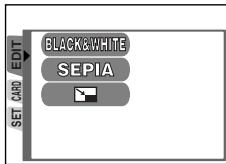
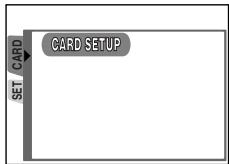
When a still picture is played back, the MODE MENU has 3 tabs. When a movie is played back, the MODE MENU has 2 tabs. Press to select a tab and display the associated menu items. The EDIT tab is not available during movie playback.
During still picture playback
text_image
BLACK&WHITE SEPIA SET CARD EDITDuring movie playback
text_image
SET CARD CARD SETUPEDIT tab
| Display | Function | Setting |
| BLACK&WHITE | Creates black and white pictures. | - |
| SEPIA | Creates sepia-toned pictures. | - |
| Makes the file size smaller. | 640 x 480,320 x 240 |
CARD tab
| Display | Function | Setting |
| CARD SETUP | Formats cards (FORMAT), or erases all images in the card (ALL ERASE). | - |
SETUP tab
| Display | Function | Setting |
| ALL RESET | Selects whether to keep the current camera settings when you turn off the power. | OFF, ON |
| Turns off the beep sound (used for warning, etc.). | OFF, ON | |
| Adjusts the brightness of the viewfinder/monitor. | - | |
| Sets the date and time. | - | |
| Selects the number of frames in the index display. | 4, 9, 16 |
SHOOTING BASICS
Shooting mode setting — Mode dial
En
AUTO Full-auto shooting
Allows you to take still pictures using NO special functions or manual adjustments. The camera sets optimal focusing and exposure. Suitable for simple shooting.

Sports shooting
Suitable for capturing fast-moving action (such as a sports scene or moving vehicles) without blurring. The camera automatically sets the optimal shooting conditions.

Landscape-Portrait shooting
Suitable for taking photos of both your subject and the background. The picture is taken with the background as well as the subject in the foreground in focus. The camera automatically sets the optimal shooting conditions.

Portrait shooting
Suitable for shooting a portrait-style image of a person. This mode features an in-focus subject against a blurred background. The camera automatically sets the optimal shooting conditions.
P/A/S/M Program/Aperture priority/Shutter priority/Manual shooting
When the mode dial is set to P/A/S/M, the following items can be set with the menus:
●P (Program shooting)
The camera sets aperture and shutter speed.
●A (Aperture priority shooting)
You set the aperture and the camera sets the shutter speed.
●S (Shutter priority shooting)
You set the shutter speed and the camera sets the aperture.
●M (Manual shooting)
You set both the aperture and shutter speed.
SHOOTING BASICS (Cont.)
En

My Mode
Your favorite settings can be saved in MY MODE SETUP (in the menu's SETUP). Customized settings are activated when the power is turned on in the ☑ mode. Settings such as aperture value, zoom position, etc. can be customized. In the ☑ mode, you can select exposure mode (shooting mode) from P, A, S, or M. Settings can be specified with the camera's setting menus.
The shortcut menu can also include different items than the shortcut menus in the P/A/S/M mode.

Movie record
Allows you to record movies. The camera sets the aperture and shutter speed automatically. Focus and exposure are locked when the shutter button is pressed halfway. You cannot record movies with sound.
Aperture setting — Aperture priority shooting
Mode dial setting
P/A/S/M

In the top menu, select MODE MENU → CAMERA → P/A/S/M → A. Press ☐. Press again to cancel the menu.
2
To increase the aperture value (F value), press .

To decrease the aperture value (F value), press .
Shutter speed setting — Shutter priority shooting
Mode dial setting
P/A/S/M

In the top menu, select MODE MENU → CAMERA → P/A/S/M → S. Press ⏻. Press again to cancel the menu.
2 To set a faster shutter speed, press .

To set a slower shutter speed, press .
Aperture & Shutter speed setting — Manual shooting
Mode dial setting
P/A/S/M

In the top menu, select MODE MENU → CAMERA → P/A/S/M → M. Press OK. Press again to cancel the menu.
2 To set a faster shutter speed, press .
To increase the aperture value (F value), press ◀.
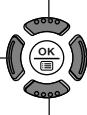
To decrease the aperture value (F value), press ▷.
To set a slower shutter speed, press .
Using My Mode
Mode dial setting
P/A/S/M

In the top menu, select MODE MENU → CAMERA → P/A/S/M → P, A, S or M. Press OK. Press again to cancel the menu.
SHOOTING BASICS (Cont.)
En
Taking still pictures
Mode dial setting


P/A/S/M

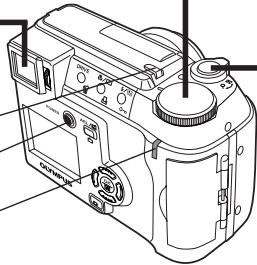
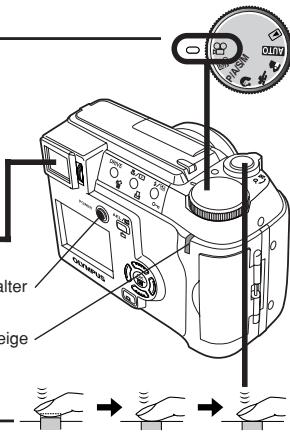
1 Remove the lens cap. Set the mode dial to any of the following positions and press the POWER switch.
Shooting mode: AUTO, 📁, 🙏, 📄, P/A/S/M, 📂
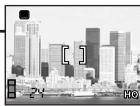
2 Point the camera towards a subject while viewing through the viewfinder.
natural_image
Black-and-white cityscape photo showing modern skyscrapers and waterfront (no visible text or symbols)Flash switch
Power switch
Card access lamp
natural_image
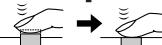
Technical line drawing of a digital camera module with no visible text or symbols3 To focus on the subject, press the shutter button halfway, slowly and gently.
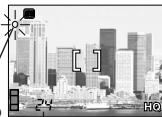
- When the subject is in focus, the green lamp lights up.
Green lamp
natural_image
Black-and-white cityscape photo of a modern skyline with skyscrapers and waterfront (no visible text or symbols)Number of storable still pictures
4 To start shooting, press the shutter button gently all the way (fully).
- If the flash is up, it will fire automatically when required.
- The card access lamp blinks and the camera begins storing pictures on the card.
Note
- Never open the card cover, eject the card, remove the batteries, or disconnect an optional AC adapter when the card access lamp is blinking. Doing so could destroy stored pictures and prevent storage of pictures you have just taken.
Recording movies
Mode dial setting

En
1 Remove the lens cap. Set the mode dial to 🎨 and press the POWER switch.
2 Point the camera towards a subject while viewing through the viewfinder.
natural_image
Black-and-white photo of a lion in a grassy field, no visible text or symbolsPower switch Card access lamp
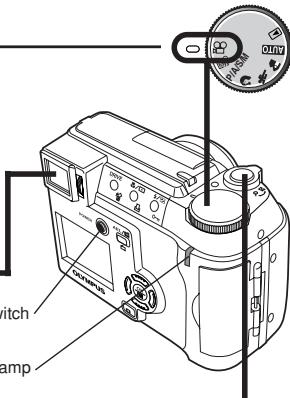
text_image
Switch amp
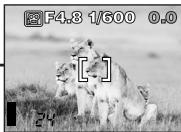
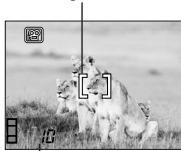
3 Press the shutter button halfway.
- When the subject is in focus, the green lamp blinks once.
4 Press the shutter button all the way to start recording.
- During movie recording, 📄 lights in red.
AF target mark
natural_image
Black-and-white photo of a group of lions in a grassy field, no visible text or symbolsSeconds remaining
5 Press the shutter button all the way again to stop recording.
- The card access lamp blinks and the camera starts writing the movie to the card.
- If the displayed seconds remaining reach "0", shooting finishes automatically and the camera starts writing the movie to the card.
SHOOTING BASICS (Cont.)
En
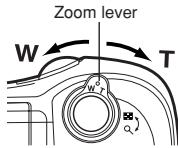
■ Zoom
→ To zoom in on a subject, press the zoom lever towards T. To shoot a wider-angle picture, press the zoom lever towards W.
→Telephoto/Wide-angle shooting is possible at up to 8x magnification (optical zoom limit, equivalent to 40 mm-320 mm on a 35 mm camera). By combining the digital zoom with the 8x optical zoom, zoom magnification up to approx. 24x is possible.
■ How to shoot using the monitor
→Press the 📄 (monitor) button and then follow steps 3 and 4 in “Taking still pictures”.
text_image
Zoom lever W T Q■ Focus lock


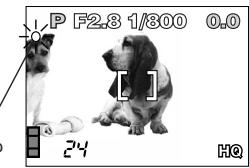
If the subject of your composition is not within the AF target mark and focusing is not possible, try the following:
1 Position the AF target mark over the subject. Press the shutter button halfway to lock the focus.
- Brightness (exposure) is also locked and the green lamp lights.
Green lamp
natural_image
Black-and-white photo of a dog sitting on the ground next to a dog's head, with no visible text or symbols.2 Compose your picture (point the camera towards the subject) while keeping the shutter button pressed halfway.
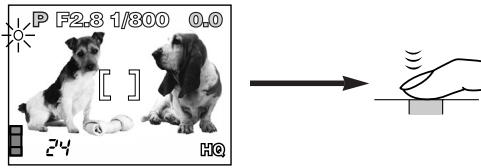
text_image
P F2,8 1/300 0,0 [ ] 24 HQ■ Using the flash


Auto-flash (No indication, factory default setting) :
Automatically fires in low-light and backlight conditions.
Red-eye reduction flash Ⓞ :
Significantly reduces the phenomenon of “red-eye” (subject’s eyes appearing red).
Fill-in flash ↓ :
Always fires regardless of the lighting conditions.
Flash off ⚪ :
For situations where flash is prohibited, or when not using the flash.
Night scene ★ :
Adjusts the flash for slow shutter speeds.
Night scene with red-eye reduction flash ⚙️:
Adjusts the flash for slow shutter speeds, and minimizes red-eye.
1 Press the ↘ (flash) switch.
- The flash pops up.
2 Press the 4/8 (flash mode) button repeatedly until the desired flash mode indication appears.
ADVANCED SHOOTING
En
Drive mode

Single-frame shooting □ : Shoots 1 frame at a time when the shutter button is pressed all the way. (normal shooting)
Sequential shooting ☐ : Shoots pictures sequentially. Focus, exposure and white balance are locked at the first frame.
AF Sequential shooting AF: Shoots pictures sequentially. Focus is adjusted for each frame automatically. The AF Sequential shooting speed is lower than normal sequential shooting.
Self-Timer Shooting ⚙️ : Shoots a single frame using the self-timer control.
Auto bracketing BKT : Shoots multiple frames of the same picture, each with a different exposure value. Focus and white balance are locked at the first frame.
Press the DRIVE button repeatedly until the desired mode appears.
Spot metering

There are 2 metering methods: Digital ESP metering and spot metering.
Digital ESP metering: Meters the center of the subject and the area around it.
Spot metering: Exposure is determined by metering within the AF target mark. In this mode, a subject can be shot with optimal exposure regardless of the background light. In the working range of the macro mode, spot metering is also available (spot metering+macro mode).
Press the 🎨/☐ button repeatedly until ☐ (spot metering) or ☐ (spot metering+macro mode) appears.
AE lock

Suitable for situations when optimal exposure is difficult to achieve (such as excessive contrast between the subject and the surroundings). For example, if the sun is in the frame and shooting with automatic exposure results in a dark subject, re-compose your shot so that the sun is not in the frame. Then, press the AEL/☑ button to lock the metered value (exposure) temporarily. Then compose your shot again with the sun in the frame and shoot. In other words, use AE lock when you want an exposure setting that's different from the setting that would normally apply to the image you want to shoot.
■ Macro mode shooting

Focusing is usually slow when you get close to a subject (0.1 m-0.6 m (0.3 ft-1.9 ft) in the max. W position or 1.0 m-2.0 m (3.2 ft-6.5 ft) in the max. T position). However, in the ⚪ mode focusing is performed quickly. The ⚪ (macro) mode allows you to shoot close to the subject (within 0.1 m - 0.6 m (0.3 ft - 1.9 ft)). With the zoom lever is pressed to the maximum W position, you can fill the entire frame with your subject.
Press the 🎨/☐ button repeatedly until ⚪ (Macro mode) or ☐ (Spot metering+Macro mode) appears.
■ Exposure Compensation
Mode dial setting


This function allows you to make fine changes to the present exposure setting. In some situations, you may get better results when the exposure that the camera sets is compensated (adjusted) manually. You can adjust between +/-2.0 in 1/3 steps.
Adjusts towards – (images become darker)
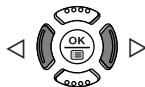
Adjusts towards + (images become brighter)
PLAYBACK
En
Viewing still pictures
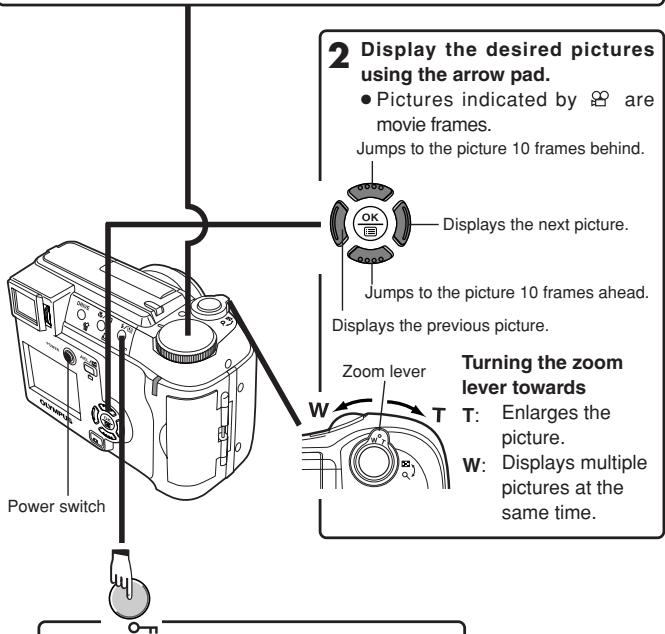
1 Set the mode dial to ▶ ( playback mode) and press the POWER switch.
text_image
2 Display the desired pictures using the arrow pad. • Pictures indicated by 📁 are movie frames. Jumps to the picture 10 frames behind. Displays the next picture. Jumps to the picture 10 frames ahead. Displays the previous picture. Zoom lever Turning the zoom lever towards T: Enlarges the picture. W: Displays multiple pictures at the same time. Power switchPress ON to avoid accidentally erasing images.
To cancel protection, press ON again.
natural_image
Black-and-white beach scene with palm trees and a camera icon (no text or symbols)Protect mark
Playing back movies
1 Display the movie frame (picture with 📋) you want to play back. Steps 1 and 2 in “Viewing still pictures”.
2 Press OK. • The top menu appears.
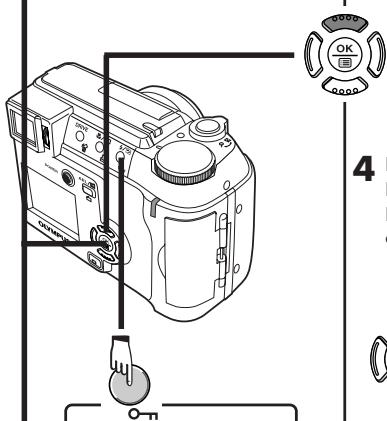
text_image
Technical diagram of a DSLR camera with labeled control buttons and a dial indicatorPress ON to avoid accidentally erasing images. To cancel protection, press ON again.
3 Press △ on the arrow pad to select MOVIE PLAY.
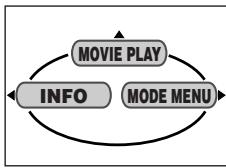
flowchart
graph TD
    A["MOVIE PLAY"] --> B["INFO"]
    B --> C["MODE MENU"]
    C --> A
4 Press △▽ to select MOVIE PLAYBACK on the MOVIE PLAY screen.
- To exit MOVIE PLAY screen, press ◀.
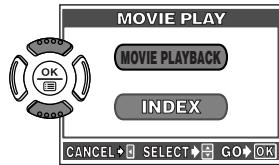
text_image
MOVIE PLAY MOVIE PLAYBACK INDEX CANCEL SELECT GO OK5 Press OK to start Playback.
- When playback finishes, the screen returns to the beginning of the movie.
- If is pressed again when the movie playback is finished, the MOVIE PLAYBACK screen appears. To exit the movie playback mode and return to the MOVIE PLAY screen, press to select EXIT, then press .
PLAYBACK (Cont.)
En
Picture Rotation
There may be times when you want to rotate a picture. With picture rotation, you can turn them horizontally, 90 degrees clockwise, or counter-clockwise.
1 Display a vertically oriented picture in the single-frame playback mode.
2 Each time the ☐ button is pressed, the picture is rotated.
■ Protect (Protecting Images Against Accidental Erasure)
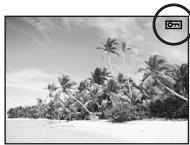
It is highly recommended that you protect important pictures to avoid accidentally erasing them. Protected pictures cannot be erased by the single-frame/all-frame erase function.
1 Display the picture you want to protect by using the arrow pad.
2 Press ON. The picture is now protected.
- To cancel protection, press ON again.
■ Single-Frame Erase
1 Select a picture you wish to erase by using the arrow pad.
- If the picture is protected, cancel the protection first.
2 Press the ⏻ (erase) button. The ⏻ ERASE screen is displayed.
3 Press △ to select YES.
4 Press ☑ to erase the picture.
- To cancel erasing, select NO in step 3 and press OK, or press the 🏠 button again.
All-Frame Erase
This function erases all still pictures and movies on the card, except protected ones.
In the top menu, select MODE MENU → CARD → CARD SETUP → ⏻ ALL ERASE.
2 Press OK. The ⏻ ALL ERASE screen is displayed.
3 Press △ to select YES.
4 Press OK to start erasing.
- A bar is displayed to show the progress of erasing.
- To cancel erasing, select NO in step 3 and press OK.
Note
- It is not possible to erase protected pictures or pictures stored on a card that has a write-protect seal.
- Once erased, pictures cannot be restored. Check each picture before erasing to avoid accidentally erasing pictures you want to keep. "Protect (Protecting Images Against Accidental Erasure)"
■ Formatting Cards

text_image
Mode dial setting AUTO P/A/S/M MyThis function lets you format a card. Formatting prepares cards to receive data. Olympus CAMEDIA-brand cards are highly recommended for use with this camera. If you are going to use non-OLYMPUS cards or cards formatted by other devices such as a computer, you must format them with the camera before use. Cards can be formatted in all modes.
1 AUTO : In the top menu, select CARD SETUP → FORMAT. Modes except AUTO : In the top menu, select MODE MENU → CARD → CARD SETUP → FORMAT.
2 Press OK. The ↗ FORMAT screen is displayed.
3 Press △ to select YES.
En
PLAYBACK (Cont.)
4 Press OK to start formatting.
● A bar is displayed to show the progress of formatting.
- To cancel formatting, select NO in step 3 and press OK.
Note
- All existing data stored on the card is erased when the card is formatted. Make sure that you save or transfer important data to a PC before formatting a used card.
■ Playback on a TV
Mode dial setting

1 Make sure that the TV and camera power are off.
2 Connect the camera to the TV using the video cable.
Connect to the TV's video input (yellow) terminal

text_image
Video cable Connect to the VIDEO OUT jack.3 Set the mode dial to ▶ and press the POWER switch. Turn on the TV. Set the TV to the video input mode.
- For details on switching to video input, refer to your TV's instruction manual.
4 Select an image by using the arrow pad.
● The selected image will be displayed on the TV.
Note
- Video signal is either NTSC or PAL compatible depending on the standard in the intended area of distribution.
PRINT SETTINGS
By specifying the desired number of prints of each picture on the card and whether or not the date and time are to be printed, you can print out the desired pictures according to the print reservation data with a DPOF-compatible printer or at a DPOF photo lab.
What is DPOF?
DPOF is short for Digital Print Order Format. DPOF is a format used to record automatic print information from cameras.
By specifying which pictures are to be printed, the pictures can be printed easily by DPOF-compatible printing service labs or on a personal DPOF-compatible printer.
All-frame reservation
Use this feature to print all the pictures stored on the card. You can specify the desired number of prints and whether or not the date and time are to be printed.
Single-frame reservation
Use this feature to print only selected pictures. Display the frame to be printed and select the desired number of prints.
Resetting the print reservation data
This function allows you to reset all the print reservation data for pictures stored on the card.
For more details, refer to the "Reference Manual" on CD-ROM.
TRANSFERRING PICTURES TO A COMPUTER
En
By connecting the camera to a computer with the provided USB cable, images on a card can be transferred to the computer. Some OS's (operating systems) may need a special setup when connecting to the camera for the first time. Follow the chart below. For details on the procedures in the chart, refer to the “Reference Manual” on the CD-ROM and the “Software Installation Guide” (included in the CD-ROM package).
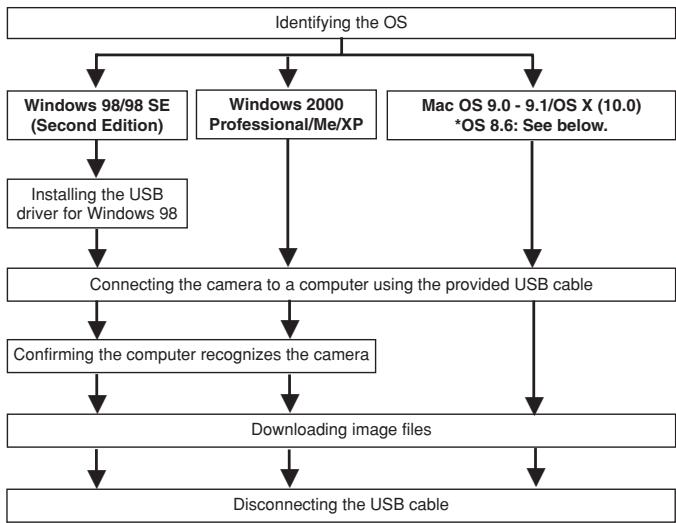
flowchart
graph TD
    A["Identifying the OS"] --> B["Windows 98/98 SE (Second Edition)"]
    A --> C["Windows 2000 Professional/Me/XP"]
    A --> D["Mac OS 9.0 - 9.1/OS X (10.0) *OS 8.6: See below."]
    B --> E["Installing the USB driver for Windows 98"]
    C --> F["Connecting the camera to a computer using the provided USB cable"]
    D --> G["Confirming the computer recognizes the camera"]
    F --> H["Downloading image files"]
    G --> H
    H --> I["Disconnecting the USB cable"]
* Even if your computer has a USB connector, data transfer may not function correctly if you are using one of the operating systems listed below or if you have an add-on USB connector (extension card, etc.).
● Windows 95/NT 4.0
● Windows 98/98 SE upgrade from Windows 95
- Mac OS 8.6 or lower (except Mac OS 8.6 equipped with USB MASS Storage support 1.3.5 installed at the factory)
- Data transfer is not guaranteed on a home-built PC system or PCs with no factory installed OS.
Note
- You can view images using: graphics applications that support the JPEG file format (Paint Shop Pro, Photoshop, etc.); Internet browsers (Netscape Communicator, Microsoft Internet Explorer, etc.); CAMEDIA Master software; or other software. For details on using commercial graphics applications, refer to their instruction manuals.
- QuickTime is needed for playing back movies. QuickTime is included on the provided software CD.
- If you want to process images, make sure to download them to your computer first. Depending on the software, image files may be destroyed if the images are processed (rotated, etc.) while they are on the card.
TRANSFERRING PICTURES TO A COMPUTER (Cont.)
En
For other OS users
Users running other OS cannot connect the camera directly to a computer.
● Windows 95 ● Windows NT ● Mac OS before OS 9
You can download images directly to your computer using an optional floppy disk adapter or PC card adapter.
Does your computer have a USB interface? Is there a port marked 📌 on your computer?
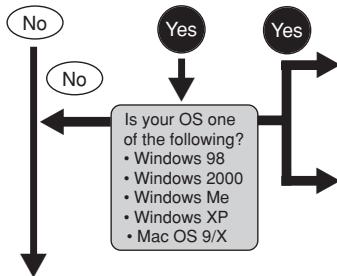
flowchart
graph TD
    A["No"] --> B{Is your OS one of the following?}
    B --> C["Windows 98"]
    B --> D["Windows 2000"]
    B --> E["Windows Me"]
    B --> F["Windows XP"]
    B --> G["Mac OS 9/X"]
    H["Yes"] --> I["Is your OS one of the following?"]
    I --> J["Windows 98"]
    I --> K["Windows 2000"]
    I --> L["Windows Me"]
    I --> M["Windows XP"]
    I --> N["Mac OS 9/X"]
    O["No"] --> P["Is your OS one of the following?"]
    P --> Q["Windows 98"]
    P --> R["Windows 2000"]
    P --> S["Windows Me"]
    P --> T["Windows XP"]
    P --> U["Mac OS 9/X"]
Connect the camera directly to
your computer using the provided USB cable.
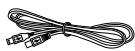
Use the optional USB SmartMedia reader/writer.
* Certain card readers may not be compatible with Mac OS X. Check the Olympus website for the most up-to-date compatibility information.
Does your computer have a built-in PC card slot?
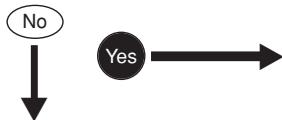
flowchart
graph TD
    A["No"] --> B["Yes"]
Use the optional PC card adapter.
* Not supported by Windows NT4.0 or lower

Does your computer have a built-in floppy disk drive?
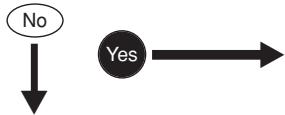
flowchart
graph TD
    A["No"] --> B["Yes"]
Use the optional FlashPath floppy disk adapter.

Consult your nearest Olympus representative.
For more details on the camera functions described in this manual, refer to the camera Reference Manual on the CD-ROM enclosed in the camera package.
For more details on PC connections, refer to the "Software Installation Guide" (included in the CD-ROM package).
OPTIONAL ACCESSORIES
As of April 2002
En
- Camera case
● Conversion lenses Wide-angle Macro
● P-400 and P-200 photo printers for Olympus digital cameras
● AC adapter
● Standard SmartMedia card (8/16/32/64/128MB) - Floppy disk adapter
● PC card adapter
● Olympus-brand removable media reader/writer
NiMH batteries
● NiMH battery chargers
Visit the Olympus home page for the latest information on optional items. http://www.olympus.com/
ERROR CODES
En
If there is a problem with your camera, one of the error codes below will appear.
| Indications | Possible causes | Corrective action |
| NO CARD | The card is not inserted, or it cannot be recognized. | Insert a card correctly or insert a different card. |
| CARD FULL | No more pictures can be taken. | Replace the card or erase unwanted pictures. |
| WRITE-PROTECT | Writing to the card is prohibited. | Remove the write-protect adhesive seal attached to the card. |
| CARD ERROR | Cannot record, play back or erase pictures on this card. | If the card is dirty, wipe the gold contacts with a clean tissue and insert it again. If the problem is still not corrected, the card cannot be used. |
PICTURE ERROR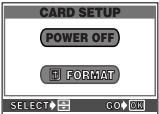 | The recorded image cannot be played back with this camera.The card is not formatted. | Download the image to a personal computer and use image processing software to view it. If that cannot be done, the image file is damaged.Format the card. |
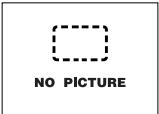 | There are no pictures on the card, so there is nothing to play back. | Insert a card that contains images. |
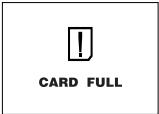 | There is no empty space on the card, so it cannot record new information such as print data. | Replace the card or erase unneeded pictures. |
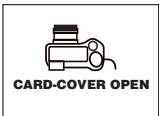 | The card cover is open. | Close the card cover. |
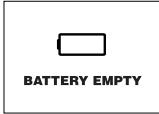 | The battery is dead. The camera stops working. The card access lamp and self-timer lamp blink at the same time. | Install either new or freshly charged batteries. |
| Other indications | Consult your nearest Olympus dealer or customer support department (see back cover). | |
SPECIFICATIONS
En
| Product type | Digital camera (for shooting and displaying) |
| Recording systemStill | Digital recording, JPEG (in accordance with Design rule for Camera File system (DCF)), TIFF (non-compression), Digital Print Order Format (DPOF) |
| Movie | QuickTime Motion JPEG support |
| Memory | 3V (3.3V) SmartMedia, 4 MB - 128 MB (all cards except 2 MB) |
| No. of storable pictures(When a 16 MB card is used) | 1 frame (TIFF: 1984x1488)Approx. 7 frames (SHQ: 1984x1488)Approx. 21 frames (HQ: 1984x1488)Approx. 24 frames (SQ1: 1600x1200)Approx. 99 frames (SQ2: 640x480) |
| No. of effective pixels | 3,000,000 pixels |
| Image pickup device | 1/2.5" CCD solid-state image pickup3,340,000 (gross) |
| Recording image resolutions | 1984 x 1488 pixels (TIFF/SHQ/HQ)1600 x 1200 pixels (SQ1)1280 x 960 pixels (SQ2)1024 x 768 pixels (SQ2)640 x 480 pixels (SQ2) |
| Lens | Olympus lens 6.4 mm to 51.2 mm, f2.8 to f3.4, 10 elements in 7 groups (equivalent to 40 mm to 320 mm lens on 35 mm camera) |
| Photometric system | Digital ESP metering, Spot metering system |
| Aperture | W : f2.8 to f7.1T : f3.4 to f7.1 |
| Shutter speedStill | Used with mechanical shutter1/2 to 1/1000 sec. (M mode: 8 to 1/1000 sec.; when Night Scene flash mode is used: 2 to 1/1000 sec.)1/30 to 1/8000 sec. |
| Movie | |
| Viewfinder | 0.5" TFT color LCD displayApprox. 114,000 pixels |
| Monitor | 1.5" TFT color LCD displayApprox. 114,000 pixels |
| Battery charging time for flash | Approx. 7 sec. (at normal temperature with new batteries) |
| Autofocus | TTL system autofocus,Contrast detection system,Focusing range: W: 0.1 m to (0.3 ft to )T: 1.0 m to (3.2 ft to ) |
| Outer connector | DC-IN jack, USB connector (mini-B), VIDEO OUT jack |
| Automatic calendar system | Up to 2099 |
| Operating environment TemperatureHumidity | 0°C to 40°C (32°F to104°F) (operation)-20°C to 60°C (-4°F to 140°F) (storage)30% to 90% (operation)10% to 90% (storage) |
| Power supply | For batteries, use 2 CR-V3 lithium battery packs, or 4 AA (R6) NiMH batteries, NiCd batteries, alkaline batteries or lithium batteries.AC adapter (optional)Manganese (zinc-carbon) batteries cannot be used. |
| Dimensions (W) X (H) X (D) | 107.5 mm x 76 mm x 77.5 mm(4.2" x 3.0" x 3.1") |
| Weight | 315 g (0.7 lb) (without batteries/card) |
SPECIFICATIONS ARE SUBJECT TO CHANGE WITHOUT ANY NOTICE OR OBLIGATION ON THE PART OF THE MANUFACTURER.
Fr
Partie responsible : Olympus America Inc.
Adresse : 2 Corporate Center Drive, Melville, New York 11747-3157 U.S.A.
text_image
P F2.8 1/300 0.0 [ ] HQ
text_image
P F2.8 1/300 0.0 AEL AF ISO 100 HQFr
text_image
AUTO P/A/S/M Mynatural_image
Diagram of a mechanical device with internal components and directional arrows indicating motion (no text or symbols)text_image
Diagram of a car gear shift mechanism with labeled parts C and D6
text_image
L86x4 or CPR-V3X2natural_image
Technical line drawing of a mechanical device with internal components and no visible text or symbols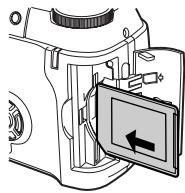
natural_image
Technical line drawing of a camera module with an open panel and directional arrow (no text or symbols)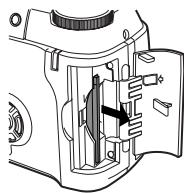
natural_image
Technical line drawing of a mechanical device with internal components (no text or symbols)flowchart
graph TD
    A["Card Setup"] --> B["Process Node"]
    B --> C["Back to Card Setup"]
    C --> D["Arrow Left"]
    D --> A
text_image
SET CARD /EDIT BLACK&WHITE SEPIAtext_image
SET CARD CARD SETUPLanguette EDIT
natural_image
Black-and-white cityscape photo showing modern skyscrapers and waterfront (no visible text or symbols)natural_image
Technical line drawing of a DSLR camera with adjustment knobs and buttons (no text or symbols)text_image
Diagram showing hand press application on a device with indicator lights and a cityscape background, labeled with '24' and 'HO'Voyant vert
natural_image
Black-and-white photo of a lion in a grassy field, no visible text or symbolsSecondes restantes
text_image
P F2.8 1/800 0.0 [ ] 24 HQ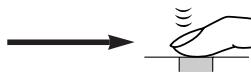
natural_image
Simple line drawing of a hand pressing a button on a surface, with an arrow pointing right (no text or symbols)natural_image
Line drawing of a DSLR camera with adjustment knobs and a light bulb (no text or symbols)flowchart
graph TD
    A["MOVIE PLAY"] --> B["INFO"]
    B --> C["MODE MENU"]
    C --> A
TRANSFERT D'IMAGES VERS UN ORDINATEUR (Suite)
flowchart
graph TD
    A["Non"] --> B["Oui"]
flowchart
graph TD
    A["Non"] --> B["Oui"]
    style A fill:#fff,stroke:#000
    style B fill:#000,stroke:#000
text_image
P F2.8 1/300 0.0 [ ] HQ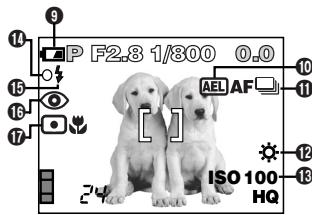
text_image
P F2.8 1/300 0.0 AEL AF ISO 100 HQDe
text_image
AUTO P/A/S/M Mytext_image
Diagram showing mechanical assembly with labeled parts A and B, indicating directional movement or motion4
natural_image
Diagram of a mechanical device with internal components and directional arrows indicating motion (no text or symbols)text_image
Diagram of a car interior showing labeled parts D and C with directional arrows indicating movement or flow.6
text_image
L86x4 OR CMVX2 CMVX2natural_image
Technical line drawing of a mechanical device with internal components (no text or symbols)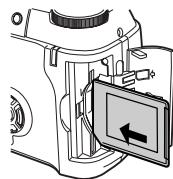
natural_image
Diagram of a camera module with an open screen showing a directional arrow (no text or symbols present)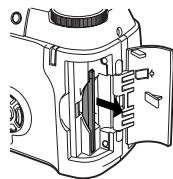
natural_image
Technical line drawing of a mechanical assembly with internal components (no text or symbols)flowchart
graph TD
    A["+"] --> B["CARD SETUP"]
    B --> C["←"]
    C --> A
text_image
SET CARD EDIT BLACK&WHITE SEPIAtext_image
SET CARD CARD SETUPMenüanzeiger EDIT
natural_image
Black-and-white cityscape photo showing modern skyscrapers and a waterfront (no visible text or symbols)Blitzentriegelung
POWER-Schalter
Schreibanzeige
natural_image
Technical line drawing of a DSLR camera with adjustment knobs and control buttons (no text or symbols)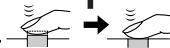
natural_image
Black-and-white cityscape photo of a modern skyline with skyscrapers and boats, no visible text or symbolsGrüne Sucher-LED
natural_image
Black-and-white photo of a lion in a grassy field, no visible text or symbolsPOWER-Schalter
Schreibanzeige
text_image
Enter EdgeDe
natural_image
Black-and-white photo of a group of lions in a grassy field, no visible text or symbolsnatural_image
Black-and-white photo of a dog and a dog sitting together, with no visible text or symbols.Grüne Sucher-LED
text_image
P F2.8 1/300 0.0 [ ] 24 HQ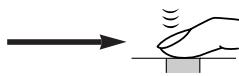
natural_image
Simple line drawing of a hand pressing a button on a surface, with motion lines indicating sound or vibration (no text or symbols)natural_image
Black-and-white beach scene with palm trees and a camera icon (no text or symbols)Schreibschutzsymbol
Movie-Wiedergabe
natural_image
Line drawing of a DSLR camera with adjustment knobs and a small circular component (no text or symbols)flowchart
graph TD
    A["MOVIE PLAY"] --> B["INFO"]
    B --> C["MODE MENU"]
    C --> A
text_image
P F2.8 1/300 0.0 [ ] HQ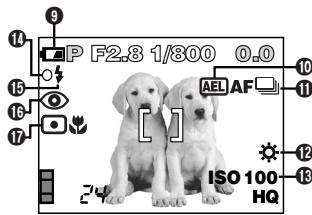
text_image
P F2.8 1/300 0.0 AEL AF ISO 100 HQCÓMO USAR ESTE MANUAL
natural_image
Line drawing of a mechanical device with a coiled cable and labeled component 4 (no text or symbols beyond labels)Nota
natural_image
Diagram of a mechanical device with internal components and directional arrows indicating motion (no text or symbols)Cuando utilice pilas de litio CR-V3
text_image
Diagram of a car interior showing labeled parts D and C with directional arrows indicating movement or flow.6
text_image
LH6X4 CMVX2 or ←natural_image
Technical line drawing of a mechanical assembly with internal components (no text or symbols)natural_image
Diagram of a camera module with an open screen showing a left-pointing arrow (no text or symbols present)natural_image
Technical line drawing of a mechanical device with internal components (no text or symbols)flowchart
graph TD
    A["ISO"] --> B["MODE MENU"]
    B --> C["WB"]
    C --> D["+"]
    D --> A
Menú de modo
flowchart
graph TD
    A["Icon"] --> B["Card Setup"]
    B --> C["Arrow Left"]
    C --> D["Arrow Right"]
text_image
SET CARD / EDIT BLACK&WHITE SEPIAtext_image
SET CARD CARD SETUPLengüeta EDIT
natural_image
Black-and-white cityscape photo of a modern skyline with skyscrapers and water, no visible text or symbolsConmutador de flash
Conmutador POWER
natural_image
Technical line drawing of a DSLR camera with control panel and buttons (no text or symbols)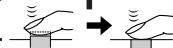
natural_image
Black-and-white cityscape photo of a modern skyline with skyscrapers and water, no visible text or symbolsLámpara verde
natural_image
Black-and-white photo of a group of lions in a grassy field, no visible text or symbolsConmutador POWER
natural_image
Black-and-white photo of two lions in a grassy field, no visible text or symbolsSegundos restantes
natural_image
Black-and-white photo of a dog and a dog sitting together, with no visible text or symbols.Lámpara verde
text_image
P F2.8 1/800 0.0 [ ] 24 HQ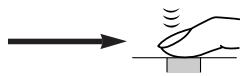
natural_image
Simple line drawing of a hand pressing a button on a surface, with motion lines indicating sound or vibration (no text or symbols)■ Uso del flash


text_image
W T W° R Qnatural_image
Black-and-white beach scene with palm trees and a camera lens icon (no text or symbols)Marca de protección
natural_image
Line drawing of a DSLR camera with adjustment knobs and a small circular component (no text or symbols)flowchart
graph TD
    A["MOVIE PLAY"] --> B["INFO"]
    B --> C["MODE MENU"]
    C --> A
San-Ei Building, 22-2, Nishi Shinjuku 1-chome, Shinjuku-ku, Tokyo, Japan Customer support (Japanese language only): Tel. 0426-42-7499 Tokyo
OLYMPUS AMERICA INC.
Two Corporate Center Drive, Melville, NY 11747-3157, U.S.A. Tel. 1-631-844-5000
Technical Support (USA)
24/7 online automated help: http://support.olympusamerica.com/
Phone customer support: Tel. 1-888-553-4448 (Toll-free)
Our phone customer support is available from 8 am to 10 pm
(Monday to Friday) ET
E-Mail: distec@olympus.com
Olympus software updates can be obtained at: http://olympus.com/digital/
Adobe [Photoshop] Support
Adobe software updates and technical information can be obtained at:
http://www.adobe.com/support/
OLYMPUS OPTICAL CO. (EUROPA) GMBH.
Premises/Goods delivery: Wendenstrasse 14-18, 20097 Hamburg, Germany Tel. 040-237730
Letters: Postfach 10 49 08, 20034 Hamburg, Germany
Hotline Numbers for customers in Europe:
Tel. 01805-67 10 83 for Germany
Tel. 00800-67 10 83 00 for Austria, Belgium, Denmark, France, Netherlands, Norway, Sweden, Switzerland, United Kingdom
Tel. +49 180 5-67 10 83 for Finland, Italy, Luxembourg, Portugal, Spain, Czech Republic
Tel. +49 40-237 73 899 for Greece, Croatia, Hungary, and the rest of Europe
Our Hotline is available from 9 am to 6 pm (Monday to Friday)
E-Mail: di.support@olympus-europa.com
© 2002 OLYMPUS OPTICAL CO., LTD.
Printed in Japan
VT359302