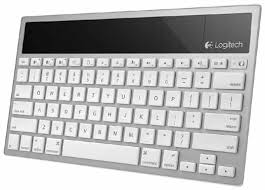
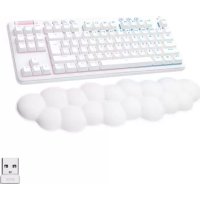
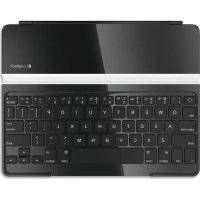
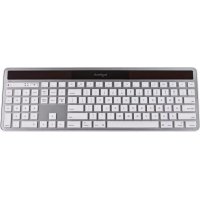
WIRELESS SOLAR KEYBOARD K760 - Gaming Keyboard LOGITECH - Free user manual and instructions
Find the device manual for free WIRELESS SOLAR KEYBOARD K760 LOGITECH in PDF.

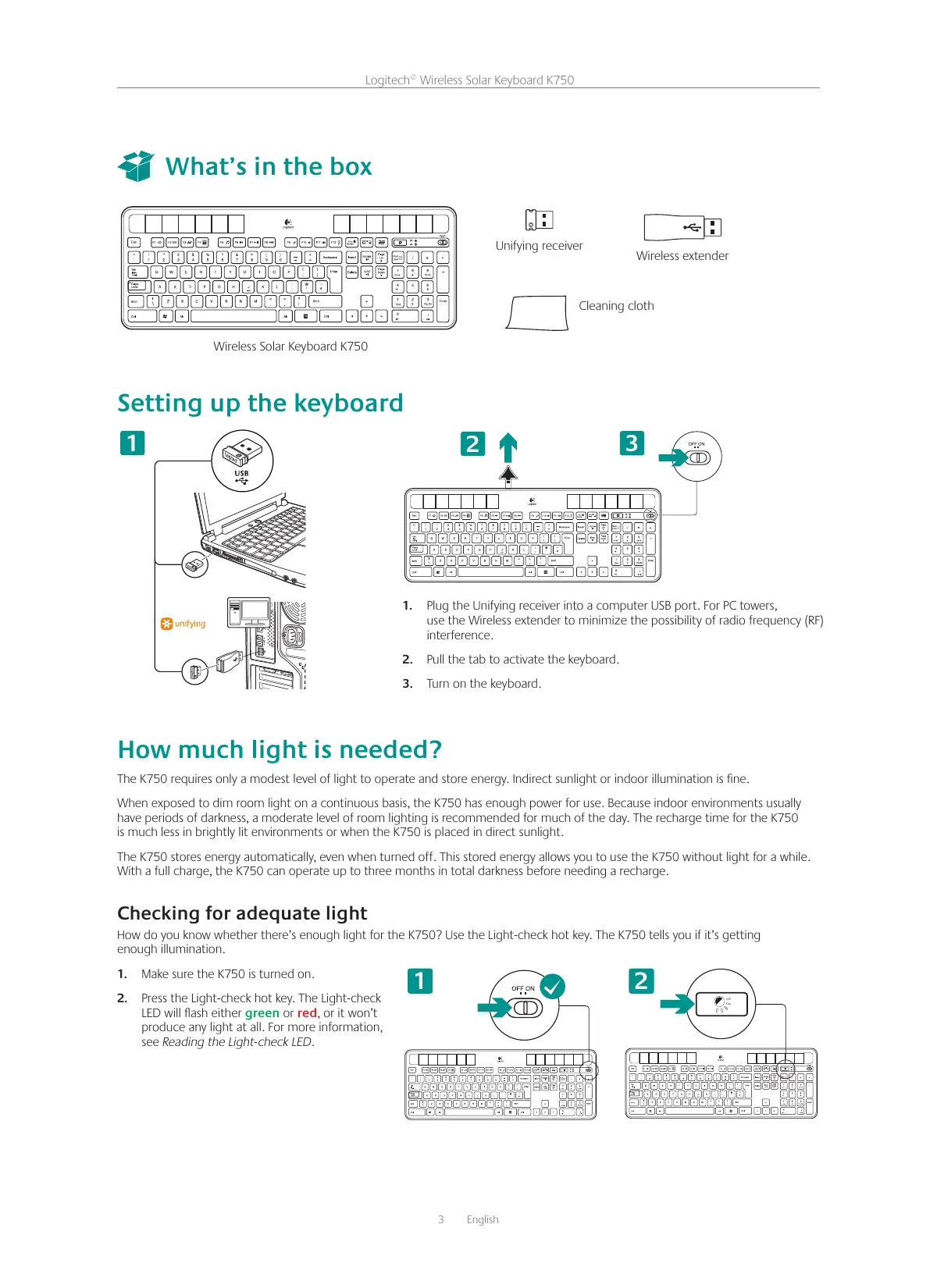


| Product type | Solar wireless keyboard |
| Brand | Logitech |
| Model | Wireless Solar Keyboard K760 |
| Category | Gaming keyboard |
| Power supply | Solar panels and integrated rechargeable battery |
| Wireless technology | Logitech Unifying (2.4 GHz) |
| Receiver | Included Unifying receiver with wireless extender |
| Wireless range | Up to 10 meters |
| Function keys | 12 F keys with advanced mode (FN+F1 to F12) |
| Special functions | Light checking, Solar App, One Touch Search |
| Required software | SetPoint (downloadable from logitech.com) |
| Compatibility | Windows, Mac (estimated) |
| Box contents | Keyboard, Unifying receiver, wireless extender, quick start guide |
| Maintenance | Clean with a soft, dry cloth |
| Recycling | Remove the battery with a screwdriver and recycle separately |
| Safety | Do not expose to moisture or extreme temperatures |
| Repairability | Battery not user-replaceable (opening with screwdriver) |
Frequently Asked Questions - WIRELESS SOLAR KEYBOARD K760 LOGITECH
User questions about WIRELESS SOLAR KEYBOARD K760 LOGITECH
0 question about this device. Answer the ones you know or ask your own.
Ask a new question about this device
Download the instructions for your Gaming Keyboard in PDF format for free! Find your manual WIRELESS SOLAR KEYBOARD K760 - LOGITECH and take your electronic device back in hand. On this page are published all the documents necessary for the use of your device. WIRELESS SOLAR KEYBOARD K760 by LOGITECH.
USER MANUAL WIRELESS SOLAR KEYBOARD K760 LOGITECH
Getting started with
www.logitech.com/support
19

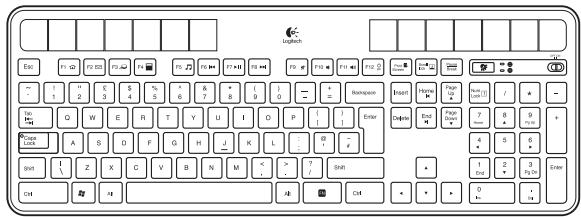
What's in the box
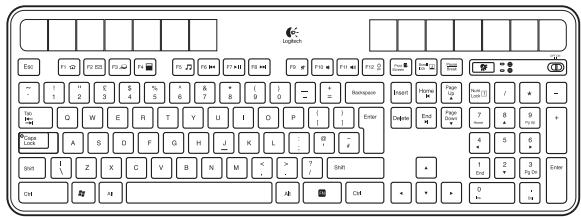
Wireless Solar Keyboard K750

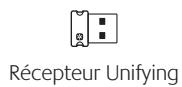
Unifying receiver
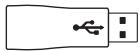
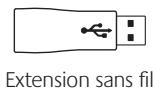
Wireless extender
Cleaning cloth
Setting up the keyboard
1
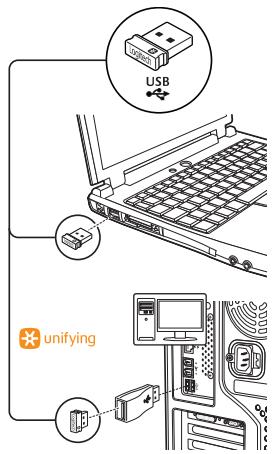
- Plug the Unifying receiver into a computer USB port. For PC towers, use the Wireless extender to minimize the possibility of radio frequency (RF) interference.
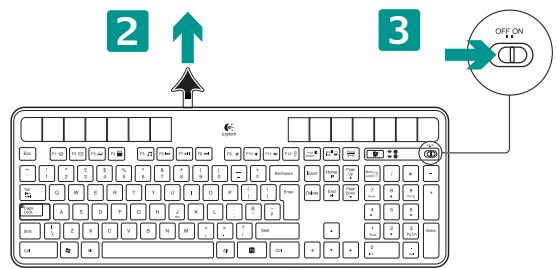
- Pull the tab to activate the keyboard.
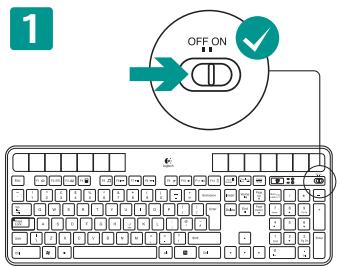
- Turn on the keyboard.
How much light is needed?
The K750 requires only a modest level of light to operate and store energy. Indirect sunlight or indoor illumination is fine.
When exposed to dim room light on a continuous basis, the K750 has enough power for use. Because indoor environments usually have periods of darkness, a moderate level of room lighting is recommended for much of the day. The recharge time for the K750 is much less in brightly lit environments or when the K750 is placed in direct sunlight.
The K750 stores energy automatically, even when turned off. This stored energy allows you to use the K750 without light for a while. With a full charge, the K750 can operate up to three months in total darkness before needing a recharge.
Checking for adequate light
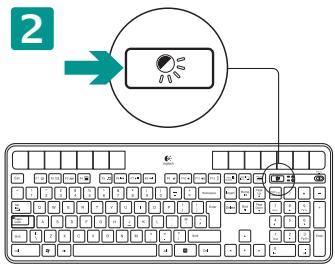
How do you know whether there's enough light for the K750? Use the Light-check hot key. The K750 tells you if it's getting enough illumination.
- Make sure the K750 is turned on.
- Press the Light-check hot key. The Light-check LED will flash either green or red, or it won't produce any light at all. For more information, see Reading the Light-check LED.
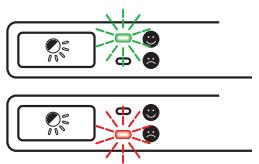
Reading the Light-check LED
Light-check LED flashes green. The K750 is receiving enough light and is ready for use.
Light-check LED flashes red. The K750 requires more light to continue working on a long-term basis.
Note If the Light-check LED produces no light, please see Help with setup for more information.
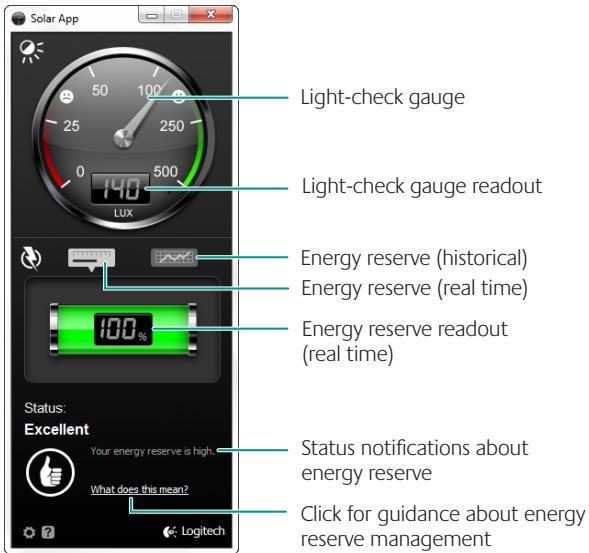
Using the Solar App
Want an easy and more visual way of checking the available light falling on the K750 while keeping track of the keyboard's energy reserve? Download and install the Solar App from www.logitech.com/k750/solarapp
- The Solar App operates in the background and notifies you whenever there is a change (up or down) in the K750's energy reserve.
- Try to keep the Light-check gauge pointing at 100 lux or higher to make sure the K750 will have plenty of energy.
- To bring the Solar App to the foreground, press the Light-check hot key on the keyboard. The Solar App will pop up, and the Light-check gauge will activate immediately.
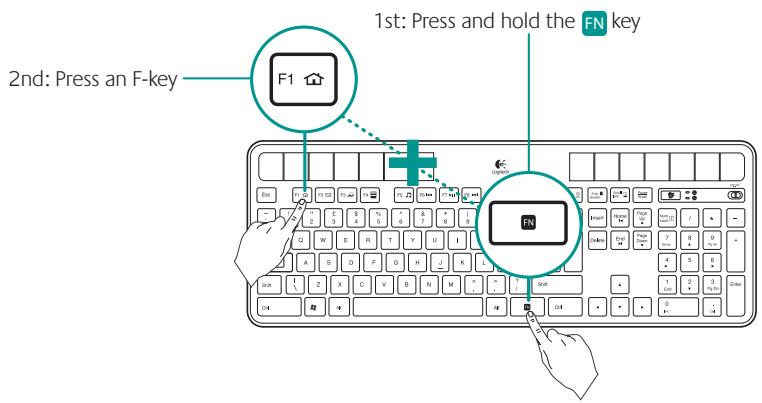
Using the keyboard F-key
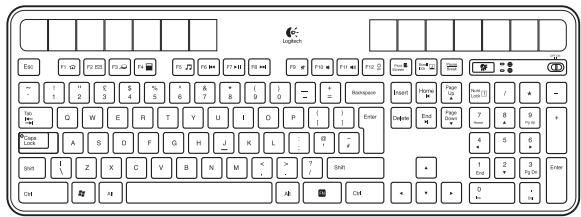
User-friendly enhanced F-keys let you launch applications easily. To use the enhanced functions (yellow icons), first press and hold the FN key; second, press the F-key you want to use.
Tip In the software settings, you can invert the FN mode if you prefer to access directly the enhanced functions without having to press the FN key.*
- Requires SetPoint™ Software (available for download at www.logitech.com/downloads).
Keyboard features
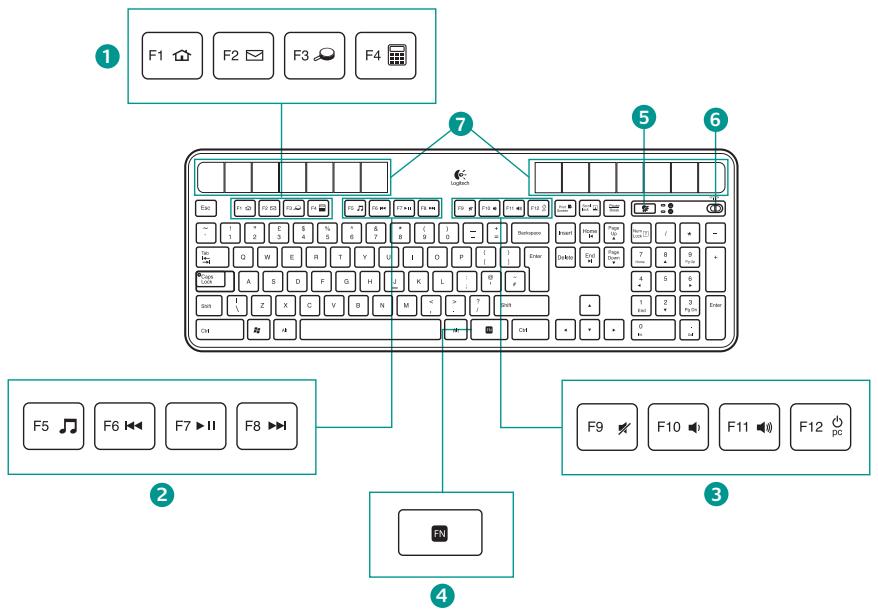
1. Application zone
FN + F1 Internet home
FN + F2 Launch e-mail application
FN + F3 Launch Windows Search*
FN + F4 Launch calculator
2. Multimedia navigation zone
FN + F5 Launch media application
FN + F6 Previous track
FN + F7 Play/Pause
FN + F8 Next track
3. Multimedia volume zone
FN + F9 Mute
FN + F10 Volume down
FN + F11 Volume up
FN + F12 Sleep mode
- FN key
- Light-check hot key
- Keyboard power switch
-
Solar cells
-
One Touch Search if the SetSpoint® software is installed.
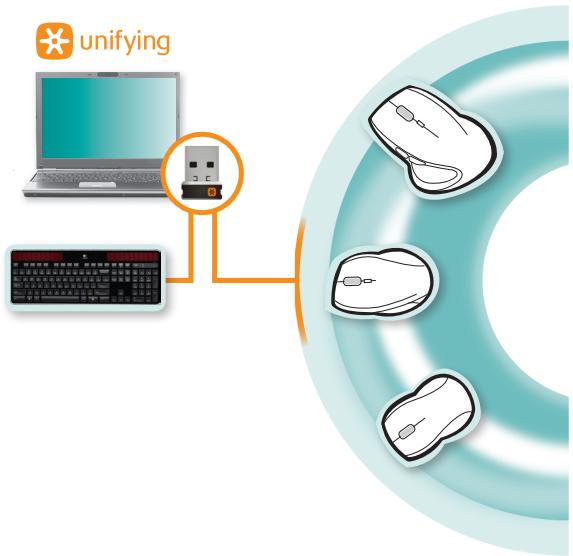
Plug it. Forget it. Add to it.
You've got a Logitech® Unifying receiver. Now add a compatible wireless keyboard or mouse that uses the same receiver.
It's easy. Just start the Logitech® Unifying software* and follow the onscreen instructions.
For more information and to download the software, visit www.logitech.com/unifying
*Go to Start / All Programs / Logitech / Unifying / Logitech Unifying Software
Help with setup: keyboard not working
- Check the Unifying receiver. Also, try changing USB ports.
- Move closer? Try moving the K750 closer to the Unifying receiver, or plug the Unifying receiver into the Wireless extender if you are using a tower PC.
- Is the K750 turned on? Slide the keyboard Off/On switch to Off and then to On position.
- Re-establish the connection. Use the Unifying software to reset the connection between the K750 and Unifying receiver. Refer to the Unifying section in this guide for more information.
- Restart the computer.
- Press the Light-check hot key. If the Light-check LED produces no light, the K750 is out of energy. To use the K750 again, significantly increase the amount of light over the keyboard to a level you might see in a brightly lit office. It may take a day or two for the K750 to recharge when exposed to this increased level of illumination, but only several hours if the K750 is placed in direct sunlight.
Note Any time the Light-check LED flashes red automatically, the K750 is nearly our of energy and needs more light to keep working on a long-term basis.
- Download and use the Solar App. This handy widget gives you an easy and more visual way of checking the available light hitting the K750 while keeping track of the keyboard's energy reserve. Download the Solar App from www.logitech.com/k750/solarapp
Handling the product at end of life
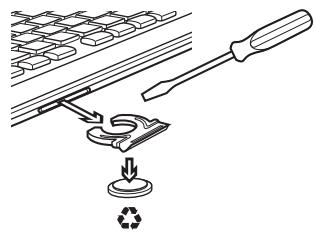
When you have made the decision to stop using your product, recycle it according to your local laws. Follow the instructions below to remove the battery (not user replaceable) from the keyboard, and then recycle both the keyboard and battery as recommended in steps 3 and 4.
- Use a screwdriver to open the battery tray.
- Carefully remove the battery from the tray.
- Hand over the spent battery to the appropriate collection point for the recycling of batteries.
- Hand over the product to the appropriate collection point for the recycling of electrical and electronic equipment.
What do you think?
Please take a minute to tell us. Thank you for purchasing our product.
www.logitech.com/ithink

Wireless Solar Keyboard K750
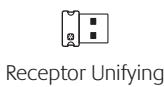
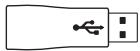
Extensorinalambrico
Bayeta
www.logitech.com/ithink

Contenu du coffret
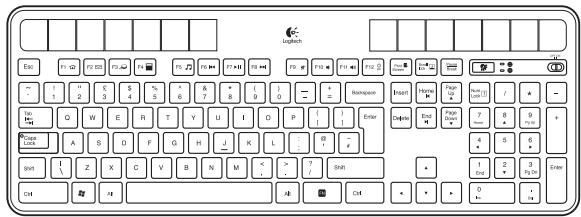
Wireless Solar Keyboard K750
Chiffon nettoyant
www.logitech.com/ithink

O que a caixa contenté
Wireless Solar Keyboard K750

Receptor Unifying
Extensor sem fio
Pano de limpeza
www.logitech.com/ithink

www.logitech.com/support
| België/Belgique | Dutch: +32-(0)2 200 64 44; French: +32-(0)2 200 64 40 |
| Česká Republika | +420 239 000 335 |
| Danmark | +45-38 32 31 20 |
| Deutschland | +49-(0)69-51 709 427 |
| Espana | +34-91-275 45 88 |
| France | +33-(0)1-57 32 32 71 |
| Ireland | +353-(0)1 524 50 80 |
| Italia | +39-02-91 48 30 31 |
| Magyarország | +36-177-74-853 |
| Nederland | +31-(0)-20-200 84 33 |
| Norge | +47-(0)24 159 579 |
| Österreich | +43-(0)1 206 091 026 |
| Polska | 00800 441 17 19 |
| Portugal | +351-21-415 90 16 |
| Russiya | +7(495) 641 34 60 |
| Schweiz/Suisse | D +41-(0)22 761 40 12 |
| Svizzera | F +41-(0)22 761 40 16 |
| I +41-(0)22 761 40 20 | |
| E +41-(0)22 761 40 25 |
| South Africa | 0800 981 089 |
| Suomi | +358-(0)9 725 191 08 |
| Sverige | +46-(0)8-501 632 83 |
| Türkiye | 00800 44 882 5862 |
| United Arab Emirates | 8000 441-4294 |
| United Kingdom | +44-(0)203-024-81 59 |
| European, Mid. East., & African Hq. Morges, Switzerland | English: +41-(0)22 761 40 25 Fax: +41-(0)21 863 54 02 |
| Eastern Europe | English: 41-(0)22 761 40 25 |
| United States | +1 646-454-3200 |
| Argentina | +0800 555 3284 |
| Brasil | +0800 891 4173 |
| Canada | +1-866-934-5644 |
| Chile | +1230 020 5484 |
| Latin America | +55 11 3444 6761 |
| Mexico | +001 800 578 9619 |
www.logitech.com
© 2010 Logitech. All rights reserved. Logitech, the Logitech logo, and other Logitech marks are owned by Logitech and may be registered. All other trademarks are the property of their respective owners. Logitech assumes no responsibility for any errors that may appear in this manual. Information contained herein is subject to change without notice.
- Getting started with
- What's in the box
- Setting up the keyboard
- How much light is needed?
- Checking for adequate light
- Reading the Light-check LED
- Using the Solar App
- Using the keyboard F-key
- Keyboard features
- Application zone
- Multimedia navigation zone
- Multimedia volume zone
- Plug it. Forget it. Add to it.
- Help with setup: keyboard not working
- Handling the product at end of life
- What do you think?
- Contenu du coffret
- O que a caixa contenté
Brand : LOGITECH
Model : WIRELESS SOLAR KEYBOARD K760
Category : Gaming Keyboard